1
•
•
•
•
•
•
•
Positioning
Posture/Body Mechanics
Spinal Cord Injury
Splinting
Transfers
Wheelchair
Yoga
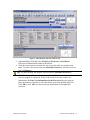
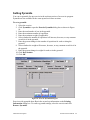
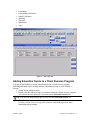
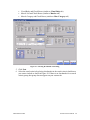
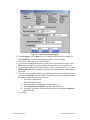
Figure 17 - Ed. Topics tab
Adding Education Topics to a Client Exercise Program
You can include default or custom education topics in a client exercise program.
Including education topics can help reinforce information you give your client in a
session.
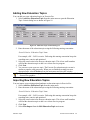
1. Search for the education topic.
2. Double-click the education topic you want to add to the current exercise program.
You can see the education topics you select in the Selected Exercises list.
Tip: You also can drag and drop the exercise into the Selected Exercises list.
3. Click Print to print the exercise program and education topics. Refer to the
Printing a Client Exercise Program or Protocol section on page 14 for more
information about printing.
Education Topics
Exercise Pro User Manual
37