1
Configuring Your Email Settings
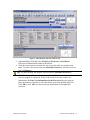
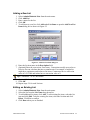
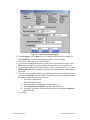
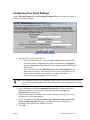
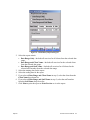
Use the Internet Settings tab on the Program Settings dialog box as shown in Figure 41
to define your email settings.
Figure 41 - Internet Settings tab
1. Enter the name of your Email Server.
• If you use Outlook Express, select Tools»Accounts from the main menu
in Outlook Express. Highlight your email account and select Properties.
Select the Servers tab. The Outlook Express Outgoing Mail (SMTP) is the
Email Server.
• If you use Netscape, select Edit»Mail»News Account Settings from the
main menu in Netscape. The Netscape Server Name is the Email Server.
• If you cannot determine your email server, contact your System
Administrator or your Internet Service Provider.
Note: These instructions might vary depending on the version of your email client. Refer to
your email client documentation for more information about determining your email
server.
2. Place a checkmark in the Server Requires Password box if your email server
requires a password. If a password is required, enter the User Name and
Password for the email server.
3. (Optional) Enter an email address if you want to always send a copy of exercise
programs to a second email address.
4. Place a checkmark in the Always send a copy of the Exercise Program to the
person sending this email checkbox to always send a copy of the exercise
programs to the staff member sending the email.
5. Click OK.
Settings
Exercise Pro User Manual
61