1
Filter Manager
Drake Software User’s Manual
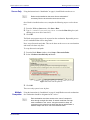
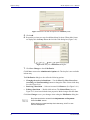
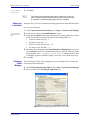
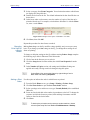
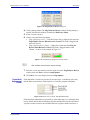
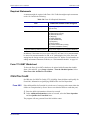
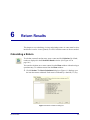
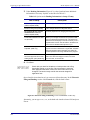
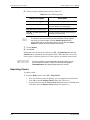
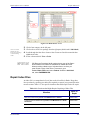
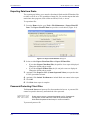
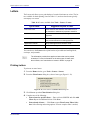
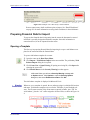
3. Select one of the following report types:
• Electronic Filing & Banking — For a report based on the EF database
• Tax Return Data — For a report based on data entry information
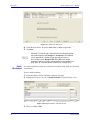
4. Click OK to open the Report Editor - Step 1 window.
5. Using the instructions in “Setting Up a Report” on page 267 as a guideline, enter
the report formatting and filtering information.
6. Click Save.
Deleting a Report
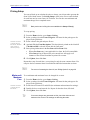
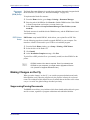
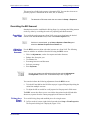
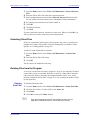
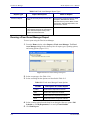
Only a report in the My Reports category can be deleted. To delete a report:
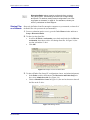
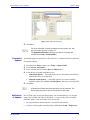
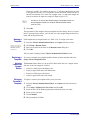
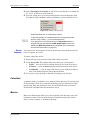
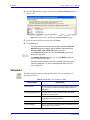
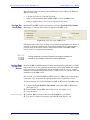
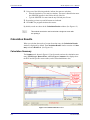
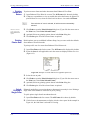
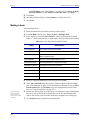
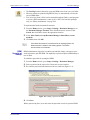
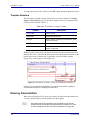
1. From the Home window, click Report > Report Manager to open the Report
2.
3.
4.
5.
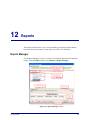
Manager. (See Figure 12-1 on page 265.)
Click [+] to expand any category. (Categories have a [+] or [–] to their left; reports
do not.)
Select (single-click) the report to delete.
Click Delete Report.
Click Yes when prompted to confirm the deletion.
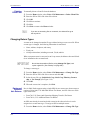
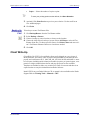
If you have run the report, you are asked if you want to delete the report from the
Report Viewer. Click Yes or No as applicable.
Filter Manager
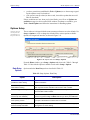
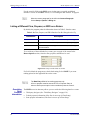
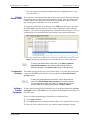
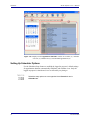
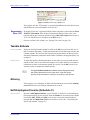
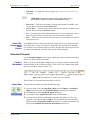
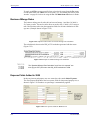
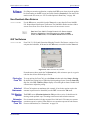
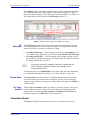
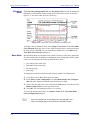
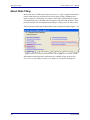
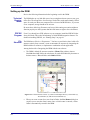
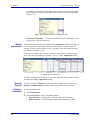
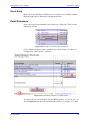
The Filter Manager is used primarily in reports but is also used in other Drake functions, such as the Letters (found at Tools > Letters) and the Fixed Asset Manager.
(See “Fixed Asset Manager” on page 277.) Access the Filter Manager from a Filter
Selection box, which is opened when you might need to narrow a selection of records.
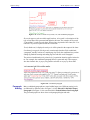
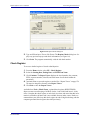
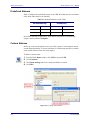
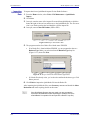
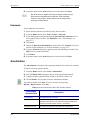
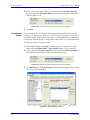
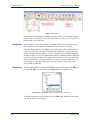
To access the Filter Manager from a Filter Selection box, click Edit Filters. (See
“Customized Filters” on page 270.)
Search Conditions
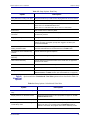
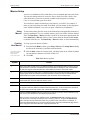
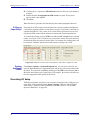
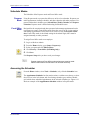
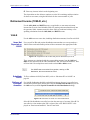
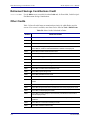
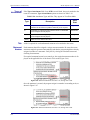
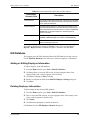
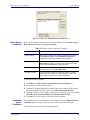
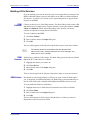
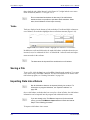
Use the Filter Manager to set up search conditions. There are two levels of search conditions: Basic Search Conditions and Additional Search Conditions.
272
Tax Year 2008