1
• Kits, patterns and engines
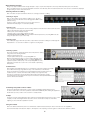
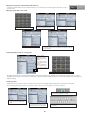
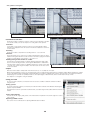
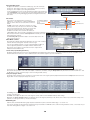
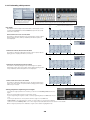
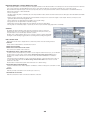
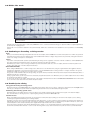
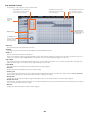
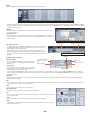
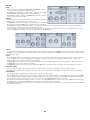
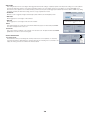
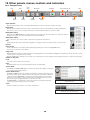
Drag and drop kit files onto the pads.
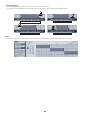
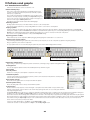
Drag and drop patterns onto the pattern memory keys. Drag single patterns
to single keys, or banks to any key.
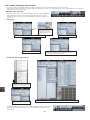
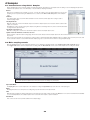
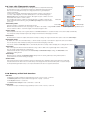
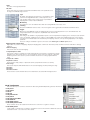
Useful Browser functions
The Browser features a number of features to make it as easy and quick as possible
to locate the sounds you need. See chapter 2 for a full guide to their operation.
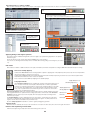
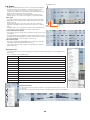
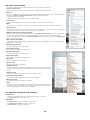
Favourites
It is possible to save favourite locations in order to access them quickly in future.
Favourites are displayed in their own section in the Browser sidebar. See section 2:3
for more details.
Searching
The Browser features comprehensive searching functions – see section 2:6.
Shortlists
The shortlist allows you to create a list of sounds from disparate locations in order to
audition them together. Shortlists can be saved as a new folder (copying the included
samples to it) and added to your favourites – see section 2:7.
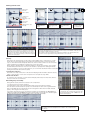
Diabling slicing for the contents of a folder
You may have noticed that clicking on samples within the Geist Factory/Hits folder
does not result in invoking the Slicer, even though the Slice button is enabled. This
is because Geist contains a feature for disabling slicing for the contents of any folder
– if a folder only contains ‘single-hit’ samples, it can be useful to do this. See section
2:5 for more details.
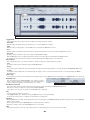
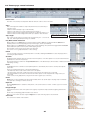
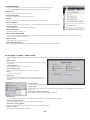
Drag and drop engine files onto an engine selector.
Sampler
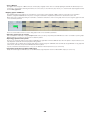
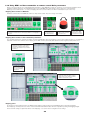
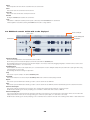
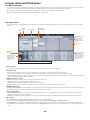
Geist also has the ability to sample audio from external sources, or to resample its own output.
When using the standalone version, you can sample audio from your audio interface input just like in a hardware sampler. When using Geist as a plugin
in a host, an additional plugin called Spitter, included with Geist, is provided for sampling audio from any other track in the session directly into Geist’s
Sampler page. You can even set up multiple instances of the Spitter plugin on different tracks, and record into Geist from any of them.
See chapter 4 for a full guide to using the Sampler.
Saving your work
To save your work at any time, use the Save menu. You can save a number of different elements from Geist
using this menu.
Saving a preset
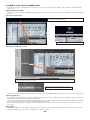
To save the entire state of Geist, use the Save preset function. Enter a filename in the OS Save As dialog that
appears and press ENTER.
The default save location is your Geist documents folder, accessible using the Places/Geist item in the Browser
sidebar.
Saving other elements
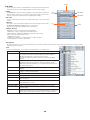
You can save the kit, engine, pads, pattern, or the whole bank of 24 patterns in the current engine. See section
12:5 for details.
Exporting as MIDI or audio
See section 1:15 for an introduction to exporting MIDI and audio from Geist.
15