1
--> To access the contents, click the chapter and section titles.
Linux System Administrator's Survival Guide new
Imprint: SAMS.net
Author: Timothy Parker
Publication Date: Jan-96
ISBN: 0-672-30850-9
Acknowledgments
About the Author
Introduction
Part I: Installation and Configuration
●
●
●
●
●
●
Part II: Expanding Your System
●
●
●
●
●
●
●
●
●
●
Chapter 1: Introduction to Linux
Chapter 2: Linux Hardware and Software
Chapter 3: Installing and Updating Linux
Chapter 4: LILO
Chapter 5: Installing and Configuring XFree86
Chapter 6: Devices and Device Drivers
Chapter 7: SCSI Devices
Chapter 8: Hard Disks
Chapter 9: CD-ROM Drives
Chapter 10: Sound Cards
Chapter 11: Terminals and term
Chapter 12: Tape Drives
Chapter 13:Modems
Chapter 14: Other Devices
Part III: Managing Your Linux System
●
●
●
●
●
●
●
Chapter 15: Booting, init, and Shutdown
Chapter 16: Users and Logins
Chapter 17: System Names and Access Permissions
Chapter 18: Filesystems and Disks
Chapter 19: Printers and Print Spoolers
Chapter 20: Managing Processes
Chapter 21: Managing Resources
buy it
●
●
●
●
●
●
Part IV: Networking
●
●
●
●
●
●
●
●
●
●
●
●
●
●
●
Chapter 34: E-mail and Linux
Chapter 35: Configuring sendmail
Chapter 36: Using smail
Chapter 37: Configuring Elm and Pine
Chapter 38: USENET and Netnews
Chapter 39: NNTP and INN
Chapter 40: C News
Chapter 41: Configuring Newsreaders trn and tin
Part VI: The Internet
●
●
●
●
●
●
Chapter 27: UUCP
Chapter 28: TCP/IP and Networks
Chapter 29: Configuring Hardware and the Kernel for Networking
Chapter 30: Configuring TCP/IP
Chapter 31: Configuring SLIP and PPP
Chapter 32: TCP/IP Utilities
Chapter 33: NFS and NIS
Part V: E-Mail and News
●
●
Chapter 22: Backup, Backup, Backup!
Chapter 23: The cron and at Programs
Chapter 24: Security
Chapter 25: Modifying the Kernel
Chapter 26: Shell Programming
Chapter 42: Setting Up an Internet Site
Chapter 43: Setting up an FTP and Anonymous FTP Site
Chapter 44: Configuring a WAIS Site
Chapter 45: Setting Up a Gopher Service
Chapter 46: Configuring a WWW Site
Part VII: Appendixes
●
●
●
●
Appendix A: Linux FTP Sites and Newsgroups
Appendix B: Commercial Vendors for Linux
Appendix C: The Linux Documentation Project
Appendix D: The GNU General Public License
●
●
●
●
Appendix E: Copyright Information
Appendix F: Hardware Compatibility
Appendix G: Glossary
Appendix H: What's on the CD-ROM
-->
Linux System Administrator's Survival Guide lsgfm.htm
Acknowledgments
This book, unlike our popular Linux Unleashed, was conceived as a solo effort and as such meant an
awful lot of my time was taken away from others. This book took a while to write because it contains a
lot of technical information. To my parents and close friends, thanks for understanding why I couldn't
visit. In particular, thanks to Yvonne who understood why I had to spend evenings and weekends at the
computer, muttering veiled curses about deadlines, Linux, and applications that crashed at the most
inopportune times. Of course, I never said anything bad about my editors!
At Sams, those editors were Rosemarie Graham, who drove deadlines, tolerated changes, and generally
tried to bear with me as I struggled to submit this material on time. Thanks also to Todd Bumbalough,
who rode shotgun over the technical completeness of the material. To the production editors and
technical reviewers, thanks are also due. Also at Sams, Grace Buechlein gracefully bore changes to her
own schedules in order to fit this book in.
Finally, thanks to Rick McMullin, who graciously allowed me to steal some of his material for the shell
programming chapter and some details of the gcc C compiler.
About the Author
Tim Parker is a well-known author with over 800 feature articles and reviews published in many
different magazines. In addition, Dr. Parker has written or contributed to two dozen books. He is
currently Technical Editor of SCO World Magazine, Contributing Editor of Canadian Computer
Reseller, and a frequent contributor to UNIX Review Magazine. Dr. Parker is president of TPCI, based
in Kanata, Ontario. TPCI provides technical writing, training, investigative, and consulting services to
many large corporations, military installations, and law enforcement organizations.
When not busy writing books or articles, Dr. Parker can be found outdoors. He is a semi-professional
photographer, white-water kayaker, and hiker. He is also a scuba diving instructor and licensed pilot.
Introduction
UNIX system administration used to be a skill learned by watching others, trying many things on spec,
and scouring obscure magazine articles, obtuse man pages, and e-mail from others. In short, system
administration was a skill that was learned over the years with no single reference to the role and
functions a system administrator plays. UNIX, especially, was a tough system to administer properly
because there were many versions of the software, a disparate support base, and few solid working
applications. Luckily, time has changed these conditions.
With the popularity of computers in general, system administrators started writing down the details of
their tasks. Publishers realized that there was a distinct and eager, albeit small, market for system
administration books. The market grew as the number of systems and LANs expanded. The stabilization
of the UNIX operating system in two, and now one, major version helped enormously as well.
Linux became a dominant UNIX product about two years ago when it started receiving worldwide
acclaim as a reasonably stable PC version of UNIX. As more and more programmers got involved and
started producing software for Linux, the attraction of the operating system continued to grow. Soon, PC
users who didn't know anything about UNIX at all were running Linux and starting to deal with shells,
filesystems, and devices.
After helping to write Linux Unleashed (a great book, definitely worth buying if you haven't already got
a copy!), I realized that many users used that book and CD-ROM to get started with Linux, but they
needed more advanced material on managing their systems and setting up network systems. That's when
the Linux System Administrator's Survival Guide was born. This book expands on the Linux Unleashed
material, providing more detail on many aspects of the operating system. Although some overlap exists
between Linux Unleashed and this book, it has been minimized as much as possible. Relative
newcomers to Linux will still find that that book is very readable, however.
Many Linux books are available, but to date there are no complete books on administering a Linux
system. A few books do cover specific aspects of the task, such as networking or device drivers, but
none cover the entire gamut. That's the task I set for myself when this book was born: give readers
enough information to help them get their Linux systems running smoothly. The next problem was how
to condense 20 years of UNIX system administration experience into a single book. It took a while, but I
hope I've managed to include enough information on every aspect of system administration to keep you
going.
Bear in mind that this book was written for the system administrator, although the material will certainly
be applicable (and hopefully interesting) to any user who has mastered the basics of Linux. I cover
practically every aspect of system administration in this book. When dealing with subjects, like security,
that have entire books written on them, I cover only the basics. Also, I don't include all the details about
the more obscure topics that aren't relevant to most readers.
This book should provide you with everything you need, from setting up filesystems to installing servers
for popular Internet utilities. The book was not written for the advanced user; it was written for those
just starting in system administration. I hope you find a lot of useful information in this book.
A note about the CD-ROM accompanying this book. You probably already have a Linux system up and
running. Just in case you don't or you want the latest versions of some of the Linux software, this book
comes with the latest Slackware Linux CD-ROM distribution. You don't have to use this version of
Linux to use the material covered in these pages. I've tried to make the material in each chapter relevant
to as many versions as possible, and I usually give several possible pathnames and (in some cases)
filenames when they may differ across versions or distributions. If your Linux system doesn't have a file
or package in the location mentioned in this book, search your directory structure for the filenames given
and substitute the pathname as necessary.
-->
Linux System Administrator's Survival Guide lsgpt01.htm
Part I
Installation and Configuration
Introduction to Linux
Linux Hardware and Software
Installing and Updating Linux
LILO
Installing and Configuring XFree86
-->
Linux System Administrator's Survival Guide lsg01.htm
■
■
■
■
■
■
What Is Linux?
■ Linux's Kernel
■ GNU software
■ X
■ DOS Interface
■ TCP/IP
Linux's History
Copyrights
Sources of Help
■ Documentation
■ USENET Newsgroups
■ World Wide Web Sites
■ Linux Journal
Recent Linux Distributions
Summary
Chapter 1
Introduction to Linux
The Linux operating system has become immensely popular. USENET newsgroups dedicated to the
Linux operating system have hundreds of messages a day, CD-ROMs of Linux archives are sold by the
thousands, and even more DOS users are wandering around trying to figure out UNIX syntax and Linux
installation problems. In many ways, the interest in Linux brings back the heady hacker days and the
excitement of CP/M and early DOS machines.
Linux does have its problems though. One problem is the wide variety of Linux versions available, some
of which are not very stable. The quality of the installation and configuration utilities also varies widely
from Linux version to Linux version. Another problem is supporting documentation. Although this
problem is decreasing as more people get involved, most available Linux documentation can be
intimidating for first-time users (and some veterans). Commercial books dedicated to beginning Linux
users are helping by offering a smoother explanation, but most books are simply rehashed Linux
documents.
Although this book also uses the Linux documentation as a basis, it also uses almost two decades of
UNIX system administration experience, years of working with Linux, and a lot of advice from other
users. This book is not designed for a new Linux user who can't find their way around a filesystem,
although readers with any knowledge of UNIX will feel quite at home. Instead, this book is for Linux
users who want to expand their systems, optimize them, and learn more about system administration.
Two schools of thought exist on pronouncing Linux. Because Linux is
similar to UNIX and was originally developed by a programmer with the
first name Linus, many assume the long i, as in line-ucks, is correct. On the
other hand, Linux was developed to replace a UNIX workalike called Minix
(with a short i), so the rest of the Linux community calls the operating
system lih-nicks. Which is correct? The original developers used the latter
pronunciation, while most North Americans prefer the former. Choose
whichever you wish.
What Is Linux?
Linux is a freely distributed, multitasking, multiuser operating system that behaves like UNIX. Designed
specifically for the PC, Linux takes advantage of the PC's architecture to give you performance similar
to UNIX workstations of a couple of years ago. Linux isn't a small, simple operating system like DOS
(even in its latest incarnations). The development of UNIX has resulted in a mish-mash of files and
directories, all of which are carried over to Linux for compatibility and programming reasons.
Linux includes a bunch of files for the operating system itself (called the kernel), a ton of utility
programs, documentation files, add-on emulators for other operating systems, and much more. The
following sections explain what you get when you install Linux on your system. Future chapters expand
on these topics.
Linux's Kernel
Linux is a complete multitasking, multiuser operating system that behaves like the UNIX operating
system in terms of kernel behavior and peripheral support. Linux has all the features of UNIX, plus
several recent extensions that add new versatility to Linux. All source code for Linux and its utilities is
freely available.
The Linux kernel was originally developed for the Intel 80386 CPU's protected mode. The 80386 was
designed with multitasking in mind (despite the fact that most of the Intel CPUs are used with singletasking DOS), and Linux makes good use of the advanced features built into the CPU's instruction set.
Memory management is especially strong with the 80386 (compared to earlier CPUs). A floating-point
emulation routine allows Linux to function on machines that do not have math coprocessors (such as the
SX series of Intel CPUs).
Linux allows shared executables so that if more than one copy of a particular application is loaded
(either by one user running several identical tasks, or several users running the same task), all the tasks
can share the same memory. This process, called copy-on-write pages, makes for much more efficient
use of RAM.
The Linux kernel also supports demand paging, which means that only sections of a program that are
necessary are read into RAM. To further optimize memory usage, Linux uses a unified memory pool.
This pool enables all free memory on the system to be used as disk cache, effectively speeding up access
to frequently used programs and data. As memory usage increases, the amount of cache is automatically
adjusted.
To support large memory requirements when only small amounts of physical RAM are available, Linux
supports swap space. Swap space enables pages of memory to be written to a reserved area of a disk and
treated as an extension of physical memory. By moving pages back and forth between the swap space
and RAM, Linux can effectively behave as if it had more physical RAM than it does, albeit at the cost of
some speed due to the hard drive's slower access.
Linux uses dynamically shared libraries extensively. Dynamically shared libraries use a common library
section for many different applications, effectively reducing the size of each application. Linux does
allow full library linking (called statically linked libraries) for portability to machines that may not have
the dynamic libraries.
To make Linux widely acceptable, it supports a number of different filesystems, including those
compatible with DOS and OS/2. Linux's own primary filesystem, called ext2fs, is designed for optimal
use of the disk.
Linux is ideally suited for application development and experimentation with new languages. Several
different compilers, including C, C++, Fortran, Pascal, Modula-2, LISP, Ada, Basic, and Smalltalk,
come with the distribution software. Many of the Linux compilers, tools, debuggers, and editors are
from the Free Software Foundation's GNU project.
GNU software
GNU (a recursive acronym for Gnu's Not UNIX) was developed by the Free Software Foundation(FSF)
to provide royalty-free software to programmers and developers. Since it was created, many programmer
packages and toolkits have been developed and assigned to FSF for distribution. Most of the GNU
software mirrors(and often improves upon) commercially available software.
Linux includes many GNU utilities, including the languages mentioned earlier, debuggers, and compiler
tools. Text processors, print utilities, and other GNU tools are also included with most Linux
distributions. As more software becomes available from FSF, it can be ported and compiled under Linux
because Linux behaves as a standard UNIX operating system.
X
X (sometimes improperly called X Windows) is a graphical user interface(GUI) designed at MIT to
provide portable GUI applications across different platforms. The version of X supplied with Linux is
called XFree86 and is a direct port of the standard X11R5 system to 80386-based architectures.
(Updates to the latest version of X, called X11R6, are beginning to appear, too.) XFree86 has been
extended to provide compatibility with some other GUIs, including Open Look.
XFree86 supports several different video cards at a number of resolutions, offering a high-resolution
graphical interface. Any X application can be recompiled to run properly under Linux, and a number of
games, utilities, and add-ons have been developed and supplied as part of the X system. The XFree86
system also includes application development libraries, tools, and utilities. With these features,
programmers can write applications specifically for X without having to invest in expensive software
development kits or libraries.
DOS Interface
Because Linux is designed for PCs, some compatibility with Microsoft MS-DOS is naturally part of the
operating system. Linux provides a DOS emulator, which allows many DOS applications to be executed
directly from within Linux, as part of the distribution system. Don't expect complete portability of DOS
applications, though, as some applications are written to access peripherals or disk drives in a manner
that Linux can't handle. The WINE (WINdows Emulator) project has developed a Microsoft Windows
emulator for Linux, which enables Windows applications to be run from within Linux.
Although Linux can emulate DOS and Windows, the emulation feature is not intended to support full
DOS usage. Instead, it provides the occasional DOS user with the ability to run an application under
Linux. For heavy DOS use, your system should be set up with both DOS and Linux in separate
partitions, enabling you to enter either one at boot time. Chapter 2 explains how to set this up.
Linux does allow you to transfer files seamlessly between the Linux filesystem and DOS by accessing
the DOS partitions on a hard disk directly, if so configured. This capability makes it easy to move files
and applications back and forth between the two operating systems.
TCP/IP
TCP/IP (Transmission Control Protocol/Internet Protocol) is the primary networking system used by
UNIX and Linux. TCP/IP is a full family of protocols that were developed for the Internet, and you must
use TCP/IP when you venture out onto the Internet. If you want to connect with other UNIX machines,
you will probably have to use TCP/IP as well. The Linux TCP/IP implementation provides all the
networking software and drivers usually associated with a commercial UNIX TCP/IP package. With this
implementation, you can create your own local area network(LAN), attach to existing Ethernet LANs, or
connect to the Internet.
Networking is a strong feature of Linux, and will be dealt with in considerable detail later in this book.
You don't have to network your Linux system, of course, but a network is cheap and simple to install
and is a fantastic method for transferring files between systems. You can network over modems, too, so
you can have your friends' Linux machines on a network.
Linux's History
Linux was developed as a freely distributable version of UNIX. UNIX is the most widely used operating
system in the world and has long been the standard for high-performance workstations and larger
servers. UNIX, first developed in 1969, has a strong programmer-oriented user group that supports the
operating system.
How did UNIX get its name? It was based on an operating systems called
MULTICS (MULTiplexed Information and Computing System). Ken
Thompson, Dennis Ritchie, and Brian Kernighan were involved the design
of a new operating system based on MULTICS that would be much simpler.
They called the new operating system UNICS (Uniplexed Information and
Computing System), which was quickly changed to UNIX.
Because UNIX is a commercial product, it must be bought for each platform it runs on. Licensing fees
for UNIX versions for PC machines range from a few hundred dollars to several thousand. In an attempt
to make UNIX widely available for no cost to those who want to experiment with it, a number of public
domain UNIX systems have been developed over the years.
One of the early UNIX workalikes was Minix, written by Andy Tanenbaum. Although Minix didn't have
a full range of features, it provided a small operating system that could be used on PC machines. To
expand on Minix, a number of users started developing an enhanced operating system that would take
advantage of the 80386 CPU's architecture. One of the primary developers of this system, which became
known as Linux, was Linus Torvalds of the University of Helsinki. He released an early version of
Linux in 1991. A first commercial, almost bug-free release was unleashed to the programming
community in March 1992.
Soon, many programmers were working on Linux, and as the challenge and excitement of producing a
growing UNIX workalike caught on, Linux grew at a remarkable rate. As the number of developers
working on Linux grew, the entire UNIX workalike operating system was eventually completed and
now includes all the tools you will find in a commercial UNIX product. Linux continues to grow as
programmers adapt features and programs that were originally written as commercial UNIX products to
Linux. New versions of Linux and its utilities are appearing at an astounding rate. New releases often
appear weekly.
To avoid any charges for Linux, the Linux developers do not use any code from other UNIX systems.
There are no licensing fees involved with the Linux operating system, and part of its mandate is to be
freely available. Some companies have undertaken the task of assembling and testing versions of Linux,
which they package on a CD-ROM for a (usually) minimal price.
Linux is not based on a single version of UNIX; it is a consolidation of the best features of BSD UNIX
and System V. BSD UNIX was developed at the University of California at Berkeley, starting in 1977.
Several major releases increased the power of BSD UNIX. Several standard UNIX programs originated
at BSD, although BSD stopped its UNIX development in the early 1990s. AT&T, which developed the
first version of UNIX, continued their UNIX development by producing a series of UNIX versions
called System III, System IV, and System V. Linux uses the last primary release of BSD UNIX called
4.4BSD as its base and takes some other features from the latest release of System V, called System V
Release 4 (SVR4).
Copyrights
Just because Linux is distributed for free, it doesn't mean the software is not copyrighted. Linux has been
registered as copyrighted under the GNU General Public License (GPL), which is known in the
programming community as a copyleft instead of copyright because of its nature. The GPL allows you
to redistribute the Linux software, along with the complete source code, to anyone who wants it.
However, the original owner of the components retains the copyrights to the software.
Linux doesn't have any kind of warranty. Even if you buy the Linux software from someone and pay
them for maintenance, you cannot ever pursue the Linux programmers. They make no statement of
functionality. If Linux destroys all your accounting or database data, it's tough luck. You assume the
risk. That having been said, Linux has proven itself very stable and no incidents of serious data damage
have occurred as a result of its programming. However, if the chance that something may go wrong is
too great a risk for your business, you may be better off buying a commercial UNIX system that does
have a warranty.
According to the GNU GPL, you can even sell Linux. You can modify any of the code, and repackage it
as you want. You do not own the software and cannot claim copyright, however, even if you have
modified the source code. The GNU GPL also imposes one condition on the sale of Linux—you must
provide all source code with the system if you sell it for profit so that others can further modify and sell
it, too.
The authors and developers of Linux don't receive any royalties or shareware fees. For the most part,
they provide the software to end users for the true love of programming and sharing their code with
other programmers who appreciate it.
Sources of Help
Linux does not have a telephone support line. In one sense, you are on your own when you install Linux.
On the other hand, many thousands of Linux users are willing to help everyone from neophyte to
experienced programmer. All you have to know is where to look for help. The two sources of help are
written documentation and the user community.
Documentation
The first exposure most people get to Linux is the Linux INFO-SHEET, a relatively short ASCII
document that is available from USENET, BBSs (bulletin board systems), and many user groups. The
INFO-SHEET is a quick summary of Linux. It is posted at regular intervals to the Linux newsgroups on
USENET.
As Linux was developed, several programmers started writing brief guides to their contributions as well
as wider areas of the operating system. Although these documents were usually terse and awkward to
read, they did provide others with enough information to continue using Linux. Over a short span of
time, the documentation for Linux grew rapidly and a central organizing body was needed to help keep
it on track and avoid duplication.
The Linux Documentation Project was created to provide a complete set of public domain
documentation for Linux. From a few rough installation notes a couple of years ago, the documentation
has expanded to include almost a thousand pages, some very good, some not. The following primary
documents are currently available or soon to be released:
●
Linux Installation explains how to install and configure Linux.
●
The Linux User's Guide is a guide for first-time users.
●
The Linux System Administrator's Guide is a guide to various aspects of system administration.
●
The Linux Network Administration Guide explains how to set up and use networks.
●
The Linux Kernel Hacker's Guide is a guide to modifying the Linux kernel.
In addition to these primary documents, there are about a dozen smaller guides to specific or esoteric
aspects of Linux. These smaller guides are called How To documents. Together they form a growing
document suite that covers practically every aspect of Linux. These documents are available with most
distributions of the software. Not all the documents are up to date, as changes to the operating system
have occurred since they were first written. Several different people wrote the Linux documents, so the
styles and layout are not consistent. A perfect-bound printed copy of the Linux Documentation Project is
available from Linux Systems Labs and some bookstores.
You can contact Linux Systems Labs at 49884 Miller Ct., Chesterfield, MI
48047. Their telephone number is (810) 716-1700, and their fax machine
number is (810) 716-1703. You can get information about LSL from their email address [email protected].
A number of Frequently Asked Questions (FAQ) files are available through the Linux newsgroups on
USENET and as part of the distribution set. The FAQs tend to be quick problem-solving items, designed
to save you from thumbing through many pages of on-line documentation. One FAQ called the METAFAQ provides basic information about Linux, where to get it, and the documentation that goes with it. It
too is regularly posted to newsgroups.
A file called the Linux Software Map (LSM) contains a list of many of the components in Linux.
Unfortunately, the LSM is incomplete and lacks considerable chunks of data. However, it is a good
starting point if you want to see what is included with Linux. The LSM is updated at intervals and can be
obtained from USENET, a Linux FTP site, or with a distribution set.
Finally, Linux mailing lists are available to anyone with e-mail access to the Internet. Information on the
Linux mailing lists (there are quite a few) is available from USENET newsgroups or BBSs. See the
appendixes for more information about the newsgroups, BBSs, and FTP sites.
USENET Newsgroups
USENET is a collection of discussion groups (called newsgroups) available to Internet users. The over
13,000 newsgroups generate over 100M of traffic every day. Of all these newsgroups (which cover
every conceivable topic), several are dedicated to Linux. These newsgroups are a useful forum for
information and answers to questions about Linux.
You can read USENET newsgroups through newsreader software that accesses either the Internet or a
local site that offers USENET service (called a newsfeed). Many on-line services, such as CompuServe
and Delphi, provide access to the newsgroups (sometimes at an additional cost), and some have their
own forums for Linux users. BBSs dedicated to Linux in whole or in part are also appearing, and many
excerpt the USENET conversations for the BBS users who do not have access to USENET.
USENET newsgroups are divided into three categories: primary newsgroups that are readily available to
all users, local newsgroups with a limited distribution (usually based on geography), and alternate
newsgroups that may not be handled by all news servers due to the relaxed rules of etiquette on them.
The primary newsgroups of interest to Linux users when this book was written are the following:
●
The comp.os.linux.admin newsgroup deals with administering Linux systems.
●
Proponents of the Linux system sound off in comp.os.linux.advocacy.
●
The comp.os.linux.announce newsgroup contains announcements important to the Linux
community. This is a moderated newsgroup, which means someone approves the postings before
you get to see them.
●
The comp.os.linux.answers newsgroup contains questions and answers to problems about Linux.
●
Ongoing work on Linux in general is discussed in comp.os.linux.development.
●
Ongoing work on Linux applications is discussed in comp.os.linux.development.apps.
●
Ongoing work on the Linux operating system is discussed in comp.os.linux.development.system.
●
The comp.os.linux.hardware newsgroup deals with issues concerning Linux and hardware
support.
●
The comp.os.linux.help newsgroup contains questions and advice about Linux.
●
Linux-specific topics not covered by other groups are covered in comp.os.linux.misc.
●
Linux networking issues are discussed in comp.os.linux.networking.
●
The comp.os.linux.setup deals with Linux setup and installation problems.
These primary newsgroups should be available at all USENET sites unless the system administrator
filters them out for some reason. The other Linux newsgroups tend to change frequently, primarily
because they are either regional or populated with highly opinionated users. The alt (alternate)
newsgroups are the ones most likely to contain such users. One alt newsgroup in operation when this
book was written is
alt.uu.comp.os.linux.questions
To find the several different newsgroups about Linux, use your newsreader software to search for all
newsgroups with the word linux in the title. If you have access to USENET, regularly scan the
newsgroup additions and deletions to check for new Linux newsgroups or existing groups that have
folded. Notices about newsgroup changes are usually posted to all existing groups, but every now and
again one gets through without fanfare. On-line services that provide access to USENET usually
maintain lists of all active newsgroups that can be searched quickly.
The traffic on most of these Linux newsgroups deal with problems and issues people have when
installing, configuring, administering, or using the operating system. A lot of valuable information
passes through the newsgroups quickly, so check them regularly. The most interesting messages that
deal with a specific subject (called a thread) are often collected and stored as an archive for access
through an FTP site.
World Wide Web Sites
Not surprisingly, Linux has a good presence on the World Wide Web. Several sites that Linux
information, and a few home pages are specifically dedicated to Linux business. One of the most
popular Linux Web sites is accessible as http://www.ssc.com/linux/linux.html. This site has a wealth of
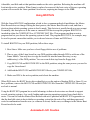
information and hyperlinks to other Linux sources. Figure 1.1 shows the home page for this site. From
the home page, you can select the type of information you want by clicking the appropriate icon.
Figure 1.1.
The Linux home page at www.ssc.com offers access to many of the most-frequently requested
pieces of information about Linux.
From the Linux home page at www.ssc.com, you can also link to other Linux sites, including those of
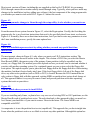
commercial vendors of Linux products. Figure 1.2 shows the screen that appears when you click the
Linux on the Web icon. These links are updated frequently, so they are a good place to start when
navigating through the Web.
Figure 1.2.
The hyperlinks on the Linux home page at www.ssc.com point you to the latest Linux information.
One of the key utilities the www.ssc.com home page offers is access to the Linux Software Map (LSM),
which is the most complete index to Linux software available. The Linux Software Map includes all the
software packages that were developed specifically for Linux, as well as utilities and applications that
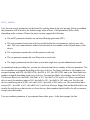
have been ported to Linux. Figure 1.3 shows the LSM home page. The Linux Software Map window lets
you search for keywords in on-line documents and indexes, and then displays the results to provide a
fast, easy method of finding software and documents. Searching the LSM page first can save you hours
of digging through FTP and BBS archives.
Figure 1.3.
The Linux Software Map provides an almost complete list of available Linux software,
applications, documents, and associated information.
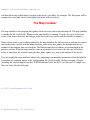
This section previously mentioned the Linux Documentation Project. Figure 1.4 shows the home page
for the Linux Documentation Project. When accessing information from this page, keep in mind that the
Project is an ongoing task, so don't expect to find a lot of information in finished form.
Figure 1.4.
The Linux Documentation Project's home page provides access to new Linux documentation.
Linux Journal
The Linux Journal is a commercial publication dedicated to Linux. It covers the entire gamut of Linux
topics, ranging from material suitable for newcomers to the operating system to very complex
programming information. Figure 1.5 shows the home page for the Linux Journal, which is accessible
through www.ssc.com. The magazine is not on-line, but its Web page can give you a sample Table of
Contents, issue information, and subscription details.
Figure 1.5.
The Linux Journal is a magazine for Linux users, developers, and all other interested parties.
If you want more information about the Linux Journal, send e-mail to
[email protected]. Alternatively, you can write to the publisher at P.O. Box
85867, Seattle, WA 98145, or call the publisher at (206) 782-7733.
Subscriptions are $22 per year in the U.S.
Recent Linux Distributions
Several versions of Linux are available, depending on which CD-ROM or FTP site you visit. This book
doesn't care which version you use, because it applies to practically every version written. As of this
writing, the latest Linux kernel versions were 1.2.13 and 1.3.15. The CD-ROM included with this book
provides Slackware release 2.3, which includes the kernel version 1.2.8 (the last really stable version the
author tested). You can change kernel versions by obtaining the source code for a new release,
compiling it, and replacing your existing kernel. This procedure is covered in more detail later in the
book.
You may find several CD-ROM distributions available at your local reseller. InfoMagic's Slackware
release, for example, comes on four CD-ROMs and bears the name Linux Developer's Resource. In
addition to the complete Linux system, it includes source code, FTP archives, full documentation,
several extension products, and demonstration software of commercial applications (including
WordPerfect). Some of this material is included on the CD-ROM at the back of this book.
Summary
Now that you understand what Linux is all about, you're ready to tackle the basics of Linux installation
and the misunderstood LILO utility. The next three chapters complete the introductory material of this
book. Then you'll be ready to dive into the true system administration material.
-->
Linux System Administrator's Survival Guide lsg02.htm
■
■
■
■
Minimum System Requirements
■ Motherboard Requirements
■ Hard Disks
■ Video System
■ Mouse
■ Tape Drives
■ CD-ROM
■ Removable Media
■ Printers
■ Modems
■ Terminals
■ Multiport Cards
■ Network Cards
Where to Get Linux
■ CD-ROMs
■ FTP Sites
■ Downloading Files from a Linux FTP Site
■ Locating Linux FTP Archive Sites
■ World Wide Web Sites
■ E-mail
■ Bulletin Board Systems
Linux Releases and Disk Sets
Summary
Chapter 2
Linux Hardware and Software
The Linux system is attractive because it offers a UNIX workstation environment that works even on old
PCs. The hardware requirements are not very demanding, unless you want to get into application
development and extensive GUI use. This chapter looks at the basic hardware necessary for Linux
installation. The minimum requirements are discussed, as is support for most peripherals. Expanding
your system with new hardware is covered later in this book.
Minimum System Requirements
Because Linux was mostly developed by PC users, the hardware support built into the operating system
is fairly typical for a PC. Few esoteric devices have Linux drivers, unless a programmer took the time to
write one for himself and then release it to the Linux community. Few third-party vendors offer
hardware accessories (such as multiport boards) for Linux either, although this situation is slowly
changing as Linux becomes widespread.
The minimum realistic system requirements for Linux are a motherboard with an 80386SX processor or
better, 2M of RAM or more, a floppy disk drive, a hard drive with 40M or more, and a video card and
monitor. Most user's systems exceed these requirements. The following sections examine the hardware
requirements for a Linux system in a little more detail.
Motherboard Requirements
The hardware required to set up a Linux system mirrors a typical PC installation. It starts with the
motherboard, which should be an Intel 80386 or better (or use one of the Intel workalikes like AMD or
Cyrix). Remarkably, Linux will even run on a slow 80386SX, although slow is the operative word. For
application development work, though, an 80486DX or better is recommended due to the high CPU
usage of the compiler and linker. The same recommendation applies to X users because X is a notorious
CPU hog. You can compile applications on an 80386, just as you can run X on one, but the performance
can sometimes deteriorate to the point of annoyance. For a realistic system running X and application
developments, consider a fast 80486DX (50MHz at least) or a Pentium.
Linux use a floating-point unit or FPU (also called a math co-processor, although the two terms do not
refer to exactly the same thing) if you have one. FPUs are built into the 80486DX and Pentium series
chips. If an FPU is not installed, Linux will provide a memory-based emulator that has reasonable
performance. Either Intel or workalike add-on FPUs are supported, although some problems have been
reported with Weitek FPUs.
Linux supports both ISA (Industry Standard Architecture) and EISA (Extended Industry Standard
Architecture) motherboards, but doesn't support MCA (IBM's MicroChannel Architecture) at the present
time. Linux also supports VESA local bus motherboards, which give peripheral cards direct access to the
motherboard components.
RAM requirements vary depending on the size of the Linux system you want to run. A minimum Linux
system runs quite well with 2M, although a great deal of swapping is involved. Consider 4M of RAM an
effective minimum, with more memory resulting in faster performance. For development work and X
users, 8M is a good working minimum (although X can function with 4M, albeit with a lot of swapping).
Linux systems that have more than one user should increase the amount of RAM. The usage dictates the
amount of RAM required. For example, 8M easily supports two users, even if both are running X. With
a third-party multiport board supporting eight users, 16M RAM is a good choice, although the users
cannot run X with this configuration. For X users, a good rule of thumb is 4M per user minimum, unless
the Linux machine can offload the X processing to the user's machine in a client-server layout. (Linux
doesn't have this capability at the moment, but it is being developed).
Linux uses all the available RAM in your machine. It does not impose any architectural limitations on
memory as DOS and some other operating systems do. Any available memory is completely used. To
extend the amount of physical RAM on the system, a Linux swap partition, called a swap space, is
recommended. The swap space is used as a slower extension of actual memory, where data can be
exchanged with physical RAM. Even RAM-heavy systems should have a swap space. The size of the
swap space depends on the amount of RAM on the system, the number of users, and the typical usage.
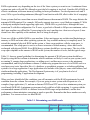
Table 2.1 shows a general guideline for determining the amount of RAM your system should have.
Begin by using the first column to determine which conditions are likely to exist on your system (such
as running X, running larger applications, or adding users), and then move across to the minimum,
recommended, and best performance columns. Consider any program that uses a lot of RAM such as a
word processor (not a line editor like vi), a database, a spreadsheet program, or a desktop publishing
system to be a large application. Large applications also include video players, some sound editors, and
similar multimedia applications. The Development System entry is if you plan to do a lot of
programming, including X application development.
When you have identified all the conditions you will encounter, add the RAM requirements for each
condition down the column. For example, if you are going to run a system with frequent use of a
compiler (large application), X, and run an Internet WWW and FTP server for a minimum system you
would need 6M RAM. A minimum system runs slowly with lots of disk swapping. A system with the
recommended amount of RAM is a balance between RAM usage and performance, and the best
performance column minimizes swapping as much as possible. Remember that these numbers are only
guidelines. You can never have too much RAM.
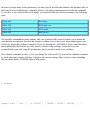
Table 2.1. Determining your RAM needs.
Condition
Minimum Recommended Best Performance
Kernel and basic operation
2M
4M
4M
Large applications and compilers
1M
2M
2M
X
2M
4M
4M
Additional character-based
.5M
.5M
1M
Additional X users
2M
4M
4M
Development system
2M
2M
4M
Internet Server(FTP, WWW, WAIS, or Gopher server)
1M
2M
4M
users (per user)
Hard Disks
Although Linux can run completely from a floppy disk with no hard disk, running it this way doesn't
offer a useful environment. Linux is designed primarily for hard disk use, and supports all the common
hard disk controller systems including IDE (Integrated Drive Electronics), EIDE (Extended Integrated
Drive Electronics), ESDI (Enhanced Small Device Interface), RLL (Run Length Limited), and SCSI
(Small Computer System Interface). Linux supports the older 8-bit original PC controllers, although
most controllers are 16-bit AT designs.
Linux is not choosy about the manufacturer and type of hard disk. As a rule, if DOS can handle the
drive, so can Linux. This rule applies to all drives except SCSI drives, which require special handling.
Linux still is restricted by most PC BIOS versions that impose limitations on the number of sectors,
heads, and cylinders, however. There is an effective 1,024M size limit on drives with some older
versions of Linux, and even some smaller drives can't be handled properly by Linux or DOS because of
the BIOS. More recent versions of the operating system can overcome some of these limitations. The
version of Linux on the CD-ROM accompanying this book, for example, can use disk space over the 1G
limit.
Linux supports most standard SCSI devices, but not all of the many different SCSI controllers and
protocols on the market work well with Linux. Linux does support the most common SCSI controllers,
though. Some other controllers are supported with enhanced BIOS chips on the PC motherboard. A size
limitation on the SCSI drives is still imposed by the BIOS of many early versions of Linux, so a 2G
drive will only have 1G available to Linux and DOS. Other UNIX systems, like SCO UNIX, can use the
rest of the drive. Later versions of Linux (mostly any kernel from version 1.1 and on) can use more than
1G of disk space on SCSI drives.
The size of disk space required by Linux depends on the parts of the operating system that are installed.
A minimum effective system is 20M, which gives enough room for the basic utilities but not X. To load
the entire basic Linux system, including development tools and X, provide at least 150M just for the
files. Then add whatever space is required for your personal files and temporary storage for Linux. A
good rule of thumb is to double the space requirements. In addition to the user space, remember to leave
room for the swap space. Although the swap space size depends on what the system is used for, a good
number to use is 16M.
You can use more than one drive, although you should place a bootable root Linux partition on the first
drive. You also must load DOS on the first drive, although you can place partitions on other drives. The
number of drives supported depend on the drive controller and BIOS. IDE systems are usually limited to
two drives, but EIDE systems can handle four drives (two drives off two controllers). ESDI and RLL
controllers are usually limited to two drives. SCSI controllers can handle up to seven drives per
controller, and a single system can contain several controllers. SCSI is the most versatile (and also the
most expensive) system.
Because hard disks are now inexpensive, obtaining large-capacity drives is relatively easy. Linux can
share a disk with up to three other operating systems (more with a few tricks), so if you plan to load
DOS and Linux, for example, allocate enough drive space for both operating systems.
Video System
Linux can use almost any video card that works without special drivers under DOS, including CGA,
EGA, VGA, Super VGA, and Hercules video cards. Linux also supports some enhanced resolution
cards, such as the Cirrus Logic, Diamond, ATI, and Trident cards. Because hundreds of video cards are
available for DOS, though, not all of the available cards have drivers for Linux. Because most cards
support default VGA and SVGA modes, you can use these modes in almost every case.
X can use the bitmap capabilities of a high-resolution card, although X can run on a VGA or SVGA
system as well. If you are using a specialty card designed for Windows, for example, make sure that a
video driver is available for Linux.
Mouse
Linux doesn't use the mouse for character-based sessions, but it is necessary for X. Linux handles
practically every type of mouse and trackball that has DOS drivers, including Microsoft, Logitech, and
Mouse Systems. Linux supports both bus and serial mouses.
Linux also supports some other pointing devices, including joysticks and pen systems used for cursor
movement. Some systems use a pointer pad that you can drag either your finger or a stylus across; these
systems work with Linux as long as they have drivers that emulate a mouse (which most do). Finally,
some touch-screens also work with Linux.
Tape Drives
Your Linux system can use any SCSI tape drive that has a controller recognized by Linux. Other tape
drives use a proprietary interface that requires a dedicated hardware card. In most cases, if the IRQ,
DMA, and memory address can be configured into Linux, the tape drive should be accessible. For
example, you can use some older UNIX-style tape drives, such as those made by Wangtek and Archive,
under Linux even though they have a proprietary board controlling them.
Some smaller QIC (Quarter Inch Cartridge) drives are becoming popular in DOS, driven either by the
floppy controller card or the parallel port. Drivers for some of these tape drives are available for Linux,
although not all of these tape drives are supported. Because many of these small QIC drives rely on
proprietary compression schemes to boost data density on tapes, you may not be able to write more than
the raw cartridge capacity to these drives. In general, if the QIC driver runs off the floppy disk controller
card and is compatible with QIC-40 or QIC-80, it will work with Linux. QIC drives that run off the
parallel port do not have a driver for Linux at this time.
CD-ROM
Because most CD-ROMs use a SCSI interface, you need either a SCSI controller card or an interface on
another card, such as a sound board. Linux recognizes and supports SCSI-based CD-ROMs as long as
their SCSI controller cards are recognized. If the SCSI port is on a sound board, a special driver may be
required. Some IDE CD-ROMs are also available; a driver is needed for them (some drivers are included
with Linux). In addition, some proprietary CD-ROM drivers, such as those found on Sound Blaster
sound boards, are supported with later versions of Linux. Check the supproted hardware list available
with each kernel release for a complete catalog of all supported CD-ROM drives. In general, the higher
the kernel release number, the more likely a CD-ROM will be supported.
Linux can't read all formats of CD-ROMs. At the present it handles only ISO-9660 format filesystems.
Although ISO-9660 is widely used, not all CD-ROMs are written using it, so don't be surprised if a DOS
or Macintosh CD-ROM can't be mounted properly. Some UNIX CD-ROMs are written with proprietary
formats or with Rock Ridge extensions (which allow long filenames). These CD-ROMs are usually not
compatible with Linux's requirements.
Removable Media
Removable media support in Linux depends on the type of interface the media uses. Most SCSI-based
systems can be used, although the changing of media while a filesystem is loaded is seldom properly
supported. Iomega's Bernoulli systems and LaserSafe Pro magneto-optical cartridge systems can all be
used with Linux without special drivers, as long as the cartridges can be formatted under DOS. Some
other magneto-optical and removable magnetic media systems will also function properly.
Some removable media, especially those which do not use SCSI but rely on a dedicated hardware card,
require special drivers. The very limited support in Linux for these devices is mostly provided by
programmers who have written a driver for their own use and then made it public domain. No
commercial removable media vendors are offering Linux-specific drivers at the moment, although this
situation should change as Linux becomes widespread.
Printers
Parallel and serial port printers are widely supported as dumb lineprinter devices. Although some drivers
are available for specific popular printers, such as the Hewlett Packard LaserJets and DeskJets, many
printers do not have dedicated drivers yet. If no driver exists for your printer, it will behave as an ASCIIonly device.
There is no support at present for color printers, either laser, inkjet, or bubble-jet. A driver should be
available for the most popular color printer models in the near future. Check the FTP and BBS sites (or
the Linux WWW home pages) for more information.
Modems
Linux supports most serial asynchronous modems, as well as some synchronous modems. Support for
ISDN modems is being developed as well. As a general rule, Linux can use any modem that DOS can
use. Linux supports all baud rates, including the newer compression schemes, with some driver
installation. More than one modem is supported on the system. Indeed, you can hang as many modems
off a Linux system as you have serial ports.
Terminals
Linux supports character-based terminals connected through a serial port or a multiport card. You can
use most existing character-based terminals, and you can add any terminal for which you have the
control codes. Graphics terminals, in the UNIX sense, use simple ASCII graphic characters and are not
X-capable.
Some versions of Linux support X terminals, although not all X terminals work properly. X terminals
typically need a very high-speed connection to properly display graphics (either through a serial port or
from a network). A PC running X client software can function as an X terminal as well.
Multiport Cards
Some UNIX-based multiport cards will work with Linux, as the vendor or users have released drivers.
Before purchasing a multiport card, check the availability of drivers. Some multiport cards offer
expansion parallel ports as well as serial ports, and these will also need drivers.
You can connect some multiport cards through a SCSI controller card instead of building them as
dedicated cards that plug into expansion slots. Even SCSI-based expansion cards will need a driver for
Linux to use them properly.
Network Cards
Because Linux is a UNIX system, its primary network protocol is TCP/IP. Other protocols can be used
with Linux, but TCP/IP is the most widely used because it is included with each Linux software package
and is the default network protocol. TCP/IP's role as the protocol of the Internet also makes it popular.
TCP/IP is usually used over Ethernet networks, so most of Linux's networking systems are designed
around Ethernet. Many Ethernet network interface cards (NICs, also called network adapters) are
available. The most popular Ethernet cards from 3Com, Novell, Western Digital, Hewlett Packard, and
Intel all work cleanly with Linux. Many compatible Ethernet NICs from other vendors also function
properly.
Where to Get Linux
Linux is freely available if you know where to look. Because Linux is distributed without a central
organization controlling it (as with commercial UNIX versions), no single party is responsible for
keeping Linux readily and easily available. You have to find a source and make sure the version you
receive has all the components, is recent, and is relatively stable. Most distribution sources have the
same releases available.
You can obtain a copy of Linux in several ways; use whichever method is most convenient or
economical, depending on your priorities. The most common method of obtaining a complete set of
Linux binaries and utilities is through a CD-ROM. Alternatives include FTP sites and BBSs (bulletin
board systems). You can also get a copy mailed to you.
The method by which you obtain Linux also dictates to some extent how complete the distribution will
be. CD-ROM versions, for example, usually have every piece of Linux software available included on
the disk; in contrast, some BBSs and FTP sites only offer a small distribution that is enough to install
and use as a basic system. The small systems, for example, may not include the language compilers and
X software.
CD-ROMs
Almost a dozen CD-ROM based distributions of Linux are available. They differ in the version that is
included on the disk, their organization, and the value-added features they have, such as new installation
documents and utilities as well as supporting printed manuals. Of course, you also need a CD-ROM
drive on your machine that will work with Linux. Don't assume that any non-SCSI CD-ROM drive will
work—many of them won't!
The version you obtain should have a recent release of the Linux software (compare version numbers
among CD-ROMs) as well as a complete set of accompanying utilities. It can be hard to identify the
contents from the sparse identification on the cover of some CD-ROM collections, so you may find
yourself unwittingly purchasing outdated material. Luckily, the CD-ROMs tend to be inexpensive. The
CD-ROM included at the back of this book provides one of the most recent versions of Linux, along
with many of the utilities and source libraries. With this CD-ROM, you won't need to buy another
version until you want to upgrade to a later kernel.
A few vendors have dressed up their Linux collections with added utilities or boot disks that make
installation much easier. The addition of precompiled games, applications, and user utilities makes these
CD-ROMs a little more attractive. Some CD-ROMs also include an accompanying manual. For the most
part, these manuals are simply printed versions of files on the CD-ROM, although some vendors have
taken the time to write very readable instructions for Linux. If you are a newcomer to Linux, this type of
document can be very useful.
FTP Sites
File Transfer Protocol (FTP) is a widely used Internet protocol (part of the TCP/IP family) that lets you
transfer files from remote machines. Several anonymous FTP sites distribute Linux software.
(Anonymous means you don't need an account on the remote machine to access the files; you log in as
guest or anonymous and use your name or login as a password.) If you have access to the Internet, either
directly or through an on-line service provider such as CompuServe, Delphi, or America Online, you can
access the Linux distribution sites.
To use FTP, you must be on a machine that supports TCP/IP. This can be your existing PC running a
DOS or Windows package that gives you FTP capabilities or a UNIX or Linux workstation that is
connected to an Internet service. Both ends of an FTP connection must be running a program that
provides FTP services. To download a file from a remote system, you must start your FTP software and
instruct it to connect to the FTP software running on the remote machine.
The Internet has many FTP archive sites. These machines are designed to allow anyone to connect to
them and download software. In many cases, FTP archive sites mirror each other so that they have
exactly the same software. You connect to the site that is easiest to get to. See the section in this chapter
called "Linux FTP Archive Sites" for more information.
Downloading Files from a Linux FTP Site
Using FTP to connect to a Linux FTP site is quite easy (assuming you have access to the Internet, of
course). You must start FTP with the name of the remote system to which you want to connect. If you
are directly connected to the Internet, enter the ftp command with the name of the remote site as shown
in the following example:
ftp sunsite.unc.edu
If you are using an on-line service such as CompuServe of Delphi, you must access their Internet service
and invoke FTP from there. Most on-line services let you to enter the name of the FTP site at a prompt.
When you issue the ftp command, your system attempts to connect to the remote machine. When it
completes the connection successfully, the remote machine prompts you for a user ID. You must have a
valid user ID and password for that system unless it supports anonymous FTP (which all Linux FTP
sites do). If anonymous FTP is supported on the remote system, a message usually tells you that when
you first connect.
The following login is for the Linux FTP archive site sunsite.unc.edu, one of the most popular sites:
ftp sunsite.unc.edu
331 Guest login ok, send your complete e-mail address as password.
Enter username (default: anonymous): anonymous
Enter password [[email protected]]:
|FTP| Open
230- WELCOME to UNC and SUN's anonymous ftp server
230- University of North Carolina
230- Office FOR Information Technology
230- SunSITE.unc.edu
230 Guest login ok, access restrictions apply.
FTP>
The login for an anonymous FTP site is usually guest or anonymous. The login message usually tells
you which is used, or you can try both. The remote machine will prompt you for a password in most
cases. You don't have to supply one with some systems, and others ask for your user name or ID. This
information is used for tracking purposes only and has no security problems associated with it (unless
you don't have a password on your account!).
After the login process is finished, you see the prompt FTP>. This prompt indicates that the system is
ready to accept FTP commands. Some systems display a short message when you log in that may
contain instructions for downloading files as well as any restrictions that are placed on you as an
anonymous FTP user. Other information may be displayed about the location of useful files. For
example, you may see messages like this one from the FTP site sunsite.unc.edu:
To get a binary file, type: BINARY and then: GET "File.Name"
newfilename
To get a text file, type: ASCII and then: GET "File.Name" newfilename
Names MUST match upper, lower case exactly. Use the "quotes" as shown.
To get a directory, type: DIR. To change directory, type: CD "Dir.
Name"
To read a short text file, type: GET "File.Name" TT
For more, type HELP or see FAQ in gopher.
To quit, type EXIT or Control-Z.
230- If you email to [email protected] you will be sent help
information
230- about how to use the different services sunsite provides.
230- We use the Wuarchive experimental ftpd. if you "get" <directory>.
tar.Z
230- or <file>.Z it will compress and/or tar it on the fly. Using ".
gz" instead
230- of ".Z" will use the GNU zip (/pub/gnu/gzip*) instead, a superior
230- compression method.
Once you are on the remote system, you can use Linux (UNIX) commands to display file contents and
move around directories. To display the contents of a directory, use the command ls or the DOS
equivalent dir. To change to a subdirectory, use the cd <dir> command. To return to the parent directory
(the one above the current directory), use the command cd ... Unlike Linux, no keyboard shortcuts are
available with FTP so you will have to type in the name of files or directories in their entirety (and
correctly).
When you have moved through the directories and found a file you want to move back to your system,
use the FTP get command, as shown in the following code:
get "file1.txt"
Although quotation marks around filenames are optional for most versions
of FTP, they do provide specific characters to the remote version, thereby
preventing shell expansion. Using quotation marks can prevent accidental
transfers of many files instead of just one or error messages from FTP.
The commands get (download) and put (upload) are relative to your home machine, not to the remote.
When you issue a get command, you are telling your system's FTP software to get a file from the remote
machine. A put command tells FTP to put a file from your local machine onto the remote machine.
Remember which command moves in which direction, or you could overwrite files accidentally.
When you issue a get command, the remote system transfers data to your local machine and displays a
status message when it is completed. There is no indication of progress during transmission of a large
file, so be patient. The following is a sample transcript of a get command:
FTP> get "file1.txt"
200 PORT command successful.
150 BINARY data connection for FILE1.TXT (27534 bytes)
226 BINARY Transfer complete.
27534 bytes received in 2.35 seconds (12 Kbytes/s).
FTP provides two modes of file transfer: ASCII (seven-bit characters) and Binary (eight-bit characters).
Some systems automatically switch between the two, although it is a good idea to manually set the mode
to ensure that you don't waste time. You must download all Linux distribution files in Binary mode. To
set FTP in Binary transfer mode (for any executable file), type the command binary. You can toggle
back to ASCII mode with the command ASCII. If you transfer a binary file in ASCII mode, it will not
be executable. Transferring an ASCII file in Binary mode does not affect the contents of the file, so
Binary is a good default transfer mode.
Bear in mind that the Linux archives are quite sizable, and transferring even a small distribution can take
a while with asynchronous modems. If you use a slow modem (9,600 baud or less), you may want to
consider an alternate method as you will have to stay connected for many hours. Some remote sites limit
the amount of time you can stay connected. To quit FTP, type the command quit or exit. Both
commands will close your session on the remote machine. Then terminate FTP on your local machine.
Locating Linux FTP Archive Sites
The list of Linux FTP archive sites changes slowly, but the sites listed in this section were all valid and
reachable when this book was written. Many of these sites are mirror sites, providing exactly the same
contents. You can find the site nearest you by looking at the country identifier at the end of the site name
(uk=United Kingdom, fr=France, and so on). If no country identifier is used, the site is most probably in
the U.S. With most versions of FTP, you can use either the site name or the IP address, although the IP
address is the best addressing method if the local Internet gateway cannot resolve the site name. Make
sure you enter the four components of the IP address correctly.
The primary sites (also called home sites) for the Linux FTP archives are tsx-11.mit.edu, sunsite.unc.
edu, and nic.funet.fi. Home sites are where most of the new software loads begin. The majority of sites
in the following list mirror one of these three sites. If you encounter difficulties connecting to a site, try
another. If difficulties persist, there may be a problem with your access to the Internet.
Site name
IP Address
Directory
tsx-11.mit.edu
18.172.1.2
/pub/linux
sunsite.unc.edu
152.2.22.81
/pub/Linux
nic.funet.fi(Finland)
128.214.6.100
/pub/OS/Linux
ftp.mcc.ac.uk(U.K.)
130.88.200.7
/pub/linux
fgbl.fgb.mw.tu-muenchen.de(Denmark)
129.187.200.1
/pub/linux
ftp.infdrrnatik.twmuenchen.de(Denmark)
131.159.0.110
/pub/Linux
ftp.dfv.rwth-aachen.de(Denmark)
137.226.4.105
/pub/linux
ftp.informatik.rwth-aachen.de(Denmark)
137.226.112.172
/pub/Linux
ftp.ibp.fr(France)
132.227.60.2
/pub/linux
kirk.bu.oz.au(Australia)
131.244.1.1
/pub/OS/Linux
ftp.uu.net
137.39.1.9
/systems/unix/linux
wuarchive.wustl.edu
128.252.135.4
/systems/linux
ftp.win.tue.nl
131.155.70.100
/pub/linux
ftp.stack.urc.tue.nl
131.155.2.71
/pub/linux
ftp.ibr.cs.tu-bs.de
134.169.34.15
/pub/os/linux
ftp.denet.dk
129.142.6.74
/pub/OS/linux
World Wide Web Sites
If you know how to use the World Wide Web (WWW) and have access to a Web server, you can obtain
a copy of Linux from several Web sites, including those shown in Chapter 1. The primary FTP site
offers Web access through the following URL:
http://sunsite.unc.edu/mdw/linux.html
Figure 2.1 shows the page on sunsite.unc.edu that enables you to download software through the World
Wide Web browser. From this page, you can download new Linux source code and binaries. You can
use any Web client software, such as Mosaic or Netscape, to access the Web site and use the menudriven system to download a copy of the Linux files. The Web site also offers a documentation page.
Figure 2.1.
The sunsite.unc.edu site is the primary source for Linux software.
E-mail
If you don't have access to a Linux distribution site to FTP the software, you can still get the files
transferred to you if you have a e-mail system that can reach a Linux site. This method is an alternative
for those using on-line systems that allow Internet mail but do not allow direct access to FTP and those
using some corporate systems that do not allow you to dial out directly to reach FTP sites but can
transfer e-mail.
To get Linux by e-mail from an FTP site, use the site's ftpmail utility. All of the sites mentioned in the
previous Linux FTP site list support ftpmail. To get complete instructions on using ftpmail, send an email message to ftpmail login at one of the sites (for example, address your e-mail to ftpmail@sunsite.
unc.edu). The body of the e-mail message should have only the word help in it. Any other comments
may cause the ftpmail utility to incorrectly process your request. For this reason, you may want to
suppress any signature files that are appended to your e-mail automatically.
Upon receiving your request, ftpmail sends you instructions for using the service. In most cases, you
embed the FTP commands you want executed at the remote site as the body of your mail message. For
example, to get a directory listing of the Linux directory, send a mail message with the following body:
open sunsite.unc.edu
cd /pub/Linux
ls
quit
The ftpmail utility at the remote site processes the commands as if they were typed directly into FTP. To
transfer a file to yourself through e-mail, you could send the following mail message:
open sunsite.unc.edu
cd /pub/Linux
binary
get README
quit
This message sends you the file README back through e-mail. The ftpmail system is slower than FTP
because you must wait for the e-mail to make its way to the target machine, be processed by the remote
system's ftpmail utility, format a reply, and send the return message back to you. Still, ftpmail does
provide a useful access method for those without FTP connections and an easy way to check the
contents of the Linux directories on several machines without having to log in to them, which can be
useful when you want to occasionally check for updates to the software.
The files you want to transfer may exceed your mail system's maximum file
size limits. Some mail systems will break the files into smaller chunks and
allow you to reassemble them when you receive them, but other e-mail
systems impose a small size limit on e-mail, making it impractical to use
ftpmail to get large files like the complete Linux software distribution.
Bulletin Board Systems
Hundreds of BBSs around the world now provide access to the Linux distribution software and support
Linux discussion groups. Some BBSs download new Linux releases regularly from the FTP home sites,
while others rely on their users to update the software.
Any list of BBSs with Linux software would be lengthy and out of date quickly. The best method of
obtaining this information is to request it from Zane Healy, who maintains a complete list of BBSs
offering Linux material. Send e-mail requesting the Linux list to [email protected]. If you don't have
access to e-mail, try a few local bulletin board systems and post messages asking for local sites that offer
Linux software, or ask someone with Internet access to post e-mail for you. Many BBSs will also have
the list, although the accuracy of the list will vary.
Linux Releases and Disk Sets
A release is a collection of Linux software sufficient to install and run the entire operating system. The
release is made up of a number of collections of software called a disk set (even though they may not
come on disks). Most Linux systems have a number of disk sets included when you obtain the
distribution set.
Although most of the CD-ROMs and FTP sites have the same software, a few label the disk sets
differently. To illustrate the disk sets available with Linux, the following list details the current group of
disk sets available with the Slackware distribution (one of the more popular CD-ROM versions of Linux
and the one included with this book):
●
●
●
Disk Set A is the base system. This set contains the kernel and a set of basic utilities including
shell, editor, and user utilities. Disk Set A is the only disk set that fits on a single high-density
floppy disk, which means you can use it to install and run Linux from a floppy disk.
Disk Set AP contains Linux applications, including many different editors, all the standard UNIX
command utilities, man pages, and GNU add-ons like GhostScript.
Disk Set D contains software for program development. This disk set includes the GNU
languages, development utilities, libraries, and compiler tools. There is also a lot of source code
for libraries used to customize the Linux kernel.
●
Disk Set E is the GNU emacs editor.
●
Disk Set F contains FAQ (Frequently Asked Questions) files and other Linux help files.
●
●
●
●
●
●
●
Disk Set I contains documentation files for the GNU software.
Disk Set IV contains Interviews libraries, include files, and documentation. Interviews is a C++
GUI development package.
Disk Set N is networking software. This disk set includes the TCP/IP protocol set, UUCP, mail
and other kinds of utilities, and a news system.
Disk Set OI contains ParcPlace Object Builder and Object Interface Library. These commercial
development packages were made available to Linux developers by ParcPlace.
Disk Set OOP contains object-oriented programming (OOP) tools, including the GNU Smalltalk
compiler and the Smalltalk interface to X (STX).
Disk Set Q contains source files for the Linux kernel and boot images.
Disk Set T contains the TeX and LaTeX2 test formatting systems. TeX is widely used for
typesetting.
●
Disk Set TCL is the Tcl language set, including Tcl, Tk, TclX, and utilities.
●
Disk Set Y is a collection of games.
●
Disk Set X is XFree86, which includes the X system and several window managers.
●
●
●
Disk Set XAP contains applications for X, including file managers, GhostView, libraries, games,
and utilities.
Disk Set XD is the X development kit, including X libraries, a server link kit, and PEX support.
You must have this disk set if you are going to develop X-based applications.
Disk Set XV is the window manager for X. This disk set includes the XView libraries and the
Open Look window managers. You can use these window managers instead of the window
manager included in Disk Set X.
Although Disk Set A will let you install a Linux system from a floppy disk, you should have Disk Sets
A, AP, D, and F for a full installation (hard disk based with standard utilities). This collection gives you
a character-based Linux system. If you want to run X, you also need Disk Sets X and XAP.
Programmers need to load the development disk sets (D and XD, for X applications).
Summary
This chapter examined the software and hardware that make up a Linux system. You should have
hardware sufficient to run Linux before you start installing; otherwise, you will see all manner of error
messages (if the system installs at all). Once you have the hardware ready and you know what software
from the distribution set you are going to install, it's time to get Linux on a hard disk. The next chapter
looks at the physical installation process. Chapter 4 covers LILO, the boot loader.
-->
Linux System Administrator's Survival Guide lsg04.htm
■
■
■
■
■
■
■
■
■
■
Installing LILO
■ Handling Disk Problems
■ Using the LILO Makefile
■ Updating LILO
Linux and Hard Disk Layouts
The Boot Sector
The Boot Process
■ Installing a Dedicated Linux Hard Disk
■ Using BOOTACTV
■ Installing DOS and Linux
■ Using BOOTLIN
■ Automated LILO Creation
■ Setting Boot Parameters
The Map Installer
■ Map Installer Command-Line Options
■ Map Installer Configuration File Options
Boot Images
Disk Parameter Table
Removing or Disabling LILO
Troubleshooting LILO
Summary
Chapter 4
LILO
Whenever you hear about Linux, you'll also hear about LILO. LILO is the boot loader Linux uses to
load the operating system kernel. Whenever you change or move the Linux kernel, you must invoke
LILO to rebuild a map of the kernel locations. LILO is versatile—it can boot Linux kernels from any
type of filesystem, including floppy disk, as well as from other operating systems. This chapter looks at
LILO, the way hard disks are laid out with Linux, the boot process, the most common boot processes,
and LILO's interactions with each. This information should help you install and use LILO effectively.
Several versions of LILO are available. Most current versions support one of two different directory
structures. The more traditional (and older) structure resides in the /etc/lilo directory. The newer
structure has files scattered in several directories, including /etc, /sbin, and /boot. Because the older /etc/
lilo structure is the most common, it is used for examples in this chapter. If you are using the new
structure (check for the existence of /etc/lilo), substitute the new pathnames as necessary.
Installing LILO
Most systems will have LILO already installed and configured. If your system already has LILO
installed, you can skip this section unless you want to update your version. A quick installation
procedure is available with most versions of Linux to install a minimum set of LILO. This procedure is
described in the file QuickInst.old or QuickInst.new, depending on the version of Linux. You can only
use the QuickInst routines for a first-time LILO installation or to replace an existing LILO set. You
cannot use them for updates as any existing configuration information is overwritten.
A full installation of LILO requires that all the files in the LILO distribution archive (usually called lilo.
xxx.tar.gz where xxx is the version number) are extracted into a directory other than /etc/lilo. (Otherwise,
installation will fail if the final destination is the same as the source directory.) After the distribution
files are located in a temporary directory, follow these steps:
1. Check the Makefile for valid configuration information (see the following LILO Makefile
section).
2. Compile LILO. If you want to use the older /etc/lilo directory structure, issue the first command
that follows. If you want to use the new directory structure, issue the second command.
make -f Makefile.old
make -f Makefile.new
3. Copy all the LILO files to the target directory with one of the following commands, depending
on whether you selected the new or old directory structure:
make -f Makefile.old install
make -f Makefile.new install
4. Check the directories. You should see the following files: any_d.b, boot.b, chain.b, disktab, lilo,
os2_d.b. If the files do not exist or errors are generated in the process, restart the installation.
Check the Makefile for accurate information. Once LILO has been installed properly, you can
use it to install a boot process.
Before you can compile LILO for use, you have to configure the kernel by
running make config. All kernel header files must be in the directory /usr/
include/linux for LILO to compile properly. The LILO installation and
compilation process should be run from a Bourne shell (or complete
compatible). Problems have been reported with versions of the Korn shell
when LILO is compiled, so use /bin/sh or /bin/bash.
Handling Disk Problems
Some systems may have difficulty with hard disks that do not allow the disk parameters (heads, sectors
per track, and cylinders) to be read. If you get error messages about bad geometry or the LILO
installation fails with disk errors, the disk parameters are a likely source of trouble, especially if you're
dealing with SCSI disks and hard disks with a capacity of 1G or more.
In this case, you must manually enter the disk parameters into the file disktab. The section "Disk
Parameter Table" later in this chapter discusses this step in more detail. Edit the disktab file as explained
to include the disk parameters. Then test the new LILO configuration by copying it to a floppy disk and
booting from it. Follow these steps:
1. Change to the LILO directory (usually /etc/lilo).
2. Execute the following command to copy the LILO configuration to the floppy. Substitute the
kernel image name after the image parameter.
echo image=kernel_name | ./lilo -C - -b /dev/fd0 -v -v -v
3. Reboot your system from the floppy disk.
If the configuration is correct, LILO will read the floppy disk for the boot loader, and then load the
kernel from the hard disk. If everything boots properly and you can move around the filesystem, the disk
parameters are correct. If you can't access the hard disk filesystem, the parameters are incorrect and
should be entered again.
Using the LILO Makefile
The LILO Makefile supplied with the LILO installation files is valid for most installations, although you
should carefully check all the entries. LILO uses either the Makefile, which contains all the instructions
for a C compiler to compile a binary from the source code, or another file called /etc/lilo/config.defines.
If the config.defines file exists, Makefile is ignored. For most purposes, editing the Makefile is
sufficient, although if you plan to use LILO a lot, the config.defines file is a better alternative because it
isn't overwritten with new versions of LILO.
The Makefile has several parameters that control the compilation process. You may need to change
some of the values, depending on your system requirements. Check the following parameters in the
Makefile and ensure that the values they have set are what you want:
●
●
●
●
●
IGNORECASE makes image names case insensitive. This parameter is active by default and
should be left alone.
NO1STDIAG does not generate diagnostic messages when read errors are encountered in the
boot loader. This parameter is disabled by default. It's best to leave it disabled unless you don't
care about the error messages.
The NOINSTDEF parameter tells you that if the install option is omitted from the command line,
don't install a new boot sector. Instead, modify the old one. This parameter is disabled by default.
ONE_SHOT disables the command line timeout if any key is pressed. This parameter is disabled
by default.
READONLY prevents overwriting of the default command line sector of the map file. This
parameter is disabled by default.
Updating LILO
If you want to update an existing version of LILO with a newer one, the process is the same as a firsttime installation except that existing configuration files are renamed to .old. For example, chain.b is
renamed to chain.old. If the new version of LILO behaves properly, you can delete the .old files.
Whenever you update the version of LILO, you must update the boot sector to add the new locations and
map file format. To update the boot sector, run LILO.
Linux and Hard Disk Layouts
To understand how LILO works, you must understand how a hard disk is laid out. You probably already
know that a hard disk is essentially a set of concentric tracks, radiating out from the center of the disk
platter. Each track is divided into a number of sectors.
Hard disks are identified by the number of platters (or more accurately, the number of heads; the number
of platters can be greater than the number of heads because one or more surfaces, typically the top and
bottom, might not be used for data storage), the number of tracks per inch of disk platter (measured
radially), and the number of sectors per track. The capacity of each sector leads to the total capacity of
the disk by multiplying by the number of sectors per track, the number of tracks, and the number of
platters with heads.
Linux is usually integrally tied with DOS, so it is useful to look at the way DOS uses a hard disk. A
single-purpose (single DOS operating system, for example) hard disk (and most floppy disks) has a boot
sector, followed by a data area that includes an administrative block. The boot sector is the first sector
on the hard disk and is read when the system starts to load the operating system. The boot sector
contains a bootstrap to direct the machine to the startup routines. The data area stores files, including the
operating system startup code. (A bootstrap is a short piece of code that tells the BIOS how to load the
operating system. It essentially starts the operating system load process by providing the bare bones
instructions necessary to read the operating system files from disk.)
Although the administrative block is usually part of the data area, users commonly cannot access it
directly. Each file on the hard disk has an entry in the administrative block's tables that indicates the
file's location in terms of the head, track, and sector and the file name. Other information, such as owner,
permissions, date and time, is usually stored in the administrative block as well. In DOS, this
information makes up the File Allocation Table (FAT); UNIX and Linux use the superblock or i-node
tables. The administrative table is not usually read until the boot process has been started.
When the hard disk has lots of space, you will probably want to install more than one partition. Multiple
partitions are especially useful if you want to support more than one operating system (DOS and Linux,
for example) on the same hard disk. You can create up to four primary partitions on a DOS disk.
With some operating systems, you can have more than four partitions, but if
you are using DOS on the hard disk, don't create more than four primary
partitions. Doing so may cause DOS to improperly read any data in the
DOS partition because DOS has a built-in limitation of four partitions per
disk. DOS' FDISK can't handle more than that amount. If you need to
provide more than four logical disk drives, you can use extended partitions.
An extended partition is a primary partition that has been subdivided.
A partition table that contains the details of the partitions on the disk is written to the first sector (boot
sector) of each hard disk (not each platter). This sector is sometimes called the Master Boot Record or
MBR. Although the terms boot sector and MBR are often used interchangeably, MBRs differ from boot
sectors in that MBRs contain partition information. In other words, you can call a hard drive's boot
sectors MBRs, but floppy disks' boot sectors are never MBRs. Extended partitions also have partition
tables written to their beginning sectors. A program called the map installer creates Linux boot sectors.
When a hard disk has several partitions, Linux refers to them by device numbers after the primary disk
name, such as /dev/hda1, /dev/hda2, and so on. In this case, /dev/hda is the first hard drive (/dev/hdb
would be the second, /dev/hdc the third, and so on). Within the first hard drive, the partitions are named /
dev/hda1, /dev/hda2, and so on. A second hard disk called /dev/hdb has partitions called /dev/hdb1, /dev/
hdb2, and so on. The disk names may have other letters, depending on the type of hard disk and its
adapter. For example, a hard disk may be called /dev/sd1 instead of /dev/hda. Extended partitions would
be numbered /dev/hda5, /dev/hda6, and so on because only four primary partitions, or /dev/hda4, are
allowed.
The Boot Sector
To understand the Linux boot process, a look at the DOS boot sector is necessary. Figure 4.1 shows the
DOS boot sector layout. The program code is the bootstrap to the operating system. The disk parameters
include the File Allocation Table (FAT).
Figure 4.1.
The DOS boot sector layout.
Linux's LILO boot sector is similar to the DOS boot sector, except that the disk parameter section is not
used and the boundaries between code sections are different. The differences between the two boot
sectors can cause a problem for DOS if the Linux LILO boot sector is written to a DOS disk's Master
Boot Record, because DOS won't be able to load properly. Figure 4.2 shows the Linux boot sector
layout. The magic number referred to in this and the previous boot sector layout is a two-byte number
used by some operating systems to verify that the sector read is the boot sector.
Figure 4.2.
The Linux LILO boot sector layout.
You could, in theory, use the Linux LILO boot sector to boot DOS, as the partition table area of the boot
record could contain DOS' FAT, but in practice, the boot process usually fails. It is much better to use a
boot sector written to the DOS partition.
Because the DOS and Linux LILO boot sectors differ, you should install
DOS before Linux. Doing so ensures that the DOS boot sector is written to
the hard disk. If you install Linux first and the Linux LILO boot sector is
written to the hard disk, DOS cannot boot.
You can save the LILO boot sector on a boot floppy disk, in the Master Boot Record of the hard disk, on
the boot sector of the Linux partition, or in the boot sector of an extended partition. You cannot store it
in any non-Linux partition or on any hard disk other than the first. Note that although DOS cannot
handle a boot sector in an extended partition, Linux can through extensions to fdisk or a utility program
called activate.
A common problem with LILO is that it will write a LILO boot sector
anywhere, even into locations that the operating system cannot access.
Make sure you are writing your LILO boot sector to a valid location. If you
have already installed Linux and are making changes, keep a boot floppy
disk at hand.
The Boot Process
During the boot process, the boot sector is read to obtain the bootstrap for the operating system. In the
case of DOS, the Master Boot record or boot sector is read, and then COMMAND.COM is loaded.
COMMAND.COM is DOS' kernel.
Although usually the boot system is set up when the Linux installation process is followed, you may
want to alter Linux's boot system. Depending on your requirements and machine hard drive
configuration, you can take one of several approaches. The following sections look at a few of the
typical configuration examples to show how you can modify the boot process. These sections begin by
explaining the process to follow to install LILO manually, although you can often perform these
processes automatically when installing the Linux software. This section looks at the automated
installation process and its options later on. For now, though, the details of each alternative should help
you decide how to install LILO on your system.
Installing a Dedicated Linux Hard Disk
With a dedicated Linux installation, or a Linux boot by default despite other operating systems on the
hard disk, the Linux LILO boot sector can replace the Master Boot Record. LILO will then boot straight
into Linux from the Master Boot Record without touching partition boot sectors. In some cases, though,
you may have to explicitly specify the boot sector. In other words, you may have to specify boot=/dev/
hda (or whichever device holds the modified master boot record) at the boot prompt if the default values
do not work.
If you replace the Master Boot Record with LILO for a dedicated Linux
system then later remove Linux, you will have to low-level format the hard
drive or restore the old MBR before another operating system, such as DOS,
can use the drive.
To install LILO as a dedicated Linux boot, follow these steps:
1. Boot Linux as usual. Make sure you have a boot floppy disk in case of problems.
2. Copy your existing Master Boot Record to a floppy disk in case of problems. The command to
copy the MBR from the main drive (/dev/hda) to a floppy disk using 512 character blocks (the
default) is
dd if=/dev/hda of=/fd/MBR bs=512 count=1
3. Use the setup or LILO installation program to copy LILO into the boot sector, setting LILO in
the Master Boot Record.
4. Reboot the machine to boot from the Master Boot Record.
Your machine should load Linux automatically. If Linux does not boot, use your boot floppy to start
Linux and either repeat the process or restore the original Master Boot Record from the floppy disk
using the command
dd if=/fd/MBR of=/dev/hda bs=446 count=1
Using BOOTACTV
A slight modification of the last boot process is replacing the normal MBR with a utility called
BOOTACTV, which prompts for the partition to boot from. This utility requires that a non-DOScompatible copy of the boot sector be written, so you should use it only when Linux will be the
dominant operating system and LILO is not booting the other operating systems properly.
When in place, the Master Boot Record holds a copy of BOOTACTV. When booted, BOOTACTV
enables you to choose which operating system to boot. BOOTACTV can then read a boot sector from a
partition to load that operating system. When the MBR holds BOOTACTV, you can't use the MBR as
you normally would with other operating systems, such as DOS or OS/2. You can, though, replace
BOOTACT with a normal MBR.
To install BOOTACTV, follow these steps:
1. Boot Linux as usual. Make sure you have a boot floppy disk in case of problems.
2. Copy your existing Master Boot Record to a floppy disk in case of problems. The command to
copy the MBR from the main drive (/dev/hda) to a floppy disk using 512 character blocks (the
default) is
dd if=/dev/hda of=/fd/MBR bs=512 count=1
3. Use the setup or LILO installation program to copy LILO into the boot sector of the Linux
partition (not the Master Boot Record).
4. Install BOOTACTV into the Master Boot Record. The BOOTACTV utility is usually called
bootactv.bin and should be in the current directory when you install it into the MBR with the
command
dd if=bootactv.bin of=/dev/hda bs=446 count=1
5. Reboot the machine to boot BOOTACTV from the Master Boot Record.
Your machine should load BOOTACTV and allow you to boot any other operating system on a
partition. If Linux or another operating system does not boot, use your boot floppy disk to start Linux. If
only Linux doesn't boot, the boot sector LILO for the Linux partition is not working and can be rewritten
using the setup or LILO configuration utilities. If none of the partitions boot, remove BOOTACTV by
replacing the old Master Boot Record with the command
dd if=/fd/MBR of=/dev/hda bs=446 count=1
You can also reinstall the Master Boot Record from within DOS, if you have a DOS boot floppy disk.
When in DOS, issue the command
fdisk /mbr
If you don't want to alter your Master Boot Record but have more than one
partition dedicated to Linux, you can install BOOTACTV on one of the
partition's boot sectors and use the fdisk utility to toggle the active partition.
However, if the hard disk is repartitioned or the filesystems are altered in
size, the boot sector will have to be rewritten. To write BOOTACTV to the
fourth primary hard disk partition, for example, copy the existing MBR to
the partition's boot sector, and then install BOOTACTV with the following
commands:
dd if=/dev/hda of=/dev/hda4 bs=512 count=1
dd if=bootactv.bin of=/dev/hda4 bs=446 count=1
Installing DOS and Linux
Most Linux installations coexist with DOS and use the DOS Master Boot Record. In this case, the MBR
is read and the active partition (set by fdisk) is booted automatically. This installation method is one of
the safest because no changes to the DOS-installed Master Boot Record are performed, and it is easy to
remove or reconfigure partitions at any time without worrying about compatibility with the MBR.
Later versions of DOS (6.00 or higher) will overwrite an existing MBR if
they are installed after Linux. If this happens, you won't be able to boot
Linux from the MBR, although DOS will boot. You can fix the problem by
running LILO again or by making the Linux partition active.
You can change the active partition at any time using the fdisk utility or the Linux utility activate. The
setup program within Linux can usually change the boot partition, too. Only one partition on a hard disk
can be active at a time. Some operating systems, including Linux, let you change your mind about which
operating system to boot after the active partition has been read, assuming a delay was built into the boot
process. Linux, for example, can display the boot prompt and wait for a reply or a timeout to occur
before starting to boot Linux.
To use this type of approach for Linux, install LILO into the boot sector of the Linux partition. To make
it bootable, run fdisk and set that partition number as the active partition. Rebooting the machine will
boot into the active partition. When Linux is replaced or removed, the boot sector of the new operating
system will overwrite the Linux partition's boot sector, requiring no changes to the MBR.
Using BOOTLIN
With the Linux BOOTLIN configuration, which is also a common method of installation, the Master
Boot Record does not change. During the boot process, the Master Boot Record is read, and then a
decision about which operating system to load is made. This decision is usually based on a user prompt.
Essentially, this boot process is the same as a normal DOS boot except the program BOOTLIN is
invoked in either the CONFIG.SYS or AUTOEXEC.BAT files. This program can then execute a
program that lets you choose the operating system to load. The program BOOT.SYS, for example, may
be used to present a menu that enables you to choose between a Linux and DOS boot.
To install BOOTLIN in your DOS partition, follow these steps:
1. Boot Linux. Make sure you have a boot floppy disk in case of problems.
2. Place a copy of the Linux kernel in your DOS partition either through DOS or with one of the
Linux Mtools. You only have to copy the kernel file into the home directory (or any
subdirectory) of the DOS partition. You can even do this step from the floppy disk.
3. Copy BOOT.SYS and BOOTLIN.SYS to the DOS partition, using the same process you used to
copy the Linux kernel.
4. Add both the BOOT.SYS and BOOTLIN.SYS files to your CONFIG.SYS file.
5. Make sure DOS is the active partition, and reboot the machine.
When DOS starts, the BOOT device driver should give you the option of booting DOS or Linux. If you
have problems, remove the BOOT.SYS and BOOTLIN.SYS files from the CONFIG.SYS file and you
are back to normal.
Using the BOOT.SYS program has a useful advantage in that no boot sectors are altered to support
several operating systems. As a result, loading and removing operating systems from a hard disk is
easier. You can use both the Master Boot Record with active partition and BOOT.SYS approaches so
that the hard disk starts to boot whichever operating system has the active flag, and then pauses and
waits for confirmation from the user (or a timeout to occur). In this case, no changes to the Master Boot
Record need to be made.
Automated LILO Creation
Most recent versions of Linux, including the one supplied on this book's CD-ROM, let you manage
LILO through a menu-driven routine usually started through setup. Typically, when you have made any
changes to the installation (such as adding new software), the last component of the setup program asks
you whether you want to work with LILO. Figure 4.3 shows this screen.
Figure 4.3.
Whenever you make changes to Linux through the setup utility, it asks whether you want to use
LILO.
From the menu-driven system shown in Figure 4.3, select the Begin option. Usually, the first thing the
program asks for is any boot-time instructions that need to be specified when Linux starts, as shown in
Figure 4.4. Normally, there are no boot-time instructions, but if you had to enter any parameters to start
the Linux installation process, specify the same options here.
Figure 4.4.
The LILO installation process starts by asking whether you need any special boot-time
instructions.
The next prompt, shown in Figure 4.5, asks where you want your LILO instructions written. The
primary options were discussed earlier in the chapter. This version of LILO lets you select the Master
Boot Record (MBR), the master sector of the primary Linux partition (called a superblock on this
screen), or a floppy disk. The method you select depends on how you want Linux to start and whether it
coexists with another operating system. For a minimal impact on your system, select the floppy disk
boot option. This option requires you to place the boot floppy disk in the floppy disk drive when starting
the machine, but then it boots cleanly into Linux. If the boot floppy disk is left out of the floppy disk
drive, any other active partition (such as DOS or OS/2) is booted. Because the LILO instructions are
only written to floppy disk with this approach, existing MBRs or partition boot sectors don't change at
all. This approach makes it very easy to remove Linux and prevent problems with other operating
systems that exist on your drives.
Figure 4.5.
You are asked where you want to install LILO.
If you are installing only Linux, or plan to have very rare use of existing DOS or OS/2 partitions, use the
Master Boot Record of partition boot sector. The only drawback to this approach is that, you must lowlevel format your hard drive if you want to remove Linux in the future. The Linux MBR is not
compatible with DOS'.
A compromise is to use the partition boot sector (superblock). This approach lets you boot straight into
Linux when the partition is active or use fdisk to activate any other partition. Although this option has
more impact than the floppy disk boot option, yo can easily remove it by reformatting the partition and
installing a new operating system.
If you are installing Linux to experiment with it and you are not sure
whether you will leave it on your hard drive, use the boot floppy disk. This
option provides the most hassle-free approach for backing out of Linux in
the future. You can always rerun LILO and write the boot instructions to the
MBR or superblock later.
The LILO system asks you whether you want a delay before Linux starts to boot, as shown in Figure
4.6. You can decide to not pause, to wait either 5 or 30 seconds, or to wait until LILO is told explicitly
to boot. This last option is useful if you have two operating systems on your hard drive because it saves
you from fooling around with fdisk to alter the active partition. A good compromise is either 5 or 30
seconds.
Figure 4.6.
You can set a delay before booting into Linux with one of the options shown in this menu.
After you set the delay, LILO returns you to the main LILO menu (shown in Figure 4.3). The next step
is to identify the partitions that LILO will know about. The menu lists three operating systems: DOS,
OS/2, and Linux. If you have either DOS or OS/2, you can give the partition information to LILO to
allow it to boot this operating system instead of Linux (assuming you have a delay in the boot process).
Begin with the Linux operating system, though. Select Linux on the menu (the menu choices are in order
of most common use from top to bottom, generally) to display the Linux partition information screen
shown in Figure 4.7.
Figure 4.7.
Use this screen to identify the boot Linux partition. In this example, only a single Linux data
partition exists.
The example shown in Figure 4.7 shows a single Linux data partition on the hard drive, called /dev/sda3.
The Linux swap partitions never show up on these lists (unless they were misidentified when they were
installed). Enter the name of the Linux partition that is to be used for the boot partition (in the example, /
dev/sda3 would be typed in the entry field). The next screen, shown in Figure 4.8, asks for a name for
this partition. This name is used to identify the partition at boot time. For Linux partitions, just enter the
word Linux to provide an unambiguous name for the partition.
Figure 4.8.
You need to assign a name to the Linux partition.
After entering the partition name, you are back to the main LILO menu. Now, add any other operating
systems, such as DOS or OS/2. To install a DOS partition, for example, select DOS from the menu. A
screen very similar to the one for selecting the Linux partition appears, as shown in Figure 4.9. Enter the
name of the DOS partition (in this case, /dev/sda1).
Figure 4.9.
When you add another operating system to LILO, the partitions that apply are displayed. You can
add this partition to the LILO boot table.
After the partition has been identified, name the partition as shown in Figure 4.10. Again, a simple name
is best, so enter DOS or OS/2 as applicable. Don't bother with fancy names; they are more trouble than
they are worth!
Figure 4.10.
As with the Linux partition, you need to assign a name to the other partitions LILO will know
about.
After you name all the partitions, you are brought back yet again to the LILO menu. The next step is to
install the LILO information. Select the Install option from the menu. The system writes all the partition
details you've supplied, and then you can exit LILO. The other options on the LILO menu allow you to
modify an existing LILO table. In most cases, it's easier to just start again. You can use this automated
LILO installation any time you want. Take care that you enter the proper information, though, as an
error can make it impossible to access a partition. Keep an emergency boot disk handy!
Setting Boot Parameters
Regardless of which boot process you use, LILO pauses momentarily when Linux is booting to check
that the Shift, Ctrl, and Alt keys are not pressed and that Caps Lock and Scroll Lock are set. If none of
the keys are pressed and the locks are on, LILO displays the boot prompt. At this point, LILO is waiting
for the name of the boot image to use to be entered. If a timeout occurs or Enter is pressed, the default
boot image is loaded. The boot image is the kernel of whichever operating system is to be loaded,
including DOS.
If you want to boot an image other than the default, you can enter its name at the boot prompt. To obtain
a list of all known boot images, enter a question mark or hit the Tab key (depending on the image and
keyboard setting). Recent versions of Linux set the boot image name in a LILO file, as described in the
next section. With some earlier versions of Linux, the name of the default boot image is located in the
file /etc/rc (or in a file in the subdirectory /etc/rc.d) on a line with the keyword
BOOT_IMAGE=
You also can specify parameters for the kernel by entering them at the boot prompt. Unless overridden,
the parameters will be used by the default image when it boots. Valid parameters differ a little
depending on the version of Linux, but most versions support the following:
●
●
The no387 parameter disables any on-board floating-point unit (FPU).
The root parameter boots from a device specified after the root parameter, such as root=/dev/
sda1. The root command takes either a hexadecimal device number or the full path name of the
device.
●
The ro parameter mounts the root filesystem as read-only.
●
The rw parameter mounts the root filesystem as read-write.
●
The single parameter boots the Linux system into single-user (system administrator) mode.
As mentioned in the preceding list, you can use a hexadecimal device number in the root parameter. The
device numbers are assigned depending on the type of device. For floppy disk drives, the numbers are
assigned starting with 200: /dev/fd0 is 200, /dev/fd1 is 201, /dev/fd2 is 202, and so on. Hard disks have
numbers assigned depending on the type of device. For most hard disks, the numbers start at 301 (not
300 because there is no /dev/hd0): /dev/hda1 is 301, /dev/hda2 is 302, and so on. When a second hard
drive is used, the numbers jump to 340: /dev/hdb1 is 341, /dev/hdb2 is 342, and so on. For /dev/sda
devices, numbering starts at 801: /dev/sda1 is 801, /dev/sda2 is 802, and so on. The second hard drive
starts at 811: /dev/sdb1 is 811, /dev/sdb2 is 812, and so on. Because floppy disk and hard disk drives are
usually the only devices that can act as a boot devices, these numbers should suffice for all occurrences
except removable media.
You can combine parameters if you separate them with a space. At the boot prompt, the line
image5 root=/dev/hda2 single ro
will boot the kernel called image5 located on the device /dev/hda2, for example. The filesystem will be
mounted as a read-only device, and single-user mode will be invoked.
The Map Installer
The map installer is the program that updates the boot sector and creates the map file. The map installer
is usually the file /etc/lilo/lilo. Whenever the map installer is running, it checks for errors in the boot
sector. If an error is detected, no changes to the boot sector are written, and the installer terminates.
When a boot sector is successfully updated by the map installer, the old boot sector contents are copied
into the directory /etc/lilo with the name boot.hex_num where hex_num is the hexadecimal device
number of the partition that was rewritten. The hexadecimal device numbers were mentioned in the
previous section. When the map installer writes to a partition's boot sector, the old copy of the boot
sector is stored in a file with the name part.hex_num. Again, hex_num is the number of the device.
You can modify the map installer's behavior by supplying command line parameters when the installer
is invoked or by making entries in the configuration file /etc/lilo/config. On later versions of Linux,
including the version supplied on the CD-ROM with this book, the file is /etc/lilo.conf. A sample /etc/
lilo.conf looks like the following:
# LILO configuration file
# generated by 'liloconfig'
#
# Start LILO global section
boot = /dev/fd0
#compact # faster, but won't work on all systems.
delay = 50
vga = normal # force sane state
ramdisk = 0 # paranoia setting
# End LILO global section
# Linux bootable partition config begins
image = /vmlinuz
root = /dev/sda3
label = Linux
read-only # Non-UMSDOS filesystems should be mounted read-only for
checking
# Linux bootable partition config ends
# DOS bootable partition config begins
other = /dev/sda1
label = DOS
table = /dev/sda
# DOS bootable partition config ends
As you can see, this lilo.conf file uses a boot floppy disk to hold the LILO image (/dev/fd0) and avoids
overwriting the MBR or superblock of a partition. The Linux partition is /dev/sda3 and is called Linux.
A DOS partition, /dev/sda1, called DOS also exists on the hard drive. You can use many of the available
options from either the LILO command line or the configuration file. The following sections discuss the
configuration options.
Map Installer Command-Line Options
The LILO map installer utility accepts a number of options on the command line. Many of the commandline options are mirrored by configuration variables, discussed in the next section. The following list
describes the command-line options:
●
●
The -b dev option uses dev as the boot device. If no value is specified, the default device given by
the boot configuration variable is used.
The -c option turns on compact, merging read requests for adjacent sectors into one request to
reduce load time. This option is often used for boot floppy disks. You also can use the compact
configuration variable to specify this option.
●
●
●
●
●
●
●
●
●
●
●
●
The -C file option uses file as the configuration file. If no file is specified, /etc/lilo/config is used
as the default.
The -d secs option specifies the number of tenths of a second to wait before booting the first
image. You also can specify this number in the configuration variable delay.
The -f file option uses file as the name of the disk parameter table (called disktab). If a filename is
omitted, the file /etc/lilo/disktab is used.
The -i sector option installs the kernel as the new boot sector. The argument to be used with this
option can be read from the install configuration variable.
The -I name option displays the path of the named kernel image file. If no matching name is
found, an error is generated. You can add the v option after the name to verify the existence of
the image file. This option uses the BOOT_IMAGE environment variable.
The -l option generates linear sector addresses instead of the default sector/head/cylinder
addresses. You also can specify this option with the configuration variable linear.
The -m file option uses file as the location of the map file. If no filename is given, /etc/lilo/map is
used.
The -P fix option allows LILO to adjust sector/head/cylinder addresses using the table file. You
also can specify this option with the fix-table configuration variable.
The -P ignore option overrides correction of sector/head/cylinder addresses. You also can specify
this option with the ignore-table configuration variable.
The -q option displays the currently mapped files.
The -r dir option performs a chroot command on dir before continuing. This option is necessary
if the root filesystem is mounted in a different location from the map installer command. Because
the current directory is changed with this command, use absolute pathnames for all files.
The -R words option stores words in the map file for use by the boot loader. The words are
parameters that the boot process uses as part of the default command line. The first word must be
the name of the boot image.
●
The -s file option copies the original boot sector to file instead of /etc/lilo/boot.hex_num.
●
The -S file option is the same as -s, but it overwrites the old file if one exists.
●
The -t option performs a test by executing the entire installation process except writing the map
file and boot sector. Ideally, you use this option with the -v option to verify accurate behavior of
the map installer.
●
The -u dev option restores the backup copy of the boot sector for dev. If no device is specified,
the default value is used. If the default is not a valid value, the current root device is used. The
backup copy is checked for a time stamp before the write is completed.
●
The -U dev option is the same as -u except that it doesn't check for the time stamp.
●
The -v level option uses the verbose output level specified to display messages.
●
The -V option displays the version number of the map installer, and then exits.
Map Installer Configuration File Options
You can store configuration options for the map installer in the file /etc/lilo/config or /etc/lilo.conf
(depending on the version of Linux). The file consists of sets of parameter-value pairs, although some
options do not need a value. You can use whitespace between the parameter and the equal sign and
between the equal sign and the value. You can include comments by starting the line with a pound sign.
A new line character terminates the comment. As a rule, variable names are case insensitive, while
values are usually case sensitive. It is good practice, though, to keep all entries lowercase (as is UNIX
convention).
You can put the following options into the map installer configuration file /etc/lilo/config or /etc/lilo.
conf:
●
●
●
●
●
●
The alias=name option allows an image to be called by the string name as well as its normal
filename.
The append=string option appends string to the command line passed to the kernel. This option is
mostly used to pass boot parameters for hardware devices that are not automatically detected by
the kernel.
The backup=file option copies the original boot sector to file instead of /etc/lilo/boot.hex_num.
You also can specify a device (like /dev/null) instead of a file.
The boot=dev option specifies the device that contains the boot sector. If no name is specified,
the currently mounted root partition is used.
The compact option merges read requests for adjacent sectors into a single read request, reducing
the load time and file size. This option is commonly used with floppy disks.
The delay=secs option gives the time in tenths of a second that the system should wait before
booting the image. If no delay is provided, the boot is immediate.
●
●
●
●
●
●
●
●
●
●
●
●
●
The disktab=file option gives the name of the disk parameter table. If no filename is given, /etc/
lilo/disktab is used.
The fix-table option lets LILO adjust sector/head/cylinder addresses. This option is usually used
with operating systems that may change these addresses. LILO readjusts incorrect entries if fixtable is specified.
The force-backup=file option is similar to backup, but it overwrites any existing file. If forcebackup is used in the configuration options, any other backup option is ignored.
The install=sector option installs the image in the specified boot sector. If no value is given, /etc/
lilo/boot.b is used.
The label=name option renames an image to the alternate string name.
The linear option generates linear sector addresses instead of sector/head/cylinder addresses.
Linear addresses are independent of disk geometry and are translated in real time. Linear boot
disks may not be portable.
The literal=string option is similar to the append variable but it removes any other options, using
only those specified in string.
In the map=file option, file is the map file location. If no value is given, /etc/lilo/map is used.
The message=file option uses the contents of file as a message displayed before the boot prompt.
The message cannot be larger than 64K. If the message is changed or moved, the map file must
be rebuilt.
The optional option makes an image optional. If the image's file can't be located, it is not booted.
This option is useful for testing new kernels.
The password=password option sets a password for all images. If the restricted option exists, a
password is required only to boot the image to which the configuration file refers.
The prompt option forces the boot prompt without checking for any keypresses. This option is
usually combined with the timeout option to force unattended reboots.
The ramdisk=size option sets the optional RAM disk to size. A setting equal to zero suppresses
the RAM disk.
●
The read-only option mounts the root filesystem as read-only.
●
The read-write option mounts the root filesystem as read-write.
●
The restricted option relaxes password protection.
●
●
●
●
●
The root=dev option specifies the device to be mounted as the root filesystem. If the value current
is used, the root device is the device on which the root filesystem is currently mounted (unless
changed with the -r command-line option).
The serial=parms option sets a serial line for control, initializing the line and accepting input
from it (as well as the console). The format of the parameters is port, baud_rate, parity, bits.
When serial is set, the delay value is set to 20 automatically, unless this value is overridden.
The timeout=secs option sets the number of tenths of a second that system waits for keyboard
input before loading the image. this option is also used to specify password input timeouts. The
default value is infinite.
The verbose=level option displays progress messages. The higher the level, the more messages
are displayed. If the -v command-line option is also included, the highest level specified in either
variable is used.
The vga=mode option sets the VGA text mode for use during booting. Valid values include
normal (80x25 text mode), extended or ext (80x50 text mode), and ask (prompt for the mode
during boot). To obtain a list of available modes, boot with the parameter vga=ask and press
Enter when asked for a value. Case is not important in the values of the vga option.
If any parameter is not specified either on the command line or in the configuration file, default values
are used. Some values are also maintained within the kernel image (such as ramdisk, root, and vga).
Boot Images
LILO can boot a kernel image from several locations, such as a regular file on the root filesystem or any
other mounted filesystem, a block device such as a floppy disk, or the boot sector of another partition or
disk. The type of boot is dictated by entries in a configuration file. Boot image configuration files can
have several variables defined, all of which have been mentioned in the preceding sections. Valid
configuration file variables include alias, label, optional, password, ramdisk, read-only, read-write,
restricted, root, and vga.
To boot a kernel image from a file, all that is necessary in the configuration file is the name of the
image. For example, the line
image=/linux_main
boots the image called linux_main.
To boot an image from another device, the sectors that must be read on that device have to be specified.
Several methods of providing the sector information exist. The starting sector must be provided, but you
can then either specify a number of sectors to be read (start+length) or the end sector number (startfinish). If only one number is provided (the start sector), only that sector is read.
For example, the contents of this configuration file
image=/dev/fd0
range=1+512
will boot the kernel from the floppy disk, starting at sector 1 and reading the next 512 sectors.
You can specify more than one configuration for an image because LILO stores values in an image
descriptor file and not in the image itself. For example, a configuration file can contain the following
entries:
image=/linux_main
label=linux-hda1
root=/dev/hda1
image=/linux_main
label=linux-hda3
root=/dev/hda3
image=/linux_main
label=linux-flop
root=/dev/fd0
This code has three configurations for the same Linux kernel (linux_main), but it also has different root
devices with three different alternate names. The boot devices for the image are /dev/hda1, /dev/hda3,
and /dev/fd0 respectively. Whitespace in the configuration file is ignored, so the indentations are for
ease of reading only.
Disk Parameter Table
LILO is usually able to obtain information about the hard disks and floppy disks on the system by
reading the kernel. On some systems(especially some SCSI adapters and adapters that do not behave as
IDE or SCSI normal devices), though, this isn't possible. When LILO can't obtain the disk parameter
information, it generates an error message about "bad geometry."
The disk parameters can be physically read by LILO from the file /etc/lilo/disktab, which exists only
with some versions of Linux. When the disktab file exists, it takes precedence over any auto-detected
values. The disktab file contains the device number (hexadecimal), its BIOS code, and the disk
geometry. A sample disktab file could have the following entries:
# /etc/lilo/disktab - LILO disk paramter table
#
# Dev. num BIOS code Secs/track Heads/cyl Cyls Part. Offset
#
0x800 0x80 32 64 1714 0
0x801 0x80 32 64 1714 1001
This example shows a SCSI disk with two partitions. The first partition /dev/sda1 has a device number
800, and the second partition /dev/sda2 has the device number 801. Both partitions have the BIOS code
80. Both the device number and BIOS code have to be given in hex format, which accounts for the
leading 0x. The disk has 32 sectors per track, 64 heads per cylinder, and 1714 cylinders. Because both
partitions are on the same disk, these parameters will be the same.
The partition offset is an optional field. The first partition starts at offset 0, and the second starts at offset
1001 (the number of sectors from the start of the disk). The partition offsets need only be explicitly
given when the kernel cannot obtain that information. Most hard disks (including removable and optical
disks) don't need the partition offsets, but CD-ROMs sometimes do.
When filling in the /etc/lilo/disktab file you don't have to have the details
exactly right. Most systems will remap the drive parameters to 32 sectors
per track and 64 heads, whether those numbers are correct or not. (This is a
BIOS action.) The number of cylinders must be at least equal to or higher
than the number of actual cylinders to avoid truncation of the disk space the
operating system recognizes.
Some BIOS versions will not allow disks exceeding certain values. This problem usually occurs with
IDE and SCSI controller cards that are designed for DOS systems with relatively small (<1G) disk
drives and older BIOSs. Device drivers allow some high-capacity drives to be used, although some
systems will have a problem accessing files beyond the 1G limit.
Removing or Disabling LILO
To prevent LILO from booting the system, you must disable the boot sector (by using fdisk to change
the active partition) or remove it completely. Most versions of LILO can be quickly disabled with the
command
/etc/lilo/lilo -u
If you are using the newer directory structure, substitute the pathname as necessary. Some later versions
of LILO use the menu-driven setup utility instead of a lilo binary. In most cases, there is a file called /etc/
lilo/install that can accomplish the same procedures.
When removing a LILO boot sector in the Master Boot Record of the disk, you must replace the MBR
with another record. If you want to replace the MBR with a DOS MBR, from a booted DOS floppy disk,
enter the command
fdisk /mbr
Because backup copies of the boot sector are created whenever LILO creates a new version, you can
copy the older versions of the boot sector back in place (assuming they are still available). For example,
to restore the Master Boot Record saved in a file called boot.0800 (800 is the device number of a SCSI
drive), issue the command
dd if=/etc/lilo/boot.0800 of=/dev/sda bs=446 count=1
If you are using another device, substitute the name of the saved boot file and the device name.
Troubleshooting LILO
LILO displays error messages when it can't function properly. These error messages should be sufficient
to identify the problem. The most common error messages and their solutions are shown in Table 4.1.
Table 4.1 Common LILO error messages.
Message
Solution
Can't put the boot sector on logical
partition X
LILO attempted to put the boot sector on the correct root
filesystem on a logical partition. MBRs can only boot
primary partitions by default. Override with the -b option
and an explicit boot partition value, or use the
configuration variable boot=device.
Got bad geometry
The disk controller (mostly SCSI) doesn't support
automatic geometry detection. Use the file /etc/lilo/disktab
to provide the disk parameters.
Invalid partition table, entry X
The sector/head/cylinder and linear addresses of the first
sector of the partition don't match. This error usually occurs
when an operating system creates partitions not aligned to
tracks. Try the fix-table option.
First sector doesn't have a valid boot
signature
The first sector of the device doesn't seem to be a valid
boot sector. Check the device name or rerun LILO to install
the boot sector.
Cylinder number is too big
A file is located beyond the 1024th cylinder, which LILO
can't access because of BIOS limitations. In most cases, the
extra disk space is lost.
XXX doesn't have a valid LILO
signature
XXX was located but it isn't a valid LILO entry. If XXX is
the boot sector, use the -i option or the install option to
install the LILO boot sector.
XXX has an invalid stage code
The entry at XXX is corrupted. Rerun LILO.
Kernel XXX is too big.
The kernel is larger than 512K, which LILO can't handle.
Remove some unused drivers and recompile the kernel.
Partition entry not found
The partition is not in the partition table. Use fdisk to enter
the partition number in the partition table.
Sorry, don't know how to handle device
XXX
LILO can't determine the disk parameters. Use the file /etc/
lilo/disktab to specify them.
Summary
This chapter should include all the information you need to install and use LILO to create your boot
sectors for Linux. LILO is quite versatile and can handle several different configurations with ease. It
allows you to tailor your installation to boot the best way for your use.
Although LILO is only used when first setting up your Linux system and after kernel changes, you
should know the basics of its operation so you know what is happening to your hard disks and their boot
sectors. knowing about LILO is especially important when you use other operating systems in addition
to Linux on the same system.
-->
Linux System Administrator's Survival Guide lsg03.htm
■
■
■
■
■
■
■
■
Creating Boot and Root Disks
■ Selecting a Boot Kernel and Root Image
■ Creating the Boot and Root Floppy Disks
Partitioning the Hard Disk
■ Determining the Size of the Linux Swap Space Partition
■ Setting up Partitions
■ Using UMSDOS
Installing the Linux Partitions
■ Linux's fdisk
■ Setting Up Linux Partitions
■ Enabling the Swap Space for Installation
■ Creating the Linux Filesystem Partition
Installing the Linux Software
■ Selecting the Source and Disk Sets
■ Creating a Boot Disk
■ Configuration Details
Setting the Boot Process
Viewing Installed Software Files
Troubleshooting
■ Software Installation Problems
■ Hard Disk and Disk Controller Problems
■ Device Conflicts
■ SCSI Problems
■ Problems Booting Linux
Summary
Chapter 3
Installing and Updating Linux
You probably already have installed Linux. Even so, you may not be happy with the installation, either
because of poor organization or because you were experimenting with it and would like to try again with
a better configuration. This chapter discusses the issues you should address when you install Linux for
the first time (or reinstall it, as the case may be) and how to update your existing Linux installation with
new software releases.
The process for installing Linux is straightforward, although lots of little potential problems are scattered
throughout the process. Don't believe the easy installation claims on many packages of the distribution
software! Several steps require patience, experimentation, and a knowledge of what is going on before
Linux will install painlessly. The essential steps for installing Linux are as follows:
1. Create boot and root disks for Linux.
2. Partition the hard disk.
3. Boot Linux from a floppy disk.
4. Create a swap file partition.
5. Create a Linux filesystem.
6. Install the Linux software.
7. Configure the kernel.
8. Set the boot process.
9. Reboot into Linux from your hard disk.
This chapter covers each of these steps in more detail. The process is very similar for installing from a
CD-ROM and from a floppy disk (which may have come from an FTP site, for example). Because CDROM is the most common form of installation, this chapter uses that process as an example.
If you are installing from floppy disks and have downloaded the distribution files (or copied them from a
CD-ROM), you will need a DOS-formatted floppy disk for each file in the distribution disk set. You can
use standard DOS COPY commands to copy the disk set files to the floppy disks, using one floppy for
each file in the distribution set. The files are all numbered so you know which floppy disk is in which
set, and what their order should be.
Creating Boot and Root Disks
Even if you are installing from CD-ROM, you need two high-capacity floppy disks (either 1.2M or
1.44M). These disks are the boot and root floppy disks. The boot floppy disk holds the kernel that is
used to start Linux the first time, leading to your installation. The root floppy disk holds a small
filesystem that includes utilities needed for the installation. The two disks together form a complete and
very small implementation of Linux. Enough of a system is on the two floppy disks to play with Linux,
although many of the utilities are missing.
In most cases, the boot and root floppy disks are copied from existing files called images. The image is a
precompiled version of the system that you duplicate on the floppy disks, eliminating the need to start
from scratch. CD-ROM and FTP distributions have directories for several boot and root images,
depending on the hardware on your system. You must select the images that match your hardware as
much as possible, copy them to the floppy disks, and start your system with the floppy disks. You can do
most of these steps from DOS, although you can't use the DOS COPY command to create the boot and
root floppy disks. You must create the floppy disks with a utility that ignores the DOS formatting. This
utility, commonly called RAWRITE.EXE, is included with most Linux software distributions.
Selecting a Boot Kernel and Root Image
CD-ROMs usually have directories under the root directory called bootdsks.144 and rootdsks.144 (for
3.5-inch 1.44M floppy disks) and bootdsks.12 and rootdsks.12 (for 5.25-inch 1.2M floppy disks), which
contain the boot and root images, respectively. To find these directories, run DOS either from a floppy
disk or a partition on your hard disk to examine the CD-ROM. The boot and root directories for 1.44M
floppy disks from a typical CD-ROM Linux distribution are shown in Figure 3.1. If you are copying
your files from an FTP site, you can select the boot and root images you need while connected to the
remote FTP machine and transfer only the images you need to your local machine.
Figure 3.1
The boot and root directory entries for 1.44M floppy disk images, which are used to create the
boot and root floppy disks needed to install Linux.
The types of boot kernels usually available are described in a file in the kernel image directories (usually
called README, READ.ME, or WHICH.ONE). The boot kernel images are named to reflect the
hardware for which they have drivers installed into the kernel. For example, the scsi kernel image has
drivers in the kernel for SCSI-based systems; if you are on a PC that has a SCSI controller, hard disk,
and CD-ROM, this is the image you want to copy to your boot floppy disk. The number of boot images
available is quite large. These are the primary images available from most CD-ROMs and FTP sites and
the hardware they are designed to handle:
aztech
IDE and SCSI hard disk drivers, and Aztech non-IDE CD-ROM support, including Aztech,
Okana, Orchid, and Wearnes non-IDE CD-ROM drives
bare
IDE hard disk drivers only (no CD-ROM support)
cdu31a IDE and SCSI hard disk drivers, with a Sony CDU31 or Sony CDU33a CD-ROM drive
cdu535 IDE and SCSI hard disk drivers, with a Sony 535 or Sony 531 CD-ROM drive
idecd
IDE and SCSI hard disk drivers, with IDE or ATAPI CD-ROM drive
mitsumi IDE and SCSI hard disk drivers, with a Mitsumi CD-ROM drive
net
IDE hard disk drivers and Ethernet network card drivers
sbpcd
IDE and SCSI hard disk drivers with Sound Blaster Pro or Panasonic CD-ROM drivers. This
image is for CD-ROM drives run off a Sound Blaster card (as supplied in many Sound
Blaster multimedia kits).
scsi
IDE and SCSI hard drivers with SCSI peripherals (CD-ROM drives)
scsinet1 IDE and SCSI hard disk drivers, SCSI CD-ROM driver, and Ethernet drivers for networking.
The SCSI drivers support Adaptec 152X, 1542, 1740, 274x, and 284x adapters, Buslogic
adapters, EATA-DMA adapters (such as DPT, NEC, and AT&T cards), Seagate ST-02
adapters, and Future Domain TCC-8xx and 16xx adapters. SCSI adapters compatible with
any of these cards will also work.
scsinet2 IDE and SCSI hard disk drivers, SCSI CD-ROM driver, and Ethernet drivers for networking.
The SCSI drivers support NCR5380-based adapters, NCR 53C7 and 8xx adapters, Always
IN2000 adapter, Pro Audio Spectrum 16 adapter, Qlogic adapter, Trantor T128, T128F, and
T228 adapters, Ultrastor adapters, and the 7000 FASST adapters. Compatibles of any of
these cards should also work.
xt
IDE and IBM PC-XT-compatible hard disk drivers
With some distributions, an extension is added to the kernel image name to indicate the floppy disk type.
For example, if the kernel image is for a 1.44M floppy disk, it will have the filetype .144 as part of the
name. Similarly, a filetype of .12 indicates a 1.2M image. You cannot interchange these images, or the
diskette will be useless (in other words you cannot load a .12 image onto a 1.44M diskette). Most
distributions don't bother with this convention, since the files are in the appropriate directories for the
floppy disk size.
You have fewer choices for the root floppy image. Most distributions include four basic images,
although a few more esoteric images also appear from time to time. Each of the root images has the disk
size as part of its name (color144 and color12, for example). The basic root floppy images are the
following:
●
The color image offers a full-screen color-based installation script for installing Linux.
●
●
●
The tape image is designed to support Linux installation from a cartridge tape. This kernel has
limited functionality and depends on the type of tape drive used. Typically, QIC drives are
supported, but users of some models have reported problems.
The tty image is a dumb terminal installation version with no color or graphics.
The umsdos image is used to install UMSDOS, which allows you to install Linux into an existing
MS-DOS partition. The installation script creates the subdirectories it needs. UMSDOS is not as
efficient or fast as a dedicated Linux partition, but you can retain your current disk partitions.
The color root image is a lot more attractive than the tty image and can
make the Linux installation a bit friendlier. The color image is intolerant of
typing errors and doesn't always proceed smoothly, however. It's worth a
try, in most cases, unless you know exactly how you want to install Linux.
The color process tends to require much more user interaction, including
clicking OK buttons at many stages.
Once you have determined which of the boot and root images you will use (if you are not sure, pick the
boot image that most closely matches your hardware configuration and the color or tty root image), you
can create the boot and root floppy disks. If you choose the boot and root images incorrectly, don't
worry. All that will happen is that you won't be able to install Linux, and you'll have to start the process
again.
Creating the Boot and Root Floppy Disks
You can create the boot and root floppy disks either from DOS or from UNIX (or Linux). If you don't
run DOS yet, and don't have a DOS boot disk, you will have to use another machine to create the two
floppy disks. Because creating the floppy disk from DOS is the most common method, this section deals
with this method first.
To create the boot and root floppy disks, you must use a utility program to write the image to floppy
disk. If you obtained your boot and root images from an FTP or BBS site, the files may be compressed
and archived. If they are, they will end with the filetype .gz. Before you can install the images to a
floppy disk, you must decompress them with the gzip utility. If you are working from CD-ROM, you
will have to copy the files to a DOS hard disk because you can't write the decompressed image to the
CD-ROM. Even if you start with decompressed files, it may be easier to copy the images to a temporary
DOS directory as it will save you the hassle of worrying about directory pathnames.
To decompress a .gz file, issue the command
gzip -d <filename>
where filename is the name of the compressed file (including the .gz extension). The -d option tells gzip
to decompress the file. After the file is decompressed, the .gz file is erased and only the decompressed
file remains (with the same filename, without the .gz extension). To decompress the scsi.144 and
color144 images, for example, you would issue the following commands:
gzip -d scsi.gz
gzip -d color144.gz
To write the images to the two floppy disks you need two high-density floppy disks and the RAWRITE
utility. The two floppy disks don't have to be blank, as the RAWRITE utility doesn't respect DOS file
formats (although the disk must be formatted). The two floppy disks must be high density, though. You
can mix disk types (in other words, you can use a 1.2M boot floppy disk and 1.44M root floppy disk)
with some distributions of Linux, although it's not recommended for most systems. Keeping everything
the same disk size is a lot easier. The disks must be formatted using DOS' FORMAT program. The boot
floppy disk must be the correct size for your system's boot floppy disk drive (A: in DOS terms).
RAWRITE is a DOS program that writes the images, block-by-block, to the floppy disk. To use the
RAWRITE program, just enter its name. RAWRITE prompts you for the name of the file to copy, and
the destination drive letter. RAWRITE will then copy the images. Once the process is completed, DOS
cannot read the floppy disk. Label the disks as the boot and root floppy disks, for convenience.
If you have access to a UNIX or Linux system, you can create the boot disks from within that operating
system. You will need to put the two image files on the UNIX or Linux system, and use the dd utility to
copy them to the floppy disks. This is also the procedure to follow if you are upgrading your existing
Linux system to a newer release. First, make sure the images are decompressed (no .gz extension). If
they are not, decompress them with the UNIX gunzip utility (a GNU utility that you may have to obtain
from another source, if it's not included with your distribution). To decompress files in UNIX or Linux,
issue the command
gunzip <filename>
where filename is the name of the image file with a .gz extension. The gunzip utility erases the
compressed file and leaves an decompressed version in its place.
To copy the images to a floppy disk, you need to know the device name of the floppy drive within the
operating system. For most systems, the first floppy drive is /dev/fd0, and the second floppy drive is /
dev/fd1. (Some systems treat the floppy drives as raw devices, which have the names /dev/rfd0 and /dev/
rfd1.) Copy the image files to the floppy disks with the command
dd if=<filename> of=/dev/fd0 obs=18k
where filename is the name of the decompressed image. The dd command converts file formats. The if
and of parts of the command indicate the input and output filenames of devices. The obs portion of the
command indicates the output block size (in this case, 18K).
For example, to copy the scsi and color144 images to the first floppy drive (3.5-inch 1.44M), issue the
following two commands:
dd if=scsi of=/dev/fd0 obs=18k
dd if=color144 of=/dev/fd0 obs=18k
Linux is particularly stubborn about telling you your progress, so you won't see many messages. When
dd starts the copy, it tells you how many blocks it will move. When it finishes, it returns the shell prompt
to you without any message (unless the procedure failed). Figure 3.2 shows the command for copying
the root kernel scsi to a floppy disk. After you copy both the root and boot kernels, you have completed
this stage of the installation. The two floppy disks are now ready to boot a minimum Linux system for
you.
Figure 3.2.
You can use the dd command to copy the boot and root images to floppy disk from any Linux or
UNIX system.
Partitioning the Hard Disk
Hard disks are divided into partitions, which are areas dedicated to an operating system. A hard disk can
have up to four primary partitions, with some partitions being divided into more logical drives by the
operating system software. A more complete discussion of partitions is in Chapter 4, "LILO."
If you are running Linux from a DOS partition using the UMSDOS root image, you don't have to worry
about repartitioning your drives. Your existing drive's partitions will be used. However, because
UMSDOS is a poor filesystem compared to Linux's, you will probably want to create your own Linux
partitions. Check the later section "Using UMSDOS" for information on setting up UMSDOS.
Linux prefers two partitions: one for the Linux swap space and one for the Linux software filesystem
itself. The swap space is used as an extension of your machine's physical RAM and can be quite small.
Technically, you don't need a swap partition, especially if you have lots of RAM, but it is a very good
idea to create one anyway as your system can grind to a halt suddenly if RAM is exhausted. The Linux
filesystem partition tends to be quite large, as it must hold all the Linux software. You can have several
Linux filesystem partitions to hold utilities, applications, and user files, although one partition must be
designated as the boot partition (where the kernel and primary utilities are located).
If you are using a hard disk that has an operating system already installed on it, you will have to
repartition your hard disk to make room for Linux. This process will destroy anything already on your
hard disk, so make backups of any existing data you want to keep!
You use the fdisk utility to partition a hard disk. The Linux version of fdisk does the same task as
FDISK in DOS, although the menus are completely different (and much more complicated). Many PCbased UNIX systems also use fdisk to partition hard drives.
A DOS utility called FIPS sometimes allows non-destructive changes to
your partitions, assuming no data is on the areas that will be repartitioned.
FIPS is available from many sources, including most of the Linux FTP sites
and on some Linux CD-ROMs. However, you should make backups, just in
case.
You must decide how much space to allocate to the different partitions before you start, as changing
your mind later will mean destroying all the data you have saved to disk. The Linux swap space partition
size depends on the amount of RAM in your system, the number of users you expect, and the type of
development you will do.
If you are going to maintain a DOS partition on the same disk, you will have to balance the disk space
requirements of both operating systems against your total disk capacity. A minimum Linux filesystem
partition will be about 20M, although closer to 100M is needed for a full X-based installation.
Determining the Size of the Linux Swap Space Partition
How big should the swap space partition be? No single number works for all installations, unfortunately.
Generally, because the swap space is used as an extension of physical RAM, the more RAM you have,
the less swap space is required. Add the amount of swap space and the amount of RAM together to get
the amount of RAM Linux will use. For example, if you have 8M of RAM on your machine's
motherboard and a 16M swap space partition, Linux will behave as though you had 24M RAM.
Linux uses the swap space by moving pages of physical RAM to the swap space when it doesn't need
them, and moving them back again when it needs the memory pages. Why not make a very large swap
space and let Linux think it's in heaven? The swap space is much slower in access time than RAM, and
there is a point at which the size of the swap space starts to act against your Linux system's efficiency
instead of for it. In addition, most versions of Linux have an upper limit of 16M for each swap partition.
Those versions of Linux will, however, let you partition more than 16M to a swap space, but it will only
use the first 16M. If needed, though, you can create multiple swap partitions. Up to eight swap partitions
can exist, each up to 16M in size. The latest versions of Linux allow swap partitions larger than 16M,
but it is wise to keep that size as a guide.
You may not even need swap space if you have lots of RAM. For example, if you have 16M of physical
RAM and don't intend to do any application development or run X, you probably won't make much use
of the swap space because Linux can fit everything it needs in the 16M. (You still should have a small
swap space, just in case.) If you are running X, developing applications, or running memory-hog
applications like databases, swap space is crucial even if you have lots of physical RAM. Even 16M
RAM is not enough for X, so you need swap space.
A good rule is to create a swap space with the maximum size limit of 16M. Unless you have a very
small capacity hard disk, a swap space of this size won't be a major drain on your resources, and it gives
Linux plenty of space with which to work. If you don't want to allocate this much space, a good rule is
to have a total of 16M RAM (swap space plus physical RAM). Don't eliminate the swap space
completely, though, even if you have a lot of RAM. At a minimum, set up a 4M swap space. Running
out of RAM can cause Linux to lock up or crash.
Once a swap space partition has been created, it is just like any other partition on the hard drive. If you
want to change its size, you have to remove the existing partition and create a new one, although the
space must be contiguous on the hard drive (which can be difficult to do if you have used all the space
the drive offers for other partitions).
Setting up Partitions
You use the fdisk utility to set up the partitions on your hard disk. Remember that fdisk will destroy
existing data on your disk! You can set up your Linux disk partitions either from DOS, or from within
Linux. It really doesn't matter which approach you use, although the DOS FDISK program is a little
easier to use than Linux's. If you are using DOS FDISK to repartition a DOS area on your drives, use it
to set up the Linux swap space and filesystem partitions, too.
To set up partitions for Linux, remove any existing partitions first (unless you want to keep them as they
are). If you intend to use DOS on the same system as Linux, DOS should be the first partition on the
disk so it can boot. (You can use LILO to get by this restriction, but it is still a good rule to leave DOS
as the first partition.) If you are keeping an existing DOS partition on your hard drive, leave the first
partition as DOS if you can.
Create a DOS boot disk that can reformat and transfer the DOS kernel to the hard drive, regardless of
whether you are leaving an existing DOS partition or creating a new one. To create the boot disk, use the
DOS
format a: /s
command (assuming A: is the drive the disk is in). The /s option transfers the operating system kernel.
Next, copy the utilities FDISK, FORMAT, SYS, and CHKDSK to the boot disk. You should also copy
an editor such as EDIT(which requires the QBASIC files as well), and your existing CONFIG.SYS and
AUTOEXEC.BAT files (although you could rename them). This disk will let you format any new DOS
partitions. Alternatively, if you are starting from scratch with a new DOS partition, you can reload DOS
from the original floppy disks when ready to format the DOS partition.
If you are removing an existing DOS partition and recreating a smaller one (as you would if your entire
disk was DOS before Linux came into your life), follow these steps (after making a backup of your DOS
data):
1. Remove the existing DOS partition.
2. Create a new primary DOS partition as the first partition.
3. Make the DOS partition active.
4. Reboot the system from your boot disk (or DOS disks).
5. Format the DOS partition and transfer the DOS kernel (COMMAND.COM).
6. Restore your backup files to the DOS partition. (You can do this step at anytime).
Next, set up the Linux swap space partition by creating a partition of the proper size. You can do this
step either from DOS or when you have booted Linux from the boot and root floppy disks. The rest of
this section assumes that you are setting up the partitions from DOS, although the process is the same
either way.
Most versions of FDISK allow you to enter the size of the partition in megabytes, with the utility
calculating the sector numbers that apply to it. Set the size of the Linux swap space to whatever size you
decided, up to a maximum of 16M. Don't make the partition active or format it! You can set up the swap
space partition in an extended disk partition, but a primary partition is a better choice if your disk can
support it.
Finally, create the Linux filesystem partition to be whatever size you want; you can even make it the size
of the rest of the disk if that's the only partition missing. Again, don't activate or format the partition.
When you are running the Linux installation routine, you will identify and format the swap space and
filesystem partitions properly.
Using UMSDOS
UMSDOS allows you to use an existing DOS partition to house your Linux system. However, since you
will be forcing Linux to use the DOS disk layout, you will suffer some performance limitations
compared to creating a dedicated Linux partition. On the other hand, using UMSDOS lets you keep your
disk drive the way it is, preventing the hassle of repartitioning and reformatting your drive. It is also a
fast and easy way to install Linux if you only want to experiment for a while before installing a full
system.
Note that UMSDOS does not let you run DOS and Linux at the same time. UMSDOS (UNIX in MSDOS) only creates the Linux filesystem under the DOS formatted partition, although the partition is
modified to allow long filenames, Linux file permissions, and more. When you start the system, you still
have to choose between booting Linux or DOS as the operating system. If you start DOS, you can't use
the extended Linux filenames, although you will be able to snoop around the directories. Filenames may
not make much sense because of the contraction from long Linux filenames to DOS-compatible
filenames, though.
The only limitation about UMSDOS is that the DOS filesystem is not designed as well as the Linux
filesystem, so you get some performance degradation. This problem isn't major as most people don't
notice the difference unless they are running a file-intensive application like X or compiling programs.
You can always start with UMSDOS; then if you decide you like Linux enough, back up the Linux data
and repartition the drive to create a true Linux filesystem.
If you want to use UMSDOS, you have to perform a few extra steps when setting up the disk. You must
still create the boot and root disks, although you will need a root image that supports UMSDOS. (Most
distributions have the root images umsds144 and umsds12 for this purpose.) When you boot Linux and it
asks which partition to use for the filesystem, you specify the DOS partition. UMSDOS then initializes
the filesystem for you. After that, the procedure for installing the rest of Linux is the same as it is for a
dedicated Linux partition.
Installing the Linux Partitions
The Linux installation process starts when you boot your system from the boot floppy disk. After the
kernel has loaded, you will be prompted to remove the boot floppy disk and insert your root floppy disk.
When the root filesystem has been read, you will either be sent directly to an installation script, or
presented with the login prompt. Log in as root. No password is required, because you haven't yet added
one to the system.
The first step is to set up the disk partitions, if you haven't already done so, using fdisk. If you have more
than one hard drive, you can place your Linux partitions on either drive. If you are planning on keeping
a DOS partition, though, make sure that partition is the first partition on the first drive. Linux isn't so
picky. If you want to boot Linux cleanly, place a Linux filesystem on the first drive. You can also create
Linux filesystems on the second drive. A Linux swap partition can be on either drive, although keeping
it on the first drive with the first filesystem is a good idea.
Linux's fdisk
Linux's fdisk program is different than the one in DOS, so check the menus frequently to determine the
proper commands. You invoke Linux's fdisk in the same manner as DOS'. If you don't specify a drive,
fdisk assumes the first one in the system. Otherwise, you can specifically indicate which disk drive to
partition by giving the device name on the command line, as in
fdisk /dev/hdb
which invokes fdisk for the second drive. If your system has IDE, ESDI, or RLL drives, the first drive is /
dev/hda and the second is /dev/hdb. SCSI drives are /dev/sda, /dev/sdb, and so on. Because a single
controller can support seven SCSI drives, you could have up to /dev/hdg. (You can go even higher with
another controller card, but few Linux systems will require that many drives!)
You should not use Linux's fdisk utility to create partitions for operating
systems other than Linux. If, for example, you want a DOS partition on
your disk, create it with DOS' FDISK. Linux does not write the partition
table properly for other operating systems.
As mentioned earlier, Linux's fdisk commands are different than the FDISK commands for DOS. The
following list explains the commands you need to run Linux's fdisk utility:
Command
Action
d
Deletes an existing partition
l
Lists all known partition types
n
Creates a new partition
p
Displays the current partition table
q
Quits fdisk without saving changes
t
Changes a partition's type code
v
Verifies the partition table
w
Writes current partition table to disk and exits
Linux's fdisk utility offers quite a few more commands, as Figure 3.3 shows. This screen is the output
from the Linux fdisk help (m) command. Note the warning at the top of the screen. This warning is
issued whenever your hard drive has more than 1024 cylinders, which early versions of Linux (pre 1.0
kernels mostly) couldn't support. Later versions of Linux, including the version provided on this book's
CD-ROM, all support much larger hard drives. The warning is a holdover from the earlier system and
should really be taken out.
Figure 3.3.
Linux's fdisk utility offers these commands.
The process for setting up a partition is to first examine the partition table to make sure any existing
partitions are correct. If you have a DOS partition on your drive, it should show in the partition table. If
you created Linux swap and filesystem partitions when you were in DOS' fdisk, they should appear in
the partition table too, although the partitions' types will be incorrect.
Setting Up Linux Partitions
To create the Linux swap space partition, use the n command and give the starting sector number.
Usually, this number will be immediately after any existing DOS partition (or other operating systems
you have installed). Linux's fdisk lets you specify the size of the partition either by supplying an end
sector number or by giving a size in megabytes (remember the swap space size has a practical maximum
of 16M). If you give the size in megabytes, the format is usually +XXM, where XX is the number of
megabytes (such as +16M). You can also specify kilobytes, but you don't want to create a swap partition
that is less than 1M.
Most PC BIOSs cannot handle more than 1024 cylinders on a disk drive.
You may not be able to create DOS or Linux partitions or filesystems that
go beyond the 1,023th cylinder (numbering starts at zero). Some other
operating systems, such as SCO UNIX, allow you to use anything beyond
the 1,024 limit. Linux can use partitions beyond the 1,024 limit, but it can't
boot from them. If you have a disk drive that has more than 1023 cylinders,
make sure your primary Linux partition ends before 1023. You can create
extra partitions following that cylinder and mount them as second
filesystems. Alternatively, you can create a single large Linux filesystem
that extends or starts beyond the 1,023rd cylinder and use a LILO boot
floppy disk.
The fdisk program asks you whether you want to create a primary or an extended partition. If you are
creating a primary partition, the program wants the number (one to four—remember a DOS partition has
to be number one to boot). In most cases, you should create only primary partitions, unless you have a
large disk drive. You can use extended partitions to add logical drives inside primary partitions, which is
similar to the way DOS creates logical drives. In Linux, extended partitions are not the same as extended
filesystems!
Some distributions of Linux issue the message Warning: Linux can't
currently use X sectors of this partition. This warning was in early versions
of Linux that couldn't handle filesystems larger than 64K and can be
ignored.
After you have created the Linux partition, assign it a type. Some versions of fdisk prompt for this
information right away, and others let you select the option to assign filesystem types from the fdisk
menu. In either case, the letter l will display all known filesystem types. Choose the one that designates a
Linux swap space (number 82), and check the partition table. Figure 3.4 shows the filesystem types
supported by the version of Linux included with this book. As you can see, many filesystem types are
allowed, although most users will only use the DOS, Linux swap, and Linux data types. The other
filesystem types were included in earlier versions of Linux for compatibility with other operating
systems.
Figure 3.4.
The filesystem types supported by Linux, identified by type number and description.
Your Linux swap space partition should have the correct size and partition type when you display the
partition table with the p command. Although Linux doesn't care about the partition type numbers, some
other operating systems do note them, so it's a good practice to label them correctly in order to prevent
future problems. This practice also helps you keep the partition table organized.
Next, create your primary Linux filesystem partition in the same manner. If you want to use the rest of
the disk drive for that partition, you can enter the end sector number of your drive (Linux's fdisk will tell
you the range you can use). This number would be the usual default if your hard drive has a DOS, Linux
swap space, and Linux filesystem partition on it. After you have created the Linux filesystem partition,
identify its filetype as 82, which is a Linux native type. You can display the partition table at any time
with the p command (inside fdisk only). Figure 3.5 shows a partition table set up on a 2.4G SCSI hard
drive (/dev/sda), which has 500M for DOS (/dev/sda1), a 16M Linux swap space partition (/dev/sda2),
and the rest of the drive for Linux data (/dev/sda3).
Figure 3.5.
A completed partition table with DOS and Linux sharing a large (2.4G) drive.
Make a note of the size of the swap space and filesystem partitions, in blocks, as you will need this
information later. You can read this information straight from the partition table. After you create the
Linux partitions and are satisfied with the partition table layout, save and exit fdisk. Make sure you write
the table to disk with the w command. If you don't save the information, you will have to repeat the
process again.
Enabling the Swap Space for Installation
Linux's installation routine requires a good chunk of RAM to proceed. If you have 4M of RAM or less,
you will have problems installing Linux unless you have the kernel use the swap space partition. (If you
have only 4M or less of RAM in your system, you should have a swap space of at least 8M, preferably
16M.) If you try to install Linux and get memory error messages, you system doesn't have enough RAM
and the kernel needs to use the swap space. Even if you have lots of RAM, there's no reason not to
enable the swap space now. To enable the swap space, issue the command
mkswap -c partition size
where partition is the name of the partition and size is the size of the partition in blocks. If you didn't
make a note of this number earlier when setting up the partition table, you can start fdisk again and read
the size in blocks from the partition table display.
For example, if you have set up the Linux swap space on partition /dev/hda2 (the second primary
partition on the first non-SCSI drive) and it has a size of 13,565 blocks you would issue the command
mkswap -c /dev/hda2 13565
The -c option in the command line tells the mkswap utility to format the partition and check it for bad
blocks. This option slows down the creation of the swap partition a little, but a bad block in the swap
partition can cause your entire system to crash. If mkswap finds any errors in the swap space, it will
generate an error message and mark the block as unusable by the operating system (the block is removed
from the total available for swap space). Because mkswap flags bad blocks to be left alone, you can
ignore the bad block messages unless there is a considerable number of them (ten or more is a good limit
in a 16M partition), in which case your hard drive has too many bad blocks and you should consider
either low-level formatting it or replacing it with a new drive.
After you set up the swap partition, you enable the Linux swap space partition with the swapon
command. Usually, you have to specify the partition, although some versions use the partition table to
figure out the partition automatically. It never hurts to be explicit, though. To enable the swap partition
set up in the preceding example, you would enter the command
swapon /dev/hda2
You have to repeat the mkswap and swapon commands for each swap partition, if you created more than
one. As soon as you execute the swapon command, the Linux kernel starts to use the new swap space as
an extension of the physical RAM. Figure 3.6 shows a swap partition called /dev/sda2 (second partition
on the first SCSI drive) being set up and activated. Note that you need to know the size of the partition
in blocks. You get this number from the fdisk utility.
Figure 3.6.
Setting up and activating a swap partition on /dev/sda2.
If you've turned on the swap space and still get error messages when you try
to install Linux, you need either more physical RAM or a larger swap space.
Increasing the swap space now and then installing Linux is better than
having to redo it later. To increase the size of a swap space partition, you
may have to remove the existing Linux partitions and recreate them with
fdisk.
Creating the Linux Filesystem Partition
Once you have a swap space configured and working, you can set up the Linux filesystem. Some Linux
installation scripts automate this step, or you may have to execute it yourself. Either way, this section
explains what is going on.
You have already allocated the partition table to support a Linux filesystem. Now you can create the
filesystem with the mkfs (make filesystem) command. The exact format of the command depends on the
type of filesystem you are setting up. The most popular filesystem (for reasons of speed and flexibility)
is called the Second Extended filesystem (which has nothing to do with extended partitions on a hard
disk). To create a Second Extended filesystem, issue the command
mke2fs -c <partition> <size>
where partition is the device name and size is the size of the partition in blocks (taken from the partition
display in fdisk). For example, to create a filesystem in /dev/hda3 that is 162,344 blocks in size, the
command would be
mke2fs -c /dev/hda3 162344
When specifying the size of a partition, make sure you use blocks and not
sectors or cylinders. Using the wrong value will result in errors or only a
fraction of your partition being used.
The mke2fs utility checks the partition for bad blocks (the -c option), and then sets the filesystem up
properly in that partition. If you are setting up a large partition, the disk check can take a few minutes,
but you should not skip it unless you know your disk is good.
The other filesystems available to Linux are the Xia filesystem, the Extended filesystem, and the Minix
filesystem. The Xia filesystem is good, but not as popular as the Second Extended filesystem. The
Extended filesystem is an older version of Second Extended, and the Minix filesystem is compatible
with the old Minix operating system (which Linux was written to replace). You can create these
filesystems with the following commands:
Extended
mkefs
Minix
mkfs
Xia
mkxfs
All three commands take the same arguments as the Second Extended filesystem command. The Minix
filesystem is limited to 64M. None of the mkfs commands format the filesystem; they just set it up. You
are prompted for a filesystem format during the installation process.
Installing the Linux Software
After you create and format the partitions and create the filesystems, you can install the Linux software.
This step may be automated, depending on the installation procedure included with your Linux
distribution. Most versions of Linux include a utility called setup that installs the software for you. From
the Linux prompt, type the command
setup
If you are running the color root image, you get graphic, full-screen windows for the installation process.
Other root images use character-based installation messages instead. Many users who install Linux
frequently avoid the color root image because it can take a little longer to answer all the questions the
script poses and some typing errors are difficult to correct. Whichever root image you choose, carefully
read each screen.
The setup utility supplied with the Linux system on this book's CD-ROM is shown in Figure 3.7. Some
minor variations in menu choices exist between versions of Linux, but the primary options are much the
same.
Figure 3.7.
The most common setup utility menu.
Linux presents you with many choices during the installation. Although the default choices are correct
for most people, check that the default is what you want. You have the option of letting Linux install
everything without your prompting, except when disk sets change, but you should use this option only if
you know exactly what is going on your disk. If you are installing Linux for the first time or want to
choose the software to be installed by examining descriptions of each package, use the verbose options
to show all messages and let you control the process.
Selecting the Source and Disk Sets
The setup installation script either asks you or lets you set several pieces of information. First, you need
to specify the source of the software. You can usually accomplish this step by by selecting Source from
the setup menu when setup starts its automatic installation process. If you have a CD-ROM, it should
have been activated during the boot process if the drivers were correct for your hardware. Select the CDROM option. You may be asked to further narrow down the type of CD-ROM you have on your system.
Choose the exact type(or the one closest to it) and hope for the best. If you are installing from another
disk drive partition (such as another Linux partition or a DOS partition), provide the full device and path
names. Figure 3.8 shows the Source option choices presented from the setup menu. From here, you can
select CD-ROM. If Linux didn't identify your CD-ROM drive when it booted, you may be presented
with another screen and asked to choose the type of CD-ROM drive your system has.
Figure 3.8.
The Source option on the setup menu lets you select where the Linux software will be read from.
The installation program then asks for the target of the installation. The target is where you want the
software to be installed. The newly created Linux partition is probably the location you want, so enter
the partition's name. You will probably be asked whether you want to format that partition; answer yes.
(Running mkfs or its variants does not format the partition for you.)
Next, Linux displays a list of the disk sets you can install. You may get to this screen through the normal
installation process, or you can select Disk Sets from the setup menu. Choose the ones you want. The list
of disk sets is usually a scrolling window, as shown in Figure 3.9. Make sure you scroll through the
entire list and mark the disk sets you want to install.
Figure 3.9.
The scrolling list holds the names of each major package Linux offers.
Some setup versions let you further refine the list of utilities when the disk set is installed. As a last step,
verify the information, and then let Linux install itself. If this process doesn't start automatically, choose
the Install option from the setup menu. Linux may double-check with you that you want to install the
disk sets you've selected. This screen message looks similar to the one shown in Figure 3.10. This is
your last chance to change your mind before Linux starts copying files to your hard drive. After you tell
Linux to go ahead and install the software, watch for messages and prompts, and follow any on-screen
instructions. If you are installing from a floppy disk, you will be prompted at intervals to change to the
next disk in the disk set.
Figure 3.10.
The Linux installation routine usually stops and prompts you before it starts installing software.
As Linux installs software, it displays status screens like the one shown in Figure 3.11 whenever the disk
set is changed. As each piece of software in a disk set is installed, its name, size, and a brief description
is often displayed, as shown in Figure 3.12. Occasionally, you will be asked to choose whether to install
a particular component, as shown in Figure 3.13. Choosing yes installs the package described on the
screen; choosing no (use the scroll key to display the no option) skips that package and moves to the
next.
Figure 3.11.
As Linux installs each selected disk set, setup displays the letter of the set. The e set being installed
here is the GNU Emacs editor.
Figure 3.12.
Each package in a disk set that is installed by default is displayed in a status message, along with
the size and brief description of the package.
Figure 3.13.
Some disk sets contain optional components. When one is encountered, you are presented with a
screen like this one that describes the package and asks whether you want to install it.
Creating a Boot Disk
At the end of the installation routine, you may be prompted whether you want to create a boot disk.
Figure 3.14 shows this screen from the Linux CD-ROM included with this book. The boot disk enables
you to access the system at any time, especially if the normal boot process fails. You should always
make a boot disk for emergency purposes. This disk is not the same as the boot floppy disk you made to
start the installation (which is only useful when you reinstall from scratch).
Figure 3.14.
During the installation process, setup may ask you whether you want to create a boot disk.
When you choose to create a boot disk, Linux prompts you for a floppy disk, as shown in Figure 3.15.
Insert a floppy disk in the drive and choose Yes. (Choosing No abandons the creation of the boot disk.)
Linux then proceeds to copy the the kernel image and some extra information to the floppy disk. While
Linux is creating the boot disk, it shows you a message like the one in Figure 3.16.
Figure 3.15.
When you choose to create a boot disk, Linux prompts you to insert a floppy disk in the drive and
choose Yes.
Figure 3.16.
This screen shows the progress of the creation of the boot disk.
Configuration Details
After installing disk sets and creating a boot disk, the setup routine may give you a choice to continue
with the installation process by configuring your system or to leave the configuration until later. It's a
good idea to continue with the process because back-tracking can be difficult sometimes. Although the
order of prompts and the options presented to you are different depending on the version of the Linux
system you are installing, usually you are asked to set up your modem first, as shown in Figure 3.17.
Figure 3.17.
The first configuration information you are asked about is your modem.
If you have a modem installed on your system already, choose the Yes option to configure the port and
modem speed now. Alternatively, if you are not sure which port you want to use or want to add the
modem later, choose No. If you choose Yes to install a modem, you are asked for the device it is
attached to, as shown in Figure 3.18. The devices are named in Linux format, with /dev/cua0 equivalent
to COM1, /dev/cua1 equivalent to COM2, and so on. Choose the proper device. If your modem is used
by DOS' COM2 port, for example, scroll to /dev/cua1 and choose OK. If you are not sure which port to
use, try /dev/cua1, as most mouse ports are COM1 (/dev/cua0). You can always reconfigure the system
later.
Figure 3.18.
Choose the device your modem is attached to by using the Linux /dev/cua conventions.
Next you will be asked whether you want to set up your mouse, as shown in Figure 3.19. You can set the
mouse up later, but it's easier to do it when you first load the Linux software. If you choose to configure
the mouse at this time, you have to choose the type of mouse you are using. Figure 3.20 shows the list of
currently supported mouse types. Most mouse peripherals are serial, so select the serial mouse that
matches your unit. If in doubt, choose Microsoft compatible serial mouse.
Figure 3.19.
Linux ask you whether you want to set up your mouse.
Figure 3.20.
Choose the type of mouse your system uses.
After you choose the mouse, you may be asked for more information about it. If the mouse is a serial
mouse, you must choose the port it is attached to, as shown in Figure 3.21. The port numbering is similar
to the modem port (although the device name is different), with /dev/S0 corresponding to COM1, /dev/
S1 to COM2, and so on. Don't select the same port as the modem! If you are installing a bus mouse, you
may be asked for the DMA the mouse uses.
Figure 3.21.
For serial mouse units, you must select the port the mouse is attached to.
Finally, you may be asked whether you want to try out some screen fonts. This step is time-consuming
and generally unproductive. It is much better to go with the default fonts for now and modify them later
if you really don't like them. These fonts are used for all character-based messages.
Setting the Boot Process
The last step in the Linux installation process is setting the boot device. A utility called LILO (Linux
Loader) usually boots Linux. LILO can boot your system in several different ways, depending on
whether you want to use your system with another operating system. Most of the time, you will want
LILO to boot your system into Linux with the option to load DOS (if you have it on your system).
The LILO screens explain most of the choices quite well, but LILO has a few quirks to it. Chapter 4 is
devoted to explaining what LILO does and how to make it behave properly. For now, if you are
impatient, follow the defaults, but don't let LILO overwrite your hard disk's Master Boot Record. Doing
so can cause a bit of a hassle when you want to boot DOS. You can, though, let LILO write a boot sector
to your Linux partition, and then use fdisk to make either DOS or Linux active. If you're not too sure
what to do with LILO, ignore it for now. You have a boot floppy disk that lets you start your machine.
When you better understand LILO, you can set it up the way you want.
As a last step in the installation process, reboot your machine and let Linux boot from the boot floppy
disk or from LILO, if you installed it. If everything boots properly, you can use Linux as you normally
would. If you experienced problems booting, watch error messages and check the installation process to
see which part went screwy. As long as you have your boot disk, you should be able to get into Linux
without a problem.
Viewing Installed Software Files
When Linux is up and running, you may want to install or remove disk sets and other software. You can
also check that components of a disk set have been properly installed. A few different utilities are
available for this task, but the most common is called pkgtool. When you enter the pkgtool command
name at the shell prompt, a menu that enables you to install new software, remove existing software, or
view installed files in a package appears on-screen. Figure 3.22 shows the pkgtool menu. You can also
use the setup utility for these tasks.
Figure 3.22.
The pkgtool utility is one way to install, remove, or examine software on your Linux system.
To view the contents of a package, select View from the main pkgtool menu, and then choose the name
of the package from the list presented. Figure 3.23 shows the list of packages. The list should include all
the disk set tools you have installed, as well as any additional software installed after the first
installation. Selecting a tool name sends pkgtool to check all the files that should be in the software and
report its success. Sometimes the list of software in a package can take a while to appear. Be patient!
The list pkgtool presents usually has a brief description of the tool and a list of all the files in the
installation. Figure 3.24 shows the entry for the base software package.
Figure 3.23
When you select View from the pkgtool utility, you must choose which package to view.
Figure 3.24
The pkgtool utility shows the components installed for each package on your system.
When the list of files is displayed, you can move through them with the space bar. To leave the list of
files, select the Exit option at the bottom of the screen.
Troubleshooting
Many different problems can occur while setting up and installing a Linux system, although most of
them are self-explanatory from error messages. The following sections look at a few of the most
commonly encountered problems.
Software Installation Problems
You may encounter a few errors when installing Linux. If you get the message device full, you have run
out of disk space and need to either break up the installation into several partitions or install fewer
components. If you haven't yet installed the basic system, you need more disk space. You have to delete
your partitions and start the installation process again, allocating more space to Linux.
Errors such as read error, file not found and tar: read error are indicative of a problem with either the
disk medium you are installing from, or an incomplete disk set. These problems usually occur with
floppy disks and may indicate that you have a bad floppy disk. All you can do in most cases is replace
the floppy disk with a new one.
Hard Disk and Disk Controller Problems
When Linux boots, it displays a few messages, one of the most important being a partition check. You
see messages like the following:
Partition check:
hda: hda1 hda2 hda3
hdb: hdb1 hdb2
In this example, the first non-SCSI disk has three partitions and the second disk has two. Your system's
output is probably different, of course. If you don't see any partition information, either the hard disk
controller is not recognized properly or the disk drives are not accessible. Check the following potential
causes for these problems:
●
●
●
Check the cables inside the computer. The hard disk cable should run from the adapter card to
each drive's connector. Make sure the cables are connected in the proper manner (the red strip on
the cable is at pin 1 on the connector).
Check that the power connector is attached to each disk drive. Without power, your drive doesn't
spin up and Linux can't touch it.
Check the partition table to make sure you created a Linux partition properly.
If the drive is still not working properly with Linux but works OK when you boot DOS, a kernel driver
for the hard disk is likely at fault. Some IDE drives, for example, are not as well-behaved (not
conforming to the IDE standards) as others, and your IDE kernel driver may not be able to talk to your
drives. Try using a different kernel image and see if the problem solves itself. If you are using a SCSI
kernel and adapter and the drives are not recognized, use the utilities that came with the SCSI adapter
card to force a check of the hard drives. They may have a SCSI ID set incorrectly.
Device Conflicts
One of the most commonly encountered problems is hardware that is not recognized properly. This
problem can happen to a CD-ROM, a network card, and even a hard disk. Most of the time, a conflict in
the IRQ (interrupt), DMA (Direct Memory Address), or I/O address settings causes this problem. When
two devices have the same settings on any one of these three characteristics, Linux and the BIOS may
not be able to communicate with the device properly.
A symptom of this problem may be Linux hanging when it tries to find a specific device, as explained in
the boot messages. When Linux boots up, it generates messages that explain what it is doing. If you see
a message that it is trying to connect to the network card, for example, and it never gets past that point,
chances are that the network card has a conflict with another device. (Totally failed cards are very rare
and don't usually stop the boot process, as Linux ignores devices it can't access. The problem with a
working card with conflicting settings is that Linux is getting messages from two devices that don't act
the same.)
To check for conflicts, run a diagnostic utility under DOS, such as MSD or Norton Info. These utilities
can show you the current IRQ, DMA, and I/O addresses and pinpoint any conflicts. you can also use
them to find available settings. Alternatively, you can check the settings of every device in your system
for conflicts. Usually, network cards conflict with sound boards, non-SCSI tape driver cards, video
cards, and similar add-on cards. Most cards use DIPs or jumpers to set these parameters, so check them
against the documentation. To help isolate the problem, remove cards that are not necessary, such as a
sound card, and see whether the boot process moves past the device that caused the hangup.
Another problem that can occur is with SCSI devices (and a few others, although much rarer) that must
have specific settings in the kernel image. Some kernels, especially special-purpose kernels that have
been developed for non-mainstream adapters, were compiled with settings that are default values for
adapters or disk drives, and if the settings have been changed, the kernel hangs up. To check for this
type of problem, investigate any documentation that came with the kernel image.
The most common devices in a PC (COM ports, parallel ports, and floppy disks) and their IRQ, DMA,
and I/O addresses are shown in in the following list. These are the default values for a PC, but they may
be changed by users. Because only two COM ports (serial ports) are usually supported by DOS, they
share IRQ values. The I/O addresses are different, though. Both floppy disks share the same I/O
addresses, IRQ, and DMA.
Device
IRQ
DMA
I/O Address (Hex)
COM 1 (/dev/ttyS0)
4
N/A
3F8
COM 2 (/dev/ttyS1)
3
N/A
2F8
COM 3 (/dev/ttyS2)
4
N/A
3E8
COM 4 (/dev/ttys3)
3
N/A
2E8
LPT 1 (/dev/lp0)
7
N/A
378-37F
LPT 2 (/dev/lp1)
5
N/A
278-27F
Floppy A (/dev/fd0)
6
2
3F0-3F7
Floppy B (/dev/fd1)
6
2
3F0-3F7
You may have noticed that the serial ports are called /dev/ttyS0, /dev/ttyS1,
and so on in the list of devices. Yet they were called /dev/cua0, /dev/cua1,
and so on when you configured the modem. The ports are the same (/dev/
ttyS0 is the same as /dev/cua0); Linux just handles the devices differently.
Don't get too confused about these device driver names yet. Just remember
that /dev/cua refers to a modem port.
Network cards, SCSI adapters, sound boards, video cards, and other peripherals all must have unique
IRQ, DMA, and I/O addresses, which can be difficult to arrange with a fully loaded system. For more
information on available values, check your device or card installation manual for recommended values
and potential conflicts.
SCSI Problems
SCSI is one of the most versatile interfaces, and it pays for that versatility in potential problems. Linux
is usually good about reporting problems with SCSI devices, although the error messages may leave you
wondering about the real cause of the problem.
The following list explains many of the common SCSI errors and their probable causes. Find the
message that closely matches the error message Linux displays to determine your corrective steps.
SCSI device at all possible IDs One or more devices is at the same SCSI ID as the controller. Check
and change device IDs. Controllers should be ID 7.
Sense errors
This error is probably caused by bad termination. Check that both
ends of the SCSI chain are terminated. If that is not the problem, the
cable is likely at fault.
Timeout errors
This error is usually caused by a DMA, IRQ, or I/O address conflict.
See the preceding section for more information.
SCSI adapter not detected
The BIOS is disabled or the kernel doesn't recognize the SCSI
adapter. Check the drivers.
Cylinders Beyond 1024
Your disk has more than 1,024 cylinders, which the PC BIOS can't
handle. Linux can use more than 1,024 cylinders, but it can't boot
from a partition that extends across that cylinder boundary.
CD-ROM drive not recognized Some CD-ROM drives require a CD in the drive to be recognized
properly. Insert a CD and reboot.
Problems Booting Linux
If you have installed Linux and the system doesn't boot properly from your hard disk, it may be a
problem with LILO or with the partitions. If you created a boot floppy disk, boot from that. If that boots
without a problem, check the partition table by executing fdisk. Make sure the Linux partition is active.
If it is and you still can't boot from the hard disk, boot from the floppy disk and run LILO again to
configure the boot sector. See Chapter 4 for more information on LILO.
A problem will sometimes occur when Linux can't find the main Linux partition. Boot from the floppy
disk and hold down the Shift or Ctrl key. This will produce a menu that enables you to specify the boot
device explicitly. This problem can usually be corrected with LILO.
Summary
Much of this chapter may have been familiar to you if you have installed Linux before, although some
users really don't know what goes on during the automated installation script. Knowing the process, and
staying on top of it, helps prevent problems with the Linux installation. The next step is using LILO to
configure the boot system properly, a commonly misunderstood process. The next chapter looks at LILO.
-->
Linux System Administrator's Survival Guide lsg05.htm
■
■
■
■
■
■
Understanding XFree86
Installing XFree86 Software
■ Choosing an X Server
■ Installing XFree86 Manually
■ Installing XFree86 Using a Script
■ Using the PATH Environment Variable
Configuring XFree86
■ Deciding Where to Put Xconfig or XF86Config
■ Using SuperProbe
■ Using ConfigXF86 and XF86Config
Examining the Xconfig and XF86Config Files in Detail
■ Pathnames
■ Keyboard Settings
■ Mouse Definition
■ Monitor Model
■ Video Cards
■ The XFree86 Server
■ Testing XFree86 configurations
Using the .xinitrc File
Summary
Chapter 5
Installing and Configuring XFree86
X is a graphical user interface (GUI). The version of X supplied with most Linux software packages is
XFree86, which is an implementation of the X Window system developed at MIT. XFree86 is available
for several different PC UNIX versions, including Linux, and has been expanded over the more
traditional X system to include the wide variety of hardware that is used in PC machines.
The official name of the GUI is X. It is often also called X Window System
or X Windows, although these uses are greatly discouraged. (The latter
version smacks of Microsoft's Windows product.) For the most part, you
can use the terms X, X11 (from X version 11), XFree86, and X Window
System interchangeably, but avoid X Windows! It's a sure method of
annoying veteran UNIX users!
At least two major releases of XFree86 are available with Linux. Most distributions have version 2.X,
although a few now offer the latest release (version 3.1.1 at the time of this writing). This chapter
discusses installation and preliminary configuration of both XFree86 versions, although most of the
examples use the more recent XFree86 3.x version.
It is important to understand the complete XFree86 installation process
before you install your software. In some cases, you can cause damage to
hardware and the already installed Linux software if you select
inappropriate drivers.
Understanding XFree86
XFree86 is a public domain version of the X11 windowing system developed by MIT and now
copyrighted to the MIT Consortium. In keeping with the Linux developers' desire to have no copyright
code that requires licensing as part of the operating system, XFree86 was developed specifically for the
PC architecture. XFree86 works with many PC-based UNIX systems including Linux.
Several versions of XFree86 are available, and they are all based on different releases of X. The most
commonly used Linux version of XFree86 is release 2.X, which is based on X11 Release 5 (abbreviated
as X11R5). The latest versions of XFree86 are releases 3.X, which are based on X11 Release 6
(X11R6), the most current version of the X Window system. Bug fixes and minor changes in utilities are
often available as incremental version numbers. You can load these incremental versions over a release
of the same number. For example, if you have loaded XFree86 version 2.1 and obtain the fix release
2.1.1, you must load it over 2.1 and not by itself. The bug fix releases do not contain the complete
system, only the updates.
Do not use XFree86 version 2.0! It has several critical bugs. Instead, use at
least version 2.1 or 2.1.1.
A few problems arose in the early days of the XFree86 development, primarily because of a lack of
information from the official X Consortium (which controls the standards of X). To solve the problem,
The XFree86 Project Inc. was founded and became a member of the X Consortium and was thereby
granted access to information about new releases well before they were available to the general public.
XFree86 is now a trademark of The XFree86 Project Inc.
Many Linux versions of XFree86 contain directories and references to a product called X386. X386 was
an earlier version of X11R5 for the PC architecture, and XFree86 retained many of the X386 naming
conventions for directories and files. However, X386 and XFree86 are different products and have no
connection (other than naming conventions).
The latest versions of XFree86 require a practical minimum of at least 8M of RAM in your machine to
run, and a virtual memory of at least 16M. In other words, you would need a swap space of at least 8M
with an 8M RAM machine, although more is highly recommended. (XFree86 can run with 4MB, but it
runs slowly enough to be annoying.) If you have 16M of RAM, you don't need the swap space although
it should be used for safety's sake, especially if you plan on running memory-hogging applications. If
you plan on using X a lot, set up your system to have 32M of virtual RAM for the best performance
(preferably at least 16M RAM and the rest swap space).
Tweaking version 2.X of XFree86 to run in 4M of RAM is possible,
although it is a slow process (both tweaking and running) and is therefore
not recommended. XFree86 version 3.X will not run properly in 4M
(although it can, with a lot of effort, be shoehorned in but then runs so slow
as to be useless). XFree86 v 3.x will run in 8M RAM, although 16M is
preferable. Again, a total of at least 16M virtual memory is recommended
with 32M preferable.
Installing XFree86 Software
Most XFree86 distributions are provided as part of the software on a Linux CD-ROM or floppy disk set.
This chapter uses a CD-ROM distribution (from the CD-ROM included with this book) as the example
because it is the most common form of distribution. The instructions, however, apply equally for floppy
disk distributions and software packages obtained from an FTP or BBS site.
Typically, the XFree86 software is located in a set of directories called x1, x2, x3, and so on. The
Slackware distribution has directories running up to x14. Other distributions may differ in the number of
directories. XFree86 applications are also stored in a set of directories called xap1, xap2, and so on. The
software is usually supplied in gzipped format. The contents of each directory are usually summarized in
a text file, which gives the filenames and their purposes.
Before you install the XFree86 software, verify that it will work with your existing Linux software.
XFree86 releases depend on certain versions of the Linux kernel, the C library (libc), and the ld.so file
version. A file in the distribution directories should explain the lowest version number of each of these
three items that is necessary to run XFree86. If you obtained the XFree86 software packaged with a
Linux release, it is likely to be compatible, and you can skip the verification stage.
If your X software wasn't installed by a setup program, you can install the XFree86 software manually
by unzipping each file and then extracting the files in the archive. You must then properly load the files
into the final directories. This process can be tedious and lengthy and should be avoided unless you want
to know exactly what is going on. Instead, use the installation routines that the Linux vendor supplies,
such as setup.
XFree86 version 2.X uses directories that mirror those used by the X386 software product. For most
Linux systems, the primary directory is /usr/X386. To maintain consistency with software packages and
utilities that expect a more common X11R5, X11R6, or X11 directory, Linux generally uses links
between the X386 directory and the other directories as necessary. The Linux installation routine often
creates these links.
XFree86 version 3.X abandons the /usr/X386 directory convention in favor of the more common X
location /usr/X11R6. When upgrading an installation of XFree86 version 2.x to version 3.x, bear in mind
the change of directory names and either change links or remove the old /usr/X386 versions completely.
Make sure your search path variable is changed, too.
To simplify the directory structure for XFree86, links to a directory called /
usr/X11 usually are created. This directory can then be linked to /usr/X386
and /usr/X11R6. Check your directory structure to determine which links
are in place on your system. Also check your PATH environment variable
to see which directory is in the search path (if one has been added at all).
Choosing an X Server
Before installing XFree86, you must decide which type of server you will use. The XFree86 servers are
drivers for the video system. As a GUI, X uses the video card in your system extensively. Several
drivers are available in most XFree86 distribution sets, and the names of the files tend to indicate the
video card for which they are designed. For example, you may encounter the following server files in
most XFree86 versions:
XF86_Mono
Monochrome video card (generic)
XF86_VGA16
16-color VGA video card (generic)
XF86_SVGA
Color SVGA video card (generic)
XF86_S3
Accelerated server for S3-based video cards
XF86_Mach8
Accelerated server for Mach8 video cards
XF86_Mach32
Accelerated server for Mach32 video cards
XF86_8514
Accelerated server for 8514/A video cards
The generic indications in the preceding list mean that the server has no card-specific instructions; the
other servers have card-specific video card requirements. For example, you can use the XF86_S3 server
only with video cards using the S3 chipset. Check with your video card documentation (or use a
diagnostic utility program) to determine your video card's chipset. Your distribution version of XFree86
will probably have other specific server versions, so check the documentation for compatibility details.
The generic server drivers work with most cards that provide VGA and SVGA support. However,
because the generic driver provides only the basic VGA and SVGA video instructions, any fancy
features or extra power your video card may have will not be used. Card-specific servers, on the other
hand, enable you to use the full capabilities of fancy video cards.
Installing an X server with the wrong specific video card driver can cause
damage to your system. If you are not sure of the video card chipset, use a
generic driver. Most video cards can handle VGA and SVGA generic
drivers without a problem. If you're not sure, use generic.
Most distributions of XFree86 have a default of a standard VGA system prewritten into the
configuration files. You can use this default setting without worrying about other configuration items in
some cases, but it is better to check the configuration files manually before running XFree86 for the first
time.
To change the server name that XFree86 uses, modify the symbolic link to the file called X under the
XFree86 bin directory (such as /usr/X386/bin/X or /usr/X11R6/bin/X). You can change the server at any
time by creating a new link to the required server file. For example, if you want to use the SVGA server
when your system is currently configured for the VGA server, issue the following commands:
rm /usr/X11R6/bin/X
ln -s /usr/X11R6/bin/XF86_SVA /usr/X11R6/bin/X
The first line removes the current link and the second adds the link between XF86_SVGA and X. The
directory names for the XFree86 base directory may change, depending on the version of XFree86 you
are running (although if they are linked together, it won't matter which you change).
Installing XFree86 Manually
As mentioned earlier in this section, you can install XFree86 without using the installation scripts. You
may want to install XFree86 this way if you have to perform installation across directories or place the
files in directories other than their default values. Some users like to manually install XFree86 so that
they know what is happening at each step. Manually installing XFree86 is a great way to learn the
intricacies of the X operating system (although it can be a long operation).
To manually install the XFree86 distribution software, you must extract the files into the proper
directories using the gzip command. The general process is quite simple:
1. Log in as root. You must install XFree86 as the superuser.
2. Create the directory /usr/X386. This directory may already exist on your system as some Linux
installation scripts create it.
3. Change to the /usr/X386 directory.
4. For each file in the distribution set, use the gzip utility to extract and install the contents. The
general format of the command is
qzip -dc tarfile | tar xvof 5. Repeat the process for each file in the XFree86 product set. You must change to each distribution
directory manually (on a CD-ROM or different floppy disk, for example) and use gzip on each
archive file in that directory.
The tar utility flags shown in the preceding command line ensure that the original ownership of the files
is preserved and that the output is displayed on-screen for you. Once all the XFree86 files have been
installed into the correct directories, you can continue with the configuration process.
Installing XFree86 Using a Script
Most users want to automate the installation process. This installation method is faster, requires less
interaction from the user, and is much less prone to errors. For this reason, most XFree86 distribution
releases either include an installation script or use the Linux setup program.
When installing using the setup script (or similar utility) supplied with Linux distributions, you are
usually prompted as to whether you want to install XFree86 during the initial Linux installation. If you
answered affirmatively to this question, the binaries for XFree86 are already installed. If you didn't get
prompted for XFree86 installation, it may have been installed automatically. Check the directories /usr/
X386/bin or /usr/X11R6/bin for files. If a large number of files exist in either directory, XFree86 was
installed for you.
Just because XFree86 was installed from the distribution media automatically doesn't usually mean you
can use it immediately. You should still go through the configuration process using the ConfigFX86 or
fx86config utilities, or manually editing the Xconfig or XF86Config file (depending on the version of
XFree86). Most automated installations will include default VGA or SVGA preconfigured files, but it's
still a good idea to check the contents of the Xconfig or XF86Config file before you try to run XFree86.
Using the PATH Environment Variable
Put the XFree86 binary directory in your path by using the environment variable PATH or path
(depending on the shell). The location of the variable's definition depends on the type of shell you are
using and the login you use to run XFree86. In general, you should add either /usr/X386/bin (XFree86
version 2.x) or /usr/X11R6/bin (XFree86 version 3.x) to the path definition statement.
For example, if you use bash (Bourne Again Shell) for most purposes, a .profile file is read when you
log in to set environment variables. If you log in as a user other than root, the .profile file is kept in your
home directory. If you use the root login, the .profile may be kept in the root directory or you may be
using the default system .profile kept in the file /etc/profile (note the lack of a period when the file is in /
etc. This convention is used to show that it is a globally available .profile).
If the XFree86 bin directory isn't already in the path, add it to the path or PATH variable definition. A .
profile file for bash may have the following line after adding the XFree86 directory:
PATH="/sbin:/usr/bin:/bin:/usr/X11/bin:/usr/openwin/bin"
For C shell users (including tcsh) other than root, the syntax is a little different. The startup file .login or
csh.login contains a line defining the path. Adding the XFree86 directory is a matter of tacking it to the
definition:
set path = ( /sbin /usr/bin /bin /usr/X11/bin /usr/openwin/bin . )
Of course, your exact path definition lines will probably differ. As long as you add the XFree86 bin
directory to the path and then log out and back in, the shell should find the proper binary files.
Configuring XFree86
Before you can run XFree86, you should specify some configuration information. This part tends to
frustrate newcomers to XFree86 because getting your configuration files exactly right so that XFree86
runs properly can be a convoluted process. The step-by-step instructions in this section should
streamline the process.
A utility called either ConfigFX86 or fx86config that is provided with many distributions of Linux and
XFree86 simplifies the entire XFree86 installation process, but only if you have one of the supported
graphics cards. A list of cards supported by ConfigFX86 and fx86config is usually included in the
Hardware HOWTO file provided with the Linux distribution software. If you can't find the HOWTO
file, you can obtain it from most FTP and BBS locations (see Chapter 2, "Linux Hardware and
Software"). Make sure the version of the file corresponds to the Linux version you are running. The
section "Using ConfigFX86 and fx86config" provides more details about ConfigFX86 and fx86config.
(You can, in some cases, provide enough information for ConfigFX86 and fx86config to use your
unlisted video card for the installation. This procedure is discussed in the "Using ConfigFX86 and
fx86config" section.) If you don't have the Hardware HOWTO file or your video card is not listed and
you don't want to use a generic driver, you must manually configure XFree86. Even if you use the
ConfigXF86 or fx86config script to install XFree86, you may still have to make manual modifications to
your installation.
Most of the configuration details for XFree86 version 2.x are contained in a file called Xconfig;
XFree86 version 3.x uses a file called XF86Config or Xconfig, depending on the version. The barebones instructions for setting up an Xconfig or XF86Config file are spread out over several text files
included with the XFree86 distribution set. Check the README, VideoModes.doc, README.Config,
and README.Linux files. Also, read the man pages for Xconfig, XF86Config, XFree86, and
Xfree86kbd. Finally, check the man pages for the server version you are running, if some are provided.
It's a good idea to print out the man pages for easier reference.
You need a few items of information to properly complete the Xconfig or FX86Config file. Before you
start configuring XFree86, take a moment to note the following details:
●
XFree86 server to be used
●
Type of mouse on your system and the port to which it is connected
●
●
●
Your video card's brand name and chipset. If you're not sure of the chipset, either consult your
documentation or use a utility program like SuperProbe (Linux) or MSD (DOS).
Your video monitor brand name and model number, as well as the size of the monitor. It also
helps to know the maximum horizontal and vertical scan frequencies; this information is usually
available from the monitor's documentation.
Type of keyboard you will be using if not the U.S. generic type. Most users have the U.S. type,
although some countries have customized keyboards that require different key mappings.
If you don't know some of the information and don't have an easy way (such as a utility program) to find
out, check the documentation that comes with XFree86. Many distributions contain a directory such as /
usr/X11/lib/X11/doc (usually linked to /usr/X386/lib/X11/doc or /usr/X11R6/lib/X11/doc) that contains
a number of files describing many cards and monitors supported by XFree86 and the essential
configuration information (such as monitor scan rates, which are always difficult to determine because
you invariably don't remember where you placed the manual). Figure 5.1 shows an extract from the /usr/
X11R6/lib/X11/doc/Monitors file. This entry shows the parameters that a Gateway 2000 system with a
CrystalScan monitor requires. The Monitors file has entries for most popular monitor models. Another
file included with most CD-ROM distributions is AccelCards, which lists popular video cards and their
parameters. Figure 5.2 shows an extract from this file, which shows the S3 card series. Use these files,
and any others in the doc directory, to identify the hardware you will be using.
Figure 5.1
The Monitors file in the X11/doc directory offers configuration information for many popular
monitor models.
Figure 5.2.
The AccelCards file lists many popular video cards and the configuration information they
require.
When you've noted all this configuration information, you are ready to start. Configuring XFree86
begins with the Xconfig or XF86Config file.
Deciding Where to Put Xconfig or XF86Config
You can put the Xconfig or XF86Config file in several places on the Linux filesystem. Usually, it
resides in the /usr/X386/lib/X11 directory, which is also where a sample Xconfig or XF86Config file is
often found. If you have easy access to the /usr/X386/lib/X11 directory, it's the best place for the
Xconfig or XF86Config file. (Formally, the file is referenced in /usr/X11R6/lib/X11 or /etc, but because /
usr/X386 is linked to /usr/X11R6, the two directories point to the same place. The documentation may
reference the X11R6 directory, but you can use either /usr/X386 or /usr/X11R6 as long as the link to the
X386 directory is in place.)
Unless you are manually installing configuration information, don't worry
about whether you should use Xconfig or XF86Config. Automated
installation scripts will use the proper file. If you are performing a manual
configuration, use Xconfig for XFree86 version 2.X and XF86Config for
XFree86 version 3.x.
If you can't use the /usr/X386/lib/X11 directory (maybe it's read-only or on a remote server) or don't
want to because you need a customized version of the Xconfig file, you can also place the file in the /etc
directory or in your home directory. If the Xconfig file is in your home directory, it applies to your
sessions only; any configuration information will not be valid for other users. The /etc directory location
for the XFree86 Xconfig file means the configuration information is applicable to all users.
You can also put the Xconfig file in the directory /usr/X386/lib/X11 specific to a particular host
machine. To do this, append the name of the host machine to Xconfig filename. For example, the file
Xconfig.merlin applies the configuration information only to users logging in from the machine called
merlin.
The Linux convention for the Xconfig file is to place it in the /etc directory. Because this location is not
the usual one for XFree86 installations, you must create a link to the /etc/Xconfig file to /usr/X386/lib/
X11 or your home directory. This link enables XFree86 to find the Xconfig file. To create the link just
mentioned, issue the following command:
ln -s /usr/X386/lib/X11 /etc/Xconfig
The -s option creates a symbolic link (compared to a hard link), which is explained in Chapter 18,
"Filesystems and Disks."
Using SuperProbe
SuperProbe is a utility that attempts to determine the type of video card (and the amount of video RAM
installed on that card) in a PC system. It works on ISA, EISA, and VLB (local bus) architectures, but not
on MCA or PCI architectures (although SuperProbe versions for these systems may be available by the
time you read this book). If you already know which video card you have, SuperProbe is of little use to
you.
SuperProbe attempts to identify video cards by probing for certain known unique registers on each video
card it knows about. This process has one drawback—some instructions executed by SuperProbe can
cause your machine to lock up. Although it is unlikely damage will occur because of SuperProbe, the
filesystem will have to be cleaned if the machine must be reset. For this reason, make sure you are the
only user on the machine. Making a backup of your system is also advisable.
Running SuperProbe by itself is almost guaranteed to lock up any machine.
Use it with care and follow the instructions in this section for giving
SuperProbe a basic idea of the testing it should do.
SuperProbe is usually included as part of the XFree86 distribution set on CD-ROMs; you also can get it
from FTP and BBS sites that offer Linux software. SuperProbe is not exclusive to Linux; it can run
under several other PC UNIX systems as well. A man page is available for SuperProbe.
SuperProbe uses a number of command-line options to specify its behavior. Although the exact options
change with each new release of the software, the basic options of interest to you are limited to a few:
-bios
Specifies the video card BIOS' address, normally set to C0000. If you had to set your BIOS
address to some other value, it should be specified with this option.
-info
Displays a list of all video cards SuperProbe knows about and the card's names as
recognized by SuperProbe.
-no_16
Disables 16-bit testing. This option is used only for old, 8-bit video cards.
-no_bios Disables testing of the video card BIOS and assumes the card is an EGA, VGA, SVGA, or
later type. If your video card is new, this option is useful for preventing many BIOS-caused
system freezes.
-no_dac
Disables testing for a RAMDAC type. You can use this option with VGA and SVGA cards
to prevent potential freezes.
-no_mem Skips the testing for the amount of video RAM installed on the video card.
-order
Specifies the order in which chipsets should be tested. This option is useful if you think you
know the types of chipsets, but want confirmation. Alternatively, if you suspect the video
card has one of a few chipsets, you can list just those.
-verbose Displays information on-screen as to SuperProbe's actions and results. You should use this
option in all cases to show progress and potential problems.
One of the first steps to take is to display a list of all the video cards SuperProbe knows about. Issue the
command
SuperProbe -info
and you will see a list that shows the cards, chipsets, and RAMDACs that SuperProbe can recognize.
Note that the utility name SuperProbe is mixed case, with uppercase S and P. This format is unusual for
a Linux system and may take experienced UNIX and Linux users a moment to get used to.
If you have an older 8-bit card, you can determine the chipset with the command
SuperProbe -no16 -verbose
If you have a 16-bit (or higher) card that you suspect to be an S3, Cirrus Logic, or Tseng chipset, for
example, you can use the -order option to simplify testing (and prevent potential problems), as in
SuperProbe -order S3,Cirrus,Tseng -verbose
There are no spaces between chipsets specified after the -order option. The -verbose option lets you see
what is going on. Narrowing the search for a chipset in this way prevents lockups. Even if you know
exactly what video card is in your system, don't assume SuperProbe will function properly. SuperProbe
has an annoying habit of hanging up a system because of conflicts with other cards or devices. Use it
with care.
Using ConfigXF86 and XF86Config
ConfigXF86 and XF86Config use simple interfaces from which you select supported video cards and
video monitors. (ConfigXF86 was written by Stephen Zwaska, by the way.) If the ConfigXF86 or
XF86Config utility supports your video card (check the Hardware HOWTO and XFree86 README
files), you can use the ConfigXF86 and XF86Config installation routine to simplify the configuration
process enormously. If ConfigXF86 or XF86Config is provided with your XFree86 distribution, it is in
the directory /usr/X386/bin.
Documentation for ConfigXF86 and XF86Config is usually placed in /usr/X386/bin with the executable
file. Some versions of Linux and XFree86 don't supply the documents, though. The documentation is
often supplied in multiple formats. An ASCII version is called ConfigXF86.txt, and a PostScript version
(or the XF86Config version) is called ConfigXF86.ps
When you run either ConfigXF86 or XF86Config, some general information appears on-screen. Figure
5.3 shows the introductory screen of XF86Config, which is used as an example for the screen shots
throughout this section. After this screen, you may receive a status message telling you about existing
files and distributions of X. In most CD-ROM based installations, you are told that you already have an
earlier version of X, as shown in Figure 5.4. This version was installed by setup, in most cases.You can
ignore these messages and continue on with the configuration, although you should read the messages
about paths.
Figure 5.3.
The introductory screen of XF86Config explains what the program is going to do and what
information you need to provide.
Figure 5.4.
Most versions of XF86Config warn you that you have an earlier version of X already on your
drive.
You are then prompted for the information you gathered earlier about your system. In most cases, you
are shown a list of supported values and asked to choose one. Following through these choices in order
provides the utility with the proper information to build your Xconfig file. The XF86Config utility, for
example, asks you for your mouse type, as shown in Figure 5.5. Choose the mouse model you are using
from this list. Don't assume that because you configured a mouse when you installed Linux that X will
pick up the correct type.
Figure 5.5.
Because X is mouse-dependent, XF86Config asks you for the type of mouse you will be using.
Depending on the type of mouse you choose, you may be asked about special mouse button
functionality. Figure 5.6, for example, shows the prompt after selecting a Logitech MouseMan mouse,
which has three buttons (as do most UNIX workstation mouse models). This screen enables you to use
the three buttons for their proper functions. After this screen, you are asked for the port of the mouse, as
shown in Figure 5.7. If you installed a mouse when you installed Linux (such as with setup), you may
have already supplied the port the mouse will use. This port was linked to the special device driver /dev/
mouse. If you have installed a mouse already, press Enter. Otherwise, give the mouse port name.
Figure 5.6.
If the type of mouse you selected in the previous screen supports special options, you are asked
whether you want them to be enabled.
Figure 5.7.
X must know the port your mouse is attached to. If you have already configured a mouse, press
Return.
Some versions of the configuration routine ask whether you want to enable special character bindings on
the keyboard, as shown in Figure 5.8. This option is used most often for non-English characters. For
most users, the answer is no.
Figure 5.8.
X provides support for non-English characters through extended keyboard bindings.
Now comes the trickier parts. You must supply the information about your monitor and video card that
you determined earlier. The screen shown in Figure 5.9 asks about the horizontal sync frequencies your
monitor uses. If you are not sure, use a generic (VGA or SVGA) setting. Choosing the wrong setting
may cause damage to your monitor!
Figure 5.9.
Select the proper horizontal sync frequency for your monitor from this screen.
Next, you must set the vertical sync rate. Again, err on the side of the more common rates. This screen is
shown in Figure 5.10. If you are not sure, choose the lowest number. The horizontal and vertical sync
frequencies for most popular monitors are given in the Monitors file in the doc directory, mentioned
earlier. You are then asked to enter a name for the monitor, which is used to identify it in the
configuration files. Figure 5.11 shows this screen. You can enter the actual model name or any string
you want; it doesn't have to match your actual monitor name because the string is not used for anything
except identification.
Figure 5.10.
You need to set the vertical sync frequencies, too.
Figure 5.11.
After setting the frequencies your monitor uses, you get to name it.
After configuring the monitor, you must configure your video card. The configuration program may ask
you whether you want to look at the video card database (see Figure 5.12). If you do not have the
parameters your card supports already at hand, take advantage of this option. You can page through a list
of video cards, as shown in Figure 5.13, until you find a card that matches your card. Choose the number
in the left-hand column to display the card's information, as shown in Figure 5.14. Sometimes the
information is very brief. You may want to copy down some of this information for later reference.
Figure 5.12.
The configuration program may give you the option of looking up your video card in the video
database.
Figure 5.13.
The video card database has several pages of cards listed.
Figure 5.14.
The video card database shows the X configuration information about your card when you select
the proper number from the list.
After choosing the video card, you select a server as shown in Figure 5.15. The servers available under
X were discussed earlier in this chapter. Enter the number that corresponds to the server you want to use.
If you don't want to experiment with video card-specific servers, choose the VGA or SVGA server (the
VGA entry is a safe bet for a first-time installation). You can change the server later, so don't worry
about getting the best performance you can out of your video card at this time—it's more important to
get X running properly!
Figure 5.15.
Use this screen to specify the type of X server you want to run.
Depending on your installation configuration, you may be asked whether you want the configuration
routine to set up some links for you, as shown in Figure 5.16. It doesn't hurt to have these links set
unless they will cause a conflict with directory naming.
Figure 5.16.
On some systems, the configuration routine offers to set links to different X directories for you.
The next step is to tell X how much memory your video card has, as shown in Figure 5.17. The more
RAM your video card has, the faster X can run. If you are not sure how much RAM your card has,
choose a low number. Most video cards sold in the last year or two have at least 1M video RAM, but
you should verify your card's RAM complement in your documentation.
Figure 5.17.
Choose the amount of video RAM on your card.
As a final step in the video card configuration, you are asked to name the card. As with the monitor
names, these strings are used for identification only and can be set to anything you want.
Some video cards can handle special processing. A screen like the one shown in Figure 5.18 asks you
which options you want to enable. Make sure you know what you are doing if you select some of these
options; some of them can hang your system if used incorrectly. If you are not sure or you are
configuring a generic system, don't enable any options. Just press Enter to ignore them.
Figure 5.18.
Some cards have special features that you can enable through this screen.
The screen shown in Figure 5.19 follows the special processing screen and asks about some clock
features. Some video cards do not support this feature and will hang if it is tried. As you see at the
bottom of the screen, the configuration utility has identified the video card in this configuration as not
supporting this feature, so the SuperProbe system should not be run. If in doubt, don't use it!
Figure 5.19.
Many high-speed video cards can be optimized with the use of a Clocks option, although some
cards (including the one in this example) do not support the option.
Finally, the configuration script asks whether you want it to write the information to the X configuration
file, as shown in Figure 5.20. If you answer yes, the configuration file is updated automatically. If you
answer no, all your entries are lost and you return to the shell.
Figure 5.20.
The final step in the configuration process is writing the configuration file. This prompt verifies
that you want to generate the file.
After the XF86Config or Xconfig file has been created using the script, resist the temptation to start up
X immediately. Instead, take the time to examine the file manually to prevent any chance of damage to
your hardware from an incorrect setting. The following section on manually configuring the Xconfig or
XF86Config file explains all the settings. Once you're sure all is fine, launch X with the command startx.
If the X server fails to start, run the configuration utility again and check all your answers carefully. In
case of problems, always choose generic settings just to get X working.
Examining the Xconfig and XF86Config Files in Detail
If you are manually entering your configuration information into the Xconfig or XF86Config files, you
need to know how the files are laid out and how to enter your specific details. All versions of XFree86
have at least one sample configuration file, usually called Xconfig.eg or XF86Config.eg and located in
the lib directory. Use this file as a template for creating your own configuration file. Copy the example
file to a new file without the .eg extension, and make the changes described in the following paragraphs.
The Xconfig and XF86Config files are not short, but lots of comments are scattered throughout. The
format of the configuration files is a set of sections for each aspect of the XFree86 configuration. The
general order of sections is as follows:
Pathnames to binaries and screen fonts
Keyboard information
Mouse information
Server file
Video information
If you have run the automated configuration file generator utilities like XF86config or XF86Config,
check the entries in the generated file. If you are manually editing the file, proceed slowly and
methodically to prevent errors.
The code excerpts shown in the rest of this section are from the
XF86Config file created by XFree86 version 3.x, as it is the latest version
and is usually included with new software distributions. The Xconfig file
for XFree86 version 2.x is similar, and you should have no problem
following the same procedures by examining the Xconfig file.
You will notice that each section in the Xconfig or XF86Config file starts with the keyword section
followed by the name of the section. The section is terminated with the keyword EndSection. This
keyword makes it easier to find the sections you want to work with. Comments in the file all start with a
pound sign.
Pathnames
In most cases, the pathnames provided in the configuration files don't need changing unless you installed
XFree86 in a directory other than the default value. The paths used by XFree86 for screen fonts and
other files are given in a section of the configuration file that looks like the following:
Section "Files"
# The location of the RGB database. Note, this is the name of the
# file minus the extension (like ".txt" or ".db"). There is normally
# no need to change the default.
RgbPath "/usr/X11R6/lib/X11/rgb"
# Multiple FontPath entries are allowed (which are concatenated
together),
# as well as specifying multiple comma-separated entries in one
FontPath
# command (or a combination of both methods)
FontPath "/usr/X11R6/lib/X11/fonts/misc/"
FontPath "/usr/X11R6/lib/X11/fonts/Type1/"
FontPath "/usr/X11R6/lib/X11/fonts/Speedo/"
FontPath "/usr/X11R6/lib/X11/fonts/75dpi/"
FontPath "/usr/X11R6/lib/X11/fonts/100dpi/"
EndSection
The preceding code defines the search paths for the screen fonts and RGB database. If you installed
XFree86 into the default directories or let the installation routines proceed with default values, you
should not have to change anything here.
Note that the directories referenced in this XF86Config file follow the formal naming conventions for X,
using /usr/X11R6. Because this directory is linked to /usr/X11, /usr/X386, and potentially other
directories in most installations, the link can be followed to the target file. Verify that the directories
point to the screen fonts by changing into each directory in turn and examining the files it contains. If
the directory doesn't exist or is empty, XFree86 won't be able to load the fonts properly and will crash or
generate error messages. If you add new fonts to your XFree86 installation, they should go in one of the
font directories specified in the XF86Config file.
Keyboard Settings
In most installations, the keyboard setting defaults to a U.S. 101-key keyboard with standard key
mappings. This setting is valid for most computer systems. Tweaking this file will help simplify your
life, though, so don't completely ignore the keyboard section. The following code shows the keyboard
section from the XF86Config file:
Section "Keyboard"
Protocol "Standard"
# when using XQUEUE, comment out the above line, and uncomment the
# following line
# Protocol "Xqueue"
AutoRepeat 500 5
# Let the server do the NumLock processing. This should only be
required
# when using pre-R6 clients
# ServerNumLock
# Specifiy which keyboard LEDs can be user-controlled (eg, with xset
(1))
# Xleds 1 2 3
# To set the LeftAlt to Meta, RightAlt key to ModeShift,
# RightCtl key to Compose, and ScrollLock key to ModeLock:
# LeftAlt Meta
# RightAlt ModeShift
# RightCtl Compose
# ScrollLock ModeLock
EndSection
Leave the Protocol set as standard. The Xqueue line is commented out, and should remain that way
unless you implement an Xqueue for XFree86. The AutoRepeat setting tells XFree86 how long to wait
for a key to be pressed before generating multiple keystrokes (for example, if you hold the x key down
for more than a certain number of milliseconds, multiple x's start to appear).
ServerNumLock controls whether the NumLock key is on or off when XFree86 starts up. The
ServerNumLock option is commented out by default in most sample configuration files. If you are
running XFree86 version 2.x (or earlier), it is a good idea to uncomment the line. This helps tailor your
keyboard for better operation under XFree86. With XFree86 version 3.x, you can leave it commented
out as the server will handle the NumLock behavior.
In theory, you can use the Xleds setting to permit programming of the LED buttons on most keyboards
(for Num Lock, Caps Lock, and Scroll Lock). Leave it commented as the LEDs are not used for much
user feedback.
The rest of the section control show the Alt, Ctrl, and Shift key behave. Some UNIX applications expect
special keystrokes called meta keys, composed of a special key held down and another key pressed (like
Ctrl-C in DOS or UNIX). These entries let you control which keys are interpreted as Alt, Meta, Control,
and ModeLock. Most installations will have no problem with all these lines commented out as the
number of Linux applications that need special keystrokes is very small (and those are in limited
distribution).
You can use XFree86 to translate keystrokes to international characters automatically. In most cases, the
keyboard layout is read by XFree86 from the kernel, although you can override this setting. The X11
standards only allow four key tables to be modifies, much less than Linux.
Mouse Definition
XFree86 uses the mouse heavily, so you must specify the type of mouse on the system and how it is
connected. XFree86 supports most popular mouse types, and any types not directly supported can
usually be used in emulation of one of the more popular types like Microsoft or Logitech. The mouse
section of the XF86Config file is labeled as Pointer (from pointing device) and looks like the following:
Section "Pointer"
Protocol "Microsoft"
Device "/dev/mouse"
# When using XQUEUE, comment out the above two lines, and uncomment
# the following line.
# Protocol "Xqueue"
# Baudrate and SampleRate are only for some Logitech mice
# BaudRate 9600
# SampleRate 150
# Emulate3Buttons is an option for 2-button Microsoft mice
# Emulate3Buttons
# ChordMiddle is an option for some 3-button Logitech mice
# ChordMiddle
EndSection
The Protocol section is the name of the mouse or the emulation to use. The names of supported mouse
types are listed in the Xconfig or XF86Config man page, so if you use a mouse from a vendor other than
Microsoft or Logitech, check the man page or other supplied documentation to find the name of the
protocol to specify. Another method of identifying the type of mouse is to watch the startup messages
when Linux boots—it will often identify the type of mouse. Microsoft mice inevitably use the Microsoft
protocol. Many Logitech mice are Microsoft compatible, but newer versions use the MouseMan
protocol. Because Dexxa and many other mice vendors emulate the Microsoft mouse, you can use the
Microsoft protocol with them as well.
The Device entry specifies the port the mouse is attached to, using Linux device terminology. In most
cases, the entry /dev/mouse is sufficient, as the Linux installation procedure will have configured the
mouse already. If you are using a mouse configured on the PS/2 port of IBM PS/2 models, use the PS/2
device driver and not a serial port device driver. Valid device drivers are listed in the man page or the
documentation files accompanying XFree86, but most versions support the following devices:
/dev/mouse
Linux default mouse driver
/dev/inportbm
Microsoft bus mouse only
/dev/logibm
Logitech bus mouse only
/dev/psaux
PS/2 port mouse
A bus mouse requires a specific IRQ to be set in both XFree86 and the kernel. Make sure the IRQ is the
same in both places.
As with the keyboard, there is an option for Xqueue users. Because most XFree86 installations don't use
Xqueue, leave this line commented out. The baud rate and sampling rate lines, as the comment indicates,
are for some older Logitech mice. Most mice will not need these lines, so keep them commented out. If
your mouse does not work without these settings, try 9600 baud, followed by 1200 baud if that doesn't
work. Some earlier versions of XFree86 liked to have a baud rate specified, but try it without an entry
first.
The Emulate3Buttons option is useful if you have a two-button mouse. When active, Emulate3Buttons
allows you to simulate the press of a middle button by pressing both the left and right mouse buttons
simultaneously. Many Linux (and UNIX) applications make use of three buttons on the mouse, so this
option is useful for Microsoft and compatible mice owners.
Finally, the ChordMiddle option is used with some Logitech mouse models. If you use the Logitech
driver, try the mouse under XFree86 without this option turned on. If the mouse doesn't behave properly,
try uncommenting this line. Most Logitech mice don't need ChordMiddle turned on. although some
models won't recognize the middle button properly without it.
Monitor Model
Setting the monitor properly is an important step in configuring XFree86, and one that is easy to mess
up. If some of the settings are incorrect, damage can occur to the monitor, so take care! Patience and
common sense will help, although the monitor's operations manual is a much better source of
information. If you are unsure about any settings, select the most basic level until you can get more
information. For example, if you're not sure whether your monitor supports high resolutions, stick with
VGA or SVGA until you can get confirmation.
The monitor section in the XF86Config file is broken into smaller subsections for convenience. The first
section asks for information about the monitor type and model number, as shown in the following code:
Section "Monitor"
Identifier "Generic Monitor"
VendorName "Unknown"
ModelName "Unknown"
The entries in this section are text strings only and have no real configuration value for XFree86. The
only time they are used is when the text strings are echoed back to you when XFree86 starts up, or a
utility displays configuration information. You can enter the proper values for these items to make
XFree86 a little more friendly to work with.
The next subsection deals with the horizontal bandwidth of the monitor. This section is important, and
you should try to find the actual values for your monitor. Some settings for specific brands are listed in
the documentation accompanying XFree86, especially in the documents Monitors and VideoModes.doc.
Check your distribution directories for any specification document files. If you can't find specific values
for these settings, use the lowest setting as a default, unless you know your monitor is capable of higher
values. The bandwidth section looks like the following:
# Bandwidth is in MHz unless units are specified
Bandwidth 25.2
# HorizSync is in kHz unless units are specified.
# HorizSync may be a comma separated list of discrete values, or a
# comma separated list of ranges of values.
# NOTE: THE VALUES HERE ARE EXAMPLES ONLY. REFER TO YOUR MONITOR'S
# USER MANUAL FOR THE CORRECT NUMBERS.
HorizSync 31.5 # typical for a single frequency fixed-sync monitor
# HorizSync 30-64 # multisync
# HorizSync 31.5, 35.2 # multiple fixed sync frequencies
# HorizSync 15-25, 30-50 # multiple ranges of sync frequencies
The bandwidth settings have good comments next to them. If you were installing a multisync monitor,
for example, you could comment out the 31.5KHz line and uncomment the 30-64KHz line.
The vertical refresh rate is set in another subsection and is as critical to your monitor's good health as the
bandwidth section. Again, check the documentation for more information. The vertical refresh
subsection code looks like the following:
# VertRefresh is in Hz unless units are specified.
# VertRefresh may be a comma separated list of discrete values, or a
# comma separated list of ranges of values.
# NOTE: THE VALUES HERE ARE EXAMPLES ONLY. REFER TO YOUR MONITOR'S
# USER MANUAL FOR THE CORRECT NUMBERS.
VertRefresh 60 # typical for a single frequency fixed-sync monitor
# VertRefresh 50-100 # multisync
# VertRefresh 60, 65 # multiple fixed sync frequencies
# VertRefresh 40-50, 80-100 # multiple ranges of sync frequencies
The comments in the file help out again, showing you the most common settings. You can use these
settings as a guide, but check your documentation for specifics.
Setting the video modes correctly is very important, as too high a video resolution may cause snow, a
blank screen, or a system crash. The SuperProbe utility discussed earlier can help determine supported
video modes, although most monitors have a good list of supported modes in their documentation. The
XFree86 Monitors file also lists many popular monitors and their modes. The subsection for setting the
video modes is as follows:
# Modes can be specified in two formats. A compact one-line format, or
# a multi-line format.
# A generic VGA 640x480 mode (hsync = 31.5kHz, refresh = 60Hz)
# These two are equivalent
# ModeLine "640x480" 25.175 640 664 760 800 480 491 493 525
Mode "640x480"
DotClock 25.175
Htimings 640 664 760 800
Vtimings 480 491 493 525
EndMode
# These two are equivalent
# ModeLine "1024x768i" 45 1024 1048 1208 1264 768 776 784 817
Interlace
Mode "1024x768i"
DotClock 45
Htimings 1024 1048 1208 1264
Vtimings 768 776 784 817
Flags "Interlace"
EndMode
The preceding examples show a standard VGA (640x480) resolution and a high 1024x768 resolution.
You can modify these entries to match your specific resolution requirements. As you can see from the
preceding code, you need to know the dot clock and horizontal and vertical timings for your monitor and
video card. Note that you can specify all the details for the modes on a single line, but the more verbose
listing is easier to read and work with.
Video Cards
The next subsection of the XF86Config file deals with the video card your system uses. You can have
several cards defined with different resolutions, or you can enter just the one that you will use the most.
For example, the following subsection has a VGA and SVGA generic driver defined:
Section "Device"
Identifier "Generic VGA"
VendorName "Unknown"
BoardName "Unknown"
Chipset "generic"
VideoRam 256
Clocks 25.2 28.3
EndSection
Section "Device"
# SVGA server auto-detected chipset
Identifier "Generic SVGA"
VendorName "Unknown"
BoardName "Unknown"
EndSection
The Identifier, VendorName, BoardName, and optional Chipset entries are strings and are used only for
identification purposes. The VideoRam (the amount of RAM on the video board) and Clocks entries are
used to specify any particular behavior for your card. Carefully check these entries to verify the
information, as illegal entries can cause damage to some video boards.
If you have a particular video board that has special features, you can create a Device entry for that
board. For example, the following entry is used for a Trident TVGA board:
Section "Device"
Identifier "Any Trident TVGA 9000"
VendorName "Trident"
BoardName "TVGA 9000"
Chipset "tvga9000"
VideoRam 512
Clocks 25 28 45 36 57 65 50 40 25 28 0 45 72 77 80 75
EndSection
The information in the VideoRam and Clocks lines was taken from the documentation file that
accompanies XFree86, although it could have been entered manually from the video card's
documentation.
Some video boards require more detail, provided by additional entries in the Devices subsection. For
example, the following is the code for an Actix GE32+ video card with 2M of RAM on board:
Section "Device"
Identifier "Actix GE32+ 2MB"
VendorName "Actix"
BoardName "GE32+"
Ramdac "ATT20C490"
Dacspeed 110
Option "dac_8_bit"
Clocks 25.0 28.0 40.0 0.0 50.0 77.0 36.0 45.0
Clocks 130.0 120.0 80.0 31.0 110.0 65.0 75.0 94.0
EndSection
The Ramdac and Dacspeed options, as well as an Options line, have been added to the entry. The entries
that are allowed in this subsection change with each release of XFree86, so check the man pages or
documentation files for more details if you want to get the most out of your video card.
The XFree86 Server
Earlier, this chapter showed how to choose an XFree86 server for your X server. The server section of
the Xconfig or XF86Config file is where the server specification is located. The server subsection from
an XF86Config file looks like the following:
Section "Screen"
Driver "svga"
Device "Generic SVGA"
Monitor "Generic Monitor"
Subsection "Display"
Depth 8
Modes "640x480"
ViewPort 0 0
Virtual 800 600
EndSubsection
EndSection
The preceding section shows a generic SVGA driver. The card supports the VGA 640x480 and SVGA
800x600 resolutions. If you have a more powerful video card and monitor combination, you can use a
specific server file, if it exists, such as the driver for the Actix GE32+ card with 2M RAM. The
following code is set to use the special accelerated server file for the Actix card, supporting up to
1280x1024 resolutions:
Section "Screen"
Driver "accel"
Device "Actix GE32+ 2MB"
Monitor "Generic Monitor"
Subsection "Display"
Depth 8
Modes "640x480"
ViewPort 0 0
Virtual 1280 1024
EndSubsection
SubSection "Display"
Depth 16
Weight 565
Modes "640x480"
ViewPort 0 0
Virtual 1024 768
EndSubsection
EndSection
The options in this subsection will not apply to all cards, but you can set their values if you know them.
The most important (and most often used) options are:
●
●
●
●
The Depth option sets the number of color planes (the number of bits per pixel). Usually the
depth is 8, although VGA16 servers have a depth of 4 and monochrome displays have a depth of
1. Accelerated video cards can have depths of 16, 24, 32, or even 64 bits per pixel, usually
indicated as part of the model name (for example, the Diamond Stealth 24 card has a pixel depth
of 24). You should, however, check before you assume the card's model name really is the depth.
The Modes option displays a list of the video mode names defined in the ModeLine option in the
Monitor section. This option shows all the modes the card supports and you want to use. The first
mode on the list is the default value when XFree86 starts. You can then switch between the other
modes when XFree86 is running.
The Virtual option specifies the virtual desktop size. With extra RAM on the video card, you can
have a virtual desktop larger than the screen display, and then you can scroll around the virtual
desktop with the mouse. You could, for example, have a virtual desktop of 1024x768 but only
display 800x600 (SVGA). The support for different virtual desktop sizes depends on the amount
of RAM your video card has and the depth you use. For example, 1M of RAM on the video card
can support 1024x768 with a depth of 8. Two megabytes of RAM will support the same size with
a depth of 16, or it can support a 1280x1024 desktop at a depth of 8. To use a virtual desktop, use
the fvwm window manager (usually used by default).
The ViewPort option is used with the virtual desktop to define the coordinates of the upper left
hand corner of the virtual desktop when XFree86 starts.
Check the list of servers to see whether there is one specifically designed for your video card. If you are
not sure what kind of video card you have, use a generic driver.
Testing XFree86 configurations
After you complete the Xconfig or XF86Config file, time to take the plunge and start XFree86. Use the
command
startx
and the X startup script should load all the requisite drivers and daemons, clear the screen, and then
show the basic X Window session. If XFree86 can't load, it usually displays error messages as part of
the termination process. Check these messages to see whether there's any hint as to the problem.
Usually, XFree86 runs into supported video mode problems. (For those used to using X on other UNIX
systems, startx is a front-end utility to xinit, which is usually used to start X.)
If you can't get XFree86 running, the easiest debugging method is to set all the configuration
information to the lowest denominator, such as a simple VGA system. If that works, you can
individually adjust settings to more complex resolutions and configurations. This process usually helps
isolate the cause of the problems. If the generic VGA drivers don't work, a configuration problem is
usually the cause. Check the configuration files carefully.
Using the .xinitrc File
The .xinitrc file is a startup file (similar to the .profile or .cshrc startup files for the shells) for X. It
usually includes any local modifications to the configuration defined in the Xconfig or XF86Config
files, as well as instructions for starting specific applications or window managers when XFree86 starts.
If you use either the startx or runx commands to start XFree86, the .xinitrc is renamed without the period.
The system's xinitrc file is usually kept as /usr/lib/X11/xinit/xinitrc or in /etc/X11/xinit/xinitrc. The latter
path is more common with XFree86 and Linux, and the former is the path for X. (Linux places the file in
the /etc/X11 directory structure instead of /usr/lib as some Linux installations prefer to mount the /usr
directories as read-only, sometimes because they reside on a CD-ROM.)
If you want to customize the behavior of the XFree86 session, copy the the system's default .xinitrc file
to your home directory and edit it with any editor. When XFree86 starts, it first checks your home
directory for the .xinitrc file, and then reads the default startup file if one isn't found. There are man
pages for startx and xinit that explain some of the details of the startup file.
The following code is an example of a .xinitrc file. from a straightforward XFree86 installation. The file
has been cut into smaller sections so each subsection can be examined in a little more detail. The first
subsection deals with setting paths:
userresources=$HOME/.Xresources
usermodmap=$HOME/.Xmodmap
sysresources=/usr/X11R6/lib/X11/xinit/.Xresources
sysmodmap=/usr/X11R6/lib/X11/xinit/.Xmodmap
These paths are usually set up by the XFree86 software, but you should check them to make sure they
are valid. Remember to follow links to other directories. These variables are all that is required for
XFree86.
The next subsection checks for the existence of some system resources and performs actions based on
the check. Most, if not all, of these checks don't need to be modified unless you have very special
requirements for your X session.
# merge in defaults and keymaps
if [ -f $sysresources ]; then
xrdb -merge $sysresources
fi
if [ -f $sysmodmap ]; then
xmodmap $sysmodmap
fi
if [ -f $userresources ]; then
xrdb -merge $userresources
fi
if [ -f $usermodmap ]; then
xmodmap $usermodmap
fi
The final subsection in the .xinitrc file runs the setroot program, if present, to set the background color
(to Steel Blue in this case). Finally, the fvwm window manager is executed and starts your session:
# start some nice programs
xsetroot -solid SteelBlue
fvwm
If you want to use another window manager, such as Motif's mwm manager, change the last line in this
subsection. Make sure that the window manager file is in the search path, so the startup routines can find
it.
If you want to create an xterm session from within the .xinitrc file (you will need xterm or other utility to
start other tasks within XFree86), add the line:
xterm -e /bin/bash
In this case, the bash shell is invoked within the xterm session. You can, of course, use any shell you
want.
If you create .xinitrc files for your own use, place them in your home directory. You could, for example,
use a .xinitrc file like the following:
#!/bin/sh
xterm -fn 7x13bold -geometry 80x32+10+10 &
xterm -fn 7x13bold -geometry 80x32+30+50 &
oclock -geometry 70x70-7+7 &
xsetroot -solid SteelBlue &
exec fvwm
This file starts two xterm sessions and the clock and places them on the desktop, sets the background
color to Steel Blue, and finally starts the desktop manager. Note that the last command in the script is
preceded by the exec command, and the last command is not sent to background. If you send the last
command to background or forget the exec command, X will start up and then immediately shut down.
Summary
If you followed the steps outlined in this chapter, your X system should now be functional and you can
start working with the X system as your primary interface to Linux. The specifics of working with X are
beyond the scope of this book. If you are not sure how to use X, check the documentation files that came
with the release, or consult a user-oriented book. Once you've worked in X, it's hard to go back to
character-based terminals!
-->
Linux System Administrator's Survival Guide lsg18.htm
■
■
■
■
■
Mounting and Unmounting Filesystems
Mounting Filesystems Automatically with the /etc/fstab File
■ Filesystem Types
■ Options Values
Managing Disk Space
■ Checking Filesystems
■ Displaying Filesystem Statistics
■ Making the Most of Your Disk Space
Understanding Links
Summary
Chapter 18
Filesystems and Disks
One of a system administrator's most important tasks is managing the Linux system's hard disks and
filesystems. Keeping both in proper order helps the Linux operating system perform at its best. This task
involves doing a set of actions regularly. This chapter describes the actions involved in keeping the
Linux filesystems and the hard disks they reside on in peak condition. (This chapter does not look at the
steps involved in adding new hard disks to your Linux system, as this was covered in Chapter 8, "Hard
Disks.")
The general actions a system administrator must perform to keep filesystems performing smoothly are
the following:
●
Check filesystems for corrupt sectors
●
Check filesystems for integrity and correct i-node tables
●
Check file permissions and ownerships to ensure proper access
●
Make filesystems (local and remote) available to users as necessary
●
Manage the Linux system's disk space
●
Perform regular backups for data security
Although some of these actions are performed automatically every time Linux boots (such as checking
the filesystem for corruption), you should know how to force these processes manually, as well as know
what they do and how to correct problems that may arise. With the exception of performing backups for
data security (covered in more detail in Chapter 22, "Backup, Backup, Backup!") and checking file
permissions (covered in Chapter 17), this chapter looks at all these actions.
Mounting and Unmounting Filesystems
To understand why filesystems must be mounted, you have to know how Linux organizes the disks and
filesystems that make up the entire directory structure. Linux uses a single directory structure, regardless
of how many disks and disk partitions are involved. Each partition's filesystem must be part of the larger
directory structure. The entire directory tree has only one root directory, and other filesystems are
attached at lower levels.
To visualize this concept, imagine a standard Linux filesystem with the root partition (/) at the top; all
the other partitions branch off from the root partition. The root partition is on a partition of the first hard
disk. Usually, that disk also has other directories on it, such as /dev, /lib, /etc, and so on. Essentially, all
the directories needed to start a minimal Linux operating system have to be on the primary partition.
However, suppose you want to have a very large /usr filesystem because you intend to support a lot of
users with very large database files. Your primary disk partition may not be able to contain all the files
you want to save, so you can use another partition (on the same or a different hard disk) and format it as
a Linux filesystem, and then attach it to the root filesystem at the /usr directory point. Whenever a user
moves from the /bin directory (on the first partition) to /usr/tparker, for example, the user moves to
another partition or disk. The move across partitions is completely unnoticeable to the user because the
two partitions look like a single directory tree. The /usr directory is said to be mounted on the root
directory.
More accurately, the partition that holds the /usr filesystem is mounted on the root filesystem in the /usr
location. It could just as easily have been mounted at the /home location. Linux doesn't care where you
mount a filesystem as long as you mount it as a directory that exists in the root filesystem (so /usr or /
home, depending on where you mount the filesystem, would have to be an empty directory on the root
fileystem) and no conflict exists between directory names. If the partition were mounted at /home, the
user would access /home/tparker instead of /usr/tparker.
You can stretch this concept even further. Suppose one user, such as /usr/tparker, has to access a very
large library of pictures stored on a CD-ROM drive. You can attach the filesystem on the CD-ROM to
the existing filesystem as /usr/tparker/cd_rom, for example, with the operating system knowing to move
to the CD-ROM whenever the user accesses that directory. Again, this transition is unnoticeable to the
user. This example shows that you can mount a filesystem onto another mounted filesystem.
Linux lets you mount partitions anywhere from any source, as long as they fit into the overall filesystem
structure. The only place you cannot mount a filesystem is at the root directory location, which must
exist on the root filesystem.Linux also allows you to mount some other operating system filesystems,
such as a DOS or OS/2 filesystem, onto your Linux filesystem. Essentially, you let Linux know where to
access the filesystem (/dos, /usr/dos, or some other directory name) and tell Linux the type of filesystem,
and it lets you move through that filesystem's directories and files as you would any Linux directory.
You can mount a filesystem in only one location at a time; you cannot mount one filesystem (of any
kind) as both /usr and /home, for example.
All these filesystem mounting options make Linux very versatile. If a friend has a hard drive full of data
you want to access and the data is a filesystem Linux can understand, your friend can bring the hard
drive to your machine and attach it to your controller, and then you can mount your friend's filesystem
anywhere that is available on your existing filesystem. You can mount any device that can hold a
filesystem, including CD-ROMs, floppy disks, magneto-optical drives, removable cartridges, and so on.
To mount a filesystem, you use the mount command. The general syntax of the mount command is
mount device_name mount_point
where device_name is the name of the device (partition, hard disk, CD-ROM, and so on) and
mount_point is the name of the directory to which you want to mount the device. For example, to mount
the partition /dev/sda4 (fourth partition on the first SCSI hard disk) to the /usr directory, issue the
following command:
mount /dev/sda4 /usr
To mount a CD-ROM filesystem (such as /dev/cdrom) on the directory /cdrom (assuming the directory
exists), use the following command:
mount /dev/cdrom /cdrom
Alternatively, you can use the following command to mount a CD-ROM filesystem, because you can
mount a filesystem anywhere:
mount /dev/cdrom /usr/tparker/data/pictures/cd-rom
Only the root mounts and unmounts filesystems. Although it's possible to
enable users to mount filesystems, this practice can lead to security
problems and is therefore generally discouraged. Log in as the superuser to
mount or unmount filesystems.
You can mount a filesystem as read-only so that any attempt to write to the filesystem generates an error
message. This feature is useful to prevent frustrated users of a mounted CD-ROM filesystem, for
example, or if you want to make sure nobody writes to a mounted filesystem on another partition (which
may contain data you don't want to be corrupted). To mount a filesystem as read-only, use the -r option:
mount -r /dev/cdrom /cdrom
Some older versions of UNIX and Linux allow the -r option to be at the end of the command line:
mount /dev/cdrom /cdrom -r
When one of the mounted filesystems is disconnected (so users cannot access the directories), the
filesystem has been unmounted. Any mounted filesystem can be unmounted except for the root
filesystem, which is always active. To unmount a filesystem, use the umount command. (One of the
most common errors for system administrators is typing this command as unmount instead of umount).
The umount command takes the name of either the device or the mount point. To unmount the CD-ROM
mounted in the last example, you can use either of the following two commands:
umount /dev/cdrom
umount /cdrom
You don't have to unmount all filesystems before you shut down the system, as Linux can handle the
unmounting as part of the shutdown process.
Mounting Filesystems Automatically with the /etc/fstab File
Any previously mounted filesystems are not necessarily mounted automatically when the system restarts
(other than root, which is always mounted automatically when the system starts). When Linux boots, it
must know where to find the filesystems to be mounted. Linux uses the /etc/rc initialization file (run
when Linux boots) to execute the command:
mount -av
When Linux executes this command, it knows to read the file /etc/fstab to find out which filesystems
have to be mounted and where they should be mounted.
You also can use the following command to mount all the filesystems in
the /etc/fstab file:
mountall
Not all versions of Linux support the mountall command, but all should
support the mount command line.
Each line in the /etc/fstab file follows this format:
device mount_location filesystem_type options dump_frequency
pass_number
This section looks at a few of these parameters in more detail, as well as provide valid values. In
practice, the /etc/fstab file is an ASCII file composed of several columns. The following is a sample /etc/
fstab file:
/dev/sda1 / ext2 defaults 1 1
/dev/sda2 /usr ext2 defaults 1 1
/dev/sda3 /usr/data ext2 defaults 1 1
/dev/cdrom /cdrom iso9660 ro 1 1
/dev/sda4 /dos msdos defaults 1 1
/dev/sdb1 /data ext2 defaults 1 1
This rather complex-looking table is quite easy to understand. The first column gives the device name,
followed by the mount point, the type of filesystem, and instructions about how to treat the filesystem.
For example, the root filesystem in the above table is /dev/sda1 and is a typical ext2 Linux filesystem.
The CD-ROM device is mounted as /cdrom; it is an ISO 9660 (CD-ROM) filesystem and is mounted as
read-only. The DOS filesystem is mounted as /dos.
Linux mounts the filesystems in the order they are given in /etc/fstab. Note in the preceding sample file
that the entry that mounts /usr/data follows the entry that mounts /usr. If the /usr/data entry came before
the /usr entry, the mount wouldn't work because the /usr directory wouldn't yet exist. If one mount fails,
Linux ignores it and executes the rest of the entries. If a mount of a directory that is used further down
the file fails, the dependent mounts fail too. For example, if the mount of /usr fails for some reason, the
mount of /usr/data fails too, as /usr doesn't exist.
The last two numbers on each line in /etc/fstab show the dump frequency and the pass number. These
two numbers do not mean anything with some versions of Linux, so check the fstab man page for more
information. The dump frequency tells Linux how often the filesystem should be backed up. One means
the backup should occur daily, two means the backup should be every other day, and so on. This number
is used for automated backup routines that can parse the /etc/fstab file for this information.
The pass number indicates the order in which the fsck utility should check the filesystem. One means the
filesystem should be checked first, two means it should be checked second, and so on. If more than one
filesystem has a pass number of one, the filesystems are checked in the order they occur in the /etc/fstab
file. The root filesystem must have a value of one, and the convention is to set other partitions higher.
However, because most Linux versions don't use the pass number, all filesystems usually have this
number set to one. If your version of Linux does use this number and you have more than one disk drive
on your Linux filesystem, set the numbers on each disk in order (1, 2, 3 and so on to match the mount
order), and then use a parallel scheme for each additional disk drive. This way, fsck checks filesystems
on each disk in parallel.
You can include swap partitions can be included in the /etc/fstab file as well. List these partitions as type
swap, with the mount directory set to none and the dump frequency and pass number set to zero, as
shown in the following example:
/dev/sda2 none swap sw 0 0
When you include a swap partition in /etc/fstab, you can activate it using the swapon command. When
you execute the command
swapon -a
Linux reads the /etc/fstab file and activates all swap partitions. This command is usually embedded in
the /etc/rc file (so it is executed automatically when Linux boots), although it can be run from the
command line just as easily.
Filesystem Types
The types of filesystems that Linux supports vary depending on the version of Linux you are using.
Most versions support the following filesystem types, though. You can use them in the /etc/fstab file:
ext2
This type is the second extended filesystem, which is the most common type of Linux
partition.
ext
This type is the original Linux extended filesystem, which has been replaced by ext2.
minix
This type is the original Minix filesystem, which is rarely used but is still supported because
it was the first Linux filesystem format.
xia
This type is the Xia filesystem, which is rarely used because it has been superseded by ext2.
umsdos This type is the UMS-DOS filesystem, which is used to install Linux on a DOS partition
(with no dedicated Linux partition).
proc
This type is the filesystem based on /proc, which is used for some processes that use system
information.
iso9660 This type is the ISO 9660 filesystem, which is used on most CD-ROM disks.
xenix
This type is the SCO Xenix filesystem, which provides support for Xenix under Linux.
sysv
This type is the UNIX System V filesystem, which provides support for System V drives
under Linux.
coherent This type is Mark Williams' Coherent UNIX version, which provides support for Coherent
filesystems under Linux.
msdos
This type is a DOS partition that Linux can access.
hpfs
This type is the High Performance filesystem, which provides support for HPFS under
Linux.
Some versions of Linux do not include support for all filesystems included above, especially the lesserused filesystems like coherent and minix. A filesystem called nfs, which supports the Network
filesystem, is supported on recent Linux versions. The nfs filesystem refers to Network Filesystem,
which is examined later in this book.
Options Values
The options field in the /etc/fstab file can have several different values, depending on the version of
Linux. For most versions of Linux (which are based on BSD UNIX), you can use the following options
to describe the filesystem characteristics:
default
Varies depending on version, but normally read-write, suid, and quota
rw
Read-write
ro
Read-only
suid
Access in SUID mode allowed
nosuid
Access in SUID mode not allowed
quota
Quotas may be in effect
noquota
Quotas may not be in effect
If the filesystem type is nfs, many more options are supported. The default option tends to be the best
choice for typical filesystems mounted on a local hard drive.
You may see the term SUID used often when dealing with system
administration. SUID stands for Set User ID and is a permission bit
associated with all files and directories. There is also a bit called SGID, for
Set Group ID. Any file or directory with these bits set act as though they
were owned by another user. For example, you could be logged in as a
normal user and execute a binary file that has SUID set. The binary will
execute as though it was run by root. Both SUID and SGID are dangerous
bits to work with as they can provide security problems.
Managing Disk Space
UNIX system administrators have a saying: no matter how much disk space you have, it's not enough.
This maxim is as true for Linux as it is for UNIX. Disk space has a way of being gobbled up, especially
when several users are sharing a system. By the time you have loaded your operating system, favorite
applications, compilers, and user files, your disk space is probably close to full. If it isn't, wait six
months and it will be.
Disk drives are very inexpensive now, so many system administrators prefer to battle the disk space
problem by adding larger hard disks or extra disk drives. This option is certainly valid and prevents a lot
of hassle cleaning up files, but you still should force some kind of disk space usage policy on yourself
and other users to make sure disk space is not wasted. To create such a policy, you have to know how to
determine disk space usage, manage disk space effectively, and clean up disks.
Checking Filesystems
Part of Linux's startup routine (driven by an entry in /etc/rc) is to check all mounted filesystems to make
sure that they are not damaged or corrupted. This check is performed with every reboot. However, if
your machine is not rebooted often or you are experiencing disk errors, start a filesystem check manually.
In general, you use the utility fsck (filesystem check) to check filesystems. Linux uses some special
versions of fsck to check Linux-dependent filesystems, though, so you may not have direct access to
fsck. For example, many Linux versions have a dedicated fsck version called e2fsck to check the ext2
filesystem.
When fsck does exist on a Linux version, it is often just a front-end search engine that looks in the /bin, /
sbin, /etc/fs, and /etc directories for one of the proper filesystem fsck versions, and then executes that
version. The search and execution processes are transparent to you in most cases.
The fsck utility does several tasks. As part of its operation, it scans the entire filesystem for any of the
following problems:
●
A block shared by many files (cross-linked)
●
Blocks in use but marked as free
●
Inconsistent entries among files and i-node tables
●
Incorrect link counts
●
Illegal entries in the i-node tables
●
Inconsistencies between i-node table size values and the disk space used by a file
●
Illegal values in files
●
Lost files that don't appear in the i-node table
The entire process occurs quickly, so there is no reason not to run fsck regularly. If fsck does report
errors, shut down the system to superuser mode only and rerun fsck. The problem may have occurred
because of a user application; this step identifies that type of problem. If the disk still has problems, you
can correct them in superuser mode.
In most cases, fsck runs only on unmounted filesystems (except root). If you
want to check a filesystem, unmount it, and then run fsck. To check root,
switch the system to single-user mode, and then run fsck. Although some
versions of Linux don't require these steps, they are good safety precautions
to prevent accidental changes to the disk or i-node tables.
The fsck command takes the name of either the device or the mount point of the filesystem you want to
check. For example, both of these command lines invoke fsck properly:
fsck /dev/sda1
fsck /usr
If fsck is working on several disk drives (because of mounting), it tries to work in parallel whenever
possible to reduce the amount of time required for the disk checking.
A number of options are useful with fsck or its filesystem-specific versions. The options supported by
most Linux systems that are commonly used by system administrators are as follows:
-a
This option automatically repairs the filesystem without prompting you(use this option with
care).
-r
This option interactively repairs the filesystem (the system asks for instructions). Use it
only when checking a single filesystem.
-t <type> This option specifies the type of filesystems to check. If type is preceded by no, only the
other types of filesystems are checked. This option uses the filesystem types from the /etc/
fstab file.
-v
The option provides verbose output.
Many other options are supported by fsck and its versions (like e2fsck), but a system administrator
seldom (if ever) needs these other options. The fsck man page summarizes all the available options for
you.
Get in the habit of running fsck occasionally, just to check the filesystem integrity. If you reboot often,
the automated fsck checks the filesystem for you. But if you ever get disk error messages, fsck is the
first place to turn.
Displaying Filesystem Statistics
Two commands are frequently used to check filesystem statistics (such as space used, space available,
and so on). They are df (disk filesystem) and du (disk usage). Both commands are included with
practically all versions of Linux.
The df command is the most widely used statistics generator for filesystems. It displays information
about all the filesystems on the system, their total capacities, the amount of free space available on each,
and the current mount locations. The following is an example of output from a df command:
merlin$ df
Filesystem 1024-blocks Used Available Capacity Mounted on
/dev/sda3 478792 94598 359465 21% /
/dev/sda1 511712 44288 467424 9% /dos
/dev/scd0 663516 663516 0 100% /cdrom
This system has a single SCSI hard disk with two partitions, one Linux and one DOS. The Linux
partition /dev/sda3 has 478,792K total on the disk, of which 94,590K are used. The amount of disk space
available is 359,465K. The Linux partition is 21 percent used. (Remember that a kilobyte is 1,024 bytes,
so the numbers shown in the output are kilobytes.) Similarly, the DOS partition /dev/sda1 has only 9
percent of its 511,712K capacity used. The CD-ROM has 100 percent of its 663,516K used. It's mounted
as /cdrom.
This command shows you a handy display of the capacity of all the Linux partitions on your system and
their usage. If you are handy with utilities like awk, you can total the capacities and used space by
adding the columns, which makes a handy single shell language utility. Some system administrators like
to run this type of summary command in background every day and post the information to themselves
through mail or a broadcast when they log in.
You may occasionally see disk capacities in excess of 100 percent. This is
caused by Linux holding back about 10 percent of the disk for the
superuser's use exclusively, which means about 110 percent of the displayed
capacity is available to root. Whenever the capacity approaches 100 percent,
though, it's time to clear off the disk!
A handy option of the df command shows similar information about the i-node tables:
merlin$ df -i
Filesystem Inodes IUsed IFree %IUsed Mounted on
/dev/sda3 123952 8224 115728 7% /
/dev/sda1 0 0 0 0% /dos
/dev/scd0 0 0 0 0% /cdrom
This display, from the same system as the df output above, shows the number of i-nodes available, how
many are used, the number that remain free, and the percentage used. No correlation exists between disk
space usage and i-node table usage, so you should display both sets of information. An i-node is used
every time a file is used. If many small files are saved, the i-node table can fill up, but you may still have
plenty of disk space for new files. Check both disk space usage and i-node table usage for maximum
information.
The df command ignores any filesystems that have zero blocks in them unless you specify the -a or -all
option. Filesystems with zero blocks are used occasionally for special purposes such as automounting
particular devices. The df command also ignores any filesystems that have the filesystem options set to
ignore in the /dev/fstab file (usually only swap files have this setting). By default, the df command
displays all filesystems mounted on the system, unless you specify one particular filesystem, as in the
following example:
merlin$ df
Filesystem 1024-blocks Used Available Capacity Mounted on
/dev/sda3 478792 94598 359465 21% /
The df utility displays disk space in 1K blocks unless you set the
environment variable POSIXLY_CORRECT in the system startup files. If
this variable is set, 512-byte blocks are used to report information. This
setting is helpful if you use an older filesystem type that uses disk sectors of
512 bytes.
The df command provides a number of command-line options, most of which are supported in all Linux
versions. The available options for df are in the following list:
-a, -all
This option includes all filesystems with zero blocks (usually special filesystems).
-help
This option displays help information.
-i, -inode
This option displays i-node information.
-k, -kilobyte This option displays disk space in 1K increments. (This option is used to override the
environment variable set to 512 bytes blocks; see preceding note).
-p
This option uses POSIX format to display all information of a filesystem on one line
with no wrapping. If a filesystem name is longer than 20 characters, this option forces
the columns to be misaligned.
-T
This option displays the type of filesystem in addition to disk usage information.
-t<type>
This option displays only filesystems whose type matches the one you specify.
-v
This option displays the version number.
-x<type>
This option displays all filesystems not of the type you list.
You can use most of these options in combination as you need them. You can embed the most frequently
run commands in a shell script to be run whenever you want.
The du command also displays useful disk usage statistics. When run by itself, the du command displays
the amount of disk space used by all files and subdirectories under any specified directory or the current
directory if none other is listed (these excerpts have been edited to reduce space):
merlin$ du
125 /info/a_temp
4 /info/data
265 /info/data/book
726 /info/data/book/chap_1
2 /info/zookeeper
...
273263 /info
merlin$ du /usr/tparker
35 /usr/tparker/bin
2736 /usr/tparker/book
3 /usr/tparker/source
...
7326 /usr/tparker
The output from du shows each directory's disk usage in blocks in the first column and name of the
directory in the second. You can usually convert the blocks in the first column directly to kilobytes used
because most Linux filesystems use 1K blocks. (As with df, the du utility displays disk space in 1K
blocks unless you set the environment variable POSIXLY_CORRECT in the system startup files.)
If you run du on a large directory tree, the output can be very long (and boring to read). You can
summarize the information using the -s (summarize) option:
merlin$ du -s /usr/ychow
3315 /usr/ychow
The output with this option includes all subdirectories and the directory being reported. This output is
useful for determining the amount disk space each user on the system uses.
You can easily combine the du command with other commands to generate
lists of disk usage by directory. For example, to show a complete list of all
directories in order of size, issue the command
du / | sort -rn
The du command has several useful options. Most Linux versions support the following options:
-a, -all
This option displays a total count for all files and directories.
-b, -bytes This option displays size in bytes.
-c, -total This option displays a grand total.
-k
This option displays the sizes in kilobytes, overriding any environment variable set to 512
bytes.
-l
This option displays the size of all files (including links).
-s
This option displays only totals.
-v
This option displays version information.
-x
This option ignores directories on another filesystem (mounted into the current filesystem,
of course).
The du command may take a while to generate output if there are a lot of entries to process, especially
when run, for example, from the root filesystem on a heavily loaded system. The best use for the du
command is in scripts or cronjobs that are run when the system is not heavily loaded.
Making the Most of Your Disk Space
When you're running out of disk space, the easiest solutions are to buy another disk, create another
Linux partition, or add a remote disk to your system. Presumably, if you can do any of these solutions
you will, but sometimes expanding the total amount of disk space is not practical or desirable. Instead,
the solution is to manage what you have.
As a general rule, disk performance starts to degrade when the system hits 90 percent capacity or more.
This system degradation is primarily due to fragmentation of the disk and the heads having move further
to access and save files. Many system administrators use about 75 percent capacity as the first warning
sign to do something about disk space. You'll develop your own guidelines, but try to avoid running out
of disk space; you can find yourself in very awkward circumstances if you do.
A good first step to reducing disk space usage is to examine all the applications and software sets loaded
on your system and remove the ones you don't use. For example, if you are not using the C compilers
you loaded when you installed Linux, you can remove them and free up over 50M of disk space.
Another good practice is to scan user areas for users with large disk usage. Tell those users to clean up
their areas by deleting or archiving material they don't want or need. In many cases, users keep multiple
copies of files around, just in case. Remove the old ones! Get rid of automatic backup files, and clean
out large log files. Just cleaning out the system logs can free up 30M on some systems. The primary log
files you should look at are the following:
/usr/spool/lp/log
printing log
/usr/lib/cron.log
cron log file
/usr/spool/uucp/LOGFILE
UUCP log file
These three files can grow to amazing sizes. There are also log files for all the printers, many
communications packages, the system, compilers, and other utilities. Check your filesystem for files that
grow unreasonably large. Also check mailboxes, which can collect error messages (such as from a bad
cron job) and grow to many megabytes in size.
If you want to keep some of the lines in the log files instead of just deleting them all, use the tail
command with the number of lines you want to keep. For example, the following series of commands
keeps the first 100 lines of the log file, but deletes the rest:
cd /usr/spool/lp
tail -100 log > tmp
mv tmp log
Next, get in the habit of routinely backing up material you don't need except as archive material. Use
floppy disks, a tape drive, or other archive material and stick the data on the shelf instead of on your
hard drive. You'll save lots of room by regularly going through your system and cleaning up files. If you
really need to keep them on your hard disk, use compress or gzip to shrink the file size noticeably. To
find all files that haven't been accessed (read or write) in a certain number of days, use the find
command. This command searches for all files older than 120 days and displays them on-screen:
find / -atime +120 -print
When you have the list of old files, you can consider archiving them.
You can write a shell script that searches for and deletes unwanted files, such as core files, .bak (and
similar backups for editors and word processors)files, .log files, .error files, and so on. You can create a
list of the files you want to regularly remove from your system, embed them in a find command such as
the following one, and execute the command to clean out disk space. The following command looks for
all files called core and deletes them:
find / -name core -exec rm {} \;
The find command locates all core files and passes the path to the rm command. The trailing backslash
and semicolon are necessary to execute the command properly. There are more elegant (and less CPUintensive) methods of doing the same task, but this command is a solid, reliable method.
Understanding Links
File links are an oft-misunderstood aspect of filesystems, despite their simplicity. A link, in its simplest
form, creates a second filename for a file. For example, if you have the file /usr/bill/testfile and want to
have the same file in the /usr/tim directory, you don't have to copy it. Just create a link with the
following command:
ln /usr/bill/testfile /usr/tim/testfile
The format of the command is always the current filename followed by an additional filename, just as
with the cp or mv commands.
The reason for links is basically twofold, in this example. First, both the file /usr/bill/testfile and /usr/tim/
testfile refer to the exact same file, so any changes made by bill or tim are reflected immediately in the
other directory (removing the need to copy files every time). Both bill and tim can modify the file, as
long as they don't make changes to the file at the same time.
The link also gets by file permission and ownership problems. If bill owns the file /usr/bill/testfile and is
the only one who can write to it, he can create a link to /usr/tim/testfile and set the ownership of the new
link to tim. In this way, both bill and tim can work on the same file despite ownerships and permissions,
as each copy has its own ownerships. If set correctly, the ownerships and permissions can prevent
anyone other than bill and tim from reading or writing to the file.
The ln command, such as in the preceding example, is creating hard links. A hard link is a link in the
same filesystem with two i-node table entries pointing to the same physical contents (with the same inode number because they point to the same data). If you want to see the effect of a link on the i-node
table, display the i-node entry for a file in a directory, for example:
$ ls -i testfile
14253 testfile
Then, create a link to another filename and display the i-node entries again:
$ ln testfile test2
$ ls -i testfile test2
14253 testfile 14253 test2
As you can see, both file i-node numbers are the same. A directory listing of the two files shows that
they have their own permissions and ownerships. The only thing indicating a link is the second column
of the ls output, which shows a two for the number of links. Deleting a linked filename doesn't delete the
file until there are no more links to it.
A symbolic link is another type of link that doesn't use the i-node entry for the link. You used these links
when you were creating device drivers, such as /dev/modem instead of /dev/cua1. The -s option to the ln
command creates a symbolic link. For example, you can recreate the preceding example with a symbolic
link:
$ ls -i bigfile
6253 bigfile
$ ln -s bigfile anotherfile
$ ls -i bigfile anotherfile
6253 bigfile 8358 anotherfile
As you can see, the i-node table entries are different. A directory listing shows the symbolic link as an
arrow:
lrwxrwxrwx 1 root root 6 Sep 16:35 anotherfile -> bigfile
-rw-rw-r-- 1 root root 2 Sep 17:23 bigfile
The file permissions for a symbolic link are always set to lrwxrwxrwx. Permissions for access to the
symbolic link name are determined by the permissions and ownership of the file it is symbolically linked
to (bigfile in this case).
The difference between hard links and symbolic links is more than just i-node table entries. You can
create symbolic links to files that don't exist yet, which you can't do with hard links. You can also follow
symbolic links to find out what they point to, which is an almost impossible task with hard links. The
kernel processes the two types of links differently, too.
Summary
This chapter examined the common disk and filesystem utilities you have available for checking the
integrity of the filesystem. It also looked at the basic methods you should use to keep down disk space
usage. This chapter also briefly examined links and how you can use both symbolic and hard links to
help provide access to some files. Following these simple steps can make your life a lot easier.
-->
Linux System Administrator's Survival Guide lsg08.htm
■
■
■
Buying a New Drive
Formatting and Partitioning the New Drive
Summary
Chapter 8
Hard Disks
Adding an additional hard disk to your Linux system is not difficult. Linux is extremely cooperative
with this task, allowing great flexibility in the type, speed, capacity, and partitioning of new drives. This
short chapter shows you how to add a new hard disk and get it running properly with Linux. If you are
adding a hard disk to your Linux system, you will also want to read Chapter 18, "Filesystems and
Disks," which explains in more detail how to access the Linux areas of your new drives. Note that some
versions of Linux only allow partitions from one drive (the primary boot drive) to be used.
Buying a New Drive
When you bought your PC, you had a hard drive installed in it. Depending on when you bought it, the
drive could have a capacity of as little as 40M or as much as 550M of disk space. Prices of hard drives
have dropped dramatically over the past couple of years and show no signs of slowing, offering higher
capacities for less money every year. Current trends towards newer electronics and manufacturing
efficiencies have pushed the disk drive market to the point where drives under 500M are expected to be
unavailable in the very near future.
Adding a new high-capacity or an older lower capacity drive is a simple solution to the perennial
problem of disk space shortages. One important (and often overlooked) criterion to consider when
buying a hard drive is to purchase a drive that is compatible with your existing hard disk controller card
(unless you plan to replace your existing drive and controller type). PC users have to worry about
several different interfaces. Most commercial systems bought for home and small office use IDE
(Integrated Drive Electronics) interfaces and drives. IDE controllers can only support two peripherals,
such as two IDE drives or one IDE drive and one IDE CD-ROM drive. If you are using IDE, make sure
you can add a new device. IDE has recently been upgraded to EIDE (Enhanced IDE), which allows up
to four devices to be attached, two devices each on up to two controllers.
An older interface is ESDI (Enhanced Small Device Interface), which also could handle only two drives.
ESDI drives are no longer manufactured, and ESDI controller users should seriously consider scrapping
their controller card and using a newer EIDE or SCSI controller. SCSI controllers are the most powerful
and flexible system you can add to a PC, although they tend to cost considerably more than IDE, for
example. SCSI interface busses are faster than IDE, and you can add up to seven devices to a SCSI
chain. Chapter 7, "SCSI Devices," covered SCSI in much more detail.
None of these interface types are interchangeable. If you are not sure which interface you have, either
check your documentation or ask your dealer. You can always change interfaces but this change requires
a new controller card and replacement of any existing devices.
Before you buy a new drive, check whether your machine has space for it; not all machines have
available expansion slots. Small-footprint desktop PCs usually only have a single drive bay, for
example. With these types of machines, your only option is to replace the existing drive with a new one
of higher capacity, discarding (or selling) the old drive.
Assuming you have room for a new drive, installing it is not difficult, but it can be unnerving the first
time. Many dealers will install new drives for you, often free of charge. Most hard drives come with
good instruction sheets and all the parts you need, so if you feel adventurous, go ahead and try installing
the drive yourself. Usually, the process involves fastening the new drive into an available drive bay with
a few small screws, attaching a power connector, and then finally attaching a cable from the interface
card that also routes through your other drives (and sometimes the CD-ROM or tape drive, as well).
Depending on the type of system you currently have, you might use the existing drive cable if there is a
spare connector, or you may need to buy a new cable.
Once the drive is installed, you need to make the PC aware of its existence. SCSI drives are an
exception, as the SCSI controller handles all the device information. In the BIOS, you set all the hard
drives to None if you are using SCSI, and leave the SCSI controller to inform the BIOS of all
peripherals attached to it. For any other drive type, you need to add the drive information to the BIOS
table. You can usually access this table by pressing Del or Ctrl+Alt+Esc during the boot sequence (an
on-screen message usually tells you the key sequence to use). When you enter the disk drive setup
screen, you need to specify the number of cylinders, heads, and sectors per track of the new drive. For
most drives, the other information requested in the BIOS drive configuration screen can be ignored. If
you have any problems with the BIOS installation, check the documentation that came with the drive, or
call your dealer.
Formatting and Partitioning the New Drive
To set up your new hard drive's partitions, you use fdisk just as you did when you set up the first hard
drive(covered in the Chapter 3 of this book). If you are going to create a DOS partition on the new drive,
most system administrators prefer to boot from a DOS floppy disk or a DOS partition of the first hard
drive, and then use the DOS version of fdisk to set up the new drive. (The DOS fdisk program is easier
to use than Linux's.)
When in fdisk, switch to the second drive. If you don't see an option on the fdisk menu to change drives,
the new drive has not been recognized by the BIOS or SCSI controller card, in which case you should
check the configuration again. Once on the second drive, you can partition any DOS areas that you want
before you set up the Linux partitions. After setting up DOS partitions, you can format them using DOS'
FORMAT command.
With some newer high-capacity drives, the DOS FDISK program can't
access all the area on the disk. Many manufacturers now supply a utility
disk with a replacement for FDISK that enables you to access the whole
drive, format it, and update the partition tables. Use this utility over the
standard FDISK if you have a choice. Most new high-capacity IDE disks
also include a device driver used by some versions of DOS to access the
whole disk area. Recent versions of Linux shouldn't have a problem with
these drives.
When you are ready to set up the Linux partitions, boot your machine into Linux and enter the fdisk
program. You should be able to access the second hard disk from the menu now. If you have created a
DOS partition, it should show up in the partition table. Add any Linux partitions you want following the
same process you used with the first drive. You can add more swap partitions to complement those on
your first hard disk, or set up the drive with one or more Linux filesystems. Remember to specify the
filesystem types within fdisk.
To format any new swap space partitions, use the command
mkswap -c partition size
where partition is the name of the partition and size is the size of the partition in blocks (displayed in the
partition table). The -c option tells mkswap to check for bad blocks in the partition. For example, to
format a /dev/hdb2 partition for Linux, issue the command
mkswap -c /dev/hdb2 15404
where 15404 is the disk size in blocks, taken from the partition table shown in Linux's fdisk.
After you format the swap partition, you can enable the Linux swap space partition with the swapon
command followed by the partition name, such as:
swapon /dev/hdb2
Once the swapon command is executed, Linux will use the new swap space.
To set up the Linux filesystem partitions, create the filesystems with the mkfs (make filesystem)
command. The format of the mkfs command depends on the type of filesystem you are setting up, but
most users will want to use the Second Extended (ext2) filesystem. To create a Second Extended
filesystem, issue the command
mke2fs -c <partition> <size>
where partition is the partition name and size is the size of the partition in blocks (taken from the
partition display in fdisk).
Some versions of Linux don't require you to specify the partition size
because the mke2fs utility determines the number automatically. In general,
any release later than 0.5 can do this calculation for you.
The mke2fs command checks the partition for bad blocks (started by the -c option), and then sets a
filesystem up in that partition. You can use other filesystems supported by Linux, although most are
slower than the Second Extended filesystem. After you create the partitions, you can mount them for
use. See Chapter 18, "Filesystems" for information about the process of adding the new filesystems to
your existing Linux configuration.
Summary
Adding a second (or third, or fourth) hard drive is a handy and fast way to expand the amount of disk
space available to Linux, as well as increasing your swap space if you are having memory problems. The
process is simple and Linux is tolerant of errors. If you run into major problems, simply start the process
again. There is no real limit to the number of partitions and drives you can mount on Linux, as your hard
disk controller card's limits are usually reached first.
-->
Linux System Administrator's Survival Guide lsg07.htm
■
■
■
■
■
SCSI Chains and Devices
Supported SCSI Devices
SCSI Device Drivers
■ Hard Drives
■ CD-ROM Devices
■ Tape Drives
■ Other Devices
Troubleshooting SCSI Devices
Summary
Chapter 7
SCSI Devices
SCSI (Small Computer Systems Interface) is the most widely used method for connecting devices in
UNIX systems. It is also used in higher-end PC machines because it has more intelligent device handling
and faster transfer speeds than the less expensive IDE. SCSI devices and adapter cards are usually more
expensive than IDE drives and cards, which has discouraged many PC buyers from using SCSI.
Adding SCSI devices to a Linux system is relatively easy compared to the same process with IDE and
other interfaces. The next few chapters look at adding CD-ROM drives, tape drives, and other devices
using other interfaces, but this chapter deals specifically with SCSI. In this chapter, you learn how to
attach SCSI devices to Linux, how to configure them, and how to solve common SCSI problems.
SCSI Chains and Devices
SCSI uses a dedicated controller card (often called a SCSI adapter card) to which you can connect a
chain of devices. SCSI devices are connected to each other by a flat-ribbon cable (internally) or a
shielded cable (externally). The SCSI cables run from one device to the next, forming a long connecting
chain. A SCSI chain will have the SCSI adapter at one end of the chain when all devices are internal.
Alternatively, the adapter can be in the middle of the chain when both internal and external devices are
used. Each SCSI chain can support seven different devices (apart from the adapter card). If more than
seven SCSI devices need to be added to a system, up to seven SCSI adapter cards can be used (although
most PC systems would not have enough slots for such a configuration). A new SCSI standard has
recently been adopted that allows up to 14 devices per chain, but this kind of system is still expensive
and relatively rare.
Each SCSI device on a chain has a SCSI ID number, from zero to seven. By convention, the controller
card is set to use number seven, and a bootable SCSI hard drive (if one is to be used) is set to use SCSI
ID zero (although some UNIX workstation systems insist that the primary drive not be ID zero, just to
be different). The other numbers between zero and seven are available for any other SCSI devices,
although each ID can be used by only one device on each chain. If two devices have the same SCSI ID
number, problems will occur when the operating system tries to communicate with the device. In most
cases, the system will still boot, but parallel streams of information or a complete failure of the SCSI
chain can occur when the identical SCSI IDs are accessed. Each SCSI chain has a number from zero
through seven as well, so if you have two SCSI adapter cards, each device will have a chain number and
a SCSI ID number that uniquely identifies the device to the operating system.
Most SCSI devices have all the electronics needed to control themselves attached to the device, making
it easier for devices to talk to each other without having fancy drivers in the operating system. These
built-in electronics are also why SCSI devices tend to cost more than IDE systems, which rely on the
operating system or controller card to provide drivers for communicating with the devices.
One of the major advantages of a SCSI system, especially in the context of a Linux or UNIX operating
system, is that you don't have to do anything special to configure the system when you add a new SCSI
device. Once you add a new SCSI device to the system and ensure it has a unique SCSI ID on its chain,
the SCSI controller card recognizes the device automatically (the device's on-board electronics identify
the type of device to the card when the card starts up). The operating system may still need a special
driver to talk to some devices, but Linux has built-in drivers for most typical SCSI devices (like hard
drives, tape backup units, CD-ROMs, and printers). You just need to turn on the appropriate driver by
adding it to the operating system kernel.
SCSI devices must be terminated at each end of the chain to ensure that any electrical signals along the
chain are properly handled. SCSI terminators are usually passive, consisting of a set of resistors that
provide an electrical indication that the chain ends at that point. Some SCSI chains use an active
terminating resistor, which is an electrically powered resistor that ensures the termination is properly
performed. Active termination is seldom encountered in PC systems—it is usually required only on
large, industrial installations that have very long SCSI chains. Without proper termination, electrical
signals along the SCSI chain may not be properly transmitted, resulting in lost data.
Each SCSI chain should only have two terminators, one at each end. Most SCSI controller cards have a
set of switches or a block of removable resistors that act to terminate one end. Most SCSI devices also
have a switch or a bank of resistors that allow that device to terminate the chain. Some devices are
clever enough to sense that they are the last SCSI device in a chain and terminate without any
intervention from you. Only the device at the end of the chain must be terminated. If a device in the
middle of the chain is terminated, the controller card won't recognize devices further along the chain.
SCSI devices can communicate with each other quickly over the chain, removing the need for the
operating system to intervene in some cases. For example, a tape drive can dump information straight to
another SCSI device without involving the operating system too much. This capability helps increase the
effective speed of the SCSI system, and makes SCSI devices particularly flexible under Linux.
Supported SCSI Devices
There are a lot of SCSI devices available, ranging from the traditional devices (hard disks, tape drives,
scanners, plotters, printers) to some more esoteric devices (telescope motor drive controllers, video
cameras, light and sound systems). You can't assume that because Linux supports SCSI any SCSI device
will work. All the traditional SCSI devices are supported, however, and the rest can have a driver written
for them.
Most versions of the Linux operating system have a hardware compatibility file in the distribution set
that lists all devices that have been tested and are known to work properly with the SCSI system. Before
you purchase a new SCSI device, check this compatibility file carefully. Some SCSI controller cards are
not supported by Linux, although all the major brands are. Again, the compatibility file can help you
determine the adapter cards that are supported. If you are converting an existing PC-based SCSI system
to Linux, check each device with the compatibility list before you begin installation to prevent
frustration later.
Some SCSI devices (like plotters) that aren't very common are shipped with their own kernel patches for
DOS, OS/2, and UNIX. A few even provide Linux drivers now. When a Linux driver is provided, make
sure the patches correspond to the version of the Linux kernel you are using. If they will work with your
version of Linux, link the driver into the kernel, and then rebuild the kernel before making the device
available. If a SCSI device doesn't have a Linux kernel patch and isn't supported as part of the basic
distribution driver set, check with the manufacturer of the device or Linux distribution sites and user
groups for a suitable driver or alternative.
SCSI Device Drivers
All devices on a Linux system must have a device driver so the kernel can communicate with the device.
SCSI devices are no different. Linux is usually distributed with a complete set of SCSI device drivers
that only need to be configured properly and linked to the kernel to make the device accessible.
Hard Drives
SCSI disk drives are always block devices and should always use major device number eight because
this number is the convention the kernel expects this device number). Linux doesn't support any raw
SCSI devices (despite its similarity to BSD UNIX, which does support raw SCSI devices). A raw device
is accessed in a different manner than a normal device; data an be sent to it without any special handling.
The standard naming convention for SCSI hard drives is /dev/sdletter for the entire disk device (such as /
dev/sda and /dev/sdb) and /dev/sdletter partition for the partitions on that device (such as /dev/sda1 and /
dev/sda2).
Linux allocated 16 minor device numbers to each SCSI disk device, with minor device number 0
representing the whole disk drive, minor numbers between 1 and 4 representing the four primary
partitions, and minor numbers 5 through 15 representing any extended partitions. With Linux, SCSI disk
minor device numbers are assigned dynamically starting with the lowest SCSI ID numbers. Figure 7.1
shows a listing extract from the /dev directory of the Linux system supplied on this book's CD-ROM. As
you can see, all the SCSI hard drives have the major device number set to 8 and the minor device
numbers vary from 0 to 15. The entire hard disk /dev/sda has major number 8 and minor number 0. The
four primary partitions have minor numbers 1 through 4 (/dev/sda1 through /dev/sda4). Any extended
partitions are numbered from 5 through 15 (/dev/sda5, /dev/sda6, and so on).
Figure 7.1.
The SCSI hard disk device drivers have major number 8 and minor numbers 0 through 15 for
each drive.
Because Linux talks directly to the SCSI interface, Linux presents a few problems when partitioning
SCSI disks. Each disk drive is viewed as the SCSI host sees it, with block numbers from zero up to the
highest block number. All blocks are assumed to be free of errors. As a result, there is no easy way to
get at the disk geometry. For comparison, DOS requires a head-cylinder-sector mapping, which is not as
efficient but does allow direct manipulation. To partition the drive, you will have to either use the entire
disk for Linux (in which case the installation takes care of the partitioning) or use DOS or Linux's fdisk
program to create partitions for other operating systems first. For systems that support both SCSI and
IDE hard drives, you may have to reconfigure the system's BIOS to recognize the SCSI drive as the
primary (boot) device.
CD-ROM Devices
SCSI CD-ROM drives with a block size of 512 or 2048 bytes (which covers practically every consumer
model that works with a PC) will work with Linux, but any other block size will not. Most CD-ROM
drives and CD-ROM discs have either 512 or 2048 byte blocks, so this limitation shouldn't cause a
problem. Linux CD-ROM drives must also support the ISO 9660 format for disk layout, although again
practically every name-brand PC CD-ROM drive supports this format.
SCSI CD-ROMs use the major device number 11 and minor device numbers are allocated dynamically,
with the first CD-ROM drive found being minor zero, the second minor one, and so on. The naming
convention used with Linux is /dev/sr(digit), such as /dev/sr0 and /dev/sr1 for the first and second CDROM drive installed. Figure 7.2 shows the device drivers for a CD-ROM supplied with most Linux
systems. Because a PC rarely has more than two CD-ROM drives attached, only two device drivers are
usually included. As you can see from the figure, the /dev/cdrom device driver has been linked to /dev/
sr0 (which is the first SCSI CD-ROM drive).
Figure 7.2.
Usually only two device drivers are supplied for SCSI CD-ROM drives, as few systems will have
more than two CD-ROM drives.
After setting the CD-ROM SCSI address properly (the system should recognize the device when the
SCSI card boots), you must mount the CD-ROM device. Chapter 18, "Filesystems and Disks," discusses
mounting in more detail. You can perform the mount manually, or embed the proper command in the
startup sequence so the drive is always available. The general command to mount a CD-ROM device is
mount /dev/sr0 /mount_point
where mount_point is a directory that can be used. You must create the directory beforehand for the
mount to work, and the directory must be empty. For convenience, you should create a directory called /
cdrom that is always the mount point. (Most versions of Linux create this directory automatically if a
CD-ROM was used to install the software.)
If your CD-ROM doesn't mount properly with this command, it may be because of the disk type. The
correct syntax to mount an ISO 9660 (also called High-Sierra) CD-ROM is
mount -t iso9660 /dev/sr0 /mount_point
For this command to work correctly, you must have the kernel set to support the ISO 9660 filesystem. If
you haven't done this, rebuild the kernel with this option added. (See Chapter 25, "Modifying the
Kernel.")
Linux attempts to lock the CD-ROM drive door when a disk is mounted in order to prevent filesystem
corruption due to a media change. Not all CD-ROM drives support door locking, but if you find yourself
unable to eject a CD-ROM, it is probably because the disk is mounted (it doesn't have to be in use).
Chapter 9, "CD-ROM Drives," discusses CD-ROM drives in more detail.
Tape Drives
Linux supports several SCSI tape drives. Check the hardware configuration guide before purchasing
one, though, to ensure compatibility. The most popular SCSI tape models, including the Archive Viper
QIC drives, Exabyte 8mm drives, and Wangtek 5150S and DAT tape drives, are all known to work well.
SCSI tape drives use character device major number nine and the minor numbers are assigned
dynamically. Usually, rewinding tape devices are numbered from zero, so the first tape drive is /dev/rst0
(character mode, major number nine, minor number zero), the second device is /dev/rst1 (character
mode, major number nine, minor number one), and so on. Non-rewinding devices have the high bit set
in the minor number so that the first non-rewinding tape device is /dev/nrst0 (character mode, major
device nine, minor device 128).
The standard naming convention for SCSI tape drives is /dev/nrstdigit for non-rewinding devices (such
as /dev/nrst0, /dev/nrst1, etc) and /dev/rstdigit for rewinding devices (such as /dev/rst0 and /dev/rst1).
Generally, Linux supports tape devices that use either fixed or variable length blocks, as long as the
block length is smaller than the driver buffer length (which is set to 32K in most Linux distribution
sources, but can be changed by reconfiguring the kernel). Tape drive parameters like block size,
buffering process, and tape density are set by the mt program where needed.
A common problem with SCSI tape drives occurs when you are trying to read tapes from other systems
(or another system can't read a tape made in Linux). This problem occurs because of different block
sizes used by the tape system. On a SCSI tape device using a fixed block size, you must set the block
size of the tape driver to match the hardware block size used when the tape was written (or to variable).
You change this setting with the mt command:
mt setblk <size>
Replace size with the block size, such as 20. If you want a variable block length, set size to zero. Some
Linux versions don't have a version of mt that lets you change block sizes (usually the GNU version). If
that's the case, get the BSD version of mt, which does support this feature.
Other Devices
There are many more SCSI devices available, such as scanners, printers, removable cartridge drives, and
so on. The Linux generic SCSI device driver handles these devices. The generic SCSI driver provides an
interface for sending commands to all SCSI devices.
SCSI generic devices use character mode and major number 21. The minor numbers are assigned
dynamically from zero for the first device. Generic devices have the names /dev/sg0, /dev/sg1, /dev/sg2,
and so on.
Troubleshooting SCSI Devices
Many common problems with SCSI devices are quite easy to solve. Finding the cause of the problem is
often the most difficult step, and reading the diagnostic message displayed by the operating system when
it boots or attempts to use a SCSI device can usually help with this step. Table 7.1 lists the most
common problems with SCSI devices, their probable causes, and possible solutions.
Table 7.1 Common SCSI problems.
Problem
Cause
Solution
SCSI devices show up at all
possible SCSI IDs.
You have configured the
device with the same SCSI
address as the controller
(which is typically set at
SCSI ID seven).
Change the jumper settings to another
SCSI ID.
A SCSI device reports
using all possible LUNs.
The device probably has bad The file drivers/scsi/scsi.c contains a list
firmware.
of bad devices under the variable
blacklist. Try adding the device to this
list and see whether it affects the
behavior. If not, contact the device
manufacturer.
Your SCSI system times
out.
Delay in sending signals to
the device.
Make sure the interrupts of the controller
card are enabled correctly and there are
no IRQ, DMA, or address conflicts with
other boards in your system.
You get sense errors from
error-free devices.
You have bad cables or
improper termination on the
chain.
Make sure the SCSI chain is terminated
at both ends using external or on-board
terminators. Don't terminate in the
middle of the chain, as this can cause
problems, too. You can probably use
passive termination. For long chains with
several devices, try active termination for
better behavior.
The tape drive is not
recognized at boot time.
Either the SCSI chain didn't
recognize the tape drive or
the device driver is not
installed.
Try booting with a tape in the drive.
A networking kernel does
not work with new SCSI
devices.
Try to disable the network portions to
The autoprobe routines for
identify the guilty program, and then
many network drivers are
not passive and can interfere reconfigure it.
with some SCSI drivers.
A SCSI device is detected
but the system is unable to
access it.
You probably don't have a
device driver file for the
device.
Device drivers should be in /dev
directory and configured with the proper
type (block or character)and unique
major and minor device numbers. Run
mkdev for the device.
The SCSI controller card
fails when it uses memory
mapped I/O.
This problem is common
with Trantor T128 and
Seagate boards and is
caused when the memory
mapped I/O ports are
incorrectly cached.
You should have the board's address
space marked as uncachable in the
XCMOS settings. If you can't mark them
as uncachable, disable the cache and see
whether the board functions properly.
Your system fails to find
the SCSI devices and you
get messages like scsi : 0
hosts or scsi%d : type:
when the system boots.
The autoprobe routines on
the controller cards rely on
the system BIOS autoprobe
and can't boot properly. This
problem is particularly
prevalent with SCSI
adapters in the following
list: Adaptec 152x, Adaptec
151x, Adaptec AIC-6260,
Adaptec AIC-6360, Future
Domain 1680, Future
Domain TMC-950, Future
Trantor T128, Trantor
T128F, Trantor T228F,
Seagate ST01, Seagate
ST02, or Western Digital
7000.
Sometimes the SCSI system Many possible causes,
locks up completely.
including a problem with
the host adapter.
Check that your BIOS is enabled and not
conflicting with any other peripheral
BIOSs (such as on some adapter cards).
If the BIOS is properly enabled, find the
board's signature by running DOS'
DEBUG command to check whether the
board is responding. For example, use
the DEBUG command d=c800:0 to see
whether the board replies with an
acknowledgment (assuming you have set
the controller card to use address
0xc8000; if not, replace the DEBUG
command with the proper address). If the
card doesn't respond, check the address
settings.
Check the host adapter with any
diagnostics that came with the board. Try
a different SCSI cable to see whether
that is the problem. If the lockups seem
to occur when multiple devices are in use
at the same time, you probably have a
firmware problem. Contact the
manufacturer to see whether upgrades
are available that could correct the
problem. Finally, check the disk drives to
ensure that there are no bad blocks that
could affect the device driver files,
buffers, or swap space.
Summary
More information about some specific SCSI devices is in the following chapters, but SCSI on the whole
is a convenient and reliable interface that is well worth the investment. Adding SCSI devices is much
simpler than adding any other kind of devices. For this reason, SCSI is popular among UNIX users, and
now, among Linux PC users, despite its extra costs. The next few chapters look at some general
hardware devices in more detail. This information is necessary when you expand your system by adding
new peripherals.
-->
Linux System Administrator's Survival Guide lsg25.htm
■
■
■
■
■
■
Upgrading and Installing New Kernel Software
Compiling the Kernel from Source Code
■ Where to Find Kernel Sources
■ Using New Kernel Sources
Adding Drivers to the Kernel
Upgrading Libraries
Using Linux's C Compiler
■ Compiler Options
■ Debugging and Profiling Options
■ Debugging gcc Programs with gdb
Summary
Chapter 25
Modifying the Kernel
Usually you will want to leave the Linux kernel alone except when performing a major upgrade,
installing a new networking component (such as NFS or NIS), or installing a new device driver that has
special kernel requirements. The details of the process used to install the kernel drivers are usually
supplied with the software. Because this isn't always the case, though, this chapter should give you a
good idea of the general process for working with the kernel.
Don't modify the kernel without knowing what you are doing. If you
damage the source code or configuration information, your kernel may be
unusable, and in the worst cases, your filesystem may be affected. Take care
and follow instructions carefully. keep in mind that this chapter only covers
the basics of kernel manipulation.
The several versions of Linux in common use have a few inconsistencies between them. For that reason,
the exact instructions supplied in the following sections may not work with your version of Linux. The
general approach is the same, however, and only the directory or utility names may be different. Most
versions of Linux supply documentation that lists the recompilation process and the locations of the
source code and compiled programs.
Before doing anything with the kernel or utilities, make sure you have a
good set of emergency boot disks and a complete backup on tape or floppy
disk. Although the process of modifying the kernel is not difficult, it does
cause problems every now and again that can leave you stranded without a
working system. Boot disks are the best way to recover, so make at least
one extra set.
Because the kernel is compiled with the C compiler supplied as part of Linux, the latter part of this
chapter looks at the C compiler and its flags and how you can use it to your advantage. This information
isn't meant to be a complete reference to the C system, of course, but it should be useful for some basic
manipulations you may require when modifying the kernel (or any other source code compiled by C).
Upgrading and Installing New Kernel Software
Linux is a dynamic operating system. New releases of the kernel or parts of the operating system that
can be linked into the kernel are made available at regular intervals to users. Whether you want to
upgrade to the new releases usually depends on the features or bug fixes that the new release offers. You
will probably have to relink the kernel when you add new software, unless the software is loaded as a
utility or device driver.
Avoid upgrading your system with every new release, for a couple of reasons. The most common
problem with constant upgrades is that you may be stuck with a new software package that causes
backward compatibility problems with your existing system or that has a major problem with it. Most
new releases of software wipe out existing configuration information, so you will have to reconfigure
the packages that are being installed from scratch. Also, the frequency with which new releases are
made available is so high that you can probably spend more time loading and recompiling kernels and
utilities than using the system. Read the release notes carefully to ensure that the release is worth the
installation time and trouble. Remember that few installations proceed smoothly!
The best advice is to upgrade only once or twice a year, and only when there is a new feature or
enhancement that will make a significant difference to the way you use Linux. It's tempting to always
have the latest and newest versions of the operating system, but there is a lot to be said for having a
stable, functioning operating system, too.
If you do upgrade to a new release, bear in mind that you don't have to upgrade everything. The last few
Linux releases have changed only about five percent of the operating system with each new major
package upgrade. Instead of replacing the entire system, just install those parts that will have a definite
effect, such as the kernel, compilers and their libraries, and frequently used utilities. This method saves
time and reconfiguration.
Compiling the Kernel from Source Code
Upgrading, replacing, or adding new code to the kernel is usually a simple process. You obtain the
source for the kernel, make any configuration changes, compile it, and then place it in the proper
location on the filesystem to run the system properly. The process is often automated for you by a shell
script or installation program, and some upgrades are completely automated with no need to do anything
more than start the upgrade utility.
Where to Find Kernel Sources
Kernel sources for new releases of Linux are available from CD-ROM distributions, FTP sites, user
groups, and many other locations. Most kernel versions are numbered with a version and a patch level,
so you see kernel names like 1.12.123 where 1 is the major release, 12 is the minor version release, and
123 is the patch number. Most kernel source sites maintain several versions simultaneously, so check
through the source directories for the latest version of the kernel.
Patch releases are sometimes numbered differently, and do not require the entire source of the kernel to
install. In most cases, the patch overlays a section of existing source code, and you only need to
recompile the kernel to install the patch. Patches are released quite frequently.
Most kernel source programs are maintained as a gzipped tar file. Unpack the files into a subdirectory
of /usr/src, which is where most of the source code is kept for Linux. Some versions of Linux keep other
directories for the kernel source, so you may want to check any documentation supplied with the system
or look for a README file in the /usr/src directory for more instructions.
Using New Kernel Sources
Often, unpacking the gzipped tar file in /usr/src creates a subdirectory called /usr/src/linux, which can
overwrite your last version of the kernel source. Before starting the unpacking process, rename or copy
any existing /usr/src/linux (or whatever name is used with the new kernel) file so you have a backup
version in case of problems.
After unpacking the kernel source, you need to create two symbolic links to the /usr/include directory (if
they are not created already or set by the installation procedure). Usually, the link commands required
are the following:
ln -sf /usr/src/linux/include/linux /usr/include/linux
ln -sf /usr/src/linux/include/asm /usr/include/asm
If the directory names are different with your version of Linux, substitute them for /usr/src/linux.
Without these links, the upgrade or installation of a new kernel cannot proceed.
After ungzipping and untarring the source code and establishing the links, you can begin the compilation
process. You must have a version of gcc or g++ (the GNU C and C++ compilers) or some other
compatible compiler available for the compilation. You may have to check with the source code
documentation to make sure you have the correct versions of the compilers; occasionally new kernel
features are added that are not supported by older versions of gcc or g++.
Check the file /usr/src/linux/Makefile (or whatever path Makefile is in with your source distribution).
This file has a line that defines the ROOT_DEV, the device that is used as the root filesystem when
Linux boots. Usually the line looks like the following:
ROOT_DEV = CURRENT
If you have any other value, make sure it is correct for your filesystem configuration. If the Makefile has
no value, set it as shown in the preceding line.
The compilation process begins with you changing to the /usr/src/linux directory and issuing the
command
make config
which invokes the make utility for the C compiler. The process may be slightly different for some
versions of Linux, so check any release or installation notes supplied with the source code.
The config program issues a series of questions and prompts you to answer to indicate any configuration
issues that need to be completed before the compilation begins. These questions may be about the type
of disk drive you are using, the CPU, any partitions, or other devices like CD-ROMs. Answer the
questions as well as you can. If you are unsure, choose the default values or the one that makes the most
sense. The worst case is that you will have to redo the process if the system doesn't run properly. (You
do have an emergency boot disk ready, don't you?)
Next, you have to set all the source dependencies. This step is commonly skipped and can cause a lot of
problems if is not performed for each software release. Issue the following command:
make dep
If the software you are installing does not have a dep file, check the release or installation notes to
ensure that the dependencies are correctly handled by the other steps.
Now you can finally compile the new kernel. The command to start the process is
make Image
which compiles the source code and leaves the new kernel image file in the current directory (usually /
usr/src/linux). If you want to create a compressed kernel image, you can use the following command:
make zImage
Not all releases or upgrades to the kernel support compressed image compilation.
The last step in the process is to copy the new kernel image file to the boot device or a boot floppy disk.
To place the kernel on a floppy disk, use the following command:
cp Image /dev/fd0
Use a different device driver as necessary to place the kernel elsewhere on the hard drive filesystem.
Alternatively, if you plan to use LILO to boot the operating system, you can install the new kernel by
running a setup program or the utility /usr/lilo/lilo. Don't copy the new kernel over your old boot disk's
kernel. If the new kernel doesn't boot, you may have to use the older boot disk to restart your system.
Now all that remains is to reboot the system and see whether the new kernel loads properly. If you have
any problems, boot from a floppy disk, restore the old kernel, and start the process again. Check
documentation supplied with the release source code for any information about problems you may
encounter or steps that may have been added to the process.
Adding Drivers to the Kernel
You may want to link in new device drivers or special software to the kernel without going through the
upgrade process of the kernel itself. This procedure is often necessary when you add a new device like a
multiport board or an optical drive that should be loaded during the boot process. Alternatively, you may
be adding special security software that must be linked into the kernel.
Add-in kernel software usually has installation instructions provided, but the general process is to locate
the source in a directory that the kernel recompilation process can find (such as /usr/src). Instructing the
make utility to add the new code to the kernel may require modifications to the Makefile. Either you or
an installation script can make these modifications. Some software has its own Makefile supplied for
this reason.
Then, begin the kernel recompilation with the new software added in to the load. The process is the
same as shown in the preceding section, with the kernel installed in the boot location or set by LILO.
Typically, the entire process takes about 10 minutes and is quite troublefree unless the vendor of the
kernel modification did a sloppy job. Make sure that the source code provided for the modification
works with your version of the Linux kernel.
Upgrading Libraries
Most of the software on a Linux system is set to use shared libraries (a set of subroutines used by many
programs). When the message
Incompatible library version
appears on-screen after you upgrade the system and you try to execute a utility, it means that the
libraries have been updated and need to be recompiled. Most libraries are backwards-compatible, so
existing software should work properly even after a library upgrade.
Library upgrades are less frequent than kernel upgrades and can be found in the same places. There are
usually documents that guide you to the latest version of a library, or there may be a file explaining
which libraries are necessary with new versions of the operating system kernel. Most library upgrades
are gzipped tar files, and the process for unpacking them is the same as for kernel source code except the
target directories are usually /lib, /usr/lib, and /usr/include. Usually, any files that have the extension .a
or .aa go in the /usr/lib directory. Shared library image files, which have the format libc.so.version, are
installed into /lib.
You may have to change symbolic links within the filesystem to point to the latest version of the library.
For example, if you were running library version libc.so.4.4.1 and upgraded to libc.so.4.4.2, you must
alter the symbolic link set in /lib to this file. The command would be
ln -sf /lib/libc/so/4/4/1 /lib/libc.so.4
where the last name in the link command is the name of the current library file in /lib. Your library name
may be different, so check the directory and release or installation notes first.
You will also have to change the symbolic link for the file libm.so.version in the same manner. Do not
delete the symbolic links; if you do, all programs that depend on the shared library (including ls) will be
unable to function.
Using Linux's C Compiler
Linux uses a C compiler for every compilation of the kernel (and most utilities, too). The C compiler
that is available for all versions of Linux is the GNU C compiler, abbreviated gcc. This compiler was
created under the Free Software Foundation's programming license and is therefore freely distributable.
The GNU C Compiler that is packaged with the Slackware Linux distribution is a fully functional ANSI
C compatible compiler. If you are familiar with a C compiler on a different operating system or
hardware platform, you will be able to learn gcc very quickly.
The GCC compiler is invoked by passing it a number of options and one or more filenames. The basic
syntax for gcc is as follows:
gcc [options] [filenames]
The operations specified by the command line options are performed on each of the files that are on the
command line. There are well over 100 compiler options that can be passed to gcc. You will probably
never use most of these options, but you will use some of them on a regular basis.
Compiler Options
Many of the gcc options consist of more than one character. For this reason, you must specify each
option with its own hyphen. You cannot group options after a single hyphen as you can with most Linux
commands. For example, the following two commands are not the same:
gcc -p -g test.c
gcc -pg test.c
The first command tells gcc to compile test.c with profile information (-p) and also to store debugging
information with the executable (-g). The second command just tells gcc to compile test.c with profile
information for the gprof command (-pg).
When you compile a program using gcc without any command line options, it creates an executable file
(assuming that the compile was successful) and calls it a.out. To specify a name other than a.out for the
executable file, you use the -o compiler option. For example, to compile a C program file named count.c
into an executable file named count, use the following command:
gcc -o count count.c
As shown in the preceding example, the executable file name must occur directly after the -o on the
command line.
Other compiler options enable you to specify how far you want the compile to proceed. The -c option
tells gcc to compile the code into object code and to skip the assembly and linking stages of the compile.
This option is used quite often because it makes the compilation of multifile C programs faster and
easier to manage. Object code files that are created by gcc have a .o extension by default.
The -S compiler option tells gcc to stop the compile after it has generated the assembler files for the C
code. Assembler files that are generated by gcc have a .s extension by default. The -E option instructs
the compiler to only perform the preprocessing compiler stage on the input files. When this option is
used, the output from the preprocessor is sent to the standard output rather than being stored in a file.
When you compile C code with gcc, it tries to compile the code in the least amount of time and also tries
to create compiled code that is easy to debug. Making the code easy to debug means that the sequence of
the compiled code is the same as the sequence of the source code and no code gets optimized out of the
compile. There are many options that you can use to tell gcc to create smaller, faster executable
programs at the cost of compile time and ease of debugging. Of these options, the two that you will use
most are the -O and the -O2 options.
The -O option tells gcc to perform basic optimizations on the source code. These optimizations make the
code run faster in most cases. The -O2 option tells gcc to make the code as fast and small as it can. The O2 option causes the compilation speed to be slower than it is when using the -O option, but it typically
results in code that executes more quickly.
In addition to the -O and -O2 optimization options, you can use a number of lower-level options to make
the code faster. These options are very specific and should only be used if you fully understand the
effect of these options on the compiled code. For a detailed description of these options, refer to the gcc
man page.
Debugging and Profiling Options
The gcc compiler supports several debugging and profiling options. Of these options, the two that you
are most likely to use are the -g option and the -pg option.
The -g option tells GCC to produce debugging information that the GNU debugger (gdb) can use to help
you to debug your program. The gcc program provides a feature that many other C compilers do not
have. With gcc, you can use the -g option in conjunction with the -O option (which generates optimized
code). This feature can be very useful if you are trying to debug code that is as close as possible to what
will exist in the final product. When you are using these two options together, be aware that gcc will
probably change some of the code that you have written when gcc optimizes the code.
The -pg option tells gcc to add extra code to your program that, when executed, generates profile
information that the gprof program uses to display timing information about your program.
Debugging gcc Programs with gdb
Linux includes the GNU debugging program called gdb. You can use gdb debugger to debug C and C++
programs. It enables you to see the internal structure or the memory that a program is using while it is
executing. This debugging program enables you to perform the following functions:
●
Monitor the value of variables that your program contains
●
Set breakpoints that stop the program at a specific line of code
●
Step through the code line by line
When you start gdb, you can specify a number of options on the command line. You will probably run
gdb most often with this command:
gdb filename
When you invoke gdb in this way, you are specifying the executable file that you want to debug. You
can also tell gdb to inspect a core file that was created by the executable file being examined or attach
gdb to a currently running process. To get a listing and brief description of each of these other options,
refer to the gdb man page or type gdb -h at the command line.
To get gdb to work properly, you must compile your programs so that the compiler generates debugging
information. The debugging information that is generated contains the types for each of the variables in
your program as well as the mapping between the addresses in the executable program and the line
numbers in the source code. The gdb debugging program uses this information to relate the executable
code to the source code. To compile a program with the debugging information turned on, use the -g
compiler option.
Summary
Recompiling the kernel source and adding new features to the kernel proceeds smoothly as long as you
know what you are doing. Don't let the process scare you, but always keep boot disks on hand. Follow
instructions wherever available as most new software has special requirements for linking into the kernel
or replacing existing systems.
-->
Linux System Administrator's Survival Guide lsg09.htm
■
■
■
■
■
■
■
Understanding the Different Types of CD-ROMs
■ Internal, External, and Changer CD-ROM Drives
■ ISO 9660 and CD-ROM Disk Formats
■ CD-ROM Speeds and Interfaces
■ Recordable CD-ROMs
Installing a CD-ROM Drive
■ Physically Install the Drive
■ Configure and Rebuild the Kernel
■ Create the Device Files
■ Mount and Test the CD-ROM Drive
Using /etc/fstab
Playing Audio CD-ROMs
Using PhotoCDs with Linux
Troubleshooting the CD-ROM Drive
■ Check the Kernel
■ Check the Device
■ Check the Drive Settings
■ Device Busy Errors
Summary
Chapter 9
CD-ROM Drives
The CD-ROM drive has changed from an expensive peripheral to almost a mandatory drive for most PC
users. As prices of CD-ROM drives have dropped and the amount of software distributed by CD-ROM
has increased, the CD-ROM drive has become a necessary system component, especially for users of
large software packages like Linux. Because of its device driver architecture, Linux supports CD-ROM
drives easily. This chapter looks at the support built into Linux for a CD-ROM and gives general
instructions for installing and configuring a CD-ROM drive.
Understanding the Different Types of CD-ROMs
A CD-ROM holds a large amount of material (approximately 650M) in a convenient size. CD-ROMs
are non-volatile—they don't lose data when exposed to magnetic fields, and they are difficult to damage.
As with any new technology, though, CD-ROMs took a while to become a common item, and several
different, competing formats were developed while the technology was evolving. Most formats were
incompatible with each other or were specific to a type of hardware or CD-ROM software driver. The
adoption of a single CD-ROM standard format has helped spread CD-ROM usage throughout the UNIX
and Linux communities.
Several different types of CD-ROM drives are available. Choosing the right drive for your Linux system
is often a matter of balancing features against costs. Although it's tempting to purchase the state-of-theart drive, you may be wasting your money if you do so.
Internal, External, and Changer CD-ROM Drives
You can buy CD-ROM drives in both internal and external models. You must attach an internal CDROM drive to a drive bay and a controller card (which you may already have) within your computer. An
internal CD-ROM drive draws its power from a connector to the PC power supply. Before you purchase
an internal CD-ROM drive, make sure you have a drive bay available for it and a spare power connector.
Don't assume that drive bays are available inside your machine for a CD-ROM drive just because you
see featureless plastic panels on the front. There may be hard drives mounted behind these panels. Take
off the cover of your machine and check for a full-width (5.25-inch wide) slot that can hold your CDROM drive. If you don't have any power connectors available inside the machine, you can attach a Yconnector to expand a single connector to two.
Before you add an internal CD-ROM drive, check that your power supply
has adequate reserve to power it and all the other devices within your
machine. Newer machines usually have enough power, but some older PC
units are underpowered and have power supplies capable of powering only
floppy and hard drives. If you have any doubts, check the ratings on the
power supply, or consult your dealer. CD-ROM drives do not require a lot
of power, but a surge from the CD-ROM drive may adversely affect other
devices in your system.
External CD-ROM drives are easier to connect, in most cases, because they have an external power
supply and attach to the outside edge of a board in one of your machine's expansion slots. Some
interface types (such as IDE) do not support external drives easily as the IDE controller card has no
external connector. Check the interface and cabling before you purchase an external CD-ROM drive.
External CD-ROM drives tend to be more expensive then internal drives because of the additional case
and power supply.
Most CD-ROM drives hold a single CD, either in a slide-out tray like many audio CD players or in a CD
caddy, which is a holder that you open and into which you insert the CD. You then place the caddy
inside the CD-ROM drive. Caddy and caddyless systems work equally well, with some users preferring
no caddy and others liking the caddies. Most current high-end CD-ROM drives use caddies.
CD-ROM changers are also available. These CD-ROM drives hold four or more CDs at the same time.
Most CD-ROM changers use a cartridge that holds six CDs, a system similar to the one used in audio
CD changers. A few changers hold 18 or more CDs. These changers allow you to load up the unit with
your favorite discs, and then select the one you want using software. Only one disk is loaded in the CDROM drive mechanism at a time, with the others just held internally for convenience. In other words,
you can't access two CDs in a multi-CD changer at the same time because there is only one read
mechansim into which the stored CD-ROMs are shuffled. Not all operating systems support changers
because the commands to alter and remount CDs can be cumbersome to implement, especially in a realtime operating system like Linux. Linux handles some CD-ROM changers that behave as a regular CDROM drive, although you may have to change CD-ROM discs manually by unmounting a currently
loaded disc, changing to another disc, and then remounting. Newer drivers are beginning to appear for
popular changers that perform this process automatically, although none are supplied with Linux
distributions at this time.
ISO 9660 and CD-ROM Disk Formats
CDs can be formatted in several different ways, depending on the type of machine the information is
designed for. A CD-ROM designed for a PC, for example, is not necessarily readable on a Macintosh.
For this reason, a standardized format was developed for CD-ROMs called ISO 9660. The ISO 9660
format was called the High Sierra format before being adopted by ISO, and both terms are in common
usage still.
The ISO 9660 format dictates filenames in a strict DOS format(eight character filename and three
character filetype). This format is fine for DOS-based machines and operating systems, but it is very
restrictive for UNIX, which allows long filenames and doesn't force a convention for filetyping. To get
around the DOS format limitations, a system called the Rock Ridge Extensions was developed. The
Rock Ridge Extensions allow unused fields in the ISO 9660 data format to be used to provide much
longer filenames, as well as UNIX-based information such as links, permissions, and so on. The Rock
Ridge Extensions are in wide use for most UNIX and Linux ISO 9660 disks, although all these disks can
be used in the basic ISO 9660 format too.
A few years ago, Kodak developed a graphics file storage format called PhotoCD. PhotoCD allows
photographic and other visual images to be stored on a CD-ROM as digital data. The CD-ROM drive
can then quickly recall this digital data and assemble it into the image it represents. Linux supports
PhotoCD formats through utilities that allow PhotoCD files to be displayed.
Most CD-ROM device drivers also enable the user to play standard music CD discs by providing an onscreen control that steps through tracks and handles pauses, fast forwards, and so on. Audio-only CDROMs have no picture information and can't be decoded by Linux, other than as a sound source. Linux
includes utilities that support the playing of audio-only CD discs, such as Workman (available in both
character and X versions).
CD-ROM Speeds and Interfaces
CD-ROM drives are available in a number of different speeds, which dictate the transfer rate of data
between the CD-ROM and the computer. The first generation of drives was called single speed and
could transfer information at approximately 150K per second. Double speed CD-ROM drives, as the
name suggests, effectively double the transfer rate to over 300K per second. Quad speed and six speed
drives increase the transfer rates even more. Of course, as the speed increases, so does the price.
Pure CD-ROM speed is not as important as your system's capability to receive the information. If your
CD-ROM drive is capable of reading data at 750K per second, for example, but your interface card to
the CD-ROM drive is capable of handling only 300K per second, the extra speed is useless. Also, if your
device driver or application talking to the CD-ROM can't keep up, extra speed is again wasted.
The speed issue depends to a large degree on the type of interface you are using between the CD-ROM
player and your system. The best interface is SCSI (see Chapter 7, "SCSI Devices," for more
information) because it supports the highest transfer speeds and widest variety of supported CD-ROM
players. Linux using a SCSI interface can provide full support for the fast CD-ROM drives, and a quad
speed drive is noticeably faster at retrieving a large file than a double speed, for example. Because SCSI
costs considerably more than other interfaces, most Linux systems use either an IDE (Integrated Drive
Electronics) or sound card-based (proprietary) CD-ROM connector. These interfaces have a limited
throughput and the newer six speed CD-ROM drives can be much faster than the interface can handle in
a heavily loaded system. For these interfaces, a quad speed or even a double speed CD-ROM drive is
usually sufficient.
SCSI is a standard bus interface that connects all peripherals in a long chain. You can plug a CD-ROM
drive into the chain at any location. Each SCSI device has all the device electronics and basic
communications drivers built into the drive's electronics (which accounts for the drive's higher price).
These built-in components mean that any SCSI CD-ROM drive can be plugged into a SCSI system. As
long as it's SCSI, it will work with Linux. (Linux also requires the CD-ROM drive to have block sizes of
512 or 2048 bytes, but most CD-ROM drives support these sizes. A few proprietary CD-ROM drives
used by workstation and minicomputer manufacturers do not conform to these block sizes, but it is
unlikely you could purchase such a CD-ROM drive easily.)
SCSI also allows more than one CD-ROM drive on a system at a time. You can easily have two, three,
four, or more CD-ROM drives connected and available simultaneously. In contrast, a CD-ROM changer
houses several CD-ROM discs at a time in cartridges, but only one CD disc is loaded and active at a
time.
Some available SCSI-based CD-ROM interface cards are not fully SCSI interfaces, but a reduced set
designed to support the CD-ROM drive only. These cards work with Linux as they conform to the SCSI
standards, but you cannot add hard drives and other SCSI devices to them. Check the CD-ROM drive's
documentation to determine whether the interface card supplied with the CD-ROM (if there is one)
offers full or partial support.
True IDE CD-ROM drives plug into the IDE controller card that handles the hard drive in most PC
systems. Older IDE systems can only handle two devices, which means that you can only have one hard
drive and your CD-ROM drive. Newer EIDE (Extended IDE) cards can handle four devices. The IDE
CD-ROM drives use a modified version of the hard disk standard called ATAPI. IDE CD-ROM drives
are still fairly new, and they are generally inexpensive (as the IDE interface card has all the electronics,
not the drive). A few IDE CD-ROM drivers are compatible with Linux, and more are being added as CDROM drives are released.
Don't confuse IDE CD-ROM drives with proprietary CD-ROM drives.
Proprietary CD-ROM drives use the PC Bus, as does IDE, and can be
misleadingly labeled. Check the descriptions carefully. IDE CD-ROM
drives attach to an IDE controller card; they never attach to a sound card.
Proprietary CD-ROM drives are another problem, as the many different models of CD-ROM drive all
have different communication methods. Proprietary drives are usually packaged either as a stand-alone
CD-ROM or combined with a sound card as a multimedia system. In all these proprietary systems, the
CD-ROM plugs into a special connector on the interface card. Most proprietary CD-ROM drives are
internal models. These proprietary CD-ROM drives are not interchangeable and generally require
different device drivers for each model. Some proprietary CD-ROM interface cards allow up to four CDROM drives to be connected to one controller and up to four controllers to be present at a time. The
newer Matsushita/Kotobuki drives all support this expansion, for example.
The most commonly used proprietary CD-ROM drive is one manufactured by Matsushita and partners,
which is sold under many trade names (including Creative Labs, Panasonic, and others). Linux also
supports several Sony CD-ROM drives and some Philips drives. A list of all supported CD-ROM drives
is supplied with the Linux distribution set and is updated with each new release. Check the list supplied
with your version of Linux and the manufacturer of the drive you're considering before you purchase a
CD-ROM drive, if possible. Note that many companies relabel these drives to their own brand names, so
it may be a little difficult to determine who manufactured the drive and its model number just by looking
at the box. If you can't tell who made the CD-ROM drive, and it's not a major brand name (such as
Creative Labs), postpone purchasing the unit until you can get more information about it. Most boxes
have a telephone number for the vendor, so copy it down and give the vendor a call. (Beware of
salespeople who give you the "of course it will work" line; most of them have no idea!) If your
distribution software does not have support for your proprietary CD-ROM, you can check the FTP and
BBS sites for new drivers. The primary proprietary models are supported, though.
Another differentiating factor with CD-ROM drives is the amount of RAM provided on the drive unit.
This difference is common among SCSI drives. Most drives have 256K RAM, and others sport 1M or
more. Plextor drives (such as the Plextor 4Plex and 6Plex) are usually available with 1M and are some
of the fastest CD-ROM drives available for Linux and DOS/Windows. In theory, the more RAM there is
on board, the more buffering and caching the drive can perform. Because Linux has a cache system of
its own, the on-board RAM is generally not as important a factor as access speed, although more RAM
does provide a small increase in speed.
Recordable CD-ROMs
A slight variation on the CD-ROM drive is the newer CD-R (Compact Disk - Recordable) drive, which
is essentially a CD-ROM drive that can write to a CD. CD discs are only capable of being written to
once, so these devices are usually limited to special applications. Most CD-R drives are designed for
DOS/Windows, although a few have generic UNIX drivers designed for high-end multimedia
workstations.
You can add a CD-R drive to a Linux system, although few drivers are available for actually writing
data to the CD-R. If you have a CD-R drive that you want to use with Linux, you can install it as a CDROM drive for read-only purposes. If you want to write data to the CD, you will have to find an
application that is compatible with Linux or find a CD-ROM device driver that treats the CD-R as a
normal filesystem. Such applications and drivers are currently rare and difficult to find, although the
dropping prices of CD-R units will result in more interest in this type of device. Check an FTP site for
recent developments along this line.
Installing a CD-ROM Drive
If you have just bought a CD-ROM drive or want to add an existing drive to your Linux system, you
must follow a series of steps to install and configure the drive properly. This section assumes that you
have checked to ensure that Linux supports the drive and that a device driver is available (either in the
Linux distribution software or on a separate disk or file).
Although adding a CD-ROM drive to your Linux system may seem to be a daunting task, it is quite
simple. Doing the following process will result in a working CD-ROM with a minimum of effort, even if
you are not very familiar with Linux:
1. Physically install the drive.
2. Configure and rebuild the Linux kernel.
3. Create the device files.
4. Mount and test the CD-ROM.
The following sections describe each of these steps in a little more detail.
Physically Install the Drive
Linux doesn't impose any special requirements on the physical installation of a CD-ROM drive. Follow
the manufacturer's directions. The instructions for installing your CD-ROM drive should be supplied
with the drive itself.
For an internal drive the basic steps are as follows:
1. Place the drive in an unused drive bay.
2. Screw the drive into place.
3. Plug in the power connector and run the interface cable to the CD-ROM drive. (If you have a
SCSI CD-ROM drive, plug the CD-ROM drive into an unused SCSI cable plug.)
4. Plug the interface board into a PC slot, and attach the cable from the CD-ROM drive.
5. Some CD-ROM drives have a special cable for digital sound which connects between the CDROM and a sound card. If your drive has such a connector, attach it.
External drives are easier to install because you need only add the interface board to an empty slot on the
motherboard (assuming you need a new interface board) and attach the cable from the CD-ROM drive to
the port on the back of the board. You add SCSI drives to the external SCSI chain. Make sure you have
the proper connectors to add the CD-ROM drive to the chain. Also, when adding a SCSI CD-ROM,
make sure that you set the SCSI ID to an unused value (see Chapter 7, "SCSI Devices," for more
information on SCSI IDs). The SCSI ID is usually set with jumpers on internal CD-ROM drives,
although some drives use DIP switches. External SCSI CD-ROM drives use a variety of methods to
change SCSI ID numbers. The most popular method is a dial that shows the proper ID.
Configure and Rebuild the Kernel
You must add ISO 9660 filesystem support and the CD-ROM device driver to the Linux kernel to
provide support for a CD-ROM drive. Linux requires CD-ROMs to have the ISO 9660 (High Sierra)
format, so your Linux system must have ISO 9660 filesystem support built in before the you can use the
CD-ROM drive. The Linux ISO 9660 drivers include support for the Rock Ridge Extensions. The ISO
9660 driver is provided as part of the distribution set. Most Linux kernels have the ISO 9660 drivers
included automatically when you install Linux from a CD-ROM. You can verify that the drivers are
loaded by displaying the boot messages with the following command:
dmesg | more
Examine the lines at the bottom of the output. As shown in Figure 9.1, you will see a line similar to the
following
ISO9660 Extensions: RRIP_1991A
if the ISO 9660 drivers are included in your kernel. If you don't see any message about IS0 9660 drivers,
add them manually.
Figure 9.1.
If your Linux kernel has the ISO 9660 drivers already linked, you will see a message during
startup that shows the extension name.
To add the ISO 9660 driver on most systems, you select a configure option from the Linux setup
program or install script. Alternatively, on some Linux systems, you can change to the Linux source
directory (usually /usr/src/linux) and perform a
make config
command and select the proper driver from the list presented. After adding ISO 9660 filesystem support,
you must relink and rebuild the kernel. See Chapter 25, "Modifying the Kernel," for more information
on rebuilding the kernel.
As with all physical devices on a Linux system, a CD-ROM drive requires a device driver. This device
driver must be available before you start the installation process. Most popular IDE and proprietary CDROM drives have a device driver provided as part of the Linux distribution software. For some CDROM drives, you may have to obtain a driver from an FTP or BBS site, or even write it yourself.
Whichever method you use, have the device driver file readily available to Linux for this step. If your
device driver is on floppy disk, copy it to the /dev directory.
SCSI CD-ROM drives are the easiest to add to a Linux system. If you are adding a SCSI CD-ROM
drive, the kernel configuration routine may ask you whether you want to add SCSI support. Answer yes.
This question may be followed by a question about SCSI CD-ROM support, depending on the version of
Linux you are running. Again, answer yes to this question. Some later versions of Linux with setup
scripts enable you to select the CD-ROM drive from a list, as shown in Figure 9.2. When you install
Linux from a CD-ROM, the drivers are linked in automatically. Select the SCSI option and continue
with the configuration process.
Figure 9.2.
The Linux setup program lets you add support for a CD-ROM.
For IDE and proprietary CD-ROM drives, use the setup or installation routine supplied with Linux.
Linux asks you for the type of CD-ROM drive you want to add. Select the drive type that matches your
drive, assuming it is on the list. For example, if you are using a Creative Labs CD-ROM drive connected
to one of the Creative Labs sound cards, you would select the Matsushita/Panasonic or Mitsumi drive,
depending on the type of CD-ROM drive supplied in your package.
If your CD-ROM drive is not on the list presented by the installation or setup script, as is sometimes the
case with IDE and some Sony CD-ROM drives, you must manually apply the patch for the drive
yourself. If you need to manually patch the kernel, you must rebuild it using the process explained in
Chapter 25, "Modifying the Kernel."
If you are using a CD-ROM drive driven by a sound card, you can configure the sound card at the same
time as the CD-ROM interface. Some sound cards are not supported by Linux, but their CD-ROM
interface is. Check the on-line documentation and FTP/BBS sites for specific information about your
sound card.
Create the Device Files
For the most popular CD-ROM drives, the device files may already be installed in your /dev directory,
especially if you used an installation or setup script to add your CD-ROM drive. For other CD-ROM
drives, you will have to perform this step manually. Even if the device files were created for you, you
should still check the directories manually to ensure that they were installed properly.
To create the device files, you run a command that differs based on the type of CD-ROM drive you are
installing. The mknod command is used to create the proper major and minor device numbers (see
Chapter 6, "Devices and Device Drivers," for more information on device numbers). For example, you
can create a SCSI CD-ROM drive file with the command
mknod /dev/scd0 b 11 0
The device name /dev/scd0 refers to the first CD-ROM drive the kernel finds. A second drive would be /
dev/scd1, the third would be /dev/scd2, and so on. Most Linux systems use this naming convention for
SCSI CD-ROM drives. The command line indicates that the CD-ROM drive is a block mode device and
has a major device number of 11 and a minor device number of 0. A second SCSI CD-ROM drive
would have a minor device number of 1; you would add it with the following command:
mknod /dev/scb1 b 11 1
Figure 9.3 shows the /dev/scd device drivers used for a SCSI CD-ROM. Linux usually aliases the
device /dev/cdrom to the primary CD device (in this case /dev/scd0), as you can see from the symbolic
link.
Figure 9.3.
Two SCSI CD-ROM device drivers are present in most Linux systems.
Proprietary and IDE CD-ROM drives require different device names, and the names vary considerably
depending on the model. In most cases, the Linux documentation files that explain supported CD-ROM
drives will include the name of the device file to use.
To create a CD-ROM device file for a Matsushita drive (common with Creative Labs and other
multimedia add-on CD-ROM drives), use the command
mknod /dev/sbpcd b 25 0
or
mknod /dev/sbpcd0 b 25 0
This command uses the device driver /dev/sbpcd or /dev/sbpcd0 (the sb portion refers to the Sound
Blaster drive card). The device major number is 25, and the minor number is 0. If you have a second
drive of the same type, add it as /dev/sbpcd1 with the command
mknod /dev/sbpcd1 b 25 1
You can add more CD-ROM drives of the same type, incrementing the device driver number and the
minor device number each time, up to the limit of four CD-ROM drives on the controller. Figure 9.4
shows the device drivers for four Sound Blaster-type CD-ROM drives created by a typical Linux
installation. Whether they are used by the kernel depends on the kernel configuration. The device
drivers /dev/sbpcd and /dev/sbpcd0 are the same.
Figure 9.4.
By default most Linux versions include four Sound Blaster-type CD-ROM device drivers.
If you use more than one controller for these types of CD-ROM drives, you must create a new major
device number (26, 27, and so on) for each controller. Few Linux installations will have more than one
CD-ROM drive, let alone more than one controller for multiple CD-ROM drives. In case you're curious,
the commands to create a second controller card with two CD-ROM drives of the same type attached are
mknod /dev/sbpcd0 b 26 0
mknod /dev/sbpcd1 b 26 1
A device file for a Sony CD-ROM drive is usually created with the command
mknod /dev/cdu31a b 15 0
which uses the device file /dev/cdu31a (based on the most common Sony CD-ROM drive model, the
CDU31A or CDU33A) and has a major device number of 15. Additional CD-ROM drives of the same
type would have incrementing minor device numbers. Sony CDU535 and CDU531 CD-ROM drives use
a different device driver:
mknod /dev/cdu535 b 24 0
This driver corresponds to the features these models offer.
Mitsumi CD-ROM drives (also popular in multimedia packages) are supported with the command
mknod /dev/mcd b 23 0
which lists the device file /dev/mcd and a major device number of 23. Minor device numbers increment
if more than one CD-ROM drive of the same type is used.
If you are supporting two different models of CD-ROM drives on the same system (off two different
cards), you must create two device files, one for each drive. For example, if you were running both a
Mitsumi and Sony drive, you would issue the commands shown previously for the two drives. Because
the major and minor device numbers as well as the device files are different, having two drives poses no
problems to Linux.
Once you have created the device files with the mknod command, link the new device driver to the file /
dev/cdrom to make the CD-ROM drive easier to access (and the device driver file easier to remember).
You can then call the file /dev/cdrom instead of the more complex device file. For example, to link a
Mitsumi device file to /dev/cdrom, issue the command
ln -s /dev/mcd /dev/cdrom
Then all references to /dev/cdrom apply to /dev/mcd. Substitute the name of the device driver you have
installed for /dev/mcd, of course. When you perform a directory listing of the /dev/cdrom device, you
see an arrow after the name showing its link. For example, this entry
lrwxrwxrwx 1 root root 9 Oct 16 15:58 cdrom -> /dev/scd0
shows that /dev/cdrom is symbolically linked to /dev/scd0.
As a last step, if you intend to play audio-only CD discs through the CD-ROM drive you installed, you
must make sure the permissions on the device file allow read and write access. You can do this with the
command:
chmod 666 /dev/cdrom
assuming you have the /dev/cdrom link set up. Substitute the name of your CD-ROM device driver if
you don't use the links.
Mount and Test the CD-ROM Drive
Now that the kernel has been rebuilt and the device files are properly set, the CD-ROM drive can be
tested. Reboot the Linux system and watch the messages displayed when the machine boots. Depending
on the type of CD-ROM drive you have added, you should see some status messages that indicate the
CD-ROM drive is recognized and communicating properly.
For most IDE and proprietary CD-ROM drives, you see a message similar to Trying to detect a
Panasonic CD-ROM drive at... followed by an address. This message tells you that the kernel is
searching for what it believes will be a Panasonic CD-ROM device at a particular address. You provided
the information about the type of CD-ROM drive and its address when the kernel was configured for the
drive. If the CD-ROM is found properly, a message such as 1 Panasonic CD-ROM at... is displayed.
Otherwise, you see an error message that tells you the drive couldn't be found.
SCSI CD-ROM device drivers sometimes display status messages, but not always. A typical SCSI CDROM message is the following:
Vendor: TOSHIBA Model: CD-ROM XM-3401TA Rev: 1094
Type: CD-ROM ANSI SCSI revision: 02
Detected scsi CD-ROM sr0 at scsi0, id 3, lun 0
This message shows thatthe CD-ROM was configured with SCSI ID 3. In this case, the kernel got the
name and model number of the drive from the on-board SCSI electronics (a neat feature of SCSI
devices).
If you can't read the messages about the CD-ROM drive when you boot Linux because the screen scrolls
by too quickly, you can recover all the boot messages with the command
dmesg
The dmesg utility tells the kernel ring buffer to show the startup messages. This utility provides a handy
way to get help with troublesome devices (not just CD-ROM drives) by sending the output to a file then
e-mailing it to a technical support person. If you want, you can pipe the dmesg output to a paging utility
like less or more:
dmesg | less
This command lets you scroll backwards and forwards through the startup messages until you find what
you are looking for.
If you installed your CD-ROM drive using a script or installation utility, the CD-ROM will probably be
mounted automatically due to changes made in the startup commands. If the changes were not made or
you installed your CD-ROM drivers manually, you will have to mount the CD-ROM onto your
filesystem manually. (You can tell whether the mount was performed automatically by trying to read the
CD-ROM directory.) You should mount and unmount CD-ROM drives while you are logged in as
superuser (root).
When you mount a CD-ROM drive (or any other device), it is mounted into a subdirectory on the Linux
filesystem tree. For convenience, it is useful to mount the CD-ROM drive in a subdirectory called /
cdrom (which you must create before you try mounting the CD-ROM there). That way, you can change
to the CD-ROM contents quickly. To mount an ISO 9660 CD-ROM on the /cdrom directory, issue the
command
mount -t iso9660 -r /dev/cdrom /cdrom
The -t option of the mount command indicates the type of filesystem. The -r option mounts the CDROM as a read-only device because you cannot write to it. This option is not strictly necessary, but it
prevents many error messages should you accidentally try to write to the CD-ROM disc. The device
name /dev/cdrom refers to the device file; if you didn't link to this name earlier, use the actual device file
name. Finally, /cdrom is the mount point. You can mount the CD-ROM disk anywhere.
If you receive an error message when you try the mount command, it is probably because the device file
doesn't exist or the CD-ROM drive wasn't recognized during startup. Check all the installation
information mentioned earlier and try rebooting the system. If you tried to mount the CD-ROM at a
mount point that Linux couldn't reach (perhaps because the directory doesn't exist), check the mount
point and create it if necessary. The directory you are mounting the CD-ROM onto must be empty.
To test the mount, try changing to the CD-ROM mount point and perform a directory listing. For
example, if you mounted the CD-ROM at /cdrom, issue these commands:
cd /cdrom
ls
If you get error messages at this point, either there is no disk in the CD-ROM (or it is inserted
improperly) or the filesystem is of the wrong type. The error message should give you a clue as to the
problem. If you didn't see anything when you performed the ls command, the disk may be improperly
spun up, inserted incorrectly, or of the wrong filesystem type. If you did get a directory listing, all is
well, and you can move around the CD-ROM disc as if it were part of your normal filesystem (which it
is as far as Linux is concerned).
If you want to use the CD-ROM drive to play audio CD discs, the drive
should not be mounted. If it is mounted by default, unmount it before
playing an audio CD.
To remove a CD-ROM disc or remove the CD-ROM drive from access, you must unmount the CDROM drive. You cannot unmount a drive that is currently in use or is being accessed. Also, the CDROM drive cannot invoke any processes. To unmount the CD-ROM drive, use the umount command
with the name of the mount point (not the name of the CD-ROM device):
umount /cdrom
This command will unmount the CD-ROM drive and make the directory it was mounted on empty.
Do not change CD discs without unmounting the drive first! When you
want to change discs, unmount the CD-ROM drive, change discs, and then
remount the drive. If you do not follow this process, the entire Linux
filesystem may become corrupt!
Some CD-ROM drives require you to eject the disk caddy with the command
eject
This command helps clear the filesystem table from memory. Most versions of Linux (including the one
provided with this book's CD-ROM) do not support the eject command by default, although some CDROM drivers can add it.
Using /etc/fstab
The /etc/fstab file is used to control the mounting of devices when Linux boots. If you want to mount the
CD-ROM automatically every time you start up Linux (if it isn't done already), modify the file /etc/fstab
to include the mount. The format of the fstab command for a system mounting two filesystems and a
SCSI CD-ROM is as follows:
/dev/sda3 / ext2 defaults 1 1
/dev/sda1 /dos msdos defaults 1 1
/dev/scd0 /cdrom iso9660 ro 1 1
Each line in the /etc/fstab file refers to a different filesystem. Fields on each line must be separated with
whitespace (either tabs or spaces). The order of filesystems in the /etc/fstab file is important, as they are
followed when the filesystems are mounted or unmounted. Therefore, the primary filesystem must be
mounted first, followed by the subsidiary filesystems.
In previous example, the primary Linux filesystem /dev/sda3 is mounted first. It is an ext2 filesystem
type. The DOS partition /dev/sda1 is then mounted in the directory /dos, followed by the SCSI CDROM drive mounted in /cdrom. If the /dev/sda3 filesystem were not mounted first, the other two
commands would fail.
The different fields in the /etc/fstab file are as follows:
●
●
●
●
●
The filesystem name of the block special device (usually the partition or device name)
The mount point for the filesystem. Swap partitions that are mounted have the mount point
specified as none.
The type of filesystem the device uses. Currently, the following values are valid: mini, ext, ext2,
xiafs, msdos, hpfs, iso9660 (CD-ROMs), nfs (network file systems), swap (for swap space), and
ignore. If the filesystem type is ignore, the entry is ignored. This type is used to include disk
partitions that are not currently in use.
The mount options used with the filesystem. This command-separated list usually contains just
the type of mount. You can display a complete list of options with the mount man page. Most
disks have the default value, which is ro (read-only) for CD-ROMs.
The frequency with which the filesystem needs to be dumped by the dump command. If no value
is given, a zero is assumed, and dump doesn't dump the filesystem. Most versions of Linux do not
support this option (including the version supplied with this book).
●
A number indicating which order the filesystems should be checked at reboot time by fsck. A
root filesystem should have a value of 1, and other filesystems can have higher values. If a
filesystem is mounted within the root fileystem, it is checked in order. If a value of zero is
present, fsck ignores the drive. Many versions of Linux do not support this option.
If you plan on using a single CD-ROM disc frequently (such as the Linux distribution CD or a disk of
utilities), mounting the CD-ROM drive by using /etc/fstab is handy. Modify the fstab file as shown
previously, substituting your device device name and mount points.
The mount and umount commands are usually executed only by root. To allow users to mount and
unmount CD-ROM drives, you must modify the entry in the /etc/fstab file. Change the entry to read
/dev/scd0 /cdrom iso9660 user,noauto,ro 1 1
The new options on the CD-ROM line allow any user to mount and unmount the drive. The noauto
option tells Linux not to mount the filesystem when it first boots, which allows users to change and
mount CD-ROMs without worrying about the initial filesystem state. Change the device driver name to
match your device name. Alternatively, some utilities allow users to mount and unmount CD-ROM
drives without requiring modification to the /etc/fstab file. One, called usermount, is popular and only
allows access to CD-ROMs (not other devices), which is useful.
Playing Audio CD-ROMs
If you want to play an audio-only CD on your CD-ROM drive, you must unmount the filesystem (see
the previous section) and have an application capable of playing the disc. Linux includes a number of
CD applications, some command-line based and some for the X Window interface. You can get a lot
more information about these applications from the documentation that came with your Linux
distribution set or from the application's files.
The basic audio CD application supplied with Linux is Workman, which runs under X and lets you
move through the audio disc with an on-screen control panel that looks just like a CD player's controls.
A character-based version of the program is called WorkBone. Several other applications, such as
cdtool, Xmcd, cdplayer, and xcdplayer are also available. More programs are released on FTP and BBS
sites regularly, expanding the features supported. Some CD-ROM drives require special versions of the
audio CD software, so check the documentation carefully.
Using PhotoCDs with Linux
If you want to use Kodak's PhotoCD format to view photographs and other images on your Linux
system, you need to obtain a PhotoCD utility. Note that not all CD-ROM drives support PhotoCD
formats.
The primary PhotoCD utility for Linux is called hpcdtoppm, which converts PhotoCD files to pixmap
format. These files can then be displayed using any viewing tool or even saved as use for background for
your X session. The photocd utility is similar and can also convert PhotoCD files to Targa and Windows
bitmap formats. The utility xpcd, written by the same author as photocd, allows you to examine
thumbnail views of pictures stored on a PhotoCD and load them at different resolutions. You can also
select specific areas of an image to convert or examine.
Troubleshooting the CD-ROM Drive
If you have installed a CD-ROM drive and configured it properly, yet you still cannot read from the
disk, there are a number of potential solutions. Sometimes the problem is simple—you forgot to mount
the drive or misspelled its name. Unless you specifically know the problem, try these solutions in the
order that they are presented to isolate the problem's root cause.
Check the Kernel
Check that the kernel has been relinked and rebuilt with the new CD-ROM device drivers added. You
can check the date of the kernel build with the command
uname -a
If the date doesn't correspond to the date of your linking and rebuilding, the build wasn't completed
properly and the CD-ROM drivers are missing. Rebuild the kernel.
Alternatively, you can look at a list of the drivers that are compiled into the kernel by looking at the file /
proc/devices. This file lists all the devices, as in the following example:
Character devices:
1 mem
4 ttyp
5 cua
6 lp
7 vcs
10 mouse
Block devices:
2 fd
8 sd
11 sr
In this example, the device number 11 refers to the SCSI CD-ROM drive. If you linked in a kernel for a
Matsushita CD-ROM, for example, there would be a line in the file that looks like the following:
25 sbpcd
The numbers in the first column are the major device numbers; the second column has the device driver
initials. Check the device numbers you created and compare them to this file. If the major device number
is not listed, the CD-ROM driver is not linked to the kernel. Rebuild the kernel.
Check the Device
If the device drivers are linked into the kernel and the CD-ROM device has been mounted but you can't
see anything on the disk, try the following command and watch the light on the CD-ROM faceplate that
indicates drive activity:
dd if=/dev/cdrom of=/dev/null bs=2048
^C
Substitute the name of the CD-ROM device if it is not linked to /dev/cdrom. This command tries to copy
the contents of the CD-ROM to /dev/null. After issuing the command, issue a Ctrl+C to interrupt it, as
the command doesn't really do anything useful. If the drive indicator light blinked or stayed on for a
while, yet you still can't read anything on the disk, the disc in the drive is probably not an ISO 9660
filesystem format, or it is ISO 9660 format, but you forgot to link in the ISO 9660 drivers.
Verify that the ISO 9660 drivers are active by examining the contents of the /proc/filesystems file. You
should see this line under the nodev section:
iso9660
If this line doesn't show up in the file, the ISO 9660 device driver is not linked to the kernel. Relink the
kernel with this option.
If the ISO 9660 driver is linked in and shows up in the /proc/filesystem file, check that when you mount
the CD-ROM drive you specify the option
-t iso9660
on the command line.
If you are specifying the ISO 9660 driver and it is linked in to the kernel, chances are the CD is not ISO
9660 format. Try another disc and hope for better results.
Check the Drive Settings
If you are having problems with a proprietary CD-ROM drive, chances are the settings for the interface
are not correct. The settings are usually defined in a file with the name of the device, such as sbpcd.h for
a Matsushita drive. The location of the file varies, so use a wildcard find routine to locate it:
find / -name sbpcd* -print
When you find the file, which usually has a .h extension (such as sbpcd.h), check the contents to ensure
that the I/O address, DMA, and IRQ (if applicable) match your card's settings. If you can't find a
configuration file, check the settings of the card manually. There may be a conflict with the I/O address,
DMA, or IRQ and another device on your system.
Device Busy Errors
If you get device busy errors, and you are running a SCSI system, you may have assigned the CD-ROM
device a SCSI ID the same as another device. Check the SCSI IDs.
If you get the device busy message when you try to unmount a CD-ROM drive, then a process is using
the drive and is preventing the CD-ROM drive from unmounting successfully. Make sure you are not
currently in the CD-ROM directory structure when you try to unmount it. If you can't find the suspect
process, use the command
fuser -v /cdrom
to display the processes currently using the device (change the name of the mount point if necessary to
match your system).
Summary
Despite the amount of information presented in this chapter, adding a CD-ROM drive to your system
and properly configuring it can take less than 15 minutes. Unfortunately, the wide variety of proprietary
CD-ROM drives means that there will always be a few that are not mentioned in the Linux
documentation and will require varying degrees of extra work to properly configure. If you can, stick to
one of the major brands that you know is supported. CD-ROMs make a Linux user's life much easier by
offering large libraries of utilities and distribution software, and a CD-ROM drive is definitely worth
adding to most systems.
-->
Linux System Administrator's Survival Guide lsg06.htm
■
■
■
■
Device Drivers
Character and Block Mode Devices
■ Major and Minor Device Numbers
■ The mknod Command
Device Permissions and Links
Summary
Chapter 6
Devices and Device Drivers
One of the primary concepts of Linux that you must understand to administer a Linux system properly is
that of devices. Without a basic knowledge of devices and device drivers, you can't add new hardware,
manage existing hardware, or change your Linux hardware configuration. Luckily, devices and device
drivers are very easy to understand.
This short chapter is devoted to devices and device drivers. In this chapter, you learn what a device
driver is, how to handle the two different types of devices (character and block mode), what the major
and minor device numbers are, and how to use the mknod command. Once you understand these
concepts, you can change, add to, and manage your Linux hardware easily. Devices are referred to
throughout this section of the book, so you should understand these concepts before going on.
Device Drivers
The Linux operating system has no built-in instructions for handling hard drives, floppy disk drives,
keyboards, monitors, or any other peripheral or piece of hardware attached to the system. All the
instructions for communicating with the peripheral are contained in a file called a device driver. Device
drivers are usually a small piece of assembler or C code that have a set of instructions for sending and
receiving data with the device.
You make the device driver a part of the Linux kernel by linking it. Linking means that the code
becomes part of the operating system kernel and is loaded automatically when Linux boots, which
allows Linux to communicate with the device much faster than if it had to read the instructions from the
device driver every time a request to communicate with the device was issued. Linux can have many
different device drivers linked to it; the number is limited only by the amount of RAM in your system.
Practically, though, the number of device drivers is kept to a few dozen because most systems don't have
too many devices attached.
When an application instructs a device to perform some action, the Linux kernel doesn't have to worry
about the mechanism to perform the act. It simply passes the request to the device driver and lets it
handle the communications. Similarly, when you are typing at the keyboard, your terminal's device
driver accepts the keystrokes and passes them to the shell, filtering out any special codes that the kernel
doesn't know how to handle by translating them into something the kernel can perform.
You can use a single device driver to instruct Linux about communicating with many different devices,
as long as they use the same basic instructions. For example, if you have four terminals attached to your
Linux system but they all use the same serial communications method, a single device driver linked into
the kernel can handle all four terminals. Linking new device drivers into the kernel is dealt with later in
this book in Chapter 25, "Modifying the Kernel."
The use of device drivers is one of the real strengths of the UNIX operating system (and therefore Linux
too) because it provides a continual method for expanding the system using the same kernel and
adapting existing systems to new devices as they are developed. When a new hardware device is
developed, it can be used with Linux by programming a device driver, which is usually not a difficult
task for an experienced programmer.
Linux keeps all device drivers in the /dev directory by default and convention. Figure 6.1 shows part of a
typical Linux /dev directory listing. You can't see all the device drivers on a single screen because there
are so many of them. Over 500 device drivers are included with the Slackware Linux system on the CDROM supplied with this book. Many are simply duplicates of a basic device driver with a different
device number, but each file has to be separate.
Figure 6.1.
A partial listing of the /dev directory.
You can keep device drivers anywhere on the Linux filesystem, but keeping them all in /dev makes it
obvious that they are device drivers. If you check the /dev directory, you see that many of the files are
actually links to other files. These links enable you to name devices more clearly. You can access the
CD-ROM drive as /dev/cdrom instead of /dev/sbpcd2, for example. Likewise, the mouse device can be
linked to /dev/mouse. These links are a convenience for the user and are not necessarily important for
Linux. Figure 6.2. shows a long listing of some of the device drivers. You can see that the file cdrom is
linked to the file /dev/scd0. Chapter 18, "Filesystems and Disks," discusses links and what they mean.
Figure 6.2.
A long directory listing of the /dev directory shows that some of the files are links to other files, as
both cdrom and core are here.
Character and Block Mode Devices
Everything attached to the computer that Linux communicates with is treated as a device. Terminals,
printers, and asynchronous modems are character mode devices; they communicate by using characters
sent one at a time and echoed back by the other end. Hard drives and most tape drives, on the other
hand, use blocks of data, which is the fastest way to send large chunks of information. They are called
block mode devices.
Some devices can be both character and block mode devices, although not at the same time. Some tape
drives, for example, can handle both character and block modes, which means that such drives will have
two different device drivers. The device driver that is used depends on how the user wants to read or
write data with the device. For the fastest throughput, a block mode device is used. For retrieval of a
single file or backing up just a single directory, for example, a character mode device driver is preferable.
Another way to differentiate between character and block mode devices is
by how the buffering to the device is handled. Character mode devices want
to do their own buffering. Block mode devices, which usually communicate
in chunks of 512 or 1024 bytes, have the kernel perform the buffering. This
buffering is usually transparent to users.
The device driver file has all the details about whether the device is a character mode or block mode
device. To figure out which type of device a peripheral is, look at the permission block of the device
driver file. If the first character of the permission block is a b, the device is a block mode device. A c as
the first character in the permission block indicates a character mode device. In the following extract
from a /dev directory listing, you can see the device's type from the first character in the permission
blocks:
crw-rw---- 1 root uucp 5, 74 Jul 17 1994 cua10
crw-rw---- 1 root uucp 5, 75 Jul 17 1994 cua11
brw-rw---- 1 root floppy 2, 0 Jul 17 1994 fd0
brw-rw---- 1 root floppy 2, 1 Jul 17 1994 fd1
brw-rw---- 1 root disk 3, 0 Jul 17 1994 hda
brw-rw---- 1 root disk 3, 1 Jul 17 1994 hda1
brw-rw---- 1 root disk 8, 1 Jul 17 1994 sda1
brw-rw---- 1 root disk 8, 10 Jul 17 1994 sda10
brw-rw---- 1 root disk 8, 11 Jul 17 1994 sda11
crw--w--w- 1 root root 4, 0 Jul 17 1994 tty0
crw--w--w- 1 root root 4, 1 Jul 7 18:16 tty1
crw--w--w- 1 root root 4, 2 Jul 7 17:58 tty2
crw-rw-rw- 1 root tty 4, 64 Jul 17 1994 ttyS0
crw-rw-rw- 1 root tty 4, 65 Jul 7 18:00 ttyS1
You may notice that this listing has two numbers where the file size usually belongs. These numbers are
the major and minor device numbers. The next section explains these numbers.
Device drivers are usually named to indicate the type of device they are. Most terminals, for example,
have a device driver name tty followed by two or more letters or numbers, such as tty1, tty1A, or tty04.
The letters tty identify the file as a terminal (tty stands for teletype), and the numbers or letters identify
the specific terminal. When coupled with the directory /dev, the full device driver name becomes /dev/
tty01. Hard drives, as you saw in earlier chapters, have names like /dev/hda and /dev/sda (for IDE and
SCSI drives respectively).
Major and Minor Device Numbers
A system may have more than one device of the same type. For example, your Linux system may have a
multiport card (multiple serial ports) with ten Qume terminals hanging off it. Linux can use the same
device driver for each one of the terminals, as they are all the same type of device. The same concept
applies to multiple printers, so you can use the same device driver for two Hewlett Packard LaserJet
printers attached to two parallel ports, for example.
The operating system must have a method of differentiating the ten terminals or two printers, however.
Device numbers are that method. Each device is identified by a major number that identifies the device
driver to be used and a minor number that identifies the device number. For example, the ten Qume
terminals may all use a device driver with the same major number (which really points to the device
driver file in the /dev directory), but each has a different minor number that uniquely identifies the
Qume terminal to the operating system. In the following listing, you can see that all the device drivers
for the ttyX device (which is the console and associated screens) have the same major device number of
4, but the minor device number changes from 0 to 9:
crw--w--w- 1 root tty 4, 0 Jul 17 1994 tty0
crw--w--w- 1 root root 4, 1 Oct 13 13:48 tty1
crw--w--w- 1 root root 4, 2 Oct 13 13:26 tty2
crw--w--w- 1 root root 4, 3 Oct 13 13:26 tty3
crw--w--w- 1 root root 4, 4 Oct 13 13:26 tty4
crw--w--w- 1 root root 4, 5 Oct 13 13:26 tty5
crw--w--w- 1 root root 4, 6 Oct 13 13:26 tty6
crw-rw-rw- 1 root tty 4, 7 Jul 17 1994 tty7
crw-rw-rw- 1 root tty 4, 8 Jul 17 1994 tty8
crw-rw-rw- 1 root tty 4, 9 Jul 18 1994 tty9
In directory listings, the major device number is always shown first, followed by the minor device
number. Every device on the system has both major and minor device numbers assigned in such a way
as to ensure that they are unique. If two devices are assigned the same number, Linux can't properly
communicate with them. You can't create a device number within the device driver or by numbering the
files. You create device numbers with the command mknod (make node) and remove them with the rm
command. You must use mknod every time you want to configure a new device on your system.
Some devices use the major and minor device numbers in a strange way.
Some tape drives, for example, use the minor number to identify the density
of the tape in order to adjust their output. These types of exceptions are rare,
luckily, and don't occur on most Linux systems. You do not have to create
these types of device numbers because an installation script usually handles
the setup of the device drivers and their numbers.
The mknod Command
The mknod (make node) command is used for several different purposes. Its most common usages are to
create a FIFO (first in first out) device file, which is a form of queue for the device, or a character or
block mode device file. The format of the mknod command is
mknod [options] device b|c|p|u major minor
You can use the following options with this command:
●
The --help option displays help information and exits.
●
The -m (or --mode) option sets the mode of the file to mode instead of the default 0666 (symbolic
notation only).
●
The -p option lets you set file permissions.
●
The --version option displays version information, and then exits.
The argument after the device or path name specifies whether the file is a block mode device , character
mode device , FIFO device (p), or unbuffered character mode device(u). One of these arguments must be
present on the command line for the device number to be properly assigned.
Following the type of file argument are two numbers for the major and minor device numbers assigned
to the new file. You must supply these numbers; mknod does not generate them for you. Every device
on a UNIX system has a unique number that identifies the type of device (the major number) and the
specific device itself (the minor number). You must specify both a major and minor number for any new
block, character, or unbuffered mode devices. You don't need to specify device numbers for a type p
device. You can pull the major and minor device numbers out of thin air as long as they don't conflict
with any other device, but there is a general numbering convention for all devices. These numbering
systems are discussed in more detail in the chapters on specific devices later in this part.
Device Permissions and Links
When you create a new device with the mknod command, it is given the permissions associated with the
symbolic value 666. You can override this value either on the mknod command line (with the -p option)
or by using chmod afterwards to change the permissions.
Device file permissions are important as they can control access to the device. For example, a CD-ROM
drive is a read-only device, and changing the permissions to prevent write access can help forestall many
error messages when a user tries to write to the CD-ROM. Permissions are also useful for creating readonly partitions on a disk, such as a directory of databases or utilities that you don't want anyone
modifying. Chapter 17, "System Names and Access Permissions," looks at the chmod command and file
permissions in more detail.
As a general rule, the default permissions are valid for most devices unless you want to lock out access.
When Linux installs the device files, it sets all the system devices (such as /dev/mem, the physical
RAM) with the proper permissions and you shouldn't change them.
Summary
This chapter introduced device drivers and device numbers, both of which are important when you add
new hardware to your system. The next few chapters look at the different hardware that you can add to
expand your Linux system and how they are configured. This chapter's information will be important as
you configure Linux to accept new devices.
-->
Linux System Administrator's Survival Guide lsg17.htm
■
■
■
Setting a System Name
■ Creating Network System Names
■ Storing the Hostname
Using File and Directory Permissions
■ Understanding File Types
■ Understanding Access Permissions
■ Using Default Permissions
■ Changing Permissions
■ Changing the Owner and Group
Summary
Chapter 17
System Names and Access Permissions
Instead of referring to your Linux system as "it" or "that thing," you can give it a name that it recognizes
to some extent. This name is especially important when you deal with e-mail or networks where others
must have some method of identifying your machine from all the others on the network. This chapter
starts by looking at how to give your machine a name and what rules you must follow to ensure other
machines can work with your newly named machine.
The rest of this chapter looks at access permissions, a confusing subject for many system administrators.
The permission block is often completely misunderstood, and the permissions attached to files and
directories are often set incorrectly, preventing access to users who need it or worse, allowing wide-open
access to sensitive information. After explaining how permissions work, this chapter explains how to
change and set permissions and ownerships.
Setting a System Name
Because Linux is designed with networking in mind, it enables you to identify each machine with a
unique name. You can name your system anything you want. In some cases, the setup or installation
script that installed Linux for you may have asked you for a system name. You can keep the name you
entered then or enter a new one.
The name that identifies your Linux system is called a hostname. This name, as mentioned, facilitates
networking and associated services like e-mail. It also lets you give your system a bit of a personality.
You can display the current Linux system hostname with the hostname command:
$ hostname
artemis
This code shows that the system's hostname is artemis. If you have no system hostname defined, Linux
defaults to either no name or a system default name. The name information is read from the Linux
system startup files.
If your system isn't networked, you can call your system anything you like, but remember that you have
to live with it! To set your system name, run the hostname command with the -S option as shown in this
example:
hostname -S superduck
This sample code sets your system hostname to superduck. This name is tagged onto all your e-mail and
some system utilities when generating output. Some versions of Linux limit the hostname to a number of
characters (usually 14 characters), but try any name you want. If Linux doesn't allow it, you should get
an error message or see a truncated version of the name.
Creating Network System Names
If you are running on a network, the hostname is important. On a network, each machine must have a
unique name, or the network can't identify which of the duplicate names the network information is for.
If you are creating a local area network that is not connected to the Internet or has no formal network
name, you can pick any network name you want. Your machine name and network name combined form
the full machine name. For example, the command
hostname -S superduck.quackers
is composed of a machine name of superduck and a network name of quackers. As long as all the other
machines on the network have the same network name, your machines can communicate properly. Your
machine is uniquely identified by the combination of machine and network name.
If your system can access the Internet, your network probably has been assigned a network name by the
Internet Network Information Center (NIC), which assigns network names, called domains, in
accordance with strict naming conventions. Each domain has a unique name portion and an extension
that identifies the type of organization to which the network belongs. For example, the company QuacksR-Us may have a domain name quacks.com. The seven different extensions in use are as follows:
.arpa
A governmental network identifier
.com
Commercial company
.edu
Educational institution
.gov
Governmental body
.mil
Military
.net
An Internet-administered (usually) network
.org
Anything that isn't in one of the other categories
These identifiers are usually used only for networks based in the U.S. Other countries have unique
identifiers based on the country's name. For example, if Quacks-R-Us were based in the United
Kingdom, the domain name could be quacks.uk. Each country has a two-letter designation that identifies
it to the Internet. (Some companies have a U.S.-style extension even though they are outside U.S.
borders. These companies usually have been registered by a U.S. company or have been on the Internet
a long time.)
The combination of domain name and extension, as assigned by the NIC, is unique to each network.
When combined with a hostname on the network, the result is a unique name for your machine. For
example, if your local network has the domain name of quack.com and you want to name your machine
superduck, you set the name of your machine with this command, which combines the machine and
network names:
hostname -S superduck.quack.com
The chapters in Part IV, "Networking," discuss machine names and network names in more detail. You
may also want to check with a good TCP/IP book for more information. The author's Teach Yourself
TCP/IP in 14 Days from Sams is a good place to start.
Storing the Hostname
Linux stores the hostname in the file /etc/hosts. If you have just installed Linux and haven't configured a
machine name, the /etc/hosts file contains a bunch of comment lines and one line of code:
127.0.0.1 localhost
Some Linux versions store the hostname in the /etc/rc or /etc/rc.local files or
in the directory /etc/rc.d, although this convention is absent from most
versions of Linux.
The /etc/hosts file consists of two columns, one for the IP address and the second for machine names.
The four numbers (written in a format called dotted-quad as there are four groups of numbers with
periods between them) are the IP address. IP stands for Internet Protocol and is an essential component
of the TCP/IP network protocols used on the Internet and most local area networks involving UNIX. The
IP address for machines connected to the Internet is assigned by the Network Information Center, just as
the domain name is. (The IP address and domain name also are mapped to each other so the network can
use numbers instead of names, a much more efficient system.) If you are not connected to the Internet,
your IP address can be anything as long as each set of numbers is in the range 0 to 255.
The IP address is composed of the network identifier and the machine identifier. The four parts of the IP
address are split over these two identifiers in special ways. If you are connecting to an existing TCP/IP
network, your network administrator will give you the IP address you should use. The IP address
127.0.0.1 is a special address known as the loopback address. This address lets TCP/IP on your machine
form a connection to itself. Every machine has a loopback driver, which is identified by the entry
127.0.0.1 in the /etc/hosts file and the name localhost.
If you have identified your machine by a hostname already, that name is in the /etc/hosts file. For
example, the stand-alone machine called superduck from earlier in this section is given on the same line
as the localhost entry:
127.0.0.1 superduck localhost
This line tells the system that the localhost is called superduck and to use that name as the system
identifier.
This naming process gets a little more complicated when you are on a network, as each machine on the
network has an IP address that is unique. If your network is not connected to the Internet, you can make
up any IP address for your network. If you are on the Internet, your network IP address is assigned, and
the network administrator can give you your machine's IP address or you can choose an unused address.
Suppose you are connecting to the Internet and your IP address is 47.123.23.37 and your domain name
is quacks.com. Your /etc/hosts file looks like the following:
127.0.0.1 localhost
47.123.23.37 superduck.quacks.com
The name superduck may appear on the localhost line as well, although it doesn't have to. The /etc/hosts
file may have other lines when you are connected to a large network that you move around in frequently.
At least these two lines should appear when you are connected to a network, though.
Using File and Directory Permissions
Linux handles access to all files and directories on the filesystem through the permission block. The
permission block is part of the i-node table's entries for each file and directory. You can display the
permission block for a file or directory by doing a long directory listing.
The first column of the long directory listing is the permission block. It is always composed of 10
characters. Each file and directory, regardless of its type, on a Linux system has a permission block
associated with it. The permission block is made up of two different types of information. The first
character is a file type indicator, and the next nine characters are the access permissions themselves. The
following sections look at these two types of information in a little more detail.
Understanding File Types
Linux uses the first character in the permission block to indicate the type of entry the i-node table
contains. Because Linux doesn't differentiate between files and directories in the i-node table, this
character is the only way for the operating system to know whether the entry refers to a regular file or a
directory. Directories are not physical entities on a Linux system; they are instead an organizational
scheme used to make the user's life easier. The i-node table entries for a file and directory look very
similar.
Linux supports a number of valid file types, each of which has a single character value that is used in the
first character of the permission block. The most common file type characters that Linux uses are the
following:
-
ordinary file
b
block mode device
c
character mode device
d
directory
l
link
Some versions of Linux and UNIX support other file types(such as s for special), but these types are
seldom encountered and are of no real interest as far as permissions are concerned.
Most files on the Linux system are ordinary files. An ordinary file can be data, an application, a text file,
or any file that contains information (whether directly readable by the user or not). The ordinary files are
indicated by a hyphen in the file type block. Any file users create is an ordinary file.
Chapter 6, "Devices and Device Drivers," looked at the difference between block and character mode
devices, which are indicated by a b or c file type. These files are composed of instructions that let Linux
talk to peripherals. Most device file types are stored in the directory /dev by convention, although they
can exist anywhere in the filesystem. When Linux encounters a file with either of these two file types, it
knows how to read the file for input and output control.
The directory file type indicates that the entry in the i-node table refers to a directory and not a file. All
directories on the system are really empty files as far as Linux is concerned, but they can be logically
assembled into the usual directory structure based on the i-node table entries.
Links are sometimes identified in the file type character as an l, although not all operating system
versions support this character. If your version of Linux doesn't use the l file type to indicate a link, you
will have to rely on the second column of output from a long directory listing that shows the number of
links the entry has.
Understanding Access Permissions
All UNIX systems (including Linux) control access to files and directories using permissions that are
read from the permission block. Access to a file or directory can be one of three possible values. These
values are given by a single character as shown in the following list:
r
read
w
write
x
execute
If you have read access to a file, you can display the contents of the file (using any utility like cat or
more) or read the file into an application (such as a word processor or a database). If you have write
permission to a file, you can modify the contents and save the changes over the old file. If you have
execute permission, you can execute the file, assuming it is a binary file or shell script. If the file is
ASCII and you execute it, nothing much will happen except a few error messages.
These three permission values are combined into a three-character block in the order given above (in
other words, rwx for read, write, and execute). If a permission is not accessible, a hyphen is used in that
permission's place to show that it is absent. In other words, the permission block r-x indicates that the
file has read and execute permission, but not write permission. Similarly, the permission block --indicates that the file has no access permissions and cannot be read, written to, or executed.
These permissions are used for directories, too, although their meanings are slightly different. Read
permission for a directory means you can display the contents of the directory listing (using ls, for
example). Write permission for a directory means you can add files to the directory. Execute permission
means you can change into that directory (using cd). The permission block r-x on a directory, for
example, means you can display the directory's contents and change into that directory, but you can't add
a new file to the directory.
These three permissions are set for each of three different levels of access. There is a permission block
for the owner of the file (called the user), another for anyone in the owner's group (called the group), and
another for everyone else on the system (called other or world). The three-character blocks for readwrite-execute permission are combined for the three groups (user, group, and other) to produce the ninecharacter permission block you see in the long directory listing.
Once you get used to thinking in terms of user, group, and other, you can easily read the file permissions
blocks. For example, the file permission block
rw-r--r-means that the user (owner of the file) has read and write permission, the group (second block of three
characters) has read permission only, and everyone else on the system (other) has only read permission
also. In the following example, the permission block
rwxr-xr-means that the owner can read, write, and execute the file. Anyone in the same group as the owner can
read and execute the file. Finally, anyone else on the system can read the file but can't make changes or
execute it.
The same approach applies for directories. For example, if a directory has the following permission block
rwxr-xr-x
the owner of the directory can change into the directory, add files, and display the contents of the
directory. Everyone else on the system (in the owner's group and everyone else) can display the contents
of the directory (with an ls command, for example) and change into the directory (using cd), but they
can't add files to the directory.
Using Default Permissions
When you save a file or create a new directory, it is assigned a default set of permissions. These
permissions are set for each user according their file creation mask, called the umask (user's permission
mask) by UNIX. Every user on the system has a umask setting, either one that's set for them in their
startup files (.profile, .cshrc, and so on) or the system's default umask setting.
You can display the current value of your umask setting by entering the umask command at any shell
prompt:
$ umask
022
The three-number block returned by the umask command is the current umask setting. (Some systems
return a four-number block, the first number of which is always zero. In this case, only the last three
numbers are of any importance for the umask.) The three numbers are octal representations of the readwrite-execute permissions you see in a file's permission block. The numbers have the following meaning:
0
read and write (and execute for directories)
1
read and write (not execute for directories)
2
read (and execute for directories)
3
read
4
write (and execute for directories)
5
write
6
execute
7
no permissions
Using this list, you can see that the umask setting of 022 means that the user has read and write
permission for his own files (0), the group has read permission (the first 2), and everyone else on the
system has read permission(the second 2). Whenever a user creates a file with this umask setting, the
permission block will look like the following:
rw-r--r-As mentioned earlier, Linux uses a system default umask setting when a user logs in unless the user's
setting is explicitly changed, either on the command line or in one of the startup files. If you want to
change the umask value, use the umask command with the three-digit permission setting you want. For
example, the command
umask 077
sets the permissions to give the owner read and write permission and to withold permissions from
everyone else on the system. This umask value can be very useful for restricting access to files.
If you want to temporarily change your umask setting, enter the umask command and the new setting at
the shell prompt. The new values will be in effect until you change them again. If you want to
permanently change your umask setting, add a line like the preceding one to your shell's startup file (.
profile, .cshrc, and so on).
Changing Permissions
You may want to change the permissions attached to a file or directory. You change permissions with
the chmod command, which can operate in either symbolic or absolute mode. Symbolic mode is the
easiest mode to learn and use, but absolute mode offers better control.
Using chmod in symbolic mode requires that you follow a strict syntax. Once you understand that
syntax, the command is easy to use. Symbolic mode lets you instantly understand the changes that you
are making to permissions. The general syntax of the chmod in symbolic mode is
chmod who-change-perms files
where who indicates who you want the changes to apply to. Valid values are u for user, g for group, and
o for other, in any combination and order. The change indicates whether you want to take away
permissions (-), add them (+), or explicitly set them (=). You can use only one symbol in each chmod
command. The perms indicate whether you want to change read (r), write (w), or execute (x) permission.
These three components (who, change, and perms) of the command are run together without a space. A
few examples may help make this concept a little clearer. The command
chmod u+rwx bigfile
alters the permissions on bigfile to add read, write, and execute for the user. If any of these three
permissions already existed on bigfile, they are left alone, but they are added if they didn't exist before
the command. The permissions for the group and other users are not affected, as this command deals
specifically with the user's permissions. On the other hand, the command
chmod go-x bigfile
takes away execute permission for the group and other, without changing the group's and other's read or
write permissions (they stay the way they were) or the user's permissions (as a u was not included in the
command). You can use wildcards in the chmod command, as well, so the command
chmod uo+w chapter*
adds write permission for the user and other for any file starting with chapter.
If you don't specify whether the command applies to user, group, or other, all three are affected, so the
command
chmod +rwx
changes the permissions for user, group, and other to read, write, and execute.
You also can use the symbolic mode of chmod to set permissions explicitly. As you have seen, if you do
not specify a parameter on the command line, it is not changed. In other words, if you issue the command
chmod u+r bigfile
only the read permission for the user is changed, and the write and execute permissions are left as they
were.
You can do the same sort of command to set permissions for directories, remembering what they mean
in the context of changing into, adding to, and listing directories. For example, the command
chmod go+rx mydir
allows users in group and other to list mydir's contents and change into mydir, but they cannot add files
to this directory.
Sometimes you want to explicitly set the permissions to some value, for which you can use the equal
sign. For example, the command
chmod u=rx bigfile
turns on read and execute permission for the user, but turns off write permission (whether it was on or
off before the command, it will be off after). However, the group and other permission blocks are left
unaffected. If you want to make changes to all three blocks (user, group, and other) at the same time,
you must use chmod's absolute mode.
The chmod command's absolute mode uses numbers to specify permissions. There are three numbers,
one for the user, one for the group, and one for the other permissions. All three must be specified on the
command line. Each number is the sum of values that represent read, write, and execute permissions.
The following list shows the values:
000
no permissions
001
other, execute
002
other, write
004
other, read
010
group, execute
020
group, write
040
group, read
100
user, execute
200
user, write
400
user, read
You can see that the numbers are in three columns. From left to right, they represent user, group, and
other permissions. To use these numbers, add together the values of one (execute), two (write), and four
(read) to form the combination you need. For example, if you want to set read and execute permissions,
the number you specify is five. Setting all the permissions gives you seven, and a value of zero signifies
no permissions. You then use these numbers on the chmod command line. For example, the command
chmod 644 bigfile
sets user permissions to read and write (six), group permissions to read (four), and other permissions to
read (four). Permissions that aren't set are replaced with blanks, resulting in following file permission
block:
rw-r--r-You may recognize this block as the default permission block for users with a umask of 022. This
example points out the fact that the umask and chmod absolute numbering schemes are not the same.
Absolute mode is useful for setting the entire permission block in one shot. Although the addition
process may seem awkward at first, it becomes quite easy after a while. A couple of settings are used
frequently. The 644 setting shown previously produces the usual permissions for files, and the command
chmod 755 mydir
sets mydir to allow only the owner to add files and let everyone list the contents and change into the
directory. You can use wildcards with this mode of chmod to make blanket changes.
Which mode of chmod you use at any time depends on the type of permission change you want to make.
If you just want to change a single permission (such as adding execute permission for yourself or readwrite permission for the group), the symbolic format is easy. For setting complete permission block
details, the absolute mode is fastest.
Changing the Owner and Group
Every file and directory on a Linux system has an owner and a group, both of which can be seen in the
long directory listing. The owner of the file is usually the username of the person who created the file,
and the group of the file is the group the person was in when the file was created. You may want to
change the owner and group when sharing files or moving them to another user. To do this, use the
chown and chgrp commands.
To change the owner of a file or directory, use the chown command with the name of the new owner.
For example, the command
chown bill datafile
changes the owner of datafile to bill. When the command is issued, it checks to make sure that the
specified owner is valid (by searching /etc/passwd) and that you own the file. Only the file owner or the
superuser can change file ownerships. You can use wildcards to change many files or directories at once.
For example, the command
chown yvonne chapter*
changes the owner of all files starting with chapter to yvonne.
To change the group owner of a file or directory, use the chgrp command (not to be confused with
newgrp, which changes your current group). For example, the command
chgrp accounts bigfile
changes the group to accounts. Again, Linux checks that the group name exists in /etc/group and that the
person changing the group is in the group that currently owns the file. As with chown, you can use
wildcards to change many files and directories at once.
If you know the UID or GID of the user or group, you can use it on the command line instead of the
name. Linux searches the /etc/passwd and /etc/group files to make sure the UID or GID is valid, and you
must have permission to change the owner for this procedure to work.
Use caution when changing ownerships. It's easy to change an owner or a
group, and then realize you have locked yourself out of the file!
Summary
This chapter explained how to give your system a name and assign access permissions. Naming a system
is very important when you are connected to a network, but it is more of a personality issue when you
are running a stand-alone system. Still, it is nice to refer to your machine as more than thing or the
default darkstar name.
File permissions are one of the most misunderstood and misused concepts of UNIX, yet they are
surprisingly easy to manage. Using the commands explained in this chapter should make it easy for you
to alter file permissions and ownership to suit your needs.
-->
Linux System Administrator's Survival Guide lsg22.htm
■
■
■
■
■
■
Why Make Backups?
Choosing Backup Media
Setting a Backup Schedule
Keeping Backup Logs
Using tar for Backups
Summary
Chapter 22
Backup, Backup, Backup!
The title of this chapter reflects the three rules of system administration: 1) Backup; 2) Backup; and 3)
Backup! Although this advice may sound trite, the number of people who have lost important or
valuable data, not to mention all the configuration information they spend days getting correct, is
enormous. Even if you don't have a tape drive or other backup storage device, get in the habit of backing
up the most important pieces of information. This chapter looks at how to properly back up information.
If you run a system that has many users, network access, e-mail, and so on, backups are a very important
aspect of the daily routine. If your system is used for your own pleasure and is not used for any
important files, backups are not as important except as a way to recover your configuration and setup
information. You should make backups either way; the difference is the regularity with which you make
them.
Why Make Backups?
A backup is a copy of the filesystem or files on part of a filesystem stored onto another medium that can
be used later to recreate the original. In most UNIX systems, the medium used for backups is tape, but
you can also use floppy disks or secondary and removable hard disks.
So many potential sources of damage to a modern computer system exist that they can be overwhelming.
Damage to your hard disks and their filesystems and data can occur from hardware failures, power
interruptions, or badly typed commands. Part of the potential for damage with Linux is the nature of an
operating system itself. Because Linux is a multiuser and multitasking operating system, many system
files are open at any moment. At most millisecond increments, data is being written to or read from a
hard disk (even when the system has no users or user-started background processes on it). Also, Linux
maintains a lot of information in memory about its current state and the state of the filesystems. This
information must be written to disk frequently. When CPU processes are interrupted, system files and
tables can be lost from memory. Disk files can be left in a temporary state that doesn't match the real
filesystem status.
Although damage to a filesystem can occur from many sources, not all of which are under the control of
the system administrator, it is the administrator's task to make sure the system can be restored to a
working state as quickly as possible. Having a backup is sometimes your only chance of getting back
lost information. Although the process of making backups can be tiresome and time-consuming, this
inconvenience is often outweighed by the time required to recoup any lost information in case of
problems. With utilities like cron available, the task of backing up is much easier, too.
One final aspect about backups you need to consider is where to keep the backup media after it has been
used. For most home users, the only option is to store the tapes, drives, floppy disks, or other media in
the same place as the Linux machine. Make sure the location is away from magnetic fields (including
telephones, modems, televisions, speakers, and so on). For systems that are used for more than pleasure,
consider keeping copies away from the main machine, preferably away from the same physical location.
This type of off-site backup enables you to recover in case of a catastrophe, such as a fire, that destroys
your system and backup media library.
Choosing Backup Media
By far the most commonly used medium for backups is tape, especially tape cartridges. Tape is favored
because it has a low cost, a relatively easy storage requirement, and reasonable speed. The process of
writing and reading data from a tape is reliable, and tapes are portable from machine to machine. All you
need, of course, is a tape drive. If you don't have one, you need to find another usable medium for
backups.
Possible alternative media include removable hard disks of many different types, such as the Iomega
Bernoulli or ZIP drives. These cartridges use magnetic head technology just like a normal hard drive.
You can remove these disk-platter systems, which usually come in a protective cartridge, from the main
system and store them elsewhere. You can then cycle through several of these disks as you would with
tapes. In some cases, removable cartridges are available for a competitive price compared to tape
cartridges, although some high-capacity removable cartridges cost more (but also offer more storage).
The cost of the removable cartridge drive varies depending on the capacity, manufacturer, and
technology, but it is also competitive with a tape drive in many cases.
Several new magneto-optical cartidge systems for DOS and Windows are usable under Linux, too.
These systems tend to be small 3.5-inch cartridge systems that fit into a small drive unit. A 230M
magneto-optical cartridge and drive can cost less than some tape drives, and they present a more secure
backup medium because magneto-optical systems are not susceptible to magnetic fields. They have a
potentially longer life, too. Large-capacity magneto-optical systems, now approaching 2.4G, are
currently available, although they tend to cost as much as a new computer.
Another possibility is another hard disk. With the price of hard disks dropping all the time, you can add
another hard disk just for backups to your system (or any other system connected by a network) and use
it as a full backup.
The popularity of writable CD-ROM and WORM (write once, read many) drives makes them a
possibilty as well, although you must bear in mind that this type of media can only be written to once
(the disks can't be reused). This type of media does have an advantage for archival purposes where you
may need to prove certain file dates are accurate. CDs are also useful for permanent storage of important
files like accounting records, personal letters, documents such as wills, and binaries. CD-ROM discs can
hold 750M of data, although most consumer discs are designed for 650M.
Consider a floppy disk drive as a last resort backup device for large filesystems, although it is very good
for backing up small files. High-capacity floppy disk drives are beginning to appear now, but the lack of
Linux drivers make them unusable for most backup situations.
Setting a Backup Schedule
One of the most important aspects of making backups is to make them regularly. Regularity is much
more important for systems that support many users and have constantly changing filesystems. If your
Linux machine is used only for your own purposes, you can make backups whenever you feel there is
material that should be backed up.
For most systems with a few users, constant Internet access for e-mail or newsgroups, and similar daily
changes to the filesystem, a daily backup schedule is important. You don't have to make a full backup of
everything on your hard drives every day, but you should consider using incremental backups, which
copy only those files that are new or have changed since the last backup.
Most UNIX system administrators prefer to perform backups during the night or early hours of the
morning because few users are logged in, there is no real load on the CPU, and the system has the least
number of open files at this time. Because backups are easily automated using cron (see Chapter 23,
"The cron and at Programs"), you can set the exact backup time to minimize the impact on any other
background processing tasks that the system may be running. Because you don't have to manually start
the backup process, you can do it at any time. All the system administrator has to do in this kind of
backup schedule is check that the backup was completed properly, change the backup media, and log the
backup.
For those systems with a single user and a lightly loaded Linux system, backups can be done practically
anytime, although it is a good idea to have the backups performed automatically if your system is on all
the time. If your Linux system is only active when you want to use it, get in the habit of making a
backup while you do other tasks on the system.
When DOS or Windows users move to UNIX, they sometimes have the bad habit of keeping a single
tape (or other media) and continually recycling that one unit every time they make a backup. It is
foolhardy to keep only one backup copy of a system as this prevents you from moving back to previous
backups. For example, suppose you deleted a file a week ago and had it safely stored on a backup tape at
that time. When you reuse the backup tape, the old contents are erased and you can never get the old file
back.
Ideally, you should keep backup copies for days, or even weeks, before reusing them. On systems with
several users, this habit is even more important because users only remember that they need a file they
deleted two months ago after you have recycled the tape a few times. Some backup scheduling methods
can help get around this problem, as you will see in a moment. The ideal backup routine varies
depending on the system administrator's ideas about backups, but a comprehensive backup system
requires at least two weeks of daily incremental backups and a full backup every week.
A full backup is a complete image of everything on the filesystem, including all files. The backup media
required for full backups is usually close to the total size of your filesystem. For example, if you have
150M used in your filesystem, you need about 150M of tape or other media for a backup. With
compression algorithms, some backup systems can get the requirements much lower, but compression is
not always available. Also, you may need several volumes of media for a single full backup, depending
on the capacity of the backup unit. If your tape drive can only store 80M on a cartridge and you have to
backup 150M, you need two tapes in sequence for the one backup. Because the Linux system's cron
utility can't change tapes automatically, full backups over several volumes require some operator
interaction. Obviously, making a full system backup on low-capacity media (like floppy disks) is a long,
tedious process because there are many volumes that must be switched.
Incremental backups (sometimes called differential backups) back up only the files that have been
changed or created since the last backup. Unlike DOS, Linux doesn't have a file indicator that shows
what files have been backed up. However, you can use the modification date to effectively act like a
backup indicator.
Incremental backups are sometimes difficult to make with Linux unless you restrict yourself to
particular areas of the filesystem that are likely to have changed. For example, if your users are all in
the /usr directory, you can backup only that filesystem area instead of the entire filesystem. This kind of
backup is often called a partial backup, as only a part of the filesystem is saved. (Incremental backups
can be made under any operating system by using a background process that logs all changes of files to a
master list, and then uses the master list to create backups. Creating such a scheme is seldom worth the
effort, though.)
How often should you back up your system? The usual rule is to back up whenever you can't afford to
lose information. For many people, this criteria means daily backups. Imagine that you have been
writing a document or program, and you lose all the work since the last backup. How long will it take to
rewrite (if at all possible)? If the rewriting of the loss is more trouble than the time required to perform a
backup, make a backup!
So how can you effectively schedule backups for your system, assuming you want to save your contents
regularly? Assuming that your system has several users (friends calling in by modem or family members
who use it) and a reasonable volume of changes (e-mail, newsgroups, word processing files, databases,
or applications you are writing, for example), consider daily backups. The most common backup
schedule for a small, medium-volume system requires between 10 and 14 tapes, depending on whether
backups are performed on weekends. (The rest of this section uses tapes as the backup medium, but you
can substitute any other device that you want.)
Label all backup tapes with names that reflect their use. For example, label your tapes Daily 1, Daily 2,
and so on up to the total number of daily use tapes, such as Daily 10. Cycle through these daily use
tapes, restarting the cycle after you have used all the tapes (so that Daily 1 follows after Daily 10). With
this many tapes, you have a two week supply of backups (ignoring weekend backups, in this case),
enabling you to recover anything going back two weeks. If you have more tapes available, use them to
extend the backup cycle.
The backups can be either full or partial, depending on your needs. A good practice is to make one full
backup for every four or five partial. You can make a full backup of your entire filesystem on Mondays,
for instance, but only back up the /usr directories the other days of the week. Make an exception to this
process if you make changes to the Linux configuration so that you have the changes captured with a
full backup. You can keep track of the backups using a backup log, which is covered in the next section.
An expansion of this daily backup scheme that many administrators (including the author) prefer is the
daily and weekly backup cycle. This backup system breaks up the number of tapes into daily and weekly
use. For example, if you have 14 tapes, use 10 for a daily cycle as already mentioned. You can still call
these tapes Daily 1 through Daily 10. Use the other four tapes in a biweekly cycle and name them Week
1, Week 2, Week 3, and Week 4.
To use this backup system, perform your daily backups as already mentioned, but use the next weekly
tape when you get to the end of the daily cycle. Then you cycle through the daily tapes again, followed
by the next weekly tape. (Your backup cycle is Daily 1 through Daily 10, Week 1, Daily 1 through Daily
10, Week 2, and so on.)
This backup cycle has one major advantage over a simple daily cycle. When the entire cycle is
underway, there are 10 daily backups, which cover a two-week period. The biweekly tapes extend back
over four complete daily cycles, or eight weeks. You can then recover a file or group of files from the
filesystem as it was two months ago, instead of just two weeks. This backup method gives you a lot
more flexibility in recovering information that was not noticed as missing or corrupt right away. If even
more tapes are available, you can extend either the daily or biweekly cycle, or add monthly backups.
Keeping Backup Logs
Many system administrators begin their careers by making regular backups, as they should. However,
when they get to the point where they have to restore a file from a backup tape, they have no idea which
tapes include the file or which tapes were used on what days. Some system administrators get by this
problem by placing a piece of paper or stick note on each tape with the date and contents on it. This
solution means you have to flip through the tapes to find the one you want, though, which can be
awkward when you have lots of tapes. For this reason, you should keep a backup log. (A log is a good
idea for backups on other operating systems as well.)
Whenever you make a backup, you should update the backup log. A backup log doesn't have to be
anything complex or elaborate. You can use the back of a notebook with a couple of vertical columns
drawn in, use a form on the computer itself (which you should print out regularly, of course), or keep a
loose-leaf binder with a few printed forms in it. A typical backup log needs the following information:
●
The date of the backup
●
The name of the backup tape (Daily 1, for example)
●
The filesystem being backed up
●
Whether a full or partial backup was performed, and if partial, which directories were backed up
You can record these four bits of information in a few seconds. For larger systems, you can add a few
other pieces of information to complete a full backup record:
●
Who made the backup
●
Whether the backup was automatic (cron) or manual
●
Storage location of the tape
The dates of the backup help you keep track of when the last backup was performed and also act as an
index for file recovery. If one of your system users knows they deleted a file by accident a week ago,
you can determine the proper backup tape for the file restoration from the backup log dates.
For convenience, keep the backup log near the system. Some administrators prefer to keep the log in the
same location as the backup media storage instead. Some system administrators also keep a duplicate
copy of the backup log in another site, just in case of catastrophe. Do what is appropriate for your
system.
Using tar for Backups
The tar (tape archiver) program is usually the command you use to save files and directories to an
archive medium and recover them later. The tar command works by creating an archive file, which is a
single large entity that holds many files within it (much like PKZIP does in DOS, for example). The tar
command only works with archives it creates.
The format of the command is a little awkward and takes some getting used to, but fortunately most
users only need a few variations of the commad. The format of the tar command is as follows:
tar switch modifiers files
The files section of the command indicates which files or directories you want to archive or restore. You
probably want to archive a full filesystem such as /usr. In the case of recovery, you may want a single
file such as /usr/tparker/big_file.
The switch controls how tar reads or writes to the backup media. You can use only one switch with tar at
a time. The valid switches are as follows:
c
Creates a new archive media
r
Writes to end of existing archive
t
Lists names of files in an archive
u
Adds files that are not already modified or archived
x
Extracts from the archive
You can add a number of modifiers to the tar command to control the archive and how tar uses it. Valid
modifiers include the following:
A
Suppresses absolute filenames
b
Provides a blocking factor (1-20)
e
Prevents splitting files across volumes
f
Specifies the archive media device name
F
Specifies the name of a file for tar arguments
k
Gives size of archive volume (in kilobytes)
l
Displays error messages if links are unresolved
m
Does not restore modification times
n
Indicates the archive is not a tape
p
Extracts files with their original permissions
v
Provides verbose output (lists files on the console)
w
Displays archive action and waits for user confirmation
The tar command uses absolute pathnames for most actions, unless you specify the A modifier.
A few examples may help explain the tar command and how to use tar switches. If you are using a tape
drive called /dev/tape and the entire filesystem to be archived totals less than the tape's capacity, you can
create the tape archive with the following command:
tar cf /dev/tape /
The f option enables you to specify the device name, /dev/tape in this case. The entire root filesystem is
archived in a new archive file (indicated by the c). Any existing contents on the tape are automatically
overwritten when the new archive is created. (You are not asked whether you are sure you want to delete
the existing contents of the tape, so make sure you are overwriting material you don't need.) If you
include the v option in the command, tar would echo the filenames and their sizes to the console as they
are archived.
If you need to restore the entire filesystem from the tape used in the preceding example, issue the
command:
tar xf /dev/tape
This command restores all files on the tape because no specific directory has been indicated for
recovery. The default, when no file or directory is specified, is the entire tape archive. If you want to
restore a single file from the tape, use the command
tar xf /dev/tape /usr/tparker/big_file
which restores only the file /usr/tparker/big_file.
Sometimes you may want to obtain a list of all files on a tape archive. You can do this with the
following command:
tar tvf /dev/tape
This command uses the v option to display the results from tar. If the list is long, you may want to
redirect the command to a file.
Most tapes require a blocking factor when creating an archive, but you don't need to specify a blocking
factor when reading a tape because tar can figure it out automatically. The blocking factor tells tar how
much data to write in a chunk on the tape. When archiving to a tape, you specify the blocking factor
with the b modifier. For example, the command
tar cvfb /dev/tape 20 /usr
creates an new archive on /dev/tape that has a blocking factor of 20 and contains all the files in /usr.
Most tapes can use a blocking factor of 20, and you can assume this factor as a default value unless your
tape drive specifically won't work with this value. The only times blocking factors are changed are for
floppy disks and other hard disk volumes. Note that the arguments following the modifiers are in the
same order as the modifiers. The f precedes the b modifier so the arguments have the device before the
blocking factor. The arguments must be in the same order as the modifiers, which can sometimes cause a
little confusion.
Another common problem is that a tape may not be large enough to hold the entire archive, in which
case more than one tape will be needed. To tell tar the size of each tape, you need the k option. This
option uses an argument that is the capacity in kilobytes. For example, the command
tar cvbfk 20 /dev/tape 122880 /usr
tells tar to use a blocking factor of 20 for the device /dev/tape. The tape capacity is 122880 kilobytes
(approximately 120 M). Again, note that the order of arguments matches the order of the modifiers.
Floppy disks create another problem with tar, as the blocking factor is usually different. When you use
floppy disks, archives usually require more than one disk. You use the k option to specify the archive
volume's capacity. For example, to back up the /usr/tparker directory to 1.2M floppy disks, the
command would be
tar cnfk /dev/fd0 1200 /usr/tparker
where /dev/fd0 is the device name of the floppy drive and 1200 is the size of the disk in kilobytes. The n
modifier tells tar that this is not a tape. As a result, tar runs a little more efficiently than if the modifier
had been left off.
Summary
This chapter looked at the basics of backups. You should maintain a backup log and make regular
backups to protect your work. Although tar is a little awkward to use at first, it soon becomes second
nature. You can use the tar command in combination with compression utilities such as compress.
Alternatively, you can use utilities like gzip and gunzip that combine both utilities into one program.
Although this program may be more convenient, tar is still the most widely used archive utility and is
therefore worth knowing.
A number of scripts are beginning to appear that automate the backup process or give you a menu-driven
interface to the backup system. These scripts are not in general distribution, but you may want to check
FTP and BBS sites for a utility that simplifies backups for you.
-->
Linux System Administrator's Survival Guide lsg23.htm
■
■
■
The cron Program
■ Creating a crontab File
■ Submitting and Managing crontab Files
■ Using Complex cron Commands
The at Program
Summary
Chapter 23
The cron and at Programs
Automating tasks is one of the best ways to keep a system running smoothly. If you take all the
repetitive system administration commands you need to run regularly and have them run in background
without your direct involvement, system administration becomes much less onerous and bothersome.
The utilities cron and at were developed to help make your job easier. Both allow you to execute
commands automatically at specified times, without bothering you.
The cron Program
The cron (short for chronograph) utility is designed to allow commands to execute at specific times
without anyone directly initiating them. Linux loads cron as a clock daemon when the system starts up.
(The cron utility is usually run from an rc file entry; you can disable it by commenting out the line that
starts cron.) When operating, cron reads the days and times it is supposed to execute a task from a file
called the crontab file.
Whenever one of the crontab file's day and time specification entries matches the system's date and time,
the cron daemon executes the command. The cron utility doesn't just execute the task once; the task is
run again whenever the specified day and time match the system day and time. The task continues to be
run until you terminate the cron utility or modify the crontab file. The automatic execution of tasks
means that cron is ideal for automating regular system administration tasks such as tape backups,
database reorganization, and general file cleanups (such as emptying log files and queues).
On most systems, access to cron is limited to the system administrator, although you can easily activate
it for some or all users on your system. System administrators control who can send processes to be
executed by cron through one of two different files, often called /usr/lib/cron/cron.allow or /usr/lib/cron/
cron.deny. Many Linux systems use the names /etc/cron.d/cron.allow and /etc/cron.d/cron.deny. Both
files have one username (which matches the entry in /etc/passwd) per line.
The file /usr/lib/cron/cron.allow (or /etc/cron.d/cron.allow) can contain a list of all usernames that are
allowed to use cron. For example, the file
tparker
yvonne
bill
allows only the logins tparker, yvonne, and bill (as well as the superuser) to submit anything to cron.
The file /usr/lib/cron/cron.deny can contain a list of usernames that are not allowed to use cron. For
example, the file
walter
anne
allows everyone except the logins walter and anne to use cron.
By using one of these optional files, system administrators can control cron usage. If neither the cron.
allow or cron.deny files exist, only the superuser (root) can submit processes to cron. To allow all users
to use cron, create an empty cron.deny file.
Creating a crontab File
To instruct cron to process commands at particular days and times, you use a utility called crontab. The
crontab program reads a file that contains the details of what you want cron to do and queues it. In
addition, crontab performs several other administrative tasks, such as displaying your current cron task
list, removing the list, and adding new tasks to the list.
The file that crontab reads to determine what you want to submit to cron is usually named crontab for
convenience, although you can call it anything. The crontab utility has a command option that allows
you to specify the filenameyou want it to use. If you don't use this option, the crontab utility reads the
default filename, crontab.
The crontab instruction file has a simple structure. The file consists of one complete line for each
process to be submitted that specifies when to run the process and what command to execute. The
format of each line is as follows:
minute hour day-of-month month-of-year day-of-week command
An example two-line extract from a crontab file looks like the following:
20 1 * * * /usr/bin/calendar -
0 2 * * * /bin/organize_data
Each line in the crontab file has six columns separated by whitespace (spaces or tabs). The columns,
from left to right are as follows:
●
The minute of the hour(0-59)
●
The hour of the day(0-23)
●
The day of the month (1-31)
●
The month (1-12)
●
The day of the week (Sun=0, Mon=1, ... Sat=6)
●
The program to be executed at the specified day and time
This rather strange (at first glance) format is necessary to enable you to completely specify when a
process is to run. Without the five different categories for days and time, you couldn't uniquely specify
any event that occurs one or more times a month. These columns are quite easy to complete.
The last column contains the command or script filename that is to be executed. A script that is to be
executed can have many lines and call other scripts, or it can be only a single line. The first process is
initiated when the crontab file matches the day and time. It is important to provide an absolute pathname
to the command (even if it's in your PATH), as the cron jobs do not inherit your environment variables
and thus don't know where to look for commands. Also, you must have execute permission for the utility
or script. If you are submitting crontab files as a user (not superuser), you must have file permissions or
ownership set to allow you normal access, as cron executes the processes as though you owned them.
Each time and day column in the crontab file can contain a single number anywhere in the range of valid
numbers, two numbers separated by a minus sign to show an inclusive range (such as 1-5 to show one
through five), a list of numbers separated by commas to mean all of the values explicitly specified, or an
asterisk meaning all legal values.
Look at the following sample lines of a crontab file to see how this file works:
20 1 * * * /usr/bin/calendar -
0 2 1 * 0 /bin/organize_data
10,30,50 9-18 * * * /bin/setperms
This example specifies three different processes. The first command is /usr/bin/calendar - (the hyphen is
an important part of the command). This process is executed at 20 minutes past one in the morning (cron
uses a 24-hour clock) every day of the week and each day of the year. The asterisks mean all values
(every day).
At 2:00AM, a script file called /bin/organize_data is executed on the first day of every month (the 1 in
the third column) and every Sunday (the 0 in the fifth column). If the first day is a Sunday, it executes
only once, of course. The third line shows that a script called /bin/setperms runs at 10, 30, and 50
minutes past the hour every hour between 9:00AM and 6:00PM (18:00), every day of the week.
The entries in a crontab file do not have to be in any special order. As long as each entry is on a line by
itself and has all six fields specified properly, cron organizes the information for its own use. If you have
an error in the crontab file, cron mails you a notice of the problem when it processes your file. (This
notice can be annoying if you have the entry with the error set to execute often because cron mails you
each time it tries to execute the entry and finds a problem. Your mailbox quickly gets filled with cron
error messages.)
Keep the crontab files in your home directory and name them crontab, unless you want to have several
versions of the files, in which case you can use any naming convention you want. Keeping the names
simple helps you identify which file you want cron to execute.
Submitting and Managing crontab Files
After you write your crontab file, you can submit it for cron to execute. When you submit a crontab file,
a copy of the file is made and kept in a cron directory, usually /usr/spool/cron/crontabs. The file has the
name of the submitting user. A crontab file submitted by yvonne, for example, has the name /usr/spool/
cron/crontabs/yvonne. Any crontab files submitted by the superuser usually have the name root.
To submit your crontab file to cron, use the crontab command followed by the name of the file with the
cron commands in it. For example, the command
crontab crontab
submits the file called crontab in the current directory to cron. If you had previously submitted a cron
file, it is removed and the new file is used instead.
Always submit a change to cron using the crontab file and an edited ASCII
file. Never make changes to the file in /usr/spool/cron/crontabs; the changes
will not be read by cron and can potentially mess up any existing cron tasks.
You can see what you have submitted to cron by using the -l (list) option. This option shows all the
crontab entries the cron utility knows about (essentially displaying the contents of the file with your
username from /usr/spool/cron/crontabs). For example, the command
crontab -l
shows all cron tasks for the user who submits the command.
To remove your crontab file and not replace it, it use the -r (remove) option. This option erases the file
with your filename from the /usr/spool/cron/crontabs directory. The syntax for this command is as
follows:
crontab -r
Finally, you can call up your current cron file and start an editor (the default editor as defined by your
environment variables or a system default variable) by using the -e (editor) option. When you issue the
command
crontab -e
crontab reads your existing crontab file and loads it into the default editor (such as vi). When you save
the edited file, it is submitted to cron automatically.
Changes to the crontab file are usually effective within five minutes at most, as cron reads the contents
of the /usr/spool/cron/crontab file at least once every five minutes and often more frequently (most
Linux systems have cron check the directories every minute). Because you have to wait for cron to
check the contents of the crontab file, execution of a process you have submitted to cron can sometimes
be delayed by a few minutes, so don't rely on cron to be exactly on time. The more heavily loaded a
system is, the greater the delay in execution.
On some systems, system administrators can log all cron usage by modifying an entry in the file /etc/
default/cron. One line in the file should contain the variable CRONLOG. If you set the value equal to
YES, cron logs every action it takes to the file /usr/lib/cron/log. Not all versions of Linux allow cron
logging. If you do enable cron logging, check the log file frequently as it can grow to a large size quite
quickly.
Using Complex cron Commands
The crontab file can contain any type of command or shell script, as long as the line is valid (in other
words, it could be executed from the shell prompt). A common problem with many shell commands is
the generation of output, especially error messages, which is mailed to you and can clog up your
mailbox quickly. For this reason, if you anticipate error message output (from a compiler, for example),
you can redirect the output to /dev/null. For example, the command
0 * * * * date > /tmp/test1 2>/dev/null
sends the output of the date command to a file called /tmp/test1 every hour and sends any error messages
to /dev/null (which essentially discards such messages). You can do the same with the standard output, if
you want, or you can redirect it elsewhere. For example, the cron command
30 1 * * * cat /usr/tparker/chapt* > /usr/tparker/archive/backup
concatenates all the files starting with chapt in /usr/tparker into one large file called /usr/tparker/archive/
backup. Again, you can redirect the the standard output.
You can also do piping in the crontab file. For example, if you have a list of users who are logged in the
system during the day in the file /tmp/userlist, you can have a crontab entry that looks like the following:
0 1 * * * sort -u /tmp/userlist | mail -s"users for today" root
This line sorts the output of /tmp/userlist so that there is only one entry for each user (the -u or unique
option) and mails it to root.
An important point to remember with cron is that all commands are executed, by default, in the Bourne
shell (or bash, if it is the sh equivalent on your system). If you use C shell commands, the cron task will
fail.
The at Program
The at program is very similar to cron, except that at executes a command only once at a prespecified
time and cron keeps executing a command. The format of the at command is as follows:
at time date < file
You can specify most of the at command parameters in several different ways, which makes the at
command versatile. you can specify the time, for example, as an absolute time (18:40 or 22:00) or as two
digits that are taken as hours (so 10 means ten o'clock in the morning as a 24-hour clock is the default).
You can add an am or pm to the time to make it clear which you mean, so 10pm is unambiguously in the
evening.
The at command handles a few special words instead of time designations. The command recognizes the
words noon, midnight, now, next, and zulu for GMT conversion. (Some at versions generate an error
message if you try to execute a command with the time set to now.)
The date is an optional field that you use when the time is not specific enough. If you don't supply a
date, at executes the command the next time the specified time occurs. If you specify a date, at waits
until that date to execute the command. You can give the date as a month's name followed by a day
number (May 10) or a day of the week (either spelled out in full or abbreviated to three characters). You
also can specify a year, but this specification is seldom necessary. As with the time, the at command
recognizes two special words that relate to dates: today and tomorrow (although the word today is
redundant as the command executes today by default if the time is set properly).
The file to be read in as input to the at command can be any file with commands in it. Alternatively, you
can type in the commands and press Ctrl+d when you're finished, although this method is not
recommended due to the high potential for error.
Suppose you have a file called reorg.data with the following commands in it:
/usr/tparker/setperms
/usr/tparker/sort_database
/usr/tparker/index_database
/usr/tparker/clean_up
If you want to execute this file at 8:30PM, issue any one of the following commands:
at 20:30 < reorg.data
at 8:30 pm < reorg/data
at 20:30 today < reorg.data
Even more variations are possible, but you can see the syntax. If you want to execute the command on
Friday, issue the command in one of these formats:
at 8:30 pm Friday < reorg.data
at 20:30 Fri < reorg.data
Some versions of at are even more talented and handle special words. For example, this command
at 0900 Monday next week < reorg.data
executes the commands next week on a Monday. Not all versions of at can handle these complex
formats, however. Check the man pages to see which formats your version supports, or just try these
formats and see whether you get an error message.
When you submit a program to at for execution, you get back a job identification number. This number
uniquely identifies the at command you just issued. For example, look at the output from this at
command:
$ at 6 < do_it
job 827362.a at Wed Aug 31 06:00:00 EDT 1995
In this case, the job ID is 827362.a and the ID is needed to make any changes to the job.
You can list all the jobs you have queued with at using the -l (list) option. The output usually tells you
when the command is set to execute, but not what the command is:
$ at -l
user = tparker job 827362.a at Wed Aug 31 06:00:00 EDT 1995
user = tparker job 829283.a at Wed Aug 31 09:30:00 EDT 1995
Some versions of Linux may support the shorter form of the command with atq (display the at queue). If
you get an error message when you issue the atq command, you have to use the at -l format.
To remove an at job from the system, you need the job ID and the at -r (remove) command. For
example, the command
at -r 2892732.a
removes the specified job. Linux doesn't return any message to indicate the job has been canceled, but
you will see the job is gone if you list the queue. You can remove only your own jobs (root can remove
any). Some Linux versions support the atrm command as well as the -r option.
All jobs that are queued to at are kept in the directory /usr/spool/cron/atjobs with the job ID number as
the filename. As with cron, an at.allow and an at.deny file in either the /usr/lib/cron or /etc/cron.d
directory controls who can and can't use at. As with cron, create an empty at.deny file if you want all
users on your system to be able to use at.
When an at job executes, all output (standard output and error messages) is mailed back to the username
who submitted the job unless it has been redirected. The at command retains all the environment
variables and directory settings of the user. If you look at a queued job in /usr/spool/cron/atjobs, you see
all the variables defined prior to the command to be executed.
Summary
As you have seen, cron and at are quite easy to use. They are also a system administrator's best friends,
as you can automate tiresome tasks like cleaning up databases, checking disk space, flushing log files,
and making tape backups with cron or at. Although cron and at can't do everything for you, they can
handle repetitive tasks with ease.
Most Linux systems have a number of sample cron files supplied with the operating system. Examine
those files (or list the current crontab file while logged in as root) to see what the operating system wants
to execute on a regular basis. Use those commands as the starting point and add your own commands.
Probably the worst that can happen if you mess up a crontab file is that you will get a lot of mail!
-->
Linux System Administrator's Survival Guide lsgpt02.htm
Part II
Expanding Your System
Devices and Device Drivers
SCSI Devices
Hard Disks
CD-ROM Drives
Sound Cards
Terminals and term
Tape Drives
Modems
Other Devices
-->
Linux System Administrator's Survival Guide lsg10.htm
■
■
■
■
■
■
Checking for Sound Card Support
Configuring Your Sound Card
■ Understanding Sound Card Device Files
■ Linking the Sound Card Files
■ Providing Configuration Information
■ Testing the Sound Card Drivers
Using the PC Speaker
Sampling Linux Sound Applications
Troubleshooting the Sound Card
■ Configuration Information
■ Check the File /dev/sndstat
■ No Such File or Device Errors
■ Incomplete Playing of Sound Files
■ Sounds Stop and Start When Playing
Summary
Chapter 10
Sound Cards
UNIX wasn't designed with sound cards in mind, and only a few applications make use of one (DOOM
being the most popular). Linux also lets you load a special driver to make use of the PC speaker for
more than the occasional beep, useful when you don't have a proper sound card. However, sound cards
are a common accessory in PCs, especially those designed for multimedia applications. Making your
sound card work under Linux is not difficult, as long as you know the manufacturer and model of your
sound card. Software device drivers for the most common models are included with most Linux
distribution software packages, and some other drivers are available from FTP and BBS sites. This
chapter looks at how you can install the device drivers for your sound card and make sure they work
properly under Linux.
Linux doesn't support many DOS sound file formats (such as .WAV and .MID), but relies instead on
sound files and commands that are taken from the Sun workstation product line. Sun audio files are the
general format for Linux, usually with the .au filetype appended. You can play other sound files,
although some may need conversion to Sun format first. Sun workstation device drivers are used as the
model for the sound card drivers in Linux, although the drivers are designed to work with standard PC
sound cards.
A Linux system can support two sound cards, although most installations will involve only one card.
The two cards must be different and cannot have any of the same configuration information (both must
have different I/O addresses, IRQs, and DMAs). If you have a separate dedicated card for a MIDI
interface, you may want to use two cards. For example, you may have a PC equipped with a Sound
Blaster card for the usual game effects and a Roland MIDI card for professional sounding audio. Linux
can support both types of devices at the same time. You can't use two cards that both support Sound
Blaster, even as emulations, as the drivers will conflict unless you disable one card.
The drivers and software associated with the device drivers for sound cards
changes frequently, so check for the latest versions and examine any
documentation that accompanies them. It may supersede the information in
this chapter. Many versions of Linux now include automated installation
scripts for sound cards or support the mkdev sound command. Check for the
installation scripts before installing the sound card manually.
Checking for Sound Card Support
The list of sound cards supported by Linux includes most of the popular models, and many others
emulate one of these supported models and so can be run in emulation mode without a problem. The
most popular supported models of sound cards are the following:
●
Creative Lab's Sound Blaster, Sound Blaster Pro, Sound Blaster 16, Sound Blaster AWE (as well
as most Sound Blaster-compatible systems, including ATI's Stereo F/X, Thunderboard, and
others)
●
Adlib's Adlib series and compatibles
●
ProAudioSpectrum 16 and Logitech's SoundMan 16
●
Gravis' Advanced Gravis UltraSound
●
Microsoft's Microsoft Sound System
●
Roland MPU 401 MIDI-based interfaces and sound boards
A complete list of supported sound boards is usually supplied with the Linux distribution software.
Because the location of the files describing the sound support varies considerably, search for any files to
do with sound using the find command. You can do this search easily with a CD-ROM distribution
package. Mount the CD-ROM (see Chapter 9, "CD-ROM Drives," for more information) and issue a
find command with the string sound as a starting point:
find / -name sound* -print
This search should at last point you to the directories that contain information about the sound boards,
drivers, and C source code for the drivers. The sound drivers for the CD-ROM version of Linux included
with this book, for example, are stored in /usr/src/linux-1.2.8/drivers/sound. Figure 10.1 shows the
output from a find command run against this version of Linux. In this example, the find command
reports matches in the DOS filesystem, too, because that is mounted as /dos. You may want to unmount
your CD-ROM drive before issuing this command to save time.If you can't search your distribution
media, or don't have a complete Linux distribution handy, check the README files that were supplied
with your software for potential locations of drivers.
Figure 10.1.
You can search for the sound card drivers by issuing a find command.
Configuring Your Sound Card
Once you have determined that your model of sound card is supported, you can begin the process of
making it available to Linux. Install the sound card, if necessary. This procedure usually involves
nothing more complex than placing the card in an available slot on the motherboard. Because Linux uses
its own device drivers, installing the DOS-based software has no effect on the card under Linux.
When you install the sound card, note the basic configuration information, such as the card's DMA, IRQ,
and I/O address. Some cards have more configuration information, including 8-bit and 16-bit DMAs,
MIDI addresses, and so on. Most sound cards use the default values without a problem, so you can
check the card's documentation for these values. If you had to change some of the default settings to
make the card work under DOS, have the changed values readily available for the Linux device
configuration.
Later versions of Linux include sound card drivers for the most common cards as part of the basic driver
package. In some cases, the setup or installation script includes a sound card configuration section. This
script installs the proper drivers and relinks the kernel automatically. If your setup or install script
handles the sound card setup for you, there is little else you need to do except reboot the system and test
the sound card.
The sound card drivers are stored in different locations, depending on the Linux distribution. A good
general location to look for drivers is the directory /usr/src/linux/drivers/sound, although the names tend
to change somewhat. A quick method of finding the drivers is to search for the sound directory using the
command
find / -name sound -print
If your Linux software is supplied on CD-ROM, you will want to search the CD-ROM as well as the
hard disk filesystem because few installation routines copy all the drivers to the hard drive. The
Slackware distribution CD-ROM, for example, keeps the sound drivers on the CD-ROM until they are
explicitly installed. The Slackware release keeps the drivers in the directory /cdrom/live/usr/src/linux1.2.8/drivers/sound (the version number changes with each release of Slackware Linux).
Understanding Sound Card Device Files
Linux uses a number of device files in association with a sound card. Each device driver is in the /dev
directory by convention (although it can, in theory, be anywhere). Linux supports up to two different
sound cards, so two device driver files are possible for each type of driver.
The system administrator can change the device driver files and their purposes, but the administrator
should retain the basic names for ease of integration with applications that require specific device
names. The sound card device drivers are the following:
●
/dev/audio is the first audio device (Sun compatible)
●
/dev/audio2 is the second audio device (Sun compatible)
●
/dev/dsp is the first digital sampling device
●
/dev/dsp2 is the second digital sampling device
●
/dev/midi is the MIDI device driver
●
/dev/mixer is the sound mixer device
●
/dev/pcaudio is the audio device driver for the PC speaker
●
/dev/pcsp is the PC speaker's digital sampling device
●
/dev/pcmixer is the PC speaker's mixer device
●
/dev/sequencer is the sequencer device for MIDI, FM, and GUS files
●
/dev/sndstat is a file that displays the sound card device driver's status
The PC speaker devices (/dev/pcaudio, /dev/pcsp, and /dev/pcmixer) are only used when the PC speaker
device driver is loaded into the kernel.
Linking the Sound Card Files
Before you link in the sound card drivers, you must isolate the proper files that the compiler uses to form
the device driver that is linked into the kernel. These files are usually supplied as part of the distribution
software, or you can obtain them from the FTP or BBS sites. You may be able to skip the compilation
step if you can find a precompiled device driver.
Each sound card has several source code files, usually with the .c extension, that take care of various
aspects of the sound card support. These files include the device's initialization file and the drivers for
the mixer, sequencer, MIDI interface, and so on. As a bare minimum, you need the file that initializes
the card. This file is usually named after the sound card itself, such as sb_card.c for the Sound Blaster
card or gus_card.c for the Gravis UltraSound card. In addition to the .c files, there are essential
matching .h files for each component. You also need the files soundcard.c, soundcard.h, and audio.c
(only for later versions of Linux), which are the driver skeletons to which the specific sound card details
are linked.
An important component of the sound card device driver is the soundinstall script that constructs the
drivers. This script may be supplied as a specific file, or it may be attached to the end of a
documentation file. Slackware releases, for example, include a file called Readme.Linux in the sound
directory that has the script appended to the end of the file. This script must be cut out and run by itself.
The soundinstall script checks for the existence of a current device file, removes it if it exists, and then
uses mknod to create a new device file. Of course, you also can perform these steps manually.
To compile the sound card drivers, follow a sequence of steps that places the required files in particular
locations (as defined in the compilation script or Makefile), and then invoke the compilation process.
The procedure is as follows:
●
Copy the file soundcard.h to /usr/include/linux from whatever directory it currently resides in.
●
Copy the sound card .h files (such as sb.h) to /usr/include/sys.
●
●
●
Create a symbolic link between the /usr/include/linux and /usr/include/sys versions of soundcard.
h by using the command
ln -s /usr/include/linux/soundcard.h /usr/include/sys/soundcard.h
Compile the device drivers using the Makefile for sound card devices. You can skip this step if
you have the device driver already compiled, as with some distributions of Linux.
Run the soundinstall script to create the sound card devices, or create them manually.
The soundinstall script uses the mknod command to create the device drivers in the /dev directory. If
you want to perform the steps manually, these basic mknod commands are required:
mknod -m 666 /dev/mixer c 14 0
mknod -m 666 /dev/sequencer c 14 1
mknod -m 666 /dev/patmgr0 c 14 17
mknod -m 666 /dev/midi00 c 14 2
mknod -m 666 /dev/dsp c 14 3
mknod -m 666 /dev/audio c 14 4
mknod -m 666 /dev/sndstat c 14 6
Some of these commands aren't needed if your sound card doesn't support the functions (such as a MIDI
interface or sequencer). The preceding steps are for the first sound card. If you are installing two sound
cards, you have to repeat the commands with the second device names. The soundinstall script handles
this step automatically.
Providing Configuration Information
When the installation process is running, either from an installation script like setup or install or from a
compilation of the sound card drivers, you are asked for a number of configuration parameters. These
parameters are used to generate a file called local.h that defines the sound card configuration
information. You are prompted for the type of sound card, IRQ, DMA, and I/O address, as well as other
information pertaining to each type of driver.
If you don't get asked for this kind of information, you must edit the local.h file (if it exists) manually. A
file called sound_config.h contains generic configuration information. You can edit this file to complete
any configuration parameters that are not prompted for by the configuration routine. Most of the sections
of the sound_config.h file are clearly labeled as to their purpose.
The installation procedure should end with the Linux kernel rebuilding, relinking, and then setting the
new kernel as the boot image so that the drivers are active when you start Linux. Without this step, none
of the changes you made will be effective.
Testing the Sound Card Drivers
After the kernel has been rebuilt with the sound card drivers embedded, reboot the machine to test the
sound card. Watch the startup messages carefully to see the initialization messages. If you miss the
messages, you can recall them with the command
dmesg
which shows all the kernel's startup messages on-screen again.
If the sound card drivers were properly installed in the kernel, Linux tries to contact the sound card and
initialize it. In the startup messages, you see a line similar to
snd1 <SoundBlaster Pro> at 0x220 irq 5 drq 1
which, in this case, shows that the driver for a Sound Blaster Pro card (or compatible) was loaded with
the I/O address set to 220H, an IRQ of 5, and a DMA of 1. If the sound card had values for any of these
parameters that were different from the ones shown, the card initialization would probably fail.
If you are booting Linux for the first time after installing new drivers, some diagnostic, warning, or extra
error messages may be displayed. These messages may not be repeated every time you reboot, just the
first time. For this reason, you should use the dmesg command to check for these messages after
relinking and rebooting the kernel with the sound card driver.
Assuming the drivers are linked properly, the device drivers initialize the card and the Linux registers
that use it. All you need to do now is test the sound card with an application that tries to access the card.
Any sound file will do. A few samples are usually included with the sound card drivers, or you can
obtain sound files from FTP or BBS sites or possibly the Linux distribution disks.
To test the sound card, use the cat command to send the test file to the sound device. For example, if you
have a sound file called parrot_sketch.au (many sound files have .au as their extension, although this is
far from a convention) and your sound card is called /dev/audio, you can send the file to the sound card
with the command
cat parrot_sketch.au > /dev/audio
If you don't hear anything from the sound card (and you have headphones or speakers connected with
the volume set properly), the drivers are not communicating with the card properly. (Or your sound file
is not properly formatted, in which case a prudent test is to use another sound file to confirm that the
problem is the configuration.) Try the steps outlined in the Troubleshooting section later in this chapter.
If you hear your sound file played properly, all is well and you have completed your sound card's
installation.
If your sound card is capable of recording, and you have linked in a driver that supports recording from
the sound card's microphone (or other input), you can test the recording capability of the sound card by
recording a few seconds of audio and storing it in a file. The easiest way to do this procedure is to use
the command
dd bs=8k count=10 < /dev/audio > test_mic.au
This command records 10 seconds from the input of /dev/audio and stores it in the file test_mic.au. You
can then play this sound file back to check the fidelity of the recording with the command
cat test_mic.au > /dev/audio
If you heard whatever sounds you recorded, the input sampling of the sound card is working properly. If
you heard silence or got an error message, either the sound card driver doesn't support recording or the
settings are incorrect.
Using the PC Speaker
Don't have a sound card in your system, or you do have one but it is not supported and you don't want to
hassle with drivers? Use the PC speaker instead. The quality of sound from a PC internal speaker is a lot
more limited than a sound card, but it isbetter than no sound at all.
The Linux drivers for the PC speaker are usually located in an archive file with the name pcsndrv
followed by the version number, such as pcsndrv-0.6.tar.z. You can search your filesystem or
distribution media for a file with this name using the command
find / -name pcsndrv* -print
Many Linux software distributions do not include the PC speaker sound drivers, but they are available
from almost all FTP and BBS sites. For example, the latest PC speaker sound drivers are located in the
directory /pub/Linux/kernel/misc-patches at the sunsite.unc.edu FTP site. Check for the most recent
release of the drivers.
Installing the PC speaker sound driver is a matter of linking the device driver into the kernel, and then
rebuilding the kernel. The documentation that accompanies the device driver explains the process in
detail.
Sampling Linux Sound Applications
A few Linux applications use sound, and the number is increasing almost daily. This section describes
sample applications for each type of sound card function. These applications are generally supplied with
Linux distributions. For a complete list of all applications that support music, check the Linux
documentation or local download sites. The USENET newsgroups also are helpful for finding the most
useful applications for particular purposes.
●
●
●
●
●
For playing simple audio files, a common application is called play. You call this application
with the name of the audio file. Other applications, such as wavplay, do the same thing, some
with better interfaces than others.
For mixing, the utilities aumix and xmix are useful. They let you control the input and output of
the sound card and combine sound files into another sound files in some cases.
To play MIDI files, you need a special player like mp. MIDI files are stored in a different format
than most Linux sound files, so they have to be interpreted differently. Linux's MIDI players can
interface with a wide variety of MIDI equipment, including many commercial synthesizers and
drum machines.
Several conversion utilities are available to help you convert audio files from one format to
another. A good starting utility is Sox. You may need to convert audio files that were originally
designed for another operating system or machine.
Recording sound samples requires an application that can interface with the sound card inputs.
One widely used application for this purpose is called vrec. It will work with many of the
microphone-equipped sound cards used by DOS and Windows.
Troubleshooting the Sound Card
If you have properly installed the sound card, yet don't hear anything when you try to test it (or get error
messages during initialization), it's time to follow a few simple diagnostic and troubleshooting
procedures. Follow these steps in the order they're presented to try and isolate the problem.
Configuration Information
Check the initialization messages from the kernel. When the machine reboots with the kernel that has the
sound drivers linked in, you should see some initialization messages similar to
snd1 <Sound_Card_Name> at 0x330 irq 1 drq 1
where the sound card's name and configuration parameters are shown. Verify the sound card parameters!
Incorrect prarmeters are the most common cause of sound card failure, as many users assume default
values when the values have been changed. Sometimes the default values are used on the sound card but
are incorrectly entered in the configuration information.
If no lines in the bootup messages refer to the sound card driver, then the driver is inactive or not linked
to the current boot kernel. Make sure you linked the drivers to the current boot kernel. Some Linux
systems don't display any boot messages if the configuration information is correct, and others generate
a message telling you the information is correct.
Use the sound card's manual to determine the default settings and compare them to the board. Physically
remove the sound board and examine the jumpers, DIPs, or whatever method is used for setting the
configuration. Some boards use software configuration, so you should boot your machine in DOS and
use the diagnostics supplied with the card to examine and set the board. Write down all the settings, and
then check the device driver configuration file to ensure that they match.
A good method of checking settings is to run a DOS application that uses the sound board. If the settings
work in DOS, they will work in Linux. However, if a DOS application can't access the sound card
properly, that indicates a configuration problem (or the sound card is defective). If the settings are
incorrect, re-enter them into the device driver configuration information, recompile and relink the
kernel, and then reboot the machine and test the sound card again.
Check the File /dev/sndstat
The file /dev/sndstat should contain some basic information about the sound card and its initialization.
Not all versions of Linux provide this file, so don't be too surprised if it doesn't exist. In this case, skip
this step. If the /dev/sndstat file does exist, the contents should show the name of the configured card
and its parameters, as well as any additional installed devices. For example, a file may contain the
following lines:
Sound Driver 3.1
HW config:
Type 1: SoundBlaster Pro at 0x220 irq 5 drq 1
PCM devices:
0: SoundBlaster Pro 3.2
Synth devices:
0: Yamaha OPL-3
Midi devices:
0: SoundBlaster
Mixer(s) installed
This sample file shows the drivers and components that are installed for a typical Sound Blaster Pro
card. Additional messages may appear for other drivers or for error conditions. Check the file for
anything of use, and verify the configuration parameters with your sound card documentation.
If you can't find the /dev/sndstat file or it is empty, either your Linux version doesn't support that file or
the sound card was not recognized during boot. Usually the HW config section is filled in even if the
sound card was not found.
No Such File or Device Errors
If the sound card seems to load but then you can't test it, or you get the error message
No such file or directory
when the sound card tries to initialize or you run an application that uses the sound card, the problem is
the device driver files. Typically, these problems mean that the device driver files do not exist or the
files are not in the proper location.
Check to ensure the device driver files are linked into the kernel and are in the /dev directory. Check the
section "Understanding Sound Card Device Files" earlier in this chapter for a list of the sound card
device driver files you should have. If the device driver files exist, check that the major and minor
device numbers do not conflict with any other active device.
If you get the error message
No such device
when an application tries to use the sound card, it means the device driver wasn't loaded in the kernel
boot process. Check to make sure you did relink the kernel and you have booted the system using the
new image.
If you get the message
device busy
when an application is running and trying to communicate with the sound card, it means that more than
one process is using the sound card at the same time. Linux allows only one process to access the sound
card device at a time. You can determine which processes are using the sound card using the fuser
command. For example, if the problem is with the /dev/audio device file, issue the command
fuser -v /dev/audio
and examine the output to see which processes are currently using the device. Repeat the command for
the /dev/dsp device if the /dev/audio device has no conflict.
If the device busy error message persists, it is likely a DMA error. Make sure you are not using DMA 0
for the sound card. Some sound cards allow this DMA channel to be chosen, but Linux uses DMA 0 as a
special refresh channel for DRAM. Change to DMA channel, reconfigure the kernel, relink, rebuild,
reboot, and then test again.
Incomplete Playing of Sound Files
If you only hear a small section of a sound file and then the playing abruptly stops, or you get an error
message after a file has started to play, the problem is probably an incorrect IRQ or DMA setting. You
may see messages that tell you the IRQ or DMA has timed out.
To correct this problem, check the DMA and IRQ values on the sound card and in the configuration
files. If the values match, check for a conflict with other devices in your PC. Odds are that the IRQ or
DMA is shared with another device (network cards are a common culprit). Change the settings on
whichever card is the easiest. (If you already have a network up and running, change the sound card if it
will let you.)
Sounds Stop and Start When Playing
Sounds stop and start when playing because the sound card, computer, or hard disk can't keep up with
each other. The simplest method of solving this problem is to choose a lower sampling rate or switch to
mono. Alternatively, if your system is running many processes (as it will with some games), try
eliminating applications you don't need. X applications that run on the desktop are good at gobbling up
huge chunks of processor time. Freeing up enough CPU time to support the sound card will help. For a
longer-term solution, consider either upgrading your computer to a faster processor or getting a sound
card with more capabilities, including on-board RAM.
Summary
The sound card is a useful peripheral when it's properly supported by a Linux application. It is also one
of the most frustrating devices to get working properly. If you can use an automated installation utility
instead of trying to manually build the drivers, do so. They will save you a lot of grief!
A growing number of applications support sound cards, especially games and X applications, so when
you have your sound card properly configured and tested, keep your eye out for them. They make using
Linux a lot more interesting.
-->
Linux System Administrator's Survival Guide lsg11.htm
■
■
■
■
■
■
■
Connecting Terminals
■ Using Multiport Cards
■ Connecting Serial Port Terminals
■ Wiring Serial Cables
Understanding the Login Process
■ init and inittab
■ /etc/ttys and /etc/inittab
■ /etc/getty and /etc/gettydefs
■ The /etc/termcap File
Adding a Terminal
Setting Terminal Behavior with stty and tset
Resetting a Screwy Terminal
Using term
■ Installing term
■ Testing term
■ Running term
■ Using term with X
■ Using term Utilities
Summary
Chapter 11
Terminals and term
The most common Linux installation involves only a single screen, which is the system console that
came with the PC Linux is running on. If you are running your Linux system for yourself and don't want
to add another terminal to your system, your Linux configuration is complete as far as terminals are
concerned and you can skip this chapter.
If, on the other hand, you want to add another PC or a terminal to your system, either for yourself to
access (from another room, for example) or to provide access to Linux for others in your home or office,
you need to know how to add and configure terminals. This chapter explains how to add terminals
(including PC and Macintosh devices running terminal emulation software) to Linux and how to
configure them. It also explains how to use the term program, which allows you to multiplex your serial
lines, essentially supporting more than one device on a line.
Connecting Terminals
For the purposes of this book, the word terminal doesn't necessarily mean the old, dumb, ASCII-based
terminals that many feel are remnants of days gone by. Although those machines are definitely terminals
(and fully usable with Linux), modern terminals can range from inexpensive graphics-based systems to
complex X workstations that have more in-built computing power than most PC machines (at a suitably
hefty price). A terminal can also be any other computer (PC, Macintosh, UNIX system, Commodore 64,
Amiga, and so on) that runs a terminal emulation package, which makes the machine act like a terminal.
You may want to add terminals to your system to allow other users to work with Linux at the same time
you do (it is a multiuser system) or to provide access to your database of videotape movies (not to
mention games) by running a terminal into your living room. If you are a parent, you can run terminals
into your children's rooms, letting them use the system for education and entertainment. You may want
to let friends access your system when they visit, or call in over the modem.
For whatever reason you need new terminals, you can add them to your Linux system by connecting
them through an existing serial port on the back of your PC or through a multiport card with many serial
ports on it.
Using Multiport Cards
Because many PC machines have a maximum of four serial ports (and the majority of systems only have
two), expanding your Linux system using serial ports can be limiting. If you use an external modem, a
serial printer, or other serial port devices, you may not have any serial ports left for terminals. In this
case, you must use a multiport card.
Multiport cards are an easy and effective method of adding serial ports to a Linux system. Multiport
cards have a plug-in board that is placed in a slot on your PC system and an oversized connector on the
outer board edge to which a cable is attached. The cable either leads directly to a number of serial ports
(in which case the cable is called an octopus) or to a hardware device that has serial ports laid out on it.
Multiport cards come in two basic types. The first is essentially a fast, somewhat intelligent serial port
server. These cards are inexpensive because they are simple to manufacture. However, they lack any on-
board processing or memory, so every device connected to the multiport card takes its toll on the Linux
system's CPU and RAM.
The other type of multiport card is the intelligent controller. These cards cost much more, but have an onboard CPU to offload the Linux system's CPU. The on-board CPU can handle all the communications
requests and, in some cases, is smart enough to provide terminal commands. These cards usually have
RAM mounted on the board too, which provides a cache system for speeding up access. In general,
these intelligent boards are much better for supporting four or more terminals and other devices than
their dumber brethren, but you may be spending money on features you don't need if you have less than
that number of attached devices.
Multiport cards can provide from 2 to 32 additional serial ports per card, and you can add multiple
boards to the increase capacity even further, although this situation is very rare for Linux installations. A
couple of manufacturers even offer systems that can support 256 terminals spread out in a cluster
arrangement. Some multiport boards include parallel ports for printers, and a few high-end boards are
designed to use SCSI devices.
Each port on the multiport card is usually wired for use by any serial device, including terminals,
modems, printers, scanners, and so on. However, a few cards designed for simple terminal use support
only a few of the wires in a serial port. These cards cannot support modems, printers, and similar
complex devices properly. Different card manufacturers have different supported systems, so if you
decide to go with a multiport card for your system, check the specifications carefully.
The types of connectors on multiport cards differ, too. Most use either standard DB25 25-pin connectors
or DB9 9-pin connectors, identical to the ones found as PC serial ports. Some cards use the RJ45
connector, which looks like a wide modular telephone-style jack. Adapters are used to connect the RJ11
connector to a standard serial cable. Again, if you decide to use a multiport card, check the types of
connectors and make sure the wiring of the connector is consistent with your serial devices or that
converters and adapters are readily available.
If you are going to use a multiport card on your Linux system, make sure you use one with software
device drivers that are designed for Linux. You cannot use any multiport card device driver designed for
other versions of UNIX without modification. Because the drivers are usually already compiled, you
cannot modify the drivers yourself. Several multiport card drivers, specially modified or written by
Linux users to suit the most popular multiport cards, are available from FTP and BBS sites. As Linux
becomes more popular, more multiport card vendors are developing optimized drivers for their products
to integrate with Linux.
Multiport cards come with complete instructions for installing the device drivers for the multiport card,
as well as configuring the terminals and other devices. Because the details of the configurations change
depending on the manufacturer of the multiport card, you should consult the documentation
accompanying your card for further information.
Connecting Serial Port Terminals
If you have a spare port, you can use your PC's serial ports to add terminals. In most cases, connecting
the terminal is a matter of running a cable between the terminal and the serial port, and ensuring the
proper connectors are used. You then update the Linux configuration files to tell the operating system to
provide service for the terminal. The remote terminal should be active after this step.
You can choose any serial port for a terminal, although the port should not be shared with other devices
(such as a modem) unless you are willing to disable other devices when the terminal is needed. If you
need to run more than one device off a serial port, you can get switch boxes to connect the devices to.
These boxes usually have a rotary switch on the front for routing the internal wiring to the proper port.
Serial port terminals are sometimes limited by the speed of the UARTs used in the PC, although most
new PC machines have the faster 16550 UARTs capable of high-speed communications. Even older
machines are very usable for all but graphics applications, as most character-based terminals don't need
speeds above 38,400 baud. (In fact, 9600 baud is fast enough for most character-based applications,
although 19,200 is better.)
Wiring Serial Cables
The wiring of cables between the terminal and the Linux PC depends on the type of connectors at both
ends. The same problems usually occur whether you are using a serial port or a multiport card for your
serial ports. In most cases, the cables you will use will be a DTE (Data Terminal Equipment) to DTE
type. Some terminals and PC serial ports require DCE (Data Communications Equipment) cabling. As a
general rule, terminals and remote computers use DTE, and modems use DCE. The difference between
DTE and DCE cabling is in the way the wires run from each end connector; DTE crosses several of the
wires between pins at either end.
Some store-bought cables are designed specifically for terminals and cross the internal wires as part of
their connector design, and other cables are designed for modems and have wires that run straight
through. If you find your terminal doesn't work even after following all the configuration instructions
discussed in this chapter, chances are your cables are incorrectly wired. A null modem adapter (which
forces a cross between wires) is the easiest solution, and you can add it anywhere in the chain from the
terminal to the Linux PC.
A typical DCE cable (such as for a modem) uses straight through wiring, meaning that pin 1 on the PC
end goes to pin 1 on the modem end, pin 2 through to pin 2, and so on. This cable is called a straight
cable or modem cable.
DTE cables cross wires to allow sending and receiving ends accept signals on the same pins, so that pin
2 in a connector is always for transmit, for example, and pin 3 is always for receive. By crossing pins 2
and 3 between the two ends, one connector's transmit pin becomes the other connector's receive pin.
When connecting a terminal, some of the pins must be crossed to permit signals to pass properly. The
wiring of these cables (often called null modem cables) requires several such crosses or shorts to make
the connection valid.
The sex of the connectors at each end of the cable is also important when buying or making a cable.
Carefully note whether the connectors at each end are male (pins sticking out) or female (no pins).
Usually, a PC has male serial port connectors (requiring a female end on the cable), and a terminal has
female connectors (requiring a male connector on the cable), although if you are connecting a remote
PC, you will need female connectors at both ends. Multiport cards differ widely in their sex and types of
connectors, so check before buying cables!
Serial port connectors on a PC are either DB9 (9-pin) or DB25 (25-pin) D-shaped connectors. Not all the
wires in either the 9-pin or 25-pin connector are required for a terminal. You can make a complete
simple terminal cable with only three pins (send, receive, and ground), although Linux also likes to use
the Carrier Detect wire to tell when a terminal is attached and active. Table 11.1 shows the important
pins of 25-pin, DTE connector cables and their meanings. The pin numbers change with 9-pin
connectors, but the crossings from one to another are the same.
Table 11.1. DTE cables for a 25-pin connector.
Terminal Pin
Computer Pin
Meaning
1
1
Ground
2
3
Transmit Data / Receive Data
3
2
Receive Data / Transmit Data
4
4
Ready to Send
5
5
Clear to Send
6
20
Data Set Ready / Data Terminal Ready
7
7
Ground
8
20
Carrier Detect / Data Terminal Ready
20
6,8
Data Terminal Ready / Data Set Ready, Carrier Detect
If the wiring of a cable is not clearly indicated and your terminal doesn't
work at all, you may need to purchase a null modem device. A null modem
device is a connector that has the pin crossings within it, effectively
converting a straight through cable to a null modem cable, and vice versa.
Understanding the Login Process
Administering a Linux system requires you to know many of the small processes involved in the kernel
and device communications. One of the most important processes for users is observing a login prompt
on their screens and logging in to the system successfully. Many users have no idea of the steps Linux
goes through to provide a login prompt, so this section examines that process. An understanding of the
login process is also necessary to know how to configure new terminals on your system, as several files
must be modified to support the new devices.
init and inittab
The login process begins when the /etc/init daemon (sometimes stored in /sbin/init) is executed during
the booting of the Linux system. The init process reads instructions from the file /etc/inittab and
executes them in order. Usually, the init daemon is responsible for running a copy of the /etc/getty
program for each terminal connected to the system. Without a getty process, the terminal and kernel
can't communicate.
The init daemon knows whether a terminal is connected because of entries in the /etc/ttys and /etc/inittab
files. The /etc/ttys file lists all ports on the system and the type of terminal that is connected to them.
The /etc/inittab file holds a complete list of all terminals and their parameters. The section "/etc/ttys and /
etc/inittab " examines these files in more detail.
When the /etc/ttys and /etc/inittab files indicate that a terminal is connected and active, the init daemon
runs the /etc/getty program for that terminal. The getty program sets the communications parameters for
the terminal and displays the login prompt on-screen. When a user logs in on a terminal, the getty
process executes the login program to request a password. The login program validates the username
and password against the entries in the /etc/passwd file.
If the login is validated properly, the login program displays the message of the day (stored in the file /
etc/motd) and executes whatever the user is supposed to run as a startup program (usually a shell). As a
final step, login sets the TERM environment variable, then exits.
/etc/ttys and /etc/inittab
Terminal configuration information is stored in the /etc/ttys and /etc/inittab files. The files are ASCII
and can be modified by any editor, although you should be careful to keep the proper format and not
disrupt existing entries. Before making any changes to the terminal configuration files, make a copy in
case the changes you make are not effective and the file cannot be returned to its original state easily.
If you don't want to edit these files manually, some menu-driven programs are available that perform
changes to the files for you based on a set of questions you answer. These administration utilities tend to
be a little slower than editing the files manually, but they do ensure that the entries are in the proper
format.
The /etc/ttys file is composed of two columns separated by any whitespace character. The first column
shows the type of terminal assumed to be connected and is used to set the TERM environment variable.
The second column holds the device name, less the /dev portion. A typical /etc/ttys file from a new
installation of Linux looks like the following:
console tty1
console tty2
console tty3
console tty4
console tty5
console tty6
vt100 ttyp0
vt100 ttyp1
vt100 ttyp2
vt100 ttyp3
You use the /etc/inittab file to set the behavior of each terminal. The format of the /etc/inittab file
follows this pattern:
ID:runlevel:action:process
The ID is a one or two character string that uniquely identifies the entry. For terminals, this string
corresponds to the device name, such as 1 for tty1. The runlevel decides the capabilities of the terminal
with the various states the Linux operating system can be in. Run levels vary from 0 to 6. If no entry is
provided, the terminal supports all run levels. You can mention multiple run levels in the field.
The action indicates the behavior of the terminal device when the system starts and when a getty process
is terminated on it. Several valid entries for the action field apply to terminals:
●
once starts the process once
●
ondemand always keeps the process running (the same as respawn)
●
respawn always keeps the process running
A simple /etc/inittab file showing terminal startup commands (taken from an earlier version of Linux for
clarity's sake, as the latest version complicates the lines a little) looks like the following:
# inittab for Linux
S1:1:respawn:/etc/getty 9600 ttyS0
S2:1:respawn:/etc/getty 9600 ttyS1
The lines indicate that a getty process should be started for ttyS0 (first COM port) and ttyS1 (second
COM port) at 9600 baud and should be respawned (restarted) if the getty process terminates. You can
use lines like these when you add terminals to serial ports. Multiport boards usually use commands in
different files to start their getty processes.
/etc/getty and /etc/gettydefs
The /etc/getty program is referred to quite a lot when dealing with terminals. Basically, /etc/getty is a
program that sets the communications parameters between Linux and a terminal, including the speed,
protocol, and any special handling of the cable.
The /etc/getty program is called by /etc/init when the system boots or when the process terminates.
When called, /etc/getty opens the serial port or other connection to the terminal and sets the
communications parameters based on information in the file /etc/gettydefs (getty definitions). The getty
process then generates the login prompt on the remote terminal. Many special handling and command
options are available with the getty process, but most of them are of little interest to users and casual
system administrators.
The /etc/gettydefs file supplies the settings getty uses for communications. The format of each line in the
gettydefs file is as follows:
label:initial flags: final flags: login prompt: next label
you use the label to identify each line so that when /etc/getty is started with an argument (as it usually is,
transparent to the user), the argument is used to match the label and provide the configuration
information. You use initial flags and final flags to set any behavior for the connection before and after
the login program has executed. The login prompt is the prompt to be displayed on the terminal. Usually
it is just login:, but it can be any string unique to that terminal.
Finally, you use the next label to send getty to another line in case it can't use the current one. This
parameter is typically used with modem lines that start at a high speed (such as 9600 baud), and then go
to 4800, 2400, and 1200 in sequence, trying to connect at each step. For terminals, the next label is
usually a pointer back to the line's first label.
An extract from a sample /etc/gettydefs file looks like the following:
console# B19200 OPOST ONLCR TAB3 BRKINT IGNPAR ISTRIP IXON IXANY
PARENB ECHO ECHOE ECHOK ICANON ISIG CS8 CREAD
# B19200 OPOST ONLCR TAB3 BRKINT IGNPAR ISTRIP IXON IXANY PARENB
ECHO ECHOE ECHOK ICANON ISIG CS8 CREAD #Console Login: #console
9600H# B9600 # B9600 SANE IXANY PARENB TAB3 HUPCL #login: #4800H
4800H# B4800 # B4800 SANE IXANY PARENB TAB3 HUPCL #login: #2400H
2400H# B2400 # B2400 SANE IXANY PARENB TAB3 HUPCL #login: #1200H
1200H# B1200 # B1200 SANE IXANY PARENB TAB3 HUPCL #login: #300H
300H# B300 # B300 SANE IXANY PARENB TAB3 HUPCL #login: #9600H
If you look at the file that accompanies your Linux system, you will see that there are many more lines,
but they all have the same format as the preceding examples. The easier lines to look at are the shorter
ones (the last five lines in the preceding extract).
These lines are for a modem starting at 9600 baud. The initial flag is set to B9600, which sets the baud
rate at 9600 baud. The final flags, used when a connection has been established, set the characteristics of
the line (such as a tab meaning three spaces). Finally, the field at the end points to the next lower speed
to provide checks for slower modems or poor lines that prevent fast logins.
The first lines in the preceding extract are typical for the system console. They set many initial and final
flags that control how the console behaves. The reference at the end of the line is back to the same
definition, as the terminal is hard-wired to the system. Terminals are defined in much the same manner,
although their entries don't have to be as complex as the console's. A few simple terminal definitions are
as follows:
# 38400 fixed baud Dumb Terminal entry
DT38400# B38400 CS8 CLOCAL CRTSCTS # B38400 SANE -ISTRIP CLOCAL
CRTSCTS # login: #DT38400
# 19200 fixed baud Dumb Terminal entry
DT19200# B19200 CS8 CLOCAL # B19200 SANE -ISTRIP CLOCAL # login:
#DT19200
# 9600 baud Dumb Terminal entry
DT9600# B9600 CS8 CLOCAL # B9600 SANE -ISTRIP CLOCAL # login: #DT9600
In each definition line, the baud rate is set with 8 bits (CS8) used. The flags are used to set initial
behavior. The login is a simple prompt, and the end of the definition points back to the same line. These
simple definitions in an /etc/gettydefs file suffice for all dumb terminals, once you select the proper
speed. If you are using a terminal with more advanced capabilities, you can add those to the gettydefs
file, too.
You may not have to change the entries in the default gettydefs file as it
usually contains many different configurations. Examine the file carefully to
find an entry that will work with the terminal you are using. If you do make
changes to the gettydefs file, issue the command getty -c gettydefs to make
the changes effective without rebooting.
The /etc/termcap File
The /etc/termcap file holds the instruction codes for the Linux kernel and getty to communicate with
different terminals. Most terminals that are supported by the Linux operating system have an entry
inside this file, so the file can be quite large. If you are going to make changes, copy a version to a safe
filename first.
Each entry in the termcap file has a name or label to identify the terminal it refers to, along with several
variations on the name, and then a set of codes and values for different terminal characteristics. Because
terminals use many different codes for different actions, some of the more talented terminals use many
codes.
An extract from a termcap file shows the definitions for two fairly simple terminals, the Wyse 30 and
Wyse 85:
w0|wy30-vb|wyse30-vb|wyse 30 Visible bell:\
:vb=\E`8\E`\072\E`9:\
:tc=wy30:
wc|wy85|wyse85|Wyse 85 in 80 column mode, vt100 emulation:\
:is=\E[61"p\E[13l\E>\E[?1l\E[?3l\E[?7h\E[?16l\E[?5W:\
:co#80:li#24:am:cl=\E[;H\E[2J:bs:cm=\E[%i%d;%dH:nd=2\E[C:up=2\E[A:\
:ce=\E[0K:cd=\E[0J:so=2\E[7m:se=2\E[m:us=2\E[4m:ue=2\E[m:\
:ku=\E[A:kd=\E[B:kr=\E[C:kl=\E[D:\
:kh=\E[H:xn:\
:im=:CO=\E[?25h:CF=\E[?25l:ic=\E[1@:dc=\E[1P:\
:dl=\E[1M:al=\E[1L:GS=\EF:GE=\EG:pt:
The meaning of each set of codes is not really of interest to most users and system administrators. You
only have to start changing or rewriting terminal entries if you are adding a terminal type that does not
exist in the termcap file already.
Most terminals offer multiple emulations. If you can't find the terminal type
you need in the termcap file, look for an emulation that is supported
(usually a Qume, VT, or Wyse type). It is easier to emulate a different
terminal than write a termcap entry for a new type.
The /etc/ttys file uses the terminal characteristics in the /etc/termcap file. The first column of the ttys file
gives the default terminal type used to set the TERM environment variable. The startup routine uses a
pattern-matching utility to find a matching line in the termcap file, and then reads the codes that follow
and uses those for all communications.
Adding a Terminal
Terminals are added to Linux in much the same manner as other devices, though the mknod command.
To add a terminal, you must know name of the port to which the terminal will be connected. Linux
refers to the serial ports on a PC as /dev/ttyS0 (for COM1), /dev/ttyS1 (for COM2), and so on.
Most PC systems have one or two serial ports, although up to four can be accommodated on a PC (/dev/
ttyS0 to /dev/ttyS3). Linux uses the serial ports based on their addresses in the BIOS. The usual
addresses for the serial ports are as follows:
ttyS0 (COM1)
0x03f8
ttyS1 (COM2)
0x02f8
ttyS2 (COM3)
0x03e8
ttyS3 (COM4)
0x02e8
If you are not sure about which serial port is which, you may have to either use a DOS-based diagnostic
utility (like MS-DOS' MSD.EXE or a commercial package like Norton Utilities or Central Point Tools)
or start at the lowest address and work up, testing the terminal each time. If the PC has only one port, it
is almost always configured as COM1 (/dev/ttyS0). The Linux installation script usually configures the
two PC serial ports, so you may only need to set the speeds and parameters for a terminal attached to a
serial port. If you are using a multiport board, you will probably have to install drivers.
To create a new terminal device, you must run the mknod (make node) command to create the new
device driver file, and then change the permissions on the file to let root or a root-started daemon run it.
A typical command for creating a new terminal device is
mknod -m 660 /dev/ttyS0 c 4 64
where the -m 660 sets the permissions on the file, /dev/ttyS0 specifies the first serial port on the machine
(COM1), the c indicates that the terminal is a character mode device (almost all terminals, except very
high-speed high-end models are character devices), and the major and minor device numbers are set to 4
and 64, respectively. For the other serial ports on the PC (COM2 through COM4), the commands would
be
mknod -m 660 /dev/ttyS1 c 4 65
mknod -m 660 /dev/ttyS2 c 4 66
mknod -m 660 /dev/ttyS3 c 4 67
The changes in the minor device number with the different commands above are required, although you
can use any number you wish. The only requirement is that there must be a unique combination of major
and minor device numbers for each terminal.
After the mknod command has been executed, you must set the device driver to the proper ownership.
Issue the command
chown root.tty /dev/ttyS0
to set the ownership of /dev/ttyS0 (or whichever port you are working with) to root.tty, a special Linux
ownership for the device driver files that provides the startup daemons with access.
You also need to change the entry in the /etc/ttys file to include the terminal type and device you have
added so that the startup of the terminal can be performed properly. Because the /etc/inittab file already
contains entries for the standard serial ports, you can edit the entry for your new terminal's port, if
necessary, to set the baud rate and other parameters that may be required.
Setting Terminal Behavior with stty and tset
The stty command enables you to change and query a terminal option. The stty command is very
complex, with dozens of options that modify the behavior of the terminal device driver. Luckily, only
the most intense system administrators have to use the many options, so this section ignores most of the
details. If you are curious, check the man page for more information.
To see the current settings of a terminal, use the stty command without any arguments or with just the
device name, such as
stty /dev/ttyS1
The stty utility displays a set of parameters that indicate how the terminal is configured. You can use this
information to verify that the terminal has read the configuration information properly from the /etc/
inittab and /etc/gettydefs files. If the parameters don't match, check the configuration files to see whether
there is a typographic error (very common) or an illegal command.
Like stty, the tset command has many options, most of which are seldom used (especially if you are not
dealing with strange terminals and weird connectors). The tset command is used to initialize the terminal
driver with a terminal's command set. If the tset command is given with a specific argument, it uses that.
Otherwise, it uses the value defined in the TERM environment variable.
You can use tset within the startup files of a user who always logs in from a remote terminal (through a
modem) to force a particular configuration, saving a few setup commands. If you put the command
tset -m dialup:vt100
in the shell startup file (.profile, .cshrc, and so on), the terminal type will be set to vt100 every time a
connection is made through the modem. Of course, this command sets the terminal type even if someone
isn't using a VT100 terminal. You can use the command
tset -m dialup:?vt100
to have the user connecting through the modem prompted for the terminal type. The prompt will look
like the following:
TERM=(vt100)?
If the user presses Enter, the TERM variable is set to vt100. If the user doesn't want to use that value, the
user can enter the correct string at the prompt.
In the examples shown so far, tset seems to be quite simple, but it has a very complex structure when
dealing with hardwired terminals. To properly configure a terminal connected through a serial port, you
need a command like the following:
eval `tset -s -Q -m dialup:?vt100 -m switch:z29`
The full details of this type of command are unimportant for most system administrators. If you want
more information, check the man pages for tset and stty that came with your Linux system.
Resetting a Screwy Terminal
Every now and again a terminal connected through a serial port starts acting screwy, either not showing
a prompt or generating garbage. There are two quick ways to try to reset the terminal. If they don't work,
you should shut down the terminal and restart it. (You may have to kill the processes that were running
on the terminal.)
The first approach is to issue a set of Ctrl+J characters on the screwy terminal, and then type stty sane
followed by another Ctrl+J. The command stty sane should reset the terminal characteristics to normal
(rereading the terminal characteristics from the configuration files). You probably won't see the letters
you are typing, so enter them carefully. If you make a mistake, start the process again with a couple of
Ctrl+Js. If the terminal isn't behaving at this point, type reset and press Enter or Ctrl+J. If this action
doesn't work, you should reset the terminal manually.
Often, a problem with a terminal is not with the Linux software but the terminal itself. You can easily
cure this type of problem by turning off the terminal, waiting a few seconds, and then turning it back on.
If the problem was a terminal character code, the terminal should behave immediately. If it doesn't,
check the processes running on the main Linux machine; there may be a hung process or runaway
routine. You can kill the processes for that terminal and restart it.
Using term
The term program, which was developed by Michael O'Reilly, is included with many versions of Linux
and is readily available on FTP and BBS sites. This program enables you to multiplex your serial lines
so that you can support more than one device on a line. You can, for example, use the same serial port to
control both a terminal (including an X terminal) and a modem simultaneously. The general process for
working with term is to log in to a remote machine normally, run the term program on the remote, and
then run term locally. Once the two term processes are properly talking, you can use the same line for
your terminal and modem sessions, transferring files while you continue to move around the remote
filesystem.
Although term shares many of the features of more complex TCP/IP protocols such as PPP and SLIP, it
is unique in that it requires no kernel drivers. The term program functions by essentially making your
serial port into a service port, much as SLIP and PPP do. The program manages the connection requests
coming into the serial port and can maintain multiple processes through that port. The machine on which
the serial port is based, called the server, can talk to other machines or peripherals (the clients) through
the serial port protocol term imposes.
Installing term
Most Linux distributions include a compiled version of the term utility, so you don't have to compile the
program. If you have only source code, you must compile it using the make utility. Each distribution
supplies instructions for compiling term. Several versions of term are currently available, and each
version has slightly different compilation processes and requirements. Check the documentation
carefully before you begin the compilation.
The term system requires you to set a number of environment variables. Because any system user can
run term, these variables should be defined for each user in the user's startup files. If the root login wants
to use term, the environment variables must be defined in the root startup files. The environment
variables that are important to term are as follows:
●
●
●
The TERMDIR variable defines the directory term uses as its home directory (usually your home
directory).
The TERMSHARE variable defines the directory to be used when term is in shared mode
(usually the same directory as TERMDIR).
The TERMMODE variable indicates whether term should run in private or shared mode.
For versions of term prior to 1.16, only the TERMDIR environment
variable is necessary because these versions do not support private and
shared mode.
The commands needed to set the environment variables differ depending on the shell you use. The
TERMDIR variable is usually set to your home directory, so it is defined in the following manner for the
C shell or compatible (including tcsh) in the .cshrc or .login file:
setenv TERMDIR $HOME
In the Bourne and Korn shells (and their compatible shells), this variable is defined in the .profile file
using the following lines:
TERMDIR=$HOME
export TERMDIR
You can explicitly define the directories if you want, as in the following example:
setenv TERMDIR /usr/tparker/termdir
If you are running a version of term later than 1.15, term supports shared and private usage. Define the
TERMMODE variable in the same startup location as the TERMDIR command. For the C shell and
compatible shells, use the following line if you want to run in private mode:
setenv TERMMODE 0
For the Bourne and Korn shells (and compatibles), you can set term to run in private mode with the
following lines:
TERMMODE=0
export TERMMODE
If you want to run in shared mode, set the TERMMODE variable to a value of 1, and define the
TERMSHARE variable to show where the shared directory is, as in the following examples for the C
shell:
senenv TERMDIR /usr/tparker/term
setenv TERMMODE 1
setenv TERMSHARE $TERMDIR
The following commands are examples for the Bourne and Korn shells:
TERMDIR=/usr/tparker/term
TERMMODE=1
TERMSHARE=$TERMDIR
export TERMDIR TERMMODE TERMSHARE
Versions of term later than 2.0.0 also have an environment variable called TERMSERVER that must be
defined when there is more than one modem and the modems can be used simultaneously. This variable
tells term which modem line to use for which connection name. The variable is defined with the name of
the connection. Suppose you were setting up three modems and three connections (called conn1, conn2,
and conn3) for the C shell. You would add the following line to the startup file to tell term to use Conn1
for its connection:
setenv TERMSERVER Conn1
For the Bourne and Korn shell, you would use the following commands:
TERMSERVER=Conn1
export TERMSERVER
When the term command is started in these cases, the connection name must be specified as well. For
example, with the above configuration information, you would start term with the command:
nohup term -v /dev/modem1 Conn1 &
This command line applies only to those systems with multiple modem connections using term.
Testing term
After you add the term environment variables to the startup files (and you have logged out and back in to
make the changes effective), you can test the term daemon and its configuration. The term program uses
a daemon running in the user's memory space to manage the simultaneous demands placed on a serial
port.
A test program is included with most versions of term. If the test utility is not compiled and you have a
C compiler present on your system, you can compile the program with the following command:
make term
In some distributions of Linux, the test program is already compiled. If you don't have a compiled
version or a compiler, you can either search the BBSs and FTP sites for a compiled copy, or skip the
testing step and start the term program (hoping for the best while you do so).
When the test program is available, run it at the command line by typing the utility's name (you should
be in the directory term resides in to avoid confusion with the shell test command):
./test
When test starts, issue the following command to test the upload capability:
tupload ./test /tmp
This command places a copy of the test utility in the /tmp directory.
All local output from the term program is stored in the file local.log, and the remote output is stored in
the file remote.log. You can examine these files if you run into problems or want to check the status of a
session. You can force debugging information to these files by starting term with the following option:
-d255
This option is handy if you have been experiencing problems and want to see the log of all transactions.
Another utility supplied with the term package is linecheck, which is useful for testing the transparency
of a connection. The linecheck utility sends each of the possible 256 ASCII characters (8-bit characters,
of course) over the link and verifies that they are transferred properly.
To use linecheck, you should be connected to a remote terminal using any communications package you
want, such as kermit (see the procedure for using term explained in the next section). Once you have
established the connection between remote and local sites, switch to the remote machine and issue the
following command:
linecheck linecheck.logfile
This command places all output of the linecheck utility in the file linecheck.logfile in the current
directory on the remote system.
Then switch back to your local system and escape from the terminal mode. If you stay in terminal mode,
the terminal software will misinterpret many of the characters linecheck generates. After you escape
from terminal mode, issue the following command:
linecheck linecheck.logfile > /dev/modem < /dev/modem
This command tells linecheck to save results in the file linecheck.logfile (in your current directory on the
local system) and take all input from the modem port and send all output to the modem port.
When the linecheck utility has terminated, examine the file linecheck.logfile on both the local and
remote systems. There may be a set of numbers at the bottom of the file that linecheck has determined
your system can't transfer. These numbers must be specified in the term startup file called termrc in
order to prevent future problems.
For example, if the linecheck utility determines that it cannot send the character with ASCII value 200
from the local to remote system, but that this value transfers properly from the remote system to the
local system, place the following line in your local system's termrc file:
escape 200
On the remote system, you must add the following line to tell the remote to ignore that ASCII value:
ignore 200
For each escape command on one system, there should be a matching ignore command on the other!
There will probably be several characters that can't be handled both ways, primarily because some of the
valid ASCII characters are reserved by the communications software as escape characters to get you
between modes.
If you can't get proper output from the linecheck utility, the XON/XOFF protocol is probably getting in
the way. You can disable this command and rerun the linecheck utility with the following command:
linecheck linecheck.logfile 17 19 > /dev/modem < /dev/modem
Running term
The term utility is started both on the remote system and on the local systems, which means you must
have copies of it properly configured both locally and remotely. Because you will want to transfer files
with term, it is best to run in 8-bit mode. Start up your communications software and make sure your
serial ports are set for 8-bit characters.
To use term, log in to the remote system and start up term. A useful command syntax to start term is the
following:
exec term -l $HOME/termlog -s 38400 -c off -w 10 -t 150
Although this command line may seem like a lot to type, it includes the most useful term options. You
can place it in a script file or alias it (with shells that allow aliasing) to make starting the term process
easier.
Use the exec command to replace the currently running shell version on the remote with term. If you
don't use exec, you leave your shell running on the remote machine, which ties up memory and process
time for nothing. If you are in the process of debugging a term connection or want to terminate term at
some point during your session, don't use the exec command in front of term.
The -l option specifies a log file for errors. In this case, all error messages are saved in the home
directory in the file termlog. You can leave off the entire option if your term session is behaving
properly and switch it on only after you have encountered a problem.
The -s option specifies the speed at which to run the connection. This speed should match the speed of
the modem with any on-the-fly compression systems active. For example, 38400 baud is usually
possible on most 14.4kbps modems that use compression. If the speed rate is set too fast, you may lose
characters. Slow down the connection if necessary. Note that most PC machines require a 16550 UART
for speeds higher than 9600 baud.
The -c option turns off data compression built into term. Because this command line represents a
14.4kpbs modem with inherent compression, the term compression is turned off to prevent double
compression, which doesn't gain anything for performance. If your modem speed is 9600 baud or slower
with no inherent compression, use the -c on option instead to active the term compression algorithm.
Compression must match at both ends of the connection.
The -w and -t options are used to optimize a fast link over a 14.4kbps (or faster) modem. They set the
transmission sliding window and timeout parameters. Usually, these settings are fine and need not be
altered.
After establishing the remote term session, escape from your communications software to a local session
and start term on your local machine with the following command:
term -r -l $HOME/logfile -c off -s 38400 -w 10 -t 150 < /dev/modem > /
dev/modem &
The options mean the same thing as they did for the remote process. You must add the -r option on one
end of the connection, or term will instantly die. This option sets one end of the connection as the server
and the other as a client. As shown in the above example, you can run the entire command (which is best
saved in a script or alias) in the background, which enables you to use the terminal window for other
things. The term program executes without any problem in the background.
Now term should be functioning properly. If you experience problems, examine the log files or run the
test and linecheck utilities to isolate the problem. If the connection works but is very slow, check the log
files to see whether they contain timeout messages. If they do, double check the configuration because
that is the most likely source of problems.
The connection may seem a little jumpy (characters coming in bursts), but that is normal, especially
when compression is active. For most purposes, the term session is much slower than a normal login to a
remote. The real advantage to term is when you are transferring files at the same time you are moving
about on the remote system.
To terminate term, you can force a fast destruction of the connection by killing the process on both ends.
A better approach, which properly closes the connection, is to issue the following command:
echo '00000' > /dev/modem
As long as the string you send has five zeros, the connection will close properly. Some versions of term
include the command tshutdown, which closes the term session for you. Check the distribution software.
If your term version is 1.14 or higher, tshutdown should work.
Using term with X
You can use the term utility from within an X terminal window. X (or XFree86 with most versions of
Linux) enables you to open a window specifically to run term. Most of the X connection handling is
with a utility called txconn. You must execute the txconn program on the remote machine (connected
over a network, as X doesn't work with any reasonable degree of speed over a modem) and place it in
the background as a daemon. When txconn goes to the background, it returns a message containing a
display number that identifies the process:
Xconn bound to screen 11
When you connect to the remote txconn daemon from an X window, you use this number to identify the
screen. You identify the screen by using the DISPLAY environment variable. If the binding was to
screen 11, as shown in the preceding message, you would set the variable to
setenv DISPLAY remotename:11
where remotename is the name of the remote machine (for the C shell). With the Bourne or Korn shell,
you set the same environment variable with the following commands:
DISPLAY=remotename:11
export DISPLAY
When the term client is started in the local X window, it will connect to screen 11 on the remote
machine. Because txconn knows about screen 11 on the remote, all X instructions will be transferred to
the local machine's X window.
If txconn doesn't allow you to connect or you get permission messages, you
may have to issue the command xhost + on your local machine to allow the
remote to open and control a window on your local session. This form of
the xhost command allows any remote machine to access your windows. If
you want to be sure only the remote server can open windows, use its
machine name in place of the plus sign, such as xhost merlin. Alternatively,
use the xauth command to control access. See the xauth man page for more
information.
You can run the local machine with windows opening on the remote system's X session using txconn,
but a better approach is to use the tredir command, which is covered in the "Using term Utilities "
section.
Running X sessions over a modem using txconn is possible, although the high amount of traffic X
involves can bring even the fastest modem to a crawl. A local area network connection has enough
speed to sustain X window traffic. A low-overhead version of X called LBX is available for some
platforms that may help solve the overhead problem for modems. Also useful is a utility called sxpc,
which compresses X protocol packets for transmission over modems. You can get sxpc with some
versions of term, and it has worked well with 14.4kbps and higher speed modems, although performance
is predictably slow.
Using term Utilities
The term software comes with a number of utility commands for handling file transfers. The utilities
vary depending on the version of term. All these utilities require a term link to be established and
functioning before you can use them.
The utilities that generally accompany term are the following:
●
●
●
●
●
●
●
The fet utility is a front end to term that automates many of the startup functions. This utility is
not available with many older versions of term.
The tmon utility is a monitoring utility that shows a time histogram for transmitted and received
characters.
The trdate utility sets the time on the local machine to match that of the remote machine. This
utility must be executed as root.
The trdated utility is a daemon version of trdate that can be started in rc.local to update the time
every five minutes.
The tredir utility allows networking services to be performed over term. See the description later
in this section for more information.
The trsh utility is a remote shell similar to Berkeley's rsh. When used without arguments, trsh
spawns an interactive shell o the remote system. When an argument is given, the argument is
executed on the remote system.
The tupload utility transfers a file to the opposite end of the connection. By default, current
directories at each end are assumed. The tupload file is given relative to the local system (sending
a file from the local to remote system, for example). To transfer from the remote to the local
machines, use the trsh command to go into the remote and issue a tupload command there. If you
want to change the directory for an upload, you must give the destination as a second argument.
For example, to transfer the file bigfile to /usr/tmp to the other end of the connections, issue the
following command:
tupload bigfile /usr/tmp
The tredir utility is a powerful tool and can be used to good advantage with term. The tredir program
runs as a daemon in background and provides port services (much like other networking daemons). The
tredir daemon monitors ports and forwards requests from the term remote. The tredir daemon redirects
network services over the term link. The tredir system works with modems and over networks.
To show how tredir works, suppose you want to redirect a local serial port to the Telnet port on a remote
machine (ports are assigned for specific protocols and services). To redirect local port number 2024 to
remote port 23 (the Telnet port on the remote machine), issue the following command:
tredir 2024 23
Now whenever you use port 2024 on the local machine, it is redirected to the Telnet port on the remote.
To connect to the local port 2024, you could use the telnet command. The following output shows that
you access the remote Telnet port when you issue the telnet command from the shell prompt (the remote
machine's name in this example is brutus):
$telnet localhost 2024
Trying 147.92.142.1
Connecting to brutus...
login:
So you have redirected the Telnet session, but what good is this action in the normal course of events? It
is quite useful when you want to redirect output to machines for reading e-mail, news, databases,
accessing the Internet, and so on. Suppose you have a corporate e-mail server. You could use tredir to
set up a direct link to the server's Telnet port, and then easily access that machine directly from your
local machine without worrying about protocols, windows, and so on.
One sneaky way of using tredir is to open X windows on a remote machine from your local machine.
This technique relies on the fact that X uses a set of ports for protocol communications. An X server
software package waits for instructions on a port number given by the following formula
port=6000+display_number
where displaynumber is the number of the window on the X session. For example, X window number 8
listens for instructions on port 6008.
If you want to open a window from your local X session on a remote X server, you can use these port
numbers and tredir. The process involves mapping a local window onto an unused window on the
server. For example, the command
tredir 6008 brutus:6004
establishes a redirection between the local X window identified by port 6008 (which is on your local
machine) to the remote X window given by port 6004 (the remote machine's name is brutus in this
example). Do not use 6000 as a port number because it is the root console of all X sessions. Instead, pick
a higher number.
After you issue the tredir command, establish your DISPLAY variable to point to the port that is being
remapped on your local machine:
setenv DISPLAY localname:8
This C shell command sets your display default to the local machine's window number eight (which is
remapped through tredir). Of course, you should put your machine's name in the command.
Finally, when you issue the xterm command on your local machine, it should open a window on the
remote machine for you. If this command doesn't work, it's because of restrictions on the remote
machine. Run the xhost + command when logged in as root to solve the problem, or use the xauth
command to establish your machine as authorized to open windows.
Finally, some term-friendly utilities are available in Linux FTP sites, including versions of FTP, Telnet,
and Mosaic. Check with the local distribution software sets, as well as FTP and BBS sites to find out
which utilities have been modified to work with term if you plan to use term as a primary utility.
Summary
Although few systems will have terminals hanging off them, running several terminals from a single PC
is a great way to share the resources of your system. It makes it very handy when two or more people
want access, especially for games!
This chapter has shown you the basics of handing terminals with the Linux system. The information
presented applies to most versions of Linux, although there may be some slight changes in options and
arguments as the different utilities are enhanced or streamlined. If you want more information about any
of the commands mentioned in this chapter, refer to the man pages and other documentation that came
with Linux.
The term package is a powerful, easy-to-use utility that lets you simplify many file transfer and remote
session actions when you can access a remote Linux machine also running term. Once you have set the
environment variables term requires, it operates quickly and easily. Check for new releases of the term
package periodically; the authors and other programmers are always adding new features and software
utilities.
-->
Linux System Administrator's Survival Guide lsg12.htm
■
■
■
■
SCSI Tape Drives
The ftape Program
Using the Tape Drive
Summary
Chapter 12
Tape Drives
A tape drive is one of the most important devices you can own because it provides you with an easy way
to back up your work. Tape drives have dropped in price to the point where anyone can afford them,
especially the floppy tape-driven units that are becoming widespread.
Installing a tape drive is usually not difficult, but you will need a device driver for it. Many
manufacturers of tape drives don't bother with Linux (or UNIX) when it comes to drivers, instead opting
to concentrate on the lucrative DOS market. The DOS drivers cannot be used with Linux.
Instead, carefully check the tape unit before you purchase it, if you intend to use it for Linux. In general,
SCSI tape devices are supported, as are most tape drives that use the floppy interface. When this chapter
was written, no drivers were yet available (although they were being developed) for tape drives that use
the parallel port. This chapter looks at the types of tape drives you can use with your Linux system. It
also explains how to use ftape, the most popular QIC tape unit control software.
SCSI Tape Drives
Except for the SCSI drives that use special tape encoding, practically all SCSI tape drives (of any size
and capacity of tape) work with Linux. Installing a SCSI tape drive is the same as installing any other
SCSI device; you must set a unique SCSI ID for the drive and plug the drive into the SCSI chain.
Several SCSI tape device drivers are available for Linux, all of which have slightly different target
machines or markets. Select a device driver from those provided on your distribution media or the FTP
or BBS sites and link it into the kernel.
The SCSI tape driver usually has a major device number of nine and a minor number of zero. The
devices are usually called /dev/nrst0 (for a non-rewind device) and /dev/rst0 (for a rewind device).
Check the /dev directory to see whether entries for these devices already have been created. The
command
ls /dev/*rst*
lists all the SCSI tape devices. If no devices are present, you must make them with the commands
mknod -m 666 /dev/nrst0 c 9 9
mknod -m 666 /dev/rst0 c 9 0
These commands create device files for the rewind (rst) and non-rewind (nrst) drivers with the major
number nine and the minor number zero. The file permissions are set to 666 (see Chapter 17, "System
Names and Access Permissions").
Once the device drivers have been created, you can begin using the tape drive. Specific tape parameters
such as the length of blocks, buffers, tape density, and so on, are usually set with the mt program or
through the tar command. There are two versions of the mt command generally distributed with versions
of Linux, and the usage of these commands differs notably. Check your man pages or on-line help to
find the proper syntax to set the block size and other parameters. For example, usually you can set the
tape drives block size with the command
mt setblk 20
which sets the block size to 20. If you want to use variable length blocks on your tape drive (make sure
the drive supports them), use the command
mt setblk 0
If you get error messages with the version of mt included with your Linux system, the version is
probably the GNU version. This version does not allow you to set such parameters, so you should get
the BSD-derived mt version instead.
If your SCSI tape drive isn't recognized when Linux boots (and the tape
device has been properly configured), reboot the machine with a tape in the
tape drive. The activity of tensioning the tape usually lets Linux know that
the tape device is on the SCSI chain.
You can verify that the Linux kernel has found your SCSI tape drive properly by examining the boot
messages. (Use the dmesg command to replay the boot messages.) You see lines similar to the following
if the SCSI tape drive is recognized:
aha274x: target 4 now synchronous at 4.4Mb/s
Vendor: TANDBERG Model: TDC 3800 Rev: =05:
Type: Sequential-Access ANSI SCSI revision: 02
Detected scsi tape st0 at scsi0, id 4, lun 0
scsi : detected 1 SCSI tape 1 SCSI cdrom 1 SCSI disk total.
The tape drive's electronics provide Linux with the name and type of tape drive, as do most SCSI
devices.
The ftape Program
The ftape program is a tape device interface meant for QIC-117, QIC-40, and QIC-80 drives only. Both
QIC-40 and QIC-80 tape drives connect through the floppy drive controller cable, so if your tape drive is
not connected throught the floppy drive cable, you probably cannot use ftape.(Sometimes the floppy
cable is routed to another hardware board mounted in the PC expansion chassis and then to the tape
drive. Some of these drives work with ftape and others do not.)In general, you cannot use ftape with tape
drives that connect to the parallel port. You cannot use the ftape program with SCSI or QIC-02 tape
drivers or some of the newer compression-based small cartridge drives either. If you're not sure whether
the ftape program will work with your tape drive, experiment. All you will use up is time.
One caveat with current versions of ftape is that you cannot format a tape under Linux. Instead, you
must either purchase preformatted tapes or boot into DOS (even if from a floppy disk) and run a utility
program, usually supplied with the tape drive, to format the tape cartridges.
If you installed Linux from a setup routine on a CD-ROM, you probably were given the option of
installing ftape at that time. The kernel may already be linked in for you. If you are using Linux version
0.99p114t or later, ftape is probably linked in. You can verify whether ftape is active on your system by
examining the system boot messages (use dmesg to show the messages) for a line like the following:
ftape: allocated 3 buffers aligned at: 00220000
You see this message with later Linux kernels even if you have only a SCSI tape drive.
If the driver is not linked in, either extract the files from your distribution media or obtain the latest
version of ftape from the FTP or BBS sites. If you can only get source code for the ftape program, you
will also need a compiler. The software distribution package for ftape should include a complete
installation file that you can follow. This section looks at the general process of installing ftape in a little
detail.
The ftape device driver must be installed in the /dev directory and linked into the Linux kernel to be
active. After you have obtained the full ftape distribution software, copy the files to a subdirectory for
ftape. Check the /dev directory for an existing ftape device with the command
ls /dev/*rft*
which lists all raw floppy tape devices as shown in Figure 12.1. If several are listed, you may not need to
make new devices. For a normal tape installation, there are four non-rewind floppy tape devices called /
dev/nrft0, /dev/nrft1, /dev/nrft2, and /dev/nrft3, as well as four rewind devices called /dev/rft0, /dev/
rft1, /dev/rft2, and /dev/rft3.
Figure 12.1.
QIC tape drives (and several other non-SCSI tape drives) have device drivers starting with rst and
nrst.
If no floppy tape devices are currently installed, you must make them using the following commands:
mknod -m 666 /dev/nrft0 c 27 4
mknod -m 666 /dev/nrft1 c 27 5
mknod -m 666 /dev/nrft2 c 27 6
mknod -m 666 /dev/nrft3 c 27 7
mknod -m 666 /dev/rft0 c 27 0
mknod -m 666 /dev/rft1 c 27 1
mknod -m 666 /dev/rft2 c 27 2
mknod -m 666 /dev/rft3 c 27 3
The mknod command makes the proper device driver files (see Chapter 6, "Devices and Device
Drivers"). This command creates all eight character mode devices (four rewind and four non-rewind)
with file permissions of 666 (see Chapter 17 "System Names and Access Permissions"), major device
numbers of 27, and minor device numbers ranging from zero through three.
If you want to set up a symbolic link to the device /dev/ftape, issue the command
ln /dev/rft0 /dev/ftape
The use of a symbolic link lets you use the device name /dev/ftape to access the tape drive instead of
having to type the name of whichever tape driver is needed. In other words, you are aliasing ftape to the
proper driver. You also can link the non-rewind device to /dev/nftape using the command
ln /dev/nrft0 /dev/nftape
To install the device driver into the kernel, you must change to the source directory for the Linux kernel
files (usually /usr/src/Linux) and issue the make command to rebuild the kernel:
cd /usr/src/Linux
make config
At one point in the make routine, you are asked whether you want to include QIC-117 tape support.
Answer yes, and when the make routine asks for the value of NR_FTAPE_BUFFERS, answer 3. You do
not have to install the QIC-02 support to use ftape, so answer no to that question (if it gets asked).
Finally, to rebuild the kernel properly, issue the following three commands:
make dep
make clean
make
Once the kernel has been rebuilt, copy it to the startup directory that holds your boot kernel (make a
copy of the old kernel for safety's sake) and reboot your machine.
If your copy of the ftape program is provided only as source, you will have to compile the program. Use
the makefile program included with the source to do the compiling. Most versions of the Linux
distribution software include the compiled version of ftape, so you probably will not have to bother
compiling the program.
To test the tape device, place a formatted tape in the drive and issue the command
mt -f /dev/rft0 rewind
If you get an error message about the device not being found, your device driver is not linked into the
kernel or the device driver file is not properly set up. If you get a status message about the tape already
being rewound or no message at all, the tape drive has been recognized.
Some versions of ftape and the Linux kernel do not allow you to use the
tape drive and floppy drive at the same time. If you try, the Linux kernel
freezes. Reboot the machine and avoid using both devices at the same time.
Using the Tape Drive
You can use the tape drive to backup and restore files using the standard tar commands, as well as cpio.
For more information on using these commands, see Chapter 22, "Backup, Backup, Backup!" As a quick
guide, use the following instructions for making and restoring backups of your filesystems.
To create a backup of the complete filesystem on tape, use the command
tar cvf /dev/ftape /
for ftape tape devices, or
tar cvf /dev/rst0 /
for SCSI devices. These commands assume that the device exists in the /dev directory and is linked into
the kernel. The c option creates the archive file; the v option tells tar to echo its actions to the screen for
you to see, and the f option tells tar which device (/dev/ftape) to use for the file. The trailing slash shows
the directory structure to backup (in this case, the entire filesystem). If you decide to back up the entire
filesystem, you may want to unmount devices like CD-ROM drives first to prevent their contents from
being saved, too. Figure 12.2 shows a tar command used to backup the ./mail directory to a tape device
using the linked device driver /dev/tape. Each file that is placed on the tape is displayed on-screen
because of the verbose (v) option.
Figure 12.2.
Using tar to back up a small directory to the tape device.
To restore an entire archive from tape (such as the entire filesystem created above), use the command
tar xvf /dev/ftape
or use /dev/rst0 for SCSI devices. In this case, the x option tells tar to extract the contents of the media;
the v option tells tar to echo all messages to the screen, and the f option specifies the tar device (in this
case /dev/ftape). Because no single files or directories are specified, tar extracts the entire contents of the
tape and places them in the current directory position.
You can display the contents of a tar archive with the command
tar tvf /dev/ftape
(/dev/rst0 for SCSI tape drives), where t tells tar to show the contents, v is for a full display, and f is the
device indicator. There are many more options and capabilities to tar, so see Chapter 22 for more
information.
Summary
More tape devices are being added to the Linux supported products list, including parallel-port and
board-driven tape drives. If you already own one of these products, watch for a specific kernel driver for
it. If you are planning to purchase a tape drive, check for Linux drivers first.
When you have a tape drive, you can be conscientious about making tape backups, and thus protecting
your files and data. Losing an important file is very annoying, especially when a few minutes of your
time could have saved the information for you. Tape drives are one of the easiest and inexpensive
methods of making reliable backups. Every system should have one!
-->
Linux System Administrator's Survival Guide lsg13.htm
■
■
■
■
■
Choosing a Modem
Installing a Modem
Configuring a Modem
Setting Fast Modem Speeds
Summary
Chapter 13
Modems
If you want to talk to the outside world (a friend's computer, another network, the Internet, or a BBS, for
example), or you want to let others talk to your Linux system, you need a modem. Modems used to be
expensive, complex pieces of equipment that required a considerable amount of UNIX expertise to
install and configure properly. Now, using one of today's highest speed modems is as easy as plugging it
in and modifying a file or two. This short chapter looks at the installation requirements for a modem.
Choosing a Modem
Linux works with just about any modem as long as it plugs into the system somehow and has a device
driver. Choosing the modem then becomes a matter of using an existing modem on your PC or buying
one specifically for Linux.
Modems are a competitive market. The fight between companies for the flashiest advertisements, most
features, and best included software is leading to lower prices and better bargains. Most of the software
included with modems is for DOS or Windows, you don't need to worry about any type of software for
Linux. If you intend to run the modem on your DOS partitions, consider the software for that aspect only.
As a general rule, if a modem works with DOS, it will work under Linux.
When you install the modem, specify the serial port name, and Linux can
work with the modem. A modem can work equally well with both operating
systems.
A common problem in choosing from today's modems is the plethora of acronyms, speeds, and features
that are touted for different modems. Modem standards have gone crazy in the last few years, as better
telephone circuits (including fiberoptics) and more efficient data compression algorithms have been
developed. Compression algorithms are the current fad in the market. They use sophisticated
mathematical systems to pack as much as five times as many bits per second along a line. For this
reason, everyone seems to want data compression in modems, but most users don't realize that the
compression scheme must be identical on both ends of the line, or the default speed is the best a modem
can achieve.
The current state-of-the-art modems use V.FC (V.Fast Class, also known as V.34), which has a speed of
28,800bps. V.FC modems are usually used with data compression schemes to boost the effective
throughput to speeds as high as 115kbps. V.FC was developed as a project between Hayes
Microcomputer Products and Rockwell. Over 100 modem manufacturers have agreed to accept it as a
working standard. The V.34 standard has now been officially adopted. The same situation does not
apply to some of the compression algorithms—they are de facto, not actual standards. This point is
probably moot as the sheer weight of the companies behind these modem standards should carry them
through to adoption.
To help you keep up with the different modem speeds in use today, the following table lists the
communications speeds (in bits per seconds) and their names.
Base communication speeds
V.FC (V.Fast Class)
28,800bps
V.34 / V.Fast)
28,800bps
V.32terbo
19,200bps
V.32bis
14,400bps
V.32
9,600bps
V.22bis
2,400bps
212A
1,200bps
V.21
300bps
103
300bps
Data compression systems
V.42bis
4:1 compression to 115,200bps on a 28,800bps line
MNP5
2:1 compression algorithm used in older modems
Fax standards
V.17
14,400bps, 12,000bps, 9,600bps, and 7,200bps
V.29
9,600bps and 7,200bps
V.27ter
4,800bps and 2,400bps
V.21 Channel 2
300bps
A current trend in DOS and Windows systems is to use enhanced serial port devices, which are
necessary to sustain the high baud rates that the modern fast modems can reach. Most of these devices
are addressed as standard serial ports by the operating system, so they will work with Linux. Any
accelerator device that requires a special driver, though, will not work unless you port the driver to
Linux (not an easy task). Your standard serial ports should be at least 16550 UARTs (instead of the
older 16450 UARTs) if you intend to run your modem at speeds higher than 9,600 baud. If you have an
older PC, check with your dealer about upgrading the serial ports. The upgrade is usually very
inexpensive and makes a major difference in modem performance with fast speeds.
The 16550 UART has a 16-byte buffer, but the 16450 has only a 1-byte
buffer. In general, the 16450 UARTs can only be used to 9,600 baud. Any
higher throughput speeds require 16550 UARTs.
Linux doesn't care whether your modem is an internal or external model, as long as it has a serial port
designation that it can be addressed through. The choice between internal and external modem has
become one-sided lately. Five years ago, the internal modem was the modem of choice. Most namebrand modems now are external, probably because of easier upgradability. Most manufacturers offer
both types of modems. Note that internal modems save you a serial port on the back of the machine and
almost always use a 16550 or faster UART.
One thing to consider with many new modem models is their software upgradability. Some modems
allow you to load new versions of the controlling software through a DOS session. You obtain the new
software through a bulletin board or on-line service. This capability reduces the obsolescence factor
considerably. Most new modems adapt themselves automatically to any of the adopted modem standards
(as well as fax standards, if you purchase a fax modem).
Installing a Modem
If the modem you purchase is an internal modem, you must open your machine and add it in an unused
slot. Make sure you set the communication port parameters to an unused value. Most internal modems
are set by default to use DOS COM3 or COM4. These values also work with Linux, as long as you can
copy the serial port device driver to those values. The COM3 and COM4 settings can cause a problem
with the PC architecture because COM3 shares the same IRQ with COM1 and COM4 shares the same
IRQ with COM2. For this reason, try not to use both COM ports that share an IRQ at the same time. In
other words, if you are using both COM2 and COM4 for modems at the same time, you are going to
have problems.
External modems plug in to an unused serial port, either on the main PC backplane or on an expansion
port board. Either way, the cabling has to be set for DCE (Data Communications Equipment) and use a
modem cable (which has pins straight through it). For more information on cabling serial devices, see
Chapter 11, "Terminals and term."
You can support more than one modem on a system because Linux treats them as devices and doesn't
impose limits. If you have two serial ports, you can use two modems. If you have a 32-port multiport
board attached to your system, you can use all of the ports for modems if you want. You set the limits.
Bear in mind, however, that modems are usually dedicated as either call-in or call-out devices, not both
(a holdover from a old UNIX convention), although Linux lets you switch modes easily.
Configuring a Modem
The easiest way to configure a modem to work with Linux is to use the setup or configuration utility that
came with your Linux software system. In most cases, the setup utility asks you during the installation
process whether you are using a modem, what port it is on, and what its maximum speed is to be set at.
If you add a modem after installing Linux, you can access these routines by rerunning the setup or
configuration program. Using one of these automated systems prevents you from having to modify files
manually.
When you are assigning modems to a serial port, remember that Linux starts
numbering at 0. DOS' COM1 is Linux's /dev/cua0; COM2 is /dev/cua1, and
so on.
During the automated installation process, you are asked for the maximum speed of your modem. If the
speed isn't represented on the list you see, choose the next fastest speed. For example, if your modem
claims to be able to run at 28,800 bps and that speed isn't on the configuration menu, choose the next
fastest, which is probably 38,400. The modem adjusts itself independent of Linux.
If you must configure the modem manually (either because you have no automated routine or you
simply want to), you need a device driver for one of the available serial ports on your machine. Usually
there are two device drivers for each serial port, one for calling out and the other for calling in (Linux
can't handle both functions at the same time). The device drivers are differentiated by their major device
numbers (minor device numbers are the same, usually set to 64 and up for serial port devices). Modems
used for dialing in have a major device number set to four, and dial-out modems have the major device
number set to five. The device drivers have different names, too. Dial-in modems have device names
like ttyS0, ttyS1, and so on. Dial-out modems have device names like cua0, cua1, and so on.
Check to see whether there are device drivers for your serial ports by listing the /dev/ttyS* files for dialin drivers and /dev/cua* files for dial-out drivers. The listings should show the device numbers in the
fifth and sixth columns. The numbers should correspond to those shown in the following list:
COM1 dial-in (/dev/ttyS0): major 4, minor 64
COM2 dial-in (/dev/ttyS1): major 4, minor 65
COM3 dial-in (/dev/ttyS2): major 4, minor 66
COM4 dial-in (/dev/ttyS3): major 4, minor 67
COM1 dial-out (/dev/cua0): major 5, minor 64
COM2 dial-out (/dev/cua1): major 5, minor 65
COM3 dial-out (/dev/cua2): major 5, minor 66
COM4 dial-out (/dev/cua3): major 5, minor 67
If the devices have different numbers, you can use whatever they are set at or delete them and recreate
the devices. If the devices work as they are set, don't bother changing them unless conflicts arise with
other devices. If you have to create (or recreate) a device driver for the serial ports, use the following
command as a example:
mknod -m 666 /dev/cua1 c 55 65
This command creates the dial-out serial port device driver for COM2 (/dev/cua1) with major number 5
and minor number 65, sets it as a character mode device (which asynchronous modems have to be set
as), and sets the file permissions to mode 666. (For more information on the mknod command, see
Chapter 6, "Devices and Device Drivers." For more information on file permissions, see Chapter 17,
"System Names and Access Permissions.")
Many Linux systems use a symbolic link from the active dial-out device driver to a new device called /
dev/modem. Using this link makes configuration a little easier, especially if you change the active dialout port regularly, because you simply have to relink the /dev/modem device file instead of modifying
many applications. To set up the link, issue the command
ln /dev/cua1 /dev/modem
If you do use a link to /dev/modem, make sure that you use that device file in all the applications that
will use the serial port; otherwise, the device locking process will not work correctly. The preceding
examples use the COM2 port; change the device name as required (along with the major and minor
numbers, as necessary).
Finally, invoke handshaking protocols for any port used by a modem. This task is easy to do, although
most applications and user guides fail to mention it. To turn on handshaking, issue the command
stty crtscts < /dev/cua1
Replace the device name with the proper modem device (or use /dev/modem if you set up the link). You
can check the status of the handshaking flag at any time with the command
stty -a /dev/cua1
which shows a list of all flags. If the crtscts flag has a minus sign in front of it, handshaking is turned
off, and you should turn it on.
Once the modem is installed, you can use any communications program (kermit, UUCP, cu, and so on)
to test it. Make sure you specify the dial-out modem line properly. These programs are usually not used
for dial-in modems, which are mostly set to allow standard logins.
Setting Fast Modem Speeds
Serial ports are usually limited by Linux to 38,400 baud. (When you ran setup, you were asked for the
maximum baud rate the modem port could support, and the largest number on the list was 38,400.) In
order to run faster modems, you must use the setserial command. The setserial command enables you to
set a 38,400 baud port to run at 57,600 baud with the following command:
setserial /dev/cua2 spd_hi
Replaced /dev/cua2 with the name of the modem device you are configuring for high speed. (You can
also use the /dev/modem device name if you linked it earlier to the modem device driver.)
To run your modem at 115,200 baud, use the spd_vhi option:
setserial /dev/modem spd_vhi
Both the spd_hi and spd_vhi options can be specified by a non-root user, so regular Linux system users
can tailor a modem port when they want to change speeds. You can return the modem port to the normal
38,400 baud rate with the following command:
setserial /dev/modem spd_normal
The setserial commands work with Linux kernels of version 1.0 and higher. The command is enhanced
considerably with each later version, so check the man page to see what options are available for
customizing serial ports with your Linux release.
Summary
Installing a high-speed modem (or even an older, slower model) is easy with Linux, as long as you have
a device driver properly set up. Dozens of applications work under Linux to offer everything from
terminal emulation to complex communications protocols. Most modem use is for dialing out, although
you may want to configure a modem for friends to log in to your system.
-->
Linux System Administrator's Survival Guide lsg14.htm
■
■
■
■
■
Uninterruptible Power Supplies
Removable Cartridge Drives
Scanners, Optical Readers, and Similar Devices
Porting Files
Summary
Chapter 14
Other Devices
The previous chapters covered the most common devices that Linux users add to their systems, but there
are still a few more available peripherals you may want to add to your system. These include an
Uninterruptible Power Supply (UPS), scanners, and devices that don't fall handily into any one category,
such as high-capacity magneto-optical drives and DAT tape library machines. This short chapter looks at
a few of the most common peripherals you may want to add.
Uninterruptible Power Supplies
A few years ago, only the large workstation or network server owner purchased a UPS (Uninterruptible
Power Supply). Like tape drives, the UPS is now considered an important peripheral. If you run your
Linux system unattended or all the time, you should include a UPS with your system, even at the
expense of compromise on another component like an extra hard drive or high-speed modem; the UPS
can save your entire system from problems.
Power bars with spike filters used to be considered adequate for many users' needs. Spike filters do serve
a purpose; if it's a matter of a spike filter or nothing, most spike filters are a good idea. However, several
spike filters on the market can cause more problems than they solve by burning out their circuitry when
a spike of sufficient intensity hits. The surge is then passed on to all units plugged into the power supply.
As prices of UPSs have dropped and the power supply from the utility companies has seemingly gotten
worse, UPSs are quickly becoming a necessary component. Besides protecting the computer equipment
attached to the UPS, the UPS provides battery backup power to allow you to shut your Linux system
down cleanly when the power fails, preventing corrupted filesystems. More recently, software that
integrates with Linux is beginning to appear that can shut your system down completely by itself in case
of problems.
UPSs are available in several different configurations, but a typical unit consists of a battery that is
charged whenever the electrical supply is good. Some UPSs provide all power from the outputs of the
UPS from the battery, thereby ensuring a flat, controlled electrical supply. This way a guaranteed 120
volts can be supplied with no fluctuation. Some UPSs use a regulating supply to tame incoming spikes
and surges, complementing low voltages from the UPS battery. All UPSs have a fast-acting shunt that
switches the output supply to the battery in case of main power failure.
Some UPS units lack the battery aspect and instead regulate the power directly. A battery backup may
be further down the line, or one may not be used at all (which leaves the system exposed to blackouts).
For sites with chronic problems (especially industrial buildings or remote locations), such regulation
may be necessary to ensure long life from computer equipment.
More common, though, are the plug-in battery-based UPS units. Usually these units vary widely in price
and features. The capacity of the battery and the amount of filtering the internal circuitry can perform
also varies among the available models. Most manufacturers offer units based on voltage and wattage
capacities. Choosing a unit with too much capacity can result in overspending, but an underpowered unit
can cause problems by not providing all units plugged into it with enough power.
A typical home computer and monitor requires a small UPS. A 200V, 130W unit is common, although
most people should consider 400V a minimumunless they have very few devices (such as just one
floppy drive and one hard drive). Workstations and servers can require much more, typically in the
600V, 400W range. When choosing a UPS, total the power supply draws from all the equipment that
will be plugged in to the system. For example, a typical well-equipped PC has a 250W power supply, the
monitor may draw 90W, and a modem and other external devices may add another 40W. Rounding up is
the rule, so this type of system should have a 600V, 400W UPS.
The number of output jacks on the rear of a UPS tends to increase as capacity increases. A 200V unit
may have four sockets, and a 600V UPS offers six, for example. Many users plug power bars into the
rear jacks of a UPS, which makes more sockets available (often necessary with bulky connectors like
modem power supplies), but can lead to unintentional overloading of the UPS capacity.
The amount of capacity of a UPS dictates the length of time it can be run off battery power. A typical
system is designed to provide about 20 minutes of battery power when a power failure occurs. After that,
the system must be powered off. Extra-long battery support is available either by purchasing a unit with
a much higher capacity rating than you need or by adding external batteries. Practically all UPSs have an
audible alarm when power failures occur, and some also let you know through a tone when surges,
spikes, or sags are dealt with. These alarms can be useful but also annoying, so the capability to turn
them off is important.
Other than capacities, UPSs differ in a couple of other important aspects: front-panel information and
software support. The front panel of a UPS, while seemingly innocuous, can provide valuable
information to a user. Small UPSs usually have a light or two to show that the unit is on, and a simple
alarm when the power fails (and the user should start to shut down the system). Higher-end systems
have multiple status lights or full displays. Some UPS software is now available for a variety of
operating systems that can display this type of information in a window on your PC.
UPS software is an important point for many units today. The UPS software installs on an operating
system and has capability to shut down the computer automatically and properly when power problems
become serious. This capability is especially important with operating systems like Linux, which can
experience data loss if the system is not shut down in a specific sequence. In these cases, the UPS
software sends a signal to a driver on the computer when power failures occur and can invoke timers to
send users warning messages. Eventually, the software can start a complete, orderly shutdown of the
computer and peripherals, which can then stay off until started by the administrator. Few software
packages allow unattended restarts. Several companies are porting their UPS automated shutdown
software to Linux (most have a generic UNIX version that may work, too). If software is not available
for your UPS, you can develop the routines if you are a competent programmer. The UPS signals a
problem through a serial port pin, and your software needs only to watch for that signal and then start a
shutdown process.
Removable Cartridge Drives
Several removable cartridge drive systems are currently available. Some use traditional disk platter
technology, and others use magneto-optical techniques. For all these drives, the degree to which they
will integrate with Linux depends on the drivers necessary to make them function.
SCSI systems are the easiest. The Linux SCSI interface recognizes most SCSI-based cartridge drives,
and you can format the cartridge and mount it as a filesystem, just as you would with any other
secondary disk drive. Whenever you change the cartridge, unmount the filesystem, insert the new
cartridge, and mount the new filesystem. The entire process requires no special Linux interface at all.
Usually, the only problem with removable cartridge drives is the formatting of the cartridge, which often
must be done under DOS. Split partitions on the removable cartridges are also supported up to the
normal Linux limit. (See Chapter 18, "Filesystems," for more information.)
Non-SCSI drive systems tend to not function with Linux unless a device driver has been developed
specifically for that drive. The popularity of parallel port adapter drives has surged for Windows and
DOS machines, but no driver for them is currently available for Linux. The same is true of the quasi-
SCSI devices that require a special adapter card to function. Again, for these, a special device driver is
necessary, and the kernel must be rebuilt to handle the devices.
If you are considering adding a new mass-storage device, check the Linux FTP and BBS sites carefully
to ensure that a device driver is available. The popularity of many DOS and Windows-based devices
means that a programmer is likely to port them to Linux eventually, so it's a matter of waiting for the
driver to appear.
Scanners, Optical Readers, and Similar Devices
Most scanners and similar devices don't have available device drivers for Linux. Again, SCSI devices
are the easiest to work with under Linux as the SCSI interface handles all the device communications for
the unit. The problem then is providing an application that can talk to the device. For a scanner, for
example, you need a user application that can accept the data coming over the SCSI stream from the
scanner head and massage it into a presentable image. There are a few scanner utilities available for
Linux, with several more under development.
For non-SCSI devices, the device drivers have to be written. Few non-SCSI devices have any driver
support at all, although some experimental device drivers and applications are appearing on the FTP and
BBS sites. As with any new device, make sure you can find a device driver for the unit before you
purchase it (unless you are going to use it under another operating system).
Porting Files
If you want to use a device that doesn't have a device driver under Linux, you can still use the device
under some conditions. If you are using the DOS emulator, it may allow some DOS-based devices to
function properly. The same applies for WINE, the Windows emulator. You can run some Windowsbased devices and applications through the emulator, with the files saved to the Linux filesystem.
Failing that approach, you can use the devices in their native operating system by booting into DOS or
Windows, and then save the files in an area that Linux can access. When you reboot to Linux, you can
copy the files into whatever target directory you want and start manipulating them there. You can avoid
a lot of file format problems by using a standard filetype, such as TIFF for graphics. Most Linux
applications will handle file formats from DOS applications.
Summary
The need to continually expand a Linux system's peripheral arsenal can be overwhelming at times,
although you should be careful not to over tax the kernel's capabilities. At all times, remember that each
physical device you add to the PC needs a Linux device driver and applications that can access the
device. As this chapter mentioned several times, many new device drivers are appearing on BBS and
FTP sites as more programmers get involved in the Linux project. Always check these sites for
information on newly supported hardware and software.
-->
Linux System Administrator's Survival Guide lsgpt03.htm
Part III
Managing Your Linux System
Booting, init, and Shutdown
Users and Logins
System Names and Access Permissions
Filesystems and Disks
Printers and Print Spoolers
Managing Processes
Managing Resources
Backup, Backup, Backup!
The cron and at Programs
Security
Modifying the Kernel
Shell Programming
-->
Linux System Administrator's Survival Guide lsg15.htm
■
■
■
■
■
■
Starting Linux
■ Using LILO to Boot
■ Using a Boot Floppy Disk
Creating and Using a Maintenance Disk
Shutting Down Linux
Understanding the init Daemon
■ Run Levels
■ The /etc/inittab File
Using the rdev Family
Summary
Chapter 15
Booting, init, and Shutdown
The most basic tasks you face with a Linux system are starting the machine properly and shutting it
down when you are finished. Although the two processes sound simple, there are several ways of
accomplishing each task and several hazards associated with performing the processes incorrectly.
UNIX, as a whole, doesn't like shocks to the filesystem, such as fast power-offs, so you must carefully
shut down the system to preserve your information.
This chapter looks at the startup and shutdown procedures used with Linux and the init daemon. The init
daemon is probably the most important process running on any Linux system. Understanding what init
does and how to use it properly can help you on the way to getting the best performance from your
Linux system.
Starting Linux
Starting the Linux system can be as simple as turning on the power switch of your PC. If Linux is
configured to autoload, Linux will be up and running after a few seconds. Few systems are set up to run
only Linux, though, and even fewer have it boot automatically when the power is turned on. Although
automatic startup is convenient, many Linux users prefer to be able to choose which operating system to
boot into (if other operating systems are loaded on the system) or to change the level of access to Linux.
You can start a Linux system by using a boot floppy disk or using LILO in one of several
configurations. Each method has benefits and potential problems, which are discussed in the following
sections.
Using LILO to Boot
LILO is the most common user method of booting a Linux system because it doesn't involve using a
boot floppy disk. Chapter 4, "LILO," examined LILO in detail. LILO is a program that sits in the boot
sector of a disk partition or the master boot record of the entire hard disk and points to the partition and
location of the Linux kernel image.
If LILO is installed as a first-stage boot loader (meaning it boots Linux automatically), Linux starts to
boot whenever the power is turned on. If you want to halt the boot process, you can use the Ctrl+Alt
+Del sequence when the machine starts the boot sequence. (You must be careful when you hit Ctrl+Alt
+Del, as you may reboot the machine by accident. Wait until you see the loader start its actions.) The Ctrl
+Alt+Del sequence instructs LILO to pause and display the following prompt:
Boot:
From this boot prompt, you can tell LILO which operating system to load (DOS, Linux, OS/2, and so
on). If you press the Tab key when the boot prompt is displayed, LILO displays a list of all partitions
and operating systems it knows about. The operating system partitions must have their configuration
information included in the LILO information. Providing this information is simply a matter of
identifying the partition device name and a name for the operating system when you are creating the
LILO configuration file. Chapter 4, "LILO," covered these steps.
Because LILO writes data to the disk drive that other operating systems cannot read, it is not always the
best solution if you install and remove operating systems frequently from your hard disks. Whenever
you make changes to the configuration of your Linux system or other partitions on the hard disk, update
the LILO information by rerunning LILO.
Using a Boot Floppy Disk
If you don't want to rely on LILO (which modifies disk sectors and may cause problems when you use
several operating systems or change operating systems frequently), you can use a boot floppy disk to
start up Linux. A boot floppy disk is a single floppy disk that contains a complete copy of the Linux
kernel and instructions for accessing the root partition on your hard drive. The boot floppy disk must be
of the proper format to run on the first disk drive on your system (drive A in DOS terms). Linux cannot
boot from a second (drive B) floppy disk drive.
In many ways, a boot floppy disk is the easiest and most versatile method of starting Linux. If, for
example, you have your hard disk partitioned to contain both DOS and Linux, with DOS the normal
boot partition, simply turning on your PC boots DOS without a hitch. If you want Linux to boot, you
insert the boot floppy disk and start the machine. Linux boots from the floppy disk, and then accesses
the hard drives as if it had booted from them.
If you are using a boot floppy disk to start Linux, be sure to update the kernel image on the floppy disk
every time you make a change to the system that involves rebuilding the kernel. Keep in mind that you
must rebuild the kernel almost every time you add devices or device drivers. Use the procedure outlined
in the following paragraphs to update your existing floppy disk, or, even better, create a new floppy disk
and save your current floppy disk for emergencies. You are not prompted to create a new boot floppy
disk when you make changes to the kernel, so you must remember to perform this step.
To create a boot floppy disk, you need a blank, formatted, high-density floppy disk (1.44M or 1.2M,
depending on the A drive on your system). Format the floppy disk under DOS to lay down the sector
and track information properly for Linux to read. Some small kernels can fit on low-density floppy
disks, but high-density drives are most likely to be used on your system because they are the standard.
The high-density floppy disk can have information on it as well as the Linux kernel, but make sure you
have enough disk space for the kernel image.
Some versions of Linux (such as Slackware) can create the boot floppy disk as part of the normal setup
routine. If you are using a distribution that has a setup routine, try choosing the Configure option on the
menu, follow through the prompts, and see whether you are prompted to create a boot floppy disk at the
end. Alternatively, some distributions have a separate menu option for creating the boot floppy disk.
If you want to create the boot floppy disk manually, locate the Linux kernel on your system. Usually it is
in the root directory. The kernel name changes depending on the version of Linux, but it is often called
Image or vmlinux. Some versions of Linux store the kernel image in the /etc directory.
Some versions of Linux also store the kernel in a compressed format. The names of compressed kernels
end in z, as in vmlinuz or vmlinux.z. A compressed kernel takes up less space on the hard disk or floppy
disk, and it is decompressed when the Linux kernel boots. A compressed kernel takes a little longer to
load than a kernel that isn't compressed, but because it is decompressed only when the system boots, the
trade-off is usually beneficial (unless you have tons of empty disk space).
You should be able to find the kernel quite easily by watching the startup messages when you boot the
system and noting the kernel name, and then using find or whereis to locate it. Much easier is to change
to the root directory and look for a large file called Image or vmlinux. The file is owned by root and has
only read permission in many distributions of Linux. For example, when you do a listing command
(such as ls-l), you see an entry like the following:
-r-------- 1 root root 457700 Aug 10 13:52 vmlinuz
This entry shows a kernel image file of almost half a megabyte that is compressed. The date and time of
the kernel match the last time you rebuilt the kernel or the time and date you installed Linux.
Once you have identified the kernel file, instruct Linux that the file is the root device and indicate which
partition it is on by using the rdev command. For example, to set the root device to the kernel vmlinuz in
the root directory of the partition /dev/sda3, you would issue the command
rdev /vmlinuz /dev/sda3
Because you must specify the path to the kernel completely, the leading slash is included to show the
root directory.
If you issue the rdev command by itself, it displays the current partition of the root filesystem:
$rdev
/dev/sda3 /
You can use this command to check the current settings if you are not sure which partition is your root
filesystem. (This chapter looks at the rdev command in a little more detail in a later section.)
After you set the root device, you can copy the kernel to your formatted floppy disk. Use the cp
command and the device name of the floppy disk:
cp /vmlinuz /dev/fd0
Once the image file has been transferred, the floppy disk should be able to boot Linux. If it doesn't,
either the image didn't transfer properly due to a lack of disk space or a corrupted disk sector, or there is
a problem with the kernel image.
Creating and Using a Maintenance Disk
Every system should have a maintenance disk (also called an emergency boot disk) that you can use to
boot the Linux system in case anything happens to the boot system (such as LILO). A maintenance disk
is a combination boot and root disk that boots a complete Linux kernel independent of your hard disk
installation. After you load the maintenance disk, you can use it to mount the hard disk and check for
problems, or use one of the hard disk utilities to rebuild LILO or the kernel, depending on the problem
with the drive.
To create a maintenance disk, you create a root filesystem on a floppy disk, copy essential tools to it,
install LILO, and then make the disk bootable by copying the kernel. Perform this process every time
you make a change to the Linux kernel so that your maintenance disk has the same kernel build.
Keeping your maintenance disk up-to-date prevents hassles with utilities and devices.
You probably already have a set of maintenance disks in the pair of floppy disks you used to install
Linux in the first place. Although these disks are not configured for your system, you can use them to
load Linux and mount your hard drive. Many Linux setup procedures have a built-in routine to create
boot floppy disks. You can use this routine to create the maintenance floppy disk.
If you have to boot off the maintenance floppy disk for any reason, mount the existing hard drive with
the mount command. For example, if you are booting off your floppy disk and want to mount the
partition /dev/sda2 (which wouldn't boot Linux for some reason), issue the command
mount -t ext2 /dev/sda2 /mnt
which mounts the hard drive partition under the directory /mnt. The directory must exist before you
perform this operation, and it should be empty. The -t option specifies the file type. If your filesystem is
not an extended filesystem, change the type.
Shutting Down Linux
The temptation to treat Linux like DOS can be overwhelming when you are ready to finish with your
session. Simply turning off the power should shut down everything, right? Well, it does, but it also can
completely corrupt all the contents of your hard disk partition, as well as lose any information you were
just working on. Granted, that's a very rare and extreme case, but arbitrarily turning off the power to a
Linux session is still a bad idea.
Linux manages the hard disk and user spaces in RAM, using i-node tables to maintain the disk
information and a memory manager for user information. Linux writes any changes to the i-node tables
to the disk drive every so often, but it maintains the RAM copies as the most recent because of RAM's
greater speed. If you shut down the power before Linux writes any changes to the disk, the disk contents
and the i-node tables written on the disk may not match, causing lost files and an incorrect list of what
disk space is available. Even worse, if Linux was in the process of writing the i-node table or any other
information at the moment the power is turned off, the write process is interrupted, and disk head
crashes or bad sector information can result. The same principle applies to any processes that are
running. If, for example, you were running a database reindex when you killed the power, the indexes
and databases may be corrupted. Shutting down the Linux system properly makes sure that all processes
write and close all open files and terminate cleanly.
There are two easy ways to shut down the Linux system properly. The easiest is to use the Ctrl+Alt+Del
sequence. On many Linux versions, this keyboard combination issues a shutdown command that closes
all the processes properly, and then reboots the machine. Linux essentially traps the Ctrl+Alt+Del
sequence and uses it to shut down the machine. Not all versions of Linux support this sequence, though,
so check your documentation carefully.
If your system doesn't trap Ctrl+Alt+Del and reboots the machine when you
issue it without shutting down Linux properly, it's the same effect as turning
off the power. Make sure your Linux version supports this command before
you use it!
The other method of shutting down Linux is with the UNIX command
shutdown
When you issue the shutdown command, Linux starts to terminate all processes and then shuts down the
kernel. The shutdown command displays several different messages, depending on the version of Linux,
but all inform you of the process or check that you really want to shut down the system.
The shutdown command allows you to specify a time until shutdown, as well as an optional warning
message to be displayed to all users logged in. The format of the command is
shutdown time message
As an example, this command
shutdown 15 'Backup Time!'
shuts down the system after 15 minutes and display the message "Backup Time!" to all users on the
system, prompting them to log off. This command is handy when you enforce a policy of shutting down
at specific intervals, either for maintenance or backups.
In most versions of Linux, the shutdown command accepts the -r option. This option causes the PC to
reboot after the shutdown has occurred. You can use this option to reboot to another operating system or
to restart Linux after making changes to the kernel or devices. You can use the -r option with a time or
message, if you want. The command
shutdown -r 5
reboots the system after five minutes.
In most cases, using Ctrl+Alt+Del or the shutdown command results in the display of a number of status
messages on the main console. When Linux has finished shutting down the system, you see the message
The system is halted
When this message appears on-screen, it is safe to shut off the system power or reboot the machine.
Although it may seem a little strange to have to follow these extra steps, you will find that many highend operating systems such as UNIX (and even Windows NT and Windows 95) require you to follow a
specific shutdown procedure to prevent loss of information. Get in the habit!
Understanding the init Daemon
The init daemon is usually invoked as the last step in the booting of the Linux kernel. The init daemon is
one of the most important Linux daemons because it creates processes for the rest of the system. The init
daemon is executed when Linux starts and stays active until Linux is shut down. Understanding what
init (and its linked utility telinit) does and how it controls the operating system is important to better
administering the Linux system.
Both init and telinit use several configuration files to perform their tasks, so the following sections look
at those files in detail, too. These files are closely involved in the starting and stopping of terminals and
console sessions. The init program is usually kept in the /bin directory, although some versions of Linux
keep it in /sbin. The same directories apply to the telinit utility. The configuration files are always kept
in /etc, though.
Run Levels
When the init daemon is executed, it reads instructions from the file /etc/inittab, which is primarily used
to start getty processes for terminals and other processes required by Linux. While examining the /etc/
inittab file, init searches for an entry labeled initdefault, which sets the default initial run level of the
system. If no initdefault level is defined in the /etc/inittab file, the system prompts for the level.
A run level is a particular set of processes ranging from a bare minimum for system administration only
to a full operation supporting all configured devices. Run levels are defined by a number from zero to
six. An additional superuser level (often called single-user level as only root can log in) is defined as s.
The init daemon knows which processes are associated with each run level from information in the /etc/
inittab file.
When you use the s run level to display the system in single-user mode, the /etc/inittab file is not read.
Instead, the utility /bin/su is invoked for the system console (defined by /dev/console). The init process
can save the current state of a system when instructed to change to single-user mode from a higher run
level. With some versions of init, the current state of the system is saved in a file called /etc/ioctl.save by
the program ioctl. When the console is restarted to a higher run level, the states in this file are restored.
If no ioctl.save file is found, the default states are used.
When starting up into multiuser mode (run levels higher than single-user mode), the init daemon
performs any entries identified by the instructions boot and bootwait in the /etc/inittab file. Following
these instructions usually allows filesystems to be mounted. After these instructions are processed, the
rest of the entries that match the selected run level are executed.
The run level of the system can be changed by a user with access to the commands that affect the level.
This access is usually restricted to the system administrator for security reasons. You change the run
level by using the utility program /etc/telinit (which is linked to /etc/init). The telinit utility is responsible
for sending messages to the init daemon to alter the current run level to the requested new level. To alter
the run level, add the required level (zero through six or s) to the telinit command. For example, the
command
telinit 2
changes the run level to level two and causes init to reread the /etc/inittab file and execute all processes
for that level or terminate those for higher levels. To drop into superuser (single-user) mode, use the s
option:
telinit s
When switching to the superuser level, you can use either an uppercase or
lowercase s. The telinit and init utilities can handle both cases.
You can specify a time delay for the change, in seconds, after the -t option. The command
telinit -t5 3
changes the run level to level three after five seconds. If no time is specified, Linux uses the default
value of 20 seconds.
When you change the run level, init sends a SIGTERM warning signal to all processes that are not valid
with the new run level. After sending the SIGTERM signal, init waits the specified number of seconds
(or the default 20 seconds), and then terminates the process forcibly.
If a process started by init has spawned new processes that are not in the
same process group, init doesn't terminate them when you change the run
level. You must terminate these processes manually.
The /etc/inittab File
As mentioned previously, the /etc/inittab file is tied closely to the init daemon. Look at the /etc/inittab
file on your system to understand which processes are started and which run level is invoked when
Linux starts. Extracts from a sample /etc/inittab file show the processes involved in starting the system
with init. The first section in the sample /etc/inittab file identifies the default run level, in this case level
five:
id:5:initdefault:
The next section in the /etc/inittab file handles the system startup through the files in the /etc/rc.d
directories:
si:S:sysinit:/etc/rc.d/rc.S
Following this section is a pointer to the file /etc/rc.d/rc.K, which is used when the system enters the
single-user run level:
su:S:wait:/etc/rc.d/rc.K
Next is a pointer to the file /etc/rc.d/rc.M for when the system is started in multiuser level (any one of
the levels one through six):
rc:123456:wait:/etc/rc.d/rc.M
The most common run level is five, which is the normal operating level for Linux in multiuser mode.
Most installations seldom use the other levels, although they can be used in some circumstances to
control access to peripherals. Run levels are best left as the system wants them to prevent problems. This
means using run level s for superuser mode and run level five for general use.
Because Linux runs on PC machines, it can support the "three-fingered salute" or Ctrl+Alt+Del
sequence. This sequence is not usually supported on PC UNIX systems, so a special instruction is
mapped to the sequence in the /etc/inittab file:
ca::ctrlaltdel:/sbin/shutdown -t3 -rf now
When the Ctrl+Alt+Del sequence is intercepted, the system begins a shutdown as shown by the
command at the end of the preceding line.
The /etc/inittab file then holds an instruction to start a getty process for each terminal and virtual screen
on the system. This sample /etc/inittab file starts six virtual screens (tty1 through tty6) and two serial
lines (ttyS0 and ttyS1):
c1:12345:respawn:/sbin/agetty 38400 tty1
c2:12345:respawn:/sbin/agetty 38400 tty2
c3:45:respawn:/sbin/agetty 38400 tty3
c4:45:respawn:/sbin/agetty 38400 tty4
c5:45:respawn:/sbin/agetty 38400 tty5
c6:456:respawn:/sbin/agetty 38400 tty6
s1:45:respawn:/sbin/agetty 19200 ttyS0
s2:45:respawn:/sbin/agetty 19200 ttyS1
The terminal and serial line instructions are examined in more detail in Chapter 11, "Terminals and
term."
The lines in the /etc/inittab file follow a specific format. The format follows this pattern:
ID:runlevel:action:process
The ID is a one- or two-character string that uniquely identifies the entry. In most cases, this string
corresponds to the device name, such as 1 for tty1, 2 for tty2, and so on. The runlevel decides which of
the run levels the line applies to (varying from zero to six). If no entry is provided, then all run levels are
supported. Multiple run levels may be identified in the field.
The action indicates the command to execute when init reads the line. The following items are all valid
entries for the action field:
●
The boot action runs when inittab is first read.
●
The bootwait action runs when inittab is first read.
●
The initdefault action sets the initial run level.
●
The off action terminates the process if it is running.
●
The once action starts the process once.
●
The ondemand action always keeps the process running (the same as respawn).
●
The powerfail action executes when init gets a power fail signal.
●
The powerwait action executes when init gets a power fail signal.
●
The sysinit action executes before accessing the console.
●
The respawn action always keeps the process running.
●
The wait action starts the process once.
If init senses a powerfail condition (such as termination of power to the PC signaled by an
Uninterruptible Power Supply) and the system was in multiuser mode, some special powerfail
conditions are executed upon restart. These conditions usually check the filesystem for problems prior to
bringing the system back up. The /etc/inittab file can contain specific instructions for these conditions, as
shown in the following code:
# What to do when power fails (shutdown to single user).
pf::powerfail:/sbin/shutdown -f +5 "THE POWER IS FAILING"
# If power is back before shutdown, cancel the running shutdown.
pg:0123456:powerokwait:/sbin/shutdown -c "THE POWER IS BACK"
# If power comes back in single user mode, return to multi user mode.
ps:S:powerokwait:/sbin/init 5
All these powerfail conditions assume that some device manages to send the powerfail signals to the init
process. Special device drivers that interface with UPSs usually do this.
The init daemon doesn't terminate when it has finished reading /etc/inittab. It stays active and monitors
the system for specific instructions to change the run level (from a telinit command). It is also
responsible for watching all the processes it started, including the getty processes for terminals.
Whenever a process init started (called a child process, with init as the parent process) is terminated for
any reason, init records the event and a reason for the termination (if possible to identify) in the files /etc/
utmp and /etc/wtmp.
Whenever init senses the termination of a a child process, a power fail signal, or a run level change, it
rereads the /etc/inittab to check for instructions. You can make changes to the inittab file (using any
ASCII editor) while the system is running, but the changes will not be effective until the system reboots
or one of the reread conditions occurs. An alternative is to use the q argument to force init to reexamine
the /etc/inittab file. To force a reread of the /etc/inittab file, issue the command
init q
The init process checks how many times it has to restart (respawn) a process. If a process must be
restarted more than 10 times in a two minute period, init assumes that there is an error in the command
line of /etc/inittab for that process and generates an error message on the system console. The init
process then refuses to respawn that process for five minutes or until it's forced to restart by the
superuser. This step is useful because it prevents the system from wasting CPU cycles when a
typographic error was made in the /etc/inittab file.
Using the rdev Family
The rdev command is a utility not just for identifying the root device, as shown earlier in this chapter
(it's used when creating a boot floppy disk), but for obtaining all kinds of information about your Linux
system and making some configuration changes. The rdev utility can be cumbersome to use, and many
administrators ignore it and its companion utilities completely.
If you use LILO to boot Linux, you can ignore all the rdev commands as
these parameters are set in the LILO configuration. The only times you will
need rdev is when you change kernels and want to make a boot floppy disk
for emergency use, or you want to change the RAM disk size. If you don't
use LILO, you may occasionally need to use the rdev commands, although
it is rare that they will be necessary as the Linux setup procedures define
most of these parameters for you. The exception is changes in RAM disk
size.
When run by itself, rdev displays the currently defined root partition and directory:
$dev
/dev/sda3 /
In this example, /dev/sda3 (third partition on the first SCSI hard disk) is the current root partition. You
can use rdev to change the root partition and point to the kernel image to be used by Linux by providing
both parameters as arguments:
rdev /vmlinuz /dev/sda3
This command changes the kernel image used to vmlinuz in the root directory of the third partition. You
usually perform this command only when you create an emergency floppy disk.
The rdev command has several options for changing the way it acts, as shown in the following list:
-h
Displays help
-r
Makes rdev act like the command ramsize (see below)
-R
Makes rdev act like the rootflags command (see below)
-s
Makes rdev act like the swapdev command (see below)
-v
Makes rdev act like the vidmode command (see below)
Although you can use these options to alter rdev's behavior, you can also use the following commands
directly:
●
The ramsize command specifies the size of the RAM disk in kilobytes.
●
The rootflags command enables you to mount the root directory as read-only.
●
The swapdev command identifies the swap device.
●
The vidmode command specifies the video mode.
In order to change many of the parameters, you must specify an offset that indicates the decimal value of
the kernel location with the rdev command, which is why many administrators don't like the command.
To use rdev or one of the utilities in its family, you must calculate the offsets according to the following
rules:
Offset 498
Root flags
Offset 504
RAM disk size
Offset 506
VGA mode
Offset 508
Root device
The rootflags command has many options, only one of which really works to enable you to mount the
root directory as read-only. Because this feature is seldom (if ever) necessary, most administrators can
effectively ignore the rootflags command. (If you are running off a CD-ROM or from a small hard drive
that contains only the binaries, you may want to consider using rootflags, but because you can
accomplish the same task using file permissions, there's not much need to use rootflags.)
The vidmode command (or rdev -v) lets you change the video mode. If you issue the vidmode command
by itself with some versions of Linux, it displays the current settings. More recent versions (including
the one on this book's CD-ROM) show a help screen:
$ vidmode
usage: rdev [ -rsv ] [ -o OFFSET ] [ IMAGE [ VALUE [ OFFSET ] ] ]
rdev /dev/fd0 (or rdev /linux, etc.) displays the current ROOT device
rdev /dev/fd0 /dev/hda2 sets ROOT to /dev/hda2
rdev -R /dev/fd0 1 set the ROOTFLAGS (readonly status)
rdev -s /dev/fd0 /dev/hda2 set the SWAP device
rdev -r /dev/fd0 627 set the RAMDISK size
rdev -v /dev/fd0 1 set the bootup VIDEOMODE
rdev -o N ... use the byte offset N
rootflags ... same as rdev -R
swapdev ... same as rdev -s
ramsize ... same as rdev -r
vidmode ... same as rdev -v
Note: video modes are: -3=Ask, -2=Extended, -1=NormalVga, 1=key1,
2=key2,...
use -R 1 to mount root readonly, -R 0 for read/write.
The legal values for vidmode are as follows:
-3
Prompt
-2
Extended VGA
-1
Normal VGA
0
The same as pressing 0 at the prompt
1
The same as pressing 1 at the prompt
2
The same as pressing 2 at the prompt
n
The same as pressing n at the prompt
You can change the video mode using one of these values on the command line or using a number or
letter to emulate pressing a value at the prompt.
Summary
This chapter looked at the proper procedures for starting and stopping a Linux system. As you have
seen, shutting down the system properly is vitally important. This chapter has also looked at the init
process, an important aspect of the Linux system. Now that these basic procedures are out of the way,
you are ready to look at some of the important aspects of system administration.
-->
Linux System Administrator's Survival Guide lsg16.htm
■
■
■
■
■
■
■
■
Understanding the Superuser Account
Establishing User Accounts
■ User Names
■ Passwords
■ User ID
■ Group ID
■ Comments
■ Home Directory
■ Login Command
Understanding Default System User Names
Adding Users
Deleting Users
Using Groups
■ Understanding Default System Groups
■ Adding a Group
■ Adding a User to New Groups
■ Deleting a Group
Using the su Command
Summary
Chapter 16
Users and Logins
All access to a Linux system is through a user account. Every user account must be set up by the system
administrator, with the sole exception of the root account (and some system accounts that users seldom,
if ever, use). Although many Linux systems only have one user, that user should not use the root account
for daily access. Most systems allow several users to gain access, either through multiple users on the
main console, through a modem or network, or over hard-wired terminals. Knowing how to set up and
manage users accounts and their associated directories and files is an important aspect of Linux system
administration.
This chapter looks at the root login, which is the most powerful user account there is. From there, the
chapter examines several aspects of setting up new user accounts on your Linux system. This chapter
also looks at groups and how they are involved in the Linux system.
Understanding the Superuser Account
When you install the Linux software, one master login is created automatically. This login, called root,
is known as the superuser because there is nothing the login can't access or do. Although most user
accounts on a Linux system are set to prevent the user from accidentally destroying all the system files,
for example, the root login can blow away the entire Linux operating system with one simple command.
The root login has no limitations.
The sheer power of the root login can be addictive. When you log in as root you don't have to worry
about file permissions, access rights, or software settings. You can do anything at anytime. This power is
very attractive to newcomers to the operating system, who tend to do everything while logged in as root.
It's only after the system has been damaged that the root login's problem becomes obvious—there are no
safeguards! As a rule, you should only use the root login for system maintenance functions. Do not use
the superuser account for daily usage!
The root login should be kept only for those purposes where you really need it. Change the login prompt
of the root account to clearly show that you are logged in as root, and think twice about the commands
you issue when you use that login. If you are on a stand-alone system and you destroy the entire
filesystem, only you are inconvenienced. If you are on a multiuser system and insist on using root for
common access, you will have several very mad users after you when you damage the operating system.
So after all those dire warnings, the first thing you should do on a new system is create a login for your
normal daily usage. Set the root password to something other users of the system (if there are any) will
not easily guess, and change the password frequently to prevent snooping.
You also can create special logins for system administration tasks that do not need wide-open access,
such as tape backups. You can set a login to have root read-only access to the entire filesystem to
decrease the potential for damage. This login lets you back up the system properly, but prevents you
from erasing the kernel by accident. Similar special logins can be set up for e-mail access, gateways to
the Internet, and so on. Think carefully about the permissions each task requires and create a special
login for that task; your system will be much more secure and have less chance of accidental damage.
The most important thing to note is that the superuser account doesn't have to be called root, although
this account is created automatically as root when Linux installs itself. In theory, this account can have
any name, but the name root is almost always used. The superuser account is always defined as the
account with a user ID number of zero. User ID numbers are defined in the /etc/passwd file.
Establishing User Accounts
Even if you are the only user on your Linux system, you should know about user accounts and managing
users. You need to know how to establish a user account because you should have your own account
(other than root) for your daily tasks. If your system lets others access the operating system, either
directly or through a modem, you should create user accounts for everyone who wants access. You may
also want a more generic guest account for friends who just want occasional access.
Every person using your Linux system should have their own unique user name and password. The only
exception is a guest account or perhaps an account that accesses a specific application such as a readonly database. By keeping separate accounts for each user, your security is much tighter, and you have a
better idea of who is accessing your system and what the user is doing. A one-to-one correspondence
between users and accounts makes tracking activities much easier.
The file /etc/passwd contains all the information about user accounts. The /etc/passwd file should be
owned only by root and should have its group ID set to zero (which usually indicates a root or system
group, as defined in the /etc/group file). Set the permissions of the /etc/passwd file to allow write access
by root only; all other accounts can have read access. (Groups and permissions are dealt with later in this
section.) The lines in the /etc/passwd file are divided into a strict format:
username:password:user ID:group ID:comment:home directory:login
command
To understand this format, look at a sample /etc/passwd file. The following /etc/passwd file is created
when a Linux system is newly installed:
root::0:0:root:/root:/bin/bash
bin:*:1:1:bin:/bin:
daemon:*:2:2:daemon:/sbin:
adm:*:3:4:adm:/var/adm:
lp:*:4:7:lp:/var/spool/lpd:
sync:*:5:0:sync:/sbin:/bin/sync
shutdown:*:6:0:shutdown:/sbin:/sbin/shutdown
halt:*:7:0:halt:/sbin:/sbin/halt
mail:*:8:12:mail:/var/spool/mail:
news:*:9:13:news:/usr/lib/news:
uucp:*:10:14:uucp:/var/spool/uucppublic:
operator:*:11:0:operator:/root:/bin/bash
games:*:12:100:games:/usr/games:
man:*:13:15:man:/usr/man:
postmaster:*:14:12:postmaster:/var/spool/mail:/bin/bash
nobody:*:-1:100:nobody:/dev/null:
ftp:*:404:1::/home/ftp:/bin/bash
Each line in the /etc/passwd file is composed of seven fields separated by a colon. If nothing is to be
entered in a field, the field is left blank, but the colons are retained to make sure each line has seven
fields (which also means each line will have six colons). The seven fields (from left to right on each
line) are as follows:
The user name is a unique identifier for the user.
The password is the user's password (encrypted).
The user ID (UID) is a unique number that identifies the user to the operating system.
The group ID (GID) is a unique number that identifies the user's group (for file
permissions).
The comment is usually the user's real name, but sometimes it is a phone number,
department, or other information.
The home directory is the directory in which the user is placed when he or she logs in.
The login command is the command executed when the user logs in; normally, this
command starts a shell program.
You should know what each field does and how other programs on your Linux system use it. Note that
this type of user file is used with almost every UNIX system in the world, so once you know it for
Linux, you know it for most UNIX versions.
User Names
The user name is a single string, usually eight characters or less, that uniquely identifies each user.
Because the user name is the basis of most communications between users and other machines, the user
name you use (or assign to others) should be simple and obvious. Usually, this name is a permutation of
the user's real name. A typical user name may be a combination of the user's first and last names, such as
tparker or timp. A user name composed of the first initial and last name is fairly common in large
networks.
Note that the characters in these examples are all lowercase. Case is important in Linux (as with all
UNIX versions), so tparker and Tparker are two different logins. Because most Linux commands are
lowercase, the convention is to also keep user names lowercase. Underscores, periods, numbers, and
some special characters are allowed, but they should be avoided because they make login names look
strange and can also cause problems for some applications.
Small systems, such as one comprised of a single machine, may use more familiar names, such as the
user's first name. A small system may have users with the names tim, bill, yvonne, and so on. If two
users have the same name, there must be some method to differentiate between the two (such as bill and
billy).
A few users like to create cryptic user names that reflect their hobbies, nicknames, pets, lifestyle, or
personality. You may find user names like vader, grumpy, wizard, and hoops. This type of naming is
fine on small systems that are used by one or two users, but it quickly becomes awkward on larger
systems where other users may not know their coworker's user names. On the whole, if more than a
couple of friends use your system, discourage this type of user name.
Passwords
The system stores the user's encrypted password in the password field. This field is very sensitive to
changes, and any modification to it can render the login useless until the system administrator performs
a password change. Only the system administrator or the user can change the password by using the
passwd command.
Some versions of UNIX do not keep the passwords in the /etc/passwd file
because of potential security problems. If the password fields on your
system are all set to x, then another file (called a shadow password file) is in
use. However, all versions of Linux currently available do use this field by
default.
Systems running either Yellow Pages or NIS (Network Information
Service), both of which rely on a central file of user names and passwords,
do not use the password field. Few Linux systems use either YP or NIS,
however, so you can ignore this distinction for the moment.
When a user logs in, the login program logically compares the password the user typed to a block of
zeros, and then compares that result to the entry in the password field. If they match, the user is granted
access. Any deviation causes login to refuse access.
You can use this field to restrict access to the system. If you want to prevent a login from ever being
used for access, such as a system login like lp or sync, place an asterisk between the two colons for the
password field. This asterisk restricts all access. In the sample /etc/passwd file shown previously, many
system logins have an asterisk as their password, effectively blocking access.
You can also use this field to allow unrestricted access by leaving it blank. If no password entry exists
(the field has nothing in it), anyone using the user name is granted access immediately, with no
password requested. Do not leave passwords open unless you are using your Linux system for your own
pleasure and have nothing of value on the filesystem.
Don't attempt to put a password directly in the password field using an editor. You cannot recreate the
encryption method, and you'll end up locking the user account out. Then only the system administrator
will be able to change the password and allow access.
User ID
Every user name has an associated, unique user ID. Linux uses the user ID, also called the UID, to
identify everything associated with the user. The user ID is preferable to the user name because numbers
are easier to work with than the characters in a name and take up less space. Linux tracks all processes
started by a user, for example, by the user ID and not the user name. Some utilities translate the user ID
to display the user name, but utilities generally examine the /etc/passwd file to match the UID to the
name.
The user ID numbers are usually assigned in specific ranges. Most UNIX systems, for example, allocate
the numbers from 0 to 99 for machine-specific logins and the user ID numbers from 100 and up for
users. Using this model will make your system consistent with others. In the sample /etc/passwd file
shown previously, you can see that root has a UID of 0, and the other system-created logins have larger
numbers. The login nobody is a special login used for NFS (Network File System) and has a UID of -1,
an invalid number. When you assign user ID numbers, assign them sequentially so that the first user is
100, the second 101, and so on.
Group ID
The group ID (GID) is used to track the user's startup group (in other words, the ID of the group the user
belongs to when he or she logs in). A group is used for organizational purposes to set file permissions,
although many organizations don't bother with groups. Group ID numbers range upwards from zero.
Most UNIX systems have system groups numbered from 0 to 49 (some operating system versions use
only the numbers 0 to 9 for the system) and user groups from 50 on up. The default group, called group,
is assigned number 50.
The system uses the GID when tracking file permissions, access, and file creation and modification
specifications. If your system has only a single-user group, you need not worry about the GID. If you
work with several groups (as might be implemented on a large system), you need to examine the /etc/
group file (discussed later in this chapter).
Comments
The system administrator uses the comment field to add any information necessary to make the entry
more explanatory. Typically, this area is used to enter the user's full name, although some system
administrators like to add department or extension numbers for convenience. (This field is sometimes
called the GECOS field, after the operating system that first used it.)
Some utilities use the comment field to display information about users, so make sure you don't place
any sensitive information there. E-mail systems, for example, can access this field to show who is
sending mail. Although you don't have to use the field, it can make things much easier for administrators
and other users on larger systems when they can discover the real name behind the user name.
Home Directory
The home directory field indicates to the login process where to place the user when he or she logs in.
This place is usually the user's home directory. Each user on the system should have a dedicated home
directory, and the user's startup files initialize the environment variable HOME to this value. The
directory indicated in this field is the user's initial working directory only and places no restrictions on
the user (unless file permissions have been set to restrict movement).
For the most part, user home directories are located in a common area. Linux tends to use the /home
directory, so you will find home directories like /home/tparker, /home/ychow, and so on. Other versions
use /usr, /user, or /u as user home directories. In some cases where the system administrator has
experience with another version of UNIX that uses an alternate directory structure, you may find the
home directories changed to make life easier (and more familiar) for that administrator. Linux doesn't
care what the name of the home directory is as long as it can be entered.
Login Command
The login command is the command to be executed when login terminates. In most cases, this command
is a shell command that starts a program such as the C shell or Bourne shell to provide the user with a
shell environment. In some cases, it may be a single application or front-end system that restricts what
the user can do. For example, the uucp login (used for e-mail and other simple networking tasks) only
executes the uucp command. If the login command field is left empty, the operating system usually
defaults to the Bourne shell (although this default may change depending on the manner in which the
operating system is set up).
Many versions of Linux allow users to change their login shell with the commands chsh or passwd -s.
When you use these commands, Linux searches the file /etc/shells for a match. Only those commands in
the /etc/shells file are allowed as valid entries when the user tries to change his or her startup shell,
which helps you keep tighter security on the system. (You can add or remove lines in the /etc/shells file
using any editor.) The superuser account has no restrictions on the entry in this field (or any other user's
field). If your system uses the /etc/shells file, make sure this file has the same file permissions and
ownership as the /etc/passwd file, or a user can sneak through the system security by modifying the
startup command for his or her login.
Understanding Default System User Names
The previous extract from the /etc/passwd file lists over a dozen system-dependent user names. These
names serve special purposes on the Linux system. A few of these logins are worth noting as they have
specific uses for the operating system and system administrators:
The root login is the superuser account (UID 0) and has unrestricted access. It owns many
system files.
The daemon login is used for system processes. This login is used only to own the
processes and set their permissions properly.
The bin login owns executables.
The sys login owns executables.
The adm login owns accounting and log files.
The uucp login is used for UUCP communication access and files.
The other system logins are used for specific purposes (postmaster for mail, and so on) that are usually
self-evident. You should not change any of the system logins. In most cases, they have an asterisk in the
password field to prevent their use for entry purposes.
Adding Users
You can add users to your system by manually editing the /etc/passwd file or by using an automated
script that prompts you for the new user's details and writes a new line to the /etc/passwd file for you.
The automated approach is handy for new system administrators who are uneasy about editing as
important a file as /etc/passwd or for those occasions when you have to add several users and the risk of
error increases. You can modify the /etc/passwd file only when you are logged in as root.
Before making changes to your /etc/passwd file, make a copy of it! If you
corrupt the /etc/passwd file and don't have a copy of it, you can't log in,
even as root, and your system is effectively useless except in system
administration mode. Keep a copy of the /etc/passwd file on your
emergency floppy disk or boot floppy disk in case of problems.
To add an entry to the /etc/passwd file, use any editor that saves information in ASCII. Add the new
users to the end of the file, using a new line for each user. Make sure you use a unique user name and
user ID (UID) for each user. For example, to add a new user called bill to the system with a UID of 103
(remember to keep UIDs sequential for convenience) and a GID of 50 (the default group), a home
directory of /home/bill, and a startup shell of the Bourne shell, add the following line to the /etc/passwd
file:
bill::103:50:Bill Smallwood:/home/bill:/bin/sh
Note that the the password is blank because you can't type in an encrypted password yourself. As soon
as you have saved the changes to /etc/passwd, set a password for this account by running the command
passwd bill
This command prompts you for an initial password. Set the password to something that Bill can use, and
ask him to change the password the first time he is on the system. Many system administrators set the
initial password to a generic string (such as password or the login name), and then force the new user to
change the password the first time he or she logs in. Using generic strings is usually acceptable if the
user logs in quickly, but don't leave accounts with generic login strings sitting around too long; someone
else may use the account.
After you have added the necessary line to the /etc/passwd file, create the user's home directory. Once
created, you must set the ownership to have that user own the directory. For the above example, you
would issue the following commands:
mkdir /home/bill
chown bill /home/bill
All users must belong to a group. If your system has only one group defined, add the user's user name to
the line in the /etc/group file that represents that group. If the new user is to belong to several groups,
add the user name to each group in the /etc/group file. The /etc/group file and groups in general are
discussed in te following section.
Finally, copy the configuration files for the user's shells into the user's home directory and set the system
to allow the user access for customization. For example, if you were to copy the Bourne shell's .profile
file from another user called yvonne, you would issue the following commands:
cp /home/yvonne/.profile /home/bill/.profile
chown bill /home/.profile
Also, manually check the configuration file to ensure that no environment variables are incorrectly set
when the user logs in. For example, there may be a line defining the HOME environment variable or the
spool directories for printer and mail. Use any ASCII editor to check the configuration file. If you are
using the Korn or C shell, there are other configuration files that need to be copied over and edited.
Bourne shell compatibles need only a .profile, but the C shell and compatibles need .login and .cshrc.
The Korn shell and compatibles need a .profile and usually another file with environment variables
embedded in it.
In general, the process for manually adding a new user to your system is as follows:
1. Add an entry for the user in the /etc/passwd file.
2. Create the user's home directory and set its ownership.
3. Copy the shell startup files and edit their settings and ownerships.
The Linux system has a hold-over command from the Berkeley BSD UNIX version. The command vipw
invokes the vi editor (or whatever the default system editor has been set to) and edits a temporary copy
of the /etc/passwd file. The use of a temporary file and file lock acts as a lock mechanism to prevent two
different users from editing the file at the same time. When the file is saved, vipw does a simple
consistency check on the changed file, and if all appears proper, the /etc/passwd file is updated.
The automated scripts for Linux tend to have the names useradd or adduser. When run, they prompt you
for all the information that is necessary in the /etc/passwd file. Both versions let you exit at any time to
avoid changing the /etc/passwd file. The automated scripts also usually ask for an initial password,
which you can set to anything you want or leave blank. One advantage of the automated scripts is that
they copy all the configuration files for the supported shells automatically and, in some cases, make
environment variable changes for you. These scripts can simplify the process of adding users
enormously.
A quick note on passwords: they are vitally important to the security of your system. Unless you are on a
stand-alone Linux machine with no dial-in modems, every account should have a secure password. You
assign and change passwords with the passwd command. The superuser can change any password on the
system, but a user can only change their own password. Chapter 24, "Security," deals with secure
passwords.
Deleting Users
Just like adding new users, you can delete users with an automated script or manually. The automated
scripts deluser or userdel ask which user you want to delete, and then remove that user's entry from the /
etc/passwd file. Some scripts also clean out the spool and home directory files, if you want. You must
log in as root in order to make any deletions to the /etc/passwd file.
To delete the user manually, remove the user's entry from the /etc/passwd file. Then you can clean up
the user's directories to clear disk space. You can completely delete all the user's files and his or her
home directory with the command
rm -r /home/userdir
where /home/userdir is the full pathname of the user's home directory. Make sure there are no files you
want to keep in that directory before you blow them all away!
Next, remove the user's mail spool file, which is usually kept in /usr/spool/mail/username. For example,
to remove the user walter's mail file, issue the command
rm /usr/spool/mail/walter
The spool file is a single file, so this command cleans up the entries properly. To finish off the mail
cleanup, check that the user has no entries in the mail alias files (usually /usr/lib/aliases), or you can
force all mail for that user to another login (such as root) with an entry in the aliases file. Finally, make
sure that there are no entries in the user's cron and at files that the system will continue to execute. You
can display the user's crontab file (explained in Chapter 23) using the crontab command.
If you need to retain the user for some reason (such as file ownerships, a general access account, or
accounting purposes), you can disable the login completely by placing an asterisk in the password field
of the /etc/passwd file. That login cannot be used when an asterisk is in the password field. To reactivate
the account, run the passwd command.
The process for manually deleting a user (or using an automated script that doesn't clean up directories
and files) is as follows:
1. Remove the user's entry from /etc/passwd and /etc/group files.
2. Remove the user's mail file and any mail aliases.
3. Remove any cron or at jobs.
4. Remove the home directory if you don't want any files it holds.
Occasionally, you may want to temporarily disable a user's account, such as when the user goes on
extended leave or vacation. If you want to temporarily disable the login but be able to recover it at any
time in the future, add an asterisk as the first character of the encrypted password. Don't alter any
characters in the existing password, but add the asterisk to the beginning. When you want to reactivate
the account, remove the asterisk and the password is back to whatever it was set as before you made the
changes.
Using Groups
Every user on a UNIX and Linux system belongs to a group. A group is a collection of individuals
lumped together for some reason. The users in a group may all work in the same department, may need
access to a particular programming utility, or they may all have access to use a special device such as a
scanner or color laser printer. Groups can be set up for any reason, and users can belong to any number
of groups. However, a user can only be a member of one group at a time, as groups are used for
determining file permissions and Linux only allows one group ID per user at any point in time.
Groups can have their permissions set so that members of that group have access to devices, files,
filesystems, or entire machines that other users who do not belong to that group may be restricted from.
Group permissions can be useful when you have an accounting department, for example, whose
members need access to the company's accounts. You don't want non-accounting people to go snooping
through financial statements, however, so creating a special group that has access to the accounting
system makes sense.
Many small Linux systems have only one group, the default group, as that is the simplest way to manage
a system. In these cases, each user's access to devices and files is controlled by the devices' or files'
permissions, not the group. When you start to get several different users in logical groupings, though,
groups start to make more sense. You can even use groups to control your friend's or children's access to
areas on your home Linux system.
Group information is maintained in the file /etc/group, which is similar in layout to the /etc/passwd file.
The default /etc/group file from a newly installed Linux system looks like the following:
root::0:root
bin::1:root,bin,daemon
daemon::2:root,bin,daemon
sys::3:root,bin,adm
adm::4:root,adm,daemon
tty::5:
disk::6:root,adm
lp::7:lp
mem::8:
kmem::9:
wheel::10:root
floppy::11:root
mail::12:mail
news::13:news
uucp::14:uucp
man::15:man
users::100:games
nogroup::-1:
Each line in the file has four fields separated by colons. Two colons together mean that the field is
empty and has no value specified. Each line in the file follows this format:
group name:group password:group ID:users
Each group has a line of its own in the file. The fields in the /etc/group file (from left to right) are as
follows:
The group name is a unique name, usually of eight characters or less.
The password field is usually left as an asterisk or blank, but a password can be assigned
that a user must enter to join the group. Not all versions of Linux or UNIX use this field,
and it is left in the file for backwards compatibility reasons.
The group ID (GID) is a unique number for each group, which is used by the operating
system.
The users field contains a list of all user IDs that belong to that group.
Every Linux system has a number of default groups that belong to the operating system; these groups are
usually called bin, mail, uucp, sys, and so on. You can see the system-dependent groups in the default /
etc/group file shown previously. In that file, all but the last two entries are system groups. Never allow a
user to belong to one of these groups as it gives them access permissions that can be the same as root's.
Only system logins should have access to these operating system groups.
Understanding Default System Groups
You may have noticed in the startup /etc/group file shown previously that a lot of groups are defined.
These groups are used to set file permissions and access rights for many utilities. It's worth taking a
quick look at some of the most important groups and their functions:
The root/wheel/system group is usually used to allow a user to employ the su command to
gain root access. This group owns most system files.
The daemon group is used to own spooling directories (mail, printer, and so on).
The kmem group is used for programs that need to access kernel memory directly
(including ps).
The sys group owns some system files. On some systems, this group behaves the same as
kmem.
The tty group owns all special files dealing with terminals.
The default group for the SlackWare Linux version /etc/group file shown previously is called users and
has a GID of 100. Many systems have the default group called group, as this is the standard convention
on most UNIX systems.
Adding a Group
To add a group, you can edit the information in the /etc/group file manually using any ASCII editor, or
you can use a shell utility like addgroup or groupadd that does the process for you. Most system
administrators find it easier to do the changes manually, as you can see the entire group file at the time
you are editing it. Not all versions of Linux have an addgroup or groupadd utility.
To manually add a group to the /etc/group file, first make a backup copy of the file. Use any ASCII
editor and add one line to the file for each new group you want to create. Make sure you follow the
syntax of the file carefully, as incorrect entries prevent users from belonging to that group. In the
following examples, two new groups have been created:
accounts::51:bill
scanner::52:yvonne
The two groups have GIDs of 51 and 52; like user IDs, the GIDs should be assigned sequentially for
convenience. The users that are in the group are appended. In these cases, only one user is in each group.
You see how to assign multiple users to a group in the next section. The groups do not have to be in
order of GID or group name, although it's convenient to have the file ordered by GID. You can add new
lines anywhere in the file.
Check the /etc/group file for file permissions and ownership after you have made changes to it. The file
should be owned by root and have a group owner of root (or system, depending on the group with GID
0). The file permissions should prevent anyone but root from writing to the file.
Adding a User to New Groups
Users can belong to many groups, in which case their user IDs should be on each group line that they
belong to in the file /etc/group. Each user name on a line in the /etc/group file is separated by a comma.
There is no limit to the number of users that can belong to a group in theory, but in practice the line
length of the Linux system (255 characters) acts as an effective limiter. There are ways around this limit,
but few systems require it.
The following excerpt from a /etc/group file shows several groups with multiple members:
accounts::52:bill,yvonne,tim,roy,root
prgming:53:bill,tim,walter,gita,phyliss,john,root
cad:54:john,doreen,root
scanner:55:john,root,tim
The user names on each line do not have to be in any particular order. Linux will search along each line
to find the user names it wants.
A user can be a member of only one group at a time while logged in, so users must use the command
newgrp to change between groups they are members of. The starting group a user belongs to when they
log in is given by the GID field in the /etc/passwd file.
Deleting a Group
If you decide you don't want a particular group to exist anymore, remove the group name from the /etc/
group file. Also check the /etc/passwd file to see whether any users have that group ID as their startup
GID, and change it to another group that they are members of. If you don't change the GIDs, the user
won't be able to log in because they have no valid group membership. You should also scan the entire
filesystem for files and directories that are owned by that group and change them to another group.
Failure to make this change may prevent access to that file or directory. Some Linux versions have shell
scripts that remove group lines from the /etc/group file for you. The utility is generally called delgroup
or groupdel. Most versions of Linux don't bother with this utility.
Using the su Command
Sometimes you will want to execute a command as another user. If you are logged in as superuser and
want to create files with bill's permissions and ownership set, it is easier to log in as bill than work as
root and reset all the parameters. Similarly, if you are logged in as a user and need to be superuser for a
little while, you would have to log out and back in to make the change. An alternative is the su
command.
The su command changes your effective user name and grants you the permissions that user name has.
The su command takes the username you want to change to as an argument. For example, if you are
logged in as a typical user and want to be root, you can issue the command
su root
and the Linux system will prompt you for the root password. If you supply it correctly, you will be root
until you press Ctrl+D to log out of that account and back to where you started. Similarly, if you are
logged in as root and want to be a user, you can issue the command with the user name, such as:
su tparker
You won't be prompted for a password when changing from root to another user as you have superuser
powers. When you press Ctrl+D, you are root again. If you are logged in as a normal user and want to
switch to another non-root login, you have to supply the password, though.
Summary
This chapter looked at the basics of the /etc/passwd and /etc/group files, the two files connected with
user access to Linux. As you have seen, a system administrator can easily modify these simple files to
add users and groups at any time. Always bear in mind that these are vital files that should be edited
carefully and have their permissions checked after each edit.
-->
Linux System Administrator's Survival Guide lsg24.htm
■
■
■
■
■
■
■
■
Improving Passwords
Securing Your Files
Controlling Modem Access
■ Callback Modems
■ Modem-Line Problems
■ How a Modem Handles a Call
Using UUCP
Controlling Local Area Network Access
Tracking Intruders
Preparing for the Worst
Summary
Chapter 24
Security
This chapter covers the basics of keeping your system secure. It takes a quick look at the primary
defenses you need to protect yourself from unauthorized access through telephone lines (modems), as
well as some aspects of network connections. In addition, it explains how to protect your user files and
ensure password integrity.
This chapter doesn't bother with complex solutions that are difficult to implement because they require a
considerable amount of knowledge and apply only to a specific configuration. Instead, it looks at basic
security methods, most of which are downright simple and effective.
Improving Passwords
The most commonly used method for breaking into a system either through a network, over a modem
connection, or sitting in front of a terminal is through weak passwords. Weak (which means easily
guessable) passwords are very common. When system users have such passwords, even the best security
systems cannot protect against intrusion.
If you are managing a system that has several users, implement a policy requiring users to set their
passwords at regular intervals (usually six to eight weeks is a good idea) and to use non-English words.
The best passwords are combinations of letters and numbers that are not in the dictionary. Sometimes,
though, having a policy against weak passwords isn't enough. You may want to consider forcing
stronger password usage by using public domain or commercial software that checks potential
passwords for susceptibility. These packages are often available in source code, so you can compile
them for Linux without a problem.
What makes a strong password (one that is difficult to break)? Here are a few general guidelines that
many system administrators adhere to:
●
●
●
●
●
Avoid using any part of a user's real name and any name from the user's family or pets (these
passwords are the easiest to guess).
Avoid using important dates (birthdates, wedding day, and so on)in any variation.
Avoid numbers or combinations of numbers and letters with special meaning (license plate
number, telephone number, special dates, and so on).
Avoid any place names or items that may be readily identified with a user (television characters,
hobby, and so on)
Avoid any word that could be in the dictionary (don't use real words).
Producing a strong password isn't that difficult. Get your users into the habit of mixing letters, numbers,
and characters at random. Suppose a user wants to use lionking as a password. Encourage modification
to lion!king!, l_ionk_ing, lion5king, or some similar variation. Even a slight variation in a password's
normal pattern can make life very difficult for someone trying to guess the password.
Change the root password often and make it very difficult to guess. Once
someone has the root password, your system is totally compromised.
Check the /etc/passwd file at regular intervals to see whether there are entries you don't recognize that
may have been added as a route in to your system. Also make sure each account has a password.
Remove any accounts that you don't need anymore.
Securing Your Files
Security begins at the file permission level. Whether you want to protect a file from the prying eyes of
an unauthorized invader or another user, carefully set your umask (file creation mask) to set your files
for maximum security. You should have to make a conscious effort to share files.
Of course, this precaution is really only important if you have more than one user on the system or have
to consider hiding information from others. If you are on a system with several users, consider forcing
umask settings for everyone that set read-and-write permissions for the user only and give no
permissions to anyone else. This procedure is as good as you can get with file security.
Consider encrypting really sensitive files (such as accounting or employee information) with a simple
utility. Many such programs are available. Most require only a password to trigger the encryption or
decryption process.
Controlling Modem Access
For most Linux users, protecting the system from access through an Internet gateway isn't important
because few users have an Internet access machine directly connected to their Linux box. Instead, the
main concern should be to protect yourself from break-in through the most accessible method open to
system invaders: modems.
Modems are the most commonly used interface into every Linux system (unless you are running
completely stand-alone or on a closed network). Modems are used for remote user access, as well as for
network and Internet access. Securing your system's modem lines from intrusion is simple and effective
enough to stop casual browsers.
Callback Modems
The safest technique to prevent unauthorized access through modems is to employ a callback modem. A
callback modem lets users connect to the system as usual, and then hangs up and consults a list of valid
users and their telephone numbers and calls back the user to establish the call. Callback modems are
quite expensive, so this solution is not practical for many systems. Callback modems have some
problems, too, especially if users change locations frequently. Also, callback modems are vulnerable to
abuse because of call-forwarding features of modern telephone switches.
Modem-Line Problems
The typical telephone modem can be a source of problems if it doesn't hang up the line properly after a
user session has finished. Most often, this problem stems from the wiring of the modem or the
configuration setup.
Wiring problems may sound trivial, but many systems with hand-wired modem cables don't properly
control all the pins; the system can be left with a modem session not properly closed and a log-off not
completed. Anyone calling that modem continues where the last user ended. To prevent this kind of
problem, make sure the cables connecting the modem to the Linux machine are complete. Replace handwired cables that you are unsure of with properly constructed commercial ones. Also, watch the modem
when a few sessions are completed to make sure the line hangs up properly.
Configuration problems can also prevent line hangups. Check the modem documentation to make sure
your Linux script can hang up the telephone line when the connection is broken. This problem seldom
occurs with the most commonly used modems, but off-brand modems that do not have true
compatibility with a supported modem can cause problems. Again, watch the modem after a call to
make sure that it is hanging up properly.
One way to prevent break-ins is to remove the modem from the circuit when it's not needed. Because
unwanted intruders usually attempt to access systems through modems after normal business hours, you
can control the serial ports the modems are connected to by using cron to change the status of the ports
or disable the port completely after hours. If late-night access is required, one or two modem lines out of
a pool can be kept active. Some larger systems keep a dedicated number for the after-hours modem line,
usually different than the normal modem line numbers.
How a Modem Handles a Call
For a user to gain access to Linux through a modem line, the system must use the getty process. The
getty process itself is spawned by the init process for each serial line. The getty program is responsible
for getting usernames, setting communications parameters (baud rate and terminal mode, for example),
and controlling time-outs. In Linux, the /etc/ttys file controls the serial and multiport board ports.
Some Linux systems allow a dialup password system to be implemented. This kind of system forces a
user calling on a modem to enter a second password that validates access through the modem. If this
feature is supported on your system, it is usually with a file called /etc/dialups. The Linux system uses
the file /etc/dialups to supply a list of ports that offer dialup passwords; a second file (such as /etc/
d_passwd) has the passwords for the modem lines. Access is determined by the type of shell used by the
user. You can apply the same procedure to UUCP access.
Using UUCP
The UUCP (Unix to Unix CoPy) program allows two Linux systems to send files and e-mail back and
forth (see Chapter 27, "UUCP"). Although this program was designed with good security in mind, it was
designed many years ago and security requirements have changed a lot since then. A number of security
problems have been found over the years with UUCP, many of which have been addressed with changes
and patches to the system. Still, UUCP requires some system administration attention to ensure that it is
working properly and securely.
UUCP has its own password entry in the system password file /etc/passwd. Remote systems dialing in
using UUCP log in to the local system by supplying the uucp login name and password. If you don't put
a password on the system for the UUCP login, anyone can access the system. One of the first things you
should do is log in as root and issue the command
passwd uucp
to set a UUCP password. If you want remote systems to connect through UUCP, you have to supply
them with your password, so make sure it is different than other passwords (as well as difficult to guess).
The slight hassle of having to supply passwords to a remote system administrator is much better than
having a wide-open system.
Alternatively, if you don't plan to use UUCP, remove the uucp user entirely from the /etc/password file
or provide a strong password that can't be guessed (putting an asterisk as the first character of the
password field in /etc/passwd effectively disables the login). Removing uucp from the /etc/passwd file
doesn't affect anything else on the Linux system.
Set permissions to be as restrictive as possible in all UUCP directories (usually /usr/lib/uucp, /usr/spool/
uucp, and /usr/spool/uucppublic). Permissions for these directories tend to be lax with most systems, so
use chown, chmod, and chgrp to restrict access only to the uucp login. Set the group and username for
all files to uucp as well. Check the file permissions regularly.
UUCP uses several files to control who is allowed in. These files (/usr/lib/uucp/Systems and /usr/lib/
uucp/Permissions, for example) should be owned and accessible only by the uucp login. This setup
prevents modification by an intruder with another login name.
The /usr/spool/uucppublic directory can be a common target for break-ins because it requires read and
write access by all systems accessing it. To safeguard this directory, create two subdirectories: one for
receiving files and another for sending. You can create more subdirectories for each system that is on the
valid user list, if you want to go that far.
A neat trick to protect UUCP is to change the UUCP program login name so that random accessing to
the uucp login doesn't work at all. The new name can be anything, and because valid remote systems
must have a configuration file at both ends of the connection, you can easily let the remote system's
administrator know the new name of the login. Then no one can use the uucp login for access.
Controlling Local Area Network Access
Most LANs are not thought of as a security problem, but they tend to be one of the easiest methods into
a system. If any of the machines on the network has a weak access point, all the machines on the
network can be accessed through that machine's network services. PCs and Macintoshes usually have
little security, especially over call-in modems, so they can be used in a similar manner to access the
network services. A basic rule about LANsis that it is impossible to have a secure machine on the same
network as non-secure machines. Therefore, any solution for one machine must be implemented for all
machines on the network.
The ideal LAN security system forces proper authentication of any connection, including the machine
name and the username. A few software problems can contribute to authentication difficulties. The
concept of a trusted host, which is implemented in Linux, allows a machine to connect without hassle
assuming its name is in a file on the host (Linux) machine. A password isn't even required in most cases!
All an intruder has to do is determine the name of a trusted host and then connect with that name.
Carefully check the /etc/hosts.equiv, /etc/hosts, and .rhosts files for entries that may cause problems.
One network authentication solution that is now widely used is Kerberos, a method originally developed
at MIT. Kerberos uses a very secure host that acts as an authentication server. Using encryption in the
messages between machines to prevent intruders from examining headers, Kerberos authenticates all
messages over the network.
Because of the nature of most networks, most Linux systems are vulnerable to a knowledgeable intruder.
There are literally hundreds of known problems with utilities in the TCP/IP family. A good first step to
securing a system is to disable the TCP/IP services you don't use at all, as others can use them to access
your system.
Tracking Intruders
Many intruders are curious about your system but don't want to do any damage. They may get on your
system with some regularity, snoop around, play a few games, and then leave without changing
anything. This activity makes it hard to know you are being broken into and leaves you at the intruder's
mercy should he decide he wants to cause damage or use your system to springboard to another.
You can track users of your system quite easily by invoking auditing, a process that logs every time a
user connects and disconnects from your system. Auditing can also tell you what the user does while on
your system, although this type of audit slows the system down a little and creates large log files. Not all
Linux versions support auditing, so consult your man pages and system documentation for more
information.
If you do rely on auditing, scan the logs often. It may be worthwhile writing a quick summary script
program that totals the amount of time each user is on the system so that you can watch for anomalies
and numbers that don't mesh with your personal knowledge of the user's connect times. You can write a
simple shell script to analyze the log in gawk. You can also use one of the audit reporting systems
available in the public domain.
Preparing for the Worst
If someone does break in to your system, what can you do? Obviously, backups of the system are a help,
as they let you recover any damaged or deleted files. But beyond that, what should you do?
First, find out how the invader got in and secure that method of access so it can't be used again. If you
are not sure of the access method, close down all modems and terminals and carefully check all the
configuration and setup files for holes. Also check passwords and user lists for weak or outdated
material.
If you are the victim of repeated attacks, consider enabling an audit system to keep track of how
intruders get in and what they do. If you are concerned about damage, force off any intruders as soon as
you see them log in.
Lastly, if the break-ins continue, call the local authorities. Breaking into computer systems (whether a
large corporation or your own home system) is illegal in most countries, and the authorities will usually
know how to trace the intruders back to their calling points. They're breaking into your system and
shouldn't get away with it!
Summary
For most Linux systems, security isn't an issue because you are the only one who is using the machine.
If, however, you share your machine with others or make it available for on-line access to anyone on the
network (or the Internet), don't underestimate the chances of someone trying to break in; they will. Make
your system as secure as you can. Common sense helps a lot, but don't forget that hackers are a wily,
industrious, and tenacious bunch.
-->
Linux System Administrator's Survival Guide lsg27.htm
■
■
■
■
■
■
■
Configuring UUCP
Configuring Taylor UUCP
■ Specifying Your System's Name
■ Setting Up Remote Systems
■ Ports and Modems
■ Access Permissions
Configuring HDB UUCP
■ Specifying Remote Systems
■ Setting the Modem Device
■ Setting Access Permissions
Understanding UUCP Connections
■ Direct Connections
■ Login Scripts
■ Access Times
UUCP Security
Using UUCP
■ Sending E-mail With UUCP
■ Transferring Files With UUCP
■ Checking Transfers
Summary
Chapter 27
UUCP
UUCP (UNIX to UNIX CoPy) was developed to provide a simple dialup networking protocol for UNIX
systems. It is most often used today as an e-mail transfer system, allowing non-networked machines to
transfer e-mail easily over a modem connection. You also can use it for USENET news and access to
similar services that do not require a dedicated connection. UUCP is a two-machine connection between
your Linux machine and another machine running UUCP. You cannot use UUCP as a remote system
access system (like FTP or Telnet), nor can you use it as a standard login because the protocols do not
support this type of interactive behavior. Chapter 24 "Security," looked briefly at some of the security
problems inherent with UUCP. You should read that section of the chapter when setting up your UUCP
system if you are susceptible to unauthorized access.
Linux can run any of several different versions of UUCP, most of which are compatible with each other
to a reasonable extent except when it comes to configuration and installation procedures. Many Linux
versions offer you a choice between the Taylor UUCP version and the HDB (HoneyDanBer) UUCP.
You can use whichever single version came with your Linux software, or, if you have both, you can
choose between the two (or use both versions as the mood strikes you).
Many Linux users prefer the Taylor UUCP implementation. Users who have worked on other UNIX
systems prefer HDB because it is more recent and a little more logical in its file handling and
configuration. If you have a choice, you should probably use HDB. This chapter looks at both of these
versions. (Although even more UUCP versions exist, they are seldom used under Linux.) The first part
of the chapter deals with configuring UUCP, and the rest of the chapter explains how to use it.
Configuring UUCP
Most of the configuration required for UUCP takes place in the /usr/lib/uucp directory. UUCP uses
several files, most of which need direct administrator modification to be set up properly. Although the
configuration process can seem complex to someone who has never done it before, only a few files need
changing, and each file has only one or two entries.
Because the configuration processes for Taylor UUCP and HDB UUCP are completely different, this
section looks at them separately. You don't have to worry about which version of UUCP is being run at
the remote end of the connection, however, because both versions can talk to each other (at least that's
usually the case) as long as the configuration files are set up properly.
Some versions of Linux have semi-automated UUCP configuration scripts. These scripts are more
common with HDB UUCP than Taylor UUCP, but a few helpful scripts are available for the latter. If
you have one of these scripts, use it, but do check the files manually afterwards.
In the follwing examples of configuration processes, the host machine's name is merlin, and it is being
connected through UUCP to another Linux system called arthur. As you go through the process, take
care to enter the information in the same format as the examples, but don't mix Taylor and HDB UUCP
information.
Configuring Taylor UUCP
The following list contains the filenames and the primary purposes of the configuration files for the
Taylor UUCP system:
/usr/lib/uucp/config
This file defines the local machine name.
/usr/lib/uucp/sys
This file defines the remote systems and how to call them.
/usr/lib/uucp/port
This file describes each port for calling out and its parameters.
/usr/lib/uucp/dial
This file describes the dialers for calling out.
/usr/lib/uucp/dialcodes This file contains expansions for symbolic dialcodes, but it is rarely used
when a straight-out telephone connection exists.
/usr/lib/uucp/call
This file contains the login name and password for remote systems, but it is
rarely used now.
/usr/lib/uucp/passwd
This file contains the login names and passwords used when remote systems
connect to your local machine. This file is used only when uucico is password
checking instead of using the login process.
To make the configuration process easier, this section proceeds with a sample configuration. You need
only modify the entries to suit your own names, telephone numbers, device files, and so on. You can
then repeat the process for as many systems as you want to connect to.
Specifying Your System's Name
The first file you need to modify holds your system name and other general parameters. The file /usr/lib/
uucp/config needs a single line entry for your system name, such as this one:
hostname merlin
The keyword hostname must be first on the line, followed by whitespace (spaces or tabs)and your
machine name. The information in this file may have been completed when you installed Linux, but you
should check the contents to make sure. If your system's name isn't set correctly, the connection to the
remote system won't work properly.
To use UUCP, you must have a system name. For compatibility with most
versions of UUCP, keep the name to seven characters or less. Ideally, the
UUCP name is the same name you assigned to your host during
configuration. The name doesn't have to follow a convention (like the
system name used by TCP/IP for Internet access), but if you use other
network protocols, keep a consistent name. If you have a domain name (for
TCP/IP access), use the first component of the machine's full TCP/IP name
as the UUCP name. For example, if your full domain name is merlin.
wizards.com, use the UUCP name merlin.
Setting Up Remote Systems
You also need to provide information about the remote system you want to connect to. The /usr/lib/uucp/
sys file holds all the information about remote systems. This file usually has a few sample entries in it
that you can copy or modify. Don't leave comment marks (pound or hash marks) in the first column or
the entries will be ignored. A /usr/lib/uucp/sys entry for the remote machine arthur looks like the
following:
# system: arthur (Bill Smallwood's Linux system)
system arthur
time Any
phone 555-1212
port com1
speed 9600
chat login: merlin password: secret1
The first line in the preceding extract is a comment line. Most system administrators like to put a
comment line in to identify each system. The next lines identify the different aspects of the remote
system, including its name (arthur), times at which it can be called (Any in this case, meaning no
restrictions), the telephone number (including any area code or special digits that have to be dialed), the
serial port to be used for the connection (in this case, com1), the speed at which to connect (9600 baud),
and the chat script or login process. In this case, the chat script tells UUCP to wait until it sees the string
login:, and then send merlin. Then UUCP waits for the prompt password: and sends secret1.
Most login scripts require a login and password, and you must place these items in the configuration file
because UUCP doesn't allow interactive sessions. This requirement can be a bit of a problem because it
allows other users on your system to see the login password for the remote machine. But because only
UUCP can use this password, this problem is not a major concern. Also, you can set the file permissions
on the UUCP configuration files to prevent any system users (other than root) looking into the file.
Not all remote sites need a password for entry through UUCP. For example,
some public archives let you log in and retrieve files using the uucp login
with no password. Other sites use readily available passwords, such as uucp.
Ports and Modems
The port name used in the /usr/lib/uucp/sys entry does not have to match a device name on the Linux
system because the file /usr/lib/uucp/port is used to match the entry to a physical device. This file
requires an entry similar to the following for a 9600 baud modem:
# com1 device port
port com1
type modem
device /dev/cua0
speed 9600
dialer Hayes
In the /usr/lib/uucp/port file, the name of the port used in the /usr/lib/uucp/sys file is identified on the
first line. The type of connection to be used (usually modem) is on the next. The Linux device that
corresponds to the port name is specified as a device driver (for many Linux systems this driver can be /
dev/modem, which is linked to the serial port device driver).
The modem connection speed comes next, and it shows the maximum speed of the modem. Finally, the
name of a dialer is entered. This parameter is a throwback to the days when modems couldn't dial
themselves and used another device (called a dialer) to make the connection. The dialer entry in the /usr/
lib/uucp/port file is then matched to an entry in the file /usr/lib/uucp/dial, which tells the modem how to
dial the phone. Here's a sample entry:
# Hayes modem
dialer Hayes
chat "" ATZ OK ATDT\T CONNECT
This entry shows the script that the system uses to communicate to the Hayes modem. In this case, the \T
in the command line is replaced with the telephone number to be called. Some Linux system combine
the /usr/lib/uucp/port and /usr/lib/uucp/dial files into a single entry in the /usr/lib/uucp/sys file that
names the modem file directly.
The remote end of the connection (in this case, the system arthur) must have corresponding entries for
merlin. The files are similar with only name, telephone number, and (possibly) device name and chat
script changed. Until both ends are configured properly, you can't get a connection between the two
machines. Some Linux systems with Taylor UUCP have a utility called uuchk that verifies the syntax in
the UUCP configuration files and prints out summary information. If you don't have the uuchk utility,
you can download it from many FTP and BBS sites.
Access Permissions
By default, Taylor UUCP allows a remote system to execute only a limited number of commands when
it logs into your system. Typically, the remote is only allowed to execute rmail and rnews to transfer
mail and news respectively. If you want to allow extra programs to be executed, add a line to the /usr/lib/
uucp/sys file that includes all the commands the remote system can execute. For example, the entry
system chatton
....
commands rmail rnews rstmp rdataupdate
specifies that the system chatton can execute any of the four commands given after the commands
keyword. Note that all four commands must be in the usual search path used by the UUCP utilities
(actually by uuxqt).
If you intend to transfer files between two machines, you must also modify the configuration files. When
a remote system sends a file to your machine, the files usually should be stored in the directory /usr/
spool/uucppublic (some systems use /var/spool/uucppublic) as a safety precaution. You don't want to
allow a remote system to write files anywhere on your filesystem, or it could overwrite critical system
files. The convention for most UUCP systems is to always use /usr/spool/uucppublic as the transfer
directory.
You can specify transfer and receive directories in the /usr/lib/uucp/sys file. For example, the following
entry for the remote system chatton has been modified to include specific directories for file transfers:
system chatton
...
local-send ~/send
local-receive ~/receive
In this configuration, the users on your local machine can send any file that is in the /send directory
under the UUCP directory (~/send, which means that any file to be sent to a remote system must be
transferred there first), and any file incoming from a remote system is stored in the receive directory
under the UUCP directory. If you want to allow transfers from a user's home directory, you can specify
the /usr directory as a starting point. Multiple entries are separated by spaces, so the entry
local-send ~/send /usr
allows transfers from the /send directory under the UUCP directory or from any directory under /usr.
The preceding two lines deal only with file transfers requested or sent from your machine. If you want to
enable requests for transfers from the remote machine, you need to add two more lines:
remote-send /usr/lib/uucppublic
remote-request /usr/lib/uucppublic
These lines force the remote machine to request files and send them only to the /usr/lib/uucppublic
directory. Again, you can offer several choices if you want, as long as they are separated by spaces.
Finally, UUCP allows machines to forward data through other machines, a process called hopping. In
other words, if you want to send mail to the system warlock but can only get there through the system
wizard, you have to instruct UUCP that your local system can get to warlock through wizard by adding a
forward command to the /usr/lib/uucp/sys file:
system wizard
...
forward warlock
You should then add an entry for the warlock system that tells UUCP that any mail for you will be
coming back through wizard:
system warlock
...
forward-to merlin
The forward-to command ensures that any files returned by warlock are passed to merlin, the local host
machine. Otherwise, UUCP would discard these files for not being routable. By default, Taylor UUCP
does not allow forwarding, and most system administrators should think carefully about allowing it as
the potential for abuse is high.
Configuring HDB UUCP
HDB UUCP is a more recent version of UUCP and its configuration files are different from Taylor
UUCP. In many ways, the HDB configuration is easier than the Taylor UUCP configuration, although
neither is difficult once you know the basic process. Instead of setting the name of the local system in
the UUCP configuration files, you use the hostname command (see Chapter 17, "System Names and
Access Permissions").
Specifying Remote Systems
The names of the remote systems are stored in the file /usr/lib/uucp/Systems (some older versions used
the name /usr/lib/uucp/L.sys). Each remote system that will be connected to the local system has a single
line. The format of each line is
sitename schedule device_type speed phone login_script
where sitename is the name of the remote machine, schedule is when the machine can be connected to
the local system, device_type is the type of device used to call the remote system, speed is the speed (or
range of speeds) that you can use to connect to the remote system, phone is the telephone number of the
remote system, and login_script is the script used when a connection is made (like the chat script in
Taylor UUCP). For example, to call the remote system arthur, the /usr/lib/uucp/Systems file has a line
like the following:
arthur Any ACU 9600 555-1212 login: uucp password: secret1
The Any entry in the schedule field tells UUCP that it can call at any time. The ACU entry in the
device_type field tells UUCP to use the ACU (automatic calling unit) defined in the /usr/lib/uucp/
Devices file.
Setting the Modem Device
The /usr/lib/uucp/Devices file (or /usr/lib/uucp/L-devices file in some older versions) contains
information about the devices (usually modems) that you can use to call the remote systems. The
Devices file follows this syntax
devicetype ttyline dialerline speed dialer [token Dialer ...]
where devicetype is the name of the device (which should match the device name in the /usr/lib/uucp/
Systems file), ttyline is the device driver to be used for the connecting port (usually a serial line, such as /
dev/tty2a or /dev/modem), dialerline is an obsolete field left as a hyphen, speed is the speed range of the
device, and dialer is the name of the file that tells UUCP how to use the device. A sample line for a
Hayes 9600 baud modem used to connect on the second serial port of the system might have an entry in
the /usr/lib/uucp/Devices file like the following:
ACU tty2A - 9600 dialHA96
This entry identifies the ACU entry as a 9600 baud connection through /dev/tty2A (the /dev portion of
the name is not needed with HDB UUCP), and it uses a program called dialHA96 to handle the setup
and dialing of the modem. Most popular modems usually have programs available that set the modem
configuration parameters automatically, leaving Linux out of that process. If a program is not available
to handle the modem, you can use an entry in the file /usr/lib/uucp/Dialers. The format of the Dialers
entries is
dialer translation expect send ...
where dialer is the name of the dialer (matching the Devices file), translation is the translation table to
use for the phone number (converting characters where needed to pauses, beeps, and so on), and the
expect and send entries are the chat script to set up the modem. A sample line in the Dialers file looks
like the following:
hayes1200 =,-, "" AT\r\c OK\r \EATDT\T\r\c CONNECT
This entry is for a Hayes 1200 Smartmodem, identified by the name hayes1200, with translations for the
= and - characters, followed by the AT commands used to set up the modem. These entries are usually
supplied in the Dialers file for most popular modems.
Setting Access Permissions
Permissions for file transfers are a little more convoluted with HDB UUCP than Taylor UUCP, as HDB
UUCP adds many features for special handling. This section gives you the fundamentals you need to set
up properly. For more detailed information, consult a specialty book on UUCP; the subject can easily
consume 100 pages by itself!
The file /usr/lib/uucp/Permissions handles permissions for remote system access and file transfers. The
general format of the entries in this file is
MACHINE=remotename LOGNAME=uucp \
COMMANDS=rmail:rnews:uucp \
READ=/usr/spool/uucppublic:/usr/tmp \
WRITE=/usr/spool/uucppublic:/usr/tmp \
SENDFILES=yes REQUEST=no
where MACHINE identifies the remote machine's name, LOGNAME is the name the users of the
remote machine use to log in (or you use to log in to their system), COMMANDS are the commands
they can execute on your local system, READ is the list of directories from which they can read files,
WRITE is the list of directories where they can write files, SENDFILES means that they can send files
(yes or no), and REQUEST means that they can request files from your system (yes or no). Notice the
slashes at the end of the first four lines. These slashes are a typical UUCP convention to indicate that
this code is a single long line broken up for readability.
A complete entry for the remote system wizard shows that it is allowed to both send and receive files,
but only from the /usr/spool/uucppublic directory, and it can only execute mail and uucp commands (the
later transfers files):
MACHINE=wizard LOGNAME=uucp1 \
COMMANDS=rmail: uucp \
READ=/usr/spool/uucppublic: \
WRITE=/usr/spool/uucppublic: \
SENDFILES=yes REQUEST=yes
To prevent the remote system from sending files, change SENDFILES to no. To prevent the remote
system from requesting files, change REQUEST to no.
Understanding UUCP Connections
When UUCP connects to a remote machine, it follows a particular series of steps. You can better
understand the configuration files UUCP uses and the processes that are involved by following through a
typical session. UUCP uses uucico (UUCP Call In/Call Out) to handle the process of connecting and
sending information. You can start a UUCP connection with the uucico command followed by the
remote system name:
uucico -s arthur
When uucico starts, it examines the /usr/lib/uucp/sys file (Taylor UUCP) or the /usr/lib/uucp/Systems
file (HDB UUCP) to see whether the remote system name exists there. When it finds the proper remote
system name, uucico reads the rest of the entries for that system, including the port to be used. From
there, uucico uses /usr/lib/uucp/port and /usr/lib/uucp/dial (Taylor UUCP) or /usr/lib/uucp/Devices and /
usr/lib/uucp/Dialers (HDB UUCP) to start the modem connection (assuming it is a modem used to
establish the session, of course). When the modem is in use, uucico creates a lock on it so that no other
application can use it (the lock is a file starting with LCK.. and followed by the device name, such as
LCK..cua0).
After the chat scripts for setting up and dialing the modem have been executed and the remote system is
connected, uucico uses the chat script in the /usr/lib/uucp/sys file or the /usr/lib/uucp/Systems file to log
in to the remote system. After the the local system is logged into the remote system, the remote machine
starts up its copy of uucico, and the two uucico processes establish handshaking. After the handshaking
has been established, uucico goes ahead and handles any transfers that are queued. When finished with
the session, the local machine checks that the remote has nothing further to send, and then breaks the
connection. Finally, uucico terminates.
Direct Connections
If your two machines are directly connected(no modems involved in the connection), through a serial
port for example, you can use UUCP as a simple network protocol for file transfer. The only changes to
the configuration files mentioned earlier are in the port specification. Instead of using a modem device,
you specify a direct connection. For example, in the /usr/lib/uucp/sys file (Taylor UUCP), you would
have an entry like the following:
port direct1
A matching entry in the /usr/lib/uucp/port file would look like the following:
port direct1
type direct
speed 38400
device /dev/cua1
These entries specify the the port that uses the direct connection and the speed of the connection. The
entries in the HDB UUCP version are similar, using the /usr/lib/uucp/Systems and /usr/lib/uucp/Devices
files.
Login Scripts
The login scripts that form part of the /usr/lib/uucp/sys or /usr/lib/uucp/Systems file can be the most
difficult part of a UUCP connection to get correct. If the machine you are logging into is a typical UNIX
system, you usually only have to worry about the login and password prompts. Other systems may
require some special handling to gain access. For this reason, the login script is worth a quick look.
Generally, the layout of the login script is in a pattern-action pair, with the pattern coming from the
remote machine and the action from the local machine. The simple login scripts shown earlier serve as
an example:
login: merlin password: secret1
In this case, the local system waits until it sees the string login: coming from the remote system, sends
merlin, waits for password:, and then sends secret1. You can simplify the script a little by cutting out
extra letters from the remote system, because all you really need are the last couple of characters and the
colon. You could write the script as follows:
gin: merlin word: secret1
This type of script has a good use. If the remote system sends Login: instead of login:, the shortened
script works and the longer script doesn't.
One useful feature of the uucicio login script is its capability to wait for the remote machine to reset
itself (or start a getty process, more likely). To implement this feature, you use a hyphen and the word
BREAK in the script to tell uucico to send a break sequence if the remote site doesn't respond in a timely
manner. Look at the following sample script:
ogin:-BREAK-ogin: merlin sword: secret1
In this case, if the remote machine doesn't respond with a ogin: prompt after a short period of time, the
local machine sends a break sequence and waits for the prompt again.
You can use a few special characters in the login script. The most important ones for most UUCP
purposes are the following:
\c
Suppress sending carriage return (send only)
\d
Delay one second (send only)
\p
Pause for a fraction of a second (send only)
\t
Send a tab (send and receive)
\r
Send a carriage return (send and receive)
\s
Send a space (send and receive)
\n
Send a newline (send and receive)
\\
Send a backslash (send and receive)
Sometimes you need to use one or more of the characters to get the remote machine to respond to a
modem login. For example, the script
\n\r\p ogin: merlin word: secret1
sends a carriage return-line feed pair before starting to match characters. This action is usually enough to
get the remote machine to start a getty on the port.
Access Times
Both Taylor and HDB UUCP versions let you specify a time to call the remote systems. Although the
previous examples show Any (meaning the system can be called at any time, day or night), you may
want to restrict calls to certain times or to certain days of the week. The reason for limiting calls may be
at your end (costs, for example) or at the remote (limited access times during the day, for example).
To specify particular days of the week to allow calls, use a two-character abbreviation of the day (Mo,
Tu, We, Th, Fr, Sa, Su), Wk for weekdays (Monday through Friday), Any (for any time), or Never (for
not allowed to connect). You can use any combination of the days. The times for connecting are
specified as a range in 24-hour format when a time span is required. If no time is given, the systems
assume that anytime during the day is allowed.
Dates and times are run together without spaces; commas separate subsequent entries. Examples of
restricted access times are as follows:
Wk1800-0730
MoWeFi
Wk2300-2400, SaSu
The first example allows connection only on weekdays between 6:00 PM and 7:30 AM. The second
example allows connection any time on Monday, Wednesday, and Friday. The last example allows
connections only between 11:00 PM and midnight on weekdays and any time on weekends. You can
build up any time and date specifications you want. These guidelines apply to both Taylor and HDB
UUCP versions.
UUCP Security
The permissions of the UUCP configuration files must be properly set to enable UUCP to function
properly, as well as to provide better security for the system. The files should all be owned by uucp, and
uucp should be the group on most systems that have that group in the /etc/group file. You can set the
ownerships either by making all the file changes explained previously while logged in as uucp or by
setting the changes as root and then issuing the commands
chown uucp *
chgrp uucp *
when you are in the /usr/lib/uucp directory. As a security precaution, set a strong password for the uucp
login if one exists on your system. Some versions of Linux do not supply a password by default, leaving
the system wide open for anyone who can type uucp at the login prompt!
Set the file permissions very tightly, preferably to read-write-execute only for the owner (uucp). Blank
the group and other permissions— a read access can give valuable login information, as well as
passwords, to someone. When UUCP logs into a remote system, it requires a password and login. The /
usr/lib/uucp/sys and /usr/lib/uucp/Systems files contain this information. To protect them from
unauthorized snooping, set file ownerships and permissions as mentioned.
If you have several systems connecting into yours, they can all use the same uucp login and password, or
you can assign new logins and passwords as you need them. All you need to do is create a new /etc/
passwd entry for each login (with a different login name from uucp, such as uucp1, uucp_arthur, and so
on) and a unique password. The remote system can then use that login to access your system. When you
create the new UUCP user in the /etc/passwd directory, force the user to use uucico only to prevent
access to other areas of your system. For example, the following uucp1 login forces uucico as the startup
command:
uucp1::100:1:UUCP Login for Arthur:/usr/spool/uucppublic:/usr/lib/
uucp/uucico
The home directory is set to the uucppublic directory, and uucico is the only startup program that can be
run. Using different logins for remote machines also allows you to grant different access permissions for
each system, preventing unwanted access.
Carefully control the commands that remote systems can execute on your local machine through the
permissions fields of the local access file. Monitor these fields carefully to prevent abuse and
unauthorized access. In a similar manner, if you are allowing forwarding of files through your system,
control who is allowed to forward files and where the files are forwarded to.
Most important of all is to ensure that whoever accesses your system on a regular basis is someone you
want to have access. If you leave your system wide open for anyone to enter, you are inviting disaster.
Carefully watch logins, and make sure file permissions and ownerships are properly set at all times.
Using UUCP
Once you have configured UUCP, you can use it to transfer files and e-mail. In order to use UUCP, you
have to know the addressing syntax, which is different from the Internet addressing syntax. The UUCP
address syntax is
machine!target
where machine is the remote machine name and target is the name of the user or file that you are trying
to get to. For example, to send mail to the user yvonne on machine arthur, you would use the mail
command with a username destination:
mail arthur!yvonne
UUCP lets you move through several machines to get to a target. This feature can help save money on
telephone bills or make a much wider network available to you from a small number of connections.
Suppose you want to send mail to a user called bill on a system called warlock, which isn't in your
configuration files but can be connected to through arthur. If you have permission to send mail through
the system arthur (called a hop), you can send the mail with this command:
mail arthur!warlock!bill
When UUCP decodes this address, it reads the first system name (arthur) and sends it to that system.
The UUCP processes on arthur then examine the rest of the address and realize that the mail is to be sent
on to warlock. If you have permission to forward through arthur, UUCP on arthur sends the mail through
to warlock for you. You can have many hops in an address, as long as each system you are connecting to
allows the pass-through and can connect to the next machine on the list. For example, the address
arthur!warlock!chatton!vader!alex
sends data through arthur, warlock, chatton, and vader in order, and then to the user alex. You must
specify the addresses in the proper hop order or the address will fail. This multihop addressing can be
very useful if a number of friends have local connections to other machines, allowing you to easily set
up a complex network. The hard part is usually tracking the names of the systems involved.
The exclamation mark in the address is called a bang, so the preceding
address is spoken or written as "arthur-bang-warlock-bang-chatton-bangvader-bang-alex." Shells like the C shell use the exclamation mark to recall
previous commands, so you must escape the bang character with a slash to
prevent the shell's interpretation. Addresses then become arthur\/!chatton\!
yvonne. This looks funny, but you get used to it.
Depending on how you have your UUCP system set, it may call out to the other systems in an address
whenever something is submitted to it, or if callout times are limited, the data may be spooled until a call
is allowed. You have already seen how to set callout times in the /usr/lib/uucp/sys and /usr/lib/uucp/
Systems files.
A quick caution about relying on UUCP for delivery of information. If the systems that are being used
are not set to call immediately when something is queued, your data can take a long time to get to its
destination. For example, if one of the hops in your address only calls the next machine in the address
once a day, you may have a 24-hour delay in delivery. This delay can be exacerbated by each machine in
the network.
Also, don't rely on the contents of your data sent through UUCP to be kept confidential. Once your data
is on a remote system, any user with access privileges to the queue could snoop into your data. Ideally,
the file permissions will prevent anyone but the superuser accessing the data, but not all systems keep
tight security. If you must send sensitive data, encrypt it and let the recipient know the decryption key
through another format (not in a mail message).
UUCP deals with all transfers as jobs, a term you'll encounter often when working with UUCP and its
documentation. A job is a command that is to be executed on the remote system, a file that is to be
transferred to or from the remote system, or any other task that you want performed between the two
systems.
Sending E-mail With UUCP
Because most utilities, like mail packages, understand the UUCP addresses, you don't have to worry
about e-mail not reaching the proper destination. You usually don't have to make any changes at all to
applications running under Linux to get them to understand the UUCP address format. In the last
section, you saw how you can use the mail package with UUCP addresses.
You can use any of the usual mail command options to modify the behavior of the package. For
example, to send the contents of the file data_1 to yvonne on system chatton through the system arthur
and tag the mail with a subject heading, issue the command:
mail -s "Data file" arthur!chatton!yvonne < data_1
Most mail packages available for Linux, including X-based mailers, work perfectly well with UUCP
addresses as well as the more common Internet addresses, but you may want to check before adopting a
new mail package.
Transferring Files With UUCP
UUCP's most common use is to transfer files from one machine to another. To transfer files using
UUCP, you use the uucp command. The syntax of this command is as follows:
uucp [options] source destination
The options supported by uucp vary a little depending on the version and type of UUCP implementation,
but most versions support the following useful options:
-c
This option tells the program not to copy the file to a spool directory before sending. The
default action is to copy to a spool directory. You can use the -C option to explicitly specify
this action.
-f
This option tells the program not to create directories on the remote system if needed. The
default action is to create directories as needed. You can use the -d option to explicitly specify
this action.
-m
This option tells the program to send mail to the person who issued the uucp command when
the copy is complete.
-nuser This option tells the program to send mail to the user on the remote system when the copy is
complete.
The default behaviors are usually sufficient for most users, although you may want the mail options
when you need confirmation of an action.
Both source and destination are the names of files or directories as appropriate, much like the cp
command. However, when you are dealing with a remote system for the source or destination, you need
to format the file or directory in valid UUCP address format. For example, to send the data_1 file from
your local machine's current directory to the directory /usr/spool/uucppublic on the machine arthur, use
the command:
uucp data_1 arthur!/usr/spool/uucppublic
Notice that the remote machine name was prepended to the full target directory name. In most cases,
when transferring files to remote systems, you should use the uucppublic directories as you likely will
not have permission to transfer files anywhere else in the filesystem. Once the file is on the remote
system in the /usr/spool/uucppublic directory, it is up to the remote system's users to find the file and
copy it to its intended destination directory.
If you want to send the same file to the user bill on the remote machine, store it in a subdirectory called /
usr/spool/uucppublic/bill, and send mail to both yourself and bill when the copy is completed, issue the
command:
uucp -m -nbill data_1 arthur!/usr/spool/uucppublic/bill/
To copy a file from a remote machine to yours, you need to specify the location of the remote machine.
Remember you must have access to the directory that the files reside in (as well as read permission on
the file) or have the sender copy them to uucppublic. The command
uucp chatton!/usr/tmp/bigfile /usr/tparker/
transfers the bigfile file from the directory /usr/tmp on the machine chatton to your /usr/tparker directory.
UUCP allows you to use wildcards, although you must escape them in quotation marks to prevent the
shell misinterpreting them. For example, to copy all the files starting with chap on the remote machine
warlock's /usr/bill/book directory (assuming you have permissions) to your own /usr/bigbook directory,
issue the command:
uucp "warlock!/usr/bill/book/chap*" /usr/bigbook/
You can specify hops in the machine transfers by adding the extra machine names to the command. This
task requires permissions to be set on all the machines that the hop will pass through and is seldom done.
You can transfer files from one remote system to another by specifying their names on the command
line, as in the following example:
uucp arthur!/usr/lib/uucppublic/bigfile warlock!/usr/lib/uucppublic/
This command sends the file from the arthur system to the warlock system. In most cases, the users on
either of the two remote systems would issue the commands, relieving some of the file permission
problems.
Checking Transfers
You can check on the status of transfers that are scheduled but haven't taken place yet by using the
uustat command. When you issue the uustat command, all the UUCP transfers that are queued are listed.
The format of the list is
jobID system user date command size
where jobID is the identification number of the UUCP job, system is the name of the system to transfer
to (the first system in an address when multiple hops are taking place), user is the username who queued
the job, date is when the job was queued, command is the exact command to be executed, and size is the
size of the transfer in bytes.
If you issue the command as a user (not superuser), only your jobs are listed. The superuser lists all jobs
that are queued. If you are logged in as a regular user and want to see all jobs, use the -a option:
uustat -a
To cancel a queued job, use the -k option of the uustat command along with the jobID. For example, to
cancel jobID 17, issue the command:
uustat -k 17
You can only cancel your own jobs, unless you are logged in as superuser, in which case you can cancel
any jobs.
Summary
UUCP is quite easy to set up as long as you follow the rules. Once the configuration files are properly
set, UUCP can transfer e-mail, news, and files to other systems. Using UUCP to transfer mail and files is
as easy as using the usual mail and cp commands. Although UUCP is less popular nowadays because of
the LAN craze, it does provide a simple, very low cost network for those who need to connect only a
couple of machines. It's also great for connecting your machine to your friends' machines, allowing email back and forth, and making your Linux system seem like a well-connected workstation.
-->
Linux System Administrator's Survival Guide lsg19.htm
■
■
■
■
■
Adding Printers
Understanding the lpd Printing Daemon
■ Print Spoolers
■ The Printing Process
■ The /etc/printcap File
Managing Printers with lpc
Managing the Printer Queue with lpq and lprm
Summary
Chapter 19
Printers and Print Spoolers
Printers can cause quite a few problems for system administrators because the configuration and
handling of a printer under Linux is considerably different than under DOS or OS/2. The unintuitive
nature of the printer commands also complicates the handling of printers and print systems. Despite
these quibbles, printers are quite easy to configure as long as you know a little about Linux, device
drivers, and the printers you are using. Managing the printer queues is also relatively easy, but like many
things in Linux, you must know the tricks to make the system work for you.
The printing capabilities of Linux are not as powerful and easy-to-use as most commercial versions of
UNIX. Linux is based on BSD UNIX, which is not the most talented version with respect to printer
administration. Luckily, few users use more than one or two printers in a typical parallel-port or serialport based installation, so administration requirements are simplified enormously. When you work with
large networked printer environments, however, Linux's limitations in this area are more apparent. A
word of warning: Linux's printer administration routines have a reputation for quirky behavior, such as
suddenly stopping the print spooler for no apparent reason!
Adding Printers
Linux supports both parallel and serial printers, as well as network printers (available from another
machine on the local area network). Most parallel and serial printers are character mode devices,
although a few high-speed printers are block mode devices (although block mode printers are usually
much too expensive for a small Linux-based system). Unfortunately, Linux does not have a simple-touse printer installation and configuration utility like many UNIX versions, so you must create printer
devices and files manually. (A few printer installation and configuration scripts are beginning to appear,
although they are not in general use yet.)
Parallel printers are referred to as devices /dev/lp0, /dev/lp1, or /dev/lp2, depending on the number of the
parallel port with which they are used. Most printers attached to a PC parallel port are attached to /dev/
lp0, the first parallel device.
Parallel port device
I/O address
DOS equivalent
/dev/lp0
0x03bc
LPT1
/dev/lp1
0x0378
LPT2
/dev/lp2
0x0278
LPT3
To determine the address of a parallel port, you can use a diagnostic utility
(such as DOS' MSD.EXE or Norton Utilities). Some BIOS versions display
port addresses when the system is booting. If you are unsure what the
address is, try the parallel ports in order, starting with /dev/lp0, and see
whether a printout is possible from that port.
Linux uses the mknod (make node) command to create a parallel printer device. The command to make
a parallel printer device on the first parallel port (/dev/lp0) is
mknod -m 620 /dev/lp0 c 6 0
In this example, the device /dev/lp0 is created as a character mode device with major device number six
and minor device number zero. (See Chapter 6, "Devices and Device Drivers" for more information
about device drivers and device numbers.) Usually, minor device numbers start at zero and are
incremented upwards. Because this printer is the first one added, the minor device number is set to zero.
The -m option sets the file permission mask (to 620 in this case).
After you create the printer device driver file, you must change the ownership of the device driver to
root, daemon, or root.daemon. The owner root is a good default value, but root.daemon is better because
it adds a little more security to the ownerships by setting the owner to root and the group to daemon with
a single command:
chown root.daemon /dev/lp0
After changing the ownership of the file, check the file permissions. Set them to mode 620 by using the
following command:
chmod 620 /dev/lp0
The ownership root.daemon is a special Linux convention for the daemons
run by root. The entry root.daemon does not appear in the /etc/passwd file,
but it is legal. This syntax sets the owner and group at the same time. The
owner is the first part of the entry, and the group follows a period. The entry
root.daemon sets the owner to root and the group to daemon.
To configure a device other than the first parallel port (/dev/lp0), you must change the device name itself
to the device number. For each possible parallel port, the mknod commands are as follows:
mknod -m 620 /dev/lp0 c 6 0
mknod -m 620 /dev/lp1 c 6 1
mknod -m 620 /dev/lp2 c 6 2
In these examples, the minor device numbers have been incremented to correspond to the port number.
Although numbering the devices in this manner is not absolutely necessary, it can help with
identification when you want to know which port the device is hanging off of.
After issuing the mknod and chown commands, check to ensure that the ownerships are set properly.
You should also create a spool directory for the printer. The permissions and ownership requirements of
the spool directory are important and are discussed in "The /etc/printcap File" section later in this
chapter.
Understanding the lpd Printing Daemon
Printing services are handled by a daemon called lpd (line printer daemon). The lpd daemon is usually
started automatically in the /etc/rc boot process when the system moves to multiuser mode. The lpd
daemon handles a number of tasks and keeps running as long as Linux is active (unless terminated by
the superuser or a daemon crash). One of the important parts of the daemon's startup procedures is to
read the printer configuration file, /etc/printcap.
The /etc/printcap file is used to identify instructions for communicating with all the printers that are
configured and attached to the system (in the same manner that /etc/termcap contains terminal
definitions). Once it has started itself, lpd starts up two other daemons called listen and accept that
handle any incoming print request.
You probably won't ever have to modify the lpd daemon. Because the Linux daemon is a little unstable,
though, you may have to restart or terminate it while you make some configuration changes. To start the
lpd daemon, use this syntax:
lpd [-l] [port]
The -l option starts a logging process that copies a note to a log file every time a print request is handled.
Although the -l option can be useful when you're debugging a printer installation or configuration, be
careful about leaving it running for too long—the log files tend to become very large. If you do keep
logging active, use a cron process to clean the log file at regular intervals.
The port option of the lpd command enables you to specify an Internet port number for the daemon if
you want the system default information to be ignored. You will probably never have to use this option
on a stand-alone or small network, but it can be useful with very large networked printing systems
(which are unlikely to be based on Linux).
When a print request is received over the network (or locally), the lpd daemon performs a short
validation routine to see whether the user who sent the request is allowed to use the printer. This routine
uses the /etc/hosts.equiv and /etc/hosts.lpd files. If the machine name of the sending user is not in either
file, the print request is refused. Your local machine is always in hosts.equiv (as localhost), so all users
on your machine can have their print requests granted.
If you have to terminate the lpd daemon, obtain its process ID number using the ps command, and then
issue a kill command with that process number. Chapter 20, "Processes," explains these steps in more
detail. When the lpd daemon is terminated, no print requests are accepted.
Print Spoolers
When a print request (often called a print job) is received by lpd (or its associated listen and accept
processes), the pages to be printed are copied to another area, called the print spool area, of the
filesystem. This action frees up your console when you issue a print request and enables you to continue
to make changes to the files you want to print after they have been sent to the daemon.
In most cases, the print spool area is in the /usr/spool/lp directory. Under this spool directory, each
installed printer has a dedicated directory, which is usually given the printer's name specified during the
printer installation routine. For example, a printer called hplaser uses the spool directory /usr/spool/
hplaser. All the print requests for each printer are stored in its directory. In this directory, each request is
assigned a unique filename and a print request identification number. The daemon for this printer adds
the print request number to a queue and notifies you of what the number is. You can then use the print
request identification number to check the status of the print request or remove the request from the
queue.
Some versions of Linux let you set the size of the print spool area though an entry in the minfree file in
the spool directory. The minfree file gives the number of disk blocks (usually a block is 1K) set aside for
spooling requests. You can change the minfree file with any ASCII editor. If you have lots of disk space,
you needn't worry about this value because the spooler will use available space as necessary. If you are
tight for disk space, though, you may want to reserve a little space for the spooler that can't be used for
other reasons. The size of the disk space reserved for the spooler should be dependent on the number of
users and the amount of printing they will do. A good rule of thumb is about 100K per user for normal
use.
Each printer's spool directory may contain two special files called status and lock. Each file is one line
long and can be modified with an ASCII editor. The files contain a description of the current state of the
printer. The lpd daemon creates and manages these files, which several printer commands use display
status information to the user.
The Printing Process
This section follows a typical print request through the print system so you can see how the printer
daemons work and how Linux handles each stage of the request. When you issue a print request with a
print command (such as lpr), the command generates output for the printer to print. The command then
copies that output into the queue in the spool directory for the printer you have requested.
You can specify the printer destination on the print command line or set a default printer name as an
environment variable so the system always knows which printer to use. After determining the
destination printer name, lpr checks the file /etc/printcap for the printer's configuration information
(including the spool directory name).
The lpr program is the only one in the Linux system that can queue files for
printing. Any other program that offers printing capabilities, including most
editors and word processors, executes the print request by calling lpr.
As part of the spooling task, lpr checks for any special instructions on how to print the file. These
instructions may refer to fonts, paper sizes, colors, processing languages, or any other printer
configuration information. Printer instructions can come from the command line (in the form of
arguments you provide with the print command), from environment variables (set up by the shell's
startup files or you), or from the system's default values.
When the print request is copied into the spool directory, lpr creates two files. One file has the letters cf
(control file) followed by the print ID number. This cf file contains information about the print job,
including the owner's name and special printing instructions such as line spacing or paper selection. The
other file starts with the letters df (data file) and holds the contents of the file to be printed. After lpr
creates the df file, it sends a signal to the lpd daemon that indicates that a print job is waiting in the spool
directory. The lpd daemon then starts a daemon to handle the printer's queue (if one isn't already
running). A daemon is present for every printer queue as long as there is something to print. When the
print queue is empty, the printer daemon terminates.
After lpd gets the print job signal from lpr, it checks the file /etc/printcap to see whether the printer is a
local or remote printer. For remote printers (one attached to another machine on the network), lpd starts
a network connection to the remote machine and transfers both the control and data files to the remote's
spool directories and informs the remote machine's lpd daemon that a print request is queued. To end the
process for a remote print request, lpd deletes the local copies of the cf and df files. For local printer
requests, lpd checks to make sure the printer exists and is enabled, and then sends the print request to the
daemon running that printer queue. Once the files have been printed, they are deleted from the spool
directories.
The /etc/printcap File
As you have seen already in this section, the /etc/printcap file is used by both the print commands (such
as lpr) and the lpd daemon. The /etc/printcap file contains information about every printer that is
accessible from the Linux machine, including all remote printers that have been configured on the local
machine. The following extract from the /etc/printcap file for the Hewlett Packard LaserJet 4M laser
printer shows the straightforward format of this kind of file:
# HP Laserjet
lp|hplj|hplaserj-tparker|HP LaserJet 4M next to the water fountain:\
:lp=/dev/lp0:\
:sd=/usr/spool/lp/lp0:\
:lf=/usr/spool/lp/errorlog:\
:mx#0:\
:of=/usr/spool/lp0/hpjlp:\
Comments anywhere in the information are identified by a pound sign (also called a hash mark) in the
first column. The first field in each printer's entry is a list of all the names users can use to refer to the
printer. These names can be used with environment variables and as options on the lpr command line.
All the valid printer names are separated by a vertical bar. Usually each entry has at least three names: a
short name that is four characters or less (such as hplj), a more complete name with an owner, if
necessary (such as hplaser-tparker), and a full descriptive name with any other information necessary to
identify the printer to a user (such as HP LaserJet 4M next to the water fountain).
If a print job is submitted without a destination name and one cannot be
determined from environment variable values, the job is routed to the Linux
system default printer name lp. Therefore, one of the printers (usually the
system default printer) should also have the name lp as part of its
identifying names in order to prevent error messages.
Following the printer name is a set of two-character parameters and values used to define configuration
information about the printer. The format of these entries follows one of the following models:
NN
A Boolean value
NN=string
Set equal to string
NN#number
Set not equal to number
Most assignments in this area of the /etc/printcap file are shown with colons beginning and ending each
definition to enhance readability (and make the file easier for the print utilities to parse for information).
Null values are allowed; you can create them by putting two colons together with no space between
them.
When you use a Boolean value (with no assignment following the two character identifier), the value is
set to True by default. If you want the vaule to be False, don't include the two-character identifier in the
description. You use Booleans to specify simple information, such as printer control language support.
As with terminal definitions in the /etc/termcap file, many codes are allowed in the /etc/printcap file. A
few of the more important and prevalent parameters are worth mentioning as they are useful for
administration purposes:
sd
The spool directory
lf
The log directory for error messages
af
Accounting log file
mx
What type of files can be printed
of
Output filter program to be used when printing
Not all these parameters need to be present in every printer definition in the /etc/printcap file, but they
are likely to be present as they provide basic information.
The sd parameter specifies the spool directory for the printer. As mentioned earlier, all printers should
have their own spool directories. The spool directories are usually composed by taking the printer name
and creating a directory with that name under the /usr/spool directory, such as /usr/spool/lp/hplj and /usr/
spool/lp/epson. Spool directories are necessary for both remote and local printers.
When you add a new printer is added to the system, you may have to create
a spool directory manually by using mkdir. Set the permissions for the spool
directory to 775. The directory must be owned by root or daemon, and you
should set the group ID to root or daemon as well. In both cases, daemon is
arguably the better ID for user and group, although root works fine (but may
pose a very slight security problem).
The lf parameter specifies the log directory for error messages. You can put the printer error log file
anywhere on the system, although most Linux systems have it in the /usr/spool/lp directory for easy
access. All printers can share the error log, as each log entry includes the name of the printer. Putting all
the error messages in one directory makes it easier to clean up the log files on a regular basis.
A printer accounting log file, as specified by the parameter af, is used to record the number of printouts
sent by a user on systems where users are charged for printing. When an accounting file is used, an entry
is written to the accounting log file after a print job is finished. If the system doesn't use accounting
records (most Linux systems don't), you can ignore the accounting log file entry in the /etc/printcap file,
although you may want to have the accounting file active for statistical purposes. You can display
account information with the Linux pac command. Use the man pac command to display the man pages
for more information about pac.
The mx parameter enables you to identify the types of files to be printed. Usually this parameter is set to
mx#0, meaning that there are no restrictions on the types of files. You may want to restrict the type of
printing on some lasers or inkjets that have high per page costs, for example, or prevent pages with color
instructions from being printed as grayscales on a monochrome laser printer.
You use output filters, specified by the parameter of, to modify the format of the outgoing print file to fit
the printer. For example, a common output filter changes the number of lines per page. Many laser
printers can't handle 66 lines per page, so the output filter repaginates output to 60 lines per page (or
whatever the number of lines per page is set to). Sometimes special codes must be added to force line
feeds, font changes, or paper bin selections. All these items are part of the output filter. Several other
types of filters are available, but the output filter is the most common.
Managing Printers with lpc
Linux systems control printers through a utility called lpc. The lpc program enables you to do several
important functions involving the printers on your Linux system:
●
Display printer status information
●
Enable or disable the printer
●
Enable or disable the printer queue
●
Remove all print requests from a printer's queue
●
Promote a particular print request to the top of the queue
●
Make changes to the lpd daemon
You cannot use the lpc program for remote printers. It only affects those printers directly attached and
configured on the local machine. If you must manage a remote printer, log into the remote machine as
root and make the changes through that login.
The lpc utility is one of the most unpredictable and unreliable programs
included with the Linux operating system. It can hang up for no obvious
reason and can display faulty status messages.
When executed on the command line without any arguments, lpc prompts you for a command. The
following list summarizes all the valid lpc commands and their arguments (a vertical bar indicates a
choice of arguments):
●
●
●
●
●
●
●
●
●
●
●
abort printer_name | all This command is similar to the stop command except that it doesn't allow
a print job that is currently being printed to finish before stopping the printer. When you use it
with the all argument, all printers are stopped. Any job that is terminated by the abort command
is requeued when the printer is restarted.
clean printer_name | all This command removes all print jobs that are queued, including any
active print jobs. (In many cases, the currently printing job proceeds normally because it already
has been passed to the printer daemon or the printer's RAM buffer and can't be stopped by lpc.) If
you use the all argument, all printers have their print queues removed.
disable printer_name | all This command disables the spooling of print requests to the printer (or
all printers, depending on the argument). Any jobs that are already queued are unaffected. Any
user trying to send a print job to a disabled printer receives a message indicating that the printer is
disabled and the print job is refused. Printers are enabled and disabled through changes in the
lock file in the spool directory.
down printer_name message This command is used to take a printer off-line (usually for
extended periods). You can include a message of any length as well. This message is placed in
the status file in the spool directory and is displayed to users trying to queue to the printer. Use
the down command when a printer has serious problems and must be removed from the system.
enable printer_name | all This command enables the spooling of print requests to the printer (or
all printers) after a halt.
exit This command exits from lpc (the same as quit).
help or ? This command shows a short list of all lpc commands. If you type in an lpc command
after the help command, the system displays a one-line description of the command you typed.
quit This command exits from lpc (the same as exit).
restart printer_name | all This command restarts the printer daemon. This command is usually
used after the daemon has died for an inexplicable reason. If you supply the all argument is
supplied, all printer daemons are restarted.
start printer_name The command starts the printer queue daemon for the printer you specify,
allowing it to print requests.
status printer_name This command displays the printer name, whether it has the spool queue
enabled, whether printing is enabled, the number of entries in the print queue, and the status of
the daemon for that printer. If no entries are in the queue, there will be no printer daemon active.
However, if there are entries in the queue and the printer daemon shows as no daemon present,
then the daemon has died and must be started again with the restart command.
●
●
●
●
stop printer_name This command stops the printer. Print requests can still be spooled, but they
are not printed until the printer is started. If a job is being printed when you issue the stop
command, the printer stops after it completes the job. The start and stop commands alter the
contents of the lock file in the print spool directory. The stop command also kills the daemon for
spooling to that printer.
topq printer_name print_ID This command moves the print request with print_ID to the top of
the print queue.
topq printer_name username This command moves all print requests owned by username to the
top of the queue.
up printer_name This command reactivates a printer that was taken down. See the down
command for more information.
The lpc utility is not very user-friendly, but it is the only way to handle the printers and their queues in
Linux. Several front-end menu-driven utilities are beginning to appear that simplify this task, but they
are of variable quality and are not widely available.
Managing the Printer Queue with lpq and lprm
Instead of totally relying on the lpc command, you can use the several commands that help you
administer the printer queue directly. These commands are designed to simplify the two tasks that are
commonly required by a system administrator: displaying the current queue and removing print jobs in a
queue.
To display the current print queue for any printer, use the lpq command. It has the following syntax:
lpq [-l] [-Pprinter_name] [job_ID ...] [username ...]
With no arguments, lpq displays information about the current printer queues. The lpq command
normally displays information about who queued the print job, where it is in the queue, the files being
printed, and the total size of the files. The -l option displays more information about each entry in the
printer queue. Usually only one line of information is displayed.
You can display a specific printer with the -P option followed by the printer's name. If no name is
supplied, the default system printer is displayed. If one or more job_IDs or usernames are provided, only
information about the specified jobs or jobs queued by the specified user is shown.
To remove files from a printer queue, use the lprm command. This command is often mistyped as lpr,
which does not remove the file from the queue. To use lprm, you must know the print job ID, or, if you
are logged in as root, you can remove all jobs for a particular printer. The syntax of the lprm command
is as follows:
lprm [-Pprinter_name] [-] [job_ID ...] [username ...]
If the single hyphen argument is used, lprm removes all jobs owned by the user who issues the
command. If you are logged in as root and issue this command, all print jobs are removed.
You can remove a particular printer's jobs by using the -P option. For example, the command
lprm -Phplj removes all print jobs queued on the printer hplj by the user who issues the command or all print jobs for
that printer if the command is issued by root. If a print job ID or a username is supplied as an argument,
lprm removes the specified job or all jobs submitted by the specified user. If no arguments are supplied,
the currently active job submitted by the user is deleted.
It is easy to accidentally remove all print jobs for a printer when you use the
lprm command while logged in as root. Take care to use the proper syntax.
When lprm removes files from the queue, it echoes back a message to the display. If there are no files to
remove, nothing is echoed back (and you will be left wondering what, if anything, happened).
Because users cannot access the Linux printer spooling directories, they can
only remove queued print jobs with the lprm command. If you are a system
administrator, you may want to let all system users know how to use this
command to save unwanted print jobs from printing.
If you try to use lprm on a job that is currently being printed, it may not be terminated properly as the
file may already reside in the printer's buffer. In some cases, terminating a job that is currently printing
can cause the printer to lock because some output format files cannot handle the termination instructions
and freeze when the lock file in the spool directory changes. In cases like this, you must use the ps
command to find the output filter process ID and then kill that filter.
When you have a printer lockup problem that doesn't solve itself when you
use the lpc utility, try killing the lpd daemon and restarting it. If that doesn't
work, you probably have to reboot the entire system.
Summary
Handling printers on a Linux system is not onerous, as long as you know the commands and processes
that perform the daily tasks you need. Installing the printer is quite easy, although you have to be careful
to set the permissions and ownerships properly. Once installed, printers tend to be either trouble-free or
troublesome. All you can do is hope for the former!
-->
Linux System Administrator's Survival Guide lsg20.htm
■
■
■
■
■
Understanding Processes
Using the ps Command
Using kill
Using the top Command
Summary
Chapter 20
Managing Processes
Everything that runs on a Linux system is a process. Knowing how to manage the processes running on
your Linux system is a critical aspect of system administration. This chapter tells you how to find out
which processes are running on your system and what they are doing. You can then use this information
to manage the processes as necessary.
In the course of discussing processes, this chapter doesn't bother explaining the mechanics behind how
processes are allocated or how the Linux kernel manages to time slice all the processes to run a
multitasking operating system. Instead, this chapter looks at the nitty-gritty aspects of process control
you need to keep your system running smoothly.
Understanding Processes
You may hear the terms process and job used when talking about operating systems. A formal definition
of a process is that it is a single program running in its own virtual address space. Using this definition,
everything running under Linux is a process. A job, on the other hand, may involve several commands
executing in series. Likewise, a single command line issued at a shell prompt may involve more than one
process, especially when pipes or redirection are involved.
Several types of processes are involved with the Linux operating system. Each has its own special
features and attributes:
An interactive process is a process initiated from (and controlled by) a shell. Interactive
processes may be in foreground or background.
A batch process is a process that is not associated with a terminal but is submitted to a
queue to be executed sequentially.
A daemon process is a process that runs in the background until it's required. This kind of
processes is usually initiated when Linux boots.
Using the ps Command
The easiest method of finding out which processes are running on your system is to use the ps (process
status) command. The ps command is available to all system users, as well as root, although the output
changes a little depending on whether you are logged in as root when you issue the command. When you
are logged in as a normal system user (not root) and issue the ps command by itself, it displays
information about every process you are running. The following output is an example of what you might
see:
$ ps
PID TTY STAT TIME COMMAND
41 v01 S 0:00 -bash
134 v01 R 0:00 ps
The output of the ps command is always organized in columns. The first column is labeled PID, which
means process identification number. The PID is a number that Linux assigns to each process to help in
handling all processes. PIDs start at zero and increment by one for each process being run, up to some
system-determined number (such as 65,564). When Linux reaches the highest number, it starts
numbering from the lowest number again, skipping the numbers used by active processes. Usually, the
lowest number processes are the system kernel and daemons, which start when Linux boots and remain
active as long as Linux is running. To manipulate processes (to terminate them, for example), you must
use the PID.
The TTY column in the ps command output shows you which terminal the process was started from. If
you are logged in as a user, this column usually lists your terminal or console window. If you are
running on multiple console windows, you see all the processes you started in every displayed window.
The STAT column in the ps command output shows you the current status of the process. The two most
common entries in the STAT column are S for sleeping and R for running. A sleeping process is one that
isn't currently active. A running process is one that is currently executing on the CPU. Processes may
switch between sleeping and running many times every second.
The TIME column shows the total amount of system (CPU) time used by the process so far. These
numbers tend to be very small for most processes, as they require only a short time to complete. The
numbers under the TIME column are a total of the CPU time, not the amount of time the process has
been alive.
Finally, the NAME column contains the name of the process you are running. This name is usually the
command you entered, although some commands start up other processes. These processes are called
child processes, and they show up in the ps output as though you had entered them as commands.
As a general convention, login shells have a hyphen placed before their name (such as -bash in the
preceding output) to help you distinguish the startup shell from any shells you may have started
afterwards. Any other shells that appear in the output don't have the hyphen in front of the name, as the
following example shows:
$ ps
PID TTY STAT TIME COMMAND
46 v01 S 0:01 -bash
75 v01 S 0:00 phksh
96 v01 R 0:00 bash
123 v01 R 0:00 ps
This example shows that the user's startup shell is bash (PID 46) and that the user started up the Korn
shell (pdksh, PID 75) and another Bourne shell (bash, PID 96) afterwards. Notice also that the process
status, ps, appears in this output (and the previous one) because it is running when you issued the
command. The ps command always appears in the output.
When a user issues the ps command, that user sees only his own processes. If you issue the ps command
when you are logged in as the superuser, you see all the processes on the system because the root login
owns everything running. Because this command can produce very long outputs, especially on a system
with several users, you may want to pipe the output from the ps command to a page filter (such as more
or less) or save the output in a file for further examination. Both commands are shown in the following
code:
ps | more
ps > /tmp/ps_file
The ps command has a number of options and arguments, although most system administrators use only
a couple of common command line formats. A useful ps option for checking user processes is -u, which
adds several columns to the output of the ps command. The following output is from a user (not root)
command using this option:
$ ps -u
USER PID %CPU %MEM SIZE RSS TTY STAT START TIME COMMAND
bill 41 0.1 6.8 364 472 v01 S 23:19 0:01 -bash
bill 138 0.0 3.3 72 228 v01 R 23:34 0:00 ps -u
The most important addition to the output is the USER column, which shows who started and owns the
process. The name listed under the USER column is the user's login name, as found in the /etc/passwd
file (ps does a lookup procedure in the /etc/passwd file to convert the user identification number to the
proper username).
This option also adds the column labeled %CPU, which shows the percentage of CPU time that the
process has used so far. The column %MEM shows the percentage of your system's memory currently
used by the process. These numbers can be handy for finding processes that consume far too much CPU
or memory. If you see a user process that has very high usage, check to make sure it is a valid process
and not a runaway that will continue to drain your system's resources.
When you issue this command logged in as root, you see all the processes running on the system. As
before, consider paginating the output to make it readable. You also can use the -u option to specify a
user's processes by adding the appropriate username. For example, if you are logged in as root and want
to see only yvonne's processes, issue the following command:
ps -u yvonne
Most users can issue this command to examine other user's processes, as well. This command lets them
find out who is hogging all the CPU time! The -u option also enables the superuser see the processes
users are running when they report problems without having to wade through all the system processes as
well. Finally, the -u option with a username is handy to help terminate user processes when they are
hung or start to run away.
Users can see all the processes running on the system (instead of just the processes they started) by using
the -a option. Because the superuser sees all the processes on the system anyway, the root login doesn't
have to use this option, although it is still legal to use it. This output doesn't change, though. When
issued by a user (not root), the -a option produces the following output:
$ ps -a
PID TTY STAT TIME COMMAND
1 psf S 0:00 init
6 psf S 0:00 update (sync)
23 psf S 0:00 /usr/sbin/crond -l10
29 psf S 0:00 /usr/sbin/syslogd
31 psf S 0:00 /usr/sbin/klogd
33 psf S 0:00 /usr/sbin/lpd
40 psf S 0:00 selection -t ms
42 v02 S 0:01 -bash
43 v03 S 0:00 /sbin/agetty 38400 tty3
44 v04 S 0:00 /sbin/agetty 38400 tty4
45 v05 S 0:00 /sbin/agetty 38400 tty5
46 v06 S 0:00 /sbin/agetty 38400 tty6
41 v01 S 0:01 -bash
140 v01 R 0:00 ps -a
This relatively short output shows a very lightly loaded system. Most of the entries are the Linux
operating system kernel and daemons, as well as serial port getty processes. Only the last two commands
are started by the user who issued the ps command. Of course, you can't tell who started each process
with this output. To see who started each process, you can combine the -u and -a options (note that you
use only one hyphen, followed by the option letters):
$ ps -au
USER PID %CPU %MEM SIZE RSS TTY STAT START TIME COMMAND
root 1 0.0 3.0 44 208 psf S 23:19 0:00 init
root 6 0.0 1.8 24 128 psf S 23:19 0:00 update (sync)
root 23 0.0 3.0 56 212 psf S 23:19 0:00 /usr/sbin/crond -l10
root 29 0.0 3.4 61 236 psf S 23:19 0:00 /usr/sbin/syslogd
root 31 0.0 2.8 36 200 psf S 23:19 0:00 /usr/sbin/klogd
root 33 0.0 2.9 64 204 psf S 23:19 0:00 /usr/sbin/lpd
root 40 0.0 2.0 32 140 psf S 23:19 0:00 selection -t ms
root 42 0.1 6.9 372 480 v02 S 23:19 0:01 -bash
root 43 0.0 2.3 37 164 v03 S 23:19 0:00 /sbin/agetty 38400 tt
root 44 0.0 2.3 37 164 v04 S 23:19 0:00 /sbin/agetty 38400 tt
root 45 0.0 2.3 37 164 v05 S 23:19 0:00 /sbin/agetty 38400 tt
root 46 0.0 2.3 37 164 v06 S 23:19 0:00 /sbin/agetty 38400 tt
yvonne 41 0.0 6.8 364 472 v01 S 23:19 0:01 -bash
yvonne 2519 0.0 3.4 80 236 v01 R 23:39 0:00 ps -ua
This command produces a list with all the same columns as the -u option, but it shows all the processes
running on the system. The order in which you enter the options doesn't matter, so -au is functionally the
same as -ua.
A few other ps command line options are occasionally useful. The -l option adds information about
which processes started each process (useful when you want to identify child processes):
$ ps -l
F UID PID PPID PRI NI SIZE RSS WCHAN STAT TTY TIME COMMAND
0 501 41 1 15 0 364 472 114d9c S v01 0:00 -bash
0 501 121 41 29 0 64 208 0 R v01 0:00 ps -l
The PPID (Parent Process ID) column shows which process started that particular process. The
preceding extract shows that the ps command was started by the bash process, as the shell is the parent
of all user commands. The PPID for the login Bourne shell is PID 1, which is the init process of the
operating system. (Think about what this relationship means. If init ever terminates, all other processes
die, too.)
The Linux version of the ps command has a few idiosyncrasies. The hyphen
before an option is not strictly necessary, so ps u works as well as ps -u.
However, because UNIX convention (and most UNIX versions) require a
hyphen, you should use them.
Most system administrators get by with three versions of the ps command (when logged in as root). To
display information about the system as a whole, the following two command lines show practically
everything there is to know about processes:
ps -ef
ps -le
The meaning of the primary columns in the output from the two commands has been mentioned earlier
in this section. The rest of the columns are either evident from their shortform or are not that important.
For complete information, see the ps man page (which is not entirely accurate or complete,
unfortunately).
Using kill
A process that locks up a terminal or doesn't do anything is generally referred to as a hung process.
Sometimes a user has a process that doesn't terminate properly (especially common with programmers).
This kind of process is called a runaway process. In both cases, the only way to get rid of the process
and restore some normalcy to the system is to terminate the process by issuing the kill command.
To use kill, you must have access to another window or console where you can issue commands. If your
terminal is completely locked up, you will have to find another one from which to log in. As a user, you
can only kill your own processes; you cannot affect any process another user or the system is running.
As root, you can terminate any process with the kill command.
In order to use the kill command, you need the process identification number (PID) of the process to be
terminated. Use the ps command, as explained in the preceding section, to find out this information.
Next, use the kill command with the PID as an argument. For example, the following terminal session
shows a user process called bad_prog started by walter that has hung up and needs to be killed. The PID
is obtained by displaying all of walter's processes:
$ ps -u walter
USER PID %CPU %MEM SIZE RSS TTY STAT START TIME COMMAND
walter 561 0.1 6.8 364 472 v01 S 13:19 0:01 -bash
walter 598 9.3 4.1 2736 472 v01 R 15:26 2:01 bad_prog
$ kill 598
When you issue the kill command, you don't get any return message if it works properly. The only way
to verify that the process was properly terminated is to issue another ps command and look for the PID
or process name.
Because some processes spawn child processes with different PIDs, you must be sure to check that all
the child processes are terminated as well. The best way to do this is to watch the names of the executing
processes for a few minutes to ensure that the child isn't dormant, only to return later. This problem
usually happens while the child processes are being generated by a parent. Check the PPID column (use
the ps -l option) to see which process is the parent and terminate that process as well.
When you are killing processes and are logged in as root, make sure you
type the correct PID or you may inadvertently terminate another process.
Check the PID carefully! Also, don't kill any system processes unless you
know what they do and why they need to be terminated.
If the process doesn't terminate properly with the kill command, you need to use sterner measures. The
kill command has several levels of operation. When issued with no arguments other than the PID, the
kill command tries to gracefully terminate the process (which means any open files are closed and kill is
generally polite to the process). If this command doesn't work, use the -9 option, which is a little more
forceful in its attempt to terminate the process. Essentially, the command tries to terminate the process
without regard to open files or child processes, although you seldom have to worry about problems with
this type of termination because Linux handles it all. For example, to forcefully terminate the process
with PID 726, issue the following command:
kill -9 726
If the process still doesn't terminate, it's time to get ruthless and use the -15 option, the most potent form
of kill command. Only use this option when the other forms of the kill command are not working, as it
doesn't try to be nice to the process or any open files at all. To use this option on the same sample
process, issue the command:
kill -15 726
If that doesn't work, the process may be unkillable. This situation does happen quite often with Linux,
and the only solution is to shut down and reboot the machine.
To help prevent a user from killing other user's processes, ps checks for the process owner when you
issue a kill command. If a user tries to kill another user's process, a message like the following one is
displayed:
kill: - Not owner
The superuser doesn't get this message because the superuser login can kill anything except some system
processes (such as init).
Using the top Command
Sometimes you may want to watch the system's behavior to spot problems, monitor system loading, or
check for runaway processes. Instead of running the ps command at regular intervals, Linux offers the
top command as an alternative. When you issue the top command, the screen shows a continual snapshot
of the system, taken every five seconds (unless you specify a different time increment). By default, top
shows the most CPU-intensive tasks on the system as a full-screen display.
The syntax of the top command allows you to alter much of the utility's behavior from the command
line, although most changes are also available from within top:
top [-] [d delay] [q] [S] [s] [i]
The command line options supported by top are as follows:
d Specifies the delay between screen updates (can be changed from within top using the s command)
q Forces top to refresh without a delay
S Uses cumulative mode (the CPU time each listed process shows includes any children the process
spawned)
s Runs top in secure mode (disables interactive commands)
i Ignores idle or zombie processes
The top command can be very useful when you are tweaking a system's performance or want to see how
heavily used the system is when a large number of users or processes are involved. Many system
administrators run top with a slow delay (such as every 60 seconds) on a space terminal or console
window throughout the day to get a fast assessment of the system's performance and load. If you do run
top for a long period, use the s option to switch on secure mode. This option disables many of the
interactive commands that can enable any user with access to the top screen to manipulate processes.
The output from the top command shows several summary lines at the top of the screen, followed by a
list of the most CPU-intensive processes:
1:58pm up 59 min, 2 users, load average: 0.13, 0.34, 0.98
26 processes: 25 sleeping, 1 running, 0 zombie, 0 stopped
CPU states: 0.9% user, 6.4% system, 0.0% nice, 92.7% idle
Mem: 14620K av, 6408K used, 8212K free, 4632K shrd, 2328K buff
Swap: 0K av, 0K used, 0K free
PID USER PRI NI SIZE RES SHRD STAT %CPU %MEM TIME COMMAND
236 root 19 0 93 316 344 R 7.3 2.1 0:00 top
1 root 1 0 48 232 308 S 0.0 1.5 0:00 init
63 root 2 0 388 556 572 S 0.0 3.8 0:00 -bash
209 root 1 0 98 320 356 S 0.0 2.1 0:00 in.telnetd
24 root 1 0 60 228 296 S 0.0 1.5 0:00 /usr/sbin/crond -l10
K
6 root 1 0 36 164 336 S 0.0 1.1 0:00 bdflush (daemon)
7 root 1 0 36 168 340 S 0.0 1.1 0:00 update (bdflush)
38 root 1 0 73 280 332 S 0.0 1.9 0:00 /usr/sbin/syslogd
40 root 1 0 44 240 320 S 0.0 1.6 0:00 /usr/sbin/klogd
42 bin 1 0 84 240 320 S 0.0 1.6 0:00 /usr/sbin/rpc.portmap
44 root 1 0 76 292 320 S 0.0 1.9 0:00 /usr/sbin/inetd
46 root 1 0 68 212 304 S 0.0 1.4 0:00 /usr/sbin/lpd
51 root 1 0 116 280 376 S 0.0 1.9 0:00 /usr/sbin/rpc.nfsd
The top utility displays several useful pieces of information in the first few lines. The uptime display on
the first line shows the total amount of time the system has been up since the last reset. Following the
uptime are three load averages that are constantly updated. The load averages show the average number
of processes run in the last one, five, and fifteen minutes.
The total number of processes that are running at the time of the snapshot are shown on the second line,
broken down following the total into the number of processes currently running, sleeping (not
executing), zombie (status unsure or defunct), and stopped.
The CPU states line (the third line of the header) shows the percentage of CPU time in user mode,
system mode, nice tasks, and idle. (A nice process has a negative nice value, which sets the priority of
the process. Note that a nice task is counted by Linux as both a user task and a system task, so the total
of the process values may add up to more than 100 percent.)
The fourth header line of the top output shows memory usage, including the amount of available
memory, free memory at the moment of the snapshot, currently used memory, the amount of shared
memory, and the amount of memory used for buffers. The last header line shows the swap statistics,
which reflect the use of the system's swap space. The line shows the total swap space, available swap
space, and used swap space. Following the header is the list of CPU-intensive processes, structured like
the ps command's output.
While top is running, you can issue some commands to alter its behavior (unless you started top with the
-s option to disable interactive commands). The following interactive commands are available:
^L Redraws the screen
h/? Displays help
k
Kills a process (you are prompted for the PID and the signal level such as 9 or 15, as discussed
earlier under the kill command)
i
Ignores idle and zombie processes
n/# Changes the number of processes displayed
q
Quits
r
Renices a process (you are prompted for the PID and the nice value)
S
Toggles cumulative mode
s
Changes the delay between updates
Note that some terminals cannot display the output of the top command properly. When run, top should
clear the entire screen and display a full screen of information. If you see overlapping lines or the screen
has large blank areas, the terminal is not properly supported for top output. This problem often occurs
when you use telnet across a network or emulate a terminal like a VT100.
Summary
This chapter has shown you how to obtain listings of the processes currently executing on your Linux
system and how to terminate those processes when they require it. Although you may not have to use
this knowledge often, every operating system has occasions when something gets out of hand and needs
you to control it. The problems multiply as the number of users increases. Process commands enable you
to correct the problem without terminating the operating system.
-->
Linux System Administrator's Survival Guide lsg21.htm
■
■
■
■
■
Understanding Quotas
■ Hard and Soft Limits
■ When to Use Quotas
Setting User Quotas
Using the quota Command
Using the quotacheck Command
Summary
Chapter 21
Managing Resources
Even with today's high-capacity hard disks at reasonable prices, disk space shortages are chronic
(especially on multiuser systems). Even the largest hard drives can get reduced to small available space
when multiple operating systems, the full Linux system, swap space, and several users are brought into
play. To combat this space shortage, there are several ways to manage the disk space you have available
more effectively.
For multiuser systems, the ideal solution is to restrict the amount of space each user can use. This
concept was first implemented in BSD UNIX with the quota command; the command then carried over
to most versions of the software. Linux, because it is based primarily on BSD UNIX, also includes the
quota system. This chapter looks at the quota command and how you can use it.
Understanding Quotas
One of the best tools for managing resources is quota and its attendant utilities. The quota tool is used to
display users' disk usage and their limits. When invoked, quota scans the /etc/fstab file and checks disk
usage in the order of filesystems in the /etc/fstab file.
Quotas are preassigned amounts of disk space that a user or group can occupy. Normally, the limits do
not prevent users or groups from exceeding their allotment, but exceeding the limits can result in
warning messages appearing on-screen and usage reports being sent to root.
Hard and Soft Limits
Even if a user is considerably over quota, restricting the user from saving information can be difficult
and may be the wrong thing to do in many cases. To help enforce restrictions and minimize
complications, though, limits come in two types: soft and hard. A hard limit cannot be exceeded
regardless of circumstances. If the user is trying to save valuable information and is over the hard limit,
something has to go first. Because a user receives no warning when they are approaching a hard limit,
this step is rather drastic, but it can be necessary with some users. A soft limit allows users to exceed
their quotas for a while, but they get warning messages. You can set the system to allow only so many
warnings before imposing a hard limit. Ideally, you should set your system to have a soft limit somewhat
smaller than a hard limit, so users get warnings before they are unable to save anything else. Just setting
a hard limit with no warning mechanism can result in annoyed users!
When to Use Quotas
Not all filesystems need quotas. If you have several hard drives broken into filesystems, you may use
some for unlimited storage, and others, which are near capacity, may need quotas. The decision as to
which filesystems require quotas is up to you. Most versions of Linux that adhere closely to the BSD
standards require a modification in the /etc/fstab file to indicate that the filesystem uses quotas. The
word quota must go in the fourth column of the file, as in the following entry:
/dev/sda3 /usr rw,quota 1 3
This entry indicates that quotas are in place on the /usr filesystem. If the entry has the keyword noquota,
you can change it to quota.
Setting User Quotas
The system administrator sets user quotas in a file called quota.user in the root directory of the
filesystem to which the quotas apply. Similarly, group quotas (if used) are set in the file quota.group also
in the root directory of the filesystem. You need to manually create the quota files, either by using cat to
save a blank file or by using touch. The following commands show how to set quotas on the /usr
filesystem:
cd /usr
touch quota.user
chmod 600 quota.user
touch quota.group
chmod 600 quota.group
The chmod command makes the file writable by root only. You set the quota limits with the edquota
command, which is usable only by root. Follow edquota with the name of the user (or multiple users) or
group that you want to set quotas for, as in the following example:
/usr/etc/edquota tparker ychow bsmallwood
You may not need to specify the path if the edquota command is in the default system search path. This
command starts an editor (the default is vi). If you provide a group name, a temporary file stores
information about the users in the group, and then writes the information to the quota.group file
afterwards.
You can control edquota's behavior with a number of options. These options are usually supported by
Linux' version of edquota:
-g
Edit a group's quota
-p
Duplicate quotas of one user for others
-t
Edit soft time limits (before a hard limit is imposed)
-u
Edit a user's quota (default action)
If you want to use the same quota entries for several users, you need edit only one and then use the -p
option to duplicate the entries. For example, the command
edquota -p tparker ychow bsmallwood
uses the tparker user entries for ychow and bsmallwood.
After you set the quotas you want to use on the filesystems, you must turn on the quota system with the
quotaon command. You can turn on quotas for a single filesystem with the command
quotaon /dev/sda3
which turns on quota checking for the partition /dev/sda3. To turn on quota checking for all partitions,
use the following command:
quotaon -a
The quotaoff command, not surprisingly, performs the reverse action with the same arguments.
Using the quota Command
The syntax for the quota command is as follows:
quota [options] [user] [group]
These options for the quota command are valid:
-g
Displays group quotas for the group of which the user is a member
-q
Displays only filesystems where usage is over quota
-u
Displays quotas for users (the default action)
-v
Displays quotas on a filesystem where no storage is allocated
You can combine these options. For example, if you use both -g and -u, both the user and group quotas
are displayed. The system administrator can display quotas for all users with the -u option followed by a
username, as in the following:
quota -u tparker
You can only use the command with this option when logged in as root. If a non-root users issue the
quota command, they can display only their user quotas and their group's quota.
Using the quotacheck Command
When you have quotas in place and running, you can use the quotacheck command at any time to scan
your filesystems for current disk usage. The results of the scan are written into the quota.user and quota.
group files in the filesystem root directories.
Set the quotacheck command to run every time the system is booted so that the quota files are updated
automatically. The best way to accomplish this task is to place the quotacheck command in the rc startup
files. Because checking filesystems can take some time, use this command primarily with multiuser
systems that see a lot of use. Otherwise, get in the habit of using quotacheck at intervals or when an
error has occurred on a mounted filesystem.
The quotacheck command accepts a number of options to display different information:
-a Checks all filesystems (not all versions of Linux quota support this option)
-d Debugs information displayed during checking (slows down the check considerably)
-g Followed by a group ID, checks only that group
-u Followed by a user ID, checks only that user (or all users if no user is specified, which is the
default)
-v Verbose output showing what quotacheck is doing
Using quotacheck regularly helps make sure the filesystem quotas are being followed.
Summary
The quota system lets you set limits on the amount of disk space your users occupy in order to prevent
potential problems when capacities are exceeded. Using quotas also makes sense when you are sharing
your system with friends, but don't want them to take your system for granted as a storage depot!
-->
Linux System Administrator's Survival Guide lsg26.htm
■
■
■
■
■
■
■
■
Creating and Running Shell Programs
Using Variables
■ Assigning a Value to a Variable
■ Understanding Positional Parameters and Other Built-In Shell Variables
Using Quotation Marks
Using the test Command
Using Conditional Statements
■ The if Statement
■ The case Statement
Using Iteration Statements
■ The for Statement
■ The while Statement
■ The until Statement
■ The shift Command
■ The select Statement
■ The repeat Statement
Using Functions
Summary
Chapter 26
Shell Programming
Shell programming is one of the most useful tools a system administrator has. The ability to write a short
program to complete an otherwise time-consuming task is much more powerful than knowing every
Linux administration tool in detail. Shell programming can make a system administrator's life so much
easier that it should be a mandatory skill.
If these statements sound a little too good to be true, consider the many tasks system administrators face
every day involving multiple files or directories. Whenever you deal with a number of files, shell
programming can make your job easier. This chapter can't show you much more than the basics, but they
should help you in your daily work. Lots of excellent books on shell programming are available, so be
sure to keep one handy.
Creating and Running Shell Programs
At the simplest level, shell programs are just files that contain one or more shell or Linux commands.
You can use these programs to simplify repetitive tasks, to replace two or more commands that are
always executed together with a single command, to automate the installation of other programs, and to
write simple interactive applications.
To create a shell program, you must create a file using a text editor and put the shell or Linux commands
that you want to be executed into that file. Suppose that you have a CD-ROM drive mounted on your
Linux system. This CD-ROM device is mounted when the system is first started. If you change the CD
that is in the drive at a later time, you must force Linux to read the new directory contents. One way of
achieving this task is to put the new CD into the drive, unmount the CD-ROM drive using the umount
command, and then remount the drive using the mount command. The following commands show this
sequence of steps:
umount /dev/cdrom
mount /dev/cdrom /cdrom
Instead of typing both of these commands each time you change the CD, you can create a shell program
that executes both of these commands for you. To create this shell program, put the two commands into
a file and call the file remount (or any other name you want).
There are several ways of executing the commands in the remount file. One way is to make the file
executable by entering the following command:
chmod +x remount
This command changes the permissions of the file so that it is executable. To run your new shell
program, type remount on the command line.
The remount shell program must be in a directory that is in your search path
or the shell will not be able to find the program to execute. If you can't run
the command because it isn't found, specify the path.
Also, if you are using tcsh to write programs, the first line of the shell
program must start with a # in order for tcsh to recognize it as a tcsh
program file. In fact, it is safest to make sure the first line of every shell
program is #!/bin/sh to make sure the shell program is executed as a Bourne
shell process. This prevents many problems with the C shell trying to
interpret Bourne shell syntax.
Another way that you can execute the shell program is to run the shell that the program was written for
and pass the program as a parameter to the shell. In the case of a tcsh program, you enter the following
command:
tcsh remount
This command starts up a new shell and tells it to execute the commands in the remount file.
A third way of executing the commands that are in a shell program file is to use the . (dot) command
(with both the pdksh and bash shells) or the source command in the tcsh shell. These commands tell the
shell to execute the file that is passed as an argument. For example, you can use the following command
to tell bash or pdksh to execute the commands in the remount file:
. remount
To do the same thing in tcsh, use the following command:
source remount
The following example shows another situation in which a simple shell program can save a lot of time.
Suppose that you were working on three different files in a directory every day, and you wanted to back
up those three files onto a floppy disk at the end of each day. To do this task, you type in a series of
commands:
mount -t msdos /dev/fd0 /a
cp file1 /dev/fd0
cp file2 /dev/fd0
cp file3 /dev/fd0
One way of backing up the files is to mount the floppy disk and then type three copy commands, one for
each file that you want to copy. A simpler way is to put the four commands into a file called backup and
then execute the backup command when you want to copy the three files onto the floppy disk drive.
You still have to ensure the backup shell program is executable and is in a
directory that is in your path before you run the command. Also, be careful
about using a filename that corresponds to a command name. If there is a
program called backup, for example, in the shell's search path before it
reads the current directory, that command would execute instead of the shell
command file. For this reason, try to use filenames for your shell scripts that
are not close to Linux commands.
Using Variables
As is the case with almost any language, the use of variables is very important in shell programs. You
have seen several types of variables before, of course. Some examples of commonly used variables are
the PATH variable and the TERM variable. These variables are examples of built-in shell variables,
which are variables that are defined by the shell program that you are using. This section describes how
you can create your own variables and use them in simple shell programs.
Assigning a Value to a Variable
In all three of the shells supplied with Linux (Bourne, Korn, and C shell variants), you can assign a
value to a variable by typing the variable name followed by an equal sign and then typing the value that
you want to assign to the variable. For example, to assign a value of five to the variable named count,
enter the following command in bash or pdksh:
count=5
With tcsh, enter the following command to achieve the same results:
set count = 5
When setting a variable for the bash and pdksh shells, make sure that there
are no spaces on either side of the equal sign. With tcsh, spaces do not
matter.
Because the shell language is a non-typed interpretive language, you do not have to declare the variable
as you would if you were programming in C or Pascal. You can use the same variable to store character
strings or integers. You store a character string into a variable in the same way you store an integer into
a variable, as shown in the following example:
name=Garry (for pdksh and bash)
set name = Garry (for tcsh)
After you store a value into a variable, how do you get the value back out? You precede the variable
name with a dollar sign ($).To print the value that stored in the count variable to the screen, enter the
following command:
echo $count
If you omit the $ from the preceding command, the echo command displays the word count on-screen.
Understanding Positional Parameters and Other Built-In Shell Variables
When you run a shell program that requires or supports a number of command line options, each of
these options is stored into a positional parameter. The first parameter is stored into a variable named 1,
the second parameter is stored into a variable named 2, and so on. The shell reserves these variable
names so you cannot use them as variables that you define. To access the values that are stored in these
variables, you must precede the variable name with a dollar sign ($) just as you do with variables that
you define.
The following shell program expects to be invoked with two parameters. The program takes the two
parameters and prints the second parameter that was typed on the command line first and the first
parameter that was typed on the command line second:
#program reverse, prints the command line parameters out in reverse
#order
echo "$2"
echo "$1"
If you invoked this program by entering the command
reverse hello there
the program would return the output
there hello
A number of other built-in shell variables are important to know about when you are doing a lot of shell
programming. Table 26.1 lists these variables and gives a brief description of what each is used for.
Table 26.1. Built-in shell variables.
Variable Use
$#
Stores the number of command line arguments that were passed to the shell program
$?
Stores the exit value of the last executed command
$0
Stores the first word of the entered command, which is the name of the shell program
$*
Stores all the arguments that were entered on the command line ("$1 $2 ...")
"$@"
Stores all arguments that were entered on the command line, individually quoted ("$1"
"$2" ...)
Using Quotation Marks
The use of the different types of quotation marks is very important in shell programming. The shell uses
both kinds of quotation marks and the backslash character to perform different functions. The double
quotation marks (""), the single quotation marks (''), and the backslash (\) are all used to hide special
characters from the shell. The back quotes have a special meaning for the shell and should not be used to
enclose strings. Each of these methods hide varying degrees of special characters from the shell.
The double quotation marks are the least powerful of the three methods. When you surround characters
with double quotes, all the whitespace characters are hidden from the shell, but all other special
characters are still interpreted. This type of quoting is most useful when you are assigning strings that
contain more than one word to a variable. For example, to assign the string hello there to the variable
called greeting, enter the following commands:
greeting="hello there" (in bash and pdksh)
set greeting = "hello there" (in tcsh)
This command stores the whole hello there string into the greeting variable as one word. If you typed in
this command without using the quotes, bash and pdksh wouldn't understand the command and would
return an error message, and tcsh would assign the value hello to the greeting variable and ignore the rest
of the command line.
Single quotes are the most powerful form of quoting. They hide all special characters from the shell.
This type of quoting is useful if the command you enter is intended for a program other than the shell.
You can, for example, use single quotes to write the hello there variable assignment, but you can't use
this method in some instances. If the string being assigned to the greeting variable contains another
variable, for example, you have to use double quotes. Suppose you wanted to include the name of the
user in your greeting. You would type the following commands:
greeting="hello there $LOGNAME" (for bash and pdksh)
set greeting="hello there $LOGNAME" (for tcsh)
The LOGNAME variable is a shell variable that contains the Linux
username of the person that is logged on to the system.
These commands stores the value hello there root into the greeting variable if you are logged into Linux
as root. If you try to write this command using single quotes, the single quotes hide the dollar sign from
the shell, and the shell doesn't know that it is supposed to perform a variable substitution. As a result, the
greeting variable is assigned the value of hello there $LOGNAME.
Using the backslash is the third way of hiding special characters from the shell. Like the single quotation
mark method, the backslash hides all special characters from the shell, but it can hide only one character
at a time, as opposed to groups of characters. You can rewrite the greeting example using the backslash
instead of double quotation marks by using the following commands:
greeting=hello\ there (for bash and pdksh)
set greeting=hello\ there (for tcsh)
In this command, the backslash hides the space character from the shell and the string hello there is
assigned to the greeting variable.
Backslash quoting is used most often when you want to hide only a single character from the shell. This
situation occurs when you want to include a special character in a string. For example, to store the price
of a box of computer disks into a variable named disk_price, use the following command.
disk_price=\$5.00 (for bash and pdksh)
set disk_price = \$5.00 (tcsh)
The backslash in this example hides the dollar sign from the shell. If the backslash were not there, the
shell would try to find a variable named 5 and perform a variable substitution on that variable. If there
were no variables named 5 defined, the shell would assign a value of .00 to the disk_price variable. (This
shell would substitute a value of null for the $5 variable.) You could also use single quotes in the
disk_price example to hide the dollar sign from the shell.
The back quote marks (``) perform a different function. You use them when you want to use the results
of a command in another command. For example, to set the value of the contents variable to be equal to
the list of files that are in the current directory, type the following command:
contents=`ls` (for bash and pdksh)
set contents = `ls` (for tcsh)
This command executes the ls command and stores the results of the command into the contents
variable. As shown later in the iteration statements section, this feature can be very useful when you
want to write a shell program that performs some action on the results of a another command.
Using the test Command
In bash and pdksh, the test command is used to evaluate conditional expressions. You typically use the
test command to evaluate a condition in a conditional statement or to evaluate the entrance or exit
criteria for an iteration statement. The test command has the following syntax:
test expression
or
[ expression ]
You can use several built-in operators with the test command. These operators are classified into four
different groups: string operators, integer operators, file operators, and logical operators.
You use the string operators to evaluate string expressions. Table 26.2 lists the string operators that the
three shell programming languages support.
Table 26.2. String operators for the test command.
Operator
Meaning
str1 = str2
Returns true if str1 is identical to str2
str1 != str2
Returns true if str1 is not identical to str2
str
Returns true if str is not null
-n str
Returns true if the length of str is greater than zero
-z str
Returns true if the length of str is equal to zero
The shell integer operators perform similar functions to the string operators except that they act on
integer arguments. Table 26.3 lists the test command's integer operators.
Table 26.3. Integer operators for the test command.
Operator
Meaning
int1 -eq int2
Returns true if int1 is equal to int2
int1 -ge int2
Returns true if int1 is greater than or equal to int2
int1 -gt int2
Returns true if int1 is greater than int2
int1 -le int2
Returns true if int1 is less than or equal to int2
int1 -lt int2
Returns true if int1 is less than int2
int1 -ne int2
Returns true if int1 is not equal to int2
You use the test command's file operators to perform functions such as checking to see whether a file
exists and checking to see what kind of file the file passed as an argument to the test command is. Table
26.4 lists the test command's file operators.
Table 26.4. File operators for the test command.
Operator
Meaning
-d file
Returns true if the specified file is a directory
-f file
Returns true if the specified file is an ordinary file
-r file
Returns true if the specified file is readable by the process
-s file
Returns true if the specified file has a non-zero length
-w file
Returns true if the file is writable by the process
-x file
Returns true if the specified file is executable
You use the test command's logical operators to combine integer, string, or file operators or to negate a
single integer, string, or file operator. Table 26.5 lists the test command's logical operators.
Table 26.5. Logical operators for the test command.
Command
Meaning
! expr
Returns true if expr is not true
expr1 -a expr2
Returns true if expr1 and expr2 are true
expr1 -o expr2
Returns true if expr1 or expr2 are true
The tcsh shell does not have a test command, but tsch expressions perform the same function. The
expression operators that tcsh supports are almost identical to those supported by the C language. You
use these expressions mostly in if and while commands. Later in this chapter, the sections "Using
Conditional Statements" and "Using Iteration Statements" cover these commands. Like the bash and
pdksh test command, tcsh expressions support integer, string, file, and logical operators. Table 26.6 lists
the integer operators supported by tcsh expressions.
Table 26.6. Integer operators for tcsh expressions.
Operator
Meaning
int1 <= int2
Returns true if int1 is less than or equal to int2
int1 >= int2
Returns true if int1 is greater than or equal to int2
int1 < int2
Returns true if int1 is less than int2
int1 > int2
Returns true if int1 is greater than int2
Table 26.7 lists the string operators that tcsh expressions support.
Table 26.7. String operators for tcsh expressions.
Operator
Meaning
str1 == str2
Returns true if str1 is equal to str2
str1 != str2
Returns true if str1 is not equal to str2
Table 26.8 lists the file operators that tcsh expressions support.
Table 26.8. File operators for tcsh expressions.
Operator
Meaning
-r file
Returns true if file is readable
-w file
Returns true if file is writable
-x file
Returns true if file is executable
-e file
Returns true if file exists
-o file
Returns true if file is owned by the current user
-z file
Returns true if file has a size of zero
-f file
Returns true if file is a regular file
-d file
Returns true if file is a directory file
Table 26.9 lists the logical operators that tcsh expressions support are listed.
Table 26.9. Logical operators for tcsh expressions.
Operator
Meaning
exp1 || exp2
Returns true if exp1 is true or if exp2 is true
exp1 && exp2
Returns true if both exp1 and exp2 are true
! exp
Returns true if exp is not true
Using Conditional Statements
The bash, pdksh, and tcsh shells each have two different forms of conditional statements, the if
statement and the case statement. You use these statements to execute different parts of your shell
program depending on whether certain conditions are true. As with most statements, the syntax for these
statements is slightly different between the different shells.
The if Statement
All three shells support nested if-then-else statements. These statements provide you with a way of
performing complicated conditional tests in your shell programs. The syntax of the if statement in bash
and pdksh is the same:
if [ expression ]
then
commands
elif [ expression2 ]
commands
else
commands
fi
Note that bash and pdksh use the reverse of the statement name in most of their complex statements to
signal the end of the statement. In the preceding statement, the fi key word is used to signal the end of
the if statement.
The elif and else clauses are both optional parts of the if statement. The elif statement is an abbreviation
for else if. This statement is executed only if none of the expressions associated with the if statement or
any elif statements before it were true. The commands associated with the else statement are executed
only if none of the expressions associated with the if statement or any of the elif statements were true.
In tcsh, the if statement has two different forms. The first form provides the same function as the bash
and pdksh if statement. This form of if statement has the following syntax:
if (expression1) then
commands
else if (expression2) then
commands
else
commands
endif
Once again the else if and else parts of the if statement are optional. This statement could have been
written with an elif, as well. If the preceding code shown is the entire tcsh program, it should begin with
the following line to make sure it runs properly:
#!/bin/sh
The second form of if statement that tcsh provides is a simple version of the first if statement. This form
of if statement only evaluates a single expression. If the expression is true, it executes a single
command. If the expression is false, nothing happens. The syntax for this form of if statement is the
following.
if (expression) command
The following is an example of a bash or pdksh if statement. This statement checks to see whether there
is a .profile file in the current directory:
if [ -f .profile ]
then
echo "There is a .profile file in the current directory."
else
echo "Could not find the .profile file."
fi
The same statement written using the tcsh syntax looks like the following:
#
if ( { -f .profile } ) then
echo "There is a .profile file in the current directory."
else
echo "Could not find the .profile file."
endif
Notice that in the tcsh example the first line starts with a #. This sign is required in order for tcsh to
recognize the file containing the commands as a tcsh script file.
The case Statement
The case statement enables you to compare a pattern with a number of other patterns and execute a
block of code if a match is found. The shell case statement is quite a bit more powerful than the case
statement in Pascal or the switch statement in C. In the shell case statement, you can compare strings
with wildcards in them; you can only compare enumerated types or integer values with the Pascal and C
equivalents.
The syntax for the case statement in bash and pdksh is the following:
case string1 in
str1)
commands;;
str2)
commands;;
*)
commands;;
esac
String1 is compared to str1 and str2. If one of these strings matches string1, the commands up until the
double semi-colon (;;)are executed. If neither str1 or str2 match string1, the commands that are
associated with the asterisk are executed. These commands are the default case condition because the
asterisk matches all strings.
The tcsh equivalent of the bash and pdksh case statement is called the switch statement. This statement
closely follows the C switch statement syntax. The syntax for the switch statement is the following:
switch (string1)
case str1:
statements
breaksw
case str2:
statements
breaksw
default:
statements
breaksw
endsw
This statement behaves in the same manner as the bash and pdksh case statement. Each string following
the case keyword is compared with string1. If any of these strings matches string1, the code following it
up until the breaksw keyword is executed. If none of the strings match, the code following the default
keyword up until the breaksw keyword is executed.
The following code is an example of a bash or pdksh case statement. This code checks to see whether
the first command line option is an -i or an -e. If it is an -i, the program counts the number of lines in the
file specified by the second command line option that begins with the letter i. If the first option is an -e,
the program counts the number of lines in the file specified by the second command line option that
begins with the letter e. If the first command line option is not an -i or an -e, the program prints a brief
error message to the screen.
case $1 in
-i)
count=`grep ^i $2 | wc -l`
echo "The number of lines in $2 that start with an i is $count"
;;
-e)
count=`grep ^e $2 | wc -l`
echo "The number of lines in $2 that start with an e is $count"
;;
* )
echo "That option is not recognized"
;;
esac
The following is the same example written in tcsh syntax:
# remember that the first line must start with a # when using tcsh
switch ( $1 )
case -i | i:
set count = `grep ^i $2 | wc -l`
echo "The number of lines in $2 that begin with i is $count"
breaksw
case -e | e:
set count = `grep ^e $2 | wc -l`
echo "The number of lines in $2 that begin with e is $count"
breaksw
default:
echo "That option is not recognized"
breaksw
endsw
Using Iteration Statements
The shell languages also provide several iteration or looping statements. The most commonly used is the
for loop statement. These iterative statements are handy when you need to perform an action repeatedly,
such as when you are processing lists of files.
The for Statement
The for statement executes the commands that are contained within it a set number of times. The for
statement has two different variations in bash and pdksh. The first form of for statement that bash and
pdksh support has the following syntax:
for var1 in list
do
commands
done
In this form, the for statement executes once for each item that is in the list. This list can be a variable
that contains several words separated by spaces, or it can be a list of values that is typed directly into the
statement. Each time through the loop, the variable var1 is assigned to the current item in the list until
the last one is reached.
The second form of for statement has the following syntax:
for var1
do
statements
done
In this form, the for statement executes once for each item that is in the variable var1. When you use this
syntax of the for statement, the shell program assumes that the var1 variable contains all of the
positional parameters that are passed into the shell program on the command line. Typically, this form of
for statement is the equivalent of writing the following for statement:
for var1 in "$@"
do
statements
done
The equivalent of the for statement in tcsh is called the foreach statement. It behaves in the same manner
as the bash and pdksh for statements. The syntax of the foreach statement is the following:
foreach name (list)
commands
end
Again, if this code were the complete program, it should start with a pound sign (and preferably #!/bin/
sh to force execution in the Bourne shell). The following is an example of the bash or pdksh style of for
statement. This example takes as command line options any number of text files. The program reads in
each of these files, converts all of the letters to uppercase, and then stores the results in a file of the same
name but with a .caps extension.
for file
do
tr a-z A-Z < $file >$file.caps
done
The following is same example written in tcsh shell language:
#
foreach file ($*)
tr a-z A-Z < $file >$file.caps
end
The while Statement
Another iteration statement that is offered by the shell programming language is the while statement.
This statement causes a block of code to be executed while a provided conditional expression is true.
The syntax for the while statement in bash and pdksh is the following:
while expression
do
statements
done
The syntax for the while statement in tcsh is the following:
while (expression)
statements
end
The following is an example of the bash or pdksh style of while statement. This program lists the
parameters that are passed to the program along with the parameter number.
count=1
while [ -n "$*" ]
do
echo "This is parameter number $count $1"
shift
count=`expr $count + 1`
done
The shift command moves the command line parameters over one to the left (see the following section,
"The shift Command," for more information). The following is the same program written in the tcsh
language:
#
set count = 1
while ( "$*" != "" )
echo "This is parameter number $count $1"
shift
set count = `expr $count + 1`
end
The until Statement
The until statement is very similar in syntax and function to the while statement. The only real
difference between the two is that the until statement executes its code block while its conditional
expression is false and the while statement executes its code block while its conditional expression is
true. The syntax for the until statement in bash and pdksh is the following:
until expression
do
commands
done
To make the example that was used for the while statement work with the until statement, all you have
to do is negate the condition, as shown in the following code:
count=1
until [ -z "$*" ]
do
echo "This is parameter number $count $1"
shift
count=`expr $count + 1`
done
The only difference between this example and the while statement example is that the -n test command
option, which means that the string has non-zero length, was replaced by the -z test option, which means
that the sting has a length of zero. In practice, the until statement is not very useful because any until
statement that you write can also be written as a while statement. The until command is not supported by
tcsh.
The shift Command
The bash, pdksh, and tcsh shells all support a command called shift. The shift command moves the
current values stored in the positional parameters one position to the left. For example, if the values of
the current positional parameters are
$1 = -r $2 = file1 $3 = file2
and you executed the shift command
shift
the resulting positional parameters would be the following:
$1 = file1 $2 = file2
You also can shift the positional parameters over more than one place by specifying a number with the
shift command. The following command shifts the positional parameters two places:
shift 2
This command is very useful when you have a shell program that needs to parse command line options.
Options are typically preceded by a hyphen and a letter that indicates what the option is to be used for.
Because options are usually processed in a loop of some kind, you will often want to skip to the next
positional parameter once you have identified which option should be coming next. For example, the
following shell program expects two command line options, one that specifies an input file and one that
specifies an output file. The program reads the input file, translates all of the characters in the input file
into uppercase, and then stores the results in the specified output file:
while [ "$1" ]
do
if [ "$1" = "-i" ] then
infile="$2"
shift 2
else if [ "$1" = "-o" ] then
outfile="$2"
shift 2
else
echo "Program $0 does not recognize option $1"
fi
done
tr a-z A-Z <$infile >$outfile
The select Statement
The pdksh shell offers one iteration statement that neither bash nor tcsh provides. This statement is the
very useful select. statement. It is quite a bit different from the other iteration statements because it does
not execute a block of shell code repeatedly while a condition is true or false. What the select statement
does is enable you to automatically generate simple text menus. The syntax for the select statement is as
follows:
select menuitem [in list_of_items]
do
commands
done
When you execute a select statement, pdksh creates a numbered menu item for each element that is in
the list_of_items. This list_of_items can be a variable that contains more that one item such as choice1
choice2 or it can be a list of choices typed in the command, as in the following example:
select menuitem in choice1 choice2 choice3
If the list_of_items is not provided, the select statement uses the positional parameters just as the for
statement does.
When the user of the program that contains a select statement picks one of the menu items by typing in
the number associated with it, the select statement stores the value of the selected item in the menuitem
variable. The statements in the do block can then perform actions on this menu item.
The following is an example of how you can use the select statement. This example displays three menu
items. When the user chooses an item, the program asks whether that item is the intended selection. If
the user enters anything other than y or Y, the program redisplays the menu.
select menuitem in pick1 pick2 pick3
do
echo "Are you sure you want to pick $menuitem"
read res
if [ $res = "y" -o $res = "Y" ]
then
break
fi
done
This example introduces a few new commands. The read command is used to get input from the user. It
stores anything that the user types into the specified variable. The break command is used to exit a
while, select, or for statement.
The repeat Statement
The tcsh shell has an iteration statement that has no equivalent in the pdksh or bash shells. This
statement is the repeat statement. The repeat statement executes a single command a specified number of
times. The syntax for the repeat statement is the following:
repeat count command
The following example of the repeat statement takes a set of numbers as command line options and
prints out that number of periods onto the screen. This program acts as a very primitive graphing
program.
#
foreach num ($*)
repeat $num echo -n "."
echo ""
end
You can rewrite any repeat statement as a while or for statement; the repeat
syntax is just more convenient.
Using Functions
The shell languages enable you to define your own functions. These functions behave in much the same
way as functions that you define in C or other programming languages. The main advantage of using
functions as opposed to writing all of your shell code in line is for organization. Code written using
functions tends to be much easier to read and maintain and also tends to be smaller because you can
group common code into functions instead of putting it everywhere that it is needed.
The syntax for creating a function in bash and pdksh is the following:
fname () {
shell commands
}
In addition to the preceding syntax, pdksh allows the following syntax:
function fname {
shell commands
}
Both of these forms behave in the exact same way.
After you have defined your function using one of the preceding forms, you can invoke it by entering the
following command:
fname [parm1 parm2 parm3 ...]
Notice that you can pass any number of parameters to your function. When you do pass parameters to a
function, it sees those parameters as positional parameters just as a shell program does when you pass it
parameters on the command line. For example, the following shell program contains several functions
each of which is performing a task that is associated with one of the command line options. This
example illustrates many of the concepts covered in this chapter. It reads all the files that are passed in
on the command line and, depending on the option that was used, writes the files out in all uppercase
letters, writes the files out in all lowercase letters, or prints the files.
upper () {
shift
for i
do
tr a-z A-Z <$1 >$1.out
rm $1
mv $1.out $1
shift
done; }
lower () {
shift
for i
do
tr A-Z a-z <$1 >$1.out
rm $1
mv $1.out $1
shift
done; }
print () {
shift
for i
do
lpr $1
shift
done; }
usage_error () {
echo "$1 syntax is $1 <option> <input files>"
echo ""
echo "where option is one of the following"
echo "p -- to print frame files"
echo "u -- to save as uppercase"
echo "l -- to save as lowercase"; }
case $1
in
p | -p) print $@;;
u | -u) upper $@;;
l | -l) lower $@;;
*) usage_error $0;;
esac
The tcsh program does not support functions.
Summary
In this chapter, you have seen many of the features of the bash, pdksh and tcsh programming languages.
As you become used to using Linux, you will find that you use shell programming languages more and
more often. Even though the shell languages are very powerful and quite easy to learn, you may run into
some situations where shell programs are not suited to the problem you are solving. In these cases, you
may want to investigate the possibility of using one of the other languages that is available under Linux.
-->
Linux System Administrator's Survival Guide lsgpt04.htm
Part IV
Networking
UUCP
TCP/IP and Networks
Configuring Hardware and the Kernel for Networking
Configuring TCP/IP
Configuring SLIP and PPP
TCP/IP Utilities
NFS and NIS
-->
Linux System Administrator's Survival Guide lsg28.htm
■
■
■
■
■
■
Network Terminology
■ Servers
■ Clients
■ Nodes
■ Local and Remote Resources
■ Network Operating System
■ Network Protocols
■ Network Interface Card
■ Bridges, Routers, and Brouters
■ Gateways
What Is TCP/IP?
■ TCP/IP, the Internet, and Layered Architecture
IP Addresses
The Domain Name System
Network Basics
■ Network Topologies
■ Network Media
■ Networking Hardware
Summary
Chapter 28
TCP/IP and Networks
Whenever you deal with networking for Linux or any UNIX product, you inevitably deal with TCP/IP.
The term TCP/IP has become a catch-all phrase for many things, most of which don't really apply to the
network protocol. Understanding what TCP/IP is isn't strictly necessary to install TCP/IP networking on
your Linux machine, but it does help. This chapter begins with a look at network terminology. Then it
defines what TCP/IP is and does and what IP addressees and Domain Names are. It ends with a look at
the basics of networking.
Network Terminology
Unfortunately, it's difficult to talk about networking unless the terms used are well understood, because a
lot of terms in common usage can mean different things depending on the context. To avoid confusion,
it's better to begin with the basic definitions. Each term has a formal, rigorous definition, usually in some
standard document. Standards are not written in easily understood language usually, so we've tried to
simplify the terms a little and use generalizations where possible.
Servers
A server is any machine that can provide files, resources, or services for you. Any machine that you
request a file from is a server. In fact, that's the essence of client/server systems, where one machine (the
client) requests something from another (the server). One machine may be both client and server many
times.
The more common definition for server is directly related to local area networks, where the server is a
powerful machine that holds all the files and large applications. The other machines on the network
connect to the server to access their files. In this type of network, a single machine usually acts as the
server (and all the others are clients).
Large server-based networks may have special servers for specific purposes. For example, one server
may handle files for the network (the file server), another may handle all print requests (the print server),
yet another may handle connections to the outside world through modems (the communications server),
and so on. One or more of these functions may be on any individual machine on the network, or you
may have several machines on a large network acting as a specific kind of server. You may have two file
servers, for example.
For our purposes in this section, we will need to use both the central and client/server definitions of
server, depending on the type of LAN and network services we are dealing with. Simply put, the server
is the machine that your machine requests something from.
Clients
As you may have figured out from the definition of server, a client is any machine that requests
something from a server. In the more common definition of a client, the server supplies files and
sometimes processing power to the smaller machines connected to it. Each machine is a client. Thus, a
typical ten PC local area network may have one large server with all the major files and databases on it,
and all the other machines connect as clients.
In the client/server sense of the word, a client is the machine that initiates a request to the server. This
type of terminology is common with TCP/IP networks, where no single machine is necessarily the
central repository.
Nodes
Small networks that comprise a server and a number of PC or Macintosh machines connected to the
server are common. Each PC or Macintosh on the network is called a node. A node essentially means
any device that is attached to the network (regardless of the size of the network). Since each machine has
a unique name or number (so the rest of the network can identify it), you will hear the term node name
or node number quite often. It is more proper to describe each machine as a client, although the term
node is in common use. On larger networks involving thousands of workstations and printers, each
device is still called a node. If the device has an address on the network, it is a node.
Local and Remote Resources
A local resource is any device that is attached to your machine, such as a printer, modem, scanner, or
hard disk. Since the machine doesn't have to go out to the network to get to the device, it is called a local
device or local resource.
Following the same logic, any device that must be reached through the network is a remote resource.
Any devices attached to a server, for example, are remote resources. A high-speed color laser printer that
may be part of the network is also a remote resource.
Network Operating System
A network operating system—often called a NOS—controls the interactions between all the machines
on the network. The NOS is responsible for controlling the way information is sent over the network
medium (a coaxial or twisted pair cable, for example). It handles the way in which data from a machine
is packaged and sent to others, as well as what happens when two or more machines try to send
information at the same time. The NOS can also handle shared peripherals, such as a laser printer,
scanner, or CD-ROM drive that is on one machine but is accessible by other machines on the network.
With local area networks that have a single server and many clients hanging off it, the NOS resides on
the server. This is the way Novell's NetWare works. The main part of the NOS sits on the server, while
smaller client software packages are loaded onto each client.
With larger networks that don't use a single server, such as a Linux network running TCP/IP, the NOS
may be part of each machine's software. Linux, for example, has the networking code for TCP/IP built
into the operating system kernel so it is always available. A PC that wants to connect to the TCP/IP
network must have a software package installed that handles the TCP/IP protocol.
Networks such as Microsoft Windows for Workgroups and Artisoft's LANtastic do not use a single
primary server (although they can). Instead, each machine acts as its own server, containing all the NOS
that is needed to talk to any other machine on the network.
Network Protocols
The network protocol is the name of the communications system by which machines on the network
interact. On a UNIX system, for example, TCP/IP (Transmission Control Protocol/Internet Protocol) is
the most common. TCP/IP is the network protocol. (Actually, TCP/IP is a whole family of protocols, but
we'll deal with that later.) Novell NetWare usually uses a network protocol called IPX (InterPacket
Exchange).
The different protocols mostly use the same approach to communications: they assemble information
into blocks of data called a packet, and send that across the network. However, the way the packet is
made up, and the type of information attached to control its routing, differs with each NOS.
Network Interface Card
The network interface card (NIC) is an adapter that usually sits in a slot inside your PC. Some NICs now
plug into parallel or SCSI ports on the back of your system. These are very useful for portable machines,
although they are still rare for desktops.
The network interface card handles the connection to the network itself through one or more connectors
on the backplane of the card. The most common network connectors are similar to telephone jacks, with
coaxial cable (like cable TV) a close second. You must make sure that the network interface card you
are using in your machine works with the network operating system.
Bridges, Routers, and Brouters
You may hear the terms bridge and router often. They are simply machines that connect two or more
networks together. The difference between a bridge and a router is that a bridge simply connects two
local area networks running the same network operating system (it acts as a bridge between two LANs
primarily to reduce traffic on the larger network), while a router connects LANs that may be running
different operating systems. The router can have special software that converts one NOS' packets to the
other's.
A router is more complicated than a bridge, in that it can make decisions about where and how to send
packets of information (routing it, hence the name) to its destination. A brouter is a relatively new device
that combines the capabilities of both bridges and routers (hence its name).
Gateways
In common usage terms, a gateway is a machine that acts as an interface between a small network and a
much larger one, such as a local area network connecting to the Internet. Gateways are also used in large
corporations, for example, to connect small, office-based LANs to the larger corporate mainframe
network. Usually, the gateway connects to a high-speed network cable or medium called the backbone.
More formally, a gateway can perform protocol translations between two networks.
What Is TCP/IP?
Put in simple terms, TCP/IP is the name of a networking protocol family. Protocols are sets of rules that
all companies and software products must adhere to in order to make their products compatible with
each other. A protocol defines how software will communicate with each other. A protocol also defines
how each part of the overall package manages the transfer of information.
In essence, a protocol is a written set of guidelines that defines how two applications or machines can
communicate with each other, each conforming to the same standards. TCP/IP is not restricted to the
Internet. It is the most widely used networking software protocol in the world, used for large, multi-site,
corporate local area networks as well as small, three- or four-PC LANs.
TCP/IP stands for Transmission Control Protocol/Internet Protocol, which are really two separate
protocols. Despite what many people think, the term TCP/IP refers to a whole family of related
protocols, all designed to transfer information across a network. TCP/IP is designed to be the software
component of a network. The parts of the TCP/IP protocol family all have dedicated tasks, such as
sending electronic mail, transferring files, providing remote logon services, routing messages, or
handling network crashes.
The different services involved with TCP/IP and their functions can be grouped according to purpose.
Transport protocols control the movement of data between two machines and include the following:
●
TCP (Transmission Control Protocol) A connection-based service, meaning that the sending
and receiving machines are connected and communicating with each other at all times.
●
UDP (User Datagram Protocol) A connectionless service, meaning that the data is sent without
the sending and receiving machines being in contact with each other. It's like sending snail-mail
(regular postal service) with an address but with no way of knowing whether the mail will ever
be delivered.
Routing protocols handle the addressing of the data and determine the best means of getting to the
destination. They can also handle the way large messages are broken up and reassembled at the
destination:
●
●
●
●
IP (Internet Protocol) Handles the actual transmission of data.
ICMP (Internet Control Message Protocol) Handles status messages for IP, such as error and
changes in network hardware that affect routing.
RIP (Routing Information Protocol) One of several protocols that determine the best routing
method to deliver a message.
OSPF (Open Shortest Path First) An alternate protocol for determining routing.
Network Address protocols handle the way machines are addressed, both by a unique number and a
name:
●
●
●
ARP (Address Resolution Protocol) Determines the unique numeric addresses of machines on
the network.
DNS (Domain Name System) Determines numeric addresses from machine names.
RARP (Reverse Address Resolution Protocol) Determines addresses of machines on the
network, but in a backwards manner from ARP.
User Services are applications a user (or a machine) can use:
●
●
●
BOOTP (Boot Protocol) Starts up a network machine by reading the boot information from a
server.
FTP (File Transfer Protocol) Transfers files from one machine to another.
TELNET Allows remote logins, which means a user on one machine can connect to another and
behave as through he or she were sitting at the remote machine's keyboard.
Gateway Protocols help the network communicate routing and status information, as well as handle data
for local networks:
●
EGP (Exterior Gateway Protocol) Transfers routing information for external networks.
●
GGP (Gateway-to-Gateway Protocol) Transfers routing information between gateways.
●
IGP (Interior Gateway Protocol) Transfers routing information for internal networks.
The following protocols don't fall into the categories mentioned previously, but they provide important
services over a network:
●
●
●
●
●
NFS (Network File System) Allows directories on one machine to be mounted on another and
accessed by a user as though they were on the local machine.
NIS (Network Information Service) Maintains user accounts across networks, simplifying
logins and password maintenance.
RPC (Remote Procedure Call) Enables remote applications to communicate with each other in
a simple, efficient manner.
SMTP (Simple Mail Transfer Protocol) A dedicated protocol that transfers electronic mail
between machines.
SNMP (Simple Network Management Protocol) An administrator's service that sends status
messages about the network and devices attached to it.
The different protocols within TCP/IP are maintained by a governing standards body that is part of the
Internet organization. Changes to the protocols occur when new features or better methods of
performing older ones are developed, but this is a rare occurrence and usually results in backward
compatibility.
TCP/IP, the Internet, and Layered Architecture
The Internet is not a single network but rather a collection of many networks communicating through
TCP/IP. TCP/IP and the Internet are so closely interwoven that TCP/IP's architecture is often called the
Internet architecture. Almost from the start of the Internet as the ARPAnet, it became obvious that
existing protocols couldn't handle the sheer volume of traffic that the network had to carry, so a project
was undertaken to develop new communications protocols.
The TCP/IP protocols were first proposed in 1973 and led to a standardized version in 1982. One of the
research sites for networking software was the University of California at Berkeley. UCB was the center
of development for the UNIX operating system for many years; the research done there also helped
refine TCP/IP. In 1983, UCB released a version of UNIX that incorporated TCP/IP as an integral part of
the operating system. TCP/IP became very popular because UNIX was widely used, especially as more
sites connected to the growing ARPAnet.
When TCP/IP was designed, all of the services that had to be provided were considered. The best
approach to implement all the services was to divide the different services into categories, such as enduser services (file transfer and remote logon), transport services (the way data is sent back and forth,
invisible to the user), and network (how the data is packaged for transfer). A layered architecture was
developed that isolates each set of services from the other.
A layered approach to designing the software requires more work initially, but has several important
benefits. First, since each layer is independent of the others, changes to one service won't cause
problems with other services. As new services are developed, they can be added without changing any
other parts of the software system. Most importantly, layering makes it possible for a set of small,
efficient programs to be developed for specific tasks, each of which can be independent of the others.
One condition needed to allow layered architecture to work properly is that each layer must know what
is coming from the layer above or below. The layer may not care about the actual contents of the
message, but it must know what to do with it. For example, if you are sending an e-mail message, you
write the message and instruct the application layer to transmit it to the destination. The application layer
sends the message down the layers until another layer sends it out across the network cable. Each layer
handles the e-mail message but has no interest in the actual contents of the message.
To simplify this task, each layer adds a block of data at the front and the back of the message that
indicates which layer is involved as well as all the other bits of information the other layers and the
receiving machine needs to handle the message properly. The data within the message is ignored. This is
called "encapsulation," as each layer adds a capsule of information around the original data. Each layer
performs its own encapsulation, adding header and trailer blocks to the message from the layer above.
This results in several sets of headers and trailers by the time a message makes it to the network.
IP Addresses
Every machine that is connected to a TCP/IP-based network has to be uniquely identified somehow.
Without a unique identifier, the network wouldn't know how to get messages to your machine. If there
were more than one machine with the same identifier, the network wouldn't know which one to send the
message. To understand IP addresses, which uniquely identify each machine, it is useful to relate to the
Internet's problem of identifying not only each machine on the huge Internet, but also each organization.
The Internet identifies networks by assigning an "Internet address" or, more properly, an "IP address" to
each company or organization on the net. IP addresses are all 32 bits in length, and are broken into four
8-bit parts. This allows each part to have numbers ranging from 0 to 255. The four parts are combined in
a notation called "dotted quad," which means each 8-bit value is separated by a period. For example,
"255.255.255.255" and "147.120.3.28" are both dotted quad IP addresses. When someone asks you for
your network address, they usually mean your IP address.
Assigning IP addresses is not a simple matter of starting with the number 1 and counting upwards. Each
machine (called a host) that can be attached to the Internet needs to be numbered. Even the dotted-quad
32-bit numbering scheme couldn't handle all the machines just by counting them. Instead, IP addresses
work by identifying a network, then a machine on that network.
The IP address really consists of two parts: the network number and the host number within that
network. By using two parts to the IP address, machines on different networks can have the same host
number, but because the network number is different, the machines are uniquely identified. Without this
type of scheme, the numbering would become unwieldy very quickly.
IP addresses are assigned on the basis of the size of the company or organization. If the company is
small, there is no need for many machine identifiers within the network. On the other hand, a large
corporation may have thousands of hosts. To provide for the maximum flexibility, IP addresses are
assigned according to the size of the user, called "Class A," "Class B," or "Class C." "Class D" and
"Class E" have special purposes and are not used as part of the IP address numbering.
The three classes allow the IP address numbers to be assigned on the basis of company size. Since 32
bits is the total size allowable, the classes break the four 8-bit parts into the network and host identifiers
depending on the class. One or more bits is reserved at the start of the 32-bit IP address to identify the
type of class (hence, how other machines that analyze the IP address should decode the numbers). The
three classes have the following breakdowns:
●
Class A: network 7 bits; host 24 bits
●
Class B: network 14 bits; host 16 bits
●
Class C: network 21 bits; host 8 bits
A Class A address has only a 7-bit address for the network address but 24 bits for the host address. This
allows over 16 million different host addresses, enough for the very largest organization. Of course,
there can only be 128 of these Class A addresses, maximum.
Class B networks have 14 bits for the network and 16 bits for the host, allowing more Class B networks
but fewer hosts. Still, 16 bits allow over 65,000 hosts. Finally, Class C IP addresses can have a
maximum of 254 hosts (because the numbers 0 and 255 are reserved for each of the parts of the IP
address) but have a lot of network IDs. The majority of networks are Class B and Class C.
It is possible to tell the type of class a company belongs to by the first number of the IP address. The
rules for the first 8-bit number are:
●
Class A addresses are between 0 and 127
●
Class B addresses are between 128 and 191
●
Class C addresses are between 192 and 223
So, if your host machine's IP address is 147.14.87.23, you know that your machine is on a Class B
network, the network identifier is 147.14, and your host's unique number in that network is 87.23. If the
IP address is 221.132.3.123, the machine is on a Class C network with a network identifier of 221.132.3,
and a host number of 123.
Whenever a message is sent to a host anywhere on the Internet, the IP address is used to indicate its
destination and the host that sent it. Luckily, because of another TCP/IP service called the Domain
Name System, you don't have to keep track of all these IP addresses yourself.
The Domain Name System
When a company or organization wants to use the Internet, they must decide whether they want to do it
by directly attaching to the Internet system or whether they will use another company to supply the
connection. Many companies choose to use another company, called a service provider, because it
reduces the amount of equipment, administration, and costs involved.
If the company or organization wants to directly connect (and sometimes when they are using a service
provider), they may want to have a unique identification for themselves. For example, ABC Corporation
may want to have electronic mail through the Internet addressed to them as "abc.com." The name helps
identify the company or organization to the sender.
To obtain one of these unique identifiers called a "domain name", the company or organization sends a
request to the body that controls access to the Internet: the Network Information Center, or NIC. If the
NIC approves the company's name, it is added to the Internet database. Domain names must be unique,
to prevent confusion.
The part of the name that comes last (such as ".com") is the domain identifier. These are the seven
domain names established by the NIC:
.arpa
an ARPAnet-Internet identification
.com
commercial company
.edu
educational institution
.gov
any governmental body
.mil
military
.net
network service providers
.org
anything that doesn't fall into one of the other categories
The NIC also allows special letters to identify the country of the company or organization. Designators
exist for all countries in the world, such as ".ca" for Canada and ".uk" for the United Kingdom.
Not all companies that are outside the U.S. have country identifiers. To some extent, the date of
registration may affect the use of the country identifier, as companies that joined the Internet when it
was still relatively uncrowded would have been given a standard identifier. Also, some non-U.S.
corporations use a U.S.-based company to register for them, giving them a choice of using a country
designator or not.
The Domain Name System (DNS) is a service provided by the TCP/IP family of protocols that helps in
the addressing of messages. When you address mail to bozo@clowns_r_us.com, the DNS system
translates this symbolic name into an IP address by looking up the domain name in a database. DNS lets
you forget about those IP addresses, allowing much simpler names: the domain name. The usual syntax
for sending a message to a user on the Internet is username@domain_name, as the "bozo" example
shows. (DNS doesn't have to run on top of TCP/IP, but it usually will on Linux systems.)
If a company decides not to get their own domain name but will use an on-line service (such as
CompuServe or America Online), a unique domain name is not needed. Instead, the domain name of the
service provider is part of the address. A user is then identified by a name or number of the service
provider, such as [email protected].
In practice, when you send a symbolic name to DNS, it doesn't check the user's actual host, otherwise
there would be millions of IP addresses in the database. Instead, DNS is concerned with only the
network part of the address, which it translates to the network IP address and sends out over the
network. When the receiving network's Internet machine receives the message, it uses an internal
database of its own to look up the user's host and takes care of that part of the trip.
Network Basics
A network topology is the way the cabling is laid out. This doesn't mean the physical layout (how it
loops through walls and floors) but rather how the logical layout looks when viewed in a simplified
diagram. You may hear many different names for the type of network you have: ring, bus, star, and so
on. They all refer to the shape of the network schematic.
Network Topologies
One of the most widely used network topologies (and the one most often used in medium to large Local
Area Networks) is the bus network. A bus network uses a cable to which are attached all the network
devices, either directly or through a junction box of some sort. Each device uses a transceiver to connect
to the backbone. The manner of attachment depends on the type of bus network, the protocol in use, and
the speed of the network. The main cable that is used to connect all the devices is called the backbone.
Each end of the backbone (also called a bus) is terminated with a block of resistors or similar electrical
device. Most large TCP/IP networks used by Linux are bus topologies.
A popular variation of the bus network topology is found in many small LANs. This consists of a length
of cable that snakes from machine to machine. Unlike with the bus network, there are no transceivers
along the network. Instead, each device is connected into the bus directly using a T-shaped connector on
the network interface card, often using a connector called a BNC. The connector connects the machine
to the two neighbors through two cables, one to each neighbor. At the ends of the network, a simple
resistor is added to one side of the T-connector to terminate the network electrically.
This machine-to-machine network is not capable of sustaining the higher speeds of the backbone-based
bus network, primarily because of the medium of the network cable. A backbone network can use fiber
optics, for example, with small coaxial or twisted pair cables from a junction box to the device. A
machine-to-machine network is usually built using twisted pair or coaxial cable. (With Ethernet, these
cables are called 10Base-T and 10Base-2 respectively.) Until recently, these networks were limited to a
throughput of about 10 megabits per second (Mbps). A recent development of two slightly different
protocols called 100VG AnyLAN and Fast Ethernet allows 100mbps on this type of network, though.
Most small Linux networks use this topology, because it is inexpensive, easy to wire and control, and
relatively simple to administer.
The problem with the type of bus network that involves T-shaped connectors between the backbone
cable and the PC is that if one connector is taken off the network cable or the network interface card
malfunctions, the backbone is broken and must be tied together again with a jumper of some sort. This
can cause erratic behavior of the network or a complete failure of all network traffic. To help avoid this
problem, an alternate method of connection to the network can be used. This method employs boxes
with a number of connectors (usually similar to telephone jacks, but wider) that connect between the box
and the PC network card. Disconnecting a cord from a PC to the box doesn't compromise the integrity of
the network as the box is still handling the backbone properly. The 10Base-T Ethernet system uses this
approach.
Another network topology is the ring network. Although most people think the network cable is made
into a physical loop joining into a large circle, that's not the case in the most common form of ring
network called Token Ring. The ring name comes from the design of the central network device, which
has a loop inside it to which are attached juntions for cables of all the devices on the network.
With a Token Ring network, the central control unit is called a Media Access Unit, or MAU. Inside the
MAU is the cable ring to which all devices are attached, and which is similar to the backbone in a bus
network. IBM's Token Ring is the most commonly encountered network system that uses a ring
topology. Linux networks can be set up to use Token Ring, but few are.
A star network is arranged in a structure that looks like a central star with branches radiating from it. As
you will see shortly, this is a common layout with twisted-pair peer-to-peer networks. The central point
of the star structure is called a concentrator, into which plug all the cables from individual machines.
One machine on the network usually acts as the central controller or network server. A star network has
one major advantage over the bus and ring networks: when a machine is disconnected from the
concentrator, the rest of the network continues functioning unaffected. True star networks are very
seldom used for Linux, although a single Linux server in the center of a number of terminals or PC
clients is, in a sense, a star network. In some networks, such as 10Base-T (twisted pair), that use a box
with cables snaking off to each device, the box and cables make up a small star network, albeit in a
larger bus topology.
The last type of topology that concerns us is called the hub network. It is similar to the bus network in
that it uses a backbone cable that has a set of connectors on it. The cable is called a backplane in a hub
network. Each connector leads to a hub device, which leads off to network devices. This allows a very
high speed backplane to be used, which can be as long and complex as needed. Hub networks are
commonly found in large organizations that must support many network devices and need high speeds.
The hubs that lead off the backplane can support many devices, depending on the type of connector.
They can, for example, support hundreds of PC or Macintosh machines each, so a hub network can be
used for very large (tens of thousands of network devices) networks. The cost of a hub network is high,
though.
Network Media
The type of cabling used in a network is called the network medium. Today, networks use many types of
cables, although only a few types are in common usage. Some of the more exotic types of cables are
very expensive. The type of cabling can have an influence on the speed of the network, although for
most small- to medium-sized local area networks this is not a major issue.
Twisted pair cabling is one of the most commonly used network mediums because it is cheap and easy
to work with. Unshielded twisted pair cables—often called UTP—look just like the cable that attaches
your household telephone to the wall jack. Twisted pair cables have, as its name suggests, a pair of wires
twisted around each other to reduce interference. There can be two, four, or even more sets of twisted
pairs in a network cable.
Twisted pair cables usually attach to network devices with a jack that looks like a telephone modular
jack but is a little wider (supporting up to eight wires). The most commonly used jacks are called RJ-11
and RJ-45, depending on the size of the connector (and the number of wires inside). The RJ-11
connector is the same as the modular jack on household telephones, holding four wires. The RJ-45 jack
is wider than an RJ-11 and holds eight wires.
A variation on unshielded twisted pair cables is shielded twisted pair, often called STP. The shielded
twisted pair cable has the same basic construction as its unshielded cousin, but the entire cable is
wrapped with a layer of insulation for protection from interference, much like a cable for connecting
speakers to your stereo system. The same types of connectors are used with both forms of twisted pair
cables.
Twisted pair cables have one major limitation. They only support one channel of data. This is called
baseband or single channel cabling. Other types of cables can support many channels of data, although
sometimes only one channel is used. This is called broadband or multiple channel cabling. You can use
twisted pair cabling for a small Linux network without any problem, but a much easier and more
economical (in the long run) system is to use coaxial cable.
Coax cable is designed with two conductors, one (usually a number of strands intertwined) in the center
surrounded by a layer of inner insulation, and the second a mesh or foil conductor surrounding the
insulation. Outside the mesh is a layer of outer insulation. Because of its reduced electrical impedance,
coaxial is capable of faster transmissions than twisted pair cables. Coax is also broadband, supporting
several network channels on the same cable.
Coaxial cables come in two varieties: thick and thin. Thick coax is a heavy, usually yellow, cable that is
used as a network backbone for bus networks. This cable is formally known as Ethernet PVC coax, but
is usually called 10Base5. Because thick coax is so heavy and stiff, it is difficult to work with and is
quite expensive. Linux systems that are attaching to a large commercial network may have to use thick
coax, but this is very seldom encountered.
Thin coax is the most common type used in Ethernet networks used by Linux. It goes by several names,
including thin Ethernet, thinnet, 10Base2, and somewhat derogatorily as cheapernet. Formally, thin coax
is called RG-58. Thin coax is the same as your television cable. The inner connector can be made of a
single, solid copper wire or fashioned out of thin strands of wire braided together. Thin coax is also used
in other networks like ARCnet, although the specification is known as RG-62.
Thin coax is quite flexible and has a low impedance so it is capable of fast throughput rates. It is not
difficult to lay out, because it is quite flexible, and it is easy to construct cables with the proper
connectors at each end. Thin coax is broadband, although most networks use only a single channel.
Networking Hardware
Establishing a Linux TCP/IP network requires two components of hardware: the network interface card
(NIC) and the network medium. As with most things in life, you can opt to go for an inexpensive card
and medium or spend lots more money for full-featured items. As the amount you spend increases, you
get more functionality and benefits, although usually with diminishing returns for your dollar.
Before deciding on the type of network interface cards to use (unless you already have some), you
should decide on the type of cabling the network will use so the connectors on the network interface
card can match. 10Base2 and 10Base-T are really the only two cables that you'll want to consider. The
alternatives are much more expensive or require special hardware.
The most common choice is 10Base2 (Thin Ethernet). A 10Base2 network interface card has a male
plug jutting out from the back to which is attached a T-shaped connector. Both ends of the T are
attached to coaxial cables running to the two neighboring machines. If the machine happens to be at the
end of the chain, a terminating resistor plug is attached instead (to electrically terminate the cable).
Once you've decided on the type of cabling, you can choose network interface cards with the proper
connectors. (You can use RJ-45 connectors with a 10Base2 network, and vice versa, although you have
to purchase special adapters which cost more than a new network interface card.) Don't forget to check
the bus architecture (local machine, not network architecture) the card is designed for, because the same
manufacturer may have ISA, EISA, and MCA versions in the same packaging. It is a good idea to check
the hardware compatibility lists provided with each release of Linux to make sure that the network cards
you are considering purchasing have been tested and found to work properly with Linux.
Many network interface cards provide more than one connector on the back plane of the card. It is not
unusual to have both a 10Base2 BNC and 10Base5 AUI (thick Ethernet, used for much larger networks)
connector on a single card, with either available for use. The same applies to RJ-45 and 10Base5 AUI
connectors. A few cards provide 10Base2 BNC and 10Base-T RJ-45 connectors in addition to the
10Base5 AUI connector. These provide the ultimate in flexibility for the user and allow you to change
your network from one format to the other as your network grows or shrinks.
You can find network interface cards on the market from many different manufacturers, including brand
name vendors such as Novell, Artisoft, Intel, SMC, and Hewlett-Packard; original equipment
manufacturers (OEM); and some lesser-known brands, which are usually cheaper. Most network
interface cards are clearly labeled with the type of connector (RJ-45 or BNC) and the network systems it
supports.
Some network interface cards require you to manually select the card's parameters, such as interrupt
(IRQ) and interface address, by changing jumpers on the card. This can be daunting for novices, as well
as difficult if you are not sure whether a setting will conflict with another card in your system. Watch the
boot messages from Linux to see what the potential conflicts might be, use a DOS-based utility, or
simply experiment! It doesn't hurt Linux to change settings, although you may end up with a frozen
machine that requires rebooting and cleaning.
More recently, auto-configuring cards have been appearing (such as the Intel EtherExpress series) which
use DOS- or Windows-based software to set the parameters. You can use these features on a Linux
system by booting into DOS (from a DOS boot disk or a DOS partition) to set the parameters, and then
moving back to Linux and use the set parameters. Linux will recognize the card at those settings, as the
hardware responds to its requests.
Summary
This chapter has covered a lot of ground, ranging from TCP/IP to network cabling. However, now that
the basics are out of the way, the next few chapters can focus on networking with Linux and connecting
to the Internet.
-->
Linux System Administrator's Survival Guide lsg29.htm
■
■
■
■
Configuring the Kernel
■ Understanding Network Drivers
■ Adding Network Support to the Kernel
■ Forcing a Network Card Recognition
Setting Up PLIP
Setting Up SLIP and PPP Serial Ports
Summary
Chapter 29
Configuring Hardware and the Kernel for
Networking
To network your Linux machine, you need to connect it to others. The last chapter showed you the
basics of networking, as well as the different network topologies you can use for local area networks.
The next step is to configure the hardware and Linux kernel for networking.
This chapter looks at the configuration settings you need to worry about on your Ethernet board (if you
are using one) and the changes you need to make to the Linux kernel to invoke networking. Depending
on the type of network and version of Linux you are using, the exact steps you need to take may differ
slightly from the ones explained in this chapter, but the basic procedures are the same.
Configuring the Kernel
Practically all Linux versions have a number of default configurations built into the boot disks. When
you selected a boot kernel, you could have chosen one with the Linux networking drivers already
installed and configured. If you knew in advance that you were going to use networking and you chose
one of these boot kernels, you have little work to do to complete the configuration.
You probably didn't choose a networking kernel when you first installed Linux because you didn't know
you would need the drivers for networking or you didn't have the proper configurations available.
Luckily, you don't have to go back and reinstall your entire system. Instead, you can link in the
networking drivers and rebuild the kernel.(If you have not added any peripherals or saved any files you
want to keep, however, reinstalling may be the fastest approach).
In order to configure network hardware (an Ethernet board, most likely), you need to install the board in
your machine with known IRQ, DMA, and I/O address values. These addresses are usually set on the
network board with DIP switches or jumpers or with software (which usually works only under DOS) in
more recent boards. Choose values for the IRQ, DMA, and I/O address that do not conflict with other
boards or devices in your system.
If you are unsure of what settings are available, watch the boot messages
from Linux or use a utility under DOS like MSD or Norton Utilities to
examine the hardware. If these methods don't help you determine available
settings, make a good guess and use trial and error. Be warned that some
network boards use the same DMA channel as popular SCSI controllers. If
your network board is one of these and you don't change its DMA, the
network board's instructions may overwrite data on your hard disk.
Many network boards have default values that work unless your system has a lot of additional cards
installed. For example, many Ethernet boards default to values such as 15 for the IRQ and 300H for the I/
O address. These values are not commonly used by sound cards, video capture boards, CD-ROM
drivers, or SCSI cards. The IRQ setting is usually the easiest to select because a typical PC has only a
few IRQ values preassigned, most of which are in the lower values from 1 to 7. The usual IRQ
assignments for a basic AT-class machine (as opposed to the older XT class) are as follows:
IRQ 3
COM2 (second serial port)
IRQ 4
COM1 (first serial port)
IRQ 5
LPT2 (second parallel port)
IRQ 6
Floppy controller
IRQ 7
LPT1 (first parallel port)
Because most machines have two serial ports and at least one parallel port, these IRQ values are not
available for you to use. IRQ 5 is often used by bus mouse controller boards if a second parallel port is
not installed on your system. SCSI controller boards often default to IRQ 11, and 16-bit sound cards
frequently use IRQ 10 as a default value. The most commonly available IRQ for a network board is IRQ
15, which is often the board's default value.
I/O addresses for network boards are usually restricted to a few settings, and you have to choose one that
doesn't conflict with other devices. The most common setting is 300-31FH (300 to 31F hexadecimal),
although this setting is often used by default settings on sound cards. The only commonly reserved I/O
address on PC machines is 360-37FH, which is used by LPT2, the second parallel port. If you have a
sound card installed at 300H, switch your network card to use an alternate address such as 320-33FH or
340-35FH. Both address blocks are usually available on a PC unless you have installed special hardware.
Many recent network boards allow you to select between 8-bit and 16-bit modes. The 16-bit mode is the
fastest and most versatile and is therefore the default for most network boards. If you have only an 8-bit
slot available for the network board, set your board to use 8-bits only (many boards detect this change
automatically).
Many Linux kernel network drivers use an autoprobe routine that can detect the network board and its
settings at boot time. The autoprobe routine uses a set of checks for network board addresses. If this
routine succeeds in finding your network card, you see messages about the driver during the boot stage.
You can redisplay the boot messages at any time with the dmesg command. Sometimes the autoprobe
routine doesn't work or causes problems. In that case, be ready to enter the IRQ, DMA, and I/O address
in the configuration files manually.(See the section "Forcing a Network Card Recognition" for more
information.)
Understanding Network Drivers
The Linux kernel accesses network connections (whether an Ethernet board or a modem) through a
device driver, which acts as an interface to the network service. Because the kernel can have many of
these interfaces defined, including more than one per device driver, talking in terms of interfaces instead
of device drivers helps to keep the concepts clear.
Each interface corresponds to a device driver file in the /dev directory. (The exception is SLIP device
drivers, which are assigned dynamically and don't have a dedicated device driver file.) The Ethernet
device drivers are usually called /dev/eth0, /dev/eth1, and so on. Each device driver can correspond to a
different kind of device, so /dev/eth0 may be a device driver for an Intel Ethernet board, /dev/eth1 may
be a device driver for a Novell Ethernet board, and so on. Alternatively, two or more boards can share
the same device driver if they are the same kind of board. Usually, of course, a typical system has only
one Ethernet board, and the device driver is designed for that board.
You may run into several different device driver names when using Linux. Knowing what the names
mean helps you understand how they relate to the network protocols. The device driver names
commonly encountered with Linux are as follows:
dl
D-Link DE-600 pocket adapters (an Ethernet device connecting to the parallel port)
eth Ethernet boards
lo
A loopback driver (used primarily for testing and to maintain the network daemons when the
network isn't active)
ipx IPX interfaces (for Novell NetWare compatibility)
plip PLIP interfaces (a parallel-port version of SLIP)
ppp PPP interfaces
sl
SLIP interfaces
All these device driver names are followed by a number, such as /dev/ppp0 /dev/ppp1, and so on to
indicate whether it is the first, second, or higher device driver of that type. A few other device drivers
are appearing for ISDN, X.25, and similar high-speed protocols, although they are not a part of most
Linux distributions yet. You can usually obtain the latest device drivers from FTP or BBS sites.
Adding Network Support to the Kernel
If you need to add or configure network drivers because the kernel doesn't have them or the autoprobe
routine didn't work, run the kernel building routines again. (If you are not familiar with the kernel build
process, check the documentation that came with your Linux system.) Change to the directory used to
store your Linux source files, which usually is /usr/src/Linux, and then start the kernel build process
with the command
make config
During the build routine (on all Linux kernels from version 1.0 and later), you are asked whether you
want to include TCP/IP network support. Answer y to this question or the kernel will not be built with
networking support.
Following the TCP/IP question, Linux's configuration routine asks more questions. The exact questions
differ depending on the version of Linux you have. Usually, you are asked whether you want support for
several different types of networking, including whether you want network board TCP/IP network
support (if you use a network card, such as an Ethernet board, answer y), SLIP and CSLIP support (if
you plan on using SLIP, answer y), PPP support (again, if you plan to use PPP, answer y), and PLIP.
(PLIP is a parallel-port version of SLIP/PPP, which is seldom used. Answer n unless you are only
connecting two machines. See "Setting Up PLIP.") For most installations, answer y to all prompts for
support except PLIP to configure your network any way you want. You will probably use SLIP and PPP
at some time.
Versions of Linux later than 1.1.14 add more specific questions about network support, such as whether
you want IP forwarding and gatewaying (answer n for this question unless your system acts as a gateway
to another network). Your Linux version may ask about PC/TCP compatibility modes. Answer this
question with n; it refers to an old incompatibility with ftp Software's PC/TCP PC client software
product.
Some versions of Linux ask whether you want to enable RARP (Reverse Address Resolution Protocol),
which allows remote terminals to obtain their IP addresses when they boot. In most cases, answer n to
this question. The exception is if you have X terminals or diskless workstations attached directly to your
Linux system. Another question asked with later versions of Linux relates to IPX protocol support. The
IPX protocol is used with Novell NetWare; you can ignore it unless your Linux system is part of a
NetWare network that doesn't use TCP/IP.
Other questions that may get asked relate to network masks, algorithms used, and dummy driver
support, which is a loopback mechanism. In almost all cases, you are safe using the default answers
provided by the configuration routine unless you specifically want to override a setting. If you indicated
that your system is using a network adapter board, you are asked more questions about the type of
support you need for the board. Most versions of Linux go through a series of popular network cards and
ask which one you want support for. Choose the network card that matches yours, or choose one that is
supported by emulation.
After you have specified all the protocols you want to support, the kernel rebuilds. The rebuilt kernel
doesn't enable all the protocols, but it does add the drivers to the kernel. You still have to activate the
protocols in the configuration routines and startup process.
Forcing a Network Card Recognition
If the autoprobe routine in the Linux kernel doesn't recognize your network card, you must specifically
tell it the network card's configuration. You can do this task by adding information to the boot process or
by embedding configuration information within the startup information the kernel uses.
To add network card information to the boot process, use LILO. The routine lilo.conf (see Chapter 4,
"LILO") enables you to issue an append instruction, after which you can enter a line that provides the
device parameters. The format for the instruction to add an Ethernet card is as follows:
ether=IRQ,ADDRESS,PARM1,PARM2,NAME
In this code, IRQ is the IRQ setting, Address is the base I/O address of the network board, PARM1 and
PARM2 are optional parameters that some boards use, and NAME is the name of the device. Usually
boards use the optional parameters to set starting and ending addresses of shared memory boards (if they
are supported), although some boards use them to set a debug level. For more information on the values
to use for these parameters, see the list of network cards supported by Linux that is included with your
Linux distribution, or check BBSs, FTP sites, or the Linux newsgroups on USENET.
This command format is quite easy to use. For example, after issuing the append instruction in lilo.conf,
you can specify the following line:
ether=5,0x220,0,0,eth0
This line sets the device /dev/eth0 with IRQ 5 and base address 220H. The zeros for the parameters
mean no value for most boards. If you want LILO to invoke the kernel's autoprobe routine, leave the
values for IRQ and the I/O address set to zero.
To embed configuration information within the startup information the kernel uses, edit the file drivers/
net/Space.c in the kernel source code directory. (Some Linux versions use a different path, but the file
Space.c should exist). Use this approach only if you are familiar with network boards and their settings.
The LILO approach is much more preferable.
When you have the Linux kernel configured to handle the network board, reset the machine and watch
the startup messages. These messages should include a message indicating the network board has been
successfully found. (If the messages scroll by too quickly for you to read, use the dmesg command to
recall them from the shell prompt.) For example, the following prompts are displayed during system
boot to indicate recognition of a Novell NE2000 Ethernet card:
NE*000 ethercard probe at 0x300: 00 00 6e 24 1e 3e
eth0: NE2000 found at 0x300, using IRQ 15.
This message shows that the NE2000 card was found to have an IRQ of 15 and an I/O address of 300H.
Setting Up PLIP
PLIP (Parallel Line IP) is a method of networking two machines together using their parallel ports. PLIP
uses a special cable that allows sustained transfer speeds up to 20kbps. The cable required is a null
printer cable that crosses some pins. The cables from parallel port versions of some PC-to-PC software
packages like LapLink also work.
If you want to make your own PLIP cable, use the following pin-out settings at each end:
connector 1 pin
connector 2 pin
2
15
3
13
4
12
5
10
6
11
1
5
1
6
12
4
13
3
15
2
25
25
All other pins are unconnected. Disconnect the shielding at one end as well.
If you select the PLIP option in the kernel configuration, the device drivers for PLIP are set up as /dev/
plip0 (IRQ 7, I/O 3BC), /dev/plip1 (IRQ 7, I/O 378), and /dev/plip2 (IRQ 5, I/O 278). The IRQ and base
I/O address settings are those of the normal parallel port IRQs and addresses on a PC and shouldn't be
changed unless you modified the parallel port settings in the Linux kernel. When you connect your
machine to another machine, your machine's /dev/plip0 connects to /dev/plip1 on the other machine, and
the other machine's /dev/plip0 connects to your machine's /dev/plip1.
Setting Up SLIP and PPP Serial Ports
Both SLIP and PPP use a serial port that is already configured on the Linux system, so no hardware
configuration is required. Before running SLIP or PPP, however, you should check that the serial ports
are configured properly. The serial ports on the PC are recognized as /dev/cua when used to drive
modems, so you can perform a quick directory check to see whether they are already configured for you.
Use the command
ls -l /dev/cua*
to display all the serial modem devices. You should see four devices configured, with the output shown
like the following listing:
crw-rw-rw- 1 root root 5, 64 Mar 14 12:26 /dev/cua0
crw-rw-rw- 1 root root 5, 65 Mar 14 12:26 /dev/cua1
crw-rw-rw- 1 root root 5, 66 Mar 14 12:26 /dev/cua2
crw-rw-rw- 1 root root 5, 67 Mar 14 12:26 /dev/cua3
The dates and creation times may be different, but the device major and minor numbers, as well as the
device names, should be the same. If these devices do not show up in your /dev directory, create them
with the mknod command (see Chapter 6, "Devices and Device Drivers"). For example, to set up the
four devices shown in the preceding code, issue the following commands:
mknod -m 666 /dev/cua0 c 5 64
mknod -m 666 /dev/cua1 c 5 65
mknod -m 666 /dev/cua2 c 5 66
mknod -m 666 /dev/cua3 c 5 67
chown root.root /dev/cua*
The last command changes the ownerships of the device drivers. You can also set up a link to the device
name /dev/modem with the following command:
ln /dev/cua0 /dev/modem
Substitute whichever device is your default modem device, such as /dev/cua1 if you haven't created a
link between the device and /dev/modem. If you have a link between the modem device and the device
called /dev/modem, don't use both /dev/modem and the actual device names intermingled in your
software or device conflicts can occur. When you start one software application that uses /dev/modem, it
creates a set of lock files for /dev/modem. If you then start another application using the device's real
name, such as /dev/cua1, the second application creates lock files for /dev/cua1, not realizing the device
is already in use under the name /dev/modem.
When Linux restarts, you should see messages during the system boot that show the PPP, PLIP, or SLIP
device drivers (whichever were linked into the kernel) being loaded. You can replay the boot messages
with the dmesg command. The following startup messages show the PPP and SLIP drivers:
PPP: version 0.2.7 (4 channels) NEW_TTY_DRIVERS OPTIMIZE_FLAGS
PPP line discipline registered.
SLIP: version 0.8.3-NET3.019-NEWTTY (4 channels) (6 bit encapsulation
enabled)
Copyright messages and other status information may also be displayed, depending on the version of
drivers your system is using.
Summary
This chapter examined the changes that you must make to the kernel to provide networking support and
create the hardware and device driver files necessary to run networks. After you reconfigure and reboot
the kernel, and the kernel properly recognizes the new devices, you can go on to configure the network
software.
-->
Linux System Administrator's Survival Guide lsg30.htm
■
■
■
■
■
■
Getting Ready to Configure TCP/IP
Setting Up the Basics
■ Setting Up the Loopback Interface
■ Setting Up an Ethernet Interface
Configuring PLIP
Gateways
Name Service and Name Resolver
■ The named Daemon and Name Servers
■ The hosts.conf File and Resolver Variables
■ Name Server Lookups: The resolv.conf File
■ The /etc/named.boot File
■ Resource Records
■ Resource Record Files
■ IN-ADDR-ARPA
Summary
Chapter 30
Configuring TCP/IP
Despite what you may have heard, configuring TCP/IP is an easy process requiring usually only a little
preparation work and a couple of commands to install the network IP addresses and names. This chapter
looks at the process, setting up the support files, TCP/IP route files, and a PLIP interface. It also looks at
how to set up your system to act as a gateway between networks, or use another machine as a gateway.
Most of the steps you have to go through in this chapter are required only when you initially set up the
system or when you make a network configuration change.
The last section of this chapter deals with name service, which you may need to install and configure if
your machine is connected to a lot of other networks and machines. The name service and name resolver
that goes with it are optional and are not necessary for your configuration unless you feel they will add
to the usefulness of the network. You'll find a short discussion about name service in the preamble to the
configuration steps.
Getting Ready to Configure TCP/IP
You must conduct a few housekeeping steps before you can configure your system's TCP/IP files. These
are easy to accomplish and need only be done once. Some of the steps may have been done for you
automatically when the system was installed, and others have been taken care of in earlier chapters of
this book.
Some versions of Linux networking reply on the /proc filesystem (any Linux kernel that uses the Net-2
or later releases usually has this dependency). Most Linux kernels that support networking automatically
create the /proc filesystem when the system is installed, so you shouldn't have to do anything more than
make sure it is properly mounted by the kernel. The /proc filesystem is essentially a quick interface point
for the kernel to obtain network information easily, as well as maintain important tables (which are
usually kept in the subdirectory /proc/net, created by the network installation routine).
You should make sure the /proc filesystem is mounted automatically on your Linux system by
examining the startup code for the kernel. To force the /proc filesystem to be mounted automatically,
modify the /etc/fstab file and add the mount command there. (The /etc/fstab file was covered in more
detail in Chapter 18, "Filesystems and Disks.") Check the entries in /etc/fstab for a line like this:
none /proc proc defaults
If no such line exists, you should add it to the contents of the /etc/fstab file using an ASCII editor.
If the /proc filesystem is not created by your Linux kernel you will have to rebuild the kernel and select
the /proc option. Change to the source directory (such as /usr/src/Linux) and run the configuration
routine with the following command:
make config
When you are asked whether you want the procfs (the /proc filesystem) support, answer y. If you do not
get asked about the /proc filesystem support, and the /proc directory is not created on your filesystem,
then you need to upgrade your kernel in order to support networking.
Another step you must take before configuring TCP/IP is to set the hostname. We examined this process
in Chapter 17, "System Names and Access Permissions." To set the hostname, use the command
hostname name
where name is the system name you want for your local machine. If you have a full domain name
assigned to your network and your machine, you can use that name for your system. For example, if
your Linux machine is attached to the domain star.com and your machine's name is dark, you can set the
full domain name using the command:
hostname dark.star.com
If you don't have a fully qualified domain name (one approach by the Internet Network Information
Center), you can make up your own domain name as long as you are not connected to the Internet in any
way. Such a domain name will not have any meaning outside your local area network. Alternatively, you
do not have to assign a domain at all for your machine, but simply enter the short name:
hostname dark
When you set the local machine's name with the hostname command, an entry is usually made in the /etc/
hosts file. You should verify that your machine name appears in that file.
You should also know the IP address assigned to your machine. We looked at IP addresses early in this
section in Chapter 28, "TCP/IP and Networks." You should have a unique IP address ready for your
local machine.
One file that may be handy for you if you plan to direct information across many networks is the /etc/
networks file. This file contains a list of network names and their IP addresses. Applications on your
machine can use this file to determine target networks based on their name. The file consists of two
columns, one for the symbolic name of the remote network and the second for the IP address of the
network (minus any host identifiers).
Most /etc/networks files have at least one entry for the loopback driver. The extract from an /etc/
networks file looks like this:
loopback 127.0.0.0
merlin-net 147.154.12.0
BNR 47.0.0.0
This file has two networks entered in it with their network IP addresses. The entries are used primarily
when the network boots, but can be used for other purposes including establishing routing.
Setting Up the Basics
The first step in setting up TCP/IP on your Linux machine is to make the network interface accessible.
This is done with the ifconfig command. When run, ifconfig essentially makes the network layer of the
kernel work with the network interface by giving it an IP address, and then issuing the command to
make the interface active. When the interface is active, the kernel can send and receive data through the
interface.
You need to set up several interfaces for your machine, including the loopback driver and the Ethernet
interface (or whatever other network interface you are using). The ifconfig command is used for each
interface in turn. The general format of the ifconfig command is
ifconfig interface_type IP_Address
where interface_type is the interface's device driver name, such as lo for loopback, ppp for PPP, and eth
for Ethernet. (See Chapter 29, "Configuring Hardware and the Kernel," for interface names.) The
IP_Address is the IP address used by that interface.
Once the ifconfig command has been run and the interface is active, you must use the route command to
add or remove routes in the kernel's routing table. This is needed to allow the local machine to find other
machines. The general format of the route command is:
route add|del IP_Address
where either add or del is specified to add or remove the route from the kernel's routing table, and
IP_Address is the remote route being affected.
You can display the current contents of the kernel's routing table at any time by entering the command
route all by itself on the command line. For example, if your system is set up only with the loopback
driver, you will see an output like this:
$ route
Kernel Routing Table
Destination Gateway Genmask Flags MSS Window Use Iface
loopback * 255.0.0.0 U 1936 0 16 lo
The important columns are the destination name, which shows the name of the configured target (in this
case only loopback), the mask to be used (Genmask), and the interface (Iface, in this case /dev/lo). You
can force route to display the IP addresses instead of symbolic names by using the -n option:
$ route -n
Kernel Routing Table
Destination Gateway Genmask Flags MSS Window Use Iface
127.0.0.1 * 255.0.0.0 U 1936 0 16 lo
A typical Linux network configuration will include a couple of interfaces. The loopback interface should
exist on every machine. The network interface, whether Ethernet or other device, is also present (unless
you only want a loopback driver). This chapter assumes you want to set up your system for a loopback
and an Ethernet card, both of which need to be done separately.
Setting Up the Loopback Interface
The loopback interface should exist on every networked machine (as well as machines that are standalone, for that matter). The loopback interface always has the IP address 127.0.0.1, so the /etc/hosts file
should have an entry for this interface. The loopback driver may have been created by the kernel during
software installation, so check the /etc/hosts file for a line similar to this:
127.0.0.1 localhost
If the line exists, the loopback driver is in place. Make sure the line doesn't have a pound sign ahead of it
to comment it out. If the line doesn't exist in the /etc/hosts file, add it using an ASCII editor.
If the loopback interface was not in the /etc/hosts file, you will need to create the interface as well using
the ifconfig command. Issue the following command to complete the addition of the loopback driver:
ifconfig lo 127.0.0.1
If you are not sure about the configuration, you can use the ifconfig command to display all the
information it knows about the loopback driver. Use the following command:
ifconfig lo
You should see several lines of information like the following:
merlin:~# ifconfig lo
lo Link encap:Local Loopback
inet addr:127.0.0.1 Bcast:127.255.255.255 Mask:255.0.0.0
UP BROADCAST LOOPBACK RUNNING MTU:2000 Metric:1
RX packets:0 errors:0 dropped:0 overruns:0
TX packets:12 errors:0 dropped:0 overruns:0
If you get an error message such as unknown interface, the loopback driver does not exist and must be
added.
Once the ifconfig routine has been checked, add the loopback driver to the kernel routing tables with one
of these two commands:
route add 127.0.0.1
route add localhost
It doesn't matter which command you use because they both refer to the same thing. The command
essentially tells the kernel that it can use the route for address 127.0.0.1 or the name localhost.
As a quick check that all is correct with the loopback driver, you can use the ping command to check the
routing (see Chapter 32, "Network Utilities," for more information on ping). For example, if you issue
either of these two commands
ping localhost
ping 127.0.0.1
you should see output like this:
PING localhost: 56 data bytes
64 bytes from 127.0.0.1: icmp_seq=0. ttl=255 time=1 ms
64 bytes from 127.0.0.1: icmp_seq=1. ttl=255 time=1 ms
64 bytes from 127.0.0.1: icmp_seq=2. ttl=255 time=1 ms
64 bytes from 127.0.0.1: icmp_seq=3. ttl=255 time=1 ms
64 bytes from 127.0.0.1: icmp_seq=4. ttl=255 time=1 ms
64 bytes from 127.0.0.1: icmp_seq=5. ttl=255 time=1 ms
64 bytes from 127.0.0.1: icmp_seq=6. ttl=255 time=1 ms
64 bytes from 127.0.0.1: icmp_seq=7. ttl=255 time=1 ms
^C
--- localhost PING Statistics ---
7 packets transmitted, 7 packets received, 0% packet loss
round-trip (ms) min/avg/max = 1/1/1
The ping command's progress was interrupted by the user issuing a Ctrl-C after seven transmissions.
You can let as many transmissions as you want go by. If you get a "no replies" from the ping command,
then the address 127.0.0.1 or the name localhost wasn't recognized and you should check the
configuration files and route entry again.
If the configuration files look correct and the route command was accepted properly, but the ping
command still doesn't produce the proper results, then you have a serious problem. In some cases, the
network kernel is not properly configured and the entire process must be conducted again. Sometimes a
mismatch in versions of kernel drivers and network utilities can cause hang-ups with the ping routine, as
well.
Setting Up an Ethernet Interface
Now that the loopback driver is installed and operational, you can do the same configuration process
with the Ethernet driver (or whatever driver you are using). The process is exactly the same: use ifconfig
to tell the kernel about the interface, and then add the routes to the remote machines on the network. If
the network is attached, you can then test the connections with ping.
To begin, set up the Ethernet interface using ifconfig. To make the interface active, use the ifconfig
command with the Ethernet device name and your local IP address. For example, use the command
ifconfig eth0 147.123.20.1
to set up the local machine with the IP Address 147.123.20.1. The interface is to the Ethernet device /
dev/eth0. You don't have to specify the network mask with the ifconfig command, because it will deduce
the proper value from the IP address entered. If you want to explicitly provide the network mask value,
append it to the command line with the keyword netmask:
ifconfig eth0 147.123.20.1 netmask 255.255.255.0
This command explicitly sets the network mask to 255.255.255.0. You can then check the interface with
the ifconfig command using the interface name:
$ ifconfig eth0
eth0 Link encap 10Mps: Ethernet Hwaddr
inet addr 147.123.20.1 Bcast 147.123.1.255 Mask 255.255.255.0
UP BROADCAST RUNNING MTU 1500 Metric 1
RX packets:0 errors:0 dropped:0 overruns:0
TX packets:0 errors:0 dropped:0 overruns:0
You may have noticed in the output from the command that the broadcast address was set based on the
local machine's IP address. This is used by TCP/IP to access all machines on the local area network at
once. The Message Transfer Unit (MTU) size is usually set to the maximum value of 1500 (for Ethernet
networks).
Next, you need to add an entry to the kernel routing tables that let the kernel know about the local
machine's network address. That lets it send data to other machines on the same network. The IP address
that is used with the route command to do this is not your local machine's IP address, but that of the
network as a whole without the local identifier. To set the entire local area network at once, the -net
option of the route command is used. In the case of the IP addresses shown previously, the command
would be:
route add -net 147.123.20.0
This command adds all the machines on the network identified by the network address 147.123.20 to the
kernel's list of accessible machines. If you didn't do it this way, you would have to manually enter the IP
address of each machine on the network. An alternative method is to use the /etc/networks file which
can contain a list of network names and their IP addresses. If you have an entry in the /etc/networks file
for a network called foobar_net, you could add the entire network to the routing table with the command:
route add foobar_net
Once the route has been added to the kernel routing tables, you can try the Ethernet interface out. This
step assumes, of course, that you are connected to other machines and that you know the IP address of
one of them. If your network isn't installed yet or you are not connected to another machine that is
running TCP/IP, you can't try this step now. To ping another machine, you need either its IP address or
its local name. Suppose you know the IP address and want to ping the machine 142.12.130.12. The
command and output looks like the following:
tpci_sco1-45> ping 142.12.130.12
PING 142.12.130.12: 64 data bytes
64 bytes from 142.12.130.12: icmp_seq=0. time=20. ms
64 bytes from 142.12.130.12: icmp_seq=1. time=10. ms
64 bytes from 142.12.130.12: icmp_seq=2. time=10. ms
64 bytes from 142.12.130.12: icmp_seq=3. time=20. ms
64 bytes from 142.12.130.12: icmp_seq=4. time=10. ms
64 bytes from 142.12.130.12: icmp_seq=5. time=10. ms
64 bytes from 142.12.130.12: icmp_seq=6. time=10. ms
^C
--- 142.12.130.12 PING Statistics ---
7 packets transmitted, 7 packets received, 0% packet loss
round-trip (ms) min/avg/max = 10/12/20
Again, the ping routine was interrupted after seven attempts. You can see the diagnostic messages and
summaries as ping sends a request to the remote machine and waits for a reply.
If you don't get anything back from the remote machine, verify that the remote is connected and you are
using the proper IP address. If all is well there, check the configuration and route commands. If that
checks out, try pinging another machine. If that fails, you can resort to the netstat utility, discussed in
more detail in Chapter 32, "Network Utilities."
Configuring PLIP
The PLIP (parallel port IP) interface is used to connect only two machines through their parallel ports.
(Chapter 29 looked briefly at PLIP.) Configuring PLIP is different from configuring TCP/IP, especially
since the interface is not a standard TCP/IP interface and only two machines are involved.
Suppose that there is a simple PLIP interface between your local Linux machine called darkstar and a
sibling's machine called x-wing. The two are connected by a null-parallel cable (see the previous chapter
for wiring specifications). Both machines have only one parallel port used for PLIP. When PLIP is
configured as shown in Chapter 29, "Configuring Hardware and the Kernel for Networking," the devices
are set up as /dev/plip1 on both machines.
To configure the PLIP interface between the two machines, use the ifconfig command again, although
this uses a special keyword called "pointopoint" (a condensed and confusing form of point-to-point,
which describes the network type). The ifconfig command needed for the connection is:
ifconfig plip1 x-wing pointopoint darkstar
Note that the device is /dev/plip1, the remote machine is x-wing, and your local machine is darkstar. The
order of arguments must be exact for the command to work properly.
Once the ifconfig command has been issued, you can follow it with an update of the kernel routing table
with the route command. The command is:
route add x-wing gw darkstar
The gw keyword indicates that darkstar is a gateway to the x-wing machine. The next section covers
gateways in more detail.
The same sort of entries must be made on the other machine to enable two-way communications. In this
case, the remote machine would have entries like this:
ifconfig plip1 darkstar pointopoint x-wing
route add darkstar gw x-wing
Once both configurations are completed, you should be able to use the PLIP interface to send data
between the two machines.
Gateways
Local area networks are connected by a gateway. The gateway is one machine that acts as the
connection between the two networks, routing data between the two based on the IP address of the
destination machine. The simplest use of a gateway is to connect to the rest of the world through the
Internet. A machine that connects into the Internet can then connect to any other network on the Internet.
You have to make some changes to the network configuration files whenever your local machine is
going to use a gateway, as well as if your machine is going to act as a gateway. To use the services of
another machine as a gateway, you have to tell the routing tables about the gateway and the networks it
connects to by using the route command
route add default gw net_gate
where net_gate is the name of the machine on your local area network that acts as the gateway out. The
gateway machine follows the keyword gw in the route command. The use of the word default in the
command indicates that the kernel's routing table should assume all networks can be reached through
that gateway. (Physically, the default network setting translates to an IP address of 0.0.0.0.)
If you want to configure a gateway to another network, the name of that network should be in the /etc/
networks file (see earlier in this chapter for details of the /etc/networks file). For example, if you have a
gateway machine called gate_serv that leads from your own local area network to a neighboring network
called big_corp (and an entry exists in the /etc/networks file for big_corp with their network IP address),
you could configure the routing tables on your local machine to use gate_serv to access big_corp
machines with this command:
route add big_corp gw gate_serv
An entry should be made on the remote network's routing table to reflect your network's address,
otherwise you would only be able to send data and not receive it.
If you want to set up your local machine to act as a gateway itself, you need to configure the two
network connections that your machine is joining. This usually requires two network boards, PPP
connections, or SLIP connections in some combination. Assume your machine is going to act as a
simple gateway between two networks called small_net and big_net, and you have two Ethernet cards
installed in your machine. You configure both Ethernet interfaces separately with their respective
network IP addresses, as you saw in Chapter 29, "Configuring Hardware and the Kernel." (For example,
your machine many have an IP address on big_net of 163.12.34.36 and have the IP address 147.123.12.1
on small_net.)
Add the two IP addresses to your /etc/hosts file to simplify resolution. For the networks and IP addresses
mentioned previously, you will have the following two entries in the /etc/hosts file:
163.12.34.36 merlin.big_net.com merlin-iface1
147.123.12.1 merlin.small_net.com merlin-iface
In this case, the fully qualified domain names have been added to the /etc/hosts file (this example
assumes the machine has the name merlin on both networks, which is perfectly legal). You can also add
shorter forms of the name, as well (such as merlin, merlin.big_net, and so on). Finally, the interface
names have been included for convenience (so merlin-iface1 is the first interface on merlin, while
merlin-iface2 is the second).
You then use the ifconfig commands to set up the connections between the interface and the names used
in the /etc/hosts file:
ifconfig eth0 merlin-iface1
ifconfig eth1 merlin-iface2
These commands assume that the Ethernet device /dev/eth0 is for the interface to big_net, and /dev/eth1
is for small_net. Of course, you could have used the IP addresses of the networks instead of the interface
name, as you saw earlier in this chapter.
Finally, the kernel routing table must be updated to reflect the two network names. The commands for
this example are:
route add big_net
route add small_net
When these steps are completed, you must make sure that IP Forwarding has been enabled in the kernel.
You can enable IP Forwarding by rebuilding the kernel. Once the kernel supports IP Forwarding, you
can use your machine as a gateway between the two networks. Other machines on either network can
also use your machine as a gateway between the two networks.
Although the examples shown here are for Ethernet connections to two networks, you could have any
kind of interface. You could, for example, use an Ethernet card for your local area network, and then use
a SLIP or PPP connection to another network (including the Internet).
Name Service and Name Resolver
TCP/IP uses the /etc/hosts file to resolve symbolic names into IP addresses. For example, when you
specify the name darkstar for a target machine, TCP/IP will examine the /etc/hosts file for a machine of
that name, and then read off the IP address. If the name isn't in the file, you can't send data to it. Suppose
you connect to a lot of different machines, though. Your local area network may have dozens of
machines on it, and your friend's network may have more. Adding all those entries to the /etc/hosts file
can be tiresome and difficult, and maintaining the file as changes occur in the networks can be even
more bothersome. To solve this problem, a couple of services were developed.
BIND (Berkeley Internet Name Domain service) was developed to help resolve the IP addresses of
remote machines. BIND was later developed into DNS (Domain Name Service). Most Linux network
systems implement the BIND version, although a few DNS-specific versions of software are appearing.
Both BIND and DNS are complex subjects and involve many details that simply are not of interest to
most Linux users. In this section, we will look at the necessary basics to get your Linux machine using
BIND or DNS, and then leave it at that.
Configuring BIND or DNS can be a bothersome process and should only be done if your /etc/hosts file
can't handle your requirements. For example, if you only connect to about a dozen machines,
maintaining the /etc/hosts file is much easier than configuring BIND. For larger systems, or if you want
to run the full Internet services available to your Linux machine, you need to configure BIND properly.
Luckily, BIND usually has to be configured only once, and then it can be ignored. (If you do go through
the process of configuring BIND, make sure you have backups!)
You will need the BIND software, which is usually included in the distribution software of most Linux
recent releases. The BIND package includes all the files and executables, as well as a copy of the BOG
(BIND Operator's Guide). Without the BIND software you can't configure your Linux system to use
BIND or DNS.
The named Daemon and Name Servers
BIND and DNS are implemented through a daemon called named. The named daemon always runs on a
machine called a name server, which is the machine on your network that handles the resolution of
symbolic names to IP addresses. There can be several name servers on your network, or your machine
can be the name server if you are running stand-alone.
Part of the name server system is a library of functions that are used by applications to set up queries for
the name server, and to obtain answers from the name server. These functions are called the resolver or
name resolver. The library of functions does not really have to be on the same machine as the name
server.
The named daemon is usually started as part of the normal networking startup of Linux, although if you
installed networking after your Linux system was installed, you may have to manually add the startup
command to the rc files. The named daemon uses a file called /etc/named.boot that lists the master files
used by other name servers. The /etc/named.boot file is covered later in this section.
Grossly simplified, BIND and DNS can be thought of as working like a set of telephone operators. If
you are living in New York and want the number of a friend in London, England, you call your long
distance operator to get the country code for England. That operator may connect to the English operator
to give you the area code for London. Finally, that operator may connect to the London area operator to
get your directory assistance number. BIND and DNS work in much the same way. When a name server
can't figure out a name, it communicates with another name server that appears to be on the route to the
target and waits for a reply to a directory query. That name server may contact others down the network,
until some machine resolves the name and passes the message back to you.
Each name server manages a distinct area of a network (or an entire domain, if the network is small).
The set of machines managed by the name server is called a zone. One name server may manage several
zones. Within each zone, there is almost always a designated secondary or backup name server, with the
two (primary and secondary) name servers holding duplicate information. The name servers within a
zone communicate using a zone transfer protocol.
DNS operates by having a set of nested zones. Each name server communicates with the one above it
(and the one below it, if one exists). Each zone has at least one name server responsible for knowing the
address information for each machine within that zone. Each name server also knows the address of at
least one other name server.
When an application needs to resolve a symbolic name into a network address, the application sends a
query to the resolver process, which then communicates the query to the name server. The name server
checks its own tables and returns the network address corresponding to the symbolic name. If the name
server doesn't have the information it requires, it can send a request to another name server. Both the
name servers and the resolvers use database tables and caches to maintain information about the
machines in the local zone, as well as recently requested information from outside the zone.
When a name server receives a query from a resolver, the name server can perform several types of
operations. Name resolver operations fall into two categories called non-recursive and recursive. A
recursive operation is one in which the name server must access another name server for information.
Non-recursive operations performed by the name server include a full answer to the resolver's request, a
referral to another name server (which the resolver must address a query to itself), or an error message.
When a recursive operation is necessary, the name server contacts another name server with the
resolver's request. The remote name server will reply to the request with either a network address or a
negative message indicating failure. Rules prohibit a remote name server from sending a referral on to
yet another name server.
The resolver is intended to replace existing name resolution systems such as the /etc/hosts file. The
replacement of these common mechanisms is transparent to users, although the administrator must know
whether the native name resolution system or BIND/DNS is to be used on each machine so the correct
tables can be maintained.
When the resolver acquires information from a name server, it stores the entries in its own cache to
reduce the need for more network traffic if the same symbolic name is used again (as is often the case
with applications that work across networks).
Under Linux, several different implementations of the name resolver are in use. The original resolver
supplied with the BSD-based versions of Linux is somewhat limited, offering neither a cache nor
iterative query capabilities. To solve these limitations, the Berkeley Internet Name Domain (BIND)
server was added. BIND provides both caching and iterative query capabilities in three different modes:
primary server, secondary server, or caching-only server (which doesn't have a database of its own, only
a cache). The use of BIND on BSD systems allowed another process to take over the workload of name
resolution, a process that may be on another machine entirely.
The hosts.conf File and Resolver Variables
The file /etc/hosts.conf is used as the central reference for the resolver. The /etc/hosts.conf file is used to
tell the resolver which services it can use to resolve a name, and in what order they should be used. A
sample /etc/hosts.conf file looks like this:
# /etc/host.conf
order bind hosts # named running
multi on # allow multiple addresses
nospoof on # protect from spoofing
trim merlin.com # local domain trim
Several options are possible in a /etc/hosts.conf file, each of which must be on a separate line of its own.
The following are valid options:
alert
If this option is active, any spoof attempt (see nospoof) logs a message in the syslog facility.
This option is active if argument is on.
multi
This option determines whether a host in /etc/hosts is allowed to have several IP addresses.
Valid values for this option are on and off.
nospoof This option checks IP addresses to make sure the request is a valid one and not an attempt to
break into the network. This check is not very secure, but it is a good first measure. If this
option is specified with the argument on, nospoof is active.
order
This option specifies the order in which resolving services should be tried. Valid options are
bind (query the name server), hosts (use the /etc/hosts file), and nis (use NIS lookups).
trim
This option takes a domain name as argument. It removes that domain name from hostnames
before a lookup. You can use it to allow /etc/hosts to take precedence over name resolver for
local networks, for example.
The settings in the /etc/hosts.conf file can be overridden by some special resolver environment variables.
Valid environment variables (which may be set for the session or by an application) are the following:
●
●
●
●
●
●
RESOLV_ADD_TRIM_DOMAINS specifies a list of trim domains to add to those given in /etc/
hosts.conf.
Whenfollowed by a filename, RESOLV_HOST_CONF specifies the file to use instead of /etc/
hosts.conf.
RESOLV_MULTI overrides multi argument in /etc/hosts.conf. Valid values are on and off.
RESOLV_OVERRIDE_TRIM_DOMAINS specifies a list of trim domains to override those
given in /etc/hosts.conf.
RESOLV_SERV_ORDER overrides the order option in the /etc/hosts.conf file.
RESOLV_SPOOF_CHECK turns spoof checks on or off. Also allowed is the warn argument,
which checks for spoofing and logs results, and warn off, which checks but doesn't log results.
This variable also allows an asterisk argument, which turns on spoof checks but leaves logging as
set in /etc/hosts.conf.
Name Server Lookups: The resolv.conf File
The file /etc/resolv.conf is used to tell the resolver which name servers to use. At least one name server
must be specified for the resolver to be able to communicate with the server. If the /etc/resolv.conf file
doesn't exist or is empty, the resolver will assume that your local machine is the name servers and try to
send resolution requests to it.
A sample /etc/resolv.conf file shows the general format and the entries most systems will need. For a
machine that uses a name server elsewhere on the network, this format is usually sufficient:
# /etc/resolv.conf
domain merlin.com # the local domain
nameserver 147.23.1.23 # the name server
The important keyword is the second one in the file, called nameserver. As you can guess, this keyword
gives the IP address of the name server your local machine should use to resolve addresses.
You can specify more than one name server by using extra lines with the keyword (do not put the IP
addresses on a single line). For example, the entries:
nameserver 147.23.1.23 # primary name server
nameserver 147.23.1.46 # secondary name server
nameserver 147.23.2.1 # extra name sever
use the name servers in the order they are encountered in the file. The most reliable name server should
always be listed first. Most Linux versions allow only three name servers to be specified.
The domain and search keywords are used to allow shortcuts to identify addresses. The domain keyword
is used to append a full address to a name instead of forcing you to specify it. For example, if you are on
a local area network and want to FTP files from another system, you can use the name wizard instead of
specifying the full domain names (such as [email protected]), as long as the domain line in the /etc/
resolv.conf file contains the line:
domain foobar.com
This feature makes addressing machines on the local area network much easier.
The search option does much the same thing as the domain keyword, except it can apply to other
networks instead of just your own. Both search and domain keywords can only appear once in the /etc/
resolv.conf file.
The /etc/named.boot File
The /etc/named.boot file is used to specify the master files that contain zone information and name
servers. The /etc/named.boot file is often set up by the software installation routine, but you should
know the format of the file. One important difference between the named.boot file and most other files is
the use of semi-colons for comments instead of the pound sign. A sample /etc/named.boot file looks like
this:
; /etc/named.boot
; this is a comment line
directory /var/named
; now the domains and files they use
cache named.ca
primary merlin named.hosts
The directory keyword shows the directory in which the zone files are found. For most Linux
installations this should be /var/named. The cache line indicates that the cache for BIND is to be enabled
and load some basic information from the file named.ca. The primary keyword indicates the primary
server is merlin and the zone information file is named.hosts.
The options (and their arguments) of the most commonly used values allowed in the named.boot file are:
cache
Indicates the domain name and filename of the "root server hints" file and the cache
directory
Lists the directory in which zone files are found
forwarders Indicates the IP addresses of a list of name severs that the named daemon can query
primary
Indicates the domain name and filename of the primary name server
secondary
Indicates the domain name and filename of the secondary name server
slave
Sets the name server as a slave
Resource Records
The name server maintains the information required to resolve symbolic names to their IP addresses in a
set of resource records, which are entries in a database. Resource records (often abbreviated to RR)
contain information in ASCII format. Because ASCII is used, it is easy to update the records. Each RR
has a specific format:
domain_name, type, class, TTL, Routing_Data
The domain name field is the machine the record refers to. If no name is specified, the name in the
previous RR is used. The Type field identifies the type of resource record. The different types of
resource records have different purposes, such as mapping names to addresses and defining zones. A
mnemonic code or a number identifies the type of resource record. These codes and their meanings are
listed in Table 30.1.
Table 30.1. Codes and numbers for resource record types.
Number
Code
Description
1
A
Network address
2
NS
Authoritative name server
3
MD
Mail destination. Now replaced by MX.
4
MF
Mail forwarder. Now replaced by MX.
5
CNAME
Canonical alias name
6
SOA
Start of zone authority
7
MB
Mailbox domain name
8
MG
Mailbox member
9
MR
Mail rename domain
10
NULL
Null resource record
11
WKS
Well-known service
12
PTR
Pointer to a domain name
13
HINFO
Host information
14
MINFO
Mailbox information
15
MX
Mail exchange
16
TXT
Text strings
17
RP
Responsible person
18
AFSDB
AFS-type services
19
X.25
X.25 address
20
ISDN
ISDN address
21
RT
Route through
Some of the resource record types are now obsolete (numbers 3 and 4), and others are considered
experimental at this time (numbers 13 and 17 through 21). In most resource records, you find only types
A, NS, SOA, and PTR.
The Class field in the resource record format contains a value for the class of record. If no value is
specified, the class of the previous RR is substituted. Internet name servers usually have the code IN in
this field.
The Time-to-Live (TTL) field specifies the amount of time in seconds that the resource record is valid in
the cache. If a value of zero is used, the record should not be added to the cache. If the Time-to-Live
field is omitted, a default value is used. Usually this field tells the name server how long the entry is
valid before it has to ask for an update.
The data section of the resource record contains two parts: the length of the current record and the data
itself. The Data Length field specifies the length of the data section. The data is a variable length field
(hence the need for a length value) that describes the entry. The use of this field differs with the different
types of resource records.
Some resource record types have a single piece of information in the data area, such as an address, or at
most three pieces of information. The only exception is the Start of Authority (SOA) resource record.
The contents of the resource record data areas (except SOA's) are:
RR Type
Field Name
Description
A
Address
A network address
NS
NSDNAME
Domain name of host
MG
MGNAME
Domain name of mailbox
CNAME
CNAME
Alias for the machine
HINFO
CPU
String identifying CPU type
OS
String identifying operating system
RMAILBX
Mailbox responsible for mailing lists
EMAILBOX
Mailbox for error messages
MB
MADNAME
Now obsolete
MR
NEWNAME
Rename address of a specific mailbox
MX
PREFERENCE
The precedence for delivery
EXCHANGE
Domain name of host that will act as mail exchange
NULL
Anything can be placed in the data field
PTR
PTRDNAME
Domain name that acts as a pointer to a location
TXT
TXTDATA
Any kind of descriptive text
WKS
Address Protocol Bitmap
A network address Protocol used Ports and protocols
MINFO
The Start of Authority (SOA) resource record format is used to identify the machines that are within a
zone. There is only one SOA record in each zone. The fields in the SOA resource record are mostly used
for administration and maintenance of the name server. The order of fields in the SOA RR is:
MNAME, RNAME, Serial, Refresh, Retry, Expiry, Minimim
The MNAME field is the domain name of the source of data for the zone. The RNAME field is the
domain name of the mailbox of the administrator of the zone (the responsible person name). The Serial
field contains a version number for the zone. It is incremented when the zone is changed, otherwise
maintained as the same value for all such messages.
The Refresh Time is the number of seconds between data refreshes for the zone. The Retry Time is the
number of seconds to wait between unsuccessful refresh requests. The Expiry Time is the number of
seconds after which the zone information is no longer valid. Finally, the Minimum Time is the number
of seconds to be used in the Time-to-Live field of resource records within the zone.
Some sample resource records will show the formats used. Address resource records consist of the
machine name, the type of resource record indicator ("A" for address RRs, for example), and the
network address. A sample address resource record would look like this:
merlin _4 IN A 143.23.25.7
The IN tags the resource record as an Internet class. This format makes it easy to locate a name and
derive its address. (The reverse, going from address to name, is not as easy and requires a special format
called IN-ADDR-ARPA.)
For Well-Known Service resource records (WKS or Type 11), the data field of the record contains three
fields used to describe the services supported at the address the record refers to. A sample WKS resource
record might look like this:
wizard.merlin.com. IN WKS 143.23.1.34.
FTP TCP SMTP TELNET
If you want to specify the full domain name in the resource record, you must provide a trailing period. If
you don't, the domain name will be added again, resulting in wizard.merlin.com.merlin.com in the
preceding example. Alternatively, you can let the domain name get appended and just leave the machine
name wizard in the resource record. The full domain name and Internet address are shown in the
preceding example, as is the IN to show the Internet class of resource records. The type of record is
indicated with the WKS. The protocols supported by the machine at that address are listed after the
address. In reality, these protocols are a bitmap that corresponds to ports. When the port bit is set to a
value of one, the service is supported. The list of ports and services are defined by an Internet RFC.
Resource Record Files
The main file that resource records reside in is usually called /var/named/named.ca on Linux systems.
This file consists of hints to the resolver, which help it decide where to find information about name
servers. A sample extract from the /var/named/named.ca file looks like this (comments are shown
preceded by semi-colons):
; /var/named/named.ca - the cache file name
; this points to the primary name server
. 99999999 IN NS big_boy.big_net.com
big_boy.big_net.com 99999999 IN A 156.23.14.2
The /var/named/named.hosts file lists the local hosts and maps the hostname to an IP address. The file
includes alias names, as well. A sample /var/named/named.hosts file looks like this:
; /var/named/named.hosts
@ IN SOA merlin.tpci.com merlin. (
16 ; serial
86400 ; refresh
3600 ; retry
36000 ; exxpiry
604800 ; expiry
)
IN NS merlin.tpci.com
; the local machine
localhost. IN A 127.0.0.1
merlin IN A 176.23.1.34
merlin.if1 IN CNAME merlin
The file /var/named/named.local helps with reverse mapping of locally-accessible addresses using the
IN-ADDR-ARPA format(discussed in a section later in this chapter). A sample named.local file looks
like this:
; /var/named/named.local
@ IN SOA merlin.tpci.com merlin (
16 ; serial
86400 ; refresh
3600 ; retry
36000 ; exxpiry
604800 ; expiry
)
IN NS merlin.tpci.com.
1 IN PTR localhost.
Finally, the file /var/named/named.rev is used for reverse mapping of other machines using IN-ADDRARPA. A sample named.rev file looks like this:
; /var/named/named.rev
@ IN SOA merlin.tpci.com merlin (
16 ; serial
86400 ; refresh
3600 ; retry
36000 ; exxpiry
604800 ; expiry
)
IN NS merlin.tpci.com.
1.1 IN PTR wizard.tpci.com.
2.1 IN PTR chatton.tpci.com.
3.1 IN PTR walter.tpci.com
All these files are created for you with default information when you install BIND. The process to
update them to contain your information isn't as bad as you may think. Follow this two-step process to
update your files:
First, edit the /var/named/named.hosts file. For each machine to be added to the file, you need the
machine's symbolic name, its IP address, any host information you want to include, and any aliases that
should be recognized. For example, to add the machine artemis (which is also called the_ark) to the
named.hosts file, add these lines:
ARTEMIS IN A 146.12.23.1
IN HINFO PC UNIX
THE_ARK IN CNAME ARTEMIS
Next, edit the /var/named/hosts.rev file to provide reverse IN-ADDR-ARPA mapping for each newly
added machine. For the machine used in the preceding example, this line would be added:
1.23 IN PTR ARTEMIS.TPCI.COM.
Note that the address portion of the IP address is reversed, as it should be (i.e. 1.23 instead of 23.1). Also
the trailing period needs to be put in place.
IN-ADDR-ARPA
The address fields, such as in the Address resource record type, use a special format called "IN-ADDRARPA." This allows reverse mapping from the address to the host name as well as from the host to the
address mapping. To understand IN-ADDR-ARPA, it is useful to begin with a standard-format resource
record. One of the simplest types of resource record is for the address (type A). The following is an
extract from an address file:
TPCI_HPWS1 IN A 143.12.2.50
TPCI_HPWS2 IN A 143.12.2.51
TPCI_HPWS3 IN A 143.12.2.52
TPCI_GATEWAY IN A 143.12.2.100
IN A 144.23.56.2
MERLIN IN A 145.23.24.1
SMALLWOOD IN A 134.2.12.75
Each line of the file represents one resource record. In this case, they are all simple entries that have the
machine's symbolic name, the class of machine (IN for Internet), A to show it is an address resource
record, and the Internet address. The entry for the machine TPCI_GATEWAY has two corresponding
addresses because it is a gateway between two networks. The gateway has a different address on each of
the networks, which results in two resource records in the same file.
This type of file makes name-to-address mapping easy. The name server simply searches for a line that
has the symbolic name requested by the application and returns the Internet address at the end of that
line. The databases are indexed on the name, so these searches proceed very quickly.
Searching from the address to the name is not quite as easy. If the resource record files were small, time
delays for a manual search would not be appreciable, but with large zones there can be thousands or tens
of thousands of entries. The index is on the name, so searching for an address would be a slow process.
To solve this "reverse mapping" problem, IN-ADDR-ARPA was developed. IN-ADDR-ARPA uses the
host address as an index to the host's resource record information. When the proper resource record is
located, the symbolic name can be extracted.
IN-ADDR-ARPA uses the PTR resource record type (see Table 30.1) to point from the address to the
name. There may be one of these pointer indexes maintained on each name server. An example of a
"number-to-name" file is shown below:
23.1.45.143.IN-ADDR-ARPA. PTR TPCI_HPWS_4.TPCI.COM
1.23.64.147.IN-ADDR-ARPA. PTR TPCI_SERVER.MERLIN.COM
3.12.6.123.IN-ADDR-ARPA. PTR BEAST.BEAST.COM
143.23.IN-ADDR-ARPA PTR MERLINGATEWAY.MERLIN.COM
The Internet addresses are reversed in the IN-ADDR-ARPA file for ease of use. As shown in the sample
file above, it is not necessary to specify the complete address for a gateway, because the domain name
will provide enough routing information.
Summary
Once you've followed the steps in this chapter, your TCP/IP connection is properly configured (except
for PPP and SLIP, which are discussed in Chapter 31, "Configuring SLIP and PPP.") The process for
configuring TCP/IP is simple: run ifconfig, and then route. As long as the arguments are in the proper
order, and the support files (such as /etc/hosts and /etc/networks) are correct, TCP/IP will not be fully
accessible by your applications.
-->
Linux System Administrator's Survival Guide lsg32.htm
■
■
■
■
■
■
■
■
■
■
Configuration Files
■ Symbolic Machine Names: /etc/hosts
■ Network Names: /etc/networks
■ Network Protocols: /etc/protocols
■ Network Services: /etc/services
The Loopback Driver
The ifconfig Command
The inetd Daemon
The netstat Command
■ Communications End Points
■ Network Interface Statistics
■ Data Buffers
■ Routing Table Information
■ Protocol Statistics
The ping Command
The arp Command
The traceroute Command
c)The rpcinfo Command
Summary
Chapter 32
TCP/IP Utilities
Linux's version of TCP/IP has several utility programs that provide status information and statistics on
network performance. Several debugging utilities are available that enable a developer or knowledgeable
user to trace a network problem. This chapter examines the basic set of these tools. It begins with a look
at the primary configuration files involved in TCP/IP. Although these files have been discussed in earlier
chapters, it is worth examining them again in closer detail.
Not all of these tools and configuration files will be supplied with every version of Linux, especially
because two variants (BSD and System V) of these utilities are in general distribution. Check your
software package to see which utilities you are supplied with. If you need a utility that wasn't included,
download it from a BBS or FTP site and hope for no incompatibility problems! Most of the commands
and utilities mentioned in this chapter are not made available to all users, although the superuser can
access them all.
Configuration Files
Several files are involved in the complete specification of network addresses and configuration for TCP/
IP. Linux allows comments on every line of these configuration files, as long as they are prefaced by a
pound sign (#). Many Linux systems will have default, empty configuration files with many default
entries commented out until the system administrator removes the comment symbols.
Symbolic Machine Names: /etc/hosts
A symbolic name is an alternative to using an IP address. For example, it is much easier to call a
neighboring machine darkstar than 147.23.13.32. Whenever a symbolic name is used as an address by an
application, the TCP/IP software must be able to resolve that name into a network address (as TCP/IP
only uses IP addresses). The ASCII file /etc/hosts is usually employed, with the symbolic names
matched to network addresses. (Note that the /etc/hosts file does not apply when Yellow Pages (YP),
Network Information Services (NIS), or Domain Name Server (DNS) systems are used. These services
use their own configuration files.)
Linux uses the file /etc/hosts to hold the network addresses and symbolic names, as well as a connection
called the loopback (which is examined later in this chapter in the section, "Loopback Drivers"). The
loopback connection address is usually listed as the machine name loopback or localhost.
The /etc/hosts file consists of the network address in one column and the symbolic name in another.
Although the network addresses can be specified in decimal, octal, or hexadecimal format, decimal is
the most commonly used form (and use of the others can be downright confusing). You can specify
more than one symbolic name on a line by separating the names with white space characters (spaces or
tabs). The following is a sample Linux /etc/hosts file:
# network host addresses
127.0.0.1 localhost local merlin_server
157.40.40.12 artemis
157.40.40.2 darkstar
143.10.12.62 big_bob
153.21.63.1 tpci_server tpci_main tpci
191.13.123.4 kitty_cat
Whenever a user or an application specifies a symbolic name, Linux searches the /etc/hosts file for a
matching name and then reads the proper address from the same line. You can change the contents of
the /etc/hosts file at any time, and the changes are essentially in effect immediately.
Network Names: /etc/networks
Chapter 30, "Configuring TCP/IP," mentioned the /etc/networks file. This file allows networks to be
addressed by a symbolic name, just as machines are, instead of by their IP address. To resolve the
network names, the file /etc/networks is used to specify symbolic network names. The format of the file
provides a network symbolic name, its network address, and any alias that might be used. A sample /etc/
networks file is shown below:
# local network names
tpci 146.1 tpci_network tpci_local
bnr 47.80 BNR bnr.ca
big_net 123.2.21
unique 89.12323 UNIQUE
loopback 127 localhost
The last entry in the file gives the loopback name. The first entry specifies the local machine name, its
network address, and its name variants that may be used by applications.
Network Protocols: /etc/protocols
TCP/IP uses a special number, called a protocol number, to identify the specific transport protocol a
Linux system receives. This allows the TCP/IP software to properly decode the information coming in.
A configuration file called /etc/protocols identifies all the transport protocols available on the Linux and
gives their respective protocol numbers. All systems have this file, although some entries may be
commented out to prevent unwanted intrusion or abuse.
Usually the /etc/protocols file is not modified by the administrator. Instead, the file is maintained by the
networking software and updated automatically as part of the installation procedure. The file contains
the protocol name, its number, and any alias that may be used for that protocol. A sample /etc/protocols
file is shown below:
# protocols
ip 0 IP # internet protocol, pseudo protocol number
icmp 1 ICMP # internet control message protocol
igmp 2 IGMP # internet group multicast protocol
ggp 3 GGP # gateway-gateway protocol
tcp 6 TCP # transmission control protocol
pup 12 PUP # PARC universal packet protocol
udp 17 UDP # user datagram protocol
idp 22 IDP # WhatsThis?
raw 255 RAW # RAW IP interface
The exact contents of the /etc/protocols file on your system may differ a little from the file shown above,
but the protocol numbers and names are probably very similar. There may be additional protocols listed,
depending on the version of Linux and networking software.
Network Services: /etc/services
The last TCP/IP configuration file used on most Linux systems identifies existing network services. This
file is called /etc/services. As with the /etc/protocols file, this file is not usually modified by an
administrator, but is maintained by software when installed or configured. The exception is when the /
etc/services file has services missing that the application software did not add automatically. In addition,
a system administrator can trim the /etc/services file in order to enhance security, such as when setting
up a firewall to the local area network.
The /etc/services file is in ASCII format, and consists of the service name, a port number, and the
protocol type. The port number and protocol type are separated by a slash. Any optional service alias
names follow. The following is a short extract from a sample /etc/services file (the file is usually quite
lengthy):
# network services
echo 7/tcp
echo 7/udp
discard 9/tcp sink null
discard 9/udp sink null
ftp 21/tcp
telnet 23/tcp
smtp 25/tcp mail mailx
tftp 69/udp
# specific services
login 513/tcp
who 513/udp whod
Most /etc/services files will have many more lines, because a wide number of TCP/IP services are
supported by most versions of Linux. Most Linux systems are not used as firewalls to the Internet or
between LANs, so administrators of most Linux machines will never have to worry about the contents of
this file. On the other hand, if your machine is going to act as a firewall or you are very worried about
security, you may want to manually modify the /etc/services file.
The Loopback Driver
The loopback driver is one of the most fundamental and oft-used diagnostic tools available to a system
administrator. The loopback driver acts like a virtual circuit out of and back into the host machine. All
outgoing information is immediately rerouted back to an input. You can use the loopback driver to test
your machine's circuits by eliminating any external influences (including the network card, the network
itself, gateways, or remote machines). With the loopback driver, you can ensure that the local machine is
working properly and that any problems are from further out on the network. Loopback drivers are
embedded as part of the Linux operating system kernel.
Because TCP/IP requires a destination IP address in order to send data, a loopback driver is set up as a
special network address with the IP address 127.0.0.1. The loopback driver entries are always made in
the /etc/hosts file, as shown below:
loopback 127 localhost
The loopback driver is also known as the localhost, and you can use either name. If the loopback driver
doesn't already exist on your machine, you must create it with the ifconfig command. For more
information, see Chapter 30, "Configuring TCP/IP."
The ifconfig Command
With the ifconfig program, you can activate and deactivate network interfaces, as well as configure
them. Access to the ifconfig program is generally restricted to the superuser. Many options are available
with ifconfig, most of which system administrators never use. Most of the time, you will use ifconfig
only to enable an interface, as shown in Chapter 30, "Configuring TCP/IP."
The format of ifconfig commands always follow the same syntax. The syntax is
ifconfig interface [address [parms]]
where interface is the name of the interface, address is the (optional) IP address or symbolic name to be
assigned to the interface (which is verified in /etc/hosts or /etc/networks), and parameters is one of a list
of optional arguments for the address.
When used with only the name of an interface, ifconfig returns information about the current state of the
interface, as shown in the following code. In this example, a query of both an Ethernet card and the
loopback driver is performed. The status flags of the interface are followed by the Internet address,
broadcast address, and optionally provides a network mask which defines the Internet address used for
address comparison when routing. Your output may be different, but ifconfig should always display
information about the interface (unless one has not been defined).
$ ifconfig eth0
eth0 Link encap 10Mps: Ethernet Hwaddr
inet addr 147.123.20.1 Bcast 147.123.1.255 Mask 255.255.255.0
UP BROADCAST RUNNING MTU 1500 Metric 1
RX packets:0 errors:0 dropped:0 overruns:0
TX packets:0 errors:0 dropped:0 overruns:0
$ ifconfig lo
lo Link encap: Local Loopback
inet addr 127.0.0.1 Bcast {NONE SET] Mask 255.0.0.0
UP BROADCAST LOOPBACK RUNNING MTU 2000 Metric 1
RX packets:0 errors:0 dropped:0 overruns:0
TX packets:0 errors:0 dropped:0 overruns:0
The output from the ifconfig command shows the interface, any characteristics it has assigned to it,
broadcast addresses, and network masks. MTU stands for maximum transfer unit. The Maximum
Transfer Unit size is usually set to the maximum value the interface type will support (1500 for Ethernet
networks). Some operating systems use the Metric field to compute the cost of any particular route,
although Linux doesn't use this field.
The RX and TX lines show how many packets of data have been received and transmitted respectively,
both in total and those with errors, since the interface started in the current session.
As mentioned earlier, ifconfig accepts a long list of optional arguments to tailor the behavior of the
interfaces. The following arguments are available with most versions of Linux:
allmulti
This argument sets multicast mode. It is not currently supported by Linux.
-allmulti
This argument turns off multicast mode.
arp
Use this argument to enable Address Resolution Protocol to detect physical address on
network machines. This argument is set to on by default.
-arp
This argument disables ARP. It sets characteristic flag NOARP.
broadcast
Followed by the broadcast address of the network, this argument sets the address used to
address all machines on the network. This argument is used if the broadcast address is
different than the normal address calculated by TCP/IP based on the Class type of the
network.
down
This argument makes the interface unusable by the IP software until taken up again.
metric
This argument sets the metric value for the interface. Although Linux doesn't use this
argument, it is included for compatibility with older TCP/IP implementations.
mtu
Followed by a value in bytes, this argument sets the Maximum Transmission Unit size
(the number of octets the interface can handle in one datagram). System defaults are
usually accurate. (Ethernet defaults to 1500, SLIP to 296.)
netmask
Followed by a mask value, this argument sets the subnet mask.
pointopoint This argument is used for point-to-point IP (PLIP) interfaces connecting two machines
through the parallel port
promisc
This argument sets the interface to promiscuous mode (receives all packets, whether
they're for that machine's IP address or not). Used for analyzing network traffic, this
argument sets the characteristic flag PROMISC.
-promisc
This argument turns off promiscuous mode.
up
Implied when an address is given, the up argument makes the interface available to the IP
software. When active, the interface has the characteristics of UP and RUNNING.
You can use most of these arguments when you use the ifconfig command, although most are not
necessary for a well-configured network.
The inetd Daemon
When a networked Linux machine is started, it activates TCP/IP and immediately accepts connections at
its ports, spawning a process for each. To control the processes better, the inetd program was developed
to handle the port connections itself, offloading that task from the server. The primary difference is that
inetd creates a process for each connection that is established, whereas the server would create a process
for each port (which leads to many unused processes). On many systems, some of the test programs and
status information utilities are run through inetd.
The inetd program uses the configuration file /etc/inetd.conf. The following code is an extract of a
sample /etc/inetd.conf file. The first column shows the service name (which corresponds to an entry in
the services file such as /etc/services), the socket type (stream, raw, or datagram), protocol name,
whether inetd can accept further connections at the same port immediately (nowait) or must wait for the
server to finish (wait), the login that owns the service, the server program name, and any optional
parameters needed for the server program.
#inetd.conf
ftp stream tcp nowait NOLUID /etc/ftpd ftpd
telnet stream tcp nowait NOLUID /etc/telnetd telnetd
shell stream tcp nowait NOLUID /etc/rshd rshd
login stream tcp nowait NOLUID /etc/rlogind rlogind
exec stream tcp nowait NOLUID /etc/rexecd rexecd
finger stream tcp nowait nouser /etc/fingerd fingerd
comsat dgram udp wait root /etc/comsat comsat
ntalk dgram udp wait root /etc/talkd talkd
echo stream tcp nowait root internal
discard stream tcp nowait root internal
chargen stream tcp nowait root internal
daytime stream tcp nowait root internal
time stream tcp nowait root internal
echo dgram udp wait root internal
discard dgram udp wait root internal
chargen dgram udp wait root internal
daytime dgram udp wait root internal
time dgram udp wait root internal
The actual /etc/inetd.conf file may be much longer, but the extract above shows the general format of the
file. The /etc/inetd.conf file is read when the server is booted and every time a hangup signal is received
from an application. This allows dynamic changes to the file, as any modifications would be read and
registered on the next file read.
The netstat Command
The netstat program provides comprehensive information about the local system and its TCP/IP system.
Administrators commonly use this program to quickly diagnose a problem with TCP/IP. Although
netstat's format and specific information differ with the version of Linux, netstat usually supplies the
following important summaries, each of which is covered in more detail later:
●
Communications end points
●
Network interface statistics
●
Routing table information
●
Protocol statistics
With some later versions, information about the interprocess communications and other protocol stacks
may be appended as well. The information to be displayed can usually be toggled with a command line
option. The following are valid options for most versions of netstat are:
-a
Displayd information about all interfaces
-c
Displays continuously, updating every few seconds
-i
Displays information about the interfaces
-n
Displays IP addresses instead of symbolic names
-o
Displays additional information about timer states, expiration times, and backoff times
-r
Displays information about the kernel routing table
-t
Displays information about TCP sockets only
-u
Displays information about UDP sockets only
-v
Displays version information
-w Displays information about raw sockets only
-x
Displays information about sockets
The output from a typical Linux installation that uses the netstat command is shown in the next few
sections, which discuss netstat and its output in more detail. As already mentioned, the output and
meaning may be different with other versions, but the general purpose of the diagnostic tool remains the
same.
Communications End Points
The netstat command with no options provides information on all active communications end points. To
display information about a particular type of end point, use the letter of the type from the following list:
-a
All connections
-t
TCP connections only
-u
UDP connections only
-w
RAW connections only
-x
Socket connections only
To display all end points that are waiting for a connection (in addition to the sockets specified by one of
the above flags), netstat uses the -a option. The -a option by itself will display all sockets.
The output is formatted into columns showing the protocol (Proto), the amount of data in the receive and
send queues (Recv-Q and Send-Q), the local and remote addresses, and the current state of the
connection. The following is a truncated sample output:
$ netstat -ta
Active Internet connections (including servers)
Proto Recv-Q Send-Q Local Address Foreign Address (state)
ip 0 0 *.* *.*
tcp 0 2124 tpci.login merlin.1034 ESTABL.
tcp 0 0 tpci.1034 prudie.login ESTABL.
tcp 11212 0 tpci.1035 treijs.1036 ESTABL.
tcp 0 0 tpci.1021 reboc.1024 TIME_WAIT
tcp 0 0 *.1028 *.* LISTEN
tcp 0 0 *.* *.* CLOSED
tcp 0 0 *.6000 *.* LISTEN
tcp 0 0 *.listen *.* LISTEN
tcp 0 0 *.1024 *.* LISTEN
tcp 0 0 *.sunrpc *.* LISTEN
tcp 0 0 *.smtp *.* LISTEN
tcp 0 0 *.time *.* LISTEN
tcp 0 0 *.echo *.* LISTEN
tcp 0 0 *.finger *.* LISTEN
tcp 0 0 *.exec *.* LISTEN
tcp 0 0 *.telnet *.* LISTEN
tcp 0 0 *.ftp *.* LISTEN
tcp 0 0 *.* *.* CLOSED
In the preceding sample extract, three TCP connections are active, as identified by the state ESTABL.
One has data being sent (as shown in the Send-Q column), while another has incoming data in the
queue. The network names and port numbers of the connection ends is shown whenever possible. An
asterisk means no end point has yet been associated with that address.
One connection is waiting to be hung up, identified by TIME_WAIT in the state column. After thirty
seconds, these sessions are terminated and the connection freed. Any row with LISTEN as the state has
no connection at the moment, and is waiting.
You can use the -a option by itself to display a complete list of all connections. The output, which is
quite lengthy, looks the same, but includes all connections (active and passive):
$ netstat -a
Active Internet connections (including servers)
Proto Recv-Q Send-Q Local Address Foreign Address (state)
ip 0 0 *.* *.*
tcp 0 2124 tpci.login merlin.1034 ESTABL.
tcp 0 0 tpci.1034 prudie.login ESTABL.
tcp 11212 0 tpci.1035 treijs.1036 ESTABL.
tcp 0 0 tpci.1021 reboc.1024 TIME_WAIT
tcp 0 0 *.1028 *.* LISTEN
tcp 0 0 *.* *.* CLOSED
tcp 0 0 *.6000 *.* LISTEN
tcp 0 0 *.listen *.* LISTEN
tcp 0 0 *.1024 *.* LISTEN
tcp 0 0 *.sunrpc *.* LISTEN
tcp 0 0 *.smtp *.* LISTEN
tcp 0 0 *.time *.* LISTEN
tcp 0 0 *.echo *.* LISTEN
tcp 0 0 *.finger *.* LISTEN
tcp 0 0 *.exec *.* LISTEN
tcp 0 0 *.telnet *.* LISTEN
tcp 0 0 *.ftp *.* LISTEN
tcp 0 0 *.* *.* CLOSED
udp 0 0 *.60000 *.*
udp 0 0 *.177 *.*
udp 0 0 *.1039 *.*
udp 0 0 *.1038 *.*
udp 0 0 localhost.1036 localhost.syslog
udp 0 0 *.1034 *.*
udp 0 0 *.* *.*
udp 0 0 *.1027 *.*
udp 0 0 *.1026 *.*
udp 0 0 *.sunrpc *.*
udp 0 0 *.1025 *.*
udp 0 0 *.time *.*
udp 0 0 *.daytime *.*
udp 0 0 *.chargen *.*
udp 0 0 *.route *.*
udp 0 0 *.* *.*
The output is similar to that for the -ta options shown previously, except the UDP (User Datagram
Protocol) connections have been added. UDP sessions have no state column because they do not have an
end-to-end connection.
Network Interface Statistics
The behavior of the network interface (such as the network interface card) can be shown by using the -i
option to the netstat command. This information quickly shows you whether major problems exist with
the network connection.
The netstat -i command displays the name of the interface (Iface), the maximum number of characters a
packet can contain (MTU), the metric value (not used with Linux), and a set of columns for the number
of packets received without problem (RX-OK), received with errors (RX-ERR), received but dropped
(RX-DRP), and received but lost due to overrun (RX-OVR). The transmitted packets have similar
columns. The last column contains a list of flags set for the interface. The following is a sample output
from a netstat -i command:
$ netstat -i
Kernel Interface table
Iface MTU Met RX-OK RX-ERR RX-DRP RX-OVR TX-OK TX-ERR TX-DRP TX-OVR
Flags
lo 2000 0 231 0 0 0 231 0 0 0 BLRU
eth0 1500 0 1230 2 9 12 1421 3 2 1 BRU
This extract shows two interfaces in use: an Ethernet device (/dev/eth0) and the loopback driver (lo0). In
this case, you can see the Ethernet interface has had a few bad packet receptions. This is normal because
of the nature of the Ethernet system, although if the numbers become too high a percentage of the total
packets sent, you should start diagnostic methods to find out why.
You can obtain more specific information about one interface by using the -i option with a device name
and a time interval, specified in seconds, such as netstat -i eth0 30, to obtain specific information about
the behavior of the "eth0" (Ethernet) interface over the last thirty seconds. For example, the output
below shows the activity of the Ethernet interface for the last 30 seconds:
$ netstat -i eth0 30
Kernel Interface table
Iface MTU Met RX-OK RX-ERR RX-DRP RX-OVR TX-OK TX-ERR TX-DRP TX-OVR
Flags
eth0 1500 0 2341 3 5 112 2111 5 8 8 BRU
The flags column in the netstat output matches the types of flags you saw with the ifconfig command.
The meaning of the flags is shown in the following list:
B
Broadcast address has been set
L
Loopback driver
M
Promiscuous mode
N
Trailers are avoided
O
ARP turned off
P
Point-to-point connection
R
Running
U
Interface is up
As you can see in the extracts from the previous commands above, several of the flags can be combined
into one block.
Data Buffers
Versions of netstat that are based on System V UNIX (instead of BSD UNIX) allow displays of data
buffer statistics. Information about the TCP/IP data buffers can be obtained with the netstat command's m option. Monitoring the behavior of the buffers is important, because they directly impact the
performance of TCP/IP. The output of the netstat -m command differs depending on the version of
Linux networking software in use, reflecting the different implementations of the TCP/IP code.
The netstat -m command output is shown below. In this version, entries are provided for the streamhead,
queue, message descriptor table (mblks), data descriptor table (dblks), and the different classes of data
descriptor tables. The columns show the number of blocks currently allocated (alloc), the number of
columns free (free), the total number of blocks in use (total), the maximum number of blocks that were
in use at one time (max), and the number of times a block was not available (fail).
$ netstat -m
streams allocation:
config alloc free total max fail
streams 292 79 213 233 80 0
queues 1424 362 1062 516 368 0
mblks 5067 196 4871 3957 206 0
dblks 4054 196 3858 3957 206 0
class 0, 4 bytes 652 50 602 489 53 0
class 1, 16 bytes 652 2 650 408 4 0
class 2, 64 bytes 768 6 762 2720 14 0
class 3, 128 bytes 872 105 767 226 107 0
class 4, 256 bytes 548 21 527 36 22 0
class 5, 512 bytes 324 12 312 32 13 0
class 6, 1024 bytes 107 0 107 1 1 0
class 7, 2048 bytes 90 0 90 7 1 0
class 8, 4096 bytes 41 0 41 38 1 0
total configured streams memory: 1166.73KB
streams memory in use: 44.78KB
maximum streams memory used: 58.57KB
The failure column is important, and tt should always show zeros. If a larger number appears there, it
means that the particular resource in question has been overtaxed and the number of blocks assigned to
that resource should be increased (followed by a kernel rebuild and a reboot of the system to effect the
changes).
Routing Table Information
Routing tables are continually updated to reflect connections to other machines. To obtain information
about the routing tables, the netstat -r and -rs options are used (the latter generates statistics about the
routing tables).
The output from netstat -r and netstat -rs commands are shown below. The columns show the destination
machine, the address of the gateway to be used (an asterisk means no gateway to be used), the Genmask
which specifies the generality of the route (which IP addresses can be matched to it), a set of flags, a
metric value (not used), a reference counter (Refs) that specifies how many active connections may use
that route simultaneously, the number of packets that have been sent over the route (Use), and the
interface name.
$ netstat -r
Kernel routing table
Destination Gateway Genmask Flags Metric Ref Use Iface
loopback * 255.0.0.0 U 0 0 21 lo
big_system * 123.23.1.0 UGN 1 0 321 eth0
small_system * 165.213.14.0 UN 1 0 1213 eth0
The flags are used to show different characteristics of the route. The following are valid flags:
D
Generated by ICMP
G
Uses a Gateway
H
Only a single host can be reached this way (such as loopback)
M
Modified by ICMP
U
Interface is up
You can combine the -s and -rs options with the -n option to display the IP addresses of the entries in the
routing table, instead of the symbolic name (as shown above). The layout and information displayed by
the netstat command will vary depending on the Linux implementations, as in the following example:
$ netstat -nr
Kernel routing table
Destination Gateway Genmask Flags Metric Ref Use Iface
127.0.0.1 * 255.0.0.0 U 0 0 21 lo
123.23.1.2 * 123.23.1.0 UGN 1 0 321 eth0
165.213.14.1m * 165.213.14.0 UN 1 0 1213 eth0
This flag saves you from having to figure out the symbolic to IP address translations yourself.
Protocol Statistics
System V-based versions of netstat (as opposed to most Linux BSD-based versions) enable you to
display protocol statistics. Statistics about the overall behavior of network protocols can be obtained
with the netstat -s command. This usually provides summaries for IP (Internet Protocol), ICMP (Internet
Control Message Protocol), TCP (Transmission Control Protocol), and UDP (User Datagram Protocol).
The output from this command is useful for determining where an error in a received packet was
located, and then leading the user to try to isolate whether that error was due to a software or network
problem.
Issuing the netstat -s command provides a verbose output, as shown in the following example:
$ netstat -s
ip:
183309 total packets received
0 bad header checksums
0 with size smaller than minimum
0 with data size < data length
0 with header length < data size
0 with data length < header length
0 with unknown protocol
13477 fragments received
0 fragments dropped (dup or out of space)
0 fragments dropped after timeout
0 packets reassembled
0 packets forwarded
0 packets not forwardable
75 no routes
0 redirects sent
0 system errors during input
309 packets delivered
309 total packets sent
0 system errors during output
0 packets fragmented
0 packets not fragmentable
0 fragments created
icmp:
1768 calls to icmp_error
0 errors not generated because old message was icmp
Output histogram:
destination unreachable: 136
0 messages with bad code fields
0 messages < minimum length
0 bad checksums
0 messages with bad length
Input histogram:
destination unreachable: 68
0 message responses generated
68 messages received
68 messages sent
0 system errors during output
tcp:
9019 packets sent
6464 data packets (1137192 bytes)
4 data packets (4218 bytes) retransmitted
1670 ack-only packets (918 delayed)
0 URG only packets
0 window probe packets
163 window update packets
718 control packets
24 resets
9693 packets received
4927 acks (for 74637 bytes)
37 duplicate acks
0 acks for unsent data
5333 packets (1405271 bytes) received in-sequence
23 completely duplicate packets (28534 bytes)
0 packets with some dup. data (0 bytes duped)
38 out-of-order packets (5876 bytes)
0 packets (0 bytes) of data after window
0 window probes
134 window update packets
0 packets received after close
0 discarded for bad checksums
0 discarded for bad header offset fields
0 discarded because packet too short
0 system errors encountered during processing
224 connection requests
130 connection accepts
687 connections established (including accepts)
655 connections closed (including 0 drops)
24 embryonic connections dropped
0 failed connect and accept requests
0 resets received while established
5519 segments updated rtt (of 5624 attempts)
5 retransmit timeouts
0 connections dropped by rexmit timeout
0 persist timeouts
0 keepalive timeouts
0 keepalive probes sent
0 connections dropped by keepalive
0 connections lingered
0 linger timers expired
0 linger timers cancelled
0 linger timers aborted by signal
udp:
0 incomplete headers
0 bad data length fields
0 bad checksums
68 bad ports
125 input packets delivered
0 system errors during input
268 packets sent
Again, the exact layout of the output changes depending on the version of the networking code.
However, you can use the basic information with all formats.
The ping Command
Chapter 30, "Configuring TCP/IP," showed you how to use the ping command to check whether
interfaces were functioning correctly. You use the ping (Packet Internet Groper) utility to query another
system to ensure a connection is still active.
The ping program operates by sending out an Internet Control Message Protocol (ICMP) echo request. If
the destination machine's IP software receives the ICMP request, it will issue an echo-reply back
immediately. The sending machine will continue to send an echo request until the ping program is
terminated with a break sequence (Ctrl-c or DEL in UNIX). After termination, ping displays a set of
statistics. The following is a sample ping session:
$ ping merlin
PING merlin: 64 data bytes
64 bytes from 142.12.130.12: icmp_seq=0. time=20. ms
64 bytes from 142.12.130.12: icmp_seq=1. time=10. ms
64 bytes from 142.12.130.12: icmp_seq=2. time=10. ms
64 bytes from 142.12.130.12: icmp_seq=3. time=20. ms
64 bytes from 142.12.130.12: icmp_seq=4. time=10. ms
64 bytes from 142.12.130.12: icmp_seq=5. time=10. ms
64 bytes from 142.12.130.12: icmp_seq=6. time=10. ms
--- merling PING Statistics ---
7 packets transmitted, 7 packets received, 0% packet loss
round-trip (ms) min/avg/max = 10/12/20
An alternate method to invoke ping is to provide the number of times you want it to query the remote.
Also, you could provide a packet length as a test. The following command instructs ping to use 256 data
byte packets and to try five times:
$ ping merlin 256 5
PING merlin: 256 data bytes
256 bytes from 142.12.130.12: icmp_seq=0. time=20. ms
256 bytes from 142.12.130.12: icmp_seq=1. time=10. ms
256 bytes from 142.12.130.12: icmp_seq=2. time=10. ms
256 bytes from 142.12.130.12: icmp_seq=3. time=20. ms
256 bytes from 142.12.130.12: icmp_seq=4. time=10. ms
--- merling PING Statistics ---
5 packets transmitted, 5 packets received, 0% packet loss
round-trip (ms) min/avg/max = 10/13/20
Using ping to send large packets is one method of determining the network's behavior with large packet
sizes, especially when fragmentation must occur. The ping program is also useful for monitoring
response times of the network, by observing the reply time on packets sent as the network load (or the
machine load) changes. This information can be very useful in optimization of TCP/IP. Some older
implementations of ping simply reply with a message that the system at the other end is active (the
message is of the form "X is alive"). To obtain the verbose messages shown previously, you must use
the -s option.
The ping program is useful for diagnostics because it tells you whether the TCP/IP software is
functioning correctly, whether a local network device can be addressed (validating its address), and
whether a remote machine can be accessed (again validating the address and testing the routing). It also
verifies the software on the remote machine.
The arp Command
The arp program manages entries in the system's Address Resolution Protocol (ARP) tables. ARP
provides the link between the IP address and the underlying physical address. With arp, you can create,
modify, or delete entries in the ARP table. Typically, this will have to be performed whenever a
machine's network address changes (either because of a change in the network hardware or because of a
physical move).
To use the arp program, you need to follow one of the following formats:
arp [-v] [-t type] -a [hostname]
arp [-v] [-t type] -s hostname hwaddress
arp [-v] -d hostname [hostname ...]
When specifying a hostname you can use either a symbolic name or the IP address.
To display the entry for a host or IP address, use the first format shown above. If you do not give a
hostname, all hosts are shown. For example, to check the ARP entry for the remote machine darkstar,
issue the following command:
$ arp -a darkstar
IP address HW type HW address
147.12.32.1 10Mbps Ethernet 00:00:C0:5A:3F:C2
This command shows that the machine darkstar has the IP address 147.12.32.1, and is reached through a
10Mbps Ethernet connection. You can slightly alter the output by using the -t option with a specific type
of interface. Valid values are ax25 (AMPR AX.25 networks), ether (10Mbps Ethernet), and pronet
(IEEE 802.5 Token Ring). For example, to show all the Ethernet connections only, use the following
command:
arp -t ether -a
To add an entry to the ARP tables, use the second format of the command shown earlier, using the -s
option. When adding an entry, the hwaddress refers to the hardware address of the adapter (usually six
sets of hexadecimal digits separated by colons). For example, to add an entry for the remote system
big_cat, you would issue the command
arp -s big_cat 00:00:c0:10:A1
where the hardware address of the network card is as shown.
Finally, the last format of the arp command shown above is used to delete entries from the ARP table.
This format may be necessary when you have incorrectly added an entry to the table or the network has
changed. To delete the entry for the machine x-wing, issue this command:
arp -d x-wing
Several other options are valid with many versions of arp, but you will probably never have to use the
arp command at all (let alone these more obscure options). If you need more information, the man pages
include a list of all valid options and their functions.
The traceroute Command
Most Linux systems have a utility called traceroute available that sends a series of UDP (User Datagram
Protocol) datagrams to a target machine. The datagrams are constructed slightly differently depending
on their location in the stream sent to the remote machine. The first three datagrams have a field called
Time to Live (TTL) set to a value of one, meaning that the first time a router encounters the message it
is returned with an expiry message (the datagram has been discarded). The next three messages have the
TTL field set to two, three, four, and so on so that each router the messages pass through will return an
expiry message until the destination machine is successfully reached.
The traceroute output shows the round trip time of each message (which is useful for identifying
bottlenecks in the network) and the efficiency of the routing algorithms (through a number of routers
which may not be the best route). The following is sample output from a traceroute command:
$ traceroute black.cat.com
1 TPCI.COM (127.01.13.12) 51ms 3ms 4ms
2 BEAST.COM (143.23.1.23) 60ms 5ms 7ms
3 bills_machine.com (121.22.56.1) 121ms 12ms 12ms
4 SuperGateway.com (130.12.14.2) 75ms 13ms 10ms
5 black.cat.com (122.13.2.12) 45ms 4ms 6ms
This output shows each router the messages were received by until the destination machine was reached.
The traceroute command has many options to tailor its behavior, which are all explained in the man
page. The traceroute command is usually used by system or network administrators when there are
delivery problems with messages or network behavior seems very slow. Because most Linux systems
are on small local area networks or are stand-alone, you may never have to use traceroute.
c)The rpcinfo Command
For RPC (Remote Procedure Call) services, a utility called rpcinfo can determine which RPC services
are currently active on the local machine or any remote system that supports RPC. The options
supported by rpcinfo vary with the implementation, but all implementations allow flags to decide which
type of service to check.
For example, the -p option displays the local portmapper. The following example shows the options
supported by the Slackware Linux version of rpcinfo, as well as the output for the portmapper:
merlin:~# rpcinfo
Usage: rpcinfo [ -n portnum ] -u host prognum [ versnum ]
rpcinfo [ -n portnum ] -t host prognum [ versnum ]
rpcinfo -p [ host ]
rpcinfo -b prognum versnum
rpcinfo -d prognum versnum
merlin:~# rpcinfo -p
program vers proto port
100000 2 tcp 111 portmapper
100000 2 udp 111 portmapper
100005 1 udp 650 mountd
100005 1 tcp 652 mountd
100003 2 udp 2049 nfs
100003 2 tcp 2049 nfs
As with the traceroute command, most system administrators will never need to use rpcinfo. If you are a
network programmer or a network administrator, they may be handy utilities to know about, though.
Summary
This chapter has shown you the basic administration programs used with TCP/IP, as well as the
configuration files that are necessary to use TCP/IP properly. Knowing the tools available and the type
of diagnostics that can be produced is useful to better understanding TCP/IP and especially handy when
you are having a problem.
-->
Linux System Administrator's Survival Guide lsg31.htm
■
■
■
■
■
Setting Up the Dummy Interface
Setting Up SLIP
■ Configuring SLIP
■ Using dip
Setting Up PPP
■ Setting Up a PPP Account
■ Dialing Out: chat
■ Running ppd
■ Checking Problems
■ PPP Authentication
Using DNS for SLIP and PPP
Summary
Chapter 31
Configuring SLIP and PPP
This chapter looks at the configuration and setup required to use either SLIP (Serial Line Internet
Protocol) or PPP (Point to Point Protocol) on your Linux system. This follows the general TCP/IP
configuration performed in the previous chapter. Both SLIP and PP work over a dialup modem,
essentially establishing a normal modem link with a remote system, then invoking either the SLIP or
PPP protocols. In many ways, SLIP and PPP are like PLIP interfaces; even though SLIP and PPP use a
serial modem port, they are really point-to-point interfaces involving two machines. Unfortunately, SLIP
and PPP are more complicated to configure than PLIP.
You can do the SLIP and PPP configuration when you are configuring the general TCP/IP files, or you
can wait until you need to set them up for SLIP or PPP access. Since not all installations will require
SLIP or PPP, you can quite easily wait. However, most Internet service providers prefer SLIP or PPP
access from small systems, because they provide fast, efficient transfers.
Setting Up the Dummy Interface
What's a dummy interface? It's a bit of a trick to give your machine an IP address to work with when it
uses only SLIP and PPP interfaces. A dummy interface solves the problem of a stand-alone machine (no
network cards connecting it to other machines) whose only valid IP address to which data can be sent is
the loopback driver (127.0.0.1). While SLIP and PPP may be used for connecting your machine to the
outside world, when the interface is not active you have no internal IP address that applications can use.
The problem arises with some applications that require a valid IP address to work. Some word
processors and desktop layout tools, for example, require the TCP/IP system to be operational with an IP
address for the target machine. The dummy interface essentially sets an IP address for your local
machine that is valid as far as TCP/IP is concerned, but doesn't really get used except to fool
applications.
Creating a dummy interface using the loopback driver is very simple. If your machine has an IP address
already assigned for it in the /etc/hosts file, all you need to do is set up the interface and create a route.
The following two commands are required:
ifconfig lo 127.0.0.1
route add 127.0.0.1
The lo portion of the ifconfig command indicates that the line refers to the loopback driver. This line
creates a link to the IP address 127.0.0.1. If you do not have an IP address for the localhost already in
the /etc/hosts file, add one before you create the dummy interface. To create the loopback interface, edit
the /etc/hosts file so it includes a line like the following:
127.0.0.1 localhost
This line sets up your local machine to use the IP address 127.0.0.1 as the localhost interface. You can
verify that the loopback interface is working properly after you have used the ifconfig command by
using the ifconfig command with the interface name to show statistics:
merlin $ ifconfig lo
lo Link encap:Local Loopback
inet addr:127.0.0.1 Bcast:127.255.255.255 Mask:255.0.0.0
UP BROADCAST LOOPBACK RUNNING MTU:2000 Metric:1
RX packets:0 errors:0 dropped:0 overruns:0
TX packets:12 errors:0 dropped:0 overruns:0
The statistics show that the loopback interface is running, has been assigned the IP address 127.0.0.1,
and has the broadcast mask of 255.0.0.0.
After you add the loopback driver to the routing table using the route command, you can use the ping
command to check that the interface is responding properly:
merlin $ ping localhost
PING localhost (127.0.0.1): 56 data bytes
64 bytes from 127.0.0.1: icmp_seq=0 ttl=255 time=0.8 ms
64 bytes from 127.0.0.1: icmp_seq=1 ttl=255 time=0.7 ms
64 bytes from 127.0.0.1: icmp_seq=2 ttl=255 time=0.7 ms
64 bytes from 127.0.0.1: icmp_seq=3 ttl=255 time=0.7 ms
64 bytes from 127.0.0.1: icmp_seq=4 ttl=255 time=0.7 ms
--- localhost ping statistics ---
5 packets transmitted, 5 packets received, 0% packet loss
round-trip min/avg/max = 0.7/0.7/0.8 ms
You must interrupt the ping command with a Ctrl+C to stop it. The output above shows that the packets
destined for the localhost machine were properly delivered and replies were almost immediate. If you
receive output anything like this output, your interface is properly set up. If you receive an unknown
host message, your localhost name is not recognized. Check the /etc/hosts file and use ifconfig to verify
that the loopback driver is installed properly.
Setting Up SLIP
SLIP can be used with many dial-up Internet service providers, as well as for networking with other
machines. When a modem connection is established, you don't get to see a shell prompt, but SLIP takes
over and maintains the session for you. The SLIP driver is usually configured as part of the Linux
kernel. The Linux SLIP driver also handles CSLIP, a compressed SLIP version that is available with
some implementations.
For most Linux systems that use SLIP, a serial port has to be dedicated to the device. This means that a
serial port must be specifically configured to use SLIP and cannot be used for any other purpose. The
kernel uses a special program called SLIPDISC (SLIP discipline) to control the serial port, and blocks
other non-SLIP applications from using it.
The Linux SLIP driver is installed into the kernel usually by default, but some versions of Linux require
you to rebuild the kernel and answer y to a question about SLIP and CSLIP usage. Once you have the
kernel SLIP drivers in place, you can configure the serial port to be used for SLIP.
Configuring SLIP
The easiest way to dedicate a serial port for SLIP is to use the slattach program. This takes the device
name of the serial port as an argument. For example, to dedicate the second serial port (/dev/cua1) to
SLIP, you would issue the command:
slattach /dev/cua1 &
The command is set into background mode by the ampersand. Failure to send to background means the
terminal or console the command was issued from is not usable until the process is terminated. You can
embed the slattach command in a startup file if you want.
Once the attachment has succeeded, the port is set to the first SLIP device /dev/sl0. If you are using
more than one serial port for SLIP lines, you need to issue the command for each line. Subsequent SLIP
devices (/dev/sl1, /dev/sl2, and so on) will be assigned by slattach. Most versions of Linux will support
up to eight SLIP lines.
By default, most Linux systems set the SLIP port to use CSLIP. If you want to override this default, use
the -p option and the slip name:
slattach -p slip /dev/cua1 &
You can use modes other than slip and cslip to follow the -p option: slip6 (a six-bit version of SLIP) and
adaptive (for adaptive SLIP, which adjusts to whatever is at the other end of the connection).
You must make sure that both ends of the connection use the same form of SLIP. For example, you
cannot set your device for CSLIP and communicate with another machine running SLIP. If the versions
of SLIP don't match, commands such as ping will fail.
Once the serial port has been set for SLIP usage, you can configure the network interface using the same
procedure used for normal network connections (including the dummy interface set up earlier). The
commands used are ifconfig and route. For example, if your machine is called merlin and you are calling
arthur, issue the commands:
ifconfig sl0 merlin-slip pointopoint arthur
route add arthur
The ifconfig command above configures the interface merlin-slip (the local address of the SLIP
interface) to be a point-to-point connection to arthur. The route command adds the remote machine
called arthur to the routing tables. You can also issue another route command to set the default route to
arthur as a gateway:
route add default gw arthur
If you want to use the SLIP port for access to the Internet, it has to have an IP address and an entry in
the /etc/hosts file. That gives the SLIP system a valid entry on the Internet. A better approach is to use
DNS, but the configuration is more complex (see "Using DNS for SLIP and PPP," below).
Once the ifconfig and route commands have been executed, you can test and use your SLIP network. If
you decide to remove the SLIP interface in the future, you must remove the routing entry, use ifconfig to
take down the SLIP interface, and then kill the slattach process. The first two steps are done with these
commands:
route del arthur
ifconfig sl0 down
while the termination of the slattach process must be done by finding the process ID (PID) of slattach
(with the ps command), and then issuing a kill command. See Chapter 20, "Processes," for more
information on the ps and kill commands.
Using dip
Many Linux versions include a utility program called dip (Dial-up IP), which helps to automate the
preceding steps, as well as provide an interpretive language for the SLIP line. Many versions of dip are
currently available, some of which have different capabilities. This section doesn't go into exhaustive
detail about dip, primarily because most of its functionality is not used by most users. This section looks
at a typical setup file and leaves the rest to the documentation supplied with dip.
The dip system uses scripts to control its behavior. The following is a sample dip script to connect to a
remote machine with comments (prefaced by a pound sign) to explain each action:
# dip script to connect to remote darkstar
# begin by setting local interface name and address
get $local merlin-slip
# now set the remote end name and address
get $remote darkstar
# now set parameters
port cua1 # serial port /dev/cua1 used for SLIP
speed 38400 # use 38,400 as the modem speed
modem HAYES # set the command set type for the modem
# initialize modem
reset # reset the modem and port
flush # remove any modem responses
# dial darkstar and log in
dial 5551234 # dial the remote
wait CONNECT # wait for the CONNECT message
send \r\n\r\n # send a couple of CR/LFs
wait ogin: # wait for login prompt
send $merlin\n
wait word: # wait for password prompt
send secret1\n
print Connected to the remote
# now clean up
default # set this link to default
mode SLIP # go to SLIP mode
The script would be called and executed with a command like this
dip script_file
where script_file is the name of the file containing the script. You can put lots of extra steps in the script,
including multiple levels of error checking, however, since most people find SLIP fairly easy to work
with anyway, the dip utility is really for the person who wants to perform extra automated steps.
Setting Up PPP
PPP is a more talented protocol than SLIP and is preferable for most uses. However, the configuration is
a little more complex than SLIP's. Linux divides the PPP functions into two parts, one for the HighLevel Data Link Control (HLDC) protocol, which helps define the rules for sending PPP datagrams
between the two machines; and one for the PPP daemon, called pppd, which handles the protocol once
the HLDC system has established communications parameters. In addition, Linux uses a program called
chat, which calls the remote system.
As with SLIP, PPP establishes a modem link between the two machines, and then hands over the control
of the line to PPP. You, as the user, never get to see a shell prompt or login, because PPP handles it all
for you. Both HLDC and pppd are complex utilities with many options available to fine-tune their
behavior. Since most of these options will never be used by you, we can safely ignore all but the most
important aspects necessary to get a PPP connection up and running properly.
Prior to establishing a PPP link, you must have a loopback driver established (see Chapter 30,
"Configuring TCP/IP"). You should also have a name resolution system in operation, even if it's the /etc/
hosts file or a simple DNS cache-only name server (see "Using DNS for SLIP and PPP," below).
Setting Up a PPP Account
If you are worried about compromising your system's security, it is best to use PPP with a special user
account (for example, one called ppp) for optimum protection and behavior. If you use a standard user
login, there is a chance that people calling your system can exploit file permission weaknesses to access
parts of the system you don't want them to touch. The use of a dedicated login for PPP is not strictly
necessary, and you can easily use PPP from any user account, but for more secure operation, you should
consider creating a ppp user. The process is simple. First, you need to add a new user to the /etc/passwd
file. You can use whatever script your system normally uses to add new users, or edit the /etc/passwd
file yourself. (See Chapter 16, "Users and Logins," for more information about users and /etc/passwd.)
A sample /etc/passwd entry for the ppp account (with UID set to 201 and GID set to 51) looks like this:
ppp:*:201:51:PPP account:/tmp:/etc/ppp/pppscript
In this case, the account is set with no password (so no one can log in to the account) and a home
directory of /tmp (since no files are created). The startup program is set to /etc/ppp/pppscript, a file you
create with the configuration information in it (you can use any filename, of course). A sample contents
for the pppscript file looks like this:
#!/bin/sh
mesg n
stty -echo
exec pppd -detach silent modem crtscts
The first line forces execution of the script into the Bourne shell. The second command turns off all
attempts to write to the ppp account's tty. The stty command is necessary to stop everything the remote
sends from being echoed again. Finally, the exec command runs the pppd daemon (which handles all
PPP traffic). You will see the pppd daemon and the options later in this section.
Dialing Out: chat
PPP requires you to establish a modem connection to the remote machine before it can take over and
handle the communications. The chat program is the most commonly used of the utilities available to do
this. The chat program is popular because it uses a scripting style similar to that used by UUCP (see
Chapter 27, "UUCP").
To use chat, you have to assemble a command line that looks almost the same as a UUCP /etc/Systems
file entry. For example, to call a remote machine with a Hayes-compatible modem (using the AT
command set) at the number 555-1234, use the following command. It is all formatted as a chat script,
UUCP style:
chat "" ATZ OK ATDT5551234 CONNECT "" ogin: ppp word: secret1
If you read the UUCP chapter, this code may look familiar. If not, all the entries are in a send-expect
format, with what you send to the remote specified after what you receive from it. The chat script always
starts with an expect string, which you must set to be empty because the modem won't talk to us without
any signal to it. After the empty string, send the ATZ (reset) command, wait for an OK back from the
modem, and then send the dial command. Once a CONNECT message is received back from the
modem, the login script for the remote machine is executed. Send a blank character, wait for the ogin:
(login) prompt, send the login name ppp, wait for word: (password) prompt, and then send your
password. After the login is complete, chat terminates but leaves the line open.
If you want to see all the activity that goes on with the chat program, you can force all messages to the
syslog daemon for future study. The -v option forces the messages to syslog, so the command would be:
chat -v "" ATZ OK ATDT5551234 CONNECT "" ogin: ppp word: secret1
If the other end of the connection doesn't answer with a login script as soon as its modem answers, you
may have to force a Break command down the line to jog the remote end. This is done the same way as
with UUCP:
chat -v "" ATZ OK ATDT5551234 CONNECT "" ogin:-BREAK-ogin: ppp word:
secret1
Because any user doing a ps -ef command sees the entire command line (with its passwords), this type of
chat entry has a security problem. If you are the only user of your system, this isn't a concern, but to save
yourself any problems, you can embed the script portion of the command in a file and read the file in to
chat. Then the script will not appear on a ps output. To call a file for use with chat, use the -f option:
chat -f chat_file
The chat_file will contain the string:
"" ATZ OK ATDT5551234 CONNECT "" ogin: ppp word: secret1
The chat script can help you detect common error conditions, such as a line busy or no connection
established. The messages from your modem (Hayes uses BUSY and NO CARRIER respectively) are
embedded in the chat script with the ABORT option, which enables you to exit from the chat script
gracefully if one of these error conditions occurs.
To handle these abort conditions, embed the chat keyword ABORT, followed by the message that
should trigger an abort, prior to your normal chat script. For example, to modify the chat script above to
abort on a BUSY or NO CARRIER message from the modem, the script should look like this:
ABORT BUSY ABORT 'NO CARRIER' "" ATZ OK ATDT5551234 CONNECT "" ogin:
ppp word: secret1
You need two ABORT commands because each takes only one argument. The rest of the chat script is
as usual. Note the need to put quotation marks around the NO CARRIER message: the space in the
middle would confuse the script otherwise.
Running ppd
To set up a PPP connection, you need to invoke the pppd daemon. If you have a PPP connection already
established and your machine is logged into a remote using the ppp account, you can start the pppd
daemon. If we assume your local machine is using the device /dev/cua1 for its PPP connection at 38,400
baud, you would start up the pppd daemon with this command:
pppd /dev/cua1 38400 crtscts defaultroute
This command tells the Linux kernel to switch the interface on /dev/cua1 to PPP, and to establish an IP
link to the remote machine. The crtscts option, which is usually used on any PPP connection about 9,600
baud, switches on hardware handshaking. The IP address the local system will use is taken from the
local hostname, unless one is specified on the pppd command line (which you will seldom need to do,
since the localhost IP address should be correct for the PPP line).
If you want to force the local or remote IP addresses to be something other than the machine's default
values, you can add the addresses with an option to pppd. The general format is to specify the local IP
address, a colon, and then the remote IP address. For example, the option
147.23.43.1:36.23.1.34
when added to the pppd command line, sets the local IP address as 147.23.43.1 and the remote IP
address to 36.23.1.34, regardless of that the local values are. If you only want to modify one IP address,
leave the other portion blank. The command
147.23.43.1:
just sets the local IP address and accepts the remote IP address as whatever the machine sends.
Because you need chat to establish the connection in the first place, you can embed the chat command as
part of the pppd command if you want. This is best done when reading the contents of the chat script
from a file (using the -f option). For example, you could issue the pppd command:
pppd connect "chat -f chat_file" /dev/cua1 38400 -detach crtscts
modem defaultroute
You will notice a few modifications to the pppd command other than the addition of the chat command
in quotation marks. The connect command specifies the dialup script that pppd should start with, while
the -detach command tells pppd not to detach from the console and not to move to the background. The
modem keyword tells pppd to monitor the modem port (in case the line drops prematurely) and hang up
the line when the call is finished.
The pppd daemon begins setting up the connection parameters with the remote by exchanging IP
addresses, and then sets communications values based on transferred information. Once that is done,
pppd will set the network layer on your Linux kernel to use the PPP link by setting the interface to /dev/
ppp0 (if it's the first PPP link active on the machine). Finally, pppd establishes a kernel routing table
entry to point to the machine on the other end of the PPP link.
If you want to change the default behavior of the pppd daemon, you can do it through command line
options or a control file. The file is a better approach if you want to change the parameters for every
connection established using PPP.
Before completing the command line, pppd scans a number of possible options files. The more common
file is /etc/ppp/options, which usually is used to set global defaults. An example of a /etc/ppp/options file
looks like this:
# /etc/ppp/options: globabl definitions
domain merlin.com
auth # force authentication
usehostname # use local hostname for authentication
lock # use file locking UUCP-style
The domain is established with the domain keyname followed by the full domain name (minus the
machine name). The next two lines above (auth and usehostname) deal with authentication of the PPP
line, preventing unwanted usage and access. We will look at authentication later in this section. The lock
keyword tells pppd to use UUCP-style file locking to prevent device clashes. Locking should be used on
all PPP systems to prevent problems.
Checking Problems
The pppd daemon echoes all warnings and error messages to the syslog facility. If you used the -v option
with the chat script, chat's messages are also sent to syslog. If you are having trouble with your PPP
connections, you can check the syslog for details and try to isolate the problem.
Syslog discards incoming error and warning messages, unless an entry in the /etc/syslog.conf file
redirects them to another file. To save the messages from pppd and chat, add this line to the /etc/syslog.
conf file:
daemon.* /tmp/ppp-log
This entry tells syslog to save any incoming messages from a daemon to the /tmp/ppp-log file. You can
use any filename you want instead of /tmp/ppp-log. Many Linux versions of the syslog.conf file insist on
tabs to separate the columns instead of spaces. Once your script is working, remember to remove this
line or the log file will grow quite large!
If you really want to watch what is going on with pppd, you can invoke a debugging option with the
kdebug command followed by a number. The three values for debugging are:
1
general debug messages
2
display incoming HLDC data
4
display outgoing HLDC data
The numbers are added together to give the debug level you want. For example, the command kdebug 5
will display all general debug messages and all outgoing HLDC data. A value of 7 displays everything
(this display gets very long). You can send the output to a file or the console.
PPP Authentication
PPP is a wonderful protocol for modem-based communications, but it has one major problem: it has
security holes large enough to drive a bus through. If incorrectly configured even slightly, anyone can
use the PPP line to get into your machine, or use the PPP line to get out to other systems. To help
prevent this, authentication is often used. Authentication essentially makes sure that each end of the
connection is who they say they are and are allowed to use the link.
PPP uses two authentication schemes: the Password Authentication Protocol (PAP) and the Challenge
Handshake Authentication Protocol (CHAP). PAP is much like a login procedure. When one machine
sends the login name and password to the other, the receiving machine verifies the information with a
database on its end. While simple, PAP has the problem that anyone can tap into the line and monitor the
passwords being sent.
CHAP solves this problem, and hence is the most favored form of authentication for PPP links. CHAP
enables one machine to send a random string to the other, along with its hostname. The other end uses
the hostname to look up the proper reply, combine it with the first string, encrypt it, and then resend it to
the first machine along with its hostname. The first machine performs the same sort of manipulation on
the random string it first sent, and if the two replies match, the authentication is complete. CHAP doesn't
authenticate only at start time, but at random intervals throughout the connection, which adds to its
power.
When two machines connect, they don't use authentication unless explicitly instructed to do so (see the
auth entry in the /etc/ppp/options file, discussed earlier). When authentication is active, one end will try
to use CHAP first, then, if that fails because the other end doesn't support CHAP, it will use PAP. If
neither authentication scheme is supported by the other end, the connection is terminated. If you are
going to use authentication for all your PPP connections, put the auth entry in the /etc/ppp/options file. If
not all your connections support authentication, then those connections will fail if auth is specified.
The information needed for both CHAP and PPP are kept in two files called /etc/ppp/chap-secrets and /
etc/ppp/ppp-secrets respectively. When authentication is active, one end will check the other for these
files, trying CHAP first. If you are going to use authentication for all your connections (which is a very
good idea), you can build up the chap-secrets and pap-secrets files. If you configure both chap-secrets
and pap-secrets and specify the auth option in /etc/ppp/options, no unauthenticated host can connect to
your machine.
The /etc/ppp/chap-secrets file consists of four columns for the client name, the server name, the secret
password string, and an optional list of IP addresses. The behavior of the system is different depending
on whether the local machine is being challenged to authenticate itself or is issuing a challenge to the
remote. When the local machine has to authenticate itself, pppd examines the /etc/ppp/chap-secrets file
for an entry in the client field that matches the local host name and the server field equal to the remote
hostname, and then uses the string to build the authentication message. Such an entry in the /etc/ppp/
chap-secrets file looks like this:
# client server string addresses
merlin.tpci.com big_guy.big_net.com "I hate DOS"
This entry will use the string "I hate DOS" to build an authentication message back to big_guy.big_net.
com. The quotations are necessary to surround the string in the file. (The addresses column is discussed
below.) If you are setting up your system to connect to three different PPP remotes, you will want an
entry for each server, so your file may look like this:
# client server string addresses
merlin.tpci.com big_guy.big_net.com "I hate DOS"
merlin.tpci.com chatton.cats.com "Meow, Meow, Meow"
merlin.tpci.com roy.sailing.ca "Hoist the spinnaker"
When your machine is sending the challenge, the process is reversed. The pppd daemon looks for the
remote hostname in the client field, the local hostname in the server field, and uses the string to compare
the encryption results with the string sent back by the remote. Entries in the /etc/ppp/chap-secrets file for
this purpose look like this:
# client server string addresses
big_guy.big_net.com merlin.tpci.com "Size isn't everything"
Again, you will have an entry for each remote machine you may need to authenticate. You can see that
you will end up having mirror image entries for the client and server fields for each machine you
connect to (as either end may require authentication at any time). A simple /etc/ppp/chap-secrets file
really looks like this:
# client server string addresses
merlin.tpci.com big_guy.big_net.com "I hate DOS"
big_guy.big_net.com merlin.tpci.com "Size isn't everything"
merlin.tpci.com chatton.cats.com "Meow, Meow, Meow"
chatton.cats.com merlin.tpci.com "Here, Kitty, Kitty"
merlin.tpci.com roy.sailing.ca "Hoist the spinnaker"
roy.sailing.ca merlin.tpci.com "Man overboard"
The size of the file could get quite large, so CHAP enables you to use a wildcard match, usually only for
your local machine. For example, in the /etc/ppp/chap-secrets file below:
# client server string addresses
merlin.tpci.com big_guy.big_net.com "I hate DOS"
big_guy.big_net.com merlin.tpci.com "Size isn't everything"
merlin.tpci.com chatton.cats.com "Meow, Meow, Meow"
chatton.cats.com merlin.tpci.com "Here, Kitty, Kitty"
merlin.tpci.com roy.sailing.ca "Hoist the spinnaker"
* merlin.tpci.com "Man overboard"
the last entry enables any other machine connecting to the localhost and requiring authentication to use
the same string. Of course, the remote must have the same string in its chap-secrets file. This is a little
less secure than a dedicated string for each remote, but can be a handy time-saver when using a number
of machines only rarely.
The addresses field, which wasn't used in the samples above, enables you to list either symbolic names
or IP addresses for the clients. This is necessary if the remote wants to use an IP address other than its
normal one, which would cause the authentication to fail normally. If the address field is empty (as they
all are in the samples), any IP address is allowed. A hyphen in the field disallows all IP addresses with
that client.
The /etc/ppp/pap-secrets file is much the same as the chap-secrets file. The fields in the pap-secrets file
are the client (called a user in the pap-secrets format) and server names, a secret string, and valid address
aliases. However, the look of the file is different because the client and server names are not full domain
names and the secret string is a single block of text. A sample pap-secrets file looks like this:
# /etc/ppp/pap-secrets
# user server string addresses
merlin darkstar yG55Sj29 darkstar.big_net.com
darkstar merlin 5Srg7S merlin.tpci.com
merlin chatton MeowMeow chatton.cats.com
chatton merlin 73wrh6s merlin.tpci.com
In this example, the first two lines show a connection to the machine darkstar. The first line is how we
authenticate a request from darkstar, and the second how we authenticate a request from us to them. The
user name in the first column is the name we send to the remote, while the server field is their
identification to us. This poses a problem: the pppd daemon has no way of knowing the remote host's
name, because all it gets is an IP address. You can put the IP address in the addresses column of the file,
or you can specify the remote host name at the end of the pppd command line like this:
pppd ..... remotename chatton user merlin
This shows that the remote is called chatton, and our local host is merlin. The last portion giving the
local host name overrides the default values, if specified.
Using DNS for SLIP and PPP
If you are using SLIP or PPP to connect to the Internet for more than simple tasks (such as downloading
e-mail and news), you will probably want to use DNS. The basic configuration for DNS and BIND were
discussed in Chapter 30, "Configuring TCP/IP."
The easiest method of using DNS for your SLIP and PPP connections is to put the IP address of a name
server you can access in the /etc/resolv.conf file. For example, if you can access a name server with an
IP address of 45.2.12.1, you would make the following addition to your /etc/resolv.conf file:
# /etc/resolv.conf
domain merlin.com # the local domain
nameserver 145.2.12.1 # the Internet name server
Once this entry has been established, SLIP or PPP will send requests for address resolution to the name
server and wait for replies. The more accessible the name server is, the better the performance will be.
For this reason, choose a name server that is relatively close (in network terms).
Using this approach has a problem, though: all address resolution attempts must go out over the SLIP or
PPP line. This can slow down applications, as well as increase the amount of network traffic over your
SLIP or PPP line, sometimes to the detriment of other applications. A way around this problem is to set
up a cache-only name server on your machine. As you may recall from Chapter 30, a name server uses a
cache to retain the most commonly used addresses. Since most SLIP and PPP connections are to a few
machines only, the cache can dramatically reduce the amount of resolution traffic on the SLIP or PPP
link.
To set up a cache-only name server, you need to modify the /etc/named.boot file. To set your local
machine up as a cache-only name server, your named.boot file would look like this:
; /etc/named.boot
directory /var/named
cache db.cache ; cache-only
primary 0.0.147.in-addr-arpa db.cache ; loopback
The file above uses the local network name in IN-ADDR-ARPA format to specify the loopback driver,
and the cache points to the file db.cache, which contains a list of root name servers.
Summary
Once you have performed all the configuration steps and startup instructions mentioned above for SLIP
and PPP, you can use the interfaces to the outside world. The applications that make use of SLIP and
PPP usually expect only to be told where the interface is, and then to work without any interference from
you. SLIP is much easier to configure than PPP, but PPP has faster throughput and more security
features that make it attractive if you are using a modem connection a lot.
-->
Linux System Administrator's Survival Guide lsg33.htm
■
■
■
■
■
What Is NFS?
■ Installing NFS
■ Mounting NFS Directories
NFS Administration
■ rpcinfo
■ nfsstat
What Are NIS and YP?
Installing NIS
Summary
Chapter 33
NFS and NIS
Network File System (NFS) has a reputation for being difficult to set up and install. The truth is that
NFS is quite easy to implement on Linux systems, and if your machine is one of a few Linux systems on
a local area network (LAN), NFS can give you enormous flexibility.
This chapter explains the benefits of NFS, and how you can set up your system to act as both a client
and server for other machines on your LAN. If you are running as a stand-alone Linux machine, NFS
will be of no value (other than academic) to you, but if you are part of a LAN (whether composed of PC,
Mac, UNIX, or Linux machines doesn't matter), you should at least find out what NFS has to offer.
The second part of this chapter looks at the Network Information Service (NIS), an early version of
which was previously called Yellow Pages, and how it works over a network. Although you probably
will not need NIS unless you are part of a very large network, you can see how the system works. The
chapter also looks at some system administration tools for managing NFS (Network File System), NIS
(Network Information Service), and RPC (Remote Procedure Call).
What Is NFS?
NFS was developed to help solve a common problem on UNIX-based networks. With the trend to
distributed processing and client-server networks, many users end up with small, powerful machines that
communicate with a server. The applications users need are often located in places other than on their
desktop, so some method of accessing remote files is needed. Although utilities such as Telnet enable
users to use remote machines, they don't take advantage of the desktop machine's CPU, transferring the
load to the remote. Another important aspect of the shift to distributed computing was peripheral sharing
and the need to provide access for many users to some devices. To help integrate workstations into local
area networks, as well as to simplify remote file access and peripheral sharing, Sun Microsystems
introduced the Network File System (NFS). NFS uses a system called RPC (Remote Procedure Calls).
Sun designed NFS to enable machines from different manufacturers to work together independent of
their operating systems. By publishing the NFS specifications, Sun allowed other vendors to modify
their systems to work with NFS, resulting in a completely homogeneous network. NFS is now a de facto
standard among UNIX environments, with strong support in other operating systems.
NFS actually refers to two different things: a product and a protocol. The NFS product is a set of
protocols for different tasks. The NFS protocol is the single protocol of the NFS product that deals with
file access. NFS is now intimately tied with UNIX and TCP/IP. For other operating systems (such as
Novell NetWare), NFS is an extension that is added by the system administrator. Linux (and most UNIX
versions) uses the process nfsd to manage NFS access.
NFS allows an application to read and write files that reside on NFS servers. Access to the NFS server is
transparent to the application and the user. Transparent access to another machine's file structure is
achieved by logically mounting the NFS server to the client. You can mount the NFS server's filesystem
in whole or in part. The mount is handled in the same way as any other filesystem mount (see Chapter
18, "Filesystems and Disks," for information on the mount command), although a special keyword is
added to the command to show that NFS is being used. For example, to mount the directory /usr/
database/data on the remote machine wizard onto your directory /usr/data, you would issue the following
command:
mount -t nfs wizard:/usr/database/data /usr/data
When the command is issued, the local machine checks with the remote machine for permission to
access the directory. If all is well, the remote machine sends a file handle that is used to redirect all
requests for that directory from the local machine. Whenever the user of an NFS-mounted directory
issues a request, a daemon called nfsd handles the transfers.
NFS uses the term client to represent any machine that requests a file from another machine, which is
the server. Multitasking operating systems can act as both client and server simultaneously. Usually,
restrictions are imposed on the files or portions of a filesystem that can be shared, both for security and
speed considerations.
A typical NFS installation uses personal computers or diskless workstations as clients accessing a
powerful server system. (Since personal computer operating systems such as MS-DOS are singletasking, PCs usually act as clients only, unless they run a multitasking operating system such as
Windows NT, Windows 95, or OS/2.) For Linux-based networks, you can have several Linux systems
sharing their drives with other machines on the network. It is possible to have an entire network of
multitasking computers sharing their drives with each other, although in practice this works well only
with small networks.
Due to the requirement transferring files quickly with NFS, network speed becomes important. When it
was designed, the original goal for an NFS-mounted filesystem was to provide performance equivalent
to 80 percent of the performance expected from a locally mounted hard disk. This goal puts the
performance emphasis on both the NFS disk drive and the network. Typically, NFS disk drives on a
dedicated server are amongst the fastest available in order to reduce bottlenecks at the drive end. In
practice for most networks, the NFS systems use standard equipment, which isn't a problem for sharing a
few directories among a small network.
Typically, for a small Linux network, NFS offers a few useful benefits. Primarily, it allows data and
large applications to be kept on a single drive on the network that all other machines have access to
(hence saving the disk space independent copies would require). For a system administrator, NFS offers
the option of keeping applications in one location (or even placing all user directories on one machine)
for ease of updating, backups, and management.
The Linux version of FTP differs slightly from the standard UNIX versions, in that many of the features
of the NFS system are embedded in the code for the Virtual File System (VFS) kernel layer. Early
versions of Linux have a problem with Linux FTP because of the maximum size of TCP datagrams,
which must be reduced in size to function properly. This had the effect of slowing performance
dramatically.
Because NFS is UNIX-based, the security offered is rudimentary. For this reason, Sun has introduced
Secure NFS, which implements an encrypted messaging protocol for added protection against
unauthorized access to NFS-mounted file systems. This version is not available in a Linux
implementation yet.
Installing NFS
The first step to installing NFS on your Linux system is to ensure that the NFS support is compiled into
the kernel. Most later Linux versions have this by default, but if you are running an early version you
should verify the NFS code. Versions of Linux after 1.1 can confirm support for NFS by examining the /
proc/filesystems file. An entry in this file should show nfs with the command nodev. An extract from
the /proc/filesystems file looks like this:
minix
ext2
umsdos
msods
nodev proc
nodev nfs
iso9660
The second line from the bottom shows that the NFS code is included in the kernel. If the NFS code is
not included, you will have to rebuild the kernel including the NFS drivers.
Versions of Linux before 1.1 are more difficult to easily check for NFS code. The best way to perform
the check is to try to mount an NFS directory. If it fails, it is likely the NFS code is missing (assuming
the mount commands are correct, of course). As a fast check, you can mount a local directory onto your
own machine (which is perfectly legal with all versions of NFS, although it can be confusing at times).
To perform this check, create a new subdirectory and issue the mount command with an existing
directory. For example, these commands try to mount /usr on the empty directory /tmp/nfstest:
mkdir /tmp/nfstest
mount localhost:/usr /tmp/nfstest
If the mount command is successful (you can go into the /tmp/nfstest directory and examine the same
file listing as in /usr), your kernel has the NFS code embedded in it. If you get an error message similar
to this:
fs type nfs not supported
then the NFS code is missing and you should rebuild a new kernel with the NFS drivers added.
When you perform this NFS code check you may see many error messages.
The only message that matters is nfs not supported. The rest of the messages
have to do with the lack of NFS configuration.
The NFS daemons need to be set up on your system. If you are going to act as an NFS server (allow
your directories to be mounted by others), you must install both the nfsd and mountd daemons. These
daemons start when your machine boots, reading the rc files. Both daemons need the program rpc.
portmap to function because they both register themselves with the portmapper utility.
The startup commands for the daemons usually are placed in the /etc/rc.d/rc.inet2 file (or wherever you
have installed the rc files). Most newer versions of Linux will have the proper section already in the /etc/
rc.d/rc.inet2 file. For example, the section dealing with NFS will look much like this:
# # Start the various SUN RPC servers.
if [ -f ${NET}/rpc.portmap ]; then
# Start the NFS server daemons.
if [ -f ${NET}/rpc.mountd ]; then
echo -n " mountd"
${NET}/rpc.mountd
fi
if [ -f ${NET}/rpc.nfsd ]; then
echo -n " nfsd"
${NET}/rpc.nfsd
fi
# # Fire up the PC-NFS daemon(s).
# if [ -f ${NET}/rpc.pcnfsd ]; then
# echo -n " pcnfsd"
# ${NET}/rpc.pcnfsd ${LPSPOOL}
# fi
# if [ -f ${NET}/rpc.bwnfsd ]; then
# echo -n " bwnfsd"
# ${NET}/rpc.bwnfsd ${LPSPOOL}
# fi
fi # Done starting various SUN RPC servers.
If your inet2 file doesn't have any lines similar to these, find a location below the rpc.portmapper startup
command. The portmapper startup section will look similar to this:
# Start the SUN RPC Portmapper.
if [ -f ${NET}/rpc.portmap ]; then
echo -n " portmap"
${NET}/rpc.portmap
fi
Below these lines, enter the following commands to start the rpcd and mountd daemons:
if [ -x /usr/sbin/rpc.mountd ]; then
echo -n " mountd"
/usr/sbin/rpc.mountd
fi
if [ -x /usr/sbin/rpc.nfsd ]; then
echo -n " nfsd"
/usr/sbin/rpc.nfsd
fi
If the rpc.nfsd and rpc.mountd daemons are not in /usr/sbin, enter the proper pathnames. These lines
don't make use of a prior defined path. The paths to the deamons should be explicitly specified.
The next step in configuring your system for NFS server duty is to set up a file listing all the clients who
can attach to your system and mount directories. This is done through the /etc/exports file. The /etc/
exports file is read every time the mountd daemon receives a request to mount a directory. The file
contains a list of directories that you want to allow to be mounted, and the remote systems that can
mount them followed by a permission indication.
The best way to explain the /etc/exports file is to examine a sample. The following file shows several
systems allowed to mount directories on the local machine:
# /etc/exports for merlin
/usr/database/data chatton(rw) big_roy (rw) wizard (rw)
/usr/book chatton(rw) wizard (ro)
/usr/bin/bigapp big_roy(rw) wizard (ro)
/usr/ftp (ro)
This file shows that the three machines chatton, big_roy, and wizard can all mount the local directory /
usr/database/data in read-write mode (meaning they can modify the contents). The directory /usr/book
can be mounted read-write by remote machine chatton, and read-only (no writing allowed) by wizard.
The /usr/ftp directory can be mounted read-only by any machine that wants to.
When you are specifying machine names in the /etc/exports file, you can use explicit names, or a
combination of asterisk and question mark wildcards to match multiple machines. For example, the entry
/usr/tim/book big_*(rw)
allows any machine starting with big_ to mount the directory as read-write. When no hostname is
provided (as with the /usr/ftp directory in the previous example), any machine can mount the directory.
The /etc/exports file allows a long list of possible permissions for a remote machine to mount a local
directory. Although most systems use only rw and ro (for read-write and read-only respectively), you
may need more permissions occasionally. The following are valid permissions:
insecure Allows non-authenticated access for the specified machine (overrides
authentication requirements)
kerberos Forces Kerberos authentication from the remote (not implemented for Linux
NFS)
link_absolute Leaves symbolic links as they are
link_relative Converts absolute symbolic links to relative links by prepending ../ as
necessary
root_squash Denies root users on remote machines root access on local machine
secure-rpc Forces RPC authentication from the remote (on by default, although not
implemented in most Linux NFS versions)
How does NFS handle file and user permissions across mountings? When the NFS daemon transfers
files or requests, it passes the user and group ID numbers. If the client and the server have the same user
and group ID numbers (called sharing the same uid/gid space), there is no problem with permissions.
When the UID and GID numbers do not match, the daemon can handle translations between them.
Mounting NFS Directories
Once NFS is configured, you can use it to mount remote directories on your local filesystem. This is
done with the mount command. The general format of the mount command when dealing with NFS is
mount -t nfs remote_dir local_dir [-o options]
where remote_dir is the name of the remote machine and directory to be NFS mounted, local_dir is
where you want to mount the remote directory, and options can be any of the permissible flags used by
NFS. The remote_dir is always specified by the format
remote_name:remote_dir
such as wizard:/usr/lib. Many administrators leave off the -t nfs component of the mount command since
this format is unique to NFS. Others feel it is good practice to leave the -t option in as it is a constant
reminder that the remote is NFS mounted.
Although many options are possible for the mount command in NFS mode, only a few are ever used in
real situations. You can select valid options from the following list:
hard
This option explicitly tags the directory as hard-mounted. This is a default action.
intr
This option allows interrupts to the NFS call.
rsize This option specifies the datagram size used for read requests (default is 1024 bytes).
soft
This option soft-mounts the directory (instead of hard mounting).
timeo This option specifies the timeout in tenths of a second for completion of an NFS request
(default is 7/10ths).
wsize This option specifies the datagram size used for write requests (default is 1024 bytes).
The rsize, timeo, and wsize options are followed by an equal sign and the value they are to be assigned.
The rsize and wsize options are used primarily to switch the remote machine to another datagram size
(in case it uses a larger size than Linux can handle). All NFS options must follow the -o switch on the
command line, if the options are set there. For example, to set the timeout to 2 seconds on the remote
mount of a directory and allow interrupts, you could issue the command:
mount -t nfs wizard:/usr/data /usr/data -o timeo=20,intr
Alternatively, if you don't want to specify the options on the command line for frequently mounted
volumes, you can use the /etc/fstab file to provide them. The same command line as above can be placed
in the /etc/fstab file like this:
wizard:/usr/data /usr/data nfs timeo=20,intr
When you use the /etc/fstab file to specify options and mount points, you can mount the remote volume
much more easily by issuing the command:
mount wizard:/usr/data
The mount command examines the /etc/fstab file for the mount point and options to use, as well as
recognizes the command as an NFS mount. For remote directories you will need often, this command is
much easier than typing the entire command line every time.
Two of the NFS mount options deal with hard and soft mounting. The default with NFS is to hard mount
a directory. What this means is that if NFS is unable to mount a requested volume, it times out,
generates an error message, and tries again with double the timeout value. This goes on forever until the
remote directory is mounted (generating error messages each time a timeout occurs). Any remote
directory that is repeatedly tried until successfully mounted is called a hard mount. A soft mount is one
that acts the same way but generates error messages only after a major timeout, which is every 60
seconds. The error messages are not displayed, since they are in the I/O queue, but you can usually gain
control of the system more easily with a soft mount after a major timeout.
NFS Administration
NFS (and RPC, which NFS depends on) has two primary administration tools available for providing
status updates and indications of trouble within the system. Running any single tool is usually not
sufficient to isolate a problem. It often happens that one tool reports a problem with a port, but, upon
closer examination, you find out that the port is functioning and the process at the other end has died.
Therefore, these tools are designed to be used as a complement to each other until an accurate diagnosis
can be produced.
rpcinfo
The rpcinfo program monitors the port mapper of the machine on which it is running and, through the
network, the port mappers of servers. Because the port mapper is the program that controls access to
RPCs, this type of information is important in tracking problems. The rpcinfo program can display the
contents of the mapping tables, showing the port and program numbers for each connection, and is able
to activate remote servers for testing a connection.
Typically, rpcinfo is called with the -p option to show the list of RPC programs that are currently tracked
by the port mapper. An optional machine name can be added to display only connections with one
machine. A typical output from the rpcinfo program is shown below:
$ rpcinfo -p
program vers proto port
100000 2 tcp 111 portmapper
100000 2 udp 111 portmapper
100008 1 udp 1026 walld
150001 1 udp 1027 pcnfsd
150001 2 udp 1027 pcnfsd
100002 1 udp 1028 rusersd
100002 2 udp 1028 rusersd
100024 1 udp 1029 status
100024 1 tcp 1024 status
100020 1 udp 1034 llockmgr
100020 1 tcp 1025 llockmgr
100021 2 tcp 1026 nlockmgr
100021 1 tcp 1027 nlockmgr
100021 1 udp 1038 nlockmgr
100021 3 tcp 1028 nlockmgr
100021 3 udp 1039 nlockmgr
In case of a problem contacting the port mapper, rpcinfo returns an error message. In such a case, the
port mapper is not functioning correctly and there may be no contact with other machines. A check
using ping will verify this. An example of this kind of fatal error message is:
$ rpcinfo -p
rpcinfo: can't contact port mapper:
RFC: Remote system errer -125
Specific connections can be tested with rpcinfo by using the machine and process name, as the following
example shows:
$ rpcinfo -u merlin walld
program 100008 version 1 is ready and waiting
Note that the -u option is used for UDP connections, while -t must be used with TCP connections. In this
example, the client rpcinfo sent a request to the program specified and waited for a reply. A successful
reply results in the message shown above. If a reply is not received before a timer expires, an error
message is displayed.
In the sample output above, there is a process called pcnfsd, which is an RPC server developed for use
with DOS-based machines. It handles access rights and spooling services for the DOS side, while
simplifying the DOS machine's access to NFS services.
nfsstat
The nfsstat program, as its name suggests, provides statistics about the number and type of RPC requests
that are made. Although this command is usually called without an option, several options exist
(depending on the implementation and version) to show specific statistics or sample only certain parts of
the connection. The nfsstat program is not part of most Linux distributions, but you can find it on some
Linux FTP and BBS sites and as part of some system administration utility packages. The output from
nfsstat is shown below for a typical small network:
Server rpc:
calls badcalls nullrecv badlen xdrcall
10465 0 0 0 0
Server nfs:
calls badcalls
10432 0
null getattr setattr root lookup readlink read
1 0% 24 0% 1 0% 0 0% 10123 0% 0 0% 5 0%
wrcache write create remove rename link symlink
0 0% 2 0% 0 0% 1 0% 0 0% 1 0% 0 0%
Client rpc:
calls badcalls retrans badxid timeout wait newcred
8273 2 0 0 0 0 0
Client nfs:
calls badcalls
8263 0
null getattr setattr root lookup readlink read
1 0% 24 0% 1 0% 0 0% 10123 0% 0 0% 5 0%
wrcache write create remove rename link symlink
0 0% 2 0% 0 0% 1 0% 0 0% 1 0% 0 0%
The output from nfsstat is useful for diagnosing connection problems. The number shown as badcalls
shows the number of defective RPC messages processed by the system. The numbers for nullrecv and
badlen show the number of empty or incomplete messages. The number for xdrcall shows the number of
errors in understanding messages.
For the client side, badxid shows the number of received messages that did not match with a sent request
(based on the identification numbers). The timeout and retrans numbers show the number of times a
message had to be resent. If these numbers are high it usually means the connection is too slow or there
is a fault with UDP. The wait number shows the number of times a process had to be delayed due to a
lack of available ports.
These types of statistics are useful for configuring RPC properly. System administrators can adjust
(tweak) values for the NFS system and monitor their effect on performance over time.
What Are NIS and YP?
The Yellow Pages (YP) protocol is an RPC application service (like NFS) that provides a directory
service. Due to copyright requirements, Yellow Pages was renamed to Network Information Service
(NIS), although both terms are in common use and mean much the same thing. YP was developed for
several reasons, but the one that affects users the most is access permissions.
If you are a user on a large network and you connect to other machines (through Telnet or FTP, for
example), you must maintain accounts on each machine you connect to. You therefore would need user
accounts on every machine you could conceivably want to access. Maintaining the passwords on a large
number of machines is awkward, because you must log in to each one to perform password changes.
Yellow Pages was developed to allow one central password file to be shared over the network.
NIS is a distributed access system in that each machine on the network that uses NIS accesses a central
server, called the NIS master or ypmaster, for access permission. On larger networks, a number of other
machines can be designated as slaves or ypslaves, maintaining up-to-date access information. In case of
a failure of the master server, a slave takes up the validation functions.
Two versions of YP or NIS are in general use. The first release (Version 1)
had serious problems under certain circumstances, so Version 2 was quickly
released. However, some systems use the older version.
The YP or NIS protocol (both names are valid, although NIS should be used if you have a choice) has a
set of procedures that allow a search for master servers, access to the user files, and system management
functions. Another procedure is used to transfer copies of master access files. With NIS, a number of
machines are grouped together into one NIS subnetwork called a "domain" (not to be confused with the
Internet domain). Each domain has master and slave machines of their own.
NIS keeps access information in a set of "maps," each map corresponding to a particular area or domain
of a network. This allows several groups to use the same NIS master but have different access
permissions. The NIS maps do not have to correspond to DNS domains, which allows more versatility in
configuration. Maps consist of a set of records in ASCII format, each with an index for fast lookup (the
index is usually the user name). The records have the same structure as a normal /etc/passwd file), for
compatibility and simplicity.
The use of NIS does not negate the need for a complete set of access files
on each machine, since NIS or YP is loaded after the machine has been
booted. The stand-alone files should have access for a system administrator
at least, although it is good practice to also include the most frequent users
in case of a network crash preventing access to the NIS directories.
NIS is not restricted to just users. Any file can be set up to use NIS, such as the list of machines on a
network (/etc/hosts file). Thus, only one change needs to be made to these files on any network. A set of
aliases can also be managed by NIS or YP.
Several YP/NIS-specific commands are involved with the protocol, although most system administrators
set up aliases to minimize the impact on users. For most users, only one command is necessary on a
regular basis: yppasswd to change a password. This is usually aliased to passwd, the normal password
change command.
Some implementations of NIS for Linux are better than others. A new release is appearing, called NYS,
that offers the most flexibility. NYS (or an earlier version of one of the Linux NIS versions) is included
with most CD-ROM distributions of Linux.
Installing NIS
NIS has two components: the server and the client. If an NIS server is already on your network, you
need only to install the client portions. However, to set up a Linux server system, you need both.
You can choose between two NIS server products currently in general distribution for Linux: ypserv and
yps. The choice of which server to use is not important, since both provide complete services. If
anything, though, the ypserv system has a slightly better security system than yps. You can obtain the
NIS software from Linux FTP and BBS sites.
To install either server program, copy it to /usr/sbin (or some other commonly accessed binary file
location). Next, create a directory specifically to hold the map files for your domain (remember, that's an
NIS domain, not an Internet domain). Usually, the map files go in a directory such as /var/yp/tpci (the
last component of the pathname is the name of your domain).
Your NIS server can support several map files. In general, the files are mirrors of standard Linux files,
but named to reflect whether they are accessed by name or by some other criteria (such as IP address or
user name). For example, there are two copies of the /etc/passwd file maintained by NIS: passwd.
byname and passwd.byuid. The following files are handled by NIS and their corresponding maps:
/etc/group
group.byname, group.bygid
/etc/hosts
hosts.byname, hosts.byaddr
/etc/networks
networks.byname, networks.byaddr
/etc/passwd
passwd.byname, passwd.byuid
/etc/protocols
protocols.byname, protocols.bynumber
/etc/rpc
rpc.byname, rpc.bynumber
/etc/services
service.byname, services.bynumber
All these map files are stored in a format called DBM (a simple database program). Linux systems often
include a GNU version of DBM called gdbm.
If you are using ypserv, use the ypMakefile utility to build the database files for NIS. Copy the file to the
directory containing the map files, rename it to Makefile, and edit it to show the maps you want on your
domain. This is handled by one of the first few lines, which looks like this:
all: hosts networks protocols rpc services passwd group
Remove the entries you don't want map files for. If you choose to use the yps server, you have to use the
makedbm program to build the indexes from the map files.
To set up the client software on your Linux system (allowing it to connect through a ypmaster on
another server), you have to instruct your kernel to use the NIS system. Begin by setting up the name of
the ypmaster in the /etc/yp.conf file. This file will have a line that looks like this:
ypserver wizard.tpci.com
This line tells the local machine where to reach the ypserver. (Some versions of Linux use the word
server interchangeably with ypserver in the yp.conf file.) Some older Linux systems use a two-line /etc/
yp.conf file that lists the domain name and the server on separate lines, like this:
domainname tpci.com
server wizard
Set the yp.conf file to readable by user, group, and other. Then test the NIS installation by using the
ypcat command:
ypcat passwd.byname
This command should list the master server's passwd.byname map. If you get error messages, it is
probably because the local machine has not contacted the remote server properly. If you see the message:
Can't bind to server which serves domain
you either have a faulty server or the wrong name in the /etc/yp.conf file. To check the server, use the
ping command to verify that the network connection is intact.
Once you are sure the NIS connection is functioning properly, you can decide which files you want to
retrieve from the ypmaster and which are to be kept local. In most cases, you want to get the passwd and
group files from the server, but the rest of the files can be kept locally. The order in which the local and
NIS server machines are checked for each type of map file is controlled by the file /etc/nsswitch.conf.
This file looks like this:
hosts: nis files
networks: nis files
services: files
rpc: files
protocols: files
Each line starts with the name of a file, followed by keywords that control where the Linux system looks
for the file. The following are valid values in the list (which are read and processed in order):
dbm
Use a file in the DBM files under /var/dbm
dns
Use the domain name server
files
Use local files
nis
Use NIS server
Many more options are available with some feature-laden versions of NIS, but these are the primary
choices (and should be sufficient for most Linux systems).
Summary
As you have seen, NFS is quite easy to implement on a local area network. It is especially handy for
sharing files between machines if you have two or more networked together. In most cases, there is no
reason not to use NFS with a LAN, especially since the code is linked into the server anyway. NFS does
provide a flexible way of transferring files across operating systems, too, if you can find a TCP/IP NFS
implementation for the other operating systems (such as DOS or Windows).
NIS is often useful on large networks, but is seldom necessary for small Linux-based systems, except
when you move around your LAN a lot. However, NIS is quite easy to install and use, so it remains an
option for those with larger networks.
-->
Linux System Administrator's Survival Guide lsgpt05.htm
Part V
E-Mail and News
E-Mail and Linux
Configuring sendmail
Using smail
Configuring Elm and Pine
USENET and Netnews
NNTP and INN
C News
Configuring trn and tin
-->
Linux System Administrator's Survival Guide lsg34.htm
■
■
■
Linux Mail Software
E-Mail Structure
Summary
Chapter 34
E-mail and Linux
Almost everyone who has a Linux system wants to expand its use to allow e-mail. Local area network
users especially want to implement e-mail because it is one of the primary attractions of LANs. Linux
offers its users several different e-mail systems. The next few chapters look at the most popular and
useful of these systems. This chapter explains the background information that's necessary to know in
order to use e-mail as well as the basic configuration steps for all e-mail packages.
Linux Mail Software
An e-mail system on Linux has two components: the mail user agent (called an MUA), which is your
interface to the mail package that you use to write and read mail, and the underlying mail transport agent
(called an MTA), which handles the sending and receiving of mail. There are two MTAs in common use
with Linux and dozens of MUAs available.
There are probably more versions of e-mail MTAs and MUAs available for Linux than any other
software application (with the possible exception of editors). The most widely used e-mail MTA system
for Linux is sendmail, which is based on an e-mail system developed at the University of California at
Berkeley. Several versions of sendmail are available for Linux; each version has slightly different
capabilities. Another commonly used e-mail system for Linux is smail, developed by Curt Noll and
Ronald Karr. Again, several versions of smail are currently available for Linux.
Because both sendmail and smail are supplied with most CD-ROM distributions of Linux, you may be
wondering which mail system you should use. For small installations, either system works fine. In some
ways, smail is slightly easier to configure and use, primarily because it is a more modern product. For
larger systems or those with special configuration requirements, sendmail is more flexible and offers
more configuration capabilities.
Both sendmail and smail require you to customize the packages through configuration files, although the
processes are different for each package. For basic e-mail requirements, such as a connection to a mail
server or other machines in a network, the process is quite simple. The exception is sendmail, which has
a very complex configuration file. Its configuration file is so complex that sendmail is usually used with
a utility called IDA (the set is called sendmail+IDA), which makes configuring the package much easier.
When you write a mail message using one of the mail user agent (MUA) user interface programs (such
as Elm, Pine, or mail) on your Linux system, the application passes the message to the mail transfer
agent (MTA), such as sendmail or smail. (Actually, the MUAs pass the message to a generic delivery
transport called rmail, which is usually aliased to the specific MTA you want to use.) You can have
several MTAs running at once (such as one package for LAN-based e-mail delivery and another for
UUCP delivery), although most systems only use one for convenience.
If the mail message is for someone on the local area network (or even the same machine), the MTA
should be able to figure out this information from the address. MTAs must be able to understand aliasing
as well, in case you call machines, networks, or users by different names. If the message is for a remote
system user, the MTA must be able to establish a connection to a mail machine somewhere along the
route to the destination and transfer the mail. The connection can be either UUCP or TCP based. If the
latter is used, a transfer protocol called Simple Mail Transfer Protocol (SMTP) is often employed. The
MTA must also be able to handle problems with the delivery of mail, such as when the destination
machine is unavailable or the user doesn't exist. In this case, the mail is returned to the sender with an
error message.
An e-mail system must be able to handle addresses for the sender and recipient in several formats.
Commonly used formats are the UUCP-style bang addresses, such as merlin!brutus!tpci.com!tparker
(which means transfer the mail to merlin, then brutus, and then tpci.com to the user tparker), and domain
names, such as [email protected]. The UUCP style usually shows the complete path to the target
machine, and domain names use an address resolution system to work out the path. Other address
systems are also used (such as DECnet and % addressing), although UUCP and domain names are the
most often used.
The routing of the mail messages to the destination is an important aspect of the MTA software and
differs depending on whether UUCP (in which case the complete path is usually specified) or domain
name (in which case the route must be deduced) addressing is used. For TCP-based addressing (usually
using domain names), the default action is for an MTA is to deliver messages to the destination machine
based on the IP address and ignore the routing, leaving that to the IP software in the TCP/IP drivers.
To simplify mail delivery for larger networks or systems where a single machine acts as the interface to
the Internet, a local area network can publish an MX (Mail Exchanger) record that is interpreted by the
domain name system (DNS) as an instruction to route all mail for that domain to the single machine
(which further distributes it through the LAN). The MX record allows machines that are not connected
to the Internet all the time to have mail received by a host, which UUCP or TCP can then connect to
occasionally. An MX record looks like the following:
merlin.tpci.com IN MX 3 bigserver.tpci.com
This line tells the DNS system that any mail for merlin.tpci.com should be sent to the system bigserver.
tpci.com. The IN entry identifies the type of resource record involved (important to TCP/IP), and MX
shows that this record is an MX record. The number 3 in this example is a preference number. A
network can have several mail servers, each of which has a preference number. The lower numbers are
used by transfer software first; the software moves to the higher numbers only when the lower numbered
machines aren't responding.
A UUCP network handles mail differently. In the early days of UUCP usage, the entire path to the
destination machine had to be specified, with each hop along the way explicitly laid out. The increasing
size of networks made this specification impractical for all but small local area networks, so a mapping
system was developed. The UUCP Mapping Project maintains a list of all official UUCP site names and
their neighbors, allowing a UUCP-based transport to find the route to a destination machine by querying
the map. The maps are called USENET Maps and are sent out over the Internet regularly to update hosts.
E-Mail Structure
To understand how mail systems work, you should know what a mail message looks like. A mail
message consists of the text of the message (called the body) and a chunk of information at the
beginning of the message that contains information about who sent the message, where it is going, and
so on(called the header). Usually the header and body of the mail message are separated by a blank line.
Many messages also include a chunk of data at the end of the message that is called the signature. The
signature is a bit of ASCII data written by the sender to be included in every message; it usually gives
information about the sender and may contain a pithy saying.
The header is made up of two parts. The first part contains information about the sender and recipient
and includes their addresses. This portion is often called the envelope. The second part of the header has
information specific to the handling of the mail message, including the subject, the transport used to
send the message, recipients on a copy list, the date, and similar information.
The header of a mail message consists of a number of lines separated by newline characters. Each line
has a field name followed by a colon and the contents of the field. The following is an extract from a
header file:
From brutus!bignet.com Thu Sep 21 17:40:32 1995
Received: from bignet.com by tpci.tpci.com id aa00184; 21 Sep 95
17:39 EDT
Received: from mailserv.biggernet.com ([147.77.1.1]) by bignet.com
with
SMTP id <250079-4>; Thu, 21 Sep 1995 20:48:04 -0400
Received: by biggernet.com (4.1/SMI-4.1)
id AA00266; Thu, 21 Sep 95 17:39:03 PDT
Date: Thu, 21 Sep 1995 20:39:03 -0400
From: Yvonne <[email protected]>
Message-Id: <9509220039.AA00266@[email protected]>
To: [email protected]
Subject: Important stuff
Cc: [email protected]
The first few lines of the header show who sent the message and how it got to its destination. The rest of
the header shows the date, message ID (each message has a unique identification number), the subject
line, and any users copied on the message. Each line has the field:value format, although the exact
layout of each line changes depending on the field. The following fields are normally found in a mail
message:
●
●
There are two From fields. The first shows which machine last transferred the mail to your
system, and the second (further down the header) is the sender's e-mail address (and sometimes
the sender's name from the /etc/passwd file). This field can have many different formats,
including UUCP-style bang addressing and full domain name formats.
Each machine that the message passes through adds a line to the Received field to show where
the message was received from and when it was received. This information enables you to trace
the message back to its source.
●
The Date field shows the date that the e-mail was sent (based on local machine time and date).
●
The Message-Id field lists a unique identifying number for the message.
●
The To field shows who the e-mail is for.
●
The sender provides the information in the Subject field to describe what the mail is about.
●
The Cc field gives the ID of anyone else who was copied on the message.
Depending on the mail system in use, some mail message headers include the following fields as well:
●
●
●
The Reply-To field shows the address that the sender wants any reply sent to. This field is usually
used when you have more than one user account and want the replies sent to an account other
than the sending one.
The Organization field provides the name of the company that owns the machine you are using.
This optional field is often left blank or set to private for non-corporate machines.
The letter X followed by identifying tags is used to add features to the basic message format.
Both ends of the connection must be able to handle this feature.
Almost all mail systems used with Linux have a common layout based on a formal specification called
RFC 822. RFC 822 is only a base set, however, and many products have built on it to include extensions
for multimedia, special character sets, encryption, and so on. For messages to be read properly, both
ends of the mail path (sender and receiver) have to be able to handle the extensions in the same manner.
Summary
E-mail has its own sophisticated format and transport systems, but most of the details are hidden from
users and system administrators. Once a system has been configured with local site information, an
administrator's involvement is finished except for checking for proper functioning and cleaning up log
files.
Now that you've seen the basics of an e-mail system, you can move in to specific MTAs. The two most
often found in Linux are smail and sendmail+IDA, which are covered in their own chapters. After that,
you can look at configuring a typical mail reader (MUA).
-->
Linux System Administrator's Survival Guide lsg35.htm
■
■
■
Configuring sendmail
■ The sendmail.cf File
■ UUCP-Specific Modifications
■ Configuration Table Locations
■ Configuring decnetxtable
■ Configuring domaintable
■ Configuring genericfrom
■ Configuring mailertable
■ Configuring pathtable
■ Configuring uucprelays
■ Configuring uucpxtable
■ Building sendmail.cf from sendmail.m4
Using sendmail Version 8
■ Configuring sendmail
■ Using the sendmail Templates
Summary
Chapter 35
Configuring sendmail
The most commonly used e-mail program is sendmail, which is supplied with most Linux versions. The
sendmail system is extremely powerful and flexible, but it can at times be annoying and difficult to
configure and administer because of these very attributes. Setting up sendmail and managing its use for
most common e-mail tasks,however, is quite easy, as this chapter will show you. If you are planning to
to use sendmail as your mail system, you will find that this chapter provides enough information for all
but the most complex networked system.
Before getting started, note that this chapter shows you how to set up more than sendmail. Because
sendmail is complex (the best reference manual to the mailer approaches 800 pages), it is often teamed
with a utility called IDA, for a combined product often known as sendmail+IDA. IDA makes sendmail
much easier to use and is the most common method of using sendmail with Linux. Indeed, with IDA in
tow, sendmail becomes the easiest mail transport package available for Linux.
If your system offers only a sendmail version prior to release 8, consider getting sendmail+IDA from an
FTP or BBS site. The convenience sendmail+IDA offers far outweighs any hassles in obtaining the files.
Some current Linux releases are offering sendmail version 8, which is usually not supplied with IDA.
Version 8 of sendmail is considerably easier to set up than previous versions, and because this version is
now supplied with most Slackware Linux CD-ROMs (including the one supplied with this book), this
chapter also covers sendmail version 8 (without IDA). Check the FTP or BBS sites for more information
about sendmail+IDA for this (and later) releases.
Configuring sendmail
The sendmail system by itself (without IDA) is configured primarily though a file usually stored as /etc/
sendmail.cf (although some systems place the file in /usr/lib/sendmail.cf or other locations). The
language used in the sendmail.cf file is completely different than other configuration files and is very
complex. To see for yourself, examine the sendmail.cf file and try to make sense of it.
The sendmail.cf file handles the default actions of the sendmail system. Several other files are involved
in the configuration, too:
decnetxtable
Converts generic addresses to DECnet addresses
genericfrom
Converts internal addresses into generic ones
mailertable
Defines any special treatment for remote hosts and domains
pathtable
Defines the UUCP paths to remote machines and domains
uucpxtable
Forces the delivery of UUCP mail from DNS addresses
uucprelays
Allows shortcuts to remote hosts
xaliases
Converts generic addresses to internal ones
These tables are detailed later in this chapter. As mentioned, all the sendmail configuration files are
difficult to edit manually. Using sendmail+IDA makes configuration much easier, as IDA handles
configuration through table-driven options. Each table has a much simpler syntax than the sendmail.cf
file.
The sendmail+IDA system uses a preprocessor such as m4 or dbm to generate the proper configuration
files after you have specified values for many parameters. After using the preprocessor, the system uses
a Makefile to create the final configuration files.
The sendmail.cf File
When you use sendmail+IDA, the sendmail.cf file is not edited directly. Instead, a configuration process
generates the changes. The configuration routine is driven by a file called sendmail.m4, which provides
basic information about your system's name, the pathnames used on your system, and the default mailer
used. Although the sendmail.m4 file can get pretty long, it needs only basic information for most Linux
installations that use UUCP or SMTP for mail transfers.
Many system administrators like to rename sendmail.m4 to match their
system name (such as tpci.m4) in order to prevent the file from being
overwritten by accident and to make it obvious which machine the file
refers to. If you choose to rename your file, alter all references to sendmail.
m4 in this chapter to reflect your new filename.
One of the most important sections of the sendmail.m4 file is the area that defines directories. This area
usually starts with a line defining LIBDIR:
dnl #define(LIBDIR, /usr/local/lib/mail)
The LIBDIR directory is where sendmail+IDA looks for configuration files and routing tables. Usually
this line is left alone, as the default path is the general location for all Linux mail systems. If the path
shown in the sendmail.m4 file is correct, don't modify the file. This path is usually hardcoded into the
sendmail binary, and doesn't need to be overwritten by the sendmail.m4 file (or its generated sendmail.cf
file). If you need to change this path, you have to remove the dnl from the beginning of the line (which
essentially makes the line a comment), add the correct path, and then rebuild sendmail.cf.
The local mailer used by sendmail is defined in the line that contains the variable
LOCAL_MAILER_DEF:
define(LOCAL_MAILER_DEF, mailers.linux)dnl
This line is necessary because sendmail doesn't handle mail delivery. Another program takes care of this
step instead. By default, the value used for the local mailer (which is almost always deliver) is contained
in a file called mailers.linux. This file is referenced in the LOCAL_MAILER_DEF entry in the sendmail.
m4 file, which means you need to check the mailers.linux file in the same subdirectory (usually /usr/
local/lib/mail/mailers.linux) to ensure the deliver program (or whatever delivery agent you use) is
properly entered. A typical mailers.linux file looks like the following:
# mailers.linux
Mlocal, P=/usr/bin/deliver, F=SlsmFDMP, S=10, R=25/10, A=deliver $u
Mprog, P=/bin/sh, F=lsDFMeuP, S=10, A=sh -c $u
The deliver mail delivery agent is also specified in the file Sendmail.mc, which is used to build sendmail.
cf. If the name of your delivery agent is not deliver, check the Sendmail.mc file to make sure your mail
delivery agent is properly specified. (If you are using deliver, don't worry about this file.) The Sendmail.
mc file is important and must be read in when sendmail.m4 is processed. There is usually a line in
sendmail.m4 that makes sure this action occurs. The line, which usually occurs at the top of the sendmail.
m4 file, looks like the following:
include(Sendmail.mc)dnl
You may need to specify some entries in the PSEUDODOMAINS variable. This variable is used to
handle systems that can't expand into domain names properly, usually UUCP networks. The entries in
the PSEUDODOMAINS field tells sendmail+IDA not to use DNS for these networks (which would
always fail). Typically, the PSEUDODOMAINS variable is set to the following values:
define(PSEUDODOMAINS, BITNET UUCP)dnl
You can use the PSEUDONYMS variable to hide your machine names from the outside world. For
example, a mail recipient on another network sees only the address tpci.com regardless of whether mail
was sent from merlin.tpci.com or chatton.tpci.com. When you use the PSEUDONYMS variable,
sendmail accepts mail from all machines identified in the PSEUDONYMS field. The PSEUDONYMS
field is usually used as shown in the following line:
define(PSEUDONYMS, tpci.com)dnl
This entry lets any machine with the network type tpci.com send mail through sendmail.
To define the name of your local machine, you use the DEFAULT_HOST variable. This variable is
usually defined as the same name as your mail server (or your basic machine's name if you are not on a
network). For example, you can use the following entry to set the default mail server's name:
define(DEFAULT_HOST, merlin.tpci.com)dnl
If you do not set a valid name for the DEFAULT_HOST variable, no mail will be returned properly to
your system.
If your system is not a mail gateway to the Internet (or other networks that are accessible from your
LAN), you can set your Linux system to send mail on to another machine for processing by setting the
RELAY_HOST and RELAY_MAILER variables in sendmail.c4. These variables set the name of the
mail server that all mail should be passed on to. For example, to set your local system to route all
outbound mail to a machine called wizard, you set the following two lines as shown:
define(RELAY_HOST, wizard)dnl
define(RELAY_MAILER, UUCP=A)dnl
The RELAY_MAILER line specifies the mailer to use to send messages on to the RELAY_HOST.
UUCP-Specific Modifications
If you are working with a UUCP-based mail system, you should modify a few more entries in the
sendmail.m4 file. These modifications are necessary because a UUCP mail system is often addressed
differently than a DNS-based system. The UUCP-specific entries in the sendmail.m4 file usually look
like the following:
define(UUCPNAME, tpci)dnl
define(UUCPNODES, |uuname|sort|uniq)dnl
define(BANGIMPLIESUUCP)dnl
define(BANGONLYUUCP)dnl
The first line defining UUCPNAMES specifies the name of the local system in UUCP terms. This name
can be different than the name used in DNS, although usually these names will be similar. The
UUCPNODES variable defines the commands that are used to produce a list of hostnames for systems
you connect to via UUCP.
The BANGIMPLIESUUCP variable tells sendmail to assume that any address containing an
exclamation mark (called a bang) is UUCP style. The BANGONLYUUCP variable does the same thing.
Both variables are usually set to on (not commented out) because few DNS users use the bang
addressing method.
Configuration Table Locations
Several lines in the sendmail.m4 file define configuration tables. For the most part, these configuration
tables are under the directory defined by LIBDIR. This section of the sendmail.m4 file has several lines
that look like the following:
define(ALIASES, LIBDIR/aliases)dnl
define(DOMAINTABLE, LIBDIR/domaintable)dnl
There are about seven configuration file definitions in total. You can change any of these values if you
want, but be sure to move the files themselves to the specified location. On the whole, it is best to leave
the files in their default locations.
Configuring decnetxtable
The file decnetxtable is used to translate domain names into DECnet style names. This file is a holdover
from earlier versions of sendmail and will probably never be necessary for Linux users (unless your
Linux machine is on a DECnet system).
Configuring domaintable
The domaintable file forces sendmail to perform specific instructions after using DNS. The file, which is
almost never used on Linux systems, allows you to provide expansion of short-form names. Suppose
you often send mail to the host reallylongname.reallybignet.com, but you don't want to type that entry
each time. You could place the following entry in the domaintable file
reallylongname.reallybignet.com big.com
so that whenever you send mail to [email protected] sendmail expands the address to bill@reallylongname.
reallybignet.com. You also can use the domaintable file to correct common typographic mistakes. For
example, if many users accidently send mail to abcdef.com instead of abcdfe.com, you could add a line
to the domaintable file that corrects the domain name:
abcdfe.com abcdef.com
The format of the domaintable file is always the correct domain name followed by the incorrect (or
shortened) domain name.
Configuring genericfrom
The genericfrom table hides local usernames and machine addresses by converting local usernames to a
generic ID that has no obvious connection to the username. Linux systems seldom use this table because
the general convention is to use real names on e-mail and similar data. The companion file, xaliases,
performs the generic to real conversion when mail comes back from the outside world.
Configuring mailertable
The mailertable table defines any special handling for hosts or domains. Most often, mailertable
specifies how certain domains or hosts are accessed and which protocol to use for these domains and
hosts. You don't have to modify this file if your system only uses UUCP, but you should verify its
contents if you use SMTP or DNS.
The mailertable file is read from the first line down, and sendmail processes mail based on each line in
the file. For this reason, place the most specific rules at the top of the file, followed by more general
rules. Rules give the method of connection first and then list the remote system or domain:
mailer delimiter relayname remote
In this syntax, mailer is the transport to use, delimiter is a special character, relayname is the name of the
system to pass the mail to, and remote is the remote host or domain name. The mailer can be one of the
following values:
TCP-A
TCP with Internet-style addresses
TCP-U
TCP with UUCP-style addresses
UUCP-A
UUCP with Internet-style addresses
The delimiter has a special meaning and must be one of the following characters:
!
Strips the hostname from the address before forwarding
,
Doesn't modify the address at all
:
Removes the hostname only if intermediate hosts are specified
You can build the mailertable rules quite easily when you are forwarding mail to a remote mail server.
For example, to force sendmail to use UUCP through a remote mail server called wizard to connect to
the remote system roy.sailing.org, add a rule like the following to the mailertable file:
UUCP-A,wizard roy.sailing.org
On a more general level, a rule like this one
TCP-A,wizard chatton.com
forwards any mail destined for the remote network chatton.com to the local mail server wizard via TCP.
Configuring pathtable
The pathtable table defines explicit routing to remote hosts and networks. The format of each line in the
pathtable file uses a syntax similar to a UUCP path alias, with entries appearing alphabetically in the
file. The pathtable file is rarely used because most Linux systems can handle the routing without explicit
instructions.
Configuring uucprelays
The uucprelays file short-circuits the UUCP path to a remote site when a better path exists. For example,
if your users often use the path wizard!bignet!merlin!tpci and you create a direct link to tpci, you could
use the uucprelays file to redirect the mail.
Configuring uucpxtable
The uucpxtable file is used when a UUCP style address has to be used for mail delivery. The file
provides the instructions for converting a DNS format address to a UUCP format address. If you are
using a mail server other than your current machine or want to use UUCP to connect to specific
machines because of reliability factors, this table is necessary.
This file contains entries that lists the UUCP style name followed by the domain name, as follows:
chatton chatton.com
This entry tells sendmail that any mail for chatton.com should be rerouted via UUCP to chatton (UUCP
style addressing). This entry forces mail addresses to [email protected] to be rewritten as chatton!
yvonne, an address that UUCP can handle.
Building sendmail.cf from sendmail.m4
Now that you have configured the sendmail.m4 file and its dependent files, you can use the m4
processor to generate the sendmail.cf file. When the sendmail.m4 file is ready to be processed, issue the
command
make sendmail.cf
or substitute your site name if you renamed your sendmail.m4 file to reflect your site name. (In other
words, if you created a file called tpci.m4, specify tpci.cf in the command).
Once the file has been processed, copy it to the /etc directory (which is where the file normally resides)
and start up sendmail with the command
/usr/lib/sendmail -bd -q1h
or reboot your machine (as sendmail usually starts from the rc startup files).
Using sendmail Version 8
The latest version of sendmail supplied for most Linux systems is version 8. If you didn't see versions 6
or 7, don't worry; they didn't exist. The sendmail system jumped from release 5.X to 8. As of the date of
publication, sendmail8+IDA wasn't in general distribution, but it should be available by the time you
read this. There are several releases of sendmail version 8, just to make life more complicated. They are
all pretty much the same as far as installation and configuration are concerned.
Most Linux CD-ROMs have the source code for sendmail version 8 already compiled into a binary. If
you do not have the binary, change to the source directory and use the make command. The Slackware
CD-ROM includes the precompiled binaries.
Each release of sendmail version 8 has an installation guide included. On
the Slackware CD-ROM release accompanying this book, the installation
guide is in the directory /usr/doc/sendmail/op as the file op.me. To format
and display this file properly on the screen, use the following command:
nroff -me op.me | more
If you want to send the output to the printer instead, replace the more
command with lp, or save the output to a file and print that file directly.
For the most part, sendmail version 8 is similar in configuration details to the other releases of sendmail.
One change is the inclusion of four different UUCP mail routines. Choose one of the four UUCP
versions based on the following features:
●
●
●
●
uucp-old (same as uucp) is classic UUCP that uses a bang-style address and can send to only one
address at a time (duplicate messages are sent when multiple recipients are specified). Use this
version only if you need compatibility with old-style UUCP systems.
uucp-new (previously known as suucp) is the same as UUCP except it provides the rmail
command to allow several recipients. This version is not much of an improvement over uucp-old.
uucp-dom allows domain name-style addressing. This version may not be compatible with some
systems you have to connect to.
uucp-uudom is a combination of uucp-new and uucp-dom to provide the best features of both. It
allows bang- and DNS-style addresses with proper handling of headers.
Whichever version of UUCP you choose, copy or link it to the normal UUCP binary on your Linux
system.
Configuring sendmail
As mentioned earlier in this chapter, the sendmail configuration files are daunting to say the least. To
make matters easier for administrators, a number of templates are supplied with version 8 that cover
most of the common installation configurations. You have to copy one of these templates over the
sendmail configuration file and change a few parameters relating to your specific system, but you can
leave the majority of the file. Using these templates greatly shortens and simplifies the installation
process. (If none of these templates suits your installation, you must manually adjust the configuration
file. This process is beyond the scope of this book, so check the supplied documentation for more
information.)
The sendmail system uses a number of directories to hold the files it needs, including the configuration
file templates. Most of these files are processed by the macro language processor m4. The directories
and their contents are as follows:
cf
This directory provides descriptions of hosts used by sendmail. The raw data files end in .
mc (for master configuration) and are used as input; the output produces a file ending with .
cf.
hack
This directory is a list of hacks used by the m4 macros to provide fixes or extra
specifications. These should be avoided as much as possible. The information they supply
is properly provided in the main configuration files.
m4
This directory contains files with information applicable to all configuration files (siteindependent information).
mailer
This directory contains files defining the mailers that are used by m4. The files generally
provide information for local, UUCP, USENET, fax software, and similar types of mailers.
ostype
This directory contains files describing the operating system and its environment.
sh
This directory contains shell files used by m4.
siteconfig This directory contains local site information.
A number of files are important to the sendmail installation and configuration process. These files, their
ownership and permission settings (where appropriate), and their purposes are as follows:
●
●
●
●
●
The /usr/sbin/sendmail file is the sendmail binary (the location can change, for example to /usr/
lib/sendmail, depending on your installation setup). The file should be owned by root and have
permissions set to 553.
The /etc/sendmail.cf file is the configuration file used by sendmail. This file is sometimes
installed as /usr/lib/sendmail.cf.
The /usr/bin/newaliases file is a symbolic link to the sendmail binary. Create it with the command
ln -s /usr/sbin/sendmail /usr/bin/newaliases if the link isn't already installed.
The /var/spool/mqueue directory is used to hold the mail queue. Create this directory with root as
the owner and permissions set to 700. Some installations may prefer the directory /usr/spool/
mqueue.
The /etc/aliases file contains system aliases. This file should include the aliases provided in the
lib/aliases file under the sendmail distribution directory.
In order to start sendmail automatically when your Linux system boots, modify the /etc/rc files to
include these lines (if they don't already exist):
if [ -f /usr/sbin/sendmail -a -f /etc/sendmail.cf ]; then
(cd /var/spool/mqueue; rm -f [lnx]f*)
/usr/sbin/sendmail -bd -q30m &
echo -n ' sendmail' >/dev/console
fi
The directory paths should reflect the paths used on your system, of course. The rm command used in
this script removes any lock files that are left over from the system after the last shutdown.
Using the sendmail Templates
The Slackware Linux distribution that accompanies this book, and most other releases of Linux that
provide sendmail version 8, have a few templates provided that set most of the needed parameters. The
templates on the Linux CD-ROM accompanying this book are as follows:
●
●
●
The cf/linux.smtp.mc template is for systems directly connected to the Internet (the default
configuration).
The cf/linux.nodns-smtp.mc template is similar to the above configuration but it's for systems
with no nameserver (such as most small LANs).
The cf/linux.uucp.mc template is for for UUCP-based connections.
If you choose to use one of the template files, examine it carefully to make sure the directories and
system names are correct for your system. Make any changes directly into the file. To install one of
these configuration files (or any other that you may find that suits your needs), issue the command
m4 config_file.mc > /etc/sendmail.cf
where config_file.mc is the configuration file you want to install. This command executes the macro
language processor and copies the resulting file over the standard sendmail configuration file.
Summary
This chapter examined the configuration process for sendmail+IDA, the most common form of sendmail
used with Linux. If you plan on using smail instead, read Chapter 36.
-->
Linux System Administrator's Survival Guide lsg36.htm
■
■
■
■
How smail Handles Mail
Setting Up smail
■ Configuring smail For UUCP
■ Setting the Local Domain Names
■ Setting the Local Domain for Outgoing Mail
■ Alternate UUCP Names
■ Setting a UUCP Smart Host
■ Configuring smail for TCP Use
■ Using Other Options
■ Setting an Authoritative Domain Name
■ Setting the Delivery Mode
■ Setting the Postmaster
■ Debugging smail
Modifying smail's Behavior
Summary
Chapter 36
Using smail
The smail mail system is similar to the sendmail system in most of its actions, although the
configuration process is different. In some ways, smail is easier to work with than sendmail, and it can
be a good choice for smaller systems. If you choose to use smail as your mailer, you will have to make
some manual modifications to configuration files because there are few automated or scripted routines
available.
The smail system has many options and configuration details, most of which are never used. This
chapter looks at the primary controlling parameters that most Linux users may need and essentially
ignores those that are very seldom (if ever) used in real situations. For more information on the options
and configuration controls not covered in this chapter, see the man pages or smail documentation.
Essentially, this chapter shows you how to get smail up and running quickly to handle the situations
most Linux systems will find themselves working with.
How smail Handles Mail
The smail system is governed by a daemon that is usually started when the system enters multiuser run
mode. From then on, smail watches for incoming connections (TCP or UUCP, usually), and it processes
any incoming mail when it is received. Because smail runs as a daemon, this allows fast processing and
delivery of incoming mail without having to physically start a mail program at intervals. When mail is
received through a UUCP connection, the rmail program is often called to handle the delivery of the
mail.
The smail system was designed to process incoming mail immediately, routing it to the receiver. You
can override this in the main configuration file, usually called /usr/lib/smail/config, which may be
necessary in high-traffic situations or when a machine is heavily loaded. When desired, the inetd
daemon can handle incoming mail traffic and spawn smail to handle the delivery at specific intervals.
However, using smail as a daemon generally involves less overhead and system resources than spawning
it every time mail has to be handled, so the daemon approach is recommended.
The smail system handles outgoing mail through the use of a connection to a user's mailer. For example,
if you send a message from one of the Linux mailer agents such as Elm or mail, that application sends
the mail and recipient names to the rmail (usually /usr/bin/rmail) program for delivery. Some mail
agents send outgoing mail to the sendmail program instead of rmail, which also has to be accounted for.
As you will see in the next section, both incoming and outgoing mail is usually handled by creating links
between smail, rmail, and sendmail.
The smail mail-handling routine is broken into three distinct and separate parts: the router, the director,
and the transport. The router handles address resolution and the way in which messages are sent between
machines. The director handles forwarding and aliases that may be used in messages. The transport
handles the actual transfer of messages. Each of the three components can be configured separately
within smail using separate files called routers, directors, and transports (which usually reside in the /usr/
lib/smail directory with the smail configuration files). You will look at modifying the default behavior of
each component later in this chapter.
Most Linux systems have the smail program reside in the directory /usr/local/bin, although a few other
locations are popular as well. You need to know the exact directory path to smail in order to properly
configure the system, so find the executable. You can locate its path with the following command:
find / -name smail -print
Note the output.
Setting Up smail
The smail system requires several links to exist so smail can execute properly. The two most important
links are to the files /usr/bin/rmail and /usr/lib/sendmail (sometimes located as /usr/sbin/sendmail,
depending on the version of Linux). These links are necessary because most user mail applications send
outgoing mail to either rmail or sendmail (depending on the mail software), and this has to be redirected
to smail. Links allow this redirection to occur transparently without altering the user mail applications.
Verify that the rmail and sendmail files are linked to smail, and if not, establish the links. Usually, the
links established are symbolic, and they will show in a directory listing with an entry like this:
lrwxrwxrwx 1 root root 6 Sep 16:35 file1 -> file2
The arrow (->) shows that a symbolic link exists. (For more information on links and symbolic links, see
Chapter 18, "Filesystems and Disks.") Check both the rmail and sendmail binaries for these symbolic
links. If the symbolic links do not exist already, create them with the following commands:
ln -s /usr/local/bin/smail /usr/bin/rmail
ln -s /usr/local/bin/smail /usr/lib/sendmail
Of course, you should substitute whatever directory pathnames are valid on your system for smail,
sendmail, and rmail. Once you have created the links, verify that they exist by displaying the directories
and look for the symbolic link notation shown earlie