1
EDT User Manual
Download Procedures (Continued)
4. After the files(s) have been successfully downloaded, you will be returned to the
Main Menu.
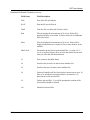
The STAT field for the downloaded file(s) will change to “D” for Delivered and the
file(s) will move to the bottom of the list.
If you wish to download another file(s) key ‘1’ and press <enter> (repeat steps
1 to 4).
If the download is unsuccessful, you will be returned to the Download screen to
retry. Press F3 or ESC 3 to exit.
Note:
If you receive the message: “Failed Cannot Retrieve Mail Message” a problem
exists with the EDT service. Please contact the EDT Help Desk for assistance.
Delete Procedures
1.
At the Download File Menu screen, select the file(s) you wish to delete by
marking each file that you wish to delete with an (*).
2.
Press F9 or ESC 9 to delete. The following message will display:
“Are you sure you want to DELETE selected files? (YES/NO)”
3.
Note:
Key YES and press <enter> to delete the selected files. To cancel the delete
function key NO and press <enter>. If YES is entered, the files are removed
and the deleted files are no longer displayed on the Download File Menu.
If the files could not be deleted, the following message will display: “The selected
files could not be deleted.” This message indicates a problem with the GONet EDT
service. Please contact the EDT Help Desk at:
1 800 262-6524 or in Kingston call 548-7981
6.2
Download and/or Delete Files