1
Appendix C
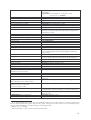
If true, causes the control to exhibit hot tracking136 behaviour (that is, an item is automatically
highlighted as the mouse pointer moves over it).
Multiline
(Boolean)
By default, a tab control displays only one row of tabs and the user can scroll to see more
tabs, if necessary. If true, multiple rows of tabs are displayed, if necessary, so all tabs are
visible at once. The tabs are left-aligned within each row (unless RightJustify = true).
Multiselection
(Boolean)
If true, multiple tabs can be selected by holding down when clicking. This style is used only
with button tab controls.
OwnerDrawFixed
(Boolean)
If true, the parent window is responsible for drawing tabs in the control.
RaggedRight (Boolean)
If true, rows of tabs will not be stretched to fill the entire width of the control. This style is the
default.
Right
(Boolean)
If true, tabs appear vertically on the right side of the control. This style is used only when
Vertical = true.
RightJustify (Boolean)
If true, the width of each tab is increased, if necessary, so that each row of tabs fills the entire
width of the tab control. This style is used only with multiline tab controls.
ScrollOpposite
(Boolean)
If true, unneeded tabs scroll to the opposite side of the control when a tab is selected.
(Boolean)
ToolTips
If true, the tab control has a tool tip control137 associated with it to provide a brief description
of each tab.
Vertical
(Boolean)
If true, tabs appear at the left side of the control, with tab text displayed vertically. This style
is valid only when Multiline = true.
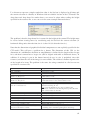
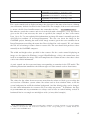
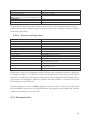
UPDOWN
An up-down control is a pair of arrow buttons that the user can click to increment or
decrement an associated value (called its current position), such as a scroll position or a
number displayed with a companion control (called a buddy window). To the user, an updown control and its buddy window often look like a single control. It can be specified that an
up-down control automatically position itself next to its buddy window. For example, you can
136
An item becomes hot when the mouse passes over it. If hot tracking is enabled, the appearance of hot items
changes.
137
A tool tip is short, descriptive phrases that appear when the user holds the mouse pointer briefly over a
control or another part of the user interface.
120