1
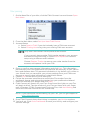
1. Open the Fitbit App.
2. Create an account:
a. Select Join Fitbit if you don’t already have a Fitbit.com account.
NO TE: Click Log In if you’re an existing Fitbit app user. Only one Fitbit
tracker can be paired to an account.
If you’re replacing an existing tracker, tap Account > Set Up a New
Fitbit device.
3.
4.
5.
6.
b. Tap Flex as the device you’re setting up.
c. Tap Set up your Flex. On the next few screens, enter your personal
details. This information personalizes your Fitbit experience and
improves the accuracy of your calorie burn and distance data. This
personal information is, by default, only visible to your friends, but you
can adjust your privacy settings on the Fitbit website to control what
information is shared with others.
d. Enter your name and the email address and password you’d like to use
for your Fitbit account.
Tap All done! and follow the instructions to remove the Flex tracker from the
wristband and charge the device.
Tap I’m Ready to start pairing your Flex.
Once found, the lights on your Flex will begin to blink. Tap the window of your
Flex repeatedly with your finger until it vibrates.
Tap Next to finish setup and go to your dashboard.
NO TE: If you experience trouble pairing your Flex, you can get support at
http://help.fitbit.com.
iOS syncing
Your Flex can sync directly to supported iOS devices via Bluetooth. To see if your
iOS device is compatible with your Flex, go to http://www.fitbit.com/devices.
Syncing occurs automatically every time you open the Fitbit App, as long as
Bluetooth is enabled in the iOS device Settings app.
Force sync
You can force your Flex to sync while the app is already open.
1. Open the Fitbit App.
2. At the top of the dashboard, tap Flex.
3. Tap Sync Now.
10