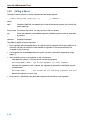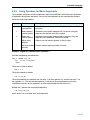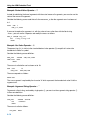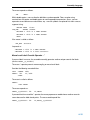
1
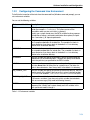
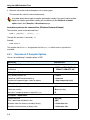
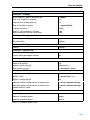
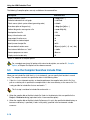
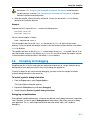
Using the ARM Embedded
Tools
MA101−024−00−00 May 29, 2006
Software, hardware, documentation and related materials:
Copyright E 2005 Altium Limited.
All rights reserved. You are permitted to print this document provided that (1) the use of such is for personal use only
and will not be copied or posted on any network computer or broadcast in any media, and (2) no modifications of the
document is made. Unauthorized duplication, in whole or part, of this document by any means, mechanical or
electronic, including translation into another language, except for brief excerpts in published reviews, is prohibited
without the express written permission of Altium Limited. Unauthorized duplication of this work may also be
prohibited by local statute. Violators may be subject to both criminal and civil penalties, including fines and/or
imprisonment. Altium, TASKING, CrossView Pro and their respective logos are trademarks or registered trademarks
of Altium Limited or its subsidiaries. All other registered or unregistered trademarks referenced herein are the
property of their respective owners and no trademark rights to the same are claimed.
Table of Contents
Table of Contents
Software Installation and Configuration
1.1
1.2
1.2.1
1.2.2
1.3
1.3.1
1.3.2
1.3.3
1.3.4
1.3.5
1.3.6
Software Installation . . . . . . . . . . . . . . . . . . . . . . . . . . . . . . . . . . . . . . . .
Software Configuration . . . . . . . . . . . . . . . . . . . . . . . . . . . . . . . . . . . . . .
Configuring the Embedded Development Environment . . . . . . . . . . .
Configuring the Command Line Environment . . . . . . . . . . . . . . . . . . .
Licensing TASKING Products . . . . . . . . . . . . . . . . . . . . . . . . . . . . . . . .
Obtaining License Information . . . . . . . . . . . . . . . . . . . . . . . . . . . . . . . .
Installing Node−Locked Licenses . . . . . . . . . . . . . . . . . . . . . . . . . . . . .
Installing Floating Licenses . . . . . . . . . . . . . . . . . . . . . . . . . . . . . . . . . .
Modifying the License File Location . . . . . . . . . . . . . . . . . . . . . . . . . . .
How to Determine the Host ID . . . . . . . . . . . . . . . . . . . . . . . . . . . . . . . .
How to Determine the Host Name . . . . . . . . . . . . . . . . . . . . . . . . . . . . .
Getting Started with Embedded Software
2.1
2.2
2.3
2.4
2.4.1
2.4.2
2.5
2.5.1
2.5.2
2.6
2.6.1
2.6.2
2.7
Introduction . . . . . . . . . . . . . . . . . . . . . . . . . . . . . . . . . . . . . . . . . . . . . . . .
Embedded Software Tools . . . . . . . . . . . . . . . . . . . . . . . . . . . . . . . . . . .
Embedded Development Environment . . . . . . . . . . . . . . . . . . . . . . . . .
Creating an Embedded Project . . . . . . . . . . . . . . . . . . . . . . . . . . . . . . .
Adding a new source file to the project . . . . . . . . . . . . . . . . . . . . . . . . .
Adding an existing source file to the project . . . . . . . . . . . . . . . . . . . .
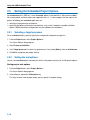
Setting the Embedded Project Options . . . . . . . . . . . . . . . . . . . . . . . . .
Selecting a target processor . . . . . . . . . . . . . . . . . . . . . . . . . . . . . . . . . .
Setting the tool options . . . . . . . . . . . . . . . . . . . . . . . . . . . . . . . . . . . . . .
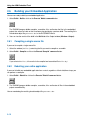
Building your Embedded Application . . . . . . . . . . . . . . . . . . . . . . . . . .
Compiling a single source file . . . . . . . . . . . . . . . . . . . . . . . . . . . . . . . .
Rebuiling your entire application . . . . . . . . . . . . . . . . . . . . . . . . . . . . . .
Debugging your Embedded Application . . . . . . . . . . . . . . . . . . . . . . . .
C Language
3.1
3.2
3.2.1
3.3
3.4
3.5
3.6
3.7
3.7.1
3.7.2
3.7.3
3.7.4
1−1
1−1
1−2
1−2
1−3
1−5
1−5
1−6
1−6
1−7
1−8
1−9
2−1
2−1
2−1
2−4
2−5
2−7
2−9
2−10
2−10
2−10
2−12
2−12
2−12
2−13
3−1
Introduction . . . . . . . . . . . . . . . . . . . . . . . . . . . . . . . . . . . . . . . . . . . . . . . .
Data Types . . . . . . . . . . . . . . . . . . . . . . . . . . . . . . . . . . . . . . . . . . . . . . . .
Changing the Alignment: __unaligned and __packed__ . . . . . . . . . .
Placing an Object at an Absolute Address: __at() . . . . . . . . . . . . . . .
Using Assembly in the C Source: __asm() . . . . . . . . . . . . . . . . . . . . .
Pragmas to Control the Compiler . . . . . . . . . . . . . . . . . . . . . . . . . . . . .
Predefined Preprocessor Macros . . . . . . . . . . . . . . . . . . . . . . . . . . . . .
Functions . . . . . . . . . . . . . . . . . . . . . . . . . . . . . . . . . . . . . . . . . . . . . . . . . .
Parameter Passing . . . . . . . . . . . . . . . . . . . . . . . . . . . . . . . . . . . . . . . . .
Function Return Types . . . . . . . . . . . . . . . . . . . . . . . . . . . . . . . . . . . . . .
Inlining Functions: inline . . . . . . . . . . . . . . . . . . . . . . . . . . . . . . . . . . . . .
Intrinsic Functions . . . . . . . . . . . . . . . . . . . . . . . . . . . . . . . . . . . . . . . . . .
3−1
3−2
3−2
3−3
3−4
3−9
3−11
3−12
3−12
3−13
3−13
3−15
iii
Using the ARM Embedded Tools
3.7.5
3.7.5.1
3.7.5.2
3.8
3.8.1
3.8.2
Interrupt Functions / Exception Handlers . . . . . . . . . . . . . . . . . . . . . . .
Defining an Exception Handler: __interrupt keywords . . . . . . . . . . . .
Interrupt Frame: __frame() . . . . . . . . . . . . . . . . . . . . . . . . . . . . . . . . . . .
Libraries . . . . . . . . . . . . . . . . . . . . . . . . . . . . . . . . . . . . . . . . . . . . . . . . . . .
Overview of Libraries . . . . . . . . . . . . . . . . . . . . . . . . . . . . . . . . . . . . . . . .
Printf and Scanf Routines . . . . . . . . . . . . . . . . . . . . . . . . . . . . . . . . . . . .
Assembly Language
4.1
4.2
4.3
4.4
4.5
4.6
4.6.1
4.6.2
4.6.3
4.7
4.8
4.9
4.9.1
4.9.2
4.9.3
4.9.4
4.9.5
Assembly Syntax . . . . . . . . . . . . . . . . . . . . . . . . . . . . . . . . . . . . . . . . . . .
Assembler Significant Characters . . . . . . . . . . . . . . . . . . . . . . . . . . . . .
Operands of an Assembly Instruction . . . . . . . . . . . . . . . . . . . . . . . . . .
Symbol Names . . . . . . . . . . . . . . . . . . . . . . . . . . . . . . . . . . . . . . . . . . . . .
Registers . . . . . . . . . . . . . . . . . . . . . . . . . . . . . . . . . . . . . . . . . . . . . . . . . .
Assembly Expressions . . . . . . . . . . . . . . . . . . . . . . . . . . . . . . . . . . . . . .
Numeric Constants . . . . . . . . . . . . . . . . . . . . . . . . . . . . . . . . . . . . . . . . .
Strings . . . . . . . . . . . . . . . . . . . . . . . . . . . . . . . . . . . . . . . . . . . . . . . . . . . .
Expression Operators . . . . . . . . . . . . . . . . . . . . . . . . . . . . . . . . . . . . . . .
Built−in Assembly Functions . . . . . . . . . . . . . . . . . . . . . . . . . . . . . . . . .
Assembler Directives . . . . . . . . . . . . . . . . . . . . . . . . . . . . . . . . . . . . . . . .
Macro Operations . . . . . . . . . . . . . . . . . . . . . . . . . . . . . . . . . . . . . . . . . .
Defining a Macro . . . . . . . . . . . . . . . . . . . . . . . . . . . . . . . . . . . . . . . . . . .
Calling a Macro . . . . . . . . . . . . . . . . . . . . . . . . . . . . . . . . . . . . . . . . . . . .
Using Operators for Macro Arguments . . . . . . . . . . . . . . . . . . . . . . . . .
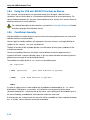
Using the .FOR and .REPEAT Directives as Macros . . . . . . . . . . . . .
Conditional Assembly . . . . . . . . . . . . . . . . . . . . . . . . . . . . . . . . . . . . . . .
Using the Compiler
5.1
5.2
5.3
5.3.1
5.3.2
5.3.3
5.4
5.4.1
5.5
5.6
5.7
5.8
Introduction . . . . . . . . . . . . . . . . . . . . . . . . . . . . . . . . . . . . . . . . . . . . . . . .
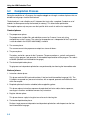
Compilation Process . . . . . . . . . . . . . . . . . . . . . . . . . . . . . . . . . . . . . . . .
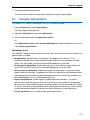
Compiler Optimizations . . . . . . . . . . . . . . . . . . . . . . . . . . . . . . . . . . . . . .
Generic optimizations (frontend) . . . . . . . . . . . . . . . . . . . . . . . . . . . . . .
Core specific optimizations (backend) . . . . . . . . . . . . . . . . . . . . . . . . .
Optimize for Size or Speed . . . . . . . . . . . . . . . . . . . . . . . . . . . . . . . . . . .
Calling the Compiler . . . . . . . . . . . . . . . . . . . . . . . . . . . . . . . . . . . . . . . .
Overview of C Compiler Options . . . . . . . . . . . . . . . . . . . . . . . . . . . . . .
How the Compiler Searches Include Files . . . . . . . . . . . . . . . . . . . . . .
Compiling for Debugging . . . . . . . . . . . . . . . . . . . . . . . . . . . . . . . . . . . .
C Code Checking: MISRA−C . . . . . . . . . . . . . . . . . . . . . . . . . . . . . . . . .
C Compiler Error Messages . . . . . . . . . . . . . . . . . . . . . . . . . . . . . . . . . .
Profiling
6.1
6.1.1
6.2
6.2.1
iv
3−15
3−16
3−17
3−17
3−18
3−18
4−1
4−1
4−2
4−3
4−3
4−4
4−4
4−5
4−5
4−6
4−7
4−8
4−10
4−11
4−12
4−13
4−16
4−16
5−1
5−1
5−2
5−3
5−4
5−5
5−6
5−7
5−8
5−10
5−11
5−12
5−13
6−1
What is profiling? . . . . . . . . . . . . . . . . . . . . . . . . . . . . . . . . . . . . . . . . . . .
Three methods of profiling . . . . . . . . . . . . . . . . . . . . . . . . . . . . . . . . . . .
Profiling using Code Instrumentation . . . . . . . . . . . . . . . . . . . . . . . . . .
Step 1: Build your Application for Profiling . . . . . . . . . . . . . . . . . . . . . .
6−1
6−1
6−3
6−4
Table of Contents
6.2.1.1
6.2.1.2
6.2.2
6.2.3
Profiling Modules and Libraries . . . . . . . . . . . . . . . . . . . . . . . . . . . . . . .
Linking Profiling Libraries . . . . . . . . . . . . . . . . . . . . . . . . . . . . . . . . . . . .
Step 2: Execute the Application . . . . . . . . . . . . . . . . . . . . . . . . . . . . . . .
Step 3: Displaying Profiling Results . . . . . . . . . . . . . . . . . . . . . . . . . . .
Using the Assembler
7.1
7.2
7.3
7.4
7.4.1
7.5
7.6
7.7
Introduction . . . . . . . . . . . . . . . . . . . . . . . . . . . . . . . . . . . . . . . . . . . . . . . .
Assembly Process . . . . . . . . . . . . . . . . . . . . . . . . . . . . . . . . . . . . . . . . . .
Assembler Optimizations . . . . . . . . . . . . . . . . . . . . . . . . . . . . . . . . . . . .
Calling the Assembler . . . . . . . . . . . . . . . . . . . . . . . . . . . . . . . . . . . . . . .
Overview of Assembler Options . . . . . . . . . . . . . . . . . . . . . . . . . . . . . .
How the Assembler Searches Include Files . . . . . . . . . . . . . . . . . . . .
Generating a List File . . . . . . . . . . . . . . . . . . . . . . . . . . . . . . . . . . . . . . .
Assembler Error Messages . . . . . . . . . . . . . . . . . . . . . . . . . . . . . . . . . .
Using the Linker
8.1
8.2
8.2.1
8.2.2
8.2.3
8.3
8.3.1
8.4
8.4.1
8.4.2
8.5
8.6
8.7
8.7.1
8.7.2
8.7.3
8.7.4
8.7.5
8.7.6
8.7.7
8.7.8
8.8
8.9
8.10
Introduction . . . . . . . . . . . . . . . . . . . . . . . . . . . . . . . . . . . . . . . . . . . . . . . .
Linking Process . . . . . . . . . . . . . . . . . . . . . . . . . . . . . . . . . . . . . . . . . . . .
Phase 1: Linking . . . . . . . . . . . . . . . . . . . . . . . . . . . . . . . . . . . . . . . . . . . .
Phase 2: Locating . . . . . . . . . . . . . . . . . . . . . . . . . . . . . . . . . . . . . . . . . .
Linker Optimizations . . . . . . . . . . . . . . . . . . . . . . . . . . . . . . . . . . . . . . . .
Calling the Linker . . . . . . . . . . . . . . . . . . . . . . . . . . . . . . . . . . . . . . . . . . .
Overview of Linker Options . . . . . . . . . . . . . . . . . . . . . . . . . . . . . . . . . .
Linking with Libraries . . . . . . . . . . . . . . . . . . . . . . . . . . . . . . . . . . . . . . . .
How the Linker Searches Libraries . . . . . . . . . . . . . . . . . . . . . . . . . . . .
How the Linker Extracts Objects from Libraries . . . . . . . . . . . . . . . . .
Incremental Linking . . . . . . . . . . . . . . . . . . . . . . . . . . . . . . . . . . . . . . . . .
Linking the C Startup Code . . . . . . . . . . . . . . . . . . . . . . . . . . . . . . . . . .
Controlling the Linker with a Script . . . . . . . . . . . . . . . . . . . . . . . . . . . .
Purpose of the Linker Script Language . . . . . . . . . . . . . . . . . . . . . . . .
EDE and LSL . . . . . . . . . . . . . . . . . . . . . . . . . . . . . . . . . . . . . . . . . . . . . .
Structure of a Linker Script File . . . . . . . . . . . . . . . . . . . . . . . . . . . . . . .
The Architecture Definition . . . . . . . . . . . . . . . . . . . . . . . . . . . . . . . . . . .
The Derivative Definition . . . . . . . . . . . . . . . . . . . . . . . . . . . . . . . . . . . . .
The Memory Definition . . . . . . . . . . . . . . . . . . . . . . . . . . . . . . . . . . . . . .
The Section Layout Definition: Locating Sections . . . . . . . . . . . . . . . .
The Processor Definition: Using Multi−Processor Systems . . . . . . .
Linker Labels . . . . . . . . . . . . . . . . . . . . . . . . . . . . . . . . . . . . . . . . . . . . . .
Generating a Map File . . . . . . . . . . . . . . . . . . . . . . . . . . . . . . . . . . . . . . .
Linker Error Messages . . . . . . . . . . . . . . . . . . . . . . . . . . . . . . . . . . . . . .
6−5
6−5
6−5
6−7
7−1
7−1
7−2
7−2
7−3
7−4
7−6
7−7
7−7
8−1
8−1
8−2
8−3
8−4
8−5
8−7
8−8
8−10
8−12
8−12
8−13
8−13
8−14
8−14
8−15
8−15
8−18
8−20
8−21
8−23
8−24
8−25
8−27
8−27
v
Using the ARM Embedded Tools
Using the Utilities
9.1
9.2
9.2.1
9.2.2
9.3
9.3.1
9.3.2
9.3.3
9.4
9.4.1
9.4.2
9.4.3
Index−1
vi
Introduction . . . . . . . . . . . . . . . . . . . . . . . . . . . . . . . . . . . . . . . . . . . . . . . .
Control Program . . . . . . . . . . . . . . . . . . . . . . . . . . . . . . . . . . . . . . . . . . . .
Calling the Control Program . . . . . . . . . . . . . . . . . . . . . . . . . . . . . . . . . .
Overview of Control Program Options . . . . . . . . . . . . . . . . . . . . . . . . .
Make Utility . . . . . . . . . . . . . . . . . . . . . . . . . . . . . . . . . . . . . . . . . . . . . . . .
Calling the Make Utility . . . . . . . . . . . . . . . . . . . . . . . . . . . . . . . . . . . . . .
Overview of Make Utility Options . . . . . . . . . . . . . . . . . . . . . . . . . . . . . .
Writing a MakeFile . . . . . . . . . . . . . . . . . . . . . . . . . . . . . . . . . . . . . . . . . .
Librarian . . . . . . . . . . . . . . . . . . . . . . . . . . . . . . . . . . . . . . . . . . . . . . . . . . .
Calling the Librarian . . . . . . . . . . . . . . . . . . . . . . . . . . . . . . . . . . . . . . . . .
Overview of Librarian Options . . . . . . . . . . . . . . . . . . . . . . . . . . . . . . . .
Examples . . . . . . . . . . . . . . . . . . . . . . . . . . . . . . . . . . . . . . . . . . . . . . . . . .
9−1
9−1
9−2
9−2
9−3
9−5
9−6
9−7
9−8
9−16
9−16
9−17
9−18
Manual Purpose and Structure
Manual Purpose and Structure
Windows Users
The documentation explains and describes how to use the TASKING ARM toolchain to program an
ARM processor.
You can use the tools either with the graphical EDE or from the command line in a command prompt
window.
Structure
The toolchain documentation consists of a user’s manual (this manual), which includes a Getting
Started section, and a separate reference manual (ARM Embedded Tools Reference).
First you need to install the software. This is described in Chapter 1, Software Installation and
Configuration.
After installation you are ready you are ready to follow the Getting Started in Chapter 2.
Next, move on with the other chapters which explain how to use the compiler, assembler, linker and the
various utilities.
Once you are familiar with these tools, you can use the reference manual to lookup specific options
and details to make full use of the TASKING toolchain.
vii
Using the ARM Embedded Tools
Short Table of Contents
Chapter 1: Software Installation and Configuration
Guides you through the installation of the software. Describes the most important settings, paths and
filenames that you must specify to get the package up and running.
Chapter 2: Getting Started
Overview of the toolchain and its individual elements. Explains step−by−step how to write, compile,
assemble and debug your application. Teaches how you can use embedded projects to organize your
files.
Chapter 3: C Language
The TASKING C compilers are fully compatible with ISO−C. This chapter describes the specific target
features of the C language, including language extensions that are not standard in ISO−C. For
example, pragmas are a way to control the compiler from within the C source.
Chapter 4: Assembly Language
Describes the specific features of the assembly language as well as ’directives’, which are pseudo
instructions that are interpreted by the assembler.
Chapter 5: Using the Compiler
Describes how you can use the compiler. An extensive overview of all options is included in the
reference manual.
Chapter 6: Profiling
Describes the process of collecting statistical data about a running application.
Chapter 7: Using the Assembler
Describes how you can use the assembler. An extensive overview of all options is included in the
reference manual.
Chapter 8: Using the Linker
Describes how you can use the linker. An extensive overview of all options is included in the reference
manual.
Chapter 9: Using the Utilities
Describes several utilities and how you can use them to facilitate various tasks. The following utilities
are included: control program, make utility and librarian.
viii
Manual Purpose and Structure
Conventions Used in this Manual
Notation for syntax
The following notation is used to describe the syntax of command line input:
bold
Type this part of the syntax literally.
italics
Substitute the italic word by an instance. For example:
filename
Type the name of a file in place of the word filename.
{}
Encloses a list from which you must choose an item.
[]
Encloses items that are optional. For example
carm [ −? ]
Both carm and carm −? are valid commands.
|
Separates items in a list. Read it as OR.
...
You can repeat the preceding item zero or more times.
Example
carm [option]... filename
You can read this line as follows: enter the command carm with or without an option, follow this by zero
or more options and specify a filename. The following input lines are all valid:
carm test.c
carm −g test.c
carm −g −s test.c
Not valid is:
carm −g
According to the syntax description, you have to specify a filename.
ix
Using the ARM Embedded Tools
Icons
The following illustrations are used in this manual:
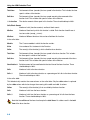
Note: notes give you extra information.
Warning: read the information carefully. It prevents you from making serious mistakes or from
loosing information.
This illustration indicates actions you can perform with the mouse. Such as EDE menu entries
and dialogs.
Command line: type your input on the command line.
Reference: follow this reference to find related topics.
x
Manual Purpose and Structure
Related Publications
C Standards
• ISO/IEC 9899:1999(E), Programming languages − C [ISO/IEC]
More information on the standards can be found at http://www.ansi.org
MISRA−C
• Guidelines for the Use of the C Language in Vehicle Based Software [MIRA limited, 1998]
See also http://www.misra.org.uk
• MISRA−C:2004: Guidelines for the use of the C Language in critical systems [MIRA limited, 2004]
See also http://www.misra−c.com
TASKING Tools
• ARM Embedded Tools Reference
[Altium, MB101−024−00−00]
• ARM CrossView Pro Debugger User’s Manual
[Altium, MA101−043−00−00]
ARM
• ARM Architecture Reference Manual − second edition
[2000, ARM Limited]
xi
Using the ARM Embedded Tools
xii
1 Software Installation and
Configuration
Summary
1.1
This chapter guides you through the procedures to install
the software on a Windows system.
The software for Windows has two faces: a graphical
interface (Embedded Development Environment) and a
command line interface. After the installation, it is explained
how to configure the software and how to install the license
information that is needed to actually use the software.
Software Installation
1. Start Windows 95/98/XP/NT/2000, if you have not already done so.
2. Insert the CD−ROM into the CD−ROM drive.
If the TASKING Showroom dialog box appears, proceed with Step 5.
3. Click the Start button and select Run...
4. In the dialog box type d:\setup (substitute the correct drive letter for your CD−ROM drive) and
click on the OK button.
The TASKING Showroom dialog box appears.
5. Select a product and click on the Install button.
6. Follow the instructions that appear on your screen.
7. License the software product as explained in section 1.3, Licensing TASKING Products.
1−1
Using the ARM Embedded Tools
1.2
Software Configuration
Now you have installed the software, you can configure both the Embedded Development Environment
and the command line environment for Windows.
1.2.1
Configuring the Embedded Development Environment
After installation on Windows, the Embedded Development Environment is automatically configured
with default search paths to find the executables, include files and libraries. In most cases you can use
these settings. To change the default settings, follow the next steps:
1. Double−click on the EDE icon on your desktop to start the Embedded Development Environment
(EDE).
2. From the Project menu, select Directories...
The Directories dialog box appears.
3. Fill in the following fields:
• In the Executable Files Path field, type the pathname of the directory where the executables
are located. The default directory is $(PRODDIR)\bin.
• In the Include Files Path field, add the pathnames of the directories where the compiler and
assembler should look for include files. The default directory is $(PRODDIR)\include.
Separate pathnames with a semicolon (;).
The first path in the list is the first path where the compiler and assembler look for include files.
To change the search order, simply change the order of pathnames.
• In the Library Files Path field, add the pathnames of the directories where the linker should
look for library files. The default directory is $(PRODDIR)\lib. Separate pathnames with a
semicolon (;).
The first path in the list is the first path where the linker looks for library files. To change the
search order, simply change the order of pathnames.
Instead of typing the pathnames, you can click on the Configure... button.
A dialog box appears in which you can select and add directories, remove them again and
change their order.
1−2
Software Installation and Configuration
1.2.2
Configuring the Command Line Environment
To facilitate the invocation of the tools from the command line (Windows command prompt), you can
set environment variables.
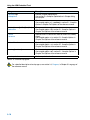
You can set the following variables:
Environment Variable
Description
PATH
With this variable you specify the directory in which the executables
reside (for example: c:\carm\bin). This allows you to call the
executables when you are not in the bin directory.
Usually your system already uses the PATH variable for other purposes.
To keep these settings, you need to add (rather than replace) the path.
Use a semicolon (;) to separate pathnames.
CARMINC
With this variable you specify one or more additional directories in which
the C compiler carm looks for include files. The compiler first looks in
these directories, then always looks in the default include directory
relative to the installation directory.
ASARMINC
With this variable you specify one or more additional directories in which
the assembler asarm looks for include files. The assembler first looks in
these directories, then always looks in the default include directory
relative to the installation directory.
CCARMBIN
With this variable you specify the directory in which the control program
ccarm looks for the executable tools. The path you specify here should
match the path that you specified for the PATH variable.
LIBARM
With this variable you specify one or more alternative directories in which
the linker lkarm looks for library files for a specific core. The linker first
looks in these directories, then always looks in the default lib directory.
LM_LICENSE_FILE
With this variable you specify the location of the license data file. You only
need to specify this variable if the license file is not on its default location
(c:\flexlm for Windows, /usr/local/flexlm/licenses for UNIX).
TASKING_LIC_WAIT
If you set this variable, the tool will wait for a license to become available,
if all licenses are taken. If you have not set this variable, the tool aborts
with an error message. (Only useful with floating licenses)
TMPDIR
With this variable you specify the location where programs can create
temporary files. Usually your system already uses this variable. In this
case you do not need to change it.
Table 1−1: Environment variables
1−3
Using the ARM Embedded Tools
The following examples show how to set an environment variable using the PATH variable as an
example.
Example for Windows 95/98
Add the following line to your autoexec.bat file:
set PATH=%path%;c:\carm\bin
You can also type this line in a Command Prompt window but you will loose this setting after you
close the window.
Example for Windows NT
1. Right−click on the My Computer icon on your desktop and select Properties from the menu.
The System Properties dialog appears.
2. Select the Environment tab.
3. In the list of System Variables select Path.
4. In the Value field, add the path where the executables are located to the existing path information.
Separate pathnames with a semicolon (;). For example: c:\carm\bin.
5. Click on the Set button, then click OK.
Example for Windows XP / 2000
1. Right−click on the My Computer icon on your desktop and select Properties from the menu.
The System Properties dialog appears.
2. Select the Advanced tab.
3. Click on the Environment Variables button.
The Environment Variables dialog appears.
4. In the list of System variables select Path.
5. Click on the Edit button.
The Edit System Variable dialog appears.
6. In the Variable value field, add the path where the executables are located to the existing path
information. Separate pathnames with a semicolon (;). For example: c:\carm\bin.
7. Click on the OK button to accept the changes and close the dialogs.
1−4
Software Installation and Configuration
1.3
Licensing TASKING Products
TASKING products are protected with license management software (FLEXlm). To use a TASKING
product, you must install the license key provided by TASKING for the type of license purchased.
You can run TASKING products with a node−locked license or with a floating license. When you order a
TASKING product determine which type of license you need (UNIX products only have a floating
license).
Node−locked license (PC only)
This license type locks the software to one specific PC so you can use the product on that particular
PC only.
Floating license
This license type manages the use of TASKING product licenses among users at one site. This license
type does not lock the software to one specific PC or workstation but it requires a network. The
software can then be used on any computer in the network. The license specifies the number of users
who can use the software simultaneously. A system allocating floating licenses is called a license
server. A license manager running on the license server keeps track of the number of users.
1.3.1
Obtaining License Information
Before you can install a software license you must have a "License Key" containing the license
information for your software product. If you have not received such a license key follow the steps
below to obtain one. Otherwise, you can install the license.
Windows
1. Run the License Administrator during installation and follow the steps to Request a license key
from Altium by E−mail.
2. E−mail the license request to your local TASKING sales representative. The license key will be sent
to you by E−mail.
UNIX
1. If you need a floating license on UNIX, you must determine the host ID and host name of the
computer where you want to use the license manager. Also decide how many users will be using
the product. See section 1.3.5, How to Determine the Host ID and section 1.3.6, How to Determine
the Host Name.
2. When you order a TASKING product, provide the host ID, host name and number of users to your
local TASKING sales representative. The license key will be sent to you by E−mail.
1−5
Using the ARM Embedded Tools
1.3.2
Installing Node−Locked Licenses
If you do not have received your license key, read section 1.3.1, Obtaining License Information, before
continuing.
1. Install the TASKING software product following the installation procedure described in section 1.1,
Software Installation, if you have not done this already.
2. Create a license file by importing a license key or create one manually:
Import a license key
During installation you will be asked to run the License Administrator. Otherwise, start the License
Administrator (licadmin.exe) manually.
In the License Administrator follow the steps to Import a license key received from Altium by
E−mail. The License Administrator creates a license file for you.
Create a license file manually
If you prefer to create a license file manually, create a file called "license.dat" in the c:\flexlm
directory, using an ASCII editor and insert the license key information received by E−mail in this file.
This file is called the "license file". If the directory c:\flexlm does not exist, create the directory.
If you wish to install the license file in a different directory, see section 1.3.4, Modifying the
License File Location.
If you already have a license file, add the license key information to the existing license file. If
the license file already contains any SERVER lines, you must use another license file. See
section 1.3.4, Modifying the License File Location, for additional information.
The software product and license file are now properly installed.
1.3.3
Installing Floating Licenses
If you do not have received your license key, read section 1.3.1, Obtaining License Information, before
continuing.
1. Install the TASKING software product following the installation procedure described earlier in this
chapter on each computer or workstation where you will use the software product.
2. On each PC or workstation where you will use the TASKING software product the location of a
license file must be known, containing the information of all licenses. Either create a local license
file or point to a license file on a server:
Add a licence key to a local license file
A local license file can reduce network traffic.
On Windows, you can follow the same steps to import a license key or create a license file
manually, as explained in the previous section with the installation of a node−locked license.
1−6
Software Installation and Configuration
On UNIX, you have to insert the license key manually in the license file. The default location of the
license file license.dat is in directory /usr/local/flexlm/licenses for UNIX.
If you wish to install the license file in a different directory, see section 1.3.4, Modifying the
License File Location.
If you already have a license file, add the license key information to the existing license file.
If the license file already contains any SERVER lines, make sure that the number of
SERVER lines and their contents match, otherwise you must use another license file. See
section 1.3.4, Modifying the License File Location, for additional information.
Point to a license file on the server
Set the environment variable LM_LICENSE_FILE to "port@host", where host and port come from
the SERVER line in the license file. On Windows, you can use the License Administrator to do this
for you. In the License Administrator follow the steps to Point to a FLEXlm License Server to get
your licenses.
3. If you already have installed FLEXlm v8.4 or higher (for example as part of another product) you
can skip this step and continue with step 4. Otherwise, install SW000098, the Flexible License
Manager (FLEXlm), on the license server where you want to use the license manager.
It is not recommended to run a license manager on a Windows 95 or Windows 98 machine. Use
Windows XP, NT or 2000 instead, or use UNIX or Linux.
4. If FLEXlm has already been installed as part of a non−TASKING product you have to make sure
that the bin directory of the FLEXlm product contains a copy of the Tasking daemon. This file part
of the TASKING product installation and is present in the flexlm subdirectory of the toolchain. This
file is also on every product CD that includes FLEXlm, in directory licensing.
5. On the license server also add the license key to the license file. Follow the same instructions as
with "Add a license key to a local license file" in step 2.
See the FLEXlm PDF manual delivered with SW000098, which is present on each TASKING
product CD, for more information.
1.3.4
Modifying the License File Location
The default location for the license file on Windows is:
c:\flexlm\license.dat
On UNIX this is:
/usr/local/flexlm/licenses/license.dat
1−7
Using the ARM Embedded Tools
If you want to use another name or directory for the license file, each user must define the environment
variable LM_LICENSE_FILE.
If you have more than one product using the FLEXlm license manager you can specify multiple license
files to the LM_LICENSE_FILE environment variable by separating each pathname (lfpath) with a ’;’
(on UNIX ’:’):
Example Windows:
set LM_LICENSE_FILE=c:\flexlm\license.dat;c:\license.txt
Example UNIX:
setenv LM_LICENSE_FILE /usr/local/flexlm/licenses/license.dat:/myprod/license.txt
If the license file is not available on these hosts, you must set LM_LICENSE_FILE to port@host; where
host is the host name of the system which runs the FLEXlm license manager and port is the TCP/IP
port number on which the license manager listens.
To obtain the port number, look in the license file at host for a line starting with "SERVER". The fourth
field on this line specifies the TCP/IP port number on which the license server listens. For example:
setenv LM_LICENSE_FILE 7594@elliot
See the FLEXlm PDF manual delivered with SW000098, which is present on each TASKING
product CD, for detailed information.
1.3.5
How to Determine the Host ID
The host ID depends on the platform of the machine. Please use one of the methods listed below to
determine the host ID.
Platform
Tool to retrieve host ID
Example host ID
Linux
hostid
11ac5702
Windows
licadmin (License Administrator,
or use lmhostid)
0060084dfbe9
Table 1−2: Determine the host ID
On Windows, the License Administrator (licadmin) helps you in the process of obtaining your license
key.
If you do not have the program licadmin you can download it from our Web site at:
http://www.tasking.com/support/flexlm/licadmin.zip. It is also on every product CD that includes
FLEXlm, in directory licensing.
1−8
Software Installation and Configuration
1.3.6
How to Determine the Host Name
To retrieve the host name of a machine, use one of the following methods.
Platform
Method
UNIX
hostname
Windows NT
licadmin or:
Go to the Control Panel, open "Network". In the "Identification" tab look for
"Computer Name".
Windows XP/2000
licadmin or:
Go to the Control Panel, open "System". In the "Computer Name" tab look for
"Full computer name".
Table 1−3: Determine the host name
1−9
Using the ARM Embedded Tools
1−10
2 Getting Started with Embedded
Software
Summary
2.1
This tutorial shows how to create an embedded software
project with EDE.
Introduction
This tutorial presumes you are familiar with programming in C/assembly and have basic knowledge of
embedded programming. It contains an overview of the TASKING tools available in the Embedded
Development Environment (EDE). It describes how you can add, create and edit source files in an
embedded project and how to build an embedded application.
The example used in this tutorial is a Hello World program in C. Other examples are supplied in the
\Program Files\Tasking\carm\examples\ folder.
2.2
Embedded Software Tools
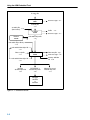
With the TASKING embedded software tools in EDE you can write, compile, assemble and link
applications for ARM. Figure 2−1 shows all components of the TASKING toolchain with their input and
output files.
The bold names in the figure are the executable names of the tools.
2−1
Using the ARM Embedded Tools
C source file
.c
C compiler
carm
assembly file
.asm
(hand coded)
assembly file
.src
assembler
asarm
librarian
ararm
error messages .err
list file .lst
error messages .ers
relocatable object file
.obj
relocatable object library
.lib
relocatable linker object file
.out
linker script file
.lsl
linker
lkarm
.out
ELF/DWARF 2
absolute object file
.abs
debugger
simulator
or
hardware
Figure 2−1: Toolchain overview
2−2
error messages .elk
memory definition
file .mdf
relocatable linker object file
Intel Hex
absolute object file
.hex
linker map file .map
Motorola S−record
absolute object file
.sre
Getting Started with Embedded Software
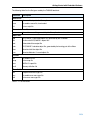
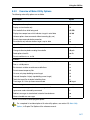
The following table lists the file types used by the TASKING toolchain.
Extension
Description
Source files
.c
C source file, input for the C compiler
.asm
Assembler source file, hand coded
.lsl
Linker script file
Generated source files
.src
Assembler source file, generated by the C compiler, does not contain macros
Object files
.obj
ELF/DWARF 2 relocatable object file, generated by the assembler
.lib
Archive with ELF/DWARF 2 object files
.out
Relocatable linker output file
.abs
ELF/DWARF 2 absolute object file, generated by the locating part of the llinker
.hex
Absolute Intel Hex object file
.sre
Absolute Motorola S−record object file
List files
.lst
Assembler list file
.map
Linker map file
.mcr
MISRA−C report file
.mdf
Memory definition file
Error list files
.err
Compiler error messages file
.ers
Assembler error messages file
.elk
Linker error messages file
Table 2−1: File extensions
2−3
Using the ARM Embedded Tools
2.3
Embedded Development Environment
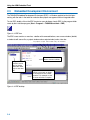
The TASKING Embedded Development Environment (EDE) is a Windows application that facilitates
working with the tools in the toolchain and also offers project management and an integrated editor.
To start EDE, double−click on the EDE shortcut on your desktop or launch EDE via the program folder
create by the installation program (Start » Programs » TASKING toolchain » EDE).
Figure 2−2: EDE icon
The EDE screen contains a menu bar, a toolbar with command buttons, one or more windows (default,
a window to edit source files, a project window and an output window) and a status bar.
Project Options Compile
Build Rebuild Debug On−line Manuals
Document Windows
Used to view and edit files.
Project Window
Contains several
tabs for viewing
information about
projects and other
files.
Figure 2−3: EDE desktop
2−4
Output Window
Contains several tabs to display
and manipulate results of EDE
operations. For example, to view
the results of builds or compiles.
Getting Started with Embedded Software
2.4
Creating an Embedded Project
To start working with EDE, you first need a project space and a project. A project space holds a set of
projects and must always contain at least one project. Before you can create a project you have to
setup a project space. All information of a project space is saved in a project space file (.psp). Within a
project space you can create projects. A project makes managing your source documents and any
generated outputs much easier. All information of a project is saved in a project file (.pjt).
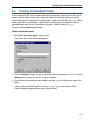
To create a new Embedded Software project:
Create a new project space
1. Select File » New Project Space... form the menu.
The Create a New Project Space dialog appears.
2. In the the Filename field, enter a name for your project space (for example MyProjects). Click the
Browse button to select a directory first and enter a filename.
3. Check the directory and filename and click OK to create the .psp file in the directory shown in the
dialog.
A project space information file with the name MyProjects.psp is created and the Project
Properties dialog box appears with the project space selected.
2−5
Using the ARM Embedded Tools
Add a new project to the project space
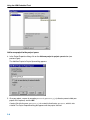
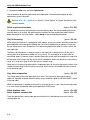
4. In the Project Properties dialog, click on the Add new project to project space button (see
previous figure).
The Add New Project to Project Space dialog appears.
5. Give your project a name, for example getstart\getstart.pjt (a directory name to hold your
project files is optional) and click OK.
A project file with the name getstart.pjt is created in the directory getstart, which is also
created. The Project Properties dialog box appears with the project selected.
2−6
Getting Started with Embedded Software
Now you can add all the files you want to be part of your project.
2.4.1
Adding a new source file to the project
If you want to add a new source file (C or assembly or text file) to your project, proceed as follows:
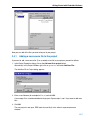
1. In the Project Properties dialog, click on the Add new file to project button.
Alternatively: In the Project Window, right−click on getstart and select Add New File...
The Add New File to Project dialog appears.
2. Enter a new filename (for example hello.c) and click OK.
A new empty file is created and added to the project. Repeat steps 1 and 2 if you want to add more
files.
3. Click OK.
The new project is now open. EDE loads the new file(s) in the editor in separate document
windows.
2−7
Using the ARM Embedded Tools
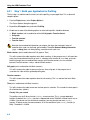
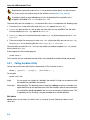
EDE automatically creates a makefile for the project (in this case getstart.mak). This file contains
the rules to build your application. EDE updates the makefile every time you modify your project.
4. Enter the source code required. For this tutorial enter the following code:
#include <stdio.h>
void main(void)
{
printf("Hello World!\n");
}
Save the source file:
5. Click on the Save the changed file <Ctrl−S> button.
EDE saves the file.
2−8
Getting Started with Embedded Software
2.4.2
Adding an existing source file to the project
If you want to add an exisiting source file to your project, proceed as follows:
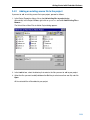
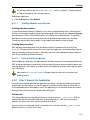
1. In the Project Properties dialog, click on the Add existing files to project button.
Alternatively: In the Project Window, right−click on getstart and select Add Existing Files »
Browse...
The Select One or More Files to Add to Project dialog appears.
2. In the Look in box, select the directory that contains the files you want to add to your project.
3. Select the files you want to add (hold down the Ctrl−key to select more than one file) and click
Open.
All the selected files will be added to your project.
2−9
Using the ARM Embedded Tools
2.5
Setting the Embedded Project Options
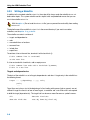
An embedded project in EDE has a set of embedded options associated with it. After you have added
files to your project, and have written your application (hello.c in our example), the next steps in the
process of building your embedded application are:
• selecting a target processor architecture
• specifying the options of the tools in the toolchain, such as the C compiler, assembler and linker
options. (Different toolchain configurations may have different sets of options.)
2.5.1
Selecting a target processor
For an embedded project, you must specify the configuration and processor type first:
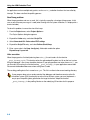
1. From the Project menu, select Project Options...
The Project Options dialog appears.
2. Select Processor Definition.
3. In the Target processor list select a target processor. If you select (Other), select an Architecture.
4. Click OK to accept the new project settings.
2.5.2
Setting the tool options
You can set embedded options commonly for all files in the project and you can set file specific options.
Setting project wide options
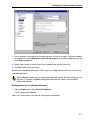
1. From the Project menu, select Project Options...
The Project Options dialog appears.
2. In the left pane, expand the C Compiler entry.
This entry contains several pages where you can specify C compiler settings.
2−10
Getting Started with Embedded Software
3. In the right pane, set the options to the values you want. Do this for all pages. If you want to debug
the absolute file, set the Optimization level to Debug purposes. For your final application you can
select Release purposes.
4. Repeat steps 2 and 3 for the other tools like assembler, linker and CrossView Pro.
5. Click OK to confirm the new settings.
Based on the embedded project options, EDE creates a so−called makefile which it uses to build your
embedded application.
With the Default... button you can restore the default project options (for the current page, or for
all pages). If available, the Options string field shows how your settings are translated to
command line options.
Setting options for an individual document
1. From the Project menu, select Current File Options...
The File Options dialog appears.
Steps 2 to 5 are the same as the steps for setting project wide options.
2−11
Using the ARM Embedded Tools
2.6
Building your Embedded Application
You are now ready to build your embedded application.
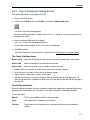
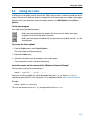
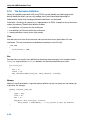
1. Select Build » Build or click on the Execute ’Make’ command button.
The TASKING program builder compiles, assembles, links and locates the files in the embedded
project that are out−of−date or that have been changed during a previous build. The resulting file is
the absolute object file getstart.abs in the ELF/DWARF format.
2. You can view the results of the build in the Build tab of the Output window (Window » Output).
2.6.1
Compiling a single source file
If you want to compile a single source file:
1. Select the window (hello.c) containing the file you want to compile or assemble.
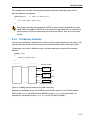
2. Select Build » Compile or click on the Execute ’Compile’ command button.
If you selected hello.c, this results in the compiled and assembled file hello.obj.
2.6.2
Rebuiling your entire application
If you want to build your embedded application from scratch, regardless of their date/time stamp, you
can perform a recompile:
1. Select Build » Rebuild or click on the Execute ’Rebuild’ command button.
2. The TASKING program builder compiles, assembles, links and locates all files in the embedded
project unconditionally.
You can now debug the resulting absolute object file getstart.abs.
2−12
Getting Started with Embedded Software
2.7
Debugging your Embedded Application
When you have built your embedded application, you can start debugging the resulting absolute object
file with the simulator.
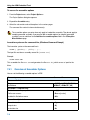
To start the debugger:
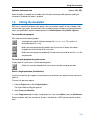
• Select Build » Debug or click on the Debug application button.
CrossView Pro is launched. CrossView Pro will automatically download the file getstart.abs for
debugging.
See the CrossView Pro Debugger User’s Manual for more information.
2−13
Using the ARM Embedded Tools
2−14
3 C Language
Summary
3.1
This chapter describes the target specific features of the C
language, including language extensions that are not
standard in ISO−C. For example, pragmas are a way to
control the compiler from within the C source.
Introduction
The TASKING compiler(s) fully support the ISO C standard and add extra possibilities to program the
special functions of the targets.
In addition to the standard C language, the compiler supports the following:
•
•
•
•
•
•
•
intrinsic (built−in) functions that result in target specific assembly instructions
pragmas to control the compiler from within the C source
predefined macros
the possibility to use assembly instructions in the C source
attribute to specify absolute addresses
keywords for inlining functions and programming interrupt routines
libraries
All non−standard keywords have two leading underscores (__).
In this chapter the target specific characteristics of the C language are described, including the above
mentioned extensions.
3−1
Using the ARM Embedded Tools
3.2
Data Types
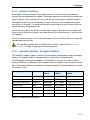
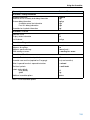
The TASKING C compiler for the ARM architecture (carm) supports the following fundamental data
types:
Size
(bit)
Align
(bit)
Limits
8
8
0 or 1
8
8
−27 .. 27−1
8
8
0 .. 28−1
16
16
−215 .. 215−1
unsigned short
16
16
0 .. 216−1
enum
32
32
−231 .. 231−1
32
32
−231 .. 231−1
32
32
0 .. 232−1
64
64
−263 .. 263−1
unsigned long long
64
64
0 .. 264−1
pointer to function or data
32
32
0 .. 232−1
float
32
32
−3.402e38 .. −1.175e−38
1.175e−38 .. 3.402e38
64
64
−1.798e308 .. −2.225e−308
2.225e−308 .. 1.798e308
Type
C Type
Boolean
_Bool
Character
char
signed char
unsigned char
Integral
short
signed short
int
signed int
long
signed long
unsigned int
unsigned long
long long
signed long long
Pointer
Floating−Point
double
long double
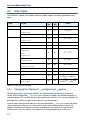
Table 3−1: Data Types for the ARM
3.2.1
Changing the Alignment: __unaligned and __packed__
Normally data, pointers and structure members are aligned according to the table in the previous
section. With the type qualifier __unaligned you can specify to suppress the alignment of objects or
structure members. This can be useful to create compact data structures. In this case the alignment will
be one bit for bit−fields or one byte for other objects or structure members.
At the left side of a pointer declaration you can use the type qualifier __unaligned to mark the pointer
value as potentially unaligned. This can be useful to access externally defined data. However the
compiler can generate less efficient instructions to dereference such a pointer, to avoid unaligned
memory access. You can convert a normal pointer to an unaligned pointer, but not vice versa.
3−2
C Language
Example:
struct
{
char c;
__unaligned
} s;
int i;
/* aligned at offset 1 ! */
__unaligned int * up = & s.i;
Packed structures
To prevent alignment gaps in structures, you can use the attribute __packed__. When you use the
attribute __packed__ directly after the keyword struct, all structure members are marked
__unaligned. For example the following two declarations are the same:
struct __packed__
{
char c;
int i;
} s1;
struct
{
__unaligned char c;
__unaligned int i;
} s2;
The attribute __packed__ has the same effect as adding the type qualifier __unaligned to the
declaration to suppress the standard alignment.
You can also use __packed__ in a pointer declaration. In that case it affects the alignment of the
pointer itself, not the value of the pointer. The following two declarations are the same:
int * __unaligned p;
int * p __packed__;
3.3
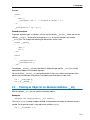
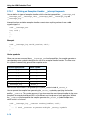
Placing an Object at an Absolute Address: __at()
With the attribute __at() you can specify an absolute address.
Examples
unsigned char Display[80*24] __at( 0x2000 );
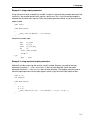
The array Display is placed at address 0x2000. In the generated assembly, an absolute section is
created. On this position space is reserved for the variable Display.
int i __at(0x1000) = 1;
3−3
Using the ARM Embedded Tools
The variable i is placed at address 0x1000 and is initialized at 1.
void f(void) __at( 0xf0ff + 1 ) { }
The function f is placed at address 0xf100.
Restrictions
Take note of the following restrictions if you place a variable at an absolute address:
• The argument of the __at() attribute must be a constant address expression.
• You can place only global variables at absolute addresses. Parameters of functions, or automatic
variables within functions cannot be placed at absolute addresses.
• When declared extern, the variable is not allocated by the compiler. When the same variable is
allocated within another module but on a different address, the compiler, assembler or linker will not
notice, because an assembler external object cannot specify an absolute address.
• When the variable is declared static, no public symbol will be generated (normal C behavior).
• You cannot place structure members at an absolute address.
• Absolute variables cannot overlap each other. If you declare two absolute variables at the same
address, the assembler and / or linker issues an error. The compiler does not check this.
• When you declare the same absolute variable within two modules, this produces conflicts during
link time (except when one of the modules declares the variable ’extern’).
3.4
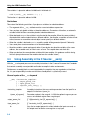
Using Assembly in the C Source: __asm()
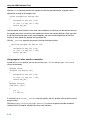
With the __asm keyword you can use assembly instructions in the C source. Be aware that C modules
that contain assembly are not portable and harder to compile in other environments.
Furthermore, assembly blocks are not interpreted by the compiler: they are regarded as a black box.
So, it is your responsibility to make sure that the assembly block is syntactically correct.
General syntax of the __asm keyword
__asm( "instruction_template"
[ : output_param_list
[ : input_param_list
[ : register_save_list]]] );
instruction_template
%parm_nr[.regnum]
Assembly instructions that may contain parameters from the input list or
output list in the form: %parm_nr
Parameter number in the range 0 .. 9. With the optional .regnum you can
access an individual register from a register pair.
output_param_list
[[ "=[&]constraint_char"(C_expression)],...]
input_param_list
[[ "constraint_char"(C_expression)],...]
&
3−4
Says that an output operand is written to before the inputs are read, so
this output must not be the same register as any input.
C Language
constraint _char
Constraint character: the type of register to be used for the
C_expression.
C_expression
Any C expression. For output parameters it must be an lvalue, that is,
something that is legal to have on the left side of an assignment.
register_save_list
register_name:q
[["register_name"],...]
Name of the register you want to reserve.
char a, b;
int result;
void main(void)
{
a = 3;
b = 4;
__asm( "ADD %0,%1,%2" : "=r"(result): "r"(a), "r"(b) );
}
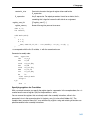
%0 corresponds with the first C variable, %1 with the second and so on.
Generated assembly code:
main: .type func
ldr
r1,L_2
mov
r0,#3
strb
r0,[r1,#0]
mov
r2,#4
strb
r2,[r1,#1]
ADD
r0,r0,r2
str
r0,[r1,#4]
bx
lr
.size main,$−main
.align 4
L_2:
.dcw
a
Specifying registers for C variables
With a constraint character you specify the register type for a parameter. In the example above, the r is
used to force the use of registers (Rn) for the parameters a and b.
You can reserve the registers that are already used in the assembly instructions, either in the
parameter lists or in the reserved register list (register_save_list, also called "clobber list"). The
compiler takes account of these lists, so no unnecessary register saving and restoring instructions are
placed around the inline assembly instructions.
3−5
Using the ARM Embedded Tools
Constraint
character
Type
Operand
Remark
R
general purpose
register (64 bits)
r0 .. r11
Thumb mode r0 .. r7
r
general purpose
register
r0 .. r11, lr
i
immediate value
#value
l
label
label
m
memory label
variable
stack or memory operand, a fixed
address
number
other operand
same as %number
used when in− and output operands
must be the same.
Based on the specified register, a
register pair is formed (64−bit). For
example r0r1.
Thumb mode r0 .. r7
Use %number.0 and %number.1 to
indicate the first and second half of a
register pair when used in
combination with R.
Table 3−2: Available input/output operand constraints for the ARM
Loops and conditional jumps
The compiler does not detect loops that are coded with multiple __asm statements or (conditional)
jumps across __asm statements and will generate incorrect code for the registers involved.
If you want to create a loop with __asm, the whole loop must be contained in a single __asm
statement. The same counts for (conditional) jumps. As a rule of thumb, all references to a label in an
__asm statement must be contained in the same statement.
Example 1: no input or output
A simple example without input or output parameters. You can use any instruction or label. Note that
you can use standard C escape sequences.
__asm( "nop\n\t"
"nop" );
Generated code:
nop
nop
3−6
C Language
Example 2: using output parameters
Assign the result of inline assembly to a variable. A register is chosen for the parameter because of the
constraint r; the compiler decides which register is best to use. The %0 in the instruction template is
replaced with the name of this register. Finally, the compiler generates code to assign the result to the
output variable.
char var1;
void main(void)
{
__asm( "mov %0,#0xff" : "=r"(var1));
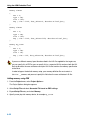
}
Generated assembly code:
mov
ldr
strb
bx
.size
.align
r0,0xff
r1,L_2
r0,[r1,#0]
lr
main,$−main
4
L_2:
.dcw
var1
Example 3: using input and output parameters
Add two C variables and assign the result to a third C variable. Registers are used for the input
parameters (constraint r, %1 for a and %2 for b in the instruction template) and for the output
parameter (constraint r, %0 for result in the instruction template). The compiler generates code to
move the input expressions into the input registers and to assign the result to the output variable.
char a, b;
int result;
void main(void)
{
a = 3;
b = 4;
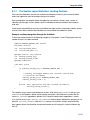
__asm( "ADD %0,%1,%2" : "=r"(result): "r"(a), "r"(b) );
}
3−7
Using the ARM Embedded Tools
Generated assembly code:
main: .type func
ldr
r1,L_2
mov
r0,#3
strb
r0,[r1,#0]
mov
r2,#4
strb
r2,[r1,#1]
ADD
r0,r0,r2
str
r0,[r1,#4]
bx
lr
.size main,$−main
.align 4
L_2:
.dcw
a
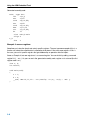
Example 4: reserve registers
Sometimes an instruction knocks out certain specific registers. The most common example of this is a
function call, where the called function is allowed to do whatever it likes with some registers. If this is
the case, you can list specific registers that get clobbered by an operation after the inputs.
Same as Example 3, but now register R0 is a reserved register. You can do this by adding a reserved
register list (: "R0"). As you can see in the generated assembly code, register R0 is not used (the first
register used is R1).
char a, b;
int result;
void main(void)
{
a = 3;
b = 4;
__asm( "ADD %0,%1,%2" : "=r"(result): "r"(a), "r"(b) : "R0" );
}
3−8
C Language
Generated assembly code:
main: .type func
ldr
r2,L_2
mov
r1,#3
strb r1,[r2,#0]
mov
r3,#4
strb r3,[r2,#1]
ADD
r1,r1,r3
str
r1,[r2,#4]
bx
lr
.size main,$−main
.align
4
L_2:
.dcw
a
3.5
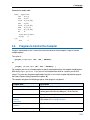
Pragmas to Control the Compiler
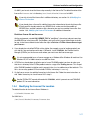
Pragmas are keywords in the C source that control the behavior of the compiler. Pragmas overrule
compiler options.
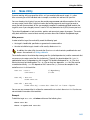
The syntax is:
#pragma pragma−spec [ON | OFF | DEFAULT]
or:
_Pragma( "pragma−spec [ON | OFF | DEFAULT]" )
For example, you can set a compiler option to specify which optimizations the compiler should perform.
With the #pragma optimize flags you can set an optimization level for a specific part of the C
source. This overrules the general optimization level that is set in the C compiler Optimization page in
the Project Options dialog (command line option −O).
The compiler recognizes the following pragmas, other pragmas are ignored.
Pragma name
Description
alias symbol=defined_symbol
Defines an alias for a symbol
extension isuffix
Enables the language extension to specify imaginary
floating−point constants by adding an ’i’ to the constant
extern symbol
Forces an external reference
inline
noinline
smartinline
Specifies function inlining.
See section 3.7.3, Inlining Functions.
macro
nomacro
Specifies macro expansion
message "message" ...
Emits a message to standard output
3−9
Using the ARM Embedded Tools
Pragma name
Description
optimize flags
endoptimize
Controls compiler optimizations.
See section 5.3, Compiler Optimizations in Chapter Using
the Compiler
runtime
Check for run−time errors.
See compiler option −r (−−runtime) in section 5.1, Compiler
Options in Chapter Tool Options of the reference manual.
section [name=]{suffix |−f|−m|−fm}
endsection
Changes section names
See compiler option −R in section 5.1, Compiler Options in
Chapter Tool Options of the reference manual.
source
nosource
Specifies which C source lines must be shown in assembly
output.
See compiler option −s in section 5.1, Compiler Options in
Chapter Tool Options of the reference manual.
tradeoff level
Controls the speed/size tradeoff for optimizations.
See compiler option −t in section 5.1, Compiler Options in
Chapter Tool Options of the reference manual.
warning [number,...]
Disables warning messages.
See compiler option −w in section 5.1, Compiler Options in
Chapter Tool Options of the reference manual.
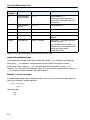
weak symbol
Marks a symbol as ’weak’
Table 3−3: Overview of pragmas
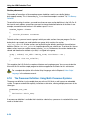
For a detailed description of each pragma, see section 1.6, Pragmas, in Chapter C Language of
the reference manual.
3−10
C Language
3.6
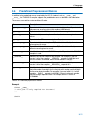
Predefined Preprocessor Macros
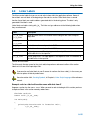
In addition to the predefined macros required by the ISO C standard, such as __DATE__ and
__FILE__, the TASKING C compiler supports the predefined macros as defined in the table below.
The macros are useful to create conditional C code.
Macro
Description
__BIG_ENDIAN__
Expands to 1 if the processor accesses data in big−endian. Expands to 0 if
the processor accesses data in little−endian (ARM default).
__CARM__
Expands to 1 for the ARM toolchain, otherwise unrecognized as macro.
__THUMB__
Expands to 1 if you used option −−thumb, otherwise unrecognized as
macro.
__CPU__
Expands to the CPU core name (option −Ccpu ).
__SINGLE_FP__
Expands to 1 if you used option −F (Treat ’double’ as ’float’), otherwise
unrecognized as macro.
__DOUBLE_FP__
Expands to 1 if you did not use option −F (Treat ’double’ as ’float’),
otherwise unrecognized as macro.
__TASKING__
Identifies the compiler as a TASKING compiler. Expands to 1 if a TASKING
compiler is used.
__VERSION__
Identifies the version number of the compiler. For example, if you use
version 1.0r2 of the compiler, __VERSION__ expands to 1000 (dot and
revision number are omitted, minor version number in 3 digits).
__REVISION__
Identifies the revision number of the compiler. For example, if you use
version 1.0r2 of the compiler, __REVISION__ expands to 2.
__BUILD__
Identifies the build number of the compiler, composed of decimal digits for
the build number, three digits for the major branch number and three digits
for the minor branch number. For example, if you use build 1.22.1 of the
compiler, __BUILD__ expands to 1022001. If there is no branch number,
the branch digits expand to zero. For example, build 127 results in
127000000.
Table 3−4: Predefined preprocessor macros
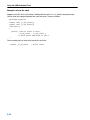
Example
#ifdef __CARM__
/* this part is only compiled for the ARM */
...
#endif
3−11
Using the ARM Embedded Tools
3.7
Functions
3.7.1
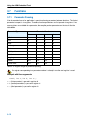
Parameter Passing
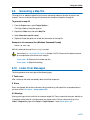
A lot of execution time of an application is spent transferring parameters between functions. The fastest
parameter transport is via registers. Therefore, function parameters are first passed via registers. If no
more registers are available for a parameter, the compiler pushes parameters on the stack. See the
table below.
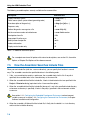
Parameter Type
Parameter Number
1
2
3
4
_Bool
r0
r1
r2
r3
char
r0
r1
r2
r3
short
r0
r1
r2
r3
int / long
r0
r1
r2
r3
float
r0
r1
r2
r3
32−bit pointer
r0
r1
r2
r3
32−bit struct
r0
r1
r2
r3
long long
r0r1
r1r2
r2r3
r3
double
r0r1
r1r2
r2r3
64−bit struct
r0r1
r1r2
r2r3
Table 3−5: Register usage for parameter passing
If a register corresponding to a parameter number is already in use the next register is used.
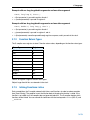
Example with three arguments
func1( int a, int b, int *c )
• a (first parameter) is passed in register r0.
• b (second parameter) is passed in register r1.
• c (third parameter) is passed in register r2.
3−12
C Language
Example with one long long/double arguments and one other argument
func2( long long d, char e )
• d (first parameter) is passed in register r0 and r1
• e (second parameter) is passed in register r2.
Example with two long long/double arguments and one other argument
func3( double f, long long g, char h )
• f (first parameter) is passed in register r0 and r1
• g (second parameter) is passed in register r2 and r3.
• h (third parameter) cannot be passed through registers anymore, and is passed via the stack.
3.7.2
Function Return Types
The C compiler uses registers to store C function return values, depending on the function return types.
Return Type
Register
_Bool
r0
char
r0
short
r0
int / long
r0
float
r0
32−bit pointer
r0
32−bit struct
r0
long long
r0r1
double
r0r1
64−bit struct
r0r1
Table 3−6: Register usage for function return types
Objects larger than 64 bits are returned via the stack.
3.7.3
Inlining Functions: inline
During compilation, the C compiler automatically inlines small functions in order to reduce execution
time (smart inlining). The compiler inserts the function body at the place the function is called. If the
function is not called at all, the compiler does not generate code for it. The C compiler decides which
functions will be inlined. You can overrule this behaviour with the two keywords inline (ISO−C) and
__noinline.
3−13
Using the ARM Embedded Tools
With the inline keyword you force the compiler to inline the specified function, regardless of the
optimization strategy of the compiler itself:
inline unsigned int abs(int val)
{
unsigned int abs_val = val;
if (val < 0) abs_val = −val;
return abs_val;
}
You must define inline functions in the same source module as in which you call the function, because
the compiler only inlines a function in the module that contains the function definition. When you need
to call the inline function from several source modules, you must include the definition of the inline
function in each module (for example using a header file).
With the __noinline keyword, you prevent a function from being inlined:
__noinline unsigned int abs(int val)
{
unsigned int abs_val = val;
if (val < 0) abs_val = −val;
return abs_val;
}
Using pragmas: inline, noinline, smartinline
Instead of the inline qualifier, you can also use #pragma inline and #pragma noinline to
inline a function body:
#pragma inline
unsigned int abs(int val)
{
unsigned int abs_val = val;
if (val < 0) abs_val = −val;
return abs_val;
}
#pragma noinline
void main( void )
{
int i;
i = abs(−1);
}
If a function has an inline/__noinline function qualifier, then this qualifier will overrule the current
pragma setting.
With the #pragma noinline / #pragma smartinline you can temporarily disable the default
situation that the C compiler automatically inlines small functions.
3−14
C Language
3.7.4
Intrinsic Functions
Some specific assembly instructions have no equivalence in C. Intrinsic functions are predefined
functions that are recognized by the compiler. The compiler generates the most efficient assembly code
for these functions. Intrinsic functions this way enable the use of these specific assembly instructions.
The compiler always inlines the corresponding assembly instructions in the assembly source (rather
than calling it as a function). This avoids parameter passing and register saving instructions which are
normally necessary during function calls.
Intrinsic functions produce very efficient assembly code. Though it is possible to inline assembly code
by hand, intrinsic functions use registers even more efficiently. At the same time your C source remains
very readable.
You can use intrinsic functions in C as if they were ordinary C (library) functions. All intrinsics begin with
a double underscore character.
For extended information about all available intrinsic functions, refer to section 1.5, Intrinsic
Functions, in Chapter C Language of the reference manual.
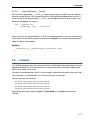
3.7.5
Interrupt Functions / Exception Handlers
The TASKING C compiler supports a number of function qualifiers and keywords to program exception
handlers. An exception handler (or: interrupt function) is called when an exception occurs.
The ARM supports seven types of exceptions. The next table lists the types of exceptions and the
processor mode that is used to process that exception. When an exception occurs, execution is forced
from a fixed memory address corresponding to the type of exception. These fixed addresses are called
the exception vectors.
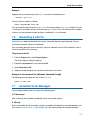
Exception type
Mode
Normal
address
High vector
address
Function type
qualifier
Reset
Supervisor
0x00000000
0xFFFF0000
Undefined instructions
Undefined
0x00000004
0xFFFF0004
__interrupt_und
Software interrupt (SWI)
Supervisor
0x00000008
0xFFFF0008
__interrupt_swi
Prefetch abort
Abort
0x0000000C
0xFFFF000C
__interrupt_iabt
Data abort
Abort
0x00000010
0xFFFF0010
__interrupt_dabt
IRQ (interrupt)
IRQ
0x00000018
0xFFFF0018
__interrupt_irq
FIQ (fast interrupt)
FIQ
0x0000001C
0xFFFF001C
__interrupt_fiq
Table 3−7: Exception processing modes
3−15
Using the ARM Embedded Tools
3.7.5.1
Defining an Exception Handler: __interrupt keywords
You can define six types of exception handlers with the function type qualifiers __interrupt_und,
__interrupt_swi, __interrupt_iabt, __interrupt_dabt, __interrupt_irq and
__interrupt_fiq.
Interrupt functions and other exception handlers cannot return anything and must have a void
argument type list:
void __interrupt_xxx
isr( void )
{
...
}
Example
void __interrupt_irq serial_receive( void )
{
...
}
Vector symbols
When you use one or more of these __interrupt_xxx function qualifiers, the compiler generates a
corresponding vector symbol to designate the start of an execption handler function. The linker uses
this symbol to automatically generate the exception vector.
Function type qualifier
Vector symbol
__interrupt_und
_vector_1
__interrupt_swi
_vector_2
__interrupt_iabt
_vector_3
__interrupt_dabt
_vector_4
__interrupt_irq
_vector_6
__interrupt_fiq
_vector_7
Note that the reset handler is designated by the symbol _START instead of _vector_0.
You can prevent the compiler from generating the _vector_n symbol by specifying the function
qualifier __novector. This can be necessary if you have more than one interrupt handler for the same
exception, for example for different IRQ’s or for different run−time phases of your application. Without
the __novector function qualifier the compiler generates the _vector_n symbol multiple times,
which results in a link error.
void __interrupt_irq __novector another_handler( void )
{
... // used __novector to prevent multiple _vector_6 symbols
}
3−16
C Language
3.7.5.2
Interrupt Frame: __frame()
With the function type qualifier __frame() can specify which registers and SFRs must be saved for a
particular interrupt function. Only the specified registers will be pushed and popped from the stack. If
you do not specify the function qualifier __frame(), the C compiler determines which registers must
be pushed and popped. The syntax is:
void __interrupt_xxx
__frame(reg[, reg]...) isr( void )
{
...
}
where, reg can be any register defined as an SFR. The compiler generates a warning if some registers
are missing which are normally required to be pushed and popped in an interrupt function prolog and
epilog to avoid run−time problems.
Example
__interrupt_irq __frame(R4,R5,R6) void alarm( void )
{
...
}
3.8
Libraries
The TASKING compilers come with standard C libraries (ISO/IEC 9899:1999) and header files with the
appropriate prototypes for the library functions. All standard C libraries are available in object format
and in C or assembly source code.
A number of standard operations within C are too complex to generate inline code for (too much code).
These operations are implemented as run−time library functions to save code.
Libraries are stored in the directory:
\Program
\Program
\Program
\Program
Files\Tasking\carm\lib\v4T\le
Files\Tasking\carm\lib\v4T\be
Files\Tasking\carm\lib\v5T\le
Files\Tasking\carm\lib\v5T\be
Depending on your target settings in Project » Project Options... the appropriate libraries are
selected.
3−17
Using the ARM Embedded Tools
3.8.1
Overview of Libraries
An overview of the available libraries is given in Table 3−8:
Libraries
Description
carm.lib
cthumb.lib
C library, for ARM and Thumb instructions repectively
(some functions also need the floating−point library)
carms.lib
cthumbs.lib
Single precision C library
(some functions also need the floating−point library)
fparm.lib
fpthumb.lib
Floating−point library (non trapping)
fparmt.lib
fpthumbt.lib
Floating−point library (trapping)
rtarm.lib
Run−time library
Table 3−8: Overview of libraries
See section 2.2, Library Functions, in Chapter Libraries of the reference manual for an
extensive description of all standard C library functions.
3.8.2
Printf and Scanf Routines
The C library functions printf(), fprintf(), vfprintf(), vsprintf(), ... call one single
function, _doprint(), that deals with the format string and arguments. The same applies to all scanf
type functions, which call the function _doscan(), and also for the wprintf and wscanf type
functions which call _dowprint() and _dowscan() respectively. The C library contains three
versions of these routines: int, long and long long versions. If you use floating−point the formatter
function for floating−point _doflt() or _dowflt() is called. Depending on the formatting arguments
you use, the correct routine is used from the library. Of course the larger the version of the routine the
larger your produced code will be.
Note that when you call any of the printf/scanf routines indirect, the arguments are not known and
always the long long version with floating−point support is used from the library.
Example
#include <stdio.h>
long L;
void main(void)
{
printf( "This is a long: %ld\n", L );
}
The linker extracts the long version without floating−point support from the library.
3−18
C Language
See also the description of #pragma weak in section 1.6, Pragmas, in Chapter C Language of
the reference manual.
3−19
Using the ARM Embedded Tools
3−20
4 Assembly Language
This chapter describes the most important aspects of the
TASKING assembly language. For a complete overview of
the architecture you are using, refer to the target’s Core
Reference Manual.
Summary
4.1
Assembly Syntax
An assembly program consists of zero or more statements. A statement may optionally be followed by
a comment. Any source statement can be extended to more lines by including the line continuation
character (\) as the last character on the line. The length of a source statement (first line and
continuation lines) is only limited by the amount of available memory.
Mnemonics and directives are case insensitive. Labels, symbols, directive arguments, and literal
strings are case sensitive.
The syntax of an assembly statement is:
[label[:]] [instruction | directive | macro_call] [;comment]
label
A label is a special symbol which is assigned the value and type of the current program
location counter. A label can consist of letters, digits and underscore characters (_). The
first character cannot be a digit. A label which is prefixed by whitespace (spaces or tabs)
has to be followed by a colon (:). The size of an identifier is only limited by the amount of
available memory.
Examples:
LAB1:
LAB1
instruction
;
;
;
;
This label is followed by a colon and
can be prefixed by whitespace
This label has to start at the beginning
of a line
An instruction consists of a mnemonic and zero, one or more operands. It must not start
in the first column.
Operands are described in section 4.3, Operands of an Assembly Instruction. The
instructions are described in the target’s Core Reference Manual.
4−1
Using the ARM Embedded Tools
The instruction can also be a so−called ’generic instruction’. Generic instructions are
pseudo instructions (no instructions from the instruction set). Depending on the situation
in which a generic instruction is used, the assembler replaces the generic instruction with
appropriate real assembly instruction(s). For a complete list, see section 3.3, Generic
Instructions in the reference manual.
directive
With directives you can control the assembler from within the assembly source. Except
for preprocessing directives, these must not start in the first column. Directives are
described in section 4.8, Assembler Directives.
macro_call
A call to a previously defined macro. It must not start in the first column. See section 4.9
Macro Operations.
comment
Comment, preceded by a ; (semicolon).
You can use empty lines or lines with only comments.
4.2
Assembler Significant Characters
You can use all ASCII characters in the assembly source both in strings and in comments. Also the
extended characters from the ISO 8859−1 (Latin−1) set are allowed.
Some characters have a special meaning to the assembler. Special characters associated with
expression evaluation are described in section 4.6.3, Expression Operators. Other special assembler
characters are:
Character
Description
;
Start of a comment
\
Line continuation character or
Macro operator: argument concatenation
?
Macro operator: return decimal value of a symbol
%
Macro operator: return hex value of a symbol
^
Macro operator: override local label
"
Macro string delimiter or
Quoted string .DEFINE expansion character
’
String constants delimiter
@
Start of a built−in assembly function
$
Location counter substitution
[ ]
Substring delimiter
Note that macro operators have a higher precedence than expression operators.
4−2
Assembly Language
4.3
Operands of an Assembly Instruction
In an instruction, the mnemonic is followed by zero, one or more operands. An operand has one of the
following types:
Operand
Description
symbol
A symbolic name as described in section 4.4, Symbol Names. Symbols can also
occur in expressions.
register
Any valid register as listed in section 4.5, Registers.
expression
Any valid expression as described in section 4.6, Assembly Expressions.
address
A combination of expression, register and symbol.
4.4
Symbol Names
User−defined symbols
A user−defined symbol can consist of letters, digits and underscore characters (_). The first character
cannot be a digit. The size of an identifier is only limited by the amount of available memory. The case
of these characters is significant. You can define a symbol by means of a label declaration or an equate
or set directive.
Labels
Symbols used for memory locations are referred to as labels.
Reserved symbols
Symbol names and other identifiers beginning with a period (.) are reserved for the system (for
example for directives or section names). Instructions are also reserved. The case of these built−in
symbols is insignificant.
Examples
Valid symbol names:
loop_1
ENTRY
a_B_c
_aBC
Invalid symbol names:
1_loop
(starts with a number)
.DEFINE
(reserved directive name)
4−3
Using the ARM Embedded Tools
4.5
Registers
The following register names, either upper or lower case, should not be used for user−defined symbol
names in an assembly language source file:
ARM registers
R0 .. R15
IP (alias for R12)
LR (alias for R14)
4.6
SP (alias for R13)
PC (alias for R15)
Assembly Expressions
An expression is a combination of symbols, constants, operators, and parentheses which represent a
value that is used as an operand of an assembler instruction (or directive).
Expressions may contain user−defined labels (and their associated integer values), and any
combination of integers or ASCII literal strings.
Expressions follow the conventional rules of algebra and boolean arithmetic.
Expressions that can be evaluated at assembly time are called absolute expressions. Expressions
where the result is unknown until all sections have been combined and located, are called relocatable
or relative expressions.
When any operand of an expression is relocatable, the entire expression is relocatable. Relocatable
expressions are emitted in the object file and evaluated by the linker.
The assembler evaluates expressions with 64−bit precision in two’s complement.
The syntax of an expression can be any of the following:
−
numeric contant
−
string
−
symbol
−
expression binary_operator expression
−
unary_operator expression
−
( expression )
−
function call
All types of expressions are explained in separate sections.
4−4
Assembly Language
4.6.1
Numeric Constants
Numeric constants can be used in expressions. If there is no prefix, by default the assembler assumes
the number is a decimal number.
Base
Description
Example
Binary
A 0b prefix followed by binary digits (0,1). Or use a b suffix
0b1101
11001010b
Hexadecimal
A 0x prefix followed by a hexadecimal digits (0−9, A−F, a−f). Or
use a h suffix
0x12FF
0x45
0fa10h
Decimal,
integer
Decimal digits (0−9).
12
1245
Table 4−1: Numeric constants
4.6.2
Strings
ASCII characters, enclosed in single (’) or double (″) quotes constitue an ASCII string. Strings between
double quotes allow symbol substitution by a .DEFINE directive, whereas strings between single
quotes are always literal strings. Both types of strings can contain escape characters.
Strings constants in expressions are evaluated to a number (each character is replaced by its ASCII
value). Strings in expressions can have a size of up to 4 characters or less depending on the operand
of an instruction or directive; any subsequent characters in the string are ignored. In this case the
assembler issues a warning. An exception to this rule is when a string is used in a .DB, .DH, .DW or
.DD assembler directive; in that case all characters result in a constant value of the specified size. Null
strings have a value of 0.
Square brackets ([ ]) delimit a substring operation in the form:
[string,offset,length]
offset is the start position within string. length is the length of the desired substring. Both values may
not exceed the size of string.
Examples
’ABCD’
; (0x41424344)
’’’79’
; to enclose a quote double it
"A\"BC"
; or to enclose a quote escape it
’AB’+1
; (0x4143) string used in expression
’’
; null string
[’TASKING’,0,4]
; results in the substring ’TASK’
4−5
Using the ARM Embedded Tools
4.6.3
Expression Operators
The next table shows the assembler operators. They are ordered according to their precedence.
Operators of the same precedence are evaluated left to right. Parenthetical expressions have the
highest priority (innermost first).
Valid operands include numeric constants, literal ASCII strings and symbols.
Type
Unary
Arithmetic
Shift
Relational
Bitwise
4−6
Oper
ator
Name
Description
()
parenthesis
Expressions enclosed by parenthesis are evaluated
first.
+
plus
Returns the value of its operand.
−
minus
Returns the negative of its operand.
~
complement
Returns complement, integer only
!
logical negate
Returns 1 if the operands’ value is 1; otherwise 0. For
example, if buf is 0 then !buf is 1.
*
multiplication
Yields the product of two operands.
/
division
Yields the quotient of the division of the first operand by
the second.
With integers, the divide operation produces a truncated
integer.
%
modulo
Integer only: yields the remainder from a division of the
first operand by the second.
+
addition
Yields the sum of its operands.
−
subtraction
Yields the difference of its operands.
<<
shift left
Integer only: shifts the left operand to the left
(zero−filled) by the number of bits specified by the right
operand.
>>
shift right
Integer only: shifts the left operand to the right (sign bit
extended) by the number of bits specified by the right
operand.
<
less than
<=
less or equal
>
greater than
an integer 1 if the indicated condition is TRUE.
>=
greater or equal
an integer 0 if the indicated condition is FALSE.
==
equal
!=
not equal
&
AND
Integer only: yields bitwise AND
|
OR
Integer only: yields bitwise OR
^
exclusive OR
Integer only: yields bitwise exlusive OR
Returns:
Assembly Language
Type
Oper
ator
Logical
&&
||
Name
Description
logical AND
Returns an integer 1 if both operands are non−zero;
otherwise, it returns an integer 0.
logical OR
Returns an integer 1 if either of the operands is
non−zero; otherwise, it returns an integer 1
Table 4−2: Assembly expression operators
4.7
Built−in Assembly Functions
The TASKING assemblers have several built−in functions to support data conversion, string
comparison, and math computations. You can use functions as terms in any expression.
Syntax of an assembly function
@function_name([argument[,argument]...])
Functions start with ’@’ character and have zero or more arguments, and are always followed by
opening and closing parentheses. White space (a blank or tab) is not allowed between the function
name and the opening parenthesis and between the (comma−separated) arguments.
Overview of assembly functions
The following table provides an overview of all built−in assembly functions. For a detailed description of
these functions, refer to section 3.1, Built−in Assembly Functions in Chapter Assembly Language of the
reference manual.
Function
Description
@ALUPCREL(expr,group[,check])
PC−relative ADD/SUB with operand split
@ARG(’symbol’|expr)
Test whether macro argument is present
@BIGENDIAN()
Test if assembler generates code for big−endian mode
@CNT()
Return number of macro arguments
@CPU(string)
Test if current CPU matches string
@DEFINED(’symbol’|symbol)
Test whether symbol exists
@LSB(expr)
Least significant byte of the expression
@LSH(expr)
Least significant half word of the absolute expression
@LSW(expr)
Least significant word of the expression
@MSB(expr)
Most significant byte of the expression
@MSH(expr)
Most significant half word of the absolute expression
@MSW(expr)
Most significant word of the expression
@STRCAT(str1,str2)
Concatenate str1 and str2
@STRCMP(str1,str2)
Compare str1 with str2
4−7
Using the ARM Embedded Tools
Function
Description
@STRLEN(str)
Return length of string
@STRPOS(str1,str2[,start])
Return position of str1 in str2
@THUMB()
Test if assembler runs in Thumb mode or in ARM mode
4.8
Assembler Directives
An assembler directive is simply a message to the assembler. Assembler directives are not translated
into machine instructions, but can produce data. There are three types of assembler directives.
• Assembler directives that tell the assembler how to go about translating instructions into machine
code. This is the most typical form of assembly directives. Typically they tell the assembler where to
put a program in memory, what space to allocate for variables, and allow you to initialize memory
with data. When the assembly source is assembled, a location counter in the assembler keeps
track of where the code and data is to go in memory.
The following directives fall under this group:
−
Assembly control directives
−
Symbol definition directives
−
Data definition / Storage allocation directives
−
HLL directives
• Directives that are interpreted by the macro preprocessor. These directives tell the macro
preprocessor how to manipulate your assembly code before it is actually being assembled. You can
use these directives to write macros and to write conditional source code. Parts of the code that do
not match the condition, will not be assembled at all. Unlike other directives, preprocesssor
directives can start in the first column.
• Some directives act as assembler options and most of them indeed do have an equivalent
assembler (command line) option. The advantage of using a directive is that with such a directive
you can overrule the assembler option for a particular part of the code. A typical example is to tell
the assembler with an option to generate a list file while with the directives .NOLIST and .LIST
you overrule this option for a part of the code that you do not want to appear in the list file.
Directives of this kind sometimes are called controls.
Each assembler directive has its own syntax. Some assembler directives can be preceded with a label.
If you do not precede an assembler directive with a label, you must use white space instead (spaces or
tabs). You can use assembler directives in the assembly code as pseudo instructions.
The following tables provide an overview of all assembler directives. For a detailed description of these
directives, refer to section 3.2, Assembler Directives in Chapter Assembly Language of the reference
manual.
4−8
Assembly Language
Overview of assembly control directives
Directive
Description
.END
Indicates the end of an assembly module
.INCLUDE
Include file
.MESSAGE
Programmer generated message
Overview of symbol definition directives
Directive
Description
.EQU
Set permanent value to a symbol
.EXTERN
Import global section symbol
.GLOBAL
Declare global section symbol
.SECTION/.ENDSEC
Start a new section
.SET
Set temporary value to a symbol
.SIZE
Set size of symbol in the ELF symbol table
.SOURCE
Specify name of original C source file
.TYPE
Set symbol type in the ELF symbol table
.WEAK
Mark a symbol as ’weak’
Overview of data definition / storage allocation directives
Directive
Description
.ALIGN
Align location counter
.BS/.BSB/.BSH/
.BSW/.BSD
Define block storage (initialized)
.DB
Define byte
.DH
Define half word
.DW
Define word
.DD
Define double−word
.DS/.DSB/.DSH/
.DSW/.DSD
Define storage
.OFFSET
Move location counter forwards
4−9
Using the ARM Embedded Tools
Overview of macro and conditional assembly directives
Directive
Description
.DEFINE
Define substitution string
.BREAK
Break out of current macro expansion
.REPEAT/.ENDREP
Repeat sequence of source lines
.FOR/.ENDFOR
Repeat sequence of source lines n times
.IF/.ELIF/.ELSE
Conditional assembly directive
.ENDIF
End of conditional assembly directive
.MACRO/.ENDM
Define macro
.UNDEF
Undefine .DEFINE symbol or macro
Overview of listing control assembly directives
Directive
Description
.LIST/.NOLIST
Print / do not print source lines to list file
.PAGE
Set top of page/size of page
.TITLE
Set program title in header of assembly list file
Overview of HLL directives
Directive
Description
.CALLS
Pass call tree information
ARM specific directives
Directive
Description
.CODE16/.CODE32
Treat instructions as Thumb or ARM instructions, respectively
.LTORG
Assembly current literal pool immediately
4.9
Macro Operations
Macros provide a shorthand method for inserting a repeated pattern of code or group of instructions.
You can define the pattern as a macro, and then call the macro at the points in the program where the
pattern would repeat.
Some patterns contain variable entries which change for each repetition of the pattern. Others are
subject to conditional assembly.
4−10
Assembly Language
When a macro is called, the assembler executes the macro and replaces the call by the resulting
in−line source statements. ’In−line’ means that all replacements act as if they are on the same line as
the macro call. The generated statements may contain substitutable arguments. The statements
produced by a macro can be any processor instruction, almost any assembler directive, or any
previously−defined macro. Source statements resulting from a macro call are subject to the same
conditions and restrictions as any other statements.
Macros can be nested. The assembler processes nested macros when the outer macro is expanded.
4.9.1
Defining a Macro
The first step in using a macro is to define it.
The definition of a macro consists of three parts:
• Header, which assigns a name to the macro and defines the arguments.
• Body, which contains the code or instructions to be inserted when the macro is called.
• Terminator, which indicates the end of the macro definition (.ENDM directive).
A macro definition takes the following form:
macro_name .MACRO [arg[,arg]...] [; comment]
.
source statements
.
.ENDM
If the macro name is the same as an existing assembler directive or mnemonic opcode, the assembler
replaces the directive or mnemonic opcode with the macro and issues a warning.
The arguments are symbolic names that the macro preprocessor replaces with the literal arguments
when the macro is expanded (called). Each argument must follow the same rules as global symbol
names. Argument names cannot start with a percent sign (%).
Example
Consider the following macro definition:
RESERV
.MACRO val
.DS val
.ENDM
; reserve space
After the following macro call:
.section .text
RESERV 8
The macro expands to:
.DS 8
4−11
Using the ARM Embedded Tools
4.9.2
Calling a Macro
To invoke a macro, construct a source statement with the following format:
[label] macro_name [arg[,arg...]]
[; comment]
where:
label
An optional label that corresponds to the value of the location counter at the start of the
macro expansion.
macro_name The name of the macro. This may not start in the first column.
arg
One or more optional, substitutable arguments. Multiple arguments must be separated
by commas.
comment
An optional comment.
The following applies to macro arguments:
• Each argument must correspond one−to−one with the formal arguments of the macro definition. If
the macro call does not contain the same number of arguments as the macro definition, the
assembler issues a warning.
• If an argument has an embedded comma or space, you must surround the argument by single
quotes (’).
• You can declare a macro call argument as null in three ways:
−
enter delimiting commas in succession with no intervening spaces
macroname ARG1,,ARG3 ; the second argument is a null argument
−
terminate the argument list with a comma, the arguments that normally would follow, are now
considered null
macroname ARG1,
−
; the second and all following arguments are null
declare the argument as a null string
• No character is substituted in the generated statements that reference a null argument.
4−12
Assembly Language
4.9.3
Using Operators for Macro Arguments
The assembler recognizes certain text operators within macro definitions which allow text substitution
of arguments during macro expansion. You can use these operators for text concatenation, numeric
conversion, and string handling.
Operator
Name
Description
\
Macro argument
concatenation
Concatenates a macro argument with adjacent alphanumeric
characters.
?
Return decimal
value of symbol
Substitutes the ?symbol sequence with a character string that
represents the decimal value of the symbol.
%
Return hex
value of symbol
Substitutes the %symbol sequence with a character string that
represents the hexadecimal value of the symbol.
"
Macro string
delimiter
Allows the use of macro arguments as literal strings.
^
Macro local label
override
Prevents name mangling on labels in macros.
Example: Argument Concatenation Operator − \
Consider the following macro definition:
MAC_A .MACRO reg,val
sub
r\reg,r\reg,#val
.ENDM
The macro is called as follows:
MAC_A 2,1
The macro expands as follows:
sub r2,r2,#1
The macro preprocessor substitutes the character ’2’ for the argument reg, and the character ’1’ for
the argument val. The concatenation operator (\) indicates to the macro preprocessor that the
substitution characters for the arguments are to be concatenated with the characters ’r’.
Without the ’\’ operator the macro would expand as:
sub rreg,rreg,#1
which results in an assembler error (invalid operand).
4−13
Using the ARM Embedded Tools
Example: Decimal Value Operator − ?
Instead of substituting the formal arguments with the actual macro call arguments, you can also use the
value of the macro call arguments.
Consider the following source code that calls the macro MAC_A after the argument AVAL has been set
to 1.
AVAL .SET 1
MAC_A 2,AVAL
If you want to replace the argument val with the value of AVAL rather than with the literal string
’AVAL’, you can use the ? operator and modify the macro as follows:
MAC_A .MACRO reg,val
sub
r\reg,r\reg,?val
.ENDM
Example: Hex Value Operator − %
The percent sign (%) is similar to the standard decimal value operator (?) except that it returns the
hexadecimal value of a symbol.
Consider the following macro definition:
.MACRO
GEN_LAB
LAB\%VAL STMT
.ENDM
LAB,VAL,STMT
The macro is called after NUM has been set to 10:
NUM .SET
GEN_LAB
10
HEX,NUM,NOP
The macro expands as follows:
HEXA NOP
The %VAL argument is replaced by the character ’A’ which represents the hexadecimal value 10 of the
argument VAL.
Example: Argument String Operator − "
To generate a literal string, enclosed by single quotes (’), you must use the argument string operator (")
in the macro definition.
Consider the following macro definition:
STR_MAC
.DB
.ENDM
.MACRO STRING
"STRING"
The macro is called as follows:
STR_MAC
4−14
ABCD
Assembly Language
The macro expands as follows:
.DB
’ABCD’
Within double quotes .DEFINE directive definitions can be expanded. Take care when using
constructions with quotes and double quotes to avoid inappropriate expansions. Since .DEFINE
expansion occurs before macro substitution, any .DEFINE symbols are replaced first within a macro
argument string:
.DEFINE LONG ’short’
STR_MAC
.MACRO STRING
.MESSAGE I ’This is a LONG STRING’
.MESSAGE I "This is a LONG STRING"
.ENDM
If the macro is called as follows:
STR_MAC
sentence
it expands as:
.MESSAGE I ’This is a LONG STRING’
.MESSAGE I ’This is a short sentence’
Macro Local Label Override Operator − ^
If you use labels in macros, the assembler normally generates another unique name for the labels
(such as LOCAL__M_L000001).
The macro ^−operator prevents name mangling on macro local labels.
Consider the following macro definition:
INIT .MACRO
LOCAL: ldr
.ENDM
addr
r0,^addr
The macro is called as follows:
LOCAL:
INIT LOCAL
The macro expands as:
LOCAL__M_L000001: ldr
r0,LOCAL
If you would not have used the ^ operator, the macro preprocessor would choose another name for
LOCAL because the label already exists. The macro would expand like:
LOCAL__M_L000001: ldr
r0,LOCAL__M_L000001
4−15
Using the ARM Embedded Tools
4.9.4
Using the .FOR and .REPEAT Directives as Macros
The .FOR and .REPEAT directives are specialized macro forms to repeat a block of source
statements. You can think of them as a simultaneous definition and call of an unnamed macro. The
source statements between the .FOR and .ENDFOR directives and .REPEAT and .ENDREP directives
follow the same rules as macro definitions.
For a detailed description of these directives, see section 3.2, Assembler Directives in Chapter
Assembly Language of the reference manual.
4.9.5
Conditional Assembly
With the conditional assembly directives you can instruct the macro preprocessor to use a part of the
code that matches a certain condition.
You can specify assembly conditions with arguments in the case of macros, or through definition of
symbols via the .DEFINE, .SET, and .EQU directives.
The built−in functions of the assembler provide a versatile means of testing many conditions of the
assembly environment.
You can use conditional directives also within a macro definition to check at expansion time if
arguments fall within a range of allowable values. In this way macros become self−checking and can
generate error messages to any desired level of detail.
The conditional assembly directive .IF/.ENDIF has the following form:
.IF expression
.
.
[.ELIF expression]
;(the .ELIF directive is optional)
.
.
[.ELSE]
;(the .ELSE directive is optional)
.
.
.ENDIF
A section of a program that is to be conditionally assembled must be bounded by an .IF−.ENDIF
directive pair. If the optional .ELSE and/or .ELIF directives are not present, then the source
statements following the .IF directive and up to the next .ENDIF directive will be included as part of
the source file being assembled only if the expression had a non−zero result.
If the expression has a value of zero, the source file will be assembled as if those statements between
the .IF and the .ENDIF directives were never encountered.
4−16
Assembly Language
If the .ELSE directive is present and expression has a nonzero result, then the statements between the
.IF and .ELSE directives will be assembled, and the statement between the .ELSE and .ENDIF
directives will be skipped. Alternatively, if expression has a value of zero, then the statements between
the .IF and .ELSE directives will be skipped, and the statements between the .ELSE and .ENDIF
directives will be assembled.
4−17
Using the ARM Embedded Tools
4−18
5 Using the Compiler
This chapter describes the compilation process and
explains how to call the compiler.
Summary
5.1
Introduction
EDE uses a makefile to build your entire embedded project, from C source till the final ELF/DWARF 2
object file which serves as input for the debugger.
Although in EDE you cannot run the compiler separately from the other tools, this section discusses the
options that you can specify for the compiler.
On the command line it is possible to call the compiler separately from the other tools. However, it is
recommended to use the control program for command line invocations of the toolchain (see section
9.2, Control Program, in Chapter Using the Utilities). With the control program it is possible to call the
entire toolchain with only one command line.
The compiler takes the following files for input and output:
C source file
.c
C compiler
compiler
intermediate file
.mil
assembly file
.src
Figure 5−1: C compiler
This chapter first describes the compilation process which consists of a frontend and a backend part.
During compilation the code is optimized in several ways. The various optimizations are described in
the second section. Third it is described how to call the compiler and how to use its options. An
extensive list of all options and their descriptions is included in the reference manual. Finally, a few
important basic tasks are described.
5−1
Using the ARM Embedded Tools
5.2
Compilation Process
During the compilation of a C program, the compiler ctarget runs through a number of phases that are
divided into two groups: frontend and backend.
The backend part is not called for each C statement, but starts after a complete C module or set of
modules has been processed by the frontend (in memory). This allows better optimization.
The compiler requires only one pass over the input file which results in relative fast compilation.
Frontend phases
1. The preprocessor phase:
The preprocessor includes files and substitutes macros by C source. It uses only string
manipulations on the C source. The syntax for the preprocessor is independent of the C syntax but
is also described in the ISO/IEC 9899:1999(E) standard.
2. The scanner phase:
The scanner converts the preprocessor output to a stream of tokens.
3. The parser phase:
The tokens are fed to a parser for the C grammar. The parser performs a syntactic and semantic
analysis of the program, and generates an intermediate representation of the program. This code is
called MIL (Medium level Intermediate Language).
4. The frontend optimization phase:
Target processor independent optimizations are performed by transforming the intermediate code.
Backend phases
1. Instruction selector phase:
This phase reads the MIL input and translates it into Low level Intermediate Language (LIL). The
LIL objects correspond to a processor instruction, with an opcode, operands and information used
within the compiler.
2. Peephole optimizer/instruction scheduler/software pipelining phase:
This phase replaces instruction sequences by equivalent but faster and/or shorter sequences,
rearranges instructions and deletes unnecessary instructions.
3. Register allocator phase:
This phase chooses a physical register to use for each virtual register.
4. The backend optimization phase:
Performs target processor independent and dependent optimizations which operate on the Low
level Intermediate Language.
5−2
Using the Compiler
5. The code generation/formatter phase:
This phase reads through the LIL operations to generate assebmly language output.
5.3
Compiler Optimizations
The compiler has a number of optimizations which you can enable or disable.
1. From the Project menu, select Project Options...
The Project Options dialog appears.
2. Expand the C Compiler entry and select Optimization.
3. Select an optimization level in the Optimization level box.
Or:
In the Optimization level box select Custom optimization and enable the optimizations you want
in the Custom optimization box.
Optimization levels
The TASKING C compilers offer four optimization levels and a custom level, at each level a specific set
of optimizations is enabled.
• No optimization: No optimizations are performed. The compiler tries to achieve a 1−to−1
resemblance between source code and produced code. Expressions are evaluated in the order
written in the source code, associative and commutative properties are not used.
• Debug purposes optimization: Enables optimizations that do not affect the debug−ability of the
source code. Use this level when you are developing/debugging new source code.
• Release purposes optimization: Enables more aggressive optimizations to reduce the memory
footprint and/or execution time. The debugger can handle this code but the relation between source
code and generated instructions may be hard to understand. Use this level for those modules that
are already debugged. This is the default optimization level.
• Aggressive optimization: Enables aggressive global optimization techniques. The relation
between source code and generated instructions can be very hard to understand. The debugger
does not crash, will not provide misleading information, but does not fully understand what is going
on. Use this level when your program does not fit in the memory provided by your system anymore,
or when your program/hardware has become too slow to meet your real−time requirements.
• Custom optimization: you can enable/disable specific optimizations.
5−3
Using the ARM Embedded Tools
Optimization pragmas
If you specify a certain optimization, all code in the module is subject to that optimization. Within the C
source file you can overrule the compiler options for optimizations with #pragma optimize flag
and #pragma endoptimize. Nesting is allowed:
#pragma optimize e
...
... C source ...
...
#pragma optimize c
...
... C source ...
...
#pragma endoptimize
...
#pragma endoptimize
...
/* Enable expression
simplification
*/
/* Enable common expression
elimination. Expression
simplification still enabled */
/* Disable common expression
elimination
/* Disable expression
simplification
*/
*/
The compiler optimizes the code between the pragma pair as specified.
You can enable or disable the optimizations described below. The command line option for each
optimization is given in brackets.
See also compiler option −O (−−optimize) in section 5.1, Compiler Options, of Chapter Tool
Options of the reference manual.
5.3.1
Generic optimizations (frontend)
Common subexpression elimination (CSE)
(option −Oc/−OC)
The compiler detects repeated use of the same (sub−)expression. Such a "common" expression is
replaced by a variable that is initialized with the value of the expression to avoid recomputation. This
method is called common subexpression elimination (CSE).
Expression simplification
(option −Oe/−OE)
Multiplication by 0 or 1 and additions or subtractions of 0 are removed. Such useless expressions may
be introduced by macros or by the compiler itself (for example, array subscription).
Constant propagation
(option −Op/−OP)
A variable with a known value is replaced by that value.
Function Inlining
(option −Oi/−OI)
Small fuctions that are not too often called, are inlined. This reduces execution time at the cost of code
size.
5−4
Using the Compiler
Control flow simplification
(option −Of/−OF)
A number of techniques to simplify the flow of the program by removing unnecessary code and
reducing the number of jumps. For example:
Switch optimization:
A number of optimizations of a switch statement are performed, such as removing redundant case
labels or even removing an entire the switch.
Jump chaining:
A (conditional) jump to a label which is immediately followed by an unconditional jump may be
replaced by a jump to the destination label of the second jump. This optimization speeds up
execution.
Conditional jump reversal:
A conditional jump over an unconditional jump is transformed into one conditional jump with the
jump condition reversed. This reduces both the code size and the execution time.
Dead code elimination:
Code that is never reached, is removed. The compiler generates a warning messages because this
may indicate a coding error.
Subscript strength reduction
(option −Os/−OS)
An array of pointers subscripted with a loop iterator variable (or a simple linear function of the iterator
variable), is replaced by the dereference of a pointer that is updated whenever the iterator is updated.
Loop transformations
(option −Ol/−OL)
Temporarily transform a loop with the entry point at the bottom, to a loop with the entry point at the top.
This enables constant propagation in the initial loop test and code motion of loop invariant code by the
CSE optimization.
Forward store
(option −Oo/−OO)
A temporary variable is used to cache multiple assignments (stores) to the same non−automatic
variable.
5.3.2
Core specific optimizations (backend)
Coalescer
(option −Oa/−OA)
The coalescer seeks for possibilities to reduce the number of moves (MOV instruction) by smart use of
registers. This optimizes both speed as code size.
Interprocedural register optimization
(option −Ob/−OB)
Register allocation is improved by taking note of register usage in functions called by a given function.
5−5
Using the ARM Embedded Tools
Peephole optimizations
(option −Oy/−OY)
The generated assembly code is improved by replacing instruction sequences by equivalent but faster
and/or shorter sequences, or by deleting unnecessary instructions.
Instruction Scheduler
(option −Ok/−OK)
Instructions are rearranged to avoid structural hazards, for example by inserting another non−related
instruction.
Loop unrolling
(option −Ou/−OU)
To reduce the number of branches, short loops are eliminated by replacing them with a number of
copies.
Software pipelining
(option −Ow/−OW)
A number of techniques to optimize loops. For example, within a loop the most efficient order of
instructions is chosen by the pipeline scheduler and it is examined what instructions can be executed
parallel.
Generic assembly optimizations
(option −Og/−OG)
A set of target independent optimizations that increase speed and decrease code size.
5.3.3
Optimize for Size or Speed
You can tell the compiler to focus on execution speed or code size during optimizations. You can do
this by specifying a size/speed trade−off level from 0 (speed) to 4 (size). This trade−off does not turn
optimization phases on or off. Instead, its level is a weight factor that is used in the different
optimization phases to influence the heuristics. The higher the level, the more the compiler focusses on
code size optimization.
To specify the size/speed trade−off optimization level:
1. From the Project menu, select Project Options...
The Project Options dialog appears.
2. Expand the C Compiler entry and select Optimization.
3. Enable one of the options Optimize for size or Optimize for speed.
See also compiler option −t (−−tradeoff) in section 5.1, Compiler Options, of Chapter Tool
Options of the reference manual.
5−6
Using the Compiler
5.4
Calling the Compiler
EDE uses a makefile to build your entire project. This means that you cannot run the compiler
separately. If you compile a single C source file from within EDE, the file is also assembled. However,
you can set options specific for the compiler. After you have built your project, the output files of the
compilation step are available in your project directory, unless you specified an alternative output
directory in the Build Options dialog (Build » Options).
To compile and assemble your program
Click either one of the following buttons:
Compiles and assembles the currently selected file. This results in a relocatable object
file (.obj).
Builds your entire project but only updates files that are out−of−date or have been
changed since the last build, which saves time.
Builds your entire project unconditionally. All steps necessary to obtain the final .abs file
are performed.
To check your program for syntax errors
To only check for syntax errors, click the following button:
Checks the currently selected file for syntax errors, but does not generate code.
Select a target processor (architecture)
If you have a toolchain that supports several processor architectures, you need to choose a processor
type first.
To access the processor options:
1. From the Project menu, select Project Options...
The Project Options dialog box appears.
2. Select Processor Definition.
3. In the Target processor list select a target processor. If you select (Other), select an Architecture.
Processor options affect the invocation of all tools in the toolchain. In EDE you only need to set them
once.
To access the compiler options
1. From the Project menu, select Project Options...
The Project Options dialog box appears.
2. Expand the C Compiler entry.
5−7
Using the ARM Embedded Tools
3. Select the sub−entries and set the options in the various pages.
The command line variant is shown simultaneously.
Assembler options do not apply to compiler generated assembly. If you want to add assembler
options for compiler generated assembly, you can add them to the Additional assembler
options field in the C Compiler » Miscellaneous page.
Invocation syntax on the command line (Windows Command Prompt)
The invocation syntax on the command line is:
carm [ [option]... [file]... ]...
The input file must be a C source file (.c).
Example:
carm test.c
This compiles the file test.c and generates the file test.src which serves as input for the
assembler.
5.4.1
Overview of C Compiler Options
You can set the following C compiler options in EDE.
Menu entry
Command line
Processor Definition
Target processor
Architecture
−C[ARMv4 | ARMv4T| ARMv5 |
ARMv5T | ARMv5TE | XS ]
C Compiler » Code Generation
Use Thumb instruction set
−−thumb
Compile for ARM/Thumb interworking
−−interwork
Alignment of composite types: natural or optimal
−−align−composites=[n|o]
C Compiler » Preprocessing
Include this file before source
−Hfile
Define user macros
−Dmacro[=value]
Store the C compiler preprocess output (file.pre)
−E
C Compiler » Optimization
Optimization level
−O[0|1|2|3]
Size / speed trade−off (default: size)
−t{0|4}
Maximum code size increase caused by inlining
−−inline−max−incr
Maximum size for functions to always inline
−−inline−max−size
5−8
Using the Compiler
Menu entry
Command line
C Compiler » Language
ISO C standard: C 90 or C 99 (default: 99)
−c{90|99}
Treat ’char’ variables as unsigned
−u
Single precision floating−point only
−F
Treat ’int’ bit−fields as signed
−−signed−bitfields
Language extensions:
−Aflag
Allow C++ style comments in C source
Allow relaxed const check for string literals
−Ap
−Ax
C Compiler » Debugging
Generate symbolic debug information
−g
Run−time checks
−r[flags]
C Compiler » Profiling
Profiling
−p[flags]
C Compiler » Floating−Point
Use single precision floating−point only
−F
Floating−point trap/exception handling
n.a
C Compiler » Diagnostics
Report all warnings
Suppress all warnings
Suppress specific warnings
no option −w
−w
−wnum[,num]...
Treat warnings as errors
−−warnings−as−errors
C Compiler » MISRA−C
MISRA−C standard: 1998 or 2004
−−misrac−version=year
MISRA−C rules
−−misrac={all|nr[−nr] ,...}
MISRA−C configuration file
n.a
Generate warnings instead of errors for required rules
−−misrac−required−warnings
Generate warnings instead of errors for advisory rules
−−misrac−advisory−warnings
Produce MISRA−C report
n.a
C Compiler » Miscellaneous
Merge C source code with assembly in output file (.src)
−s
Additional C compiler options
options
Additional assembler options
options
Table 5−1: C compiler options in EDE
5−9
Using the ARM Embedded Tools
The following C compiler options are only available on the command line:
Description
Command line
Display invocation syntax
−−help[=item,...]
Generate information for call graph
−−call−info
Check source (check syntax without generating code)
−−check
Show description of diagnostic(s)
−−diag=[fmt:]{all|nr,...}
Redirect diagnostic messages to a file
−−error−file[=file]
Read options from file
−f file
Always inline function calls
−−inline
Keep output file after errors
−k
Send output to standard output
−n
Specify name of output file
−o file
Rename default section name
−R[name]={suffix | −f | −m | −fm}
Treat external definitions as "static"
−−static
Remove preprocessor macro
−Umacro
Display version header only
−V
Table 5−2: Additional C compiler options
For a complete overview of all options with extensive description, see section 5.1, Compiler
Options, of Chapter Tool Options of the reference manual.
5.5
How the Compiler Searches Include Files
When you use include files (with the #include statement), you can specify their location in several
ways. The compiler searches the specified locations in the following order:
1. If the #include statement contains an absolute pathname, the compiler looks for this file. If no
path or a relative path is specified, the compiler looks in the same directory as the source file. This
is only possible for include files that are enclosed in "".
This first step is not done for include files enclosed in <>.
2. When the compiler did not find the include file, it looks in the directories that are specified in the
Project » Directories dialog (equivalent to the −I command line option).
3. When the compiler did not find the include file (because it is not in the specified include directory or
because no directory is specified), it looks in the path(s) specified in the environment variable
CARMINC.
5−10
Using the Compiler
See section 1.2.1, Configuring the Embedded Development Environment and environment
variable CARMINC in section 1.2.2, Configuring the Command Line Environment, in Chapter
Software Installation and Configuration.
4. When the compiler still did not find the include file, it finally tries the default include directory
relative to the installation directory.
Example
Suppose that the C source file test.c contains the following lines:
#include <stdio.h>
#include "myinc.h"
You can call the compiler as follows:
carm −Imyinclude test.c
First the compiler looks for the file stdio.h in the directory myinclude relative to the current
directory. If it was not found, the compiler searches in the environment variable and then in the default
include directory.
The compiler now looks for the file myinc.h, in the directory where test.c is located. If the file is not
there the compiler searches in the directory myinclude. If it was still not found, the compiler searches
in the environment variable and then in the default include directory.
5.6
Compiling for Debugging
Compiling your files is the first step to get your application ready to run on a target. However, during
development of your application you first may want to debug your application.
To create an object file that can be used for debugging, you must instruct the compiler to include
symbolic debug information in the source file.
To include symbolic debug information
1. From the Project menu, select Project Options...
The Project Options dialog box appears.
2. Expand the C Compiler entry and select Debugging.
3. Enable the option Generate symbolic debug information.
Debugging and optimizations
Due to different compiler optimizations, it might be possible that certain debug information is optimized
away. Therefore, it is best to specify Debug purposes optimizations (−O1) when you want to debug
your application. This is a special optimization level where the source code is still suitable for
debugging.
5−11
Using the ARM Embedded Tools
1. From the Project menu, select Project Options...
The Project Options dialog box appears.
2. Expand the C Compiler entry and select Optimization.
3. In the Optimization level box, select Debug purposes.
Invocation syntax on the command line (Windows Command Prompt)
The invocation syntax on the command line is:
carm −g −O1 file...
5.7
C Code Checking: MISRA−C
The C programming language is a standard for high level language programming in embedded
systems, yet it is considered somewhat unsuitable for programming safety−related applications.
Through enhanced code checking and strict enforcement of best practice programming rules,
TASKING MISRA−C code checking helps you to produce more robust code.
MISRA−C specifies a subset of the C programming language which is intended to be suitable for
embedded automotive systems. It consists of a set of rules, defined in MISRA−C:2004, Guidelines for
the Use of the C Language in Critical Systems (Motor Industry Research Association (MIRA), 2004).
The compiler also supports MISRA−C:1998, the first version of MISRA−C. You can select this version
with the following C compiler option:
−−misrac−version=1998
For a complete overview of all MISRA−C rules, see Chapter 9, MISRA−C Rules, in the
reference manual.
Implementation issues
The MISRA−C implementation in the compiler supports nearly all rules. Only a few rules are not
supported because they address documentation, run−time behavior, or other issues that cannot be
checked by static source code inspection, or because they require an application−wide overview.
During compilation of the code, violations of the enabled MISRA−C rules are indicated with error
messages and the build process is halted.
MISRA−C rules are divided in required rules and advisory rules. If rules are violated, errors are
generated causing the compiler to stop. With the following options warnings, instead of errors, are
generated for either or both the required rules and the advisory rules:
−−misrac−required−warnings
−−misrac−advisory−warnings
5−12
Using the Compiler
Note that not all MISRA−C violations will be reported when other errors are detected in the input
source. For instance, when there is a syntax error, all semantic checks will be skipped, including
some of the MISRA−C checks. Also note that some checks cannot be performed when the
optimizations are switched off.
Quality Assurance report
To ensure compliance to the MISRA−C rules throughout the entire project, the TASKING linker can
generate a MISRA−C Quality Assurance report. This report lists the various modules in the project with
the respective MISRA−C settings at the time of compilation. You can use this in your company’s quality
assurance system to provide proof that company rules for best practice programming have been
applied in the particular project.
To apply MISRA−C code checking to your application
1. From the Project menu, select Project Options...
The Project Options dialog box appears.
2. Expand the C Compiler entry and select MISRA−C.
3. Select a MISRA−C configuration. Select a predefined configuration for conformance with the
required rules in the MISRA−C guidelines.
It is also possible to have a project team work with a MISRA−C configuration common to the whole
project. In this case the MISRA−C configuration can be read from an external settings file.
4. (Optional) In the MISRA−C Rules entry, specify the individual rules.
On the command line you can use the −−misrac option.
carm −−misrac={all | number [−number],...]
See compiler option −−misrac in section 5.1, Compiler Options in Chapter Tool Options of the
reference manual.
See linker option −−misra−c−report in section 5.3, Linker Options in Chapter Tool Options of
the reference manual.
5.8
C Compiler Error Messages
The C compiler reports the following types of error messages.
F ( Fatal errors)
After a fatal error the compiler immediately aborts compilation.
E (Errors)
Errors are reported, but the compiler continues compilation. No output files are produced unless you
have set the compiler option −−keep−output−files (the resulting output file may be incomplete).
5−13
Using the ARM Embedded Tools
W (Warnings)
Warning messages do not result into an erroneous assembly output file. They are meant to draw your
attention to assumptions of the compiler for a situation which may not be correct. You can control
warnings in the C Compiler » Diagnostics page of the Project » Project Options... menu (compiler
option −w).
I (Information)
Information messages are always preceded by an error message. Information messages give extra
information about the error.
S (System errors)
System errors occur when internal consistency checks fail and should never occur. When you still
receive the system error message
S9##: internal consistency check failed − please report
please report the error number and as many details as possible about the context in which the error
occurred.
Report problems to Technical Support
The following helps you to prepare an e−mail using EDE:
1. From the Help menu, select Technical Support » Prepare Email.
The Prepare Email form appears.
2. Fill out the form. State the error number and attach relevant files.
3. Click the Copy to Email client button to open your e−mail application.
A prepared e−mail opens in your e−mail application.
4. Finish the e−mail and send it.
Display detailed information on diagnostics
1. From the Help menu, enable the option Show Help on Tool Errors.
2. In the Build tab of the Output window, double−click on an error or warning message.
A description of the selected message appears.
On the command line you can use the compiler option −−diag to see an explanation of a diagnostic
message:
carm −−diag=[format:]{all | number,...]
See compiler option −−diag in section 5.1, Compiler Options in Chapter Tool Options of the
reference manual.
5−14
6 Profiling
Summary
6.1
Profiling is the process of collecting statistical data about a
running application. With these data you can analyze which
functions are called, how often they are called and what
their execution time is. This chapter describes the TASKING
profiling method with code instrumentation techniques.
What is profiling?
Profiling is a collection of methods to gather data about your application which helps you to identify
code fragments where execution consumes the greatest amount of time.
TASKING supplies a number of profiler tools each dedicated to solve a particular type of performance
tuning problem. Performance problems can be solved by:
• Identifying time−consuming algorithms and rewrite the code using a more time−efficient algorithm.
• Identifying time−consuming functions and select the appropriate compiler optimizations for these
functions (for example, enable loop unrolling or function inlining).
• Identifying time consuming loops and add the appropriate pragmas to enable the compiler to further
optimize these loops.
A profiler helps you to find and identify the time consuming constructs and provides you this way with
valuable information to optimize your application.
TASKING employs various schemes for collecting profiling data, depending on the capabilities of the
target system and different information needs.
6.1.1
Three methods of profiling
There are several methods of profiling: recording by an instruction set simulator, profiling using the
debugger and profiling with code instrumentation techniques. Each method has its advantages and
disadvantages.
6−1
Using the ARM Embedded Tools
Profiling by an instruction set simulator
On way way to gather profiling information is built into the instruction set simulator (ISS). The ISS
records the time consumed by each instruction that is executed. The debugger then retrieves this
information and correlates the time spent for individual instructions to C source statements.
Advantages
−
it gives (cycle) accurate information with extreme fine granularity
−
the executed code is identical to the non−profiled code
Disadvantages
−
the method requires an ISS as execution environment
Profiling with the debugger
The second method of profiling is built into the debugger. You specify which functions you want to
profile. The debugger places breakpoints on the function entry and all its exit addresses and measures
the time spent in the function and its callees.
Advantages
−
the executed code is identical to the non−profiled code
Disadvantage
−
each time a profiling breakpoint is hit the target is stopped and control is passed to the
debugger. Although the debugger restarts the application immediately, the applications
performance is significantly reduced.
See Section Profiling in Chapter Special Features of the CrossView Pro Debugger User’s
Manual.
Profiling using code instrumentation techniques
The TASKING compiler contains an option to add code to your application which takes care of the
profiling process. This is called code instrumentation. The gathered profiling data is first stored in the
target’s memory and will be written to a file when the application finishes execution or when the
function __prof_cleanup() is called.
Advantages
−
it can give a complete call graph of the application annotated with the time spend in each
function and basic block
−
this profiling method is execution environment independent
−
the application is profiled while it executes on its aimed target taking real−life input
Disadvantage
−
instrumentation code creates a significant run−time overhead, and instrumentation code and
gathered data take up target memory
This method provides a valuable complement to the other two methods and will be described into more
detail below.
6−2
Profiling
6.2
Profiling using Code Instrumentation
Profiling can be used to determine which parts of a program take most of the execution time.
Once the collected data are presented, it may reveal which pieces of your code execute slower than
expected and which functions contribute most to the overall execution time of a program. It gives you
also information about which functions are called more or less often than expected. This information
not only may lead to design flaws or bugs that had otherwise been unnoticed, it also reveals parts of
the program which can be effectively optimized.
Important considerations
The code instrumentation method adds code to your original application which is needed to gather the
profiling data. Therefore, the code size of your application increases. Furthermore, during the profiling
process, the gathered data is initially stored into dynamically allocated memory of the target. The heap
of your application should be large enough to store this data. Since code instrumentation is done by the
compiler, assembly functions used in your program do not show up in the profile.
The profiling information is collected during the actual execution of the program. Therefore, the input of
the program influences the results. If a part/function of the program is not activated while the program
is profiled, no profile data is generated for that part/function.
Overview of steps to perform
To obtain a profile using code instrumentation, perform the following steps:
1. Compile and link your program with profiling enabled
2. Execute the program to generate the profile data
3. Display the profile
6−3
Using the ARM Embedded Tools
6.2.1
Step 1: Build your Application for Profiling
The first step is to add the code that takes care of the profiling, to your application. This is done with
compiler options:
1. From the Project menu, select Project Options...
The Project Options dialog box appears.
2. Expand the C Compiler entry and select Profiling.
3. Enable one or more of the following options to select which profiles should be obtained.
•
•
•
•
Block counters (not in combination with with Call graph or Function timers)
Call graph
Function counters
Function timers
Note that the more detailed information you request, the larger the overhead in terms of
execution time, code size and heap space needed. The option Generate Debug information
(−g or −−debug) does not affect profiling, execution time or code size.
Block counters (not in combination with Call graph or Time)
This will instrument the code to perform basic block counting. As the program runs, it will count how
many time it executed each branch of each if statement, each iteration of a for loop, and so on.
Note that though you can combine Block counters with Function counters, this has no effect
because Function counters is only a subset of Block counters.
Call graph (not in combination with Block counters)
This will instrument the code to reconstruct the run−time call graph. As the program runs it
associates the caller with the gathered profiling data.
Function counters
This will instrument the code to perform function call counting. This is a subset of the basic Block
counters.
Time (not in combination with Block counters)
This will instrument the code to measure the time spent in a function. This includes the time spent in
all called functions (callees).
Clock(): ticks per second
The profiler uses the C library function clock() to measure time. This is a target dependent
function. By default, the clock() function is implemented for the TASKING simulator which runs at
10 MHz. If you do not use the simulator for execution, you must provide your own clock()
function. To obtain correct time measurements, fill in the resolution of your clock() function (in
MHz). The default is 10 MHz.
6−4
Profiling
For the command line, see the compiler option −p (−−profile) in section 5.1, Compiler Options
in Chapter Tool Options of the reference manual.
Rebuild your application:
4. From the Build menu select Rebuild.
6.2.1.1
Profiling Modules and Libraries
Profiling individual modules
It is possible to profile individual C modules. In this case only limited profiling data is gathered for the
functions in the modules compiled without the profiling option. When you use the suboption Call graph,
the profiling data reveals which profiled functions are called by non−profiled functions. The profiling
data does not show how often and from where the non−profiled functions themselves are called.
Though this does not affect the flat profile, it might reduce the usefulness of the call graph.
Profiling library functions
EDE and/or the control program will link your program with the standard version of the C library
carm.lib. Functions from this library which are used in your application, will not be profiled. If you do
want to incorporate the library functions in the profile, you must set the appropriate compiler options in
the C library makefiles and rebuild the library.
6.2.1.2
Linking Profiling Libraries
When building your application, the application must be linked against the corresponding profile library.
EDE (or the control program) automatically select the correct library based on the profiling options you
specified. However, if you compile, assemble and link your application manually, make sure you specify
the correct library.
See section 8.4, Linking with Libraries, in Chapter Using the Linker for an overview of the
(profiling) libraries.
6.2.2
Step 2: Execute the Application
Once you have compiled and linked the application for profiling, it must be executed to generate the
profiling data. Run the program as usual: the program should run normally taking the same input as
usual and producing the same output as usual. The application will run somewhat slower that normal
because of the extra time spent on collecting the profiling data.
Startup code
The startup code initializes the profiling functions by calling the function __prof_init(). EDE will
automatically make the required modifications to the startup code. Or, when you use the control
program, this extracts the correct startup code from the C library.
If you use your own startup code, you must manually insert a call to the function __prof_init just
before the call to main and its stack setup.
6−5
Using the ARM Embedded Tools
An application can have multiple entry points, such as main() and other functions that are called by
interrupt. This does not affect the profiling process.
Small heap problem
When the program does not run as usual, this is typically caused by a shortage of heap space. In this
case an out of memory message is issued (when running with file system simulation, it is displayed in a
terminal window).
To solve this problem, increase the size of the heap:
1. From the Project menu, select Project Options...
The Project Options dialog box appears.
2. Expand the Linker entry, and select Script File
3. Select Generated LSL file based on EDE settings
4. Expand the Script File entry, and select Defines/Stack/Heap
5. Enter a new value in the Heap size (bytes), field and/or enable the option
Expand heap if space left.
After execution
When the program has finished (returning from main()), the exit code calls the function
__prof_cleanup(void). This function writes the gathered profiling data to a file on the host system
using the debugger’s file system simulation features. If your program does not return from main(), you
can force this by inserting a call to the function __prof_cleanup() in your application source code.
Please note the double underscores when calling from C code!
The resulting profiling data file is named amon.prf. This file is written to the current working directory.
If your program does not run under control of the debugger and therefore cannot use the file
simulation system (FSS) functionality to write a file to the host system, you must implement a
way to pass the profiling data gathered on the target to the host. Adapt the function
_prof_cleanup() in the profiling libraries or the underlying I/O functions for this purpose.
6−6
Profiling
6.2.3
Step 3: Displaying Profiling Results
The result of the profiler can be displayed in EDE.
1. Return to the EDE window.
2. In EDE, from the Build menu select Profile, or click on the Show profile button.
The Select Profile Files dialog appears.
Normally, profiling information is stored in the file amon.prf. However, you can rename this file to
keep previous results.
3. Browse to the profile file you want to display
(amon.prf or one of the renamed profiling files).
It is possible to select multiple .prf files. The results are combined.
4. Click OK to confirm.
The profile information of the selected file is displayed in the Profiling tab of the Output window.
The Output−Profiling window
Results table
Shows the timing and call information for all functions and/or blocks in the profile.
Callers table
Shows the functions that called the focus function.
Callees table
Shows the functions that are called by the focus function.
•
•
•
•
Double−clicking on a function in a table, makes the function the focus function.
To sort the rows in the table, click on one of the column headers.
Right−clicking in a table opens a quick−access menu.
With the copy functions it is possible to copy a table (or selected rows) to other applications. To
select one or more rows, hold down the Shift−key or Ctrl−key and click the rows you want to add to
the selection.
The profiling information
Based on the profiling options you have set before compiling your application, some profiling data may
be present and some may be not. The columns in the tables represent the following information:
In the results table:
Module
The C source module in which the function resides.
#Line
Line number of first statement in the Function.
Function
The function for which profiling data is gathered and (if present) the code block
number.
6−7
Using the ARM Embedded Tools
Total time
Total amount of time (seconds) that was spend in the function. This includes the time
spent in callees of the function.
Self time
Total amount of time (seconds) that was spend executing the command of the
function itself. This excludes the spent in callees of the function.
% in function
The relative amount of time spent in this function. These should add up to 100%.
Calls/Block Counts
Number of calls (function counters) and basic block counts.
#Callers
Number of functions by which this function is called. Each function should have at
least one caller (except _START).
#Callees
Number of different functions that can be called from this function.
In the caller table:
Module
The C source module in which the function resides.
#Line
Line number of first statement in the Function.
Caller
The name(s) of the function(s) which called the focus function.
Total time
Total amount of time (seconds) that was spend in the focus function. This includes
the time spent in callees of the function.
Self time
Total amount of time (seconds) that was spend executing the command of the focus
function itself. This excludes the spent in callees of the function.
Contribution% Relative amount of time contributed to the total time of the focus function. These
should add up to 100%.
Calls
Number of calls to the focus function.
Calls %
Number of calls to the focus function as a percentage of all calls to the focus function.
These should add up to 100%.
In the callee table:
This table basically contains the same columns as the caller table. Only the caller column is replaced
by the callee column which also changes the meaning of the calls and calls % column:
Callee
The name(s) of the function(s) that are called by the focus function.
Calls
Number of calls from the focus function.
Calls %
Number of calls from the focus function as a percentage of all calls from the focus
function. These should add up to 100%.
Note that the self time of the focus function plus the total time of its callees result in the total
time of the focus function.
6−8
Profiling
Presumable incorrect call graph
The call graph is based on the compiled source code. Due to compiler optimizations the call graph may
therefore seem incorrect at first sight. For example, the compiler can replace a function call
immediately followed by a return instruction by a jump to the callee, thereby merging the callee function
with the caller function. In this case the time spent in the callee function is not recorded separately
anymore, but added to the time spent in the caller function (which, as said before, now holds the callee
function). This represents exactly the structure of your source in assembly but may differ from the
structure in the initial C source.
6−9
Using the ARM Embedded Tools
6−10
7 Using the Assembler
This chapter describes the assembly process and explains
how to call the assembler.
Summary
7.1
Introduction
The assembler converts hand−written or compiler−generated assembly language programs into
machine language, resulting in object files in the ELF/DWARF object format.
The assembler takes the following files for input and output:
assembly file .asm
(hand coded)
assembly file
.src
list file .lst
assembler
error messages .ers
relocatable object file
.obj
Figure 7−1: Assembler
The following information is described:
• The assembly process.
• The various assembler optimizations.
• How to call the assembler and how to use its options. An extensive list of all options and their
descriptions is included in the reference manual.
• How to generate a list file
• Types of assmbler messages
7−1
Using the ARM Embedded Tools
7.2
Assembly Process
The assembler generates relocatable output files with the extension .obj. These files serve as input
for the linker.
Phases of the assembly process
1. Parsing of the source file: preprocessing of assembler directives and checking of the syntax of
instructions
2. Optimization (instruction size and generic instructions)
3. Generation of the relocatable object file and optionally a list file
The assembler integrates file inclusion and macro facilities. See section 4.9, Macro Operations, in
Chapter Assembly Language for more information.
7.3
Assembler Optimizations
The assembler performs various optimizations to reduce the size of assembled applications. There are
two options available to influence the degree of optimization.
To enable or disable optimizations
1. From the Project menu, select Project Options...
The Project Options dialog box appears.
2. Expand the Assembler entry and select Optimization.
You can enable or disable the optimizations described below. The command line option for each
optimization is given in brackets.
See also option −O (−−optimize) in section 5.2, Assembler Options, in Chapter Tool Options of
the reference manual.
Allow generic instructions
(option −Og/−OG)
When this option is enabled, you can use generic instructions in your assembly source. The assembler
tries to replace instructions by faster or smaller instructions.
By default this option is enabled. If you turn off this optimization, generic instructions are not allowed. In
that case you have to use hardware instructions.
Optimize jump chains
(option −Oj/−OJ)
When this option is enabled, the assembler replaces chained jumps by a single jump instruction. For
example, a jump from a to b immediately followed by a jump from b to c, is replaced by a jump from
a to c. By default this option is disabled.
7−2
Using the Assembler
Optimize instruction size
(option −Os/−OS)
When this option is enabled, the assembler tries to find the shortest possible operand encoding for
instructions. By default this option is enabled.
7.4
Calling the Assembler
EDE uses a makefile to build your entire project. You can set options specific for the assembler. After
you have built your project, the output files of the assembly step are available in your project directory,
unless you specified an alternative output directory in the Build Options dialog (Build » Options).
To assemble your program
Click either one of the following buttons:
Assembles the currently selected assembly file (.asm or .src). This results in a
relocatable object file (.obj).
Builds your entire project but only updates files that are out−of−date or have been
changed since the last build, which saves time.
Builds your entire project unconditionally. All steps necessary to obtain the final .abs file
are performed.
To check your program for syntax errors
To only check for syntax errors, click the following button:
Checks the currently selected file for syntax errors, but does not generate code.
Select a target processor (architecture)
If you have a toolchain that supports several processor architectures, you need to choose a processor
type first.
To access the processor options:
1. From the Project menu, select Project Options...
The Project Options dialog box appears.
2. Select Processor Definition.
3. In the Target processor list select a target processor. If you select (Other), select an Architecture.
Processor options affect the invocation of all tools in the toolchain. In EDE you only need to set them
once.
7−3
Using the ARM Embedded Tools
To access the assembler options
1. From the Project menu, select Project Options...
The Project Options dialog box appears.
2. Expand the Assembler entry.
3. Select the sub−entries and set the options in the various pages.
The command line variant is shown simultaneously.
The assembler options you enter here only apply to handwritten assembly. They do not apply to
compiler generated assembly. If you want to add assembler options for compiler generated
assembly, you can add them to the Additional assembler options field in the C Compiler »
Miscellaneous page.
Invocation syntax on the command line (Windows Command Prompt)
The invocation syntax on the command line is:
asarm [ [option]... [file]... ]...
The input file must be an assembly source file (.asm or .src).
Example:
asarm test.asm
This assembles the file test.asm and generates the file test.obj which serves as input for the
linker.
7.4.1
Overview of Assembler Options
You can set the following assembler options in EDE.
Menu entry
Command line
Processor Definition
Target processor
Architecture
−C[ARMv4 | ARMv4T| ARMv5 |
ARMv5T | ARMv5TE | XS ]
Assembler » Preprocessing
Enable the assember preprocessor
−m{t|n}
Define user macros
−Dmacro[=value]
Include this file before source
−Hfile
Assembler » Optimization
Generic instructions
−Og
Jump chains
−Oj
Instruction size
−Os
7−4
Using the Assembler
Menu entry
Command line
Assembler » Debug Information
No debug information
Automatic HLL or assembly level debug information
−gAHLS
−gs
Custom debug information
Assembler source line information
Pass HLL debug information
−gflags
−ga
−gh
Assembler local symbols information
−gl
Assembler » List File
Generate list file
−l
Display section information
−tl
List file format
−Lflags
Assembler » Diagnostics
Report all warnings
Suppress all warnings
Suppress specific warnings
no option −w
−w
−wnum[,num]...
Treat warnings as errors
−−warnings−as−errors
Assembler » Miscellaneous
Assemble Thumb instructions by default
−T
Assemble case sensitive (required for C language)
−c (case insensitive)
Allow 2−operand form for 3−operand instructions
−−relaxed
Emit local symbols
−−emit−locals
Labels are by default:
local (default)
global
−il
−ig
Additional assembler options
options
Table 7−1: EDE assembler options
7−5
Using the ARM Embedded Tools
The following assembler options are only available on the command line:
Description
Command line
Display invocation syntax
−−help[=item,...]
Check source (check syntax without generating code)
−−check
Show description of diagnostic(s)
−−diag=[fmt:]{all|nr,...}
Preprocess only
−E
Redirect diagnostic messages to a file
−−error−file[=file]
Set the maximum number of emitted errors
−−error−limit=number
Read options from file
−f file
Keep output file after errors
−k
Specify name of output file
−o file
Verbose information
−v
Display version header only
−V
Table 7−2: Additional assembler options
For a complete overview of all options with extensive descriptions, see section 5.2, Assembler
Options, of Chapter Tool Options of the reference manual.
7.5
How the Assembler Searches Include Files
When you use include files (with the .INCLUDE directive), you can specify their location in several
ways. The assembler searches the specified locations in the following order:
1. If the .INCLUDE directive contains a path name, the assembler looks for this file. If no path is
specified, the assembler looks in the same directory as the source file.
2. When the assembler did not find the include file, it looks in the directories that are specified in the
Project » Directories dialog (equivalent to the −I command line option).
3. When the assembler did not find the include file (because it is not in the specified include directory
or because no directory is specified), it looks in the path(s) specified in the environment variable
ASARMINC.
See section 1.2.1, Configuring the Embedded Development Environment and environment
variable ASARMINC in section 1.2.2, Configuring the Command Line Environment, in Chapter
Software Installation and Configuration.
4. When the assembler still did not find the include file, it finally tries the default include directory
relative to the installation directory.
7−6
Using the Assembler
Example
Suppose that the assembly source file test.asm contains the following lines:
.INCLUDE ’myinc.inc’
You can call the assembler as follows:
asarm −Imyinclude test.asm
First the assembler looks for the file myinc.inc in the directory where test.asm is located. If the file
is not there the assembler searches in the directory myinclude. If it was still not found, the assembler
searches in the environment variable and then in the default include directory.
7.6
Generating a List File
The list file is an additional output file that contains information about the generated code. You can
customize the amount and form of information.
If the assembler generates errors or warnings, these are reported in the list file just below the source
line that caused the error or warning.
To generate a list file
1. From the Project menu, select Project Options...
The Project Options dialog box appears.
2. Expand the Assembler entry and select List File.
3. Select Generate list file.
4. (Optional) Enable the options to include that information in the list file.
Example on the command line (Windows Command Prompt)
The following command generates the list file test.lst:
asarm −l test.asm
7.7
Assembler Error Messages
The assembler produces error messages of the following types.
F ( Fatal errors)
After a fatal error the assembler immediately aborts the assembly process.
E (Errors)
Errors are reported, but the assembler continues assembling. No output files are produced unless you
have set the assembler option −−keep−output−files (the resulting output file may be incomplete).
7−7
Using the ARM Embedded Tools
W (Warnings)
Warning messages do not result into an erroneous assembly output file. They are meant to draw your
attention to assumptions of the assembler for a situation which may not be correct. You can control
warnings in the Assembler » Diagnostics page of the Project » Project Options... menu (assembler
option −w).
Display detailed information on diagnostics
1. From the Help menu, enable the option Show Help on Tool Errors.
2. In the Build tab of the Output window, double−click on an error or warning message.
A description of the selected message appears.
On the command line you can use the assembler option −−diag to see an explanation of a diagnostic
message:
asarm −−diag=[format:]{all | number,...]
See assembler option −−diag in section 5.2, Assembler Options in Chapter Tool Options of the
reference manual.
7−8
8 Using the Linker
This chapter describes the linking process, how to call the
linker and how to control the linker with a script file.
Summary
8.1
Introduction
The TASKING linker is a combined linker/locator. The linker phase combines relocatable object files
(.obj files, generated by the assembler), and libraries into a single relocatable linker object file (.out).
The locator phase assigns absolute addresses to the linker object file and creates an absolute object
file which you can load into a target processor. From this point the term linker is used for the combined
linker/locator.
The linker can simultaneously link and locate all programs for all cores available on a target board. The
target board may be of arbitrary complexity. A simple target board may contain one standard processor
with some external memory that executes one task. A complex target board may contain multiple
standard processors and DSPs combined with configurable IP−cores loaded in an FPGA. Each core
may execute a different program, and external memory may be shared by multiple cores.
The linker takes the following files for input and output:
relocatable object files .obj
relocatable linker object file .out
relocatable object library.lib
linker map file .map
linker script file .lsl
linker
relocatable linker object file .out
Intel Hex
absolute object file
.hex
ELF/DWARF 2
absolute object file
.abs
error messages .elk
memory definition
file .mdf
Motorola S−record
absolute object file
.sre
Figure 8−1: Linker
This chapter first describes the linking process. Then it describes how to call the linker and how to use
its options. An extensive list of all options and their descriptions is included in section 5.3, Linker
Options, of the reference manual.
8−1
Using the ARM Embedded Tools
To control the link process, you can write a script for the linker. This chapter shortly describes the
purpose and basic principles of the Linker Script Language (LSL) on the basis of an example. A
complete description of the LSL is included in Chapter 8, Linker Script Language, of the reference
manual.
8.2
Linking Process
The linker combines and transforms relocatable object files (.obj) into a single absolute object file.
This process consists of two phases: the linking phase and the locating phase.
In the first phase the linker combines the supplied relocatable object files and libraries into a single
relocatable object file. In the second phase, the linker assigns absolute addresses to the object file so it
can actually be loaded into a target.
Glossary of terms
Term
Definition
Absolute object file
Object code in which addresses have fixed absolute values, ready to load
into a target.
Address
A specification of a location in an address space.
Address space
The set of possible addresses. A core can support multiple spaces, for
example in a Harvard architecture the addresses that identify the location of
an instruction refer to code space, whereas addresses that identify the
location of a data object refer to a data space.
Architecture
A description of the characteristics of a core that are of interest for the linker.
This encompasses the address space(s) and the internal bus structure. Given
this information the linker can convert logical addresses into physical
addresses.
Copy table
A section created by the linker. This section contains data that specifies how
the startup code initializes the data sections. For each section the copy table
contains the following fields:
− action: defines whether a section is copied or zeroed
− destination: defines the section’s address in RAM
− source: defines the sections address in ROM
− length: defines the size of the section in MAUs of the destination space
Core
An instance of an architecture.
Derivative
The design of a processor. A description of one or more cores including
internal memory and any number of buses.
Library
Collection of relocatable object files. Usually each object file in a library
contains one symbol definition (for example, a function).
Logical address
An address as encoded in an instruction word, an address generated by a
core (CPU).
LSL file
The set of linker script files that are passed to the linker.
MAU
Minimum Addressable Unit. For a given processor the number of bits
between an address and the next address. This is not necessarily a byte or a
word.
8−2
Using the Linker
Term
Definition
Object code
The binary machine language representation of the C source.
Physical address
An address generated by the memory system.
Processor
An instance of a derivative. Usually implemented as a (custom) chip, but can
also be implemented in an FPGA, in which case the derivative can be
designed by the developer.
Relocatable object
file
Object code in which addresses are represented by symbols and thus
relocatable.
Relocation
The process of assigning absolute addresses.
Relocation
information
Information about how the linker must modify the machine code instructions
when it relocates addresses.
Section
A group of instructions and/or data objects that occupy a contiguous range of
addresses.
Section attributes
Attributes that define how the section should be linked or located.
Target
The hardware board on which an application is executing. A board contains
at least one processor. However, a complex target may contain multiple
processors and external memory and may be shared between processors.
Unresolved
reference
A reference to a symbol for which the linker did not find a definition yet.
Table 8−1: Glossary of terms
8.2.1
Phase 1: Linking
The linker takes one or more relocatable object files and/or libraries as input. A relocatable object file,
as generated by the assembler, contains the following information:
• Header information: Overall information about the file, such as the code size, name of the source
file it was assembled from, and creation date.
• Object code: Binary code and data, divided into various named sections. Sections are contiguous
chunks of code that have to be placed in specific parts of the memory. The program addresses start
at zero for each section in the object file.
• Symbols: Some symbols are exported − defined within the file for use in other files. Other symbols
are imported − used in the file but not defined (external symbols). Generally these symbols are
names of routines or names of data objects.
• Relocation information: A list of places with symbolic references that the linker has to replace with
actual addresses. When in the code an external symbol (a symbol defined in another file or in a
library) is referenced, the assembler does not know the symbol’s size and address. Instead, the
assembler generates a call to a preliminary relocatable address (usually 0000), while stating the
symbol name.
• Debug information: Other information about the object code that is used by a debugger. The
assembler optionally generates this information and can consist of line numbers, C source code,
local symbols and descriptions of data structures.
8−3
Using the ARM Embedded Tools
The linker resolves the external references between the supplied relocatable object files and/or libraries
and combines the files into a single relocatable linker object file.
The linker starts its task by scanning all specified relocatable object files and libraries. If the linker
encounters an unresolved symbol, it remembers its name and continues scanning. The symbol may be
defined elsewhere in the same file, or in one of the other files or libraries that you specified to the linker.
If the symbol is defined in a library, the linker extracts the object file with the symbol definition from the
library. This way the linker collects all definitions and references of all of the symbols.
Next, the linker combines sections with the same section name and attributes into single sections. The
linker also substitutes (external) symbol references by (relocatable) numerical addresses where
possible. At the end of the linking phase, the linker either writes the results to a file (a single relocatable
object file) or keeps the results in memory for further processing during the locating phase.
The resulting file of the linking phase is a single relocatable object file (.out). If this file contains
unresolved references, you can link this file with other relocatable object files (.obj) or libraries (.lib)
to resolve the remaining unresolved references.
With the linker command line option −−link−only, you can tell the linker to only perform this linking
phase and skip the locating phase. The linker complains if any unresolved references are left.
8.2.2
Phase 2: Locating
In the locating phase, the linker assigns absolute addresses to the object code, placing each section in
a specific part of the target memory. The linker also replaces references to symbols by the actual
address of those symbols. The resulting file is an absolute object file which you can actually load into a
target memory. Optionally, when the resulting file should be loaded into a ROM device the linker
creates a so−called copy table section which is used by the startup code to initialize the data sections.
Code modification
When the linker assigns absolute addresses to the object code, it needs to modify this code according
to certain rules or relocation expressions to reflect the new addresses. These relocation expressions
are stored in the relocatable object file. Consider the following snippet of x86 code that moves the
contents of variable a to variable b via the eax register:
A1 3412 0000 mov a,%eax
A3 0000 0000 mov %eax,b
(a defined at 0x1234, byte reversed)
(b is imported so the instruction refers to
0x0000 since its location is unknown)
Now assume that the linker links this code so that the section in which a is located is relocated by
0x10000 bytes, and b turns out to be at 0x9A12. The linker modifies the code to be:
A1 3412 0100 mov a,%eax
A3 129A 0000 mov %eax,b
(0x10000 added to the address)
(0x9A12 patched in for b)
These adjustments affect instructions, but keep in mind that any pointers in the data part of a
relocatable object file have to be modified as well.
8−4
Using the Linker
Output formats
The linker can produce its output in different file formats. The default ELF/DWARF 2 format (.abs)
contains an image of the executable code and data, and can contain additional debug information. The
Intel−Hex format (.hex) and Motorola S−record format (.sre) only contain an image of the executable
code and data. You can specify a format with the options −o (−−output) and −c (−−chip−output).
Controlling the linker
Via a so−called linker script file you can gain complete control over the linker. The script language is
called the Linker Script Language (LSL). Using LSL you can define:
• The memory installed in the embedded target system:
To assign locations to code and data sections, the linker must know what memory devices are
actually installed in the embedded target system. For each physical memory device the linker must
know its start−address, its size, and whether the memory is read−write accessible (RAM) or
read−only accessible (ROM).
• How and where code and data should be placed in the physical memory:
Embedded systems can have complex memory systems. If for example on−chip and off−chip
memory devices are available, the code and data located in internal memory is typically accessed
faster and with dissipating less power. To improve the performance of an application, specific code
and data sections should be located in on−chip memory. By writing your own LSL file, you gain full
control over the locating process.
• The underlying hardware architecture of the target processor.
To perform its task the linker must have a model of the underlying hardware architecture of the
processor you are using. For example the linker must know how to translate an address used within
the object file (a logical address) into an offset in a particular memory device (a physical address).
In most linkers this model is hard coded in the executable and can not be modified. For the
TASKING linker this hardware model is described in the linker script file. This solution is chosen to
support configurable cores that are used in system−on−chip designs.
When you want to write your own linker script file, you can use the standard linker script files
with architecture descriptions delivered with the product.
See also section 8.7, Controlling the Linker with a Script.
8.2.3
Linker Optimizations
During the linking and locating phase, the linker looks for opportunities to optimize the object code.
Both code size and execution speed can be optimized.
To enable or disable optimizations
1. From the Project menu, select Project Options...
The Project Options dialog box appears.
8−5
Using the ARM Embedded Tools
2. Expand the Linker entry and select Optimization.
You can enable or disable the optimizations described below. The command line option for each
optimization is given in brackets.
See also option −O (−−optimize) in section 5.3, Linker Options, in Chapter Tool Options of the
reference manual.
Delete unreferenced sections
(option −Oc/−OC)
This optimization removes unused sections from the resulting object file. Because debug information
normally refers to all sections, the optimization has no effect until you compile your project without
debug information or use linker option −−strip−debug to remove the debug information.
First fit decreasing
(option −Ol/−OL)
When the physical memory is fragmented or when address spaces are nested it may be possible that a
given application cannot be located although the size of the available physical memory is larger than
the sum of the section sizes. Enable the first−fit−decreasing optimization when this occurs and re−link
your application.
The linker’s default behavior is to place sections in the order that is specified in the LSL file (that is,
working from low to high memory addresses or vice versa). This also applies to sections within an
unrestricted group. If a memory range is partially filled and a section must be located that is larger than
the remainder of this range, then the section and all subsequent sections are placed in a next memory
range. As a result of this gaps occur at the end of a memory range.
When the first−fit−decreasing optimization is enabled the linker will first place the largest sections in the
smallest memory ranges that can contain the section. Small sections are located last and can likely fit
in the remaining gaps.
Copy table compression
(option −Ot/−OT)
The startup code initializes the application’s data areas. The information about which memory
addresses should be zeroed and which memory ranges should be copied from ROM to RAM is stored
in the copy table.
When this optimization is enabled the linker will try to locate sections in such a way that the copy table
is as small as possible thereby reducing the application’s ROM image.
Delete duplicate code
Delete duplicate constant data
(option −Ox/−OX)
(option −Oy/−OY)
These two optimizations remove code and constant data that is defined more than once, from the
resulting object file.
8−6
Using the Linker
8.3
Calling the Linker
In EDE you can set options specific for the linker. EDE creates and uses a makefile to build your entire
project. After you have build your project, the output files of the linking step are available in your project
directory, unless you specified an alternative output directory in the Build Options dialog (Build »
Options).
To link your program
Click either one of the following buttons:
Builds your entire project but only updates files that are out−of−date or have been
changed since the last build, which saves time.
Builds your entire project unconditionally. All steps necessary to obtain the final .abs file
are performed.
To access the linker options
1. From the Project menu, select Project Options...
The Project Options dialog box appears.
2. Expand the Linker entry.
3. Select the sub−entries and set the options in the various pages.
The command line variant is shown simultaneously.
Invocation syntax on the command line (Windows Command Prompt)
The invocation syntax on the command line is:
lkarm [ [option]... [file]... ]...
When you are linking multiple files, either relocatable object files (.obj) or libraries (.lib), it is
important to specify the files in the right order. This is explained in Section 8.4, Linking with Libraries.
Example:
lkarm −darm.lsl test.obj
This links and locates the file test.obj and generates the file test.abs.
8−7
Using the ARM Embedded Tools
8.3.1
Overview of Linker Options
You can set the following linker options in EDE.
Menu entry
Command line
Linker » Output Format
ELF/DWARF for debuggers and loaders (.abs)
Library for TASKING ARM linker (.lib)
−o[file][:format[:addr_size]]...
Intel Hex records for EPROM programmers (.hex)
Motorola S−records for EPROM programmers (.sre)
−c[basename]:IHEX[:addr_size],...
−c[basename]:SREC[:addr_size],...
Linker » Libraries
Link default C libraries
−lx
Rescan libraries to solve unresolved externals
−−no−rescan (disables rescan)
Libraries
−lx
Linker » Script File
Select LSL file with memory and section description
−dfile
Dump processor and memory info from LSL file
−−lsl−dump[=file]
Linker » Optimization
Delete unreferenced sections
Use ’first fit decreasing’ algorithm
Copy table compression
Delete duplicate code
Delete duplicate constant data
−Oc/−OC
−Ol/−OL
−Ot/−OT
−Ox/−OX
−Oy/−OY
(= on/off)
Linker » Map File
Generate a map file (.map)
−M
Map file format
−mflags
Linker » Diagnostics
Report all warnings
Suppress all warnings
Suppress specific warnings
no option −w
−w
−wnum[,num]...
Treat warnings as errors
−−warnings−as−errors
Linker » Miscellaneous
Include symbolic debug information
−S (strips debug information)
Print the name of each file as it is processed
−v / −vv
Link case sensitive (required for C language)
−−case−insensitive
Use standard copy table for initialization
no option −i
Generate long−branch veneers
−−long−branch−veneers
Additional linker options
options
Table 8−2: EDE Linker options
8−8
Using the Linker
The following linker options are only available on the command line:
Description
Command line
Display invocation syntax
−−help[=item,...]
Define preprocessor macro
−Dmacro[=def]
Show description of diagnostic(s)
−−diag=[fmt:]{all|nr,...}
Specify a symbol as unresolved external
−esymbol
Redirect diagnostic messages to a file with extension .elk
−−error−file[=file]
Read options from file
−f file
Scan libraries in given order
−−first−library−first
Add dir to LSL include file search path
−Idir
Search only in −L directories, not in default path
−−ignore−default−library−path
Keep output files after errors
−k
Link only, do not locate
−−link−only
Check LSL file(s) and exit
−−lsl−check
Do not generate ROM copy
−N
Locate all ROM sections in RAM
−−non−romable
Link incrementally
−r
Display version header only
−V
Table 8−3: Additional Linker options
For a complete overview of all options with extensive description, see section 5.3, Linker
Options, of the reference manual.
8−9
Using the ARM Embedded Tools
8.4
Linking with Libraries
There are two kinds of libraries: system libraries and user libraries.
System library
System libraries are stored in the directory:
\Program
\Program
\Program
\Program
Files\Tasking\carm\lib\v4T\le
Files\Tasking\carm\lib\v4T\be
Files\Tasking\carm\lib\v5T\le
Files\Tasking\carm\lib\v5T\be
An overview of the system libraries is given in the following table:
Libraries
Description
carm.lib
cthumb.lib
C library, for ARM and Thumb instructions repectively
(some functions also need the floating−point library)
carms.lib
cthumbs.lib
Single precision C library
(some functions also need the floating−point library)
fparm.lib
fpthumb.lib
Floating−point library (non trapping)
fparmt.lib
fpthumbt.lib
Floating−point library (trapping)
rtarm.lib
Run−time library
Table 8−4: Overview of libraries
For more information on these libraries see section 3.8, Libraries, in Chapter C Language.
To link the default C (system) libraries
1. From the Project menu, select Project Options...
The Project Options dialog box appears.
2. Expand the Linker entry and select Libraries.
3. Select Link default C libraries.
4. Expand the C Compiler entry and select Floating−Point.
5. Enable or disable Floating−point trap/exception handling.
6. Click OK to accept the linker options.
When you want to link system libraries from the command line, you must specify this with the option −l.
For example, to specify the system library carm.lib, type:
lkarm −lcarm test.obj
8−10
Using the Linker
User library
You can create your own libraries. Section 9.4, Librarian, in Chapter Using the Utilities, describes how
you can use the librarian to create your own library with object modules.
To link user libraries
To specify your own libraries you have to add the library files to your project:
1. From the Project menu, select Properties...
The Project Poperties dialog box appears.
2. In the Members tab, click on the Add existing files to project button.
3. Select the libraries you want to add and click Open.
4. Click OK to accept the new project settings.
When you want to link user libraries from the command line, you must specify their filenames on the
command line:
lkarm start.obj mylib.lib
If the library resides in a sub−directory, specify that directory with the library name:
lkarm start.obj mylibs\mylib.lib
If you do not specify a directory, the linker searches the library in the current directory only.
Library order
The order in which libraries appear on the command line is important. By default the linker processes
object files and libraries in the order in which they appear at the command line. Therefore, when you
use a weak symbol construction, like printf, in an object file or your own library, you must position
this object/library before the C library.
With the option −−first−library−first you can tell the linker to scan the libraries from left to right, and
extract symbols from the first library where the linker finds it. This can be useful when you want to use
newer versions of a library routine:
lkarm −−first−library−first a.lib test.obj b.lib
If the file test.obj calls a function which is both present in a.lib and b.lib, normally the function
in b.lib would be extracted. With this option the linker first tries to extract the symbol from the first
library a.lib.
Note that routines in b.lib that call other routines that are present in both a.lib and b.lib are now
also resolved from a.lib.
8−11
Using the ARM Embedded Tools
8.4.1
How the Linker Searches Libraries
System libraries
You can specify the location of system libraries in several ways. The linker searches the specified
locations in the following order:
1. The linker first looks in the directories that are specified in the Project » Directories dialog
(equivalent to the −L command line option). If you specify the −L option without a pathname, the
linker stops searching after this step.
2. When the linker did not find the library (because it is not in the specified library directory or because
no directory is specified), it looks in the path(s) specified in the environment variable LIBARM.
3. When the linker did not find the library, it tries the default lib directory relative to the installation
directory (or a processor specific sub−directory).
User library
If you use your own library, the linker searches the library in the current directory only.
8.4.2
How the Linker Extracts Objects from Libraries
A library built with the TASKING librarian ararm always contains an index part at the beginning of the
library. The linker scans this index while searching for unresolved externals. However, to keep the
index as small as possible, only the defined symbols of the library members are recorded in this area.
When the linker finds a symbol that matches an unresolved external, the corresponding object file is
extracted from the library and is processed. After processing the object file, the remaining library index
is searched. If after a complete search of the library unresolved externals are introduced, the library
index will be scanned again. After all files and libraries are processed, and there are still unresolved
externals and you did not specify the linker option −−no−rescan, all libraries are rescanned again. This
way you do not have to worry about the library order on the command line and the order of the object
files in the libraries. However, this rescanning does not work for ’weak symbols’. If you use a weak
symbol construction, like printf, in an object file or your own library, you must position this
object/library before the C library.
The −v option shows how libraries have been searched and which objects have been extracted.
Resolving symbols
If you are linking from libraries, only the objects that contain symbols to which you refer, are extracted
from the library. This implies that if you invoke the linker like:
lkarm mylib.lib
nothing is linked and no output file will be produced, because there are no unresolved symbols when
the linker searches through mylib.lib.
It is possible to force a symbol as external (unresolved symbol) with the option −e:
lkarm −e main mylib.lib
8−12
Using the Linker
In this case the linker searches for the symbol main in the library and (if found) extracts the object that
contains main. If this module contains new unresolved symbols, the linker looks again in mylib.lib.
This process repeats until no new unresolved symbols are found.
8.5
Incremental Linking
With the TASKING linker it is possible to link incrementally. Incremental linking means that you link
some, but not all .obj modules to a relocatable object file .out. In this case the linker does not
perform the locating phase. With the second invocation, you specify both new .obj files as the .out
file you had created with the first invocation.
Incremental linking is only possible on the command line.
lkarm −darm.lsl −r test1.obj −otest.out
lkarm −darm.lsl test2.obj test.out
This links the file test1.obj and generates the file test.out. This file is used again and linked
together with test2.obj to create the file test.abs (the default name if no output filename is given
in the default ELF/DWARF 2 format).
With incremental linking it is normal to have unresolved references in the output file until all .obj files
are linked and the final .out or .abs file has been reached. The option −r for incremental linking also
suppresses warnings and errors because of unresolved symbols.
8.6
Linking the C Startup Code
You need the run−time startup code to build an executable application. The default startup code
consists of the following components:
• Initialization code. This code is executed when the program is initiated and before the function
main() is called.
• Exit code. This controls the closedown of the application after the program’s main function
terminates.
The startup code is part of the C library, and the source is present in the file cstart.asm (for ARM) or
cstart_thumb.asm (for Thumb) in the directory lib\src. If the default run−time startup code does
not match your configuration, you need to modify the startup code accordingly.
To link the default startup code
1. From the Project menu, select Project Options...
The Project Options dialog box appears.
2. Expand the Linker entry and select Libraries.
3. Select Link default C libraries.
8−13
Using the ARM Embedded Tools
To use your own startup code
1. Make a copy (backup) of the file lib\src\cstart.asm, for example project_cstart.asm,
and place it in your project directory.
2. Right−click on your project name in EDE, select Add Existing Files » Browse and add the file
project_cstart.asm to your project.
3. Modify the file project_cstart.asm to match your configuration.
EDE adds the startup code to your project, before the libraries. So, the linker finds your startup
code first.
8.7
Controlling the Linker with a Script
With the options on the command line you can control the linker’s behavior to a certain degree. From
EDE it is also possible to determine where your sections will be located, how much memory is
available, which sorts of memory are available, and so on. EDE passes these locating directions to the
linker via a script file. If you want even more control over the locating process you can supply your own
script.
The language for the script is called the Linker Script Language, or shortly LSL. You can specify the
script file to the linker, which reads it and locates your application exactly as defined in the script. If you
do not specify your own script file, the linker always reads a standard script file which is supplied with
the toolchain.
8.7.1
Purpose of the Linker Script Language
The Linker Script Language (LSL) serves three purposes:
1. It provides the linker with a definition of the target’s core architecture. This definition is supplied with
the toolchain.
2. It provides the linker with a specification of the memory attached to the target processor.
3. It provides the linker with information on how your application should be located in memory. This
gives you, for example, the possibility to create overlaying sections.
The linker accepts multiple LSL files. You can use the specifications of the core architectures that
Altium has supplied in the include.lsl directory. Do not change these files.
If you use a different memory layout than described in the LSL file supplied for the target core, you
must specify this in a separate LSL file and pass both the LSL file that describes the core architecture
and your LSL file that contains the memory specification to the linker. Next you may want to specify
how sections should be located and overlaid. You can do this in the same file or in another LSL file.
LSL has its own syntax. In addition, you can use the standard C preprocessor keywords, such as
#include and #define, because the linker sends the script file first to the C preprocessor before it
starts interpreting the script.
8−14
Using the Linker
The complete syntax is described in Chapter 8, Linker Script Language, in the reference
manual.
8.7.2
EDE and LSL
In EDE you can specify the size of the stack and heap and the physical memory attached to the
processor. EDE translates your input into an LSL file that is stored in the project directory under the
name project.lsl and passes this file to the linker.
If you want to learn more about LSL you can inspect the generated file project.lsl.
To change the LSL settings
1. From the Project menu, select Project Options...
The Project Options dialog box appears.
2. Select Script File and select Generated File based on EDE settings.
3. Expand Script File entry and select Memory.
4. Make your changes to the memory layout.
Each time you close the Project Options dialog the file project.lsl is updated and you can
immediately see how your settings are encoded in LSL.
Specify your own LSL file
If you want to write your own linker script file, you can make a copy of the file arm.lsl or the EDE
generated file project.lsl and use it as an example. Specify this file to EDE as follows:
1. From the Project menu, select Project Options...
The Project Options dialog box appears.
2. Select Script File and select User−defined LSL file.
3. Enter the name of your own LSL file.
Note that EDE supports ChromaCoding (applying color coding to text) and template expansion when
you edit LSL files.
8.7.3
Structure of a Linker Script File
A script file consists of several definitions. The definitions can appear in any order.
The architecture definition (required)
In essence an architecture definition describes how the linker should convert logical addresses into
physical addresses for a given type of core. If the core supports multiple address spaces, then for each
space the linker must know how to perform this conversion. In this context a physical address is an
offset on a given internal or external bus. Additionally the architecture definition contains information
about items such as the (hardware) stack and the vector table.
8−15
Using the ARM Embedded Tools
This specification is normally written by Altium. The architecture definition of the LSL file should not be
changed by you unless you also modify the core’s hardware architecture. If the LSL file describes a
multi−core system an architecture definition must be available for each different type of core.
The linker uses the architecture name in the LSL file to identify the target. For example, the default
library search path can be different for each core architecture.
The derivative definition
The derivative definition describes the configuration of the internal (on−chip) bus and memory system.
Basically it tells the linker how to convert offsets on the buses specified in the architecture definition
into offsets in internal memory. Microcontrollers and DSPs often have internal memory and I/O
sub−systems apart from one or more cores. The design of such a chip is called a derivative.
When you design an FPGA together with a PCB, the components on the FPGA become part of the
board design and there is no need to distinguish between internal and external memory. For this reason
you probably do not need to work with derivative definitions at all. There are, however, two situations
where derivative definitions are useful:
1. When you re−use an FPGA design for several board designs it may be practical to write a
derivative definition for the FPGA design and include it in the project LSL file.
2. When you want to use multiple cores of the same type, you must instantiate the cores in a
derivative definition, since the linker automatically instantiates only a single core for an unused
architecture.
The processor definition
The processor definition describes an instance of a derivative. A processor definition is only needed in
a multi−processor embedded system. It allows you to define multiple processors of the same type.
If for a derivative ’A’ no processor is defined in the LSL file, the linker automatically creates a processor
named ’A’ of derivative ’A’. This is why for single−processor applications it is enough to specify the
derivative in the LSL file.
The memory and bus definitions (optional)
Memory and bus definitions are used within the context of a derivative definition to specify internal
memory and on−chip buses. In the context of a board specification the memory and bus definitions are
used to define external (off−chip) memory and buses. Given the above definitions the linker can
convert a logical address into an offset into an on−chip or off−chip memory device.
The board specification
The processor definition and memory and bus definitions together form a board specification. LSL
provides language constructs to easily describe single−core and heterogeneous or homogeneous
multi−core systems. The board specification describes all characteristics of your target board’s system
buses, memory devices, I/O sub−systems, and cores that are of interest to the linker. Based on the
information provided in the board specification the linker can for each core:
• convert a logical address to an offset within a memory device
8−16
Using the Linker
• locate sections in physical memory
• maintain an overall view of the used and free physical memory within the whole system while
locating
The section layout definition (optional)
The optional section layout definition enables you to exactly control where input sections are located.
Features are provided such as: the ability to place sections at a given address, to place sections in a
given order, and to overlay code and/or data sections.
Example: Skeleton of a Linker Script File
A linker script file that defines a derivative "X’" based on the ARM architecture, its external memory and
how sections are located in memory, may have the following skeleton:
architecture ARM
{
// Specification of the ARM core architecture.
// Written by Altium.
}
derivative X
// derivative name is arbitrary
{
// Specification of the derivative.
// Written by Altium.
core ARM
// always specify the core
{
architecture = ARM;
}
bus local_bus
// local bus
{
// maps to local_bus in "ARM" core
}
// internal memory
}
processor proc1
{
derivative = X;
// processor name is arbitrary
// You can omit this part, except if you use a
// multi−core system.
}
8−17
Using the ARM Embedded Tools
memory ext_name
{
// external memory definition
}
section_layout proc1:ARM:linear
// section layout
{
// section placement statements
// sections are located in address space ’linear’
// of core ’ARM’ of processor ’proc1’
}
8.7.4
The Architecture Definition
Although you will probably not need to program the architecture definition (unless you are building your
own processor core) it helps to understand the Linker Script Language and how the definitions are
interrelated.
Within an architecture definition the characteristics of a target processor core that are important for the
linking process are defined. These include:
• space definitions: the logical address spaces and their properties
• bus definitions: the I/O buses of the core architecture
• mappings: the address translations between logical address spaces, the connections between
logical address spaces and buses and the address translations between buses
Address spaces
A logical address space is a memory range for which the core has a separate way to encode an
address into instructions. Most microcontrollers and DSPs support multiple address spaces. For
example, separate spaces for code and data. Normally, the size of an address space is 2 N, with N the
number of bits used to encode the addresses.
The relation of an address space with another address space can be one of the following:
• one space is a subset of the other. These are often used for "small" absolute, and relative
addressing.
• the addresses in the two address spaces represent different locations so they do not overlap. This
means the core must have separate sets of address lines for the address spaces. For example, in
Harvard architectures we can identify at least a code and a data memory space.
Address spaces (even nested) can have different minimal addressable units (MAU), alignment
restrictions, and page sizes. All address spaces have a number that identifies the logical space (id).
The following table lists the different address spaces.
Space
Id
MAU Description
linear
1
8
Address space
Table 8−5: ARM address space
8−18
Using the Linker
The ARM architecture in LSL notation
The best way to program the architecture definition, is to start with a drawing. The figure below shows a
part of the ARM architecture:
space linear
bus local_bus
0
id = 1
mau = 8
mau = 8
width = 32
4G
Figure 8−2: Scheme of the ARM architecture
The figure shows one address spaces called linear. The address space has attributes like a number
that identifies the logical space (id), a MAU and an alignment. In LSL notation the definition of this
address space looks as follows:
space
{
id
mau
map
}
linear
= 1;
= 8;
(size=4G, dest=bus:local_bus);
The keyword map corresponds with the arrows in the drawing. You can map:
•
•
•
•
address space
=> address space (not shown in the drawing)
address space
=> bus
memory
=> bus (not shown in the drawing)
bus
=> bus (not shown in the drawing)
Next the internal bus named local_bus must be defined in LSL:
bus local_bus
{
mau = 8;
width = 32;
}
// there are 32 data lines on the bus
This completes the LSL code in the architecture definition. Note that all code above goes into the
architecture definition, thus between:
architecture ARM
{
All code above goes here.
}
8−19
Using the ARM Embedded Tools
8.7.5
The Derivative Definition
When you are building a personal ASIC (using FPGAs) you will probably not need to program the
derivative definition (unless you are using multiple cores), but the description below helps to
understand the Linker Script Language and how the definitions are interrelated.
A derivative is the design of a processor, as implemented on an FPGA. It comprises one or more cores
and on−chip memory. The derivative definition includes:
• core definition: an instance of a core architecture
• bus definition: the I/O buses of the core architecture
• memory definitions: internal (or on−chip) memory
Core
Each derivative must have at least one core and each core must have a specification of its core
architecture. This core architecture must be defined somewhere in the LSL file(s).
core ARM
{
architecture = ARM;
}
Bus
Each derivative can contain a bus definition for connecting external memory. In this example, the bus
local_bus maps to the bus local_bus defined in the architecture definition of core ARM:
bus local_bus
{
mau = 8;
width = 32;
map (dest=bus:ARM:local_bus, dest_offset=0, size=4G);
}
Memory
Memory is usually described in a separate memory definition, but you can specify on−chip memory for
a derivative. For example:
memory internal_code_rom
{
type = rom;
size = 2k;
mau = 8;
map(dest = bus:local_bus, size=2k,
dest_offset = 0x00100000); // src_offset is zero by default)
}
8−20
Using the Linker
This completes the LSL code in the derivative definition. Note that all code above goes into the
derivative definition, thus between:
derivative X
// name of derivative
{
All code above goes here.
}
If you create a derivative and you want to use EDE to select sections, the derivative must be
called "ARM" for the ARM, since EDE uses this name in the generated LSL file. If you want to
specify memory in EDE, the custom derivative must contain the bus "local_bus" for the same
reasons.
8.7.6
The Memory Definition
Once the core architecture is defined in LSL, you may want to extend the processor with memory. You
need to specify the location and size of the physical external memory devices in the target system.
The principle is the same as defining the core’s architecture but now you need to fill the memory
definition:
memory name
{
memory definitions.
}
space linear
bus local_bus
memory simrom
0
id = 1
mau = 8
mau = 8
width = 32
0
mau = 8
512k
0
mau = 8
4G
512k
memory simram
mau = 8 0
32k
memory my_nvram
Figure 8−3: Adding external memory to the ARM architecture
Suppose your embedded system has 512kB of external ROM, named simrom, 512kB of external
RAM, named simram and 32kB of external NVRAM, named my_nvram (see figure above.) All
memories are connected to the bus local_bus. In LSL this looks like follows:
8−21
Using the ARM Embedded Tools
memory simrom
{
mau = 8;
type = rom;
size = 512k;
map ( size = 512k, dest_offset=0, dest=bus:X:local_bus);
}
memory simram
{
mau = 8;
type = ram;
size = 512k;
map ( size = 512k, dest_offset=512k, dest=bus:X:local_bus);
}
memory my_nvram
{
mau = 8;
type = ram;
size = 32k;
map ( size = 32k, dest_offset=1M, dest=bus:X:local_bus);
}
If you use a different memory layout than described in the LSL file supplied for the target core,
you can specify this in EDE or you can specify this in a separate LSL file and pass both the LSL
file that describes the core architecture and your LSL file that contains the memory specification
to the linker.
In order to bypass the default memory setup, your memory definition file must contain a
#define __MEMORY, and you must specify this file before the core architecture LSL file.
Adding memory using EDE
1. From the Project menu, select Project Options...
The Project Options dialog box appears.
2. Select Script File and select Generated File based on EDE settings.
3. Expand Script File entry and select Memory.
4. Specify a new physical memory device, for example my_nvram.
8−22
Using the Linker
8.7.7
The Section Layout Definition: Locating Sections
Once you have defined the internal core architecture and optional memory, you can actually define
where your application must be located in the physical memory.
During compilation, the compiler divides the application into sections. Sections have a name, an
indication (section type) in which address space it should be located and attributes like writable or
read−only.
In the section layout definition you can exactly define how input sections are placed in address spaces,
relative to each other, and what their absolute run−time and load−time addresses will be.
Example: section propagation through the toolchain
To illustrate section placement, the following example of a C program is used. The program prints the
number of times it has been executed.
#define BATTERY_BACKUP_TAG
#include <stdio.h>
int
int
0xa5f0
uninitialized_data;
initialized_data = 1;
#pragma section non_volatile
int battery_backup_tag;
int battery_backup_invok;
#pragma endsection
void main (void)
{
if (battery_backup_tag != BATTERY_BACKUP_TAG )
{
// battery back−upped memory area contains invalid data
// initialize the memory
battery_backup_tag = BATTERY_BACKUP_TAG;
battery_backup_invok = 0;
}
printf( "This application has been invoked %d times\n",
battery_backup_invok++);
}
The compiler assigns names and attributes to sections. With the #pragma section and #pragma
endsection the compiler’s default section naming convention is overruled and a section with the
name non_volatile appended is defined. In this section the battery back−upped data is stored.
As a result of the #pragma section non_volatile, the data objects between the pragma pair are
placed in .bss.non_volatile. Note that .bss sections are cleared at startup. However, battery
back−upped sections should not be cleared and therefore we will change this section attribute using
the LSL.
8−23
Using the ARM Embedded Tools
Section placement
The number of invocations of the example program should be saved in non−volatile (battery
back−upped) memory. This is the memory my_nvram from the example in section 8.7.6, The Memory
Definition.
To control the locating of sections, you need to write one or more section definitions in the LSL file. At
least one for each address space where you want to change the default behavior of the linker. In our
example, we need to locate sections in the address space linear:
section_layout ::linear
{
Section placement statements
}
To locate sections, you must create a group in which you select sections from your program. For the
battery back−up example, we need to define one group, which contains the section
.bss.non_volatile. All other sections are located using the defaults specified in the architecture
definition. Section .bss.non_volatile should be placed in non−volatile ram. To achieve this, the run
address refers to our non−volatile memory called my_nvram. Furthermore, the section should not be
cleared and therefore the attribute s (scratch) is assigned to the group:
group ( ordered, run_addr = mem:my_nvram, attributes = rws )
{
select ".bss.non_volatile";
}
This completes the LSL file for the sample architecture and sample program. You can now invoke the
linker with this file and the sample program to obtain an application that works for this architecture.
For a complete description of the Linker Script Language, refer to Chapter 8, Linker Script
Language, in the reference manual.
8.7.8
The Processor Definition: Using Multi−Processor Systems
The processor definition is only needed when you write an LSL file for a multi−processor embedded
system. The processor definition explicitly instantiates a derivative, allowing multiple processors of the
same type.
processor proc_name
{
derivative = deriv_name;
}
If no processor definition is available that instantiates a derivative, a processor is created with the same
name as the derivative.
8−24
Using the Linker
8.8
Linker Labels
The linker creates labels that you can use to refer to from within the application software. Some of
these labels are real labels at the beginning or the end of a section. Other labels have a second
function, these labels are used to address generated data in the locating phase. The data is only
generated if the label is used.
Linker labels are labels starting with _lc_. The linker assigns addresses to the following labels when
they are referenced:
Label
Description
_lc_ub_name
_lc_b_name
Begin of section name. Also used to mark the begin of the stack or heap or
copy table.
_lc_ue_name
End of section name. Also used to mark the end of the stack or heap.
_lc_e_name
_lc_cb_name
Start address of an overlay section in ROM.
_lc_ce_name
End address of an overlay section in ROM.
_lc_gb_name
Begin of group name. This label appears in the output file even if no reference
to the label exists in the input file.
_lc_ge_name
End of group name. This label appears in the output file even if no reference to
the label exists in the input file.
Table 8−6: Linker labels
The linker only allocates space for the stack and/or heap when a reference to either of the section
labels exists in one of the input object files.
If you want to use linker labels in your C source for sections that have a dot (.) in the name, you
have to replace all dots by underscores.
See also section 8.9.4, Creating Symbols, in Chapter 8, Linker Script Language of the reference
manual.
Example: refer to a label with section name with dots from C
Suppose a section has the name .text. When you want to refer to the begin of this section you have
to replace all dots in the section name by underscores:
#include <stdio.h>
extern void *_lc_ub__text;
int main(void)
{
printf("The function main is located at %X\n",
&_lc_ub__text);
}
8−25
Using the ARM Embedded Tools
Example: refer to the stack
Suppose in an LSL file a stack section is defined with the name "stack" (with the keyword stack).
You can refer to the begin and end of the stack from your C source as follows:
#include <stdio.h>
extern char _lc_ub_stack[];
extern char _lc_ue_stack[];
void main()
{
printf( "Size of stack is %d\n",
_lc_ub_stack − _lc_ue_stack );
/* stack grows from high to low */
}
From assembly you can refer to the end of the stack with:
.extern _lc_ue_stack
8−26
; end of stack
Using the Linker
8.9
Generating a Map File
The map file is an additional output file that contains information about the location of sections and
symbols. You can customize the type of information that should be included in the map file.
To generate a map file
1. From the Project menu, select Project Options...
The Project Options dialog box appears.
2. Expand the Linker entry and select Map File.
3. Select Generate a map file (.map)
4. (Optional) Enable the options to include that information in the map file.
Example on the command line (Windows Command Prompt)
lkarm −M test.obj
With this command the map file test.map is created.
See section 6.2, Linker Map File Format, in Chapter List File Formats of the reference manual
for an explanation of the format of the map file.
Linker option −M (Generate task related map file)
Linker option −m (Map file formatting)
8.10
Linker Error Messages
The linker produces error messages of the following types:
F Fatal errors
After a fatal error the linker immediately aborts the link/locate process.
E Errors
Errors are reported, but the linker continues linking and locating. No output files are produced unless
you have set the linker option −−keep−output−files.
W Warnings
Warning messages do not result into an erroneous output file. They are meant to draw your attention to
assumptions of the linker for a situation which may not be correct. You can control warnings in the
Linker » Diagnostics page of the Project » Project Options... menu (linker option −w).
8−27
Using the ARM Embedded Tools
I Information
Verbose information messages do not indicate an error but tell something about a process or the state
of the linker. To see verbose information, use the linker option −v.
S System errors
System errors occur when internal consistency checks fail and should never occur. When you still
receive the system error message
S6##: message
please report the error number and as many details as possible about the context in which the error
occurred.
Report problems to Technical Support
The following helps you to prepare an e−mail using EDE:
1. From the Help menu, select Technical Support » Prepare Email.
The Prepare Email form appears.
2. Fill out the form. State the error number and attach relevant files.
3. Click the Copy to Email client button to open your e−mail application.
A prepared e−mail opens in your e−mail application.
4. Finish the e−mail and send it.
Display detailed information on diagnostics
1. From the Help menu, enable the option Show Help on Tool Errors.
2. In the Build tab of the Output window, double−click on an error or warning message.
A description of the selected message appears.
On the command line you can use the linker option −−diag you can see an explanation of a diagnostic
message:
lkarm −−diag=[format:]{all | number,...]
See linker option −−diag in section 5.3, Linker Options in Chapter Tool Options of the reference
manual.
8−28
9 Using the Utilities
Summary
9.1
This chapter describes the utilities that are delivered with
the product.
Introduction
The TASKING toolchain comes with a number of utilities that are only available as command line tools.
ccarm
A control program. The control program invokes all tools in the toolchain and lets you
quickly generate an absolute object file from C and/or assembly source input files.
mkarm
A utility program to maintain, update, and reconstruct groups of programs. The make
utility looks whether files are out of date, rebuilds them and determines which other files
as a consequence also need to be rebuilt.
ararm
A librarian. With this utility you create and maintain library files with relocatable object
modules (.obj) generated by the assembler.
9−1
Using the ARM Embedded Tools
9.2
Control Program
The control program is a tool that invokes all tools in the toolchain for you. It provides a quick and easy
way to generate the final absolute object file out of your C sources without the need to invoke the
compiler, assembler and linker manually.
9.2.1
Calling the Control Program
You can only call the control program from the command line. The invocation syntax is:
ccarm [ [option]... [file]... ]...
where, target to specify the target you are building for.
Recognized input files
The control program recognizes the following input files:
• Files with a .c suffix are interpreted as C source programs and are passed to the compiler.
• Files with a .asm suffix are interpreted as hand−written assembly source files which have to be
passed to the assembler.
• Files with a .src suffix are interpreted as compiled assembly source files. They are directly passed
to the assembler.
• Files with a .lib suffix are interpreted as library files and are passed to the linker.
• Files with a .obj suffix are interpreted as object files and are passed to the linker.
• Files with a .out suffix are interpreted as linked object files and are passed to the locating phase of
the linker. The linker accepts only one .out file in the invocation.
• An argument with a .lsl suffix is interpreted as a linker script file and is passed to the linker.
Options
The control program accepts several command line options. If you specify an unknown option to the
control program, the control program looks if it is an option for a specific tool. If so, it passes the option
directly to the tool. However, it is recommended to use the control program options −Wc, −Wa, −Wl to
pass arguments directly to tools.
Example with verbose output
ccarm −v test.c
The control program calls all tools in the toolchain and generates the absolute object file test.abs.
With option −v (verbose) you can see how the control program calls the tools:
+ path\carm −o cc1692a.src test.c
+ path\asarm −o cc1692b.obj cc1692a.src
+ path\lkarm cc1692b.obj −o test.abs −darm.lsl −M −lcarm −lfparm
The control program produces unique filenames for intermediate steps in the compilation process (such
as cc1692a.src and cc1692b.obj in the example above) which are removed afterwards, unless
you specify command line option −t (−−keep−temporary−files).
9−2
Using the Utilities
Example with argument passing to a tool
ccarm −Wc−Oc test.c
The option −Oc is directly passed to the compiler.
9.2.2
Overview of Control Program Options
The following control program options are available:
Description
Option
Information
Display invocation options
−? / −−help
Display version header
−V
Show description of diagnostics
−−diag=[fmt:]{all|nr}
Check the source, but do not generate code
−−check
Profiling
−p[flags]
Verbose output
−v
Verbose output and suppress execution
−n
Suppress all or specific warnings
−w[num]
Treat warnings as errors
−−warnings−as−errors
C Language
ISO C standard 90 or 99 (default: 99)
−−iso={90|99}
Treat external definitions as "static"
−−static
Single precision floating−point
−F
Preprocessing
Define preprocessor macro
−Dmacro[=def]
Remove preprocessor macro
−Umacro
Store the C compiler preprocess output (file.pre)
−Eflag
Code generation
Select target CPU
−Ccpu
Generate symbolic debug information
−g
Pass arguments
Pass arguments directly to the:
C compiler
−Wcoption
Assembler
−Waoption
Linker
−Wloption
9−3
Using the ARM Embedded Tools
Description
Option
Libraries
Add library directory
−Ldir
Add library
−llib
Ignore the default search path for libraries
−−ignore−default−library−path
Do not include default list of libraries
−−no−default−libraries
Use trapped floating−point library
−−fp−trap
Input files
Specify linker script file
−d file
Read options from file
−f file
Add include directory
−Idir
Output files
Redirect diagnostic messages to a file
−−error−file
Select final output file:
relocatable output file
object file(s)
assembly file(s)
−cl
−co
−cs
Specify linker output format (ELF, IHEX, SREC)
−−format=type
Set the address size for linker IHEX/SREC files
−−address−size=n
Keep output file(s) after errors
−k
Generate assembler list files
−−list−files[=name]
Do not generate linker map file
−−no−map−file
Specify name of output file
−o file
Do not delete intermediate (temporary) files
−t
Table 9−1: Overview of control program options
For a complete list and description of all control program options, see section 5.4, Control
Program Options, in Chapter Tool Options of the reference manual.
9−4
Using the Utilities
9.3
Make Utility
If you are working with large quantities of files, or if you need to build several targets, it is rather
time−consuming to call the individual tools to compile, assemble, link and locate all your files.
You save already a lot of typing if you use the control program ccarm and define an options file. You
can even create a batch file or script that invokes the control program for each target you want to
create. But with these methods all files are completely compiled, assembled and linked to obtain the
target file, even if you changed just one C source. This may demand a lot of (CPU) time on your host.
The make utility mkarm is a tool to maintain, update, and reconstruct groups of programs. The make
utility looks which files are out−of−date and only recreates these files to obtain the updated target.
Make process
In order to build a target, the make utility needs the following input:
• the target it should build, specified as argument on the command line
• the rules to build the target, stored in a file usually called makefile
In addition, the make utility also reads the file mkarm.mk which contains predefined rules and
macros. See section 9.3.3, Writing a Makefile.
The makefile contains the relationships among your files (called dependencies) and the commands that
are necessary to create each of the files (called rules). Typically, the absolute object file (.abs) is
updated when one of its dependencies has changed. The absolute file depends on .obj files and
libraries that must be linked together. The .obj files on their turn depend on .src files that must be
assembled and finally, .src files depend on the C source files (.c) that must be compiled. In the
makefile makefile this looks like:
test.src : test.c
carm test.c
# dependency
# rule
test.obj : test.src
asarm test.src
test.abs : test.obj
lkarm test.obj −o test.abs −darm.lsl −M −lcarm −lfparm
You can use any command that is valid on the command line as a rule in the makefile. So, rules are
not restricted to invocation of the toolchain.
Example
To build the target test.abs, call mkarm with one of the following lines:
mkarm test.abs
mkarm −f mymake.mak test.abs
9−5
Using the ARM Embedded Tools
By default the make utility reads makefile so you do not need to specify it on the command
line. If you want to use another name for the makefile, use the option −f my_makefile.
If you do not specify a target, mkarm uses the first target defined in the makefile. In this
example it would build test.src instead of test.abs.
The make utility now tries to build test.abs based on the makefile and peforms the following steps:
1. From the makefile the make utility reads that test.abs depends on test.obj.
2. If test.obj does not exist or is out−of−date, the make utility first tries to build this file and reads
from the makefile that test.obj depends on test.src.
3. If test.src does exist, the make utility now creates test.obj by executing the rule for it: carm
test.src.
4. There are no other files necessary to create test.abs so the make utility now can use test.obj
to create test.abs by executing the rule lkarm test.obj −o test.abs .....
The make utility has now built test.abs but it only used the assembler to update test.obj and the
linker to create test.abs.
If you compare this to the control program:
ccarm test.c
This invocation has the same effect but now all files are recompiled (assembled, linked and located).
9.3.1
Calling the Make Utility
You can only call the make utility from the command line. The invocation syntax is:
mkarm [ [option]... [target]... [macro=def]... ]
For example:
mkarm test.abs
target
You can specify any target that is defined in the makefile. A target can also be one of the
intermediate files specified in the makefile.
macro=def
Macro definition. This definition remains fixed for the mkarm invocation. It overrides any
regular definitions for the specified macro within the makefiles and from the environment.
It is inherited by subordinate mkarm’s but act as an environment variable for these. That
is, depending on the −e setting, it may be overridden by a makefile definition.
Exit status
mkarm returns an exit status of 1 when it halts as a result of an error. Otherwise it returns an exit
status of 0.
9−6
Using the Utilities
9.3.2
Overview of Make Utility Options
The following make utility options are available:
Description
Option
Information
Display invocation options
−?
Display version header only
−V
Print makefile lines while being read
−D/−DD
Display time comparisons which indicate a target is out of date
−d/−dd
Verbose option: show commands without executing (dry run)
−n
Do not show commands before execution
−s
Do not build, only indicate whether target is up−to−date
−q
Input files
Use makefile instead of the standard makefile
−f makefile
Change to directory before reading the makefile
−G path
Read options from file
−m file
Do not read the mkarm.mk file
−r
Process
Always rebuild target without checking whether it is out−of−date
−a
Run as a child process
−c
Environment variables override macro definitions
−e
Do not remove temporary files
−K
On error, only stop rebuilding current target
−k
Overrule the option −k (only stop building current target)
−S
Touch the target files instead of rebuilding them
−t
Treat target as if it has just been reconstructed
−W target
Error messages
Redirect error messages and verbose messages to a file
−err file
Ignore error codes returned by commands
−i
Redirect messages to standard out instead of standard error
−w
Show extended error messages
−x
Table 9−2: Overview of control program options
For a complete list and description of all make utility options, see section 5.5, Make Utility
Options, in Chapter Tool Options of the reference manual.
9−7
Using the ARM Embedded Tools
9.3.3
Writing a MakeFile
In addition to the standard makefile makefile, the make utility always reads the makefile mkarm.mk
before other inputs. This system makefile contains implicit rules and predefined macros that you can
use in the makefile makefile.
With the option −r (Do not read the mkarm.mk file) you can prevent the make utility from reading
mkarm.mk.
The default name of the makefile is makefile in the current directory. If you want to use other
makefiles, use the option −f my_makefile.
The makefile can contain a mixture of:
•
•
•
•
•
•
targets and dependencies
rules
macro definitions or functions
comment lines
include lines
export lines
To continue a line on the next line, terminate it with a backslash (\):
# this comment line is continued\
on the next line
If a line must end with a backslash, add an empty macro.
# this comment line ends with a backslash \$(EMPTY)
# this is a new line
Targets and dependencies
The basis of the makefile is a set of targets, dependencies and rules. A target entry in the makefile has
the following format:
target ... : [dependency ...] [; rule]
[rule]
...
Target lines must always start at the beginning of a line, leading white spaces (tabs or spaces) are not
allowed. A target line consists of one or more targets, a semicolon and a set of files which are required
to build the target (dependencies). The target itself can be one or more filenames or symbolic names:
all:
demo.abs final.abs
demo.abs final.abs:
test.obj demo.obj final.obj
9−8
Using the Utilities
You can now can specify the target you want to build to the make utility. The following three invocations
all have the same effect:
mkarm
mkarm all
mkarm demo.abs final.abs
If you do not specify a target, the first target in the makefile (in this example all) is built. The target
all depends on demo.abs and final.abs so the second and third invocation have the same effect
and the files demo.abs and final.abs are built.
You can normally use colons to denote drive letters. The following works as intended:
c:foo.obj : a:foo.c
If a target is defined in more than one target line, the dependencies are added to form the target’s
complete dependency list:
all:
all:
demo.abs
final.abs
# These two lines are equivalent with:
# all: demo.abs final.abs
For target lines, macros and functions are expanded at the moment they are read by the make utility.
Normally macros are not expanded until the moment they are actually used.
Special targets
There are a number of special targets. Their names begin with a period.
Target
Description
.DEFAULT
If you call the make utility with a target that has no definition in the makefile, this
target is built.
.DONE
When the make utility has finished building the specified targets, it continues with
the rules following this target.
.IGNORE
Non−zero error codes returned from commands are ignored. Encountering this in a
makefile is the same as specifying the option −i on the command line.
.INIT
The rules following this target are executed before any other targets are built.
.PRECIOUS
Dependency files mentioned for this target are never removed. Normally, if a
command in a rule returns an error or when the target construction is interrupted,
the make utility removes that target file.
.SILENT
Commands are not echoed before executing them. Encountering this in a makefile
is the same as specifying the option −s on the command line.
.SUFFIXES
This target specifies a list of file extensions. Instead of building a completely
specified target, you now can build a target that has a certain file extension. Implicit
rules to build files with a number of extensions are included in the system makefile
mkarm.mk.
If you specify this target with dependencies, these are added to the existing
.SUFFIXES target in mkarm.mk. If you specify this target without dependencies,
the existing list is cleared.
9−9
Using the ARM Embedded Tools
Rules
A line with leading white space (tabs or spaces) is considered as a rule and associated with the most
recently preceding dependency line. A rule is a line with commands that are executed to build the
associated target. A target−dependency line can be followed by one or more rules.
final.src : final.c
move test.c final.c
carm final.c
# target and dependency
# rule1
# rule2
You can precede a rule with one or more of the following characters:
@ does not echo the command line, except if −n is used.
−
the make utility ignores the exit code of the command (ERRORLEVEL in MS−DOS). Normally the
make utility stops if a non−zero exit code is returned. This is the same as specifying the option −i
on the command line or specifying the special .IGNORE target.
+ The make utility uses a shell or COMMAND.COM to execute the command. If the ’+’ is not followed
by a shell line, but the command is a DOS command or if redirection is used (<, |, >), the shell line
is passed to COMMAND.COM anyway.
You can force mkarm to execute multiple command lines in one shell environment. This is
accomplished with the token combination ’;\’. For example:
cd c:\Tasking\bin ;\
mkarm −V
Note that the ’;’ must always directly be followed by the ’\’ token. Whitespace is not removed when it is
at the end of the previous command line or when it is in front of the next command line. The use of the
’;’ as an operator for a command (like a semicolon ’;’ separated list with each item on one line) and the
’\’ as a layout tool is not supported, unless they are separated with whitespace.
Inline temporary files
The make utility can generate inline temporary files. If a line contains <<LABEL (no whitespaces!) then
all subsequent lines are placed in a temporary file until the line LABEL is encountered. Next, <<LABEL
is replaced by the name of the temporary file.
Example:
lkarm −o $@ −f <<EOF
$(separate "\n" $(match .obj $!))
$(separate "\n" $(match .lib $!))
$(LKFLAGS)
EOF
The three lines between <<EOF and EOF are written to a temporary file (for example mkce4c0a.tmp),
and the rule is rewritten as lkarm −o $@ −f mkce4c0a.tmp.
9−10
Using the Utilities
Suffix targets
Instead of specifying a specific target, you can also define a general target. A general target specifies
the rules to generate a file with extension .ex1 to a file with extension .ex2. For example:
.SUFFIXES:
.c.src
:
.c
carm $<
Read this as: to build a file with extension .src out of a file with extension .c, call the compiler with
$<. $< is a predefined macro that is replaced with the basename of the specified file. The special target
.SUFFIXES: is followed by a list of file extensions of the files that are required to build the target.
Implicit rules
Implicit rules are stored in the system makefile mkarm.mk and are intimately tied to the .SUFFIXES
special target. Each dependency that follows the .SUFFIXES target, defines an extension to a filename
which must be used to build another file. The implicit rules then define how to actually build one file
from another. These files share a common basename, but have different extensions.
If the specified target on the command line is not defined in the makefile or has not rules in the
makefile, the make utility looks if there is an implicit rule to build the target.
Example:
This makefile says that prog.abs depends on two files prog.obj and sub.obj, and that they in turn
depend on their corresponding source files (prog.c and sub.c) along with the common file inc.h.
LIB
=
−lcarm −lfparm
# macro
prog.abs: prog.obj sub.obj
lkarm prog.obj sub.obj $(LIB) −darm.lsl −o prog.abs
prog.obj: prog.c inc.h
carm prog.c
asarm prog.src
sub.obj:
sub.c inc.h
carm sub.c
asarm sub.src
The following makefile uses implicit rules (from mkarm.mk) to perform the same job.
LKFLAGS =
prog.abs:
prog.obj:
sub.obj:
−lcarm −lfparm
prog.obj sub.obj
prog.c inc.h
sub.c inc.h
#
#
#
#
macro used by
implicit rule
implicit rule
implicit rule
implicit rules
used
used
used
9−11
Using the ARM Embedded Tools
Macro definitions
A macro is a symbol name that is replaced with its definition before the makefile is executed. Although
the macro name can consist of lower case or upper case characters, upper case is an accepted
convention. The general form of a macro definition is:
MACRO = text and more text
Spaces around the equal sign are not significant.
To use a macro, you must access its contents:
$(MACRO)
${MACRO}
# you can read this as
# the contents of macro MACRO
If the macro name is a single character, the parentheses are optional. Note that the expansion is done
recursively, so the body of a macro may contain other macros. These macros are expanded when the
macro is actually used, not at the point of definition:
FOOD = $(EAT) and $(DRINK)
EAT = meat and/or vegetables
DRINK = water
export FOOD
The macro FOOD is expanded as meat and/or vegetables and water at the moment it is used
in the export line line and the environment variable FOOD is set accordingly.
Predefined macros
Macro
Description
MAKE
Holds the value mkarm. Any line which uses MAKE, temporarily overrides the option
−n (Show commands without executing), just for the duration of the one line. This
way you can test nested calls to MAKE with the option −n.
MAKEFLAGS
Holds the set of options provided to mkarm (except for the options −f and −d). If
this macro is exported to set the environment variable MAKEFLAGS, the set of
options is processed before any command line options. You can pass this macro
explicitly to nested mkarm’s, but it is also available to these invocations as an
environment variable.
PRODDIR
Holds the name of the directory where mkarm is installed. You can use this macro
to refer to files belonging to the product, for example a library source file.
DOPRINT = $(PRODDIR)/lib/src/_doprint.c
When mkarm is installed in the directory c:/Tasking/bin this line expands to:
DOPRINT = c:/Tasking/lib/src/_doprint.c
SHELLCMD
Holds the default list of commands which are local to the SHELL. If a rule is an
invocation of one of these commands, a SHELL is automatically spawned to
handle it.
$
This macro translates to a dollar sign. Thus you can use "$$" in the makefile to
represent a single "$".
9−12
Using the Utilities
Dynamically maintained macros
There are several dynamically maintained macros that are useful as abbreviations within rules. It is
best not to define them explicitly.
Macro
Description
$*
The basename of the current target.
$<
The name of the current dependency file.
$@
The name of the current target.
$?
The names of dependents which are younger than the target.
$!
The names of all dependents.
The $< and $* macros are normally used for implicit rules. They may be unreliable when used within
explicit target command lines. All macros may be suffixed with F to specify the Filename components
(e.g. ${*F}, ${@F}). Likewise, the macros $*, $< and $@ may be suffixed by D to specify the
Directory component.
The result of the $* macro is always without double quotes ("), regardless of the original target having
double quotes (") around it or not.
The result of using the suffix F (Filename component) or D (Directory component) is also always
without double quotes ("), regardless of the original contents having double quotes (") around it or not.
Makefile: Functions
A function not only expands but also performs a certain operation. Functions syntactically look like
macros but have embedded spaces in the macro name, e.g. ’$(match arg1 arg2 arg3 )’. All
functions are built−in and currently there are five of them: match, separate, protect, exist and
nexist.
match
The match function yields all arguments which match a certain suffix:
$(match .obj prog.obj sub.obj mylib.lib)
yields:
prog.obj sub.obj
separate
The separate function concatenates its arguments using the first argument as the separator. If the
first argument is enclosed in double quotes then ’\n’ is interpreted as a newline character, ’\t’ is
interpreted as a tab, ’\ooo’ is interpreted as an octal value (where, ooo is one to three octal digits), and
spaces are taken literally. For example:
$(separate "\n" prog.obj sub.obj)
9−13
Using the ARM Embedded Tools
results in:
prog.obj
sub.obj
Function arguments may be macros or functions themselves. So,
$(separate "\n" $(match .obj $!))
yields all object files the current target depends on, separated by a newline string.
protect
The protect function adds one level of quoting. This function has one argument which can contain
white space. If the argument contains any white space, single quotes, double quotes, or backslashes, it
is enclosed in double quotes. In addition, any double quote or backslash is escaped with a backslash.
Example:
echo $(protect I’ll show you the "protect" function)
yields:
echo "I’ll show you the \"protect\" function"
exist
The exist function expands to its second argument if the first argument is an existing file or directory.
Example:
$(exist test.c ccarm test.c)
When the file test.c exists, it yields:
ccarm test.c
When the file test.c does not exist nothing is expanded.
nexist
The nexist function is the opposite of the exist function. It expands to its second argument if the first
argument is not an existing file or directory.
Example:
$(nexist test.src ccarm test.c)
9−14
Using the Utilities
Conditional processing
Lines containing ifdef, ifndef, else or endif are used for conditional processing of the makefile.
They are used in the following way:
ifdef macro−name
if−lines
else
else−lines
endif
The if−lines and else−lines may contain any number of lines or text of any kind, even other ifdef,
ifndef, else and endif lines, or no lines at all. The else line may be omitted, along with the
else−lines following it.
First the macro−name after the if command is checked for definition. If the macro is defined then the
if−lines are interpreted and the else−lines are discarded (if present). Otherwise the if−lines are
discarded; and if there is an else line, the else−lines are interpreted; but if there is no else line, then
no lines are interpreted.
When using the ifndef line instead of ifdef, the macro is tested for not being defined. These
conditional lines can be nested up to 6 levels deep.
See also Defining Macros in section 5.5, Make Utility Options, in Chapter Tools Options of the
reference manual.
Comment lines
Anything after a "#" is considered as a comment, and is ignored. If the "#" is inside a quoted string, it is
not treated as a comment. Completely blank lines are ignored.
test.src
: test.c
ccarm test.c
# this is comment and is
# ignored by the make utility
Include lines
An include line is used to include the text of another makefile (like including a .h file in a C source).
Macros in the name of the included file are expanded before the file is included. Include files may be
nested.
include makefile2
Export lines
An export line is used to export a macro definition to the environment of any command executed by the
make utility.
GREETING = Hello
export GREETING
This example creates the environment variable GREETING with the value Hello. The macros is
exported at the moment the export line is read so the macro definition has to proceed the export line.
9−15
Using the ARM Embedded Tools
9.4
Librarian
The librarian ararm is a program to build and maintain your own library files. A library file is a file with
extension .lib and contains one or more object files (.obj) that may be used by the linker.
The librarian has five main functionalities:
•
•
•
•
•
Deleting an object module from the library
Moving an object module to another position in the library file
Replacing an object module in the library or add a new object module
Showing a table of contents of the library file
Extracting an object module from the library
The librarian takes the following files for input and output:
assembler
librarian
ararm
relocatable object file
.obj
relocatable object library
.lib
linker
Figure 9−1: Librarian
The linker optionally includes object modules from a library if that module resolves an external symbol
definition in one of the modules that are read before.
9.4.1
Calling the Librarian
You can only call the librarian from the command line. The invocation syntax is:
ararm key_option [sub_option...] library [object_file]
key_option
With a key option you specify the main task which the librarian should perform. You must
always specify a key option.
sub_option
Sub−options specify into more detail how the librarian should perform the task that is
specified with the key option. It is not obligatory to specify sub−options.
library
The name of the library file on which the librarian performs the specified action. You must
always specify a library name, except for the option −? and −V. When the library is not in
the current directory, specify the complete path (either absolute or relative) to the library.
object_file
The name of an object file. You must always specify an object file name when you add,
extract, replace or remove an object file from the library.
9−16
Using the Utilities
9.4.2
Overview of Librarian Options
The following librarian options are available:
Description
Option
Sub−option
Main functions (key options)
Replace or add an object module
−r
−a −b −c −u −v
Extract an object module from the library
−x
−v
Delete object module from library
−d
−v
Move object module to another position
−m
−a −b −v
Print a table of contents of the library
−t
−s0 −s1
Print object module to standard output
−p
Sub−options
Append or move new modules after existing module name
−a name
Append or move new modules before existing module name
−b name
Create library without notification if library does not exist
−c
Preserve last−modified date from the library
−o
Print symbols in library modules
−s{0|1}
Replace only newer modules
−u
Verbose
−v
Miscellaneous
Display options
−?
Display version header
−V
Read options from file
−f file
Suppress warnings above level n
−wn
Table 9−3: Overview of librarian options and sub−options
For a complete list and description of all librarian options, see section 5.6, Librarian Options, in
Chapter Tool Options of the reference manual.
9−17
Using the ARM Embedded Tools
9.4.3
Examples
Create a new library
If you add modules to a library that does not yet exist, the library is created. To create a new library with
the name mylib.lib and add the object modules cstart.obj and calc.obj to it:
ararm −r mylib.lib cstart.obj calc.obj
Add a new module to an existing library
If you add a new module to an existing library, the module is added at the end of the module. (If the
module already exists in the library, it is replaced.)
ararm −r mylib.lib mod3.obj
Print a list of object modules in the library
To inspect the contents of the library:
ararm −t mylib.lib
The library has the following contents:
cstart.obj
calc.obj
mod3.obj
Move an object module to another position
To move mod3.obj to the beginning of the library, position it just before cstart.obj:
ararm −mb cstart.obj mylib.lib mod3.obj
Delete an object module from the library
To delete the object module cstart.obj from the library mylib.lib:
ararm −d mylib.lib cstart.obj
Extract all modules from the library
Extract all modules from the library mylib.lib:
ararm −x mylib.lib
9−18
Index
Index
Symbols
__asm, syntax, 3−4
__at(), 3−3
__BIG_ENDIAN__, 3−11
__BUILD__, 3−11
__CARM__, 3−11
__CPU__, 3−11
__DOUBLE_FP__, 3−11
__interrupt_dabt, 3−16
__interrupt_fiq, 3−16
__interrupt_iabt, 3−16
__interrupt_irq, 3−16
__interrupt_swi, 3−16
__interrupt_und, 3−16
__noinline, 3−13
__novector, 3−16
__packed__, 3−2
__REVISION__, 3−11
__SINGLE_FP__, 3−11
__TASKING__, 3−11
__THUMB__, 3−11
__unaligned, 3−2
__VERSION__, 3−11
A
Absolute Address, 3−3
Absolute object file, 8−2
Address, 8−2
Address spaces, 8−18
Alignment, 3−2
Architecture, 8−2
Architecture definition, 8−15, 8−18
Assembler, 7−1
error messages, 7−7
invocation, 7−3
optimizations, 7−2
setting options, 7−4
Assembler directives
ARM specific (overview), 4−10
assembly control (overview), 4−9
conditional assembly (overview), 4−10
data definition (overview), 4−9
HLL (overview), 4−10
listing control (overview), 4−10
macros (overview), 4−10
overview, 4−8
storage allocation (overview), 4−9
symbol definitions (overview), 4−9
Assembler significant characters, 4−2
Assembly, Programming in C, 3−4
Assembly expressions, 4−4
Assembly functions, 4−7
Assembly process, 7−2
Assembly syntax, 4−1
B
Backend
compiler phase, 5−2
optimization, 5−2
Board specification, 8−16
Building an Embedded Application, 2−12
Bus, 8−20
Bus definition, 8−16
C
C compiler settings, 2−10
C prepocessor, 8−14
C programming, 2−1
C source files
Adding a new source file to a project, 2−7
Adding existing files to a project, 2−9
ChromaCoding, 8−15
clock(), 6−4
Coalescer, 5−5
Code checking, 5−12
Code generator, 5−3
Code instrumentation, 6−2
Code modification, 8−4
Comment, 4−2
Common subexpression elimination, 5−4
Compilation process, 5−2
Compiler
error messages, 5−13
invocation, 5−7
optimizations, 5−3
setting options, 5−7
Index−1
Using the ARM Embedded Tools
Compiler phases
backend, 5−2
code generator phase, 5−3
optimization phase, 5−2
peephole optimizer phase, 5−2
pipeline scheduler, 5−2
frontend, 5−2
optimization phase, 5−2
parser phase, 5−2
preprocessor phase, 5−2
scanner phase, 5−2
Compiling a single source file, 2−12
Compiling for debugging, 5−11
Conditional assembly, 4−16
Conditional jump reversal, 5−5
Configuration
EDE directories, 1−2
environment variables, 1−3
Constant propagation, 5−4
Control flow simplification, 5−5
Control program, 9−2
invocation, 9−2
options (overview), 9−3
Controlling the linker, 8−5
Copy table, 8−2
compression, 8−6
Core, 8−2, 8−20
Creating a makefile, 2−8
CSE, 5−4
D
Data types, 3−2
Dead code elimination, 5−5
Debug information, 5−11
Debugging, 5−11
Debugging an Embedded Application, 2−13
Defining a macro, 4−11
Delete duplicate code sections, 8−6
Delete duplicate constant data, 8−6
Delete unreferenced sections, 8−6
Derivative, 8−2
Derivative definition, 8−16, 8−20
Directives, 4−2
Directories, setting, 1−2
Index−2
E
ELF/DWARF 2 format, 8−5
Embedded Applications
Building, 2−12
Debugging, 2−13
Rebuilding, 2−12
Embedded programming, 2−1
Embedded Project Options, 2−10
Tool options, 2−10
Embedded projects, 2−1
Adding a new source file, 2−7
Adding existing files, 2−9
Creating, 2−5
Setting options, 2−10
Embedded Software, Getting started, 2−1
Embedded Software Tools, 2−1
Embedded tool options, 2−10
Environment variables, 1−3
ASARMINC, 1−3
CARMINC, 1−3
CCARMBIN, 1−3
LIBARM, 1−3
LM_LICENSE_FILE, 1−3, 1−7
PATH, 1−3
TASKING_LIC_WAIT, 1−3
TMPDIR, 1−3
Error messages
assembler, 7−7
compiler, 5−13
linker, 8−27
Exception handler, 3−15
defining, 3−16
Expression simplification, 5−4
Expressions, 4−4
absolute, 4−4
relative, 4−4
relocatable, 4−4
F
File extensions, 2−3
First fit decreasing, 8−6
Floating license, 1−5
Flow simplification, 5−5
Forward store, 5−5
Index
Frontend
compiler phase, 5−2
optimization, 5−2
Function, syntax, 4−7
Function inlining, 3−13
Function qualifiers
__frame(), 3−17
__interrupt_dabt, 3−16
__interrupt_fiq, 3−16
__interrupt_iabt, 3−16
__interrupt_irq, 3−16
__interrupt_swi, 3−16
__interrupt_und, 3−16
__novector, 3−16
G
Generic assembly optimizations, 5−6
Generic instructions, 4−2
H
Host ID, determining, 1−8
Host name, determining, 1−9
I
Include files
default directory, 5−11, 7−6, 8−12
search order, 5−10, 7−6
setting search directories, 1−3
include files, setting search directories, 1−2
Incremental linking, 8−13
Inline assembly, __asm, 3−4
Inline functions, 3−13
Inlining functions, 5−4
Input specification, 4−1
Installation, 1−1
licensing, 1−5
Instruction scheduler, 5−6
Instructions, 4−1
generic, 4−2
Intel−Hex format, 8−5
Interprocedural register optimization, 5−5
Interrupt frame, 3−17
Interrupt functions, 3−15
__frame(), 3−15
__interrupt_dabt, 3−16
__interrupt_fiq, 3−16
__interrupt_iabt, 3−16
__interrupt_irq, 3−16
__interrupt_swi, 3−16
__interrupt_und, 3−16
Intrinsic functions, 3−15
J
Jump chaining, 5−5
L
Label, 4−3
Labels, 4−1
linker, 8−25
Librarian, 8−12, 9−16
invocation, 9−16
options (overview), 9−17
Libraries
extracting objects, 8−12
linking, 8−10
order on command line, 8−11
search order, 8−12
setting search directories, 1−3
system, 8−10
user, 8−11
libraries, setting search directories, 1−2
Library, 8−2
Library maintainer, 9−16
License
floating, 1−5
node−locked, 1−5
obtaining, 1−5
wait for available license, 1−3
License file
location, 1−7
setting search directory, 1−3
Licensing, 1−5
Linker
controlling from within EDE, 8−15
controlling with a script, 8−14
error messages, 8−27
invocation, 8−7
labels, 8−25
Index−3
Using the ARM Embedded Tools
optimizations, 8−5
Linker output formats
ELF/DWARF 2 format, 8−5
Intel−Hex format, 8−5
Motorola S−record format, 8−5
Linker script file, 8−5
architecture definition, 8−15, 8−18
board specification, 8−16
bus definition, 8−16
derivative definition, 8−16, 8−20
memory definition, 8−16, 8−21
processor definition, 8−16, 8−24
section layout definition, 8−17, 8−23
structure, 8−15
Linker script language (LSL), 8−5, 8−14
internal memory, 8−20
on−chip memory, 8−20
Linking process, 8−2
incremental linking, 8−13
linking, 8−3
locating, 8−4
optimizations, 8−5
List file, generating, 7−7
LM_LICENSE_FILE, 1−7
Local label override operator, 4−15
Locating, 8−4
Logical address, 8−2
Loop transformations, 5−5
Loop unrolling, 5−6
LSL, 8−14
LSL file, 8−2
M
Macro argument string, 4−14
Macro call, 4−2
Macro operations, 4−10
Macros, 4−10
.for directive, 4−16
.repeat directive, 4−16
argument concatenation, 4−13
argument operator, 4−13
argument string, 4−14
calling, 4−12
conditional assembly, 4−16
defining, 4−11
Index−4
local label override, 4−15
return decimal value operator, 4−14
return hex value operator, 4−14
Macros (preprocessor), 3−11
Make utility, 9−5
.DEFAULT target, 9−9
.DONE target, 9−9
.IGNORE target, 9−9
.INIT target, 9−9
.PRECIOUS target, 9−9
.SILENT target, 9−9
.SUFFIXES target, 9−9
comment lines, 9−15
conditional processing, 9−15
dependency, 9−8
drive letters, 9−9
else, 9−15
endif, 9−15
exist function, 9−14
export lines, 9−15
functions, 9−13
ifdef, 9−15
ifndef, 9−15
implicit rules, 9−11
include lines, 9−15
invocation, 9−6
macro definition, 9−6
macro definitions, 9−12
macro MAKE, 9−12
macro MAKEFLAGS, 9−12
macro PRODDIR, 9−12
macro SHELLCMD, 9−12
makefile, 9−5, 9−8
match function, 9−13
nexist function, 9−14
options (overview), 9−7
predefined macros, 9−12
protect function, 9−14
rules in makefile, 9−10
separate function, 9−13
special targets, 9−9
Makefile, 9−5
writing, 9−8
makefile
automatic creation of, 2−8
Index
updating, 2−8
Map file, 8−27
MAU, 8−2
Memory, 8−20
Memory definition, 8−16, 8−21
MISRA−C, 5−12
Motorola S−record format, 8−5
N
Node−locked license, 1−5
Functions, 3−12
intrinsic, 3−15
parameter passing, 3−12
return types, 3−13
O
Object code, 8−3
Operands, 4−3
Opimizations, size/speed trade−off, 5−6
Optimizations
assembler, 7−2
allow generic instructions, 7−2
jump chains, 7−2
optimize instruction size, 7−3
backend, 5−2
coalescer, 5−5
compiler, 5−3
common subexpression elimination, 5−4
conditional jump reversal, 5−5
constant propagation, 5−4
control flow simplification, 5−5
copy table compression, 8−6
dead code elimination, 5−5
delete duplicate code sections, 8−6
delete duplicate constant data, 8−6
delete unreferenced sections, 8−6
expression simplification, 5−4
first fit decreasing, 8−6
flow simplification, 5−5
forward store, 5−5
frontend, 5−2
generic assebmly optimizations, 5−6
inlining functions, 5−4
instruction scheduler, 5−6
interprocedural register optimization, 5−5
jump chaining, 5−5
linker, 8−5
loop transformations, 5−5
Loop unrolling, 5−6
peephole optimizations, 5−6
software pipelining, 5−6
subscript strength reduction, 5−5
switch optimization, 5−5
Output formats. See Linker output formats
P
Parameter passing, 3−12
Parser, 5−2
Peephole optimization, 5−2, 5−6
Physical address, 8−3
Pipeline scheduler, 5−2
Pragmas, 3−9
Predefined preprocessor macros, 3−11
printf versions, 3−18
Processor, 8−3
selecting an architecture, 5−7, 7−3
Processor definition, 8−16, 8−24
Processors, Setting a target processor, 2−10
Profiling, 6−1
call graph incorrect, 6−9
code instrumentation, 6−2
heap too small, 6−6
Projects
Embedded, 2−5
Embedded projects, 2−1
project file, 2−5
project space, 2−5
project space file, 2−5
Q
Quality assurence report, 5−13
R
Register allocator, 5−2
Register usage, 3−12, 3−13
Relocatable object file, 8−1, 8−3
debug information, 8−3
header information, 8−3
object code, 8−3
relocation information, 8−3
Index−5
Using the ARM Embedded Tools
symbols, 8−3
Relocation, 8−3
Relocation expressions, 8−4
Relocation information, 8−3
Resolving symbols, 8−12
Return decimal value operator, 4−14
Return hex value operator, 4−14
S
scanf versions, 3−18
Scanner, 5−2
Section, 8−3
Section attributes, 8−3
Section layout definition, 8−17, 8−23
Sections, locating, 8−23
Software pipelining, 5−6
Space names, 8−18
Startup code, 8−13
Statement, 4−1
Strings, substring, 4−5
Subscript strength reduction, 5−5
Substring, 4−5
Switch optimization, 5−5
Symbol names, 4−3
Index−6
Syntax of an expression, 4−4
T
Target, 8−3
Target processors in embedded projects, 2−10
TASKING tools, 2−1
Temporary files, setting directory, 1−3
Transferring parameters between functions,
3−12
Type qualifier, __unaligned, 3−2
U
Unresolved reference, 8−3
Updating makefile, 2−8
Using assembly in C source, 3−4
Utilities
control program, 9−2
librarian, 9−16
make utility, 9−5
V
Verbose option, linker, 8−12