1
-7-
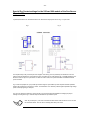
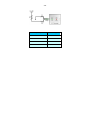
Front and Rear Panel
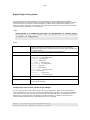
Rear Panel Description
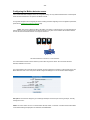
Reset Button
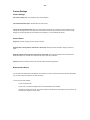
The Reset button is added to the ServSensor V4 and ServSensor Camera to perform three functions:
1.
to announce the IP address of the ServSensor V4/ServSensor Camera,
2.
to turn off the password checking when accessing the web user interface, and
3.
to reboot the ServSensor V4/ServSensor Camera into the firmware updating mode.
The ServSensor V4 and ServSensor Camera can announce its IP address through its built-in speaker when the reset
button is press and release. For example, if the IP address of the ServSensor V4/ServSensor Camera is 192.168.0.100,
it will announce this IP address as "One, nine, two, dot, one, six, eight, dot, zero, dot, one, zero, zero". This function is
useful when you cannot remember its IP address; thus, cannot access the web user interface. At the same time that the
system announces its IP address, it also broadcasts the IP address to the program IPSet.exe
When the Reset button is pressed and held down for approximately 7 seconds, the Use Password feature for the web
user interface is turned off. Once the button is pressed down for 7 seconds or until the ServSensor V4 or ServSensor
Camera announces "Now, turning off password checking" through its built-in speaker. This function is helpful if you have
trouble remembering the password to login to the web user interface.
Note: This will turned off the password checking for accessing the web interface only; you still
have to enter the password when access the system via telnet.
Lastly, when the Reset button is pressed and held down for approximately 12 seconds, the ServSensor V4/ServSensor
Camera will reboot into the firmware updating mode or so-called safe mode. Once the button is pressed down for 12
seconds or until the system announces "Now, rebooting system for firmware update" through its built-in speaker. This
function is used when you upgrade the ServSensor V4/ServSensor Camera with the new firmware available on BLACK
BOX web site.
Note: When you use the button to perform this function, the system will turn off the Use Password
feature as well. Hence, to reboot into the safe mode using the button, you need to press and hold
down the button for 12 seconds. As it passed the first 7 seconds, the system will announce "Now,
turning off password checking"; you need to continue to hold down the button for 5 more seconds
until you hear the announcement for rebooting system; then, you can release the button.