1
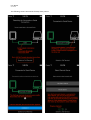
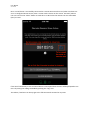
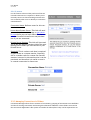
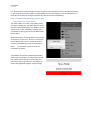
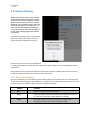
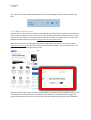
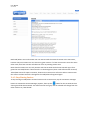
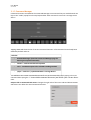
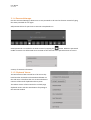
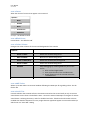
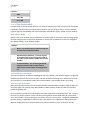
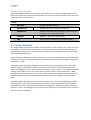
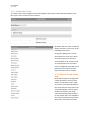
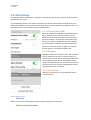
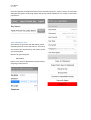
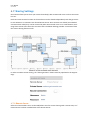
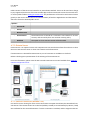
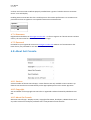
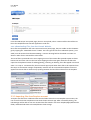
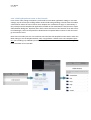
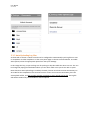
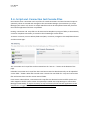
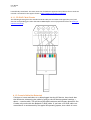
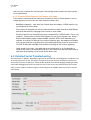
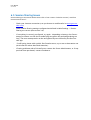
User Manual Get Console 2.4.Session Sharing ! Tapping the share button will attempt to share the selected terminal session with the Get Console website or configured Private Server so that a remote web user can see and interact with the terminal session at the same time. In order to use this feature the settings for session sharing must be configured in the main settings page (see section 3.6 above). Each shared terminal session is dynamically given a one-‐Tme token code at the Tme session sharing is iniTated. This code is used to secure access to the users iPad/iPho-‐ ne. The remote web user must know this 7-‐digit token code in order to see the iPad/iPhones termi-‐ nal window. Only sessions that are shared are visible to remote users, however mulTple concurrent sessions can be shared – each with their own unique one-‐Tme token code. 2.4.1.Start Session Sharing Once the noTficaTon “You are Sharing your Terminal” appears, the remote user can access the iPad via the token code displayed in the noTficaTon. To make it easy for the remote user to learn the code it can be emailed or copied to clipboard via this noTficaTon window. ! Op:ons Func:on - OK Return to the acTve terminal window - Copy Copy the remote access token code to the clipboard so that it can be used in txt message or other iOS device message - Email Email the remote access token code to a recipient with instrucTons how to connect to the shared session