1
182
Making Life Easier
Different Ways to Turn the Computer On and Off
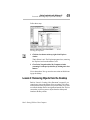
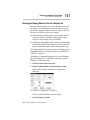
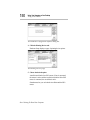
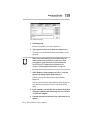
6 Make the desired changes.
If you’re unused to working with the computer’s configuration,
it’s a good idea to leave the Use Automatic Settings box
checked. These settings were set to work together within the
system and with most available optional devices.
7 Click OK when you’ve finished your changes.
Different Ways to Turn the Computer On and Off
Now that you’ve mastered turning your computer on by pressing
the power button, it’s time to learn some new tricks. This section
explains how to:
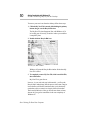
❖ set the computer to turn on automatically at a time you choose
(the Alarm Power On option). This option is helpful if you are
expecting to receive files by modem and want to do the transfer at night, when the rates are cheaper. You can set the computer to turn on and receive the files while you are asleep.
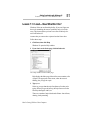
❖ turn the computer on and off by opening and closing the dis-
play panel (the Panel Power On/Off option). This option not
only makes it easier to turn the computer’s power on, but
makes it impossible to close the display panel while the computer is on. This option is only available if you turn Resume
Mode on.
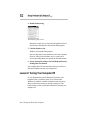
❖ set the computer to turn off automatically after a set amount of
time in which no computing activity has occurred (the System
Auto Off option). This option is only available if you turn
Resume Mode on.
You can set the Alarm Power On, Panel Power On/Off and System Auto Off options using either MaxTime or TSETUP. This
section shows you how to change the options using MaxTime. For
information on using TSETUP, refer to “TSETUP” on page 273.
Part I: Getting To Know Your Computer