1
280
Outline 4D
12.2.4 Event and Timeline
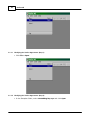
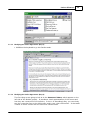
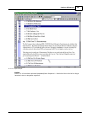
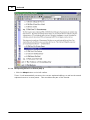
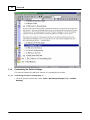
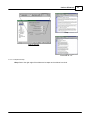
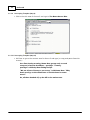
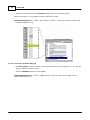
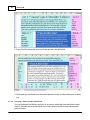
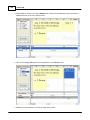
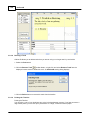
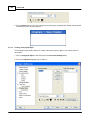
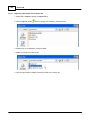
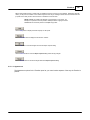
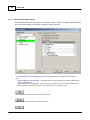
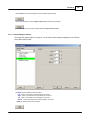
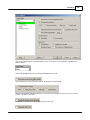
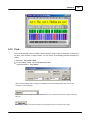
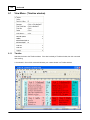
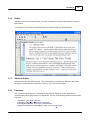
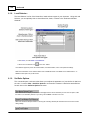
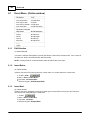
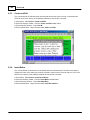
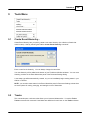
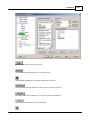
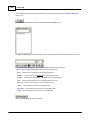
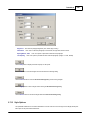
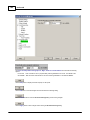
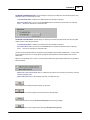
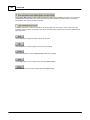
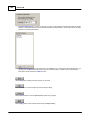
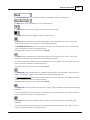
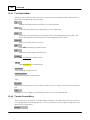
Use this toolbar to adjust and organize events in the Event area. Click a button to display
the applicable help topic.
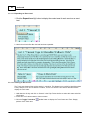
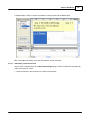
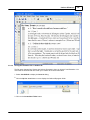
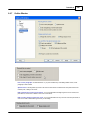
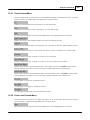
The Center and Edit button puts the selected event into edit mode and fits the event onscreen in two-thirds view. The keyboard shortcut for this command is Ctrl+M.
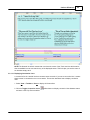
The Insert Before button adds a new event to the immediate left of the selected event. The
keyboard shortcut for this command is Ctrl+Shift+Enter.
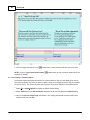
The Insert After button adds a new event to the immediate right of the selected event. The
keyboard shortcut for this command is Ctrl+Enter.
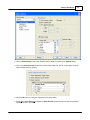
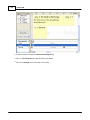
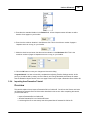
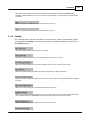
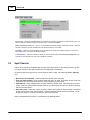
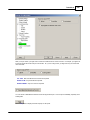
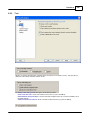
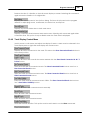
The Event Type drop-down list displays the event type currently selected. If event(s) are
selected on a level that allows multiple event types, choosing an event type changes all
events on that level to the selected type. Use this drop-down list to see what kind of event
will be inserted and to change an existing event. This drop-down list is disabled unless the
event level supports more than one event type.
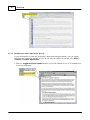
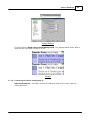
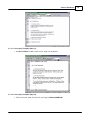
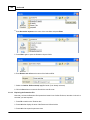
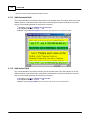
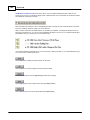
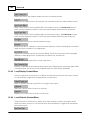
This button functions as follows:
Align Starts - Closes any gap to the left of the selected parent and child events.
Compact Left - Closes any gap to the left of the selected group of events.
Move Left - Closes any gap to the left of a selected event.
The keyboard shortcut for this command is Ctrl+[.
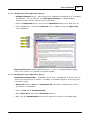
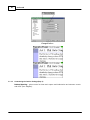
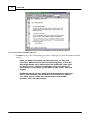
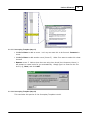
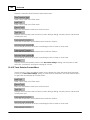
This button functions as follows:
Align Ends - Closes any gap to the right of the selected parent and child events.
Compact Right - Closes any gap to the right of the selected group of events.
Move Right - Closes any gap to the right of a selected event.
The keyboard shortcut for this command is Ctrl+].
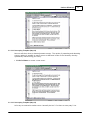
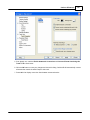
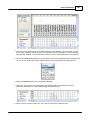
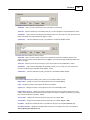
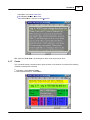
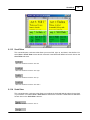
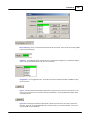
The Close Gaps button eliminates gaps between and around selected events. The keyboard
shortcut for this command is Ctrl+NumPad *.
12.2.5 Text Format
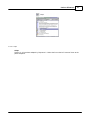
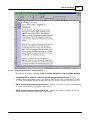
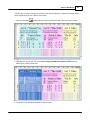
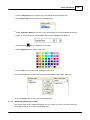
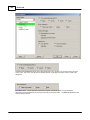
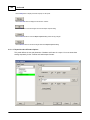
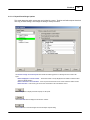
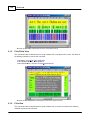
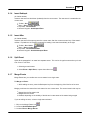
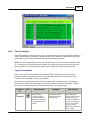
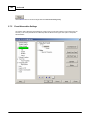
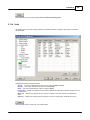
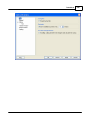
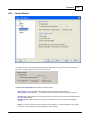
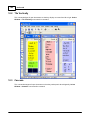
Use this toolbar to customize the appearance and alignment of text. Click a button to
display the applicable help topic.
© 2009 Write Brothers Inc.