1
72
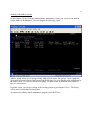
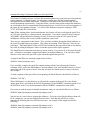
In WebReport/i, you can create PDF documents from the EREPORT command, the WREPORT
command or from automatic routing for both email and local storage functions. For each method,
new digital signature options have now been added that will let you use this new capability in
WebReport/i.
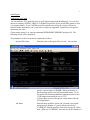
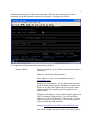
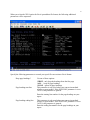
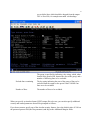
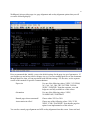
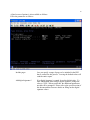
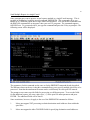
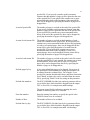
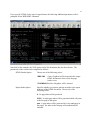
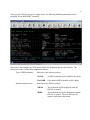
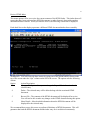
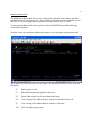
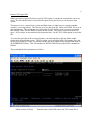
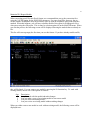
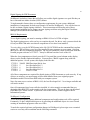
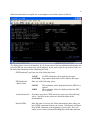
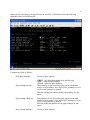
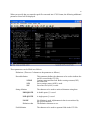
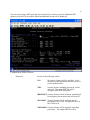
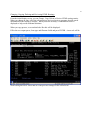
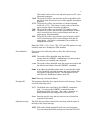
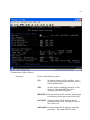
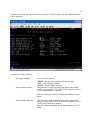
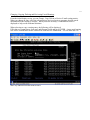
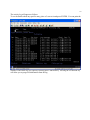
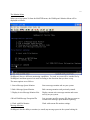
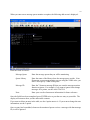
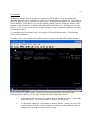
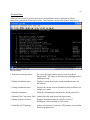
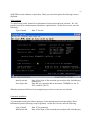
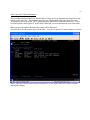
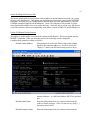
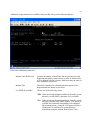
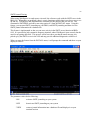
On the EREPORT and WREPORT commands, you must first specify *YES for using PDF Digital
Signatures before the additional parameters will be prompted for.
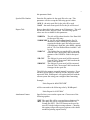
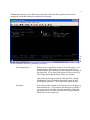
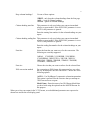
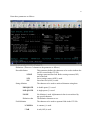
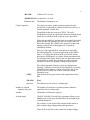
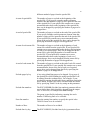
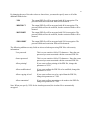
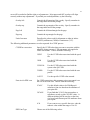
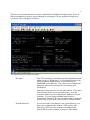
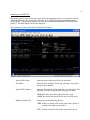
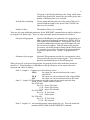
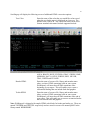
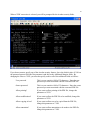
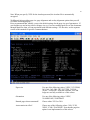
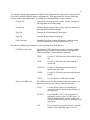
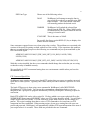
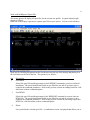
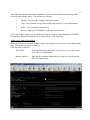
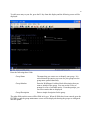
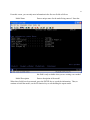
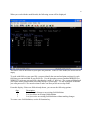
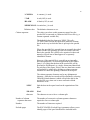
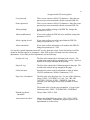
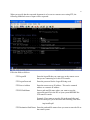
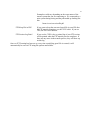
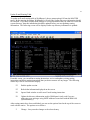
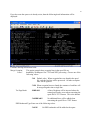
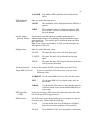
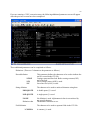
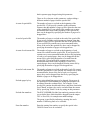
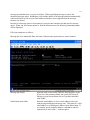
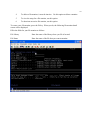
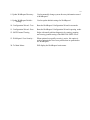
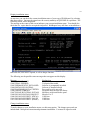
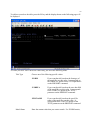
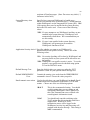
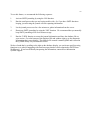
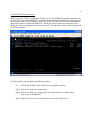
The following new parameters must be provided, they are all parts of the SIGNATURE parameter:
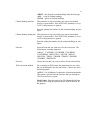
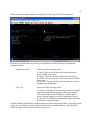
Add digital signature
If you do not want to use a digital signature, leave this parameter set to *NO and
leave the rest of the fields set to their default values. If you do want to apply a digital
signature, change this value to *YES.
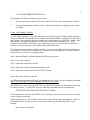
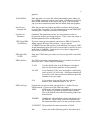
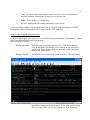
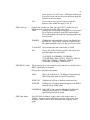
Certificate file path
Enter the file name of your digital signature file as it resides in the IFS. For example,
if your certificate is named testcert.pkcs.pfx and resides in the "webwork" folder in
the IFS, then the following certificate file path should be used:
/webwork/testcert.pkcs.pfx
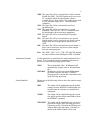
Certificate password
Enter the password that you assigned to the certificate. Keep in mind that this is a
mixed case field and the password is case sensitive.
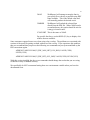
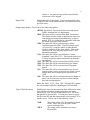
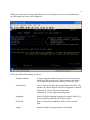
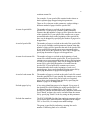
Reason for signing
This is an optional field. If you do not want to specify a value, leave the *NONE
default value. To add a reason, enter a text description of your reason, up to 80
characters.
Signing location
This is an optional field. If you do not want to specify a value, leave the *NONE
default value. To add a location, enter a text description, up to 80 characters.
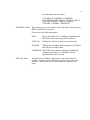
Signing contact information
This is an optional field. If you do not want to specify a value, leave the *NONE
default value. To add contact information, enter a text description, up to 80
characters.
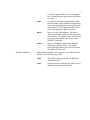
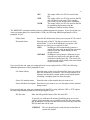
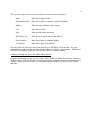
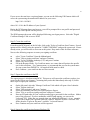
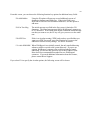
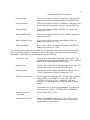
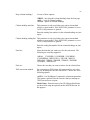
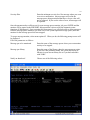
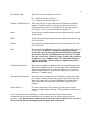
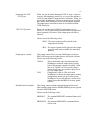
Visible signature?
If you want the digital signature to show when your PDF document is displayed,
leave the default value of *VISIBLE here. To hide the digital signature, change this
value to *INVISIBLE.
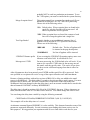
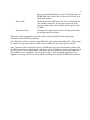
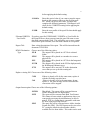
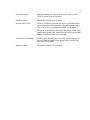
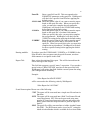
Show on page
Enter the value to place the signature on either the *FIRST page or the *LAST page
of your PDF.
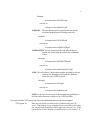
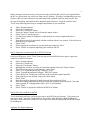
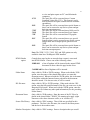
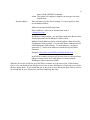
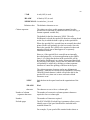
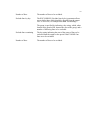
Display image file
If you want to use a custom image for the displayed signature, enter the name of the
graphic file that you want to use. This can be a TIF, JPG or GIF file. To use the
default graphic representation, leave this field set to *NONE.