Transcript
Office Administration User Manual
e-asTTle
Summary
eTAP includes the facility to move pupil details information from eTAP to e-asTTle (downloading) and
transfer results information from e-asTTle to eTAP (uploading).
To transfer data to and from e-asTTle you will need the e-asTTle button on your eTAP main menu. If you
do not have it please contact the eTAP help desk using the ‘request help’ hyperlink.
Downloading – Move student data from eTAP to e-asTTle
The download function creates a file from the student data stored in eTAP making it available for use in easTTle. This file includes pupil names, rooms, genders, ethnicities etc. The file that is created is called
9999_e-asttle.ast (the 9999 is your school MoE number) and should be saved to your hard-drive or
disk/memory stick where it can be accessed by e-asTTle. Please do not open the file.
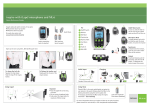
Select the
groups of pupils
you require
Set the
groups as an
export file.
Save the file to your hard-drive or data stick.
Once you have saved the file to your hard-drive or a portable device stop using eTAP. Log into e-asTTle
and use the importing feature to locate and upload the file.
Uploading – Moving student e-asTTle results to eTAP
Once you have tested your students use e-asTTle to generate an export file and save it to your hard-drive
or a portable device. Then log into eTAP and click on the e-asTTle button on your eTAP main menu. Use
the upload area to locate and upload the file.
Locate the e-asTTle
file on your hard
drive or portable
device.
Click here to upload
the file
Click here to create an
export file of e-asTTle
results.