1
Chapter 5 >> Main Menu
Channel Setup >>Edit Channels
Edit Channels
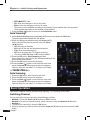
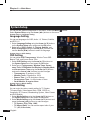
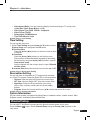
You can rename the channel list.
Select Edit Channels using the Arrow (▲/▼) buttons on the Channel Setup menu and press
the OK button.
• FAV (♥) button: Shows Favorite channel lists
• Arrow (◄/►) buttons: Switches between TV and Radio channel lists
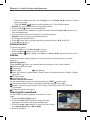
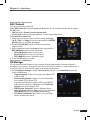
To rename the channel list
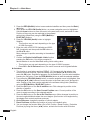
1 Select the channel you want to rename using the Arrow
(▲/▼), PR+/-, or Page (+/-) buttons and press the GREEN
(Sleep) button. Font Table will appear.
2 Press the BLUE (SAT) button to delete the selected
channel name.
3 Select characters using the Arrow buttons and press the
RED (MoSAic) button to enter characters.
• YELLOW (Audio) button: Enters space
• BLUE (SAT) button: Hits the back space
• RED (MoSAic) button: Selects the input
4 Press the OK button to confirm.
Channel Setup >> SW Manager
SW Manager
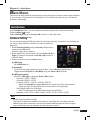
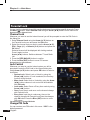
You can download the software of your receiver through satellite when the new software is
available for your system. During download, don’t turn off your receiver. In case of the power is
turned off, turned on your receiver again to complete the download.
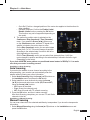
1 Select Software manager using the Arrow (▲/▼) buttons on the Installation menu and
press the OK button.
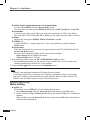
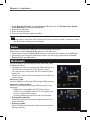
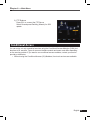
• Program Upload: Copies all the data from Master STB
to Slave STB.
• Channel Data Upload: Copies only the channel data
from master STB to Slave STB.
Connects both Master and Slave STB using RS232C
Cable and then press the OK button on the Software
Upload menu for the Master STB.
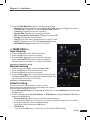
• USB Explore (Optional): Select a Software file by
using the Arrow (▲/▼) or Page (+/-) buttons and press
RED (MoSAic) button for software downloading.
• OTA Update (Optional): Main S/W or Channel Date
can be updated over the air.
English 25