1
,QSXW6ZLWFKLQJWR+'0,DQG5*%
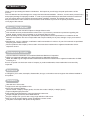
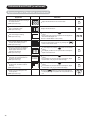
HDMI Input
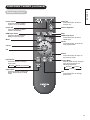
Select button
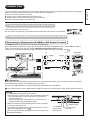
By pressing the Input Select button, you can switch the input to display
the image outputting from the external equipment connected to each
terminal (HDMI and RGB (/Composite)).
RGB Input
Select button
<From Remote Control>
Menu button
Press the
ENGLISH
%$6,&23(5$7,21FRQWLQXHG
button on the remote control.
Each time this button is pressed, the screen displays the
corresponding mode in the following sequence.
HDMI
Press the
or
RGB (/Composite)
Input Select
button
button to directly select the input mode.
<From Control panel>
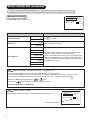
The Input modes can also be switched using the Input Select button on the control panel.
Each time this button is pressed, the screen displays the corresponding
mode in the following sequence.
HDMI
RGB (/Composite)
Input Select
NOTE
Switching between RGB and Composite Input
button, you will see the image from either RGB or Composite mode. You can set up the
When pressing the
mode in advance if necessary.
button in RGB or Composite mode.
1. Press the
2. Select “Setup” menu.
3. Select “RGB Input”.
Select “Composite” to display the image from video output via the optional D-sub 15 pin - composite cable.
Select “RGB” to display the image from PC.
See 27 and 29 for details of “RGB Input” menu.
,QSXW6LJQDO6FUHHQ'LVSOD\
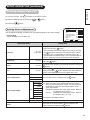
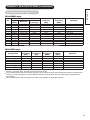
The input signal status can be displayed on the screen by pressing the
The display will go out in approximately 6 seconds.
HDMI mode
HDMI
DVI
720R
button on the remote control.
Input mode
*
Signal mode
* HDMI-DVI
connection only
RGB mode
RGB
H : 48.4kHz
V : 60.0 Hz
Composite
mode
Composite
Input mode
Input horizontal
frequency
Input vertical
frequency
Recall
button
Input mode
20