1
pipeline means that there will be a short delay before printing starts, and if you cancel the
operation, some information will still be in transit, and may continue to be printed.
The print feature is also available in the dashboard which shows a list of recently printed
documents, and in the Document Information View.
Presentations
You can display files such as Microsoft PowerPoint presentations in a full-screen mode. This is
designed to be easy to present on screen, and shows animated transitions between slides,
where appropriate.
You can tap to move to the next slide, or drag to the right to return to the previous one. A long
press will exit from the presentation mode and return to editing.
Viewing and Operating
You can work with the document on screen by touching it with your finger. The gestures are:
Gesture
Usual meaning
Drag (press hold) Pan (scroll) around page, or adjust caret position.
Pinch (two fingers) Zoom in or out
Single tap
Place insertion caret, or close blade
Select word
Double tap
Tap at top of screen Show or hide menu bar
You can zoom in or out with a two-finger "pinch" gesture, to make the content as big or as
small as you like. With large text, you may like "reflow" which reformats the text to fit your
screen width. You can zoom out to make a page of the document smaller than your screen; you
can fit several pages, and still edit and work on it.
You can pan (scroll) through the pages of the document by dragging your finger up the screen,
or using the page carousel in the Top bar. Spreadsheets have tabs for each sheet in the file.
Understanding the Screen
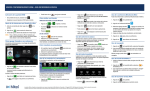
At the top of the screen is the top bar containing "global" options. In the main part of the
screen is your document, in which you may select fragments or enter new content.
When you select text on a tablet-sized device, a callout with editing options will appear (on a
phone, a "blade" would have appeared at the bottom of the screen). Equivalent features are
available on both types of device.