1
iT500 User Manual 16pp 022_Layout 1 22/08/2013 09:11 Page 1
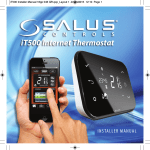
iT500 Internet Thermostat
USER MANUAL
iT500 User Manual 16pp 022_Layout 1 22/08/2013 09:11 Page 2
Product compliance & safety information
These instructions are applicable to the SALUS Controls model stated on the front cover of this manual
only, and must not be used with any other make or model.
This accessory must be fitted by a competent person, and installation must comply with the guidance
provided in the current IEE Wiring Regulations and current Building Regulations. Failure to comply with
the requirements of these publications could lead to prosecution.
Always isolate the AC Mains supply before installing or working
on any components that require 230 VAC 50Hz supply.
When fitting batteries, do not mix old and new batteries together.
Do not use rechargeable batteries.
Please leave these instructions with the end user where they should be kept in a safe place for future
reference.
02 iT500 User Manual
iT500 User Manual 16pp 022_Layout 1 22/08/2013 09:12 Page 3
Contents of the box
iT500 Thermostat
iT500RX Receiver
iTG500 Gateway
ADSL Cable
iT300
Fixing screws & plugs
iTA500 Power Cable
Wall mount
Wall mount
iT500 User Manual 03
iT500 User Manual 16pp 022_Layout 1 22/08/2013 09:12 Page 4
Installation
Please refer to the installation guide.
The installation guide also shows how to
connect your iT500 thermostat to the internet.
Connection & Control
www.salus-controls.com
For details please refer to page 18 in the installation manual.
04 iT500 User Manual
iT500 User Manual 16pp 022_Layout 1 22/08/2013 09:13 Page 5
LCD Overview
LCD ICONS
DESCRIPTION
FUNCTION
Day of the week
Displays the number of the day of the week. 1 being Monday
Temperature indicator
Clock display
Program number indicator
OR
Displays set or measured temperature
Displays time
Displays the number of the active (selected) program
Heat mode indicator
Indicates heating output is turned on*
Heat zone indicator
Indicates heating zone*
Hot water indicator
Indicates hot water control*
Hot water mode indicator
Indicates hot water output is turned on*
RF signal indicator
Indicates the unit is transmitting a wireless signal to iT300*
Touch lock indicator
Indicates touch lock is activated
Battery status
Indicates battery is low
Holiday indicator
Indicates holiday operation mode is selected
Internet indicator
Indicates connection to iTG500 and SALUS server
Cooling indicator
Indicates cooling output is on*
ON indicator
Hot water continuously on*
Once indicator
Hot water is on once*
AUTO indicator
Automatic program mode
OFF indicator
Off mode
Setting indicator
* System configuration specific.
Manual override or settings mode
iT500 User Manual 05
iT500 User Manual 16pp 022_Layout 1 22/08/2013 09:13 Page 6
Controls
Confirm
Increase
Backup
Display ON
Settings
Decrease
06 iT500 User Manual
iT500 User Manual 16pp 022_Layout 1 22/08/2013 09:14 Page 7
The system type is unique to your system configuration.
The system will be set by your installer and should only
be changed by your installer.
Identify your system type
One central heating zone only.
Two central heating zones.
One central heating zone plus hot water.
iT500 Display
iT500 Display
iT500 Display
Smartphone Display
Smartphone Display
Smartphone Display
PC Display
PC Display
PC Display
iT500 User Manual 07
iT500 User Manual 16pp 022_Layout 1 22/08/2013 09:14 Page 8
One Central Heating Zone System PC & Smartphone Control
Now that you have identified your system type, you can use
your PC or smartphone to fully control your iT500.
Energy save will use the lowest set
temperature on your daily schedule.
Will be displayed when the current program
has been manually overridden
*Press AUTO to cancel temporary override of program temperature.
One central heating zone only.
Follows
weekly
schedule
Energy
save
mode
Heating
continuously
off
Override
program
temperature*
Change/view
weekly heating
schedule
Current
program
08 iT500 User Manual
Home
Holiday
Settings
Back
iT500 User Manual 16pp 022_Layout 1 22/08/2013 09:14 Page 9
One Central Heating Zone System Local Control
Control available on your Smartphone or PC is also available locally on the iT500.
i
Temporary override
of your temperature
The operations
described in the next
few pages can be
controlled via your
Smartphone or PC.
Press the power button to
start and use the buttons
indicated to change the
SET temperature. Then
press the tick to accept.
OR
i
Press to cancel
temporary override.
i
i
All changes made
locally on the iT500
will automatically
update PC and
Smartphone.
Note:
Status has
been added.
The unit will return to the
home screen with the
symbol showing.
iT500 User Manual 09
iT500 User Manual 16pp 022_Layout 1 22/08/2013 09:14 Page 10
One Central Heating Zone System Local Control
Switching your
heating from
AUTO to OFF.
Press the power button to
start and use the buttons
indicated to switch from
AUTO to OFF.
+
OR
i
The unit will return to the
home screen.
10 iT500 User Manual
iT500 User Manual 16pp 022_Layout 1 22/08/2013 09:15 Page 11
Two Central Heating Zones System PC & Smartphone Control
Now that you have identified your system type, you can
use your PC or smartphone to fully control your iT500.
i
Two central heating zones.
For information regarding the control
of an individual zone via Smartphone
or PC, please refer to page 8.
Enter Zone 1
Enter Zone 2
Home
Holiday
Settings
Back
iT500 Installer Manual 11
iT500 User Manual 16pp 022_Layout 1 22/08/2013 09:15 Page 12
Two Central Heating Zones System Local Control
Temporary
override of your
temperature
Zones 1 & 2.
Press the power button to
start and use the buttons
indicated to change the
SET temperature. Then
press the tick to accept.
OR
OR
Note:
Status has
been added.
i
Press to cancel
temporary override.
OR
Note:
Status has
been added.
Note:
Gear wheel is now
illuminated indicating
manual override of set
temperature.
12 iT500 User Manual
iT500 User Manual 16pp 022_Layout 1 22/08/2013 09:15 Page 13
Two Central Heating Zones System Local Control
Switching your
heating from
AUTO to OFF.
Zones 1 and 2.
Press the power
button to start and
use the buttons
indicated to switch
from AUTO to OFF.
+
+
OR
OR
i
To go straight to zone
two, short press
iT500 Installer Manual 13
iT500 User Manual 16pp 022_Layout 1 22/08/2013 09:16 Page 14
One Central Heating Zone + Hot Water System PC & Smartphone Control
Now that you have identified your system type, you can
use your PC or smartphone to fully control your iT500.
Energy save will use the lowest set
temperature on your daily schedule.
Will be displayed when the current program
has been manually overridden
One central heating zone plus hot water.
*Press AUTO to cancel temporary override of program temperature.
Enter Heating
Enter Hot Water
14 iT500 User Manual
Home
Holiday
Settings
Back
iT500 User Manual 16pp 022_Layout 1 22/08/2013 09:16 Page 15
One Central Heating Zone + Hot Water System PC & Smartphone Control
Follows
weekly
schedule
Energy
save
mode
Heating
continuously
off
Follows Hot water Hot water Hot water
weekly on once continuously continuously
schedule
on
off
Override
program
temperature*
Change/view
weekly hot water
schedule
Change/view
weekly heating
schedule
Current
program
Current
program
Home
Holiday
Settings
Back
Hot water
boost
Home
Holiday
Settings
Back
iT500 User Manual 15
iT500 User Manual 16pp 022_Layout 1 22/08/2013 09:16 Page 16
+
One Central Heating Zone + Hot Water System Local Control
Temporary override
of your temperature
and boosting your
hot water.
Press the power button to
start and use the buttons
indicated to change the
SET temperature. Then
press the tick to accept.
i
OR
OR
OR
OR
To go straight to hot
water, short press
i
Press to cancel
temporary override.
Note:
Status has
been added.
OR
Note:
Gear wheel is now
illuminated indicating
manual override of set
temperature.
Return to home screen
16 iT500 User Manual
iT500 User Manual 16pp 022_Layout 1 22/08/2013 09:16 Page 17
One Central Heating Zone + Hot Water System Local Control
Switching your
heating from
AUTO to OFF and
overriding hot
water AUTO
mode.
+
+
i
To go straight to hot
water, short press
OR
OR
Hot water
permanently on
Hot water on once
OR
OR
Hot water
permanently off
Return to
home screen
iT500 User Manual 17
iT500 User Manual 16pp 022_Layout 1 22/08/2013 09:16 Page 18
Default Program Schedules
Central Heating
PROGRAM
WEEKDAY (1 to 5)
WEEKDAY (6 to 7)
i
Time 6:00am
Setpoint Temp 21ºC
Time 6:00am
Setpoint Temp 21ºC
Your iT500 comes pre-set
2
Time 8:00am
Setpoint Temp 14ºC
Time 8:00am
Setpoint Temp 14ºC
program schedules.
3
Time 11:00am
Setpoint Temp 21ºC
Time 11:00am
Setpoint Temp 21ºC
changed via the PC or
4
Time 1:00pm
Setpoint Temp 14ºC
Time 1:00pm
Setpoint Temp 14ºC
5
Time 4:00pm
Setpoint Temp 21ºC
Time 4:00pm
Setpoint Temp 21ºC
6
Time 9:00pm
Setpoint Temp 14ºC
Time 9:00pm
Setpoint Temp 14ºC
1
Hot Water
PROGRAM
OP
WEEKDAY (1 to 5)
WEEKDAY (6 to 7)
1
ON
OFF
6:00am
8:00am
6:00am
8:00am
2
ON
OFF
10:00am
12:00pm
10:00am
12:00pm
3
ON
OFF
6:00pm
10:00pm
6:00pm
10:00pm
18 iT500 User Manual
with these default
These can be easily
Smartphone App.
iT500 User Manual 16pp 022_Layout 1 22/08/2013 09:17 Page 19
Viewing or changing your program schedule
i
OR
2
Long press to
enter user
settings.
i
At any time press
and hold
for 5 seconds to
return to the
home screen.
OR
3
i
A
B
C
OR
Program time and temperature
now set for program 1 Monday
to Friday. Please continue to
program 2 on the next page.
Program for Monday to Friday
i
1
OR
A Program for Monday to Friday and program for Sat/Sun
B All week programmer
C Individual day programming
Continually pressing
will keep the screen on
continually.
iT500 User Manual 19
iT500 User Manual 16pp 022_Layout 1 22/08/2013 09:17 Page 20
Viewing or changing your program schedule
OR
4
Two zone configuration
You are now ready to set program 2
Repeat steps 1 2 and 3 for program
Program for Saturday and Sunday
OR
5
OR
Repeat steps 1 2 and 3 for program
All programs now set
20 iT500 User Manual
Please follow steps 1 to 5
starting on previous page
iT500 User Manual 16pp 022_Layout 1 22/08/2013 09:18 Page 21
Viewing or changing your program schedule
Central heating and hot water
Please follow steps 1 to 5
starting on previous two pages
To enter Central Heating program
OR
To select Hot Water program
Follow steps
1
to
5
Note: Hot Water has ON and OFF for specific
program times rather than temperatures
on previous two pages
iT500 User Manual 21
iT500 User Manual 16pp 022_Layout 1 22/08/2013 09:18 Page 22
Program Menu:
Setting Time and Date
OR
i
Hour
When connected to the internet,
the iT500 will set the time and
date automatically. However this
can also be set manually.
i
Minute
OR
Day
OR
Month
OR
Long press to enter
user settings.
i
At any time press
and hold
for 5 seconds to
return to the
home screen.
OR
Year
22 iT500 Installer Manual
OR
iT500 User Manual 16pp 022_Layout 1 22/08/2013 09:18 Page 23
Useful information
i
You can only activate
holiday function via
the Web App and
Smartphone App.
Exiting Holiday Mode
To exit holiday
mode, press and
hold the
button.
Exiting Energy Mode
To enter or exit
energy mode, press
and hold the
button.
Cancel Temporary Override
To cancel
temporary
override of set
temperature press
Lock Function
To enable or disable lock
function press
and
together.
iT500 Installer Manual 23
iT500 User Manual 16pp 022_Layout 1 22/08/2013 09:18 Page 24
SALUS Controls plc
SALUS House
Dodworth Business Park South,
Whinby Road,
Dodworth, Barnsley S75 3SP
UK.
SALES:
T: +44 (0) 1226 323961
E: [email protected]
TECHNICAL: T: +44 (0) 1226 323961
E: [email protected]
www.salus-controls.com
SALUS Controls is a member of the Computime Group
Maintaining a policy of continuous product development SALUS
Controls plc reserve the right to change specification, design and
materials of products listed in this brochure without prior notice.
Issue Date: August 2013
00086/1