1
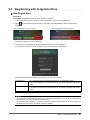
5-2. Logging In/Out
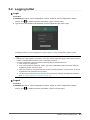
●●Login
Procedure
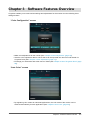
1. On the upper right of “Color Configuration / Import” screen or “Color Configuration / Export”
to display the menu, then select “Login” from the menu.
screen, click
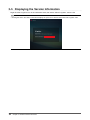
2. Type in the e-mail address and password you have registered, then click “Login”.
The display returns to “Color Configuration / Import” screen or “Color Configuration / Export” screen.
Note
•• Selecting the “Stay logged in” check box in the “Login” screen keeps the logged-in state while G-Ignition
is active. This eliminates the need to carry out the login procedure.
•• If you have forgotten the password, take the following steps to reset the password.
1. Click “Forgot your password?”.
2. In the “Issue Temporary Password” screen, type in the e-mail address that you entered during the
registration process, then click “Send”.
3. When you receive an e-mail message that contains an interim password, access the URL for formal
registration that is specified in the e-mail text.
4. Use the interim password to log in, and set a new password by changing the registered information.
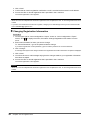
(See “Changing Registration Information” (page 22).)
●●Logout
Procedure
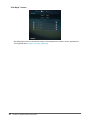
1. On the upper right of “Color Configuration / Import” screen or “Color Configuration / Export”
screen, click
to display the menu, then select “Logout” from the menu.
Chapter5 Use of G-Ignition Drive
23