1
Epsilen 2.0
Sending an Epsilen Mail Message
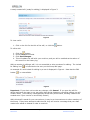
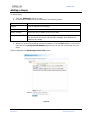
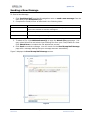
To Send a New Message
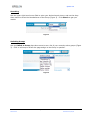
1. Click
for the member in question.
2. The selected member will be checked by default to receive the message. Check the
boxes for other members, or for All Members, to add them to the list as well.
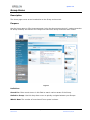
3. Complete the fields/choices as described in the following table:
Field
Function
Subject
Enter the subject of your new message.
Message
Enter the text of your new message.
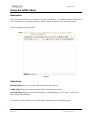
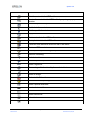
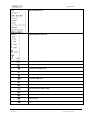
4. Adjust your Message text as desired using the HTML editor (see “Using the HTML
Editor”).
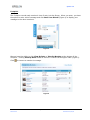
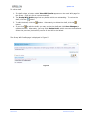
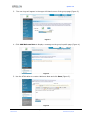
5. To attach a file, click Add Attachment(s) to open the Attach File popup page. You
may upload three files and select three existing files from your Files/Folders at a time.
Click Attach Now to complete the file attachment process.
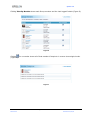
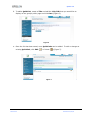
6. Click Send to send the message. You will remain on the Send Epsilen Mail Message
page with a confirmation of the successful message send.
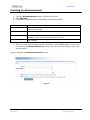
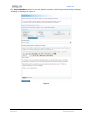
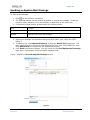
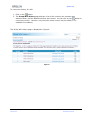
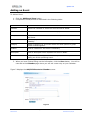
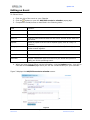
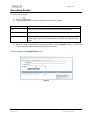
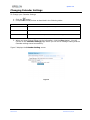
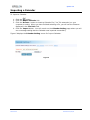
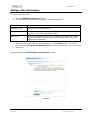
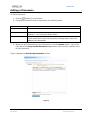
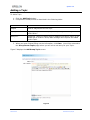
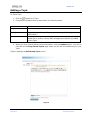
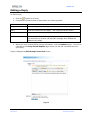
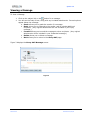
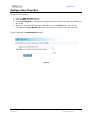
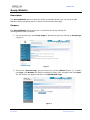
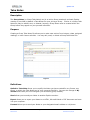
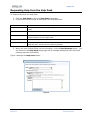
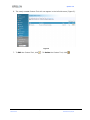
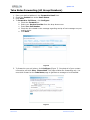
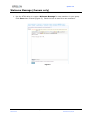
Figure 7 displays the Send Group Mail Message screen.
Figure 7
Page 21 of 85
Manual 2.0
Version 1.0
Published 5/04/09