1
User Guide for Zone Labs Security Software
Version 4.5
Smarter SecurityTM
© 2004 Zone Labs Incorporated All rights reserved.
TrueVector, ZoneAlarm, Integrity Desktop, Integrity Server, the Zone Labs logo and Zone Labs are
registered trademarks of Zone Labs Incorporated. Zone Labs Integrity is a trademark of Zone Labs
Incorporated. AlertAdvisor is a service mark of Zone Labs Incorporated. All other trademarks are
the property of their respective owners. Zone Labs Integrity is protected under U.S. Patent No.
5,987,611. Reg. U.S. Pat. & TM Off.
Zone Labs Incorporated
475 Brannan, Suite 300
San Francisco, CA 94107
ZLD 1-0222-0405-2004-0131
Contents
Tables
. . . . . . . . . . . . . . . . . . . . . . . . . . . . . . . . . . . . . . . . . . . . . . . . . . . . . . .vii
Figures . . . . . . . . . . . . . . . . . . . . . . . . . . . . . . . . . . . . . . . . . . . . . . . . . . . . . viii
Preface . . . . . . . . . . . . . . . . . . . . . . . . . . . . . . . . . . . . . . . . . . . . . . . . . . . . . . ix
What’s new in release 4.5? . . . . . . . . . . . . . . . . . . . . . . . . . . . . . . . . . . . . . . .x
About this guide . . . . . . . . . . . . . . . . . . . . . . . . . . . . . . . . . . . . . . . . . . . . . . . xi
Conventions . . . . . . . . . . . . . . . . . . . . . . . . . . . . . . . . . . . . . . . . . . . . . . . . . . xi
Zone Labs User Forum . . . . . . . . . . . . . . . . . . . . . . . . . . . . . . . . . . . . . . . . . . . xi
Chapter 1
Installation and setup . . . . . . . . . . . . . . . . . . . . . . . . . . . . . . . . . . . . . . .
1
System requirements and supported software . . . . . . . . . . . . . . . . . . . . . . . 2
Installing Zone Labs security software . . . . . . . . . . . . . . . . . . . . . . . . . . . . . 3
Installing ZoneAlarm . . . . . . . . . . . . . . . . . . . . . . . . . . . . . . . . . . . . . . . . . . . . 3
Installing ZoneAlarm Plus or ZoneAlarm Pro. . . . . . . . . . . . . . . . . . . . . . . . . . . . . 4
Upgrading from a previous version . . . . . . . . . . . . . . . . . . . . . . . . . . . . . . . . 5
Configuring basic options . . . . . . . . . . . . . . . . . . . . . . . . . . . . . . . . . . . . . . . . 6
Configuring program access permissions . . . . . . . . . . . . . . . . . . . . . . . . . . . . . . . 6
Joining the Zone Labs Secure Community . . . . . . . . . . . . . . . . . . . . . . . . . . . . . . 6
Uninstalling Zone Labs security software . . . . . . . . . . . . . . . . . . . . . . . . . . . 8
Chapter 2
Zone Labs security software basics . . . . . . . . . . . . . . . . . . . . . . . . . .
9
Tour of the Zone Labs security software Control Center . . . . . . . . . . . . . . . 10
Getting around the Control Center . . . . . . . . . . . . . . . . . . . . . . . . . . . . . . . . . . 10
Using the dashboard . . . . . . . . . . . . . . . . . . . . . . . . . . . . . . . . . . . . . . . . . . . 11
System Tray icons . . . . . . . . . . . . . . . . . . . . . . . . . . . . . . . . . . . . . . . . . . . . . 13
Using the Status tab . . . . . . . . . . . . . . . . . . . . . . . . . . . . . . . . . . . . . . . . . . . 13
Understanding Zones . . . . . . . . . . . . . . . . . . . . . . . . . . . . . . . . . . . . . . . . . . 15
Zones manage firewall security . . . . . . . . . . . . . . . . . . . . . . . . . . . . . . . . . . . . 15
Zones provide program control . . . . . . . . . . . . . . . . . . . . . . . . . . . . . . . . . . . . . 16
Responding to alerts . . . . . . . . . . . . . . . . . . . . . . . . . . . . . . . . . . . . . . . . . . . 17
New Program alerts . . . . . . . . . . . . . . . . . . . . . . . . . . . . . . . . . . . . . . . . . . . . 17
New Network and VPN alerts . . . . . . . . . . . . . . . . . . . . . . . . . . . . . . . . . . . . . . 18
Setting product preferences . . . . . . . . . . . . . . . . . . . . . . . . . . . . . . . . . . . . . 19
Setting your password . . . . . . . . . . . . . . . . . . . . . . . . . . . . . . . . . . . . . . . . . . 19
Backing up and restoring security settings . . . . . . . . . . . . . . . . . . . . . . . . . . . . . 20
Checking for updates . . . . . . . . . . . . . . . . . . . . . . . . . . . . . . . . . . . . . . . . . . . 20
Setting general preferences. . . . . . . . . . . . . . . . . . . . . . . . . . . . . . . . . . . . . . . 20
Setting general contact preferences . . . . . . . . . . . . . . . . . . . . . . . . . . . . . . . . . 21
User Guide for Zone Labs security software
i
Contents
Creating an eBay protection profile . . . . . . . . . . . . . . . . . . . . . . . . . . . . . . . . . . 22
Licensing, registration, and support . . . . . . . . . . . . . . . . . . . . . . . . . . . . . . 23
Updating your product license . . . . . . . . . . . . . . . . . . . . . . . . . . . . . . . . . . . . . 23
Registering Zone Labs security software . . . . . . . . . . . . . . . . . . . . . . . . . . . . . . 23
Accessing technical support . . . . . . . . . . . . . . . . . . . . . . . . . . . . . . . . . . . . . . 24
Chapter 3
Networking with Zone Labs security software . . . . . . . . . . . . . . .
26
Configuring a new network connection . . . . . . . . . . . . . . . . . . . . . . . . . . . . 27
Using the Network Configuration Wizard . . . . . . . . . . . . . . . . . . . . . . . . . . . . . . 27
Disabling the Network Configuration Wizard . . . . . . . . . . . . . . . . . . . . . . . . . . . . 28
Connecting through a proxy server . . . . . . . . . . . . . . . . . . . . . . . . . . . . . . . . . . 28
Integrating with network services . . . . . . . . . . . . . . . . . . . . . . . . . . . . . . . . 29
Enabling file and printer sharing . . . . . . . . . . . . . . . . . . . . . . . . . . . . . . . . . . . 29
Connecting to network mail servers . . . . . . . . . . . . . . . . . . . . . . . . . . . . . . . . . 29
Enabling Internet Connection Sharing . . . . . . . . . . . . . . . . . . . . . . . . . . . . . . . . 30
Configuring your VPN connection . . . . . . . . . . . . . . . . . . . . . . . . . . . . . . . . 31
Supported VPN protocols . . . . . . . . . . . . . . . . . . . . . . . . . . . . . . . . . . . . . . . . 31
Configuring your VPN connection automatically . . . . . . . . . . . . . . . . . . . . . . . . . 31
Configuring your VPN connection manually . . . . . . . . . . . . . . . . . . . . . . . . . . . . 31
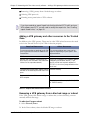
Adding a VPN gateway and other resources to the Trusted Zone . . . . . . . . . . . . . . . 32
Removing a VPN gateway from a blocked range or subnet. . . . . . . . . . . . . . . . . . . 32
Allowing VPN protocols . . . . . . . . . . . . . . . . . . . . . . . . . . . . . . . . . . . . . . . . . 33
Granting access permission to VPN software . . . . . . . . . . . . . . . . . . . . . . . . . . . 33
Chapter 4
Firewall protection . . . . . . . . . . . . . . . . . . . . . . . . . . . . . . . . . . . . . . . . .
34
Understanding Firewall protection . . . . . . . . . . . . . . . . . . . . . . . . . . . . . . . . 35
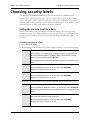
Choosing security levels . . . . . . . . . . . . . . . . . . . . . . . . . . . . . . . . . . . . . . . . 36
Setting the security level for a Zone . . . . . . . . . . . . . . . . . . . . . . . . . . . . . . . . . 36
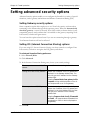
Setting advanced security options . . . . . . . . . . . . . . . . . . . . . . . . . . . . . . . . 38
Setting Gateway security options . . . . . . . . . . . . . . . . . . . . . . . . . . . . . . . . . . . 38
Setting ICS (Internet Connection Sharing) options . . . . . . . . . . . . . . . . . . . . . . . 38
Setting General security options . . . . . . . . . . . . . . . . . . . . . . . . . . . . . . . . . . . 39
Setting Network security options . . . . . . . . . . . . . . . . . . . . . . . . . . . . . . . . . . . 39
Managing traffic sources . . . . . . . . . . . . . . . . . . . . . . . . . . . . . . . . . . . . . . . 41
Viewing the traffic source list . . . . . . . . . . . . . . . . . . . . . . . . . . . . . . . . . . . . . 41
Modifying traffic sources . . . . . . . . . . . . . . . . . . . . . . . . . . . . . . . . . . . . . . . . 41
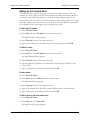
Adding to the Trusted Zone . . . . . . . . . . . . . . . . . . . . . . . . . . . . . . . . . . . . . . . 42
Adding to the Blocked Zone . . . . . . . . . . . . . . . . . . . . . . . . . . . . . . . . . . . . . . 43
Blocking and unblocking ports . . . . . . . . . . . . . . . . . . . . . . . . . . . . . . . . . . 44
Default port permission settings . . . . . . . . . . . . . . . . . . . . . . . . . . . . . . . . . . . 44
Adding custom ports . . . . . . . . . . . . . . . . . . . . . . . . . . . . . . . . . . . . . . . . . . . 45
Understanding expert firewall rules . . . . . . . . . . . . . . . . . . . . . . . . . . . . . . . 47
How expert firewall rules are enforced . . . . . . . . . . . . . . . . . . . . . . . . . . . . . . . . 47
Expert firewall rule enforcement rank . . . . . . . . . . . . . . . . . . . . . . . . . . . . . . . . 48
Creating expert firewall rules . . . . . . . . . . . . . . . . . . . . . . . . . . . . . . . . . . . . 49
Creating groups . . . . . . . . . . . . . . . . . . . . . . . . . . . . . . . . . . . . . . . . . . . . . . . 51
Creating a location group . . . . . . . . . . . . . . . . . . . . . . . . . . . . . . . . . . . . . . . . 51
Creating a protocol group . . . . . . . . . . . . . . . . . . . . . . . . . . . . . . . . . . . . . . . . 51
User Guide for Zone Labs security software
ii
Contents
Creating a day/time group . . . . . . . . . . . . . . . . . . . . . . . . . . . . . . . . . . . . . . . . 54
Managing Expert Firewall Rules. . . . . . . . . . . . . . . . . . . . . . . . . . . . . . . . . . 55
Viewing the Expert Rules list . . . . . . . . . . . . . . . . . . . . . . . . . . . . . . . . . . . . . . 55
Editing and re-ranking rules . . . . . . . . . . . . . . . . . . . . . . . . . . . . . . . . . . . . . . 56
Chapter 5
Program control
. . . . . . . . . . . . . . . . . . . . . . . . . . . . . . . . . . . . . . . . . . . 57
Understanding Program control . . . . . . . . . . . . . . . . . . . . . . . . . . . . . . . . . . 58
Program access control . . . . . . . . . . . . . . . . . . . . . . . . . . . . . . . . . . . . . . . . . 58
Program authentication . . . . . . . . . . . . . . . . . . . . . . . . . . . . . . . . . . . . . . . . . 58
Setting general program control options . . . . . . . . . . . . . . . . . . . . . . . . . . . 60
Setting the program control level . . . . . . . . . . . . . . . . . . . . . . . . . . . . . . . . . . . 60
Enabling the automatic lock . . . . . . . . . . . . . . . . . . . . . . . . . . . . . . . . . . . . . . 61
Configuring program access . . . . . . . . . . . . . . . . . . . . . . . . . . . . . . . . . . . . . 62
Setting access permissions for new programs . . . . . . . . . . . . . . . . . . . . . . . . . . . 62
Customizing program control settings . . . . . . . . . . . . . . . . . . . . . . . . . . . . . . . . 63
Setting permissions for specific programs . . . . . . . . . . . . . . . . . . . . . . . . . 64
Using the programs list . . . . . . . . . . . . . . . . . . . . . . . . . . . . . . . . . . . . . . . . . 64
Adding a program to the programs list. . . . . . . . . . . . . . . . . . . . . . . . . . . . . . . . 66
Granting a program permission to access the Internet . . . . . . . . . . . . . . . . . . . . . 67
Granting a program permission to act as a server . . . . . . . . . . . . . . . . . . . . . . . . 67
Granting pass-lock permission to a program . . . . . . . . . . . . . . . . . . . . . . . . . . . . 67
Granting send mail permission to a program . . . . . . . . . . . . . . . . . . . . . . . . . . . 68
Advanced Program Control . . . . . . . . . . . . . . . . . . . . . . . . . . . . . . . . . . . . . . . 68
Allowing others to use programs. . . . . . . . . . . . . . . . . . . . . . . . . . . . . . . . . . . . 69
Managing program components . . . . . . . . . . . . . . . . . . . . . . . . . . . . . . . . . . 70
Creating expert rules for programs . . . . . . . . . . . . . . . . . . . . . . . . . . . . . . . . 72
Creating an expert rule for a Program . . . . . . . . . . . . . . . . . . . . . . . . . . . . . . . . 72
Sharing expert rules . . . . . . . . . . . . . . . . . . . . . . . . . . . . . . . . . . . . . . . . . . . 73
Using your programs with Zone Labs security software . . . . . . . . . . . . . . . 74
Using Anti-virus software . . . . . . . . . . . . . . . . . . . . . . . . . . . . . . . . . . . . . . . . 74
Using browser software . . . . . . . . . . . . . . . . . . . . . . . . . . . . . . . . . . . . . . . . . 74
Using chat programs with Zone Labs security software . . . . . . . . . . . . . . . . . . . . . 75
Using e-mail programs with Zone Labs security software . . . . . . . . . . . . . . . . . . . 76
Using Internet answering machine programs with Zone Alarm Pro . . . . . . . . . . . . . 76
Using file sharing programs with Zone Labs security software . . . . . . . . . . . . . . . . 77
Using FTP programs with Zone Labs security software . . . . . . . . . . . . . . . . . . . . . 77
Using games with Zone Labs security software . . . . . . . . . . . . . . . . . . . . . . . . . . 77
Using remote control programs with Zone Alarm Pro . . . . . . . . . . . . . . . . . . . . . . 78
Using VNC with Zone Labs security software . . . . . . . . . . . . . . . . . . . . . . . . . . . 79
Using streaming media programs Zone Labs security software . . . . . . . . . . . . . . . . 80
Using Voice over Internet programs with Zone Labs security software . . . . . . . . . . . 80
Using Web conferencing programs with Zone Labs security software. . . . . . . . . . . . 80
Chapter 6
Alerts and Logs . . . . . . . . . . . . . . . . . . . . . . . . . . . . . . . . . . . . . . . . . . . . .
81
Understanding alerts and logs . . . . . . . . . . . . . . . . . . . . . . . . . . . . . . . . . . . 82
About Zone Labs security software alerts . . . . . . . . . . . . . . . . . . . . . . . . . . . . . . 82
About event logging . . . . . . . . . . . . . . . . . . . . . . . . . . . . . . . . . . . . . . . . . . . . 87
Setting basic alert and log options . . . . . . . . . . . . . . . . . . . . . . . . . . . . . . . 88
Setting the alert event level . . . . . . . . . . . . . . . . . . . . . . . . . . . . . . . . . . . . . . 88
User Guide for Zone Labs security software
iii
Contents
Setting event and program logging options . . . . . . . . . . . . . . . . . . . . . . . . . . . . . 88
Showing or hiding specific alerts . . . . . . . . . . . . . . . . . . . . . . . . . . . . . . . . . 89
Showing or hiding firewall alerts . . . . . . . . . . . . . . . . . . . . . . . . . . . . . . . . . . . 89
Enabling system tray alerts . . . . . . . . . . . . . . . . . . . . . . . . . . . . . . . . . . . . . . . 89
Setting event and program log options . . . . . . . . . . . . . . . . . . . . . . . . . . . . 90
Formatting log appearance . . . . . . . . . . . . . . . . . . . . . . . . . . . . . . . . . . . . . . . 90
Customizing event logging . . . . . . . . . . . . . . . . . . . . . . . . . . . . . . . . . . . . . . . 90
Customizing program logging . . . . . . . . . . . . . . . . . . . . . . . . . . . . . . . . . . . . . 90
Viewing log entries . . . . . . . . . . . . . . . . . . . . . . . . . . . . . . . . . . . . . . . . . . . . 91
Viewing the text log . . . . . . . . . . . . . . . . . . . . . . . . . . . . . . . . . . . . . . . . . . . . 92
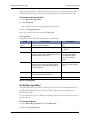
Archiving log entries . . . . . . . . . . . . . . . . . . . . . . . . . . . . . . . . . . . . . . . . . . . 93
Using Alert Advisor and Hacker ID . . . . . . . . . . . . . . . . . . . . . . . . . . . . . . . 95
Chapter 7
Privacy protection
. . . . . . . . . . . . . . . . . . . . . . . . . . . . . . . . . . . . . . . . . 96
Understanding privacy protection . . . . . . . . . . . . . . . . . . . . . . . . . . . . . . . . 97
Setting general privacy options . . . . . . . . . . . . . . . . . . . . . . . . . . . . . . . . . . 98
Setting privacy protection levels . . . . . . . . . . . . . . . . . . . . . . . . . . . . . . . . . . . 98
Applying privacy protection to programs other than browsers . . . . . . . . . . . . . . . . . 98
Using Privacy Advisor . . . . . . . . . . . . . . . . . . . . . . . . . . . . . . . . . . . . . . . . . 100
Setting privacy options for specific Web sites . . . . . . . . . . . . . . . . . . . . . 101
Viewing the privacy site list . . . . . . . . . . . . . . . . . . . . . . . . . . . . . . . . . . . . . . 101
Adding sites to the privacy site list . . . . . . . . . . . . . . . . . . . . . . . . . . . . . . . . . 102
Editing sites on the site list . . . . . . . . . . . . . . . . . . . . . . . . . . . . . . . . . . . . . 103
Customizing cookie control . . . . . . . . . . . . . . . . . . . . . . . . . . . . . . . . . . . . 104
Blocking session cookies . . . . . . . . . . . . . . . . . . . . . . . . . . . . . . . . . . . . . . . 104
Blocking persistent cookies . . . . . . . . . . . . . . . . . . . . . . . . . . . . . . . . . . . . . . 104
Blocking third-party cookies . . . . . . . . . . . . . . . . . . . . . . . . . . . . . . . . . . . . . 105
Setting an expiration date for cookies . . . . . . . . . . . . . . . . . . . . . . . . . . . . . . . 105
Customizing ad blocking . . . . . . . . . . . . . . . . . . . . . . . . . . . . . . . . . . . . . . 106
Specifying which ads to block . . . . . . . . . . . . . . . . . . . . . . . . . . . . . . . . . . . . 106
Setting ad void control options . . . . . . . . . . . . . . . . . . . . . . . . . . . . . . . . . . . 106
Customizing mobile code control . . . . . . . . . . . . . . . . . . . . . . . . . . . . . . . . 108
Specifying which types of mobile code to block . . . . . . . . . . . . . . . . . . . . . . . . 108
Understanding Cache cleaner . . . . . . . . . . . . . . . . . . . . . . . . . . . . . . . . . . 109
Using Cache Cleaner . . . . . . . . . . . . . . . . . . . . . . . . . . . . . . . . . . . . . . . . . . 109
Customizing hard drive cleaning options . . . . . . . . . . . . . . . . . . . . . . . . . . . . . 110
Customizing browser cleaning options . . . . . . . . . . . . . . . . . . . . . . . . . . . . . . . 110
Chapter 8
E-mail protection
. . . . . . . . . . . . . . . . . . . . . . . . . . . . . . . . . . . . . . . . . 114
Understanding e-mail protection . . . . . . . . . . . . . . . . . . . . . . . . . . . . . . . . 115
Inbound MailSafe protection . . . . . . . . . . . . . . . . . . . . . . . . . . . . . . . . . . . . . 115
Outbound MailSafe protection . . . . . . . . . . . . . . . . . . . . . . . . . . . . . . . . . . . . 115
Enabling Inbound MailSafe protection . . . . . . . . . . . . . . . . . . . . . . . . . . . . . . 116
Enabling Outbound MailSafe protection . . . . . . . . . . . . . . . . . . . . . . . . . . . . . 116
Customizing Inbound MailSafe protection . . . . . . . . . . . . . . . . . . . . . . . . 117
Viewing the Attachments list . . . . . . . . . . . . . . . . . . . . . . . . . . . . . . . . . . . . . 117
Changing the quarantine setting for an attachment type . . . . . . . . . . . . . . . . . . . 117
Adding and removing attachment types . . . . . . . . . . . . . . . . . . . . . . . . . . . . . . 118
User Guide for Zone Labs security software
iv
Contents
Opening a quarantined attachment. . . . . . . . . . . . . . . . . . . . . . . . . . . . . . . . . 119
Customizing Outbound MailSafe protection . . . . . . . . . . . . . . . . . . . . . . . 120
Enabling Outbound MailSafe protection by program . . . . . . . . . . . . . . . . . . . . . 120
Setting Outbound MailSafe protection options . . . . . . . . . . . . . . . . . . . . . . . . . 121
Chapter 9
Web Filtering . . . . . . . . . . . . . . . . . . . . . . . . . . . . . . . . . . . . . . . . . . . . . .
123
Understanding Web Filtering . . . . . . . . . . . . . . . . . . . . . . . . . . . . . . . . . . . 124
Enabling parental control and smart filtering . . . . . . . . . . . . . . . . . . . . . . 125
The Web filtering feature is available in Zone Alarm Pro with Web Filtering only.Enabling
or disabling parental control . . . . . . . . . . . . . . . . . . . . . . . . . . . . . . . . . . 125
Enabling or disabling Smart Filtering . . . . . . . . . . . . . . . . . . . . . . . . . . . . . . . 125
Setting timeout options . . . . . . . . . . . . . . . . . . . . . . . . . . . . . . . . . . . . . . . . 125
Choosing which content categories to block . . . . . . . . . . . . . . . . . . . . . . . 127
Chapter 10
Protecting your data . . . . . . . . . . . . . . . . . . . . . . . . . . . . . . . . . . . . .
132
Understanding the ID Lock feature . . . . . . . . . . . . . . . . . . . . . . . . . . . . . . 133
How your personal information is protected . . . . . . . . . . . . . . . . . . . . . . . . . . . 133
Setting the ID Lock protection level . . . . . . . . . . . . . . . . . . . . . . . . . . . . . . . . 134
Monitoring ID Lock status . . . . . . . . . . . . . . . . . . . . . . . . . . . . . . . . . . . . . . . 134
About myVAULT . . . . . . . . . . . . . . . . . . . . . . . . . . . . . . . . . . . . . . . . . . . . . 135
Adding data to myVAULT . . . . . . . . . . . . . . . . . . . . . . . . . . . . . . . . . . . . . . . 135
Editing and removing myVAULT contents . . . . . . . . . . . . . . . . . . . . . . . . . . . . 137
Using the Trusted Sites list . . . . . . . . . . . . . . . . . . . . . . . . . . . . . . . . . . . . 138
Viewing the Trusted Sites list . . . . . . . . . . . . . . . . . . . . . . . . . . . . . . . . . . . . 138
Adding to the Trusted Sites list . . . . . . . . . . . . . . . . . . . . . . . . . . . . . . . . . . . 139
Editing and removing trusted sites . . . . . . . . . . . . . . . . . . . . . . . . . . . . . . . . . 140
Appendix A
Alert reference
. . . . . . . . . . . . . . . . . . . . . . . . . . . . . . . . . . . . . . . . . . . . . . 142
Informational alerts . . . . . . . . . . . . . . . . . . . . . . . . . . . . . . . . . . . . . . . . . . 143
Firewall alerts/Protected . . . . . . . . . . . . . . . . . . . . . . . . . . . . . . . . . . . . . . . . 143
MailSafe alerts . . . . . . . . . . . . . . . . . . . . . . . . . . . . . . . . . . . . . . . . . . . . . . 144
Blocked Program alert . . . . . . . . . . . . . . . . . . . . . . . . . . . . . . . . . . . . . . . . . 145
Internet Lock alerts . . . . . . . . . . . . . . . . . . . . . . . . . . . . . . . . . . . . . . . . . . . 146
Remote alerts . . . . . . . . . . . . . . . . . . . . . . . . . . . . . . . . . . . . . . . . . . . . . . . 147
Program alerts . . . . . . . . . . . . . . . . . . . . . . . . . . . . . . . . . . . . . . . . . . . . . . . 148
New Program alerts . . . . . . . . . . . . . . . . . . . . . . . . . . . . . . . . . . . . . . . . . . . 149
Repeat Program alert . . . . . . . . . . . . . . . . . . . . . . . . . . . . . . . . . . . . . . . . . . 150
Changed Program alert . . . . . . . . . . . . . . . . . . . . . . . . . . . . . . . . . . . . . . . . . 150
Program Component alert . . . . . . . . . . . . . . . . . . . . . . . . . . . . . . . . . . . . . . . 151
Component Loading alert . . . . . . . . . . . . . . . . . . . . . . . . . . . . . . . . . . . . . . . 152
Server Program alerts . . . . . . . . . . . . . . . . . . . . . . . . . . . . . . . . . . . . . . . . . . 154
Advanced Program alert . . . . . . . . . . . . . . . . . . . . . . . . . . . . . . . . . . . . . . . . 155
Automatic VPN Configuration alert . . . . . . . . . . . . . . . . . . . . . . . . . . . . . . . . . 156
Manual Action Required alert . . . . . . . . . . . . . . . . . . . . . . . . . . . . . . . . . . . . 159
ID Lock alerts . . . . . . . . . . . . . . . . . . . . . . . . . . . . . . . . . . . . . . . . . . . . . . . 160
New Network alert . . . . . . . . . . . . . . . . . . . . . . . . . . . . . . . . . . . . . . . . . . . 161
User Guide for Zone Labs security software
v
Contents
Appendix B
Keyboard shortcuts
. . . . . . . . . . . . . . . . . . . . . . . . . . . . . . . . . . . . . . . . . . 163
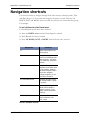
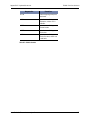
Navigation shortcuts . . . . . . . . . . . . . . . . . . . . . . . . . . . . . . . . . . . . . . . . . . 164
Global function shortcuts . . . . . . . . . . . . . . . . . . . . . . . . . . . . . . . . . . . . . . 165
Shortcut menu items . . . . . . . . . . . . . . . . . . . . . . . . . . . . . . . . . . . . . . . . . 167
Dialog box commands. . . . . . . . . . . . . . . . . . . . . . . . . . . . . . . . . . . . . . . . . 168
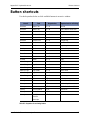
Button shortcuts . . . . . . . . . . . . . . . . . . . . . . . . . . . . . . . . . . . . . . . . . . . . . 169
Appendix C
Troubleshooting
. . . . . . . . . . . . . . . . . . . . . . . . . . . . . . . . . . . . . . . . . . . . . 171
VPN . . . . . . . . . . . . . . . . . . . . . . . . . . . . . . . . . . . . . . . . . . . . . . . . . . . . . . . 172
Configuring Zone Labs security software for VPN traffic . . . . . . . . . . . . . . . . . . . 172
VPN auto-configuration and expert rules . . . . . . . . . . . . . . . . . . . . . . . . . . . . . 172
Automatic VPN detection delay . . . . . . . . . . . . . . . . . . . . . . . . . . . . . . . . . . . 172
Networking . . . . . . . . . . . . . . . . . . . . . . . . . . . . . . . . . . . . . . . . . . . . . . . . . 174
Making your computer visible on your local network . . . . . . . . . . . . . . . . . . . . . 174
Sharing files and printers across a local network . . . . . . . . . . . . . . . . . . . . . . . . 174
Resolving a slow start up . . . . . . . . . . . . . . . . . . . . . . . . . . . . . . . . . . . . . . . 175
Internet Connection . . . . . . . . . . . . . . . . . . . . . . . . . . . . . . . . . . . . . . . . . . 176
Connecting to the Internet fails after installation . . . . . . . . . . . . . . . . . . . . . . . 176
Allowing ISP Heartbeat messages . . . . . . . . . . . . . . . . . . . . . . . . . . . . . . . . . 176
Connecting through an ICS client . . . . . . . . . . . . . . . . . . . . . . . . . . . . . . . . . . 177
Connecting through a proxy server . . . . . . . . . . . . . . . . . . . . . . . . . . . . . . . . . 178
Glossary
. . . . . . . . . . . . . . . . . . . . . . . . . . . . . . . . . . . . . . . . . . . . . . . . . 179
Index . . . . . . . . . . . . . . . . . . . . . . . . . . . . . . . . . . . . . . . . . . . . . . . . . . . . . .
User Guide for Zone Labs security software
188
vi
Tables
Table 2-3:System Tray icons . . . . . . . . . . . . . . . . . . . . . . . . . . . . . . . . . . . . . . 13
Table 2-4:Update messages . . . . . . . . . . . . . . . . . . . . . . . . . . . . . . . . . . . . . . 14
Table 3-1:Required VPN-related network resources . . . . . . . . . . . . . . . . . . . . . 32
Table 4-1:Traffic source list fields . . . . . . . . . . . . . . . . . . . . . . . . . . . . . . . . . 41
Table 4-2:Default access permissions for incoming and outgoing traffic types . 44
Table 4-5:Expert Rules list fields . . . . . . . . . . . . . . . . . . . . . . . . . . . . . . . . . . 55
Table 5-2:Program permission symbols . . . . . . . . . . . . . . . . . . . . . . . . . . . . . . 65
Table 6-5:Log viewer fields . . . . . . . . . . . . . . . . . . . . . . . . . . . . . . . . . . . . . . . 92
Table 6-6:Text log fields . . . . . . . . . . . . . . . . . . . . . . . . . . . . . . . . . . . . . . . . . 93
Table 9-1:Web Filtering categories . . . . . . . . . . . . . . . . . . . . . . . . . . . . . . . . 127
Table B-1:Navigation shortcuts . . . . . . . . . . . . . . . . . . . . . . . . . . . . . . . . . . . 164
Table B-2:Global shortcuts . . . . . . . . . . . . . . . . . . . . . . . . . . . . . . . . . . . . . . 165
Table B-3:Keystrokes for activating shortcut menu options . . . . . . . . . . . . . . 167
Table B-4:Dialog box shortcuts . . . . . . . . . . . . . . . . . . . . . . . . . . . . . . . . . . . 168
Table B-5:Keystrokes for activating buttons . . . . . . . . . . . . . . . . . . . . . . . . . 169
Table C-1:Troubleshooting VPN problems . . . . . . . . . . . . . . . . . . . . . . . . . . . 172
Table C-2:Troubleshooting network problems . . . . . . . . . . . . . . . . . . . . . . . . 174
Table C-3:Troubleshooting Internet connection problems . . . . . . . . . . . . . . . 176
User Guide for Zone Labs security software
vii
Figures
Figure 2-1: Zone Labs security software Control Center . . . . . . . . . . . . . . . . . 10
Figure 2-2: Zone Labs security software dashboard . . . . . . . . . . . . . . . . . . . . 11
Figure 4-3: Expert firewall rule rank order. . . . . . . . . . . . . . . . . . . . . . . . . . . 48
Figure 4-4: Expert Rules list . . . . . . . . . . . . . . . . . . . . . . . . . . . . . . . . . . . . 55
Figure 5-1: Programs list. . . . . . . . . . . . . . . . . . . . . . . . . . . . . . . . . . . . . . . 65
Figure 5-3: Components List . . . . . . . . . . . . . . . . . . . . . . . . . . . . . . . . . . . . 70
Figure 6-1: Firewall alert. . . . . . . . . . . . . . . . . . . . . . . . . . . . . . . . . . . . . . . 83
Figure 6-2: New Program alert. . . . . . . . . . . . . . . . . . . . . . . . . . . . . . . . . . . 84
Figure 6-3: New Network alert . . . . . . . . . . . . . . . . . . . . . . . . . . . . . . . . . . . 85
Figure 6-4: ID Lock alert. . . . . . . . . . . . . . . . . . . . . . . . . . . . . . . . . . . . . . . 86
Figure 7-1: Privacy Advisor . . . . . . . . . . . . . . . . . . . . . . . . . . . . . . . . . . . . 100
Figure 7-2: Privacy site list . . . . . . . . . . . . . . . . . . . . . . . . . . . . . . . . . . . . 102
Figure 8-1: Attachments list . . . . . . . . . . . . . . . . . . . . . . . . . . . . . . . . . . . 117
Figure 10-1: ID Lock status area . . . . . . . . . . . . . . . . . . . . . . . . . . . . . . . . 134
Figure 10-2: Trusted Sites list . . . . . . . . . . . . . . . . . . . . . . . . . . . . . . . . . . 138
Figure A-1: Automatic VPN Configuration alerts . . . . . . . . . . . . . . . . . . . . . 158
User Guide for Zone Labs security software
viii
Preface
!
“What’s new in release 4.5?,” on page x
!
“About this guide,” on page xi
ix
Preface
What’s new in release 4.5?
The 4.5 release of Zone Labs security software includes the following new features:
!
ID Lock
The ID Lock feature provides gives you the ability to store personal information in a
secure area, called myVAULT, and specify the sites allowed to access that
information. Using the Trusted Sites list, you keep your information from being sent
to any site that has not been approved by you. See “Understanding the ID Lock
feature,” on page 133.
This feature is only available in ZoneAlarm Pro and ZoneAlarm Pro with Web
Filtering.
!
eBay Profile Protection feature
If you are an eBay user, you now can keep your eBay password safe from identity
thieves. Once you create an eBay Profile in Zone Labs security software, you will be
alerted any time your eBay password is sent to a site that is outside the eBay IP range.
See “Creating an eBay protection profile,” on page 22.
!
Zone Labs’ Safe Programs list
Zone Labs security software scans your installed programs and automatically
configures Internet access for programs listed on its Safe Programs list. whose MD5
matches those on the Safe Program’s list, which ensures that your most commonly
used programs are properly configured, and reduces the number of New Program
alerts that appear. See “Configuring program access permissions,” on page 6.
User Guide for Zone Labs security software
x
Preface
About this guide
This guide is intended for users of ZoneAlarm, ZoneAlarm Plus, ZoneAlarm Pro, and
ZoneAlarm Pro with Web Filtering. Throughout this guide, these products are
collectively referred to as Zone Labs security software. In cases where a reference to a
specific product is required, the product name is used.
Conventions
This guide uses the following formatting and graphics conventions.
Convention
Description
Bold
Used for user interface elements such as panels, tabs, fields, buttons, and menu options.
Italic
Used for file names and paths.
|
Used to separate panel and tab selections in procedures.
Example: Select Overview|Status, then click Add.
Tip icon. Suggests alternative methods for accomplishing tasks or
procedures.
Note icon. Emphasizes related, reinforcing, or important information.
Caution icon. Indicates actions or processes that can potentially
damage data or programs.
Zone Labs User Forum
Connect with other users of Zone Labs security software. Ask questions, get answers,
and see how fellow users get the most out of their ZoneAlarm firewalls. Visit: http://
www.zonelabs.com/forum
User Guide for Zone Labs security software
xi
Chapter
Installation and setup
1
This chapter provides system requirements and instructions for installing, upgrading, configuring, and uninstalling Zone Labs security software.
Topics:
!
“System requirements and supported software” on page 2
!
“Installing Zone Labs security software” on page 3
!
“Configuring basic options” on page 6
!
“Uninstalling Zone Labs security software” on page 8
1
System requirements and supported
software
This section lists hardware and software needed to run Zone Labs security software.
The computer on which you install Zone Labs security software must have:
!
One of the following operating systems:
# Microsoft® Windows® XP, Home or Professional Edition
# Microsoft Windows 2000 Professional
# Microsoft Windows 98, SE only
# Microsoft Windows ME
!
10MB of available hard-disk space
For additional requirements specific to your operating system, refer to the sections below:
Windows XP Home Edition / Professional
!
Intel® Pentium® II 300MHz or higher processor
!
128MB of RAM
Windows 2000 Professional
!
Intel Pentium 233 MHz or higher processor
!
64MB or RAM
Windows 98, SE and Windows ME
!
Intel Pentium 233 MHz or higher processor
!
32 MB of RAM (48 MB recommended)
User Guide for Zone Labs security software
2
Installing Zone Labs security software
This section provides instructions for installing Zone Labs security software. Refer to the
section below that corresponds to the product you are installing.
If you have a previous version of Zone Labs security software installed, you may
receive a security warning during installation. Click OK to dismiss these warnings
before proceeding with installation.
Installing ZoneAlarm
Before you can begin the installation process, you must download ZoneAlarm from the
Zone Labs Web site, then browse to the location on your computer where you saved the
installation file.
1. Double-click the installation file zonealarm.exe.
The installation program begins.
2. Either specify a location for the installation files, or click Next to continue.
The default location is C:\Program Files\Zone Labs\ZoneAlarm.
3. Type your name, company (optional), and e-mail address, then click Next.
4. Read and accept the license agreement, then click Install.
The installation program runs.
5. Click Finish to close the installation program.
6. Click Yes to start ZoneAlarm.
The License Wizard appears.
7. Select either the ZoneAlarm Pro trial or free ZoneAlarm, then click Next
When installing ZoneAlarm, you have the option to install a trial version of ZoneAlarm
Pro, free for 15 days. During the trial period you will experience the advanced security
protection available in ZoneAlarm Pro. At the end of the trial period, you can continue
to use these advanced features by purchasing ZoneAlarm Pro, or you can revert to
User Guide for Zone Labs security software
3
ZoneAlarm.When reverting to ZoneAlarm after the ZoneAlarm Pro trial, any custom
settings you have created in ZoneAlarm Pro will be discarded.
Installing ZoneAlarm Plus or ZoneAlarm ProThe installation process
for other Zone Labs security software programs, such as ZoneAlarm Pro, and ZoneAlarm
Plus, is similar to the process for ZoneAlarm. However, there is no trial upgrade option.
Before you can begin the installation process, you will need to insert the Zone Labs security
software CD into your CD-ROM drive, or if you downloaded the software from the Zone
Labs Web site, browse to the location on your computer where you saved the installation
file.
To install Zone Labs security software:
1. Double-click the installation file.
The installation program begins.
2. Either specify a location for the installation files, or click Next to continue.
The default location is C:\Program Files\Zone Labs\ZoneAlarm.
3. Type your name, company (optional), and e-mail address, then click Next.
4. Read and accept the license agreement, then click Install.
5. Click Finish to close the installation program.
If you are upgrading to version 4.5 from a previous version, you may be prompted to
restart your computer to complete the installation process.
6. Click OK to restart your computer, or click Cancel.
If you click Cancel, remember to restart your computer later to complete the
installation process.
User Guide for Zone Labs security software
4
Upgrading from a previous version
Zone Labs security software is designed for easy upgrade from version to version. In most
cases, you do not need to uninstall your existing version before upgrading to version 4.5.
However, if you are using any version of Integrity Client (for enterprise use only), you
should first uninstall that product before proceeding.
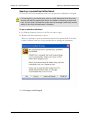
To upgrade from a previous version:
1. Double-click the installation file.
The installation program begins.
2. Select an upgrade option, then click Next to continue.
.
Upgrade
This option preserves your existing security settings and applies them
to the new version. New features that are added during upgrade
receive default settings.
Clean Install
This option discards your existing security settings and restores default
settings.
User Guide for Zone Labs security software
5
Configuring basic options
After completing installation, you will see the Configuration Wizard. The Configuration
Wizard appears only after installation and assists you in setting the basic Zone Labs security
software options. You can use the Configuration Wizard to enable privacy protection and
specify alert settings.
The Program Wizard allows you to configure access permission for programs you use most
often and to join the Zone Labs Secure Community.
Configuring program access permissions
Using the Program Wizard, you can automatically configure your browser program for safe
Internet access. In addition, users of ZoneAlarm Plus, ZoneAlarm Pro, or ZoneAlarm Pro
with Web Filtering can automatically configure many of the most commonly used programs
for safe Internet access. To view the list of programs that can be automatically configured,
click the click here link.
Zone Labs security software can configure many of the most popular programs in the
following software categories:
!
Instant Messaging programs
!
Web browsers
!
Microsoft Office
!
E-mail
!
Anti-virus
!
Microsoft Windows processes
!
Document utilities
!
Zone Labs software applications
For more information about assigning permission to programs, see “Setting permissions for
specific programs” on page 64.
Joining the Zone Labs Secure Community
The Secure Community enables Zone Labs security software users to help shape the future
of Zone Labs security products. As a Secure Community member, you permit Zone Labs
security software to periodically send anonymous configuration data to Zone Labs, for
analysis. By participating in the Secure Community, you show us where to focus our
User Guide for Zone Labs security software
6
attention so that we can enhance the features and services that you use most often and
introduce new functionality that provides even smarter security.
Even with the “Alert me with a pop-up before I make contact” preference
selected in the Overview|Preferences tab, you will not be alerted before sending
Secure Community data to Zone Labs.
The data collected is completely anonymous and is for Zone Labs internal use only and will
not be shared with others. Of the millions of Zone Labs security software users, only a small
percentage of users who join the Secure Community will have their information collected.
The frequency of data transmission depends upon the configuration of your computer. For
most users, data will be sent once per day.
To join the secure community, select Yes, I would like to join the Zone Labs Secure
Community in the Program Wizard.
If you later decide to remove yourself from the community, select
Overview|Preferences, in the Contact with Zone Labs area, then clear the Share
my settings anonymously... check box.
User Guide for Zone Labs security software
7
Uninstalling Zone Labs security
software
If you need to uninstall Zone Labs security software, run the uninstall program included
with your installation rather than using the Windows Add/Remove Programs utility. This
ensures that all traces of Zone Labs security software are removed from your computer.
If you are upgrading, there is no need to uninstall your existing version. For more
information, see “Installing Zone Labs security software” on page 3.
To uninstall Zone Labs security software:
1. Select Start|Programs.
2. Select Zone Labs|Uninstall.
The Uninstallation program begins.
You must be logged in as a user with administrator privileges in order to uninstall
Zone Labs security software.
User Guide for Zone Labs security software
8
Chapter
Zone Labs security software basics
2
This chapter provides an introduction to the main tools and
concepts of Zone Labs security software.
Topics:
!
“Tour of the Zone Labs security software Control Center,” on page 10
!
“Understanding Zones,” on page 15
!
“Responding to alerts,” on page 17
!
“Setting product preferences,” on page 19
!
“Licensing, registration, and support,” on page 23
9
Chapter 2: Zone Labs security software basics
Getting around the Control Center
Tour of the Zone Labs security software
Control Center
The Zone Labs security software Control Center provides one-stop access to the
security features that keep your computer safe. Zone Labs security software’s major
features are presented in a menu on the left side of the Control Center.
Getting around the Control Center
To move from feature to feature, first select the feature you want from the menu, then
select the tab you want to view.
Menu bar
Dashboard
Help
Tab
selectors
Click to show or hide help text
Click to resize
Figure 2-1: Zone Labs security software Control Center
User Guide for Zone Labs security software
10
Chapter 2: Zone Labs security software basics
Using the dashboard
Menu bar
The menu bar provides access to the available panels. The tools in each panel are
arranged in two or more tabs.
Tab selectors
Click a tab selector to bring the tab you want to see to the top.
With the exception of the Overview panel, each panel in the Control Center has a Main
tab and one or two other tabs. The Main tab contains the global controls for that panel.
Show /Hide Text
Click this link to show or hide instructional text for the selected tab. The text gives a
brief explanation of the tab and its controls.
Help button
To get help with the controls on any panel, click the Help link in the upper-right corner.
Zone Labs security software’s online help system goes immediately to the help topic for
the selected tab.
Using the dashboard
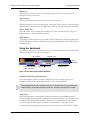
The dashboard provides constant access to basic security indicators and functions.The
dashboard appears at the top of every panel.
Stop button
Internet Lock
Active
programs
Inbound/Outbound
traffic indicator
Networks indicator
System area
Figure 2-2: Zone Labs security software dashboard
Inbound/Outbound traffic indicator
The traffic indicator shows you when traffic leaves (red) or enters (green) your
computer. This does not imply illegal traffic or any security problem.
Some applications access network resources in the background, so you may see
network traffic occurring even when you aren’t actively accessing the Internet.
Stop button
Click the Stop button to immediately block all network activity including Internet
access. Clicking the Stop button on the dashboard instantly closes your computer from
incoming and outgoing Internet traffic. Therefore, you should click the Stop button
only if you believe your computer is under attack, otherwise, Zone Labs security
software may block legitimate programs that require access, as well as DHCP (Dynamic
User Guide for Zone Labs security software
11
Chapter 2: Zone Labs security software basics
Using the dashboard
Host Configuration Protocol) messages or ISP heartbeat messages used to maintain your
Internet connection. To reopen access, click the Stop button again.
Internet Lock
The Internet Lock stops all traffic except traffic initiated by programs to which you have
given Pass-lock permission. Clicking the Internet Lock instantly blocks DHCP messages
or ISP heartbeats used to maintain your Internet connection. As a result, you may lose
your Internet connection. To reopen access, click the Lock button again.
You also can activate the Stop button and Internet Lock by right-clicking on the
system tray icon and choosing either Stop all Internet activity or Engage Internet
Lock from the shortcut menu.
Networks indicator
The networks indicator shows you when you have wired or wireless networks in either
the Trusted Zone or Internet Zone.
Click the network symbol to go immediately to the Zones tab, where the settings for the
network are stored.
Active Programs area
The active programs area displays the icons of programs that are currently open and
that have accessed the Internet in your current session. To see information about a
program displayed here, hover your mouse pointer over the icon.
The icon blinks when the program is sending or receiving data.
A hand symbol under the icon indicates that the program is active as server and is
listening for connection requests.
System area
This area can display two messages.
!
All Systems Active
Indicates that Zone Labs security software is functioning normally.
User Guide for Zone Labs security software
12
Chapter 2: Zone Labs security software basics
!
System Tray icons
Error Please Reboot
Indicates that you are not protected by Zone Labs security software because the
underlying security process is not running. Restart your computer to allow Zone Labs
security software to reset.
System Tray icons
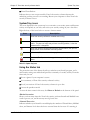
The icons displayed in the system tray let you monitor your security status and Internet
activity as frequently as you wish, and access your security settings in just a few clicks.
Right-click any of the icons below to access a shortcut menu.
Icon
Description
Zone Labs security software is installed and running.
Your computer is sending (red band) or receiving (green band) network
traffic. This does not imply that you have a security problem, or that the
network traffic is dangerous.
Zone Labs security software has blocked a communication, but your settings prevent a full-sized alert from being shown.
(Yellow lock) The Internet Lock is engaged.
(Red lock) The Stop button is engaged. You may also begin to see a lot of
alerts.
Table 2-3: System Tray icons
Using the Status tab
The protection area of the Status tab tells you whether your firewall, program, and email security settings are enabled and provides a summary of security activity. From the
Status tab you can:
!
See at a glance if your computer is secure
!
See a summary of Zone Labs security software’s activity
!
See if your version of Zone Labs security software is up to date
!
Access the product tutorial
To reset the alert counts in this area, click Reset to Default at the bottom of the panel.
Blocked intrusions
Shows you how many times the Zone Labs security software firewall and MailSafe have
acted to protect you, and how many were high-rated alerts.
Inbound Protection
Indicates whether your firewall is on and displays the number of Firewall alerts, MailSafe
alerts, and Internet Lock alerts that have occurred since the last reset. If a warning is
User Guide for Zone Labs security software
13
Chapter 2: Zone Labs security software basics
Using the Status tab
displayed, click the underlined warning text to go immediately to the panel where you
can adjust your settings.
Outbound Protection
Indicates whether program control is configured safely and displays the number of
program alerts that have occurred since the last reset. Zone Labs security software will
warn you if program control is disabled.
E-mail Protection area
Indicates whether MailSafe is enabled and displays the number of attachments that have
been quarantined since the last reset. If a warning is displayed, click the underlined
warning text to go immediately to the panel where you can adjust your settings.
Update and tutorial information
When you purchase Zone Labs security software, you receive an automatic update
subscription valid for one year.
The update box helps you make sure you’re running the latest version of Zone Labs
security software, and gives you quick access to product updates when they arrive.
Message
Meaning
“Check for update.”
Click the link to see if there are any important updates to Zone Labs security software
available for download.
“An update is available.”
Your automatic update subscription indicates that an update to Zone Labs security
software is available. Click the link to go to
the Zone Labs Web site to download the
update.
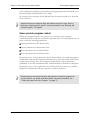
“Security is up to date”
You have the most up-to-date version of
Zone Labs security software.
“Update subscription expired. Click to
Renew.”
Your automatic update subscription has
expired. Click the link to go to the Zone Labs
Web site to renew your subscription.
Table 2-4: Update messages
Click Tutorial to learn the basics of how Zone Labs security software works.
If the product you’re using includes the ID Lock feature, you can view ID Lock
Status by selecting ID Lock|Main. For for more information, see “Monitoring ID
Lock status,” on page 134.
User Guide for Zone Labs security software
14
Chapter 2: Zone Labs security software basics
Zones manage firewall security
Understanding Zones
Zone Labs security software keeps track of the good, the bad, and the unknown out on
the Internet by using virtual containers, called Zones, to classify the computers and
networks that connect to your computer.
The Internet Zone is the “unknown.” All the computers and networks in the world belong
to this Zone—until you move them to one of the other Zones.
The Trusted Zone is the “good.” It contains all the computers and networks you trust and
want to share resources with—for example, the other machines on your local or home
network.
The Blocked Zone is the “bad.” It contains computers and networks you distrust.
When another computer wants to communicate with your computer, Zone Labs
security software looks at the Zone it is in to help decide what to do.
To learn how to put a computer, network, or program in the Trusted Zone, see
“Managing traffic sources,” on page 41.
Zones manage firewall security
Zone Labs security software uses security levels to determine whether to allow or block
inbound traffic from each Zone. Use the Firewall panel, Main tab to view and adjust
security levels.
High security setting
High security places your computer in stealth mode, making it invisible to hackers. High
security is the default configuration Internet Zone.
In High security, file and printer sharing is disabled; but outgoing DNS, outgoing
DHCP, and broadcast/multicast are allowed, so that you are able to browse the Internet.
All other ports on your computer are closed except when used by a program that has
access permission and/or server permission.
Medium security setting
Medium security removes places your computer in component learning mode, where Zone
Labs security software quickly learn the MD5 signatures of many frequently used
program components without interrupting your work with multiple alerts. Medium
security is the default setting for the Trusted Zone.
In Medium security, file and printer sharing is enabled, and all ports and protocols are
allowed. (If Medium security is applied to the Internet Zone, however, incoming
NetBIOS traffic is blocked. This protects your computer from possible attacks aimed at
your Windows networking services.) At Medium security, you are no longer in stealth
mode.
We recommend that you use the Medium security setting for the first few days of
normal Internet use after installing Zone Labs security software. After a few days of
normal use, Zone Labs security software will have learned the signatures of the majority
User Guide for Zone Labs security software
15
Chapter 2: Zone Labs security software basics
Zones provide program control
of the components needed by your Internet-accessing programs, and will remind you to
raise the Program Authentication level to High.
No security level is necessary for the Blocked Zone, because no traffic to or from that
Zone is allowed.
Advanced users can customize high and medium security for each Zone by
blocking or opening specific ports. For more information, see “Blocking and
unblocking ports,” on page 44.
Zones provide program control
Whenever a program requests access permission or server permission, it is trying to
communicate with a computer or network in a specific Zone. For each program you can
grant or deny the following permissions:
!
Access permission for the Trusted Zone.
!
Access permission for the Internet Zone.
!
Server permission for the Trusted Zone.
!
Server permission for the Internet Zone.
By granting access or server permission for the Trusted Zone, you enable a program to
communicate only with the computers and networks you have put in that Zone. This is
a highly secure strategy. Even if a program is tampered with, or given permission
accidentally, it can only communicate with a limited number of networks or computers.
By granting access or server permission for the Internet Zone, however, you enable a
program to communicate with any computer or network, anywhere.
Advanced users can specify the ports and protocols a particular program can
use, the hosts it can access, and other details. For more information, see
“Creating an expert rule for a Program,” on page 72.
User Guide for Zone Labs security software
16
Chapter 2: Zone Labs security software basics
New Program alerts
Responding to alerts
When you first start using Zone Labs security software, it is not unusual to see a number
of alerts. Don’t worry! This doesn’t mean you’re under attack. It just means that Zone
Labs security software is learning your program and network configurations, and giving
you the opportunity to set up your security the way you want it.
How you respond to an alert depends upon the type of alert displayed. For information
on responding to a particular type of alert, see Appendix A,“Alert reference,” starting on
page 142.
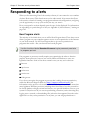
New Program alerts
The majority of the initial alerts you see will be New Program alerts. These alerts occur
when a program on your computer requests access or server permission to the Internet
or your local network. Use the New Program alert to give access permission to
programs that need it—like your browser and e-mail program.
Use the check box labeled Remember this answer to give permanent permission
to programs you trust.
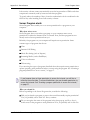
Few programs or processes actually require server permission in order to function
properly. Some processes, however, are used by Microsoft Windows to carry out
legitimate functions. Some of the more common ones you may see in alerts are:
!
lsass.exe
!
spoolsv.exe
!
svchost.exe
!
services.exe
!
winlogon.exe
If you do not recognize the program or process that is asking for server permission,
search the Microsoft Support Web site (http://support.microsoft.com/) for
information on the process to determine what it is and what it’s used for. Be aware that
many legitimate Windows processes, including those listed above, have the potential to
be used by hackers to disguise worms and viruses, or to provide backdoor access to your
system for Trojan horses. If you were not performing a function (such as browsing files,
logging onto a network, or downloading files) when the alert appeared, then the safest
approach is to deny server permission. At any time, you can assign permissions to
User Guide for Zone Labs security software
17
Chapter 2: Zone Labs security software basics
New Network and VPN alerts
specific programs and services from the Programs List, accessed by selecting Program
Control|Programs tab.
If you’re seeing many server program alerts, you may want to download and run an antivirus or anti-spyware tool as an added precaution.
To learn more about New Program alerts and how to respond to them, see “New
Program alerts,” on page 149.
New Network and VPN alerts
The other initial alerts you may see are the New Network alert and VPN Configuration
alerts. These occur when Zone Labs security software detects a network connection or
VPN connection. They help you configure your Trusted Zone, port/protocol
permission, and program permissions correctly so that you can work securely over your
network. For details about these alerts and how to respond to them, see Appendix
A,“Alert reference,” starting on page 142.
User Guide for Zone Labs security software
18
Chapter 2: Zone Labs security software basics
Setting your password
Setting product preferences
Use the Preferences tab to set or change your Zone Labs security software password,
log in or log out, manage updates, set general options for the display of the Zone Labs
security software Control Center, and configure privacy settings for communications
with Zone Labs.
Setting your password
By setting a password, you prevent anyone but you from shutting down or uninstalling
Zone Labs security software, or changing your security settings. Setting a password will
not prevent other people from accessing the Internet from your computer.
The ability to create a password is not available in ZoneAlarm.
If your version of Zone Labs security software was installed by an administrator with an
installation password, that administrator can access all functions.
When you set a password for the first time, be sure to log out before leaving your
computer. Otherwise, others can still change your settings.
If you are using ZoneAlarm Pro with Web Filtering, use the check box Allow
others to use programs without a password (unless the program permission is set to
“Block”) to allow others to use programs you haven’t explicitly blocked, even if
they don’t have a password.
To set or change a Zone Labs security software password:
1. Select Overview|Preferences.
2. Click Set Password.
3. Type your password and password verification in the fields provided.
4. Click OK.
Valid passwords are between 6 and 31 characters long. Valid characters include
A-Z, a-z, 0-9, and characters !,@,#,$,%,^,&,*.
User Guide for Zone Labs security software
19
Chapter 2: Zone Labs security software basics
Backing up and restoring security settings
Once you have set a password, you must log in before you can change settings, shut
down the TrueVector security engine, or uninstall Zone Labs security software.
Backing up and restoring security settings
You can back up your existing security settings to an XML file so that you can restore
them later, should you need to.
The backup and restore feature should not be used to share settings among
different computers or to distribute security policies. To do so could cause an
extremely high number of alerts to appear due to differences among computers,
applications, and Windows processes.
The ability to backup and restore settings is only available in ZoneAlarm Plus,
ZoneAlarm Pro, and ZoneAlarm Pro with Web Filtering.
To back up or restore security settings
1. Select Overview|Preferences.
2. In the Backup and Restore Security Settings area, click Backup or Restore.
Checking for updates
When you purchase Zone Labs security software you receive a year of free updates.
Zone Labs security software automatically checks for updates on a regular basis, so you
can be sure that you have the latest security protection.
Setting general preferences
By default, Zone Labs security software starts automatically when you turn on your
computer. Use the settings in the General area to change this option, to decide when the
Control Center will be displayed, to protect the Zone Labs security software, and to
customize its appearance.
To set general display preferences:
1. Select Overview|Preferences.
2. In the General area, specify your preferences
Load Zone Labs security software
at startup
User Guide for Zone Labs security software
Zone Labs security software starts automatically
when you turn on your computer.
20
Chapter 2: Zone Labs security software basics
Protect the Zone Labs security
software client
Setting general contact preferences
Prevents Trojan horses from sending Keyboard
and Mouse requests to Zone Labs security software.
Note: To ensure maximum security, only disable
this feature if you are having problems with your
keyboard or mouse while using remote access
programs.
Remember the last tabs visited in
the panels
Opens Zone Labs security software to the tab
that you had open the last time you closed the
Control Center.
Color-scheme
Allows you to change the default color scheme
of the Control Center. Additional color choices
are not available in ZoneAlarm.
Setting general contact preferences
Setting general contact preferences ensures that your privacy is protected when Zone
Labs security software communicates with Zone Labs (for example, to check
automatically for updates).
To set contact preferences:
1. Select Overview|Preferences.
2. In the Contact with Zone Labs area, specify your preferences.
Alert me with a pop-up
before I make contact
Displays a warning before contacting Zone
Labs to deliver registration information, get
product updates, research an alert, or access
DNS to look up IP addresses.
Note: If you are participating in the Zone
Labs Secure Community, you will not be
alerted before sending anonymous data.
Hide my IP address when
applicable
Prevents your computer from being identified
when you contact Zone Labs, Inc.
Hide the last octet of my Omits the last section of your IP address (for
IP address when applica- example, 123.456.789.XXX) when you conble
tact Zone Labs, Inc.
Disable check for update
backup channel
Prevents Zone Labs security software from
checking for updates automatically.
Caution: Selecting this option can leave your
computer vulnerable to hacker attacks.
Share my security settings anonymously with
Zone Labs
User Guide for Zone Labs security software
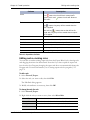
Enrolls you in the Zone Labs Secure Community. Periodically sends anonymous configuration data to Zone Labs. For more information,
see “Joining the Zone Labs Secure Community,” on page 6.
21
Chapter 2: Zone Labs security software basics
Creating an eBay protection profile
Creating an eBay protection profile
If you are an eBay user, protect your online profile by entering it into Zone Labs security
software. Zone Labs security software protects your password by making sure it is only
sent to authorized eBay destinations.
To enter your eBay password in ZoneAlarm and ZoneAlarm Plus:
1. Select Overview|Preferences.
2. In the eBay Protection Profile area, click Password.
the Edit eBay Password dialog appears.
3. Type your eBay password into the password and confirm fields, then click OK.
To enter your eBay password in ZoneAlarm Pro or ZoneAlarm Pro with Web Filtering:
1. Select ID Lock|myVAULT, then click Add.
The Add information to myVAULT dialog appears.
2. Type a description of the item, then select eBay password from the category dropdown list.
3. Type your eBay password into the password and confirm fields, then click OK.
Asterisks will appear in place of the data you entered and an encrypted form of your
eBay password will be stored in myVAULT. The original information is not stored on
your computer.
4. Specify whether you want the information to be protected when using Web and Email.
5. Click OK to save your changes.
For more information about the how Zone Labs security software keeps passwords
and other personal data safe, see Chapter 10,“Protecting your data,” starting on
page 132.
User Guide for Zone Labs security software
22
Chapter 2: Zone Labs security software basics
Updating your product license
Licensing, registration, and support
In order to receive support and updates for Zone Labs security software, you must have
a valid license.
Updating your product license
If you have been using a trial or beta license key and have purchased a full license, or if
your trial or beta is about to expire, you can purchase a full license from Zone Labs.
To purchase a license:
1. Select Overview|Product Info.
2. In the Licensing Information area, click Buy Now!
You will be directed to the Zone Labs Web site, where you can complete your
product purchase.
To change your license key:
1. Select Overview|Product Info.
2. In the Licensing Information area, click Change Lic.
The License Information dialog appears.
3. In the space provided, either type or paste your license key.
4. Click Apply, then click OK.
Registering Zone Labs security software
Register Zone Labs security software to receive security news from Zone Labs.
To register Zone Labs security software:
1. Select Overview|Product Info.
2. In the Registration area, click Change Reg.
The Registration Information dialog appears.
3. Type your name, organization, and e-mail address in the fields provided
.
The e-mail address you enter here is used to configure your Outbound MailSafe
protection. Be sure to enter your e-mail address correctly. For more information,
see “Setting Outbound MailSafe protection options,” on page 121.
4. To be notified of product news and updates, select the check box labeled Inform me
about important updates and news.
User Guide for Zone Labs security software
23
Chapter 2: Zone Labs security software basics
Accessing technical support
5. Click OK.
To change your registration information:
Select Overview|Prouct Info, then click Change Reg.
Accessing technical support
If you are eligible to receive technical support, you can access support resources, such as
FAQs and known issues, directly from Zone Labs security software.
To access support resources:
1. Select Overview|Product Info.
2. In the Support and Update Information area, click the click here link.
The Zone Labs Support Center Web site appears.
3. Click the Support & Services link, then select the product for which you need
support.
User Guide for Zone Labs security software
24
Zone Labs security software basics
User Guide for Zone Labs security software
Accessing technical support
25
Chapter
Networking with Zone Labs security
software
3
If you’re on a home network, business Local Area Network
(LAN), or Virtual Private Network (VPN), you want to ensure smooth communication with the network while still
maintaining high security. The Network Configuration Wizard, automatic VPN configuration, and other features of
Zone Labs security software help you to quickly set up your
network environment.
Topics:
!
“Configuring a new network connection,” on page 27
!
“Integrating with network services,” on page 29
!
“Configuring your VPN connection,” on page 31
26
Chapter 3: Networking with Zone Labs security software
Using the Network Configuration Wizard
Configuring a new network connection
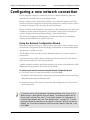
If your computer connects to a network, you have to decide whether to place that
network in the Trusted Zone or in the Internet Zone.
Placing a network in the Trusted Zone enables you to share files, printers, and other
resources with other computers on that network. Networks you know and trust, such as
your home or business LAN, should go in the Trusted Zone.
Placing a network in the Internet Zone prevents you from sharing resources with other
computers on that network and protects you from the security risks associated with
resource sharing. Unknown networks should go in the Internet Zone.
The Network Configuration Wizard helps you make this decision by determining
whether the detected network is public or private.
Using the Network Configuration Wizard
When your computer connects to a new network, Zone Labs security software opens
the Network Configuration Wizard, displaying the IP address of the detected network
and whether it is public or private.
The IP address of the network is used to determine whether it is a private network or a
public network.
A private network is usually a home or business Local Area Network (LAN). Private
networks are placed in the Trusted Zone by default.
A public network is usually a much larger network, such as that associated with an ISP.
Public networks are placed in the Internet Zone by default.
To configure your network connection using the Network Configuration Wizard:
1. Choose the Zone you want this network in, then click Next.
By default, Zone Labs security software places private networks in the Trusted Zone,
and public networks in the Internet Zone.
2. Name the network. The name you enter here will be displayed in the Zones tab of
the Firewall panel.
If you prefer not to use the Network Configuration Wizard, click Cancel in any
Wizard screen. A New Network alert will appear. The detected network will be
placed in the Internet Zone, even if it is a private network. For information on
using the New Network alert, see “New Network alert,” on page 161. To avoid
seeing the Wizard the next time a new network is detected, select the check box
labeled “Do not show this Wizard the next time a new network is detected”, then
click Finish
User Guide for Zone Labs security software
27
Chapter 3: Networking with Zone Labs security software
Disabling the Network Configuration Wizard
Disabling the Network Configuration Wizard
The Network Configuration Wizard is enabled by default. If you prefer to use the New
Network Alert to configure new networks, you can disable the Network Configuration
Wizard.
To disable the Network Configuration Wizard:
In screen four of the Wizard, select the check box labeled Do not show
this Wizard the next time a new network is detected, then click Finish.
Connecting through a proxy server
To enable your computer to connect to the Internet through a proxy server, add the
proxy to your Trusted Zone. See “Adding to the Trusted Zone,” on page 42.
User Guide for Zone Labs security software
28
Chapter 3: Networking with Zone Labs security software
Enabling file and printer sharing
Integrating with network services
If you’re working on a home or business network, you may want to share files, network
printers, or other resources with other people on the network, or send and receive email through your network’s mail servers. Use the instructions in this section to enable
safe resource sharing.
Enabling file and printer sharing
To share printers and files with other computers on your network, you will need to
configure Zone Labs security software to allow access to the computers with which you
plan to share resources.
To configure Zone Labs security software for file and printer sharing:
1. Add the network subnet (or, in a small network, the IP address of each computer
you’re sharing with) to your Trusted Zone.
See “Adding to the Trusted Zone,” on page 42.
2. Set the Trusted Zone security level to Medium. This allows trusted computers to
access your shared files.
See “Setting the security level for a Zone,” on page 36.
3. Set Internet Zone security to High. This makes your computer invisible to nontrusted machines.
See “Setting the security level for a Zone,” on page 36.
Connecting to network mail servers
Zone Labs security software is configured to automatically work with Internet-based
mail servers using POP3 and IMAP4 protocols, when you give your e-mail client
permission to access the Internet.
Some mail servers, like Microsoft Exchange, include collaboration and synchronization
features that might require you to trust the server in order for those services to work.
To configure Zone Labs security software for mail servers with collaboration and
synchronization features:
1. Add the network subnet or IP address of the mail server to your Trusted Zone.
2. Set the Trusted Zone security level to Medium. This allows server collaboration
features to work.
3. Set Internet Zone security level to High. This makes your computer invisible to nontrusted machines.
User Guide for Zone Labs security software
29
Chapter 3: Networking with Zone Labs security software
Enabling Internet Connection Sharing
Enabling Internet Connection Sharing
If you are using Windows’ Internet Connection Sharing (ICS) option, or a third-party
connection sharing program, you can protect all of the computers that share the
connection from inbound threats by installing Zone Labs security software on the
gateway machine only. However, to receive outbound protection, or to see alerts on the
client machines, you must have Zone Labs security software installed on the client
machines as well.
Before you configure Zone Labs security software, use your ICS software to set
up the gateway and client relationships. If you use hardware such as a router to
share your Internet connection rather than Microsoft’s Internet Connection
Sharing (ICS), ensure that the local subnet is in the Trusted Zone.
User Guide for Zone Labs security software
30
Chapter 3: Networking with Zone Labs security software
Supported VPN protocols
Configuring your VPN connection
Zone Labs security software is compatible with many types of VPN client software and
can automatically configure the connection for certain VPN clients.
Supported VPN protocols
Zone Labs security software monitors the VPN protocols listed in the table below.
Networking Protocol
Explanation and Comments
AH
Authentication Header Protocol
ESP
Encapsulating Security Payload protocol
GRE
Generic Routing Encapsulation protocol
IKE
Internet Key Exchange protocol
IPSec
IP Security protocol.
L2TP
Layer 2 Tunneling protocol. L2TP is a more secure variation of PPTP.
LDAP
Lightweight Directory Access protocol
PPTP
Point-to-Point Tunneling protocol
SKIP
Simple Key Management for Internet Protocol
Configuring your VPN connection automatically
When VPN traffic is detected, an Automatic VPN Configuration alert is displayed.
Depending upon the type of VPN activity detected, and whether Zone Labs security
software was able to configure your VPN connection automatically, you may see one of
three Automatic VPN Configuration alerts.
For detailed information about the types of Automatic VPN Configuration alerts you
may see and how to respond to them, see “Automatic VPN Configuration alert,” on
page 156.
For instance, manual action may be required if the loopback adaptor or the IP address
of the VPN gateway falls within a range or subnet that you have blocked. For more
information, see “Configuring your VPN connection manually,” on page 31.
Configuring your VPN connection manually
If your VPN connection cannot be configured automatically, Zone Labs security
software displays a Manual Action Required alert informing you of the manual changes
you need to make to configure your connection.
Refer to the following sections for manual configuration instructions:
!
Adding a VPN gateway and other resources to the Trusted Zone
User Guide for Zone Labs security software
31
Chapter 3: Networking with Zone Labs security software
Adding a VPN gateway and other resources to the
!
Removing a VPN gateway from a blocked range or subnet
!
Allowing VPN protocols
!
Granting access permission to VPN software
If you have created an expert firewall rule that has blocked PPTP traffic and your
VPN software uses PPTP, you will need to modify the expert rule. See “Creating
expert firewall rules,” on page 49.
Adding a VPN gateway and other resources to the Trusted
Zone
In addition to the VPN gateway, There may be other VPN-related resources that need
to be in the Trusted Zone for your VPN to function properly.
Required Resources
Other Resources
The resources below are required by all VPN
client computers and must be added to the
Trusted Zone.
The resources below may or may not be
required, depending on your specific VPN
implementation.
VPN Concentrator
DNS servers
Remote host computers connected to the
Local host computer’s NIC loopback address
VPN client (if not included in the subnet def- (depending on Windows version). If you
initions for the corporate network)
specify a local host loopback address of
127.0.0.1, do not run proxy software on the
local host.
Corporate Wide Area Network (WAN) subnets Internet Gateway
that will be accessed by the VPN client computer
Corporate LANs that will be accessed by the
VPN computer
Local subnets
Security servers (for example, RADIUS,ACE,
or TACACS servers)
Table 3-1: Required VPN-related network resources
Removing a VPN gateway from a blocked range or subnet
If the VPN gateway falls within a range or subnet that you have blocked, you must
manually unblock the range.
To unblock an IP range or subnet:
1. Select Firewall|Zones.
2. In the Zone column, select the blocked IP range or subnet.
User Guide for Zone Labs security software
32
Chapter 3: Networking with Zone Labs security software
Allowing VPN protocols
3. Select Trusted from the shortcut menu, then click Apply.
Allowing VPN protocols
To ensure proper configuration of your VPN software with Zone Labs security
software, you will need to modify your general security settings to allow VPN protocols.
To allow VPN protocols:
1. Select Firewall|Main, then click Advanced.
2. In the General settings area, select the check box labeled Allow VPN protocols.
3. Click OK.
If your VPN program uses protocols other than GRE, ESP, and AH, also select the
check box labeled Allow uncommon protocols at high security.
Granting access permission to VPN software
Grant access permission to the VPN client and any other VPN-related programs.
To grant permission to your VPN program:
1. Select Program Control|Programs.
2. In the Programs column, select your VPN program.
3. In the Access column, click below Trusted, then select Allow from the shortcut
menu.
If your VPN program is not listed, click Add to add it to the list.
To grant access to VPN-related components:
1. Select Program Control|Components.
2. In the Components column, select the VPN component for which you want to grant
access.
3. In the Access column, select Allow from the shortcut menu.
If you are experiencing problems with your VPN connection, refer to the VPN
troubleshooting tips in Appendix C,“Troubleshooting,” starting on page 171.
User Guide for Zone Labs security software
33
Chapter
Firewall protection
4
Firewall protection is your front line of defense against Internet threats. Zone Labs security software’s default Zones
and security levels give you immediate protection against
the vast majority of threats. If you’re an advanced user,
custom port permissions and expert rules give you detailed
control of traffic based on source, destination, port, protocol, and other factors.
Topics:
!
“Understanding Firewall protection,” on page 35
!
“Choosing security levels,” on page 36
!
“Setting advanced security options,” on page 38
!
“Managing traffic sources,” on page 41
!
“Blocking and unblocking ports,” on page 44
!
“Understanding expert firewall rules,” on page 47
34
Chapter 4: Firewall protection
Understanding Firewall protection
In buildings, a firewall is a barrier that prevents a fire from spreading. In computers, the
concept is similar. There are a variety of “fires” out there on the Internet—hacker
activity, viruses, worms, and so forth. A firewall is a system that stops these attempts to
damage your computer.
The Zone Labs security software firewall guards the “doors” to your computer—that is,
the ports through which Internet traffic comes in and goes out. Zone Labs security
software examines all the network traffic arriving at your computer, and asks these
questions:
!
What Zone did the traffic come from and what port is it addressed to?
!
Do the rules for that Zone allow traffic through that port?
!
Does the traffic violate any global rules?
!
Is the traffic authorized by a program on your computer (Program Control settings)?
The answers to these questions determine whether the traffic is allowed or blocked.
User Guide for Zone Labs security software
35
Chapter 4: Firewall protection
Setting the security level for a Zone
Choosing security levels
The default firewall security levels (High for the Internet Zone, Medium for the
Trusted Zone) protect you from port scans and other hacker activity, while enabling
you to share printers, files, and other resources with trusted computers on your local
network. In most cases, you don’t have to make any adjustment to these defaults. You’re
protected as soon as Zone Labs security software is installed!
Setting the security level for a Zone
Security levels make it easy to configure your firewall settings. You can apply a pre
configured security level (High, Medium, or Low) to each Zone, or you can specify the
port and protocol restrictions for each level. See “Blocking and unblocking ports,” on
page 44.
To set the security level for a Zone:
1. Select Firewall|Main.
2. In the Internet Zone Security area, click the slider and drag it to the desired setting.
HIGH
This is the default setting.
Your computer is in stealth mode, making it invisible to other computers.
Access to Windows NetBIOS (Network Basic Input/Output System)
services, file and printer shares is blocked.
Ports are blocked unless you have provided permission for a program to use
them.
MED
Your computer is visible to other computers.
Access to Windows services, file and printer shares is allowed.
Program permissions are still enforced.
LOW
Your computer is visible to other computers.
Access to Windows services, file and printer shares is allowed.
Program permissions are still enforced.
3. In the Trusted Zone Security area, click the slider and drag it to the desired area.
HIGH
Your computer is in stealth mode, making it invisible to other computers.
Access to Windows (NetBIOS) services, file and printer shares is blocked.
Ports are blocked unless you have provided permission for a program to use
them.
MED
This is the default setting.
Your computer is visible to other computers.
Access to Windows services, file and printer shares is allowed.
Program permissions are still enforced.
User Guide for Zone Labs security software
36
Chapter 4: Firewall protection
LOW
Setting the security level for a Zone
Your computer is visible to other computers.
Access to Windows services, file and printer shares is allowed.
Program permissions are still enforced.
User Guide for Zone Labs security software
37
Chapter 4: Firewall protection
Setting Gateway security options
Setting advanced security options
Advanced security options enable you to configure the firewall for a variety of special
situations, such as gateway enforcement and Internet Connection Sharing (ICS).
Setting Gateway security options
Some companies require their employees to use Zone Labs security software when
connecting to the Internet through their corporate gateway. When the Automatically
check the gateway... control is selected, Zone Labs security software checks for any
compatible gateways and confirms that it is installed so that gateways requiring Zone
Labs security software will grant access.
You can leave this option selected even if you are not connecting through a gateway.
Your Internet functions will not be affected.
Setting ICS (Internet Connection Sharing) options
If you are using ICS (Internet Connection Sharing), use these controls to configure Zone
Labs security software to recognize the ICS gateway and clients.
To set Internet Connection Sharing preferences:
1. Select Firewall|Main.
2. Click Advanced.
3. In the Internet Connection Sharing area, choose your security settings.
This computer is not on an ICS/NAT
network
Internet Connection sharing is disabled.
This is a client of an ICS/NAT gateway
running Zone Labs security software
Zone Labs security software automatically
detects the IP address of the ICS gateway and
displays it in the Gateway Address field. You
also can type the IP address into the Gateway
address field.
Selecting Forward alerts from gateway to this
computer will log and display alerts on the client computer that occur on the gateway.
This computer is an ICS/NAT gateway
Zone Labs security software automatically
detects the IP address of the ICS gateway and
displays it in the Local Address field. You also
can type the IP address into the Gateway
address field.
Selecting Suppress alerts locally if forwarded
to clients , will suppress alerts forwarded from
the gateway to clients to also be displayed on
the gateway.
4. Click OK.
User Guide for Zone Labs security software
38
Chapter 4: Firewall protection
Setting General security options
Setting General security options
These controls apply global rules regarding certain protocols, packet types and other
forms of traffic (such as server traffic) to both the Trusted Zone and the Internet Zone.
To modify general security settings:
1. Select Firewall|Main.
2. Click Advanced.
3. In the General settings area, choose your security settings.
Block all fragments
Blocks all incomplete (fragmented) IP data packets. Hackers sometimes create fragmented packets to bypass or disrupt network devices that read packet headers.
Caution: If you select this option, Zone Labs security software will silently block all fragmented packets without
alerting you or creating a log entry. Do not select this
option unless you are aware of how your online connection
handles fragmented packets.
Block trusted servers
Prevents all programs on your computer from acting as
servers to the Trusted Zone. Note that this setting overrides permissions granted in the Programs panel.
Block Internet servers
Prevents all programs on your computer from acting as
servers to the Internet Zone. Note that this setting overrides permissions granted in the Programs panel.
Enable ARP protection
Blocks all incoming ARP (Address Resolution Protocol)
requests except broadcast requests for the address of the
target machine. Also blocks all incoming ARP replies
except those in response to outgoing ARP requests.
Allow VPN Protocols
Allows the use of VPN protocols (ESP, AH, GRE, SKIP)
even when High security is applied. With this option disabled, these protocols are allowed only at Medium security.
Allow uncommon protocols
at high security
Allows the use of protocols other than ESP, AH, GRE, and
SKIP, at High security.
Lock host file
Prevents your computer’s host file from being modified by
hackers through spyware or Trojan horses. Because some
legitimate programs need to modify your host file in order
to function, this option is turned off by default.
4. Click OK.
Setting Network security options
Automatic network detection helps you configure your Trusted Zone easily so that
traditional local network activities such as file and printer sharing aren’t interrupted.
User Guide for Zone Labs security software
39
Chapter 4: Firewall protection
Setting Network security options
Zone Labs security software detects only networks that you are physically connected to.
Routed or virtual network connections are not detected.
You can have Zone Labs security software silently include every detected network in the
Trusted Zone; or ask you in each case whether to add a newly detected network.
To specify Network settings:
1. Select Firewall|Main.
2. Click Advanced.
3. In the Network settings area, choose your security settings.
Include networks in the Trusted
Zone upon detection
Automatically moves new networks into the
Trusted Zone. This setting provides the least security.
Exclude networks from the Trusted
Zone upon detection
Automatically blocks new networks from being
added to the Trusted Zone and places them in the
Internet Zone. This setting provides the most
security.
Ask which Zone to place new networks in upon detection
Zone Labs security software displays a New Network alert or the Network Configuration Wizard,
which give you the opportunity to specify the
Zone.
4. Click OK.
For more information about networking, see Chapter 3,“Networking with Zone Labs
security software,” starting on page 26.
User Guide for Zone Labs security software
40
Chapter 4: Firewall protection
Viewing the traffic source list
Managing traffic sources
The Zones tab contains the traffic sources (computers, networks, or sites) you have
added to the Trusted Zone or Blocked Zone. It also contains any networks that Zone
Labs security software has detected. If you are using a single, non-networked PC, the
traffic source list displays only your ISP’s (Internet Service Provider’s) network, which
should be in the Internet Zone.
Viewing the traffic source list
The traffic source list displays the traffic sources and the Zones they belong to. You can
sort the list by any field by clicking the column header. The arrow ( ^ ) next to the
header name indicates the sort order. Click the same header again to reverse the sort
order.
Field
Description
Name
The name you assigned to this computer,
site, or network
IP Address/Site
The IP address or host name of the traffic
source
Entry Type
The type of traffic source: Network, Host, IP,
Site, or Subnet
Zone
The Zone the traffic source is assigned to:
Internet, Trusted, or Blocked
Table 4-1: Traffic source list fields
Modifying traffic sources
From the traffic source list, you can move the traffic source from one Zone to another,
add, edit, or remove a traffic source.
To change the Zone of a traffic source:
1. Select Firewall|Zones.
2. Locate the traffic source, then click in the Zone column.
3. Select a Zone from the shortcut menu, then click Apply.
To add, remove, or edit a traffic source:
1. Select Firewall|Zones.
2. In the Name column, click the traffic source, then click Add, Edit, or Remove.
3. Click Apply.
User Guide for Zone Labs security software
41
Chapter 4: Firewall protection
Adding to the Trusted Zone
Adding to the Trusted Zone
The Trusted Zone contains computers you trust want to share resources with. For
example, if you have three home PCs that are linked together in an Ethernet network,
you can put each individual computer or the entire network adapter subnet in the
Trusted Zone. The Trusted Zone’s default medium security settings enable you to safely
share files, printers, and other resources over the home network. Hackers are confined
to the Internet Zone, where high security settings keep you safe.
To add a single IP address:
1. Select Firewall|Zones.
2. Click Add, then select IP address from the shortcut menu.
The Add IP Address dialog appears.
3. Select Trusted from the Zone drop-down list.
4. Type the IP address and a description in the boxes provided, then click OK.
To add an IP range:
1. Select Firewall|Zones.
2. Click Add, then select IP address from the shortcut menu.
The Add IP Range dialog appears.
3. Select Trusted from the Zone drop-down list.
4. Type the beginning IP address in the first field, and the ending IP address in the
second field.
5. Type a description in the field provided, then click OK.
To add a subnet:
1. Select Firewall|Zones.
2. Click Add, then select Subnet from the shortcut menu.
The Add Subnet dialog appears.
3. Select Trusted from the Zone drop-down list.
4. Type the IP address in the first field, and the Subnet mask in the second field.
5. Type a description in the field provided, then click OK.
To add to a Host or Site to the trusted Zone:
1. Select Firewall|Zones.
2. Click Add, then select Host/Site.
The Add Host/Site dialog appears.
User Guide for Zone Labs security software
42
Chapter 4: Firewall protection
Adding to the Blocked Zone
3. Select Trusted from the Zones drop-down list.
4. Type the fully qualified host name in the Host name field.
5. Type a description of the host/site, then click OK.
When you click OK, Zone Labs security software resolves the host name you enter
to its IP address(es). To see the IP addresses before adding the site, click Lookup.
If the IP addresses associated with the host name are changed after you place
the host in the Trusted Zone, those IP addresses are not added to the Trusted
Zone.
To add a network to the Trusted Zone:
1. Select Firewall|Zones.
2. In the Zone column, click the row containing the network, then select Trusted from
the shortcut menu.
3. Click Apply.
Zone Labs security software automatically detects new network connections and
helps you add them to the right Zone. For more information, see Chapter
3,“Networking with Zone Labs security software,” starting on page 26.
Adding to the Blocked Zone
To add to the Blocked Zone, follow the instructions for adding to the Trusted Zone, but
select Blocked from the drop-down list in step 3.
User Guide for Zone Labs security software
43
Chapter 4: Firewall protection
Default port permission settings
Blocking and unblocking ports
Zone Labs security software’s default security levels determine which ports and
protocols are allowed and which are blocked. If you are an advanced user, you can
change the definition of the security levels by changing port permissions and adding
custom ports.
Default port permission settings
The default configuration for High security blocks all inbound and outbound traffic
through ports not being used by programs you have given access or server permission
except:
!
DHCP broadcast/multicast
!
Outgoing DHCP (port 67) - on Windows 9x systems
!
Outgoing DNS (port 53) - If the computer is configured as an ICS gateway
Traffic Type
Security levels
HIGH
MED
LOW
DNS outgoing
block
n/a
allow
DHCP outgoing
block
n/a
allow
broadcast/multicast
allow
allow
allow
incoming (ping echo)
block
allow
allow
incoming (other)
block
allow
allow
outgoing (ping echo)
block
allow
allow
outgoing (other)
block
allow
allow
incoming
block
allow
allow
outgoing
block
allow
allow
incoming
n/a
block
allow
outgoing
n/a
allow
allow
incoming
block
allow
allow
outgoing
block
allow
allow
ICMP
IGMP
NetBIOS
UDP (ports not in use by a permitted program)
TCP (ports not in use by a permitted program)
Table 4-2: Default access permissions for incoming and outgoing traffic types
User Guide for Zone Labs security software
44
Chapter 4: Firewall protection
Adding custom ports
Security levels
Traffic Type
HIGH
MED
LOW
incoming
block
allow
allow
outgoing
block
allow
allow
Table 4-2: Default access permissions for incoming and outgoing traffic types
To change a port’s access permission:
1. Select Firewall|Main.
2. In either the Internet Zone Security or the Trusted Zone Security area, click
Custom.
The Custom Firewall Settings dialog appears.
3. Scroll to locate High and Medium security settings.
4. To block or to allow a specific port or protocol, click the check box beside it.
Be aware that when you select a traffic type in the High security settings list, you
are choosing to ALLOW that traffic type to enter your computer under High
security, thus decreasing the protection of the HIGH security level. Conversely,
when you select a traffic type in the Medium security settings list, you are
choosing to BLOCK that traffic type under Medium security, thus increasing the
protection of the MED security level.
5. Click Apply, then click OK.
Adding custom ports
You can allow communication through additional ports at High security, or block
additional ports at Medium security by specifying individual port numbers or port
ranges.
To specify additional ports:
1. Select Firewall|Main.
User Guide for Zone Labs security software
45
Chapter 4: Firewall protection
Adding custom ports
2. In either the Trusted Zone Security or Internet Zone Security area, click Custom.
The Custom Firewall settings dialog appears.
Select one of these
options, then specify the port number
in the field that
appears.
3. Scroll to the security level (High or Medium) to which you want to add ports.
4. Select the desired port type: incoming UDP, outgoing UDP, incoming TCP, or
outgoing TCP.
5. Type the port or port ranges you want to allow or block in the Ports field, separated
by commas. For example, 139, 200-300
6. Click Apply, then click OK.
User Guide for Zone Labs security software
46
Chapter 4: Firewall protection
How expert firewall rules are enforced
Understanding expert firewall rules
Expert firewall rules are intended for users experienced with firewall security and
networking protocols.
Expert rules do not take the place of other rules. They are an integral part of the
multiple layer security approach and work in addition to other firewall rules.
Expert rules use four attributes to filter packets:
!
Source and/or destination IP address
!
Source and/or destination port number
!
Network protocol/message type
!
Day and Time
Source and destination addresses can be specified in a number of formats, including a
single IP network address, a range of IP addresses, a subnet description, a gateway
address, or a domain name.
Source and destination ports are used only for network protocols that use ports, such as
UDP and TCP/IP. ICMP and IGMP messages, for example, do not use the port
information.
Network protocols can be selected from a list of common IP or VPN protocols, or
specified as an IP protocol number. For ICMP, the message type can also be specified.
Day and Time ranges can be applied to a rule to restrict access based on the day of the
week and the time of day.
How expert firewall rules are enforced
It is important to understand how expert rules are enforced in combination with Zone
rules, program permissions, and other expert rules.
Expert rules and Zone rules
Expert firewall rules are enforced before Zone firewall rules. That is, if a packet matches
an expert rule, that rule is enforced, and Zone Labs security software skips evaluation of
Zone rules.
Example: Imagine you have your Trusted Zone security level set to Medium. This allows
outgoing NetBIOS traffic. However, you have also created an expert rule that blocks all
NetBIOS traffic between the hours of 5PM and 7AM. Any outbound NetBIOS traffic
during those hours will be blocked, in spite of the Trusted Zone setting.
Expert firewall rules and program permissions
Expert rules and Zone rules together are enforced in tandem with Program
permissions. That is, if either your program permissions or Zone rules/expert firewall
User Guide for Zone Labs security software
47
Chapter 4: Firewall protection
Expert firewall rule enforcement rank
rules determine that traffic should be blocked, it is blocked. Note that this means that
you can use firewall rules to override or redefine program permissions.
Expert firewall rule enforcement rank
Within the realm of firewall rules, rule evaluation order becomes a factor. Zone Labs
security software first checks expert firewall rules. If a match is found and a rule is
enforced, the communication is marked as either blocked or allowed, and Zone Labs
security software skips evaluation of Zone rules. If no expert firewall rule is matched,
the Zone Labs security software checks Zone rules to see if the communication should
be blocked. From this, it can be seen that expert firewall rules take precedence over zone
rules.
The enforcement rank of expert firewall rules is also important. Each rule has a unique
rank number, and rules are evaluated in order of rank. Only the first rule that matches is
executed. Consider these two rules:
Figure 4-3: Expert firewall rule rank order
Rule 1 allows FTP clients in the Trusted Zone to connect to an FTP server on port 21
of the endpoint computer. Rule 2 blocks all FTP clients from connecting on port 21,
regardless of Zone. These two rules together allow clients in the Trusted Zone to use an
FTP server on the client computer, but block all other FTP access.
If the order of the rules were reversed, Rule 2 would match first, and all FTP access
would be blocked. Rule 1 would never have a chance to execute, so the FTP clients in
the Trusted Zone would still be blocked.
User Guide for Zone Labs security software
48
Chapter 4: Firewall protection
Expert firewall rule enforcement rank
Creating expert firewall rules
Creating expert firewall rules involves specifying the source or destination of the
network traffic to which the rule applies, setting tracking options, and specifying the
action of the rule: whether to block or to allow traffic that meets the specifications of
the rule. You can create new rules from scratch, or you can copy an existing rule and
modify its properties.
To create a new expert firewall rule:
1. Select Firewall|Expert, then click Add.
The Add rule dialog appears.
2. In the General area, specify the rule settings.
Rank
The order in which rules will be enforced. A rule with a rank of 1 is
enforced first.
Name
Provide a descriptive name for the rule.
State
Specify whether the rule is enabled or disabled.
Action
Indicates whether to block or allow traffic that matches this rule.
Track
Indicates whether to log, alert and log, or do nothing when the expert
rule is enforced.
Comments
Optional field for entering notes about the expert rule.
3. In the Source area, select a location from the list, or click Modify, then select Add
location from the shortcut menu.You can add any number of sources to a rule.
My Computer
Applies the expert rule to traffic originating on your computer.
Trusted Zone
Applies the expert rule to network traffic from sources in your
Trusted Zone.
Internet Zone
Applies the expert rule to network traffic from sources in your
Internet Zone.
Any
Applies the expert rule to network traffic coming from any source.
Host/Site
Applies the expert rule to network traffic coming from specified
domain name.
IP Address
Applies the expert rule to network traffic coming from specified IP
address.
IP Range
Applies the expert rule to network traffic coming from a computer
within the specified IP range.
Subnet
Applies the expert rule to network traffic coming from a computer
within the specified subnet.
Gateway
Applies the expert rule to network traffic coming from a computer
on the specified gateway.
New Group
Choose this option, then click Add to create a new location group
to apply to the expert rule.
User Guide for Zone Labs security software
49
Chapter 4: Firewall protection
Existing Group
Expert firewall rule enforcement rank
Choose this option to select one or more location groups to apply
to the expert rule, then click OK.
4. In the Destination area, select a location from the list, or click Modify, then select
Add location from the shortcut menu.
Available location types are the same for Source and Destination locations.
5. In the Protocol area, select a protocol from the list, or click Modify, then select Add
Protocol.
Add Protocol
Choose this option to add a protocol to the rule. Specify: TCP, UDP,
TCP + UDP, ICMP, IGMP, or Custom.
New Group
Choose this option, then click
apply to the expert rule.
Add to create a new protocol group to
Existing Group Choose this option to select one or more protocol groups to apply to
the expert rule, then click OK.
6. In the Time area, select a time from the list, or click Modify, then select Add Time.
Day/Time
Range
Choose this option to add a day/time range to the rule. Specify a
description, time range and one or more days. Time range is specified
using a 24 hour clock.
New Group
Choose this option, then click
apply to the expert rule.
Add to create a new day/time group to
Existing Group Choose this option to select one or more day/time groups to apply to
the expert rule, then click OK.
7. Click OK.
To create a new rule from an existing rule:
1. Select Firewall|Expert.
2. Select the expert firewall rule you want to duplicate, then either press Ctrl+C or
right-click the rule and choose Copy.
3. Paste the copied rule either by pressing Ctrl+V, or by right-clicking and choosing
Paste.
If a rule is currently selected in the list, the pasted rule will be inserted above the
selected rule. If no rule is selected, the pasted rule will be inserted at the top of
the rules list.
A “1” is appended to the name of the copied rule. If you paste a rule a second
time, the number 2 is appended to the second rule copied.
4. Click Apply to save your changes.
5. Right-click the new rule and choose Edit, to modify the rule properties as necessary.
User Guide for Zone Labs security software
50
Chapter 4: Firewall protection
Creating a location group
Creating groups
Use groups to simplify the management of locations, protocols, and days/times that you
use in your expert firewall rules.
Creating a location group
Use location groups to combine non-contiguous IP addresses and ranges, or different
types of locations (for example, subnets and hosts), into an easily manageable set. You
can then easily add that set of locations to any expert firewall rule.
To create a location group:
1. Select Firewall|Expert, then click Groups.
The Group Manager dialog appears.
2. Select the Locations tab, then click Add.
The Add Location Group dialog appears.
3. Specify the name and description of the location group, then click Add and select a
Location type from the menu.
Host/Site
IP Address
A description and host name of the Host/Site location, then click OK.
Do not include http:// in the host name. Click Lookup to preview the
site’s IP address.
A description and IP address of the IP Address location, then click
OK.
IP Range
A description and beginning IP address and ending IP address of the
IP Range location, then click OK.
Subnet
Specify a description, IP address, and Subnet Mask of the Subnet
location, then click OK.
Gateway
Specify an IP address, MAC Address, and description of the Gateway
location, then click OK.
4. Click OK to close the Group Manager dialog box.
Once created, the names of groups cannot be changed. For example, if you
create a Location Group named “Home” and subsequently decide to call the
group “Work”, you would need to remove the group called “Home” and create a
new group with the name “Work.”
Creating a protocol group
Create a protocol group to combine well-known TCP/UDP ports, protocols, and
protocol-specific message types (for example, ICMP message types), into sets that you
User Guide for Zone Labs security software
51
Chapter 4: Firewall protection
Creating a protocol group
can easily add to expert rules. For example, you might create a group including POP3
and IMAP4 protocols in order to simplify the administration of your rules regarding email traffic.
To create a Protocol group:
1. Select Firewall|Expert, then click Groups.
The Group Manager dialog appears.
2. Select the Protocols tab, then click Add.
The Add Protocol Group dialog appears.
3. Specify the name and description of the Protocols group, then click Add.
The Add Protocol dialog appears.
4. Select a protocol type from the Protocol drop-down list.
#
TCP
#
UDP
#
TCP + UDP
#
ICMP
#
IGMP
#
Custom
5. If you chose TCP, UDP, or TCP/UDP, in step 4, specify a destination, source and
port number.
Name
Port number
FTP
21
Telnet
23
POP3
110
NNTP
119
NetBIOS Name
137
NetBIOS Datagram
138
NetBIOS Session
139
IMAP4
143
HTTPS
443
RTSP
554
Windows Media
1755
AOL
5190
Real Networks
7070
User Guide for Zone Labs security software
52
Chapter 4: Firewall protection
Creating a protocol group
Other
Specify port
number
FTP Data
20
TFTP
69
HTTP
80
DHCP
67
DHCP Client
68
SMTP
25
DNS
53
6. If you chose ICMP in step 4, specify a description, message name, and type number.
Message name
Type number
Source Quench
4
Redirect
5
Alt
6
Echo Request
8
Router Advertisement
9
Router Solicitation
10
Time Exceeded
11
Parameter Problem
12
Timestamp
13
Timestamp reply
14
Information request
15
Information reply
16
Address Mask Request
17
Address Mask Reply
18
Traceroute
30
Other
Specify type
number
7. If you chose IGMP in step 4, specify a description, message name, and type number.
Membership Query
17
Membership Report (ver 1)
18
Cisco Trace
21
Membership Report (ver 2)
22
Leave Group (ver 2)
23
Multicast Traceroute Response
30
User Guide for Zone Labs security software
53
Chapter 4: Firewall protection
Creating a day/time group
Multicast Traceroute
31
Membership Report (ver 3)
34
Other
Specify type
number.
8. If you chose Custom in step 4, specify a description, protocol type, and protocol
number.
RDP
27
GRE
47
ESP
50
AH
51
SKIP
57
Other
Specify protocol number.
9. Click OK, to close the Add Protocol dialog.
Creating a day/time group
To allow or block network traffic to or from your computer during specified periods of
time, you can create a day/time group and then add it to an expert rule. For example, to
block traffic coming from pop-up ad servers during business hours, you could create a
group that blocks HTTP traffic coming from a specified domain during the hours of 9
AM and 5 PM, Monday through Friday.
To create a Day/Time group:
1. Select Firewall|Expert, then click Groups.
The Group Manager dialog appears.
2. Select the Times tab, then click Add.
The Add Time Group dialog appears.
3. Specify the name and description of the Time group, then click Add.
The Add Time dialog appears.
4. Specify a description of the time, then select a time and day range.
5. Click OK, then click OK to close the Group Manager.
User Guide for Zone Labs security software
54
Chapter 4: Firewall protection
Viewing the Expert Rules list
Managing Expert Firewall Rules
From the Expert tab of the Firewall panel, you can view the status of existing expert
rules, enable or disable rules, edit or remove rules, add new rules, change the order of
rules, and create groups.
Viewing the Expert Rules list
The Expert tab presents a list of all expert firewall rules. Rules are listed in order of
enforcement priority (rank). The arrow buttons on the right-hand side more selected
rules up and down the list, changing the enforcement order of the selected rules.
You also can change rank order of rules by dragging and dropping rules from one
position to another.
For example, dragging and dropping rule 2 to the top of the list changes the rank of that
rule to 1.
Rank
Use controls to
change rule rank
Tracking
Click to add location, protocol, or
time groups.
Figure 4-4: Expert Rules list
The following table describes the contents of the Expert Rules list.
Column
Rank
Description
The enforcement priority of the rule. Rules are evaluated in order of rank, starting with number 1, and the
first rule that matches will be enforced. Disabled rules
will display “Off” instead of a rank number, but will
retain their rank ordering in the list.
Table 4-5: Expert Rules list fields
User Guide for Zone Labs security software
55
Chapter 4: Firewall protection
Editing and re-ranking rules
Column
Description
Action
A red
means the rule will block network traffic
A green check mark
work traffic.
Track
means the rule will allow net-
None means no notification when the rule is applied.
Log ( ) means a log entry will be created when the
rules is applied.
Alert and Log (
) means that an alert will be displayed and a log entry will be created when an expert
rule is applied.
Name
A descriptive name for the rule.
Source
The source addresses and ports for the rule.
Destination
The destination addresses and ports for the rule.
Protocol
The network protocol to which the rule applies.
Time
The time period during which the rule is active.
Comments
Notes regarding the expert rule.
Table 4-5: Expert Rules list fields
Editing and re-ranking rules
You can edit or reorder existing expert rule from the Expert Rules list by selecting rules
and dragging them into the desired rank. Note that if you have copied an expert rule
into the rules for a Program, changing the expert rule does not automatically change the
Program rule. For more information, see “Creating expert rules for programs,” on
page 72.
To edit a rule:
1. Select Firewall|Expert.
2. Select the rule you want to edit, then click Edit.
The Edit Rule dialog appears.
3. Modify rule attributes as necessary, then click OK.
To change the rank of a rule:
1. Select Firewall|Expert.
2. Right-click the rule you want to move, then select Move Rule.
Move to Top
Moves the selected rule to the top of the Rules list.
Move to Bottom
Moves the selected rule to the bottom of the Rules list.
Move Up
Moves the selected rule one row up in the Rules list.
Move Down
Moves the selected rule one row down in the Rules list.
User Guide for Zone Labs security software
56
Chapter
Program control
5
Program control protects you by making sure that only programs you trust can access the Internet. You can use the
Program alerts to configure program permissions as they
are needed, or use the Programs tab to establish permissions ahead of time. Advanced users can also control the
ports that each program is permitted to use.
Topics:
!
“Understanding Program control,” on page 58
!
“Setting general program control options,” on page 60
!
“Configuring program access,” on page 62
!
“Setting permissions for specific programs,” on page 64
!
“Managing program components,” on page 70
!
“Creating expert rules for programs,” on page 72
!
“Using your programs with Zone Labs security software,” on page 74
57
Chapter 5: Program control
Program access control
Understanding Program control
Everything you do on the Internet—from browsing Web pages to downloading MP3
files—is managed by specific programs on your computer.
Hackers exploit this fact by planting “malware”—literally, evil programs—on your
computer. Sometimes they send out malware as e-mail attachments with innocent
names like “screensaver.exe.” If you open the attachment, you install the malware on
your computer without even knowing it. Others times, they convince you to download
the malware from a server by making it masquerade as an update to a legitimate
program.
Once on your machine, malware can wreak havoc in a variety of ways. It can raid your
address book and send itself to everyone in it, or it can listen for connection requests
from the Internet. The hacker who distributed the malware can then contact it and give
it instructions, effectively taking control of your computer.
To protect your computer from these threats, Zone Labs security software’s Program
Control feature uses Program authentication (verifies that your programs haven’t been
tampered with) and Program access control (provides access or server permission only
when you tell it to).
Program access control
When a program requests access for the first time, A New Program alert asks you if you
want to grant the program access permission. If the program is trying to act as a server a
Server Program alert is displayed. A Server Program alert asks you if you want to grant
server permission to a program.
To avoid seeing numerous alerts for the same program, select the Remember this
answer check box before clicking Yes or No. After that, Zone Labs security software
will silently block or allow the program. If the same program requests access again, a
Repeat Program alert asks you if you want to grant (or deny) access permission to a
program that has requested it before.
Because Trojan horses and other types of malware often need server rights in order to
do mischief, you should be particularly careful to give server permission only to
programs that you know and trust, and that need server permission to operate properly.
For more information about program alerts, see “Program alerts,” on page 148.
Program authentication
Whenever a program on your computer wants to access the Internet, Zone Labs
security software authenticates it via its MD5 Signature. If the program has been altered
since the last time it accessed the Internet, Zone Labs security software displays a
Changed Program alert.
You decide whether the program should be allowed access or not. For added security,
Zone Labs security software also authenticates the components, for example, DLL
User Guide for Zone Labs security software
58
Chapter 5: Program control
Program authentication
(Dynamic Link Library) files, associated with the program’s main executable file. If a
component has been altered since the last time permission was granted, Zone Labs
security software displays a Program Component alert, similar in appearance to the
Changed Program alert.
For more information about Changed Program alerts and how to respond to them, see
“Changed Program alert,” on page 150.
User Guide for Zone Labs security software
59
Chapter 5: Program control
Setting the program control level
Setting general program control
options
When you’re using Zone Labs security software, no program on your computer can
access the Internet or your local network, or act as a server, unless you give it permission
to do so.
Setting the program control level
Use the program control level to regulate the number of Program alerts you will see
when you first begin using Zone Labs security software.
Zone Labs, Inc. recommends the Medium setting for the first few days of normal
use. This component learning mode enables Zone Labs security software to quickly
learn the MD5 signatures of many frequently used components without
interrupting your work with multiple alerts. Use this setting until you have used
your Internet-accessing programs (for example, your browser, e-mail, and chat
programs) at least once with Zone Labs security software running. After you have
used each of your programs that need Internet access, change your Program
Control setting to High.
To set the global program control level:
1. Select Program Control|Main.
2. In the Program Control area, click the slider and drag it to the desired setting.
HIGH
Advanced program and component control is enabled. With this setting
you may see a large number of alerts.
$ Programs and components are authenticated.
$ Program permissions are enforced.
MED
This is the default setting.
$ Advanced program control is disabled.
$ Component learning mode is active.
$ Programs are authenticated; components are learned.
$ Program permissions are enforced.
Note: After you have used each of your programs that need Internet.
access, change your Program Control setting High.
LOW
$ Advanced program control is disabled.
$ Program and Component Learning Mode is active.
$ No program alerts are displayed.
User Guide for Zone Labs security software
60
Chapter 5: Program control
OFF
Enabling the automatic lock
Program control is disabled.
$ No programs or components are authenticated or learned.
$ No program permissions are enforced.
$ All programs are allowed access/server rights.
$ No program alerts are displayed.
Enabling the automatic lock
The automatic Internet lock protects your computer if you leave it connected to the
Internet for long periods even when you’re not actively using network or Internet
resources.
When the lock engages, only traffic initiated by programs to which you have given Passlock permission is allowed. All traffic to and from your computer is stopped, including
DHCP messages, or ISP heartbeats, used to maintain your Internet connection. As a
result, you may lose your Internet connection.
You can set the Internet lock to engage:
!
When your screen saver engages, or
!
After a specified number of minutes of network inactivity.
To enable or disable the automatic lock:
1. Select Program Control|Main.
2. In the Automatic Lock area, select On or Off.
To set automatic lock options:
1. Select Program Control|Main.
2. In the Automatic Lock area, click Custom.
The Custom Lock Settings dialog appears.
3. Specify the lock mode to use.
Lock after n minutes of inactivity
Engages automatic lock after the specified
number of minutes has passed. Specify a
value between 1 and 999.
Lock when screensaver activates
Engages automatic lock whenever your
screensaver is activated.
User Guide for Zone Labs security software
61
Chapter 5: Program control
Setting access permissions for new programs
Configuring program access
You can configure program access automatically or manually. By using the Program
Wizard, you can automatically configure Internet access for some of the most
commonly used programs. Zone Labs security software can automatically configure the
most popular programs in the following general categories:
!
Browsers
!
E-mail applications
!
Instant Messengers
!
Anti-virus
!
Document utilities (such as WinZip® and Adobe® Acrobat®)
!
Zone Labs software applications
To see a list of the specific programs Zone Labs security software can configure, select
Program Control, then click Program Wizard.
Setting access permissions for new programs
Zone Labs security software displays a New Program alert when a program on your
computer tries to access the Internet or local network resources for the first time. It
displays a Server Program alert when a program tries to act as a server for the first time.
However, you can also confirm Zone Labs security software to automatically allow or
block new programs without displaying an alert. For example, if you are sure you have
given access permission to all the programs you want, you might automatically deny
access to any program that asks for permission.
To set connection attempt permissions for new programs:
1. Select Program Control|Main.
2. Click Advanced.
3. In the Connection Attempts area, specify your preferences for each Zone.
Always allow access
Allows all new programs access to the specified Zone.
Always deny access
Denies programs access to the specified Zone.
Always ask for permission
Displays an alert asking for permission for the program to
access the specified Zone.
Settings for individual programs can be established in the Programs tab.
Settings in this panel apply ONLY to programs not yet listed in the Programs tab.
User Guide for Zone Labs security software
62
Chapter 5: Program control
Customizing program control settings
To set server attempt permissions for new programs:
1. Select Program Control|Main.
2. Click Advanced.
3. In the Server Attempts area, specify your preferences for each Zone.
Always accept the connection
Allows all programs attempting to act as a server.
Always deny the connection
Denies all programs attempting to act as a server.
Always ask before connecting
Displays an alert asking for permission for the program to act as a server.
Customizing program control settings
By default, Zone Labs security software always asks you whether to block or to allow
connection attempts and server access attempts for the Internet and Trusted Zones. In
addition, If the TrueVector Service is running, but Zone Labs security software is not,
program access is denied by default.
You can customize program control by specifying whether access is always allowed,
always denied, or if you want to be asked, each time a program in either the Internet or
Trusted Zone requests access.
To set global program properties:
1. Select Program Control|Main.
2. Click Advanced, then select the Alerts & Functionality tab.
3. Specify global program options.
Show alert when Internet access is
denied
Displays a Blocked Program alert when Zone Labs
security software denies access to a program. To
have access denied silently, clear this option.
Deny access if permission is set to
“ask” and the TrueVector service is
running but Zone Labs security
software is not.
In rare cases, an independent process such as a
Trojan horse could shut down the Zone Labs security software user interface, but leave the TrueVector service running.
This setting prevents the application from hanging if this occurs.
Require password to allow a program temporary Internet access
Prompts you to enter a password to grant access
permission. Requires that you be logged in to
respond Yes to a Program alert.
To allow access without a password, clear this
option.
4. Click OK.
User Guide for Zone Labs security software
63
Chapter 5: Program control
Using the programs list
Setting permissions for specific
programs
By setting the Program Control level to High, Med, or Low, you specify globally
whether programs and their components must request permission before accessing the
Internet or before acting as a server. In some cases, you may want to specify different
settings for an individual program than these global settings will allow. For example, if
you wanted to allow access to a particular program, but keep security High for all other
programs, you could set the permission for that program to Allow.
Using the programs list
The programs list contains a list of programs that have tried to access the Internet or
the local network and tells you which Zone the program is in, whether the program can
act as a server, and whether the program can send e-mail. The programs list is organized
in alphabetical order. You can sort the programs in the list by any column by clicking on
User Guide for Zone Labs security software
64
Chapter 5: Program control
Using the programs list
column header.As you use your computer, Zone Labs security software detects every
program that requests network access and adds it to the programs list.
To access the programs list:
Select Program Control|Programs.
status indicator
pass-lock
Figure 5-1: Programs list
The Access, Server, and send mail columns indicate whether a specific program is
allowed to access the Internet, act as a server, and send e-mail. Refer to the table below
for a description the symbols used in this list.
Symbol
Meaning
The program is allowed access/server rights.To
change the permission, click the icon and choose
either Block or Ask.
Zone Labs security software will display a Program
alert when the program asks for access and/or server
rights. To change the permission, click the icon and
choose either Allow or Block.
Table 5-2: Program permission symbols
User Guide for Zone Labs security software
65
Chapter 5: Program control
Adding a program to the programs list
Symbol
Meaning
The program is denied access/server rights. To
change the permission, click the icon and choose
either Allow or Ask.
The program is currently active.
The program has pass-lock permission, meaning it
can continue to access the Internet when the Internet Lock is engaged. To change the permission,
click the icon and choose Normal.
Table 5-2: Program permission symbols
Adding a program to the programs list
If you want to specify access or server permission for a program that does not appear
on the programs list, you can add the program to the list, then grant the appropriate
permissions.
To add a program to the programs list:
1. Select Program Control|Programs, then click Add.
The Add Program dialog appears.
2. Locate the program you want to add, then click Open.
Be sure to select the program’s executable file.
To edit a program on the programs list:
1. Select Program Control|Programs.
2. Right-click a program in the Programs column and choose one of the available
options.
Changes Frequently
If this option is selected, Zone Labs security software will use only file
path information to authenticate the program. The MD5 signature will
not be checked.
Caution: This is a Low security setting.
Options
Opens the Program Options dialog box, in which you can customize
security options and create expert rules for programs.
Properties
Opens your operating system’s properties dialog box for the program.
Remove
Deletes the program from the list.
User Guide for Zone Labs security software
66
Chapter 5: Program control
Granting a program permission to access the Internet
Granting a program permission to access the Internet
There are three ways a program can be granted permission to access the Internet:
through a response to an alert, and through manual configuration in the programs list,
and by automatic configuration by Zone Labs security software.
Many of your most commonly used programs can be automatically configured for safe
Internet access. To determine whether a program was configured manually or
automatically, select the program in the Programs List and refer to the Entry Details
field.
To grant a program permission to access the Internet:
1. Select Program Control|Programs.
2. In the Programs column, click the program for which you want to grant access, then
select Allow from the shortcut menu.
For information about granting programs permission by responding to an alert, see
“New Program alerts,” on page 149.
Built-in rules ensure a consistent security policy for each program. Programs with
access to the Internet Zone also have access to the Trusted Zone, and programs
with server permission in a Zone also have access permission for that Zone. This is
why (for example) selecting Allow under Trusted Zone/Server automatically sets
all of the program’s other permissions to Allow.
Granting a program permission to act as a server
Exercise caution when granting permission for programs to act as a server, as Trojan
horses and other types of malware often need server rights in order to do mischief.
Permission to act as a server should be reserved for programs you know and trust, and
that need server permission to operate properly.
To grant a program permission to act as a server:
1. Select Program Control|Programs.
2. In the Programs column, click the program for which you want to grant server
access, then select Allow from the shortcut menu.
Granting pass-lock permission to a program
When the Internet Lock is engaged, programs given pass-lock permission can continue
to access the Internet. If you grant pass-lock permission to a program, and that program
uses other applications to perform its functions (for example, services.exe), be sure to
give those other programs pass-lock permission as well. A key symbol in the Lock
column indicates that the program has pass-lock privilege.
To grant or revoke pass-lock privilege:
1. Select Program Control|Programs.
User Guide for Zone Labs security software
67
Chapter 5: Program control
Granting send mail permission to a program
2. Select a program from the list, then click in the Lock column.
3. Select Pass Lock or Normal from the shortcut menu.
Granting send mail permission to a program
To enable your e-mail program to send e-mail messages and to enable protection against
e-mail threats, grant send mail permission to your e-mail program. For more
information about protecting your e-mail, see Chapter 8,“E-mail protection,” starting
on page 114.
To grant send mail permission to a program:
1. Select Program Control|Programs.
2. Select a program from the list, then click in the send mail column.
3. Select Allow from the shortcut menu.
Advanced Program Control
Advanced Program Control tightens your security by preventing unknown programs
from using trusted programs to access the Internet, or preventing hackers from using
the Windows OpenProcess function to manipulate your computer. Advanced Program
Control is enabled by default.
By default, the following applications are allowed to use other programs to access the
Internet:
!
Zone Labs security software
!
MS Word, Excel, PowerPoint, and Outlook
To enable Advanced Program Control for a program:
1. Select Program Control|Programs.
2. In the Programs column, select a program, then click Options.
The Program Options dialog appears.
3. Select the Security tab, then choose your Advanced Program Control options.
#
This program may use other programs to access the Internet
#
Allow OpenProcess
4. Click OK.
User Guide for Zone Labs security software
68
Chapter 5: Program control
Allowing others to use programs
Allowing others to use programs
If you are using Zone Labs security software with Web Filtering, you may want to
prevent your children from changing your Web Filtering settings and other security
settings, but still allow them to use new programs.
To allow access to programs without using a password:
1. Select Overview|Preferences.
2. Click Set Password.
3. Select the check box labeled Allow others to use programs without a password
(unless the program permission is set to “Block”).
With this option selected, users must provide a password before they will be allowed
to change your settings. However, without providing a password, users will be able to
allow Internet access for new programs and programs whose permissions are set to
“Ask”. For programs explicitly blocked by you, access will continue to be denied.
4. Click OK.
User Guide for Zone Labs security software
69
Chapter 5: Program control
Allowing others to use programs
Managing program components
For each program on your computer, you can specify whether Zone Labs security
software will authenticate the base executable only, or the executable and the
components it loads. In addition, you can allow or deny access to individual program
components.
The Components List contains a list of program components for allowed programs that
have tried to access the Internet or the local network. The Access column indicates
whether the component is always allowed access, or whether Zone Labs security
software should alert you when that component requests access.
The Components List is organized in alphabetical order. You can sort the components
in the list by any column by clicking on the Component column header. As you use your
computer, Zone Labs security software detects the components that are used by your
programs and adds them to the Components List.
To access the Components List:
Select Program Control|Components.
Figure 5-3: Components List
User Guide for Zone Labs security software
70
Chapter 5: Program control
Allowing others to use programs
To grant access permission to a program component:
1. Select Program Control|Components.
2. Select a component from the list, then click in the Access column.
3. Select Allow from the shortcut menu.
User Guide for Zone Labs security software
71
Chapter 5: Program control
Creating an expert rule for a Program
Creating expert rules for programs
By default, programs given access permission or server permission can use any port or
protocol, and contact any IP address or host at any time. Conversely, programs that you
block have no access rights at all. By creating expert rules for particular programs, you
can heighten protection against hijacked programs by specifying ports and protocols,
source and destination addresses, and time and day ranges during which activity is either
allowed or denied. You can also apply tracking options to specific types of traffic in
order to see alerts or generate log entries when allowed program traffic occurs, enable or
disable rules at will, and apply multiple, ranked rules to a program.
If you had created port rules for Programs from a previous version of Zone Labs
security software, those port rules will be automatically converted to expert rules
and visible in the Expert tab of the Program Options dialog. To access the Expert
tab, select Program Control|Programs, then click Options.
Creating an expert rule for a Program
Expert firewall rules are enforced before expert rules for programs. Additionally, the
first expert firewall rule that is matched is enforced, while the others are ignored. Expert
rules for programs, however, are enforced in the order they are ranked. Therefore, when
you create expert rules for programs, make sure that the last rule you create for that
program is a “Block All” rule.
For guidance with setting up expert rules for your programs, visit the Zone Labs
User Forum (http://www.zonelabs.com/forum) and search for “program rules”.
To create an expert rule for a program:
1. Select Program Control|Programs.
2. Select Expert Rules, then click Add.
The Add rule dialog appears.
3. Create Expert Program rule.
The Add rule dialog contains the same fields and options as is available when
creating Expert Firewall rules. Note, however, that IGMP and Custom protocols
cannot be applied to expert rules for Programs. See “Creating expert firewall
rules,” on page 49.
4. Click OK.
User Guide for Zone Labs security software
72
Chapter 5: Program control
Sharing expert rules
Sharing expert rules
Expert firewall rules (created in the Expert tab in the Firewall panel) cannot be directly
applied to a single program. If the rules is enabled, it is applied globally. Similarly, an
expert rule you created for one program cannot be directly applied to another program.
However, you can create a copy of the existing expert rule and apply it to any program.
Note that any changes you make to the copy will not be reflected in the original.
To apply an existing expert firewall rules to a program:
1. Select Firewall|Expert.
2. Select the rule you want to apply, then press CTRL+C.
3. Select Program Control|Programs.
4. In the Programs column, select the program to which you want to apply the expert
rule, then click Options.
5. Select Expert Rules, then press CTRL+V.
The Expert rules is applied to the program.
6. Click Apply, then click OK.
To disable an Expert rule:
1. Select Program Control|Programs.
2. Select the program for which you want to disable an Expert Program rule, then
right-click and select Disable from the shortcut menu.
The rule will be grayed-out.
3. Click Apply, then click OK.
User Guide for Zone Labs security software
73
Chapter 5: Program control
Using Anti-virus software
Using your programs with Zone Labs
security software
To ensure that your other software programs are compatible with Zone Labs security
software, you may need to modify your program’s configuration settings.
Many of your most commonly used programs can be configured automatically for
Internet access. To see if the programs you use can be automatically configured, consult
the list in the Program Wizard. Although, in some cases, Internet access can be
configured automatically, many programs also require server access rights.
Using Anti-virus software
In order for your anti-virus software to receive updates it must have access permission
for the Trusted Zone.
Automatic updates
In order to receive automatic updates from your anti-virus software vendor, add the
domain that contains the updates (e.g., update.avsupdate.com) to your Trusted Zone.
See “Adding to the Trusted Zone,” on page 42.
E-mail protection
In some cases, Zone Labs security software’s MailSafe feature may conflict with the email protection features of anti-virus software. If this occurs, you can adjust Zone Labs
security software and anti-virus settings so that you benefit from both anti-virus and
Zone Labs security software protection.
Follow these steps:
!
Set your anti-virus program to scan all files on access, and disable the e-mail scanning
option.
!
In Zone Labs security software, enable Inbound MailSafe protection.
See “Enabling Inbound MailSafe protection,” on page 116.
!
Disable alert display for quarantined MailSafe attachments.
See “Showing or hiding specific alerts,” on page 89.
With this configuration, MailSafe will still quarantine suspect e-mail
attachments and warn you when you try to open them. If you elect to open an
attachment anyway, your anti-virus software will still scan it.
Using browser software
In order for your browser to work properly, it must have access permission for the
Internet Zone and Trusted Zone. Before granting permission, make sure that you
User Guide for Zone Labs security software
74
Chapter 5: Program control
Using chat programs with Zone Labs security software
understand how to configure your browser’s security for optimal protection and have
the latest service packs installed for the browser you are using.
To grant access your browser access permission, do any of the following:
!
Run the Program Wizard.
Zone Labs security software will automatically detect your default browser and
prompt you to grant it Internet Zone access.
!
Grant access to the program directly. See “Granting a program permission to access
the Internet,” on page 67.
!
Answer Yes when a Program alert for the browser appears.
Internet Explorer
If you are using Windows 2000, you may need to allow Internet access rights to the
Services and Controller App (the file name is typically services.exe).
To grant Internet access permission to the Services and Controller App:
1. Select Program Control|Programs.
2. In the Programs column, locate Services and Controller App.
3. In the Access column, select Allow from the shortcut menu.
Netscape
Netscape Navigator versions above 4.73 will typically experience no problems running
concurrently with Zone Labs security software. If you are using Navigator version 4.73
or higher are still experiencing difficulty accessing the Web with Zone Labs security
software active, check the browser Preferences to make sure you are not configured for
proxy access.
Using chat programs with Zone Labs security software
Chat and instant messaging programs (for example, AOL Instant Messenger) may
require server permission in order to operate properly.
To grant server permission to your chat program:
!
Answer “Yes” to the Server Program alert caused by the program.
!
Grant server permission to the program.
See “Granting a program permission to act as a server,” on page 67.
We strongly recommend that you set your chat software to refuse file transfers
without prompting first. File transfer within chat programs is a means to
distribute malware such as worms, viruses, and Trojan horses. Refer to your chat
software vendor's help files to learn how to configure your program for maximum
security.
User Guide for Zone Labs security software
75
Chapter 5: Program control
Using e-mail programs with Zone Labs security soft-
Using e-mail programs with Zone Labs security software
In order for your e-mail program (for example, Microsoft Outlook) to send and receive
mail, it must have access permission for the Zone the mail server is in. In addition, some
e-mail client software may have more than one component requiring server permission.
For example, Microsoft Outlook requires that both the base application
(OUTLOOK.EXE) and the Messaging Subsystem Spooler (MAPISP32.exe) to have
server permission.
While you can give your e-mail program access to the Internet Zone, and leave the mail
server there, it’s safer to place the mail server in the Trusted Zone, and limit the
program's access to that Zone only. Once your e-mail client has access to the Trusted
Zone, add the remote mail server (host) to the Trusted Zone.
To learn how to give a program permission to access or act as a server to the Trusted
Zone, see “Setting general program control options,” on page 60.
To learn how to add a host to the Trusted Zone, see “Managing traffic sources,” on
page 41.
You can also heighten security by limiting the ports that your e-mail program can
use. See “Default port permission settings,” on page 44.
Using Internet answering machine programs with Zone
Alarm Pro
To use Internet answering machine programs (such as CallWave) with Zone Labs
security software, do the following:
!
Give the program server permission and access permission for the Internet Zone.
!
Add the IP address of the vendor's servers to the Trusted Zone.
To find the server IP address, contact the vendor's technical support.
!
Set the security level for the Internet Zone to medium.
User Guide for Zone Labs security software
76
Chapter 5: Program control
Using file sharing programs with Zone Labs security
Using file sharing programs with Zone Labs security
software
File sharing programs, such as Napster, Limewire, AudioGalaxy, or any Gnutella client
software, must have server permission for the Internet Zone in order to work with
Zone Labs security software.
Using FTP programs with Zone Labs security software
To use FTP (File Transfer Protocol) programs, you may need to make the following
settings adjustments in your FTP client program and in Zone Labs security software:
!
Enable passive or PASV mode in your FTP client
This tells the client to use the same port for communication both directions. If PASV
is not enabled, Zone Labs security software may block the FTP server's attempt to
contact a new port for data transfer.
!
Add the FTP sites you use to the Trusted Zone
!
Give Trusted Zone access permission to your FTP client program.
To learn how to add to the Trusted Zone and give access permission to a program, see
“Setting advanced security options,” on page 38.
Using games with Zone Labs security software
In order to play games over the Internet while using Zone Labs security software, you
may have to adjust the following settings.
Program permission
Internet games to function require access permission and/or server permission for the
Internet Zone.
The easiest way to grant access is to answer “Yes” to the program alert caused by the
game program. However, Many games run in “exclusive” full screen mode, which will
prevent you from seeing the alert. Use any of the methods below to solve this problem.
!
Set the game to run in a window
This will allow you to see the alert, if the game is running at a resolution lower than
that of your desktop. If the alert appears but you respond to it because your mouse is
locked to the game, press the Windows logo key on your keyboard.
After granting the game program Internet access, reset the game to run full-screen.
!
Use software rendering mode
By changing your rendering mode to “Software Rendering,” you can allow Windows
to display the alert on top of your game screen. After allowing the game Internet
access, you can change back to your preferred rendering device.
!
Use Alt+Tab
User Guide for Zone Labs security software
77
Chapter 5: Program control
Using remote control programs with Zone Alarm Pro
Press Alt+Tab to toggle back into Windows. This leaves the game running, but
allows you to respond to the alert. Once you have allowed Internet access, press
Alt+Tab again to restore your game.
The last method may cause some applications to crash, especially if you are
using Glide or OpenGL; however, the problem should be corrected the next time
you run the game. Sometimes you can use Alt-Enter in the place of Alt-Tab.
Security level/Zone
Some Internet games, particularly those that use java, applets, or other Web-based portal
functionality, may not work properly when your Internet Zone security level is set to
High. High security will also prevent remote game servers from “seeing” your
computer. To solve these problems, you can:
!
Change your Internet Zone security level to Medium, or
!
Add the game server you’re connecting to your Trusted Zone. The game
documentation or from the game manufacturer’s Web site should indicate the IP
address or host name of the server.
To learn how to add a host or IP address to the Trusted Zone, see the relate topic
“Adding to the Trusted Zone,” on page 42.
Trusting game servers means trusting the other players in the game. Zone Labs
security software does not protect you from attacks instigated by fellow gamers
in a trusted environment. Make sure that you understand how to configure your
browser's security for optimal protection and have the latest service packs
installed for the browser you are using.
Using remote control programs with Zone Alarm Pro
If your computer is either the host or the client of a remote access system such as
PCAnywhere or Timbuktu:
!
Add the IP address(es) of the hosts or clients to which you connect to your Trusted
Zone. See “Adding to the Trusted Zone,” on page 42.
!
Add the subnet of the network you are accessing remotely to your Trusted Zone. See
“Adding to the Trusted Zone,” on page 42.
User Guide for Zone Labs security software
78
Chapter 5: Program control
!
Using VNC with Zone Labs security software
If a dynamic IP address is assigned to the remote machine, add the DHCP server
address or range of addresses to the Trusted Zone.
If your remote control client or host is on a network not under your control (for
example on a business or university LAN), perimeter firewalls or other features of
the network may prevent you from connecting. If you still have problems
connecting after following the instructions above, contact your network
administrator for assistance.
Using VNC with Zone Labs security software
In order for VNC and Zone Labs security software to work together, follow the steps
below.
1. On both the server and viewer (client) machine, do one of the following:
#
If you know the IP address or subnet of the viewer (client) you will be using for
remote access, and it will always be the same, add that IP or subnet to the Trusted
Zone. See “Adding to the Trusted Zone,” on page 42.
#
If you do not know the IP address of the viewer, or it will change, then give the
program access permission and server permission for the Trusted and Internet
Zones. See “Setting access permissions for new programs,” on page 62.
When prompted by VNCviewer on the viewer machine, enter the name
or IP address of the server machine, followed by the password when
prompted. You should be able to connect.
If you enable VNC access by giving it server permission and access permission,
be sure to set and use your VNC password in order to maintain security. We
recommend adding the server and viewer IP addresses to the Trusted Zone,
rather than giving the application Internet Zone permission, if possible.
2. On the viewer (client) machine, run VNCviewer to connect to the server machine.
Do not run in “listen mode.”
User Guide for Zone Labs security software
79
Chapter 5: Program control
Using streaming media programs Zone Labs security
Telnet
To access a remote server via Telnet, add the IP address of that server to your Trusted
Zone.
Using streaming media programs Zone Labs security
software
Applications that stream audio and video, such as RealPlayer, Windows Media Player,
QuickTime, etc., must have server permission for the Internet Zone in order to work
with Zone Labs security software.
To learn how to give server permission to a program, see “Granting a program
permission to act as a server,” on page 67.
Using Voice over Internet programs with Zone Labs
security software
To use Voice over IP (VoIP) programs with Zone Labs security software, you must to
do one or both of the following, depending on the program:
1. Give the VoIP application server permission and access permission.
2. Add the VoIP provider’s servers to the Trusted Zone. To learn the IP addresses of
these servers, contact your VoIP provider's customer support.
Using Web conferencing programs with Zone Labs security
software
If you experience problems using a Web conferencing program such as Microsoft
Netmeeting, try the following:
1. Add the domain or IP address that you connect to in order to hold the conference to
the Trusted Zone. See “Adding to the Trusted Zone,” on page 42.
2. Disable the conferencing program’s “Remote Desktop Sharing” option.
User Guide for Zone Labs security software
80
Chapter
Alerts and Logs
6
You may be the type of person who wants to know everything that happens on your computer--or you may not want
to be bothered, as long as you know your computer is secure. Zone Labs security software accommodates you, no
matter which kind of person you are. You can be notified
by an alert each time Zone Labs security software acts to
protect you; or only when an alert is likely to have resulted
from hacker activity. You can also choose to log all alerts,
only high-rated alerts, or alerts caused by specific traffic
types.
Topics:
!
“Understanding alerts and logs,” on page 82
!
“Setting basic alert and log options,” on page 88
!
“Showing or hiding specific alerts,” on page 89
!
“Setting event and program log options,” on page 90
!
“Using Alert Advisor and Hacker ID,” on page 95
81
Chapter 6: Alerts and Logs
About Zone Labs security software alerts
Understanding alerts and logs
Zone Labs security software alert and logging features keep you aware of what’s
happening on your computer without being overly intrusive, and enable you to go back
at any time to investigate past alerts. Expert rule options let you track not only blocked
traffic, but allowed traffic as well, giving advanced users maximum information options
when customizing security rules for their environment.
About Zone Labs security software alerts
Zone Labs security software alerts fall into three basic categories: informational,
program, and network. ZoneAlarm Pro and ZoneAlarm Pro with Web Filtering users
who have enabled the ID Lock feature, also may see ID Lock alerts.
To learn how to respond to specific alerts, see Appendix A,“Alert
reference,” starting on page 142.
User Guide for Zone Labs security software
82
Chapter 6: Alerts and Logs
About Zone Labs security software alerts
Informational alerts
Informational alerts tell you that Zone Labs security software has blocked a
communication that did not fit your security settings. The most common type of
informational alert is the Firewall alert.
The IP address of the computer
that sent the blocked packet, the
protocol that was used, and/or the
port to which the packet was
The date and time the alert
occurred.
28th of 74 alerts
The number of alerts that
have occurred since the
alert box opened. Use the
arrow controls to view the
alerts.
Click More Info to submit
alert data to AlertAdvisor.
For quieter security, select this
check box before clicking OK.
Figure 6-1: Firewall alert
Informational alerts don’t require a decision from you. By clicking the OK button at the
bottom of the alert, you close the alert box, but you don’t allow anything into your
computer.
Program alerts
Program alerts ask you if you want to allow a program to access the Internet or local
network, or to act as a server. Program alerts require a Yes or No response. The most
common types of Program alerts are the New Program alert and Repeat Program alert.
User Guide for Zone Labs security software
83
Chapter 6: Alerts and Logs
About Zone Labs security software alerts
The name of the program that
is requesting permission.
The file name and version
number of the program that
requested permission, and the
IP address and port number of
the computer that the program
is trying to contact.
Click More Info to submit
alert data to AlertAdvisor.
Select this check box
before clicking Yes or No to
avoid seeing an alert for this
program again.
Figure 6-2: New Program alert
By clicking the Yes button, you grant permission to the program. By clicking the No
button, you deny permission to the program.
New Network alerts
New Network alerts occur when you connect to any network--be it a wireless home
network, a business LAN, or your ISP’s network.
User Guide for Zone Labs security software
84
Chapter 6: Alerts and Logs
About Zone Labs security software alerts
The type of network (wireless or
other), IP address, and subnet mask
of the detected network.
Type a name of the network here. This
name appears in the Zones tab so that
you can recognize the network later.
Select the Zone in which to place
the new network. Put the network
in the Trusted Zone only if you
know that it is your home or business LAN and not your ISP.
Click OK to place the
network in the selected Zone and
close the alert box.
For more help configuring your network, access the Network Configuration Wizard.
Figure 6-3: New Network alert
If you’re on a home or local network, New Network alerts let you instantly configure
Zone Labs security software to allow you to share resources with the network.
ID Lock alerts
If they have enabled the ID Lock feature, users of ZoneAlarm Pro and ZoneAlarm Pro
may see ID Lock alerts if the personal information stored in myVAULT is sent to a
destination that is not listed on their Trusted Sites list.
User Guide for Zone Labs security software
85
Chapter 6: Alerts and Logs
About Zone Labs security software alerts
The description of the
information being sent.
This area displays the
application trying to send
the information and the IP
address of the computer it’s
being sent to.
Click More Info to submit
alert data to AlertAdvisor.
Select this check box to
add this destination to your
Trusted Sites list.
Figure 6-4: ID Lock alert
By clicking the Yes button, you grant permission to send the information to the
requesting IP address. If you do not want to be alerted the next time myVAULT data is
sent to this destination, select the “Do you want to remember...” check box to add the
destination to your Trusted Sites list.
For detailed information about each type of alert, see Appendix A,“Alert
reference,” starting on page 142.
User Guide for Zone Labs security software
86
Chapter 6: Alerts and Logs
About event logging
About event logging
By default, Zone Labs security software creates a log entry every time traffic is blocked,
whether an alert is displayed or not. Log entries record the traffic source and
destination, ports, protocols, and other details. The information is recorded to a text file
named ZALOG.txt, stored in the Internet Logs folder. Every 60 days, the log file is
archived to a dated file, so that it doesn’t become too large.
You can choose to prevent specific categories of events from being logged--for
example, you may want to create log entries only for firewall alerts, or suppress entries
for a particular type of Program alert. You can also have Zone Labs security software
log specific types of traffic you have decided to allow, by creating expert rules with
tracking features enabled.
User Guide for Zone Labs security software
87
Chapter 6: Alerts and Logs
Setting the alert event level
Setting basic alert and log options
Basic alert and log options let you specify the type of event for which Zone Labs
security software displays an alert and for which events it creates a log entry.
Setting the alert event level
The alert events Shown control, in the Main tab of Alerts & Logs, lets you control the
display of alerts by rating. Program and ID Lock alerts are always displayed, because
they ask you to decide whether to grant permission.
To set the alert event level:
1. Select Alerts & Logs|Main.
2. In the alert events Shown area, select the desired setting.
HIGH
Displays an alert for every security event that occurs, both high-rated
and medium-rated.
MED
Displays only high-rated alerts, which are most likely a result of hacker
activity.
OFF
Displays Program and ID Lock alerts only. Informational alerts are not
displayed.
Setting event and program logging options
Use the Event Logging and Program Logging areas to choose what types of
informational alerts and program alerts will be logged.
To enable or disable event logging and program logging:
1. Select Alerts & Logs|Main.
2. In the Event Logging area, select the desired setting.
On
Creates a log entry for all events.
Off
No events are logged.
3. In the Program Logging area, specify the log level.
High
Creates a log entry for all program alerts.
Med
Creates a log entry for high-rated program alerts only.
Off
No program events are logged.
User Guide for Zone Labs security software
88
Chapter 6: Alerts and Logs
Showing or hiding firewall alerts
Showing or hiding specific alerts
You can specify whether you want to be alerted to all security and program events, or if
you only want to be notified of events that are likely a result of hacker activity.
Showing or hiding firewall alerts
The alert events tab gives you more detailed control of alert display by allowing you to
specify for which types of blocked traffic Firewall and Program alerts are displayed.
To show or hide firewall or program alerts:
1. Select Alerts & Logs|Main, then click Advanced.
The Alert & Log Settings dialog appears.
2. Select the Alert Events tab.
3. In the Alert column, select the type of blocked traffic for which Zone Labs security
software should display an alert.
4. Click Apply to save your changes.
Enabling system tray alerts
When you choose to hide some or all informational alerts, Zone Labs security software
can still keep you aware of those alerts by showing a small alert icon in the system
tray.
To enable system tray alerts:
1. Select Alerts & Logs|Main.
2. Click Advanced, then click the System Tray Alert tab.
3. Select the Enable system tray alert icon check box.
User Guide for Zone Labs security software
89
Chapter 6: Alerts and Logs
Formatting log appearance
Setting event and program log options
You can specify whether Zone Labs security software keeps record of security and
program events by enabling or disabling logging for each type of alert.
Formatting log appearance
Use these controls to determine the field separator for your text log files.
To format log entries:
1. Select Alerts & Logs, then click Advanced.
The Advanced Alerts and Log Settings dialog appears.
2. Select the Log Control tab.
3. In the Log Archive Appearance area, select the format to be used for logs.
Tab
Select Tab to separate fields with a tab character.
Comma
Select Comma to separate fields with a comma.
Semicolon
Select Semicolon to separate log fields with a semicolon.
Customizing event logging
By default, Zone Labs security software creates a log entry when a high-rated firewall
event occurs. You can customize Firewall alert logging by suppressing or allowing log
entries for specific security events, such as MailSafe quarantined attachments, Blocked
non-IP packets, or Lock violations.
To create or suppress log entries based on event type:
1. Select Alerts & Logs|Main.
2. Click Advanced.
The Advanced Alerts and Logs dialog box appears.
3. Select Alert Events.
4. In the Log column, select the type of event for which Zone Labs security software
should create a log entry.
5. Click Apply to save your changes.
6. Click OK to close the Alert & Log Settings dialog.
Customizing program logging
By default, Zone Labs security software creates a log entry when any type of Program
alert occurs. You can customize Program alert logging by suppressing log entries for
User Guide for Zone Labs security software
90
Chapter 6: Alerts and Logs
Viewing log entries
specific Program alert types, such as New Program alerts, Repeat Program alerts, or
Server Program alerts.
To create or suppress log entries based on event type:
1. Select Alerts & Logs|Main.
2. In the Program Logging area, click Custom.
3. In the Program Logs column, select the type of event for which Zone Labs security
software should create a log entry.
4. Click Apply to save your changes.
5. Click OK to close the Alert & Log Settings dialog.
Viewing log entries
You can view log entries two ways: in a text file using a text editor, or in the Log Viewer.
Although the format each type of log differs slightly, the general information contained
in the log is the same.
To view the current log in the Log Viewer:
1. Select Alerts & Logs|Log Viewer.
2. Select the number of alerts to display (from 1 to 999) in the alerts list.
You can sort the list by any field by clicking the column header. The arrow (^) next to
the header name indicates the sort order. Click the same header again to reverse the
sort order.
3. Click a log entry to view Log entry details.
User Guide for Zone Labs security software
91
Chapter 6: Alerts and Logs
Viewing the text log
Log Viewer fields
The Log Viewer shows Firewall alerts, Program alerts, and other alerts that have been
recorded in the Zone Labs security software log.
Field
Information
Description
A description of the event.
Direction
The direction of the blocked traffic. “Incoming” means the traffic was sent to your computer. “Outgoing” means the traffic was sent
from your computer.
Type
The type of alert: Firewall, Program, ID Lock,
or Lock Enabled.
Source DNS
The domain name of the computer that sent
the traffic that caused the alert.
Source IP
The IP address of the computer that sent the
traffic that Zone Labs security software
blocked.
Rating
Each alert is high-rated or medium-rated.
High-rated alerts are those likely to have
been caused by hacker activity. Mediumrated alerts are likely to have been caused by
unwanted but harmless network traffic.
Protocol
The communications protocol used by the
traffic that caused the alert.
Action Taken
How the traffic was handled by Zone Labs
security software.
Destination DNS
The domain name of the intended addressee
of the traffic that caused the alert.
Destination IP
The address of the computer the blocked
traffic was sent to.
Count
The number of times an alert of the same
type, with the same source, destination, and
protocol, occurred during a single session.
Date/Time
The date and time the alert occurred.
Program
The name of the program attempting to send
or receive data. (Applies only to Program and
ID Lock alerts).
Table 6-5: Log viewer fields
Viewing the text log
By default, alerts generated by Zone Labs security software are logged in the file,
ZAlog.txt. If you are using Windows95, Windows98 or Windows Me, the file is located
User Guide for Zone Labs security software
92
Chapter 6: Alerts and Logs
Archiving log entries
in the following folder: (x):\Windows\Internet Logs. If you are using WindowsNT or
Windows2000, the file is located in the following folder: (x):\Winnt\Internet Logs.
To view the current log as a text file:
1. Select Alerts & Logs|Main.
2. Click Advanced.
The Advanced Alerts & Log Settings dialog box opens.
3. Select the Log Control tab.
In the Log Archive Location area, click View Log.
Text log fields
Log entries contain the fields described in the table below.
Field
Description
Example
Type
The type of event recorded.
FWIN
Date
The date of the alert, in format yyyy/mm/dd
2001/12/31(December
31, 2001)
Time
The local time of the alert. This field also dis- 17:48:00 -8:00GMT (5:48
plays the hours difference between local and PM, eight hours earlier
Greenwich Mean Time (GMT).
than Greenwich Mean
Time. GMT would be
01:48.)
Source
The IP address of the computer that sent the
blocked packet, and the port used; OR the
program on your computer that requested
access permission.
192.168.1.1:7138 (FW
events) Microsoft Outlook
(PE e
Destination
The IP address and port of the computer the
blocked packet was addressed to.
192.168.1.101:0
Transport
The protocol (packet type) involved.
UDP
Table 6-6: Text log fields
Archiving log entries
At regular intervals, the contents of ZAlog.txt are archived to a date-stamped file, for
example, ZALog2003.06.04.txt (for June 4, 2003). This prevents ZAlog.txt from
becoming too large.
To view archived log files, use Windows Explorer to browse to the directory where your
logs are stored.
To set archive frequency:
1. Select Alerts & Logs|Main, then click Advanced.
2. Select the Log Control tab.
User Guide for Zone Labs security software
93
Chapter 6: Alerts and Logs
Archiving log entries
3. Select the Log Archive Frequency check box.
If the Log Archive Frequency check box is not selected, Zone Labs security
software continues to log events for display in the Log Viewer tab, but does not
archive them to the ZAlog.txt file.
4. In the Log Frequency area, specify the log frequency (between 1 and 60 days), then
click Apply.
Specifying the archive location
The ZAlog.txt file and all archived log files are stored in the same directory.
To change the log and archive location:
1. Select Alerts & Logs|Main.
2. Click Advanced.
The Advanced Alerts & Log Settings dialog box opens.
3. Select the Log Control tab.
4. In the Log Archive Location area, click Browse.
Select a location for the log and archive files.
User Guide for Zone Labs security software
94
Chapter 6: Alerts and Logs
Archiving log entries
Using Alert Advisor and Hacker ID
Zone Labs AlertAdvisor is an online utility that enables you to instantly analyze the
possible causes of an alert, and helps you decide how to respond to a Program alert. To
use AlertAdvisor, click the More Info button in an alert pop-up. Zone Labs security
software sends information about your alert to AlertAdvisor. AlertAdvisor returns an
article that explains the alert and gives you advice on what, if anything, you need to do
to ensure your security.
To determine the physical location and other information about the source IP address
or destination IP address in an alert, click the Hacker ID tab. This tab will display
available information about the IP address that was submitted.
If you are an eBay user and have received an ID Lock alert blocking your eBay
password, you can use Alert Advisor to submit a fraud report to eBay. To learn
more about how Zone Labs security software protects your eBay identity, see
“Creating an eBay protection profile,” on page 22.
To submit an alert to AlertAdvisor:
1. Select Alerts & Logs|Log Viewer.
2. Right-click anywhere in the alert record you want to submit.
3. Select More Info from the shortcut menu.
One or two years of access to updates, support, and services is included with the
purchase of ZoneAlarm Plus, ZoneAlarm Pro, or ZoneAlarm Pro with Web
Filtering; annual maintenance contract required for subsequent access. Zone
Labs reserves the right to remove the features and services available through
ZoneAlarm at any time.
User Guide for Zone Labs security software
95
Chapter
Privacy protection
7
Long ago, the World Wide Web contained nothing but
harmless text-based pages. Today, Web pages frequently
contain elements that can give away private information
about you, interrupt your work with annoying pop-ups, or
even damage your computer. In addition, the files that get
left behind on your computer as you use the Web can slow
down your computer’s performance. Use privacy protection
to guard yourself against the misuse of cookies,
advertisements, and dynamic Web content, and to
periodically rid your computer of unneeded Internet files.
The Privacy feature is available in Zone Alarm Pro and
Zone Alarm Pro with Web Filtering.
Topics:
!
“Understanding privacy protection,” on page 97
!
“Setting general privacy options,” on page 98
!
“Using Privacy Advisor,” on page 100
!
“Setting privacy options for specific Web sites,” on page 101
!
“Customizing cookie control,” on page 104
!
“Customizing ad blocking,” on page 106
!
“Customizing mobile code control,” on page 108
!
“Understanding Cache cleaner,” on page 109
96
Chapter 7: Privacy protection
Understanding privacy protection
Privacy protection helps you manage Web site elements that are commonly used either
to display advertising content, or to collect data about you and your Web browsing
habits. In addition, privacy settings protect you from the misuse of certain types of
dynamic Web content, or mobile code.
Cookie Control keeps advertisers from spying on your Internet habits, and prevents
sensitive information (passwords, for example) from being stored in cookies where they
can be stolen if a hacker breaks into your computer.
Ad Blocking keeps unwanted advertisements from disrupting your Internet work. With
Zone Labs security software you can block all types of ads (banner ad, animated ad, and so
forth) or only specific types.
Mobile Code Control keeps hackers from using active Web page content such as Java
applets, ActiveX controls controls and plug-ins to compromise your security or damage
your computer. Be aware that many legitimate Web sites use mobile code, and that
enabling mobile code control may affect the functionality of these Web sites.
Cache Cleaner keeps your computer clutter-free by deleting excess files you collect while
you surf the Web and use your computer. It also maintains your privacy by deleting your
URL history, browser cache, tracking cookies, and other files you specify.
The Privacy feature is available in Zone Alarm Pro and Zone Alarm Pro with Web
Filtering.
User Guide for Zone Labs security software
97
Chapter 7: Privacy protection
Setting privacy protection levels
Setting general privacy options
Privacy protection is enabled for your browser only if you selected it during setup. If you
did not enable privacy during setup, you can enable it manually.
The Privacy group of features that includes the general privacy options is available in
Zone Alarm Pro and Zone Alarm Pro with Web Filtering.
Setting privacy protection levels
By setting the privacy protection level, you determine whether to allow or block cookies,
ads, and mobile code.
To set privacy levels:
1. Select Privacy|Main.
2. In the Cookie control area, click the slider and drag it to the desired setting.
HIGH
Blocks all cookies except session cookies. This setting may prevent
some Web sites from loading.
MED
Blocks persistent cookies and third party cookies from tracking Web
sites. Allows cookies for personalized services.
OFF
Allows all cookies.
3. In the Ad Blocking area, click the slider and drag it to the desired setting.
HIGH
Blocks all banner ad. Blocks all pop-up/pop-under and animated ads.
MED
Blocks all pop-up/pop-under and animated ads. Allows banner ads.
OFF
Allows all ads.
4. In the Mobile Code Control area, select On or Off.
5. Click OK.
Applying privacy protection to programs other than
browsers
By default, privacy protection is applied only to standard browser programs such as
Internet Explorer. If you wish, you can also enable privacy protection for any other
program on your computer.
To apply privacy protection control to a program other than a browser:
1. Select Program Control|Programs.
2. In the Programs column, click a program name, then click Options.
The Program Options dialog appears.
3. Select the Security tab.
User Guide for Zone Labs security software
98
Chapter 7: Privacy protection
Applying privacy protection to programs other than
4. In the Filter Options area, select the check box labeled Enable Privacy for this
program.
User Guide for Zone Labs security software
99
Chapter 7: Privacy protection
Applying privacy protection to programs other than
Using Privacy Advisor
Privacy Advisor is an alert that appears when Zone Labs security software blocks
cookies or mobile code, and enables you to allow those elements for a particular page.
Figure 7-1: Privacy Advisor
The Privacy group of features that includes Privacy Advisor is available in Zone Alarm
Pro and Zone Alarm Pro with Web Filtering.
To prevent Privacy Advisor from appearing each time Web page elements are blocked,
select the check box labeled Turn Off Privacy Advisor.
Although the Site Verification is displayed in the same alert window as the
Privacy Advisor, the two are enabled and disabled independently. If you disable
Privacy Advisor, the Site Verification alert will appear on its own and vice versa.
For more information about Site Verification, see “Licensing, registration, and
support,” on page 23.
To enable or disable Privacy Advisor:
1. Select Privacy|Main.
2. In the Cookies area, click Custom.
The Custom Privacy Settings dialog box appears.
3. In the Privacy Advisor area, clear the Show Privacy Advisor check box.
4. Click Ok.
To see details or to change privacy settings immediately, click the link labeled
Click here for details. Zone Labs security software opens to the Privacy panel.
User Guide for Zone Labs security software
100
Chapter 7: Privacy protection
Viewing the privacy site list
Setting privacy options for specific
Web sites
When you browse the Internet, the sites you visit are added to the privacy site list, where
you can specify custom privacy options for that site. You also can add a site to the list to
customize privacy settings.
The Privacy group of features is available in Zone Alarm Pro and Zone Alarm Pro with
Web Filtering.
Viewing the privacy site list
The list displays sites you have visited in your current Zone Labs security software
session, and sites for which you have previously customized settings. If you do not
customize settings for a site you’ve visited, it is dropped from the list when you shut
down your computer or shut down Zone Labs security software.
Privacy protection is applied at the domain level, even if a sub-domain appears
in the Site List. For example, if you manually add the sub-domain
news.google.com to the list, privacy protection will be applied to the entire
domain of google.com.
User Guide for Zone Labs security software
101
Chapter 7: Privacy protection
Adding sites to the privacy site list
To access the Privacy site list:
Select Privacy|Site List.
Figure 7-2: Privacy site list
A pencil icon in the Edited column indicates that you have customized privacy settings
for that site, and that the site will remain in your list.
Using third-party ad blocking software at the same time as Zone Labs security
software may prevent the privacy site list from being populated properly.
Adding sites to the privacy site list
To customize privacy settings for a site that does not appear on the site list, you can add
the site manually, then edit the privacy options for that site.
To add a site to the privacy site list:
1. Select Privacy|Site List.
2. Click Add.
The Add Site dialog appears.
User Guide for Zone Labs security software
102
Chapter 7: Privacy protection
Editing sites on the site list
3. In the URL field, enter the URL of the site you want to add, then click OK.
The URL must be a fully qualified host name, for example, www.yahoo.com.
If you are using AOL with ZoneAlarm Pro and have enabled Privacy protection,
the site ie3.proxy.aol.com is added to the Privacy Site List when you visit any
site during an AOL session. For example, if during your AOL session you visit the
site www.cnn.com, only the AOL proxy site, ie3.proxy.aol.com is added to the
Privacy Site List. The privacy settings for the ie3.proxy.aol.com site affect all
sites visited within AOL. If you manually add a site to the site list, the privacy
settings for that site will be ignored, and only the security settings for the AOL
proxy site, ie3.proxy.aol.com, are in effect.
Editing sites on the site list
You can customize the behavior of Cookie Control, Ad Blocking, and Mobile Code
Control by editing the privacy options for sites on the Site List.
1. Select Privacy|Site List.
2. In the Site column, select the site you want to edit, then click Options.
The Site Options dialog appears.
3. Select either the Cookies, Ad Blocking, or Mobile Code tab.
For help with selecting custom options, see “Customizing cookie control,” on
page 104, “Customizing ad blocking,” on page 106, and “Customizing mobile code
control,” on page 108.
4. Specify your options, then click OK.
User Guide for Zone Labs security software
103
Chapter 7: Privacy protection
Blocking session cookies
Customizing cookie control
Internet cookies make it possible for e-commerce sites (like Amazon, for example) to
recognize you as soon as you arrive and customize the pages you visit. However, cookies
can also be used to record information about your Web browsing habits and give that
information to marketers and advertisers.
Default medium cookie control setting balances security with convenience by blocking
only third-party cookies—those cookies that are used to track your viewing habits.
Session cookies and persistent cookies are allowed.
If you wish, you can instantly block all cookies by choosing the high cookie-control
setting, giving you full protection against all types of cookie abuse—-but at the expense
of the convenience that cookies make possible.
You can customize cookie control by specifying which types of cookies are blocked and
if cookies are allowed, when those cookies should expire.
You can also use the Zone Labs Security Scanner to search for tracking cookies
on your computer, and then use Cache Cleaner to remove them. See “Cleaning
tracking cookies,” on page 110.
The Privacy group of features that includes cookie control is available in Zone Alarm
Pro and Zone Alarm Pro with Web Filtering.
Blocking session cookies
Session cookies are stored in your browser's memory cache while you browsing a Web
Site and disappear when you close your browser window. Session cookies are the safest
type of cookie because of their short life span.
To block session cookies:
1. Select Privacy|Main.
2. In the Cookies area, click Custom.
3. In the Session cookies area, select the Block session cookies check box.
4. Click OK.
Blocking persistent cookies
Persistent cookies are placed on your hard disk by Web sites you visit so that they can be
retrieved by the Web site the next time you visit. While useful, they create a vulnerability
by storing information about you, your computer, or your Internet use in a text file.
To block persistent cookies:
1. Select Privacy|Main.
2. In the Cookies area, click Custom.
User Guide for Zone Labs security software
104
Chapter 7: Privacy protection
Blocking third-party cookies
3. In the Persistent cookies area, select the Block persistent cookies check box.
4. Click OK.
Blocking third-party cookies
A third-party cookie is a type of persistent cookie that is placed on your computer, not
by the Web site you are visiting, but by an advertiser or other third party. These cookies
are commonly used to deliver information about your Internet activity to that third
party.
To block third-party cookies:
1. Select Privacy|Main.
2. In the Cookies area, click Custom.
3. In the 3rd Party Cookies area, specify the cookie type(s) you want to block.
Block 3rd party cookies
Blocks cookies from third-party Web sites.
Disable web bugs
Prevents advertisers from finding out which advertisements
and Web pages you have viewed.
Remove private header
information
Prevents your IP address, your workstation name, login
name, or other personal information from being transferred
to third-party sources.
Setting an expiration date for cookies
The sites that use persistent cookies may set those cookies to remain active for a few
days, several months, or indefinitely. While a cookie is active, the site (or third party) that
created it can use the cookie to retrieve information. After the cookie expires, it can no
longer be accessed.
If you choose to allow persistent cookies, you can override their expiration dates and
specify how long they will remain active before expiring.
To set an expiration date for cookies:
1. Select Privacy|Main.
2. In the Cookies area, click Custom.
3. In the Cookie Expiration area, select the Expire cookies check box.
4. Specify when cookies expire.
Immediately after receipt
Allows persistent cookies to operate only during
the session in which they were received.
After n days
Allows persistent cookies to remain active for the
number of days you specify. You can choose any
number from 1 to 999. The default setting is 1.
5. Click Apply, then click OK.
User Guide for Zone Labs security software
105
Chapter 7: Privacy protection
Specifying which ads to block
Customizing ad blocking
Ad blocking is disabled by default. You can customize ad blocking to block all banner
ads and skyscraper ads, pop-up and pop-under ads, and animated ads, or to block only
specific types of ads. In addition, you can specify what Zone Labs security software
displays in place of blocked ads.
The Privacy group of features that includes ad blocking is available in Zone Alarm Pro
and Zone Alarm Pro with Web Filtering.
Specifying which ads to block
Privacy protection allows you to specify which types of ads to block or to allow.
To specify which ads to block:
1. Select Privacy|Main.
2. In the Ad Blocking area, click Custom.
The Custom Privacy settings dialog appears.
3. In the Ads to Block area, select the type of ad you want to block.
Banner/skyscraper ads
Blocks ads that appear in either a horizontal or vertical banner.
Pop-up/popunder
Blocks ads that appear in a new browser window in front of or behind
the window you are viewing.
Animated ads
Blocks ads that incorporate moving images.
4. Click OK.
Setting ad void control options
When Zone Labs security software blocks banner, skyscraper, or animated ads, it leaves
a “void” or blank on your screen where the ad was to be displayed. Ad void control lets
you specify what will be displayed in that space.
To specify what appears in place of blocked ads:
1. Select Privacy|Main.
2. In the Ad Blocking area, click Custom.
The Custom Privacy settings dialog appears.
3. In the Ad Void Control area, specify the method for controlling blocked ads.
Nothing
Blocks ads without any indication that the ads were to
appear.
A box with the word “[AD]”
Displays a window containing the word AD. This is the
default setting.
User Guide for Zone Labs security software
106
Chapter 7: Privacy protection
A box I can mouse over to get
the ad to appear
Setting ad void control options
Displays a window containing the ad that appears only
when you activate the window using your mouse.
4. Click OK.
User Guide for Zone Labs security software
107
Chapter 7: Privacy protection
Specifying which types of mobile code to block
Customizing mobile code control
Mobile code is content on a Web Page that is active or executable in nature. Examples of
active content include, Java applets , ActiveX controls, and JavaScript, all of which can
be used to make Web pages more interactive and dynamic.
Malicious mobile code, however, can copy files, clear your a hard disk, steal passwords,
or command servers. Mobile code control keeps hackers from using active content to
compromise your security or damage your computer.
The default setting for mobile code control is Off. When turned to On, all mobile code
except JavaScript is blocked. You can customize your mobile code control settings by
specifying what types of mobile code are blocked when mobile code control is set to
On.
The Privacy group of features that includes mobile code control is available in Zone
Alarm Pro and Zone Alarm Pro with Web Filtering.
Specifying which types of mobile code to block
You can customize mobile code control by which types of active content to block and
which to allow.
To customize mobile code control
1. Select Privacy|Main.
2. In the Mobile Code Control area, click Custom.
The Custom Privacy settings dialog appears.
3. In the Mobile Code Control area, specify the types of mobile code to block.
Block JavaScript
Blocks JavaScript content, including that required for
common uses such as Back and History links, rollover
images, and opening and closing browser windows.
Block scripts (vbscript, etc.)
Blocks scripts that execute automatically, including
those required for displaying banners, pop-up ads, and
dynamic menus.
Block embedded objects (java,
ActiveX)
Blocks objects embedded in Web pages, including
sound and image files.
Block mime-type integrated
objects
Blocks MIME-type objects integrated in e-mail messages, such as image, sound, or video files.
Note: This option also blocks legitimate executable
files sent through the browser, including downloads
that you may want to allow. When this occurs, you'll
see the error “This object has been blocked” in the
browser. For downloads initiated by you, it is safe to
disable the Block mime-type integrated objects feature.
User Guide for Zone Labs security software
108
Chapter 7: Privacy protection
Using Cache Cleaner
Understanding Cache cleaner
Whenever you open a file, view a Web page, or fill out an online form, copies of the
Web pages you view are stored in your browser’s cache, enabling pages to load more
quickly. If you’re working on a shared computer, these files also are available for viewing
by anyone who uses that computer.
Similarly, when you open a file, delete a file, or search for files on your computer, these
actions leave behind an electronic trail designed to help you retrace your steps, should
you need to in the future. Although useful, over time this excess clutter can affect your
computer’s performance and processing efficiency. And, again, if you are using a shared
computer, anyone who uses that computer can find out what Web sites you have
viewed.
Use Zone Labs security software’s Cache Cleaner to periodically rid your computer of
these excess files, free up disk space, and ensure your privacy.
The Privacy group of features that includes cache cleaner is available in Zone Alarm Pro
and Zone Alarm Pro with Web Filtering.
Using Cache Cleaner
You can run Cache Cleaner manually anytime you want to. If you prefer to schedule
cache cleanings, you can configure Cache Cleaner to run automatically at regular
intervals: as often as every day, to as infrequently as every 99 days. The default value for
automatic cleaning is every 14 days.
To run Cache Cleaner manually:
1. Select Privacy|Cache Cleaner.
2. Click Clean Now.
A verification message appears.
3. Click OK.
You will see a progress meter while Cache Cleaner runs.
To schedule Cache Cleaner to run automatically:
1. Select Privacy|Cache Cleaner.
2. Select the Clean cache automatically every check box.
3. In the Clean Cache Automatically area, specify a cleaning interval between 1 and 99.
The dates of the last cleaning and the next scheduled cleaning is displayed below the
check box.
User Guide for Zone Labs security software
109
Chapter 7: Privacy protection
Cleaning tracking cookies
Cleaning tracking cookies
In addition to using the Cache Cleaner, you can use the Zone Labs Security Scanner to
detect tracking cookies and then remove them from your computer.
To clean tracking cookies:
1. Select Privacy|Cache Cleaner.
2. In the Clean Tracking Cookies area, click Clean Now to clean cookies that have
been detected.
If you have previously scanned for tracking cookies using the Zone Labs Security
Scanner, and if tracking cookies were detected, you will see the Clean Now button.
3. In the Clean Tracking Cookies area, click Scan Now to launch the Zone Labs
Security Scanner
If you have not previously scanned for tracking cookies, you will see the Scan Now
button. The Scan Now button displays a Web site where you can run the Zone Labs
Security Scanner.
Zone Labs Security Scanner will not remove tracking cookies that you have saved
using Cache Cleaner. For more information about keeping cookies, see
“Customizing browser cleaning options,” on page 111.
Customizing hard drive cleaning options
By default, Cache Cleaner cleans the following files from your hard drive:
!
Contents of the Recycle Bin
!
Contents of the Temp files directory
!
Windows Scandisk fragments
You can customize these settings by specifying additional areas to be cleaned, including
your Document history, Search history, or Windows Media Player history.
To customize cleaning options for your hard drive:
1. Select Privacy|Cache Cleaner, then click Custom.
2. Select Hard Drive, then specify cleaning options.
Clean Document history
Cleans the list of files that appears at Start|Documents. This setting only applies to the document
history for the currently logged-in user.
Clean Recycle Bin
Cleans the contents of the Windows Recycle Bin.
Selected by default.
Clean temp files directory
Cleans the Windows temp directories. Selected by
default.
User Guide for Zone Labs security software
110
Chapter 7: Privacy protection
Customizing browser cleaning options
Clean Windows Find/Search history
Cleans the items in the Windows Find/Search list.
Clean Windows Scandisk fragments
Cleans chunks of lost or damaged data recovered by
Windows’ ScanDisk program. Selected by default.
Clean Windows Media Player history
Cleans the list of recently played media clips in
Windows Media Player.
Clean run history
Cleans the list that appears in the Open drop-down
list at Start|Run.
3. Click Apply, then click OK.
Customizing browser cleaning options
If you use either Internet Explorer or Netscape, you can configure Cache Cleaner to
remove cookie files that are stored on your computer while you browse the Web. Cache
Cleaner identifies cookies to remove by the cookie source, rather than by the individual
cookie file. When you specify a cookie source to remove, Cache Cleaner removes all
cookies from that source. If there are cookies on your computer that you do not want to
remove, you can configure Cache Cleaner to retain those cookies.
To customize cleaning options for IE/MSN:
1. Select Privacy|Cache Cleaner, then click Custom.
2. Select the IE/MSN tab.
3. .In the Internet Explorer/MSN cleaning options area, specify the areas to be
cleaned.
Clean cache
Cleans the Internet Explorer browser cache.
Selected by default.
Clean URL history
Cleans the URLs list in the Address field. Selected
by default.
Clean AutoComplete forms
Cleans the previous entries you've made for Web
forms, including passwords.
Note: If you do not want your passwords to be
cleaned, clear the “Clean AutoComplete forms”
check box.
Clean AutoComplete passwords
Cleans passwords for which you selected “Remember password.”
Clean locked Index.dat files
Cleans index.dat files that are currently in use by
your computer. Selected by default.
Clean typed URL history
Cleans the URLs you have typed into the Address
field. Selected by default.
User Guide for Zone Labs security software
111
Privacy protection
Customizing browser cleaning options
4. To remove cookies, select the Clean IE/MSN cookies check box, then click
Select.
The Select IE/MSN cookies to keep dialog appears. The list on the left shows the
sites for which the browser currently has cookies. The list on the right shows the
sites whose cookies you do not want to clean.
5. To retain a cookie source, select the cookie source, then click Keep.
6. To remove remaining cookies, click Remove, then click OK.
To customize cleaning options for Netscape:
1. Select Privacy|Cache Cleaner, then click Custom.
2. Select the Netscape tab.
3. In the Netscape cleaning options area, specify the areas to be cleaned.
Clean cache
Cleans the Netscape browser cache. Selected by
default.
Clean URL history
Cleans the URLs list in the Location field. Selected
by default.
Clean mail trash
Cleans the Netscape Mail Trash folder.
Clean forms data
Cleans the previous entries you've made for Web
forms.
4. To remove cookies, select the Clean Netscape cookies check box.
The Select Netscape cookies to keep dialog appears. The list on the left shows the
sites for which the browser currently has cookies. The list on the right shows the
sites whose cookies you do not want to clean.
5. To retain a cookie source, select the cookie source, then click Keep.
6. To remove remaining cookies, click Remove, then click OK.
User Guide for Zone Labs security software
112
Privacy protection
User Guide for Zone Labs security software
Customizing browser cleaning options
113
Privacy protection
User Guide for Zone Labs security software
Customizing browser cleaning options
114
Chapter
E-mail protection
8
Worms, viruses, and other threats often use e-mail to
spread from computer to computer. MailSafe guards your
own computer against e-mail-borne threats, while also protecting your friends, co-workers, and others in your e-mail
address book.
Topics:
!
“Understanding e-mail protection,” on page 115
!
“Enabling Inbound MailSafe protection,” on page 116
!
“Enabling Outbound MailSafe protection,” on page 116
!
“Customizing Inbound MailSafe protection,” on page 117
!
“Customizing Outbound MailSafe protection,” on page 120
114
Chapter 8: E-mail protection
Inbound MailSafe protection
Understanding e-mail protection
Attaching files to e-mail messages is a convenient way of exchanging information.
However, it also provides hackers with an easy way of spreading viruses, worms, Trojan
horse programs, and other malware.
The inbound and outbound MailSafe features keep suspect attachments quarantined so
that they can’t infect your computer, and stop worms from mass-mailing themselves to
everyone you know.
Inbound MailSafe protection
Potentially dangerous attachments can be identified by their file name extensions—the
characters that appear after the “dot” in a file name. They identify the file type so that
the appropriate program or system component can open it.
For example:
!
.exe (an executable file)
!
.js (a JavaScript file)
!
.bat (a batch process file)
When an e-mail message with an attachment arrives in your Inbox, MailSafe examines
the attachment’s file name extension and compares it to the extensions on the
attachments list. If the attachment type appears on the list and if attachments of that
type are set to quarantine, Zone Labs security software changes the file name extension
to “.zl*” (where * is a number or letter).
Changing the filename extension quarantines the attachment by keeping it from running
automatically. When you open the e-mail containing the attachment, Zone Labs security
software displays a MailSafe alert to let you know that it has quarantined the attachment.
If you try to open the attachment, an alert warns you of the potential risk involved.
However, you are still able to open the attachment if you are sure that it is safe.
Inbound MailSafe protection works with any e-mail application that uses POP3 or
IMAP protocols. .
Inbound MailSafe protection is designed for local access only. If you have
configured your POP3 client for remote access, inbound MailSafe protection
may not be available.
Outbound MailSafe protection
Outbound MailSafe protection alerts you if your e-mail program tries to send and
unusually large number of messages, or tries to send a message to an unusually large
number of recipients. This prevents your computer from being used without your
knowledge to send infected attachments to other people. In addition, Outbound
User Guide for Zone Labs security software
115
Chapter 8: E-mail protection
Enabling Inbound MailSafe protection
MailSafe protection verifies that the program attempting to send the e-mail has
permission to send e-mail messages.
Outbound MailSafe protection works with the following e-mail applications:
!
Eudora
!
Outlook
!
Outlook Express
!
Netscape Mail
!
Pegasus Mail
!
Juno
The Outbound MailSafe protection feature is only available in ZoneAlarm Plus,
ZoneAlarm Pro, and ZoneAlarm Pro with Web Filtering.
Enabling Inbound MailSafe protection
Inbound MailSafe protection is enabled by default. When enabled, Inbound MailSafe
quarantines attachment types listed on the Attachments tab.
To enable or disable Inbound MailSafe:
1. Select E-mail Protection|Main.
2. Select On or Off.
On
MailSafe quarantines attachment types specified in the
attachments tab.
Off
MailSafe allows all attachment types.
Enabling Outbound MailSafe protection
For your security, Outbound E-mail protection is enabled by default. When Outbound
protection is enabled, Outbound MailSafe settings apply to all programs with send mail
privileges.
To enable or disable Outbound E-mail protection
1. Select E-mail Protection|Main.
2. In the Outbound E-mail Protection area, select On or Off.
User Guide for Zone Labs security software
116
Chapter 8: E-mail protection
Viewing the Attachments list
Customizing Inbound MailSafe
protection
All of the attachment types supported by Inbound MailSafe protection are set to
quarantine by default. You can customize Inbound MailSafe protection by changing
setting of attachment types to Allow, or by adding new attachment types.
The ability to customize Inbound MailSafe protection settings is not available in
ZoneAlarm.
Viewing the Attachments list
Attachment types are listed in alphabetical order. You can sort the list by clicking the
column header. The arrow (^) next to the header name indicates the sort order. Click the
same header again to reverse the sort order.
To access the attachments list:
Select E-mail Protection, then select Attachments.
Figure 8-1: Attachments list
Changing the quarantine setting for an attachment type
Zone Labs security software comes pre configured with more than 45 attachment types
that are capable of carrying worms or other harmful code. By default, Zone Labs
User Guide for Zone Labs security software
117
Chapter 8: E-mail protection
Adding and removing attachment types
security software quarantines all of these attachment types. These attachment types are
displayed in the attachments list.
To change the quarantine setting for a specific attachment type:
1. Select E-mail Protection|Attachments.
2. In the Quarantine column, click an extension type.
3. Select Quarantine or Allow, then click Apply
Adding and removing attachment types
If you want to quarantine attachments of a type that does not appear on the attachments
list, you can add to the list as many unique attachment types as you like.
For your protection, Zone Labs security software prevents you from removing the
default attachment types. However, you can remove any attachment types you may have
added.
To add an attachment type to the list:
1. Select E-mail Protection|Attachments.
2. Click Add.
3. Type a description and filename extension (with or without the “.” character), then
click OK.
4. Click Apply to save your changes.
To remove an attachment type from the list:
1. Select E-mail Protection|Attachments.
2. In the Extensions column, right-click an attachment type.
3. Select Remove.
User Guide for Zone Labs security software
118
Chapter 8: E-mail protection
Opening a quarantined attachment
Opening a quarantined attachment
To view the code of the attachment itself, you can open the attachment in Notepad.
For best security, you should never open an e-mail attachment that Zone Labs
security software has quarantined unless the sender is someone you know and
trust, and you have confirmed the sender sent the message intentionally and the
sender is sure that the attachment is harmless.
To open a quarantined attachment:
1. In Windows Explorer, browse to the file you want to open.
2. Double-click the attachment to open it.
When you attempt to open an attachment that has been quarantined, Zone Labs
security software warns you of the potential risk in opening the attachment.
3. Click Inspect with Notepad.
User Guide for Zone Labs security software
119
Chapter 8: E-mail protection
Enabling Outbound MailSafe protection by program
Customizing Outbound MailSafe
protection
By default, an Outbound MailSafe protection alert is displayed when your e-mail
application attempts to send more than five e-mail messages within a two seconds, or if
a an e-mail message has more than fifty recipients. You can customize these settings to
extend the time interval, increase the number of messages and recipients allowed, or
specify the e-mail addresses that are allowed to send e-mail from your computer.
Enabling Outbound MailSafe protection by program
When Outbound MailSafe protection is set to On, protection is enabled for all
programs that have been granted permission to send e-mail.By default, Zone Labs
security software enables Outbound MailSafe protection for the following programs:
!
Eudora
!
Microsoft Outlook
!
Microsoft Outlook Express
!
Netscape Mail
!
Pegasus Mail
!
Juno
You can customize Outbound MailSafe protection by enabling or disabling it for
particular programs.
For information on setting permissions for a program, see “Setting permissions for
specific programs,” on page 64.
To enable or disable Outbound MailSafe protection for a program:
1. Select Program Control|Programs.
2. In the Programs column, right-click a program name, then select Options.
3. Select the Security tab.
4. In the Outbound E-mail Protection area, select the check box labeled Enable
Outbound E-mail Protection for this program.
To disable Outbound MailSafe protection, clear this check box.
5. Click OK.
User Guide for Zone Labs security software
120
Chapter 8: E-mail protection
Setting Outbound MailSafe protection options
Setting Outbound MailSafe protection options
By default, Outbound MailSafe Protection is activated when your computer attempts to
send more than five e-mail messages within two seconds, or an e-mail message with
more than 50 recipients.
Because even legitimate e-mail messages may have one or both of these characteristics,
you may want to customize Outbound MailSafe protection settings to better meet your
individual needs.
To customize Outbound MailSafe protection settings:
1. Select E-mail Protection|Main, then click Advanced.
The Advanced E-mail Protection dialog appears.
2. In the Display Outbound E-mail Protection Alerts When area, choose your
settings.
Too many emails are sent
at once
Zone Labs security software displays an Outbound MailSafe protection
alert when your computer attempts to send more than the specified
number of e-mails within the specified time interval.
A message has Zone Labs security software displays an Outbound MailSafe protection
too many
alert when your computer attempts to send an e-mail message with
recipients
more than the specified number of recipients.
If the sender’s
address is not
in this list
Zone Labs security software displays an Outbound MailSafe protection
alert when your computer attempts to send an e-mail whose originating
address (i.e., the address in the From: field) does not appear on the
list. To prevent Zone Labs security software from blocking all outgoing
e-mail, make sure that your valid e-mail address appears on this list.
3. Click OK.
You must have Outbound E-mail protection enabled to access the Advanced
dialog.
User Guide for Zone Labs security software
121
E-mail protection
User Guide for Zone Labs security software
Setting Outbound MailSafe protection options
122
Chapter
Web Filtering
9
The Web filtering feature is available in Zone Alarm Pro
with Web Filtering only.
Web Filtering protects your family from Web sites containing violence, pornography, or other undesirable content.
You can choose which categories of Web sites to block, and
use Smart Filtering to instantly categorize and filter previously nonrated sites.
Topics:
!
“Understanding Web Filtering,” on page 124
!
“Enabling parental control and smart filtering,” on page 125
!
“Choosing which content categories to block,” on page 127
123
Chapter 9: Web Filtering
Understanding Web Filtering
When your browser is pointed to a Web site or other Web-based content, ZoneAlarm
Pro with Web Filtering contacts Cerberian™ Web filtering servers to see how that site or
content has been categorized. If the site your browser is trying to reach has been placed
by Cerberian ™ in a category you have decided to block, access to the site is denied.
This process normally takes less than a second. A Web Filtering Violation page is
displayed, explaining why the site was blocked. If you disagree with a site categorization,
you can request a reevaluation of the site by clicking a link in the Filtering Violation page
that appears when the site is blocked.
The Web filtering feature is available in Zone Alarm Pro with Web Filtering only.
User Guide for Zone Labs security software
124
Chapter 9: Web Filtering
The Web filtering feature is available in Zone Alarm
Enabling parental control and smart
filtering
When you enable parental control (Web Filtering), you immediately block Web sites that
Cerberian has determined contain nudity, pornography, information on illegal drugs,
racist text or images, and other content you might not want your children exposed to. If
you enable Smart Filtering, new and nonrated sites will instantly be categorized and
filtered, enhancing your protection.
To prevent your children from changing your Web Filtering settings, set a Zone
Labs security software password. See “Setting your password,” on page 19.
The Web filtering feature is available in Zone Alarm Pro with Web Filtering
only.Enabling or disabling parental control
Parental Control lets you block sites that are set to Block in the Categories List. If
Parental Control is disabled, Category and Smart Filtering settings are ignored.
To enable or disable parental control:
1. Select Web Filtering|Main.
2. In the Parental Control area, select On or Off.
Enabling or disabling Smart Filtering
Smart Filtering (Dynamic Real-Time Rating) lets you block undesirable sites even if they
are brand-new and have not yet been categorized. When this feature is enabled, and
your computer points to uncategorized content, Cerberian™ instantly analyzes the
content of the Web site and places it in a category. The site is then blocked or allowed
based on your Web Filtering settings. This process normally takes two to four seconds.
To enable or disable Smart Filtering:
1. Select Web Filtering|Main.
2. In the Smart Filtering area, select On or Off.
To access this option, Parental Control must be enabled.
Setting timeout options
Timeout options determine how long Zone Labs security software will try to obtain a
rating for a Web site, and what it do if it is unable to obtain one.
To set timeout options:
1. Select Web Filtering|Main, then click Advanced.
The Web Filtering Options dialog appears.
User Guide for Zone Labs security software
125
Chapter 9: Web Filtering
Setting timeout options
2. Specify your timeout preferences.
Web filtering
timeout (sec)
The interval, in seconds, for which Zone Labs security software will try
to obtain a rating when Smart Filtering is disabled.
Timeout when
DRTR enabled
(sec)
The interval, in seconds, for which Zone Labs security software will try
to obtain a rating when Smart Filtering is enabled.
When rating
unavailable
Specifies whether Zone Labs security software should allow or block
sites for which a rating is unavailable.
3. Click OK.
If When rating unavailable is set to allow the site, setting the timeout options to
very low numbers might cause undesirable sites to be allowed. We recommend
keeping the default timeout options.
User Guide for Zone Labs security software
126
Chapter 9: Web Filtering
Setting timeout options
Choosing which content categories to
block
The Web filtering feature is available in Zone Alarm Pro with Web Filtering.
Web Filtering provides 35 categories for filtering Web content. The table below
provides a description of each category, along with its default setting.
To change the setting for a category:
1. Select Web Filtering|Categories.
2. In the Site Categories to block column, select or clear the check box beside the
category.
A red check mark indicates that content belonging to that category will be blocked.
An empty check box indicates that content belonging to that category will be
allowed.
To block all site categories, click Check All. To allow all site categories, click
Clear All. To revert to default settings, click the Reset to Defaults link.
Category
Abortion
Definition
Default
Setting
Allowed
Site which provide information or arguments in
favor of or against abortion; describes abortion procedures; offers help in obtaining or avoiding abortion; provides information on the physical, social,
mental, moral, or emotional effects, or the lack
thereof, of abortion.
Adult: Intimate
Sites offering pictures of models in lingerie, swim
Apparel/Swimsuit wear or other types of suggestive clothing. This
does not include sites selling undergarments as a
sub-section of the other products offered.
Allowed
Adult: Nudity
Sites containing nude or semi nude depictions or
pictures of the human body. These depictions are
not necessarily sexual in intent or effect but may
include sites containing nude paintings or photo
galleries of artistic nature. It also includes nudist
or naturist sites that contain pictures of nude individuals.
Blocked
Adult: Pornography
Sites containing sexually explicit material for the
purpose of arousing a sexual or prurient interest.
Blocked
Table 9-1: Web Filtering categories
User Guide for Zone Labs security software
127
Chapter 9: Web Filtering
Setting timeout options
Category
Definition
Default
Setting
Adult: Sex Education
Sites that provide information on reproduction, sex- Allowed
ual development, sexually transmitted disease,
contraception, safe sex practices, sexuality and
sexual orientation. This does not include sites
offering suggestions or tips on how to have better
sex.
Alcohol/Tobacco
Sites that promote or offer for sale alcohol/tobacco
products or provide the means to create them. Also
may include sites that glorify, tout or otherwise
encourage the consumption of alcohol/tobacco.
Blocked
Chat Room /
Instant Messenger
Sites that provide chat and Instant Messaging
capability.
Allowed
Criminal Skills /
Illegal Skills /
Cheating
Sites that advocate or give advice on performing
illegal acts such as service theft, evading law
enforcement, fraud, burglary techniques and plagiarism. Sites that provide instructions about or
promote crime, unethical/dishonest behavior or
evasion of prosecution thereof.
Blocked
Dating and Personals
Allowed
Sites that promote interpersonal relationships.
Does not include those pertaining to gay or lesbian
appeal.
Drugs: Illegal
Drugs
Sites that promote, offer, sell, supply, encourage or
otherwise advocate the illegal use, cultivation,
manufacture, or distribution of drugs, pharmaceuticals, intoxicating plants or chemicals and their
related paraphernalia.
Blocked
E-mail
Sites offering Web-based E-mail services.
Allowed
Freeware / Software Downloads
Sites that promote or offer free software or products for general download or trial purposes.
Allowed
Gambling
Sites where a user can place a bet or participate in
a betting pool (including lotteries) online; obtain
information, assistance or recommendations for
placing a bet; receive instructions, assistance or
training on participating in games of chance. Does
not include sites that sell gambling related products or machines.
Blocked
Gay and Lesbian
Sites that provide information on or cater to gay
and lesbian lifestyles. Does not include sites that
are sexually oriented.
Allowed
Table 9-1: Web Filtering categories
User Guide for Zone Labs security software
128
Chapter 9: Web Filtering
Setting timeout options
Category
Definition
Default
Setting
Glamour / Lifestyle
Sites that emphasize or provide information or
news on how the user can achieve physical attractiveness, allure, charm, beauty, or style with
respect to personal appearance.
Allowed
Government: Military
Sites that promote or provide information on military branches or armed services.
Allowed
Hacking / Proxy
Avoidance Systems
Blocked
Sites providing information on illegal or questionable access to or the use of communications equipment/software, or provide information on how to
bypass proxy server features or gain access to URLs
in any way that bypasses the proxy server.
Humor / Jokes
Sites that primarily focus on comedy, jokes, fun,
etc. Does not include sites containing jokes of
adult or mature nature.
Allowed
Internet Auctions
Sites that support the offering and purchasing of
goods between individuals.
Blocked
MP3 / Streaming
Sites that support and or allow users to download
music and media files such as MP3, MPG, MOV,
etc. Also includes sites that provide streaming
media (radio, movie, TV).
Allowed
News Groups
Sites that offer access to Usenet New Groups or
other like sites.
Allowed
News and Media
Sites that primarily report, information, or comments, on current events or contemporary issues of
the day. Items like weather, editorials, and human
interest are considered target within the context of
major news sites.
Allowed
Online Games
Sites that provide information and support game
playing or downloading, video games, computer
games, electronic games, tips and advice on games
or how to obtain cheat codes, journals and magazines dedicated to game playing, online games, as
well as sites that support or host online games
including sweepstakes and giveaways.
Allowed
Pay to Surf Sites
Sites that pay users money for clicking on specific
links or locations.
Blocked
Political /Activist
/ Advocacy
Allowed
Sites that are sponsored by and contain information about specific political parties or groups. Sites
that are sponsored by or devoted to organizations
that promote change or reform in public policy,
public opinion, social practice, economic activities
and relationships. Excludes commercially sponsored sites dedicated to electoral politics or legislation.
Table 9-1: Web Filtering categories
User Guide for Zone Labs security software
129
Chapter 9: Web Filtering
Setting timeout options
Category
Definition
Default
Setting
Religion
Allowed
Sites that promote and provide information on
Buddhism, Baha'I, Christianity, Christian Science,
Hinduism, Islam, Judaism, Mormonism, Shinto,
Sikhism, Atheism, other conventional or unconventional religious or quasi-religious subjects, as well
as churches, synagogues, other houses of worship,
any faith or religious beliefs including “alternative”
religions such as Wicca and witchcraft.
Search Engines /
Portals
Sites that support searching the Web, indices and
directories.
Allowed
Shopping
Sites that provide the means to obtain products
and services that satisfy human wants and or
needs. This does not include products or services
that are principally marketed to satisfy industrial or
commercial needs.
Allowed
Sports / Recreation / Hobbies
Sites that promote or provide information about
spectator sports.
Allowed
Violence / Hate /
Racism
Blocked
Sites which advocate or provide instructions for
causing physical harm to people or property
through use of weapons, explosives, pranks, or
other types of violence. Sites that advocate hostility
or aggression toward an individual or group on the
basis of race, religion, gender, nationality, ethnic
origin, or other involuntary characteristics; a site
which denigrates others on the basis of those characteristics or justifies inequality on the basis of
those characteristics; a site which purports to use
scientific or other commonly accredited methods to
justify said aggression, hostility or denigration.
Weapons
Sites that sell, review, or describe weapons such as
guns, knives, or martial arts devices, or provide
information on their use, accessories, or other
modifications.
Blocked
Web Communica- Sites that allow or offer Web based communication
tion / Message
using any of the following mediums: E-mail (Web
Boards
based), Chat, Instant Messaging, Message Boards,
etc.
Allowed
Dating and Personals
Sites that promote interpersonal relationships.
Does not include those pertaining to gay or lesbian
appeal.
Allowed
Drugs: Illegal
Drugs
Sites that promote, offer, sell, supply, encourage or
otherwise advocate the illegal use, cultivation,
manufacture, or distribution of drugs, pharmaceuticals, intoxicating plants or chemicals and their
related paraphernalia.
Blocked
Table 9-1: Web Filtering categories
User Guide for Zone Labs security software
130
Chapter 9: Web Filtering
Setting timeout options
Category
E-mail
Definition
Sites offering Web-based E-mail services.
Default
Setting
Allowed
Table 9-1: Web Filtering categories
If you are using Zone Alarm Pro with Web Filtering and you choose to block new
categories, you may want to clean your browser cache to remove pages from
newly blocked sites that may be stored there. Otherwise, anyone using your
computer will have access to blocked content that has been stored in your
browser’s cache.
User Guide for Zone Labs security software
131
Chapter
Protecting your data
10
Because of the Internet, many things you used to do in person or by telephone—such as paying bills, applying for a
loan, or booking a flight—you now do online. This provides
a welcome convenience for many, and an unwelcome risk
for some. Unfortunately, the rise of e-commerce also has
resulted in a rise in the incidents of identity theft.
Zone Labs security software ID Lock feature keeps your
personal information safe from hackers and identity
thieves.
Topics:
!
“Understanding the ID Lock feature,” on page 133
!
“About myVAULT,” on page 135
!
“Using the Trusted Sites list,” on page 138
132
Chapter 10: Protecting your data
How your personal information is protected
Understanding the ID Lock feature
Every time you or someone else using your computer enters personal information into
an e-mail message or Web form—such as your credit card number, address, or social
security number— it is possible that the information could be stolen. To help prevent
that from happening, the ID Lock ensures that your personal information is only sent to
sites you trust.
The ID Lock feature provides a secure area called myVAULT, where you can store
personal information that you want to protect. The contents of myVAULT are blocked
from being transmitted to unauthorized destinations, whether by you, someone else
using your computer, or by a Trojan horse attempting to transmit your personal
information.
The ID Lock feature is available in ZoneAlarm Pro and ZoneAlarm Pro with Web
Filtering.
How your personal information is protected
Zone Labs security software prevents your personal information from being transmitted
without your authorization, whether in e-mail or on the Web.
E-mail transmission
When you or someone using your computer attempts to send myVAULT data in an email message, Zone Labs security software displays an alert asking you whether to allow
the information to be sent. If you want to always allow or always block the information
from being sent to this destination, before clicking Yes or No select the check box
labeled “Do you want to remember this answer...” to add the destination to your
Trusted Sites list with the corresponding permission set automatically. For example, if
you were to select the “Do you want to remember this answer...” check box and then
click Yes, the destination would be added to the Trusted Sites list with the permission
set to Allow. Conversely, if you were to click No, the permission would be set to Block.
When responding to an ID Lock alert that is the result of an e-mail transmission,
clicking the “Do you want to remember this answer...” check box adds the
domain of the intended recipient’s e-mail server—not the e-mail recipient—to
the Trusted Sites list. For example, if you were to allow myVAULT data to be
transmitted to your contact [email protected], and you chose to remember that
answer, the next time myVAULT data is sent to ANY contact on example.com’s email server, the transmission would be allowed and you would not see an alert.
Web transmission
When transmitting myVAULT data on the Web, Zone Labs security software allows or
blocks the transmission according to the permission for the domain in the Trusted Sites
list. As with e-mail transmission of myVAULT contents, if you choose to remember
User Guide for Zone Labs security software
133
Chapter 10: Protecting your data
Setting the ID Lock protection level
your response to an ID Lock alert for a particular Web site, that Web site will be added
to the Trusted Sites list automatically with the permission set accordingly.
Setting the ID Lock protection level
By enabling the ID Lock, you ensure that the data entered in myVAULT will be
protected.
1. Select ID Lock|Main.
2. In the ID Lock area, specify the desired protection level.
High
Prevents the contents of myVAULT from being sent to unauthorized
destinations. Zone Labs security software will block transmission of
your data silently. If you are using a shared computer, this setting is
recommended for maximum security.
Medium
Alerts you when your identity information is about to be sent to destinations not listed on the Trusted Sites list. This is the default setting.
Off
Identity protection is disabled. The contents of myVAULT can be sent
to any destination, whether or not it appears on the Trusted Sites list.
Monitoring ID Lock status
Zone Labs security software’s Status area keeps track of the number of items stored in
myVAULT and displays the number of times your information was protected.
Figure 10-1: ID Lock status area
User Guide for Zone Labs security software
134
Chapter 10: Protecting your data
Adding data to myVAULT
About myVAULT
The myVAULT feature provides a secure area for entering your critical personal data—
data that you want to protect from hackers and identity thieves. When it detects an
attempt to send data stored in myVAULT to a destination, Zone Labs security software
determines whether the information should be blocked or allowed. By default, Zone
Labs security software encrypts myVAULT data as it is entered, storing only the hash
value of the data rather than the data itself. Encrypting the data keeps your information
secure, as data cannot be retrieved using the hash value.
Adding data to myVAULT
While you can store any type of information in myVAULT, it is a good idea only to store
information that you wish to keep secure, such as credit card numbers and identification
information. If you were to store information such as your state (for example,
California) in myVAULT separately from the rest of your address, any time you typed
“California” into an online Web form, Zone Labs security software would block
transmission of the data.
If you’re unsure of the type of information that should be entered into myVAULT,
refer to the pre-defined categories for guidance. To access the list of categories,
select ID Lock|myVAULT, then click Add.
To add information to myVAULT:
1. Select ID Lock|myVAULT.
2. Click Add.
The Add information to myVAULT dialog box will appear.
For maximum protection, Zone Labs security software encrypts myVAULT data by
default. If you do not want to encrypt the data as you enter it, clear the “Use oneway encryption...” check box.
3. Type a description of the item you are adding.
Zone Labs security software displays the item description in ID Lock alerts. Be
sure that the description you enter is different from the value of the item you are
adding and vice versa. If the information to be protected and the description
contain some or all of the data, you may receive multiple ID Lock alerts.
4. Select a category from the drop-down list.
Access PIN
Personal access code or other ID number. Maximum of 6
characters. For added security, Access PINs are always
encrypted.
Address
Maximum 30 characters.
User Guide for Zone Labs security software
135
Chapter 10: Protecting your data
Adding data to myVAULT
American Express card
For added security, Zone Labs security software does not
record the last 5 digits of your American Express card
number.
Bank account
Maximum 14 characters.
Credit card
For added security, Zone Labs security software does not
record the last 4 digits of your credit card number.
Driver’s license
Maximum 15 characters.
eBay password
The password you use to access the eBay Web site. Your
eBay password can only be sent to eBay. Maximum 20
characters.
E-mail Address
Maximum 60 characters.
International tax ID
Maximum 15 characters.
Mother’s maiden name
Maximum 30 characters.
Name
Maximum 30 characters.
Passport number
US passport number or other International ID number.
Maximum 30 characters.
Password
Enter the password to be protected. Maximum 20 characters.
Phone
Separators such as parentheses and dashes are not
allowed. Maximum 13 characters.
US Social Security number
For added security, Zone Labs security software only
records the first 5 digits of your social security number.
Other
Use this field to enter items that either do not correspond
to any of the pre-configured categories, or which exceed
the character limit for the corresponding category. Maximum 30 characters.
5. Type the data to be protected.
Data encryption is enabled by default. If you do not want to encrypt your data,
clear the “Use one-way encryption...” check box. Because of the sensitive nature
of the data, PIN numbers, passwords, the last four digits of your social security
number, and the last four digits of your credit card numbers will always be
displayed as asterisks, whether or not you choose to encrypt them.
To disable the encryption confirmation that appears by default, select ID
Lock|myVAULT, then click Option. Clear the Show encryption confirmation screen
check box.
Asterisks will appear in place of the data you entered and an encrypted form of your
data will be stored in myVAULT. Zone Labs security software will compare the
encrypted data with your outgoing messages.
User Guide for Zone Labs security software
136
Chapter 10: Protecting your data
Editing and removing myVAULT contents
6. Specify whether you want the information to be protected when using Web and Email.
7. Click OK to save your changes.
Editing and removing myVAULT contents
In the myVAULT tab, you can modify the encryption setting, remove myVAULT
contents, and edit unencrypted data. Because encrypted data is displayed in asterisks, it
is unreadable, and therefore cannot be edited.
To edit myVAULT contents:
1. Select ID Lock|myVAULT.
2. Select the item you want to edit, then click Edit.
The Edit information from myVAULT dialog appears.
3. Modify data as necessary, then click OK to save your changes.
To remove myVAULT contents:
Select the item you want to remove, then click Remove.
If you remove the last item in myVAULT, the ID Lock protection level will be set
to OFF. If you later add items to myVAULT, the protection level will be reset to
the default Medium setting.
User Guide for Zone Labs security software
137
Chapter 10: Protecting your data
Viewing the Trusted Sites list
Using the Trusted Sites list
The myVAULT feature provides a secure area for entering your critical personal data—
data that could be used by hackers and identity thieves. When it detects an attempt to
send data stored in myVAULT to a destination, Zone Labs security software determines
whether the information should be blocked or allowed, by making sure the destination
is one you trust.
There are two kinds of sites that can appear on the Trusted Sites list: Security Alliance
and Custom. Security Alliance sites are sites that Zone Labs, Inc. has authenticated to
ensure they are not fraudulent. Custom sites are sites you add to the list.
Viewing the Trusted Sites list
In addition to listing sites you trust with your personal information, you can add sites to
the list that you explicitly do not want to trust, such as known spam or chat sites, and
block information from being sent to them.
The Trusted Sites list also lets you specify which sites are allowed to send your password
as clear text. Because clear-text passwords are unencrypted, they can easily be viewed by
others if intercepted during transmission.
Access Permission
Site
Type
Clear text password
permission
Figure 10-2: Trusted Sites list
Access permission
Specifies whether Zone Labs security software will allow, block, or alert you before
sending myVAULT contents to the listed destinations. To modify the permission for a
site, click beside the site in the Permission column and choose Allow, Block, or Ask.
Site
Displays the domain of the site.
Type
Specifies whether the site is a Security Alliance partner or a Custom site.
Clear Text password
Specifies whether Zone Labs security software will allow, block, or alert you before
sending your password as clear text to the listed destinations. To modify the permission
User Guide for Zone Labs security software
138
Chapter 10: Protecting your data
Adding to the Trusted Sites list
for a site, click beside the site in the Clear Text password column and choose Allow,
Block, or Ask.
Site Entry Details
In addition to the site name and type, the Entry Details box displays the site IP Address
and the date and time you last accessed the site.
Adding to the Trusted Sites list
There are two types of sites that appear on the Trusted Sites list: Custom and Security
Alliance. Custom sites are sites that you add to the list. Security Alliance partner sites are
sites that Zone Labs has verified are legitimate and has added automatically.
Custom sites are trusted at the domain level, therefore each sub-domain you want to
trust must be added separately. For example, www.msn.com and shopping.msn.com
would need to be added separately. Security Alliance sites explicitly trust all subdomains, so you do not need to create an entry for each sub-domain you want to trust.
To add a site to the Trusted Sites list:
1. Select ID Lock|Trusted Sites, then click Add.
The Add Trusted Site dialog appears.
2. Type the URL of the site (omit http://www), then click OK.
After you click OK, Zone Labs security software verifies the site address and records
the IP address. This process can take several seconds.
3. Modify the site permissions as desired.
By default, access and clear text password permissions for Custom sites are set to
Ask.
Editing and removing trusted sites
In the Trusted Sites tab, you can modify the access permission for a site, and edit or
remove Custom sites. Although you can modify the permissions for Security Alliance
partner sites, you cannot edit or remove the site entry.
To edit a Custom site:
1. Double-click the site you want to edit.
The Edit trusted site dialog appears.
2. Edit the site as necessary, then click OK to save your changes.
To remove a custom site:
Right-click the site you want to remove, then click Remove.
User Guide for Zone Labs security software
139
Chapter 10: Protecting your data
User Guide for Zone Labs security software
Editing and removing trusted sites
140
Chapter 10: Protecting your data
User Guide for Zone Labs security software
Editing and removing trusted sites
141
Appendix
Alert reference
A
This chapter provides detailed information about the various types of alerts you may see while using Zone Labs security software. Use this chapter to find out why alerts
happen, what they mean, and what to do about them.
Topics:
!
“Informational alerts,” on page 143
!
“Program alerts,” on page 148
!
“ID Lock alerts,” on page 160
!
“New Network alert,” on page 161
User Guide for Zone Labs security software
142
Appendix A: Alert reference
Firewall alerts/Protected
Informational alerts
Informational alerts tell you that Zone Labs security software has blocked a
communication that did not fit your security settings. They do not require a decision
from you.
Firewall alerts/Protected
Firewall alerts are the most common type of informational alert. Firewall alerts inform
you that the Zone Labs security software firewall has blocked traffic based on port and
protocol restrictions or other firewall rules.
Why these alerts occur
Firewall alerts with a red band at the top indicate high-rated alerts. High-rated alerts
often occur as a result of hacker activity.
Firewall alerts with an orange band at the top indicate medium-rated alerts. Mediumrated alerts are likely the result of harmless network traffic, for example, if your ISP is
using ping to verify that you’re still connected. However, they also can be caused by a
hacker trying to find unprotected ports on your computer.
What you should do
If you’re on a home or business network, and your Trusted Zone security is set to high,
normal LAN traffic such as NetBIOS broadcasts may generate firewall alerts. Try
lowering Trusted Zone security to medium.
By default, Zone Labs security software only displays high-rated firewall alerts. If your
defaults have been changed, you may see a lot of medium-rated alerts. Try setting your
alert display settings to medium.
If you a receiving a large number of firewall alerts, and you are working on a home
network or business LAN, it is possible that normal network communications are being
blocked. If this is happening, you can eliminate the alerts by placing your network in the
Trusted Zone.
How to see fewer of these alerts
Repeated alerts may indicate that a resource you want to trust is trying repeatedly to
contact you. If you are receiving a lot of firewall alerts, but you don’t suspect you’re
under attack, try the following troubleshooting steps:
!
!
Determine if the source of the alerts should be trusted.
#
Submit repeated alerts to AlertAdvisor to determine the source IP address that
caused the alerts.
#
If the alerts were caused by a source you want to trust, add it to the Trusted Zone.
Determine if your Internet Service Provider is sending you “heartbeat” messages.
#
Try the procedures suggested for managing ISP heartbeat. See “Allowing ISP
Heartbeat messages,” on page 176.
User Guide for Zone Labs security software
143
Appendix A: Alert reference
MailSafe alerts
MailSafe alerts
MailSafe alerts let you know that Zone Labs security software has quarantined a
potentially dangerous attachment to an incoming e-mail message. By clicking OK,
you’re not letting anything into your computer.
Why these alerts occur
MailSafe alerts can occur due to violations of Inbound or Outbound MailSafe
protection settings. For example, an Inbound violation occurs when you open an e-mail
that has an attachment whose filename extension is on the list of extensions to be
quarantined in the Attachments tab of the E-mail Protection panel. In such a case, the
alert informs you that Zone Labs security software has changed the extension to
prevent the attachment from being opened without warning. A violation of Outbound
MailSafe protection settings, such as an e-mail that has too many recipients, or too many
e-mails within a short time, can cause a MailSafe alert to occur.
What you should do
How you respond to MailSafe alerts depends upon whether the alert was caused by a
violation of Inbound or Outbound MailSafe protection settings.
If the alert was caused by an Inbound MailSafe violation, do the following:
!
Examine the e-mail message carefully. Are you sure it’s from someone you know and
trust? Remember, hackers can fake e-mail messages so that they look like they are
from a friend. Also, if a friend has accidentally opened a file containing an e-mail
worm, that worm may have sent itself to you, using your friend’s e-mail program.
!
Contact the sender by telephone or e-mail before opening the attachment to make
sure the message is genuine.
!
Open the attachment--only if you are certain the attachment is harmless. You can
open the attachment by clicking the quarantine icon (which replaces the normal file
icon).
When you try to open a quarantined attachment, Zone Labs security software will
display a warning dialog box to remind you that the attachment is potentially
dangerous.
User Guide for Zone Labs security software
144
Appendix A: Alert reference
Blocked Program alert
If the alert was caused by an Outbound MailSafe violation, do the following:
!
Examine the alert carefully. Does the activity noted describe actions you were
recently performing? For example, did you recently attempt to send out a legitimate
mailing to a large number of recipients, or to send many e-mails in a short period of
time? If so, you may want to modify your Outbound MailSafe settings to better
accommodate your needs. See “Outbound MailSafe protection,” on page 115.
!
Verify that your e-mail address is listed on the approved sender’s list. If you selected
the if the sender’s e-mail is not in this list option, and if your e-mail either is not
on that list or is misspelled, add your valid e-mail address to the list.
How to see fewer of these alerts
It is extremely unusual to receive a large number of MailSafe alerts, unless you regularly
receive e-mail with executable files attached. If you frequently receive executable
attachments from trusted sources, have them compress the attachments into.zip files
before sending.
Blocked Program alert
Blocked Program alerts tell you that Zone Labs security software has prevented an
application on your computer from accessing the Internet or Trusted Zone resources.
By clicking OK, you’re not allowing the program access, just acknowledging that you
saw the alert.
Why these alerts occur
Blocked Program alerts occur when a program tries to access the Internet or the
Trusted Zone, even though you have explicitly denied it permission to do so.
What you should do
If the program that was blocked is one that you want to have access to the Internet
Zone or Trusted Zone, use the Programs tab to give the program access permission.
User Guide for Zone Labs security software
145
Appendix A: Alert reference
Internet Lock alerts
How to see fewer of these alerts
To turn off Blocked Program alerts, do either of the following:
!
When you see a Blocked Program alert, select Do not show this dialog again
before clicking OK. From then on, all Blocked Program alerts will be hidden. Note
that this will not affect New Program, Repeat Program, or Server Program alerts.
!
In the Program Control panel, click Advanced to access the Alerts & Functionality
tab, then clear the check box labeled Show alert when Internet access is denied.
Turning off Blocked Program alerts does not affect your level of security.
Internet Lock alerts
Internet Lock alerts let you know that Zone Labs security software has blocked
incoming or outgoing traffic because the Internet Lock (or the Stop button) is engaged.
By clicking OK, you’re not opening the lock; you’re just acknowledging that you’re seen
the alert.
If the Internet Lock has been engaged automatically (or accidentally), open it to prevent
further alerts. See “Understanding Zones,” on page 15.
Why these alerts occur
These alerts occur only when the Internet Lock is engaged.
What you should do
Click OK to close the alert pop-up.
If the Internet Lock has been engaged automatically (or accidentally), open it to prevent
further alerts. See “Understanding Zones,” on page 15.
You may want to give certain programs (for example, your browser) permission to
bypass the Internet Lock, so that you can continue to perform some basic functions
under the lock's higher security. See “Granting pass-lock permission to a program,” on
page 67.
How to see fewer of these alerts
If you are receiving a lot of Internet Lock alerts, it is possible that your Automatic
Internet Lock settings are engaging the Internet Lock after every brief period of
inactivity.
To reduce the number of alerts, you can do either of the following:
!
Turn off the Automatic Internet Lock.
!
Increase the interval of inactivity required to engage the Automatic Internet Lock to
engage. For more information, see “Enabling the automatic lock,” on page 61.
User Guide for Zone Labs security software
146
Appendix A: Alert reference
Remote alerts
Remote alerts
Remote alerts are displayed on an ICS client machine when Zone Labs security software
blocked traffic at the ICS gateway. If you are not on a machine that is a client in an ICS
network, you will never see this alert.
Why these alerts occur
Remote alerts occur when:
!
Zone Labs security software starts up on the ICS gateway. The alert displays the
message “The remote firewall has started”.
!
Zone Labs security software shuts down on the ICS gateway. The alert displays the
message “The remote firewall has stopped.”
!
The Internet Lock has engaged on the ICS gateway. This may prevent the client
machine from performing some tasks. The alert displays the message “The remote
firewall has engaged the Internet Lock.”
!
The Internet Lock is opened on the ICS gateway. The alert displays the message “The
remote firewall has disengaged the Internet Lock.”
What you should do
Click OK to close the alert box. You do not have to do anything else to ensure your
security.
How to see fewer of these alerts
If you do not want to see Remote alerts on the ICS client machine:
1. Select Firewall|Main, then click Advanced.
2. In the Internet Connection Sharing area, clear the check box labeled Forward alerts
from gateway to this computer.
User Guide for Zone Labs security software
147
Appendix A: Alert reference
Remote alerts
Program alerts
Most of the time, you’re likely to see program alerts when you’re actually using a
program. For example, if you’ve just installed Zone Labs security software, and you
immediately open Microsoft Outlook and try to send an e-mail message, you’ll get a
program alert asking if you want Outlook to have Internet access. However, program
alerts can also occur if a Trojan horse or worm on your computer is trying to spread.
User Guide for Zone Labs security software
148
Appendix A: Alert reference
New Program alerts
New Program alerts
New Program alerts enable you to set access permission for program that has not asked
for Internet Zone or Trusted Zone access before. If you click Yes, the program is
allowed access. If you click No, the program is denied access.
Why these alerts occur
New Program alerts occur when a program on your computer tries to initiate a
connection with a computer in the Internet Zone or Trusted Zone, and that program
has not already received access permission from you.
As you begin to work with Zone Labs security software, you will probably see one or
more New Program Alerts.
What you should do
Click Yes or No in the alert pop-up after answering these questions:
!
Did you just launch a program or process that would reasonably require permission?
If so, it’s probably safe to click Yes. If not, continue.
!
Do you recognize the name of the program in the Alert pop-up? If so, does it make
sense for the program to need permission? If so, it’s probably safe to click Yes. If not,
or if you’re not sure, continue.
!
Click the More Info button in the alert box. This submits your alert information (for
example, the name of the program and the address it was trying to reach) to
AlertAdvisor, which then displays a Web page with information about the alert and
the program. Use the AlertAdvisor information to help you decide if it’s safe to
answer Yes.
If your browser does not have permission to access the Internet, you will be rerouted to this help file. To access AlertAdvisor, give your browser permission to
access the Internet.
!
If you’re really not sure what to do, it’s best to click No. You can always grant
permission later by going to the Programs tab. “Setting access permissions for new
programs,” on page 62.
How to see fewer of these alerts
It's normal to see several New Program alerts soon after installing Zone Labs security
software. As you assign permissions to each new program, the number of alerts you see
User Guide for Zone Labs security software
149
Appendix A: Alert reference
Repeat Program alert
will decrease. To keep from seeing Repeat Program alerts, select Remember this answer
the next time I use this program before clicking Yes or No.
Repeat Program alert
Repeat Program alerts occur when a program on your computer tries to initiate a
connection with a computer in the Internet Zone or Trusted Zone, and that program
has asked for permission before.
Why these alerts occur
If you respond Yes or No to a New Program alert without checking Remember this
answer the next time I use this program, you’ll see a Repeat Program alert the next
time the program asks for access permission.
What you should do
You should respond to Repeat Program alerts in the same way you would to New
Program alerts. See “New Program alerts,” on page 149.
How to see fewer of these alerts
To keep from seeing Repeat Program alerts, select Remember this answer the next
time I use this program before clicking Yes or No in any New Program or Repeat
Program alert. This sets the permission for the program to Allow or Block in the
Programs tab.
Changed Program alert
Changed Program alerts warn you that a program that has asked for access permission
or server permission before has changed somehow. If you click Yes, the changed
program is allowed access. If you click No, the program is denied access.
Why these alerts occur
Changed Program alerts can occur if you have updated a program since the last time it
accessed the Internet. However, they can also occur if a hacker has somehow managed
to tamper with the program.
Remember, some programs are configured to access the Internet regularly to look for
available updates. Consult the documentation for your programs, or refer to the support
Web sites of their vendors, to find out if they have automatic update functionality.
What you should do
To determine how to respond to a Changed Program alert, consider these questions:
!
Did you (or, if you’re in a business environment, your systems administrator) recently
upgrade the program that is asking for permission?
User Guide for Zone Labs security software
150
Appendix A: Alert reference
!
Program Component alert
Does it make sense for the program to need permission?
If you can answer “yes” to both questions, it’s probably safe to click Yes.
If you're not sure, it's safest to answer No. You can always grant permission later
by going to the Programs tab. See “Setting permissions for specific programs,”
on page 64.
How to see fewer of these alerts
Changed Program alerts are always displayed because they require a Yes or No response
from you. If you are using a program whose checksum changes frequently, you can
avoid seeing numerous alerts by having Zone Labs security software check the
program’s file name only. “Adding a program to the programs list,” on page 66.
Program Component alert
Use the Program Component alert to allow or deny Internet access to a program that is
using one or more components that haven't yet been secured by Zone Labs security
software. This helps protect you from hackers who try to use altered or faked
components to get around your program control restrictions.
By clicking Yes, you allow the program to access the Internet while using the new or
changed components. By clicking No, you prevent the program from accessing the
Internet while using those components.
Why these alerts occur
Program Component alerts occur when a program accessing the Internet or local
network is using one or more components that Zone Labs security software has not yet
secured, or that has changed since it was secured.
Zone Labs security software automatically secures the components that a program is
using at the time you grant it access permission. This prevents you from seeing a
Component alert for every component loaded by your browser. To learn how Zone
Labs security software secures program components, see the “Program authentication,”
on page 58.
What you should do
The proper response to a Program Component alert depends on your situation.
Consider the following questions:
!
Are any of the following true?
#
You just installed or reinstalled Zone Labs security software.
#
You recently updated the application that is loading the component (For the
application name, look under Technical Information in the alert pop-up.)
#
The application that is loading the component ha an automatic update function.
User Guide for Zone Labs security software
151
Appendix A: Alert reference
#
!
Component Loading alert
Someone else (for example, a systems administrator at your workplace) may have
updated a program on your computer without your knowledge.
Are you actively using the application that loaded the component?
If you can answer “yes” to both questions, it is likely that Zone Labs security software
has detected legitimate components that your browser or other programs need to use. It
is probably safe to answer Yes to the Program Component alert.
By clicking Yes, you allow the program to access the Internet while using the new or
changed components. If you cannot answer yes both questions, or if you feel unsure
about the component for any reason, it is safest to answer No.
By clicking No, you prevent the program from accessing the Internet while using those
components.
If you're not sure what to do, or if you decide to answer No, investigate the
component to determine if it is safe.
How to see fewer of these alerts
You may receive a large number of component alerts if you raised the Program
Authentication level to high soon after installing Zone Labs security software. With
authentication set to High, Zone Labs security software cannot automatically secure the
large number of DLLs and other components commonly used by browsers and other
programs.
To reduce the number of alerts, lower the authentication level to medium for the first
few days after installing Zone Labs security software.
If you have been using Zone Labs security software for more than a few days, it is very
rare to see large numbers of program alerts.
Component Loading alert
Use the Component Loading alert to allow or deny Internet access to program that is
loading a new or changed component some time after the program was launched. This
helps protect you from hackers who try to use altered or faked components to get
around
By clicking Yes, you allow the program to continue to access the Internet or local
network resources while using the new or changed component. By clicking No, you
prevent the program from accessing the Internet while using that component.
Why these alerts occur
A Component Loading alert can occur in several normal situations. For example, if you
click a link to a .pdf document, and your browser has not yet loaded the components
User Guide for Zone Labs security software
152
Appendix A: Alert reference
Component Loading alert
necessary to read .pdf files, you will see a Component Loading alert as the browser loads
that component.
However, a Component Loading alert can also occur if someone has tampered with a
component, or created a malicious component designed to use a known program as a
resource.
Component Loading alerts occur when all of the following are true:
!
The Program Control level is set to High.
!
A repeat program (one that has requested Internet access before, and whose MD5
Signature has been recorded by Zone Labs security software) loads a new component
some time after the program itself has loaded.
!
That component is new or has changed, or has Ask permission set in the
Components tab.
What you should do
The proper response to a Component Loading alert depends on your situation.
Consider the following questions:
!
Are you actively using the application that loaded the component?
!
If the program that loaded the component was your browser, did you just try to
access functionality that might require the browser to load a new component? Some
examples of such functionality are flash videos and .pdf files.
!
If you can answer “Yes” to both questions, it is likely that Zone Labs security
software has detected legitimate components that your browser or other programs
need to use. It is probably safe to answer Yes to the Changed Component alert.
!
If you cannot answer yes both questions, or if you feel unsure about the component
for any reason, it is safest to answer No.
How to see fewer of these alerts
It is unusual to see a large number of Component Loading alerts. However, you may
receive a large number of alerts if you raised the Program Authentication level to high
soon after installing Zone Labs security software. With authentication set to High, Zone
User Guide for Zone Labs security software
153
Appendix A: Alert reference
Server Program alerts
Labs security software cannot automatically secure the large number of DLLs and other
components commonly used by browsers and other programs.
To greatly reduce the number of alerts, lower the authentication level to medium for the
first few days after installing Zone Labs security software.
Server Program alerts
Server Program alerts enable you to set server permission for a program on your
computer.
Why these alerts occur
Server Program alerts occur when a program on your computer wants server
permission for either the Internet Zone or Trusted Zone, and that program has not
already received server permission from you.
Relatively few programs on your computer will require server permission. Some
common types of programs that do are:
!
Chat
!
Internet Call Waiting
!
Music file sharing (such as Napster)
!
Streaming Media (such as RealPlayer)
!
Voice-over-Internet
!
Web meeting
If you are using the types of programs described above that require server permission to
operate properly, grant permission before you start using the program. See “Granting a
program permission to act as a server,” on page 67.
If your browser does not have permission to access the Internet, you will be rerouted to the online help. To access AlertAdvisor, give your browser permission to
access the Internet. See “Granting a program permission to access the Internet,”
on page 67.
What you should do
Before responding to the Server Program alert, consider the following:
!
Did you just launch a program or process that would reasonably require permission?
If so, it’s probably safe to click Yes. If not, continue.
!
Do you recognize the name of the program in the alert pop-up, and if so, does it
make sense for the program to need permission? If so, it’s probably safe to click Yes.
User Guide for Zone Labs security software
154
Appendix A: Alert reference
Advanced Program alert
!
Click the More Info button in the alert box. This submits your alert information (for
example, the name of the program and the address it was trying to reach) to
AlertAdvisor, which then displays a Web page with information about the alert and
the program. Use the AlertAdvisor information to help you decide if it’s safe to
answer Yes. For more information, see “Using Alert Advisor and Hacker ID,” on
page 95.
!
If you are still not certain that the program is legitimate and needs server permission,
it is safest to answer No. If it becomes necessary, you can give the program server
permission later by using the Programs tab. See “Granting a program permission to
act as a server,” on page 67.
How to see fewer of these alerts
If you are using the types of programs described above that require server permission to
operate properly, use the Programs tab in Zone Labs security software to grant
permission before you start using the program.
Advanced Program alert
Advanced Program alerts are similar to other Program alerts (New Program, Repeat
Program, and Changed Program)--they inform you that a program is attempting to
access the network.
However, they differ from other Program alerts in that the program is attempting to use
another program to connect to the Internet, or is attempting to manipulate another
program’s functionality.
Why these alerts occur
Advanced Program alerts occur in two situations: when a program on your computer
tries to initiate a connection with a computer in the Internet Zone or Trusted Zone by
instructing another program to connect; or when a program attempts to hijack the
processes of another program by calling the OpenProcess function.
There are some legitimate programs associated with your operating system that may
require access to another program. For example, if you were using Windows Task
Manager to shutdown Internet Explorer, Windows Task Manager would need to call the
OpenProcess function on the Internet Explorer program in order to shut it down.
What you should do
How you should respond to an Advanced Program alert depends upon the cause of the
alert. If the Advanced Program alert was caused by the OpenProcess function being
called, you should determine whether the function was called by a legitimate program or
by a malicious one. Verify that the program cited in the alert is one you trust to carry out
this function. For example, if you were attempting to shut down a program using
Windows Task Manager when you received the Advanced Program alert, it is probably
safe to answer Yes. Similarly, if the alert was caused by a program using another
program to access the Internet and that program routinely requests such permission, is
probably safe to answer Yes. If you are unsure as to the cause of the alert or the
expected behavior of the program initiating the request, it is safest to answer No. After
User Guide for Zone Labs security software
155
Appendix A: Alert reference
Automatic VPN Configuration alert
denying advanced permission to the program, perform an Internet search on the
program’s file name. If the program is malicious, it is likely that information about it is
available, including how to remove it from your computer.
How to see fewer of these alerts
It is unusual to see a large number of Advanced Program alerts. If you receive repeated
alerts, research the program name or names and consider either removing the program
from your computer or providing the program with the necessary access rights.
Automatic VPN Configuration alert
Automatic VPN Configuration alerts occur when Zone Labs security software detects
VPN activity. Depending upon the type of VPN activity detected, and whether Zone
User Guide for Zone Labs security software
156
Appendix A: Alert reference
Automatic VPN Configuration alert
Labs security software was able to configure your VPN connection automatically, you
may see one of three Automatic VPN Configuration alerts.
This alert appears when Zone Labs
security software detects a VPN connection that it can configure automatically.
This alert appears when Zone Labs
security software detects traffic
that behaves like VPN software. If
you are running VPN software that
you have not yet configured Zone
Labs security software to recognize, you might see this alert as
the result of a result of legitimate
VPN software attempting to connect to a gateway.
User Guide for Zone Labs security software
157
Appendix A: Alert reference
Automatic VPN Configuration alert
This alert appears when Zone
Labs security software detects a
VPN connection that it cannot
configure automatically.
Figure A-1: Automatic VPN Configuration alerts
Why these alerts occur
Automatic VPN Configuration alerts occur when Zone Labs security software detects
VPN activity that it is not configured to allow.
What you should do
How you should respond to an Automatic VPN Configuration alert depends upon
which Automatic VPN Configuration alert you encounter, whether you are running
VPN software or not, and whether you want to configure Zone Labs security software
to allow your VPN connection.
If you have created an expert firewall rule that blocks VPN traffic, you will need
to modify the expert rule to allow VPN traffic. See “Creating expert firewall
rules,” on page 49.
!
If you are running VPN software on your computer and you want to configure the
connection, select either:
Configure Zone Labs security software to support this VPN connection, or
User Guide for Zone Labs security software
158
Appendix A: Alert reference
Manual Action Required alert
I am running VPN software and would like to configure Zone Labs security
software to support it
!
If are running VPN software but do not want Zone Labs security software to
configure your connection, select Do not configure Zone Labs security software
to support this VPN connection.
!
If you are not running VPN software, select I am not running VPN software.
How to see fewer of these alerts
If you are running VPN software, the only way to see fewer of these alerts is to properly
configure your Zone Labs security software to allow your VPN software and its
required resources. See “Configuring your VPN connection manually,” on page 31.
Manual Action Required alert
A Manual Action Required alert informs you that further steps must be taken before
Zone Labs security software is properly configured to support your VPN connection.
Why these alerts occur
A Manual Action Required alert occurs when Zone Labs security software is unable to
configure your VPN connection automatically, or if further manual changes are required
before automatic configuration can be completed.
What you should do
Manual Action Required alerts do not require a response from you. To configure VPN
connection manually, see “Configuring your VPN connection manually,” on page 31
and follow the instructions for manual configuration.
How to see fewer of these alerts
It is unusual for you to see many Manual Action Required alerts. If you do see multiple
alerts, either perform the required steps to properly configure your Zone Labs security
software to support your VPN connection, or remove the VPN software from your
computer.
User Guide for Zone Labs security software
159
Appendix A: Alert reference
Manual Action Required alert
ID Lock alerts
An ID Lock alert informs you that information stored in myVAULT is about to be sent
to a destination that is not on the Trusted Sites list.
Why these alerts occur
An Id lock alert occurs when information stored in myVAULT is either entered into a
Web page or e-mail message, or when your password is being sent to a destination in
clear text (unencrypted) form without your authorization.
What you should do
You should determine whether the site requesting the information is one that you trust.
Whether you should allow or block the information depends upon the sensitivity of the
information, the legitimacy of the request, and the authenticity of the site. If you are in
the process of making an online purchase with a trustworthy vendor when you see the
alert, it’s probably safe to let the information go through. If you see an alert requesting
your information when you are not performing such a transaction, it’s safest to block
the transmission.
Additionally, a few sites transmit passwords in clear text format. If you were to block
clear text passwords for a site, then visit that site and enter your password, you would
see an ID Lock alert.
How to see fewer of these alerts
You may see frequent ID lock alerts if you frequently submit myVAULT contents to
sites that you have not entered on the Trusted Sites list, or if you have blocked clear text
passwords for a site that uses clear text passwords. You can minimize the number of ID
Lock alerts by adding sites to the Trusted Sites list with which you frequently share your
personal information, and by allowing clear text passwords for those sites that use them.
User Guide for Zone Labs security software
160
Appendix A: Alert reference
Manual Action Required alert
New Network alert
A New Network alert appears when Zone Labs security software detects that you’re
connected to a network you haven’t seen before. You can use the alert pop-up to enable
file and printer sharing with that network. New Network alerts occur when you connect
to any network--be it a wireless home network, a business LAN, or your ISP’s network.
The first time you use Zone Labs security software, you will almost certainly see a New
Network alert. Don’t worry! This alert is a convenience tool designed to help you
configure Zone Labs security software.
Why these alerts occur
New Network alerts occur when you connect to any network--be it a wireless home
network, a business LAN, or your ISP’s network.
By default, ZoneAlarm Plus versions 3.5 and above display the Network Configuration
Wizard, rather than the New Network alert, when a network is detected.
What you should do
How you respond to a New Network alert depends on your particular network
situation.
If you are connected to a home or business local network and you want to share
resources with the other computers on the network, put the network in the Trusted
Zone.
To add the new network to the Trusted Zone:
1. In the New Network alert pop-up, type a name for the network (for example “Home
NW”) in the Name box.
2. Select Trusted Zone from the Zone drop-down list.
3. Click OK.
If you are not certain what network Zone Labs security software has detected,
write down the IP address displayed in the alert box. Then consult your home
network documentation, systems administrator, or ISP to determine what
network it is.
Use caution if Zone Labs security software detects a wireless network. It is
possible for your wireless network adapter to pick up a network other than your
own. Be sure that the IP address displayed in the New Network alert is your
network’s IP address before you add it to the Trusted Zone.
User Guide for Zone Labs security software
161
Appendix A: Alert reference
Manual Action Required alert
If you are connected to the Internet through a standard modem and dial-up connection,
a Digital Subscriber Line (DSL), or a cable modem, click OK in the New Network alert
pop-up.
If you click Cancel, Zone Labs security software will block your Internet
connection. Do not add your ISP network to the Trusted Zone.
How to see fewer of these alerts
It is unusual to receive a lot of New Network alerts.
User Guide for Zone Labs security software
162
Appendix
Keyboard shortcuts
B
Many features of Zone Labs security software are accessible using keyboard shortcuts.
!
“Navigation shortcuts,” on page 164
!
“Global function shortcuts,” on page 165
!
“Shortcut menu items,” on page 167
!
“Dialog box commands,” on page 168
!
“Button shortcuts,” on page 169
User Guide for Zone Labs security software
163
Appendix B: Keyboard shortcuts
Navigation shortcuts
Navigation shortcuts
Use these keystrokes to navigate through Zone Labs security software's panels, Tabs,
and dialog boxes. Use F6 to reach the navigation element you want. Then use UP,
DOWN, LEFT, and RIGHT arrows to reach the selection you want within that group.
For example:
To reach the Zones tab of the Firewall panel:
1. Press F6 until the left menu bar is selected.
2. Press the DOWN arrow until the Firewall panel is selected
3. Press F6 until the tabs are selected.
4. Press UP, DOWN, LEFT, or RIGHT until the Zones tab is selected.
Keystroke
Function
F1
Opens online help for the
current panel.
F6
Navigates through interface
areas in the following order:
panel selection, TAB selection, panel area, Stop/Lock
controls.
TAB
Navigates through the interface areas in the same order
as F6. However, pressing
Tab when the panel area is
active also navigates
through the groups of controls within the panel.
UP and DOWN arrows
Navigates through individual controls within a group
of controls.
LEFT and RIGHT arrows
Also navigate through individual controls within a
group of controls. In list
views, controls horizontal
scrolling.
ALT+SPACEBAR
Opens the Windows control
menu (maximize, minimize, close).
Table B-1: Navigation shortcuts
User Guide for Zone Labs security software
164
Appendix B: Keyboard shortcuts
Global function shortcuts
Global function shortcuts
Use the following keystrokes to activate functions from multiple locations in the
interface. Note that some keystrokes may have other functions in specific panels. Those
cases are listed under Button Shortcuts, below.
Keystroke
Function
CTRL+S
Engages and disengages the
Stop button (Emergency
Lock).
CTRL+L
Engages and disengages the
Internet Lock.
ALT+T
Hides and displays explanatory text.
ALT+D
Restores defaults settings.
ALT+C
Opens a Custom dialog box,
where one is available.
ALT+U
Opens a second Custom
dialog box, where two Custom buttons are available
(for example, in the Main
tab of the Program Control
panel).
ALT+A
Opens an advanced dialog
box, where one is available.
ALT+DOWN ARROW
Opens the active drop-down
list box. In list views, opens
the left-click shortcut menu
if one is available.
SHIFT+F10
In list views, opens the
right-click shortcut menu if
one is available.
ESC
Equivalent to clicking a
Cancel button.
ENTER
Equivalent to clicking the
active button.
ALT+P
Equivalent to clicking an
Apply button.
Delete
Removes a selected item
from a list view.
ALT+F4
Shuts down Zone Labs
security software.
Table B-2: Global shortcuts
User Guide for Zone Labs security software
165
Appendix B: Keyboard shortcuts
Keystroke
Global function shortcuts
Function
ALT+K
Hides everything except the
Dashboard.
ALT+A
Equivalent to clicking an
Add button, where one is
available.
ALT+R
Equivalent to clicking a
Remove button
ALT+E
Equivalent to clicking an
Edit button.
ALT+M
Equivalent to clicking a
More Info button, where one
is available.
Table B-2: Global shortcuts
User Guide for Zone Labs security software
166
Appendix B: Keyboard shortcuts
Shortcut menu items
Shortcut menu items
You can use the keystrokes below to choose from the options on a shortcut menu.
Panel(s)
Tab(s)
Keystroke
Chooses
Firewall
Zones
Click + I
Internet
Firewall
Zones
Click + T
Trusted
Firewall
Zones
Click + B
Blocked
Program Control
Programs
Click + A
Allow
Components
Program Control
Programs
Click + B
Block
Program Control
Programs
Click + K
Ask
Components
Program Control
Components
Right-click + M
More Info
Program Control
Programs
Right-click + O
Options
Program Control
Programs
Components
Right-click + R
Remove
Program Control
Programs
Components
Right-click + P
Properties
Program Control
Programs
Right-click + A
Add Program
Program Control
Programs
Click + N
Normal
Program Control
Programs
Click + P
Pass-lock
E-mail Protection
Attachments
Click + Q
Quarantine
E-mail Protection
Attachments
Click + A
Allow
Web Filtering
Site List
Click + R
Remove
Web Filtering
Site List
Click + O
Options
Web Filtering
Site List
Right-click + A
Allow
Web Filtering
Site List
Right-click + B
Block
Table B-3: Keystrokes for activating shortcut menu options
User Guide for Zone Labs security software
167
Appendix B: Keyboard shortcuts
Dialog box commands
Dialog box commands
Use the keystrokes below when a dialog box is open.
Keystroke
Function
Tab
Activates the next control in the dialog box.
SHIFT+TAB
Activates the previous control in the dialog
box.
CTRL+TAB
Opens the next TAB in a multiple-TAB dialog
box.
CTRL+SHIFT+TAB
Opens the previous TAB in a multiple-TAB
dialog box.
ALT+DOWN ARROW
Opens the active drop-down list box.
SPACEBAR
Clicks an active button. Selects/clears an
active check box.
ENTER
Same as clicking the active button
ESC
Same as clicking the Cancel button.
Table B-4: Dialog box shortcuts
User Guide for Zone Labs security software
168
Appendix B: Keyboard shortcuts
Button shortcuts
Button shortcuts
Use the keystrokes below to click available buttons in an active window.
Panel
Tab
Keystroke
Equivalent to clicking
Overview
Status Tab
Alt + R
Tutorial
Overview
Status Tab
Alt + M
What’s New at Zone Lab?
Overview
Product Info
Alt + I
Change License
Overview
Product Info
Alt + B
Buy Now
Overview
Product Info
Alt + N
Renew
Overview
Product Info
Alt + R
Change Reg.
Overview
Preferences
Alt + P
Set Password
Overview
Preferences
Alt + O
Log In/Log Out
Overview
Preferences
Alt + U
Check for Update
Firewall
Zones
Alt +A
Add
Firewall
Zones
Alt + R
Remove
Firewall
Zones
Alt + E
Edit
Firewall
Zones
Alt + P
Apply
Alerts & Logs
Main
Alt + D
Default
Alerts & Logs
Log Viewer
Alt + M
More Info
Alerts & Logs
Log Viewer
Alt + D
Clear List
Alerts & Logs
Log Viewer
Alt + A
Add to Zone
Alerts & Logs
Log Control
Alt + B
Browse
Alerts & Logs
Log Control
Alt + E
Delete Log
Privacy
Main
ALT+D
Default
Privacy
Main
ALT+C
Cookie Control/Custom
Privacy
Main
ALT+U
Ad Blocking/Custom
Privacy
Main
ALT+S
Mobile Code Control/Custom
Privacy
Cache Cleaner
ALT+L
Clean Now
Privacy
Cache Cleaner
ALT+C
Custom
Privacy
Hard Drive
ALT+O
OK
IE/MSN
Netscape
Table B-5: Keystrokes for activating buttons
User Guide for Zone Labs security software
169
Appendix B: Keyboard shortcuts
Panel
Privacy
Button shortcuts
Tab
Hard Drive
Keystroke
Equivalent to clicking
ALT+C
Cancel
ALT+R
Reset to Defaults
ALT+S
Select
IE/MSN
Netscape
Privacy
Hard Drive
IE/MSN
Netscape
Privacy
IE/MSN
Netscape
E-mail Protection
Attachments
ALT+A
Add
E-mail Protection
Attachments
ALT+C
Check All
E-mail Protection
Attachments
ALT+R
Clear All
Web Filtering
Categories
Alt + C
Check All
Web Filtering
Categories
Alt + R
Clear All
ID Lock
myVAULT
ALT + A
Add
ID Lock
myVAULT
ALT + O
Option
ID Lock
myVAULT
ALT + R
Remove
ID Lock
myVAULT
ALT + E
Edit
ID Lock
Trusted Sites
Right-click + A
Add
ID Lock
Trusted Sites
Right-click + R
Remove
Table B-5: Keystrokes for activating buttons
User Guide for Zone Labs security software
170
Appendix
Troubleshooting
C
This chapter provides guidance for troubleshooting issues
you may encounter while using Zone Labs security software.
Topics:
!
“VPN,” on page 172
!
“Networking,” on page 174
!
“Internet Connection,” on page 176
User Guide for Zone Labs security software
171
Appendix C: Troubleshooting
VPN
VPN
If you are having difficulty using VPN software with Zone Labs security software, refer
to the table for troubleshooting tips provided in this section.
If...
See...
You can't connect to your Virtual Private Net- “Configuring Zone Labs security software for
work (VPN)
VPN traffic,” on page 172
You have created expert firewall rules
“VPN auto-configuration and expert rules,”
on page 172
You are using a supported VPN client and
Zone Labs security software does not detect
it automatically the first time you connect
“Automatic VPN detection delay,” on
page 172
Table C-1: Troubleshooting VPN problems
Configuring Zone Labs security software for VPN traffic
If you cannot connect to your VPN, you may need to configure Zone Labs security
software to accept traffic coming from your VPN.
To configure Zone Labs security software to allow VPN traffic:
1. Add VPN-related network resources to the Trusted Zone.
See “Adding to the Trusted Zone,” on page 42.Chapter C,“Internet
Connection,” starting on page 176
2. Grant access permission to the VPN client and any other VPN-related programs on
your computer.
See “Setting permissions for specific programs,” on page 64.
3. Allow VPN protocols.
See “Adding a VPN gateway and other resources to the Trusted Zone,” on page 32.
VPN auto-configuration and expert rules
If you have created expert firewall rules that block VPN protocols, Zone Labs security
software will not be able to automatically detect your VPN when you initiate a
connection. To configure your VPN connection, you will need to make sure that your
VPN client and VPN-related components are in the Trusted Zone, and that they have
permission to access the Internet. See “Configuring your VPN connection,” on
page 31.
Automatic VPN detection delay
Zone Labs security software periodically polls your computer to determine if supported
VPN protocols are engaged. Upon detection, Zone Labs security software prompts you
to configure your connection automatically. If you have recently install a VPN client and
User Guide for Zone Labs security software
172
Appendix C: Troubleshooting
VPN
have tried to connect, Zone Labs security software may not have detected your VPN
configuration. If you prefer Zone Labs security software to configure your connection
automatically, you can wait ten minutes then, try connecting again. If you prefer to
connect right away, you can configure your connection manually. See “Configuring your
VPN connection,” on page 31.
User Guide for Zone Labs security software
173
Appendix C: Troubleshooting
Networking
Networking
If you are having difficulty connecting to your network or using networking services,
refer to the table for troubleshooting tips provided in this section.
If ...
See...
You can’t see the other computers in your
Network Neighborhood, or if they can’t see
you
“Making your computer visible on your local
network,” on page 174
You can’t share files or printers over your
home or local network
“Sharing files and printers across a local network,” on page 174
Your computer is on a Local Area Network
(LAN) and takes a long time to start up when
Zone Labs security software is installed
“Resolving a slow start up,” on page 175
Table C-2: Troubleshooting network problems
Making your computer visible on your local network
If you can’t see the other computers on your local network, or if they can’t see your
computer, it is possible that Zone Labs security software is blocking the NetBIOS
traffic necessary for Windows network visibility.
To make your computer visible on the local network:
1. Add the network subnet (or, in a small network, the IP address of each computer
you’re sharing with) to your Trusted Zone. See “Adding to the Trusted Zone,” on
page 42.
2. Set the Trusted Zone security level to Medium, and the Internet Zone security level
to High. This allows trusted computers to access your shared files, but blocks all
other machines from accessing them. See “Setting advanced security options,” on
page 38.
Zone Labs security software will detect your network automatically and display
the New Network alert. You can use the alert to add your network subnet to the
Trusted Zone. For more information, see “New Network alert,” on page 161.
Sharing files and printers across a local network
Zone Labs security software enables you to quickly and easily share your computer so
that the trusted computers you’re networked with can access your shared resources, but
Internet intruders can’t use your shares to compromise your system.
User Guide for Zone Labs security software
174
Appendix C: Troubleshooting
Networking
To configure Zone Labs security software for secure sharing:
1. Add the network subnet (or, in a small network, the IP address of each computer
you’re sharing with) to your Trusted Zone. See “Adding to the Trusted Zone,” on
page 42.
2. Set the Trusted Zone security level to Medium. This allows trusted computers to
access your shared files. See “Choosing security levels,” on page 36.
3. Set the Internet Zone security level to High. This makes your computer invisible to
non-trusted computers. See “Setting the security level for a Zone,” on page 36.
Resolving a slow start up
If Zone Labs security software is configured to load at startup, some users connected to
the LAN may find that it takes several minutes for the startup process to finish.
In most cases, this is because your computer needs access to your network’s Domain
Controller to complete its startup and login process, and Zone Labs security software is
blocking access because the Controller has not been added to the Trusted Zone.
To solve this problem, add the host name or IP address of your network’s Domain
Controller to the Trusted Zone.
User Guide for Zone Labs security software
175
Appendix C: Troubleshooting
Internet Connection
Internet Connection
If you are having difficulty connecting to the Internet, refer to the table for
troubleshooting tips provided in this section.
If...
See...
You cannot connect to the Internet
“Connecting to the Internet fails after installation,” on page 176
You can connect to the Internet but are disconnected after a short time
“Allowing ISP Heartbeat messages,” on
page 176
Your computer is an Internet Connection
Sharing (ICS) client and you can’t connect to
the Internet
“Connecting through an ICS client,” on
page 177
Your computer uses a proxy server to connect
to the Internet and you can’t connect to the
Internet
“Connecting through a proxy server,” on
page 178
Table C-3: Troubleshooting Internet connection problems
Connecting to the Internet fails after installation
If you are unable to connect to the Internet after installing Zone Labs security software,
the first troubleshooting step is to determine whether Zone Labs security software is
the cause. If you are unable to follow the steps below, for example, if you can't clear the
Load Zone Labs security software at startup box, contact Zone Labs technical support.
To determine if Zone Labs security software is the cause of connection problems:
1. Select Overview|Preferences.
2. In the General area, clear the check box Load Zone Labs security software at
startup.
A warning dialog labeled Zone Labs TrueVector Service opens.
3. Click Yes.
4. Restart your computer, then try to connect to the Internet.
If you can connect
Your Zone Labs security software settings may be the
cause of your connection problems. Make sure that
your browser has access permission. See x-ref to section.
If you cannot connect
Your Zone Labs security software settings are not the
cause of your connection problems.
Allowing ISP Heartbeat messages
Internet Service Providers (ISPs) periodically send heartbeat messages to their
connected dial-up customers to make sure they are still there. If the ISP cannot
User Guide for Zone Labs security software
176
Appendix C: Troubleshooting
Internet Connection
determine that the customer is there, it might disconnect the customer so that the user’s
IP address can be given to someone else.
By default, Zone Labs security software blocks the protocols most commonly used for
these heartbeat messages, which may cause you to be disconnected from the Internet.
To prevent this from happening, you can identify the server sending the messages and
add it to your Trusted Zone or you can configure the Internet Zone to allow ping
messages.
Indentifying the source of the heartbeat messages
This is the preferred solution because it will work whether your ISP uses NetBIOS or
ICMP (Internet Control Message Protocol) to check your connection, and it allows you to
maintain high security for the Internet Zone.
To identify the server your ISP uses to check your connection:
1. When your ISP disconnects you, click Alerts & Logs|Log Viewer.
2. In the alerts list, find the alert that occurred at the time you were disconnected.
3. In the Entry Detail area, note the Source DNS detected.
If you’re not able to identify the server this way, contact your ISP to determine which
servers need access permission.
4. After you have identified the server, add it to the Trusted Zone.
See “Adding to the Trusted Zone,” on page 42.
Configuring Zone Labs security software to allow ping messages
If your ISP uses ICMP echo (or ping) messages for connectivity checks, configure Zone
Labs security software to allow ping messages from the Internet Zone.
To configure Zone Labs security software to allow ping messages:
1. Select Firewall|Main.
2. In the Internet Zone area, click Custom.
3. Select check box labeled Allow incoming ping (ICMP echo).
4. Click OK.
5. Set the security level for the Internet Zone to Medium.
See “Choosing security levels,” on page 36.
Connecting through an ICS client
If you are using Windows’ Internet Connection Sharing (ICS) option, or a third-party
connection sharing program, and you are unable to connect to the Internet, make sure
that Zone Labs security software is properly configured for the client and gateway
machines. See “Enabling Internet Connection Sharing,” on page 30.
User Guide for Zone Labs security software
177
Appendix C: Troubleshooting
Internet Connection
Do not configure Zone Labs security software for Internet Connection Sharing if you
use hardware such as a server or router, rather than a host PC.
Connecting through a proxy server
If you connect to the Internet through a proxy server and you are unable to connect to
the Internet, make sure that the IP address of your proxy server is in your Trusted
Zone.See “Adding to the Trusted Zone,” on page 42.
User Guide for Zone Labs security software
178
Glossary
access permission
Access permission allows a program on your computer to initiate
communications with another computer. This is distinct from server
permission, which allows a program to “listen” for connection requests from
other computers. You can give a program access permission for the Trusted
Zone, the Internet Zone, or both.
act as a server
A program acts as a server when it “listens” for connection requests from other
computers. Several common types of applications, such as chat programs, email clients, and Internet Call Waiting programs, may need to act as servers to
operate properly. However, some hacker programs act as servers to listen for
instructions from their creators. Zone Labs security software prevents
programs on your computer from acting as servers unless you grant server
permission.
ActiveX controls
A set of technologies developed by Microsoft that can be automatically
downloaded and executed by a Web browser. Because ActiveX controls have
full access to the Windows operating system, they have the potential to damage
software or data on a user’s machine.
Ad Blocking
A Zone Labs security software feature that enables you to block banner, popup and other types of advertisements.
Advanced Program control
Advanced Program Control is an advanced security feature that tightens your
security by preventing unknown programs from using trusted programs to
access the Internet.
AlertAdvisor
Zone Labs AlertAdvisor is an online utility that enables you to instantly analyze
the possible causes of an alert, and helps you decide whether to respond Yes
or No to a Program alert. To use AlertAdvisor, click the More Info button in
an alert pop-up. Zone Labs security software sends information about your
alert to AlertAdvisor. AlertAdvisor returns an article that explains the alert and
User Guide for Zone Labs security software
179
Glossary
gives you advice on what, if anything, you need to do to ensure your security.
animated ad
An advertisement that incorporates moving images.
banner ad
An ad that appears in a horizontal banner across a Web page.
User Guide for Zone Labs security software
180
Glossary
Blocked Zone
The Blocked Zone contains computers you want no contact with. Zone Labs security
software prevents any communication between your computer and the machines in this
Zone.
Cache Cleaner
Privacy feature that enables you to remove unwanted files and cookies from your computer
on demand, or on a scheduled basis.
Cerberian
Cerberian is a software development and application services company filters, monitors and
reports on Internet use and activity. ZoneAlarm Pro’s Web Filtering feature uses Cerberian
content categories to determine whether access to Web sites you visit will be allowed or
blocked.
clear text
Clear text, also referred to as “plain text,” is data that is being transmitted in textual form and
is not encrypted. Because the data is not encrypted, it could be intercepted and read by others
during transmission.
component
A small program or set of functions that larger programs call on to perform specific tasks.
Some components may be used by several different programs simultaneously. Windows
operating systems provide many component DLLs (Dynamic Link Libraries) for use by a
variety of Windows applications.
component learning mode
The period after installation when program control is set to Medium. When in component
learning mode, Zone Labs security software can quickly learn the MD5 signatures of many
frequently used components without interrupting your work with multiple alerts.
cookie
A small data file used by a Web site to customize content, remember you from one visit to
the next, and/or track your Internet activity. While there are many benign uses of cookies,
some cookies can be used to divulge information about you without your consent.
Cookie Control
Privacy feature that allows you to prevent cookies from being stored on your computer.
DHCP (Dynamic Host Configuration Protocol)
A protocol used to support dynamic IP addressing. Rather than giving you a static IP address,
your ISP may assign a different IP address to you each time you log on. This allows the
provider to serve a large number of customers with a relatively small number of IP addresses.
DHCP (Dynamic Host Configuration Protocol) Broadcast/Multicast
A type of message used by a client computer on a network that uses dynamic IP addressing.
When the computer comes online, if it needs an IP address, it issues a broadcast message to
any DHCP servers which are on the network. When a DHCP server receives the broadcast,
User Guide for Zone Labs security software
181
Glossary
it assigns an IP address to the computer.
dial-up connection
Connection to the Internet using a modem and an analog telephone line. The modem
connects to the Internet by dialing a telephone number at the Internet Service Provider’s site.
This is in distinction to other connection methods, such as Digital Subscriber Lines, that do
not use analog modems and do not dial telephone numbers.
DLL (Dynamic Link Library)
A library of functions that can be accessed dynamically (that is, as needed) by a Windows
application.
DNS (Domain Name Server)
A data query service generally used on the Internet for translating host names or domain
names (like www.yoursite.com) into Internet addresses (like 123.456.789.0).
embedded object
An object such as a sound file or an image file that is embedded in a Web page.
gateway
In networking, a combination of hardware and software that links two different types of
networks. For example, if you are on a home or business Local Area Network (LAN), a
gateway enables the computers on your network to communicate with the Internet.
heartbeat messages
Messages sent by an Internet Service Provider (ISP) to make that a dial-up connection is still
in use. If it appears a customer is not there, the ISP might disconnect her so that her IP
address can be given to someone else.
high-rated alerts
An alert that is likely to have been caused by hacker activity. High-rated Firewall alerts display
a red band at the top of the alert pop-up. In the Log Viewer, you can see if an alert was highrated by looking in the Rating column.
HTTP Referrer Header Field
An optional field in the message that opens a Web page, containing information about the
“referring document.” Properly used, this field helps Web masters administer their sites.
Improperly used, it can divulge your IP address, your workstation name, login name, or even
(in a poorly-implemented e-commerce site) your credit card number. By selecting Remove
Private Header information in the Cookies tab, you prevent this header field from
transferring any information about you.
ICMP (Internet Control Message Protocol)
An extension of the Internet Protocol that supports error control and informational
messages. The “ping” message is a common ICMP message used to test an Internet
connection.
ICS (Internet Connection Sharing)
ICS is a service provided by the Windows operating system that enables networked
User Guide for Zone Labs security software
182
Glossary
computers to share a single connection to the Internet.
index.dat
Index.dat files keep copies of everything that was in your Temporary Internet, Cookies, and
History folders even AFTER these files have been deleted.
informational alerts
The type of alerts that appear when Zone Labs security software blocks a communication
that did not match your security settings. Informational alerts do not require a response from
you.
Internet Zone
The Internet Zone contains all the computers in the world—except those you have added to
the Trusted Zone or Blocked Zone.
Zone Labs security software applies the strictest security to the Internet Zone, keeping you
safe from hackers. Meanwhile, the medium security settings of the Trusted Zone enable you
to communicate easily with the computers or networks you know and trust—for example,
your home network PCs, or your business network.
IP address
The number that identifies your computer on the Internet, as a telephone number identifies
your phone on a telephone network. It is a numeric address, usually displayed as four
numbers between 0 and 255, separated by periods. For example, 172.16.100.100 could be an
IP address.
Your IP address may always be the same. However, your Internet Service Provider (ISPs)
may use Dynamic Host Configuration Protocol (DHCP) to assign your computer a different
IP address each time you connect to the Internet.
ISP (Internet Service Provider)
A company that provides access to the Internet. ISPs provide many kinds of Internet
connections to consumers and business, including dial-up (connection over a regular
telephone line with a modem), high-speed Digital Subscriber Lines (DSL), and cable modem.
Java applet
A small Internet-based program written in Java that is usually embedded in an HTML page
on a Web site and can be executed from within a browser.
JavaScript
A popular scripting language that enables some of the most common interactive content on
Web sites. Some of the most frequently used JavaScript functions include Back and History
links, changing images on mouse-over, and opening and closing browser windows. Zone
Labs security software default settings allow JavaScript because it is so common and because
most of its uses are harmless.
Mail Server
The remote computer from which the e-mail program on your computer retrieves e-mail
User Guide for Zone Labs security software
183
Glossary
messages sent to you.
MD5 Signature
A digital “fingerprint” used to verify the integrity of a file. If a file has been changed in any
way (for example, if a program has been compromised by a hacker), its MD5 signature will
change as well.
Medium-rated Alert
An alert that was probably caused by harmless network activity, rather than by a hacker attack.
MIME-type integrated object
An object such as an image, sound file, or video file that is integrated into an e-mail message.
MIME stands for Multipurpose Internet Mail Extensions.
Mobile Code
Executable content that can be embedded in Web pages or HTML e-mail. Mobile code helps
make Web sites interactive, but malicious mobile code can be used to modify or steal data,
and for other malevolent purposes.
Mobile Code Control
A Zone Labs security software feature that enables you to block active controls and scripts
on the Web sites you visit. While mobile code is common on the Internet and has many
benign uses, hackers can sometimes use it for malevolent purposes.
NetBIOS (Network Basic Input/Output System)
A program that allows applications on different computers to communicate within a local
network. By default, Zone Labs security software allows NetBIOS traffic in the Trusted
Zone, but blocks it in the Internet Zone. This enables file sharing on local networks, while
protecting you from NetBIOS vulnerabilities on the Internet.
packet
A single unit of network traffic. On “packet-switched” networks like the Internet, outgoing
messages are divided into small units, sent and routed to their destinations, then reassembled
on the other end. Each packet includes the IP address of the sender, and the destination IP
address and port number.
Pass-lock
When the Internet Lock is engaged, programs given pass-lock permission can continue
accessing the Internet. Access permission and server permission for all other programs is
revoked until the lock is opened.
persistent cookie
A cookie put on your hard drive by a Web site you visit. These cookies can be retrieved by
the Web site the next time you visit. While useful, they create a vulnerability by storing
information about you, your computer, or your Internet use in a text file.
ping
A type of ICMP message (formally “ICMP echo”) used to determine whether a specific
computer is connected to the Internet. A small utility program sends a simple “echo request”
message to the destination IP address, and then waits for a response. If a computer at that
User Guide for Zone Labs security software
184
Glossary
address receives the message, it sends an “echo” back. Some Internet providers regularly
“ping” their customers to see if they are still connected.
pop-under ad
An ad that appears in a new browser window that opens under the window you're looking at,
so you don't see the ad until you close the original browser window.
pop-up ad
An ad that appears in a new browser window that 'pops up' in front of the window you're
looking at.
port
A channel in or out of your computer. Some ports are associated with standard network
protocols; for example, HTTP (Hypertext Transfer Protocol) is traditionally addressed to
port 80. Port numbers range from 1 to 65535.
port scan
A technique hackers use to find unprotected computers on the Internet. Using automated
tools, the hacker systematically scans the ports on all the computers in a range of IP
addresses, looking for unprotected or “open” ports. Once an open port is located, the hacker
can use it as an access point to break in to the unprotected computer.
Privacy Advisor
A small display that shows you when Zone Labs security software blocks cookies or mobile
code, and enables you to un-block those elements for a particular page.
private network
A home or business Local Area Network (LAN). Private networks are placed in the Trusted
Zone by default.
Product Update Service
Zone Labs subscription service that provides free updates to Zone Labs security software.
When you purchase Zone Labs security software, you automatically receive a year's
subscription to product update service.
programs list
The list of programs to which you can assign Internet access and server permissions. The list
is shown in the Programs tab of the Program Control panel. You can add programs to the
list, or remove programs from it.
protocol
A standardized format for sending and receiving data. Different protocols serve different
purposes; for example SMTP (Simple Mail Transfer Protocol) is used for sending e-mail
messages; while FTP (File Transfer Protocol) is used to send large files of different types.
Each protocol is associated with a specific port, for example, FTP messages are addressed to
port 21.
public network
A large network, such as that associated with an ISP. Public networks are placed in the Internet Zone by
User Guide for Zone Labs security software
185
Glossary
default.
quarantine
Zone Labs security software's MailSafe quarantines incoming e-mail attachments whose
filename extensions (for example, .EXE or .BAT) indicate the possibility of auto-executing
code. By changing the filename extension, quarantining prevents the attachment from
opening without inspection. This helps protect you from worms, viruses, and other malware
that hackers distribute as e-mail attachments.
script
A series of commands that execute automatically, without the user intervening. These usually
take the form of banners, menus that change when you move your mouse over them, and
popup ads.
security levels
The High, Med., and Low settings that dictate the type of traffic allowed into or out of your
computer.
server permission
Server permission allows a program on your computer to “listen” for connection requests
from other computers, in effect giving those computers the power to initiate communications
with yours. This is distinct from access permission, which allows a program to initiate a
communications session with another computer.
Several common types of applications, such as chat programs, e-mail clients, and Internet Call
Waiting programs, may need server permission to operate properly. Grant server permission
only to programs you're sure you trust, and that require it in order to work.
If possible, avoid granting a program server permission for the Internet Zone. If you need to
accept incoming connections from only a small number of machines, add those machines to
the Trusted Zone, and then allow the program server permission for the Trusted Zone only.
session cookie
A cookie stored in your browser’s memory cache that disappears as soon as you close your
browser window. These are the safest cookies because of their short life-span.
skyscraper ad
An ad that appears in a vertical column along the side of a Web page.
stealth mode
When Zone Labs security software puts your computer in stealth mode, any uninvited traffic
receives no response--not even an acknowledgement that your computer exists. This renders
your computer invisible to other computers on the Internet, until permitted program on your
computer initiates contact.
TCP (Transmission Control Protocol)
One of the main protocols in TCP/IP networks, which guarantees delivery of data, and that
User Guide for Zone Labs security software
186
Glossary
packets are delivered in the same order in which they were sent.
third party cookie
persistent cookie that is placed on your computer, not by the Web site you are visiting, but
by an advertiser or other \'third party.\' These cookies are commonly used to deliver
information about your Internet activity to that third party.
Trojan Horse
A malicious program that masquerades as something useful or harmless, such as a screen
saver. Some Trojan horses operate by setting themselves up as servers on your computer,
listening for connections from the outside. If a hacker succeeds in contacting the program,
he can effectively take control of your computer. This is why it's important to only give server
permission to programs you know and trust. Other Trojan horses attempt to contact a remote
address automatically.
TrueVector security engine
The primary component of Zone Labs security software security. It is the TrueVector engine
that examines Internet traffic and enforces security rules.
Trusted Zone
The Trusted Zone contains computers you trust want to share resources with.
For example, if you have three home PCs that are linked together in an Ethernet network,
you can put each individual computer or the entire network adapter subnet in the Zone Labs
security software Trusted Zone. The Trusted Zone's default medium security settings enable
you to safely share files, printers, and other resources over the home network. Hackers are
confined to the Internet Zone, where high security settings keep you safe.
UDP (User Datagram Protocol)
A connection-less protocol that runs on top of IP networks and is used primarily for
broadcasting messages over a network.
Web bug
An image file, often 1x1 pixel, designed to monitor visits to the page (or HTML e-mail)
containing it. Web bugs are used to find out what advertisements and Web pages you have
viewed.
User Guide for Zone Labs security software
187
Index
A
access permission
and anti-virus software 74
browser software and 74
Configuration Wizard and 6
configuring for programs 6
e-mail programs and 76
for Trusted Zone 16
FTP programs and 77
games and 77
granting to programs 33, 58
password and 63
setting for ports 45
act as server 16
defined 179
Action
in expert rule 49, 56
in Log Viewer 92
Active Programs area 12
activist sites, blocking 129
ad blocking
about 97
adding
custom ports 45
expert rules to programs 72
networks to the Trusted Zone 40
programs to the programs list 66
to the Blocked Zone 43
to the Trusted Zone 42
Address 53
Address Mask Reply and Request 53
Address Resolution Protocol, enabling 39
adult content, blocking 127
Advanced Program alert 155
AlertAdvisor 143
about 95
browser permission and 154
defined 179
submitting alerts to 84, 86
alerts
high-rated 143
ID Lock 160
Informational 143
Internet Lock 146
logging of 87
medium-rated 143
New Network 161
preferences for 62
Program
Advanced Program alert 155
Automatic VPN Configuration alert 31, 157
Blocked Program 145
Changed Program alert 58, 59, 150
Component Loading alert 152
MailSafe 115
Manual Action Required alert 159
New Program 149
Repeat Program alert 58, 91
Server Program alert 58, 75, 91, 146
reference 142–162
responding to 17, 31, 59, 67
Alt 53
animated ads
blocking 98
filling void left by 106
answering machine programs 76
anti-virus software 74
e-mail protection and 74
AOL
in expert rules 52
Instant Messager, using 75
Privacy Site List and 103
asterisks, use of 137
Attachments List
accessing 117
editing 117
Authenticating Header (AH) Protocol 31
authenticating programs 58
AutoComplete forms, clearing data see Cache Cleaner
automatic lock
enabling 61
setting options for 61
Automatic VPN Configuration alert 157
B
backing up and restoring security settings 20
User Guide for Zone Labs security software
188
Index
banner ads
blocking 98
filling void left by 106
Blocked Intrusions area 13
Blocked Program alert 145
Blocked Zone
about 15
adding to 43
blocking
ads 106–107
cookies 104–105
e-mail attachments 115
embedded objects 108
inappropriate Web content 127–131
packet fragments 39
ports 44–46
programs 39, 62–69
scripts 108
Web content by category 125–131
browser cache, cleaning 111, 131
browser software, using 74
C
Cache Cleaner 109–112
about 109
browser cleaning options, setting 110–112
hard drive cleaning options, setting 110
running manually 109
cache cleaner
about 97
categories
allowing and blocking 125, 127–131
Cerberian, mentioned 124, 125
Changed Program alert 58, 59, 150
Changes Frequently 66
chat programs
Server Program alert and 75
using 75
clear text password 160
color-scheme, changing 21
Component Loading alert 152
components
authenticating 58, 60
managing 70
MD5 signature of 60
VPN-related 31
Components List 70
Control Center,overview 10–12
cookie control
about 97
cookies
blocking 97, 104–105
keeping and removing 110
setting an expiration date for 105
custom ports, adding 45
User Guide for Zone Labs security software
D
dashboard
keyboard shortcut for 166
using 11
Date/Time
in Log Viewer 92
Day/Time
adding to expert rule 50
ranges, creating group of 54
destination
in expert rules 47, 49, 50
dial-up connection
configuring 162
display preferences, setting 20
Domain Name Server (DNS)
defined 182
in expert rules 53
incoming messages
determining source of 92
outgoing messages
default port permissions for 44
determining destination of 92
required VPN resources 32
troubleshooting Internet connection 177
Dynamic Host Configuration Protocol (DHCP) messages
default port permissions for 44
in Day/Time group 53
remote control programs and 79
Dynamic Real-time rating (DRTR) 126
E
eBay protection profile, creating 22
EBay, blocking 129
echo request
in expert rules 53
e-mail protection 114–121
about 115
Attachments List 117
inbound 115, 116
outbound 115, 116
status of 74
embedded objects, blocking 108
Encapsulating Security Payload (ESP) protocol
VPN protocols and 31, 39
Eudora 116, 120
event logging
about 87
customizing 90
turning on and off 88
189
Index
expert firewall rules
about 47
creating 49–50
editing 56–??
enforcement of 47–48
for programs 72
managing 55–??
ranking 55
tracking options for 56
expiration date
setting for cookies 105
subscription services and 14
F
file and printer sharing
enabling 29, 161
network security and 39
server access and 154
troubleshooting 77
file fragments, removing see Cache Cleaner 110
filtering Web content 127–131
Firewall alert 83
determining source of 143
logging of 90
responding to 143
firewall protection 34–??
about 35
advanced security options 38–43
blocking and unblocking ports 44
expert rules and 47–??
keeping current 14
setting security level for 36–37
formatting log file 90
forms data, removing from cache see Cache Cleaner
fragments, blocking 39
FTP
programs, using 77
protocols, adding to expert rules 52
G
games
online, blocking access to 128
using with Zone Labs security software 77–78
gateway
adding to the Trusted Zone 42
as Location type 51
forwarding or suppressing alerts 38
Internet Connection Sharing (ICS) and 30
default port permissions 44
security enforcement of 38
Generic Routing Encapsulation (GRE) protocol
mentioned 39
VPN protocols and 31, 33
glamour and lifestyle sites, blocking 129
government sites, blocking 129
User Guide for Zone Labs security software
groups
adding to expert rules 51–54
H
Hacker ID
about 95
hard drive, cleaning 110
heartbeat messages
allowing 176
defined 182
dial-up connection, troubleshooting 177
High security setting
about 15
ad blocking and 98
alert events shown in 88
allowing uncommon protocols 33
cookie control 98
default port permissions in 44–45
file and printer sharing 29
firewall protection and 36
for ID Lock 134
for Internet Zone 36
for Trusted Zone 36
logging options and 88
privacy protection and 98
program control and 60
high-rated alerts 143
home network
Firewall alerts and 143
host file, locking 39
host name
adding to Trusted Zone 175
in list of traffic sources 41
in Privacy Site list 103
humor sites, blocking 129
Hypertext Transfer Protocol (HTTP)
in expert firewall rules 53
I
ID Lock 132–140
monitoring status of 134
overview 133
ID Lock alert 160
ie3.proxy.aol.com 103
IGMP
default port permissions for 44
in expert rules 47, 72
IMAP4
in expert rules 52
Inbound/Outbound traffic indicator 11
index.dat files, removing see Cache Cleaner
Information reply 53
Information request 53
Informational alerts 83, 143
installing Zone Labs security software 1–4
Internet auction sites, blocking 129
190
Index
Internet Connection Sharing (ICS)
alert options for 147
enabling 30
setting security options for 38
Internet Control Messaging Protocol (ICMP)
default port permissions for 44
in expert firewall rules 47
message types 53
troubleshooting Internet connection 177
Internet Explorer
cache, cleaning 111
granting access permission to 75
privacy protection and 98
setting cleaning options for 110
Internet Key Exchange (IKE) protocol
VPN protocols and 31
Internet Lock 12
icon 13
Internet Lock alerts 146
Internet Service Provider (ISP)
heartbeat messages from 12, 176
in alert details 84
in list of traffic sources 41
Internet Zone 12
adding networks to automatically 40
networks, adding to automatically 27
permissions and 16
IP address
adding to the Trusted Zone 29, 42
determining network type from 27
hiding in submissions to Zone Labs 21
in expert rules 47
in list of traffic sources 41
Lookup button and 43
IP Security (IPSec) protocol
VPN protocols and 31
J
Java applets, blocking 108
JavaScript
e-mail protection and 115
Juno 116, 120
K
Lightweight Directory Access protocol (LDAP)
VPN protocols and 31
local servers, blocking 39
Location 51
locations
adding to expert firewall rules 50
creating groups of 51
lock icon
in programs list 67
in System Tray 13
lock mode, specifying 61
log entries
about 87
archiving 93–94
expert rules and 72
fields in 93
for Program alerts 90
for programs 90
formatting 90
options for 90
viewing 91, 92
Log Viewer
accessing 91
fields in 92
Lookup button 51
loopback adaptor
adding to the Trusted Zone 31
Low security setting
Changes Frequently option 66
default port permissions for 44–45
file and printer sharing and 36
learning mode 60
program control and 60
Zones and 36
lsass.exe 17
M
mail servers, connecting to 29
mail trash, cleaning see Cache Cleaner
MailSafe
outbound protection
sender’s address, verifying 23
MailSafe alert 115, 144
MD5 Signature 60, 66
defined 184
keeping cookies 111
key symbol 67
keyboard shortcuts 163–170
L
Layer 2 Tunneling protocol (L2TP)
VPN protocols and 31
learning mode 60
license key
updating 23
User Guide for Zone Labs security software
191
Index
Medium security setting
about 15
ad blocking and 98
alert events 88
alerts and 143, 152
cookie control and 104
customizing 16
default port permissions for 44–45
file and printer sharing and 29
ID Lock and 134
Internet Zone and 36, 76, 177
learning mode 60
logging options and 88
networking and 29
port access and 45
privacy protection and 98
program control and 60, 76
resource sharing and 175
Trusted Zone and 36, 42, 174
uncommon protocols and 39
medium-rated alerts 143
Microsoft Outlook 116, 120
Microsoft Outlook Express 116, 120
military sites, blocking 129
mime-type integrated objects
blocking 108
defined 184
mobile code control
about 97
customizing 103, 108
More Info button 83, 84, 86, 95, 155
keyboard shortcut for 166, 167, 169
MP3 sites, blocking 129
My Computer 49
myVAULT 135–137
adding data to 135
editing and removing data 137
N
name
in expert firewall rules 56
NetBIOS
default port permissions for 44
defined 184
firewall alerts and 143
heartbeat messages and 177
High security setting and 36
in expert firewall rules 52
network visibility and 174
Netscape
cache, cleaning 111
e-mail protection and 116, 120
removing cookies 112
setting cleaning options for 110
version 4.73 75
Network Configuration Wizard
about 27
disabling 28
User Guide for Zone Labs security software
Network News Transfer Protocol (NNTP) 52
network resources, sharing 27
network security options, setting 40
network settings
setting 40
Networks indicator 11, 12
New Network alert 161
New Program alert 149
news and media sites, blocking 129
O
OpenGL
and system crash 78
Outbound MailSafe protection
customizing 120–121
enabling 115
sender’s address, verifying 23
Outbound Protection area 14
P
packet
defined 184
expert firewall rules 47
in alerts 83
source of
determining 93
types, blocking 39
parameter problem
in expert rules 53
Parental Control
enabling 125
Smart Filtering and 125
pass-lock permission
granting to a program 67
icon for 66
keyboard shortcut for 167
password
creating 19
Program Control and 63, 69
VNCviewer and 79
passwords
clearing from cache 111
pay-to-surf sites, blocking 129
Pegasus Mail 116, 120
pencil icon 102
permission
access permission 6
pass-lock 12, 61
passwords and 19
server 16
persistent cookies
blocking 104
setting an expiration date for 105
192
Index
ping messages
allowing in Internet Zone 177
and alerts 143
default port permissions for 44
Point-to-Point Tunneling Protocol (PPTP)
VPN protocols and 31
POP3
in expert firewall rules 52
ports
adding 45
blocking and unblocking 44–45
default permissions for 44
firewall protection and 35
High security setting and 36
in expert firewall rules 47
ports_adding_custom 45
preferences
for firewall protection 38
for Program Control 62
for Web Filtering 126
keyboard shortcut 169
load at startup 176
preferences, setting 20
printers see network resources, sharing
Privacy Advisor
using 100
Privacy Protection
ad blocking
customizing 106–107
setting level for 98
Cache Cleaner 109–112
running manually 109
cookie control 104–105
customizing 104–105
setting level for 98
enabling per program 98
mobile code control
customizing 108
enabling and disabling 98
setting levels for 98
Privacy Site List
accessing 101
ad blocking software and 102
adding Web sites to 102
AOL and 103
Privacy site List 101
private network
defined 185
Network Configuration Wizard and 27
virtual see Virtual Private Network (VPN)
Program alerts 148–156
program authentication 58
Program Component alert 151
program components
managing 70–71
User Guide for Zone Labs security software
Program Control 57–78
about 58
customizing 63
Internet Lock and 61
Medium security setting and 60
setting level for 60
Zones and 16
programs
adding to the programs List 66
creating expert rules for 72
programs list
accessing 64
adding and removing programs 66
symbols used in 65
protocol
in expert firewall rules 56
protocols
creating group of 51
default permissions for 44
firewall protection and 39
in expert firewall rules 47
in expert rules 39
mail 29
VPN 31, 33
proxy server
adding to the Trusted Zone 28
avoidance systems, blocking access to 129
troubleshooting Internet Connection 176
public network
defined 185
Network Configuration Wizard and 27
Q
quarantine
icon 144
Inbound MailSafe protection and 115
keyboard shortcut for 167
opening attachments 74, 119
setting for attachment types, changing 117
R
range of IP addresses
adding to the Trusted Zone 42
in expert firewall rules 49
ranking expert firewall rules 48, 55
Real Networks
in expert firewall rules 52
redirect 53
remote access programs
troubleshooting 21
remote host computers
VPN configuration and 32
Repeat Program alert 58, 150
logging options and 91
responding to alerts 17, 31, 59, 82
restoring security settings 20
193
Index
router advertisement 53
router solicitation 53
RTSP 52
S
scripts, blocking 108
Secure Hypertext Transfer Protocol (HTTPS) 52
security settings
backing up and restoring 20
sharing with Zone Labs see Zone Labs Secure
Community
send mail permission 68
Outbound MailSafe protection and 116
server permission
alerts and 154
chat programs and 75
column in programs list 66
default for traffic types 44
e-mail programs and 76
expert rules and 72
file sharing programs and 77
games and 77
granting to programs 67
Program access control and 58
streaming media programs and 80
Voice Over Internet programs and 80
Zones and 16
Server Program alert 58, 62, 75, 146
logging options and 91
services.exe 17
session cookies
blocking 104
High security setting and 98
SKIP 31
skyscraper ads
filling void left by 106
Smart Filtering
about 124
enabling 125
setting timeout options for 125
SMTP
in expert firewall rules 53
software rendering mode 77
source
in expert firewall rules 47
keeping cookies from a 110
of traffic, determining 41, 87
spoolsv.exe 17
Status tab 13
stealth mode
defined 186
High security setting and 36
Stop button
about 11
keyboard shortcut for 165
system tray icon 13
when to click 11
User Guide for Zone Labs security software
subnet
adding to the Trusted Zone 42
entry type 41
VPN configuration and 32
svchost.exe 17
System area 12
T
Telnet 52, 80
TFTP 53
third-party cookies, blocking 104, 105
time exceeded 53
Timestamp, Timestamp reply 53
traceroute 53
tracking options
for expert firewall rules 49, 56
traffic sources
default port permissions for 44
list of 41
managing 41
Transmission Control Protocol (TCP)
default port permission for 44
in expert firewall rules 47
Trojan 58
Trojan horse 58
e-mail protection and 115
Program Control and 67
protecting Zone Labs security software from 63
Troubleshooting 171–178
TrueVector security engine 63, 176
Trusted Sites list 138–140
Trusted Zone
adding networks to automatically 40
adding to 42
Internet Connection Sharing (ICS) and 30
Networks indicator 12
networks, adding to automatically 27
permissions and 16
proxy server, adding to 28
VPN resources, adding to 31
U
UDP
default port permissions for 44
in expert firewall rules 47
updates
disabling backup channel for 21
URL history, cleaning see Cache Cleaner
V
violent content, blocking 130
194
Index
Virtual Private Network (VPN)
alerts 31, 157
Automatic Configuration alert 156
configuring connection 31–33, 172
Manual Action Required alert 159
troubleshooting connection 172
W
Web Filtering 123–131
about 124
allowing and blocking categories 127–131
enabling 125
setting preferences for 126
setting timeout options for 125
Who Is tab see Hacker ID
Windows Media
clearing history 110
in expert rules 52
winlogon.exe 17
Z
Zone Labs Secure Community 6
Zone Labs security software 3
file sharing programs and 77
FTP programs and 77
installing 1–4
loading at startup 20
updating 14
Zones
about 15
adding to 42–43
firewall protection and 41
keyboard shortcuts 164
User Guide for Zone Labs security software
195