1
If you start playback of another track whilst an overlap is in progress, the previously loaded track is stopped
immediately and the new one starts. The track being faded out continues uninterrupted. Therefore you can only have 2
tracks playing at any one time.
2.3.7
Keyboard shortcuts
As you become accustomed to using the players, you may find it convenient to use some of the keyboard shortcuts
instead of always relying on mouse clicks. Playout offers two sets of keyboard shortcuts with the Main Players.
Firstly, you can immediately start playback of the next available loaded track in a Main Player by pressing the ‘1’ key
for Main Console 1 and ‘2’ for Main Console ‘2’.
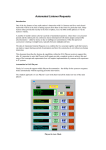
Secondly you can use the spacebar to press any button which has keyboard focus. You may have noticed that as you
move the mouse over various buttons, a box is on the button.
Keyboard Focus
The box indicates the button now has keyboard focus and by pressing the spacebar this will have the same effect as
clicking on the button with the mouse.
The shortcuts are often useful for performing rapid starting of tracks in a “back to back” fashion, you can start a track
quickly with say the ‘1’ key then use the currently highlighted button to begin immediate playback of something else
avoiding the delays inherent with moving the mouse and locating the button to press.
2.3.8
The Load Dialog
The dialog which is displayed when you press the Load button on a panel has been briefly introduced, this section now
covers some of the features of the dialog.
The dialog is designed to allow you to very quickly locate and find a desired track. This is important because a radio
station may contain a music catalogue of several thousand tracks and there needs to be a way to find a given track
easily. In addition it allows you to load multiple tracks into the play panels without repeatedly opening and closing the
dialog.
16