1
HP SURESTORE
USER MANUAL
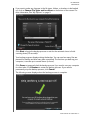
Sometimes a file cannot be backed up. If this occurs you will be notified to click the
View Report button. The report outlines which files could not be backed up. If you
need help, go to the HP support website at http://www.hp.com/support.
You can unplug your PMD after your initial backup. However, it is recommended that
you leave it plugged in to ensure automatic backups. As long as your PMD remains
plugged into your computer and the HP SureStore Monitor is running, your computer
will be backed up automatically each time your computer remains idle (not used) for
five minutes.
If you unplug your PMD, just plug it back in and run HP SureStore by clicking the
HP SureStore application icon. The software automatically backs up any modified
files and all new files since your last backup from your computer to your HP PMD.
Backing up Multiple Computers
If you want to back up another computer, simply unplug your PMD drive and plug it
into the designated computer. Follow the same steps as detailed in “How to Back Up
Your Files” on page 3.
About the HP SureStore Monitor
The HP SureStore Monitor appears in your system tray after the initial backup is
performed. The HP SureStore Monitor continuously watches your computer for any
new or changed files and automatically backs up those files after your computer is
idle (not used) for five minutes. Your PMD drive must be left plugged into your
computer for the HP SureStore monitor to work.
Before disconnecting your HP PMD drive, exit HP SureStore by right-clicking the
HP SureStore Monitor, then clicking Exit.
Note: If you exit the HP SureStore Monitor, any new or changed files will NOT be backed up.
HOW TO BACK UP YOUR FILES – 5