1
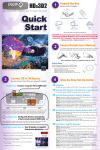
Please read the safety instructions booklet before setting up the projector. Unpack the box Here's what's included: HDs3D-1 HIGH DEFINITION STEREOSCOPIC 3D VIDEO PROJECTOR Quick Start Projector DVI to HDMI Cable Carry Case Remote VGA Cable USB to Display Link Cable Power Cable Save your box and packing materials. PLEASE NOTE: Eye-synchronization options include using Active LC Shutter Glasses + IR Emitter (typical), or Passive Polarized Glasses + DepthQ® Polarization Modulator. These items must be purchased separately. Visit depthq.com/accessories or depthq.com/modulator for more info. Put batteries in the remote The remote uses 2 AA batteries. 1 3 2 Please dispose of batteries in an environmentally proper manner. Status Indicator Panel Power/Standby Service Required The top of your projector includes a convenient indicator panel with symbols that light up to show important status. A product of Lightspeed Design, Inc. co-developed with InFocus® Corp. For details, see Troubleshooting. High Temperature Replace Lamp Connect Source Color-coded connections make it easy. You can connect more than one source if needed. 1 For 3D Connect to: Computer (using HDMI or VGA) DVI to HDMI Cable (included) DepthQ HDs3D-1 depthq.com For highest quality, connect the DVI to HDMI cable between your computer and the projector's HDMI connector. OR VGA Cable (included) The power light Note: If you also want the projector to DepthQ HDs3D-1 depthq.com Computer DepthQ® HDs3D-1 receive audio, either use a graphics card which supports audio over DVI, or use a Mini Plug to RCA Audio Y-Cable (not included). Also connect: Your IR Emitter* to Computer Infra-Red Emitter (not included) 2 Slide open the lens cover 3 Turn on the projector 4 *Or DepthQ Polarization Modulator. ~30 sec For 2D Connect to: Computer (using DisplayLink) depthq.com Computer Warning: Do not look directly into the lens while the projector is being used. For 2D video + audio, connect the USB to DisplayLink cable between your computer and the projector's DisplayLink connector. Refer to infocus.com/support/displaylink for support. 5 Note: The included DVI to HDMI and VGA DepthQ HDs3D-1 DepthQ® HDs3D-1 1280* cables will also work for 2D projection. For audio, see For 3D note above. 720* OR Connect to: DVD, Receiver, Cable Box, or Game Console (using optional cables, not included) OR OR HDMI Cable Best S-Video Cable Better Composite Video Cable Good source Mini Plug to RCA Audio Y-Cable (not needed for HDMI) L R Audio Out Wait for the lamp to warm up After a few seconds, the power light will stop blinking and turn green. It can take approximately 30 seconds for the lamp to reach full brightness. ® USB to DisplayLink Cable (included) on the projector will glow amber. Touch the power light (or press power on the remote). The power light will start blinking green. A) If your graphics card has an onboard DIN3 connector (FX3700, FX4600, etc.) connect your IR emitter* directly to the onboard DIN3 connector. B) If your graphics card does not have an onboard DIN3 connector you may be able to use a stereoscopic adaptor cable (please see depthq.com/faq). C) nVidia® 3DVisionTM connects to a USB port (please see nvidia.custhelp.com). DIN or USB cable (not included) Connect the power cord to the projector and to an electrical outlet 120 Hz Supply power to your IR emitter1 and aim (USB-connected emitters may not require external power.) Either aim your emitter at your screen (for front-projection), through the screen (for rear-projection), or point it directly towards the viewer. Use whichever method works best. 6 Turn on your computer Ensure desktop is set to 1280 x 720* and refresh rate is 120 Hz. 7 Turn on your LC shutter glasses2 8 Change source if needed Folding glasses typically turn on when the ear-pieces are opened. Others may have a pressure-sensitive switch or a physical button. HDMI S-Video Video Out Out Out DepthQ HDs3D-1 depthq.com DepthQ® HDs3D-1 DVD, VCR, Game Console, or Cable Box 1 Or DepthQ® Polarization Modulator LC shutter glasses are not required with the DepthQ® Polarization Modulator - only passive polarized glasses *DepthQ® also supports 1024 x 768 and 800 x 600 input at 120 Hz. 2 Using the menus 1 Press menu, then press or to review menus. 2 Press select to enter a menu, then press or to review settings. 3 Press select to change a setting. If this shows more choices, press 1 Height 1 Projector Location As distance increases, the image gets larger and moves upwards. H 2 under the front of the projector. 3 2 Controlling PowerPoint® presentations Connect the USB cable between the projector and your computer (see step 3 ), then press and to move through your presentation slides. .15H the desired height. Release the button. Lens center line Diagonal Keystone Distance to Screen* Screen Size* Minimum 19.5" / .5m 2.06’ / .63m 2.56’ / .78m 40" / 1m 4.24’ / 1.29m 5.26’ / 1.60m 60" / 1.5m 6.35’ / 1.94m 7.89’ / 2.41m 80" / 2m 8.34’ / 2.54m 10.36’ / 3.16m 9.53’ / 2.90m 11.84’ / 3.61m 90" / 2.29m de Maximum Press the power button The power light on the projector will blink while the fan cools the lamp. If you need to unplug the projector, wait until the fan stops and the power light stops blinking and stays on. Note: While the power light is blinking, button presses on the projector and remote are ignored. 12.51’ / 3.81m 15.54’ / 4.74m 120" / 3m s3D-1 Q HD o m Depthp t h q . c 144" / 3.66m 15.25’ / 4.65m 18.94’ / 5.77m Press the keystone buttons to make the picture square. 3 Note: Most picture settings are disabled (gray) unless a source is being displayed. Note: You don’t need to install DisplayLink Manager software to use this feature. 1 Hold down the release button 2 Lift the front of the projector to 4 or to update the setting, then press select or menu to save it. Press menu to go back. Press it again to remove the menu. *approximate values Buy a Ceiling Mount, Screen and Other Accessories depthq.com/accessories Zoom and focus Zoom (rear ring) Focus (front ring) Adjust zoom first, then focus the center of the image. Need Help? Press the Help button at any time to get help with connecting sources and improving the picture. Download a more detailed user manual at: depthq.com/support Ceiling mount? Menu To flip the image vertically turn on the Ceiling Mount setting using Menu | Setup. Basic Picture Rear projection? Advanced Picture Setup Status and Service To flip the image horizontally turn on the Rear Project setting using Menu | Setup. Note: this will also require that you swap eyes. See Stereoscopic Concerns. depthq.com/faq depthq.com/support Stereoscopic 3D Concerns If there is no picture or the picture is blank source If the power light is off, make sure the power cord is connected and plugged into a live electrical outlet. If the power light is amber and not blinking, touch the power light (or press power on the remote). Check video source and cables. Make sure the video source (computer, DVD player, VCR, etc.) is turned on and cables are securely connected between the source and the projector. Press the Source button. You may need to press it several times to view the correct source. Press the Auto Image button. If "Signal out of range" is shown, or the picture looks bad Press the Auto Image button. If that doesn't help (and the source is a computer), ensure your desktop is set to 1280 x 720* and the refresh is 120 Hz. If the replace lamp light is on Turn the projector off and wait at least one minute, then turn it on again. If the replace lamp light turns on again, the lamp needs to be replaced. For lamp replacement instructions, visit www.depthq.com/support. Only InFocus genuine lamps are tested for use in this projector. If the high temperature light is on Turn the projector off and remove anything that may be blocking the air vents on its side. Leave the projector off for at least one minute to let it cool before turning it on again. Important: Continuous operation at high temperature may reduce the lifetime of the lamp and/or projector. If the service required light is on Turn the projector off and wait at least one minute, then turn it on again. If the service required light turns on again, the projector needs to be serviced. See below for service contact information. More troubleshooting options are in the Reference Guide Download it at depthq.com/support Warning: In the unlikely event of a lamp rupture, particles may be ejected from the projector. Keep out of the area under and around the projector while the projector is in use. See the safety instructions booklet for more details. The DepthQ® HDs3D projector supports the highest quality stereoscopic display technique available - frame-sequential progressive “page flip” - at a very high frequency of 120Hz (60 fps per eye). This provides flickerless, fatigue-free 3D viewing even under high ambient light conditions. In order to be compatible with this projector, your stereoscopically-enabled display system must deliver 120 Hz, 1280 x 720 resolution* data using this frame-sequential L-R-L-R- method. If you are using nVidia Quadro® graphics cards, be aware that by default, Open-GL stereo operation is turned OFF in the associated nVidia driver. You must navigate to the “stereo enable” option and set it to ON in order to view realtime stereoscopic displays using this hardware. If your 3D is “inverted” (pseudo-stereo), you usually have a range of options. Some IR emitters have a hardware switch to reverse the eyes. Additionally, your stereo-enabled software may include an option to accomplish this. Lastly, your video driver may allow you to “swap eyes”. Use whichever is easiest. *DepthQ® also supports 1024 x 768 and 800 x 600 input at 120 Hz. Hg - Lamp contains mercury. Manage in accordance with local disposal laws. See www.lamprecycle.org Declaration of Conformity Manufacturer: InFocus Corporation, 13190 SW 68th Parkway, Suite 200, Portland, Oregon 97223-8368 USA. We declare under our sole responsibility that this projector conforms to the following directives and norms: EuP Directive: 2005/32/EC, EMC Directive 2004/108/EC, EMC: EN 55022, EN 55024, EN 61000-3-2, EN 61000-3-3, Low Voltage Directive 2006/95/EC, Safety: IEC 60950-1:2005(MOD). Trademarks DepthQ is a registered trademark of Lightspeed Design, Inc. InFocus, In Focus, and INFOCUS (stylized) are either registered trademarks or trademarks of InFocus Corporation in the United States and other countries. DisplayLink is a trademark of DisplayLink Corporation. PowerPoint is a registered trademark of Microsoft Corporation. DLP and the DLP logo are registered trademarks of Texas Instruments and BrilliantColor is a trademark of Texas Instruments. NVIDIA and the NVIDIA logo are registered trademarks of NVIDIA Corporation. FCC Warning This device complies with part 15 of the FCC Rules. Operation is subject to the following two conditions: (1) This device may not cause harmful interference, and (2) this device must accept any interference received, including interference that may cause undesired operation. Note: This equipment has been tested and found to comply with the limits for a Class B digital device, pursuant to part 15 of the FCC Rules. These limits are designed to provide reasonable protection against harmful interference in a residential installation. This equipment generates, uses and can radiate radio frequency energy and, if not installed and used in accordance with the instructions, may cause harmful interference to radio communications. However, there is no guarantee that interference will not occur in a particular installation. If this equipment does cause harmful interference to radio or television reception, which can be determined by turning the equipment off and on, the user is encouraged to try to correct the interference by one or more of the following measures: — Reorient or relocate the receiving antenna. — Increase the separation between the equipment and receiver. — Connect the equipment into an outlet on a circuit different from that to which the receiver is connected. — Consult the dealer or an experienced radio/TV technician for help. Changes or modifications to this equipment that are not expressly approved by Lightspeed Design and InFocus Corp. may void the user’s authority to operate the equipment. Canada This Class B digital apparatus complies with Canadian ICES-003. Cet appareil numérique de la classe B est conforme à la norme NMB-003 du Canada. Agency Approvals cMETus. Other specific Country Approvals may apply. Please see product certification label. Input ratings: 100-240Vac, 2.9A, 50-60Hz *DepthQ® also supports 1024 x 768 and 800 x 600 input at 120 Hz. Lightspeed Design and InFocus reserve the right to alter product offerings and specifications at any time without notice.