1
Print Properties Dialog
The print properties dialog is used to specify how you wish your image files to be formatted, prepared and
printed on your output device (i.e. Netprinter or Miléca). Print Properties allows the user to specify the
print quantity, image sizing and sizing method, paper size, image placement, image rotation, sharpening or
smoothing, color management, color adjustment, and back-printing that they wish to apply to their images.
Depending on which menu you select the print properties dialog from, the settings you select will be
applied to all image files, only the images currently selected, or only a single image at a time, as detailed
below.
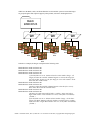
CREW Task Generator “Properties” / “Default Properties” menu: Changes made while in this dialog
become the starting selections for all image files opened after this point. Changes do not affect any images
that are currently loaded in Task Generator, or any that have already been “sent” to Task Server or the
printer. This dialog is normally used to set the most common printing format that you intend to use, so that
you do not have to manually make the same selections for every image you intend to print.
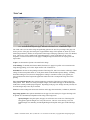
CREW Task Generator “Image” / “Print Properties” menu: changes made through this dialog affect
only the currently selected image file. If multiple image files were selected, “Next” and “Previous” buttons
will appear in the lower left corner of the Print Properties dialog, allowing you to change each selected
image in turn. Changes only affect the image that is currently “active”, as shown in the title bar of the
dialog, and the preview on the “Image” tab. After making changes to each image, click “Apply”, then
“Next” (or “Previous”) to move on to the next image file. If you do not click “Apply” before clicking
“Next” or “Previous”, the program will ask you if you would like to apply the changes or not before
proceeding. You also have the option of automatically applying these changes, which can be selected from
the confirmation pop-up or through the “Properties” menu of Task Generator (“Assume Apply on
Next/Previous”). This option is only available when one or more images are selected in the left-hand pane
of Task Generator.
CREW Task Generator “Right-click” / “Print Properties” menu (or double-click on an image file in
the left-hand pane): when right-clicking on an image filename listed on the left side of the Task Generator
window, and selecting “Print Properties”, the resulting changes affect only the selected image. This same
dialog is accessed by double clicking on a filename in the left-hand pane of Task Generator. This dialog is
commonly used to change the formatting of a single image that has already been opened in Task Generator.
CREW Task Generator “Image” / “Group Properties”: changes made in the “Group Properties” dialog
will be applied to all images that are currently selected in the left pane of Task Generator. The starting set
of options presented is based on the “Default Properties” that are currently set (see above). This dialog is
commonly used to format a group of image files to use the same printing options after they have been
opened in Task Generator.
CREW Hotfolder Client Preset Folders Print Properties: print properties set for a particular Preset
Folder apply to all images processed from that folder (when it is Enabled). If “Filename Parsing” is
enabled for this folder and the image filename format is valid, the print quantity set in this dialog will be
over-ridden by the print quantity information contained in the image filename.
CREW 1.10 Release Notes, June 19, 2002. Rev 1.0. Document #13307-003, Copyright 2002 Gretag Imaging Inc.