1
36
COMMANDCENTER USER GUIDE
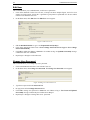
Add Custom View
1.
2.
3.
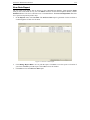
Click on the Devices tab.
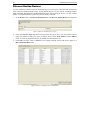
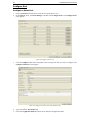
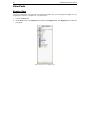
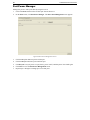
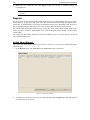
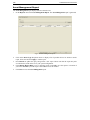
On the Devices menu, click Change View, and then click Custom View. The Custom View screen
appears.
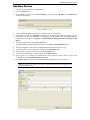
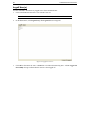
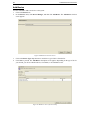
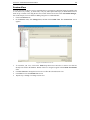
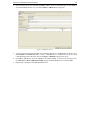
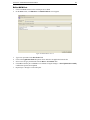
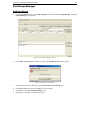
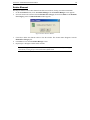
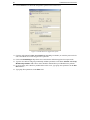
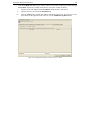
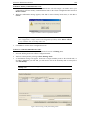
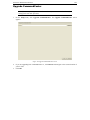
In the Custom View panel, click Add. An Add Custom View window appears.
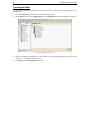
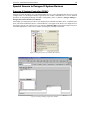
Figure 43 Add Custom View Window
4.
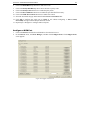
Type a new custom view name and click OK or click Cancel to close the window. The new view
name appears in the Name field.
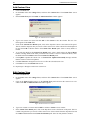
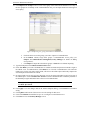
5. In the Custom View Details panel, click on the drop-down arrow at the bottom of the panel. This list
contains categories that you can use to filter custom views. Select a detail from the drop-down list and
click Add to add the detail to the Custom View Details panel. Select as many details as needed.
6. To re-order the details in the Custom User Details panel, select a detail and use the Up and Down
buttons to arrange details in the order you want devices sorted. To remove a detail from the list, select
the detail and click the Delete button in the Custom User Details panel.
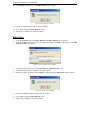
7. Click Update to update the custom view. A Custom View Updated Successfully message confirms
that the custom view has been updated.
8. Click Set Current to arrange the Devices tree to reflect the selected custom view.
9. Click Close to close the Custom View screen.
10. Repeat steps 1 through 9 to add a new custom view.
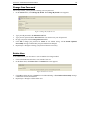
Edit Custom View
1.
2.
3.
Click on the Devices tab.
On the Devices menu click Change View, and then click Custom View. The Custom View screen
appears.
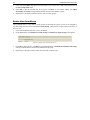
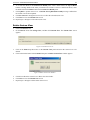
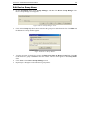
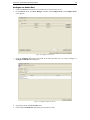
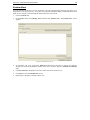
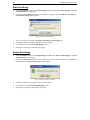
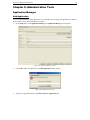
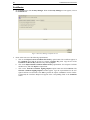
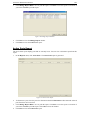
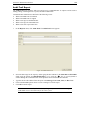
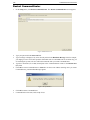
Click on the Name drop-down arrow in the Custom View panel and select the custom view to be
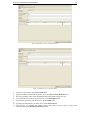
edited. Click Edit. An Edit Custom View window appears.
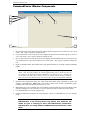
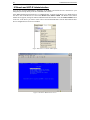
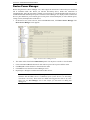
Figure 44 Edit Custom View Window
4.
5.
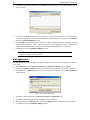
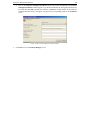
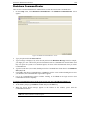
Type a new custom view name and click OK to confirm or Cancel to close window.
In the Custom View Details panel, click on the drop-down arrow at the bottom of the panel. This list
contains categories that you can use to filter custom views. Select a detail from the drop-down list and
click Add to add the detail to the Custom View Details panel. Select as many details as needed.