1
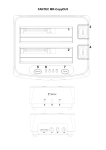
HDD Docking Station for 2.5”/3.5” SATA HDD with eSATA Connector User Manual Connecting the docking station with the USB cable Connect the supplied USB cable to the rear of the Docking station and the other end to a spare USB 2.0 port on your computer. Connect the AC adaptor to a power point and to the socket on the rear of the Docking station. Do not turn the Docking station on until the hard drive has been fitted. Connecting the docking station with the eSATA cable. eSATA ports allow you to connect a hard drive on the outside of the computer but have it perform the same way as it would if it was fitted to the computer as normal. eSATA allows for the auto detection of drives as they are fitted, were as normal SATA ports will not detect drive being attached after the start up of the operating system. If your computer is fitted with an eSATA connection, plug one end of the eSATA cable in to the rear of the docking station and the other in to the eSATA port on your computer. If there is no eSATA port on your computer, the supplied eSATA bracket and socket may be fitted to your computer. Please refer to the mother manual to locate the eSATA header on the board before fitting. Connecting hard drives Turn the Docking station off at the power switch on the rear. Pick the Hard drive up and position the drive so the label is facing toward the right hand side of the station and the drives contacts are facing down. Carefully lower the drive in to the correct bay and ensure that drive is fitted snugly in to the bay. Do not jar the hard drive. Turn the power switch on. The computer should detect the station and the drive and assign the next available drive letter to the hard drive. Page 2 of 7