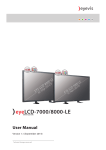
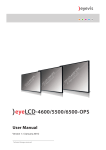
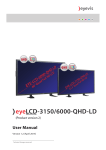
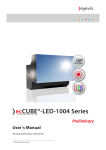
1
eyeLCD-4700-USN-LD-FX EYEVIS LCD LINE User’s Manual Version 1.2 (August 2015) Technical changes reserved. Additional Support For additional support for eyevis products, please contact: SER VICE SU PPORT As at: August 2015 eyevis GmbH Hundsschleestrasse 23 D-72766 Reutlingen Germany Phone: Fax: Hotline: Hotline: +49 (0)7121-4 33 03-0 +49 (0)7121-4 33 03-22 +49 (0)7121-4 33 03-290 (netPIX & eyeCON) +49 (0)7121-4 33 03-291 (Cubes & Displays) web: www.eyevis.de e-mail: [email protected] service: [email protected] Copyright © 2015 eyevis (eyevis Gesellschaft für Projektions- und Großbildtechnik mbH). All Rights reserved. )) eyevis user document If this document is sold with software that includes an end user license agreement, this document as well, as the software described within it, shall be provided under licence and may only be used or duplicated according to the terms of the licence. No part of this documentation may be reproduced, stored in databases, or transferred in any form – electronically, mechanically, on recording media, or in any other way – without prior written consent of eyevis, unless the licence expressly permits this. Please note that the content of this document is protected by copyright, even if it is not sold together with software that includes an end user licence agreement. The content of this document is solely informative, can be changed at any time without notice, and represents no obligation on the part of eyevis. eyevis assumes no responsibility or liability for any errors or inaccuracies that may appear in this document. eyevis, the eyevis logo and eyeCON are trademarks or registered trademarks of eyevis Deutschland. All other trademarks are the property of their respective owners. EYE-LCD-4700-USN-LD-FX 3 Table of content Safety / Sicherheit / Sécurité 6 The Load/Save area��������������������������������������������������������������������������������� 46 Safety precaution�������������������������������������������������������������������������������� 6 The selection area������������������������������������������������������������������������������������� 46 Sicherheitsvorkehrungen���������������������������������������������������������������� 12 The parameter area��������������������������������������������������������������������������������� 47 Précautions de sécurité�������������������������������������������������������������������� 18 Establishing communication���������������������������������������������������������� 48 About our product 23 Establishing communication���������������������������������������������������������������� 48 Entering the wall size������������������������������������������������������������������������������� 49 Features ���������������������������������������������������������������������������������������������� 23 Reading the configurations������������������������������������������������������������������� 49 High-Resolution Wide-Screen panel��������������������������������������������������� 23 Saving the configuration����������������������������������������������������������������������� 49 Input connection possibilities��������������������������������������������������������������� 23 Load the configuration��������������������������������������������������������������������������� 49 Packaging24 Unpacking ������������������������������������������������������������������������������������������ 24 Packing list������������������������������������������������������������������������������������������ 24 Accessory box ������������������������������������������������������������������������������������������� 25 Parameters������������������������������������������������������������������������������������������ 50 User�������������������������������������������������������������������������������������������������������������� 50 Setup ����������������������������������������������������������������������������������������������������������� 51 Service��������������������������������������������������������������������������������������������������������� 53 Status����������������������������������������������������������������������������������������������������������� 54 Installation possibilities for EYE-LCD-XSN-LD series Preference��������������������������������������������������������������������������������������������������� 55 26 Reports ������������������������������������������������������������������������������������������������������� 56 Optional Front-Service-Mechanism���������������������������������������������� 26 Overview���������������������������������������������������������������������������������������������� 27 Mains supply �������������������������������������������������������������������������������������� 28 Controlling the display 30 The Remote Control (RC)������������������������������������������������������������������ 30 Effects in continuous operation of LCDs 57 Image sticking������������������������������������������������������������������������������������������� 57 Mura������������������������������������������������������������������������������������������������������������� 57 Shade formation��������������������������������������������������������������������������������������� 57 Prevention of undesirable effects 58 Evaluation of visual range 59 Opening the On-Screen-Display (OSD)����������������������������������������������� 30 Navigating in the OSD menu����������������������������������������������������������������� 30 Special keys and key sequences ����������������������������������������������������������� 30 Pollutions�������������������������������������������������������������������������������������������� 59 Changing the remote control batteries���������������������������������������� 31 Tolerance limits for bonded glass surfaces ��������������������������������������� 59 On-Screen-Display (OSD) menu 32 Using the OSD menu ������������������������������������������������������������������������ 32 Tolerance limits for optional touch surfaces������������������������������������� 59 Failure of pixel������������������������������������������������������������������������������������ 59 Overview acceptable total number of dot defects �������������������� 60 Picture menu�������������������������������������������������������������������������������������� 33 Color Management menu ��������������������������������������������������������������������� 34 User Color menu��������������������������������������������������������������������������������������� 35 Display menu�������������������������������������������������������������������������������������� 36 PC RGB menu��������������������������������������������������������������������������������������������� 37 Troubleshooting guide 61 Malfunction or trouble �������������������������������������������������������������������� 61 Warranty terms and conditions 62 Setup menu ���������������������������������������������������������������������������������������� 38 Duration and validity of warranty�������������������������������������������������� 62 Info menu��������������������������������������������������������������������������������������������������� 39 Proof of purchase������������������������������������������������������������������������������ 62 OSD menu��������������������������������������������������������������������������������������������������� 40 Warranty service or exchange during warranty period������������ 62 Advanced Setup menu ��������������������������������������������������������������������������� 41 Dead On Arrival (DOA) ��������������������������������������������������������������������������� 62 Matrix Mode menu ��������������������������������������������������������������������������������� 42 Return-to-Base-Warranty (Bring-In Warranty)��������������������������������� 62 Inputs menu���������������������������������������������������������������������������������������� 43 Repair and return������������������������������������������������������������������������������������� 62 The eyeDeviceSetup software44 Warranty on repairs��������������������������������������������������������������������������������� 62 Starting the eyeDeviceSetup software ���������������������������������������� 44 Warranty exclusions�������������������������������������������������������������������������� 63 The interface of eyeDeviceSetup software ��������������������������������� 45 General exclusions����������������������������������������������������������������������������������� 63 Version 1.2 | August 2015 Temporary exchange equipment during repair time ��������������������� 62 4 EYE-LCD-4700-USN-LD-FX "Image Sticking" (memory) effect and "Mura" ��������������������������������� 63 Failure of pixel������������������������������������������������������������������������������������������� 63 Accessories������������������������������������������������������������������������������������������������� 63 Factory-applied serial number������������������������������������������������������������� 63 Service contact ���������������������������������������������������������������������������������� 63 Advised procedure for raising a claim������������������������������������������ 64 Consider the manual before raising a claim������������������������������������� 64 Prepare necessary information������������������������������������������������������������� 64 Approval by eyevis����������������������������������������������������������������������������������� 64 Service code: RMA number��������������������������������������������������������������������� 64 Packing������������������������������������������������������������������������������������������������������� 64 Transport���������������������������������������������������������������������������������������������������� 64 Costs not covered by warranty defects����������������������������������������������� 64 Legal and other claims �������������������������������������������������������������������� 64 Limitations of liability���������������������������������������������������������������������� 65 Appendix66 Appendix: Technical specification�������������������������������������������������� 66 Appendix: RS232 protocol �������������������������������������������������������������� 68 Appendix: Timings ���������������������������������������������������������������������������� 72 Appendix: Assigning display IDs���������������������������������������������������� 75 Index77 User Manual EYE-LCD-4700-USN-LD-FX About this manual Read and pay attention to this manual. It contains important information on the product. In particular, note all of the safety instructions and warnings. Keep this manual in a safe place! Warnings used NOTICE Indicates a hazard that could lead to damage or destruction of the product. The general warning symbol indicates a hazard that could lead to injuries or death. In the text section, the general warning symbol is used in conjunction with the warning levels described below. CAUTION Indicates a hazard that could lead to minor or moderate injuries. WARNING Indicates a hazard that could lead to death or serious injury. DANGER Indicates a hazard that leads to immediate death or serious injury. Symbols used ► 1. 2. 3. Version 1.2 | August 2015 Indicates a single action or multiple actions which do not have to be performed in any specific order. Indicates a set of actions that have to be performed in a specific order. 5 6 EYE-LCD-4700-USN-LD-FX Safety / Sicherheit / Sécurité Safety Safety precaution Electricity is used to perform many useful functions, but it can also cause personal injuries and property damage if improperly handled. This product has been engineered and manufactured with the highest priority on safety. However, improper use can result in electric shock and/or fire. In order to prevent potential danger, please observe the following instructions when installing, operating and cleaning the product. To ensure your safety and prolong the service life of your LCD product, please read the following precautions carefully before using the product. )) Read instructions — All operating instructions must be read and understood before the product is operated. )) Keep this manual in a safe place — These safety and operating instructions must be kept in a safe place for future reference. )) Observe warnings — All warnings on the product and in the instructions must be observed closely. )) Follow instructions — All operating instructions must be followed. )) Cleaning — Unplug the power cord from the AC outlet before cleaning the product. Use a dry cloth to clean the product. Do not use liquid cleaners or aerosol cleaners. )) Attachments — Do not use attachments not recommended by the manufacturer. Use of inadequate attachments can result in accidents. )) Water and moisture — Do not use the product near water. Do not install the product in a place where water may splash onto it. Be careful of equipment which drains water such as an air-conditioner. )) Ventilation — The vents and other openings in the cabinet are designed for ventilation. Do not cover or block these vents and openings since insufficient ventilation can cause overheating and/or shorten the life of the product. Do not place the product on a sofa, rug or other similar surface, since they can block ventilation openings. Do not place the product in an enclosed place such as a bookcase or rack, unless proper ventilation is provided or the manufacturer’s instructions are followed. )) Power cord protection — The power cords must be routed properly to prevent people from stepping on them or objects from resting on them. )) The LCD panel used in this product is made of glass. Therefore, it can break when the product is dropped or applied with impact. Be careful not to be injured by broken glass pieces in case the LCD panel breaks. )) Overloading — Do not overload AC outlets or extension cords. Overloading can cause fire or electric shock. )) Entering of objects and liquids — Never insert an object into the product through vents or openings. High voltage flows in the product, and inserting an object can cause electric shock and/or short internal parts. For the same reason, do not spill water or liquid on the product. )) Servicing — Do not attempt to service the product yourself. Removing covers can expose you to high voltage and other dangerous conditions. Request a qualified service person to perform servicing. User Manual EYE-LCD-4700-USN-LD-FX 7 )) Repair — If any of the following conditions occurs, unplug the power cord from the AC outlet, and request a qualified service person to perform repairs. When the power cord or plug is damaged. When a liquid was spilled on the product or when objects have fallen into the product. When the product has been exposed to rain or water. When the product does not operate properly as described in the operating instructions. Do not touch the controls other than those described in the operating instructions. Improper adjustment of controls not described in the instructions can cause damage, which often requires extensive adjustment work by a qualified technician. When the product has been dropped or damaged. When the product displays an abnormal condition. Any noticeable abnormality in the product indicates that the product needs servicing. •• •• •• •• •• •• •• )) Replacement parts — In case the product needs replacement parts, make sure that the service person uses replacement parts specified by the manufacturer, or those with the same characteristics and performance as the original parts. Use of unauthorised parts can result in fire, electric shock and/ or other danger. )) Safety checks — Upon completion of service or repair work, request the service technician to perform safety checks to ensure that the product is in proper operating condition. )) Wall mounting — When mounting the product on a wall, be sure to install the product according to the method recommended by the manufacturer. )) Heat sources — Keep the product away from heat sources such as radiators, heaters, stoves and other heat-generating products (including amplifiers). )) Batteries — Incorrect use of batteries may cause the batteries to burst or ignite. A leaky battery may corrode the equipment, dirty your hands or spoil your clothing. In order to avoid these problems, make sure to observe the precautions below: Use the specified batteries only. Install the batteries with due attention to the plus (+) and minus (-) sides of the batteries according to the instructions in the compartment. Do not mix old and new batteries. Do not mix batteries of different types. Voltage specifications of batteries of the same shape may vary. Replace an exhausted battery with a new one promptly. If you will not use the remote control for a long time, remove the batteries. If leaked battery fluid gets on your skin or clothing, rinse immediately and thoroughly. If it gets into your eye, bathe your eye well rather than rubbing and seek medical treatment immediately. Leaked battery fluid that gets into your eye or your clothing may cause a skin irritation or damage your eye. •• •• •• •• •• •• •• )) Usage of the monitor must not be accompanied by fatal risks or dangers that, could lead directly to death, personal injury, severe physical damage or other loss, including nuclear reaction control in nuclear facility, medical life support system, and missile launch control in a weapon system. )) Do not stay in contact with the parts of the product that become hot for long periods of time. Doing so may result in low-temperature burns. Version 1.2 | August 2015 8 EYE-LCD-4700-USN-LD-FX Safety intructions )) The TFT colour LCD panel used in this monitor is made with the application of high precision technology. However, there may be minute points on the screen where pixels never light or are permanently lit. Also, if the screen is viewed from an acute angle there may be uneven colours or brightness. )) Please note that these are not malfunctions but common phenomena of LCDs and will not affect the performance of the monitor. )) Do not display a still picture for a long period, as this could cause a residual image. )) Never rub or tap the monitor with hard objects. )) Please understand that eyevis bears no responsibility for errors made during use by the customer or a third party, nor for any other malfunctions or damage to this product arising during use, except where indemnity liability is recognized under law. )) This monitor and its accessories may be upgraded without advance notice. )) Do not use the monitor where there is a lot of dust, where humidity is high, or where the monitor may come into contact with oil or steam, as this could lead to fire. )) Ensure that the monitor does not come into contact with water or other liquids. Ensure that no objects such as paper clips or pins enter the monitor as this could lead to fire or electric shock. )) Do not place the monitor on top of unstable objects or in unsafe places. Do not allow the monitor to receive strong shocks or to strongly vibrate. Causing the monitor to fall or topple over may damage it. )) Do not use the monitor near heating equipment or in places where there is likelihood of high temperature, as this may lead to generation of excessive heat and outbreak of fire. )) Do not use the monitor in places where it may be exposed to direct sunlight. )) Please be sure to constantly remove dust and garbage that has attached to the ventilation opening. If dust collects in the ventilation opening, it may lead to excessive heat, outbreak of fire, or malfunction. As a standard, clean the inside of the monitor once every year. If dust collects inside the monitor, it may lead to excessive heat, outbreak of fire, or malfunction. Please request a cleaning of the inside of the monitor from an authorized Eyevis servicing dealer or service centre. )) Images cannot be rotated on this monitor. )) When using in vertical orientation, you will need to prepare appropriately orientated content in advance. )) Please make sure that the socket-outlet is installed near the System and is easily accessible. The Power supply cord serves as a disconnect device. User Manual EYE-LCD-4700-USN-LD-FX The power cord )) Do not damage the power cord nor place heavy objects on it, stretch it or over bend it. )) Do not use damaged extension cords. Damage to the cord may result in fire or electric shock. )) Use only the power cord supplied with the monitor. )) Do not use the power cord with a power tap. Adding an extension cord may lead to fire as a result of overheating. )) Do not remove or insert the power plug with wet hands. Doing so could result in electric shock. )) Unplug the power cord if it is not used for a long time. )) Do not attempt to repair the power cord if it is broken or malfunctioning. Refer the servicing to the service representative. Version 1.2 | August 2015 9 EYE-LCD-4700-USN-LD-FX 10 NOTICE This is a class A product according EN 55022: 2010. In a domestic environment this product may cause radio interference in which case the user may be required to take adequate counter measures. NOTICE To maintain compliance with EMC regulations, use shielded cables to connect to the following terminals: PC/AV DVI-D output terminal, PC/AV DVI-D input terminal, PC/AV HDMI input terminal, PC D-SUB input terminal, PC RGB input terminals, and RS-232C input/output terminals. WARNING If a monitor is not positioned in a sufficiently stable location, it can be potentially hazardous due to falling. Many injuries, particularly to children, can be avoided by taking simple precautions such as: Using fixing devices like wall mount brackets recommended by the manufacturer. Only using furniture that can safely support the monitor. Ensuring the monitor is not overhanging the edge of the supporting furniture. Not placing the monitor on tall furniture (for example, cupboards or bookcases) without anchoring both the furniture and the monitor to a suitable support. Not standing the monitors on cloth or other materials placed between the monitor and supporting furniture. Educating children about the dangers of climbing on furniture to reach the monitor or its controls. •• •• •• •• •• •• WARNING Especially for child safety Don’t allow children to climb on or play with the monitor. Don’t place the monitor on furniture that can easily be used as steps, such as a chest of drawers. Remember that children can become excited while watching a program, especially on a “larger than life” monitor. Care should be taken to place or install the monitor where it cannot be pushed, pulled over, or knocked down. Care should be taken to route all cords and cables connected to the monitor so that they cannot be pulled or grabbed by curious children. •• •• •• •• User Manual EYE-LCD-4700-USN-LD-FX 11 Zu diesem Handbuch Lesen und beachten Sie dieses Handbuch. Darin stehen wichtige Informationen zum Produkt. Beachten Sie insbesondere alle Sicherheits- und Warnhinweise. Bewahren Sie diese Anleitung sorgfältig auf! Verwendete Warnhinweise ACHTUNG Kennzeichnet eine Gefahr, die zur Beschädigung oder Zerstörung des Produkts führen kann. Das allgemeine Warnsymbol kennzeichnet eine Gefahr, die zu Verletzungen oder zum Tod führen kann. Im Textteil wird das allgemeine Warnsymbol in Verbindung mit den nachfolgend beschriebenen Warnstufen verwendet. VORSICHT Kennzeichnet eine Gefahr, die zu leichten oder mittleren Verletzungen führen kann. WARNUNG Kennzeichnet eine Gefahr, die zum Tod oder zu schweren Verletzungen führen kann. GEFAHR Kennzeichnet eine Gefahr, die unmittelbar zum Tod oder zu schweren Verletzungen führt. Verwendete Symbole ► 1. 2. 3. Version 1.2 | August 2015 Kennzeichnet einen einzelnen Handlungsschritt oder mehrere Handlungsschritte, jedoch ohne feste Abfolge. Kennzeichnet ein Folge von Handlungsschritten, deren vorgegebene Reihenfolge eingehalten werden muss. 12 EYE-LCD-4700-USN-LD-FX Sicherheit Sicherheitsvorkehrungen Elektrizität erfüllt viele nützliche Aufgaben, kann aber auch Personen- und Sachschäden verursachen, wenn sie unsachgemäß gehandhabt wird. Dieses Produkt wurde mit Sicherheit als oberster Priorität konstruiert und hergestellt. Dennoch besteht bei unsachgemäßer Handhabung u.U. Stromschlag- und Brandgefahr. Um mögliche Gefahren zu vermeiden, befolgen Sie beim Aufstellen, Betreiben und Reinigen des Produkts bitte die nachstehenden Anleitungen. Lesen Sie im Interesse Ihrer eigenen Sicherheit sowie einer langen Lebensdauer des LCD-Gerätes zunächst die nachstehenden Hinweise durch, bevor Sie das Produkt in Verwendung nehmen. )) Bedienungsanleitungen lesen — Nehmen Sie das Produkt erst in Betrieb, nachdem Sie alle diesbezüglichen Hinweise gelesen und verstanden haben. )) Bedienungsanleitung aufbewahren — Diese Bedienungsanleitung mit den Sicherheits- und Bedienungshinweisen sollte aufbewahrt werden, damit Sie im Bedarfsfall jederzeit darauf zurückgreifen können. )) Warnungen beachten — Alle Warnungen auf dem Gerät und in den Bedienungsanleitungen sind genauestens zu beachten. )) Anleitungen befolgen — Alle Anleitungen zur Bedienung müssen befolgt werden. )) Reinigung — Ziehen Sie vor dem Reinigen des Produkts das Netzkabel. Reinigen Sie das Gerät mit einem trockenen Tuch. Verwenden Sie keine flüssigen Reiniger oder Aerosol-Sprays. )) Zusatzgeräte und Zubehör — Verwenden Sie ausschließlich vom Hersteller empfohlenes Zubehör. Bei Verwendung anderer Zusatzgeräte bzw. Zubehörteile besteht evtl. Unfallgefahr. )) Wasser und Feuchtigkeit — Benutzen Sie das Gerät nicht in der Nähe von Wasser. Montieren Sie das Gerät unter keinen Umständen an einer Stelle, an der Wasser darauf tropfen kann. Achten Sie dabei besonders auf Geräte, aus denen zuweilen Wasser tropft, wie etwa Klimaanlagen. )) Belüftung — Die Belüftungsschlitze und andere Öffnungen im Gehäuse dienen der Belüftung des Geräts. )) Halten Sie diese Öffnungen unbedingt frei, da eine unzureichende Belüftung zu einer Überhitzung bzw. Verkürzung der Lebensdauer des Produkts führen kann. Stellen Sie das Gerät nicht auf ein Sofa, einen Lappen oder ähnliche Oberflächen, da die Belüftungsschlitze dadurch blockiert werden können. Stellen Sie das Gerät auch nicht in ein umschlossenes Gehäuse, wie z.B. in ein Bücherregal oder einen Schrank, sofern dort nicht für eine ausreichende Belüftung gesorgt ist oder die Anweisungen des Herstellers befolgt werden. )) Netzkabel-Schutz — Die Netzkabel sind so zu verlegen, dass sie vor Tritten geschützt sind und keine schweren Objekte darauf abgestellt werden. )) Das LCD-Panel ist ein Glasprodukt. Es kann daher brechen, wenn es zu Boden fällt oder einen Schlag oder Stoß erhält. Achtung: bei einem Bruch des LCDPanels besteht durch die Glasstücke Verletzungsgefahr. )) Überlastung — Vermeiden Sie eine Überlastung von Netzsteckdosen und Verlängerungskabeln. Bei Überlastung besteht Brand- und Stromschlaggefahr. )) Eindringen von Gegenständen und Flüssigkeiten — Schieben Sie niemals irgendwelche Gegenstände durch die Gehäuseöffnungen in das Innere des Geräts. Im Produkt liegen hohe Spannungen vor. Durch das Einschieben von User Manual EYE-LCD-4700-USN-LD-FX 13 Gegenständen besteht Stromschlaggefahr bzw. die Gefahr von Kurzschlüssen zwischen den Bauteilen. Aus demselben Grunde dürfen auch keine Flüssigkeiten auf das Gerät verschüttet werden. )) Wartung — Versuchen Sie auf keinen Fall, selbst Wartungsarbeiten am Gerät durchzuführen. Durch das Entfernen von Abdeckungen setzen Sie sich hohen Spannungen und anderen Gefahren aus. Lassen Sie sämtliche Wartungsarbeiten ausschließlich von qualifiziertem Service-Personal ausführen. )) Reparaturen — Ziehen Sie in den folgenden Situationen sofort das Netzkabel und lassen Sie das Produkt von qualifiziertem Service-Personal reparieren: Wenn das Netzkabel oder der Netzstecker beschädigt ist. Wenn Flüssigkeit in das Gerät eingedrungen ist oder Gegenstände in das Gerät gefallen sind. Wenn das Gerät nass geworden ist (z.B. durch Regen). Wenn das Gerät nicht wie in der Bedienungsanleitung beschrieben funktioniert. Nehmen Sie nur die in den Bedienungsanleitungen beschriebenen Einstellungen vor. Unsachgemäße Einstellungen an anderen Reglern können zu einer Beschädigung führen und machen häufig umfangreiche Einstellarbeiten durch einen qualifizierten Service-Techniker erforderlich. Wenn das Produkt fallen gelassen oder beschädigt wurde. Wenn das Gerät einen anormalen Zustand aufweist. Jedes erkennbare anormale Verhalten zeigt an, dass der Kundendienst erforderlich ist. •• •• •• •• •• •• •• )) Ersatzteile — Wenn Ersatzteile benötigt werden, stellen Sie bitte sicher, dass der Service-Techniker nur die vom Hersteller bezeichneten Teile oder Teile mit gleichen Eigenschaften und gleichem Leistungsvermögen wie die Originalteile verwendet. Die Verwendung anderer Teile kann zu einem Brand, zu Stromschlag oder anderen Gefahren führen. )) Sicherheitsüberprüfungen — Lassen Sie vom Service-Techniker nach Serviceoder Reparaturarbeiten eine Sicherheitsüberprüfung vornehmen, um sicherzustellen, dass das Produkt in einem einwandfreien Betriebszustand ist. )) Wandmontage — Bei der Montage des Gerätes an der Wand ist sicherzustellen, dass die Befestigung nach der vom Hersteller empfohlenen Methode erfolgt. )) Wärmequellen — Stellen Sie das Produkt nicht in der Nähe von Heizkörpern, Heizgeräten, Öfen oder anderen Geräten (wie z.B. Verstärkern) auf, die Hitze abstrahlen. )) Batterien — Durch falsche Anwendung können die Batterien explodieren oder sich entzünden. Eine undichte Batterie kann Korrosion am Gerät verursachen sowie Hände und Kleidung verschmutzen. Um diese Probleme zu vermeiden, beachten Sie bitte die folgenden Sicherheitshinweise: Verwenden Sie nur empfohlene Batterietypen. Achten Sie beim Einlegen der Batterien darauf, dass die Plus- (+) und die Minus- (-) Seite der Batterien gemäß den Anweisungen im Fachinneren richtig ausgerichtet sind. Verwenden Sie nicht alte und neue Batterien gemeinsam. Verwenden Sie keine Batterien unterschiedlichen Typs. Batterien derselben Form können unterschiedliche Spannungswerte besitzen. Ersetzen Sie eine leere Batterie sofort durch eine neue. Wenn Sie die Fernbedienung längere Zeit nicht verwenden, entnehmen Sie die Batterien. •• •• •• •• •• •• Version 1.2 | August 2015 EYE-LCD-4700-USN-LD-FX 14 •• Wenn ausgetretene Batterieflüssigkeit auf Haut oder Kleidung gelangt, müssen Sie diese sofort gründlich mit Wasser spülen. Wenn Batterieflüssigkeit in die Augen gelangt, dürfen Sie die Augen auf keinen Fall reiben, sondern am besten mit viel Wasser spülen und sofort einen Arzt aufsuchen. Batterieflüssigkeit kann Hautreizungen hervorrufen oder Augenschäden verursachen )) Bei der Verwendung des Monitors ist darauf zu achten, dass Gefahren für Leib und Leben, Schäden an Gebäuden und anderen Gegenständen sowie eine Beeinflussung von wichtigen oder gefährlichen Geräten, wie z.B. der Nuklearreaktionssteuerung in Atomanlagen, lebenserhaltenden Geräten in medizinischen Einrichtungen oder Raketenabschusssteuerungen in Waffensystemen vermieden werden. )) Vermeiden Sie es, Teile des Produkts, die sich erwärmen, über längere Zeit hinweg zu berühren. Dies könnte zu leichten Verbrennungen führen. Sicherheitshinweise )) Bei der Herstellung des TFT Farb-LCD-Panels dieses Monitors wurde Präzisionstechnologie eingesetzt. Trotzdem können einzelne Punkte am Bildschirm überhaupt nicht leuchten oder ständig leuchten. Bei Betrachtung des Bildschirms aus einem spitzen Winkel können die Farben oder die Helligkeit unregelmäßig erscheinen. Bitte beachten Sie, dass es sich dabei um keine Qualitätsmängel handelt, sondern um allgemein bei LCD-Geräten auftretende Phänomene, welche die Leistung des Monitors in keiner Weise beeinträchtigen. )) Lassen Sie niemals ein Standbild über längere Zeit hinweg anzeigen, da dies ein Nachleuchten am Bildschirm zur Folge haben könnte. )) Vermeiden Sie es, den Monitor mit harten Gegenständen abzureiben oder zu berühren. )) Wir bitten um Ihr Verständnis, dass eyevis über die gesetzlich anerkannte Leistungshaftung hinaus keine Haftung für Fehler übernimmt, die sich aus der Verwendung durch den Kunden oder einen Dritten ergeben, und auch nicht für sonstige Funktionsstörungen oder Schäden, die während der Verwendung am Gerät entstehen. )) Eine Aktualisierung dieses Monitors und seines Zubehörs ist vorbehalten. )) Verwenden Sie den Monitor nicht an Orten mit hoher Staubentwicklung, hoher Luftfeuchtigkeit oder an Orten, an denen der Monitor mit Öl oder Dampf in Kontakt kommen könnte, da dies zu einem Brand führen könnte. )) Achten Sie darauf, dass der Monitor nicht mit Wasser oder anderen Flüssigkeiten in Berührung kommt. Achten Sie auch darauf, keine Gegenstände, wie z.B. Büroklammern oder sonstige spitze Gegenstände, in den Monitor zu stecken. Die Folge könnte ein Brand oder Stromschlag sein. )) Stellen Sie den Monitor nicht auf instabile Gegenstände oder an andere unsichere Stellen. Setzen Sie den Monitor keinen starken Stößen oder Erschütterungen aus. Wenn der Monitor hinunterfällt oder umkippt, könnte er Schaden nehmen. )) Stellen Sie den Monitor nicht in der Nähe von Heizungen oder an anderen Stellen auf, an denen hohe Temperaturen auftreten, da dies zu einer übermäßig starken Erhitzung mit der Folge eines Brandes führen könnte. )) Stellen Sie den Monitor nicht an Orten auf, an denen er direktem Sonnenlicht ausgesetzt ist. User Manual EYE-LCD-4700-USN-LD-FX 15 )) Bitte entfernen Sie regelmäßig Staub und Schmutz von der Belüftungsöffnung. Wenn sich Staub an der Belüftungsöffnung ansammeln, kann es zu einer Überhitzung des Geräts und in der Folge zu einem Brand oder zu Fehlfunktionen kommen. )) Reinigen Sie das Innere des Monitors mindestens einmal jährlich. Wenn sich Staub im Inneren des Monitors ansammelt, kann es zu einer Überhitzung des Geräts und in der Folge zu einem Brand oder Fehlfunktionen kommen. Bitte lassen Sie das Innere des Monitors von einem autorisierten eyevis-Händler oder einem eyevis Servicecenter reinigen. )) Bilder können auf diesem Monitor nicht gedreht werden. Wenn Sie den Monitor in vertikaler Ausrichtung verwenden, müssen Sie die Bilder zuvor entsprechend drehen. )) Bitte achten Sie darauf, dass die Steckdose in der Nähe des Systems ist und leicht zugänglich ist. Das Netzkabel dient als eine Trennvorrichtung. Das Netzkabel )) Beschädigen Sie das Netzkabel nicht, stellen Sie keine schweren Gegenstände darauf, und überdehnen oder knicken Sie es nicht. )) Verwenden Sie keine beschädigten Verlängerungskabel. Ein beschädigtes Kabel kann einen Brand oder Stromschlag verursachen. )) Verwenden Sie nur das mit dem Monitor gelieferte Netzkabel. )) Verwenden Sie das Netzkabel nicht mit einer Mehrfachsteckdose. Die Verwendung eines Verlängerungskabels kann aufgrund von Überhitzung zu einem Brand führen. )) Achten Sie darauf, dass Sie beim Einstecken oder Ausstecken des Netzsteckers keine nassen Hände haben, um einen Elektroschlag zu vermeiden. )) Ziehen Sie das Netzkabel aus der Steckdose, wenn Sie das Gerät längere Zeit über nicht verwenden. )) Führen Sie keine Reparaturversuche an einem beschädigten oder nicht funktionstüchtigen Netzkabel durch. Überlassen Sie Reparaturarbeiten ausschließlich dem Kundendienst. Version 1.2 | August 2015 EYE-LCD-4700-USN-LD-FX 16 ACHTUNG Dieses Gerät ist ein Produkt der Klasse A gemäß EN 55022: 2010. In Wohnräumen kann dieses Gerät Störsignale erzeugen, die durch entsprechende Abhilfemaßnahmen durch den Benutzer beseitigt werden müssen. ACHTUNG Verwenden Sie EMV-gerechte, abgeschirmte Kabel, um die folgenden Anschlüsse zu verbinden: PC/AV DVI-D-Ausgangsanschluss, PC/AV DVI-D-Eingangsanschluss, PC/AV HDMI-Eingangsanschluss, PC D-sub-Eingangsanschluss, PCRGBEingangsanschlüsse und RS-232C-Eingangs-/Ausgangsanschlüsse. WARNUNG Wenn ein Monitor nicht auf einer stabilen Unterlage aufgestellt wird, besteht die Gefahr, dass er kippt oder fällt. Zahlreiche Verletzungen, besonders bei Kindern, können durch einfache Vorsichtsmaßnahmen vermieden werden: Bei Verwendung der vom Hersteller empfohlenen Befestigungsvorrichtungen, wie z.B. Wandhaken. Stellen Sie den Monitor nur auf Möbelstücke, die ausreichend stark sind. Achten Sie darauf, dass der Monitor nicht über den Rand des Möbelstücks, auf dem er steht, vorsteht. Stellen Sie den Monitor niemals auf ein großes Möbelstück (z.B. einen Schrank oder in ein Bücherregal), ohne sowohl das Möbelstück als auch den Monitor an einem geeigneten Element sicher zu verankern. Stellen Sie den Monitor niemals auf ein Tuch oder andere Materialen, die zwischen dem Monitor und dem Möbelstück, auf dem er steht, liegen. Weisen Sie Kinder eindringlich darauf hin, dass es gefährlich ist, auf ein Möbelstück zu klettern, um an den Monitor oder seine Regler zu gelangen. •• •• •• •• •• •• •• WARNUNG Wichtige Hinweise für die Sicherheit von Kindern Lassen Sie Kinder niemals auf den Monitor klettern oder am Monitor spielen. Stellen Sie den Monitor nicht auf Möbelstücke, die leicht als Stufen verwendet werden könnten, wie zum Beispiel eine Truhe oder Kommode. Bedenken Sie, dass Kinder bei Betrachtung eines Fernsehprogramms – und ganz besonders bei einem “überlebensgroßen” Monitor – in starke Aufregung verfallen können. Der Monitor sollte so aufgestellt werden, dass er nicht umgestoßen oder gekippt werden kann. Alle am Monitor angeschlossenen Kabel und Stränge sollten so verlegt werden, dass neugierige Kinder nicht daran ziehen oder sie ergreifen können. •• •• •• •• •• User Manual EYE-LCD-4700-USN-LD-FX 17 À propos de ce manuel Lisez et suivez ces instructions. Ils contient des informations importantes sur le produit. Faites particulièrement attention à toutes les consignes de sécurité et aux avertissements. Conservez ce manuel soigneusement! Des symboles d`avertissement utilisés ATTENTION Indique un danger qui peut endommager ou détruire le produit. Le symbole d‘avertissement général indique un danger qui pourrait entraîner des blessures ou la mort. Dans le texte, le symbole d‘avertissement général est utilisé en conjonction avec les niveaux d´alerte décrits ci-dessous. PRÉCAUTION Indique un danger qui pourrait provoquer des blessures mineures ou modérées. AVERTISSEMENT Indique un danger qui peut provoquer des blessures graves, voire mortelles. DANGER Indique un danger qui provoquer la mort ou des blessures graves. Symboles utilisés ► 1. 2. 3. Version 1.2 | August 2015 Désigne une action unique ou plusieurs d‘actions, qui peuvent être executées dans un ordre quelconque. Signifie une série d‘actions qui doivent être exécuteés dans l‘ordre chronologique. 18 EYE-LCD-4700-USN-LD-FX Sécurité Précautions de sécurité L’électricité remplit de nombreuses fonctions utiles, mais elle peut provoquer des blessures et des dégâts matériels si elle n’est pas utilisée correctement. Cet appareil a été conçu et fabriqué en attachant la plus grande importance à la sécurité. Cependant, une utilisation inadéquate peut entraîner une décharge électrique et/ou un incendie. Afin d’éviter tout danger potentiel, veuillez respecter les consignes suivantes lors de l’installation, de l’utilisation et du nettoyage de l’appareil. Afin d’assurer votre propre sécurité et de prolonger la durée de service de votre moniteur LCD, veuillez lire attentivement les précautions ci-dessous avant d’utiliser l’appareil. )) Lisez ces explications — Vous devez lire et comprendre toutes les informations relatives au fonctionnement de l’appareil avant de l’utiliser. )) Conservez cette brochure dans un endroit sûr — Ces explications concernant la sécurité et le fonctionnement doivent être conservées dans un endroit sûr pour vous y référer en cas de besoin. )) Respectez les avertissements — Tous les avertissements figurant sur l’appareil et dans ce mode d’emploi doivent être strictement respectés. )) Suivez les instructions — Toutes les explications sur le fonctionnement doivent être respectées. )) Nettoyage — Débranchez le cordon d’alimentation au niveau de la prise du secteur avant de nettoyer l’appareil. Servez-vous d’un linge sec, et n’employez pas de détergents liquides ou en atomiseur. )) Accessoires — N’utilisez pas d’accessoires non recommandés par le fabricant, car ceci pourrait provoquer des accidents. )) Eau et humidité — N’utilisez pas cet appareil près de l’eau. N’installez pas le produit à un endroit où il pourrait recevoir de l’eau. Évitez en particulier les emplacements sous les appareils à vidange d’eau tels que les climatiseurs. )) Ventilation — Des ouïes et autres ouvertures sont prévues dans le coffret de l’appareil pour sa ventilation. Ne recouvrez pas et ne bouchez pas ces ouvertures car une ventilation insuffisante peut provoquer une surchauffe et réduire la durée de vie de l’appareil. Ne placez pas l’appareil sur un sofa, un tapis ou toute autre surface analogue car ceci pourrait obstruer les ouvertures de ventilation. Cet appareil n’est pas conçu pour une installation encastrée; ne le placez donc pas dans un endroit fermé comme une bibliothèque ou une baie à moins qu’une ventilation adéquate ne soit prévue et que les consignes du fabricant ne soient respectées. )) Protection du cordon d’alimentation — Faites passer les cordons d’alimentation à un endroit où ils ne seront pas écrasés ou coincés par d’autres objets. )) Le panneau de l’écran à cristaux liquides (LCD) de cet appareil est fabriqué en verre et, par conséquent, il peut se briser si l’appareil tombe ou s’il reçoit un fort impact. Veillez à ne pas vous blesser par les éclats de verre si le panneau LCD devait être brisé. )) Surcharge — Ne surchargez pas les prises de courant ou les rallonges car ceci peut entraîner un risque d’incendie ou d’électrocution. )) Insertion de solides ou de liquides — N’introduisez jamais des objets par les orifices de cet appareil, car ils pourraient provoquer une électrocution et/ou un court-circuit en touchant des pièces internes sous haute tension. Pour la même raison, ne renversez jamais de l’eau ou un liquide sur l’appareil. User Manual EYE-LCD-4700-USN-LD-FX 19 )) Entretien — N’essayez pas de réparer vous-même l’appareil. La dépose des couvercles peut vous exposer à une haute tension ou à d’autres dangers. Confiez toute réparation à un personnel qualifié. )) Réparation — Dans les cas suivants, débranchez le cordon d’alimentation au niveau de la prise secteur et demandez à un personnel qualifié d’effectuer les réparations. Dégât sur le cordon ou la prise de courant. Infiltration d’un liquide ou pénétration d’un objet à l’intérieur de l’appareil. Exposition de l’appareil à la pluie ou à l’eau. Fonctionnement anormal malgré une conformité aux explications du mode d’emploi. Ne réglez que les commandes dont il est fait mention dans le mode d’emploi. Un réglage incorrect des autres commandes peut provoquer des dégâts qui nécessiteraient des réparations complexes par un technicien spécialisé. Chute ou dégâts subis par l’appareil. Tout changement notoire ou situation anormale de l’appareil indique qu’une réparation est nécessaire. •• •• •• •• •• •• )) Pièces de rechange — Lorsque des pièces doivent être remplacées, assurezvous que le technicien a utilisé les pièces spécifiées par le fabricant ou des pièces dont les performances et les caractéristiques sont identiques. Des changements non autorisés de pièces peuvent entraîner un incendie, une électrocution et/ou d’autres dangers. )) Contrôles de sécurité — Après une intervention d’entretien ou de réparation, demandez au technicien de procéder à un contrôle pour être sûr que l’appareil peut être utilisé en toute sécurité. )) Installation sur paroi — Si l’appareil doit être fixé sur une paroi, installez-le en respectant la méthode recommandée par le fabricant. )) Sources de chaleur — Tenez l’appareil à l’écart de sources de chaleur, telles que radiateurs, dispositifs de chauffage, poêles et autres appareils dégageant de la chaleur (y compris les amplificateurs). )) Piles — Une utilisation incorrecte des piles peut les faire éclater ou prendre feu. Une pile qui fuit peut causer des corrosions dans l’équipement, des salissures aux mains ou abîmer vos vêtements. Afin d’éviter ces problèmes, assurez-vous que les précautions suivantes sont appliquées : Utilisez seulement des piles prescrites. Installez les piles en faisant bien attention aux polarités plus (+) et moins (-) des piles selon les instructions dans le compartiment. Ne mélangez pas des piles usagées avec des neuves. Ne mélangez pas des piles de différents types. Les spécifications de voltage des piles de même forme peuvent varier. Remplacez rapidement une pile épuisée par une nouvelle. Si vous n’avez pas l’intention d’utiliser la télécommande pendant une longue période, retirez les piles. Si le liquide provenant d’une pile qui fuit touche votre peau ou vos habits, rincez immédiatement et complètement les parties touchées. Si un oeil est touché, faites immédiatement un bain d’oeil plutôt que de le frotter et cherchez immédiatement un traitement médical. Le liquide provenant de la fuite d’une pile qui atteint votre oeil ou vos habits peut causer une irritation de la peau ou des dommages à votre oeil. •• •• •• •• •• •• •• )) L’utilisation de ce moniteur ne doit pas entraîner des risques mortels ou des dangers qui pourraient provoquer directement la mort, des blessures sur le personnel, des dommages physiques sévères ou d’autres destructions, y Version 1.2 | August 2015 20 EYE-LCD-4700-USN-LD-FX compris dans le contrôle des réactions nucléaires dans les installations nucléaires, dans le système médical de réanimation, et dans le contrôle de lancement des missiles dans les systèmes d’armes. )) N’entrez pas en contact direct avec les parties du produit ayant chauffé pendant de longues périodes. Il pourrait en résulter des brûlures à basse température. Mesures de sécurité )) Le panneau couleur LCD TFT utilisé dans ce moniteur est fabriqué en application d’une technologie de grande précision. Cependant, il peut avoir sur l’écran des points minuscules où les pixels ne s’allument jamais ou restent allumés en permanence. De même, si on regarde l’écran avec un angle aigu par rapport à la surface de l’écran, les couleurs et la luminosité peuvent paraître inégales. Notez que ce n’est pas un dysfonctionnement mais un phénomène commun des écrans LCD et que cela n’affectera pas les performances du moniteur. )) N’affichez pas une image fixe pendant une longue période, car cela pourrait provoquer l’apparition d’une image rémanente. )) Ne frottez pas, ne grattez pas le moniteur avec un objet dur. )) Il faut savoir que la Eyevis décline toute responsabilité en cas d’erreurs commises durant l’utilisation par le client ou par une tierce personne, ainsi qu’en cas de dysfonctionnement ou de dommage survenu à ce produit pendant son utilisation, excepté dans le cas de responsabilité reconnue par la loi. )) Ce moniteur et ses accessoires sont susceptibles d’évoluer sans avis préalable. )) N’utilisez pas le moniteur dans un endroit où il y a beaucoup de poussières, où le degré d’humidité est élevé, ou encore là où il pourrait se trouver en contact avec de l’huile ou de la vapeur, car cela pourrait provoquer un début d’incendie. )) Assurez-vous que le moniteur ne se trouve pas en contact avec de l’eau ou d’autres fluides. Assurez-vous qu’aucun objet tel que des agrafes et des trombones ne pénètre dans le moniteur, car cela pourrait provoquer un début d’incendie ou un choc électrique. )) N’installez pas le moniteur au dessus des objets instables ou dans des endroits peu sûrs. Faites attention que le moniteur ne reçoive pas de chocs violents ni de fortes vibrations. Provoquer la chute du moniteur ou le culbuter peut l’endommager. )) N’utilisez pas le moniteur à proximité d’un appareil de chauffage ou dans des endroits où la température est élevée, car cela pourrait conduire à un dégagement excessif de chaleur et provoquer un début d’incendie. )) N’utilisez pas le moniteur dans des endroits exposés directement à la lumière du soleil. )) Veillez à nettoyer fréquemment la poussière et les débris accumulés sur les ouvertures de ventilation. L’accumulation de poussière sur les ouvertures de ventilation risque d’entraîner une surchauffe, un incendie ou un dysfonctionnement. Il est recommandé de nettoyer l’intérieur du moniteur une fois par an. L’accumulation de poussière à l’intérieur du moniteur risque d’entraîner une surchauffe, un incendie ou un dysfonctionnement. Faites nettoyer l’intérieur du moniteur par un revendeur Eyevis ou un centre de services autorisé. )) Il n’est pas possible de faire tourner les images sur ce moniteur. Quand vous travaillez suivant la direction verticale, prévoyez d’orienter au préalable le contenu. User Manual EYE-LCD-4700-USN-LD-FX 21 )) Veuillez vous assurer que la prise est installée près du système et est facilement accessible. Le cordon d‘alimentation est un dispositif de déconnexion. Le cordon d’alimentation )) N’endommagez pas le cordon d’alimentation, ne déposez pas d’objets lourds sur le cordon d’alimentation, ne tirez pas dessus et ne le pliez pas de manière excessive. )) Ne pas utiliser de rallonges endommagées. Tout endommagement du cordon d’alimentation peut provoquer un début d’incendie ou un choc électrique. )) Utilisez seulement le cordon d’alimentation fourni avec le moniteur. )) Ne branchez pas le cordon d’alimentation sur une prise multiple. Ajouter une rallonge peut entraîner une surchauffe et provoquer un début d’incendie. )) Ne débranchez pas ni ne branchez la prise d’alimentation avec des mains humides. En ce faisant, vous risquez un choc électrique. )) Débranchez le cordon d’alimentation si l’équipement n’est pas utilisé pendant une longue période. )) Ne tentez pas de réparer le cordon d’alimentation s’il est coupé ou s’il ne fonctionne pas correctement. Veuillez prendre contact avec le service après vente et suivre ses recommandations. Version 1.2 | August 2015 EYE-LCD-4700-USN-LD-FX 22 ATTENTION Ce produit appartient à la Classe A d‘après la norme EN 55022: 2010. Dans un environnement résidentiel, il peut provoquer des interférences radio et, dans ce cas, l’utilisateur peut être obligé de prendre les mesures nécessaires. ATTENTION Afin de satisfaire aux normes EMC, utiliser des câbles blindés pour connecter les bornes suivantes : Borne de sortie PC/AV DVI-D, borne d’entrée PC/AV DVI-D, borne d’entrée PC/ AV HDMI, borne d’entrée PC D-sub, bornes d’entrée PC RVB, et bornes d’entrée/sortie RS-232C. AVERTISSEMENT Un moniteur placé sur un support instable est dangereux en raison des risques de chute qu’il présente. De nombreuses blessures, touchant en particulier les enfants, peuvent être évitées en prenant quelques précautions simples : Utiliser les dispositifs de fixation tels que les supports muraux fournis par le fabricant. Utiliser uniquement des meubles capables d’accueillir le moniteur en toute sécurité. Vérifier que le moniteur ne dépasse pas du bord du meuble sur lequel il est posé. Ne pas placer le moniteur sur des meubles hauts, armoires ou étagères, par exemple, sans fixer le meuble concerné et le moniteur à un support approprié. Ne pas intercaler de tissu ou toute autre matière entre le moniteur et le meuble sur lequel il est posé. Expliquer aux enfants qu’il est dangereux de grimper sur les meubles pour atteindre le moniteur ou ses boutons de commande. •• •• •• •• •• •• AVERTISSEMENT En particulier pour la sécurité des enfants Ne laissez pas les enfants grimper sur ou jouer avec le moniteur. Ne placez pas le moniteur sur des meubles qui peuvent facilement se transformer en marches comme une commode avec tiroirs. Souvenez-vous que les enfants s’excitent souvent en visionnant un programme, surtout sur un moniteur « plus grand que la normale ». Il faut faire en sorte d’installer le moniteur là où il ne peut pas être poussé, tiré, ni basculé. Il faut faire en sorte de placer les fils et les câbles connectés au moniteur de façon à ce que des enfants curieux ne puissent pas les tirer ni les saisir. •• •• •• •• User Manual EYE-LCD-4700-USN-LD-FX 23 About our product The displays of EYE-LCD-FX Series are eyevis’ latest displays for the assembly of ultra-super narrow bezel video wall installations. The display provides Full-HD resolution with 1920 × 1080 pixels and Direct-LED backlight technology. The devices feature the eyevis-typical robust housing design and enable a minimal gap between two displays. The newly developed electronics offer an optionally activatable non-sticking mode which in prevents burn-in effects or image sticking effects caused by the prolonged representation of static image content. Features High-Resolution Wide-Screen panel With a resolution of 1920 x 1080 pixels (Full HD) and 16.7 million colours you can display extremely fine pictures with this TFT LCD display. Input connection possibilities •• •• •• •• •• •• •• •• •• Version 1.2 | August 2015 1x Composite Video Input 1x HDMI Input 1x Display Port Input 1x Display Port Output 1x DVI-I (digital + analog) Input 1x Y/C Input 1x IR sensor Input 1x RS232 Input 1x RS232 Output EYE-LCD-4700-USN-LD-FX 24 Packaging Unpacking The EYE-LCD-Series display is packed with EPE cushion to protect the device during shipping. To unpack the device: 1. Before unpacking your device, prepare a stable, level, and clean surface near a wall outlet. 2. Place the LCD monitor box in an upright position and open from the top of the box to remove the cushion. 3. Remove the box handles. 4. Remove the foam and take out the accessories bag. Packing list Tab. 1: Packing list 1 1 Carton 2 Cushion top 3 Display 4 Accessory box 5 Poly bag 6 Cushion bottom 7 Carton lock / Handles 2 3 4 5 UP UP 7 6 Fig. 1: View of packaging User Manual EYE-LCD-4700-USN-LD-FX 25 Accessory box Tab. 2: Content of accessory box Item 1x Power cord 1x HDMI cable 1x DVI cable 1x IR Extender 1x Remote Control 2x Batteries (AAA, in remote control included) 1x User Manual Tab. 3: Overview of accessory box content Power Cord (black) HDMI Cable DVI Cable IR Extender OSD Remote Control (2x batteries (AAA) inside) User Manual ) ) NOTE The pictures are for illustration purposes and may differ from the originals. Version 1.2 | August 2015 26 EYE-LCD-4700-USN-LD-FX Installation possibilities for EYE-LCD-FX series The displays from the EYE-LCD-FX series are especially designed for the assembly of modular video wall systems. Thanks to their mini bezels and several optimised display characteristics they a perfectly suitable for control room applications where they can be used even in continuous operation. The standard version EYE-LCD-FX series of the displays has a robust, powder coated metal frame that enables the use of the displays in professional environments. The display frame has VESA approved holes on the backside that allow their quick and simple mounting in a video wall system. Optionally eyevis provides wall-mounting kits for the displays from the EYE-LCD-FX series. These wall-mounting kits consist of wall-mounting brackets that have to be fixed to the backside of the display and an according wall-fixture. These wall-mount structures are also available as front access versions. Fig. 2: Wall mounting kit Optional Front-Service-Mechanism The displays from eyevis EYE-LCD-FX series are also available with front maintenance option. This new development allows taking of the display panel in a combined video wall without the necessity to demount the entire wall. With a special mechanism even displays in the middle of the wall can be made accessible for service and maintenance works. EYE-WHLCD-FS-LAND (for Landscape Installation) EYE-WHLCD-FS-POR (for Portrait Installation) User Manual EYE-LCD-4700-USN-LD-FX 27 Connectors Overview 2 1 3 Fig. 3: Rear view of display 1 Connector panel / Status LEDs 2 OPS slot 3 Mains supply Status LEDs Fig. 4: Position of the status LEDs Condition Red Power On, Normal operation Blinking Red Power On, No signal Blinking Green Error (e.g. overheat) Off Version 1.2 | August 2015 Power Status Mains switch Off AC Off EYE-LCD-4700-USN-LD-FX 28 Connector panel 1 2 3 4 5 6 7 8 9 1 DisplayPort OUT 2 Composite Video IN 3 Y/C IN 4 DisplayPort IN 5 DVI-I IN 6 HDMI IN 7 Status LEDs 8 RS232 OUT 9 IR sensor socket IN 10 RS232 IN 10 Fig. 5: Control panel Mains supply 1 2 1 Mains supply 2 Fuse 3 Mains switch 3 Fig. 6: Mains supply User Manual EYE-LCD-4700-USN-LD-FX 29 Setup Connecting the power cord ►► Use the supplied power cord to connect your LCD panel to the wall outlet. ►► Plug the female power connector into the male connector at the back of the LCD panel. Fig. 7: Connecting mains Linking the displays The EYE-LCD-4700-USN-LD-FX displays are especially designed for fixed video wall applications. Display Port signals can be daisy-chained through up to max. 100 displays. The size of the video wall matrix may range from 1x1 up to 10x10 displays. Displays within a video wall matrix have to be addressed consecutively from 1 - 100. •• •• ) ) NOTE: For detailed information about addressing of the displays, see „Appendix: Assigning display IDs“ on page 75. Signal-Daisy-Chain Only DisplayPort signals can be daisy-chained through up to max. 100 displays. Example: Video wall matrix 3x3 displays DP RS232 1 2 3 4 5 6 7 8 9 Fig. 8: View of linked 3x3 video wall Version 1.2 | August 2015 EYE-LCD-4700-USN-LD-FX 30 Controlling the display The Remote Control (RC) The menu functions of the OSD menu can be accessed with the eyevis Remote-Control (RC). ►► To use the RC connect the IR sensor (see picture on the left) with the IR input socket of the first daisy-chained display of the video wall. ►► To use the RC aim at the display’s IR-Receiver. ) ) NOTE: Only one IR sensor may be connected. Opening the On-Screen-Display (OSD) ►► Press the MENU/EXIT to open the OSD Menu on the screen. Navigating in the OSD menu ►► Use the arrow buttons (►/▼/◄/▲) to navigate through the menu. ►► Press the check mark button ( ) to select a menu item. ►► Press MENU/EXIT to abort the current operation and return to the previous menu. ►► For numerical values you can either use the up/down arrow (▼/▲) to increase or decrease values or insert the values directly on the number block. If using the arrow buttons for entering numerical values, holding the keys pressed will toggle larger steps. Special keys and key sequences ►► You can use the POWER button to activate Standby Mode. You can reboot the display and read back saved settings at any time: ►► Press the sequence BLUE-RED-YELLOW () to trigger a reset on the currently selected display. User Manual EYE-LCD-4700-USN-LD-FX 31 Changing the remote control batteries ) ) NOTE: The pictures are for illustration purposes and may differ from the originals. 1 2 3 Remove the battery cover Slide back and remove the battery cover in the direction of the arrow. Insert the batteries Align and insert two AAA batteries according to their plus and minus ports (as indicated on the button of the battery case of the remote control). Close the battery cover Replace the battery cover in the direction of the arrow and snap it back into place. ) ) NOTE: ►► Used batteries needed to follow the city rule to be discarded. ►► Battery to be used according to the instruction. NOTICE About the remote control Don’t drop, shake or bump. Don’t place on wet materials. Don‘t dismantle. Don’t place in locations with exposure to high-temperature or highhumidity levels. Avoid keeping used, old batteries inside the remote control, causing leakage of internal liquid resulting metal rust or fatal damage to the remote control hand unit. •• •• •• •• •• CAUTION Danger of explosion Incorrect use of batteries may cause the batteries to explode or to ignite. Version 1.2 | August 2015 EYE-LCD-4700-USN-LD-FX 32 On-Screen-Display (OSD) menu ) ) NOTE The illustrations and certain descriptions in this manual may vary due to development process. Some settings depend on the input signal and/or product version whether are available or not. Available settings are coloured white and unavailable settings are coloured gray. Reasons for unavailable settings: function is not available for the specific product version (example: ALC setting only available with connected ALC sensor) setting is not available for specific operating mode (example: PC RGB setting not available for digital signal type) setting is not adjustable (example: Colour adjustment is possible for “User Mode” but not for preset) •• •• •• Using the OSD menu For information about using the OSD menu see „The Remote Control (RC)“ on page 30. User Manual EYE-LCD-4700-USN-LD-FX 33 Picture menu The Picture menu is used for making common image adjustments. Picture ►► > Picture > Contrast Contrast adjusts the difference between bright and dark image areas. Press ◄ or ► to select the desired level and then press ENTER. Range: 0-100 (Default: 50) Brightness Brightness adjusts the pixel colour of the panel. Press ◄ or ► to select the desired level and then press ENTER. Range: 0-100 (Default: 50) Sharpness Increases or decreases the sharpness of the image. Press ◄ or ► to select the desired level and then press ENTER. Range: 0-24 (Default: 12) Color Management Colour management contains the settings of colour temperature and intensity of the RGB colour. Press ► or ENTER to enter the submenu. Backlight Backlight adjusts the brightness of the LCD backlight. Press ◄ or ► to select the desired level and then press ENTER. Range: 0-100 (Default: 100) ALC (only available in connection with an ALC sensor) Activates or deactivates the automatic backlight regulation. Press ◄ or ► to select On or Off and then press ENTER. Options: On, Off (Default: Off ) ALC Value Adjusts the maximum backlight value for the automatic backlight regulation. Press ◄ or ► to select the desired level and then press ENTER. Range: 0-100 (Default: 75) Local Dimming Local dimming adjusts the backlight automatically depending on image content. This increases dynamic contrast. Press ◄ or ► to switch On or Off and then press ENTER. Options: On, Off (Default: Off ) Version 1.2 | August 2015 EYE-LCD-4700-USN-LD-FX 34 Color Management menu The Color Management menu is used for making common colour adjustments. Color Management Picture ►► > Picture > Color Management > Color Balance Selects the colour temperature of the image. Press ◄ or ► to select the desired option and then press ENTER. Options: Warm, Normal, Cold and User (Default: Normal) User Color User adjustments of the colour temperature and intensity of the RGB colours. Select colour balance “User” to activate this menu. Press ► or ENTER to enter the submenu. Color Saturation Adjusts the intensity of a specific colour. Press ◄ or ► to select the desired level and then press ENTER. Range: 0-100 (Default: 50) User Manual EYE-LCD-4700-USN-LD-FX User Color menu The User Color menu is used for making user colour adjustments. User Color Color Management Picture ►► > Picture > Color Management > User Color > Red Gain Adjusts the intensity of the red colour of the image. Press ◄ or ► to select the desired level and then press ENTER. Range: 0-100 (Default: 100) Green Gain Adjusts the intensity of the green colour of the image. Press ◄ or ► to select the desired level and then press ENTER. Range: 0-100 (Default: 100) Blue Gain Adjusts the intensity of the blue colour of the image. Press ◄ or ► to select the desired level and then press ENTER. Range: 0-100 (Default: 100) Red Offset Adjusts the red offset. Press ◄ or ► to select the desired level and then press ENTER. Range: -50-50 (Default: 0) Green Offset Adjusts the green offset. Press ◄ or ► to select the desired level and then press ENTER. Range: -50-50 (Default: 0) Blue Offset Adjusts the blue offset. Press ◄ or ► to select the desired level and then press ENTER. Range: -50-50 (Default: 0) Version 1.2 | August 2015 35 EYE-LCD-4700-USN-LD-FX 36 Display menu The Display menu is used for making common display adjustments. Display ►► > Display > Zoom Adjusts the aspect ratio of the image. Press ◄ or ► to select the desired option and then press ENTER. Options: Full Screen, 16:9, 1:1 and Matrix (Default: 1:1) Game Mode Activates or deactivates the game mode. Game Mode enables faster response on external signal sources e.g. PCs, game consoles etc. Press ◄ or ► to activate or deactivate the option and then press ENTER. Options: On, Off (Default: Off ) PC RGB Adjusts the RGB settings of the VGA Mode. Press ► or ENTER to enter the submenu. User Manual EYE-LCD-4700-USN-LD-FX PC RGB menu The PC RGB menu is used for making common RGB adjustments of the PC. ►► Timing Increases or decreases the timing setting of image. Press ◄ or ► to set the desired timing and then press ENTER. Mode ID Shows the Mode ID. Press ◄ or ► to select the desired ID and then press ENTER. PC RGB Auto Adjustment Display > Display > PC RGB > Activates the auto adjustment of the image. Press ► or ENTER to start auto adjustment. H Total (Only analogue VGA) Adjusts the total number of pixel per line. Press ◄ or ► to select the desired level and then press ENTER. H Pos (Only analogue VGA) Adjusts the horizontal position of image. Press ◄ or ► to select the desired position and then press ENTER. V Pos (Only analogue VGA) Adjusts the vertical position of image. Press ◄ or ► to select the desired position and then press ENTER. Phase (Only analogue VGA) Adjusts the phase setting of image. Press ◄ or ► to select the desired level and then press ENTER. Range: 0-63 (Default: 0) Version 1.2 | August 2015 37 EYE-LCD-4700-USN-LD-FX 38 Setup menu The Setup menu is used for making common setup adjustments. ►► Info Shows information about manufacture data, resolution, device temperature. Press ► or ENTER to display the setup information. OSD Enters the submenu for OSD adjustments or factory reset. Press ► or ENTER to enter the submenu. Starts an automatic search of signals. Press ► or ENTER to start scanning of signal sources. Source Scan Setup > Setup > Advanced Setup Enters the submenu for picture settings and firmware updates. Press ► or ENTER to enter the submenu. Audio Settings Enters the submenu of the audio settings. Press ► or ENTER to enter the submenu. Activates or deactivates the LEDs at the backside of the device. Press ◄ or ► to select Disabled or Enabled and then press ENTER. Options: Enabled, Disabled (Default: Disabled) LEDs Matrix Mode Setting for manually ID adjustment of the selected display. Press ◄ or ► to select the desired ID and then press ENTER. Range: 1-100 (Default: 1) Device ID Auto device ID Enumeration Adjusts picture settings of the video wall. Press ► or ENTER to enter the submenu. Automatic ID adjustment of the video wall. Press ► to start the automatic device ID enumeration. User Manual EYE-LCD-4700-USN-LD-FX Info menu The Info menu shows information about the hardware and software. > Setup > Info > Software version Shows the installed firmware version. Press ◄ or MENU to leave the submenu. Software revision Shows the firmware revision. Press ◄ or MENU to leave the submenu. Temperature Shows the actually temperature of the scaler board. Press ◄ or MENU to leave the submenu. Timing Shows the actually resolution and refresh rate. Press ◄ or MENU to leave the submenu. Info Setup ►► Version 1.2 | August 2015 39 EYE-LCD-4700-USN-LD-FX 40 OSD menu The OSD menu is used for making common OSD adjustments. > Setup > OSD > Time Out Adjusts the automatic time out of the OSD menu. Press ◄ or ► to select the desired level and then press ENTER. Range: Off-60s (Default: 60s) Transparency Adjusts the transparency of OSD menu. Press ◄ or ► to select the desired level and then press ENTER. Range: 0-10 (Default: 0) Reset to factory defaults Resets the values to the factory default. Press ► or ENTER to start resetting to factory default. Language Adjusts the language of OSD menu. Press ◄ or ► to select the desired language and then press ENTER. Options: English, German (Default: English) OSD Setup ►► User Manual EYE-LCD-4700-USN-LD-FX Advanced Setup menu The Advanced Setup menu is used for making advanced adjustments. Advanced Setup Setup ►► > Setup > Advanced Setup > DVI-I Edid Switches between digital and analog DVI input signal. Press ◄ or ► to select the desired option and then press ENTER. Options: Digital, Analog (Default: Analog) DP Switch Selects the DisplayPort version. Press ◄ or ► to select the desired option and then press ENTER. Options: DP1.2, DP1.1, Auto (Default: DP1.1) Smart ISP Version 1.2 | August 2015 Smart ISP starts the update of the firmware. Press ► or ENTER to start the Smart ISP. 41 EYE-LCD-4700-USN-LD-FX 42 Matrix Mode menu The Matrix Mode menu is used for making matrix adjustments. Matrix Mode Advanced Setup Setup ►► > Setup > Advanced setup > Matrix Mode > Matrix Mode Enables or disables the video wall mode. Press ◄ or ► to enable or disable the option and then press ENTER. Options: Enabled, Disabled (Default: Enabled) Matrix size x Adjusts the horizontal size of the video wall. Press ◄ or ► to select the desired value and then press ENTER. Range: 1-10 (Default: 1) Matrix size y Adjusts the vertical size of the video wall. Press ◄ or ► to select the desired value and then press ENTER. Range: 1-10 (Default: 1) Matrix position x Adjusts the horizontal position of the display in the video wall. Press ◄ or ► to select the desired position and then press ENTER. Range: 1-10 (Default: 1) Matrix position y Adjusts the vertical position of the display in the video wall. Press ◄ or ► to select the desired position and then press ENTER. Range: 1-10 (Default: 1) H cropping % H cropping aligns the image for avoidance of overlay by the horizontal bezel. Press ◄ or ► to select the desired value and then press ENTER. Range: 0.0-10.0 (Default: 0.0) V cropping % V cropping aligns the image for avoidance of overlay by the vertical bezel. Press ◄ or ► to select the desired value and then press ENTER. Range: 0.0-10.0 (Default: 0.0) OSD Zoom Adjusts the size of the OSD menu. Press ◄ or ► to select the desired option and then press ENTER. Options: Normal, Big (Default: Normal) User Manual EYE-LCD-4700-USN-LD-FX Inputs menu The Inputs menu is used for making input adjustments. Inputs ►► > Inputs > DP Shows connected signals via DisplayPort IN connector. Press ◄ or ENTER to leave the menu. HDMI Shows connected signals via HDMI IN connector. Press ◄ or ENTER to leave the menu. DVI Shows connected signals via DVI-I IN connector. Press ◄ or ENTER to leave the menu. VGA Shows connected signals via VGA IN connector. Press ◄ or ENTER to leave the menu. CVBS Shows connected signals via Composite Video IN connector. Press ◄ or ENTER to leave the menu. YC Shows connected signals via Y/C IN connector. Press ◄ or ENTER to leave the menu. Version 1.2 | August 2015 43 EYE-LCD-4700-USN-LD-FX 44 The eyeDeviceSetup software eyeDeviceSetup.exe eyevis has developed the eyeDeviceSetup software for setting the displays and for colour adjustment. The eyeDeviceSetup software provides all the necessary functions for adjusting the colours, brightness and contrast of the displays. Starting the eyeDeviceSetup software 1. Open the eyeDeviceSetup software to configure your video wall. ªª The login window appears: 2. Choosing the user level. Two user levels are available: User level: (without password) This is the normal user level (no service settings are possible). ►► Confirm with OK without entering a password. Administrator: (with password) This type is intended for advanced, trained personnel. The password required is available from the eyevis service. ►► Enter the password and confirm with OK. ªª Once the program has been launched, the program interface is displayed: •• •• Fig. 9: Interface of eyeDeviceSetup software User Manual EYE-LCD-4700-USN-LD-FX The interface of eyeDeviceSetup software The interface is divided into three areas: Fig. 10: Interface areas of eyeDeviceSetup software 1 2 3 Version 1.2 | August 2015 Load/Save area To load and save configurations and set the video wall size. Selection area To display the video wall with the devices. The currently active device is highlighted. Parameter area Windows with parameters that can be selected with tabs. 45 46 EYE-LCD-4700-USN-LD-FX The Load/Save area In this area of the window, you can load and save configurations as well as determine the size of the video wall. File Configuration Load Loads a configuration file saved on the PC (for example the saved file of the first system configuration). Write Saves a configuration file with the current settings on the PC. Wall Size Devices internal database Enters the size of the wall: First number: number of vertical columns Second number: number of horizontal rows •• •• Read archive Reads the default settings of the active device. The factory device settings can thus be restored at any time. Read current Reads the current settings of the active device. The settings are then displayed in the parameter area. Save all Saves all the current settings in the device. The selection area A preview of your wall configuration appears in this part of the screen. A single device can be selected with the mouse to adjust the settings. If a device is selected, the current settings can be read by clicking on the Read current button. Fig. 11: Visualising a 2 x 2 video wall To select several devices, click and hold the left mouse button and mark the area you wish. User Manual EYE-LCD-4700-USN-LD-FX 47 The parameter area The settings are displayed and can be changed in this area of the screen. All settings are segmented in various menus. For more information see chapter „Parameters“ on page 50. Buttons Menu Version 1.2 | August 2015 Refresh Refreshes the screen content Update Reloads the settings from the device User Parameters for adjusting the signal functions. Setup Basic password, device and scaler settings of the device. Status Current status information of the device. Gamma Settings of the individual colours (red, green, blue). Preference Settings of the communication to the device. Reports All software status messages are collected in this menu. EYE-LCD-4700-USN-LD-FX 48 Establishing communication eyeDeviceSetup.exe This section describes how to establish the communication with the devices with the help of the eyeDeviceSetup software. ) ) NOTE The illustrations and certain descriptions in this manual may vary due to development process. Establishing communication ►► Open the Preference page. ªª The serial connection via RS232 interface (Use serial port) is selected as standard. To use the serial port: 1. In the Serial Port entry field, select the COM port to which the protector is connected. 2. For the remaining settings, the standard values should match the ones displayed in the screenshot. 3. Press Apply changes to apply the new settings. ªª You can check if the connection is active on the Reports page. To establish a connection via Ethernet (optional): 33 A connection is established to the first device via the Ethernet cable. 1. Select Use local area network. 2. Enter the IP address to the connected device (the first device). 3. For the remaining settings, the standard values should match the ones displayed in the screenshot. 4. Press Apply changes to apply the new settings. ªª You can check if the connection is active on the Reports page. User Manual EYE-LCD-4700-USN-LD-FX 49 Entering the wall size In the Wall size field, you can enter the number and layout of the devices: 1. In the first window, select the number of columns, which is 2 in the example above. 2. In the second window, select the number of rows, which is 2 in the example above. Reading the configurations 1. Mark the device you want in the wall view. You can select several devices at once: Click and hold the left mouse button in a field and mark the relevant area. 2. Click on Read current... ªª The data of the selected devices are displayed in the view window. Saving the configuration Once you have adjusted all the settings, you can save the configuration in a file on the PC. 1. Click on Write.... 2. Select the target location and file name and click on OK. Load the configuration You can load adjustments from a file which is saved on the PC. 1. Click on Load.... 2. Select the location and name of the desired file and click on OK. Version 1.2 | August 2015 EYE-LCD-4700-USN-LD-FX 50 Parameters The settings are displayed and can be changed in this area of the screen. HINWEIS Chances of the settings may affect adversely the image presentation. ►► Before you make changes of the settings, familiarise yourself with settings. User In the User menu, you can find parameters for adjusting the colour values: Buttons Input Matrix ID Settings Refresh Refreshes the screen content Update Reloads the settings from the display Input Set the input source Source Scan Sets the automatic input scanning on/off Enable Matrix Sets the matrix mode on/off Matrix Size X Sets the matrix size in horizontal direction Matrix Size Y Sets the matrix size in vertical direction Matrix Pos X Sets the matrix position in horizontal direction Matrix Pos Y Sets the matrix position in vertical direction Matrix Crop X Sets the matrix cropping (%) in horizontal direction Matrix Crop Y Sets the matrix cropping (%) in vertical direction OSD Zoom Sets the OSD normal size on/off Auto Display ID Sets the automatic display IDs assignment Display ID Sets the display ID Use new ID Activates the new ID for the device Reset Display ID Reset the display ID User Manual EYE-LCD-4700-USN-LD-FX 51 Setup In the Setup menu, settings of basic password, display and scaler can be performed. Security Setting Picture Version 1.2 | August 2015 User password Administrators can enter a password for users here when logged in as Admin. Admin password Administrators can change the admin password here when logged in as Admin. Contrast Sets the contrast Brightness Sets the brightness Sharpness Sets the sharpness Backlight Sets the backlight level ALC Sets the ALC on/off ALC Value Sets the ALC level Local Dimming Sets the local dimming on/off EYE-LCD-4700-USN-LD-FX 52 Color Management Color Balance Sets the colour balance to predefined setting •• 0=Warm •• 1=Normal •• 2=Cold •• 3=User Color Saturation Sets the colour saturation User Red Gain Sets the red gain User Green Gain Sets the green gain User Blue Gain Sets the blue gain User Red Offset Set the red offset User Green Offset Set the green offset User Blue Offset Set the blue offset Scaling Zoom Selects the zoom setting PC RGB Timing Shows information about timing Autoadjust Sets the RGB auto adjustments H Total Sets the total image position in horizontal position H Position Sets the image position in horizontal position V Position Sets the image position in vertical position Phase Sets the phase level of the image OSD Language Selects the OSD menu language OSD Transparency Sets the transparency of the OSD menu OSD Timeout Sets the timeout of the OSD menu DVI-I EDID Selects analog or digital for the DVI-I signal DP Switch Selects the version of DP switch Reset Defaults Reset the values to factory default LED Sets the LED on/off OSD Advanced Setup User Manual EYE-LCD-4700-USN-LD-FX 53 Service In the Service menu, advanced settings for service can be performed. ) ) NOTE: The service tab is only available in the administrator mode, see chapter „Establishing communication“ on page 48. Advanced Command Security Setting Info Version 1.2 | August 2015 At program startup Set the action that to be performed at program startup Field by field scanning Enables/disables using accelerated protocol. Max number of field Sets the number of fields on eprom size User error dialog Enables/disables the report communication error as dialog boxes Wait for acknowledgement Enables/disables the acknowledgment of each command. Stop on any error Enables/disables communication stop on any error Command delay Sets the delay of sending between each command Support READ ALL Enables/disables the supporting of the READ ALL protocol User password Administrators can enter a password for users here when logged in as Admin. Admin password Administrators can change the admin password here when logged in as Admin. 54 EYE-LCD-4700-USN-LD-FX Status In this menu, you can call up current status information such as fan status, temperature, firmware etc. Status Temperature Fan 1 Status Fan 2 Status Info Temperature of the device in °C •• 1 = normal mode •• 0 = error mode •• 1 = normal mode •• 0 = error mode Fan 1 Speed Information about the fan speed 1 (0 - 255 depending on device temperature) Fan 2 Speed Information about the fan speed 2 (0 - 255 depending on device temperature) Software Revision Revision of the software Software Revision Version of the software Gamma (not supported) The Gamma program area gives you full control over the gamma curve of the individual colours (red, green, blue). ) ) NOTE: This feature is not supported for display video walls. User Manual EYE-LCD-4700-USN-LD-FX 55 Preference The communication to the first display is defined in this menu. Communication Settings Use local area network With an Ethernet connection between the PC and the first display Socket: Standard 7992 First device IP Address: IP address of the connected display (the first display) Each device has a network board: With an Ethernet connection when each display has its own network card. Apply changes: Accepts the new settings •• •• •• •• You can check on the Reports page if the connection is active. Use serial port With an RS232 interface connection between the PC and the first display (this is the standard communication gateway) Serial Port: COM port used Baud rate: Standard is 115200 Bits: Standard is data = 8, stop = 1 Parity: Standard is None Apply changes: Accepts the new settings •• •• •• •• •• You can check on the Reports page if the connection is active. Color analyzer option Probe model Communication port Percentage of tolerance of the measures Display the gradient color into the gamma page Pattern generator Version 1.2 | August 2015 Running on machine (name or IP address) Not Relevant for displays! EYE-LCD-4700-USN-LD-FX 56 Reports All software status messages are collected and can be monitored here. Command sequences can also be generated and sent to a display. Clear reports Send Deletes all reports Send Sends the command in the Send field to the selected display. File Selects a previously created file from the file directory. The selected file is added to the Send window and can then be sent to the selected displays by clicking on Send. ) ) NOTE: Only administrators have the authorisation to send commands (logon with password). Command sequences are used to control the displays. A separate manual for serial commands is available to show you how to generate command sequences. This can be requested from the eyevis service. User Manual EYE-LCD-4700-USN-LD-FX 57 Effects in continuous operation of LCDs False installation or use of the display during operating time may bring undesirable partly visible effects. The internal structure of LCD panel may be changed by outside influences with partly visible effects. Image sticking This phenomenon which named alternatively "image retention", "ghost image", "memory effect" or "remanent image" appears if the fluid crystals of the panel depart from the initial position. This undesired effect may occur if same content is showed continually for long time and thereafter the content changes. Then possibly old content is still visible as "shade". These effects are wear marks, which may be intensified by unsuitable usage. It is not a defect! Image Sticking must not mixed up with "Burn-in", which is a known fact of plasma displays and cathode ray tubes and is based on completely different physical mechanisms. Heavy "Image Sticking" may be reversed by long switch off of the LCD/TFT displays. Image Sticking of TFT panels is excluded from the warranty. Mura Further effect is Mura (a Japanese term for unevenness), which is visible as cloud formation. These clouds are particularly visible at low brightness. The most probably for the occurrence of Mura is operating the system in wrong temperature specifications. These may be caused by to high ambient temperature as well as poor air supply caused by inconvenient installation or polluted ventilation system. Mura of TFT panels is excluded from the warranty. Shade formation Dust particle may build up inside the panel caused by high ambient pollution level. These particles climb up in the panel. This effect starts mostly in corners of the rim through the different layers by convention and capillary formation. These pollutions may be reversed by resolving and cleaning of the panel components in our clean room. Shade formation of TFT panels by pollution is excluded from the warranty. Version 1.2 | August 2015 EYE-LCD-4700-USN-LD-FX 58 Prevention of undesirable effects NOTICE! Reduce ambient temperature ►► Operate the device at an ambient temperature of max. 25°C. ►► Ensure that the ventilation slots of the display are not covered or polluted by dust. NOTICE! Avoid direct sunlight This extends the life-time of the display an reduce the risk of undesirable effects. ►► Do not install or store the device in places with direct sunlight or near heat sources. NOTICE! Operating time of device The operating time should not be longer than 20 hours a day. The display should be switched off for 4 hours. This extends the life-time of the display and reduce the risk of undesirable effects. ►► Switch off or turning the device to Stand-by-mode for 4 hours. NOTICE! Avoiding static images Static images increase the risk of undesirable effects. ►► Activate a screen saver on the computer for these signals if they do not have to be surveyed as long as they do not change their content (e.g. logos, pictograms...). NOTICE! Scaling of the input signals Avoid the static black borders on the screen. ►► Scale up signals, that do not have the same native aspect ratio as the display, to use the entire screen area. For example, a 4:3 image signal should be scaled up to 16:9 format to fill the complete screen. NOTICE! full brightness Reduce the display brightness to 50 % The reduced brightness enlarges the life-time of the display and allows later readjustments of the brightness level. ►► Operate the device with brightness to 50% if possible. half brightness User Manual EYE-LCD-4700-USN-LD-FX 59 Evaluation of visual range Pollutions By the production process and handling of the displays occurs kinds of pollution in range of vision. It applies to inclusions, blistering, depressions, marks, scratches. The following tolerance limits is specified for bonded glass surfaces and optional touch surfaces: Tolerance limits for bonded glass surfaces Kind of pollution Critical value Inclusions / Marks 0,5 < D ≤ 1,2 mm, N ≤ 16 Depressions / Blistering 0,3 < D ≤ 1,2 mm, N ≤ 16 Scratch / Lints 0,15 < W ≤ 0,25 mm, 0,3 < L ≤ 10,0 mm, N ≤ 10 Tab. 1: Critical values of pollutions for bonded glass surfaces Tolerance limits for optional touch surfaces Pollution Category Critical value Acceptable total number [G] of defects Critical value Inclusions / Marks D ≤ 1,5 mm Panel size to 55" N ≤ 8, G ≤ 12 Depressions / Blistering D ≤ 1,5 mm Panel size from 56" to 65" N ≤ 9, G ≤ 14 W ≤ 0,25 mm, L ≤ 15,0 mm Panel size from 66" to 70" N ≤ 11, G ≤ 15 Panel size from 71" to 82" N ≤ 14, G ≤ 18 Panel size from 83" to 110" N ≤ 16, G ≤ 24 Scratch / Lints Tab. 2: Critical values of pollution for touch surfaces Tab. 3: Acceptable total number of defects for touch surfaces D = diameter, L = length, W = width, N = number of pollution of a category , G = total number of mechanical defects or surface pollutions Failure of pixel A image point (Pixel) consist of 3 sub pixel with basic colour red, green and blue. The physical dimension of a pixel (also called pixel pitch) differs depending on the model (look at the data sheet for more information). If a pixel failure is larger than 1/2 pixel, it counts as pixel failure according to definition. 3 kinds of pixel failures are differentiated: Permanently bright pixel. The bright pixel is permanently and with constant size at black testing image. Permanent dark pixel. The pixel appears permanently dark and constant size at red, green and blue testing image. Two pixels lying next to each other. Two directly bordering pixels shows a defect. •• •• •• For more information about acceptable number of dot defects according to ISO 9241 for Class II, see chapter „Overview acceptable total number of dot defects“ on page 60. Version 1.2 | August 2015 EYE-LCD-4700-USN-LD-FX 60 Overview acceptable total number of dot defects Isolated pixel errors can not be eliminated for production reasons. The standard ISO 9241-307 specify the acceptable total number of dot defects for class II panels. You can see the tolerance limits in the following table: Tab. 4: Acceptable total number of defects (ISO9241-307) Acceptable total number of dot defects according to ISO 9241-307 for class II panels (in relation to the resolution) Defect type 1 Defect type 2 Defect type 3 Bright dot Black dot Defect bright subpixel Total = 5-n* n* = 0..[5..11] 1 million pixel 2 2 5 5-n* 0 0 2xn* 10 XGA 1024 x 768 (0.786 million pixel) 2 2 4 4-n* 0 0 2xn* 8 SXGA 1280 x 1024 (1.310 million pixel) 3 3 7 7-n* 0 0 2xn* 14 WXGA 1366 x 768 (1.049 million pixel) 3 3 6 6-n* 0 0 2xn* 12 WXGA+ 1440 x 900 (1.296 million pixel) 3 3 7 7-n* 0 0 2xn* 14 HD 1920 x 1080 (2.073 million pixel) 5 5 11 11-n* 0 0 2xn* 22 Resolution Example: Total number of defect subpixel (In relation to 1 million pixel) Number of bright subpixel n = 4, then are only 2 black subpixel allowed (see on right side) → 4 bright subpixel + 2 black subpixel Defect black subpixel Total = 2xn* n* = 0..[5..11] 5 bright subpixel + 0 black subpixel 4 bright subpixel + 2 black subpixel 3 bright subpixel + 4 black subpixel 2 bright subpixel + 6 black subpixel 1 bright subpixel + 8 black subpixel 0 bright subpixel +10 black subpixel User Manual EYE-LCD-4700-USN-LD-FX 61 Troubleshooting guide Before calling service personnel, please check the following chart for a possible cause of the trouble you are experiencing. Symptom No picture The remote control does not operate The picture colour is pale, or not clear Check these things •• Check if the power cord is plugged in. •• Check if the power is not OFF or standby. •• Check if the auxiliary equipment is connected properly. •• Check if the input setting is correct. •• Check if the signal is suitable. •• Check if the batteries are inserted matching the + and - marks of the battery compartment. •• Check if the batteries are exhausted. •• Aim at the remote control sensor when using the remote control. •• Check the picture quality adjustment. •• Check if the cables are connected correctly. Malfunction or trouble CAUTION Smoke or peculiar smells If the unit is still used in this condition, it may cause a fire or an electric shock. ►► Remove the power plug from the outlet immediately. ►► Make sure that the smoke or smell has stopped, then contact your dealer for inspection. CAUTION Liquids or objects inside the device If you continue to use the device after water, other fluids or objects have been spilled or dropped, this may cause a fire or an electric shock. ►► Remove the power plug from the outlet immediately. ►► Contact your dealer for inspection. CAUTION Damage caused by dropping the device If you continue to use the device after it has been dropped or the housing has been damaged, it may cause a fire or an electric shock. ►► Remove the power plug from the outlet immediately. ►► Contact your dealer for inspection. CAUTION Damaged or hot power cable If you continue to use the device even though the power cable is damaged or becomes hot, it may cause a fire or an electric shock. ►► Remove the power plug from the outlet immediately. ►► Contact your dealer for inspection. Version 1.2 | August 2015 62 EYE-LCD-4700-USN-LD-FX Warranty terms and conditions Duration and validity of warranty The specified product is under warranty for 24 months beginning from the date of delivery by eyevis, valid for the European Union. 12 months applies to products that were purchased outside the European Union. Warranty services during the warranty period do not extend the validity period of the warranty. Proof of purchase The sales agreement or the invoice (original invoice with serial number) of the first purchaser must be presented as proof of purchase to claim warranty services. If the customer cannot provide this evidence of purchase, the warranty period is dated back to the date of purchase at the distributor (first supplier) plus one month. Warranty service or exchange during warranty period If the product shows any faults or defects during the warranty period, eyevis provides the following services in compliance with the warranty: Dead On Arrival (DOA) The customer has to inspect each delivery immediately upon receipt. If any packaging is damaged, the customer has to notify his carrier immediately at goods receiving. If a defect is detected at first unpacking (packaging is not damaged), the customer has to notify his specialist supplier (point of purchase) immediately about the defect. Otherwise the product will be treated under usual terms of warranty. Return-to-Base-Warranty (Bring-In Warranty) Defective parts or products must be sent back carriage free to eyevis. In certain circumstances, the product can sent back to the specialist supplier (place of purchase) or to eyevis service center (country of purchase). If the product requires repair under warranty, the customer is responsible for the cost of transportation to eyevis. eyevis bears only the one-way costs for the reshipment of repaired or exchanged products to the customer. During transit, the goods are at the owner’s risk. Repair and return The defective product has to be sent to eyevis by the customer and is repaired within 21 days. In this case, eyevis bears the costs for required components that may be required or the arising working time, as well as for the costs for reshipment to the customer. Temporary exchange equipment during repair time (only products under warranty) Bring-in warranty. The customer can request a temporary exchange product during the repair time if the product under warranty cannot be repaired within 30 days. Depending on availability, eyevis decides whether the equipment can be replaced. Any costs of a return delivery for the exchange equipment are borne by the customer. Warranty on repairs As a general rule, repairs or replacements do not extend or restart the warranty period. The repaired parts/components will be treated under warranty for 3 months for same kind of problems. User Manual EYE-LCD-4700-USN-LD-FX 63 Warranty exclusions General exclusions This warranty covers only malfunction due to any defect in material and/or workmanship of a product put into circulation by eyevis . A guarantee is therefore excluded for any faults and defects beyond the responsibility of the eyevis, particularly in cases of: Improper use, mechanical damages (e.g. marks caused by scratching, pressure or breaking), improper storing or cleaning, transport damages, misuse, or any other reason the customer or a third party is to blame for, especially if the instructions contained in the manual are not adhered to. Display damages caused by the permanent representation of static images (or partially static images). Failures or fluctuations of the electrical mains supply, the air conditioning system, or other environmental conditions. Abnormal operating conditions, including smoke (e.g. cigarette smoke) and dust. Defects caused by normal wear and tear or defects caused by lack of service and maintenance (e.g. cleaning the filter). Act of God, fire, flood, aggressive chemical, aggressive biological activity, event of war, vandalism, accidents, etc. Errors of all kinds of using defective or incompatible accessories. (Not including components delivered from eyevis which are covered by the product‘s warranty). Attempted repair, setting, change, installation, or maintenance by a person not authorized by eyevis. •• •• •• •• •• •• •• •• "Image Sticking" (memory) effect and "Mura" see chapter „Effects in continuous operation of LCDs“ on page 57. Failure of pixel see chapter „Evaluation of visual range“ on page 59. Accessories Accessories, such as cardboard boxes, packaging, batteries and other components that are used in connection with this product and that expected to be exchanged are not covered by this warranty. Factory-applied serial number A product that’s serial number is damaged, changed, or removed is no longer covered by this warranty. Service contact The reaction time to claim a right given by this warranty starts with the customer’s announcement of the claim to eyevis. It is calculated in accordance with the standard service hours of eyevis. For information about eyevis service, please visit www.eyevis.de. Version 1.2 | August 2015 EYE-LCD-4700-USN-LD-FX 64 Advised procedure for raising a claim Consider the manual before raising a claim See the sections on "Troubleshooting" and in the manual and check whether the problem might be solved on-site before raising a claim referring to this warranty. Prepare necessary information If the problem still exists, the customer should try to get support from a regional eyevis partner. Please prepare the following information: Product identification (model/type) and serial number of the device Date and place of purchase or eyevis order number (e.g. AUF-...) A description of the problem in hand Pick-up address and contact information A description of the requested service •• •• •• •• •• Approval by eyevis After performing an analysis of the faults and damages of the device, eyevis will approve your warranty claim if the necessary requirements are fulfilled. Service code: RMA number In case of a defect, the customer will receive a service code the RMA number. eyevis will prepare the service requested by the customer. Packing The customer has to pack the defective device properly in the original box, to label it as fragile, and to attach the RMA number visibly on the box. eyevis can provide a new original box on request. The customer is liable for damages caused by the use of improper or unsuitable packaging. Transport The customer arranges the transport of the device to eyevis. For more information, please contact eyevis. Costs not covered by warranty defects eyevis reserves the right to charge the customer for costs incurred due to complaints concerning defects or faults that are not covered by warranty. Legal and other claims There are no other express or implied warranties, representations, or conditions than those stated in this warranty. Other legal or contractual claims, including against the seller of the product, are excluded as far as eyevis has provided service based on this warranty. This warranty does not affect or have influence on other legal guarantee claims or other contractual claims of the customer against the seller of the product. These claims can be made alternatively to the claims referred to in this warranty document. User Manual EYE-LCD-4700-USN-LD-FX 65 Limitations of liability In cases of slight negligent breaches of duty, the liability of eyevis is limited to the direct, foreseeable, and contract-typical average damage. The slightly negligent breach of minor contractual obligations excludes the liability. eyevis will not be liable for any loss, damage or alterations to third party accessories, hardware or software or programs, data or information stored on any media or any part of the product, no matter how it occurs, or for any loss or damage arising from loss of use, loss of profits or revenue, or for any resulting indirect or consequential loss or damage. The policy sum regarding all requirements of the warranty does not exceed, at discretion of eyevis, the original purchase price of the product or alternatively the costs of substitution of the product. The warranty shall not apply to repairs or service necessitated by normal wear and tear or for lack of reasonable and proper maintenance. As far as the liability of eyevis is excluded or limited, this also applies to the personal compensation liability of its staff, employees, associated employees, agents, and auxiliary persons. The preceding limitations of liability do not apply to the customer’s claims derived from the Product Liability Act and to claims concerning damages to the body or health or in case of the loss of the life of the customer. Version 1.2 | August 2015 EYE-LCD-4700-USN-LD-FX 66 Appendix Appendix: Technical specification ) EYE-LCD-4700-USN-LD-FX LCD DISPLAY Model Name: EYE-LCD-4700-USN-LD-FX Panel Type: a-Si TFT Installation: 47 inch (ca. 119 cm) Screen Size: 1039.7 × 584.8 mm Active Display Area: Landscape or Portrait Installation possible Display Resolution: Transmissive mode, normally black Colours: 1,920 × 1,080 Pixel (full HD) Brightness: 1,07G (10-Bit Colour Processing) Contrast: 450 cd/m2 (typ.) Viewing Angle: 1200 : 1 (typ.) Response Time: 178° H/V Backlight: 12 ms Active Display Area: Direct LED Backlight Life-Time: > 50,000 hrs (Luminance <50%) System MTBF: > 50,000 hrs 24/7 Operation*: Yes (recommended operation: 18/7) CONNECTORS & CONTROLS Inputs2: Video, Y/C, DVI-I (digital/analog), HDMI, DisplayPort, RS232 Outputs2: DisplayPort Internal Matrix: Yes, 10 × 10 MECHANICAL Display: 1045 × 590 × 109.4 mm (W × H × D) Bezel Width: Bezel-to-Bezel: 1.7 mm bottom/right, 3.2 mm top/left (Active-to-Active: 1.85 mm bottom/ right, 3.35 mm top/left) Weight: 24 kg VESA Mount: 400 × 600 ELECTRICAL Power Consumption: 140 Watt Input Voltage: 100V - 240V AC, 50/60 Hz Operating Temperature: typ. 0 - 40 °C Humidity: typ. 10-80 % RH (no condensation) OTHER Handling: Handles for simple and safe transport and installation Cooling: Fanless design OPTIONS OPS Slot: OPS standardized input slot for OPS-PC and additional inputs Front-Service Option: Full front-service Landscape/Portrait video wall mount Colour Adjustment: EYE-LCD-CAS colour adjustment system Touch: Custom infrared touch overlay for video walls 1 2 When observing required terms and condition of operation Possible for signals up to 4K if supported by the signal source/graphic card on output side User Manual EYE-LCD-4700-USN-LD-FX Dimensions Units in mm. Version 1.2 | August 2015 67 68 EYE-LCD-4700-USN-LD-FX Appendix: RS232 protocol General description The eyevis LC Displays can be controlled using an ASCII-serial protocol. Each display is assigned an ID and can be addressed in the protocol using this ID. Commands can either be sent to a single ID or to all devices simultaniously (broadcast mode). Device with ID 1 is the master and controls and relays communication between the devices.! The following user commands are available. SET GET SAVE Sets parameters and executes commands Recall actual parameter values Save parameters permanently in memory As response there will be the Value, an ACK (success) or NACK (error) returned. Command description = case sensitive! Communication settings Communication: Connection: RS232 115200Baud, 8, n, 1 1:1, RxD, TxD, GND ID assignment Each display has to be assigned a unique ID. IDs can be assigned automatically by sending SET(0;Display Auto ID;1) to the first device. Description of commands Type(ID;Command;Value) Instruction GET, SET or SAVE (see “General Description”) ID Display address Command Command from the display database Value Value of the data Example: Following command will change the values of the variables in the display: CommandSET(1;Input;0) ResponseACK(1) Set the current input source to Display Port. GET(ID;Command) ID = Display address Command = Command from the display database The actual values of the display will be returned. User Manual EYE-LCD-4700-USN-LD-FX 69 e.g.: CommandGET(1;Input) ResponseDATA(1;Input;0) Query the current input source for display 1. Current Input Source is Display Port. SAVE(ID;ALL) ID = Display address CommandSAVE(1;ALL) ResponseACK(1) Values are automatically saved after change. Due to different internal processor design, this separate SAVE command is obsolete. For compatibility, it’s still implemented and ACK(ID) will be returned always. Broadcast Sending commands using ID=0 is a broadcast to all connected devices. Use carefully to avoid unintended overwriting of existing values. Flow control needs to be implemented by control system, using ACK reply estimation. e.g.: CommandGET(0;Input) ResponseDATA(1;Input;0)DATA(2;Input;1)…. CommandSET(0;Input;0) ResponseACK(1)ACK(2)ACK(3) Remarks For the Power-Command the behaviour of the broadcast command differs from the Power-Command for individual devices. A SET(0;Power;0) will set all devices to deep-sleep mode. In this mode communication with individual devices is not possible, especially the Power-Command sent to and individual ID behind the master device will not work. Please use SET(0;Power;1) to power on the entire wall again. Version 1.2 | August 2015 EYE-LCD-4700-USN-LD-FX 70 RS232 command list ID Settings Color Management Picture Input Power Function Command Possible Values Default Values Comment Switch the LCD On or Off Power 0=Off, 1=On 1 Sending to an individual ID will enable Sleep mode. SET(0;Power;0) will set the entire wall to deep sleep mode. Cf. remarks in the broadcast section above Enable Sleep Mode Sleep 1=On,0=Off 0 Enable Standby-Mode that still allows communication with individual devices Input 0=DP 1=HDMI 2=DVI 3=VGA 4=CVBS 5=YC 6=SLOT-IN 0 Automatic Input Scanning Source Scan 0=Off 1=On 0 Contrast Contrast 0-100 50 Brightness Brightness 0-100 50 Sharpness Sharpness 0-24 12 Backlight Backlight 0-100 100 ALC (=Ambient Light Control) Automatically control backlight brightness ALC 0= Off, 1= On 0 ALC Value ALC Value 0-100 Local Dimming Local Dimming 0= Off, 1= On Color Balance Color Balance 0=Warm 1=Normal 2=Cold 3=User 1 Color Saturation Color Saturation 0-100 50 User Red Gain User Red Gain 0-100 100 Set individually for each device User Green Gain User Green Gain 0-100 100 Set individually for each device User Blue Gain User Blue Gain 0-100 100 Set individually for each device User Red Offset User Red Offset -50-50 0 Set individually for each device User Green Offset User Green Offset -50-50 0 Set individually for each device User Blue Offset User Blue Offset -50-50 0 Set individually for each device Automatically assign Display IDs trough all connected Devices Auto Display ID Trigger by sending value1 Force a new ID on the Device Force Display ID Give new ID as argument Reset assigned display ID to 1 Reset Display ID Trigger by sending value 1 Input Source User Manual EYE-LCD-4700-USN-LD-FX Enable Matrix 0=Off 1=On 0 Matrix Size X Matrix Size X 1-10 1 Matrix Size Y Matrix Size Y 1-10 1 Matrix Position X Matrix Pos X 1-10 1 Set individually for each device Matrix Position Y Matrix Pos Y 1-10 1 Set individually for each device Matrix Cropping X % Matrix Crop X 1-100 0 Matrix Cropping Y % Matrix Crop Y 1-100 0 OSD Size OSD Zoom 0=Normal 1=Big 0 Timing Timing RGB Auto Adjust Autoadjust RGB H-Total H Total 0-5000 2500 RGB H-Position H Position 0-5000 2500 RGB V-Position V Position 0-5000 0 RGB Phase Phase 0-63 1500 OSD Language OSD Language 0 =English 1=German 0 OSD Transparency OSD Transparency 0-10 0 OSD Timeout OSD Timeout 0-10 0 Advanced Setup DVI-I EDID DVI-I EDID 0=Digital 1=Analog DP Switch DP Switch 0 = 1.1 1 = 1.2 2 = Auto Smart ISP Smart ISP Trigger by sending value 1 Reset Factory Defaults Reset Defaults Trigger by sending value 1 Audio Volume Volume 0-32 20 Max Startup Volume Startup Volume 0-32 32 Input Level Input Level 0-100 50 Audio Delay Audio Delay 0-100 0 Device Temperature Temperature 0-1000 0 Fan 1 Status Fan 1 Status Read only Read Only Fan 2 Status Fan 2 Status Read only Read Only Fan 1 Speed Fan 1 Speed 0-255 30 Fan 2 Speed Fan 2 Speed 0-255 30 Software Revision Software Revision Read Only Software Version Software Version Read Only Serial Number Serial Number Read Only Info Status OSD PC RGB Matrix Matrix Mode Audio Settings 71 Version 1.2 | August 2015 Read Only Format: HxV@Freq 1500 Trigger by sending value 1 EYE-LCD-4700-USN-LD-FX 72 Appendix: Timings Timings (30Hz Table) 4K2K EDTV HDTV V-Freq / Hz Pixelclock / MHz H-Freq / KHz V-Freq / Hz Pixelclock / MHz 15,7 15,6 31,4 31,2 37,5 44,9 28,1 31,2 31,2 33,7 28,2 33,7 67,5 56 98,7 88,8 75 74,5 74 74 67,5 67,1 66,6 65,3 65,3 64,7 64,7 63,9 62,1 61,6 60 60 55,9 55,5 49,7 49,3 48,3 48 47,7 47,7 47,7 47,3 45 44,7 37,8 35,1 59,9 50 60 50 50 60 50 50 25 60 25 30 60 50 60 59,9 60 60 60 60 60 60 60 60 60 60 60 60 60 59,9 60 60 60 60 59,8 59,9 60 60 60 59,8 60 59,9 60 60 60,3 56,2 13,4706 13,4784 26,9412 26,9568 74,25 74,085 74,184 74,1312 71,8848 74,14 74,448 74,14 148,5 147,84 268,464 241,536 162 193,104 130,24 153,92 148,5 172,8496 138,528 121,7192 146,272 100,932 119,048 107,8632 132,1488 108,416 108 108 106,4336 88,8 83,496 70,992 64,9152 72 79,3728 85,4784 85,4784 68,112 74,25 74,3808 39,9168 35,9424 3840 x 2160 x 30 Hz (only DisplayPort input) Timings (60Hz Table) VESA H-Freq / KHz 480I/525I -720 x 240 x 60I 576I/625I -720 x 288 x 50I 480P -720 x 480 x 60P 576P/ -720 x 576 x 50P (HDTV) 720P(50Hz) -1280 x 720 x 50P (HDTV) 720P(60Hz) -1280 x 720 x 60P (HDTV) 1080I(50Hz) -1920 x 1080 x 50I (HDTV) 1080I(50Hz) -1920 x 1080 x 50I smpte 295m (HDTV) 1080i Australian -1280 x 1152 x 50P (HDTV) 1080I(60Hz) -1920 x 1080 x 60I (HDTV) 1080P(25Hz) -1920 x 1080 x 25P (HDTV) 1080P(30Hz) -1920 x 1080 x 30P (HDTV) 1080P(60Hz) -1920 x 1080 x 60P (HDTV) 1080P(50Hz) -1920 x 1080 x 50P 2560 x 1600 x 60 Hz CVT 2560 x 1440 x 60 Hz CVT 1600 x 1200 x 60 Hz 1920 x 1200 x 60 Hz 1600 x 1200 x 60 Hz RB 1920 x 1200 x 60 Hz RB 1920 x 1080 x 60 Hz -148,5MHz 1920 x 1080 x 60 Hz -CVT 1920 x 1080 x 60 Hz -CVT RB 1400 x 1050 x 60 Hz 1680 x 1050 x 60 Hz 1400 x 1050 x 60 Hz RB 1680 x 1050 x 60 Hz Reduce Blanking 1280 x 1024 x 60 Hz 1600 x 1000 x 60 Hz CVT 1600 x 1000 x 60 Hz CVT RB 1600 x 900 x 60 Hz RB 1280 x 960 x 60 Hz 1440 x 900 x 60 Hz 1440 x 900 x 60 Hz RB 1280 x 800 x 60 Hz 1280 x 800 x 60 Hz RB 1024 x 768 x 60 Hz 1366 x 768 x 60 Hz RB 1280 x 768 x 60 Hz 1366 x 768 x 60 Hz 1360 x 768 x 60 Hz 1280 x 768 x 60 Hz - RB 1280 x 720 x 60 Hz 1280 x 720 x 60 Hz 800 x 600 x 60 Hz 800 x 600 x 56 Hz User Manual VESA EYE-LCD-4700-USN-LD-FX 720 x 576 x 60 Hz 640 x 480 x 60 Hz 848 x 480 x 60 Hz 848 x 480 x 60 Hz - RB 35,9 31,5 31 29,8 60 60 60 60 32,7408 25,2 33,728 30,0384 H-Freq / KHz V-Freq / Hz Pixelclock / MHz 1600 x 1200 x 75 Hz 93,7 75 202,392 1600 x 1200 x 70 Hz 87,5 70 189 1400 x 1050 x 75 Hz 82,3 75 156,0408 1680 x 1050 x 75 Hz 82,3 75 186,9856 1680 x 1050 x 75 Hz 82,3 74,9 186,9856 1680 x 1050 x 75 Hz Reduce 81,5 74,9 149,96 1600 x 1200 x 65 Hz 81,2 65 175,392 1280 x 1024 x 76 Hz 81,1 76,1 134,9504 1280 x 1024 x 75 Hz 79,9 75 134,8712 1600 x 1000 x 75 Hz 78,3 74,8 169,128 1280 x 1024 x 72 Hz 76,8 72 132,7104 1280 x 1024 x 70 Hz 74,6 70 128,9088 1152 x 900 x 76 Hz 71,5 76 110,968 1440 x 900 x 75 Hz 70,6 75 136,6816 1152 x 870 x 75 Hz MAC 68,1 75 105,6912 1152 x 864 x 75 Hz 67,5 75 108 1152 x 864 x 70 Hz 63 70 96,768 1280 x 800 x 75 Hz 62,8 74,9 106,5088 1152 x 900 x 66 Hz 61,7 66 94,7712 1280 x 768 x 75 Hz 60,3 74,9 102,2688 1024 x 768 x 75 Hz 60,1 74,9 81,736 1024 x 768 x 75 Hz 60,1 75 78,8512 1280 x 800 x 72 Hz 60 72 102,72 1280 x 800 x 70 Hz 58,3 70 98,8768 1024 x 768 x 72 Hz 57,6 72 78,336 1024 x 768 x 70 Hz 56,4 70,1 74,8992 1280 x 720 x 75 Hz 56,2 74,8 95,3152 800 x 600 x 72 Hz 48,1 72,2 50,024 800 x 600 x 75 Hz 46,8 75 49,4208 640 x 480 x 72 Hz 37,8 72 31,4496 848 x 480 x 72 Hz 36 72 39,168 848 x 480 x 75 Hz 37,7 74,8 41,0176 640 x 480 x 75 Hz 37,5 75 31,5 640 x 480 x 66 Hz 35 66,7 30,24 848 x 480 x 70 Hz 35 70 37,52 640 x 400 x 70 Hz 31,5 70,1 25,2 720 x 400 x 70 Hz 31,5 70 28,35 640 x 350 x 70 Hz 31,5 70 25,2 Timings (70Hz Table) VESA 73 Version 1.2 | August 2015 EYE-LCD-4700-USN-LD-FX 74 H-Freq / KHz V-Freq / Hz Pixelclock / MHz 1400 x 1050 x 85 Hz 93,9 85 179,5368 1280 x 1024 x 85 Hz 91,1 85 157,4208 1280 x 960 x 85 Hz 85,9 85 148,4352 1440 x 900 x 85 Hz 80,4 84,8 156,9408 1152 x 864 x 85 Hz 77,1 84,8 119,6592 1280 x 800 x 85 Hz 71,6 84,9 122,5792 1024 x 768 x 85 Hz 68,6 85 94,3936 1280 x 768 x 85 Hz 68,6 84,8 117,4432 800 x 600 x 85 Hz 53,7 85 56,2776 640 x 480 x 85 Hz 43,2 85 35,9424 640 x 350 x 85 Hz 37,8 85 31,4496 720 x 400 x 85 Hz 37,9 85 35,4744 640 x 400 x 85 Hz 37,8 85 31,4496 1024 x 768 - 43 35,5 86,8 44,872 VESA Timings (80Hz Table) User Manual EYE-LCD-4700-USN-LD-FX 75 Appendix: Assigning display IDs To be able to control a combination of displays with a single interface (control software or with one remote control) each display has to be assigned a unique ID. This can be achieved by using automatic ID assignment. Automatic ID assignment follows the topology of the RS232 cabling of the displays and increments the ID by one on each device. ►► For the automatic assignment of IDs setup the RS232 daisy chain and connect the first device in the RS232 daisy chain with the control computer. Also plug in the IR-receiver for the remote control. ) ) NOTE: It is mandatory the device connected to the control PC is assigned ID 1. Reset the display IDs if necessary. Trigger automatic adjustments of IDs using the OSD 1. Open the Setup Menu in the OSD. 2. Choose “Auto Device ID Enumeration”. You can test the assignment using the remote control and pressing the button Address. Each device will display its assigned ID. Trigger automatic adjustment of IDs with eyeDeviceSetup 1. Open the eyeDeviceSetup software and open the serial connection in the Preference tab. 2. Select Display 1 in the display selection area. 3. Press Read current to read parameters from the device. 4. In the Tab User in the section ID Settings press the button of the field Auto Display ID. 5. You can test the assignment using the remote control and pressing the button Address. Each device will display its assigned ID. Trigger automatic adjustment of IDs using a terminal program 1. Open a terminal program and setup to 115200 Baud 8N1. 2. Send SET(0;Auto Display ID;1). 3. You can test the assignment using the remote control and pressing the button Address. ªª Each device will display its assigned ID. Version 1.2 | August 2015 76 EYE-LCD-4700-USN-LD-FX Adjusting automatically assigned IDs In some cases the automatic ID assignment have to be adjusted manually, e.g. if the layout of the automatically assigned IDs do not match the logical layout required by the control software. This can be achieved by manually adjusting the Display ID in the OSD. To adjust the ID in the OSD menu: 1. Enter the section Setup of the OSD. 2. Adjust the Device ID. 3. To activate the newly assigned ID close the OSD. To adjust the ID by selecting the device in eyeDeviceSetup: 1. Open the User tab. 2. Enter a new device ID in the Device ID field in the ID Settings section. 3. Press Apply ID to activate the newly assigned ID. To adjust the ID via terminal: 1. Open a terminal. 2. Sent the command (see following example). ªª The new ID will be assigned immediately. Example for changing the display ID 1 to ID 5: ►► Set(1;Force Display;5) Resetting Display IDs In some cases it may be required to reset all IDs to 1. You can perform the resetting via terminal or the eyeDeviceSetup software. To reset via terminal: ►► Reset all display IDs to 1 by sending SET(0;Reset Display ID;1) to the wall. To reset via eyeDeviceSetup software: ►► Trigger Reset Display ID in the section ID Settings in the User tab. User Manual EYE-LCD-4700-USN-LD-FX 77 Index A ACCESSORIES ACCESSORY BOX APPENDIX DIMENSIONS DISPLAY ID RS232 PROTOCOL SPECIFICATION I IMAGE STICKING 56 25 INSTALLATION 26 65, 67 66 67 69 65 B BATTERIES V 62 L LED 27 LEGAL 63 LIMITATIONS 64 LINKING 29 CHANGING 31 M 58 MAINS 28 MALFUNCTION 60 MURA 56 CLAIM COSTS LEGAL LIMITATIONS PACKING RAISING A CLAIM RMA SERVICE TRANSPORT CONFIGURATION LOADING READING SAVING 63 63 63 64 63 63 63 62 63 48 48 48 O ON-SCREEN-DISPLAY 30 OSD MENU 32 NAVIGATING OPENING 30 30 P PACKAGING 24 PACKING 63 ACCESSORY BOX PACKING LIST 25 24 CONNECTOR PANEL 28 CONNECTORS 27 PACKING LIST 24 28 PIXEL 58 CONTROLLING 30 POLLUTIONS 58 COSTS 63 MAINS D REMOTE CONTROL DAISY-CHAIN 29 DARK PIXEL 58 DIMENSIONS 66 DISPLAY ID 67 DOA 61 DOT DEFECTS 59 E EXCHANGE 61 EXCLUSIONS 62 EYEDEVICE SETUP 43 F FAILURE BRIGHT PIXEL DARK PIXEL FAILURE OF PIXEL PIXEL RETENTION IMAGE STICKING MURA OPERATING TIME SHADE FORMATION STATIC IMAGES TEMPERATURE 58 58 62 58 23 FRONT SERVICE 26 30 56 56 57 56 57 57 RMA 63 RS232 PROTOCOL 69 S SERIAL NUMBER 62 SERVICE 62 SETUP 29 SHADE FORMATION 56 SOFTWARE 43 SPECIFICATION 65 DAISY-CHAIN LINKING 58 FEATURES Version 1.2 | August 2015 R 29 29 T TOLERANCE LIMITS 58 TRANSPORT 63 TROUBLESHOOTING 60 61 W WARRANTY BRIGHT PIXEL C VALIDITY ACCESSORIES DOA DURATION EXCHANGE EXCLUSIONS SERIAL NUMBER SERVICE VALIDITY 61 62 61 61 61 62 62 61 61 eyevis GmbH Hundsschleestrasse 23 D-72766 Reutlingen Germany Phone: Fax: Hotline: Hotline: +49 (0)7121-4 33 03-0 +49 (0)7121-4 33 03-22 +49 (0)7121-4 33 03-290 (netPIX & eyeCON) +49 (0)7121-4 33 03-291 (Cubes & Displays) web: www.eyevis.de e-mail: [email protected] service: [email protected] Version: 1.2 | August 2015 Copyright © 2015 eyevis GmbH. All rights reserved.