1
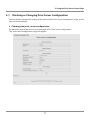
6 Print Server Configuration 6-1 Printing Print Server Configuration Press the panel button to print out the print server configuration. Configuration items that will be printed 1 2 I/F Board Information Print Server:DQ00-01XX Jan 20 2010/14:30:51 Configuration 3 MAC Address : 00 : 01 : 02 : 03 : 04 : 05 Ethernet : Auto ... 1 Title of the printout. 2 Firmware version of the device. Same as noted on the print server homepage. 3 Configuration programmed in the device. Same as noted on the print server homepage. 4 Network settings such as the IP address currently being used by the device. When the network is not connected, the IP address will be “0.0.0.0”. 5 Displayed only when the DHCP server is enabled to obtain the IP address. Network 4 Ethernet : Auto Negotiation IP Address : 169.254.1.10 DHCP Server :192.168.1.10 Gateway :192.168.1.10 100BaseTX/Full ... 5 DNS1 :0.0.0.0 DNS2 :0.0.0.0 6-2 Restoring to Factory Default Settings 1) Press and hold the panel button to switch to setting mode. 2) When the device has switched to the setting mode, press and hold the panel button again within three seconds. The following message will be printed, after which the device will return to factory default settings. I/F Board Information --!Caution!-Print server will automatically restart. CAUTION When the operation is complete, the device will restart automatically. When the device is set to automatically obtain the IP address through the DHCP server, the IP address assigned may be different from the previous one. 22