1
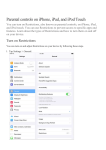
iPad 101: Getting to Know Your Device Presented by Steven Butler will force close an app if you find the app has become unresponsive). The multi‐tasking menu is especially useful when you are working on things like briefs. The other buttons on your device(when holding in portrait mode) are the power button that is on the top of the iPad, the mute/orientation switch on the right side of the device (near the top), followed by the volume up and down buttons. These buttons are really self‐explanatory, with the exception of the mute/orientation lock. This switch is configured in the settings, and is the only button that you get any customization choice with. Power Button Mute/Orientation Lock Volume To determine how the side switch will be used, you have to go into the settings app. Once you open settings, click on “General” (which should be in the third group of settings), and near the middle of the general settings, there is an option “USE SIDE SWITCH TO”. If you would like the switch to be used to easily mute your iPad, select “Mute”. If you would prefer to use the switch to quickly lock the orientation of your device (this means that even as you turn your device from portrait to landscape, it will not change the screen), select “Lock Rotation”. If you do a lot of reading on your iPad, and have problems with the page switching orientations on you when you don’t want it to, you may want to choose to have the switch “Lock Rotation”. If you are having a difficult time choosing what you want to use the switch for, don’t worry, I will also show you a shortcut to get to the one you didn’t select when we get to control center. October 16, 2014 2