1
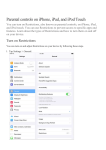
iPad 101: Getting to Know Your Device Presented by Steven Butler You can also download the manual directly from the Apple iBooks app. If you are not sure if you have iBooks installed, use a Spotlight Search to try to find it. If iBooks is not installed, it can be downloaded for free from the Apple App Store. Just search for iBooks and install it. Once you launch iBooks, you can select any of the buttons on the bottom of your screen, other than “My Books” to browse the iBooks store. Once in the iBooks store, use the search box in the top right of app to search for “iPad User Guide”. In the results, you want to find the User Guide that is published by Apple Inc. It is likely that books by other publishers will be in the search results, just make sure to select the Guide published by Apple that corresponds to your version of iOS (it will definitely be one of the free options). Once you download the User Guide, it will be available within “My Books”. Simply press My Books, and it will be one of your options. You can then learn more about the iPad in any of your free time. Bonus Tip: You can determine your version of iOS by going to the Settings App and selecting General, then “About”. Within “About” you will find the version of iOS you are running about midway down the screen. You can also find your model number in this screen. The iOS version is straightforward and gives you the exact version number. The model number is a little more cryptic (combination of letters and numbers), but if you do a quick web search of the model number, it will easily identify what generation of the iPad you are running. October 16, 2014 9