1
Troubleshooting Tips
Troubleshooting Tips
A
If the solutions listed in this section do not solve your problem, contact your service provider for
assistance.
Your service provider may ask for the status of the gateway LEDs as described in Front Panel LED Icons
and Error Conditions.
You may have to reset the SBG6580 gateway configuration to its original factory settings if the gateway
is not functioning properly.
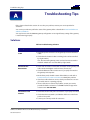
Solutions
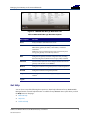
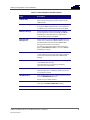
Table 5: Troubleshooting Solutions
Gateway Problem
Possible Solution
POWER LED Icon
is OFF
• Check the power connection on the gateway and to the electrical
outlet.
• Check that the electrical outlet is working (is the outlet controlled
by a light switch?).
If so, disconnect the gateway power cord and connect to another
electrical outlet that is not controlled by a light switch.
Cannot Send or
Receive Data
• Check each end of the coaxial cable connection on the gateway and
cable outlet. Hand tighten each connector, if necessary.
• Check the Ethernet cable to make sure it is properly connected to
the gateway and computer.
• On the front panel, check the status of the LED icons and refer to
Front Panel LED Icons and Error Conditions to identify the problem.
• If you have cable television service, check your television to ensure
your cable service is operating properly.
• If none of the above resolves the problem, contact your service
provider for further assistance or call ARRIS Technical Support for
assistance at 1-877-466-8646.
Cannot Access the
Internet
• Check that all cable and power connections are properly connected.
• Check that the Power, Online, and Wireless LED icons on the front
panel are lit up solid.
• Contact your service provider for assistance.
SURFboard® SBG6580 Wireless Cable Modem Gateway • User Guide
365-095-25397-x.1
40