1
Supporting Java Customization on a Managed Server
Supporting Java Customization on a Managed
Server
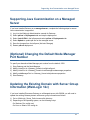
If you have installed Gateway on a managed server, complete the following steps to ensure
Java customization is supported:
1)
2)
3)
4)
5)
6)
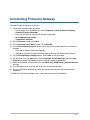
Log in to the WebLogic Administration console for Gateway.
Select pdi.ear in Deployments tab and stop the deployment.
Select Lock & Edit in the left pane and select pdi.ear in Deployments tab.
Select Update to update pdi.ear for the managed server.
Save the changes from the left pane (Activate Changes)
Restart pdi.ear deployment.
(Optional) Changing the Default Node Manager
Port Number
To specify an alternative Node Manager port number from the default, 5556:
1)
2)
3)
4)
5)
Stop Gateway and the Node Manager.
Modify ListenPort in <Gateway_Domain>\config\config.xml.
Modify ListenPort in <Gateway_Domain>\nodemanager\nodemanager.properties.
Modify nodeManagerPort in <Gateway_Home>\wlst\primavera.properties.
Start Gateway.
Updating the Existing Domain with Server Group
Information (WebLogic 12c)
If you have installed Primavera Gateway on a Managed server with OWSM, you will need to
update the existing Gateway domain with server group information as follows:
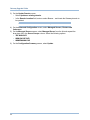
1) Go to <WebLogic_Server_Path>/common/bin directory
2) Depending on the operating system, run the following script:
On Wndows: Run config.cmd
On Linux or Solaris: Run config.sh
21