1
Professional Edition
will give the mapping information necessary to convert the
individual DXF layers to separate TraxMaker layers.
When exporting a TraxMaker PCB design as a DXF file, all
netlist information is lost. All components of the PCB
design (tracks, pads, vias, etc.) are converted to free
primitives, and can be edited as such. You can choose to
export individual layers to a DXF file, or export the entire
PCB design onto a single DXF layer.
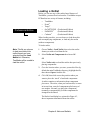
Importing DXF files
To import a DXF file,
1
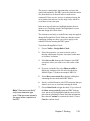
Choose File > Import > DXF, then type the filename or
click the Browse button to find and select the DXF file
to be imported.
2
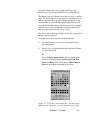
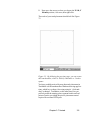
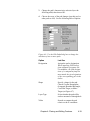
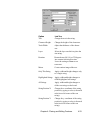
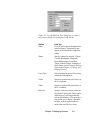
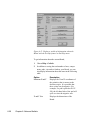
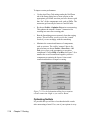
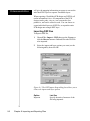
Select the import and layer options you want (see the
following table), then click OK.
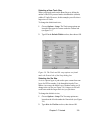
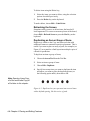
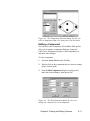
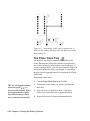
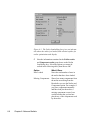
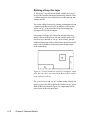
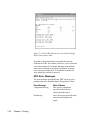
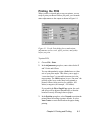
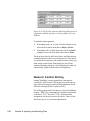
Figure 9.1. The DXF Import Setup dialog box allows you to
choose the import and layer options
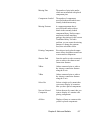
Option
Import in
9-2
Chapter 9: Importing and Exporting Files
Lets You
Specify the units of measure of the
file being imported.