1
2. INSTALLATION
2. Installation
SPECTRUM 4.0
Installation DVD
Before you can start using SPECTRUM 4.0, you must make sure that your PC meets the necessary
requirements (see chapter 2.1 for system requirements) for optimum software function. To install the
software, follow the steps shown in this chapter.
2.1 System requirements
For the installation of SPECTRUM 4.0 and further work with the software, the following
system requirements must be met:
•
Operating system Microsoft Windows:
7 / Vista / XP, with the latest Service Pack
•
Minimum Pentium IV processor or similar
•
Minimum 1 GB RAM, 2 GB recommended
•
5 GB free disk space on hard drive
•
DVD-ROM drive
•
USB socket for licence key / CM stick
•
Screen resolution 32 bit colour depth, at least 1024 x 768, 1280 x 1024 recommended
•
DirectX 9.0 or compatible graphics board
2.2 Installation process
Insert the Caparol SPECTRUM 4.0 DVD in the DVD drive of your PC and click on “Setup.exe” in the root
folder of the DVD. The Caparol SPECTRUM 4.0 installation wizard will start and guide you through the
installation process.
Note:To ensure SPECTRUM 4.0 is installed correctly, we recommend deinstalling the firewall during
installation.
SPECTRUM 4.0 requires the following programs (included on the DVD) to run the main program:
> Windows Installer for Windows 7 / XP / Vista
> .NET Framework Version 3.5 or higher
The Caparol SPECTRUM 4.0 installation wizard will check during startup if all the required programs
09/2010 - Caparol SPECTRUM 4.0 - User Manual
7
2. INSTALLATION
have been installed. If this is not the case, the installation wizard for necessary programs will be opened
automatically to guide you through their installation processes.
The installation wizard will show you on the next screen a list of which programs need to be installed. Click
on the “Next” button to continue installation. The setup wizards for the required components will be called
one after the other.
09/2010 - Caparol SPECTRUM 4.0 - User Manual
8
2. INSTALLATION
Follow the respective instructions to install the programs. Using the checkbox provided, you can also
select whether you want to interrupt the installation of SPECTRUM 4.0 after installing the necessary
programs. This checkbox is activated by default.
As soon as all the programs necessary for the operation of the main program have been installed, the
SPECTRUM 4.0 setup wizard will start. Follow the wizard’s instructions to install the program.
When you have completed installation, insert the CM stick (your licence key) into a USB socket and start
SPECTRUM 4.0.
Note: The CM stick must always be connected to be able to work with SPECTRUM 4.0.
2.3 Updates
When you start the program, SPECTRUM 4.0 informs you about the availability of new updates. If you
receive information about an update, always install it to ensure your software is up-to-date.
Note: The updates offered to you when you start the software only update the program itself. If you
would like to load new colours or materials, you have to use the online material database integrated in the
EXPLORER program module (see chapter 4.2.4).
09/2010 - Caparol SPECTRUM 4.0 - User Manual
9
3. PROGRAM OVERVIEW
3. Program overview
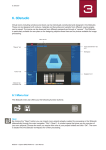
3.1 Structure of the program interface
Program navigation
- Modules -
Main navigation
Menu bar
Tabs
ColorMunki
Buntstift 3D
Main navigation
The main navigation bar is at the top edge of the screen and contains the options File, Studio, View, Extras and Help. These will be explained in more detail in chapter 3.2.
Program navigation – modules
Program navigation is in the top left-hand section of the screen and contains the five modules EXPLORER, PHOTOstudio, 3Dstudio, MATERIALstudio and SHOW. These buttons can be selected from anywhere and enable users to change between modules. More detailed information about the way the individual modules work can be found in chapters 4 to 8.
Function buttons on the menu bar
The function buttons for the individual modules can be selected directly under the coloured line of the
modules in the central screen area. With the aid of these symbols you can import, expert, save or print
data, depending on the module. The buttons are explained in more detail in the respective module.
09/2010 - Caparol SPECTRUM 4.0 - User Manual
10
3. PROGRAM OVERVIEW
Tabs
There are tabs with different contents and tools positioned on the right and/or left-hand side of the program interface; these can be opened by clicking the tab name. The contents of the tabs are explained in
more detail in the respective module.
3.2 Main navigation
The main navigation contains the buttons used to switch between the various program modes of the five
modules. They are available from every area.
The main navigation is visible from every area. Depending on the module currently chosen, it sometimes
contains different functions that are characteristic for the particular module in question.
3.2.1 File
The contents of the “File” menu vary in the save, print or open options depending on the module. The
“File” menu always includes the possibility of closing the program using “Exit”. You will be given more
information about the “File” functions in the respective module.
EXPLORER
SHOW
PHOTOstudio
3Dstudio
MATERIALstudio
09/2010 - Caparol SPECTRUM 4.0 - User Manual
11
3. PROGRAM OVERVIEW
3.2.2 Studio
In the “Studio” you can change between the individual modules. Alongside an overview of the modules,
you can also find access to the “PHOTOservice” here.
3.2.3 View
The “View” function is available as a menu item in the modules “EXPLORER” and “PHOTOstudio”. You will
be given more information about the “View” functions in the respective module.
PHOTOstudio
EXPLORER
3.2.4 Extras
You have a choice of five different functions under “Extras”.
myMaterial-Manager
Click “myMaterial-Manager” to reach the “myMaterial-Manager” view of SPECTRUM 4.0. Find more information about this in chapter 10 “myMaterial-Manager”.
SPECTRUM-Update
Click “SPECTRUM-Update” to install the latest SPECTRUM 4.0 update on your computer. Refer to chapter 2.3 as well.
Colour settings
The “Colour settings” button can be used to calibrate your monitor/printer with the calibration bars or the
ColorMunki. More detailed information about this can be found in chapter 11 “Colour true – calibration –
ColorMunki”.
09/2010 - Caparol SPECTRUM 4.0 - User Manual
12
3. PROGRAM OVERVIEW
Options
If you fade in the “Options”, you have the possibility of changing the “General settings” for the directory,
data directory and country/language. Under “Extended settings” you can change to Automatic saving of
your data in the PHOTOstudio as well as representation of your graphics board (if your graphics board
does not support the standard setting “Open GL” you can change to the “DirectX” setting here). In addition, you can activate or deactivate the display of the PHOTOstudio and PHOTOservice wizards.
Registration
“Registration” takes you to the input window for registering your customer data for the use of PHOTOservice or ordering the free newsletter. Further information about the PHOTOservice can be found in chapter 9.
Information about the free SPECTRUM newsletter service can be found in chapter 12.
3.2.5 Help
Clicking “Help” will take you to the “Online help“ of the online version of the SPECTRUM 4.0 user manual
(pre-requisite for this is an existing Internet connection).
The “Version...” area provides information about the current version for your SPECTRUM 4.0 on your PC.
“Help” can be accessed from every module.
3.3 Program navigation – modules
The program navigation contains the buttons used to switch between the various program modes of the
five modules. They are available from every area.
EXPLORER
PHOTOstudio
3Dstudio
MATERIALstudio
SHOW
09/2010 - Caparol SPECTRUM 4.0 - User Manual
13
3. PROGRAM OVERVIEW
3.4 Shortcut commands
The use of shortcut commands can make working with PHOTOstudio easier. You can use them to get your
work done faster:
BackspaceDelete point (last point added is deleted, pre-requisite: area opened)
Del
PHOTOstudio - Delete point (mark point then click Del)
Note: If the end point of an area is deleted, it opens again automatically.
EXPLORER - Delete project folder (mark project then click Del)
Ctrl + click
In Stamp mode: Define source point
Space bar + click
Move image (alternative: drag keeping the right mouse button pressed)
Shift + click
Multiple selection of points/lines (keep the Shift key pressed)
A
Select all (in “Component tools” tab)
Ctrl Move selection (move the mouse will holding the Ctrl key)
Esc
Component tools>Grid - Move back to standard mode/move point
Page up Zoom in (enlarge image), alternative: scroll using the mouse wheel
09/2010 - Caparol SPECTRUM 4.0 - User Manual
14
3. PROGRAM OVERVIEW
Page down
Zoom out (make image smaller), alternative: scroll using the mouse wheel
E + ClickScale mode: Use “E” to change to “Scaling” mode, click on a spot to set vanishing point (= initial point for scaling), use the “A” key to select all, keep “Ctrl” key
pressed and drag keeping mouse button pressed
I
Component tools - Invert selection
R + ClickRotation mode: Use “R” to change to rotation mode, click on a spot to set rotating point (= initial point for rotation), use the “A” key to select all, keep “Ctrl” key
pressed and rotate, keeping mouse button pressed
SComponent tools>Grid - Insert point in area/corner grid (keep “S” pressed and
click on a horizontal line)
Ctrl + Z PHOTOstudio - Undo one step
Note: When areas are created, the areas up to the ones closed last will be deleted.
Alt + O View b/w
Ctrl + N
EXPLORER - Create new project
Ctrl + X
EXPLORER - Cut
Ctrl + C
EXPLORER - Copy
Ctrl + V
EXPLORER - Paste
Ctrl + R
Rename
(EXPLORER: click on an image in a project folder, then click Ctrl + R)
Ctrl + S
Save an intermediate status in the PHOTOstudio
F1
Request online help
Note: Pre-requisite is an existing Internet connection
09/2010 - Caparol SPECTRUM 4.0 - User Manual
15
3. PROGRAM OVERVIEW
3.5 Caparol Colour Collections pictograms
When a selection is made from the Caparol Colour Collection, different icons are shown depending on the
colour. These provide information on whether the selected colour is possible in the respective materials:
Dispersion paints and synthetic resin-bound renders/plasters
Alkyd lacquers and acrylic enamels
Silicate paints (tintable with Capatint)
Silicate paints (to be tinted only by the manufacturer)
Mineral lightweight render/plaster
Silicone paints (tintable with Capatint)
Silicone paints (to be tinted only by the manufacturer)
Lime colours
Brightness reference value
09/2010 - Caparol SPECTRUM 4.0 - User Manual
16