1
Registration, Reactivation, Renewal
Using Quick Heal Remote Device Management
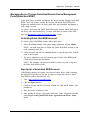
With Quick Heal RDM, users can manage the following features:
Backup and Restore: Take the backup of the personal data and restore it when
required.
Locate:
Trace your device - Helps tracing the device when its lost or stolen.
Ring the device - Helps locating the device when misplaced. This works only
when the device is misplaced in a nearby area.
Lock: Remotely block access to the device data to prevent misuse when the
device is lost or stolen. This also helps to configure Anti-Theft settings or even
change the secret code.
Wipe: If the device is lost or stolen, wipe the already configured data to prevent
misuse.
Virus Protection: Helps to change the Virus Protection settings from the device.
Automatic Backup: Helps change the Automatic Backup settings on the device.
Web Security: Helps configure the Web Security settings on the device.
Update virus database: Remotely updates the virus database of Quick Heal
Tablet Security on the device.
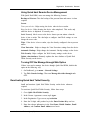
Turning OFF the Manage through Web Option
If there is no need to manage the device through Quick Heal RDM, disable this
option in the following way:
1. On Dashboard, go to menu > General Settings.
2. Tap Web Console Settings. Then turn Manage this tablet through web
OFF.
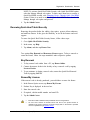
Reactivating Quick Heal Tablet Security
Install and reactivate Quick Heal Tablet Security on the device whenever
required.
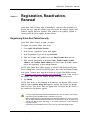
To reactivate Quick Heal Tablet Security, follow these steps:
1. Go to Quick Heal Tablet Security.
2. In the License Agreement screen, tap I Agree.
3. In the Registration Type screen, tap Activation.
4. Enter the 20-digit valid product key in the Enter Product Key text box.
5. Enter the relevant information in the User Name, Mobile Number, Email
Address, and Confirm Email Address text boxes.
© 2013 Quick Heal Technologies (P) Ltd.
9