1
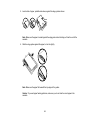
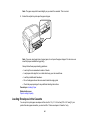
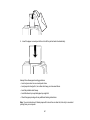
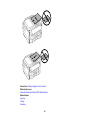
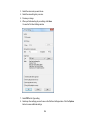
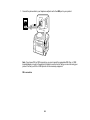
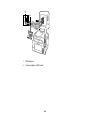
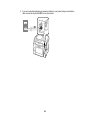
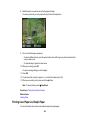
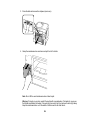
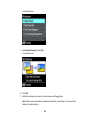
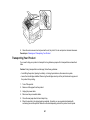
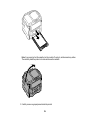
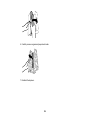
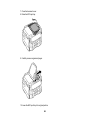
11. Reload your originals.
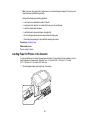
Caution: Make sure you do not load the ADF beyond its capacity for your paper size. Also make sure
your originals are not bent, folded, or curled and do not have tape, staples, or other materials that
could obstruct the feeder.
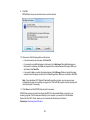
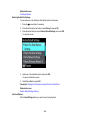
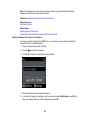
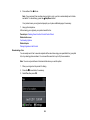
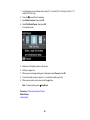
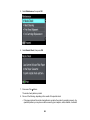
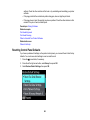
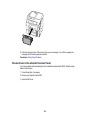
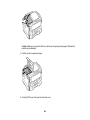
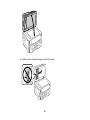
12. Follow the prompts on the LCD screen to clear any error messages. If you still see a paper jam
message, check the other paper jam solutions.
Parent topic: Solving Paper Problems
Paper Ejection Problems
If you have problems with paper ejecting properly, try these solutions:
• If paper does not eject fully, you may have set the wrong paper size. Cancel printing to eject the paper.
Select the correct paper size when you reprint.
• If paper is wrinkled when it ejects, it may be damp or too thin. Load new paper and be sure to select
the correct paper type setting when you reprint.
Parent topic: Solving Paper Problems
Related tasks
Cancelling Printing Using a Product Button
Related topics
Loading Paper
Solving Problems Printing from a Computer
Check these sections if you have problems while printing from your computer.
Nothing Prints
Product Icon Does Not Appear in Windows Taskbar
Error After Cartridge Replacement
Printing is Slow
Parent topic: Solving Problems
Nothing Prints
If you have sent a print job and nothing prints, try these solutions:
• Make sure your product is turned on.
283