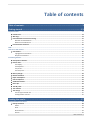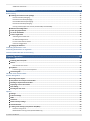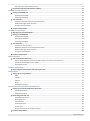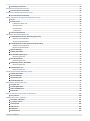
1
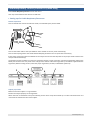
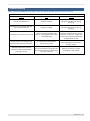
The main menu and the toolbar
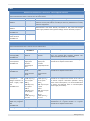
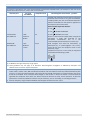
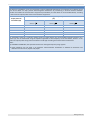
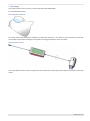
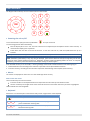
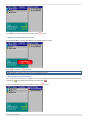
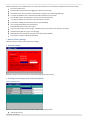
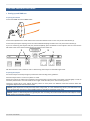
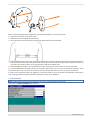
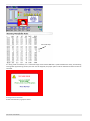
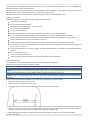
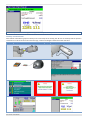
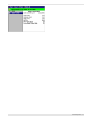
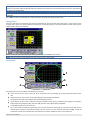
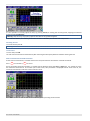
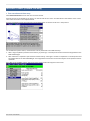
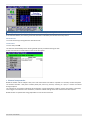
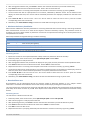
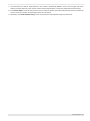
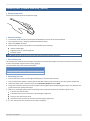
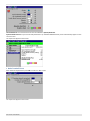
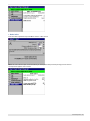
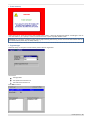
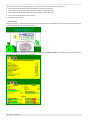
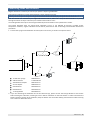
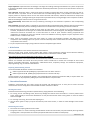
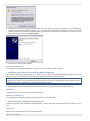
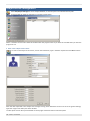
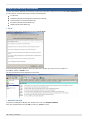
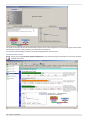
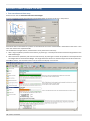
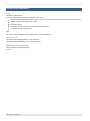
As soon as the Fitmate is turned on, the main menu appears on the display. Select the desired item to access to the
Fitmate’s functions.
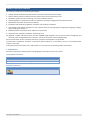
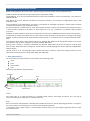
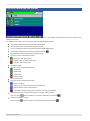
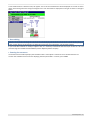
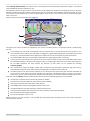
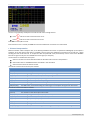
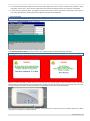
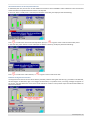
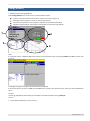
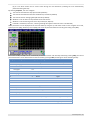
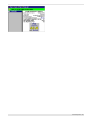
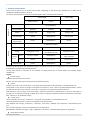
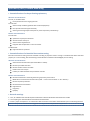
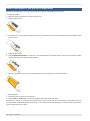
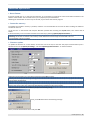
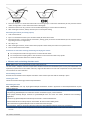
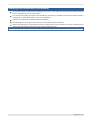
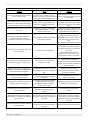
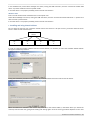
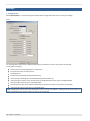
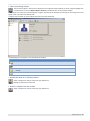
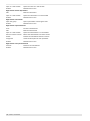
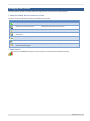
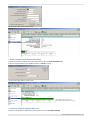
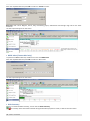
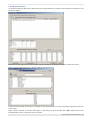
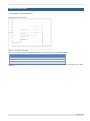
The toolbar (in the lower part of the screen) shows the following information:
The Fitmate model (in the above example: Fitmate PRO)
The firmware version (in the above example: 1.5 b12)
The current date and time (in the above example: 07/05/2009, 16:33)
The number of patients in archive (in the above example:
)
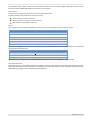
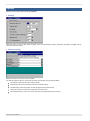
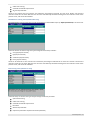
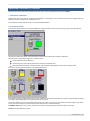
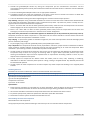
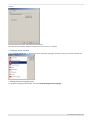
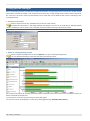
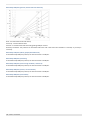
The state of the internal memory (% of memory free)
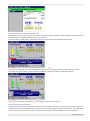
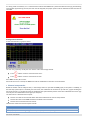
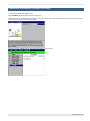
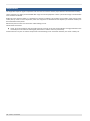
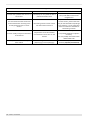
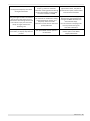
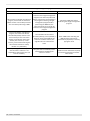
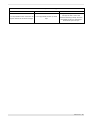
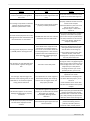
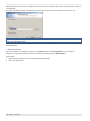
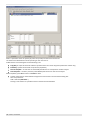
This icon can be in the following states:
More than 50% of free space
Between 20% and 50% of free space
Less than 20% of free space
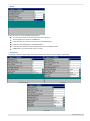
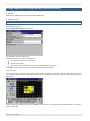
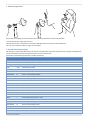
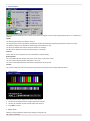
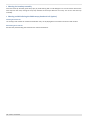
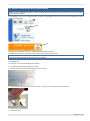
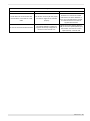
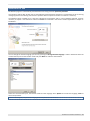
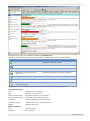
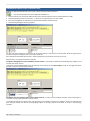
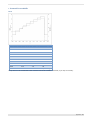
The battery state
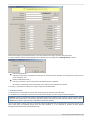
This icon can be in the following states:
Battery full
Battery half
Battery low
Battery empty
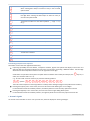
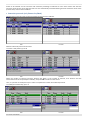
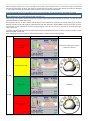
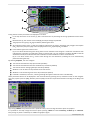
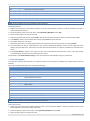
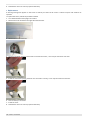
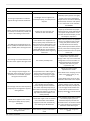
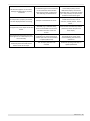
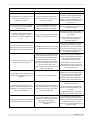
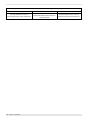
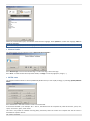
The O2 sensor state
This icon can be in the following states:
Sensor is optimal
Sensor is poor. Please plan for sensor replacement.
Sensor exhaust. Please replace sensor
There was a problem during sensor calibration. Do not perform tests.
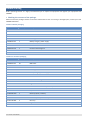
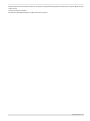
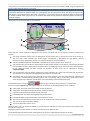
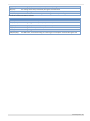
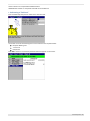
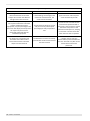
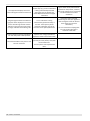
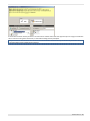
If USB connection to an external device (printer or ANT probe) is active
This icon is gray
if the connection is not active, otherwise it is coloured
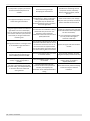
If the PC connection is active
This icon is grey
44 - Fitmate - User Manual
if the connection is not active, otherwise it is coloured