1
User Manual
English
If you do not use HyperTerminal, please make sure that your terminal application supports
VT100 commands.
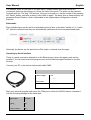
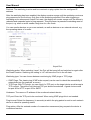
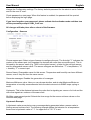
When a connection is successful, the device reports figures as below. Press ENTER to login.
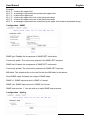
The power ports can be toggled by pressing numerical keys in the terminal program. The
character "z" will show the network settings. To logout, press the Esc key.
Configuration
TCP/IP configuration by DHCP
After switching on, the device will scan the Ethernet for a DHCP server and request an unused
IP address. Check the IP address that has been assigned and adjust it if necessary.The same
IP address is used at each restart. To turn off DHCP use the software GBL_Conf.exe or use the
configuration via the web interface.
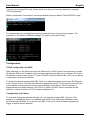
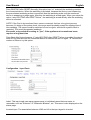
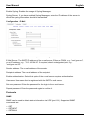
To check the network settings with GBL_Conf.exe, start the program and choose "All Devices"
in the "Search" menu. From the list select the appropriate device. The lower part of the left half
of the window now shows the current network settings of the device. If the IP address is
displayed with the default settings (192.168.0.2), either no DHCP server is present on the
network, or there could be no free IP address assigned to it.
Configuration by Software
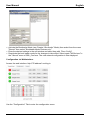
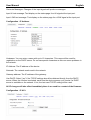
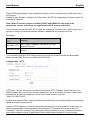
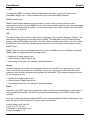
To view and change the network settings, you can use the program GBL_Conf.exe. The
program is available for free on our website www.LINDY.com and is also available on the
accompanying CD-ROM. You can also use GBL_Conf.exe to install firmware updates and
trigger a reset to factory defaults.