1
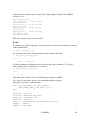
<absolute_path_to_CubeAccessLib>. Once the library is in place, two steps are
necessary to set it up for use:
1. Add the folder and its subfolders to the Matlab path so that Matlab can find the
library .m code.
2. Add the bwc_https2.jar file containing the cube-web interface Java object to the
Matlab Java path.
These steps are described here:
Add library to Matlab path
1) Open Matlab
2) Click on File-> Set path -> add with subfolders option -> browse to the top level folder
containing the cube interface (<absolute_path_to_CubeAccessLib>) -> click on OK then
Save. For example, my folder containing the cube interface is C:\Documents and
Settings\rweber\My Documents\Matlab Interface\CubeAccessLib.
If it says it does not have permission to save, then save to the directory that has
CubeAccessLib.
Add java classes to classpath
1) Open Matlab
2) at prompt type edit classpath.txt (Unix/Linux/Mac users please heed note
below while you have the classpath file open.)
3) Add
<absolute path_to CubeAccessLib>\common\lib\matlabjava\classes\bwc_https2.jar
to the first line after the comment lines (comment lines begin with ##) and save. Note that
you might have to close matlab and start it again for changes to take place. In my case
this line is:
C:\Documents and Settings\rweber\My Documents
\Matlab\CubeAccessLib\common\lib\matlabjava
\classes\bwc_https2.jar
*** IMPORTANT NOTE FOR UNIX/LINUX/MAC-OS USERS ***
In Unix-based systems, Matlab’s Java system will by default use an Https communication
class (ice.https.HttpsURLConnection) that is specialized and incompatible with the cube
interface library. To fix this, you must comment out a line in the classpath so that
Matlab’s Java will use the standard class (javax.net. HttpsURLConnection). Find the
following line in classpath.txt:
$matlabroot/java/jarext/ice/ib6https.jar
And add two “#” signs before the line so that it looks like this:
##$matlabroot/java/jarext/ice/ib6https.jar
11/10/2008
5