1
(Many video editing and other applications will do this for you, including the freeware
VirtualDub.)
Launch Video Player
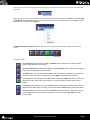
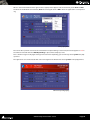
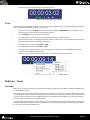
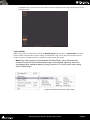
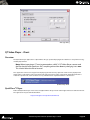
To launch a new video Player, go to launch frame (La) in the VT Server and click on DS Video Player, This will open
a black frame; this is the main frame of DS Video Player.
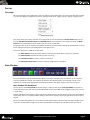
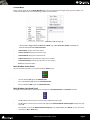
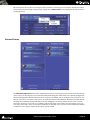
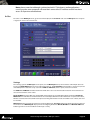
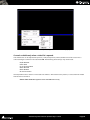
Video Frame with context pop-up menu
General controls
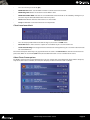
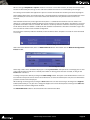
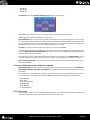
Right-clicking in the video frame will open the pop-up menu. From there the following settings can be made:
•
Open Opens a video file, or use the shortcut ctrl-O.
•
Close Closes a video file.
•
Minimize Minimizes the window, or use the shortcut M.
•
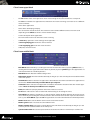
Apply a new frame rate to the video file using the command Apply New Frame Rate to File. Frame rates
can be:
• 12.00 fps
• 12.50 fps
• 14.98 fps
• 15.00 fps
• 24.00 fps
• 25.00 fps
• 29.97 fps
• 30.00 fps
• 48.00 fps
Virtual Transport User Guide : DS Video Player - Client
Page 21