1
Administrator Guide
As the administrator of the Ooma Office system, you will have privileges that are not accessible to other
users, including the abilities to add new users and phone numbers, configure advanced calling features,
update billing information, purchase add-ons to expand your setup, and more. This section of the guide
outlines the various actions that can be taken by the Ooma Office administrator.
Ooma Office Manager
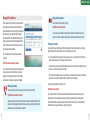
Ooma Office Manager is the web interface through which you will configure and manage your
Ooma Office account. You can reach the web portal by visiting the following site:
http://office.ooma.com
You will need the primary phone number and
password that you set up when you first activated
your account in order to log in.
Once you are logged in with the administrator account,
you can use Ooma Office Manager to add and manage
users, configure the Virtual Receptionist, set up
Music on Hold, and much more.
Note: If your primary number changes (for example, if
you port a phone number), the phone number you use
to log into Ooma Office Manager will also change.
14
Managing Users and Devices
Each time you wish to add a new person to your Ooma Office account, you will create a new user on the
system. You can also create users that correspond to a place such as the front desk, or to a function such
as a reservations. Each user will have its own extension number so that it can be reached through the
Virtual Receptionist or by dialing the extension directly. Users can log into the End User Manager
to configure their extension and voicemail preferences.
Creating users
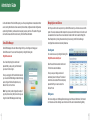
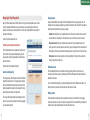
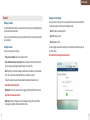
You can add a new user by visiting the following URL:
http://office.ooma.com/add_user
Select the user’s internal extension number and
fill in their name and email address.
Once you save your changes, an email will
automatically be sent to the user. This email will
contain the user’s voicemail PIN and a temporary
password that they can use to access the
End User Portal.
Editing users
Click on an existing user in the Manage Extensinons page to edit the user’s information. Click the trash
icon to delete a user. Note: Deleting a user will remove all of the user’s voicemail and call log history.
15










![Audio Extremes Entertainment [Graffiti Spray User Manual]](http://vs1.manualzilla.com/store/data/005858722_1-74e7fc11dae975c9529a69c83302f350-150x150.png)