1
Contents
ROBO Master Pro
Index
OPS661
4.15 Position Window
4.16 Metafile Loading Settings Window
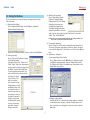
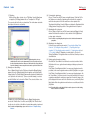
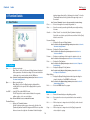
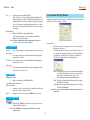
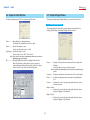
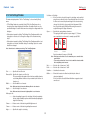
This window is displayed when "Position Settings..." is chosen from the [Draw] menu.
Position can only be chosen when a shape is selected, allowing the Position, Size, and
Angle of Rotation of the selected shape to be set.
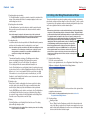
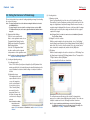
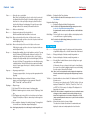
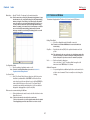
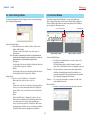
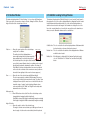
This window is displayed when "Metafile Settings" is chosen from the [Insert] menu. In
this window, the color of the cut lines displayed when the cutting data has been loaded
in the Windows metafile provided and the color of the cut lines displayed when an
outline has been traced can be changed. Use this window to change the color of the
lines to be converted when the color used is the same as that used for drawn lines, or
when you need to differentiate between cut lines and fold lines.
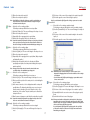
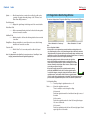
Solid Cut Line .. The color selected for the cut lines displayed when a Windows metafile
has been loaded, or when an outline has been traced.
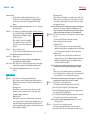
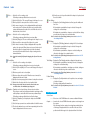
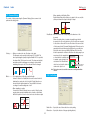
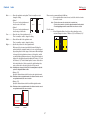
Position ............ Shows the current position of the selected shape
using X and Y coordinates.
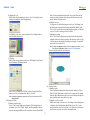
The small red circle that is displayed when a
Height of
the shape
circumscribed rectangle has been drawn around the
shape and that shape is selected is the position of
the selected shape. Here, the origin is at the lower-left Position of the shape
corner of the document. Numeric values for coordinates can be entered
directly from the keyboard to determine the position of the shape. (If
"Select Object" has been selected and the mouse cursor is positioned
on the screen, the coordinates of the current mouse cursor position are
shown at the lower right part of the screen for reference purposes.)
Width of the shape
Dashed Line .... The color selected for the dashed cut lines displayed when a Windows
metafile has been loaded.
Modify Color .... Click this button to display the [Color] window. Specify the desired
color for "Solid Cut Line" or "Dashed Line", and then click the [OK]
button.
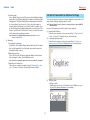
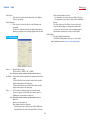
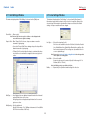
Size.................. Shows the size of the selected shape by Width and Height.
The size is represented by coordinates. While drawing, if the mouse
cursor is moved in the direction away from the origin, a "positive" value
is displayed. Conversely, if the mouse cursor is moved in the direction
toward the origin, a "negative" value is displayed. Numeric values
can be entered directly for "Width" and "Height" from the keyboard to
determine the size of the shape.
Hold aspect ratio
............When ON has been selected, the Size of the selected shape can be
changed without changing its width-to-height ratio.
If the Width is changed, the Height is automatically changed accordingly.
If the Height is changed, the Width is automatically changed accordingly.
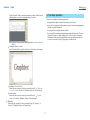
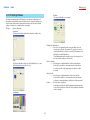
Angle of Rotation
............ Shows the angle of rotation of the selected shape.
This angle is counted counterclockwise, up to 360 degrees. A num eric
value for angle of rotation can be entered directly from the keyboard.
31