1
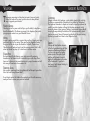
GETTING STARTED
GETTING STARTED
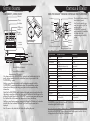
PLAYSTATION 3 system front
ATTACKING
Using the SIXAXIS™ wireless controller (for PLAYSTATION®3)
CONTROLS
& COMBAT
®
Fast attacks in Viking: Battle forSlot
Asgard
coverare swift but tend to do less damage.
Slow attacks are much more powerful and can be charged up by
1
holding the F button downCF*
forslot
a period of time. Enemies will take a lot
slow
move, but you are then at a greater risk
more damage when hit by aEject
button
of being hit due to the fact that the move takes longer.
2
SD* Memory
If you are a skilled warrior, Card
youslot
can use combinations of moves to chain
attacks together to inflict more
damage on your enemy.
Memory
Stick™ slot
If you are buffed up with power (see below), then holding down F and S
together will produce a devastating power move.Insert the disc with the
CF
CONTROLS & COMBAT
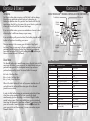
USING THE SIXAXISTM WIRELESS CONTROLLER (FOR PLAYSTATION®3)
Port indicators
USB connector
L2 button
L1 button
R2 button
R1 button
Directional
buttons
button
button
button
button
Left stick/
L3 button*
Right stick/
R3 button*
SD/miniSD
label side facing up.
*1 CompactFlash®
enemy,
When you manage to hit an*2 Secure
Digital you will receive a Rage Crystal
(see below). These give you access to the more powerful moves you have
purchased from the Asgardian Dueling Ring. Once you have acquired
moves and have earned RAGE Crystals, holding down Q switches you
between a normal state and RAGE mode.
Disc slot
Power button
RAGE MODE
Vent
The F and S buttons act in much the same way as they did before, but the
Eject button
moves you will deliver to your enemy will be selected
directly from your
purchased (more powerfulWLAN
or advantageous)
access indicator moves. Rage moves are
performed using multiple taps of the relevant button. For example:
HDD access indicator
F = Level 1 Slow Rage Move
USB connectors
S x 2 = Level 2 Fast Rage Move
F x 3 = Level 3 Slow Rage Move ®
Note: Some models of the PLAYSTATION 3 system do not include media slots. For specific
®
features
refer tobuttons
the instructions
for use
your
model ofdescribed
the PLAYSTATION
will work
in of
the
manner
above. If3 system.
Eitherincluded,
of the attack
you hold down the button, and then release, you will use the most
Starting
a game: Before use, carefully read the instructions supplied with the PLAYSTATION®3
powerful move available.
computer entertainment system. The documentation contains information on setting up and
using
your system
as well
as important
safety
In order
to inflict
further
damage
on information.
your enemies, particularly at times
when there are large numbers of the Legion engaging the player
Check
that the MAIN POWER
switch
rear) isMagic
turnedtoon.bolster
Insert the (title
simultaneously,
you have
the (located
ability on
to the
usesystem
Elemental
name)
disc with
labelmen.
facingThis
up into
disc
slot. Select
theyou
icon for
thepurchased
software title under
yourself
andthe
your
is the
only
available
once
have
®
runesin from
the Blacksmith
in your
home
To gain
thisto this
[Game]
the PLAYSTATION
3 system’s
home
menu,settlement.
and then press
the Saccess
button.toRefer
power
the midst
combat,
you must hold down R and select the
manual
forin
information
on of
using
the software.
power you wish to use. Please see page 7 for more information on your
START button
PS button
SELECT button
* The L3 and R3 buttons function when the sticks are pressed.
Viking™ Game Controls
BUTTON TO USE:
POWER SELECTION
INVENTORY SELECTION
Note:
To use the controller,
you must first register or “pair”
the controller with the
Left stick
Player movement
Player movement
PLAYSTATION®3 system and assign a number to the controller. For details, refer to the
Right stick
Camera control
Camera control
instructions supplied with the system.
Directional buttons
Not Used
Change target for projectile weapon
S
Not Used
Not Used
A
Enable Fire power (Region buff)
Use Health Potion
F
Enable Ice power (Region
Throw Throwing Axe
® buff)
D
Enable Lightning power (Region buff)
Throw Flame Pot
Saved data for PLAYSTATION®3 format software is saved on the system’s hard disk.
Q
Not Used
Not Used
The
data is displayed under
“Saved Game Utility” in the Game
menu.
E
Not Used
Not Used
W
Block
Block
R
Not Used
Not Used
B
Not Used
Not Used
N
Centers the camera
Centers the camera
START button
Not Used
Not Used
SELECT button
Open Map/Inventory/Message (Standard Play) Open Map/Inventory/Message (Standard Play)
or Freya Cam (Battle)
or Freya Cam (Battle)
Saved data for PLAYSTATION 3 format software
Elemental
Abilities.
Quitting
a game:
During gameplay, press and hold down the PS button on the wireless
controller for at least 2 seconds. Then select “Quit Game” from the screen that is displayed.
6
Hint
To remove a disc, touch the eject button after quitting the game.
7