1
2 Introduction
This package allows to write control algorithms (neural networks, classier system, or anything
else you may imagine) using C or C++ languages. A library of functions is provided that permits
to drive the robot and display results. The simulator runs on Unix workstations and features a
nice X11 colorful graphical interface. Some examples of controllers are given within the package,
including a neural network controller. The simulator also features the ability to drive a real
Khepera robot, so you can very easily transfer your simulation results to the real robot by clicking
on a button.
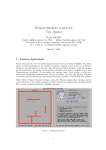
The screen of the Khepera Simulator is divided into two parts: the \world" part stands on the
left while the \robot" part stands on the right (see gure 1). In the world part, one can observe
the behavior of the robot in its environment whereas in the robot part, one can observe what is
going on inside the robot (sensors, motors and controller).
2.1 Description of the world
chaos.world
maze.world
Figure 2: Two examples of simulated worlds
Various worlds for the robot are available in the SIM/WORLD/ directory. Press the \load" button
and type the world le name (without the .world extension) to load one of them. Moreover, it is
possible to edit them or to design a new world from scratch by pressing the \new" button. Resulting
worlds can be saved using the \save" button. Bricks, corks or lamps are laid in the environment
resulting in more or less complex mazes (see for example gure 2). The real dimensions of this
simulated environment (comparing to the real robot Khepera) are 1m 1m.
To add an object, select it using the \+" and \-" buttons. If you want to turn an object on
itself (for a brick for example), then press the \turn" button as many times as it is necessary.
Then, to set the object at a location in the world, press the \add" button and drop the object
in the world, then unpress the \add" button.. If you want to remove objects, press the \remove"
button and click on the objects you want to remove. To get out of the remove mode, unpress the
\remove" button. Once the bricks and corks have been laid, it is necessary to press the \scan"
button before the robot could perceive them. It is possible to check what the robot can perceive
by pressing the \!" button.
2