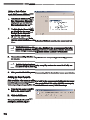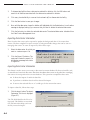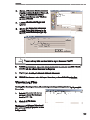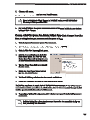
1
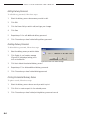
SUPPLY CHAIN MANAGER
User’s Manual
February 2006
This publication was produced for review by the United States Agency for
International Development. It was prepared by the DELIVER project.
SUPPLY CHAIN MANAGER
User’s Manual
The author’s views expressed in this publication do not necessarily reflect the views of the
United States Agency for International Development or the United States Government.
DELIVER
DELIVER, a six-year worldwide technical assistance support contract, is funded by the U.S. Agency
for International Development (USAID).
Implemented by John Snow, Inc. (JSI), (contract no. HRN-C-00-00-00010-00), and subcontractors
(Manoff Group, Program for Appropriate Technology in Health [PATH], and Social Sectors Development
Strategies, Inc.). DELIVER strengthens the supply chains of health and family planning programs in
developing countries to ensure the availability of critical health products for customers. DELIVER
also provides technical management of USAID’s central contraceptive management information system.
Recommended Citation
John Snow, Inc./DELIVER. 2006. Supply Chain Manager User’s Manual. Arlington, Va.: John Snow,
Inc./DELIVER, for the U.S. Agency for International Development.
John Snow, Inc.
1616 North Fort Myer Drive, 11th Floor
Arlington, VA 22209 USA
Phone: 703-528-7474
Fax: 703-528-7480
Email: [email protected]
Internet: deliver.jsi.com
Contents
1. INTRODUCTION TO SUPPLY CHAIN MANAGER . . . . . . . . . . . . . . . . . . . . . . . . . . . . 1-1
What Is Supply Chain Manager? . . . . . . . . . . . . . . . . . . . . . . . . . . . . . . . . . . . . . . . . . . . . . . . . . . . . . . . . . . . . . . . . 1-1
Product Tracking Module . . . . . . . . . . . . . . . . . . . . . . . . . . . . . . . . . . . . . . . . . . . . . . . . . . . . . . . . . . . . . . . . . . . . . . 1-1
Distribution Resource Planning Module . . . . . . . . . . . . . . . . . . . . . . . . . . . . . . . . . . . . . . . . . . . . . . . . . . . . . . . . . . 1-2
What’s New In Version 3 . . . . . . . . . . . . . . . . . . . . . . . . . . . . . . . . . . . . . . . . . . . . . . . . . . . . . . . . . . . . . . . . . . . . . . 1-2
Minimum System Requirements . . . . . . . . . . . . . . . . . . . . . . . . . . . . . . . . . . . . . . . . . . . . . . . . . . . . . . . . . . . . . . . . 1-2
2. BEFORE YOU BEGIN . . . . . . . . . . . . . . . . . . . . . . . . . . . . . . . . . . . . . . . . . . . . . . . . . . . . . 2-1
Distribution System Requirements . . . . . . . . . . . . . . . . . . . . . . . . . . . . . . . . . . . . . . . . . . . . . . . . . . . . . . . . . . . . . . 2-1
Before Using Supply Chain Manager . . . . . . . . . . . . . . . . . . . . . . . . . . . . . . . . . . . . . . . . . . . . . . . . . . . . . . . . . . . . . 2-1
Identify Service Delivery Points (SDPs) . . . . . . . . . . . . . . . . . . . . . . . . . . . . . . . . . . . . . . . . . . . . . . . . . . . . . . 2-2
Identify Facilities . . . . . . . . . . . . . . . . . . . . . . . . . . . . . . . . . . . . . . . . . . . . . . . . . . . . . . . . . . . . . . . . . . . . . . . . . . 2-2
Assign Unique Facility Codes . . . . . . . . . . . . . . . . . . . . . . . . . . . . . . . . . . . . . . . . . . . . . . . . . . . . . . . . . . . . . . . 2-2
Assign a Contact Person for Each SDP . . . . . . . . . . . . . . . . . . . . . . . . . . . . . . . . . . . . . . . . . . . . . . . . . . . . . . 2-2
Identify Products . . . . . . . . . . . . . . . . . . . . . . . . . . . . . . . . . . . . . . . . . . . . . . . . . . . . . . . . . . . . . . . . . . . . . . . . . 2-2
Before Using the DRP Module . . . . . . . . . . . . . . . . . . . . . . . . . . . . . . . . . . . . . . . . . . . . . . . . . . . . . . . . . . . . . . . . . 2-3
Identify the Distribution Center . . . . . . . . . . . . . . . . . . . . . . . . . . . . . . . . . . . . . . . . . . . . . . . . . . . . . . . . . . . . 2-3
Identify Delivery Vehicles . . . . . . . . . . . . . . . . . . . . . . . . . . . . . . . . . . . . . . . . . . . . . . . . . . . . . . . . . . . . . . . . . . 2-3
Identify Delivery Personnel . . . . . . . . . . . . . . . . . . . . . . . . . . . . . . . . . . . . . . . . . . . . . . . . . . . . . . . . . . . . . . . . 2-3
Define Delivery Routes . . . . . . . . . . . . . . . . . . . . . . . . . . . . . . . . . . . . . . . . . . . . . . . . . . . . . . . . . . . . . . . . . . . 2-3
Using the DRP Module Effectively . . . . . . . . . . . . . . . . . . . . . . . . . . . . . . . . . . . . . . . . . . . . . . . . . . . . . . . . . . . 2-3
Before Using Multiple Level Installation . . . . . . . . . . . . . . . . . . . . . . . . . . . . . . . . . . . . . . . . . . . . . . . . . . . . . . . . . . 2-4
Identify Where the Data Centers Will Be Managed . . . . . . . . . . . . . . . . . . . . . . . . . . . . . . . . . . . . . . . . . . . . 2-4
Identify Facilities Belonging to Each Data Center . . . . . . . . . . . . . . . . . . . . . . . . . . . . . . . . . . . . . . . . . . . . . . 2-4
3. GETTING STARTED . . . . . . . . . . . . . . . . . . . . . . . . . . . . . . . . . . . . . . . . . . . . . . . . . . . . . . 3-1
Pull-Down Menus . . . . . . . . . . . . . . . . . . . . . . . . . . . . . . . . . . . . . . . . . . . . . . . . . . . . . . . . . . . . . . . . . . . . . . . . . . . . 3-2
Navigation Bars . . . . . . . . . . . . . . . . . . . . . . . . . . . . . . . . . . . . . . . . . . . . . . . . . . . . . . . . . . . . . . . . . . . . . . . . . . . . . . 3-2
Scroll Bars . . . . . . . . . . . . . . . . . . . . . . . . . . . . . . . . . . . . . . . . . . . . . . . . . . . . . . . . . . . . . . . . . . . . . . . . . . . . . . . . . . . 3-2
Tree View Menus . . . . . . . . . . . . . . . . . . . . . . . . . . . . . . . . . . . . . . . . . . . . . . . . . . . . . . . . . . . . . . . . . . . . . . . . . . . . . 3-3
4. SYSTEM MAINTENANCE . . . . . . . . . . . . . . . . . . . . . . . . . . . . . . . . . . . . . . . . . . . . . . . . . 4-1
System Configuration . . . . . . . . . . . . . . . . . . . . . . . . . . . . . . . . . . . . . . . . . . . . . . . . . . . . . . . . . . . . . . . . . . . . . . . . . 4-1
Linked Tables . . . . . . . . . . . . . . . . . . . . . . . . . . . . . . . . . . . . . . . . . . . . . . . . . . . . . . . . . . . . . . . . . . . . . . . . . . . . . . . . 4-5
Linking to a New Database . . . . . . . . . . . . . . . . . . . . . . . . . . . . . . . . . . . . . . . . . . . . . . . . . . . . . . . . . . . . . . . . . . . . 4-6
5. BACKGROUND DATA . . . . . . . . . . . . . . . . . . . . . . . . . . . . . . . . . . . . . . . . . . . . . . . . . . . 5-1
Adjustment Types . . . . . . . . . . . . . . . . . . . . . . . . . . . . . . . . . . . . . . . . . . . . . . . . . . . . . . . . . . . . . . . . . . . . . . . . . . . . 5-1
Adding Adjustment Types . . . . . . . . . . . . . . . . . . . . . . . . . . . . . . . . . . . . . . . . . . . . . . . . . . . . . . . . . . . . . . . . . . 5-1
Viewing Adjustment Types . . . . . . . . . . . . . . . . . . . . . . . . . . . . . . . . . . . . . . . . . . . . . . . . . . . . . . . . . . . . . . . . . 5-2
Editing Adjustment Types . . . . . . . . . . . . . . . . . . . . . . . . . . . . . . . . . . . . . . . . . . . . . . . . . . . . . . . . . . . . . . . . . . 5-2
Deleting Adjustment Types . . . . . . . . . . . . . . . . . . . . . . . . . . . . . . . . . . . . . . . . . . . . . . . . . . . . . . . . . . . . . . . . . 5-3
Products Menu . . . . . . . . . . . . . . . . . . . . . . . . . . . . . . . . . . . . . . . . . . . . . . . . . . . . . . . . . . . . . . . . . . . . . . . . . . . . . . 5-3
iii
S upply C hain M anager U ser ’ s M anual
Categories . . . . . . . . . . . . . . . . . . . . . . . . . . . . . . . . . . . . . . . . . . . . . . . . . . . . . . . . . . . . . . . . . . . . . . . . . . . . . . . . . . 5-3
Products . . . . . . . . . . . . . . . . . . . . . . . . . . . . . . . . . . . . . . . . . . . . . . . . . . . . . . . . . . . . . . . . . . . . . . . . . . . . . . . . 5-6
Category and Product Order . . . . . . . . . . . . . . . . . . . . . . . . . . . . . . . . . . . . . . . . . . . . . . . . . . . . . . . . . . . . . 5-10
Distribution Levels . . . . . . . . . . . . . . . . . . . . . . . . . . . . . . . . . . . . . . . . . . . . . . . . . . . . . . . . . . . . . . . . . . . . . . . 5-12
Adding Distribution Levels . . . . . . . . . . . . . . . . . . . . . . . . . . . . . . . . . . . . . . . . . . . . . . . . . . . . . . . . . . . . . . . . 5-12
Viewing Distribution Levels . . . . . . . . . . . . . . . . . . . . . . . . . . . . . . . . . . . . . . . . . . . . . . . . . . . . . . . . . . . . . . . 5-13
Editing Distribution Levels . . . . . . . . . . . . . . . . . . . . . . . . . . . . . . . . . . . . . . . . . . . . . . . . . . . . . . . . . . . . . . . . 5-14
Deleting Distribution Levels . . . . . . . . . . . . . . . . . . . . . . . . . . . . . . . . . . . . . . . . . . . . . . . . . . . . . . . . . . . . . . . 5-14
Printing the Selected Distribution Level . . . . . . . . . . . . . . . . . . . . . . . . . . . . . . . . . . . . . . . . . . . . . . . . . . . . . 5-14
Facilities Menu . . . . . . . . . . . . . . . . . . . . . . . . . . . . . . . . . . . . . . . . . . . . . . . . . . . . . . . . . . . . . . . . . . . . . . . . . . . . . . 5-15
Facility Types . . . . . . . . . . . . . . . . . . . . . . . . . . . . . . . . . . . . . . . . . . . . . . . . . . . . . . . . . . . . . . . . . . . . . . . . . . . . 5-15
Facility Type Groups . . . . . . . . . . . . . . . . . . . . . . . . . . . . . . . . . . . . . . . . . . . . . . . . . . . . . . . . . . . . . . . . . . . . . 5-19
Facilities . . . . . . . . . . . . . . . . . . . . . . . . . . . . . . . . . . . . . . . . . . . . . . . . . . . . . . . . . . . . . . . . . . . . . . . . . . . . . . . . 5-22
Purpose of Use . . . . . . . . . . . . . . . . . . . . . . . . . . . . . . . . . . . . . . . . . . . . . . . . . . . . . . . . . . . . . . . . . . . . . . . . . . . . . 5-28
Adding Purpose of Use . . . . . . . . . . . . . . . . . . . . . . . . . . . . . . . . . . . . . . . . . . . . . . . . . . . . . . . . . . . . . . . . . . 5-28
Viewing Purpose of Use . . . . . . . . . . . . . . . . . . . . . . . . . . . . . . . . . . . . . . . . . . . . . . . . . . . . . . . . . . . . . . . . . . 5-29
Editing Purpose of Use . . . . . . . . . . . . . . . . . . . . . . . . . . . . . . . . . . . . . . . . . . . . . . . . . . . . . . . . . . . . . . . . . . . 5-29
Reporting Groups . . . . . . . . . . . . . . . . . . . . . . . . . . . . . . . . . . . . . . . . . . . . . . . . . . . . . . . . . . . . . . . . . . . . . . . . . . . 5-30
Creating a Reporting Group . . . . . . . . . . . . . . . . . . . . . . . . . . . . . . . . . . . . . . . . . . . . . . . . . . . . . . . . . . . . . . 5-31
Editing Reporting Groups . . . . . . . . . . . . . . . . . . . . . . . . . . . . . . . . . . . . . . . . . . . . . . . . . . . . . . . . . . . . . . . . . 5-33
Deleting a Reporting Group . . . . . . . . . . . . . . . . . . . . . . . . . . . . . . . . . . . . . . . . . . . . . . . . . . . . . . . . . . . . . . 5-34
6. MULTI-TIER REPORTING . . . . . . . . . . . . . . . . . . . . . . . . . . . . . . . . . . . . . . . . . . . . . . . . . 6-1
Enabling Multi-Tier Reporting . . . . . . . . . . . . . . . . . . . . . . . . . . . . . . . . . . . . . . . . . . . . . . . . . . . . . . . . . . . . . . . . . . 6-1
Data Center Management . . . . . . . . . . . . . . . . . . . . . . . . . . . . . . . . . . . . . . . . . . . . . . . . . . . . . . . . . . . . . . . . . . . . . 6-2
Adding a Data Center . . . . . . . . . . . . . . . . . . . . . . . . . . . . . . . . . . . . . . . . . . . . . . . . . . . . . . . . . . . . . . . . . . . . 6-2
Building the Data Center File . . . . . . . . . . . . . . . . . . . . . . . . . . . . . . . . . . . . . . . . . . . . . . . . . . . . . . . . . . . . . . . 6-3
Editing Data Center Information . . . . . . . . . . . . . . . . . . . . . . . . . . . . . . . . . . . . . . . . . . . . . . . . . . . . . . . . . . . . 6-3
Deleting a Data Center . . . . . . . . . . . . . . . . . . . . . . . . . . . . . . . . . . . . . . . . . . . . . . . . . . . . . . . . . . . . . . . . . . . 6-4
Disassociating Associated Facilities . . . . . . . . . . . . . . . . . . . . . . . . . . . . . . . . . . . . . . . . . . . . . . . . . . . . . . . . . . 6-4
Exporting Data Center Information . . . . . . . . . . . . . . . . . . . . . . . . . . . . . . . . . . . . . . . . . . . . . . . . . . . . . . . . . 6-5
Importing Data Center Information . . . . . . . . . . . . . . . . . . . . . . . . . . . . . . . . . . . . . . . . . . . . . . . . . . . . . . . . . 6-5
Viewing Log Files . . . . . . . . . . . . . . . . . . . . . . . . . . . . . . . . . . . . . . . . . . . . . . . . . . . . . . . . . . . . . . . . . . . . . . . . . . . . . 6-7
Converting Database to Multi-Tier Center . . . . . . . . . . . . . . . . . . . . . . . . . . . . . . . . . . . . . . . . . . . . . . . . . . . . . . . 6-7
Creating a Multi-tier System From Existing Multiple SCM Data Files . . . . . . . . . . . . . . . . . . . . . . . . . . . . . . 6-8
Importing Data Center Wizard Files . . . . . . . . . . . . . . . . . . . . . . . . . . . . . . . . . . . . . . . . . . . . . . . . . . . . . . . . 6-10
7. PRODUCT TRACKING . . . . . . . . . . . . . . . . . . . . . . . . . . . . . . . . . . . . . . . . . . . . . . . . . . . 7-1
Adding Product Tracking Records . . . . . . . . . . . . . . . . . . . . . . . . . . . . . . . . . . . . . . . . . . . . . . . . . . . . . . . . . . . . . . . 7-1
Viewing Product Tracking Records . . . . . . . . . . . . . . . . . . . . . . . . . . . . . . . . . . . . . . . . . . . . . . . . . . . . . . . . . . . . . . 7-5
Editing Product Tracking Records . . . . . . . . . . . . . . . . . . . . . . . . . . . . . . . . . . . . . . . . . . . . . . . . . . . . . . . . . . . . . . . 7-6
Validation Checks . . . . . . . . . . . . . . . . . . . . . . . . . . . . . . . . . . . . . . . . . . . . . . . . . . . . . . . . . . . . . . . . . . . . . . . . 7-6
Printing the Selected Product Tracking Record . . . . . . . . . . . . . . . . . . . . . . . . . . . . . . . . . . . . . . . . . . . . . . . . 7-9
Exporting Product Tracking Records . . . . . . . . . . . . . . . . . . . . . . . . . . . . . . . . . . . . . . . . . . . . . . . . . . . . . . . . . 7-9
iv
8. DISTRIBUTION RESOURCE PLANNING . . . . . . . . . . . . . . . . . . . . . . . . . . . . . . . . . . . . 8-1
Facility Stock Counts . . . . . . . . . . . . . . . . . . . . . . . . . . . . . . . . . . . . . . . . . . . . . . . . . . . . . . . . . . . . . . . . . . . . . . . . . . 8-1
Adding Stock Counts . . . . . . . . . . . . . . . . . . . . . . . . . . . . . . . . . . . . . . . . . . . . . . . . . . . . . . . . . . . . . . . . . . . . . 8-2
Adding Products to Facility Stock Counts . . . . . . . . . . . . . . . . . . . . . . . . . . . . . . . . . . . . . . . . . . . . . . . . . . . . 8-3
Deleting Products From Facility Stock Counts . . . . . . . . . . . . . . . . . . . . . . . . . . . . . . . . . . . . . . . . . . . . . . . . 8-3
Viewing Facility Stock Counts . . . . . . . . . . . . . . . . . . . . . . . . . . . . . . . . . . . . . . . . . . . . . . . . . . . . . . . . . . . . . . 8-4
Editing Facility Stock Counts . . . . . . . . . . . . . . . . . . . . . . . . . . . . . . . . . . . . . . . . . . . . . . . . . . . . . . . . . . . . . . . 8-4
Editing Stock Count Dates . . . . . . . . . . . . . . . . . . . . . . . . . . . . . . . . . . . . . . . . . . . . . . . . . . . . . . . . . . . . . . . . . 8-5
Deleting Facility Stock Counts . . . . . . . . . . . . . . . . . . . . . . . . . . . . . . . . . . . . . . . . . . . . . . . . . . . . . . . . . . . . . . 8-5
Delivery Personnel . . . . . . . . . . . . . . . . . . . . . . . . . . . . . . . . . . . . . . . . . . . . . . . . . . . . . . . . . . . . . . . . . . . . . . . 8-5
Adding Delivery Personnel . . . . . . . . . . . . . . . . . . . . . . . . . . . . . . . . . . . . . . . . . . . . . . . . . . . . . . . . . . . . . . . . .8-5
Viewing Delivery Personnel . . . . . . . . . . . . . . . . . . . . . . . . . . . . . . . . . . . . . . . . . . . . . . . . . . . . . . . . . . . . . . . . 8-6
Editing Delivery Personnel . . . . . . . . . . . . . . . . . . . . . . . . . . . . . . . . . . . . . . . . . . . . . . . . . . . . . . . . . . . . . . . . . 8-6
Deleting Delivery Personnel . . . . . . . . . . . . . . . . . . . . . . . . . . . . . . . . . . . . . . . . . . . . . . . . . . . . . . . . . . . . . . . 8-6
Printing the Selected Delivery Person . . . . . . . . . . . . . . . . . . . . . . . . . . . . . . . . . . . . . . . . . . . . . . . . . . . . . . . 8-7
Delivery Vehicles . . . . . . . . . . . . . . . . . . . . . . . . . . . . . . . . . . . . . . . . . . . . . . . . . . . . . . . . . . . . . . . . . . . . . . . . . . . . . 8-7
Adding Delivery Vehicles . . . . . . . . . . . . . . . . . . . . . . . . . . . . . . . . . . . . . . . . . . . . . . . . . . . . . . . . . . . . . . . . . . 8-8
Viewing Delivery Vehicles . . . . . . . . . . . . . . . . . . . . . . . . . . . . . . . . . . . . . . . . . . . . . . . . . . . . . . . . . . . . . . . . . . 8-9
Editing Delivery Vehicles . . . . . . . . . . . . . . . . . . . . . . . . . . . . . . . . . . . . . . . . . . . . . . . . . . . . . . . . . . . . . . . . . . . 8-9
Deleting Delivery Vehicles . . . . . . . . . . . . . . . . . . . . . . . . . . . . . . . . . . . . . . . . . . . . . . . . . . . . . . . . . . . . . . . . 8-10
Printing the Selected Delivery Vehicle . . . . . . . . . . . . . . . . . . . . . . . . . . . . . . . . . . . . . . . . . . . . . . . . . . . . . . . 8-10
Delivery Routes . . . . . . . . . . . . . . . . . . . . . . . . . . . . . . . . . . . . . . . . . . . . . . . . . . . . . . . . . . . . . . . . . . . . . . . . . . . . . 8-10
Adding Delivery Routes . . . . . . . . . . . . . . . . . . . . . . . . . . . . . . . . . . . . . . . . . . . . . . . . . . . . . . . . . . . . . . . . . . 8-10
Assigning Facilities to Delivery Routes . . . . . . . . . . . . . . . . . . . . . . . . . . . . . . . . . . . . . . . . . . . . . . . . . . . . . . 8-11
Viewing Delivery Routes . . . . . . . . . . . . . . . . . . . . . . . . . . . . . . . . . . . . . . . . . . . . . . . . . . . . . . . . . . . . . . . . . 8-12
Editing Delivery Routes . . . . . . . . . . . . . . . . . . . . . . . . . . . . . . . . . . . . . . . . . . . . . . . . . . . . . . . . . . . . . . . . . . 8-12
Deleting Delivery Routes . . . . . . . . . . . . . . . . . . . . . . . . . . . . . . . . . . . . . . . . . . . . . . . . . . . . . . . . . . . . . . . . . 8-13
Printing the Selected Delivery Route . . . . . . . . . . . . . . . . . . . . . . . . . . . . . . . . . . . . . . . . . . . . . . . . . . . . . . . 8-13
Delivery Planning . . . . . . . . . . . . . . . . . . . . . . . . . . . . . . . . . . . . . . . . . . . . . . . . . . . . . . . . . . . . . . . . . . . . . . . . . . . . 8-14
Adding Deliveries . . . . . . . . . . . . . . . . . . . . . . . . . . . . . . . . . . . . . . . . . . . . . . . . . . . . . . . . . . . . . . . . . . . . . . . 8-14
Confirming Deliveries . . . . . . . . . . . . . . . . . . . . . . . . . . . . . . . . . . . . . . . . . . . . . . . . . . . . . . . . . . . . . . . . . . . . 8-16
Viewing Deliveries . . . . . . . . . . . . . . . . . . . . . . . . . . . . . . . . . . . . . . . . . . . . . . . . . . . . . . . . . . . . . . . . . . . . . . . 8-17
Printing the Selected Delivery . . . . . . . . . . . . . . . . . . . . . . . . . . . . . . . . . . . . . . . . . . . . . . . . . . . . . . . . . . . . . 8-18
Editing Deliveries . . . . . . . . . . . . . . . . . . . . . . . . . . . . . . . . . . . . . . . . . . . . . . . . . . . . . . . . . . . . . . . . . . . . . . . . 8-19
Deleting Deliveries . . . . . . . . . . . . . . . . . . . . . . . . . . . . . . . . . . . . . . . . . . . . . . . . . . . . . . . . . . . . . . . . . . . . . . 8-20
9. REPORTS . . . . . . . . . . . . . . . . . . . . . . . . . . . . . . . . . . . . . . . . . . . . . . . . . . . . . . . . . . . . . . . 9-1
Viewing Reports . . . . . . . . . . . . . . . . . . . . . . . . . . . . . . . . . . . . . . . . . . . . . . . . . . . . . . . . . . . . . . . . . . . . . . . . . . . . . 9-1
Product Tracking Reports . . . . . . . . . . . . . . . . . . . . . . . . . . . . . . . . . . . . . . . . . . . . . . . . . . . . . . . . . . . . . . . . . . . . . . 9-3
Administrative Reports . . . . . . . . . . . . . . . . . . . . . . . . . . . . . . . . . . . . . . . . . . . . . . . . . . . . . . . . . . . . . . . . . . . . 9-3
Graphic Reports . . . . . . . . . . . . . . . . . . . . . . . . . . . . . . . . . . . . . . . . . . . . . . . . . . . . . . . . . . . . . . . . . . . . . . . . . 9-3
Dispensed to Users . . . . . . . . . . . . . . . . . . . . . . . . . . . . . . . . . . . . . . . . . . . . . . . . . . . . . . . . . . . . . . . . . . . . . . . . . . .9-5
Logistics Reports . . . . . . . . . . . . . . . . . . . . . . . . . . . . . . . . . . . . . . . . . . . . . . . . . . . . . . . . . . . . . . . . . . . . . . . . . 9-6
S upply C hain M anager U ser ’ s M anual
Figures
3.1 Pull-down menu . . . . . . . . . . . . . . . . . . . . . . . . . . . . . . . . . . . . . . . . . . . . . . . . . . . . . . . . . . . . . . . . . . . . . . . . . 3-2
3.2 Navigation bar . . . . . . . . . . . . . . . . . . . . . . . . . . . . . . . . . . . . . . . . . . . . . . . . . . . . . . . . . . . . . . . . . . . . . . . . . . 3-2
3.3 Arrow buttons . . . . . . . . . . . . . . . . . . . . . . . . . . . . . . . . . . . . . . . . . . . . . . . . . . . . . . . . . . . . . . . . . . . . . . . . . . 3-2
3.4 Vertical and horizontal scroll bars . . . . . . . . . . . . . . . . . . . . . . . . . . . . . . . . . . . . . . . . . . . . . . . . . . . . . . . . . . 3-3
3.5 Tree menu . . . . . . . . . . . . . . . . . . . . . . . . . . . . . . . . . . . . . . . . . . . . . . . . . . . . . . . . . . . . . . . . . . . . . . . . . . . . . 3-3
4.1 System Configuration form . . . . . . . . . . . . . . . . . . . . . . . . . . . . . . . . . . . . . . . . . . . . . . . . . . . . . . . . . . . . . . . 4-1
4.2 Linked Tables form . . . . . . . . . . . . . . . . . . . . . . . . . . . . . . . . . . . . . . . . . . . . . . . . . . . . . . . . . . . . . . . . . . . . . . . 4-5
5.1 Adjustment Types form . . . . . . . . . . . . . . . . . . . . . . . . . . . . . . . . . . . . . . . . . . . . . . . . . . . . . . . . . . . . . . . . . . . 5-1
5.2 Blank Adjustment Types form . . . . . . . . . . . . . . . . . . . . . . . . . . . . . . . . . . . . . . . . . . . . . . . . . . . . . . . . . . . . . . 5-1
5.3 Delete confirmation message . . . . . . . . . . . . . . . . . . . . . . . . . . . . . . . . . . . . . . . . . . . . . . . . . . . . . . . . . . . . . 5-3
5.5 Blank Categories form . . . . . . . . . . . . . . . . . . . . . . . . . . . . . . . . . . . . . . . . . . . . . . . . . . . . . . . . . . . . . . . . . . . 5-4
5.8 Blank Products form . . . . . . . . . . . . . . . . . . . . . . . . . . . . . . . . . . . . . . . . . . . . . . . . . . . . . . . . . . . . . . . . . . . . . 5-7
5.9 Categories tab in Products form . . . . . . . . . . . . . . . . . . . . . . . . . . . . . . . . . . . . . . . . . . . . . . . . . . . . . . . . . . . 5-9
5.10 Delete confirmation message . . . . . . . . . . . . . . . . . . . . . . . . . . . . . . . . . . . . . . . . . . . . . . . . . . . . . . . . . . . . 5-10
5.11 Category/Product Order form . . . . . . . . . . . . . . . . . . . . . . . . . . . . . . . . . . . . . . . . . . . . . . . . . . . . . . . . . . . 5-10
5.12 Distribution Levels form . . . . . . . . . . . . . . . . . . . . . . . . . . . . . . . . . . . . . . . . . . . . . . . . . . . . . . . . . . . . . . . . . 5-12
5.13 Blank Distribution Levels form . . . . . . . . . . . . . . . . . . . . . . . . . . . . . . . . . . . . . . . . . . . . . . . . . . . . . . . . . . . . 5-12
5.14 Delete confirmation message . . . . . . . . . . . . . . . . . . . . . . . . . . . . . . . . . . . . . . . . . . . . . . . . . . . . . . . . . . . . 5-13
5.15 Facility Types form . . . . . . . . . . . . . . . . . . . . . . . . . . . . . . . . . . . . . . . . . . . . . . . . . . . . . . . . . . . . . . . . . . . . . . 5-14
5.16 Blank Facility Types form . . . . . . . . . . . . . . . . . . . . . . . . . . . . . . . . . . . . . . . . . . . . . . . . . . . . . . . . . . . . . . . . . 5-15
5.17 Product list in Facility Types form . . . . . . . . . . . . . . . . . . . . . . . . . . . . . . . . . . . . . . . . . . . . . . . . . . . . . . . . . . 5-16
5.18 Delete confirmation message . . . . . . . . . . . . . . . . . . . . . . . . . . . . . . . . . . . . . . . . . . . . . . . . . . . . . . . . . . . . 5-18
5.19 Type Groups form . . . . . . . . . . . . . . . . . . . . . . . . . . . . . . . . . . . . . . . . . . . . . . . . . . . . . . . . . . . . . . . . . . . . . . 5-19
5.20 Blank Type Groups form . . . . . . . . . . . . . . . . . . . . . . . . . . . . . . . . . . . . . . . . . . . . . . . . . . . . . . . . . . . . . . . . . 5-19
5.21 Delete confirmation message . . . . . . . . . . . . . . . . . . . . . . . . . . . . . . . . . . . . . . . . . . . . . . . . . . . . . . . . . . . . 5-21
5.22 Facilities form . . . . . . . . . . . . . . . . . . . . . . . . . . . . . . . . . . . . . . . . . . . . . . . . . . . . . . . . . . . . . . . . . . . . . . . . . . 5-22
5.23 Blank Facilities form . . . . . . . . . . . . . . . . . . . . . . . . . . . . . . . . . . . . . . . . . . . . . . . . . . . . . . . . . . . . . . . . . . . . . 5-22
5.24 Sample Max/Min Levels tab. . . . . . . . . . . . . . . . . . . . . . . . . . . . . . . . . . . . . . . . . . . . . . . . . . . . . . . . . . . . . . . 5-24
5.25 Facility Filter form . . . . . . . . . . . . . . . . . . . . . . . . . . . . . . . . . . . . . . . . . . . . . . . . . . . . . . . . . . . . . . . . . . . . . . 5-25
5.26 Delete confirmation message . . . . . . . . . . . . . . . . . . . . . . . . . . . . . . . . . . . . . . . . . . . . . . . . . . . . . . . . . . . . 5-26
5.27 Purpose of Use form . . . . . . . . . . . . . . . . . . . . . . . . . . . . . . . . . . . . . . . . . . . . . . . . . . . . . . . . . . . . . . . . . . . 5-27
5.28 Blank Purpose of Use form . . . . . . . . . . . . . . . . . . . . . . . . . . . . . . . . . . . . . . . . . . . . . . . . . . . . . . . . . . . . . . 5-27
5.29 Delete purpose of use alert message . . . . . . . . . . . . . . . . . . . . . . . . . . . . . . . . . . . . . . . . . . . . . . . . . . . . . . 5-28
5.30 Delete confirmation message . . . . . . . . . . . . . . . . . . . . . . . . . . . . . . . . . . . . . . . . . . . . . . . . . . . . . . . . . . . . 5-29
5.31 Sample Reporting Groups form . . . . . . . . . . . . . . . . . . . . . . . . . . . . . . . . . . . . . . . . . . . . . . . . . . . . . . . . . . 5-29
5.32 Blank Reporting Groups form . . . . . . . . . . . . . . . . . . . . . . . . . . . . . . . . . . . . . . . . . . . . . . . . . . . . . . . . . . . . 5-30
5.33 Sample message box . . . . . . . . . . . . . . . . . . . . . . . . . . . . . . . . . . . . . . . . . . . . . . . . . . . . . . . . . . . . . . . . . . . . 5-31
5.34 Deletion confirmation message . . . . . . . . . . . . . . . . . . . . . . . . . . . . . . . . . . . . . . . . . . . . . . . . . . . . . . . . . . . 5-32
6.1 Data Center Management form. . . . . . . . . . . . . . . . . . . . . . . . . . . . . . . . . . . . . . . . . . . . . . . . . . . . . . . . . . . . 6-1
6.2 Multi-Tier Data Centers form. . . . . . . . . . . . . . . . . . . . . . . . . . . . . . . . . . . . . . . . . . . . . . . . . . . . . . . . . . . . . . 6-2
6.3 Data file completion message. . . . . . . . . . . . . . . . . . . . . . . . . . . . . . . . . . . . . . . . . . . . . . . . . . . . . . . . . . . . . . 6-2
6.4 Sample Multi-Tier Data Centers form. . . . . . . . . . . . . . . . . . . . . . . . . . . . . . . . . . . . . . . . . . . . . . . . . . . . . . . 6-3
6.5 Sample error message. . . . . . . . . . . . . . . . . . . . . . . . . . . . . . . . . . . . . . . . . . . . . . . . . . . . . . . . . . . . . . . . . . . . 6-3
6.6 Export file completion message . . . . . . . . . . . . . . . . . . . . . . . . . . . . . . . . . . . . . . . . . . . . . . . . . . . . . . . . . . . 6-4
6.7 Import Datacenter File form . . . . . . . . . . . . . . . . . . . . . . . . . . . . . . . . . . . . . . . . . . . . . . . . . . . . . . . . . . . . . . 6-4
6.8 Select Database File to Import window . . . . . . . . . . . . . . . . . . . . . . . . . . . . . . . . . . . . . . . . . . . . . . . . . . . . . 6-5
6.9 Sample Import Datacenter File form . . . . . . . . . . . . . . . . . . . . . . . . . . . . . . . . . . . . . . . . . . . . . . . . . . . . . . . 6-5
vi
6.10 Sample import-export log file . . . . . . . . . . . . . . . . . . . . . . . . . . . . . . . . . . . . . . . . . . . . . . . . . . . . . . . . . . . . . 6-5
6.11 Data center file confirmation message . . . . . . . . . . . . . . . . . . . . . . . . . . . . . . . . . . . . . . . . . . . . . . . . . . . . . . 6-6
6.12 Multi-tier Data Centers form . . . . . . . . . . . . . . . . . . . . . . . . . . . . . . . . . . . . . . . . . . . . . . . . . . . . . . . . . . . . . . 6-7
6..13 Wiz file creation message . . . . . . . . . . . . . . . . . . . . . . . . . . . . . . . . . . . . . . . . . . . . . . . . . . . . . . . . . . . . . . . . 6-8
6.14 Sample Data Center Management form . . . . . . . . . . . . . . . . . . . . . . . . . . . . . . . . . . . . . . . . . . . . . . . . . . . . 6-8
6.15 Sample Adjustment Record Changed window . . . . . . . . . . . . . . . . . . . . . . . . . . . . . . . . . . . . . . . . . . . . . . . 6-8
6.16 Data Exists message window . . . . . . . . . . . . . . . . . . . . . . . . . . . . . . . . . . . . . . . . . . . . . . . . . . . . . . . . . . . . . . 6-9
6.17 Successful import completion message . . . . . . . . . . . . . . . . . . . . . . . . . . . . . . . . . . . . . . . . . . . . . . . . . . . . . 6-9
7.1 Product Tracking form . . . . . . . . . . . . . . . . . . . . . . . . . . . . . . . . . . . . . . . . . . . . . . . . . . . . . . . . . . . . . . . . . . . . 7-1
7.2 Initialize Period confirmation message . . . . . . . . . . . . . . . . . . . . . . . . . . . . . . . . . . . . . . . . . . . . . . . . . . . . . . 7-1
7.3 Purpose of Use form . . . . . . . . . . . . . . . . . . . . . . . . . . . . . . . . . . . . . . . . . . . . . . . . . . . . . . . . . . . . . . . . . . . . .7-2
7.4 Comments section of Product Tracking form . . . . . . . . . . . . . . . . . . . . . . . . . . . . . . . . . . . . . . . . . . . . . . . . 7-3
7.5 Sample ART Patients and TB Treatments buttons . . . . . . . . . . . . . . . . . . . . . . . . . . . . . . . . . . . . . . . . . . . . . 7-3
7.6 ART Usage form . . . . . . . . . . . . . . . . . . . . . . . . . . . . . . . . . . . . . . . . . . . . . . . . . . . . . . . . . . . . . . . . . . . . . . . . 7-3
7.7 TB Treatments form . . . . . . . . . . . . . . . . . . . . . . . . . . . . . . . . . . . . . . . . . . . . . . . . . . . . . . . . . . . . . . . . . . . . . .7-4
7.8 Facility (Code) changed to Facility (name) . . . . . . . . . . . . . . . . . . . . . . . . . . . . . . . . . . . . . . . . . . . . . . . . . . . 7-4
7.9 Opening Balance Error message . . . . . . . . . . . . . . . . . . . . . . . . . . . . . . . . . . . . . . . . . . . . . . . . . . . . . . . . . . . 7-5
7.10 Quantities Dispensed by Purposes of Use error message . . . . . . . . . . . . . . . . . . . . . . . . . . . . . . . . . . . . . . 7-6
7.11 Closing balance error message . . . . . . . . . . . . . . . . . . . . . . . . . . . . . . . . . . . . . . . . . . . . . . . . . . . . . . . . . . . . 7-6
7.12 Computer-generated adjustment comment . . . . . . . . . . . . . . . . . . . . . . . . . . . . . . . . . . . . . . . . . . . . . . . . . . 7-6
7.13 Average Monthly Consumption Error message . . . . . . . . . . . . . . . . . . . . . . . . . . . . . . . . . . . . . . . . . . . . . . . 7-6
7.14 Quantity Required Error message . . . . . . . . . . . . . . . . . . . . . . . . . . . . . . . . . . . . . . . . . . . . . . . . . . . . . . . . . . 7-7
7.15 Quantity issued error message . . . . . . . . . . . . . . . . . . . . . . . . . . . . . . . . . . . . . . . . . . . . . . . . . . . . . . . . . . . . 7-7
7.16 Export Consumption Data form . . . . . . . . . . . . . . . . . . . . . . . . . . . . . . . . . . . . . . . . . . . . . . . . . . . . . . . . . . . 7-8
7.17 Save export File as form. . . . . . . . . . . . . . . . . . . . . . . . . . . . . . . . . . . . . . . . . . . . . . . . . . . . . . . . . . . . . . . . . . 7-8
7.18 Export complete message. . . . . . . . . . . . . . . . . . . . . . . . . . . . . . . . . . . . . . . . . . . . . . . . . . . . . . . . . . . . . . . . . 7-8
8.1 DRP Stock Count form . . . . . . . . . . . . . . . . . . . . . . . . . . . . . . . . . . . . . . . . . . . . . . . . . . . . . . . . . . . . . . . . . . 8-1
8.2 Confirmation message . . . . . . . . . . . . . . . . . . . . . . . . . . . . . . . . . . . . . . . . . . . . . . . . . . . . . . . . . . . . . . . . . . . 8-1
8.3 Blank DRP Stock Count form . . . . . . . . . . . . . . . . . . . . . . . . . . . . . . . . . . . . . . . . . . . . . . . . . . . . . . . . . . . . . 8-2
8.4 Note window . . . . . . . . . . . . . . . . . . . . . . . . . . . . . . . . . . . . . . . . . . . . . . . . . . . . . . . . . . . . . . . . . . . . . . . . . . . 8-2
8.5 Product Filter window . . . . . . . . . . . . . . . . . . . . . . . . . . . . . . . . . . . . . . . . . . . . . . . . . . . . . . . . . . . . . . . . . . . . 8-3
8.6 New Date form . . . . . . . . . . . . . . . . . . . . . . . . . . . . . . . . . . . . . . . . . . . . . . . . . . . . . . . . . . . . . . . . . . . . . . . . . 8-4
8.7 Delete confirmation message . . . . . . . . . . . . . . . . . . . . . . . . . . . . . . . . . . . . . . . . . . . . . . . . . . . . . . . . . . . . . 8-4
8.8 Personnel form . . . . . . . . . . . . . . . . . . . . . . . . . . . . . . . . . . . . . . . . . . . . . . . . . . . . . . . . . . . . . . . . . . . . . . . . . 8-5
8.9 Blank Personnel form . . . . . . . . . . . . . . . . . . . . . . . . . . . . . . . . . . . . . . . . . . . . . . . . . . . . . . . . . . . . . . . . . . . . 8-5
8.10 Delete confirmation message . . . . . . . . . . . . . . . . . . . . . . . . . . . . . . . . . . . . . . . . . . . . . . . . . . . . . . . . . . . . . 8-6
8.11 Delivery Vehicles form . . . . . . . . . . . . . . . . . . . . . . . . . . . . . . . . . . . . . . . . . . . . . . . . . . . . . . . . . . . . . . . . . . . .8-7
8.12 Blank Delivery Vehicles form . . . . . . . . . . . . . . . . . . . . . . . . . . . . . . . . . . . . . . . . . . . . . . . . . . . . . . . . . . . . . . 8-7
8.13 Delete confirmation message . . . . . . . . . . . . . . . . . . . . . . . . . . . . . . . . . . . . . . . . . . . . . . . . . . . . . . . . . . . . . 8-9
8.14 Routes form . . . . . . . . . . . . . . . . . . . . . . . . . . . . . . . . . . . . . . . . . . . . . . . . . . . . . . . . . . . . . . . . . . . . . . . . . . . . 8-9
8.15 Blank Routes form . . . . . . . . . . . . . . . . . . . . . . . . . . . . . . . . . . . . . . . . . . . . . . . . . . . . . . . . . . . . . . . . . . . . . . 8-10
8.16 Route Stops form . . . . . . . . . . . . . . . . . . . . . . . . . . . . . . . . . . . . . . . . . . . . . . . . . . . . . . . . . . . . . . . . . . . . . . 8-10
8.17 Delete confirmation message . . . . . . . . . . . . . . . . . . . . . . . . . . . . . . . . . . . . . . . . . . . . . . . . . . . . . . . . . . . . 8-12
8.18 Delivery Planning form . . . . . . . . . . . . . . . . . . . . . . . . . . . . . . . . . . . . . . . . . . . . . . . . . . . . . . . . . . . . . . . . . . 8-13
8.19 Facilities in Need list . . . . . . . . . . . . . . . . . . . . . . . . . . . . . . . . . . . . . . . . . . . . . . . . . . . . . . . . . . . . . . . . . . . . 8-13
8.20 Needed Products form . . . . . . . . . . . . . . . . . . . . . . . . . . . . . . . . . . . . . . . . . . . . . . . . . . . . . . . . . . . . . . . . . . 8-14
8.21 Reports Used in Calculation window . . . . . . . . . . . . . . . . . . . . . . . . . . . . . . . . . . . . . . . . . . . . . . . . . . . . . . 8-14
8.22 Missing Reports window . . . . . . . . . . . . . . . . . . . . . . . . . . . . . . . . . . . . . . . . . . . . . . . . . . . . . . . . . . . . . . . . . 8-14
vii
S upply C hain M anager U ser ’ s M anual
8.23 Selected facilities window . . . . . . . . . . . . . . . . . . . . . . . . . . . . . . . . . . . . . . . . . . . . . . . . . . . . . . . . . . . . . . . . 8-15
8.24 Confirm delivery window . . . . . . . . . . . . . . . . . . . . . . . . . . . . . . . . . . . . . . . . . . . . . . . . . . . . . . . . . . . . . . . . 8-15
8.25 Shipping Reports form . . . . . . . . . . . . . . . . . . . . . . . . . . . . . . . . . . . . . . . . . . . . . . . . . . . . . . . . . . . . . . . . . . 8-15
8.26 Minimized shipping reports . . . . . . . . . . . . . . . . . . . . . . . . . . . . . . . . . . . . . . . . . . . . . . . . . . . . . . . . . . . . . . 8-16
8.27 Navigation bar . . . . . . . . . . . . . . . . . . . . . . . . . . . . . . . . . . . . . . . . . . . . . . . . . . . . . . . . . . . . . . . . . . . . . . . . . 8-17
8.28 Available delivery personnel list . . . . . . . . . . . . . . . . . . . . . . . . . . . . . . . . . . . . . . . . . . . . . . . . . . . . . . . . . . . 8-17
8.29 Delete confirmation message . . . . . . . . . . . . . . . . . . . . . . . . . . . . . . . . . . . . . . . . . . . . . . . . . . . . . . . . . . . . 8-18
9.1 Report Manager form . . . . . . . . . . . . . . . . . . . . . . . . . . . . . . . . . . . . . . . . . . . . . . . . . . . . . . . . . . . . . . . . . . . . 9-1
9.2 User-defined date range form . . . . . . . . . . . . . . . . . . . . . . . . . . . . . . . . . . . . . . . . . . . . . . . . . . . . . . . . . . . . . 9-2
9.3 Distribution List Options form . . . . . . . . . . . . . . . . . . . . . . . . . . . . . . . . . . . . . . . . . . . . . . . . . . . . . . . . . . . . 9-12
Tables
3.1 Common Buttons . . . . . . . . . . . . . . . . . . . . . . . . . . . . . . . . . . . . . . . . . . . . . . . . . . . . . . . . . . . . . . . . . . . . . . . 3-1
3.2 Common Buttons on Pull-Down Menus . . . . . . . . . . . . . . . . . . . . . . . . . . . . . . . . . . . . . . . . . . . . . . . . . . . . 3-1
5.1 Sample Distribution Levels . . . . . . . . . . . . . . . . . . . . . . . . . . . . . . . . . . . . . . . . . . . . . . . . . . . . . . . . . . . . . . . 5-11
viii
Acronyms
AMC
average monthly consumption
ART
antiretroviral therapy
ARV
antiretroviral
CYP
couple-years of protection
DB
database
DRP
Distribution Resource Planning (module)
LMIS
logistics management information system
NTLP
National TB/Leprosy Program (Uganda)
SDP
service delivery point
TB
tuberculosis
ix
S upply C hain M anager U ser ’ s M anual
1 . I ntroduction to S upply C hain M anager
1. Introduction to
Supply Chain Manager
What Is Supply Chain Manager?
Supply Chain Manager is a software tool developed by John Snow, Inc. Written in Microsoft Access 2000®,
Supply Chain Manager provides critical logistics information to managers of distribution systems.
It monitors the flow of products from the central warehouse through intermediate warehouses to
health service delivery points (SDPs) that distribute products to end users. Supply Chain Manager
can help program managers determine which facilities are understocked or overstocked, review trends
in consumption on a product-by-product basis, estimate procurement requirements for each product,
identify facilities with potential inventory management problems, and plan deliveries to facilities.
Supply Chain Manager is not a system for warehouse management or procurement management, but
it can work with existing management systems to ensure appropriate stock levels.
Supply Chain Manager has two modules: a logistics management module (Product Tracking) and a
Distribution Resource Planning (DRP) module. The Product Tracking module helps monitor supply
levels throughout the supply chain. The DRP module helps plan deliveries from a central distribution
center to other facilities in the distribution system.
Supply Chain Manager also provides a means for transferring data entered into the system across multiple
levels of the supply chain. Data from SDPs can be collected and entered at the district level through
traditional paper-based systems. Those same data can then be electronically submitted to and synchronized
with a central-level installation of Supply Chain Manager. Additionally, background information for
products, facilities, and programs can be entered at the central level and electronically distributed to
the lower-level facilities and stores.
Product Tracking Module
The Product Tracking module helps managers monitor the flow of products from central warehouses
to SDPs. This function facilitates replenishment of products up to the desired level at the end of each
reporting period. Inventory can be monitored regularly at warehouses (for example, central, regional,
or district warehouses) and at SDPs. The module helps logistics managers maintain appropriate stock
levels throughout the supply chain, ensuring that products are available when they are needed (provided
that stock levels are regularly reported and recorded).
The Product Tracking module is designed to assist logistics managers in carrying out the following activities:
n
Monitoring the supply status of SDPs and warehouses
n
Monitoring trends in product distribution that can help forecast future needs
n
Making key logistics decisions on resupply, forecasting, and procurement
n
Evaluating the performance of individual facilities and of the entire distribution system.
1-
S upply C hain M anager U ser ’ s M anual
Distribution Resource Planning Module
The DRP module helps managers allocate distribution resources—vehicles and personnel—for effective
delivery of products to storage and delivery points within the distribution system.
The DRP module is designed to assist managers with the following functions:
n
Monitoring facilities within the distribution system
n
Defining the minimum shipment size of products to be distributed
n
Defining the types of vehicles in the distribution fleet
n
Tracking vehicles scheduled for delivery
n
Defining delivery routes and tracking completed deliveries
n
Allocating available personnel to delivery routes, thereby enabling efficient use of
human resources
n
Highlighting facilities requiring prompt delivery, thus helping avoid stockouts.
What Is New in Version 3?
Version 3 of Supply Chain Manager is designed to support the features of today’s integrated distribution
systems. With version 3 you can
n
Transfer electronic data across multiple levels of the supply chain (multi-tier reporting)
n
Issue reports for groups
n
Track tuberculosis and antiretroviral treatment programs.
Minimum System Requirements
Supply Chain Manager requires the following minimum hardware and software resources:
1-
Resource Minimum Requirements
CPU Pentium II class or higher
Operating System Windows 95/98/2000/NT
Memory 32 MB
Hard Drive Space 100 MB
Video Adapter VGA with 800 × 600 resolution
Printer 8 PPM laser
2 . B efore You B egin
2. Before You Begin
Distribution System Requirements
If you are to make the fullest use of Supply Chain Manager, your distribution system should have
the following characteristics:
n
Each facility receives products from one—and only one—supplying facility.
n
All facilities report on the same schedule.
n
Reports are submitted to one or more processing facilities, which can then electronically
submit their data to a central-level processing facility for developing the big picture.
n
Reporting is relatively complete, timely, and accurate.
n
Facilities report beginning stock levels, receipts, issues, and adjustments for each product
during each reporting period.
If you use an ordering system in which facilities at the upper end of your supply chain determine
the amount of product to distribute (a push system), you may use the Distribution Resource Planning (DRP) module in addition to the Product Tracking module. In a push system, delivery vehicles
distribute products from a distribution center to intermediate storage facilities and service delivery
points (SDPs) on the basis of estimated need.
Your distribution system should have these characteristics to take advantage of the DRP module:
n
Deliveries are made from one distribution center.
n
Products are distributed only to facilities at the next level in the supply chain.
You can track stock levels at each facility in the Product Tracking module and plan deliveries to those
facilities in the DRP module. Data on stock levels are entered into the Product Tracking module and
are then used by the DRP module to determine which facilities are most in need of supplies, according
to historical information.
Before Using Supply Chain Manager
Before you can use Supply Chain Manager to track movement of products through the supply chain, you
must describe your present distribution system. First, define your service delivery points and facility types,
list the products you distribute, and list which products are supplied by each facility type. Then, describe
your distribution system and establish the operating procedures you will use to enter and access data
in Supply Chain Manager.
Identify Service Delivery Points
A service delivery point is a health service facility dispensing products to end users. Supply Chain
Manager focuses on SDPs, viewing them as priority facilities for resupply. The software’s primary
role is to monitor the stock levels at SDPs. Supply Chain Manager also tracks logistics data for all
2-
2 . B efore You B egin
Before Using the DRP Module
Before you can use the DRP module to manage distribution from a distribution center, you must describe
delivery routes, vehicles, and personnel. First, determine the location of each facility within your
distribution network. Then identify delivery vehicles as well as personnel responsible for deliveries.
After you have gathered this information, define the routes that the vehicles will follow to deliver to
facilities in your distribution system.
Identify the Distribution Center
In the DRP module, all products are distributed from a single distribution center. Typically, this point
is the central storage facility in the distribution network, but it can also be a regional or district storage facility
that supplies other facilities in its immediate area. You can activate the DRP module and identify the
distribution center when you configure Supply Chain Manager for first use. (See System Configuration
in Chapter 4 for information on activating the DRP module and identifying the distribution center.)
Identify Delivery Vehicles
Transport is essential to any distribution system. The DRP module allows you to define the capacity
of delivery vehicles in the distribution system and decide which vehicle to assign to a particular route
in accordance with cargo volume and vehicle capacity. The DRP module can also track planned and
scheduled deliveries before they occur.
Identify Delivery Personnel
The DRP module allows you to identify the personnel responsible for making deliveries. The module
also enables you to assign delivery personnel to scheduled deliveries.
Define Delivery Routes
After you have identified delivery vehicles and personnel, you then indicate the location of each
facility within the distribution network. In the Product Tracking module, you defined each facility as
a central storage facility, an intermediate storage facility that receives and distributes products, or an
SDP that delivers products to end users. To define the distribution network, you create distribution
routes, assign facilities to routes, and specify the distance and traveling time between each facility in
the route and between each facility and the distribution center.
Using the DRP Module Effectively
The DRP module identifies facilities most in need of resupply according to historical consumption
data stored in the Product Tracking module. To do so, it estimates the current balance for each product at each facility according to the last known balance and determines how much is needed to reach
the facility’s maximum supply level. This process can maximize the effectiveness of limited delivery
resources by scheduling deliveries according to need. When the delivery is scheduled, you can load
delivery vehicles so that products destined for the neediest facilities are most easily accessible.
2-
S upply C hain M anager U ser ’ s M anual
Before Using Multiple-Level Installation
Before you can take advantage of Supply Chain Manager’s multi-tier function, you will need to identify where your data centers will be managed. You will also need to identify which facilities will be
associated with which data centers.
Identify Where the Data Centers Will Be Managed
Product-tracking data can be collected at multiple points (for example, districts, regions, zones, and
the like). Each location for the collection and entry of data should be identified and supplied with
the resources needed for running Supply Chain Manager.
Identify Which Facilities Belong to Each Data Center
Determine which facilities will submit their product-tracking reports to which data center. This information
flow may follow the normal data flow of the existing logistics management information system.
2-
3 . G etting S tarted
3. Getting Started
Common buttons and screen elements that are used in Supply Chain Manager are shown in table 3.1.
Table 3.1 Common Buttons
Button
Use
Creates a new record
Edits the current record
Deletes the current record (if the record can be deleted)
Prints the current record or report
Displays the previous record in the list
Displays the next record in the list
Returns to the previous screen
Common buttons on pull-down menus are shown in table 3.2.
Table 3.2 Common Buttons on Pull-Down Menus
Button
Use
Exits Supply Chain Manager
Returns to the main menu from any submenu
Returns to a submenu
3-
3 . G etting S tarted
Figure 3.4 Vertical and horizontal scroll bars.
Figure 3.4 is an example of horizontal and vertical scroll bars. To quickly scroll through a screen,
click the square button at the right end or bottom end of the horizontal or vertical scroll bar and
move it up and down or left and right while holding down the left mouse button.
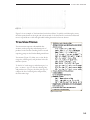
Tree-View Menus
Tree-view menus represent a hierarchical data
structure, such as categories and subcategories of
products on the Product Tracking form or nested
reporting groups on the Product Background form.
Tree menus (Figure 3.5) allow you to view all the
categories, subcategories, and products in the distribution system.
To the left of each category and subcategory is a
plus or minus sign. To view the subcategories
and products in a category, click the plus sign. To
collapse the list of subcategories and products,
click the minus sign.
Figure 3.5 Tree menu.
3-
S upply C hain M anager U ser ’ s M anual
3-
4 . S ystem M aintenance
9.
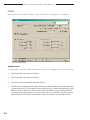
Click the Service Statistics checkbox to enable the collection of service statistics.
The New Users Only checkbox under the Service Statistics checkbox lets you collect data on new
users only. Collecting data on expected new users for each product you track enables you to augment
current consumption to meet rising demand for products such as antiretroviral drugs.
10. Click the New Users Only checkbox to enable the collection of statistics on new users only.
The Purposes of Use checkbox lets you collect data on one or more purposes of use for each product dispensed. For example, HIV test kits may be used for multiple purposes—voluntary counseling
and testing, prevention of mother-to-child transmission, or clinical diagnosis. When this feature is
activated, Supply Chain Manager records quantities of each product dispensed by purpose of use in
addition to the total quantities dispensed as reported by the facility.
11. Click the Purposes of Use checkbox to enable the collection of data on quantities of products
dispensed by purpose of use.
The Quantities on Order checkbox lets you record quantities of each product on order. These quantities are then subtracted from the calculation of the quantities required of each product to bring a
facility up to the maximum stock level.
12. Click the Quantities on Order checkbox to enable the collection of data on quantities of products
on order.
The Quantities on Hand checkbox lets you determine whether the shipment date field will be presented on the Product Tracking form.
13. Click the Quantities on Hand checkbox to display the shipment date field on the Product
Tracking form.
The Use Category Min/Max checkbox gives you the ability to set minimum and maximum stock
levels for each category associated with an individual facility.
14. Click the Use Category Min/Max checkbox to set minimum and maximum stock levels for
your facilities.
The Adjust Quantity Required to min Shipment (AMC <1) checkbox lets you determine whether products
with traditionally small AMCs (>0 and <1) be rounded up to one instead of rounded down to zero.
15. Click the Adjust Quantity Required to min Shipment (AMC <1) to allow products with traditionally
small AMCs (>0 and <1) to be rounded up to one.
The Multi-Tier Role field lets you determine roles in a multiple-tier system on the basis of the following options:
n
None: Not a multiple-tier system
n
Master DB: The central level of the multiple-tier system
4-
S upply C hain M anager U ser ’ s M anual
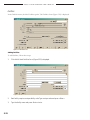
Adding Categories
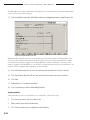
To add categories, click Add. A blank Categories form (Figure 5.5) is displayed. Then follow these directions:
1.
Type the category name, and press <Enter>.
Figure 5.5 Blank Categories form.
2.
Click the arrow next to the Parent Group field, select a parent category from the list, and click
the left mouse button.
3.
If no other categories exist, leave the parent category field blank.
4.
Click Save.
5.
Repeat steps 1–4 to add more categories.
6.
Click Close when you have finished adding categories.
After you add a category, you must use the Products form to associate products with the category.
(See Adding Products for more information.)
Viewing Categories
There are two methods for viewing categories. To use method 1, follow these steps:
1.
Click the arrow next to the Find field.
2.
Select a category from the pull-down menu.
3.
Click the left mouse button to display the selected category.
To use method 2, do the following:
1.
5-
Click Next to display the next category.
S upply C hain M anager U ser ’ s M anual
Products
In the Products menu, click the Products option. The Products form (Figure 5.7) is displayed.
Figure 5.7 Products form.
Adding Products
To add products, click Add. A blank Products form (Figure 5.8) is displayed. Then, do the following:
5-
1.
Type the product code, and press <Enter>.
2.
Type the product name, and press <Enter>.
3.
Type the unit dose (if applicable), and press <Enter>.
4.
Products that are marked as stock level indicators are used to measure the overall stock status
of a particular facility. The Distribution Resource Planning (DRP) module calculates facility need
based on the stock status of products that are stock level indicators. If you manage a distribution system with many products, you may choose to select only a handful of products as stocklevel indicators. Click the Stock Level Indicator field if the product is a stock level indicator.
5 . B ackground Data
Figure 5.8 Blank Products form.
The Active flag indicates that the product is currently distributed. By default, Supply Chain Manager
marks all new products as active.
The Units required per day field records the number of units of the product (tablets, bottles, and so
on) that must be used by a patient each day. If the number of units required per day is less than one,
enter a decimal fraction (for example, 0.25) in this field. Supply Chain Manager uses the number of
units required per day to calculate the number of products required for new patients. See Product
Tracking on for more information.
5.
Type the number of units of the product that must be used by a patient each day and press <Enter>.
Some products are not kept in full supply because they are ordered by facilities only sporadically.
The Non Full Supply field is used to indicate that a product is not kept in full supply. For products for
which the Non Full Supply box is checked, Supply Chain Manager does not calculate or display order
quantities required to bring the products up to the established maximum stock level.
6.
Click the Non Full Supply field if the product is not kept in full supply.
5-
5 . B ackground Data
Figure 5.9 Categories tab in Products form.
Viewing Products
There are two methods of viewing products. To use method 1, follow these steps:
1.
Click the arrow next to the Find field.
2.
Select a product from the pull-down menu.
3.
Click the left mouse button to display the product.
To use method 2, follow these steps:
1.
Click Next to display the next product.
2.
Click Previous to display the previously displayed product.
3.
Click Close when you finish viewing products.
Editing Products
To edit products, follow these steps:
1.
Select the product you wish to change.
2.
Click Edit.
3.
Click the field you wish to change, and type your changes.
5-
S upply C hain M anager U ser ’ s M anual
4.
If the product is no longer active, click the Active field to remove the checkmark.
5.
Click Save.
6.
Click Close when you have finished editing products.
Deleting Products
To delete products, take the following steps:
1.
Select the product you wish to delete and click
Delete. A confirmation message (Figure 5.10)
is displayed, asking you to confirm the deletion.
2.
Click Yes to delete the record.
3.
Repeat steps 1 and 2 to delete additional
products.
4.
Click Close when you have finished deleting products.
Figure 5.10 Delete confirmation message.
Printing the Selected Product
Click Print to create a report for the selected product.
Category and Product Order
The Category/Product Order form lets you set the order in which categories and products will appear
on the Product Tracking form and in reports. You can set the order in which categories and products
are displayed in Supply Chain Manager according to the format of paper-based forms or reports in
the distribution system. As the distribution system expands to include additional health programs,
you can add each health program’s categories to Supply Chain Manager and order the products in
each category.
Viewing Category and Product Order
The list of categories, subcategories, and products in
Supply Chain Manager is displayed in a tree menu on
the Category/Product Order form (Figure 5.11).
You can expand or contract each category in the list
by clicking on the plus or minus sign to the left of the
category. When you expand a category, all subcategories
and products are displayed. When you contract a
category, the subcategories and products are hidden
from view.
Figure 5.11 Category/Product Order form.
5-10
5 . B ackground Data
Setting the Order of Categories
You can move categories within the entire list of categories. When you move a category, you also
move the subcategories and products associated with that category. Categories and products are then
displayed in the same order in the Product Tracking form.
In the Products menu, select Category/Product Order. The Category/Product Order form is displayed as shown in Figure 5.11.
1.
Click a category you want to move.
2.
Click Move Up or Move Down to move the category up or down one position.
3.
Click Move First or Move Last to move the category to the first or last position.
4.
Click Close when you have finished setting the order of categories.
Setting the Order of Products
You can also move individual products within each category.
1.
Click a product you want to move.
2.
Click Move Up or Move Down to move the product up or down one position within the category.
3.
Click Move First or Move Last to move the product to the first or last position within the category.
4.
Click Close when you have finished setting the order of products.
Distribution Levels
The Distribution Levels form (Figure 5.12) lets you define the distribution levels in the system. The table 5.1
lists sample distribution levels.
Table 5.1 Sample Distribution Levels
Distribution Level
Definition
Central
Top of the distribution hierarchy. This facility supplies
other facilities.
District
Middle of the distribution hierarchy. This facility receives
supplies from the central facility and distributes to lesser facilities.
SDP
Bottom of distribution hierarchy. This facility receives supplies
from the district facility and distributes to end users.
5-11
S upply C hain M anager U ser ’ s M anual
3.
Click Yes to delete the selected record.
4.
Repeat steps 1–3 to delete additional distribution levels.
5.
Click Close when you have finished deleting distribution levels.
Printing the Selected Distribution Level
Click Print to create a report for the selected distribution level.
Facilities Menu
In the main menu, click the Facilities option.
Facility Types
The Facility Types form lets you classify the facilities in the distribution system. Distinguishing facility
types facilitates forecasting, which enables you to plan and allocate resources to prevent stockouts.
Figure 5.15 Facility Types form.
Click the Facility Types option. The Facility Types form (Figure 4.15) is displayed.
5-14
5 . B ackground Data
Removing Products from Facility Types
Products can be removed from a facility type as follows:
1.
In the Issued Products area, click the product you want to remove from the facility type.
2.
Click the left arrow to move the selected products to the Available Products area.
Viewing Facility Types
Two methods are used to view the facility types. To use method 1, follow these steps:
1.
Click the arrow next to the Find field.
2.
Select a type from the pull-down menu.
3.
Click the left mouse button to display the selected facility type.
To use method 2, follow these steps:
1.
Click Next to display the next facility type.
2.
Click Previous to display the previously displayed facility type.
3.
Click the Products tab to view products that are associated with the selected facility type.
4.
Click Close when you have finished viewing facility types.
Editing Facility Types
To edit the facility types, follow these steps:
1.
Select the facility type you wish to edit.
2.
Click Edit.
3.
Click the field you wish to change, and type your changes.
4.
Click the Products tab to add or remove a product.
5.
Click the product you wish to add to or remove from the facility type.
6.
Click the right arrow or left arrow to add the product to or remove the product from the facility type.
7.
Repeat steps 1–6 to edit additional facility types.
8.
Click Save.
9.
Click Close when you have finished editing facility types.
5-17
S upply C hain M anager U ser ’ s M anual
Deleting Facility Types
Delete facility types as follows:
1.
Select the facility type you wish to delete. Note that if the selected facility type has associated
facilities, you must first delete or reassociate the facilities.
2.
Click Delete. A confirmation message
(Figure 5-18) is displayed, asking you to
confirm the deletion.
3.
Click Yes to delete the selected record.
4.
Repeat steps 1–3 to delete additional
facility types.
5.
Click Close when you have finished deleting facility types.
Figure 5.18 Delete confirmation message.
Printing the Selected Facility Type
To print a report for the selected facility type, follow these steps:
5-18
1.
Click Print.
2.
After the report is created and the first page is displayed, click the Print icon to print the report.
3.
Click Close in the print menu to return to the Facility Types form.
4.
Click Close when you have finished printing facility types.
5 . B ackground Data
Facility Type Groups
Use the Type Groups form to group facility types. This feature allows you to group two or more facility
types in order to view aggregated data on the stock status and performance of those facilities. For
example, to fulfill the information needs of program managers, you may create facility type groups
according to the types of services each facility type offers. Examples include facilities that offer ART
services or facilities that offer NORPLANT®. Grouping several facility types in this way helps identify
facilities that provide special services and the specific products associated with those services.
Click the Facility Type Groups option. The Type Groups form (Figure 5.19) is displayed.
Figure 5.19 Type Groups form.
Adding Facility Type Groups
You can add facility type groups as follows:
1.
Click Add. A blank Type Groups form (Figure 5.20) is displayed.
2.
Type the facility type group name.
3.
Click Save.
4.
After you save the group name,
click Edit to add facility types.
5.
Select one or more facility types
in the Available Types window,
and click Add.
6.
Click Save.
Figure 5.20 Blank Type Groups form.
5-19
S upply C hain M anager U ser ’ s M anual
7.
Repeat steps 1–6 to add more facility type groups.
8.
Click Close when you have finished adding facility type groups.
Viewing Facility Type Groups
Two methods are used to view facility type groups. To use method 1, follow these steps:
1.
Click the arrow next to the Find field.
2.
Select a group from the pull-down menu.
3.
Click the left mouse button to display the selected group.
To use method 2, follow these steps:
1.
Click Next to display the next group.
2.
Click Previous to display the previously displayed group.
3.
Click Close when you have finished viewing facility type groups.
Editing Facility Type Group Names
To change a facility type group name, follow these steps:
1.
Select the facility type group you wish to change.
2.
Click Edit.
3.
To change the facility type group name, type the group name in the Group Name field.
Editing Facility Types within a Group
These steps must be followed when you edit facility types within a group:
5-20
1.
To remove a facility type from the group, click the facility type in the Selected Types window and
click the left arrow.
2.
To add a facility type to the group, click the facility type in the Available Types window and click
the right arrow.
3.
Click Save.
4.
Repeat steps 1–3 to add facility types to or remove facility types from a group.
5.
Click Close when you have finished editing facility type groups.
S upply C hain M anager U ser ’ s M anual
Facilities
In the Facilities menu, click the Facilities option. The Facilities form (Figure 5.22) is displayed.
Figure 5.22 Facilities form.
Adding Facilities
To add facilities, follow these steps:
1.
Click Add. A blank Facilities form (Figure 5.23) is displayed.
Figure 5.23 Blank Facilities form.
5-22
2.
Each facility requires a unique facility code. Type a unique code and press <Enter>.
3.
Type the facility name and press <Enter> twice.
S upply C hain M anager U ser ’ s M anual
The Max/Min Levels tab (if enabled) lets each facility in your system define a maximum and minimum
stock level for each product category.
13. Click the Max/Min Levels tab.The Max/Min Levels form is displayed as shown in sample Figure 5.24.
Figure 5.24 Sample Max/Min Levels tab.
Minimum and maximum months of stock describe the stock level a facility should maintain. These
values show the maximum allowable stock level a facility can have and the minimum level a facility
can reach before needing resupply. For example, SDPs may require a maximum of three months’
worth of supplies and a minimum of one month’s. A central warehouse may need a maximum of six
months’ worth of supplies and a minimum of three months’.
14. Click the Maximum Months of Stock field, and type the maximum stock level in months.
15. Click the Minimum Months of Stock field, and type the minimum stock level in months.
16. Click Save.
17. Repeat steps 1–16 to add more facilities.
18. Click Close when you have finished adding facilities.
Viewing Facilities
Three methods are used to view facilities. To use method 1, follow these steps:
5-24
1.
Click the arrow next to the Find Facility field.
2.
Select a facility from the pull-down menu.
3.
Click the left mouse button to display the selected facility.
5 . B ackground Data
To use method 2, follow these steps:
1.
Click Next to display the next facility.
2.
Click Previous to display the previously displayed facility.
To use method 3, follow these steps:
1.
Click Filter. The Facility Filter form (Figure 5.25) is displayed. This form displays search criteria
you can use to find a particular facility.
Figure 5.25 Facility Filter form.
2.
Click the arrow next to the filter to search by, select an option from the pull-down menu, and
click the left mouse button.
3.
Click the State/Region or City fields or both, and type of the name of the state, region, or city
to search by.
4.
Click Set Filter. Facilities matching the search criteria are displayed in alphabetical order by
facility name.
5.
To clear the filter results and display all facilities, click Clear Filter. The first facility in the list of
all facilities is displayed.
6.
Click Close when you have finished viewing facilities.
Editing Facilities
To edit facilities, follow these steps:
1.
Select the facility you wish to edit.
2.
Click Edit.
3.
Click the field you wish to change, and type your changes.
4.
If the facility is no longer active, click the Active checkbox to remove the checkmark.
5-25
5 . B ackground Data
Purpose of Use
The Purpose of Use feature lets you indicate for what purpose a product (or group of products)
will be used. This feature becomes available when the Purpose of Use field is checked during system
maintenance. See System Maintenance for more information.
In the Background Data
menu, click the Purpose of
Use option. The Purpose
of Use form (Figure 5.27)
is displayed
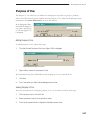
Figure 5.27 Purpose of Use form.
Adding Purpose of Use
To add the purpose of use, follow these steps:
1.
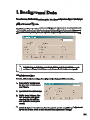
Click Add. A blank Purpose of Use form (Figure 5.28) is displayed.
Figure 5.28 Blank Purpose of Use form.
2.
Type a code or name for the purpose of use.
The checkmark in the Active field indicates that the purpose of use is currently in use.
3.
Click Save.
4.
Click Close when you have finished adding purpose of use.
Viewing Purpose of Use
There are two methods for viewing the purpose of use. To use method 1, follow these steps:
1.
Click the arrow next to the Find field.
2.
Select a purpose of use from the pull-down menu.
3.
Click the left mouse button to display the selected purpose of use.
5-27
S upply C hain M anager U ser ’ s M anual
To use method 2, follow these steps:
1.
Click Next to display the next purpose of use.
2.
Click Previous to display the previously displayed purpose of use.
Editing Purpose of Use
To edit the purpose of use, follow these steps:
1.
Select the purpose of use you wish to edit.
2.
Click Edit. The Purpose of Use field will be selected for editing.
3.
Type any desired changes in the Purpose of Use field.
4.
If the purpose of use is no longer active, click the Active checkbox to remove the checkmark.
5.
Click Save.
6.
Repeat steps 1–5 to edit additional purposes of use.
7.
Click Close when you have finished editing facilities.
Deleting Purposes of Use
To delete purposes of use follow these steps:
1.
Select the purpose of use you wish to delete.
2.
Click Delete.
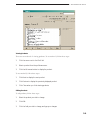
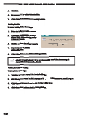
Figure 5.29 Delete purpose of use alert message.
3.
5-28
If product-tracking records are associated with the selected purpose of use, a message (Figure 5.29)
is displayed, asking you to mark the purpose of use inactive. Click Yes to mark the selected purpose
of use inactive.
5 . B ackground Data
4.
If no product-tracking records are associated
with the selected purpose of use, a confirmation message (Figure 5.30) is displayed, asking
you to confirm the deletion. Click Yes to
delete the selected purpose of use.
5.
Repeat steps 1–4 to delete additional purposes of use.
6.
Click Close when you have finished deleting purposes of use.
Figure 5.30 Delete confirmation message.
Reporting Groups
The reporting groups feature helps you classify facilities as part of one of more groups for reporting
purposes.
From the Background Data menu, click the Reporting Groups option. The Reporting Groups form
is displayed similar to the sample in Figure 5.31.
Figure 5.31 Sample Reporting Groups form.
This form lets you create reporting groups and assign facilities to each group. The following options
may be applied to each group:
n
Accept Facilities in this group. This option lets you determine whether the group allows users
to assign facilities to the group.
n
Allow Rollups. This option lets you determine whether users are allowed to roll up reporting
data according to the group. This feature, however, is currently unavailable.
n
Includes child members. This option lets you determine whether the group will consider members
of child groups as its members. (This option allows grouping of groups.) You should select this
option if you have chosen not to allow rollups (that is, if the Allow Rollups field is not selected).
5-29
5 . B ackground Data
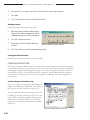
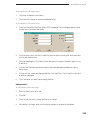
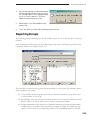
Figure 5.33 Sample message box.
A message box similar to the one in sample Figure 5.33 may appear.
7.
Click Yes to save the selected facilities to the group you created. The selected facilities are
moved to the Facilities Included box.
8.
Click the Save button to complete the process.
You can select multiple facilities at one time using either of two methods:
To use method 1, follow these steps:
9.
Hold down the <Ctrl> key, and click each facility you want to include.
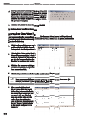
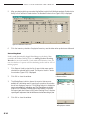
10. Click the move button.
To use method 2, follow these steps:
11. Click the first facility you want to include.
12. Scroll down to the last facility you want to include.
13. Hold down the <Shift> key, and click the last facility you want to include.
This method will select all facilities from the first one selected to the last.
Editing Reporting Groups
To edit reporting groups, follow these steps:
1.
Select the reporting group you need to edit and click the Edit button. The Group Name field
will be selected for editing.
2.
Click in the fields you need to edit and make the required changes.
You can remove one or more facilities from a group by either of two methods. To use method 1,
follow these steps:
1.
Hold down the <Ctrl> key and click each facility you want to exclude.
2.
Click the move button.
5-31
S upply C hain M anager U ser ’ s M anual
To use method 2, follow these steps:
1.
Click the first facility you want to include.
2.
Scroll down to the last facility you want to include.
3.
Hold down the <Shift> key, and click the last facility you want to exclude.
4.
Click the move button.
5.
Click the Save button to complete the process.
Deleting a Reporting Group
To delete a reporting group, follow these steps.
5-32
1.
Select the reporting group you want to delete.
2.
Click the Delete button. A confirmation
message similar to the sample in Figure 5.34
is displayed.
3.
Click the Yes button to delete the selected
report group.
4.
Repeat steps 1–3 to delete additional reporting groups.
5.
Click the Close button when you finish deleting reporting groups.
Figure 5.34 Deletion confirmation message.
S upply C hain M anager U ser ’ s M anual
3.
To disassociate facilities from a data center selected for deletion, click the Edit button and
search for all facilities associated with the data center selected for deletion.
4.
Click every checked facility to remove the checkmark (4) to disassociate the facility.
5.
Click the Save button to save your changes.
6.
Now, with the data center chosen for deletion still highlighted, click the Delete button. A confirmation
message is displayed, asking if you are sure that you want to delete the selected data center.
7.
Click the Yes button to delete the selected data center. The selected data center is deleted from
the Data Centers Management form.
Exporting Data Center Information
Data from the data center can be exported to update the background data of the remote data
centers. The data compiled for export consists of background table changes that can be sent to a
managing data center. To create an export file, follow these steps:
1.
Select the data center for which you
want to create an export file.
2.
Click the Export File button. The
system will create the export file
and display a message box similar
to Figure 6.6.
Figure 6.6 Export file completion message.
Importing Data Center Information
This feature is used to create (or re-create) a data center in a master database file from a wizard file (.wiz)
as created from a lower-level data center. Data from subordinate data centers can be pulled into a managing
data center for incorporation into a master database. This operation accomplishes three tasks:
n
It allows the import of multi-tier data files.
n
It performs a validation check on files selected for import.
n
It ensures that selected files are of a valid type for the current data center.
To import a data file, follow these steps:
1.
Click the Import button.The Import
Datacenter File form is displayed
(Figure 6.7).
The File field identifies the file to be
imported. This field has an associated
Get File button that helps you locate
the file you need to import.
6-
Figure 6.7 Import Datacenter File form.
S upply C hain M anager U ser ’ s M anual
10. When you finish importing the wizard files you need, click the Close button on the Import
Datacenter File form to return to the Data Center Management form.
11. Click the Close button on the Data Center Management form to return to the Multi-Tier Reporting Tools menu.
6-10
7 . P roduct T racking
7. Product Tracking
In the main menu, click the Product Tracking option. The Product Tracking Form (Figure 7.1) is displayed.
Figure 7.1 Product Tracking form.
Adding Product-Tracking Records
Before you can add product-tracking records, you must select the facility to which all other facilities
ultimately report. This facility is usually the central storage facility. In some distribution systems it
may be a district-level warehouse or an SDP.
To add product-tracking records, follow these steps:
1.
Click the arrow next to the Facility field, select a facility from the pull-down menu, and click the
left mouse button.
2.
Click the left or right arrow to the right of the Period field
the reporting period listed on the facility’s submitted report.
and select
When you select a reporting period for the first time, a confirmation message (Figure 7.2) will be
displayed, asking you to authorize the new period for data entry. This message will be displayed only
for the first facility for which you are entering data for this period.
Figure 7.2 Initialize Period confirmation message.
7-
7 . P roduct T racking
17. If there are reported adjustments, indicate the adjustment type.
18. Click the arrow to the right of the Adjustment Type pull-down box, select the adjustment type,
click the left mouse button, and press <Enter>.
19. Type the closing balance, and press <Enter>. If you have enabled data collection on quantities on
order, the Quantity on Order field will be enabled.
20. Type the quantity on order, and press <Enter>.
The AMC, Qty Required, and Qty Requested fields apply to facilities that act as SDPs.
21. Type the quantity required and press <Enter>.
22. Type the quantity requested and press <Enter>.
If you have enabled data collection on service statistics, the New Users and Continuing Users fields
will be enabled, but the Continuing Users field will not be displayed.
23. Repeat steps 3–22 to add product-tracking records for additional products listed on the report
submitted by the facility.
The Comments section (Figure 7.4) lets you record comments about data submitted on the report. Some
comments are automatically added by Supply Chain Manager to note computer-generated adjustments.
Figure 7.4 Comments section of Product Tracking form.
24. Click the Comment field and type any comments.
25. Repeat steps 1–24 to add product-tracking records for other facilities or reporting periods.
If antiretroviral therapy (ART) or tuberculosis (TB) has been selected on the
System Configuration form during system maintenance (see System Maintenance
for more information) the ART Patients or TB Treatments button will be displayed
as shown in sample Figure 7.5. The button that is displayed depends on which
option (ART or TB) was selected. If neither ART nor TB is selected, no button
is displayed.
26. With the ART Patients button displayed on the Product Tracking Form,
click the ART Patients button.
Figure 7.5
Sample ART Patients and
TB Treatments buttons.
The ART Usage form is displayed as shown in sample Figure 7.6.
27. Click the Total Adult Patients Currently on ART field, and type
the number of adult patients on ART.
Figure 7.6 ART Usage form.
7-
S upply C hain M anager U ser ’ s M anual
28. Click the Total Children Currently on ART field, and type the number of children on ART.
29. Click the Total of All Patients Currently on ART field, and type the total number of patients on ART.
30. Click the Close button to close the ART Usage form and save your entries.
31. With the TB Treatments button displayed
on the Product Tracking form, click the TB
Treatments button.The TB Treatments form is
displayed (Figure 7.7).
32. Click the New Cases field, and type the number
of new cases being dealt with.
Figure 7.7 TB Treatments form.
33. Click the Retreatment Cases field, and type
the number of retreatment cases being administered.
34. Click the Pediatric Cases field, and type the number of children being treated for TB.
35. Click the Transfers In field, and type the number of transfer patients.
36. Click the Close button to close the TB Treatments form and save your entries.
37. Click Close when you have finished adding product-tracking records.
Viewing Product-Tracking Records
The Product Tracking Form helps you find facilities with associated tracking records by looking up
the facility’s code or name. By default, facilities are listed by code. To find a facility by code, follow
these directions:
1.
Click the arrow next to the Facility (Code) field.
2.
Select the facility you want from the pull-down menu.
3.
Click the left mouse button.
To find a facility by name, follow these directions:
1.
Click Facility (Code). As shown in sample
Figure 7.8, the Facility (Code) tag becomes
Facility (name), and a pull-down menu lists
facilities listed by name.
2.
Select the facility you want from the pulldown menu, and click the left mouse button.
Figure 7.8 Facility (Code) changed to Facility (name).
7-
S upply C hain M anager U ser ’ s M anual
3.
In the Export Periods area, click the arrow to the right of the From pull-down
box, click a starting period, and click
the left mouse button.
4.
Click the arrow to the right of the To
pull-down box, click an ending period,
and click the left mouse button.
5.
In the Products window, click one or
more boxes to the left of the categories
and products in order to include them
in the export file.
6.
In the Export area, click XML or Text
file format.
7.
Click the ellipsis
to the right of
the File field.The Save export File as form
(Figure 7.17) appears.
8.
Enter a file name in the File name text box.
9.
To change the location of the export
file, click the Save as type pull-down box
and select another directory.
10. Click Save. The Export Consumption
Data form will again be visible.
Figure 7.16 Export Consumption Data form
Figure 7.17 Save export File as form.
11. Click Export.
If the data are successfully exported, a confirmation message similar to Figure 7.18 will appear.
If you did not specify a directory in the Save export File as form, the file will be saved to the default
Supply Chain Manager directory.
Figure 7.18 Export complete message.
7-
7 . P roduct T racking
The export file will contain the following data about each product within the export period specified:
n
Product code
n
Aggregated consumption at service delivery points (quantities dispensed to users)
n
Aggregated adjustments at all distribution levels.
7-
S upply C hain M anager U ser ’ s M anual
7-10
8 . D istribution R esource P lanning
8. Distribution Resource Planning
In the main menu, click the DRP option.
The DRP option will be visible only if the DRP module is checked in the System Configuration
form. (See System Configuration for more information.)
Facility Stock Counts
The DRP Stock Count form lets you record stock levels at each facility. Reported stock levels are
used to estimate current stock balances.
Click the Facility Stock Count option. The DRP Stock Count form (Figure 8.1) is displayed.
Figure 8.1 DRP Stock Count form.
Adding Stock Counts
To add stock counts, follow these steps:
1.
Click the arrow next to the Find Facility field,
select a facility from the pull-down menu, and
click the left mouse button.
2.
Click the On Date field and type the date that
the stock level was collected.
3.
Figure 8.2 Confirmation message.
Click Add New button. A confirmation message (Figure 8.2) is displayed, asking you to confirm
the new record.
8-
S upply C hain M anager U ser ’ s M anual
4.
Click Yes to add a stock count record. A DRP stock count record (Figure 8.3) is created for the
facility, listing products distributed by the selected facility.
5.
Click the arrow next to the Completed By field, select from the pull-down menu the name of
the person who reported the stock count, and click the left mouse button.
Figure 8.3 Blank DRP Stock Count form.
6.
Click the Note field and type a note for the stock count record if applicable.
7.
For each product reported, click the Stock level field and type the reported stock level.
You can enter notes on any product by
clicking the note icon to the right of
the Stock level field.
8.
Click the Note icon to the right
of the Stock level field to open
the Note window for the selected product. The Note window
(Figure 8.4) is displayed.
9.
Type a note and click OK or
close the Note window to return to the DRP Stock Count form.
Figure 8.4 Note window.
10. Click Cancel to close the Note window without adding notes.
8-
8 . D istribution R esource P lanning
Adding Products to Facility Stock Counts
Products can be added to facility stock counts as follows:
1.
Click the Add Product(s) button. The Product Filter window (Figure 8.5) is displayed, listing all
products in Supply Chain Manager.
2.
Click one or more products to add.
3.
Click OK to close the Product
Filter window.
4.
Click Cancel to close the window
without adding products.
The selected products appears on the
stock count form.
Figure 8.5 Product Filter window.
Deleting Products from Facility Stock Counts
Products can be deleted from the stock count of the selected facility as follows:
1.
Click Delete Product(s). The Product Filter window (Figure 8.5) is displayed, listing all products
distributed by the facility’s type.
2.
Click one or more products you wish to delete.
3.
Click OK to delete the selected products.
4.
Click Close to return to the DRP Stock Count record.
Viewing Facility Stock Counts
There are three methods of viewing facility stock counts. To use method 1, follow these steps:
1.
Click the arrow next to the Find Facility field.
2.
Select a facility from the pull-down menu.
3.
Click the left mouse button to display the current stock count record for that facility.
To use method 2, follow these steps:
1.
Click the arrow next to the on Date field.
2.
Select a date from the pull-down menu.
3.
Click the left mouse button to display the stock count record for the selected facility.
8-
8 . D istribution R esource P lanning
Delivery Personnel
In the DRP menu, click the Personnel option.
The Personnel form (Figure 8.8) is displayed.
Adding Delivery Personnel
To add delivery personnel, follow these steps:
1.
Click Add. A blank Personnel form
(Figure 8.9) is displayed.
2.
Type the delivery person’s last name and
press <Enter>.
3.
Type the delivery person’s first name.
4.
Click Save.
5.
Repeat steps 2–4 to add more
delivery personnel.
6.
Click Close when you have finished
adding personnel.
Figure 8.8 Personnel form.
Figure 8.9 Blank Personnel form.
Viewing Delivery Personnel
Two methods are used to view delivery personnel. To use method 1, follow these steps:
1.
Click the arrow next to the Find field, select a delivery person from the pull-down menu, and
click the left mouse button to display the delivery person’s first and last name.
2.
Click Close when you have finished viewing delivery personnel.
To use method 2, follow these steps:
1.
Click Next to display the next delivery person.
2.
Click Previous to display a previously displayed delivery person.
3.
Click Close when you have finished viewing delivery personnel.
8-
S upply C hain M anager U ser ’ s M anual
Editing Delivery Personnel
To edit delivery personnel, follow these steps:
1.
Select the delivery person whose name you wish to edit.
2.
Click Edit.
3.
Click the Name field you wish to edit, and type your changes.
4.
Click Save.
5.
Repeat steps 1–4 to edit additional delivery personnel.
6.
Click Close when you have finished editing delivery personnel.
Deleting Delivery Personnel
To delete delivery personnel, follow these steps:
1.
Select the delivery person you wish to delete.
2.
Click Delete. A confirmation message
(Figure 8.10) is displayed, asking you to
confirm the deletion.
Figure 8.10 Delete confirmation message.
3.
Click Yes to delete the selected delivery person.
4.
Repeat steps 1–3 to delete additional delivery personnel.
5.
Click Close when you have finished deleting personnel.
Printing the Selected Delivery Person
To print a record, follow these steps:
8-
1.
Select the delivery person whose record you wish to print.
2.
Click Print to create a report for the selected person.
3.
Click Close when you have finished printing delivery personnel records.
8 . D istribution R esource P lanning
Delivery Vehicles
In the DRP menu, click the Vehicles option. The Delivery Vehicles form (Figure 8.11) is displayed.
Figure 8.11 Delivery Vehicles form.
Adding Delivery Vehicles
To add delivery vehicles, follow these steps:
1.
Click Add. A blank Delivery Vehicles form (Figure 8.12) is displayed.
Figure 8.12 Blank Delivery Vehicles form.
2.
The Truck field lets you enter a brief description of the delivery vehicle (example: Half-ton pickup).
Type a brief description of the delivery vehicle and press <Enter>.
8-
S upply C hain M anager U ser ’ s M anual
3.
Type the vehicle’s manufacturer (example: Toyota) and press <Enter>.
4.
Type the vehicle’s model (example: Hilux) and press <Enter>.
5.
Type the four-digit year the vehicle was made.
6.
Click the Max. Load field, type the maximum load the vehicle can carry, and press <Enter>.
The following fields apply to the size of the vehicle’s cargo area and not to the size of the vehicle itself.
7.
Type the cargo area’s height and press <Enter>.
8.
Type the cargo area’s length and press <Enter>.
9.
Type the cargo area’s width and press <Enter>.
The system calculates the cargo area’s volume and displays the calculated value in the Volume field.
10. Click Save.
11. Repeat steps 1–10 to add more delivery vehicles.
12. Click Close when you have finished adding delivery vehicles.
Viewing Delivery Vehicles
Two methods are used to view delivery vehicles. To use method 1, follow these steps:
1.
Click the arrow next to the Find field, select a vehicle from the pull-down menu, and click the
left mouse button.
2.
Click the Deliveries tab to view delivery routes the vehicle has completed or is scheduled to make.
3.
Click Close when you have finished viewing delivery vehicles.
To use method 2, follow these steps:
8-
1.
Click Next to display the next vehicle.
2.
Click Previous to display the previously displayed vehicle.
3.
Click the Deliveries tab to view delivery routes the vehicle has completed or is scheduled to make.
4.
Click Close when you have finished viewing delivery vehicles.
8 . D istribution R esource P lanning
Editing Delivery Vehicles
To edit delivery vehicles, follow these steps:
1.
Select the delivery vehicle you wish to edit.
2.
Click Edit.
3.
Click the field you wish to change and type your changes.
4.
Click Save.
5.
Click Close when you have finished editing delivery vehicles.
Deleting Delivery Vehicles
To delete delivery vehicles, follow these steps:
1.
Select the delivery vehicle you wish to delete.
2.
Click Delete. A confirmation message (Figure 8.13)
is displayed, asking you to confirm the deletion.
3.
Click Yes to delete the record.
Figure 8.13 Delete confirmation message.
4.
Repeat steps 1–3 to delete additional delivery vehicles.
5.
Click Close when you have finished deleting delivery vehicles.
Printing the Selected Delivery Vehicle
Click Print to create a report for the selected vehicle.
Delivery Routes
1.
In the DRP menu, click the Delivery
Routes option. The Routes form
(Figure 8.14) is displayed.
Figure 8.14 Routes form.
8-
S upply C hain M anager U ser ’ s M anual
Adding Delivery Routes
To add delivery routes, do the following:
1.
Click Add. A blank Routes form
(Figure 8.15) is displayed.
2.
Type a unique code and press
<Enter>.
3.
Type a description for the route.
4.
In the Available area, click the facility
or facilities you wish to assign to Figure 8.15 Blank Routes form.
the route. Select multiple facilities
by pressing the <Ctrl> or <Shift> key
while clicking on each facility.
5.
After selecting all facilities to be
assigned to the route, click the right
arrow to move the facilities to the
Selected window. A Route Stops
form (Figure 8.16) is displayed for
each facility you selected.
6.
For each facility, click the Distance
from previous Stop field, and enter
the distance to this stop from the
previous one.
Figure 8.16 Route Stops form.
7.
Click the Hours from previous Stop field, and enter the amount of time (in hours) it takes to
drive from this stop to the previous one.
8.
Click the Distance from Supplier field, and type the distance from the facility to its supplier.
9.
Click the Hours from Supplier field, and type the amount of time (in hours) it takes to drive
from the facility to its supplier.
10. Click OK to return to the delivery route record.
11. Repeat steps 1–7 to assign additional facilities to the route.
12. Click Save.
13. Click Close when you have finished adding delivery routes.
8-10
8 . D istribution R esource P lanning
You can change the position of facilities in the Selected window of the Stops tab as follows:
1.
Select the facility you wish to move.
2.
Click the up arrow or down arrow to change the facility’s position in the route.
3.
Click Save.
Viewing Delivery Routes
There are two methods for viewing delivery routes. To use method 1, follow these steps:
1.
Click the arrow next to the Find field, select a route from the pull-down menu, and click the left
mouse button.
2.
Click the Deliveries tab to view scheduled and completed deliveries for the selected delivery route.
3.
Click Close when you have finished viewing delivery routes.
To use method 2, follow these steps:
1.
Click Next to display the next route.
2.
Click Previous to display a previously displayed route.
3.
Click the Deliveries tab to view scheduled and completed deliveries for the selected delivery route.
4.
Click Close when you have finished viewing delivery routes.
Editing Delivery Routes
Edit delivery routes as follows:
1.
Select the route you wish to edit.
2.
Click Edit.
3.
Click the field you wish to change and type your changes.
4.
To add a facility to the route, do the following: In the Available window, click the facility you wish
to add to the route. Click the right arrow to move the facility to the Selected window.
5.
To remove a facility from the route, do the following: In the Selected window, click the facility you
wish to remove from the route. Click the left arrow to move the facility to the Available window.
8-11
S upply C hain M anager U ser ’ s M anual
To change the position of facilities in the Selected window of the Stops tab, follow these steps:
1.
In the Selected window, click the facility whose position you wish to change. Click the up arrow
or down arrow to change its position.
2.
Click Save.
3.
Click Close when you have finished editing delivery routes.
Deleting Delivery Routes
To delete delivery routes, follow these steps:
1.
Select the delivery route you wish to delete.
2.
Click Delete. A confirmation message
(Figure 8.17) is displayed, asking you to
confirm the deletion.
Figure 8.17 Delete confirmation message.
3.
Click Yes to delete the selected record.
4.
Repeat steps 1–3 to delete additional delivery routes.
5.
Click Close when you have finished deleting delivery routes.
Printing the Selected Delivery Route
To print the selected delivery route, follow these steps:
1.
Select the delivery route you wish to print.
2.
Click Print to create a report for the selected delivery route. After the report is created, its
first page is displayed.
3.
Click Print to print the report.
4.
Click Close on the Print Menu to return to the Delivery Routes form.
5.
Click Close when you have finished printing delivery routes.
Delivery Planning
The Delivery Planning option lets you assign drivers and vehicles to delivery routes. This option also
lets you schedule deliveries and then assign vehicles and personnel to them.
8-12
8 . D istribution R esource P lanning
In the DRP menu, click the Delivery Planning option. The Delivery Planning form (Figure 8.18) is
displayed.
Figure 8.18 Delivery Planning form.
Adding Deliveries
To add deliveries, follow these steps:
1.
Click the arrow next to the Go to field, select New Delivery from the pull-down menu, and
click the left mouse button.
Figure 8.19 Facilities in Need list.
Facilities within the distribution network are displayed in the Facilities in Need window (Figure 8.19).
These facilities are listed by need. You can change the sort order as follows:
2.
Click the Name option in the Sort by field to sort by name.
3.
Click the Route option in the Sort by field to sort by route.
4.
Before you plan a delivery, you must select a vehicle for the delivery. Click the arrow next to
the Vehicle field, select a vehicle from the pull-down menu, and click the left mouse button.
8-13
S upply C hain M anager U ser ’ s M anual
5.
After you select a vehicle, you can select the facilities to which it will distribute products. Double-click a
facility in the Facilities in Need window. The Needed Products form (Figure 8.20) is displayed.
Figure 8.20 Needed Products form.
6.
Click the Inventory checkbox if a physical inventory must be taken when products are delivered.
Determining Need
Need is usually determined by Supply Chain Manager on the basis of data
recorded in the Product Tracking Form (see Adding Product-Tracking
Records for more information). From within the Deliveries form, you
can view the lists of reports used for calculating need as well as a list of
missing reports.
1.
Click Reports Used to view the list of reports that were used to
calculate the selected facility’s need. The Reports Used in Calculation window (Figure 8.21) is displayed.
2.
Click OK to close the window.
3.
The Missing Reports button shows the reports that were not
available for calculating need. If reporting is complete, this window
should not display any reports. Click Missing Reports to display the
reports not available for calculating need.The Missing Reports window
(Figure 8.22) is displayed. If missing reports are listed, try to acquire
the reports and record them in the Product Tracking Form. Complete
reporting will help ensure that the facilities are stocked according to plan.
4.
Click OK to close the window.
Figure 8.21 Reports Used in
Calculation window.
Figure 8.22
Missing Reports window.
8-14
8 . D istribution R esource P lanning
Changing Desired Quantities
You can change quantities of products to be delivered by changing the values in the Desired column:
1.
Double-click the quantity you wish to change and type your
changes.
2.
Repeat step 1 to edit the desired quantities for additional products.
3.
Click OK when you are finished changing desired quantities.
The facility is moved to the Selected window (Figure 8.23) and
the percentage of the vehicle’s occupied cargo space is displayed
in the Load field.
Figure 8.23 Selected facilities window.
Auto-Filling
The auto-fill feature lets you plan a delivery route based on established delivery routes by selecting
one facility and letting the DRP Module select the rest. The module selects all facilities on the same
route as the facility you just selected.
This method may overload the selected vehicle. If that happens, click the arrow next to the Vehicle field,
select a larger vehicle (if one is available) from the pull-down menu, and click the left mouse button.
Confirming Deliveries
After you add a delivery, you can confirm it as follows:
1.
Click Confirm. A confirmation window (Figure 8.24) is
displayed, asking you to confirm the delivery.
2.
Click Yes to confirm the delivery. The Shipping Reports
form (Figure 8.25) is displayed.
3.
Click the checkbox to the left of each shipping report you
wish to print.
4.
Click Preview to preview the
reports before printing.
5.
Click Print to print the reports
without previewing.
Figure 8.24 Confirm delivery window.
Figure 8.25 Shipping Reports form.
8-15
S upply C hain M anager U ser ’ s M anual
Viewing Deliveries
There are three methods for viewing deliveries. To use method 1, follow these steps:
1.
Click the arrow to the right of the Go to field, select a route from the pull-down menu, and
click the left mouse button.
2.
Repeat step 1 to view additional deliveries.
3.
Click Close when you have finished viewing deliveries.
To use method 2, follow these steps:
1.
Click the arrow next to the Find field, select a route from the pull-down menu, and click the left
mouse button to display the selected route.
2.
Click Close when you have finished viewing deliveries.
To use method 3, follow these steps:
1.
Click Next to display the next record.
2.
Click Previous to display the previously displayed record.
3.
Click Close when you finish viewing deliveries.
Printing the Selected Delivery
To print the selected delivery, follow these steps:
1.
Select the delivery you wish to print.
2.
Click Print. The Shipping Reports form (Figure 8.25) is displayed.
3.
Click the reports you wish to preview or print.
Previewing Shipment Reports
Use the Preview button to preview each report before you print it:
1.
Click Preview. A preview window for each selected shipping report is displayed. The windows
are layered and may appear as one window.
2.
Click Minimize
to reduce the size of each window. Each preview window is reduced and
placed near the bottom of the screen (Figure 8.26).
Figure 8.26 Minimized shipping reports.
8-16
S upply C hain M anager U ser ’ s M anual
2.
Click the name of the person you wish to assign to the selected delivery.
3.
Click Add to move the person to the Selected window.
4.
Click Save.
Setting Delivery Dates
Follow these steps when setting delivery dates:
1.
Select the delivery you wish to schedule.
2.
Click Edit.
3.
Type the start date in the Est. Date field.
4.
Click Save.
Completing Deliveries
After a delivery has been completed, follow these steps:
1.
Select the delivery that was completed.
2.
Click Edit.
3.
Click the Completed checkbox.
4.
Click Save.
Deleting Deliveries
You can delete deliveries as follows:
8-18
1.
Select the delivery you wish to delete.
2.
Click Delete. A confirmation message (Figure 8.29)
is displayed, asking you to confirm the deletion.
3.
Click Yes to delete the selected record.
4.
Repeat steps 1–3 to delete additional deliveries.
5.
Click Close when you have finished deleting deliveries.
Figure 8.29 Delete confirmation message.
S upply C hain M anager U ser ’ s M anual
The User-defined date range window (Figure 9.2) is displayed so you can enter the starting and
ending periods.
5.
In the From area, click the arrow next to
the month field, select a month from the
pull-down menu, and click the left mouse
button.
6.
Click the arrow next to the year field, select
a year from the pull-down menu, and click
the left mouse button.
7.
In the To area, click the arrow next to the
month field, select a month from the pulldown menu, and click the left mouse button.
Figure 9.2 User-defined date range form.
8.
Click the arrow next to the year field, select a year from the pull-down menu, and click the left
mouse button.
9.
Click OK to return to the Report Manager.
When the Report Manager form is displayed, create the report as follows:
1.
Click the arrow next to the Year field, select a year from the pull-down menu, and click the left
mouse button.
2.
Click the arrow next to the Category field (if active), select a category from the pull-down
menu, and click the left mouse button.
3.
Click the arrow next to the Product field (if active), select a product from the pull-down menu,
and click the left mouse button.
4.
Click the arrow next to the Facility Type field (if active), select a facility type from the pull-down
menu, and click the left mouse button.
5.
Click the arrow next to the [Supplying] Facility field (if active), select a facility from the pulldown menu, and click the left mouse button.
The Reporting Group field lets you compile report data based on a reporting group that you define.
9-
1.
Click the arrow next to the Reporting Group field (if active), select a reporting group from the
pull-down menu, and click the left mouse buttton.
2.
Click the Preview button to view the report.
9 . R eports
Product-Tracking Reports
The following reports are grouped by the tabs on which they appear. Each report allows for the addition of comments, if needed.
Administrative Reports
Administrative reports consist of the facility listing, mailing labels, and nonreporting facilities reports.
Facility Listing
This report displays a list of all the facilities in Supply Chain Manager.
The Facility Listing can be generated with the following parameters:
n
Facility Type. A selected facility type or a facility type group incorporating several facility types
n
Reporting Group. A selected reporting group based on the reporting groups that you defined.
Mailing Labels
This report generates mailing labels displaying the contact person and address for each facility in the
distribution system. Logistics managers may use these labels when sending reports or correspondence to facilities in the distribution system.
Mailing labels can be generated with the following parameters:
n
Facility Type. A selected facility type or a facility type group incorporating several facility types
n
Reporting Group. A selected reporting group based on the reporting groups you defined.
Nonreporting Facilities
This report lists facilities whose reports have not been received or recorded in Supply Chain Manager for the selected reporting period. Logistics managers may use this report to determine reporting
compliance and to monitor the status of report processing.
Nonreporting Facilities can be generated with the following parameters:
n
Period. Month, quarter, first half, second half, or year
n
Facility Type. A selected facility type or a facility type group incorporating several facility types
n
Reporting Group. A selected reporting group based on the reporting groups you defined.
Graphic Reports
Several types of graphic reports can be created.
9-
9 . R eports
ART Scale-Up Line Graph
This line graph shows antiretroviral therapy (ART) over the specified date range. Three datasets are
displayed: Adult Treatments, Child Treatments, and Total (Adult + Child) Treatments.
The ART Scale-Up Line Graph can be generated with the following parameters:
n
Period. Month, quarter, first half, second half, or year
n
Facility Type. Selected facility
n
Facility. Selected supplier and all the facilities it supplies
n
Reporting Group. A selected reporting group based on the reporting groups that you defined.
ART Scale-Up Total
This bar graph shows the total ART treatments over the specified date range.
The ART Scale-Up Total graph can be generated with the following parameters:
n
Period. Month, quarter, first half, second half, or year
n
Facility Type. Selected facility
n
Facility. Selected supplier and all the facilities it supplies
n
Reporting Group. A selected reporting group based on the reporting groups you defined.
ART Scale-Up Adults and Children
This bar graph shows the adult and child treatments over the specified date range.
The ART Scale-Up Total graph can be generated with the following parameters:
n
Period. Month, quarter, first half, second half, or year
n
Facility Type. Selected facility
n
Facility. Selected supplier and all the facilities it supplies
n
Reporting Group. A selected reporting group based on the reporting groups you defined.
Logistics Reports
The logistics reports are described below.
Adjustments Summary
This report displays adjustment quantities by product and by adjustment type.
The Adjustments Summary report may be generated with the following parameters:
n
Period. Month, quarter, first half, second half, or year
9-
S upply C hain M anager U ser ’ s M anual
n
Product. Selected product
n
Facility Type. Selected facility
n
Supplying Facility. Selected supplier and all the facilities it supplies
n
Reporting Group. A selected reporting group based on the reporting groups you defined.
Aggregate Stock Movement by Level
This report displays the aggregated opening balance, receipts, dispensed, adjustments, and closing
balance for each product at each distribution level. It calculates the months of stock and the percentage of total available stock that are held at each distribution level. Logistics managers may use this
report to monitor the percentage of stock held at different distribution levels in the supply chain.
The Aggregate Stock Movement by Level report can be generated with the following parameters:
n
Period. Month, quarter, first half, second half, or year
n
Product. Selected product.
Couple-Years of Protection
This report displays total couple-years of protection for each facility, grouped by facility type. It calculates
couple-years of protection by dividing total consumption by the CYP factor for each product.
The Couple-Years of Protection report can be generated with the following parameters:
n
Period. Month, quarter, first half, second half, or year
n
Category. Selected category
n
Product. Selected product
n
Facility Type. Selected facility
n
Supplying Facility. Selected supplier and all the facilities it supplies
n
Reporting Group. A selected reporting group based on the reporting groups you defined.
Data Entry Errors
This report lists data that may contain data entry errors. It highlights each error by displaying it in bold italics.
The Data Entry Errors report can be generated with the following parameters:
n
Period. Months only
n
Period. A single month, quarter, first half, second half, or year
n
Reporting Group. A selected reporting group based on the reporting groups you defined.
Dispensed to Users
This report shows quantities dispensed to users by facility type. It aggregates quantities dispensed by
service delivery points (SDPs) and calculates the percentage dispensed by each facility type.
9-
9 . R eports
The Dispensed to Users report can be generated with the following parameters:
n
Period. Month, quarter, first half, second half, or year
n
Product. Selected product
n
Facility Type. Selected facility
n
Supplying Facility. Selected supplier and all the facilities it supplies
n
Reporting Group. A selected reporting group based on the reporting groups you defined.
Dispensed to Users by Purpose of Use
This report shows quantities dispensed to users by purpose of use. It sums quantities dispensed by
purpose of use for all products and facilities.
The Dispensed to Users by Purpose of Use report can be generated with the following parameters:
n
Period. Month, quarter, first half, second half, or year
n
Category. Selected category
n
Product. Selected product
n
Facility. Selected supplier and all the facilities it supplies.
Distribution Discrepancies
This report identifies potential discrepancies in reporting by facilities. When the reported issues from
a supplying facility do not match the sum of reported receipts by the facilities it supplies, the report
flags those records for investigation.
The Distribution Discrepancies report can be generated with the following parameters:
n
Period. Month, quarter, first half, second half, or year
n
Category. Selected category
n
Product. Selected product
n
Facility Type. Selected facility
n
Facility. Selected supplier and all the facilities it supplies.
Facility Dispensed by Purpose of Use
This report lists quantities dispensed by purpose of use and total dispensed by each facility. The
report can be used to identify discrepancies between aggregated quantities dispensed by purpose of
use and total dispensed.
The Facility Dispensed by Purpose of Use report can be generated with the following parameters:
n
Period. Month, quarter, first half, second half, or year
n
Category. Selected category
n
Product. Selected product
n
Facility. Selected supplier and all the facilities it supplies.
9-
S upply C hain M anager U ser ’ s M anual
Stock Imbalances
This report lists facilities that have stock imbalances—out of stock, overstocked, or understocked—
according to their reported stock on hand and calculated average monthly consumption. The facilities are grouped according to their supplying facility.
This report can be generated with single reporting periods only.
The Stock Imbalances report can be generated with the following parameters:
n
Period. Month, quarter, first half, second half, or year
n
Category. Selected category
n
Product. Selected product
n
Facility Type. Selected facility
n
Facility. Selected supplier and all the facilities it supplies
n
Reporting Group. A selected reporting group based on the reporting groups you defined.
Supply Status by Facility
This report displays the supply status of each facility and calculates quantities of products needed to
bring a particular facility up to the established maximum level. It contains most of the data submitted by facilities on paper-based reports and a calculation of average monthly consumption.
The Supply Status by Facility report serves two major functions:
n
Verifying the integrity of manually entered data
n
Evaluating the stock status of a particular facility.
Logistics managers can assess the accuracy of data entry by comparing this report to the original
paper-based reports submitted by facilities. If the error rate is higher than 2 percent (more than 2 errors
per 100 entries), logistics managers should take action to improve data accuracy.
The Supply Status by Facility report can be generated with the following parameters:
n
Period. Month, quarter, first half, second half, or year
n
Category. Selected category
n
Product. Selected product
n
Facility Type. Selected facility
n
Facility. Selected supplier and all the facilities it supplies
n
Reporting Group. A selected reporting group based on the reporting groups you defined.
Supply Status by Product
This report displays the supply status of each product at all facilities. Facilities are grouped by their
supplying facility.
9-
9 . R eports
The Supply Status by Product report can be generated with the following parameters:
n
Period. Month, quarter, first half, second half, or year
n
Category. Selected category
n
Product. Selected product
n
Supplying Facility. Selected supplier and all the facilities it supplies
n
Reporting Group. A selected reporting group based on the reporting groups you defined.
National TB/Leprosy Program Central Store Order
This report is used to show the total products needed for the data period.
The National TB/Leprosy Program (NTLP) Central Store Order report can be generated with the
following parameters:
n
Period. Month, quarter, first half, second half, or year
n
Category. Selected category
n
Product. Selected product
n
Facility Type. Selected facility
n
Facility. Selected supplier and all the facilities it supplies.
National TB/Leprosy Program District Report and Request for Drugs
This report is used for National TB/Leprosy Program (NTLP) to show the stock status and quantity
required and allows the warehouse to enter the actual quantity issued for use as a receipt.
The National TB/Leprosy Program District Report and Request for Drugs can be generated with
the following parameters:
n
Period. Month, quarter, first half, second half, or year
n
Category. Selected category
n
Product. Selected product
n
Facility Type. Selected facility
n
Facility. Selected supplier and all the facilities it supplies.
Program Service Statistics
This report displays the new and continuing users for the products. The report becomes available
when you select the Service Statistics option of the System Configuration form.
The Program Service Statistics report can be generated with the following parameters:
n
Period. Month, quarter, first half, second half, or year
n
Category. Selected category
n
Product. Selected product
9-
S upply C hain M anager U ser ’ s M anual
n
Facility Type. Selected facility
n
Supplying Facility. Selected supplier and all the facilities it supplies
n
Reporting Group. A selected reporting group based on the reporting groups you defined.
Supply Status by Product, Reporting Group
This report displays the supply status of each product at all facilities for the specified reporting group.
The Supply Status by Product, Reporting Group report can be generated with the following parameters:
n
Period. Month, quarter, first half, second half, or year
n
Category. Selected category
n
Product. Selected product
n
Facility. Selected supplier and all the facilities it supplies
n
Reporting Group. A selected reporting group based on the reporting groups you defined.
Total Number of Patients on ART
This report displays the total patients on ART for each facility. The data show the total over the
specified periods.
The Total Number of Patients on ART report can be generated with the following parameters:
n
Period. Month, quarter, first half, second half, or year
n
Facility Type. Selected facility
n
Facility. Selected supplier and all the facilities it supplies.
Consumption Averages by Product
This report displays the average monthly consumption of the products you procure.
The Consumption Averages by Product report can be generated with the following parameters:
n
Period. Month, quarter, first half, second half, or year
n
Category. Selected category
n
Product. Selected product
n
Facility Type. Selected facility
n
Facility. Selected supplier and all the facilities it supplies
n
Reporting Group. A selected reporting group based on the reporting groups you defined.
Output to Excel
This option (initially designed for Malawi) lets you export the District Aggregated Monthly Worksheet (or the Malawi Picklist) reports to a Microsoft® Excel® spreadsheet. This option will not be
available to all users.
9-10
9 . R eports
The Output to Excel report can be generated with the following parameters:
n
Period. Month, quarter, first half, second half, or year
n
Category. Selected category
n
Product. Selected product
n
Facility Type. Selected facility
n
Supplying Facility. Selected supplier and all the facilities it supplies
n
Reporting Group. A selected reporting group based on the reporting groups you defined.
Monthly LMIS Report—District/Zone Summary
This report, formally called the District Hospital Monthly LMIS (logistics management information
system) report, displays a rollup of data for a selected reporting group.
The Monthly LMIS Report—District/Zone Summary report can be generated with the following parameters:
n
Period. Month, quarter, first half, second half, or year
n
Reporting Group. A selected reporting group based on the reporting groups you defined
Monthly LMIS Report—Facility
This report, formally called the Health Center Monthly LMIS report, allows you to print a monthly
report for one or more facilities.
The Monthly LMIS Report—Facility report can be generated with the following parameters:
n
Period. Month, quarter, first half, second half, or year
n
Facility Type. Selected facility
n
Reporting Group. A selected reporting group based on the reporting groups you defined.
Blank District Hospital Monthly LMIS Report
This report (designed for Malawi) is used to create a worksheet for Malawi users to enter by hand
their product-tracking data for district hospitals. This option will not be available to all users.
The Blank District Hospital Monthly LMIS report does not take parameters; however, you can add
comments, if needed.
Blank Health Center Monthly LMIS Report
This report (designed for Malawi) is used to create a worksheet for Malawi users to enter by hand
their product-tracking data for SDPs. This option will not be available to all users.
The Blank Health Center Monthly LMIS report does not take parameters; however, you can add
comments, if needed.
9-11
S upply C hain M anager U ser ’ s M anual
Requisition for Medical Supplies
This report (designed for Malawi) calculates the required need for products and allows the warehouse to compute updated quantities and product value. This option will not be available to all users.
The Requisition for Medical Supplies report can be generated with the following parameters:
n
Period. Month, quarter, first half, second half, or year
n
Category. Selected category
n
Product. Selected product
n
Supplying Facility. Selected supplier and all the facilities it supplies
n
Reporting Group. A selected reporting group based on the reporting groups you defined.
Summary of Scale-Up of Patients on ART
This report (designed for Uganda) displays the total patients on ART for each facility in each data
period (as specified on the report options screen). The maximum number of reporting periods is 12.
This option will not be available to all users.
The Summary of Scale-Up of Patients on ART report can be generated with the following parameters:
n
Period. Month, quarter, first half, second half, or year
n
Facility Type. Selected facility
n
Facility. Selected supplier and all the facilities it supplies.
Distribution List for Uganda
This report (formerly called the NMS Distribution List) was
designed to produce the distribution list for Uganda’s warehouses.
This option will not be available to all users.
After you select the default parameters on the report options form,
you can enter report-specific options as displayed on the Distribution List Options form (Figure 9.3) as follows:
1.
In the Central Warehouse field, if more than one supplying
warehouse exists, select which central-level warehouse to
run the report for.
2.
Enter the distribution start date. This date will be
displayed on the report as the initial date for
deliveries to occur.
3.
Enter the distribution end date. This date will be
displayed on the report as the last date for deliveries
to occur.
Figure 9.3 Distribution List Options form.
9-12
1616 N. Fort Myer Drive
11th Floor
Arlington, Va 22209
USA tel: 703-528-7474 fax: 703-528-7480
deliver.jsi.com