1
II. Pen tablet configuration
ENGLISH
You may configure the pen tablet by modifying the functions of the pen tip and the two barrel buttons,
] icon, or tap on the
tap [Start] > [Settings] > [Control Panel],
Panel] and double-tap the [Tablet Setting
tablet icon ( ) in the system tray, usually located at the lower right corner of the screen. You may
also adjust the pressure sensitivity of the digital pen by determining the scope of the tablet’ s
working area, or (re-) program the hot-cells of your pen tablet by modifying device driver.
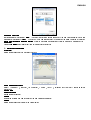
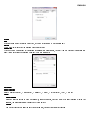
1. The Info Tab : The Info tab displays the version number of the driver and Tablet PC function.
(1) Show Icon in System Tray
You can choose it if you want to show the tablet icon (
(2) Support Tablet PC Feature
) in the system tray.
You can select the Tablet PC function of pressure sensitive by tick the box of Support Tablet PC Feature.
● After the tablet driver is installed in Windows, the Tablet PC function setting will support pressure
in MS Journal, OneNote (2003 - 007), etc.
● If the Tablet PC setting is disabled, most of the art software's pen pressure (Photoshop,
(Photoshop, Illustrator,
Corel Painter) are still working, but the pen pressure will not be available in MS Journal, OneNote
(2003 - 2007), etc.
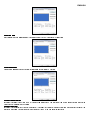
2. The Button Tab
2.1 Button Name
You may re-program the functions of the pen tip and the two-barrel buttons by selecting the button name from the drop
down menu and assign a command of a traditional three-button mouse to it. According to the mouse function, you can
select no action, left click, left double click, middle click, middle double click, right click, or right double click.