1
Quickguide
Software Version 3.9.21 / May 2011
Advanced Operation 3D
Scale Sync, Save/Load User Settings
Scale Sync
Save/Load User Settings
The SYNC sub-menu allows you to create up to 32 offset values for each axis on a pair of lenses or other scales. Individual
lenses, especially zoom lenses, vary in their scale precision and
scale limits. SYNC enables the perfect synchronization of two
lenses for stereoscopic shooting.
Using the camin‘s USB port you can quickly and easily save/
load user settings. This enables to you to have your personal
settings on every cvolution system you use.
NOTE: 2 motors must assigned to the same function before you
begin, e.g. both Motor 1 and Motor 2 are set to Focus.
• Enter the MAIN MENU, scroll to “User Settings“ and press
select.
• Select “save“ and press “next“
• Select one of the slots, e.g. “User1“ and press “Select“
• Wait for “Data successfully written to USB” and press “exit”.
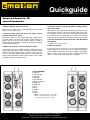
This example shows how to sync Focus on a pair of lenses.
• Select SYNC from the MAIN menu and press “Select”.
• Select FOCUS SCALE and press “Select” again.
• The SYNC FOCUS screen will open and the Master focus
motor position will be displayed here.
• Turn the knob so that the master focus scale is set to its
closest focal distance.
• Turn the MENU WHEEL to independently adjust the Slave
focus motor to the same value
• Press “save” to store the sync point. The number of saved
offset points will be displayed.
• Repeat steps the last three until you have created an offset
for each value.
After saving Sync Points you can check your matches to ensure
sufficient precision.
•
•
•
•
•
In the Sync Scale Menu, press “check”.
Turn the MENU WHEEL to scroll through the saved points.
Both motors will turn to their new synchronized positions.
You can delete an individual offset by pressing “clear“.
Press “back“ to return to the pervious screen.
From the initial page, you can select another scale to synchronize. You can clear each Scale individually by deleting all sync
points on a scale or you can clear all Scales at once.
To save settings:
To load settings:
• Enter the MAIN MENU, scroll to “User Settings“ and press
select.
• Select “load“ and press “next“
• Select one of the slots, e.g. “User1“ and press “Select“
• Wait for “Data successfully loaded
from USB” and press “exit”.
NOTE: You cannot load empty settings.
NOTE: Currently, only camin settings are saved. This includes:
Motor Assignment, Direction, Torque, Ramp and Scale Sync/
Scale Link.
So, if you want to, for example, save Scale Sync for a pair of
lenses proceed as follows:
•
•
•
•
•
Sync your first lens pair as described above.
Save your settings to a user settings slot.
Clear Scale Sync.
Sync your second lens pair.
Save the settings to another slot.
• You can delete all of the offset points by selecting CLEAR
ALL.
• Confirm by pressing “yes”.
NOTE: If you reset the camin to factory defaults, you will also be
asked whether you want to clear all sync points.
cmotion Mechatronikentwicklungs- und HandelsgmbH
Schanzstrasse 41/1 | 1140 Vienna, AUSTRIA
phone +43 1 789 10 96 | www.cmotion.eu | [email protected]