1
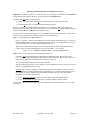
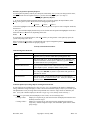
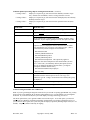
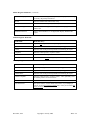
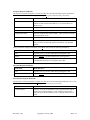
Now, please go to Step 1 to begin. Step 1—Verify you received the correct media for your computer system. Updates are for a specific computer operating system, such as Windows, UNIX or DOS. Check the label on the update you received to verify you received the correct one for your system. If the update media is not correct, do not install the update. Call ABS immediately at (978) 250-9600. Step 2—Read the following warning and assumptions. WARNING: Do not install the update until you read all of the enclosed instructions thoroughly. Failure on your part to do so could result in the permanent loss of payroll data. ABS ASSUMES THAT... You are currently processing payrolls with the ABS Payroll System for Windows. You have made two backup copies of your payroll software, and your payroll data and your 2015 payroll tax file update. You will only install the update if you have the experience and expertise to do so correctly. If not, do not install the update. Call your ABS dealer. Your ABS Payroll System software has not been modified. If it is modified, do not install the update. Contact the ABS dealer who modified your software. Step 3—Make the backups. As an added measure of protection, make two backup copies each of your ABS Payroll software, your payroll data files and the update before you begin the update process. Step 4—Run your last payroll for 2014. Step 5—Load the update. Do not install the 2015 Payroll Tax File Update until you run your company's last payroll for 2014. You must, however, install the update and make any necessary changes in tax authority information before running your first payroll for 2015. Note. If your company has any special State Quarterly Reports, they will be loaded automatically when you install the 2015 Payroll Tax File Update. Follow these instructions to run the Load Tax File Utility. A. From the Payroll Main Menu, select Utilities, then select Load tax file. Important. If you previously used the Load Tax Utility, the system will automatically display the Source Drive and Destination Directory names you last entered. You should be able to simply click Data OK to load the update. If that fails, follow the instructions below. B. At SOURCE DRIVE?, the default is A. If you are loading the diskette from floppy drive A, press ENTER. If you are loading it from another floppy drive or CD, such as B, C, D, E or F, type the letter that identifies that drive. C. At DESTINATION DIRECTORY, the default directory is displayed. If you need to change this directory, clear the displayed directory, type .\ (period and back slash), then click the Search icon. When the files are displayed, find the file named PYTAXES.IF, then double-click on it. The system will locate the correct destination directory and return to the Load Tax File with the directory name highlighted. D. To load the tax update, select Data OK. (The system may display a message line to indicate that it is loading data. When the tax file is loaded, the system clears the screen and returns to the Payroll Main Menu Bar.) December, 2014 Copyright © 2014 by ABS WIN—2